
According to WhatsApp policies, companies cannot start conversations with customers. Only customers can send the first message.
The exception is HSM (Highly Structured Message) templates. Companies can use these templates to send the first message. The edna Pulse service supports HSM templates.
Connect the Edna.io WhatsApp channel in Bitrix24 to send WhatsApp messages to customers.
You can use Edna for:
- Service notifications and promotions
- Collecting customer feedback
- Customer communication through a website widget
Edna.io: registration and rates
Edna Pulse service is a platform for communicating with customers through different channels. To send messages on WhatsApp, sign up for edna Pulse. Connecting, licensing and messaging are paid services.
Register for Edna Pulse. To connect WhatsApp Business API, fill out an application on the website. A manager will contact you and send the registration link to your email.
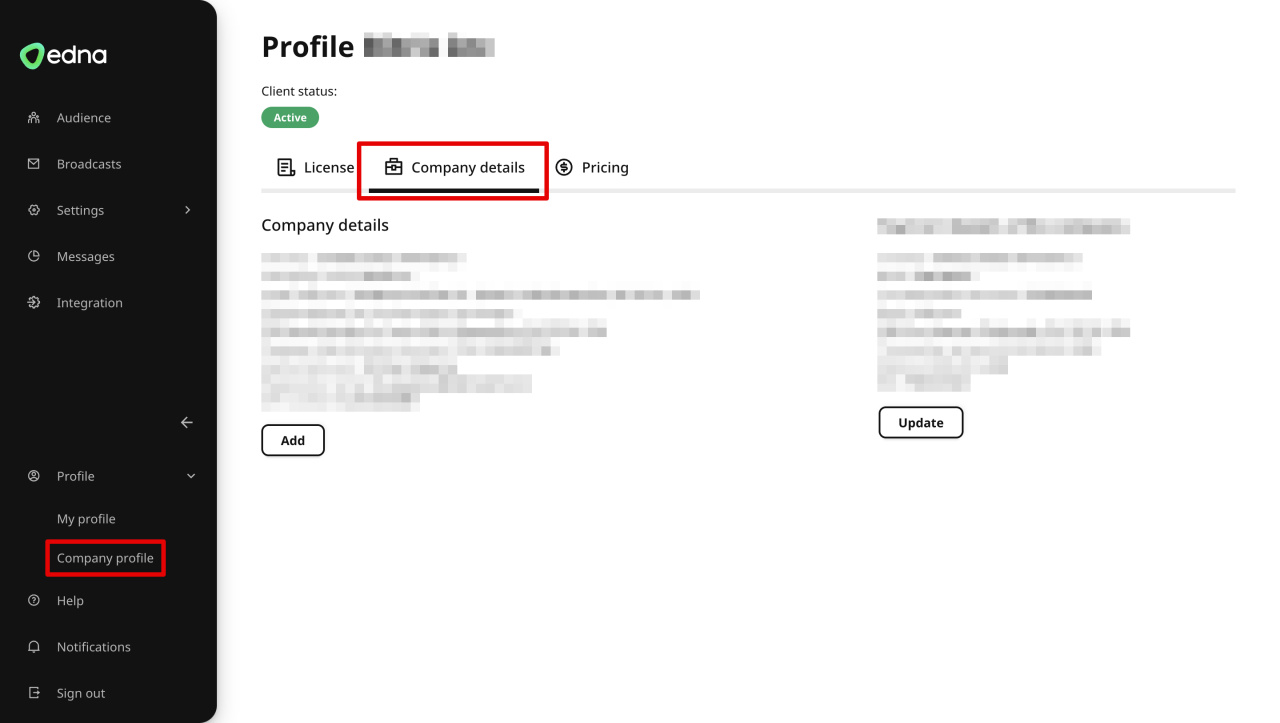
Follow the link from the email and make up a password to authorize your edna Pulse account. To complete your registration, provide your payment details under Profile - Company Profile - Company details.
Getting started in edna Pulse
Sign in to Edna Pulse
Register for Meta Business Manager
To connect WhatsApp, create a Meta Business Manager account and complete your company profile.
You need the Meta Business Manager account ID to connect the channel.
How to create a business account in Meta Business Manager
Pricing
The service includes three types of charges:
- Connection — one-time payment.
- License — monthly payment for active users (MAU). An MAU is a unique customer phone number that sent or received a message during a calendar month.
- Dialogs — charged when a company message is delivered successfully.
A WhatsApp dialog is a 24-hour messaging session that starts when a company message is delivered to a customer.
Only WhatsApp dialogs are charged. Messages in Bitrix24 Open Channel chats are free.
Regular messages inside the same dialog are free for 24 hours. A new customer message or a new HSM message sent after 24 hours starts a new dialog.
Example:
- A customer sends a message at 2:44 PM.
- The company replies with a regular message at 2:44 PM.
- Two minutes later, the company sends an HSM message.
In this case, the company pays for the HSM message.
Connect WhatsApp in edna Pulse
To send WhatsApp messages, create:
- WhatsApp channel
- Message templates
Create a WhatsApp channel
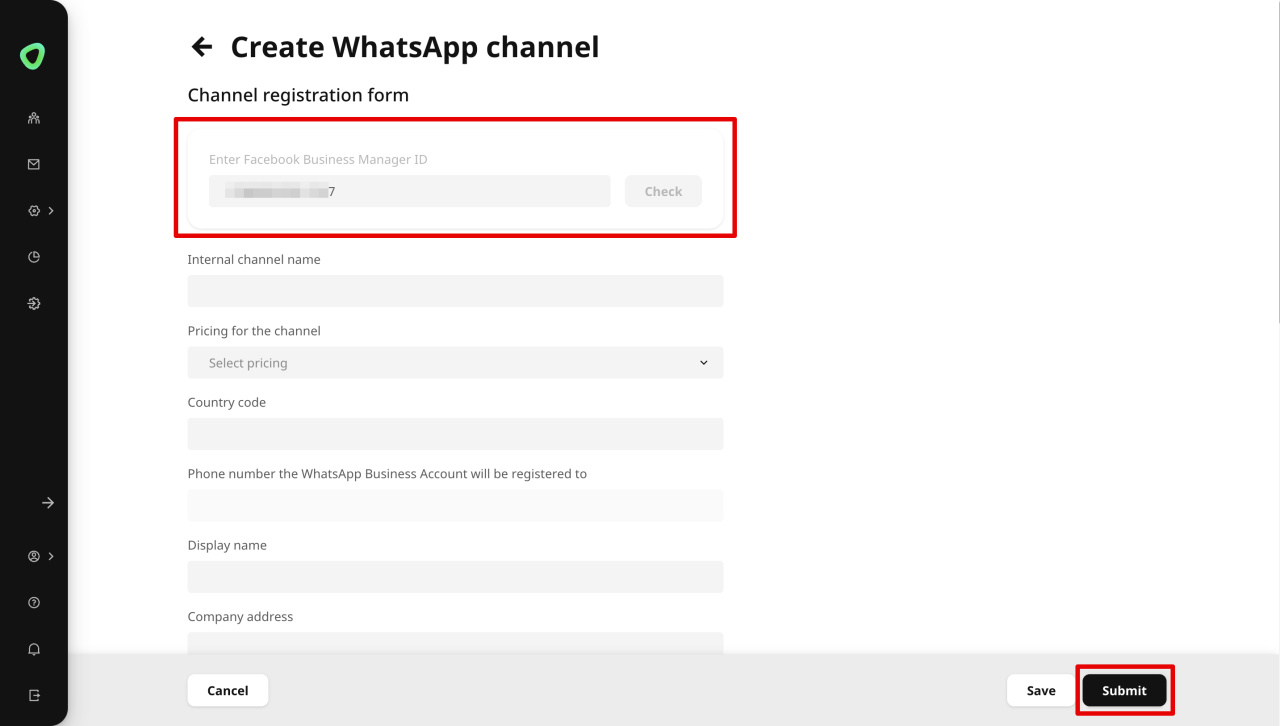
- Go to Settings > Channels > Add channel > WhatsApp.
- Enter your Meta Business Manager company ID.
- Click Verify.
- Complete the form.
- Submit the registration request.
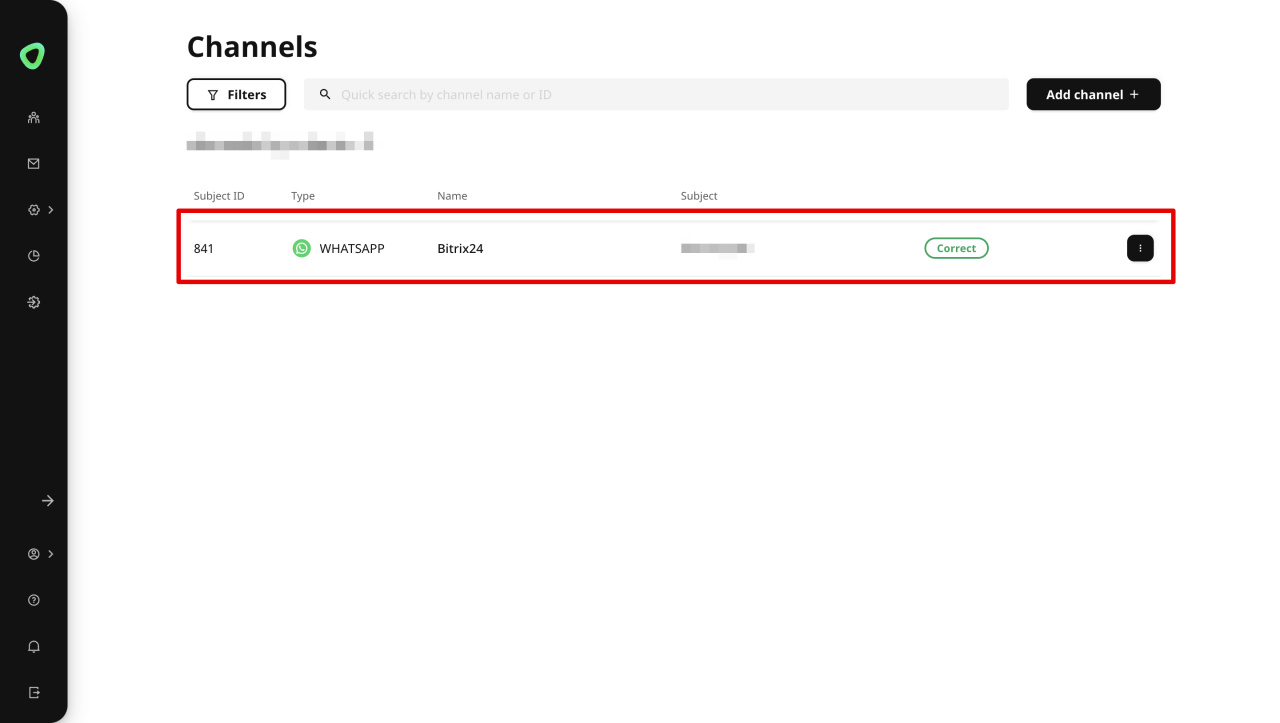
After verification, the channel receives a Subject ID and the status changes to Working properly.
This means the WhatsApp channel is ready to send messages.
How to connect a WhatsApp Business API channel
Add message templates
Add message templates
There are two types of HSM templates:
- Operator templates — used to send messages from Bitrix24.
- Custom templates — used to send messages from the edna Pulse account.
How to create a WhatsApp operator template
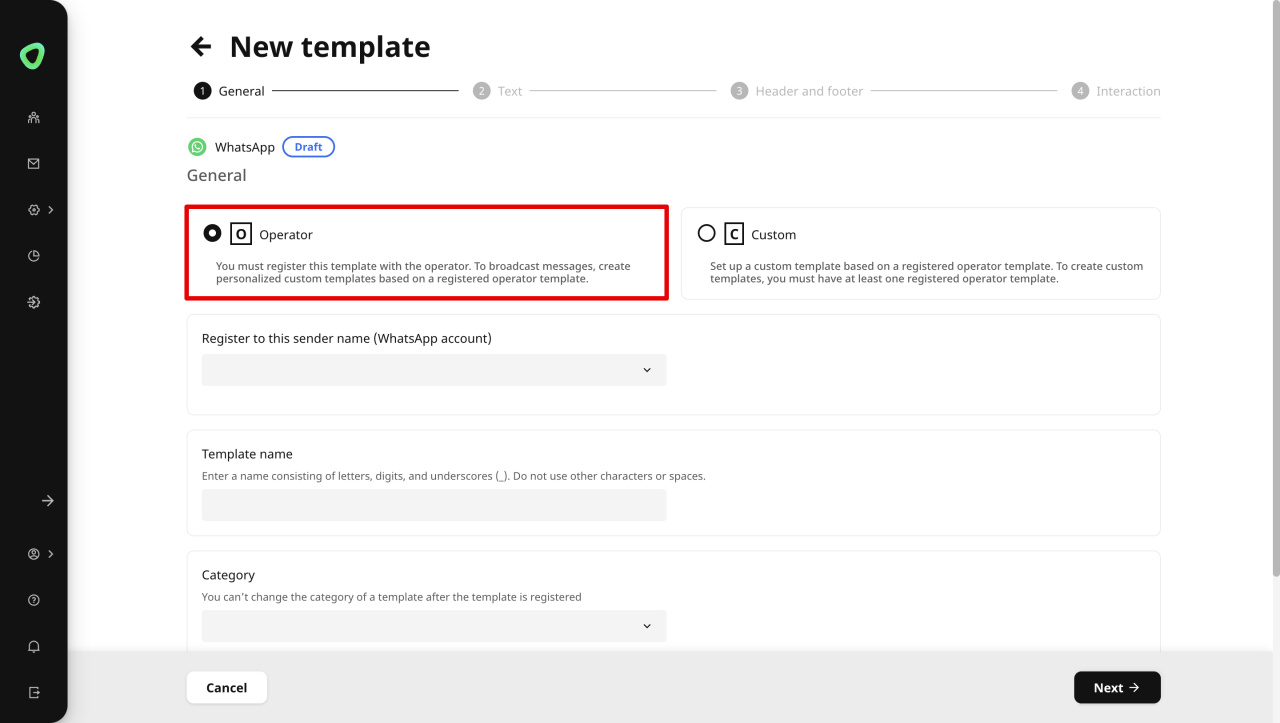
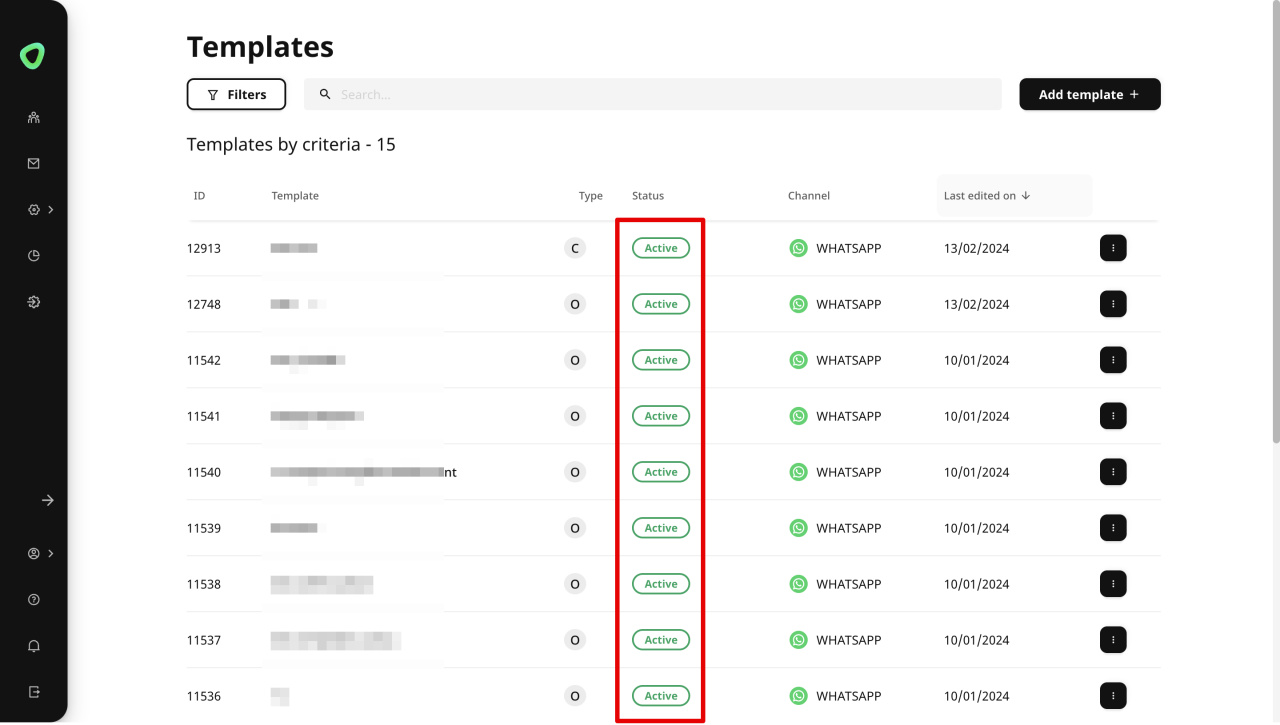
Create an operator template
- Go to Settings > Templates > Add template > WhatsApp.
- Select Operator template.
- Fill in the template details.
- Submit the template for approval.
After approval, the template status changes to Active.
How to create a WhatsApp custom template
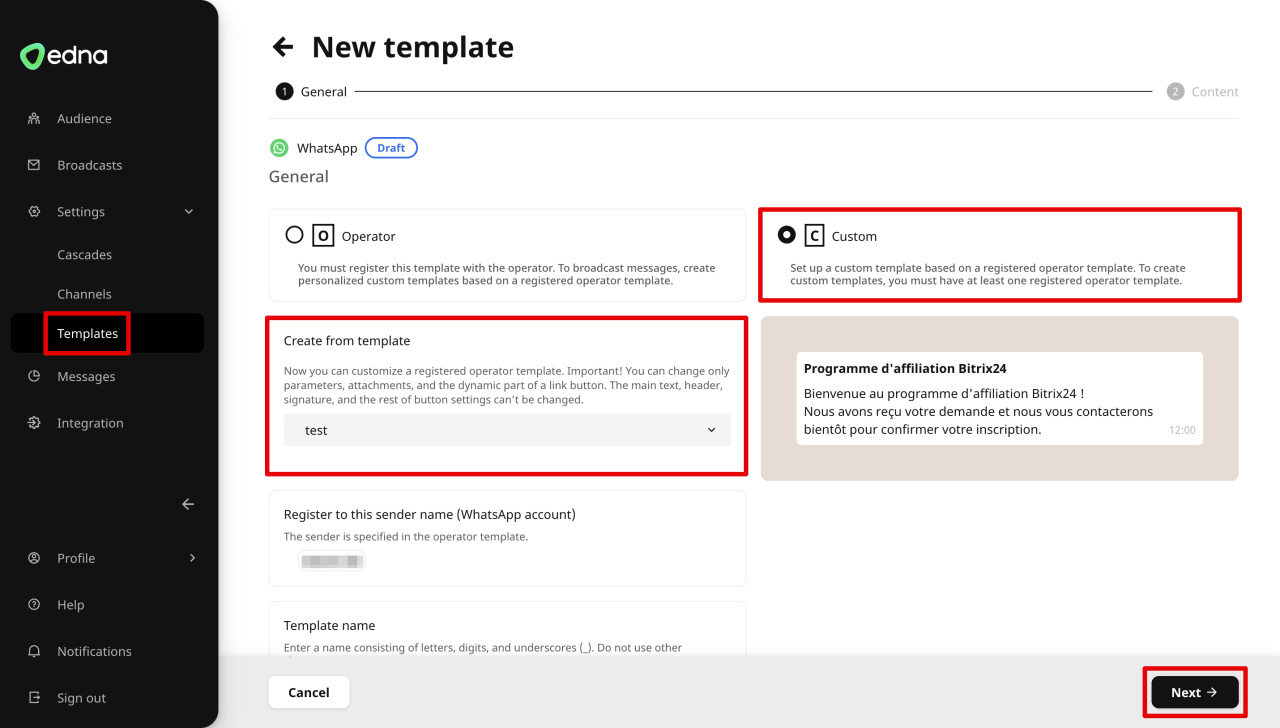
Create a custom template
- Go to Settings > Templates > Add template > WhatsApp.
- Select Custom template.
- Choose an active operator template in the Basis Template field.
- Fill in the template details.
- Save the changes.
You can now use the custom template for messaging.
How to create a WhatsApp custom template
Connect WhatsApp in Bitrix24
You can connect multiple Edna.io WhatsApp channels in Bitrix24.
Each channel must use a separate Open Channel.
Bitrix24 pricing page
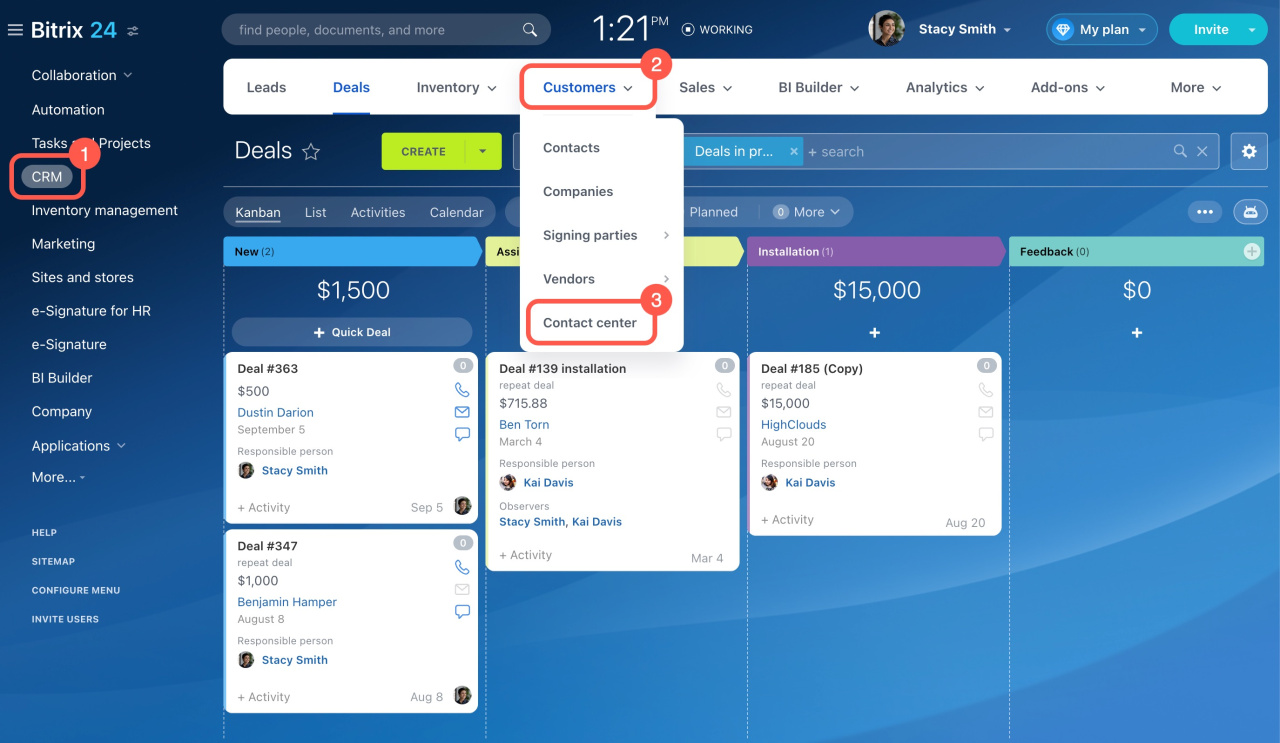
Connect one channel
- Go to CRM.
- Open the Customers tab.
- Select Contact center.
- Click Edna.io WhatsApp.
- Select an Open Channel.
- Click Connect.
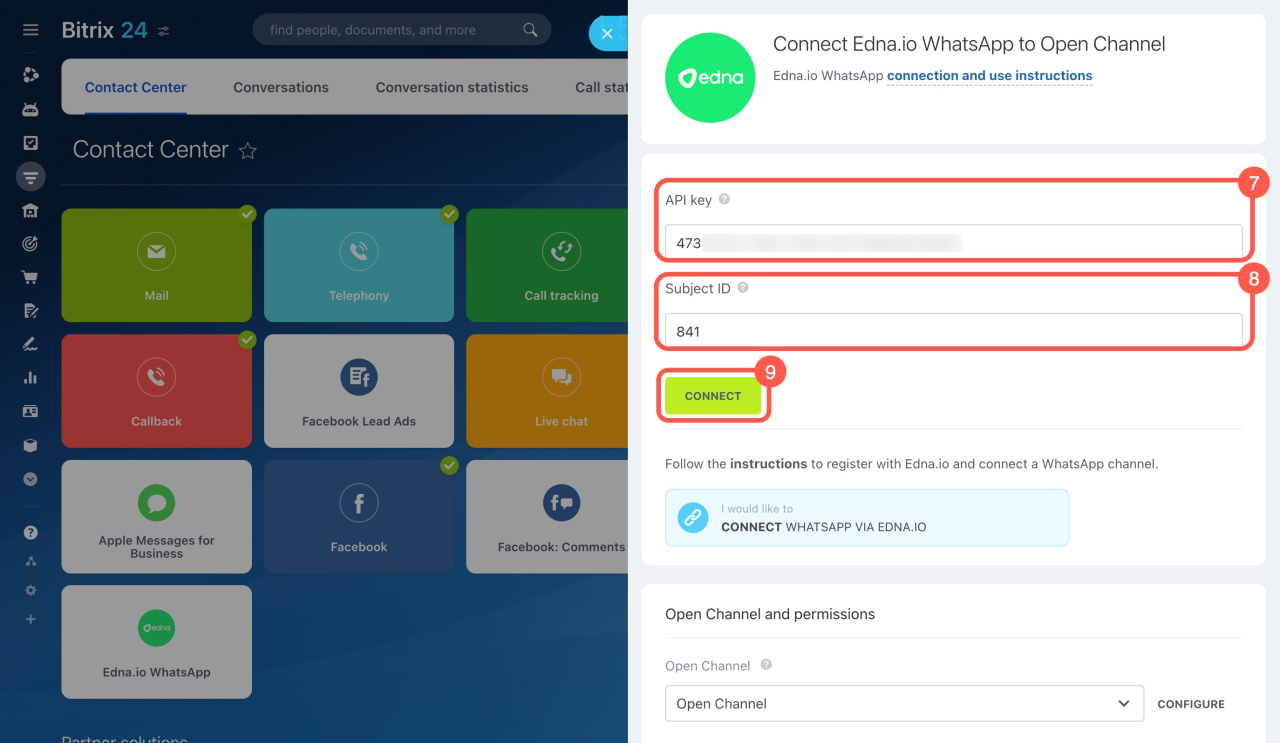
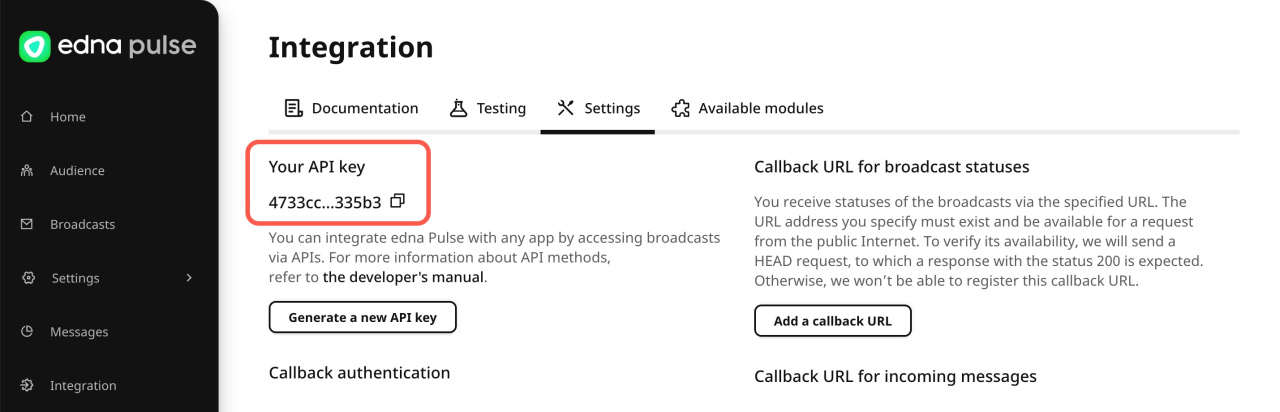
- Enter the API key from your edna Pulse account under Integration > Settings.
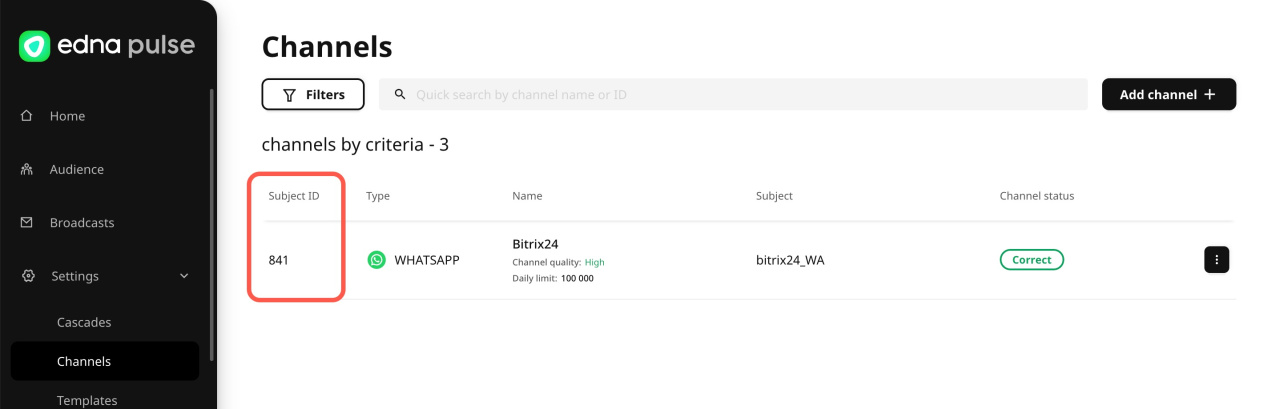
- Enter the Subject ID from your edna Pulse account under Settings > Channels.
Each Open Channel supports only one Subject ID.
- Click Connect.
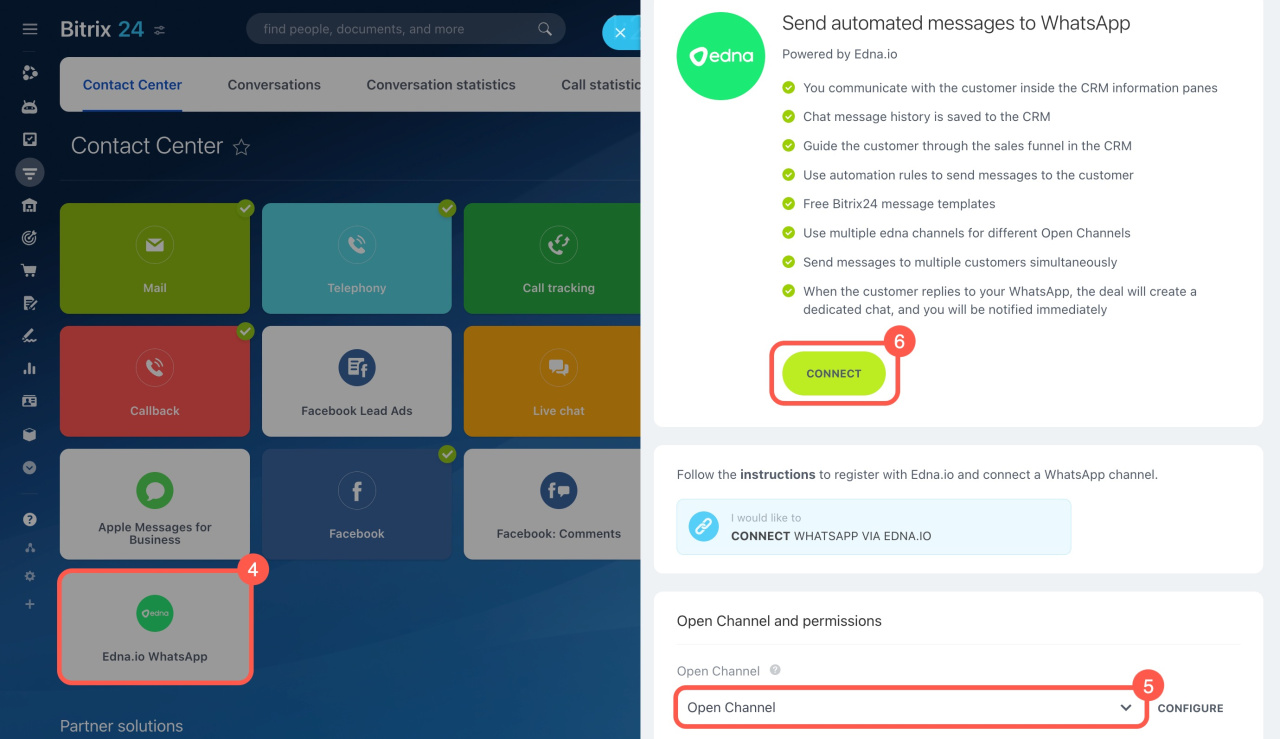
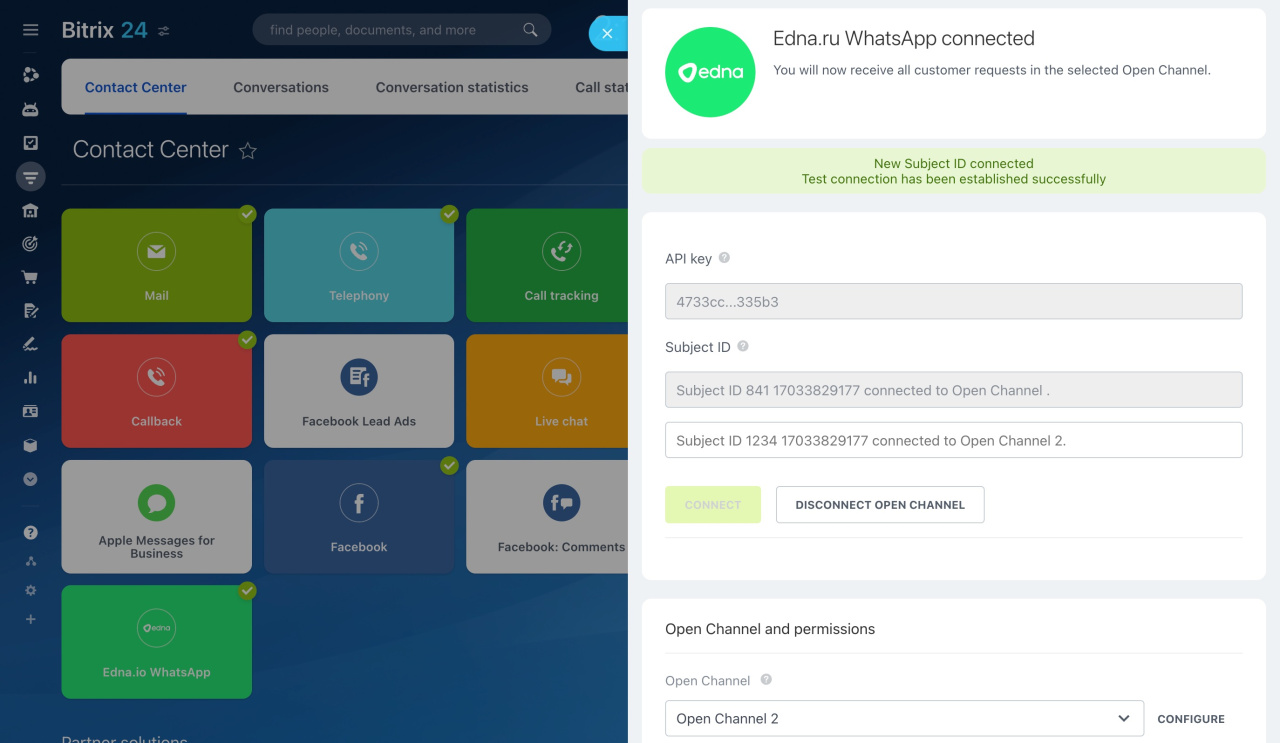
Connect multiple channels
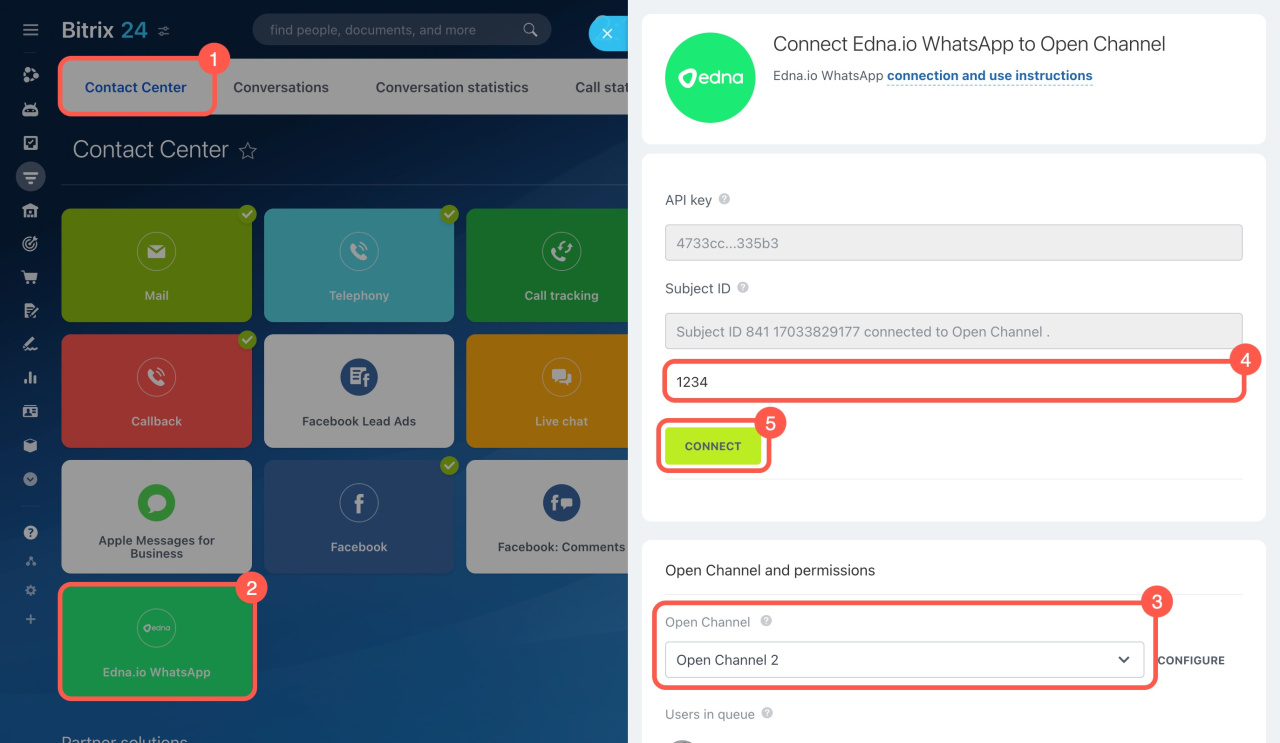
To connect additional Edna.io WhatsApp channels:
- Go to Contact Center.
- Click Edna.io WhatsApp.
- Select an Open Channel that is not already connected.
- Enter the Subject ID for the new edna channel.
- Click Connect.
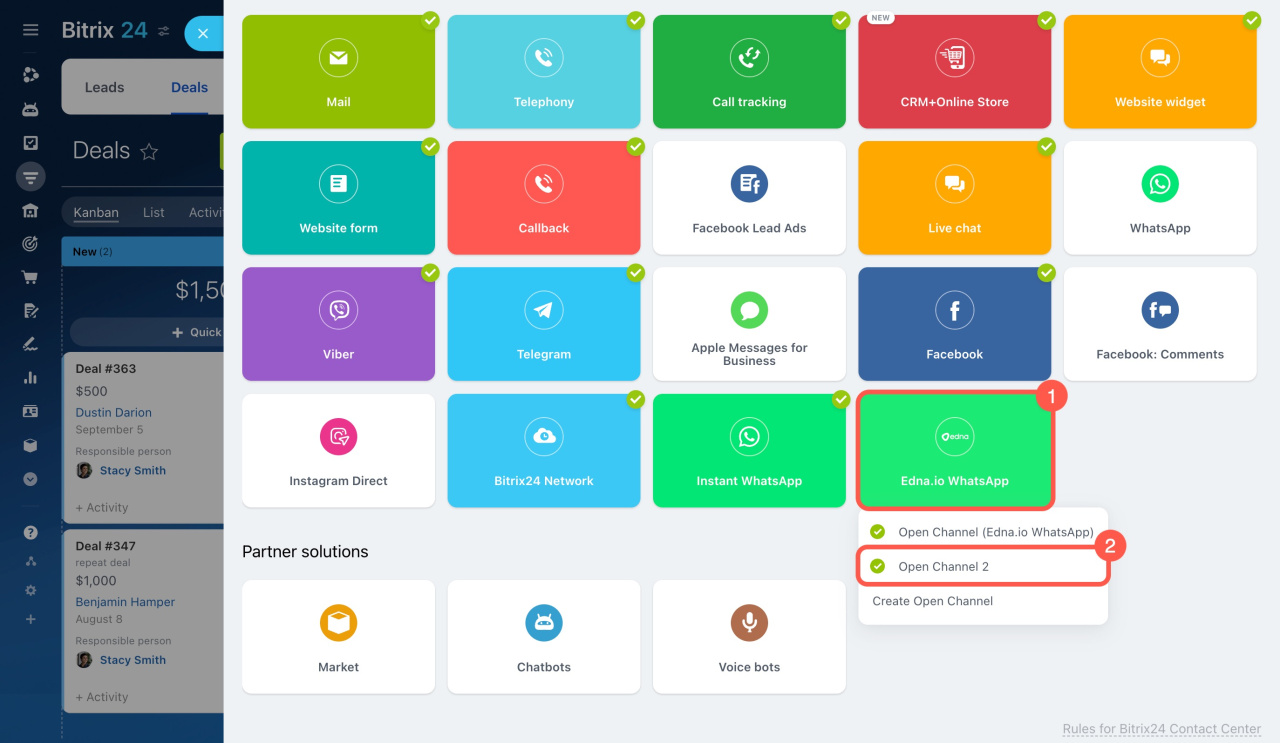
Change Open Channel settings
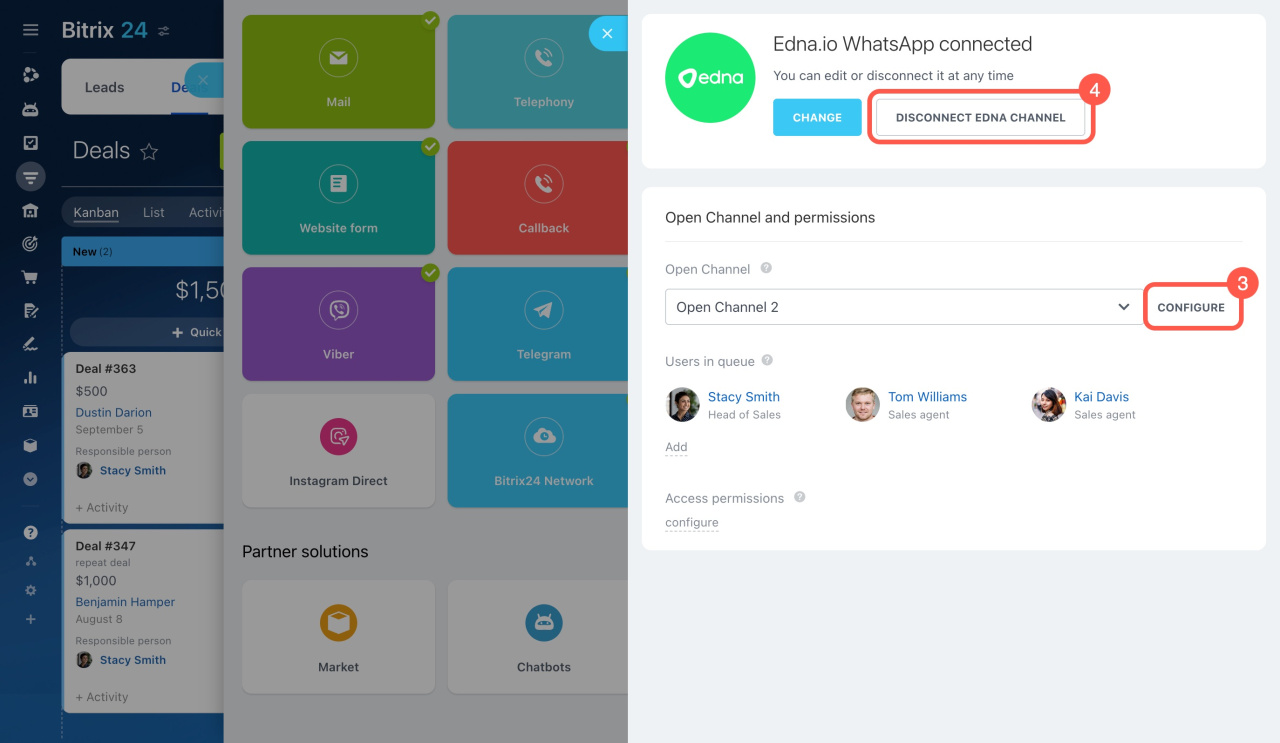
- Click Edna.io WhatsApp.
- Select the Open Channel you want to edit.
- Click Configure.
You can:
- Set business hours
- Configure auto replies
- Update other channel settings
Send WhatsApp messages from CRM
To send a WhatsApp message from CRM:
- Open a CRM item.
- Click WhatsApp in the timeline on the right.
- Select a template.
- Click Send.
Custom templates from your edna Pulse account are available in the template list.
Send WhatsApp messages from CRM
When a customer replies, Bitrix24 creates an Open Channel chat.
The CRM item stores:
- Customer name
- Phone number
- Message history
Send WhatsApp messages from a website widget
You can add the Edna.io WhatsApp channel to a website widget.
A widget lets customers:
- Start a chat
- Complete a CRM form
- Request a callback
Customers open WhatsApp from the widget and send a message. Bitrix24 then creates an Open Channel chat.
Open WhatsApp on a computer
Customers use the WhatsApp desktop app to send messages.
The widget works only with the desktop app. WhatsApp Web in a browser is not supported.
Open WhatsApp on a phone
Customers scan the QR code with their phone camera and open the WhatsApp app.
Messages appear in the Open Channel chat. Employees continue the conversation in Bitrix24, and the dialog history is saved in the CRM item.
In brief
- Companies cannot start WhatsApp conversations. Only customers can send the first message.
- HSM templates let companies send the first message.
- To use WhatsApp in Bitrix24, register for edna Pulse and create a Meta Business Manager account.
- edna Pulse charges for connection, licensing, and dialogs.
- Create a WhatsApp channel and message templates in edna Pulse before connecting the channel in Bitrix24.
- Customers can contact your company through CRM messages or a website widget.
- Each Edna.io WhatsApp channel in Bitrix24 requires a separate Open Channel.