
Open Channels lets you receive client messages from messengers, social networks, and websites. You can reply right away and use built-in chat tools to add colleagues to a conversation, send files and CRM forms, find messages quickly, and more. This helps your team solve issues faster and keep important details in one place.
In this article:
Work with a new conversation
When a client sends a message, you get a notification in Bitrix24.
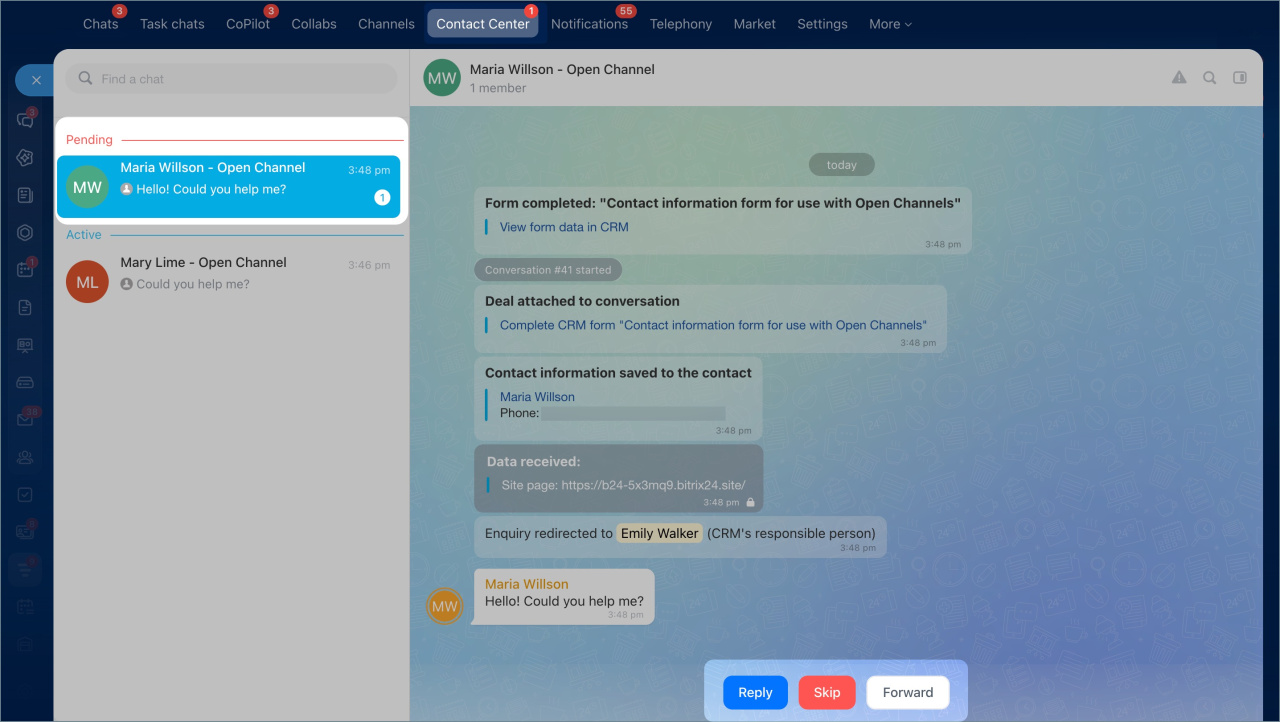
Go to Messenger > Contact Center > Pending.
Open the new conversation and choose an action.
Reply — start chatting with the client.
Skip — this option appears even if inquiry distribution is enabled in the agent queue settings. Click it to decline the conversation. The inquiry will move to the next agent in the queue.
Configure the agent queue in Open Channels
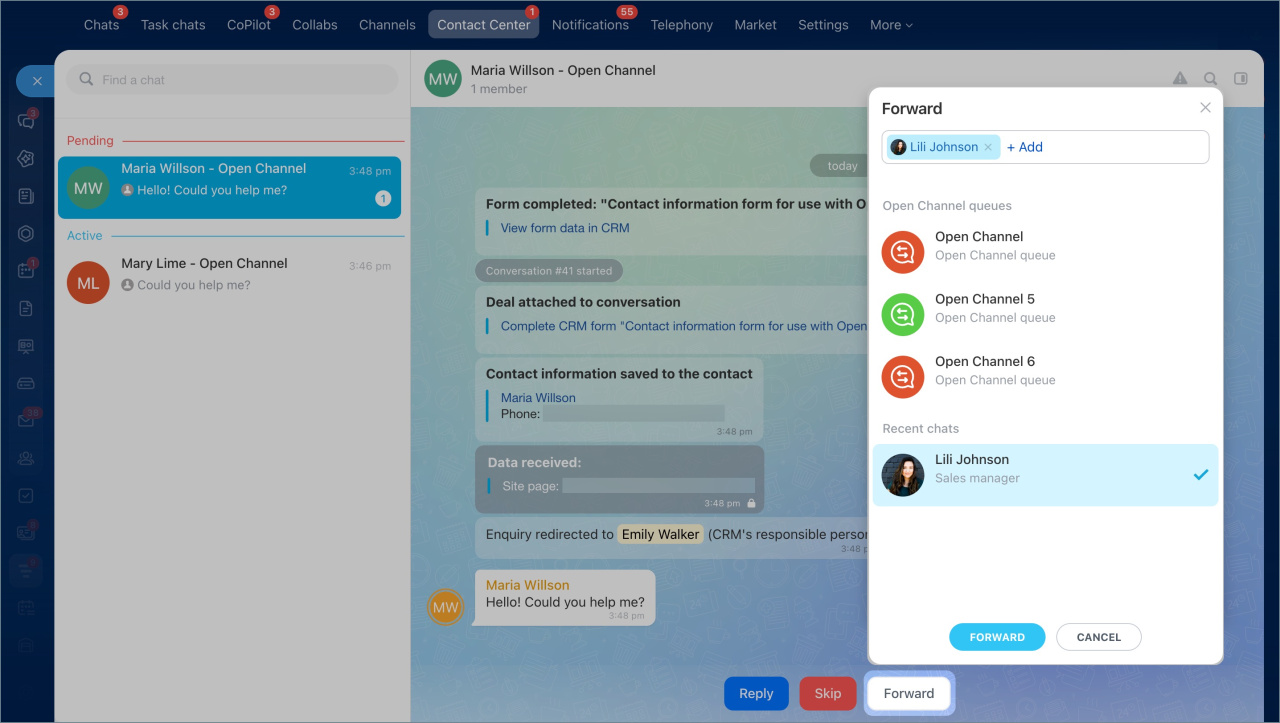
Forward — send the chat to a colleague or another channel. Use this if the inquiry was assigned to you by mistake.
- Click Forward.
- Select an Open Channel or employee from the list, or enter a name in the search bar.
- Click Transfer again.
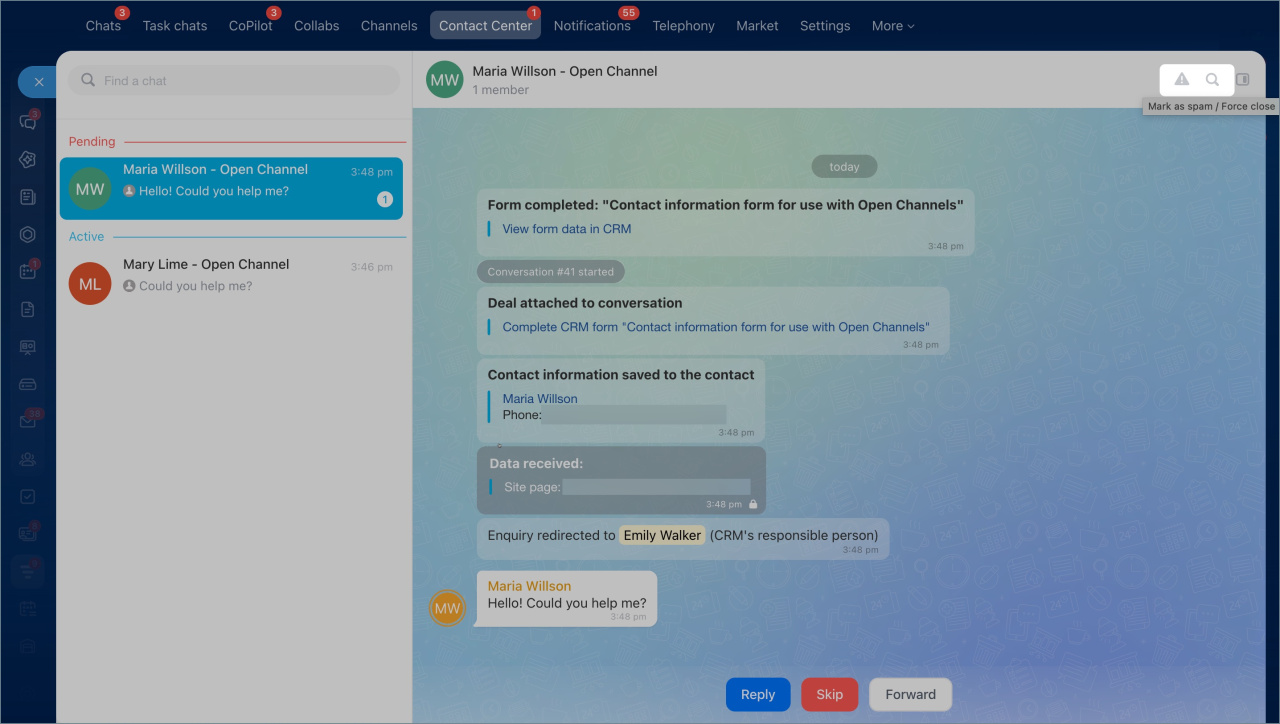
Mark as spam / Force close. Use this if the inquiry is not related to your company or contains spam. The conversation will close, but the client can still message you again.
Search in chat. Click the search icon to find a message quickly.
Use tools in the reply field
When you click Reply, the message field opens. You can use several tools here to help you work faster.
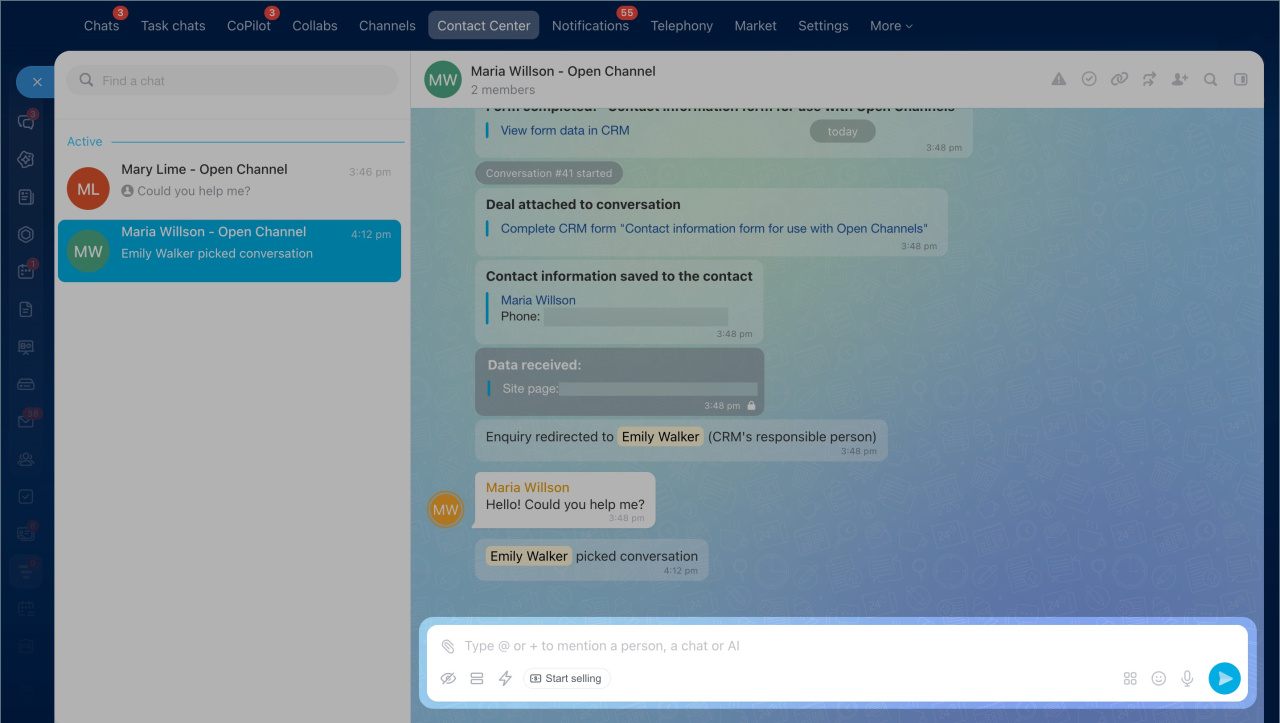
Send a file. Use this option to share a product photo, contract, or other file with the client.
- Click the paperclip icon
- Choose where to upload the file from: your computer or Bitrix24 Drive.
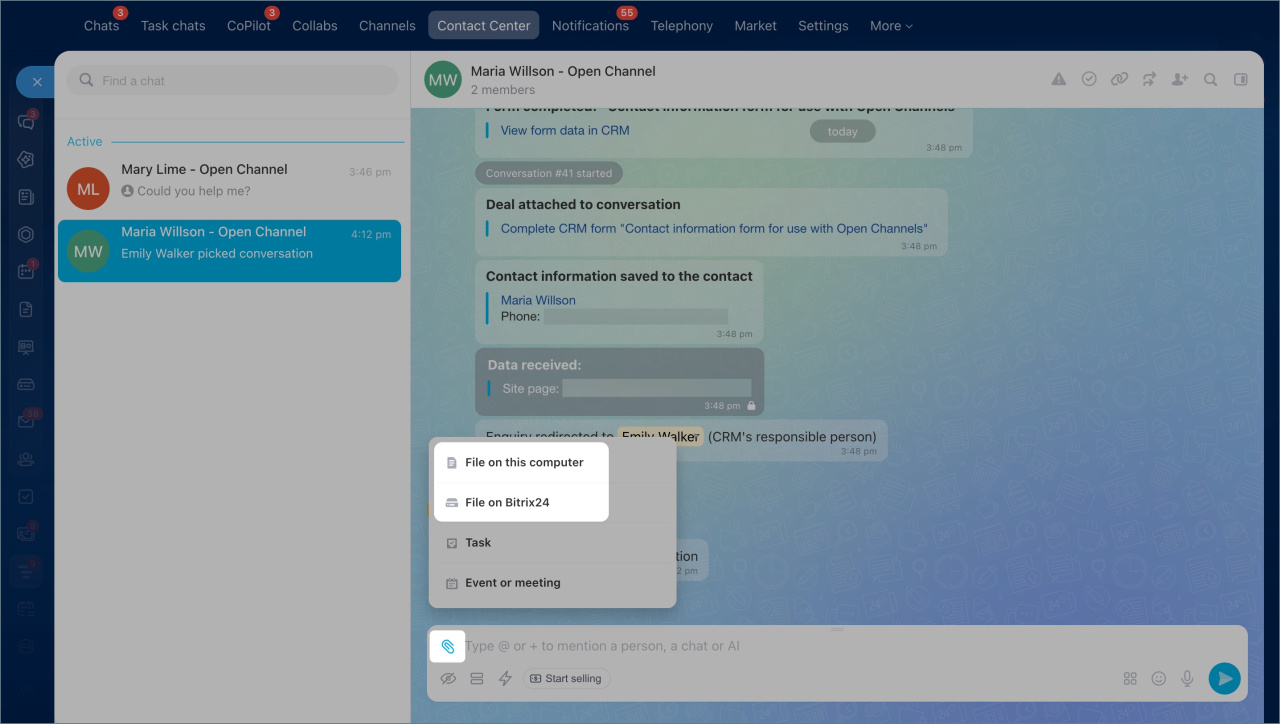
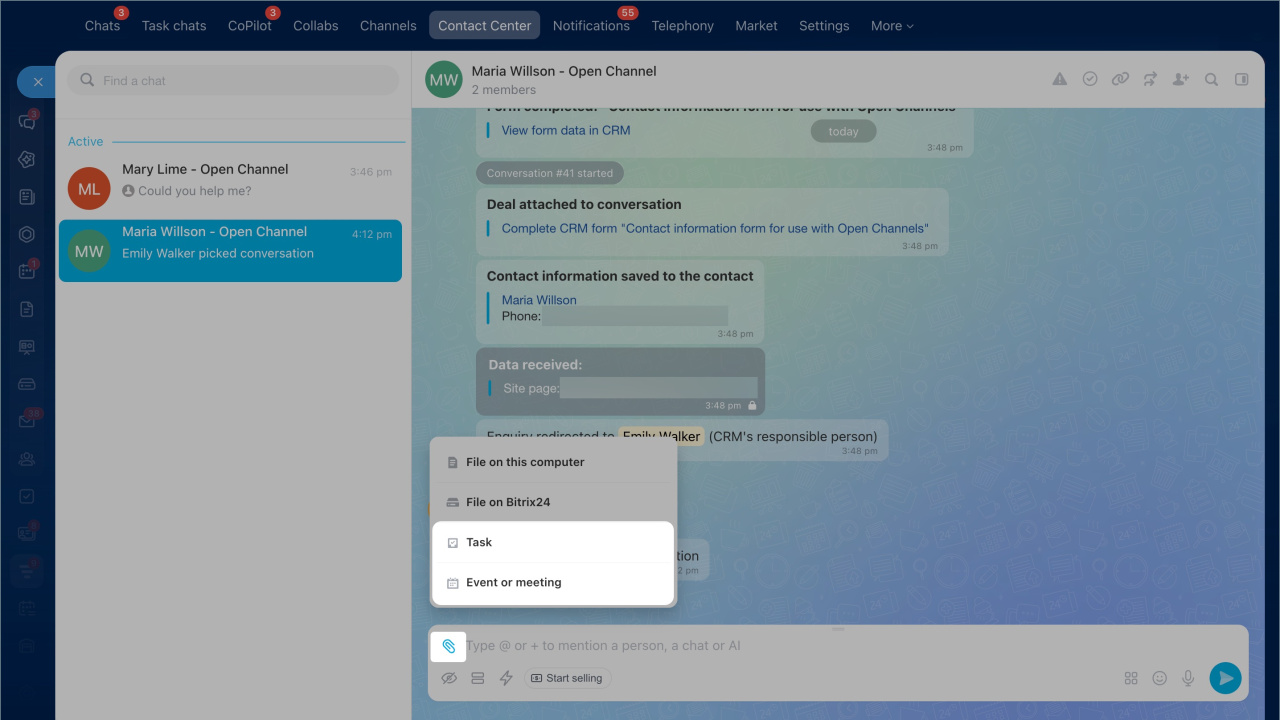
Create a task or meeting. Use this when you need to call the client back or prepare product options. Click the paperclip icon and choose Task or Meeting. A system message about the new task or meeting will appear in the chat.
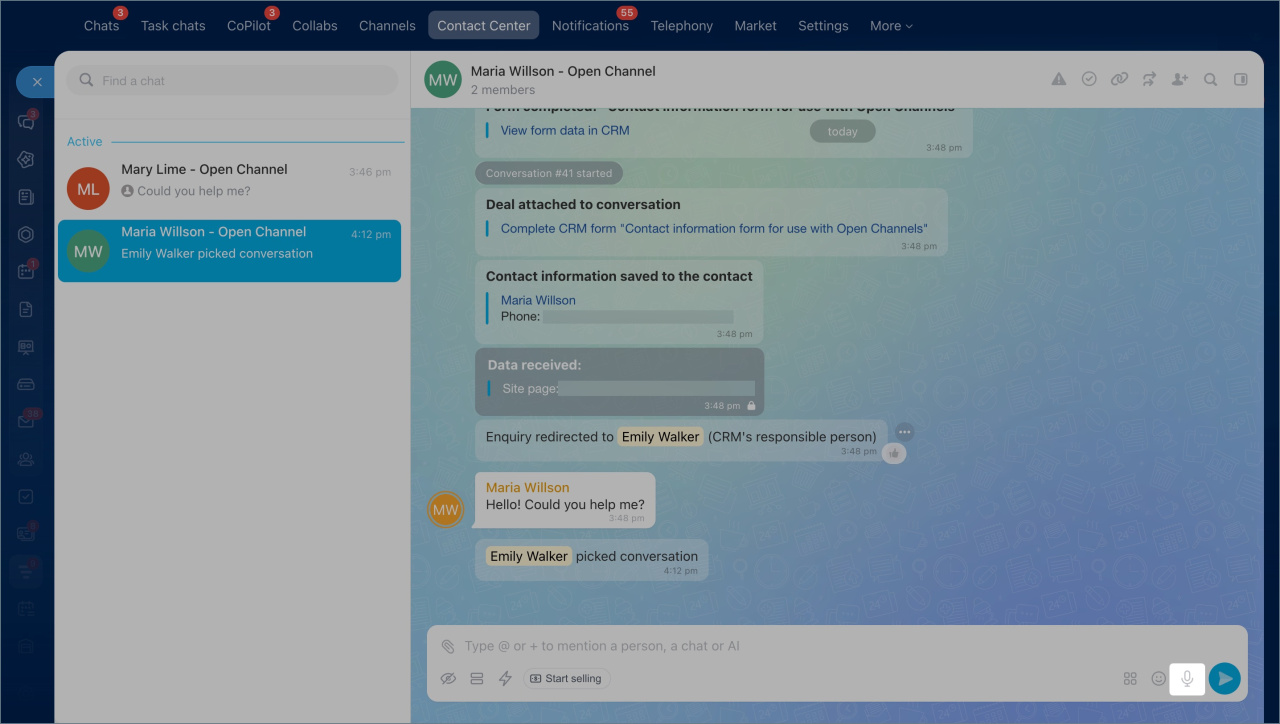
Use voice input. Click the microphone icon and speak your message. Bitrix24 will add the text to the message field automatically.
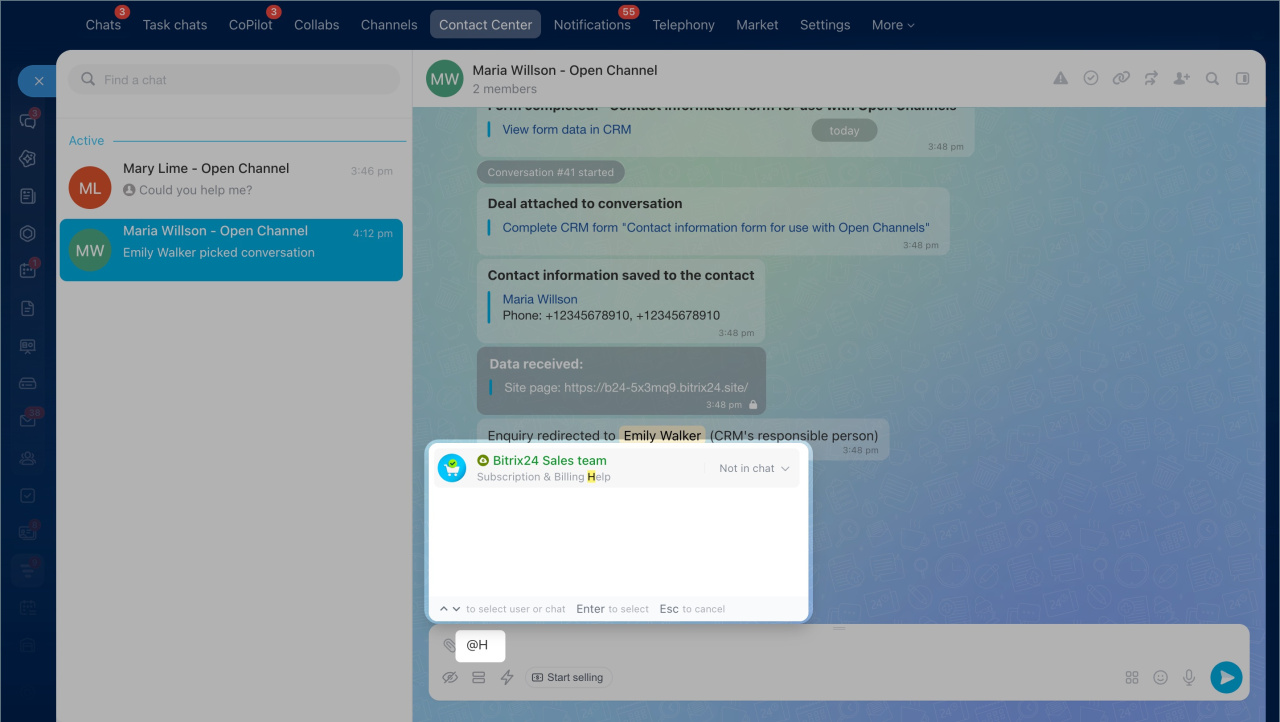
Mention a user or chat. Colleagues will see a link to the user profile or chat. The client will only see plain text.
- Type @ in the message field and start entering an employee name or chat name.
- Select the user or chat from the list.
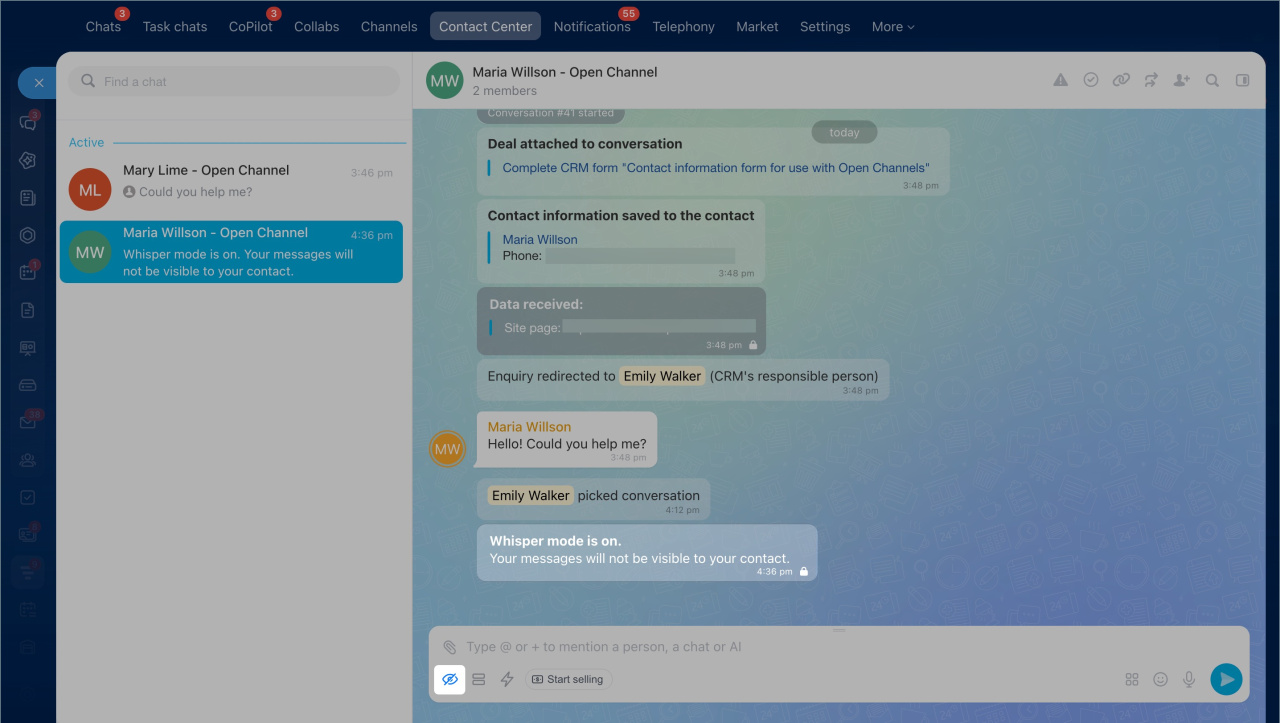
Private discussion. Use this option to leave a comment for yourself or your colleagues. The client will not see these messages. This is useful for internal notes and clarifications.
1. Click the eye icon.
2. Enter your message and send it. The message will appear highlighted in gray.
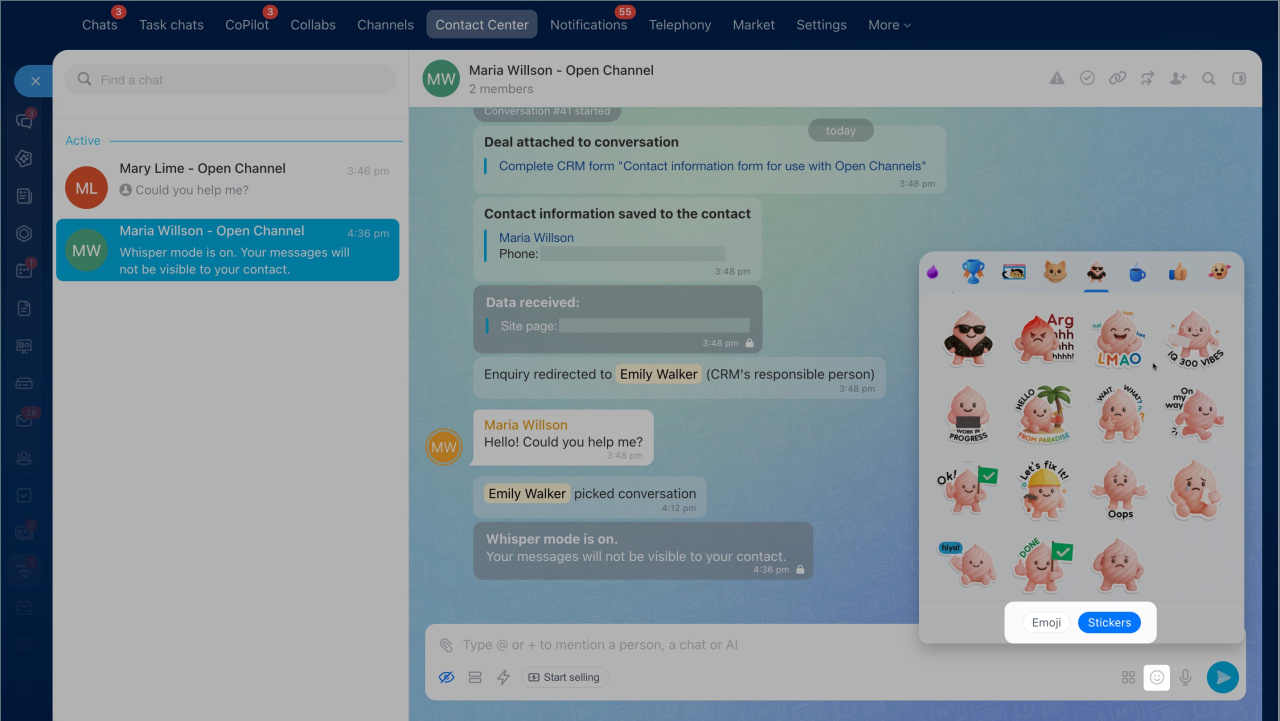
Add emoji or stickers. Use this when you want to make a message more expressive.
- Click the emoji icon.
- Select a tab: Emoji or Stickers.
- Choose the emoji or sticker you want to send.
Stickers in the Bitrix24 Messenger
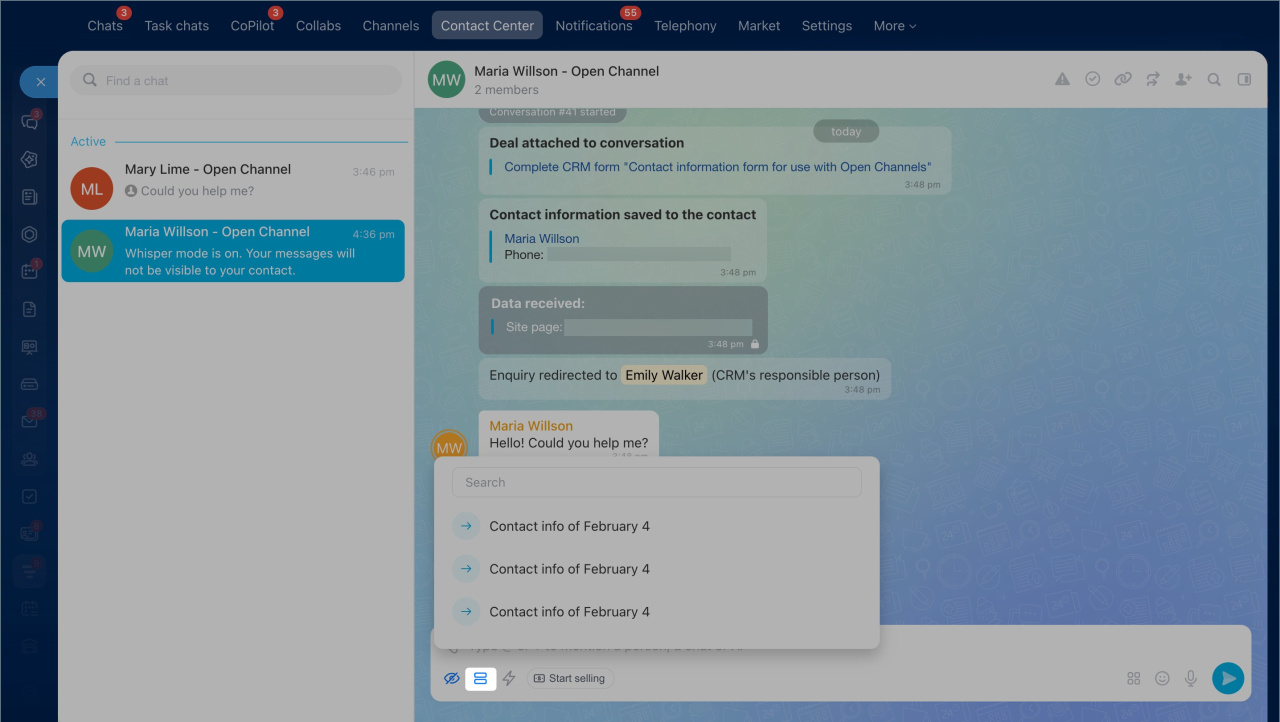
Send a CRM form. Use a CRM form to collect more information from a client or book them for a service.
- Click the two-rectangle icon.
- Select a form from the list or search by name.
Create and configure CRM forms
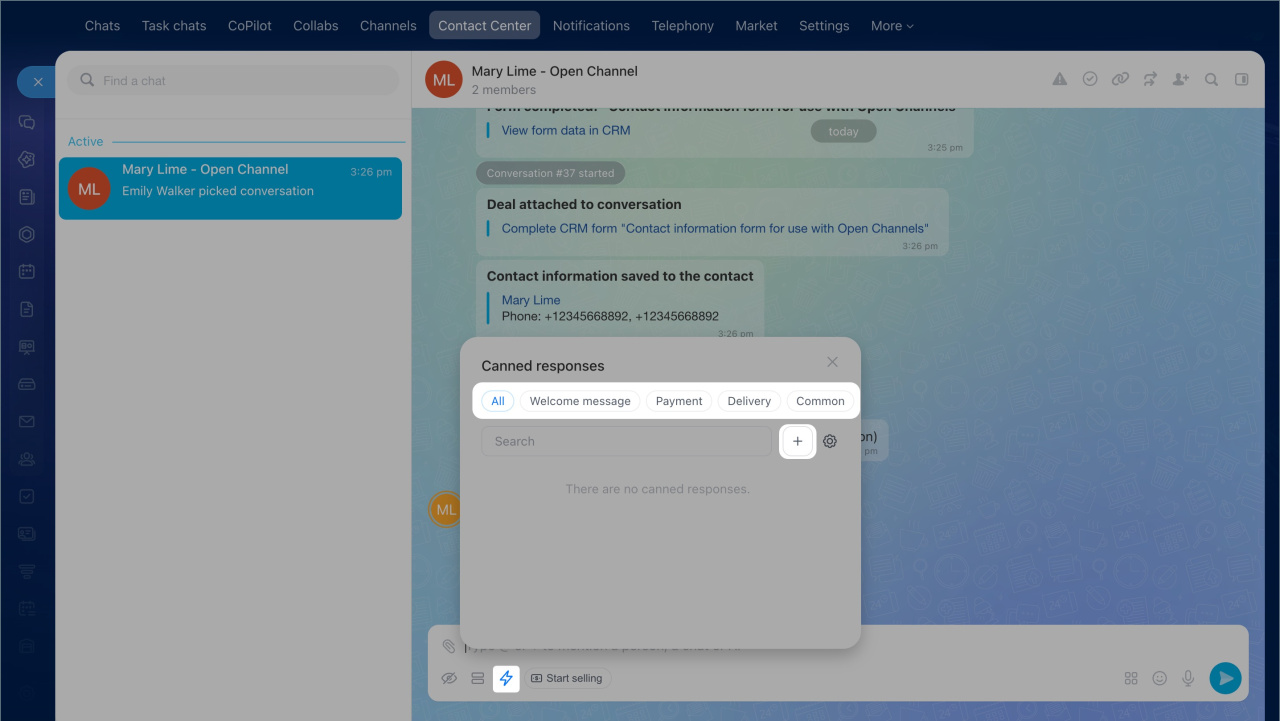
Canned replies. Create and use saved reply templates. This helps you answer common questions faster.
- Click the lightning icon.
- Create a reply or choose one from the list.
Canned responses in Open Channel chats
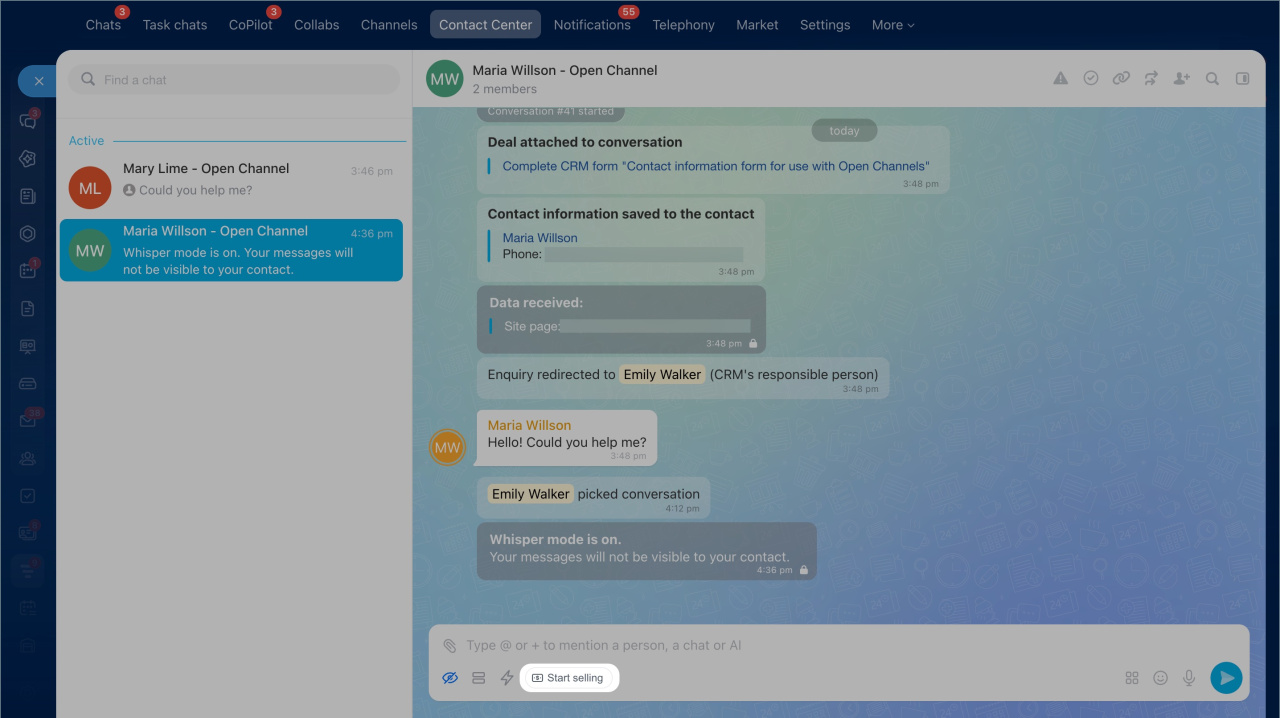
Chat sales. You can send a client a payment link, company information, and more.
- Click Start selling.
- Open the tab you need and send the information to the client.
Sales Center: Getting started
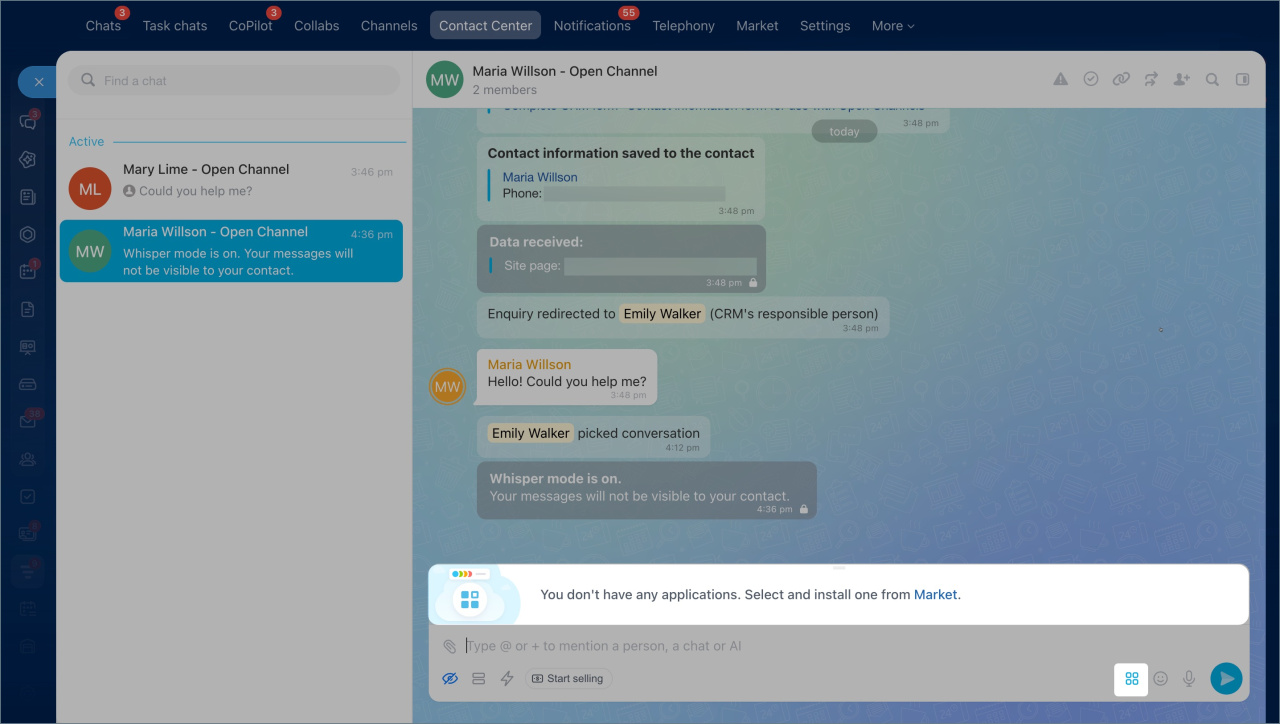
Apps. Click the four-square icon to see which apps you can connect to the chat. A Bitrix24 administrator can install apps and bots.
Find and install Bitrix24 Market applications
Manage a chat
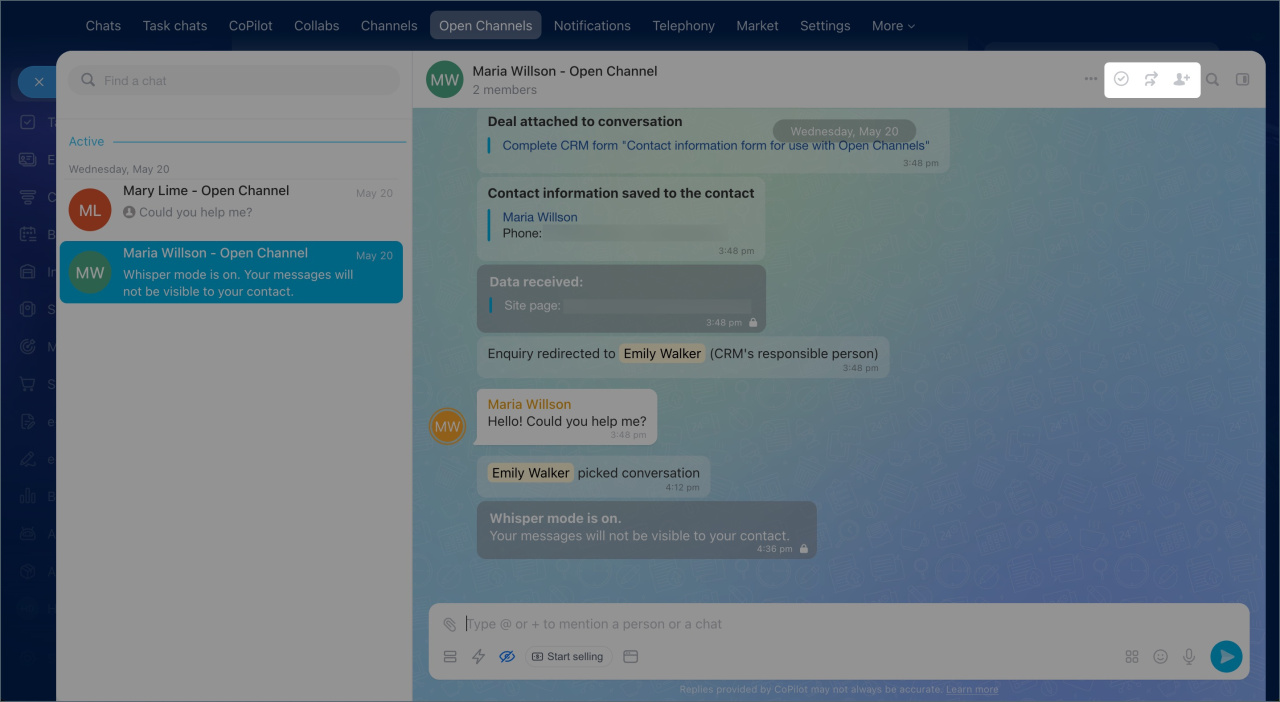
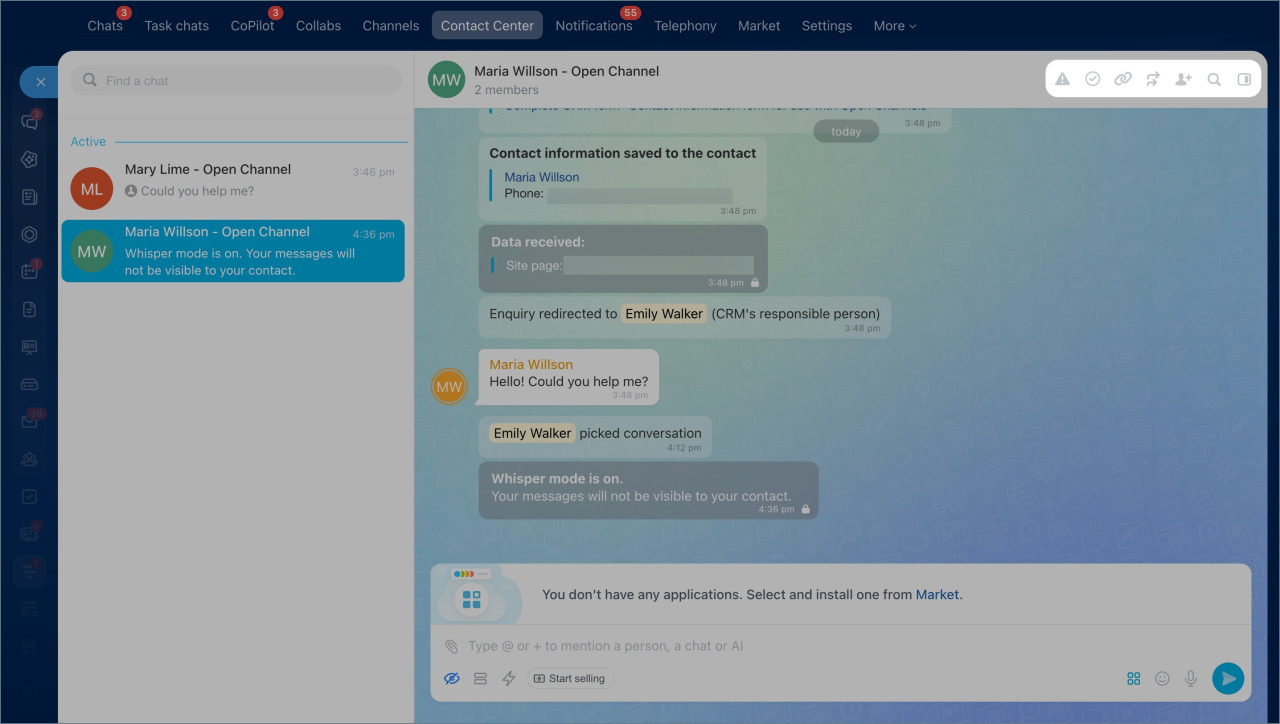
Use the controls at the top of the chat window to manage the conversation.
Close conversation — close the chat when the issue is resolved.
Forward — send the conversation to another employee or to a different Open Channel. Use this if the chat was assigned to you by mistake.
Add chat members — add other employees to the chat. Use this when you need help or need information from a colleague.
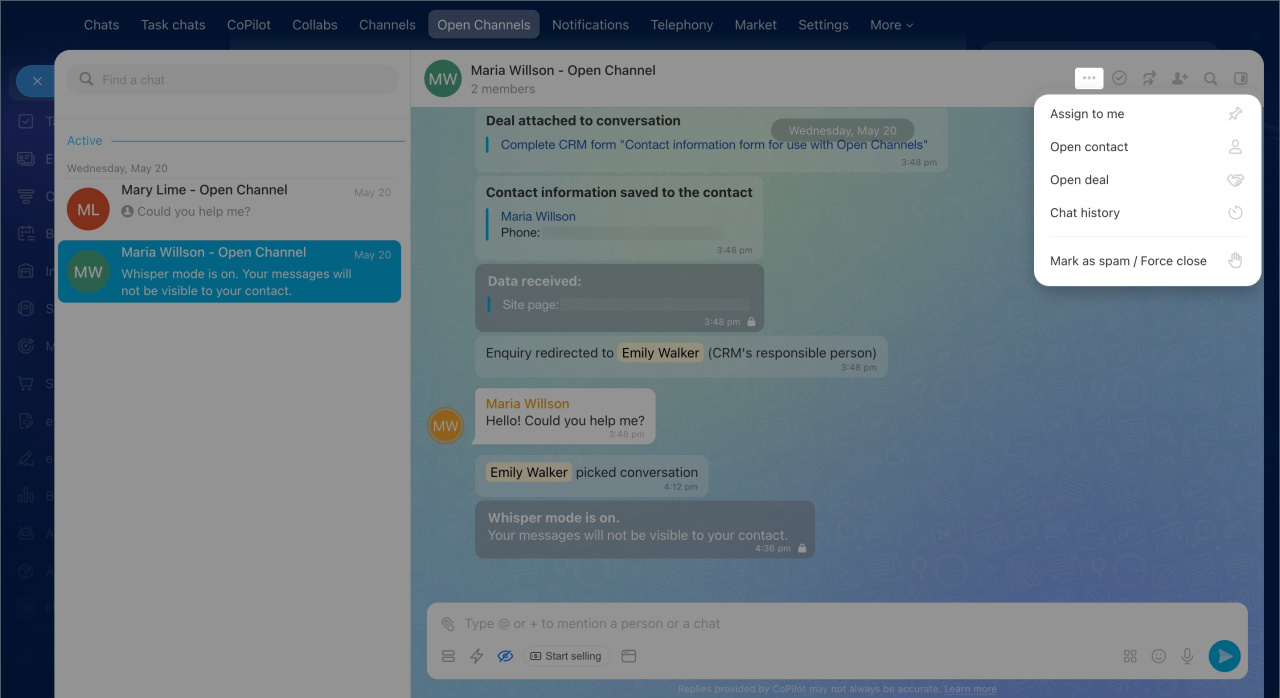
More actions — click the three dots (...) to open these options:
- Assign to me — keep the conversation assigned to you. It will not move to another employee in the Open Channel queue. This is helpful when one employee should handle the entire conversation with a client.
- Open contact — open the contact record in CRM. This option appears if the client is linked to a contact.
- Open deal — open the deal record in CRM. This option appears if the conversation is linked to a deal.
- Chat history — view the full message history.
- Mark as spam / Force close — mark the conversation as spam and close it.
Find a message. To find a message in a client chat, click the search icon to open the search bar. Enter your text, then select the message from the list.
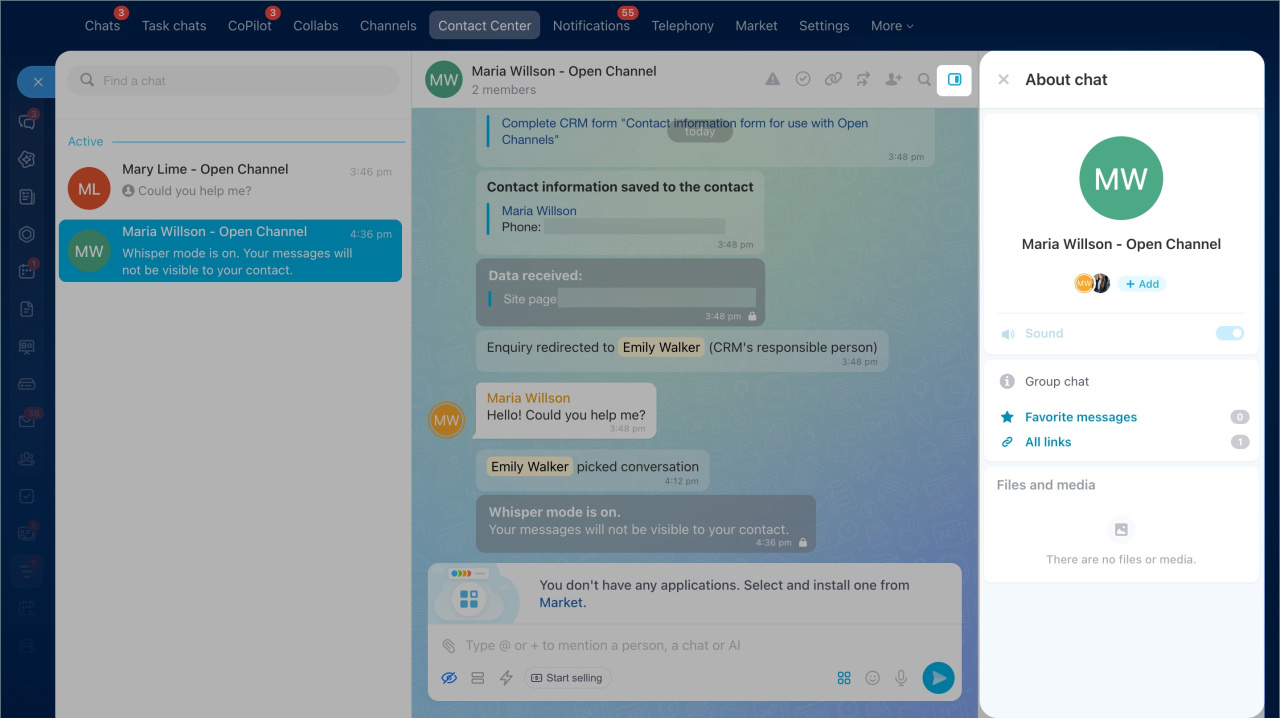
Open the sidebar. The chat sidebar shows key details, such as the chat name, participants, files, and more. Click the sidebar icon to open the panel.
Click the user avatar section to view the participant list. Click Add to invite users to the chat. Select Copy chat link to share the chat link with an employee. They can join the chat and continue the conversation with the client.
In the sidebar, you can find:
- Favorite messages
- Links from messages
- Media and files, such as contracts or photos sent by the client.
Message actions
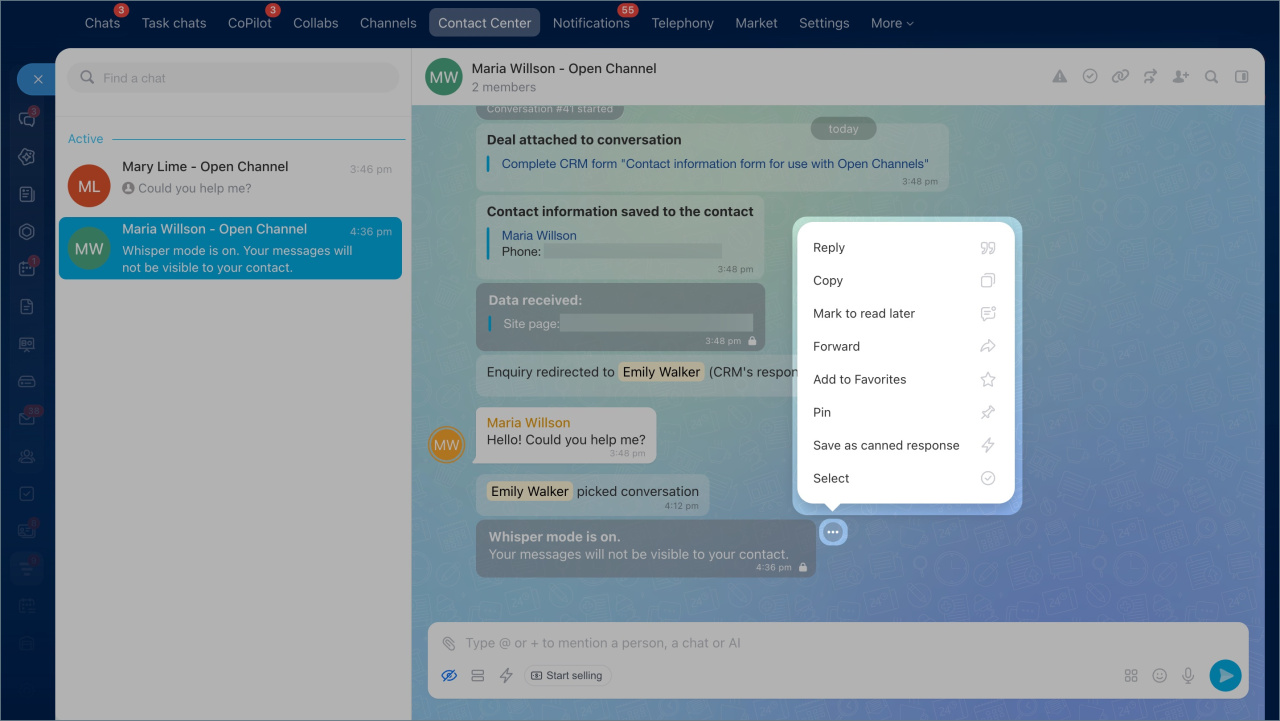
Action menu. Right-click a message or click the three dots (...) next to it, then choose an action:
- Reply — Respond to a specific client message. For example, if the client asks about delivery, you can reply directly to that message.
- Copy — Copy the message text.
- Mark to read later — Mark the conversation starting from this message so you can return to it later. Use this when a client sends important details.
- Forward — Send the message to a colleague. For example, if a client asks for a discount, you can discuss it right away.
- Add to Favorites — Save the message to the Favorites section in the chat sidebar. This makes it easy to return to important messages.
- Pin — Show the message at the top of the chat for all participants.
- Edit — Change the message text, for example, to fix a typo.
- Save as canned response — Add the message to the Quick Replies list.
- Delete — Remove the message. Use this if you sent it by mistake.
- Select — Choose multiple messages to forward or delete. You can only delete your own messages.
In brief
- In an Open Channel, you can reply to clients and use built-in chat tools. You can add colleagues to a conversation, send files and CRM forms, find messages quickly, and more. This helps you solve issues faster and keeps important information from getting lost.
- When a client sends a message, you will get a notification in Bitrix24. To start a conversation, go to Messenger > Contact Center > Pending.
- The message field includes tools that help you work faster. You can send files, add colleagues, and start a hidden chat with them.
- At the top of the chat window, you can manage the conversation. You can invite a colleague, search for a message, transfer the conversation, or end it when the issue is resolved.
- The chat sidebar shows key information, such as the chat name, participants, files, and more. Click the sidebar icon to open it.
- Each message has an action menu. Click the three dots (...) to open it. You can forward or pin a message, or save it as a quick reply.