
In Bitrix24, you can reassign tasks from a dismissed employee to another user. For example, if a manager leaves in the middle of a project, you can transfer the tasks to a colleague to keep work moving and avoid losing important assignments.
Only a Bitrix24 administrator can reassign tasks from dismissed employees.
A supervisor can reassign tasks for the direct reports, but only tasks where the supervisor is listed as the creator or assignee. If a supervisor reassigns a task users are not part of, they automatically become the assignees of that task.
A supervisor can reassign tasks for the direct reports, but only tasks where the supervisor is listed as the creator or assignee. If a supervisor reassigns a task users are not part of, they automatically become the assignees of that task.
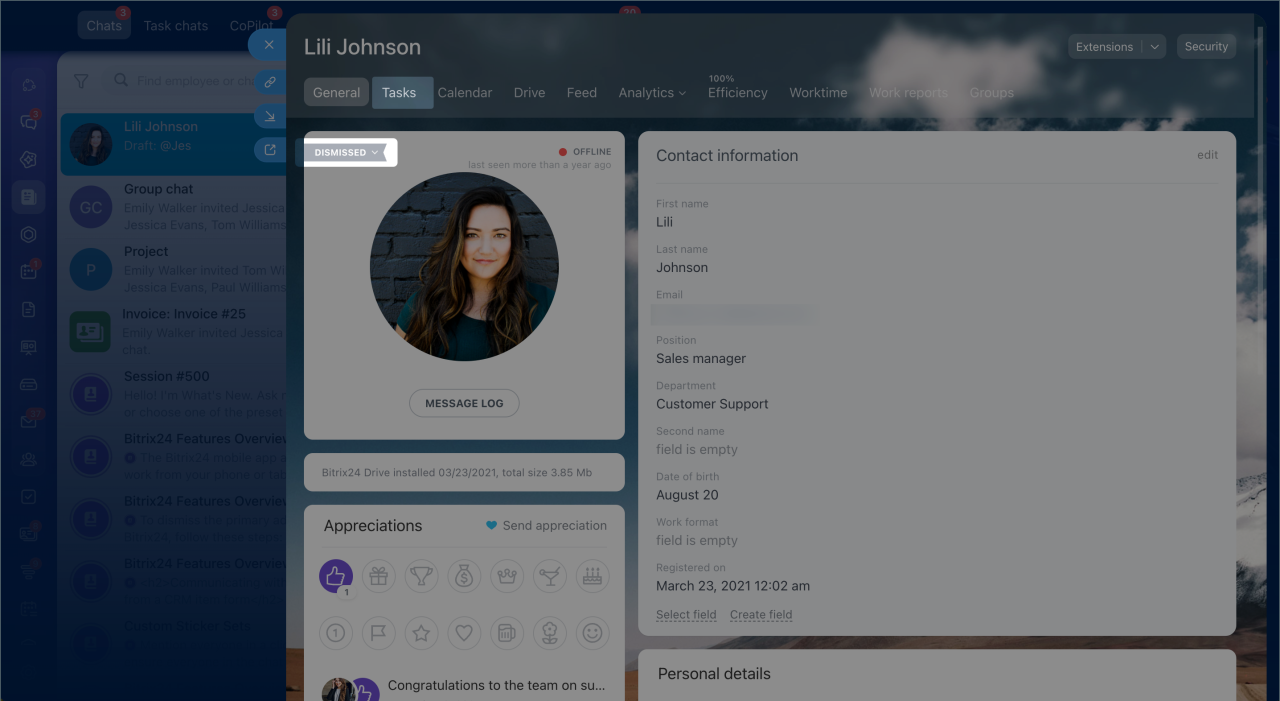
- Open the dismissed employee's profile and go to the Tasks tab.
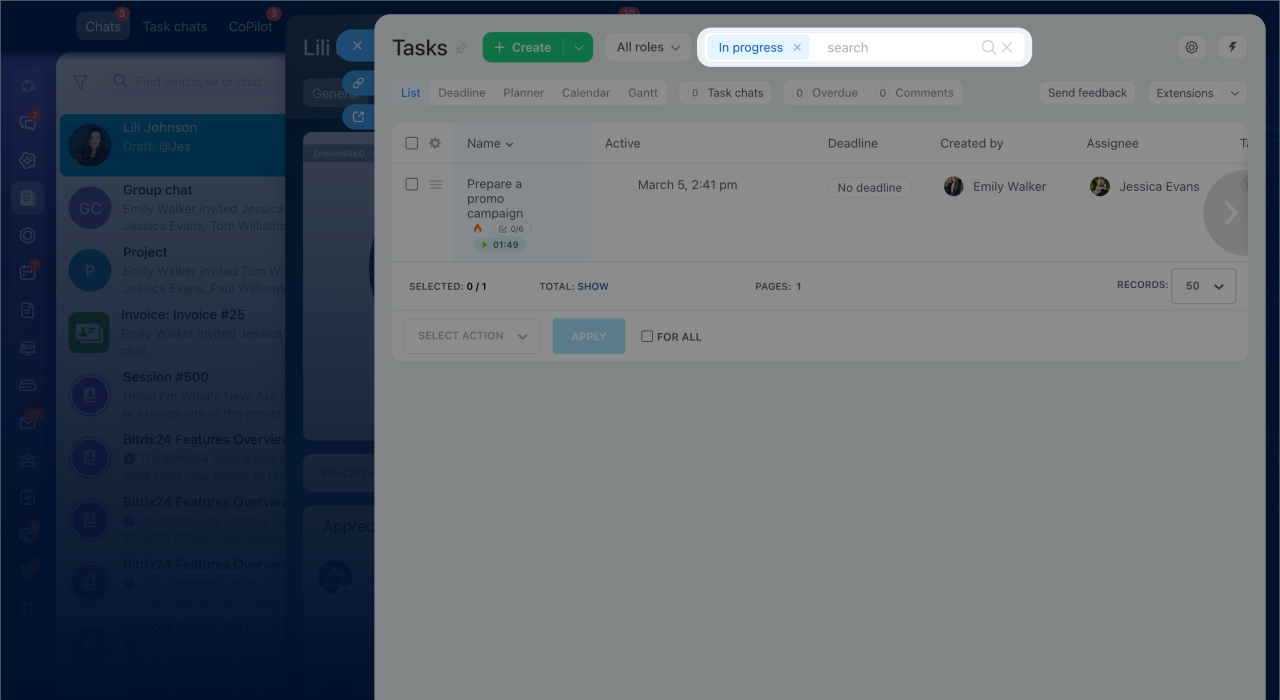
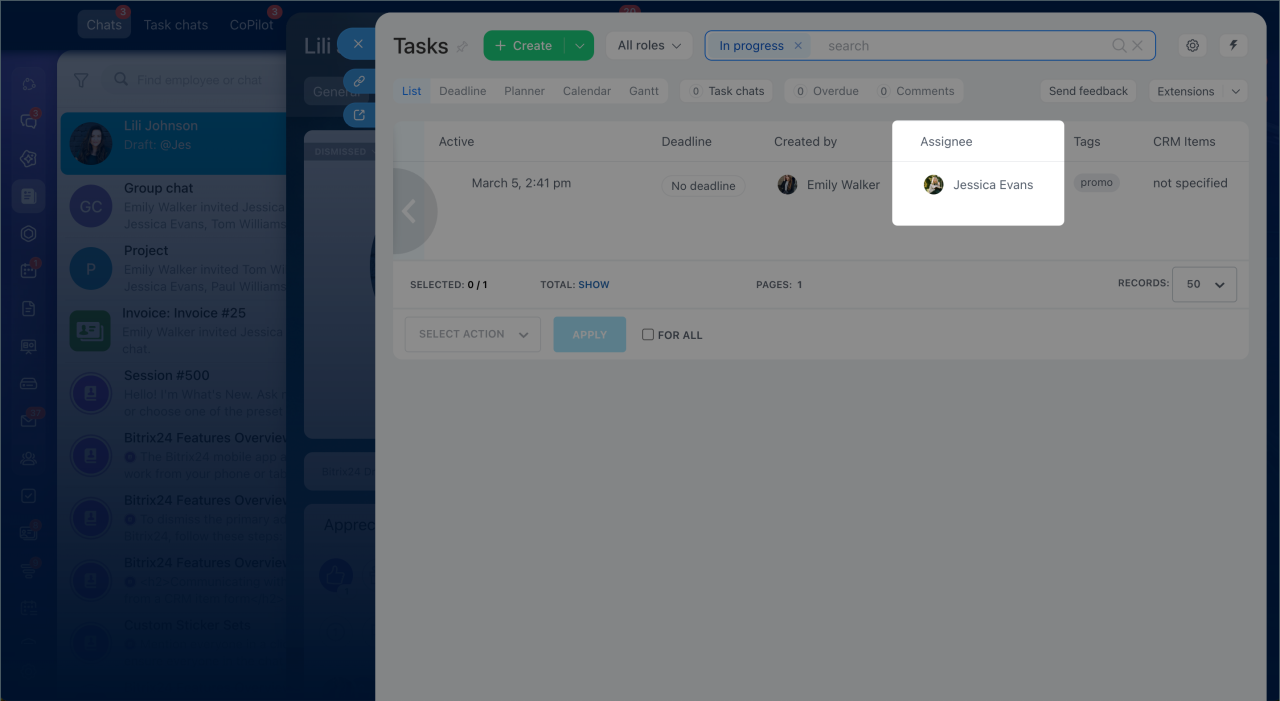
- Check the filters in the search bar to make sure the right tasks appear. For example, use the In progress filter to show only active tasks.
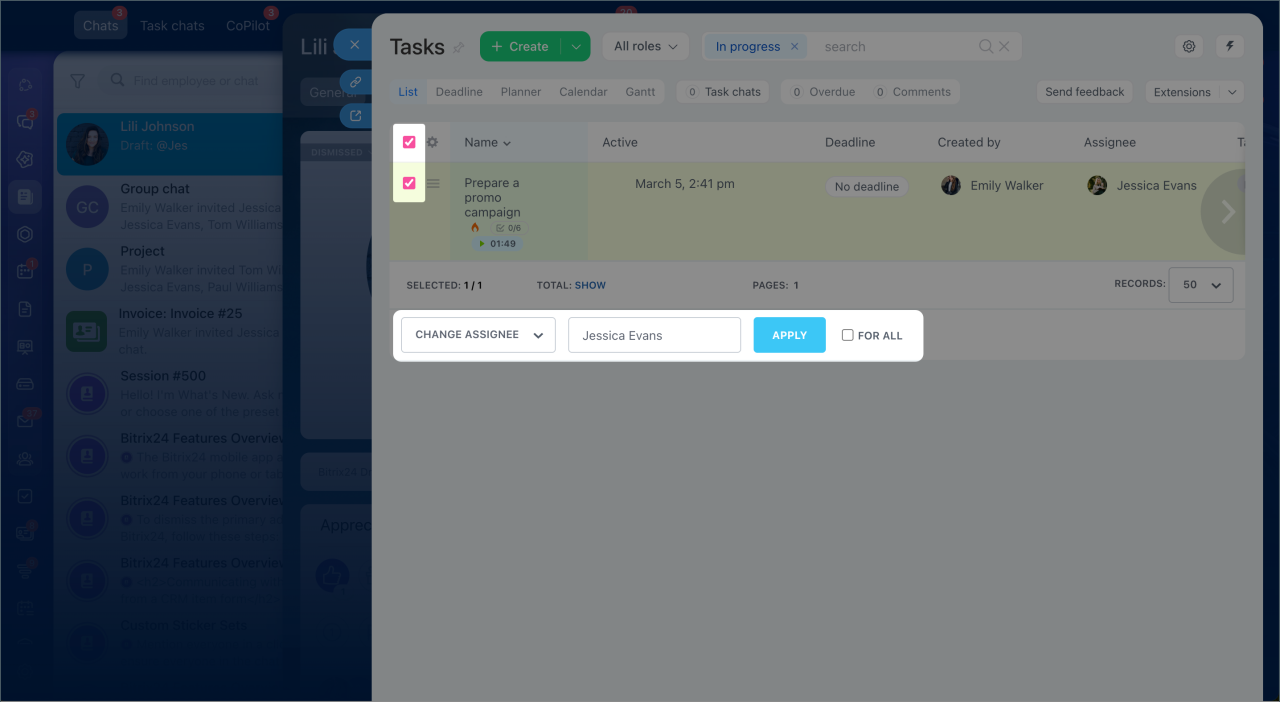
- Select the tasks where you want to change the assignee. To reassign all tasks from the dismissed employee, select the For all checkbox. This action applies to all tasks in the current filter, including tasks on other pages.
- Click Select action.
- Choose Change assignee. If you need to reassign tasks where the dismissed employee was the creator, choose Change creator.
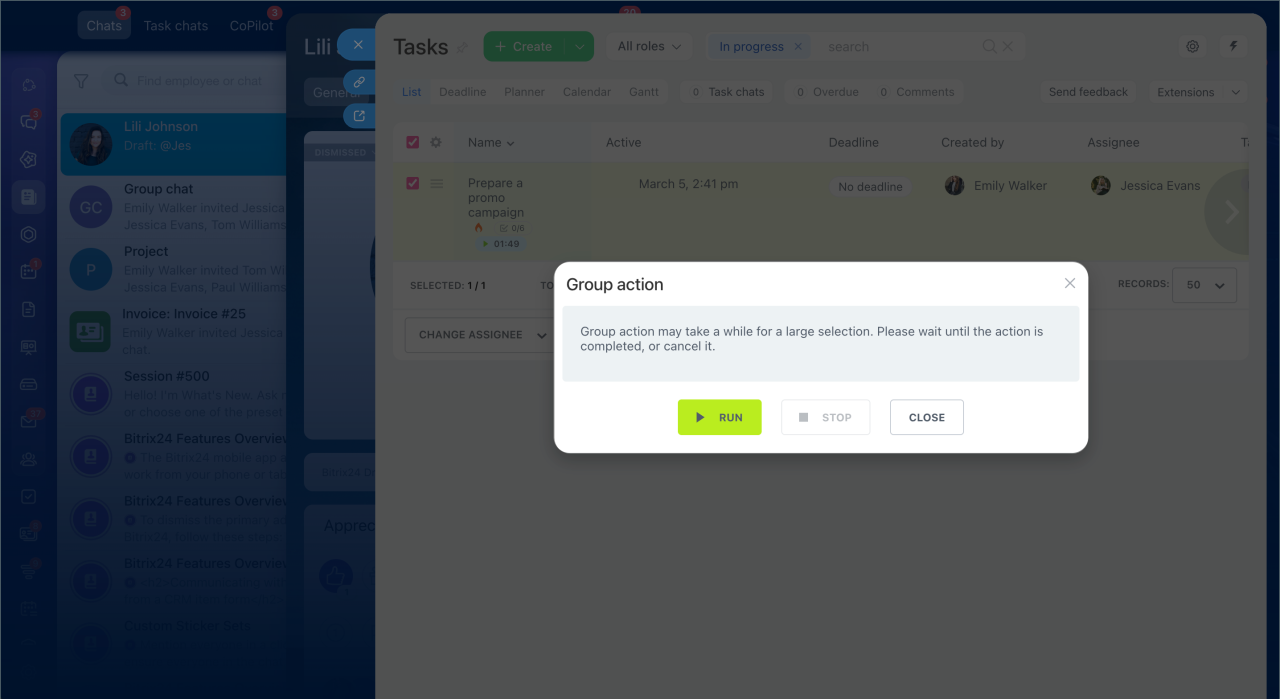
- Click the empty field and select an employee from the list, or start typing the name > Apply > Run.
After Bitrix24 processes the request, the new employee appears in the Assignee column.
In brief
- In Bitrix24, you can reassign tasks from a dismissed employee to another user.
- Only a Bitrix24 administrator can reassign tasks from dismissed employees.
- Open the profile and select Tasks.
- You can also change the creator.