
Alaio Vibecode is a platform for building apps and chatbots that work with your Bitrix24 data. Any employee, such as a manager, marketer, or HR specialist, can describe a task in plain language. An AI model then writes the code and deploys the solution on a secure server. This helps you get a working business tool without coding skills or long development cycles.
Solutions built in Vibecode connect to Bitrix24 automatically. The app can access CRM, Tasks, Chat, Drive, and other tools. You do not need to set up syncing or transfer data manually. Everything works through a single API key.
In this article:
Sign in to Alaio Vibecode
Use your Bitrix24 account credentials to sign in to Alaio Vibecode.
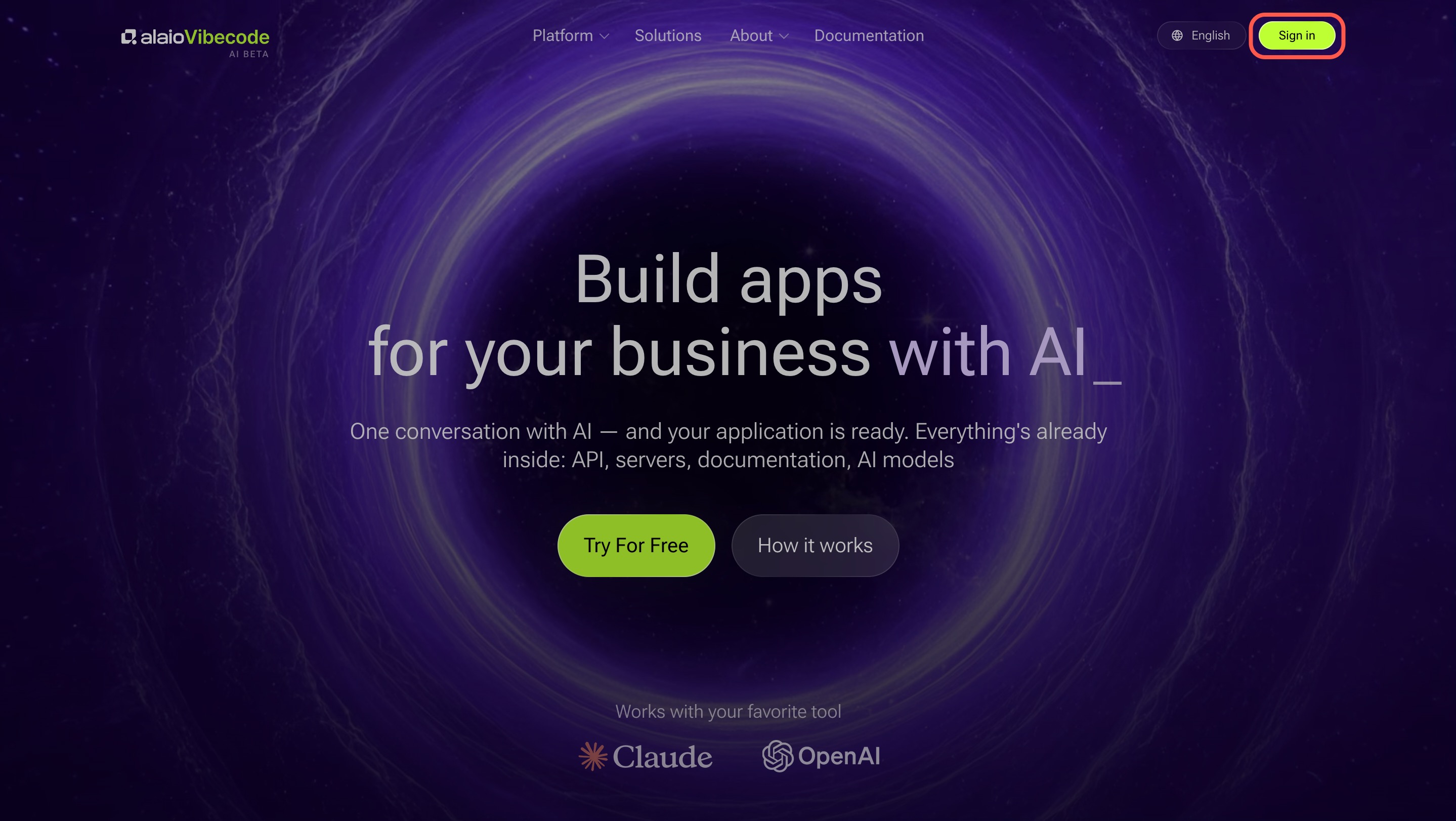
1. Open the Alaio Vibecode website and click Sign in.
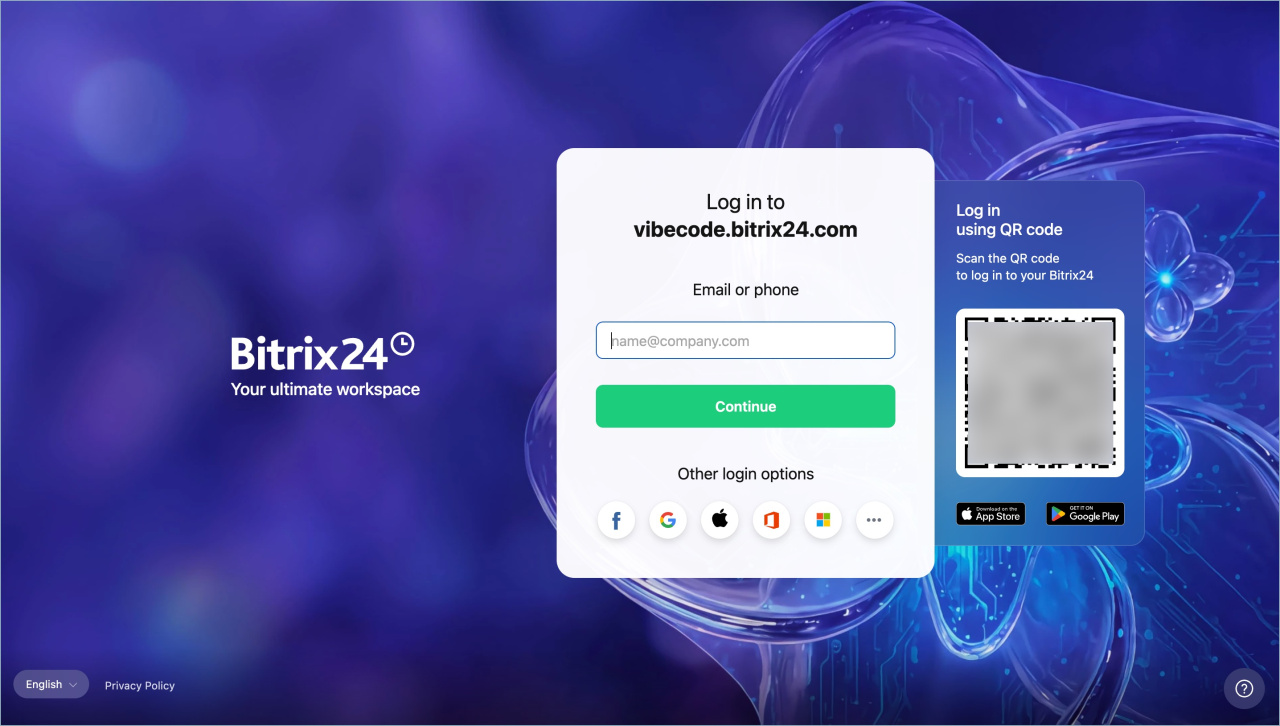
2. Sign in with any available method.
Log in to your Bitrix24 account
3. Select the Bitrix24 account where you want to build the app.
Create an AI solution for Bitrix24
Alaio Vibecode lets you build and connect an app or bot to your Bitrix24 in three steps.
Create a key. It connects the app or bot to your Bitrix24. There are two key types:
- API key. This key acts on behalf of the person who created it, so all app users see the same data. Use it when you do not need personal user data. For example, an app that shows monthly deal statistics for the whole team.
- Authorization key. This key acts on behalf of the current user, so each person sees only the data they are allowed to access. Use it when access permissions matter. For example, a manager sees only their own deals, while a supervisor sees deals for the entire subdepartment.
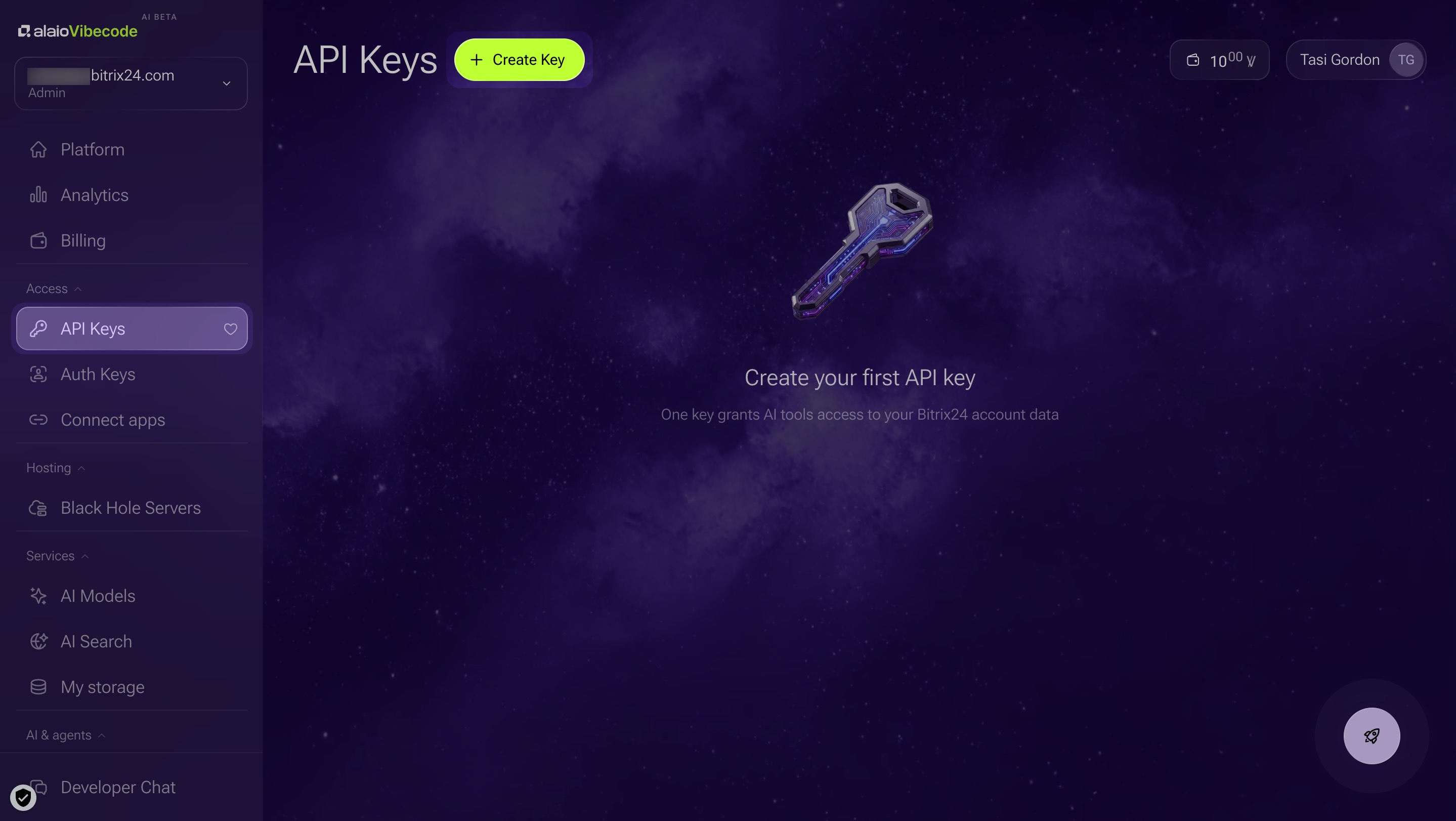
1. Open the Platform section or the API Keys section, depending on the key type, and click + Create API key or + Create key at the top of the page.
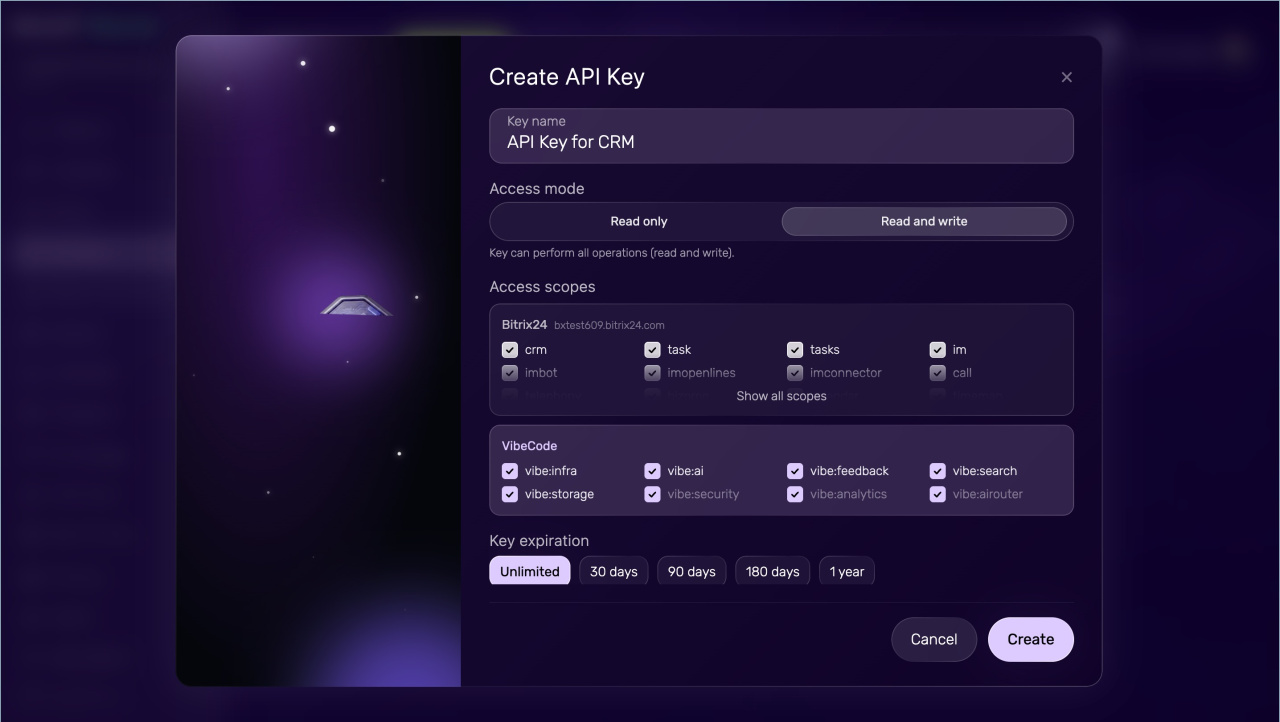
2. Fill in the key details:
- Key name — this name appears in the key list on the Alaio Vibecode website.
- Access mode and Access scopes — select which Bitrix24 tools the app can use and what permissions it gets. All permissions are selected by default.
- Key expiration: no limit, 30 days, 90 days, 180 days, or 1 year. If the key expires, the app stops working. You can renew the key in advance from your account.
- Request limit per minute sets the maximum number of requests the app can send with this key each minute. It helps prevent excessive API load. For example, it protects against repeated requests caused by an integration error. This field is optional. The default limit is 300 requests per minute. For your first app, you can leave it empty.
- Advanced settings — enter comma-separated IP addresses that are allowed to send requests to the app. This adds protection. Even if someone gets the link or key, they will not be able to call the app from unauthorized addresses.
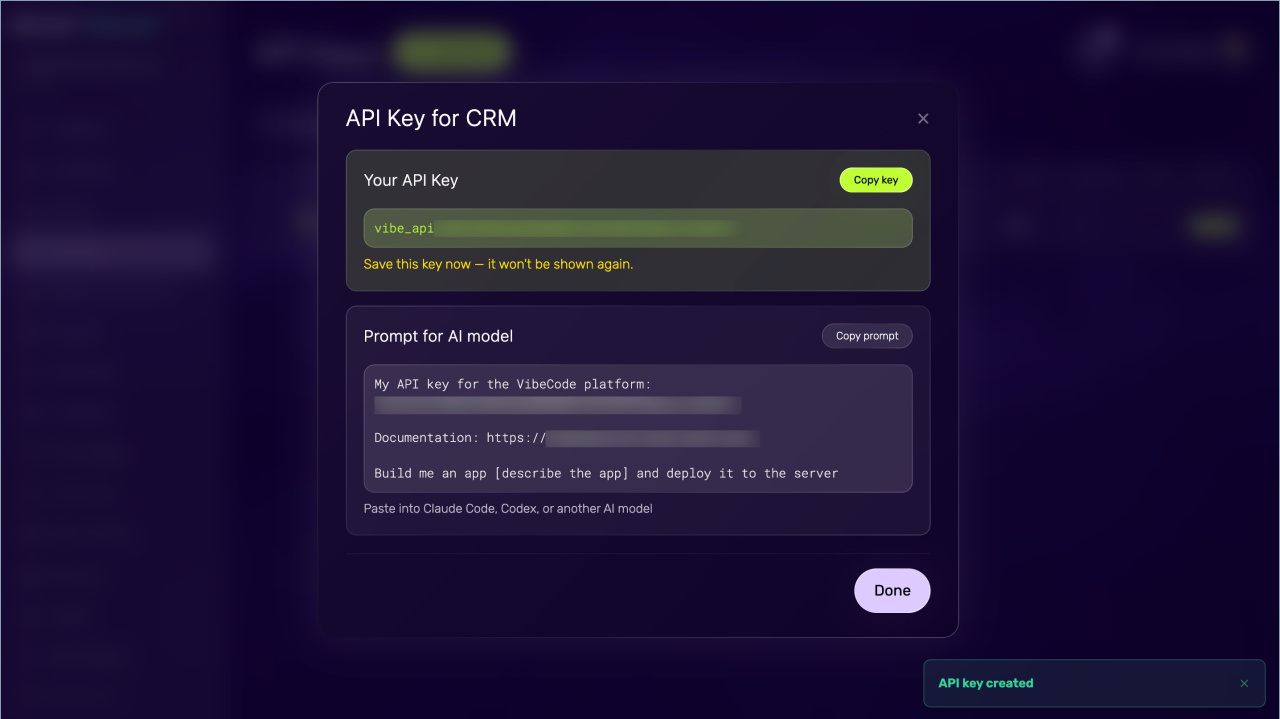
3. Click Create. A window opens with the key and a ready-to-use prompt for the AI model.
4. Copy the API key and store it in a safe place. You will need it to build, update, and connect the AI solution.
We recommend creating a separate key for each app and granting only the permissions it needs. For example, give CRM access for deal-related work and Tasks access for task-related work. If needed, one key can be used for multiple bots and apps.
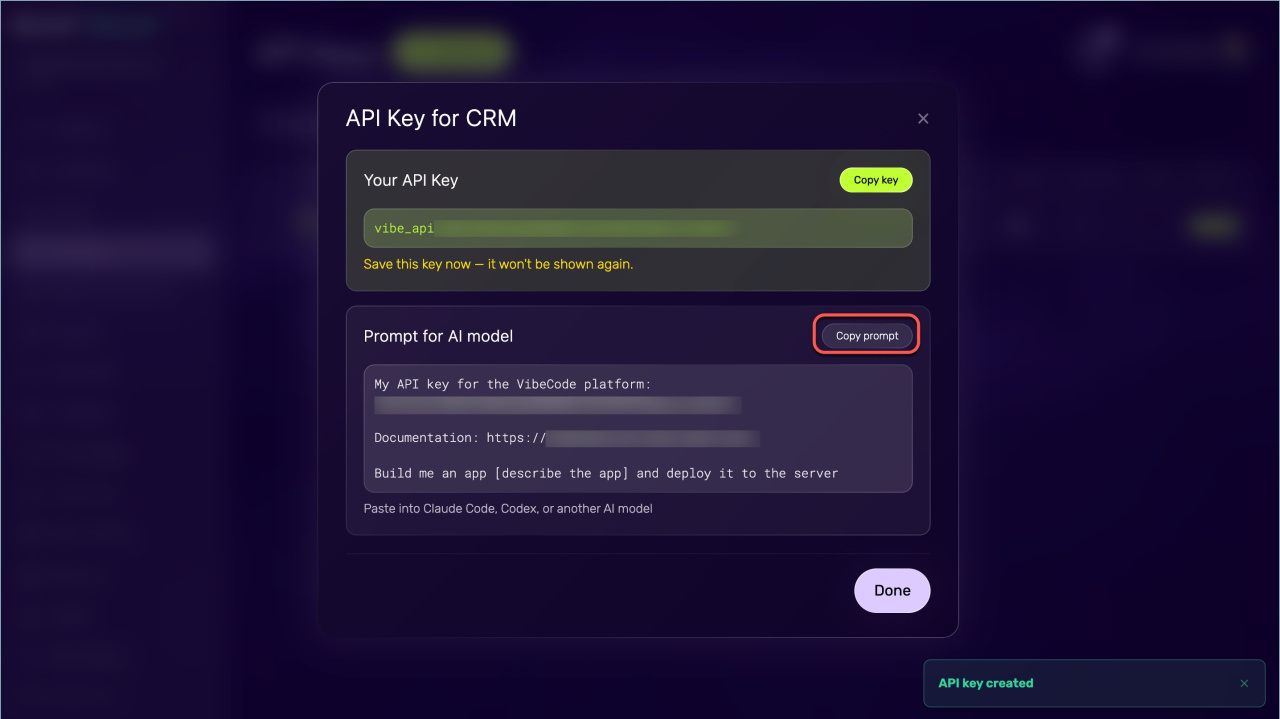
Pass the prompt to the AI model. It contains everything needed: your API key, a link to the Alaio Vibecode documentation, and instructions for the AI model.
For each solution, the AI model will create a separate server and deploy the app or bot on it.
1. Click Copy prompt in the key window.
2. Paste the prompt into Claude Code, Codex, Cursor, or another AI model and add a description of your task — what exactly needs to be built. For example: "Create a bot that sends a summary of open tasks to a chat every morning."
Ready-made prompts for AI solutions
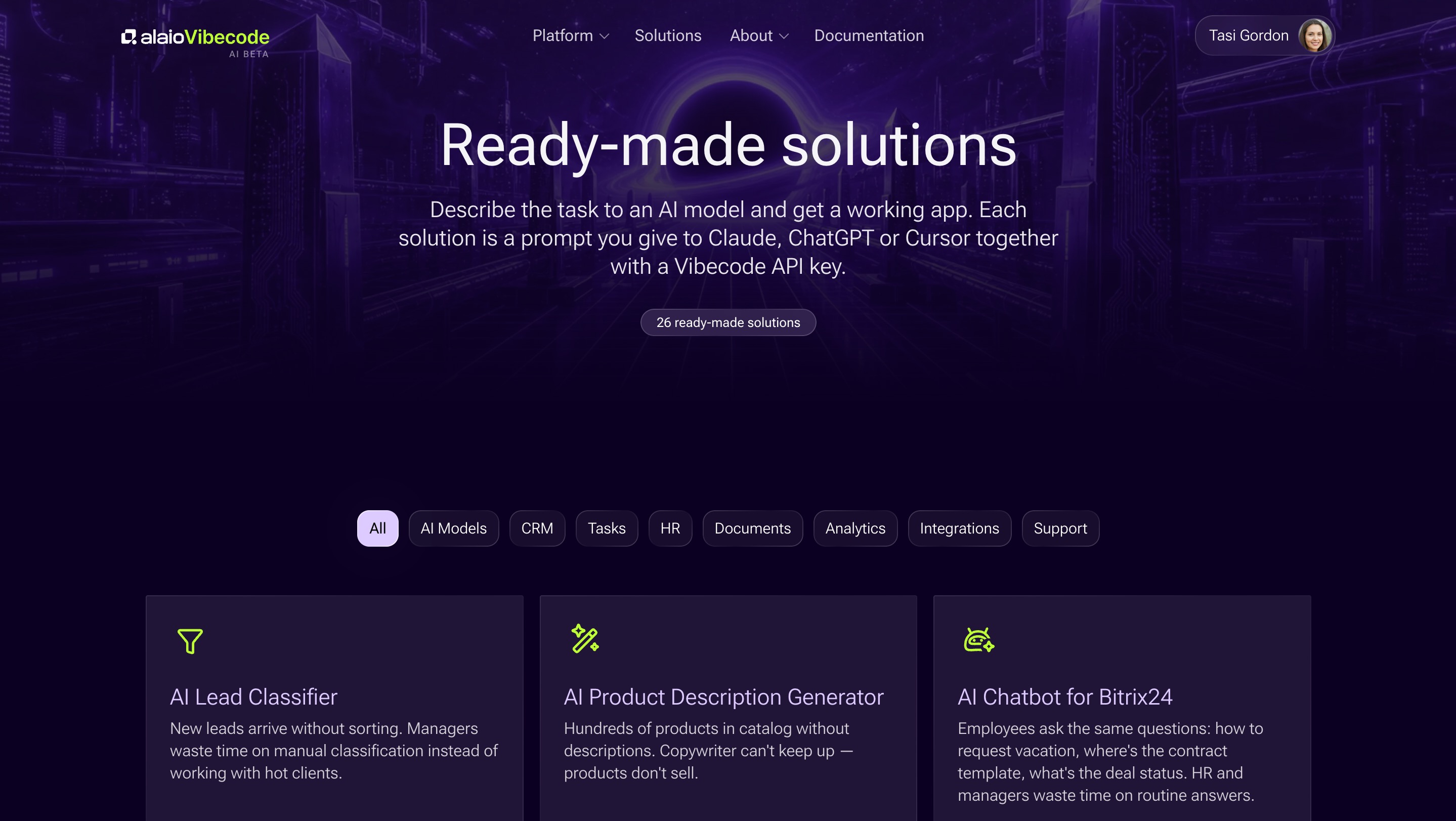
The Ready-made solutions section on the Alaio Vibecode website contains prompt templates for various tasks. You can use them as-is or adapt them for your business.
1. On the Alaio Vibecode website, go to the Ready-made solutions section.
2. Select a suitable solution and click on it.
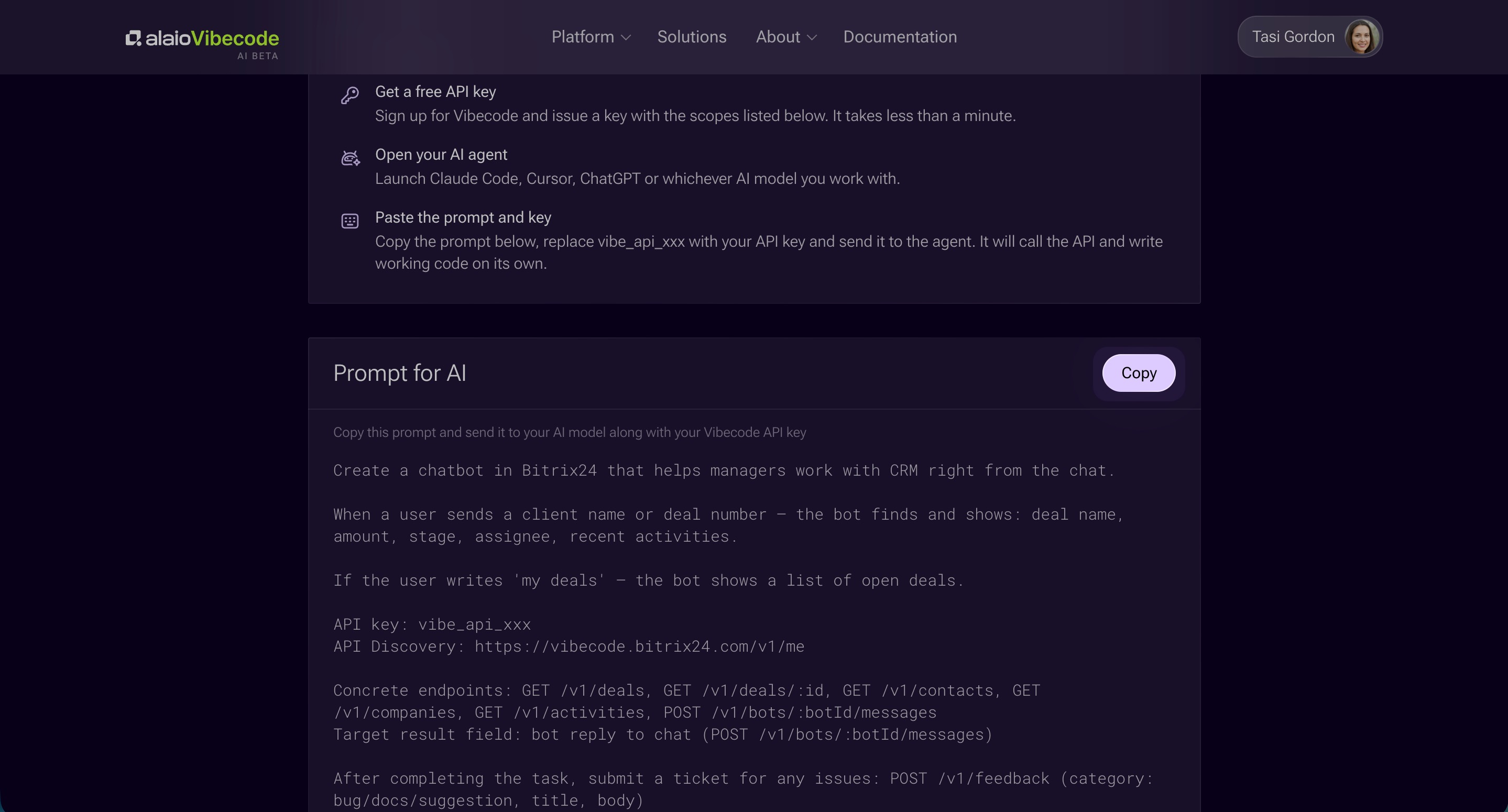
3. Review the description and click Copy in the prompt window.
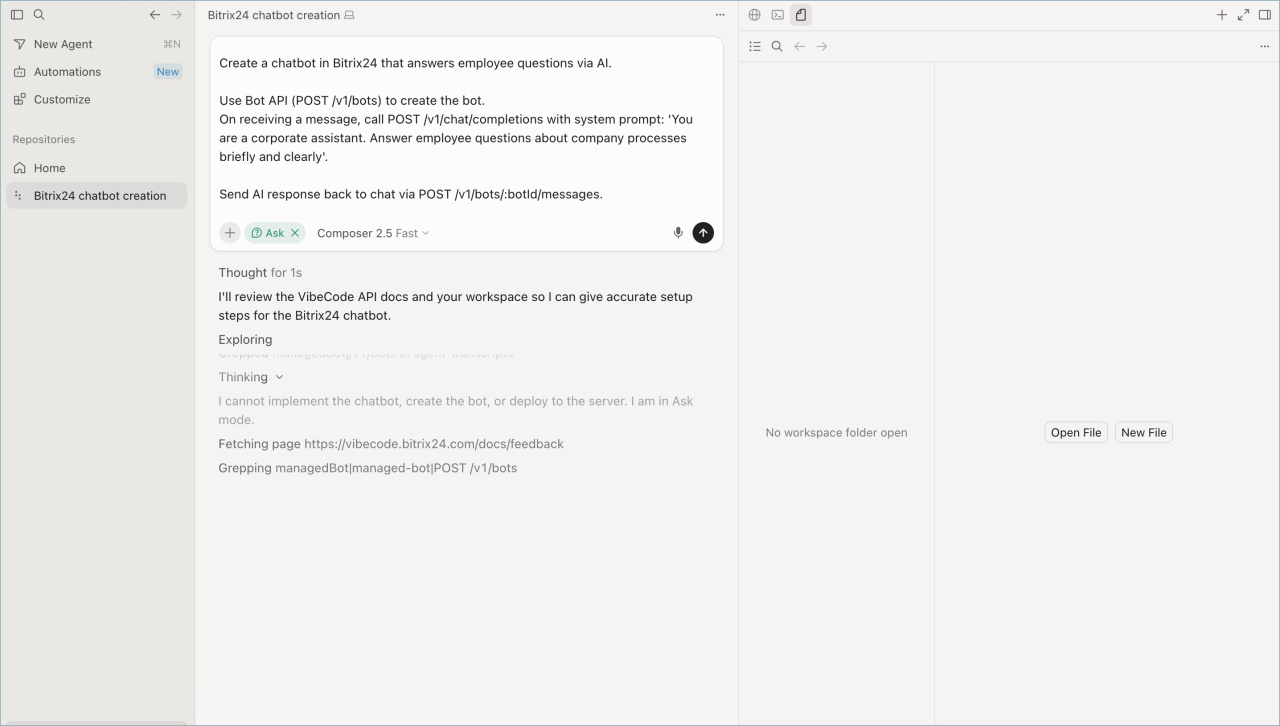
Run the app or bot. The method depends on the type of solution.
- App. Go back to the Alaio Vibecode website and open the Black Hole Servers section. Find the server hosting the app and click Open. The solution opens in a new browser tab.
- Bot. Open your Bitrix24 and go to the Messenger. Find the bot's chat in the chat list.
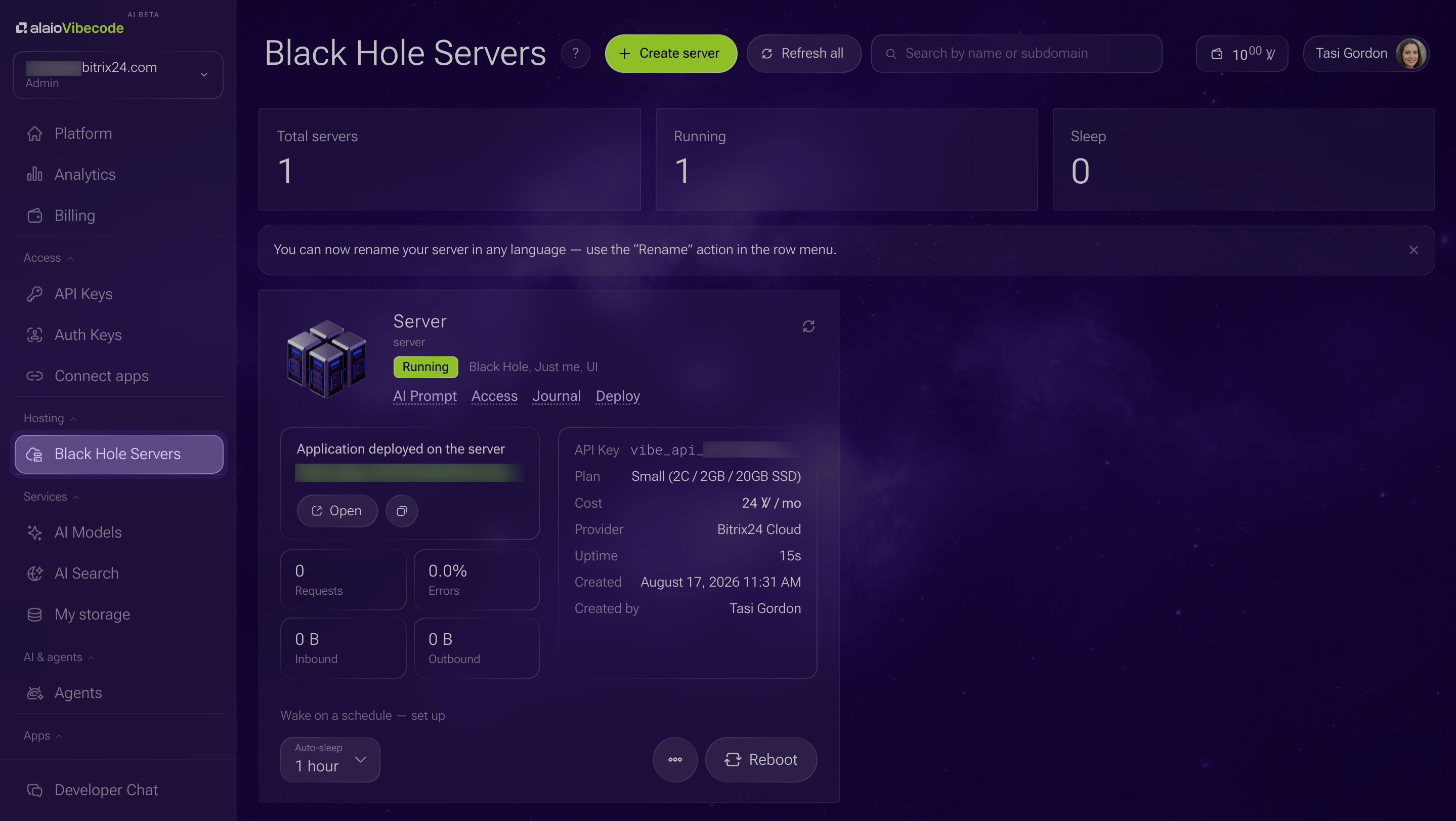
To update an AI solution, go back to the conversation with the AI model where you created the app and make your changes.
Restrict AI solution creation in Bitrix24
By default, all employees can create apps, bots, and set up integrations with agents on the Alaio Vibecode site. Administrators can limit access and set rules for creating solutions.
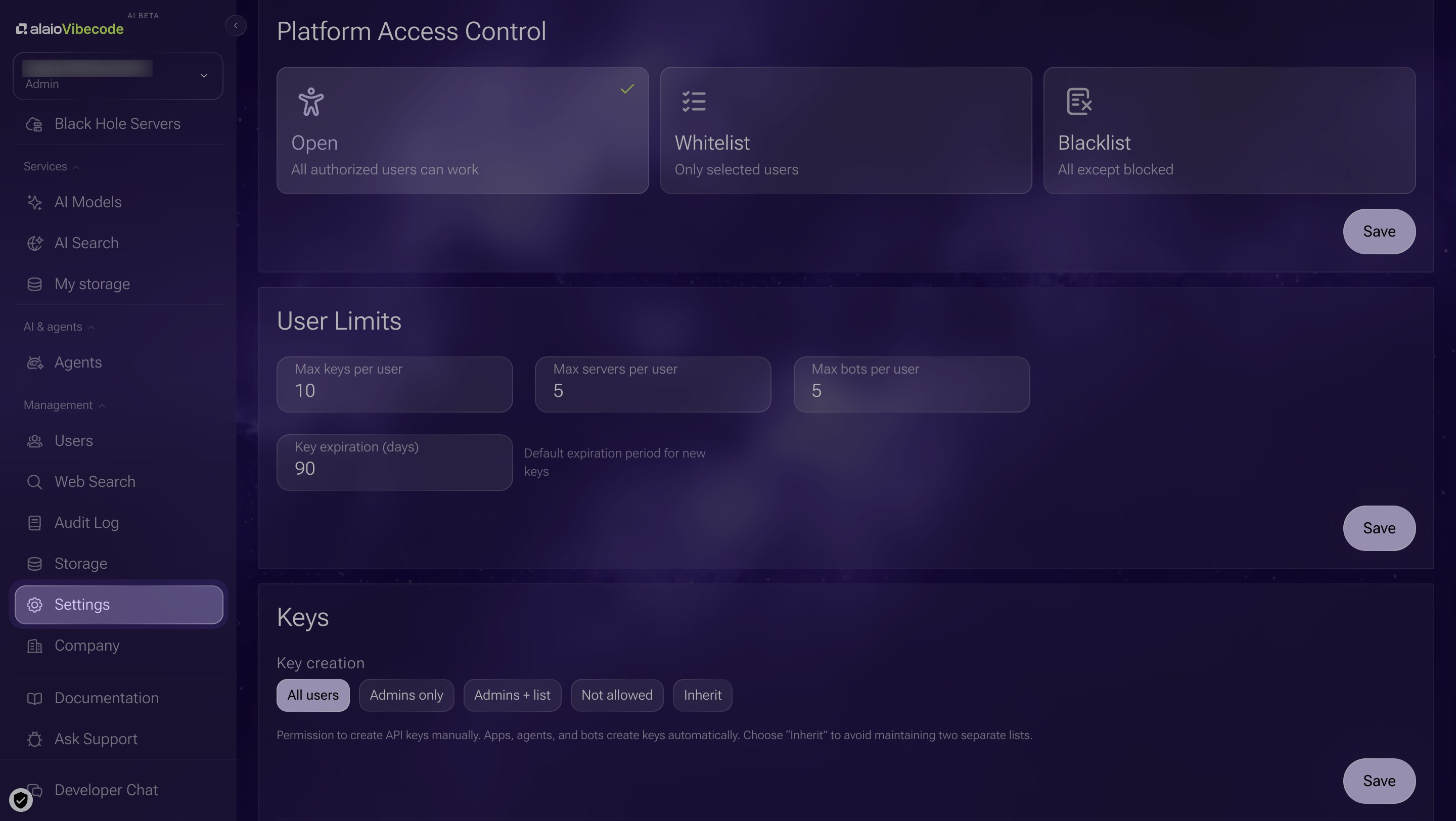
Open the Alaio Vibecode site, go to the Settings, and configure these options:
Platform access control. Three modes are available:
- Open: all authenticated users can create solutions.
- Whitelist: only selected users can create solutions.
- Blacklist: all users except blocked users can create solutions.
User limits. You can set limits of up to 100 API keys, 50 servers, and 50 bots.
Creation rules for apps, servers, and bots. Set who can create each type of object: all users, administrators only, or no one.
Server settings:
- Server infrastructure. Turn on this option to let users create and manage cloud servers.
- Enable Open mode. This option is still in development. When it becomes available, users will be able to switch servers to Open mode with a public IP address and direct SSH access. By default, all servers are created in Black Hole mode.
Save your changes.
In brief
- Alaio Vibecode lets you create Bitrix24 apps and bots with AI. No programming skills required.
- Sign in to Alaio Vibecode with your Bitrix24 account.
- To create an AI solution for Bitrix24, generate an API key. Then copy and send a prompt that describes the task to an AI model with API access. The AI model writes the code and deploys the solution to a secure server.
- The finished app appears in the Black Hole Servers section. The bot appears in the Bitrix24 Messenger.
- Administrators can limit platform access and set solution creation rules in the Settings section on the Alaio Vibecode site.