
Multiple employees can work on the same Alaio Vibecode app without sharing personal API keys. If the person responsible for the app changes, the owner can transfer the app to another employee along with everything needed to continue working on it.
In this article:
Set up shared access to an app
Add employees to or remove them from the development team. The owner doesn't need to share credentials to let others work on the app — each team member uses a personal API key.
Add an employee to the development team.
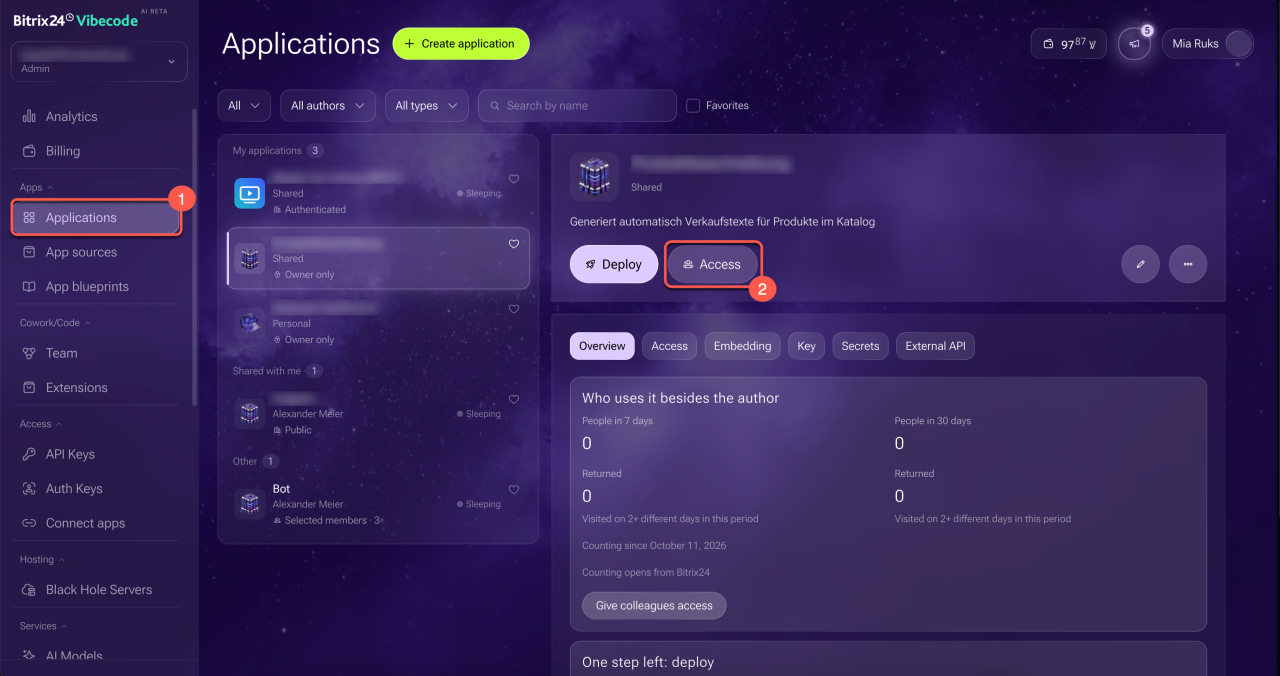
1. Log in to Alaio Vibecode and open the Applications section.
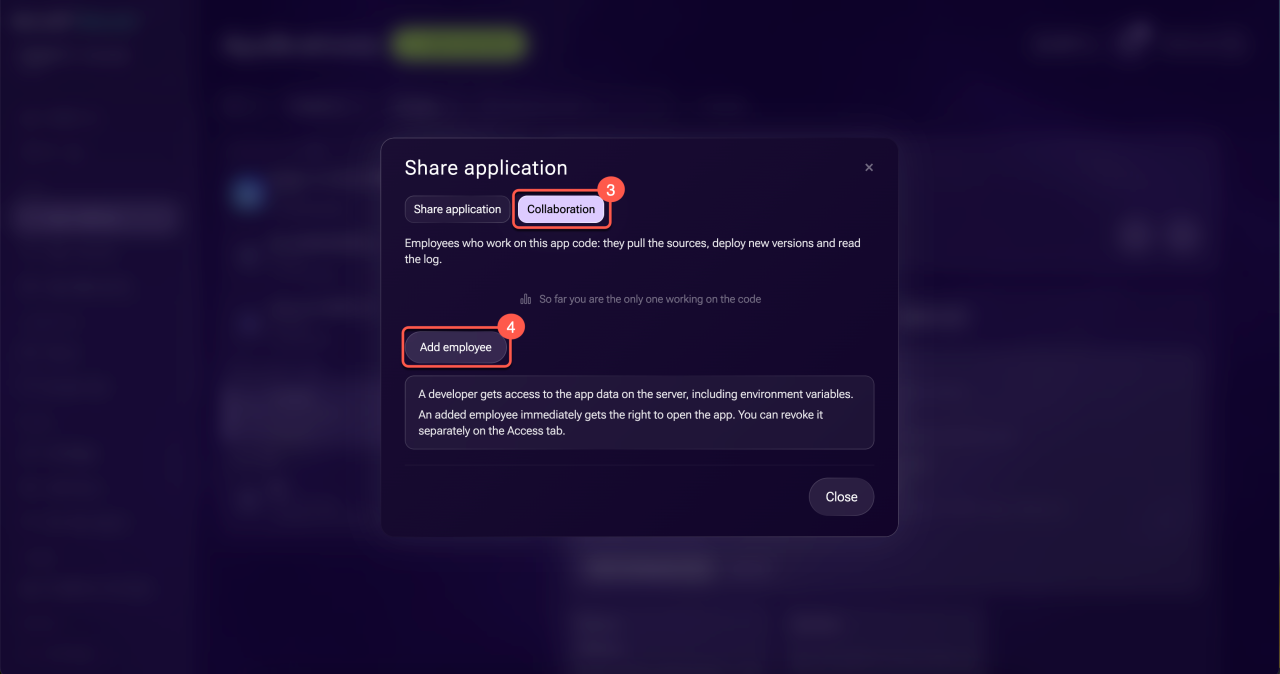
2–3. Click Access > Collaboration on the app's card.
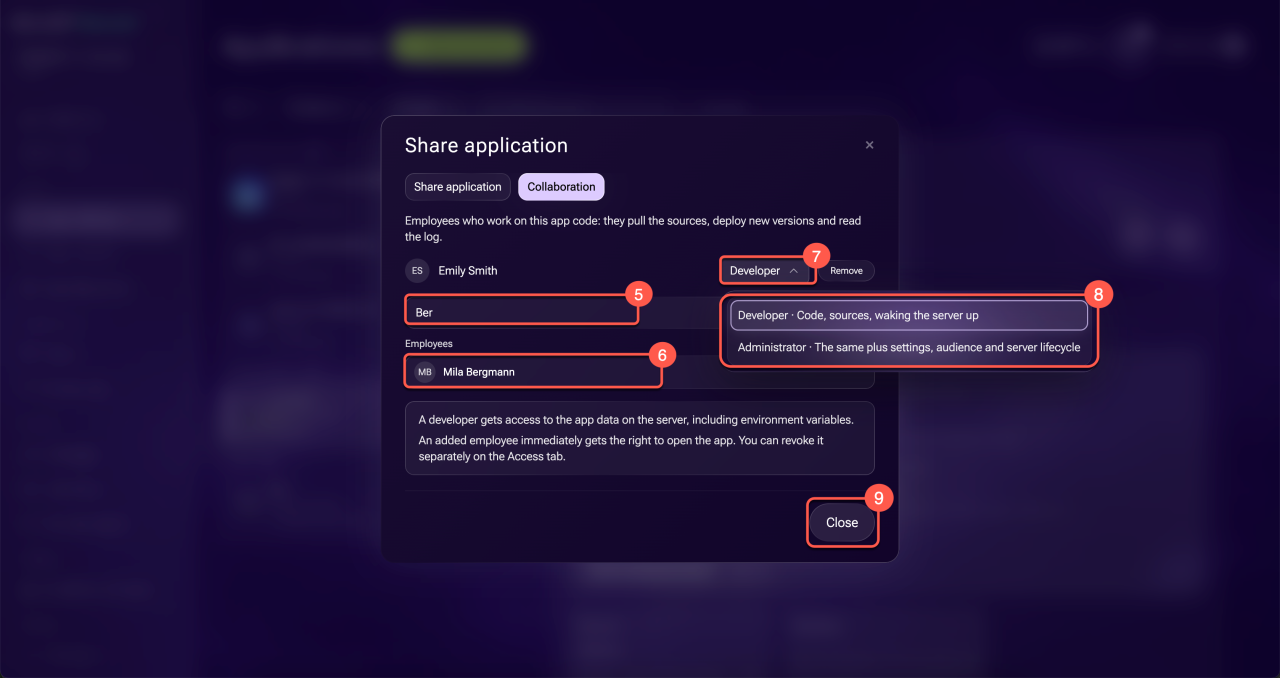
4–5. Click Add employee and start typing the employee's name in the search field.
6. Click the name of the employee you want to add to the development team.
7–8. Click the current role next to the employee's name and select an option:
- Developer: has access to app data on the server, including environment variables. Can publish changes, run commands on the server, work with files, logs, and source storage, and wake up the server.
- Administrator: has all Developer permissions and can also manage the server lifecycle, settings, security, plan, disk, backups, and domain. Can configure app access, work with the app card in the catalog, and manage app expenses.
9. Click Close. Changes to team membership and roles are saved immediately.
The Administrator role in the development team doesn't grant Bitrix24 administrator rights. A team member with the Administrator role can't manage team membership, add or remove employees, or transfer the app.
Remove an employee from the development team.
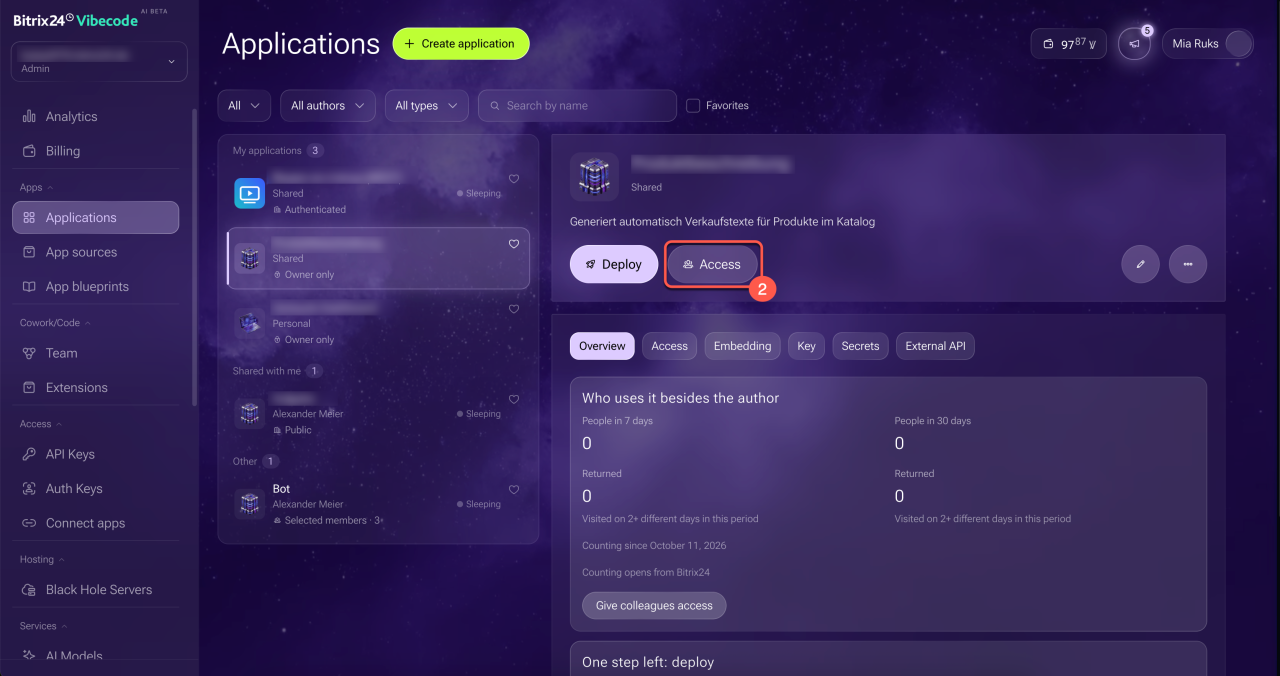
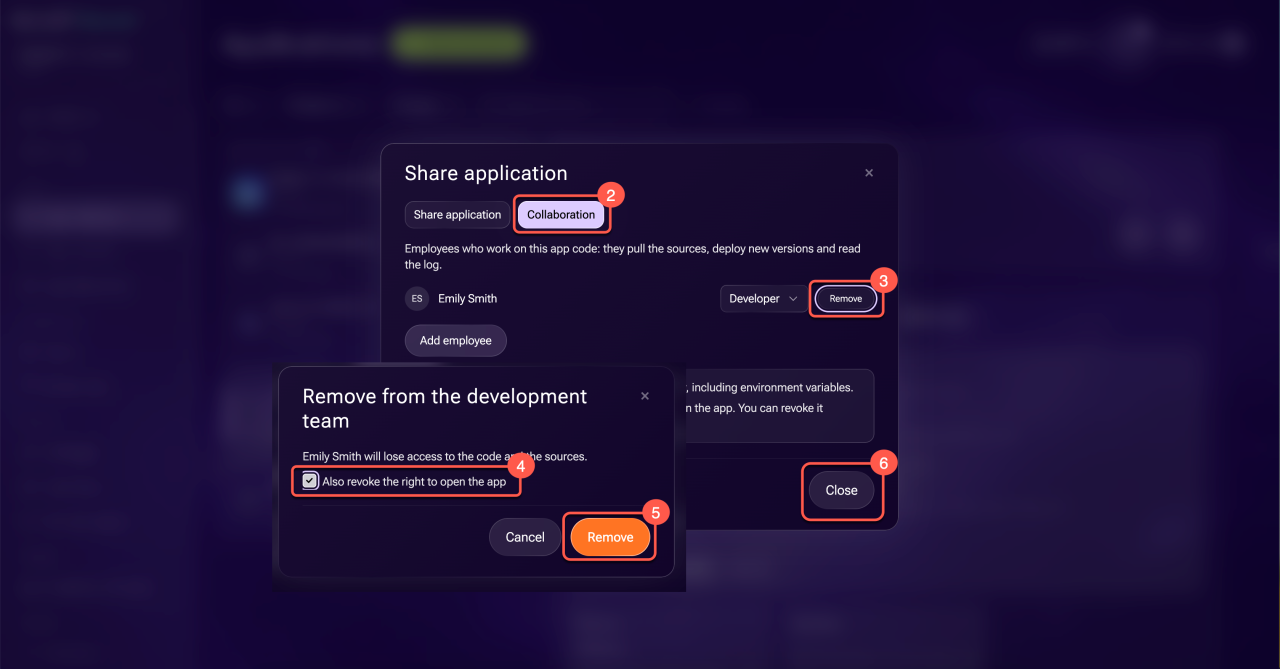
1–2. Open Access > Collaboration on the app's card.
3. Click Remove at the end of the employee's row.
4. In the Remove from development team window, choose whether to select the Also revoke the right to open the app checkbox:
- Checkbox cleared: the employee can't work with the app code or server but can still open and use the app. You can revoke this permission later on the Access tab of the app card.
- Checkbox selected: the employee is no longer a team member and can't open the app unless the app access settings specify otherwise.
5. Click Remove to confirm the action.
6. Click Close. Changes are saved automatically.
Publish changes when working together
You work on an app in Alaio Vibecode by chatting with an AI agent, such as Claude Code, Codex, or Cursor. The agent modifies the code and publishes it to the server.
Update or remove an AI solution in Alaio Vibecode
When working on an app together, instruct the agent to follow these rules:
- Use your personal API key.
- Before making changes, retrieve the latest version of the source code and note the version number.
- Make changes without modifying the app's existing environment variables.
- Publish changes to the same server and specify the source code version used as the starting point. For example, if you started editing version v12, specify v12 as the base version.
- If publishing is rejected because a colleague has already published a newer version, retrieve the latest source code, merge your changes into it, and publish again using the new base version. Don't simply update the version number while keeping the old code.
- After publishing, verify that the app works correctly.
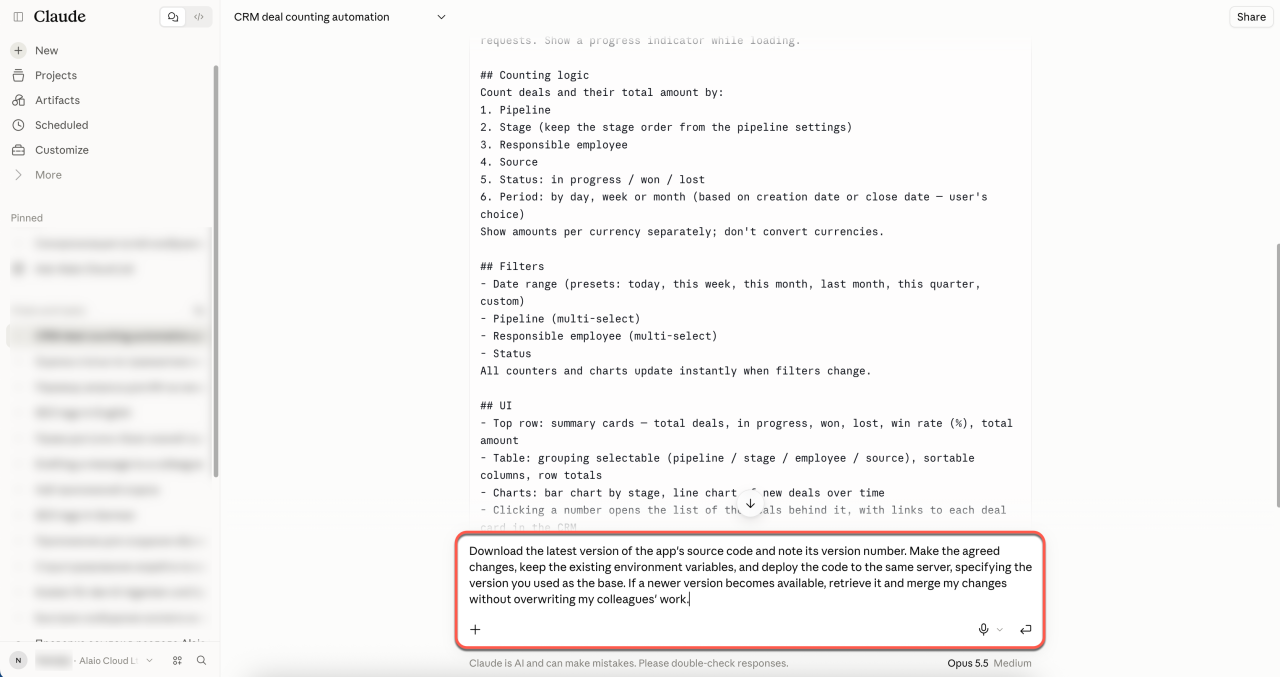
Example request to the agent:
Download the latest version of the app's source code and note its version number. Make the agreed changes, keep the existing environment variables, and deploy the code to the same server, specifying the version you used as the base. If a newer version becomes available, retrieve it and merge my changes without overwriting my colleagues' work.
Change the app owner
If the employee who led development leaves the company or moves to another project, transfer the app to a new owner.
Transfer an app. Only the app owner and the Bitrix24 administrator can transfer an app to a new owner.
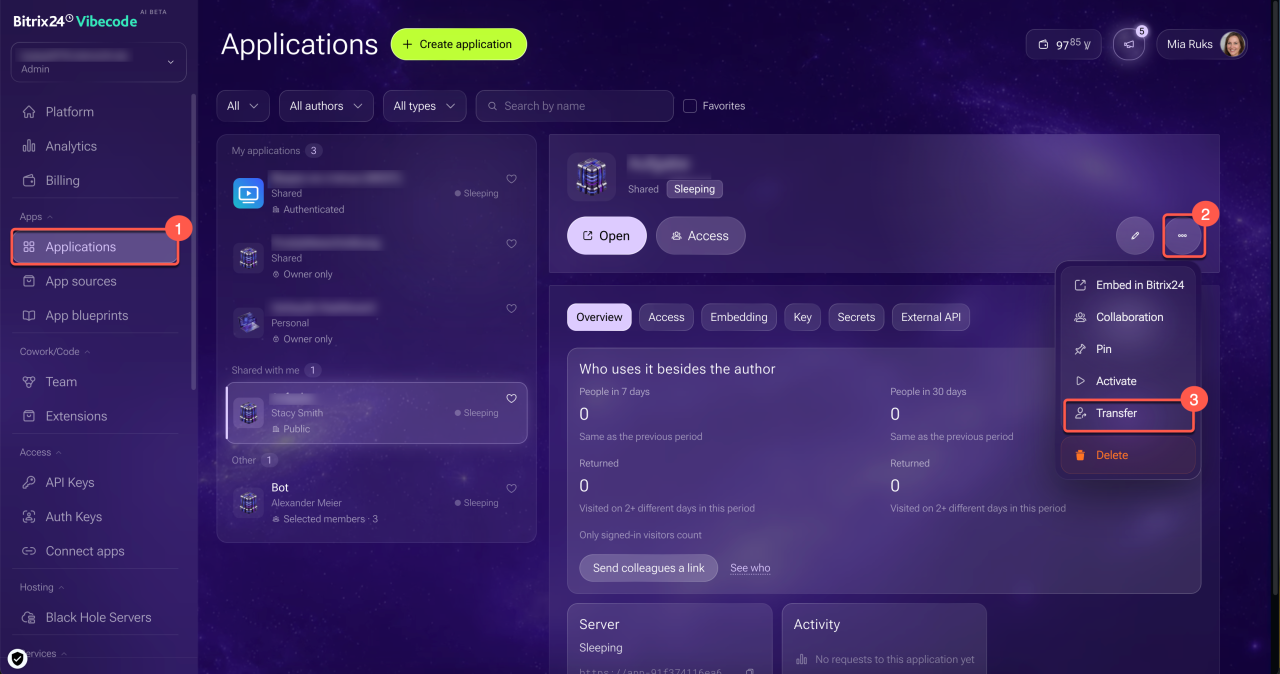
1. Log in to Alaio Vibecode and open the Applications section.
2. Click Three dots (...) next to the Access button on the card for the app you need.
3. Select Transfer.
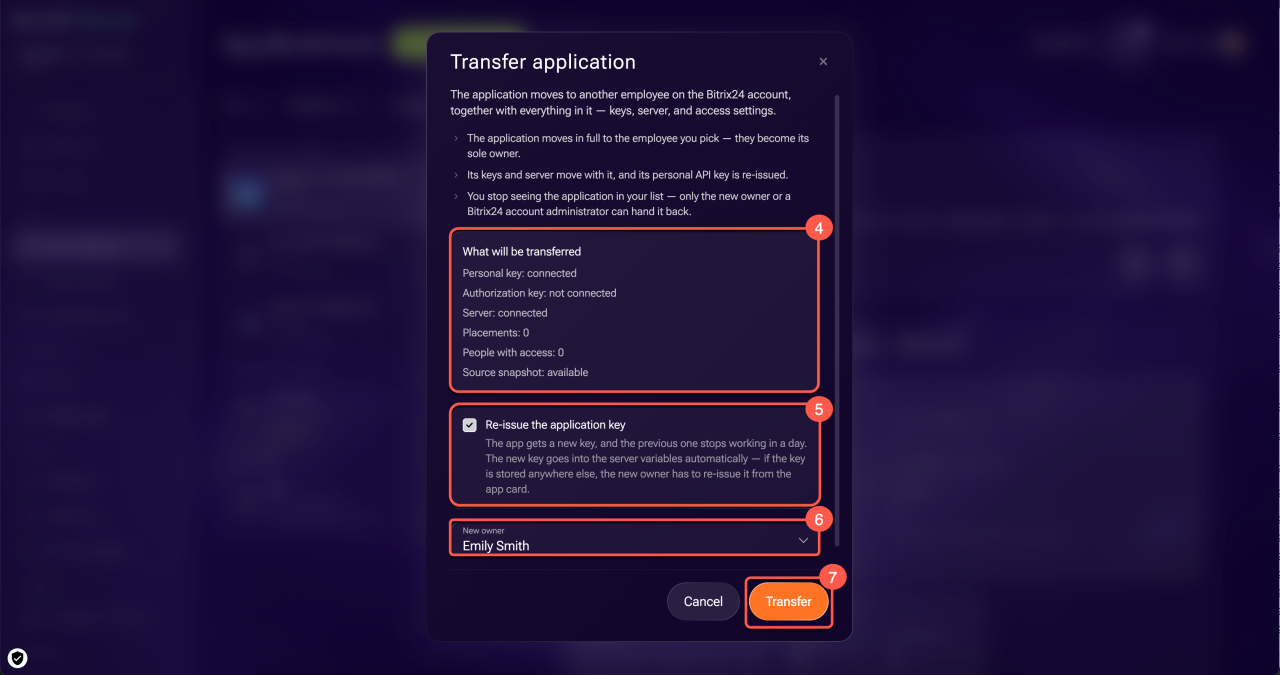
4. Check which data transfers to the new owner:
- Personal API key: reissued by default, but you can change this setting in the next step.
- Authorization key: transfers without automatic reissue. The new owner must reissue it manually if they use it.
- Server: if the server belongs to another employee, its owner doesn't change. After the transfer, Bitrix24 shows a notification and a warning on the app card about the mismatch between the app owner and server owner.
- Placements: they remain linked to the app. Their count appears in the summary before the transfer.
- People with access: the summary shows the count, and the access settings transfer with the app.
- Source snapshot: if a snapshot is saved, the right to download it transfers to the new owner. If no snapshot exists, the transfer isn't blocked, but the new owner doesn't receive it automatically. Save and transfer the source code before transferring the app.
- App: the app and its access settings transfer to the new owner.
5. Select or clear the Reissue app key checkbox:
- Checkbox selected (default): when the app is transferred, Alaio Vibecode creates a new app API key. The previous key stops working no later than 24 hours after a successful reissue. If the server supports automatic key updates, Alaio Vibecode applies the new key automatically. If the key can't be created, the app transfer still proceeds. The new owner sees a warning and can reissue the key from the app card.
- Checkbox cleared: the personal API key linked to the app transfers to the new owner without changing its value. Its full value isn't shown again. If a copy remains with the previous owner or in an integration, it continues to work on behalf of the new owner until the key expires, is revoked, or is reissued. This prevents interruptions to integrations, but doesn't block access for holders of previously issued copies. For a secure transfer, leave reissuing enabled.
If the app key can't be reissued — for example, if it's a system key or linked to a third-party app — this option doesn't appear.
6. Select the new owner — the list shows Bitrix24 employees who have already worked with Alaio Vibecode.
7. Click Transfer.
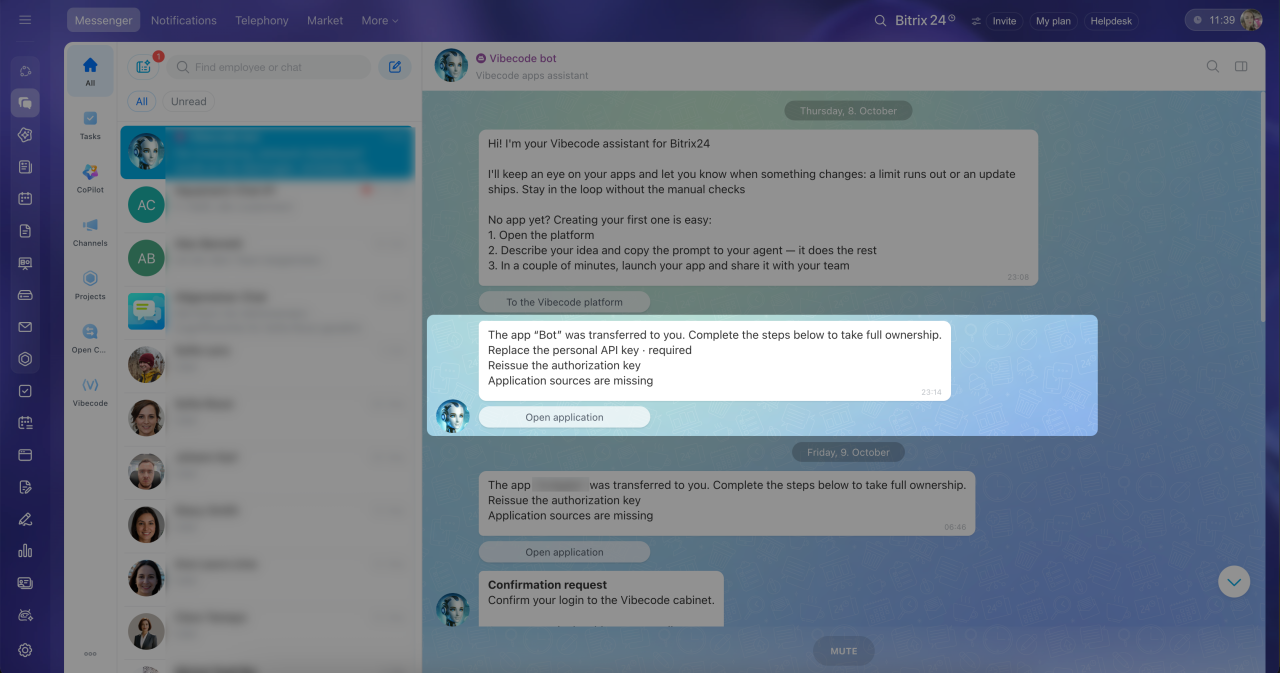
Accept an app. The new owner receives a message from the Alaio Vibecode bot and can accept the app. The app card shows the steps to complete the transfer. The steps depend on how the app is set up.
1–2. Go to Messenger and open the chat with the Alaio Vibecode bot.
3–4. Read the message, then click Open application below it.
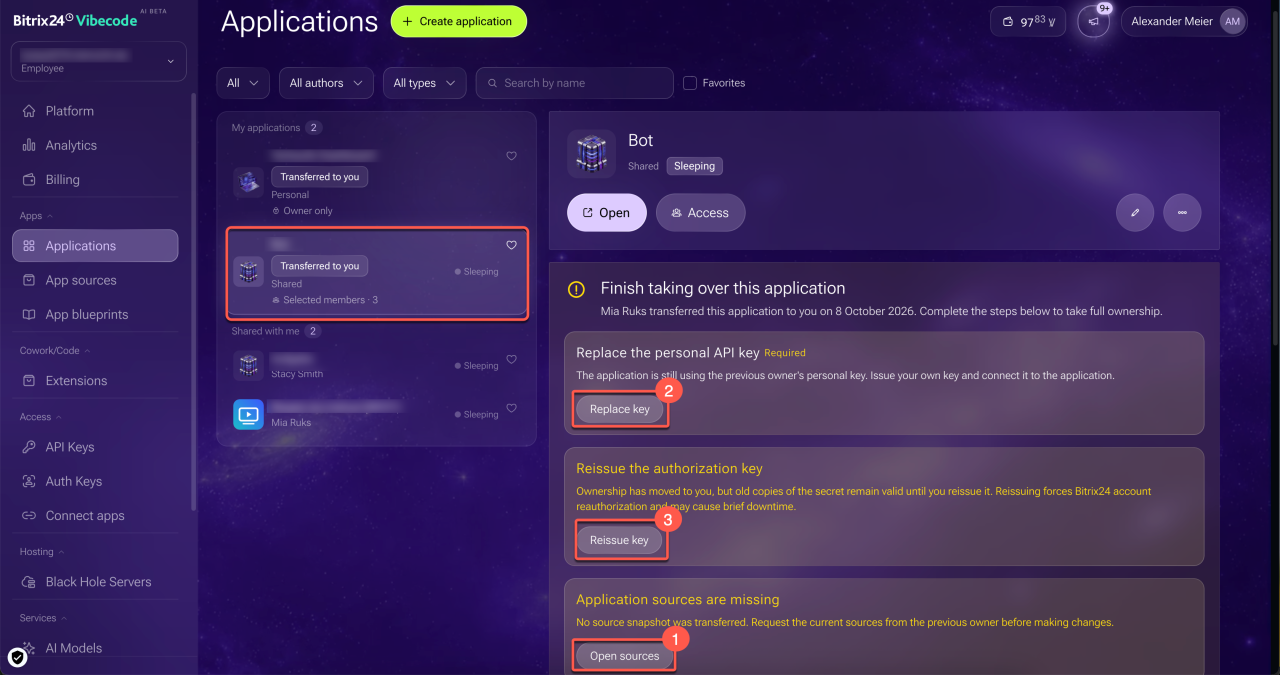
The Alaio Vibecode website opens. Continue on the app card marked Transferred to you.
1. Click Open sources and download the current app snapshot. You'll need it if you have to redeploy the app.
2. Click Replace key and save the full key immediately in a secure location. You won't be able to view it again. Don't share the key in the chat with the agent.
3. If you need a separate API key for the agent, CI, or scripts, click Reissue keys. This step is optional. These keys don't replace the app key.
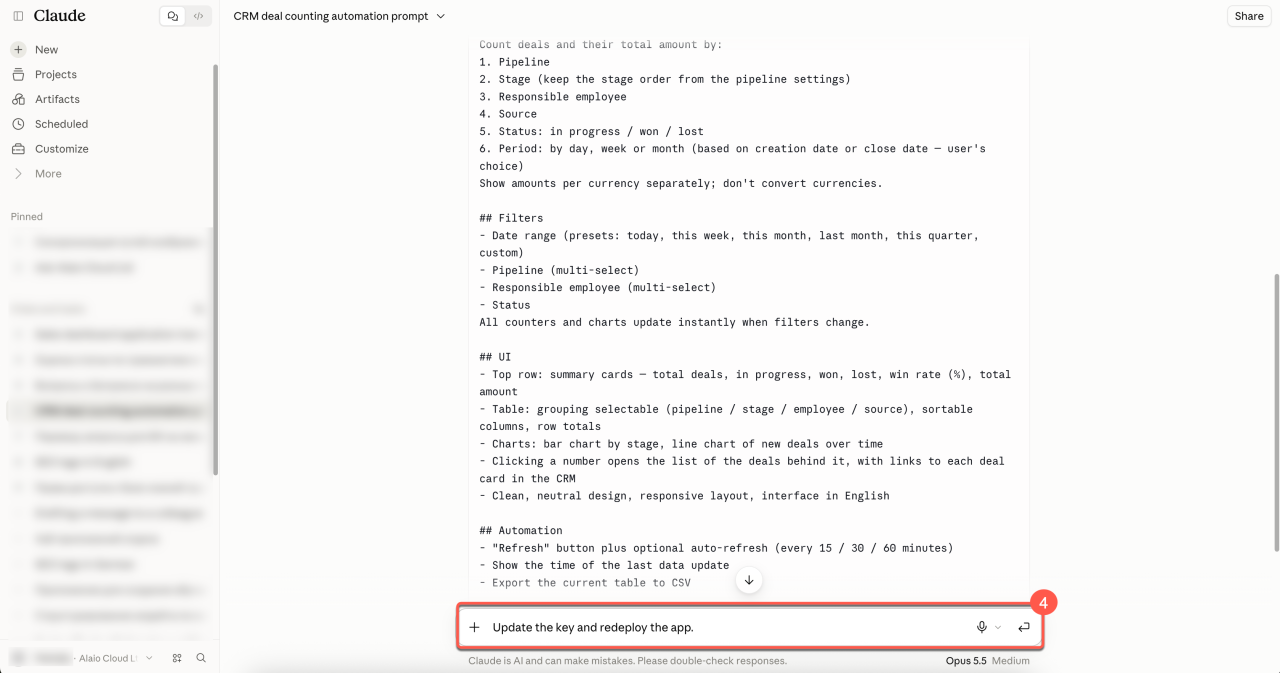
4. Update the key in the app's environment variables and redeploy the app before the date shown on the card, while the previous key is still valid.
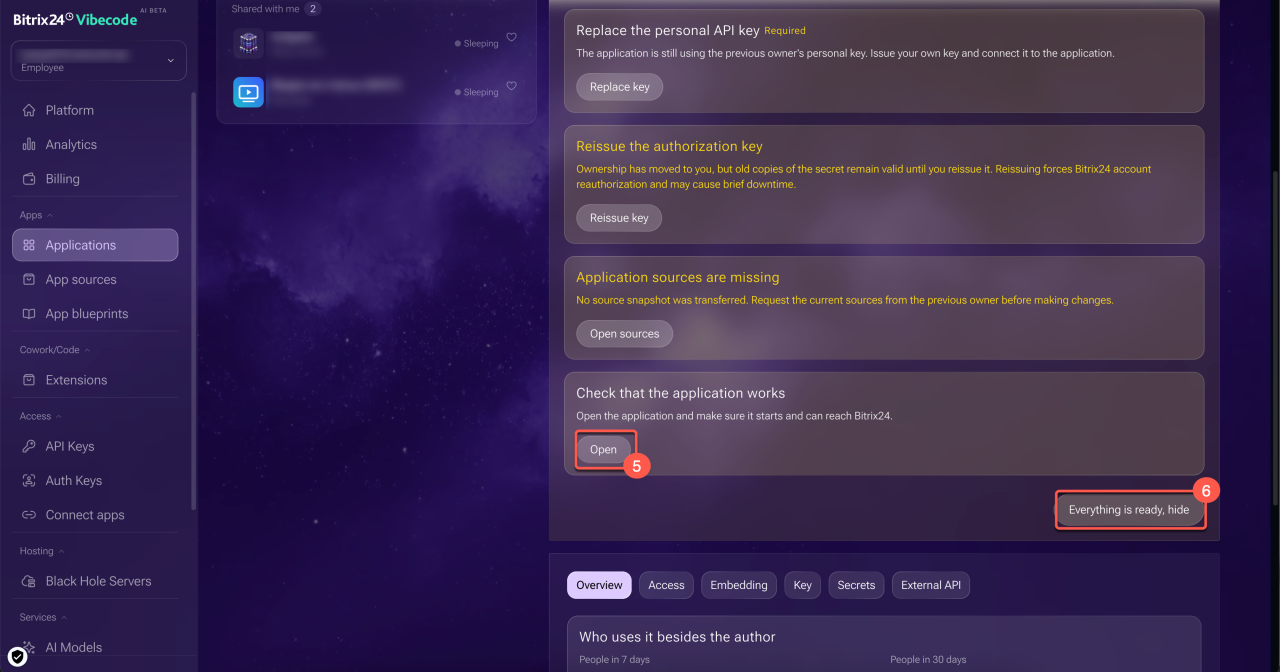
5. Click Open in the verification block and make sure the app launches and connects to Bitrix24.
6. Once you've completed the setup, click Everything is ready, hide.
In brief
- A team can work on an app without sharing personal API keys — each team member uses their own key.
- Only the app owner or the Bitrix24 administrator can add or remove employees from the development team or transfer the app.
- The Developer and Administrator roles in the development team provide different technical permissions on the server, but neither role allows users to manage team membership or transfer the app.
- When removing an employee from the team, you can choose whether to revoke their permission to open the app.
- When publishing changes, the agent specifies the source code version it started from — this helps prevent accidental overwriting of colleagues' changes.
- Once the app transfer is confirmed, the previous owner can't undo it. The new owner completes the setup by following the instructions sent by the Alaio Vibecode bot.