
If two-factor authentication is mandatory in your company, each employee must set it up by the deadline. After the deadline, you can't log in to Bitrix24 until you complete the setup.
You can set up two-factor authentication without the Bitrix24 mobile app. This is useful if you don't have a smartphone or don't want to install the app. Instead, you can confirm your login by email or SMS.
The administrator only needs to make sure employees can skip connecting a trusted device — a phone with the Bitrix24 mobile app. This option is enabled by default.
In this article:
- Allow login confirmation without the mobile app
- Set up two-factor authentication without the mobile app
If two-factor authentication is already enabled but you can't access the app, use another login confirmation method.
Log in to Bitrix24 without the mobile app
Allow login confirmation without the mobile app
This option is enabled by default. If an administrator disables it, employees can't skip connecting a trusted device.
Open the security settings in one of two ways:
- In the left menu, click Settings (⚙️) > Bitrix24 settings and select Security
- At the top of the screen, next to the Bitrix24 logo, click the slider icon and select Security
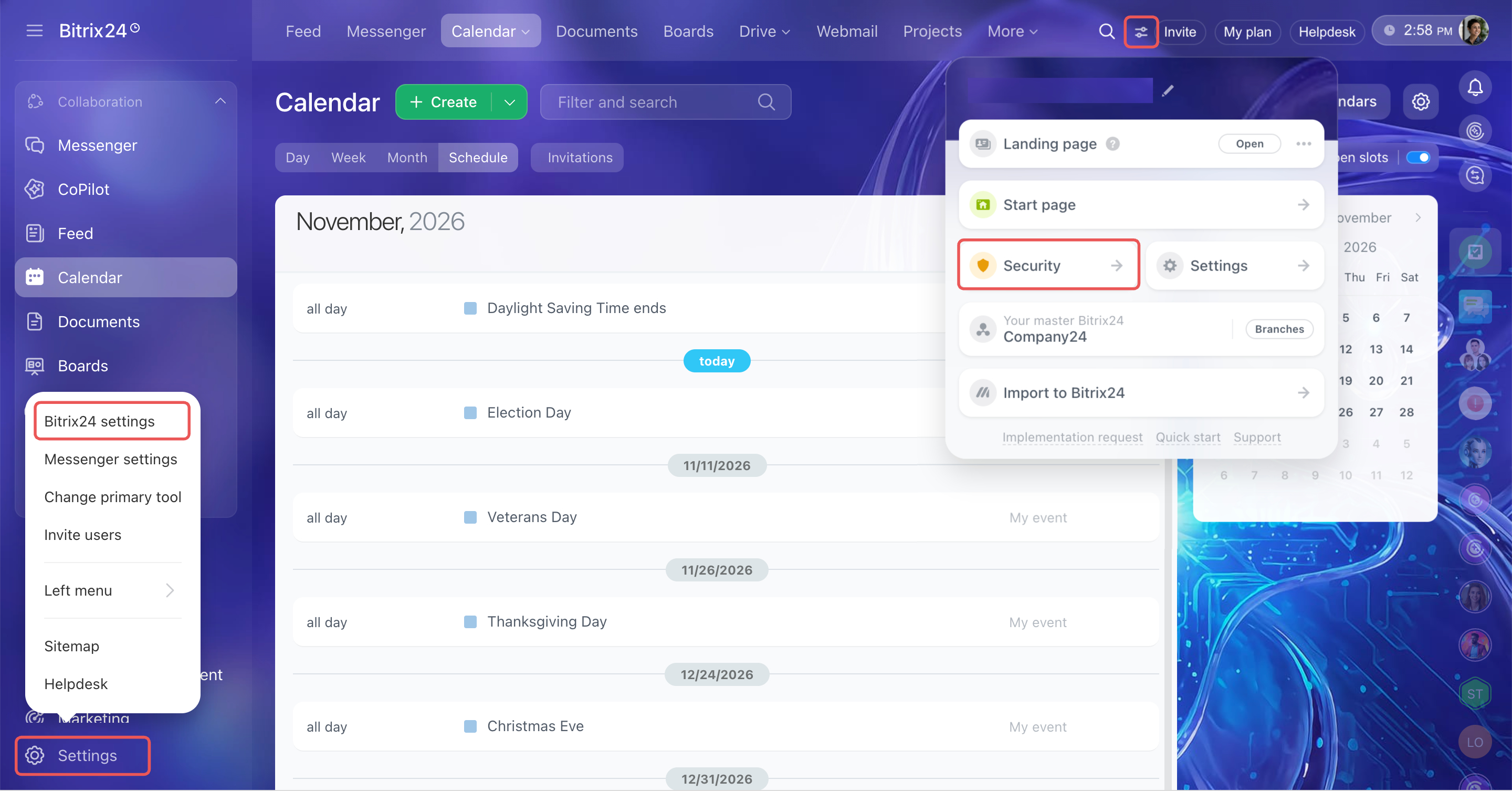
Check the setting:
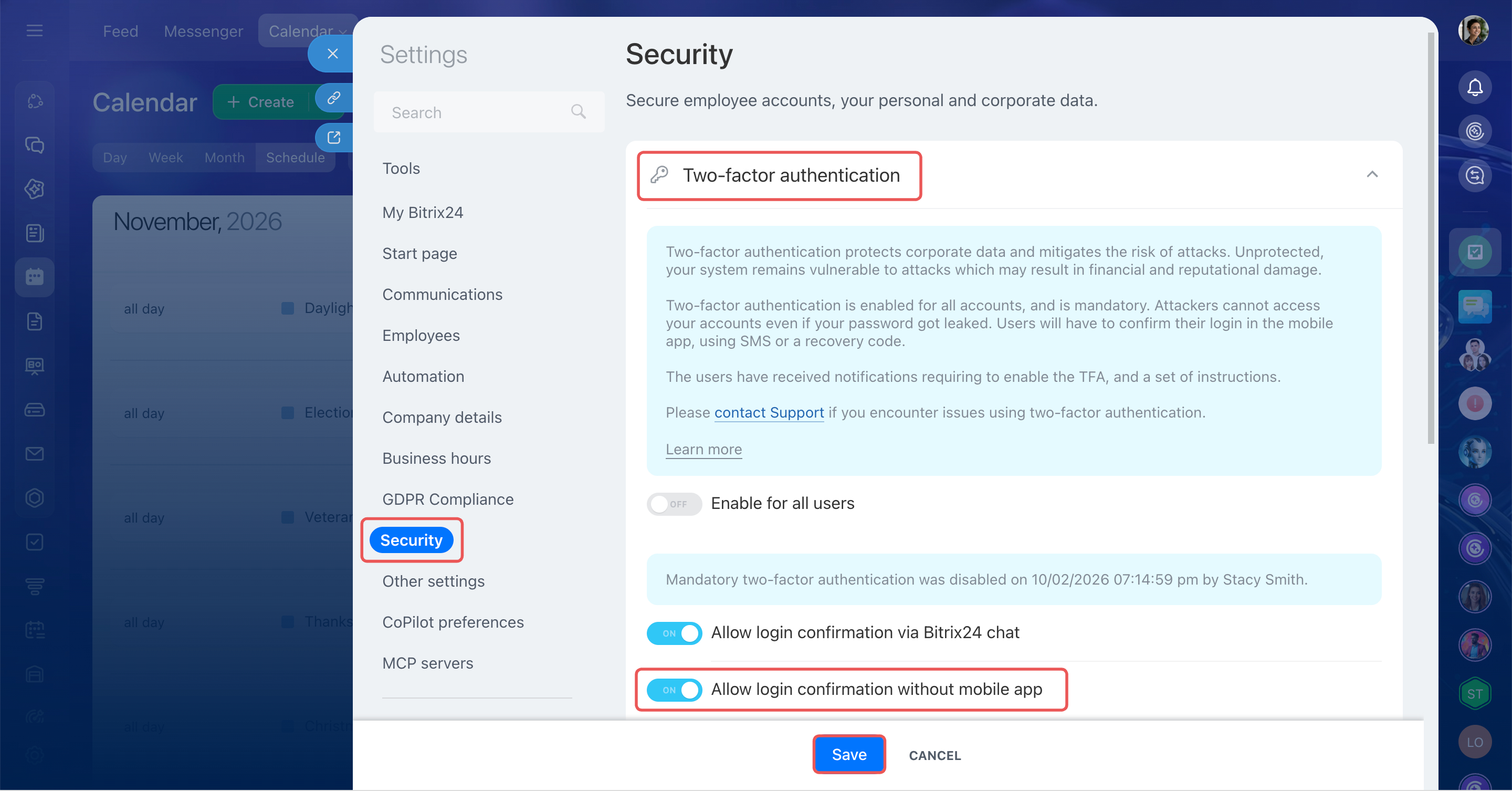
1. In the Two-factor authentication block, find Allow login confirmation without mobile app. If the option is off, turn it on.
2. If you changed the setting, click Save.
This setting doesn't disable two-factor authentication. It only lets employees skip connecting a trusted device. Employees who have already connected the mobile app can continue using it to confirm their login.
Set up two-factor authentication without the mobile app
To set up two-factor authentication without the mobile app, skip the trusted device step and confirm your email address or phone number instead.
We recommend adding both. If you lose access to one, you can use the other to confirm your login. You can also add a phone number later.
How to add a phone number if you skipped this step during setup
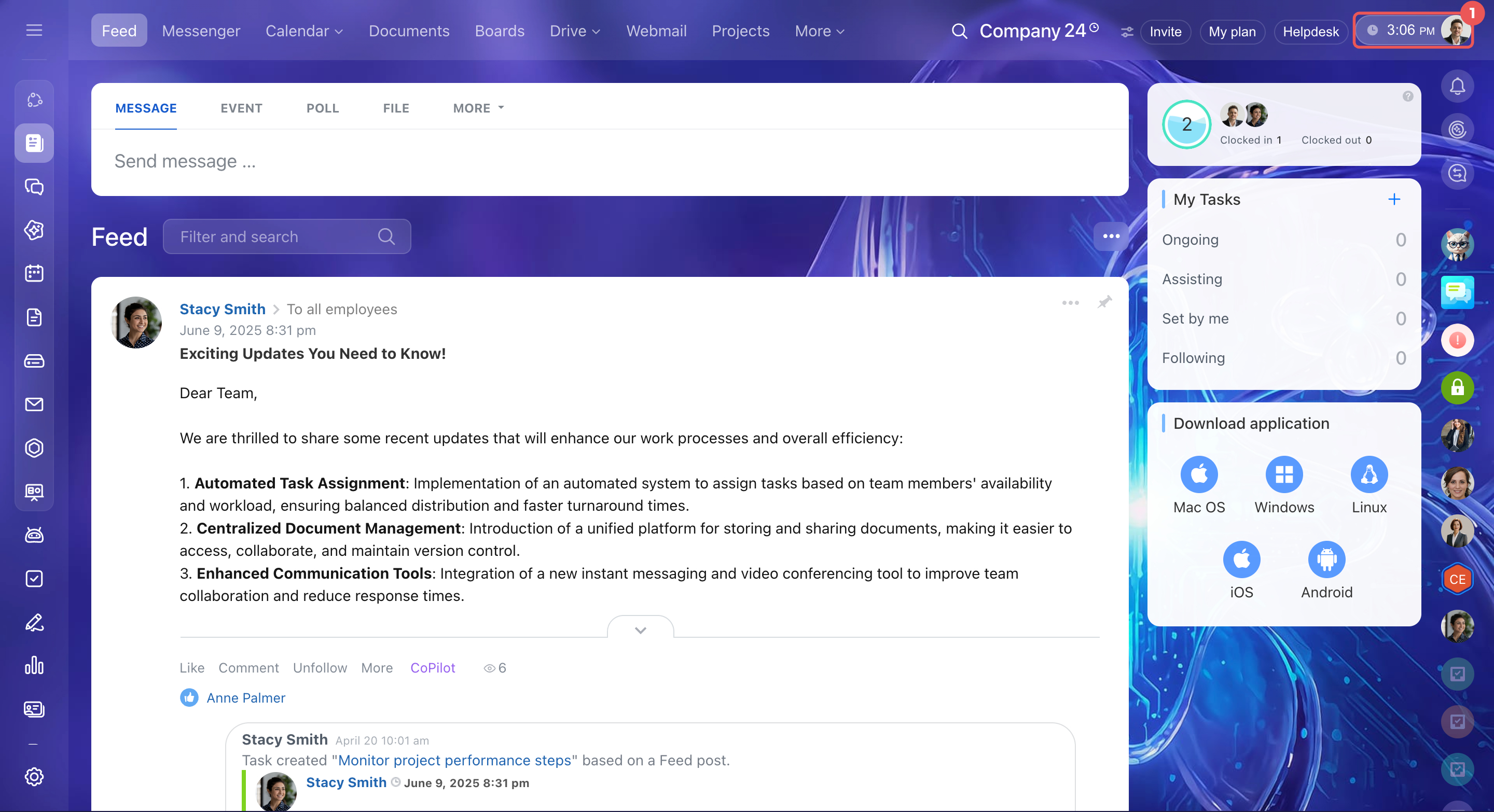
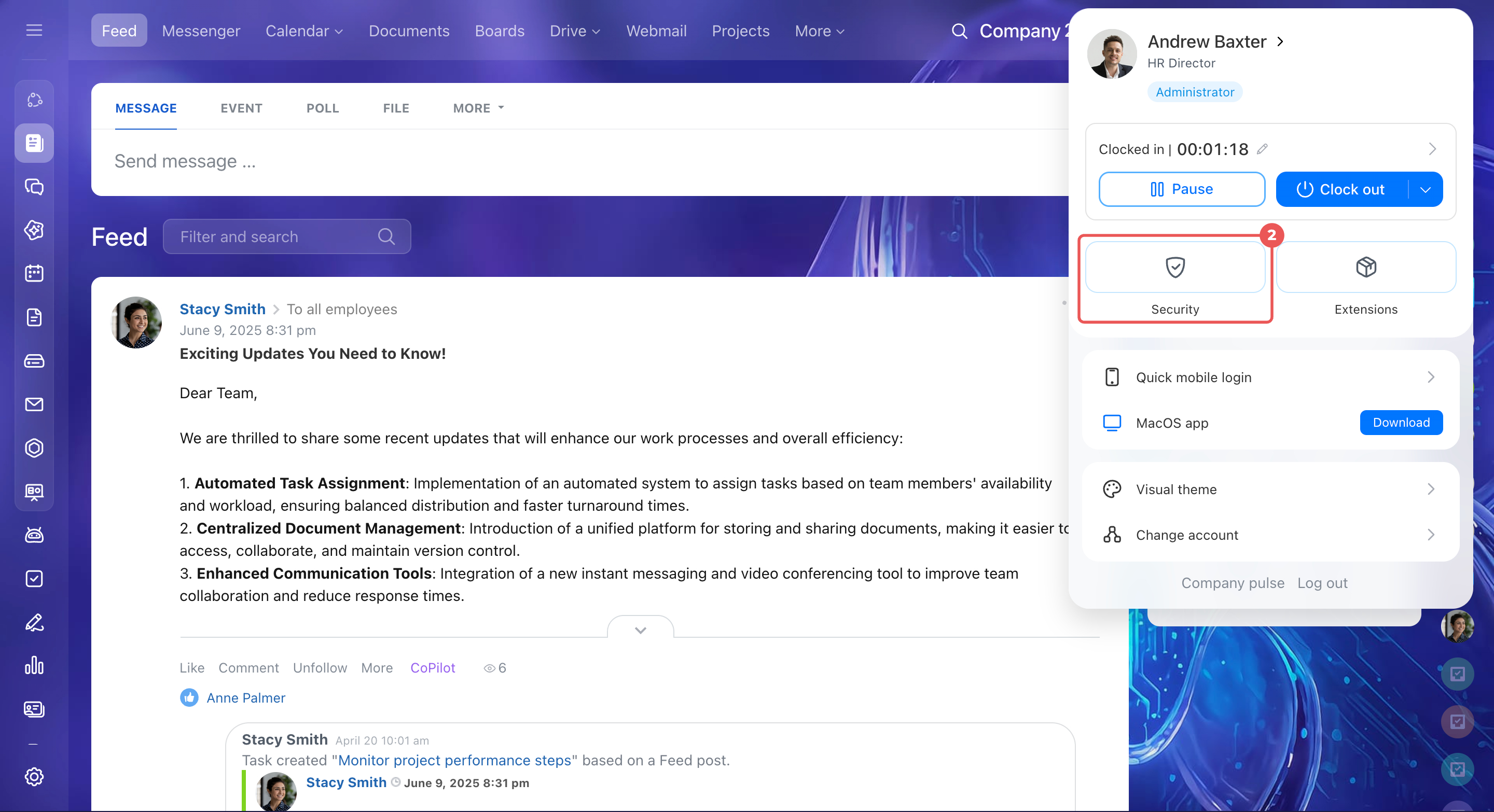
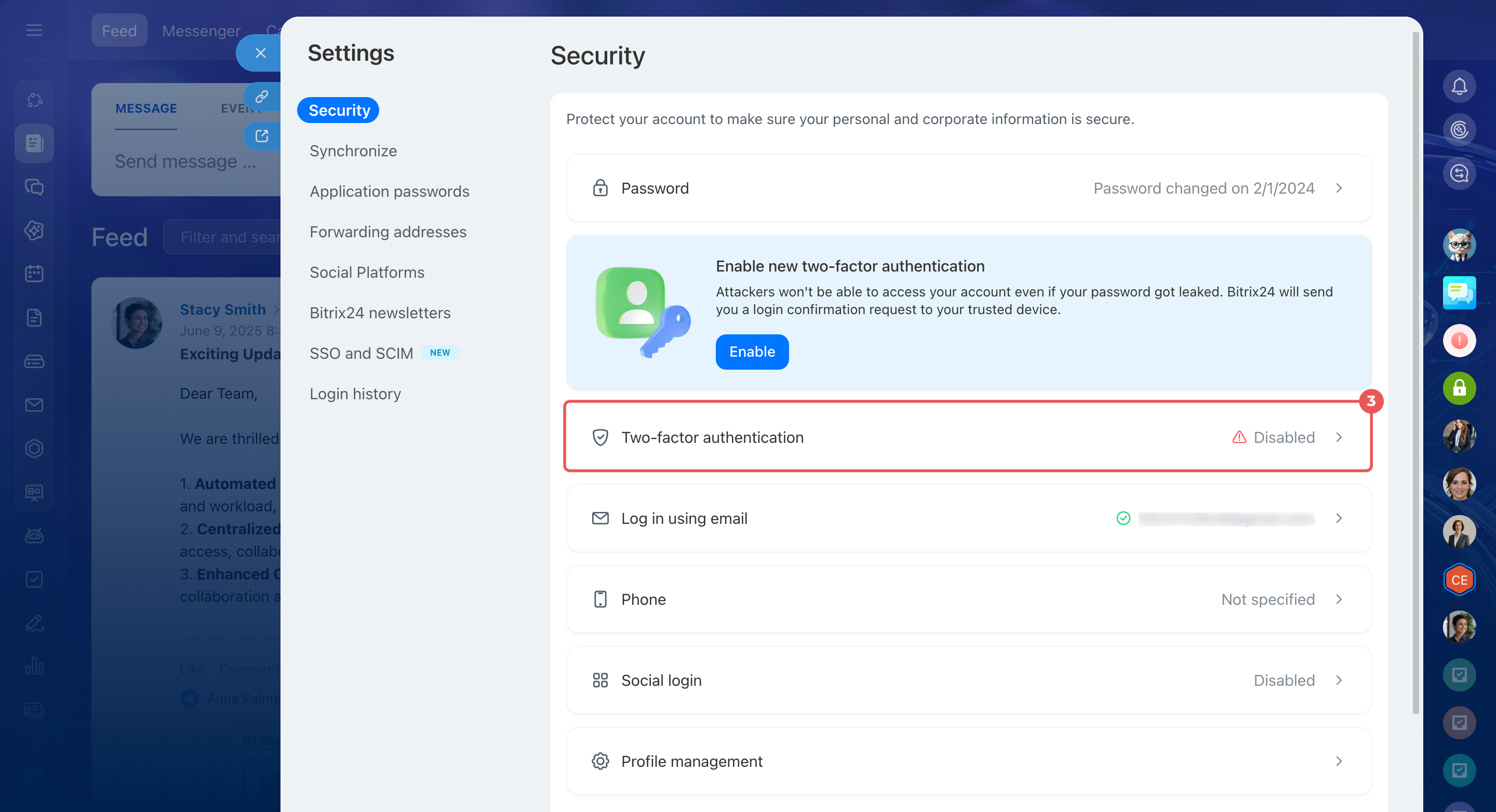
1. Click your photo in the top-right corner.
2. Select Security.
3. Click Two-factor authentication. You can also click Enable in the Enable the new two-factor authentication banner.
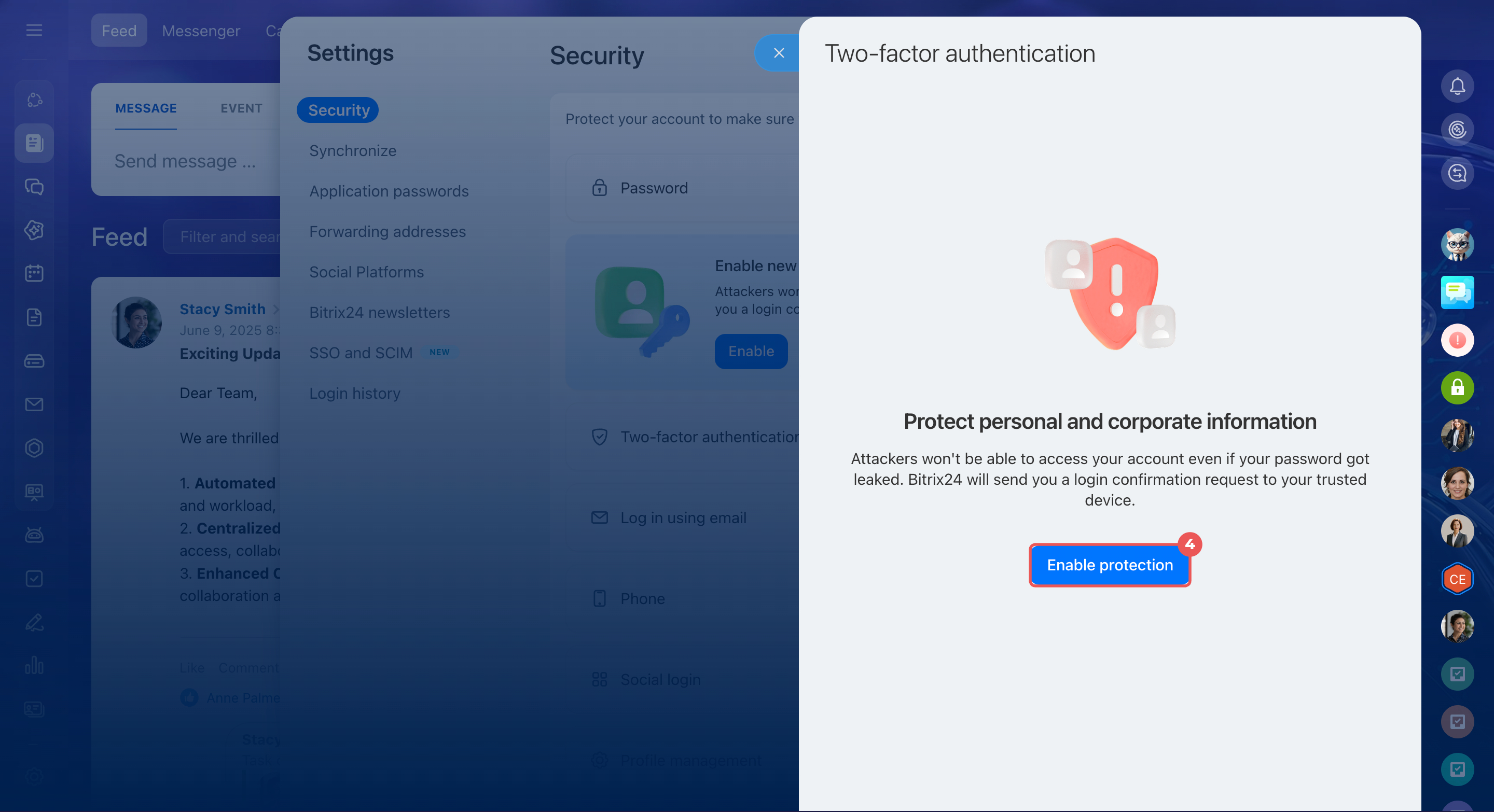
4. Click Enable protection.
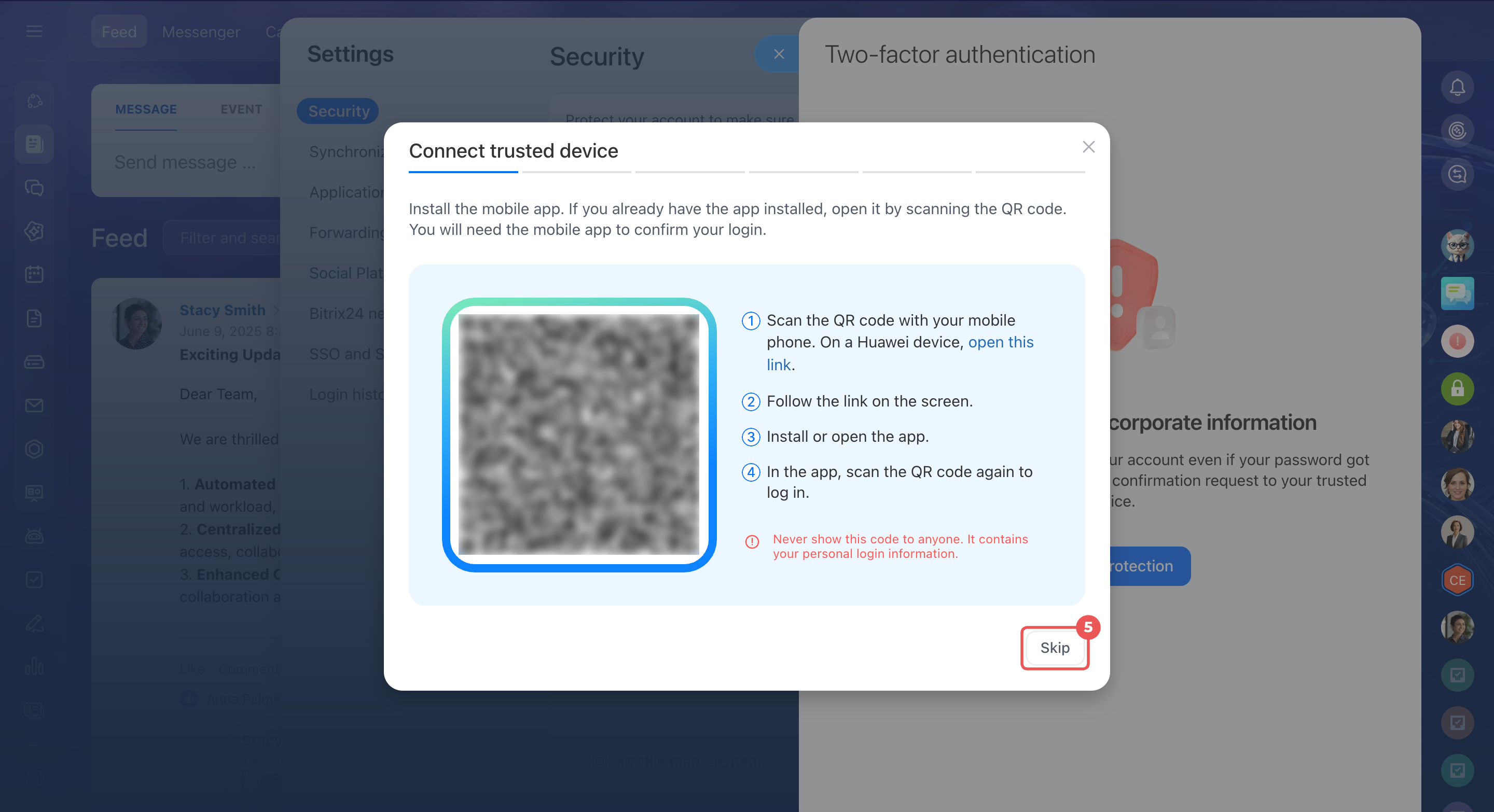
5. On the Connect a trusted device screen, click Skip. If you don't see the Skip button, contact your Bitrix24 administrator.
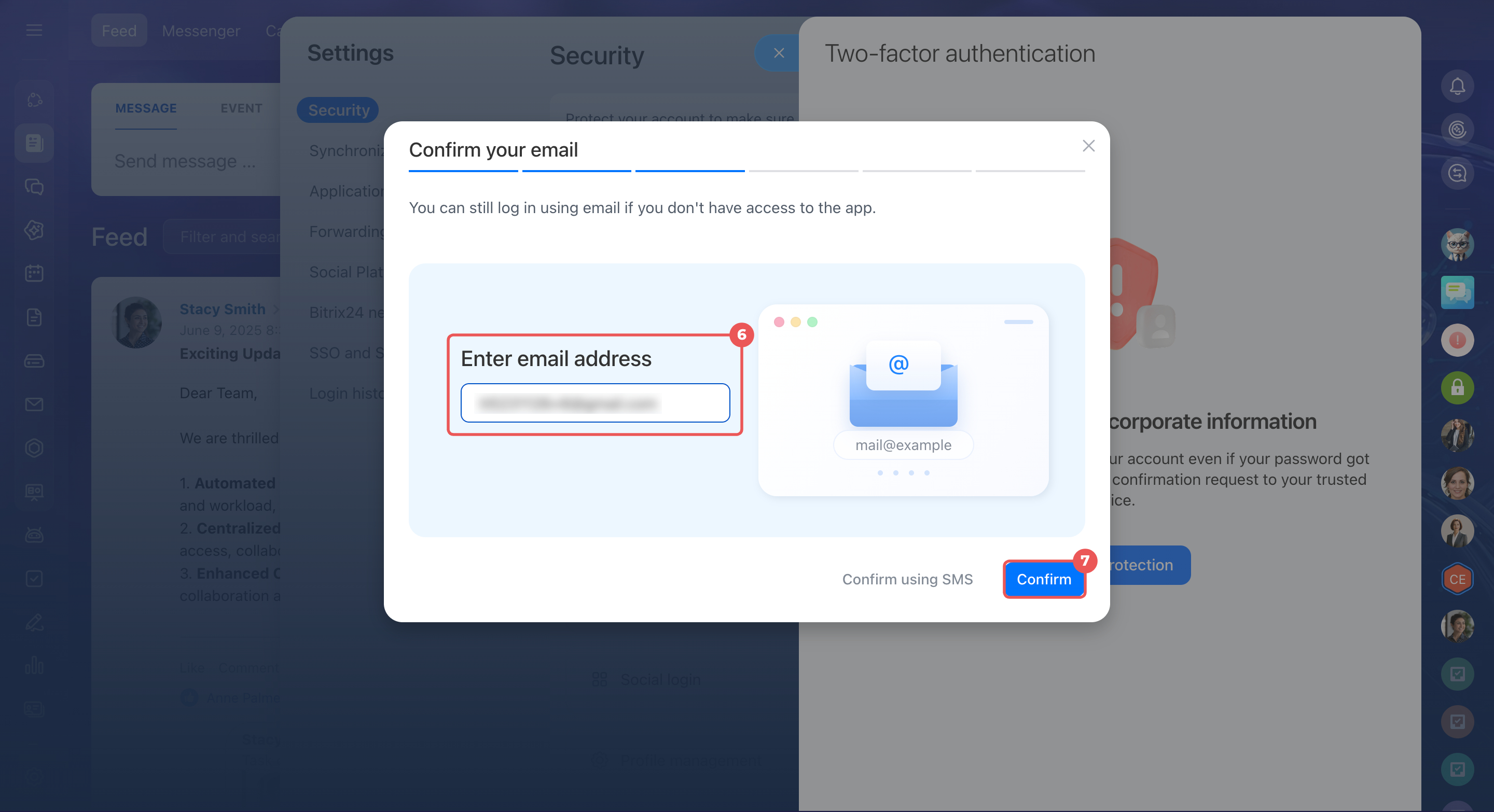
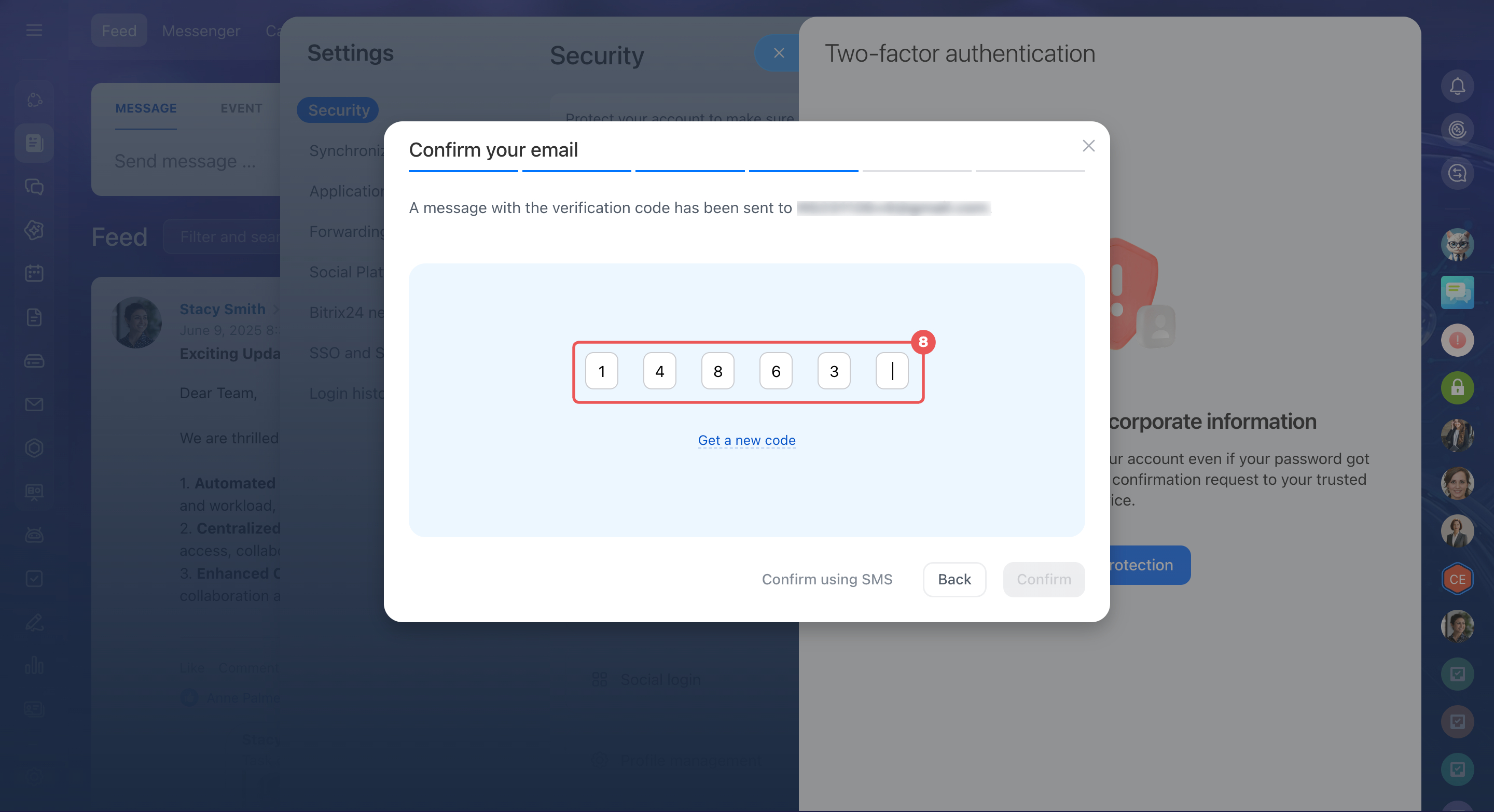
6. Enter your email address. You'll receive a confirmation code by email. To use only your phone number, click Confirm using SMS and go to step 9.
7. Click Confirm.
8. Enter the code from the email. The Backup login number screen opens.
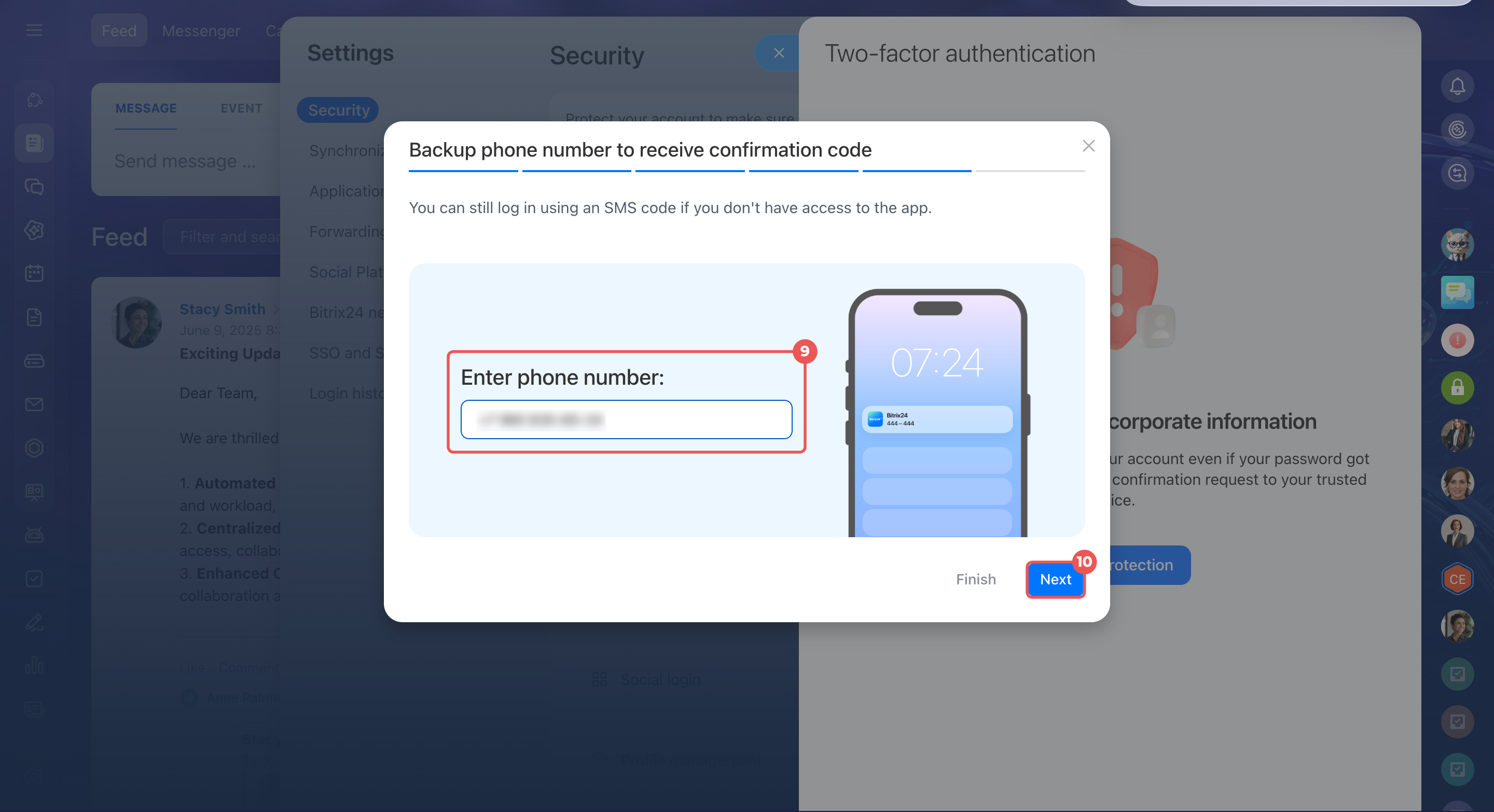
9. Enter your phone number. You'll receive a confirmation code by SMS.
10. Click Continue. If you don't want to add a phone number, click Finish. You'll only be able to confirm your login by email.
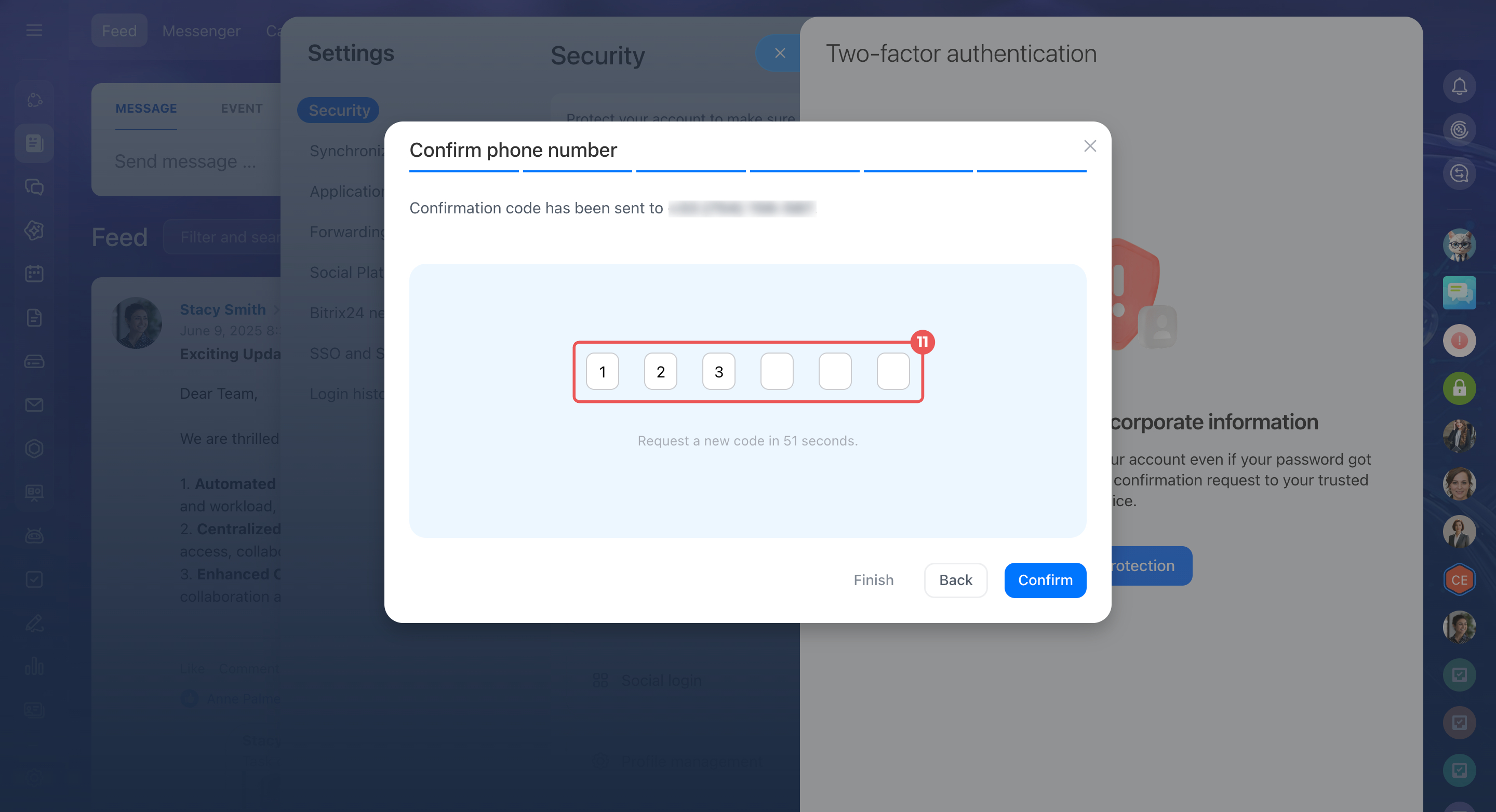
11. Enter the code from the SMS. Two-factor authentication is now set up.
12. Close the Done! window. You can now confirm your Bitrix24 login with a code sent by email or SMS.
Save your recovery codes after setup. You'll need them if you lose access to both your email and phone.
Where to find recovery codes
You can connect the mobile app later under Photo > Security > Two-factor authentication > Trusted devices > Connect.
If two-factor authentication is mandatory in your company and the setup deadline has passed, the trusted device connection screen opens when you log in to Bitrix24. Click Skip and follow steps 5–11 above.
In brief
- You can set up two-factor authentication without the Bitrix24 mobile app and confirm your login by email or SMS.
- Two-factor authentication remains active even if you don't connect the mobile app.
- Login confirmation without the mobile app is allowed by default. Administrators can check this setting under Bitrix24 settings > Security > Two-factor authentication. If you make changes, click Save.
- Employees set up two-factor authentication under Photo > Security > Two-factor authentication > Enable protection > Skip, then confirm their email or phone number.
- You can connect the mobile app or add a phone number later under Security.