
If you think someone signed in to your account from another device, use Login history to check. It shows all devices and IP addresses used to sign in to Bitrix24, so you can spot suspicious activity in time.
Each time you open the mobile app, it counts as a login. This is true even if the app remembers you and does not ask for your password.
Bitrix24 plans and pricing
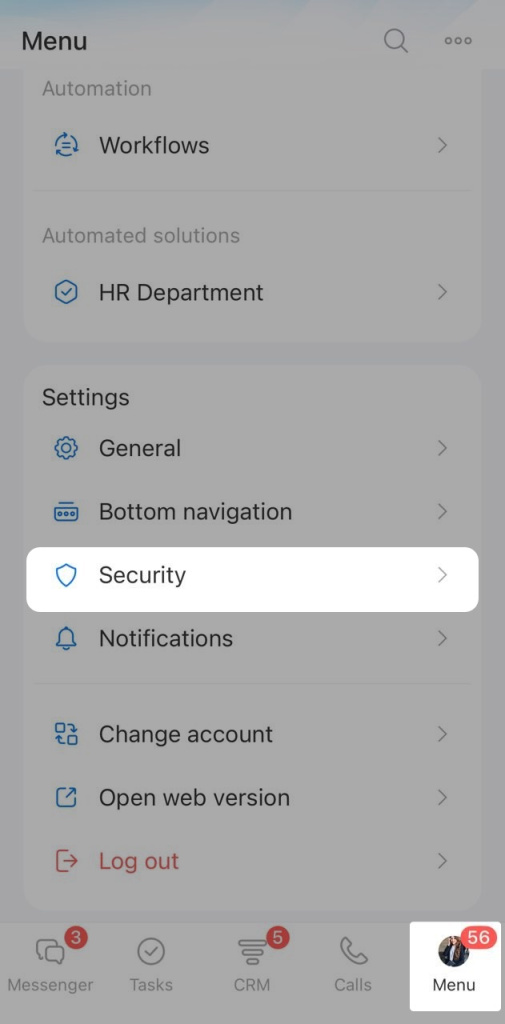
To view Login history, go to Menu > Security.
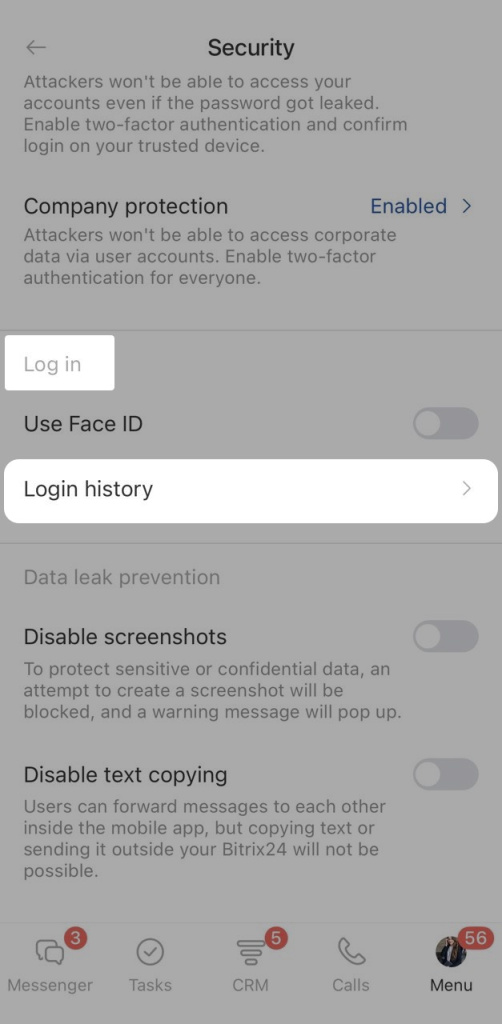
In the Log in section, select Login history.
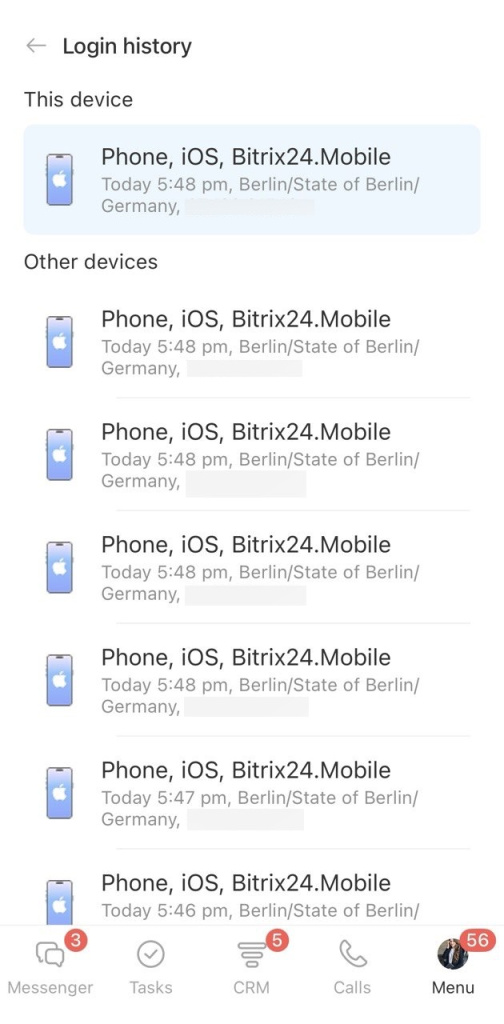
The list shows:
- Device type, such as computer or phone
- Operating system, such as iOS or Android
- Browser, such as Chrome or Safari
- City
- IP address
- Date
The date format depends on when the login happened:
- Today: time only, such as 12:33
- Earlier this year: date without the year, such as March 3
- Last year: full date, such as March 3, 2026
If you see suspicious activity in your account, sign out of Bitrix24 on all devices except the current one. Then change your password and turn on two-factor authentication to protect your account.
New two-factor authentication in Bitrix24
Login history