
In brief, here are the most important updates from last month:
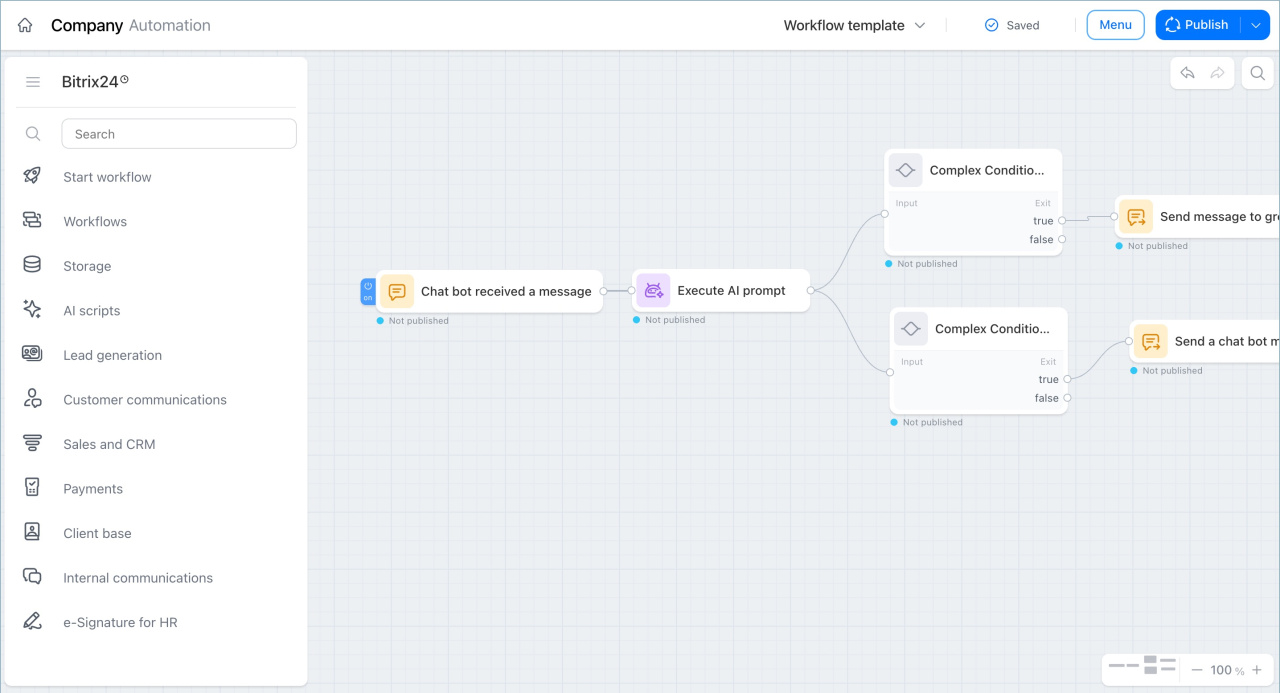
- The workflow builder has a new workspace. Build a scenario from nodes in one window, and use ready-made templates for tasks, HR, customers, payments, and other processes.
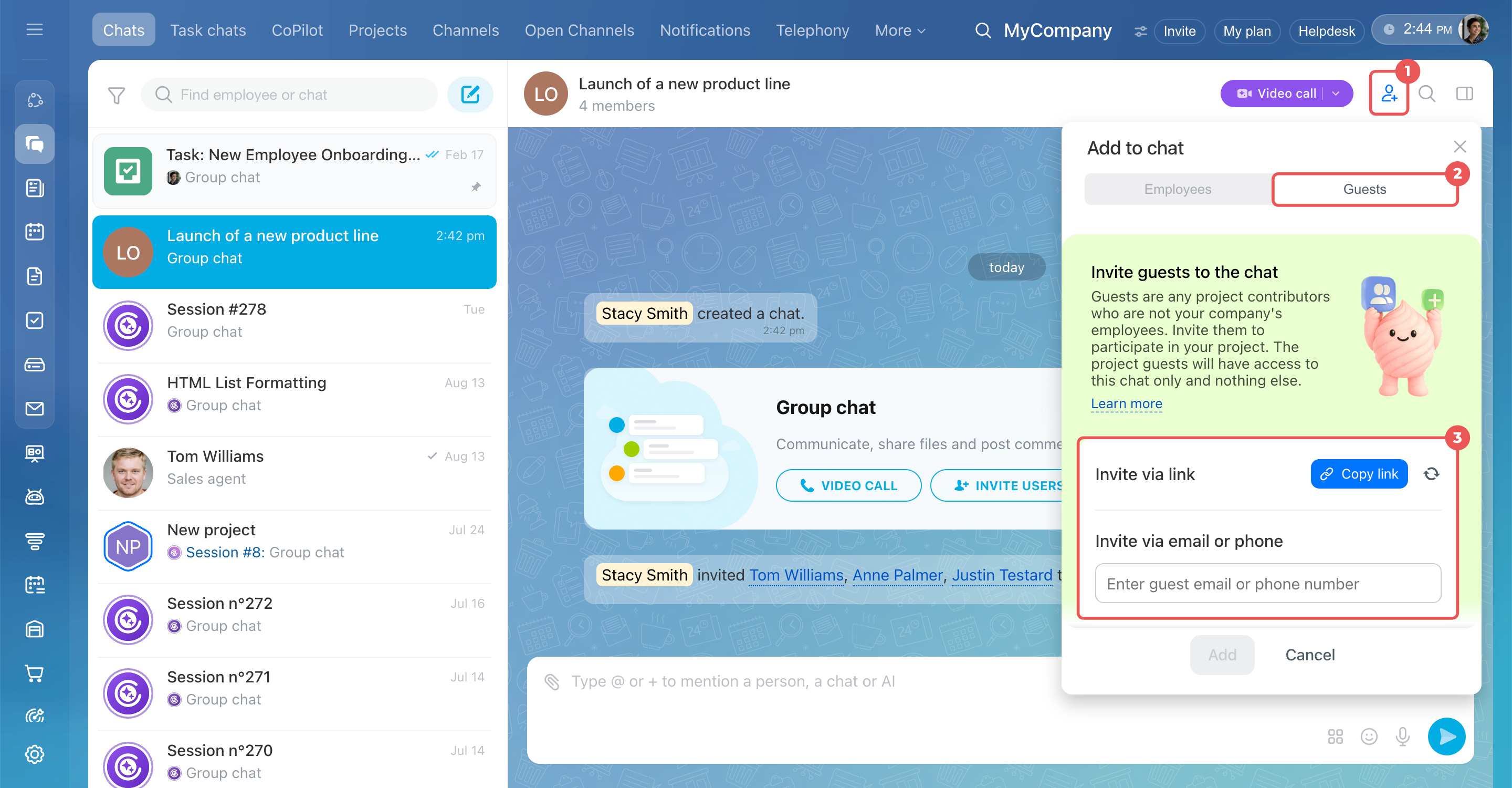
- Invite guests to a chat. Clients and partners can join a conversation by link, email, SMS, or QR code without a Bitrix24 account.
- Connect third-party services with Alaio Integration Hub. The app covers the scenarios that used to run through Albato connectors, and it is free.
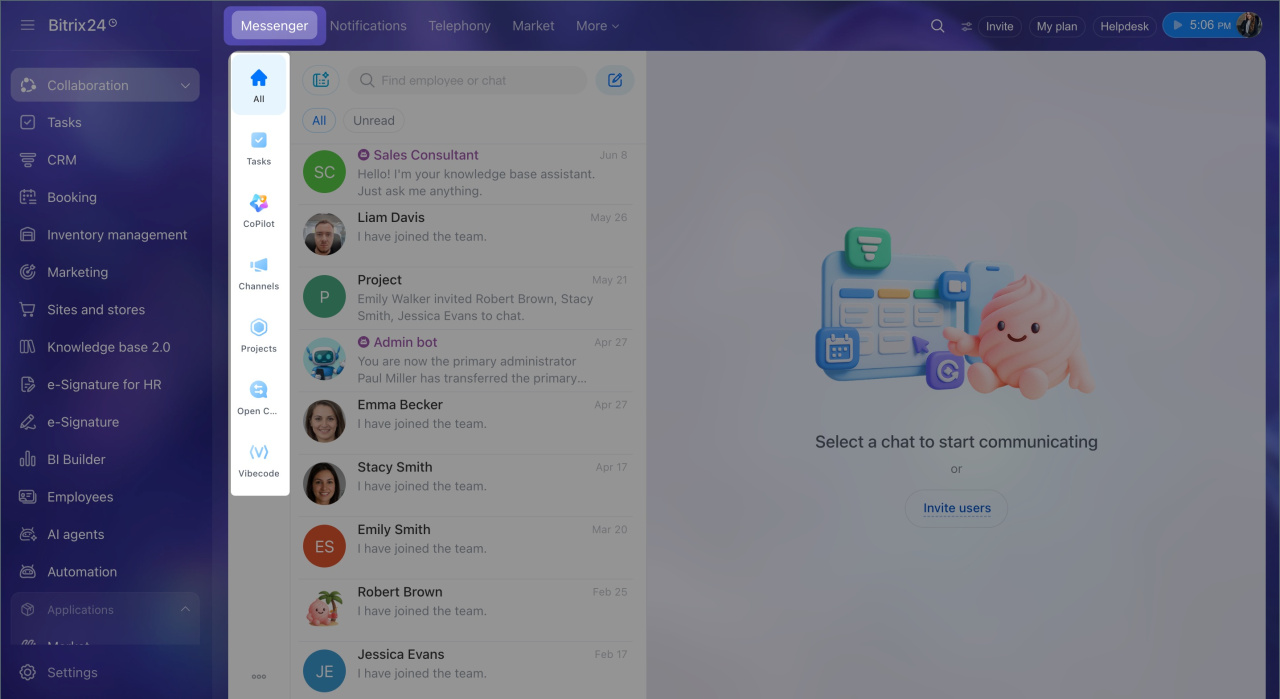
- Messenger now has personal folders: Gather all chats for a project or department in one folder so important conversations don't get lost.
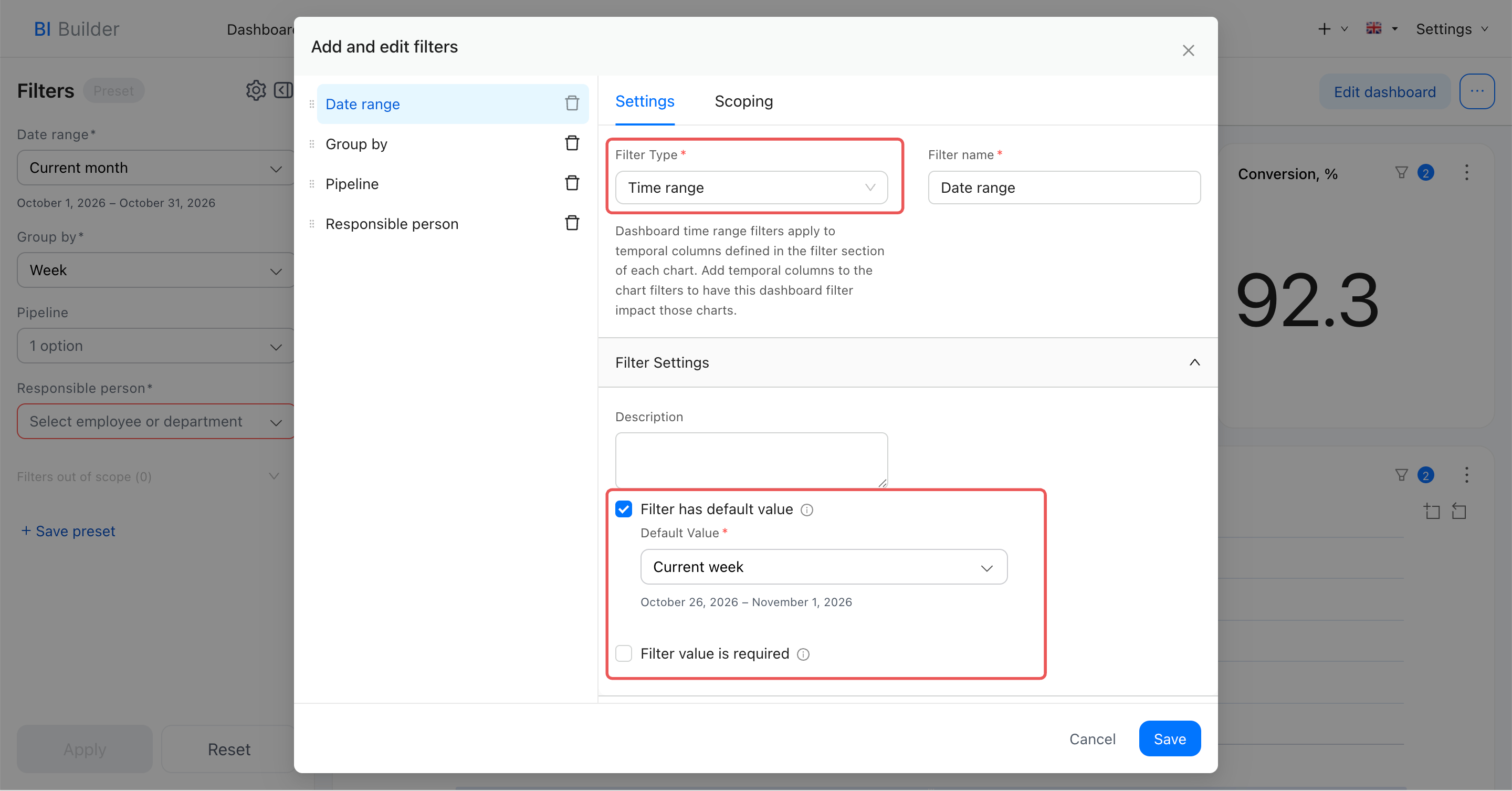
- Set the report period in BI Builder using a filter: Open the dashboard for the period you need without additional setup.
New workflow builder
The workflow builder is now a single workspace. You can see the whole scenario at once and connect actions from different Bitrix24 tools, for example create a task, update a deal stage, and notify a customer. Scenarios are built from nodes: blocks for events, actions, and conditions. A node can run several actions, split into parallel branches, and start from a trigger or an AI node. The builder saves changes automatically. Publish the template to apply them.
Guides to node groups and ready-made templates cover tasks, projects, team management, HR documents, customer communications, payments, marketing, and other scenarios. A separate article shows how to build a workflow with the universal Deal node.
New workflow builder in Bitrix24
Workflow templates: Task management
Workflow templates: e-Signature for HR
Workflow templates: Customer documents
Workflow templates: Internal communications
Workflow templates: Storage node group
Workflows templates: Delivery
The Workflow control node group
Workflow templates: Team management
Workflow templates: Feedback
Workflow templates: Payments
Workflow templates: Project management
Workflow templates: Marketing and Lead generation
Workflow templates: Automated solution
Workflow templates: Customer communications
Workflow templates: Customer base
Workflow templates: Other
Set up a workflow with the universal Deal node
Invite guests to a chat
Invite clients, contractors, or partners to a Bitrix24 chat when you need to discuss work with them. Guests join by link, email, SMS, or QR code without a Bitrix24 account. They can send messages and files, and they only see the chat they were invited to. When the discussion ends, remove one guest or reset the link for everyone. The same options are available in the mobile app.
Invite guests to a chat in Bitrix24
Invite guests to a chat in the Bitrix24 mobile app
Alaio Integration Hub
Bitrix24 now has its own app for connecting third-party services. Alaio Integration Hub covers the scenarios that used to run through Albato connectors, and the app is free. Starting November 1, 2026, Albato apps will no longer be available in the Market. If you use them, install Alaio Integration Hub, connect your services, and set up the exchange scenarios again. Your Bitrix24 data stays in place.
Meet Bitrix24 Alaio Integration Hub
Personal folders in Messenger
In Bitrix24, chats are organized into system folders. Create personal folders to group conversations by topic. For example, add channels, personal chats, group chats, and other chats related to a department's work to a Production folder. This makes it easier to find the conversations you need and notice new messages on a selected topic.
Use folders in Messenger
BI Builder: dashboard period from a filter
Set the dashboard period in BI Builder filters. The default period you select applies automatically when you open the dashboard. If you don't set a default value, the dashboard uses the period from BI Builder's general settings. To speed up loading, select only the period you need data for.
Create dashboards in BI Builder
BI Builder settings
FAQ: BI analytics and BI Builder
New articles
In October 2026, we also published new articles. Explore them to learn how the tools work.
Messenger. We explained how to open all chats with new messages in one list, mark a conversation to return to later, and clear every unread counter at once. We covered how to set a default reaction, add or remove a reaction, and see who reacted. We also showed how to record a voice or video message in the mobile app, add a caption, and read a transcript.
Work with unread chats in Bitrix24
Use message reactions
Use voice and video messages in chat
Employees. We explained which email address to enter when you invite an employee, so the invitation arrives and the employee can sign in on the first try. The format depends on whether they already have a Bitrix24 account.
Email address requirements for Bitrix24 employee invitations
e-Signature for HR. You can mark a signed HR document as annulled and remove that mark later. The document stays in the company vault, and the signing parties receive a notification.
Annul documents and cancel annulment in e-Signature for HR
BI Builder. Bitrix24 On-Premise in a closed network can run BI Builder on your company’s servers, so report data stays inside your infrastructure. You can also ask an AI agent, such as Codex or Claude Code, to retrieve data through the BI connector and prepare an answer from it.
BI Builder in a closed network
Use an AI agent to get data from the BI connector
Alaio Vibecode. Several employees can work on one app without sharing personal API keys. The owner can add colleagues to the development team and transfer the app to another employee.
Alaio Vibecode: Collaborate on an app and transfer it to a colleague
Security. We described external tools that complement Bitrix24 On-Premise protection, including a firewall, antivirus, data-loss prevention, and event collection. We also explained what Cloud and On-Premise clients need to do about critical vulnerabilities in PHP.
Securing Bitrix24 On-Premise with external security tools
Critical PHP vulnerabilities: what Bitrix24 clients need to do
Article updates
In October 2026, we also updated several articles. Explore the new content to better understand the product.
Online store. We updated how to change the catalog title that appears in the browser tab and in search results. We also updated how a customer places an order and how that order becomes a deal in CRM.
Change the online store catalog title
Place an order in the Bitrix24 online store
Knowledge base 2.0. We updated the overview of the interface, spaces, and articles. We covered how to archive a space or article and how the Recycle Bin works. We also updated how to format an article with the formatting panel.
Knowledge base 2.0: Interface and features
Work with the Archive and Recycle Bin in Knowledge base 2.0
Format an article in Knowledge base 2.0
Other updates
Bitrix24 branch network
CoPilot in CRM: Set up call, chat, and email processing
Bitrix24 Helpdesk: new interface and AI search