
The Internal communications node group includes actions and triggers that help you automate team communication. You can use these nodes to send messages to employees, create chats and projects, publish Feed posts, and work with Chat bots.
In this article:
Select employee
This node finds an employee based on the criteria you set and passes their data to the next steps in the workflow.
Example:
A company uses an onboarding workflow for new hires. When a new employee is added to Bitrix24, this node finds the head of the employee's subdepartment and passes that data to the next step. Bitrix24 then adds the manager to the chat with the new employee and sends a welcome message.
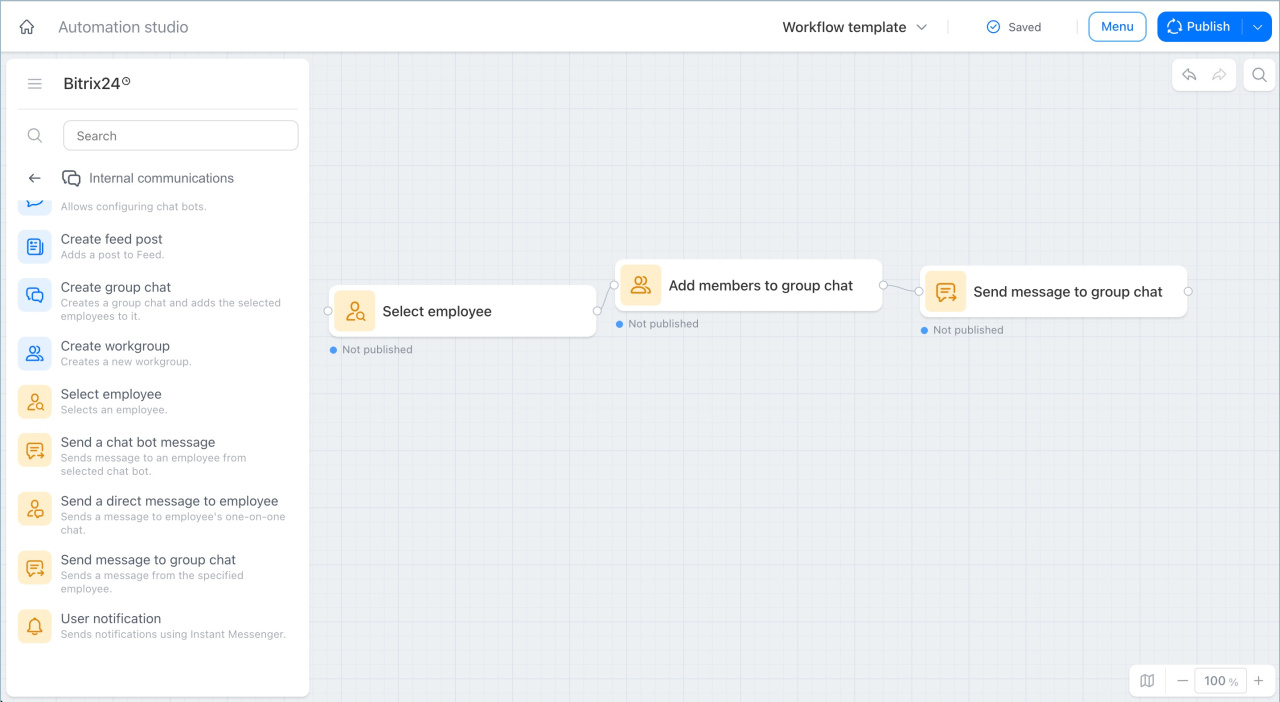
Create group chat
This node creates a group chat and adds the selected employees.
Example:
When a deal moves to the Document preparation stage, Bitrix24 updates the deal data and creates a group chat with the manager, lawyer, and accountant. They can start discussing the contract right away.
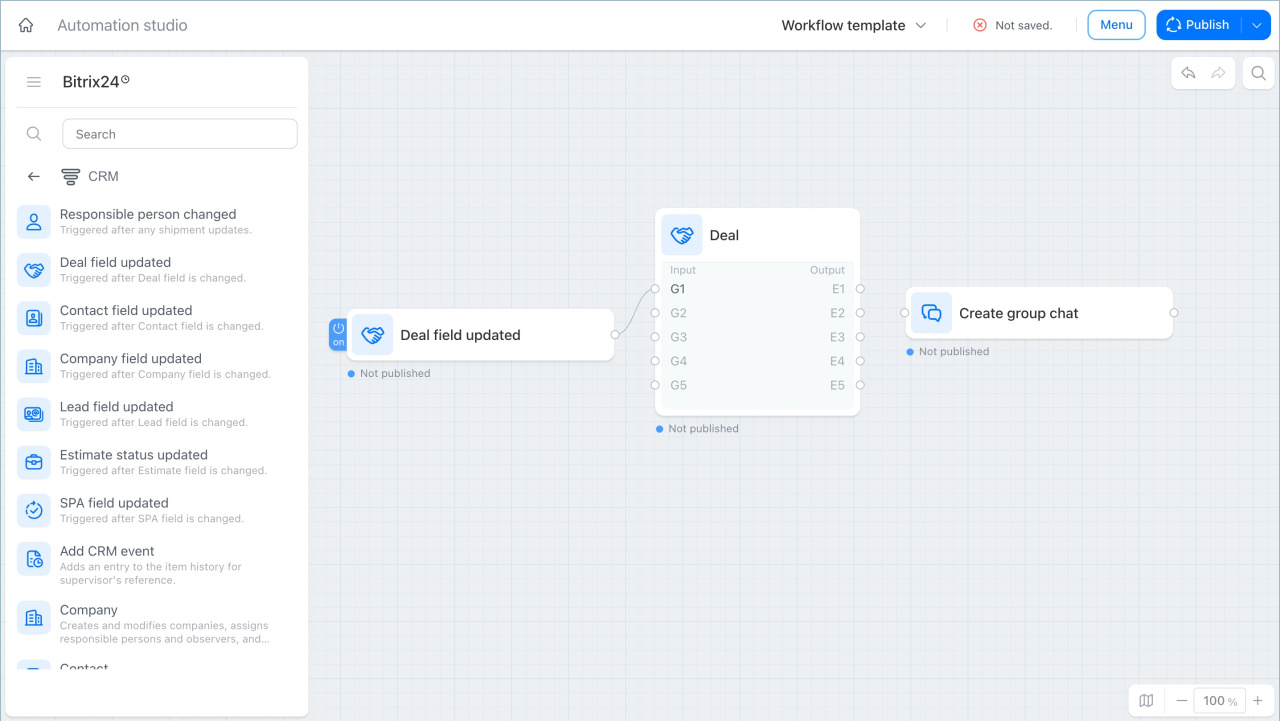
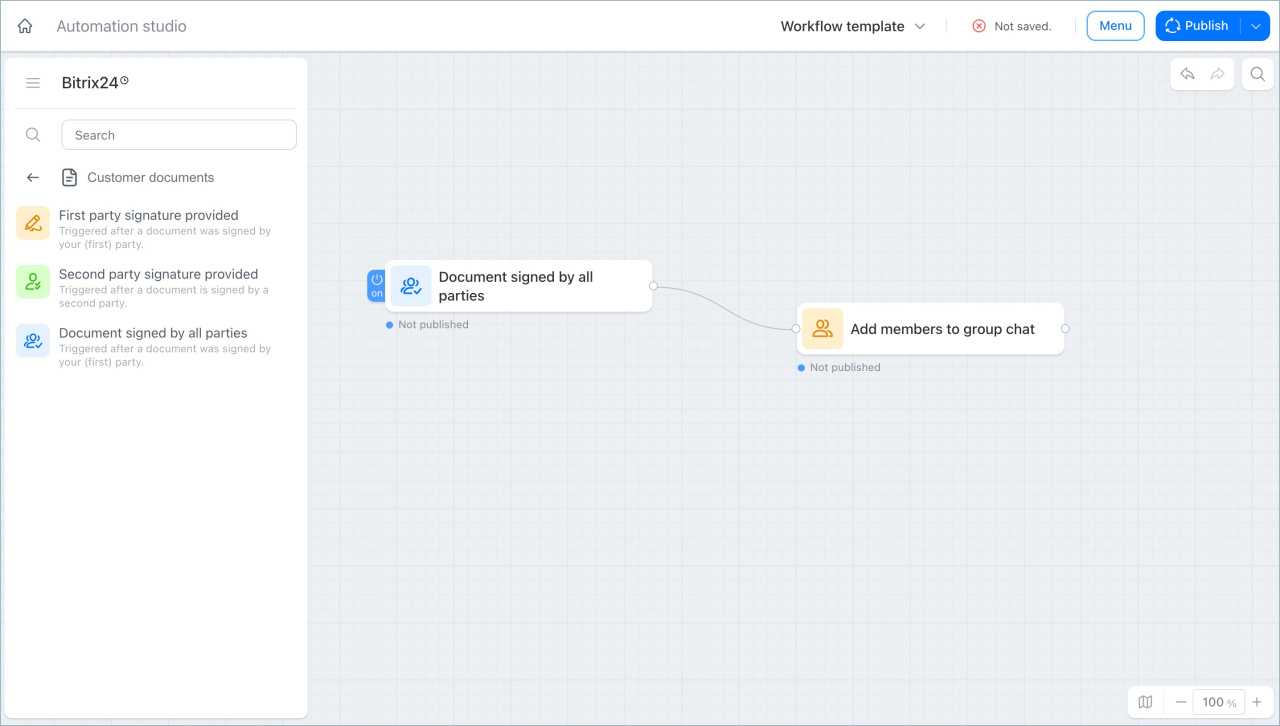
Add members to group chat
This node adds selected employees to an existing group chat.
Example:
A company uses a separate group chat for each deal where the lawyer and accountant work together. When all parties sign the contract, Bitrix24 adds the manager to the chat automatically. The manager can join the discussion right away and review the chat history.
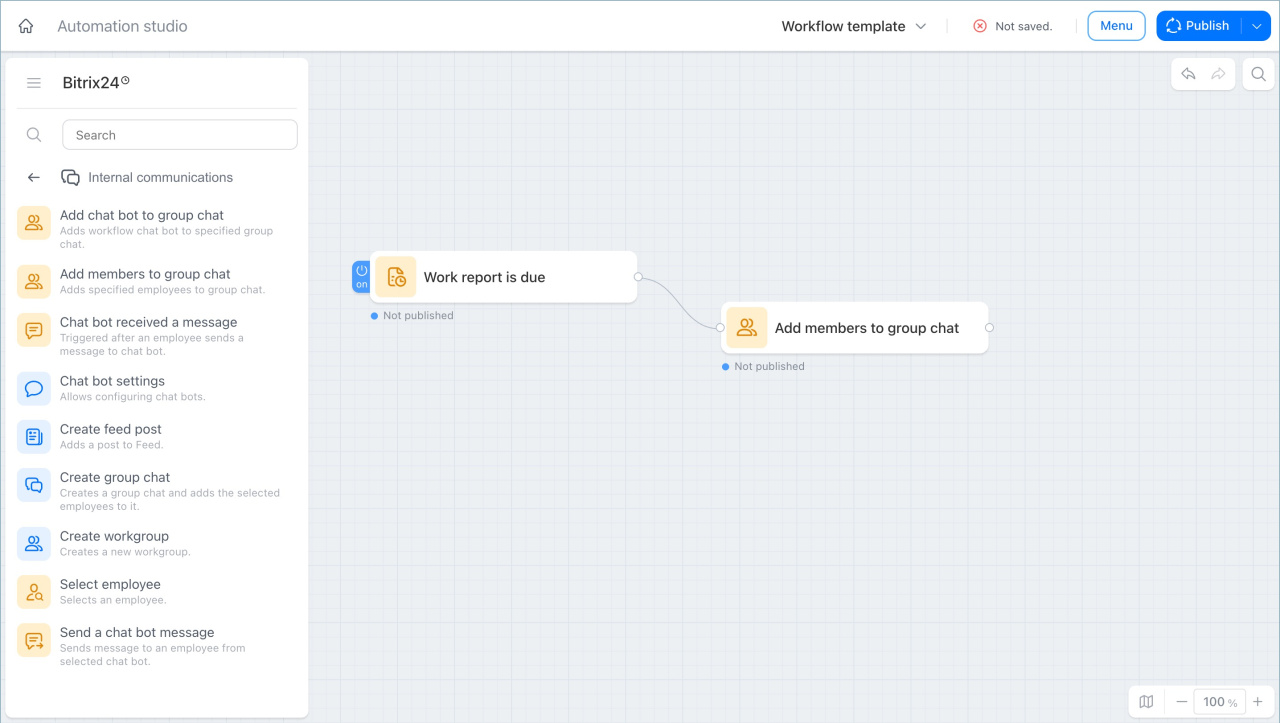
Send message to group chat
This node sends a message with your text to a group chat on behalf of a selected employee.
Example:
When a report deadline is coming up, Bitrix24 sends a reminder to the subdepartment chat with the due date and a list of employees who have not submitted their reports yet. The manager does not need to send the reminder manually each time.
Add chat bot to group chat
This node adds the workflow Chat bot to the selected group chat.
Example:
When all parties sign a contract, Bitrix24 adds the bot to the deal chat automatically. The bot can then send reminders about the next steps and upcoming deadlines.
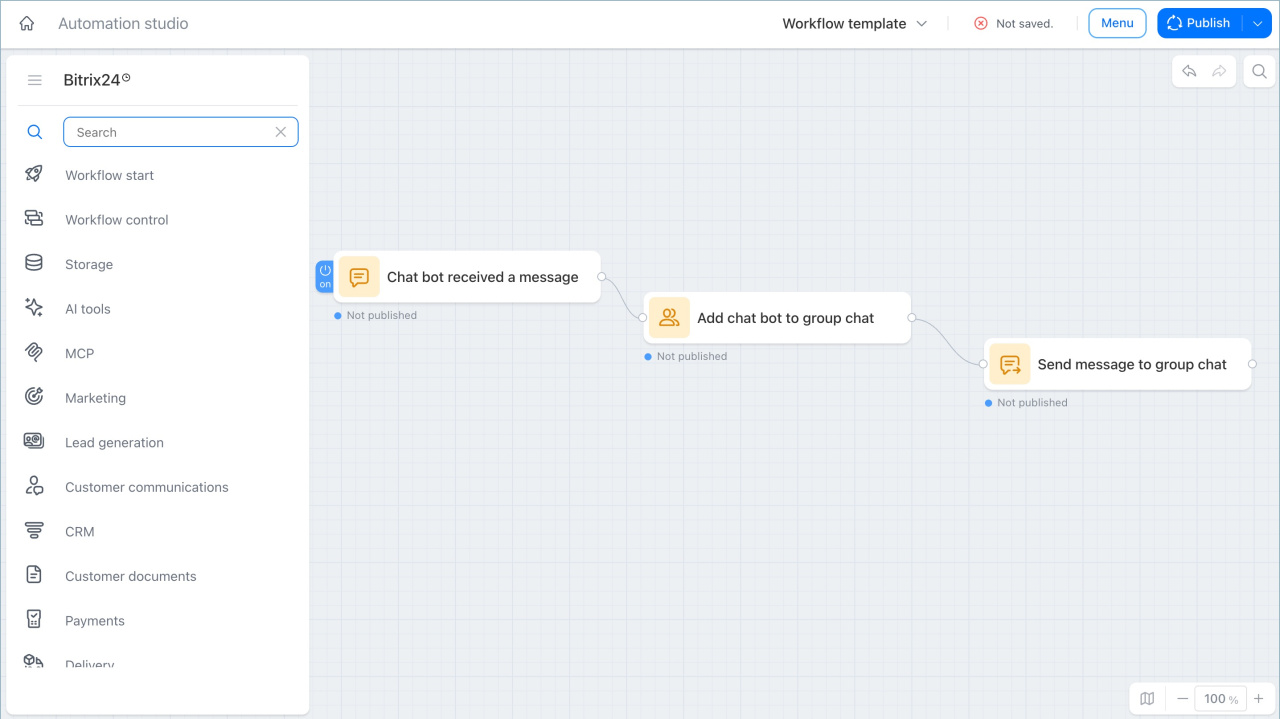
Chat bot settings
This node creates a new Chat bot in a workflow or updates an existing one. You can set the bot name, title, and avatar.
Example:
A company launches an onboarding process. This node creates a Chat bot named Onboarding Assistant. The workflow then adds the bot to the new employee's chat, and the bot sends a welcome message with the first-week schedule.
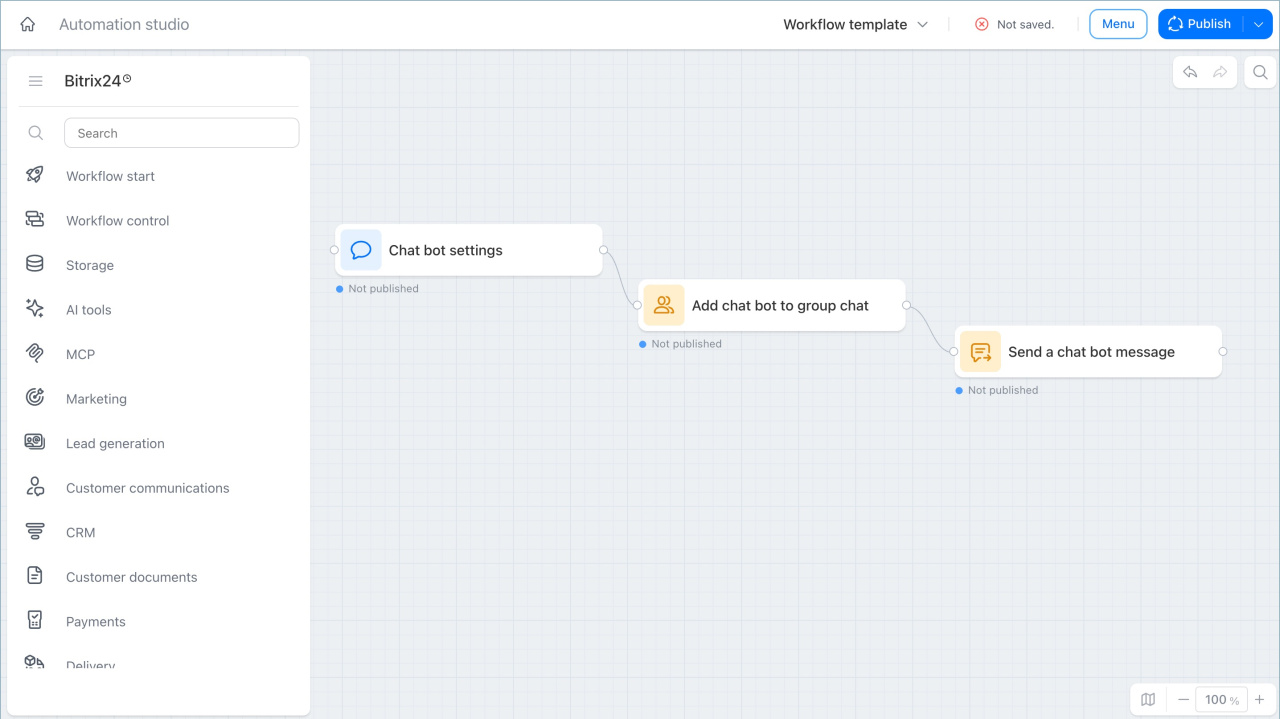
Send a chat bot message
This node sends a message to an employee on behalf of a selected Chat bot. The employee receives the message in their personal chat with the bot.
Example:
A company uses a bot to help employees complete e-Learning courses. When three days remain before the deadline, the bot sends each employee a reminder with a link to the course.
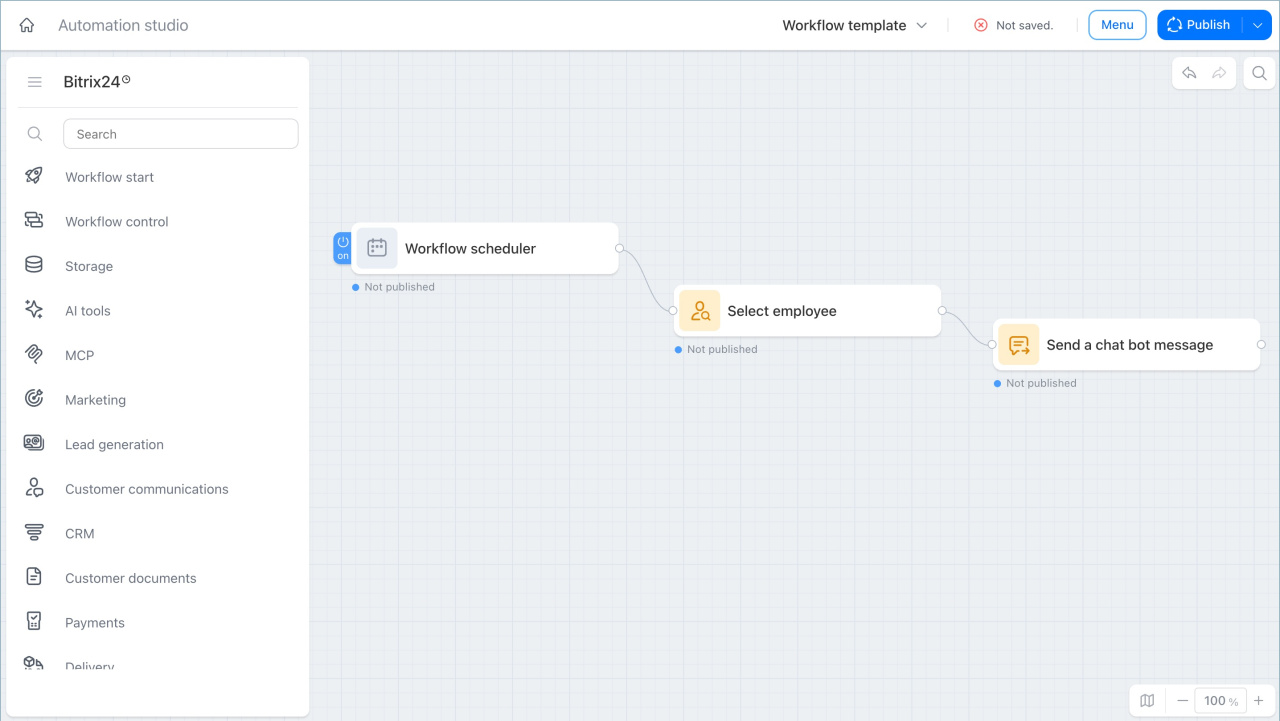
Chat bot received a message
This trigger starts a workflow when an employee sends a message to the Chat bot. This lets the system reply automatically without a live agent.
Example:
A company has a corporate knowledge base. When an employee sends a question to the bot, such as how to submit a travel request, the trigger starts the workflow. An AI agent finds the right article and sends the link back.
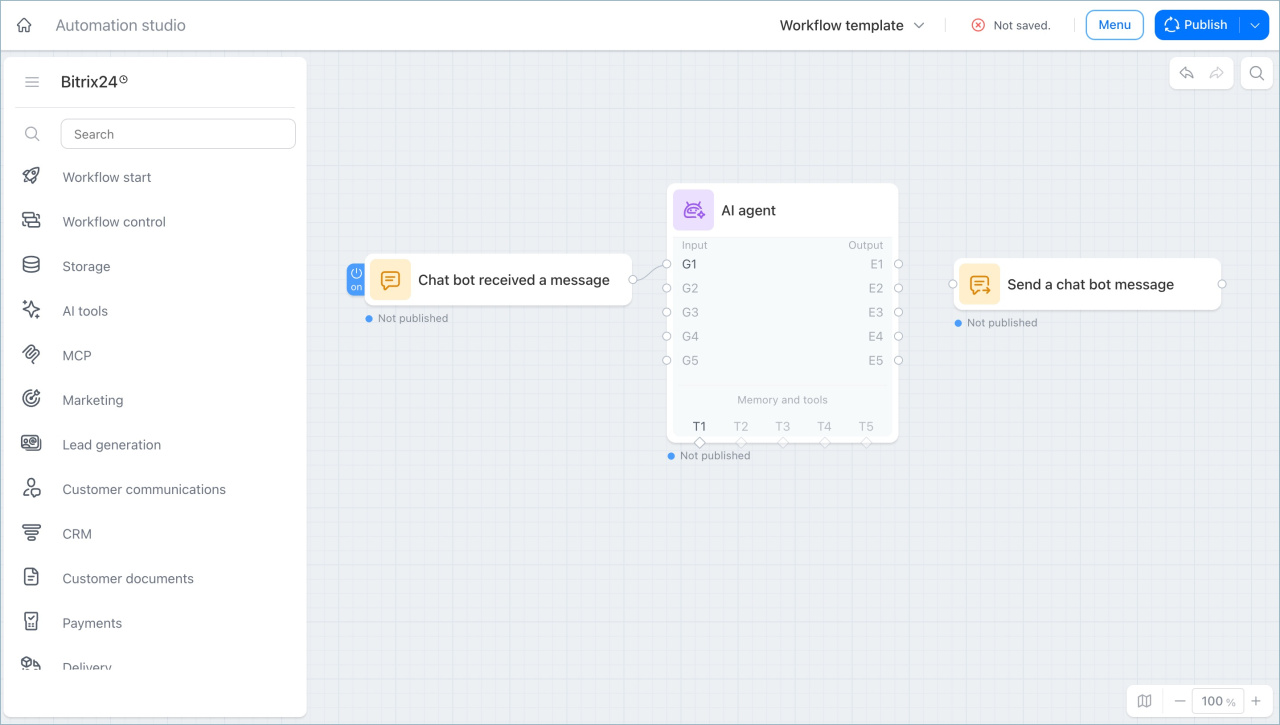
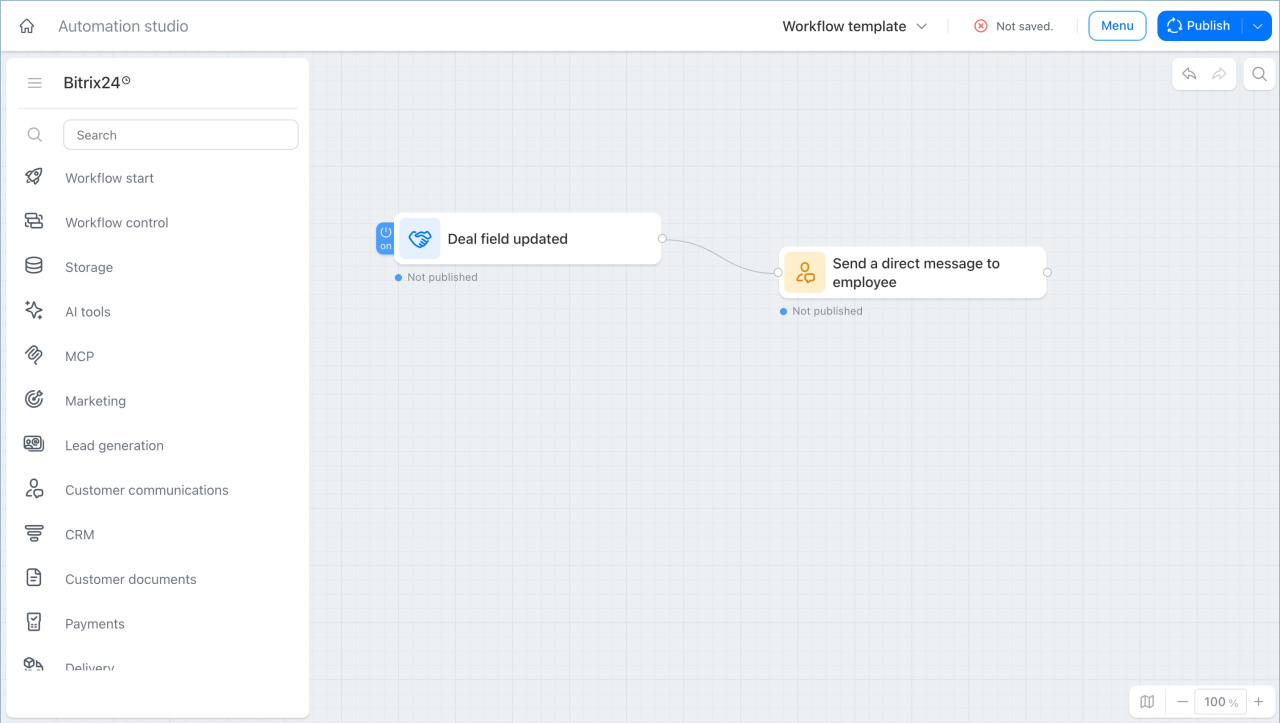
Send a direct message to employee
This node sends a message to an employee in their personal chat.
Example:
A company uses a workflow to process orders. When an order status changes to Paid, Bitrix24 sends the manager a personal chat message automatically. The manager sees the payment right away and can move to the next step with the client.
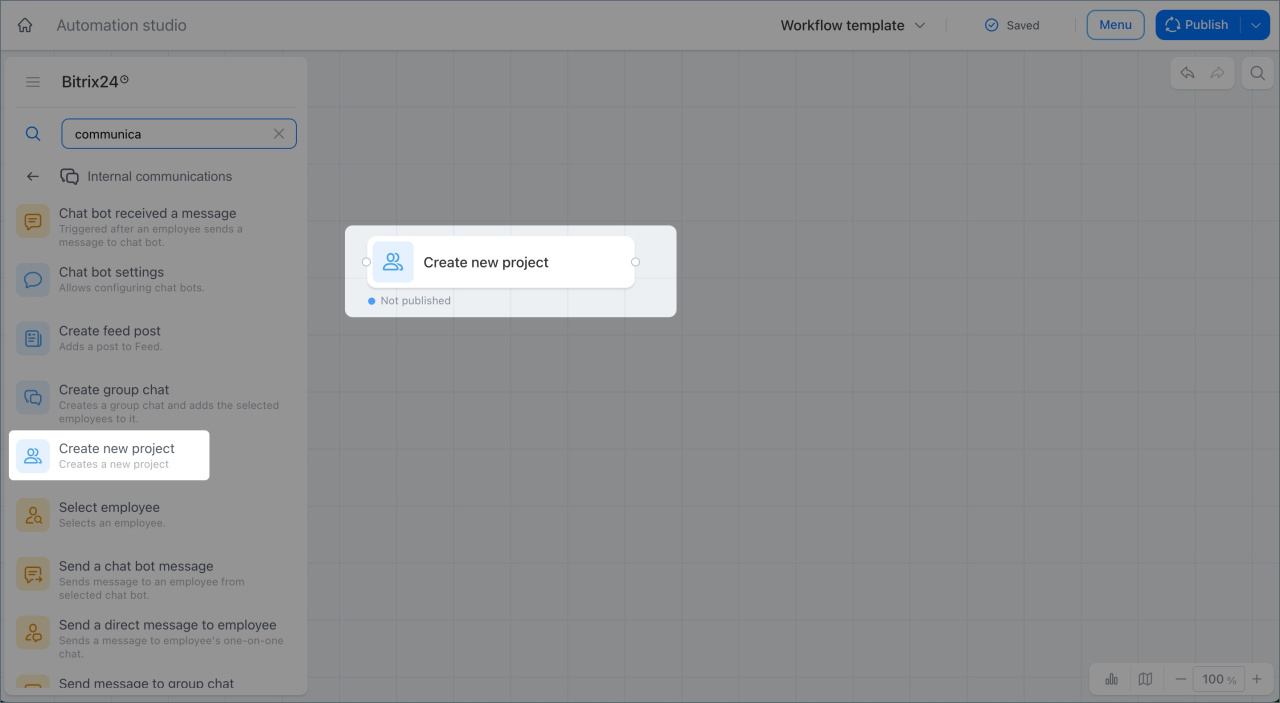
Create new project
This node creates a project in Bitrix24 and adds the selected members.
Example:
When a new order is added to CRM, Bitrix24 creates a project automatically and adds the required employees. The next node sends the order details to the project chat so the team can start work.
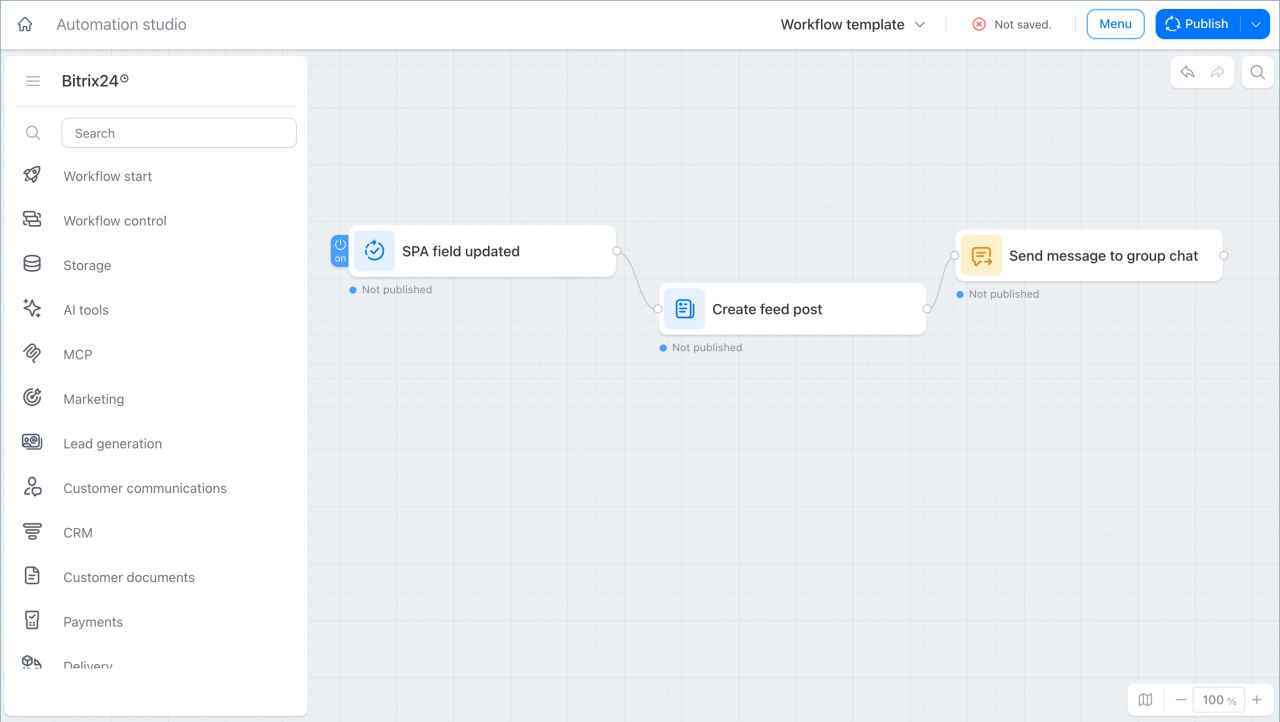
Feed post
This node creates a post in the Bitrix24 Feed for selected employees or the entire company.
Example:
A company manages corporate events through a Bitrix24 Smart Process. When the manager moves a request to the Confirmed stage, Bitrix24 publishes an announcement in the Feed automatically. All employees see the date and details right away.
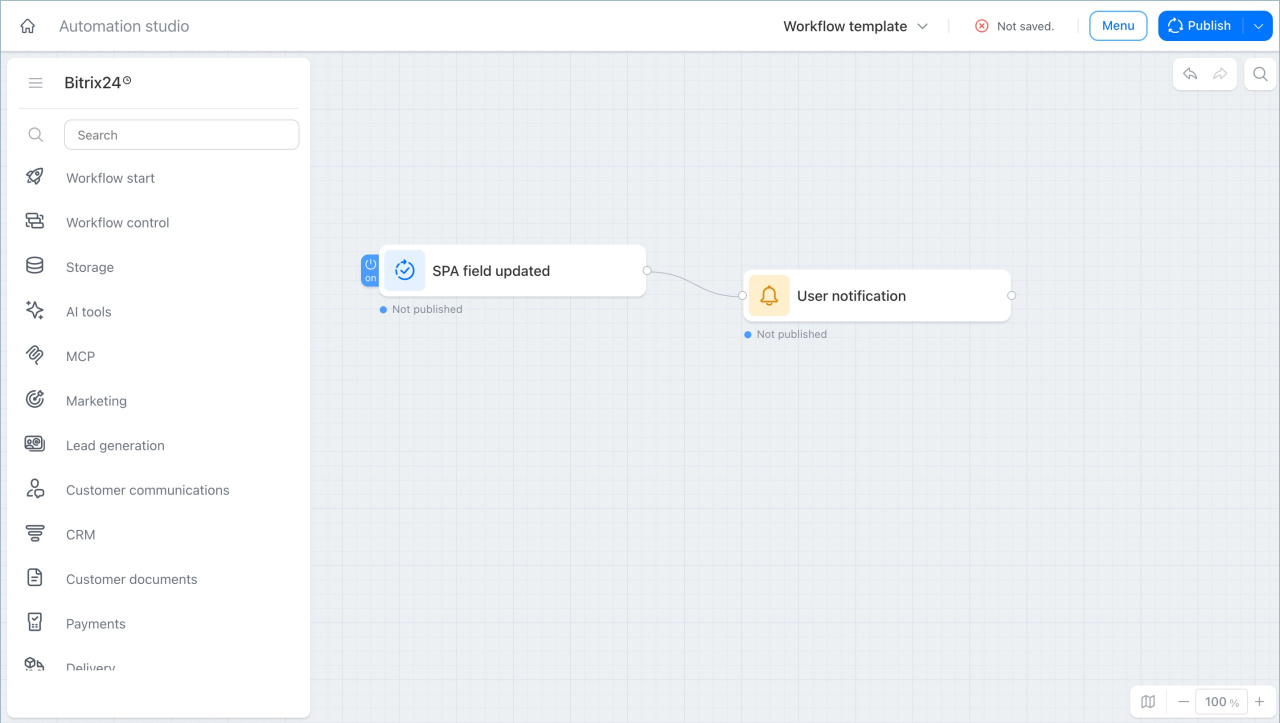
User notification
This node sends a notification to an employee through the Bitrix24 web messenger. This is a system notification format. It appears in the notification center, not in a personal chat.
Example:
A company processes expense requests through Smart Processes. When a request status changes to Awaiting Approval, Bitrix24 sends the manager a notification automatically. The manager can open the request right away and make a decision.
In brief
- The Internal communications node group includes actions and triggers that help you automate team communication.
- The workflow sends messages to employees, creates chats and projects, publishes Feed posts, and works with Chat bots.
- Chat nodes let you create a new group chat, add members or a bot to it, and send a message to the whole team or a specific employee.
- Chat bot nodes let you create a bot, configure it, add it to a chat, and send messages on its behalf.
- The Chat bot received a message trigger starts the workflow when an employee sends the bot a message.