
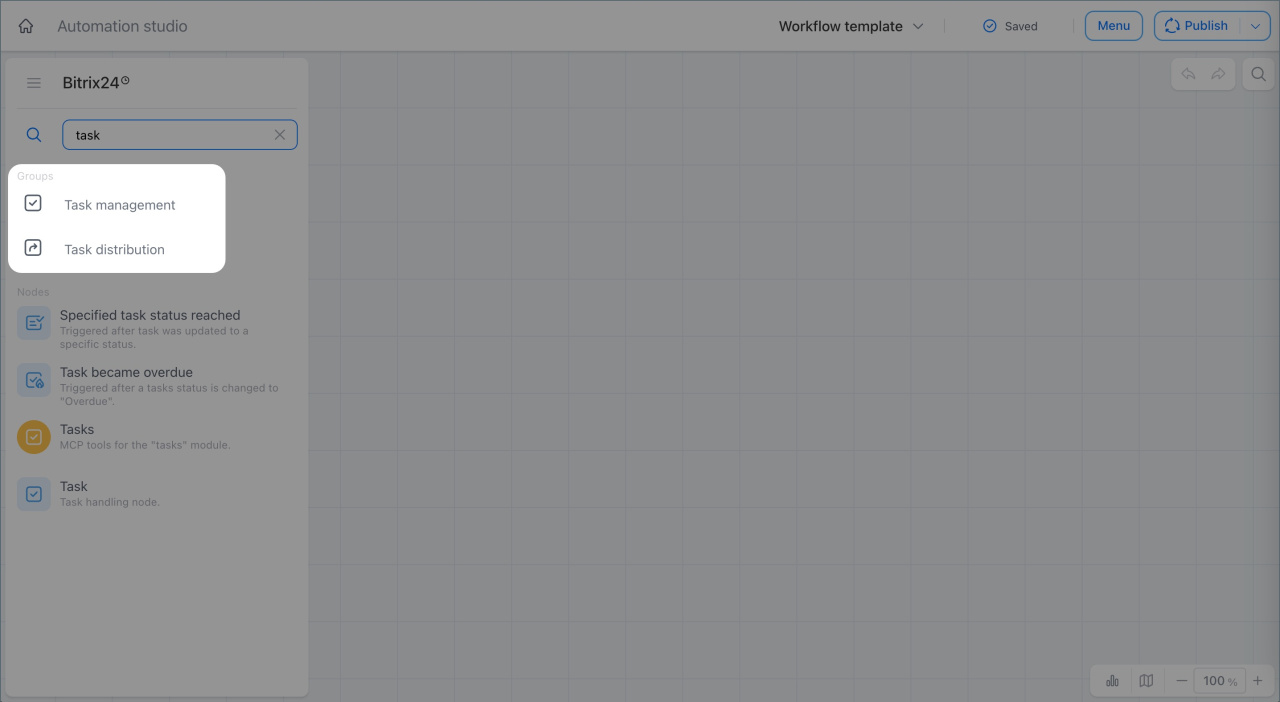
The Task management and Task distribution groups include activities and triggers for working with tasks inside a workflow.
- Task management. Use these nodes for basic task actions. You can create tasks, update task fields, assign responsible users, and get task data.
- Task distribution. Use these nodes to work with flows. They distribute tasks among participants based on set rules. The workflow reacts to events like status changes or overdue tasks and balances the workload automatically.
In this article:
Task node
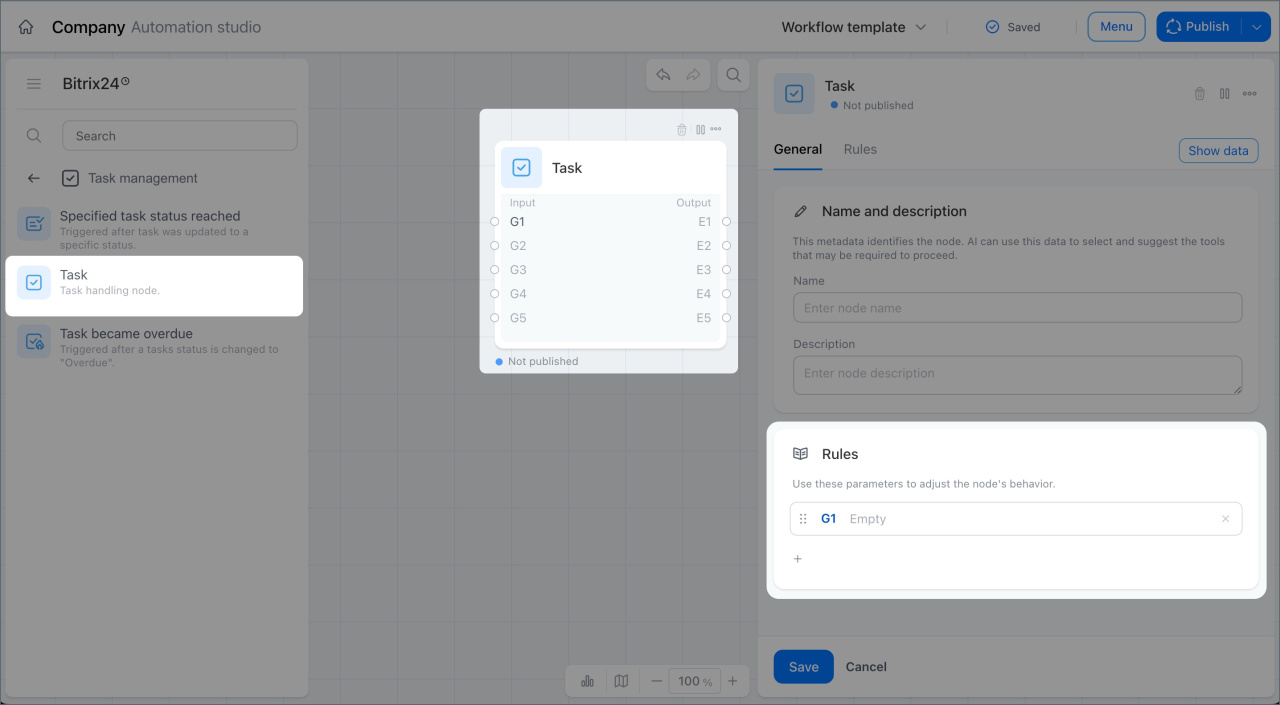
This node creates and manages tasks in a workflow. Open the node. In the Rules section, click Add rule. Select Activity as the rule type. Then choose an action:
- Create task
- Get task information
- Modify task
- Change status
- Change assignee
- Delete task
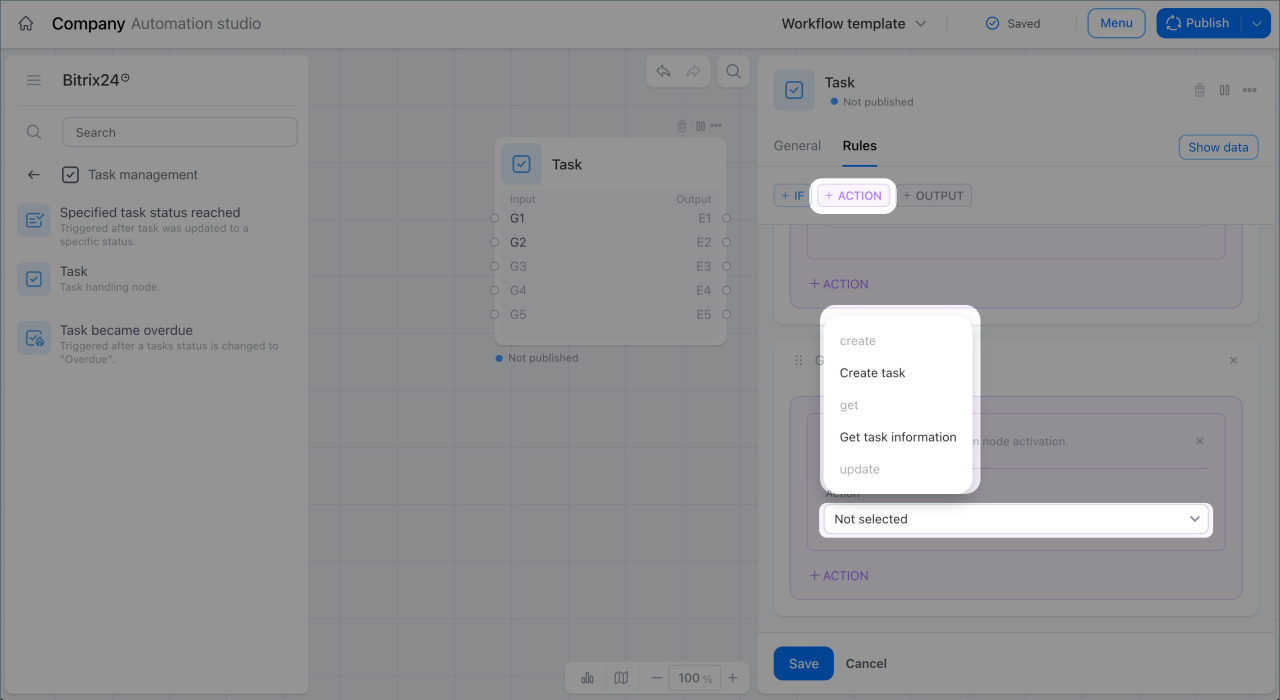
Create task — create a task for an employee.
Example: A company uses an onboarding workflow for new hires. HR, a supervisor, and IT each need to complete part of the process.
When the Accept new employee workflow starts, Bitrix24 creates tasks for all participants automatically. HR gets a task to prepare documents and send the offer. The supervisor gets a task to interview and approve the candidate. IT gets a task to prepare the workstation and set access rights. Tasks appear on time, and no step is missed.
Get task information. Get task data and pass it to the next workflow steps.
Example: Managers create tasks to prepare client contracts. The workflow needs to add task data to documents automatically.
In the Prepare client contract workflow, Bitrix24 takes the task creation date and inserts it into the document. The employee does not need to enter the data manually.
Modify task. Change task fields such as the deadline, description, or other parameters. Before setup, select the task that started the workflow or a task from a linked deal.
Example: Employees work on tasks related to client documents. If a task is not completed on time, the supervisor needs to step in right away.
The workflow includes the Overdue task trigger. When the task deadline passes, Bitrix24 adds the supervisor as a follower automatically. The supervisor gets a notification and can respond right away.
Change status. Move a task to the required status. This activity works with a selected task, such as the task that started the workflow or a task linked to the process.
Example: A CRM manager works with deals for different clients. Large clients need an extra review. A supervisor must check a task before documents are sent or work begins. Other clients do not need this review.
The workflow includes the Track a task status from CRM trigger. When a task moves to Under review, Bitrix24 checks the linked deal. If the deal is not for a large client, the workflow moves the task to Completed automatically. This keeps regular tasks from getting stuck in review and saves time.
Change assignee. Assign a different responsible user to a task. This activity works with a selected task, such as the task that started the workflow or a task from linked process data.
Example: Tasks are linked to deals. Each deal has a task for document preparation. If the deal amount is above a set threshold, a more experienced employee must handle the task.
The workflow checks the deal amount, finds the linked task, and reassigns it to the senior manager automatically. This helps make sure important tasks go to the right person right away.
Delete a task. Remove a task that is no longer needed. This activity works with a selected task, either the task that started the workflow or a task returned by other activities.
Example: In CRM, tasks help track client work stages. Some tasks are only technical steps, such as checking data or preparing a document.
The workflow includes the Track a task status from CRM trigger. When a task moves to Completed, Bitrix24 deletes it if it is no longer needed. This keeps the task list clean and focused on active work.
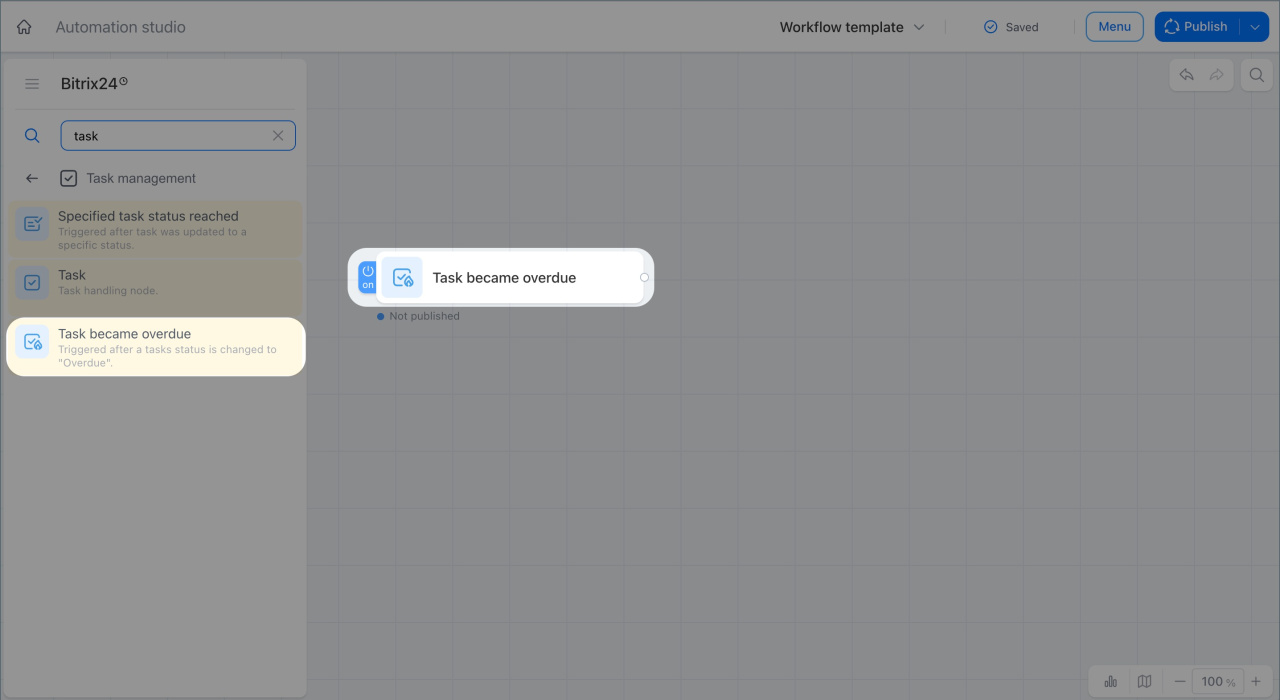
Overdue task
This trigger starts a workflow when a task status changes to Overdue. It helps respond to delays on time: you can notify the supervisor or start additional actions. The workflow starts on its own without manual deadline tracking. Examples:
- In a deal, a manager creates a task for an accountant to prepare a client invoice. If the task becomes overdue, Bitrix24 starts the workflow — it sends a notification to the supervisor or creates a new task marked Urgent.
- A company has a task to prepare a commercial proposal. If the task deadline passes, Bitrix24 starts the workflow: it notifies the supervisor and reassigns the task to the senior manager.
In brief
- Workflows are built from nodes — ready-made action blocks.
- The Task node creates, updates, and deletes tasks inside a workflow, assigns responsible users, and changes statuses.
- The Overdue task trigger starts a workflow when a task is overdue and automatically notifies the supervisor or launches additional actions.