
The Client base management node group helps automate work with contacts and companies. It reacts to new clients automatically and helps keep duplicate inquiries out of your CRM.
In this article:
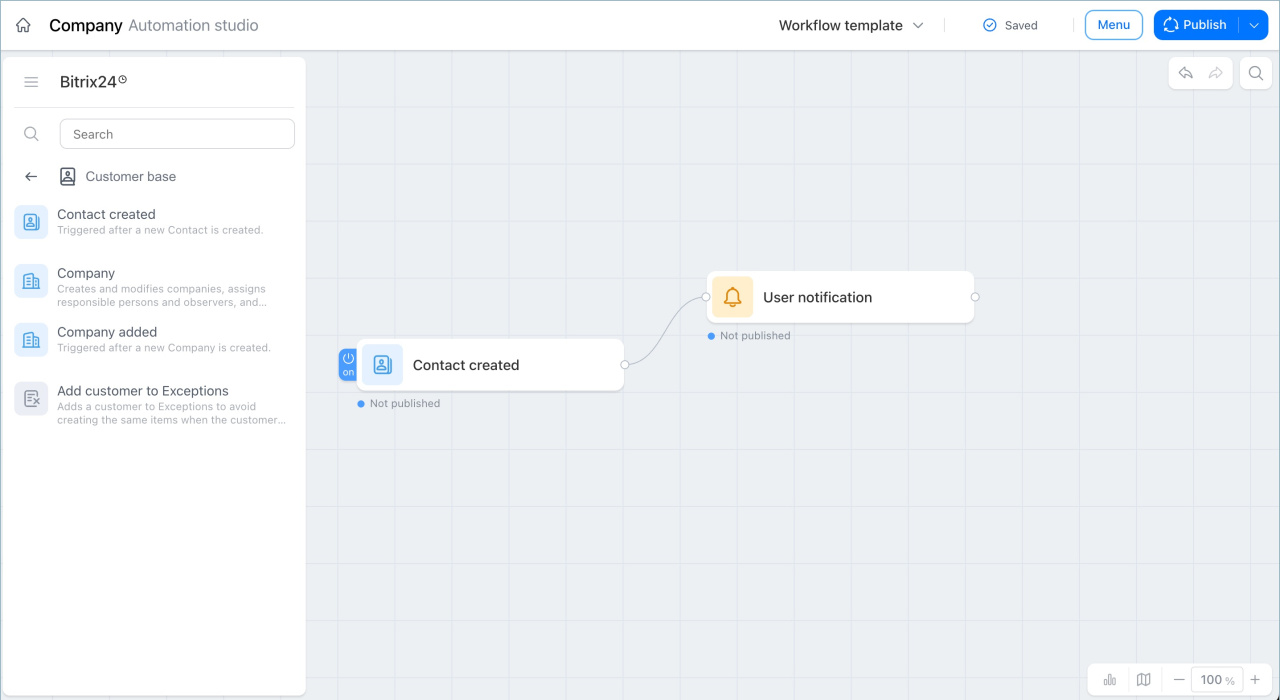
Contact created
This trigger starts the workflow when a contact is created.
Examples:
- A client submits a request on your website, and CRM creates a new contact. The trigger starts, and the Notify employee node alerts the manager about the new client so they can respond right away.
- A sales manager meets a company representative at a trade show and adds their contact to CRM. The trigger starts, and the Send email node automatically creates and sends a quote based on the data from the contact form. The client gets a personalized offer, and the manager saves time.
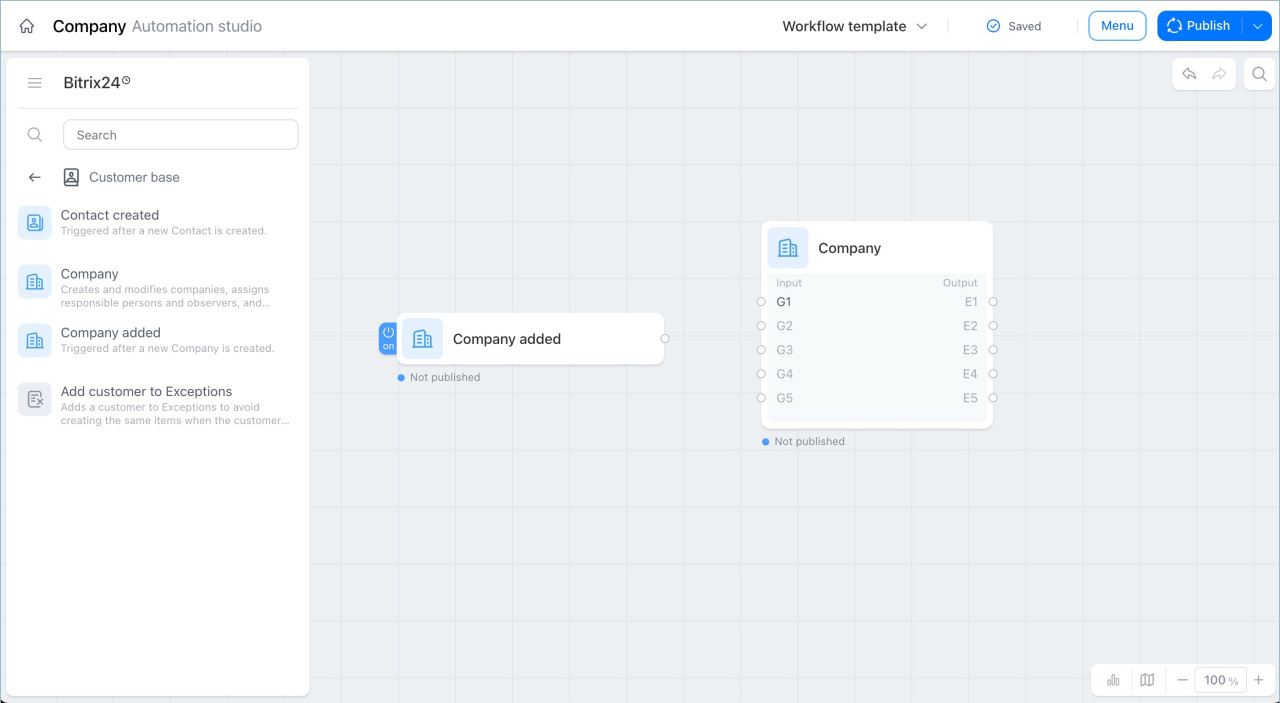
Company added
This trigger starts the workflow when a company is created.
Examples:
- A manager creates a record for a new partner company. The trigger starts, and the Send email activity sends a welcome email with a service presentation.
- A manager finishes negotiations and creates a new company record. The trigger starts, and the Create task activity automatically assigns a task to send a quote within two days. This helps the manager stay on top of the new client.
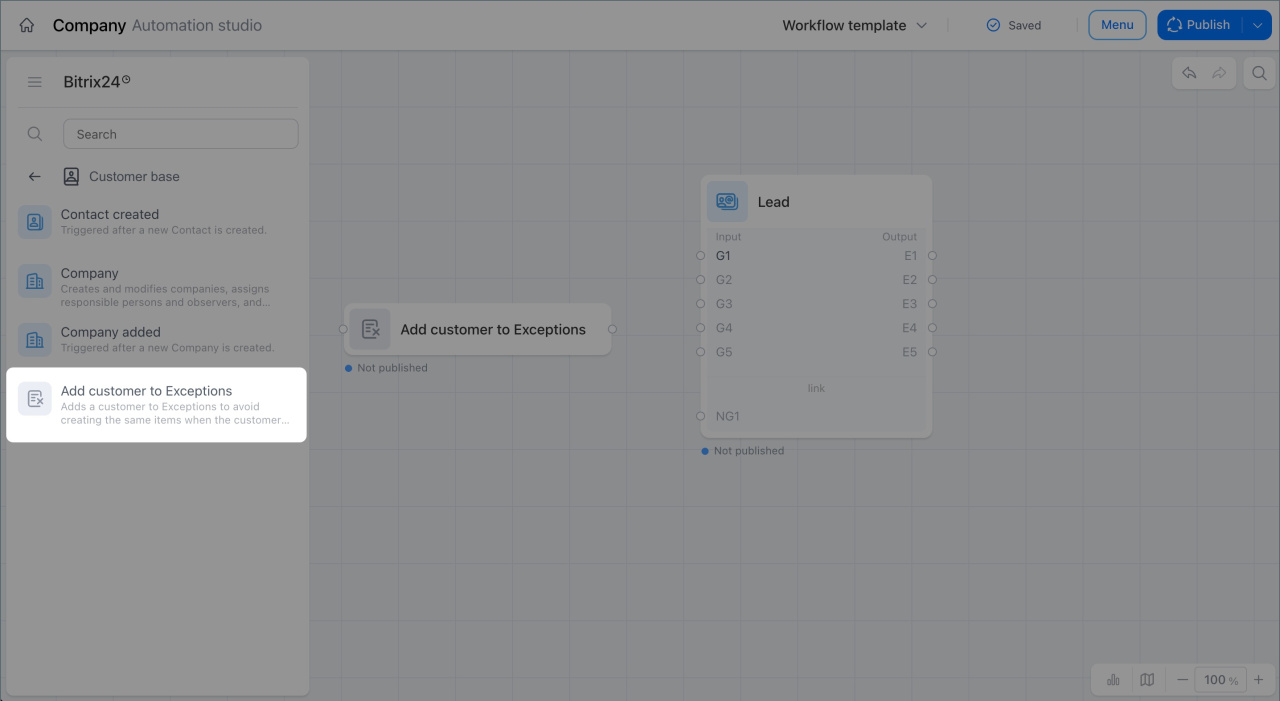
Add customer to Exceptions
This activity adds a client's phone number or email address to the stop list. CRM will no longer automatically create leads or deals from that contact.
You can use this node in workflows for any CRM item, including leads, deals, contacts, and others.
Example: A manager closes a deal with the Spam status because the client is not a good fit. When the deal moves to the selected stage, the node automatically adds the contact to the stop list. If another request comes from that phone number or email address, CRM will not create a new lead.
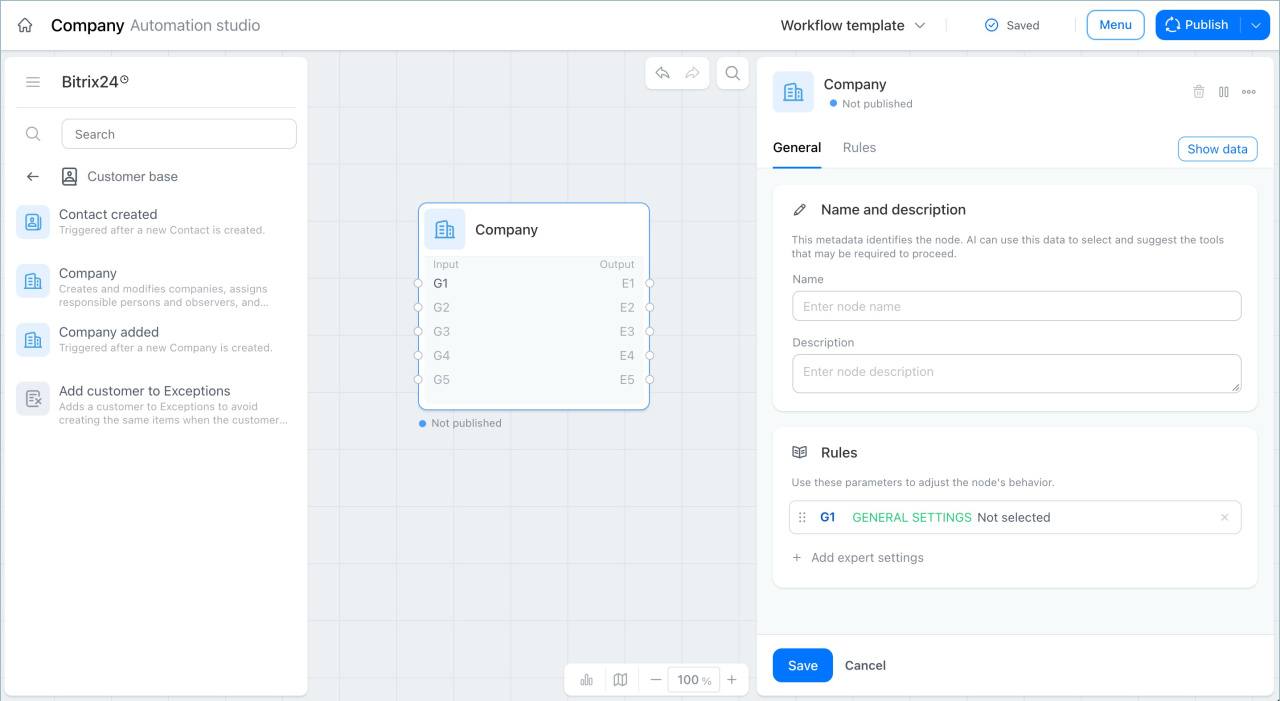
Company
This is a universal node for working with companies in CRM. To configure it, open the node, go to the Main tab, and click the Rules field. In the settings, select the action type and choose what to do with the company:
- Create a company
- Schedule an activity
- Update the company
- Update followers
- Update the responsible person
- Update company details
- Create a document
- Add comment
- Delete the company
Create a company — Creates a new company record during the workflow. Example: A deal moves to the Contract signed stage. The workflow automatically creates a company record based on the deal data. The manager does not need to fill it in manually.
Schedule an activity — Creates a call, meeting, or email activity linked to the company. Example: Negotiations are complete, but no decision has been made yet. The workflow automatically schedules a call back activity for the responsible manager. The employee sees the reminder and does not miss the follow-up.
Update the company — Updates data in the company record. Example: A company moves to a new city. The workflow automatically updates the address in the record. The manager does not need to edit it manually.
Update followers — Adds or removes employees who follow the company. Example: A deal amount goes over a set threshold. The workflow automatically adds a supervisor as a follower so they can track work with an important client.
Update the responsible person — Assigns a different employee as responsible for the company. Example: The manager working with a client goes on vacation. The workflow automatically reassigns the company to another employee so the work continues without interruption.
Update company details — Updates the company's bank or legal details. Example: A company changes its bank account. The workflow automatically updates the company details in the record. New documents use the current information.
Create a document — Generates a document from a template and attaches it to the company record. Example: A deal moves to the Contract signed stage. The workflow automatically creates a contract from a template. The manager can send it to the client right away.
Add comment — Adds a comment to the company record. Example: A manager finishes negotiations and records the agreed terms. The workflow adds a comment with the summary so all history stays in one place.
Delete the company — Deletes the company record. Related deals, contacts, and tasks are not deleted. They simply lose the link to that company. Example: A company record turns out to be a duplicate. The workflow automatically deletes it when the selected condition is met. The manager does not need to clean up the database manually.
In brief
- The Client base management node group automates work with contacts and companies in CRM.
- The Contact created and Company created triggers start the workflow as soon as a new client appears in the database.
- The Add customer to Exceptions activity prevents duplicate leads and deals from being created from a client's phone number or email address.
- The Company node supports many actions, from creating and updating a company record to generating documents and deleting the record.