
Reports, sick leave, and work time tracking need regular attention. The Team management group handles these routine tasks for you. It starts scenarios at the right time and completes actions automatically.
The workgroup includes triggers and actions. Triggers watch for events and start a scenario when something happens. Actions run inside a scenario that has already started and complete specific tasks. A trigger always comes first. Actions follow it.
In this article:
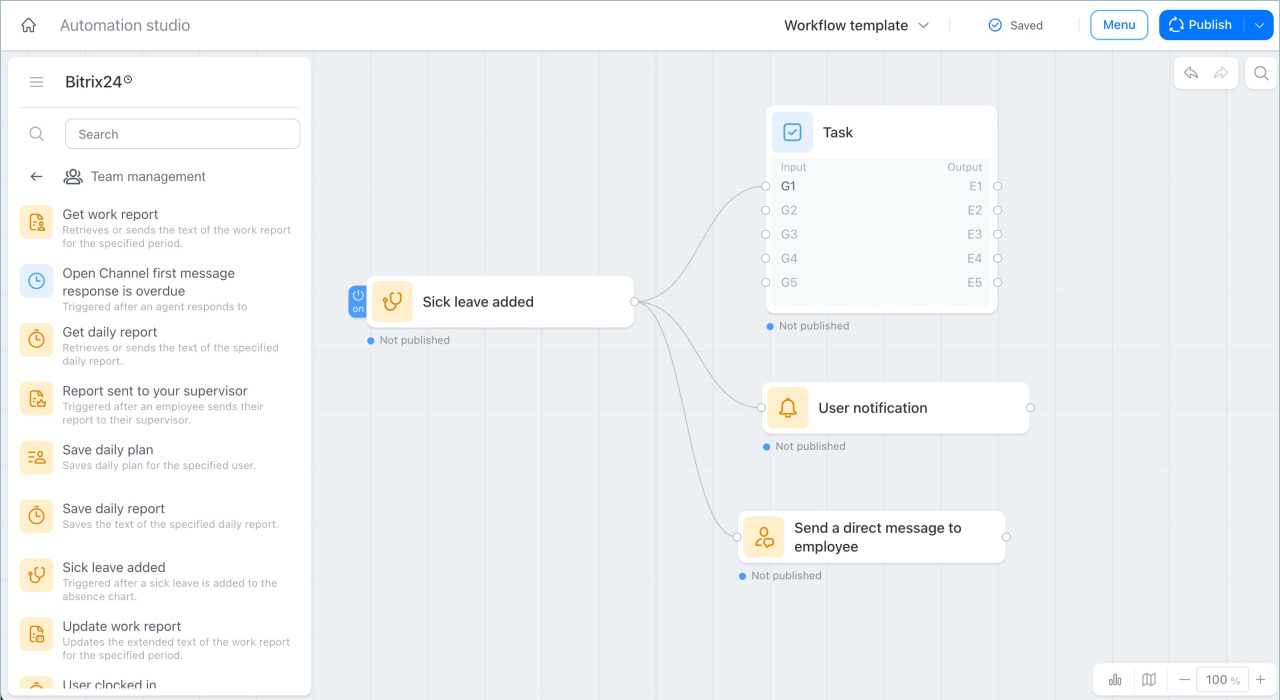
Sick leave added
This trigger starts when someone adds a sick leave entry to the absence chart. It launches the needed actions automatically, so nothing depends on someone noticing the update manually.
Example: A sales manager goes on sick leave. As soon as the HR manager adds the entry to the chart, the scenario redistributes tasks and notifies the team:
- The supervisor gets a notification.
- The backup employee gets a task.
- Colleagues get a message about the client reassignment.
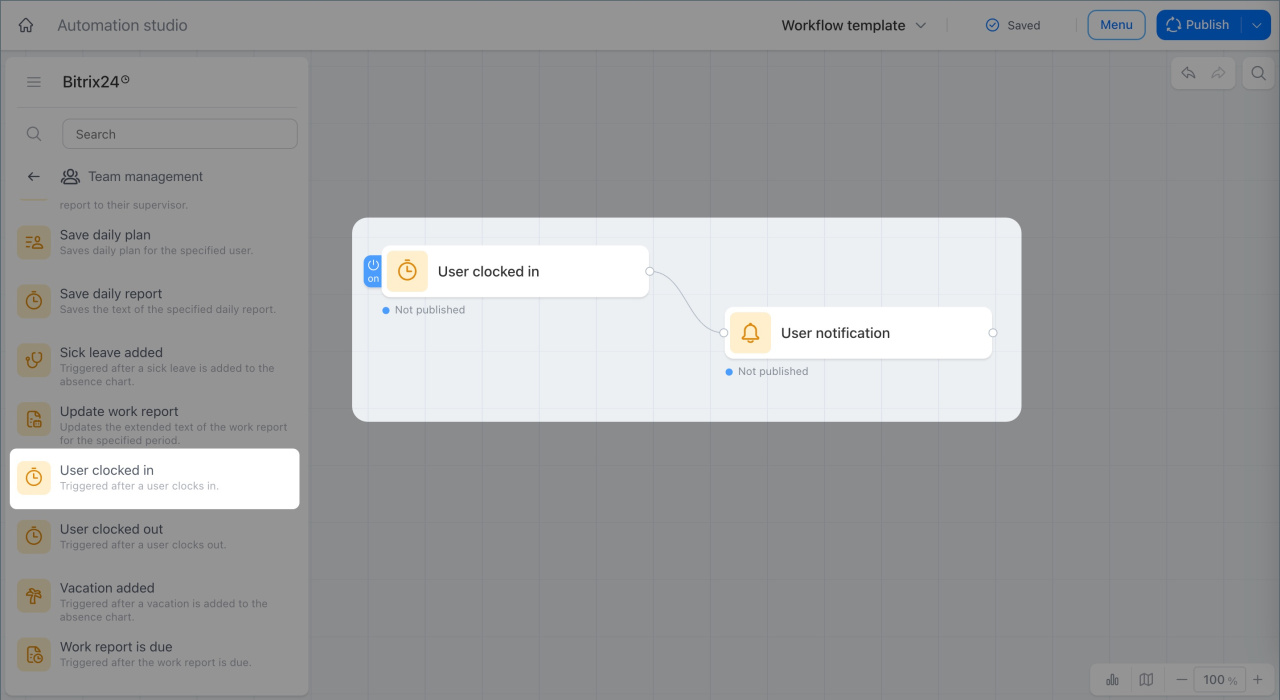
User clocked in
This trigger starts when an employee begins their workday. It starts daily processes automatically.
Example: A supervisor wants a summary of overdue team tasks every morning. When employees start their workday, Bitrix24 collects the data and sends the summary to a chat. The supervisor does not need to check tasks separately.
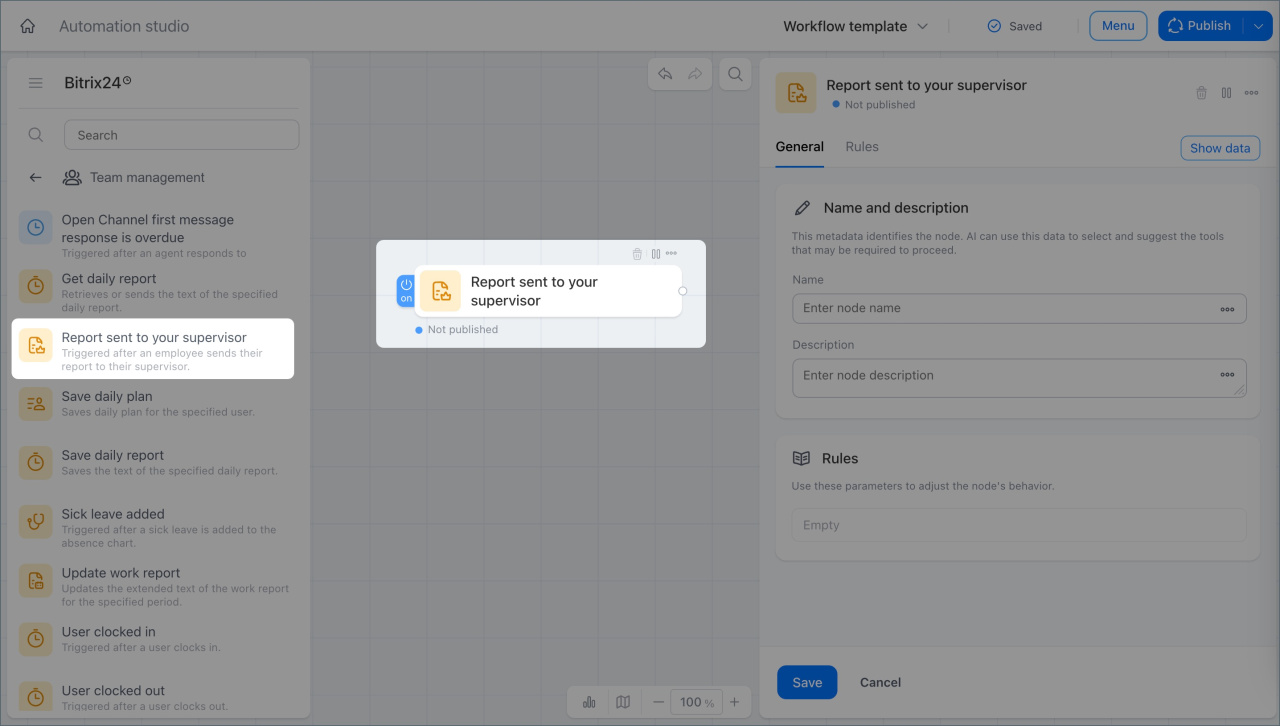
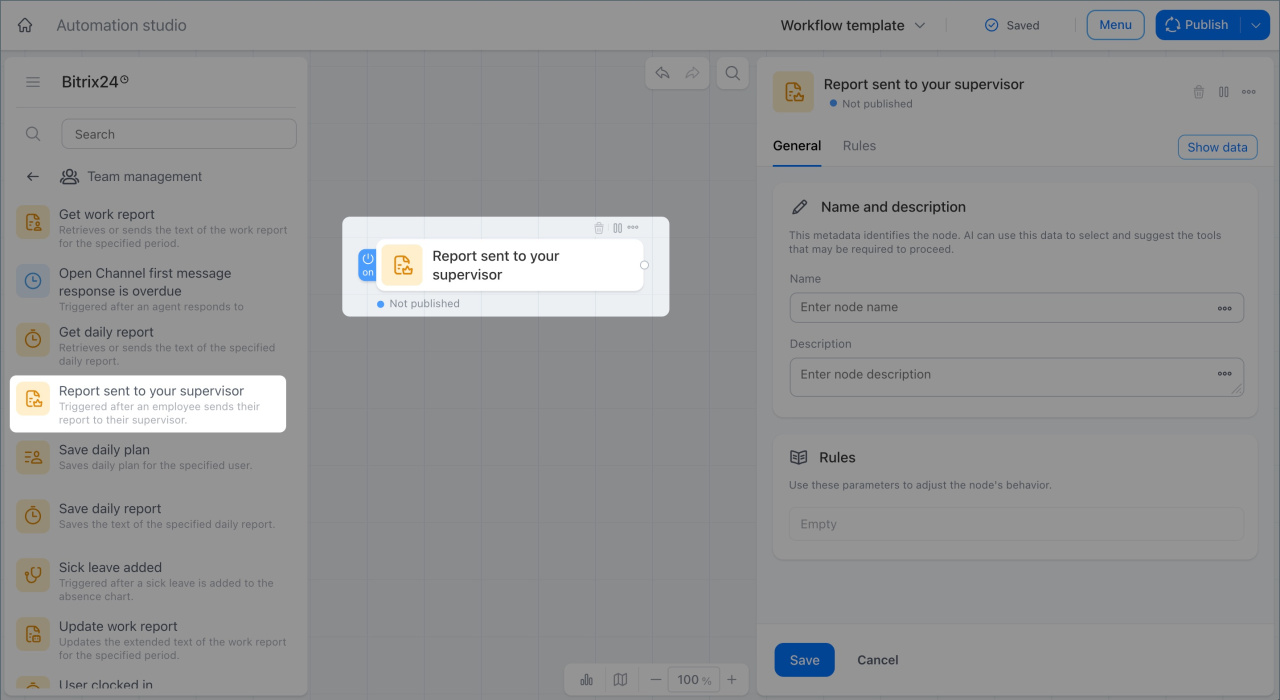
Report sent to your supervisor
This trigger starts a process when an employee sends a report to the supervisor for a specific period. It helps you track reports, so the supervisor can review them on time.
Example: A manager sends a weekly report to the supervisor. Bitrix24 records the submission date and creates a task for the supervisor to review the report before the end of the day.
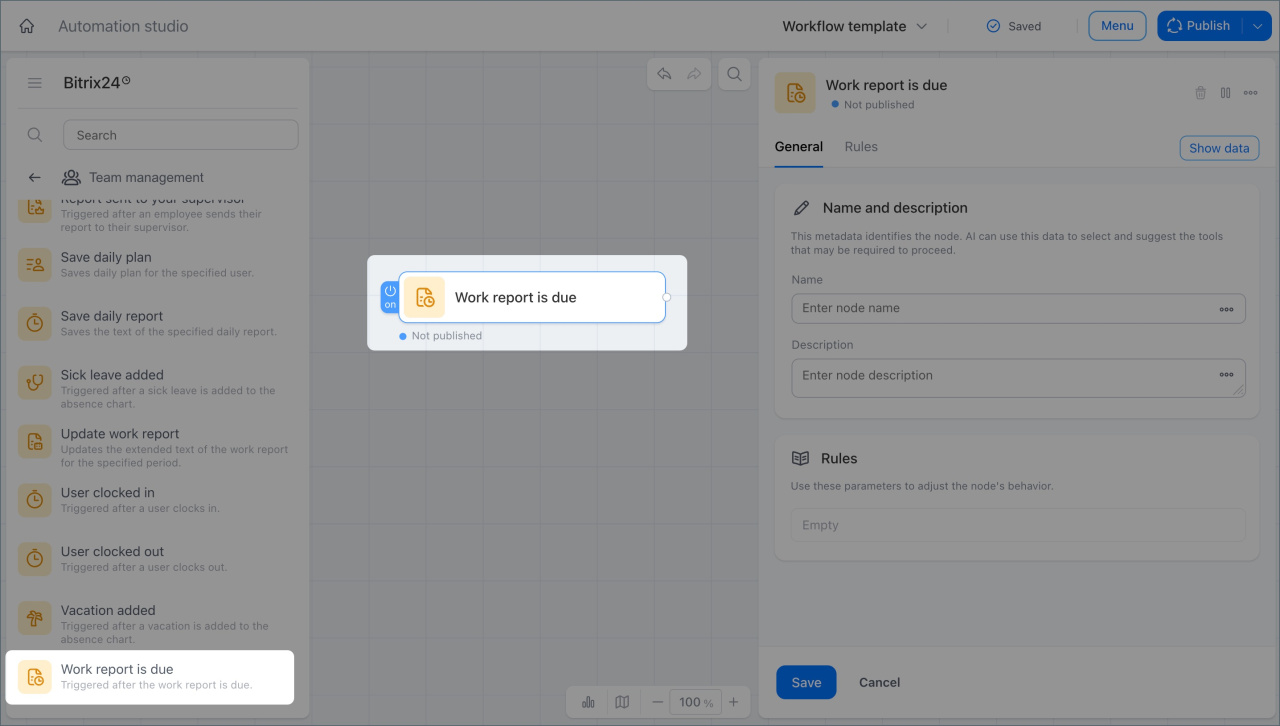
Work report is due
This trigger reads the scheduled report time from the work report settings and starts the scenario. Bitrix24 then collects, processes, and adds the data to the report automatically.
Example: The work report settings specify Friday at 4:00 PM. At that time, the trigger starts the scenario. Data about tasks and meetings is collected, processed by AI, and added to the report automatically.
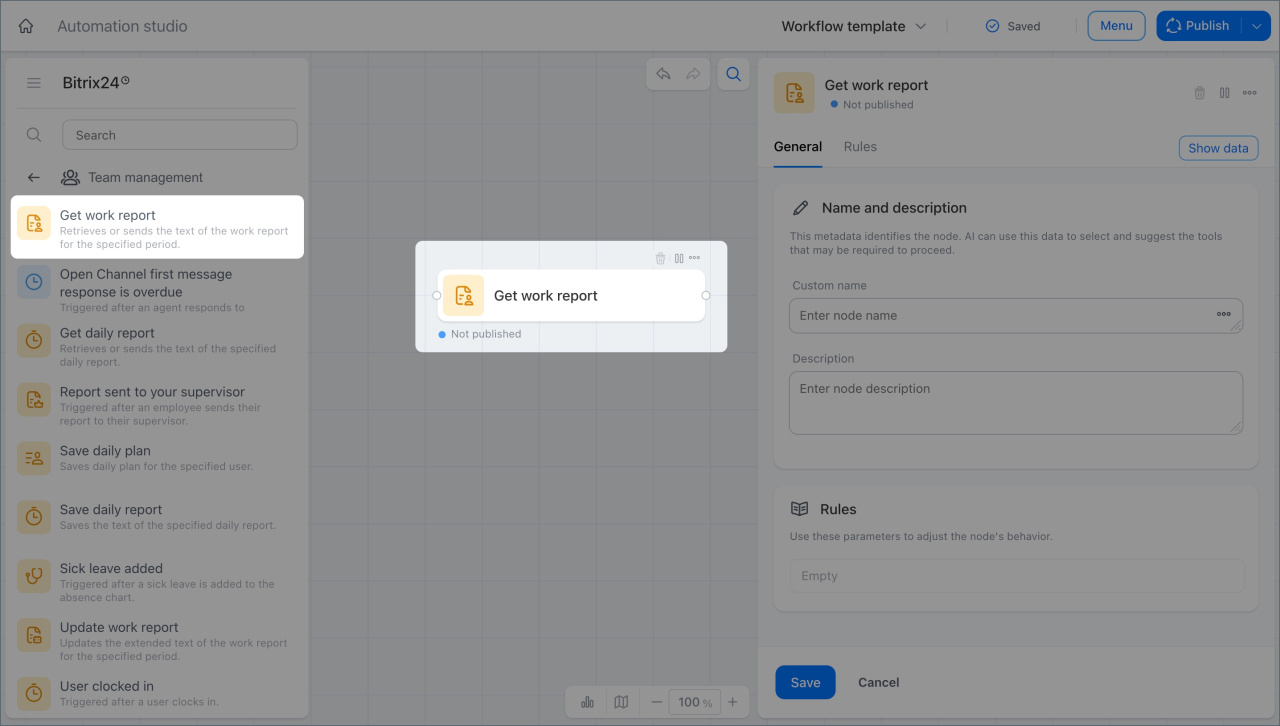
Get work report
This action gets an employee's report for a selected period and passes it to the next step in the scenario. This helps you collect employee data automatically instead of requesting each report manually.
Example: A supervisor needs monthly reports from all employees to review department efficiency. The action gets each employee's report for the selected period and sends it to the next analysis step. The supervisor then gets a summary without reading every report one by one.
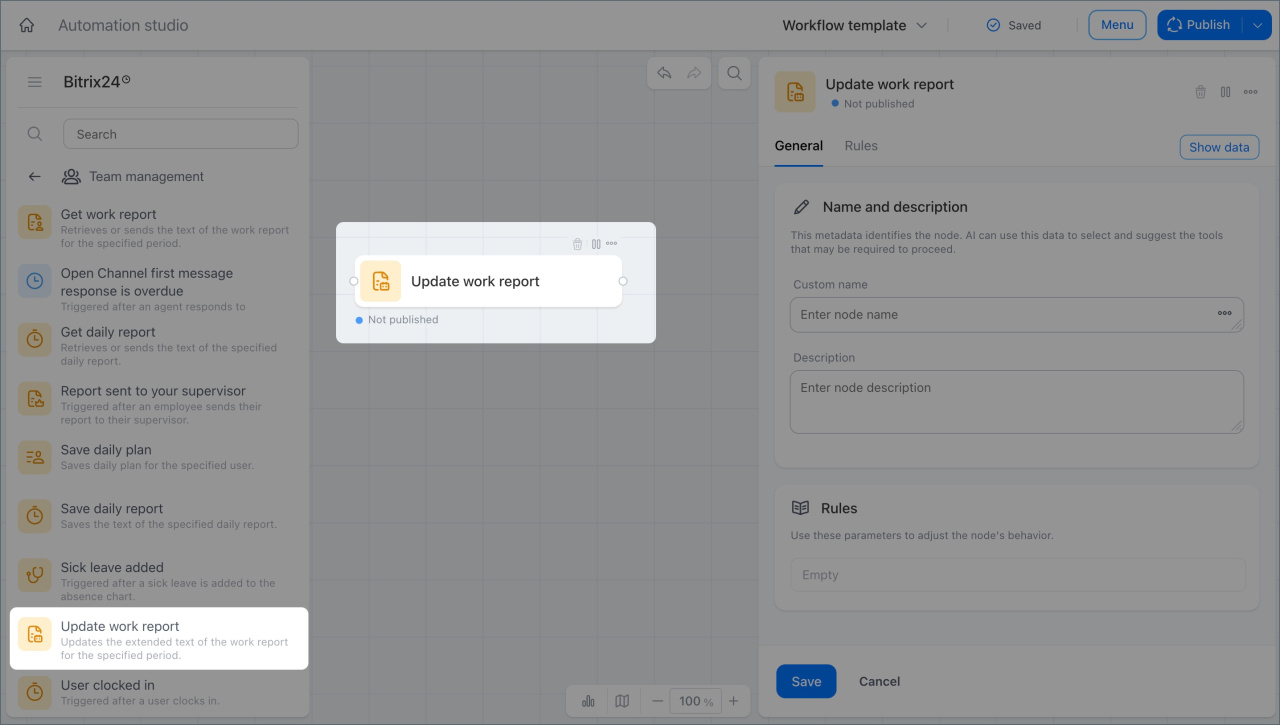
Update work report
This action adds data from earlier steps in the scenario to an employee's report for the selected period.
Example: Earlier steps collected and processed data about an employee's tasks and meetings for the month, such as closed deals, overdue tasks, and notes for the supervisor. The Update work report action writes this data to the report.
Report sent to your supervisor
This action sends a notification about overdue tasks. It helps leaders spot issues quickly and respond right away.
Example: Each morning, the action checks employee tasks. If someone has overdue tasks, the supervisor gets a message that shows who missed tasks, how many there are, and how overdue they are. The supervisor can then update deadlines or check task status right away.
Open Channel first message response is overdue
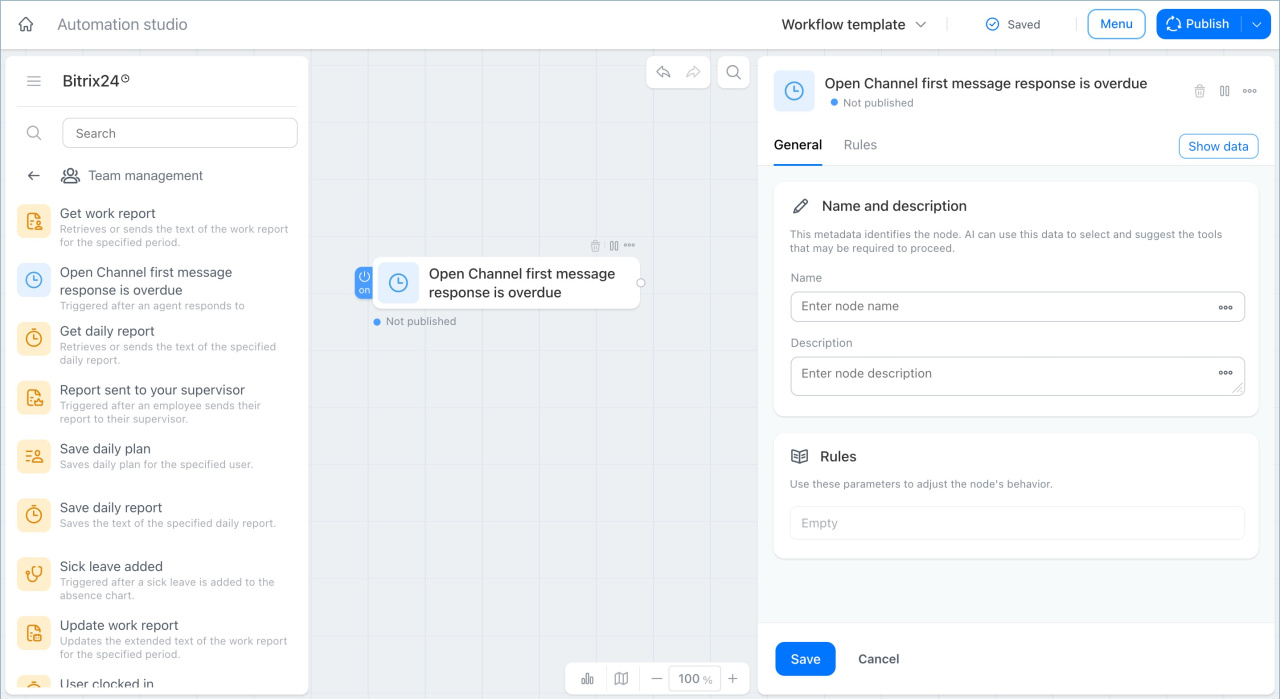
This trigger starts if a manager takes too long to respond to a client's first chat message. It helps prevent lost clients caused by slow response times.
Example: A client writes in the chat, but the manager does not reply within the set time. The trigger detects this and starts the scenario. The supervisor gets a notification, and the chat is reassigned to another manager.
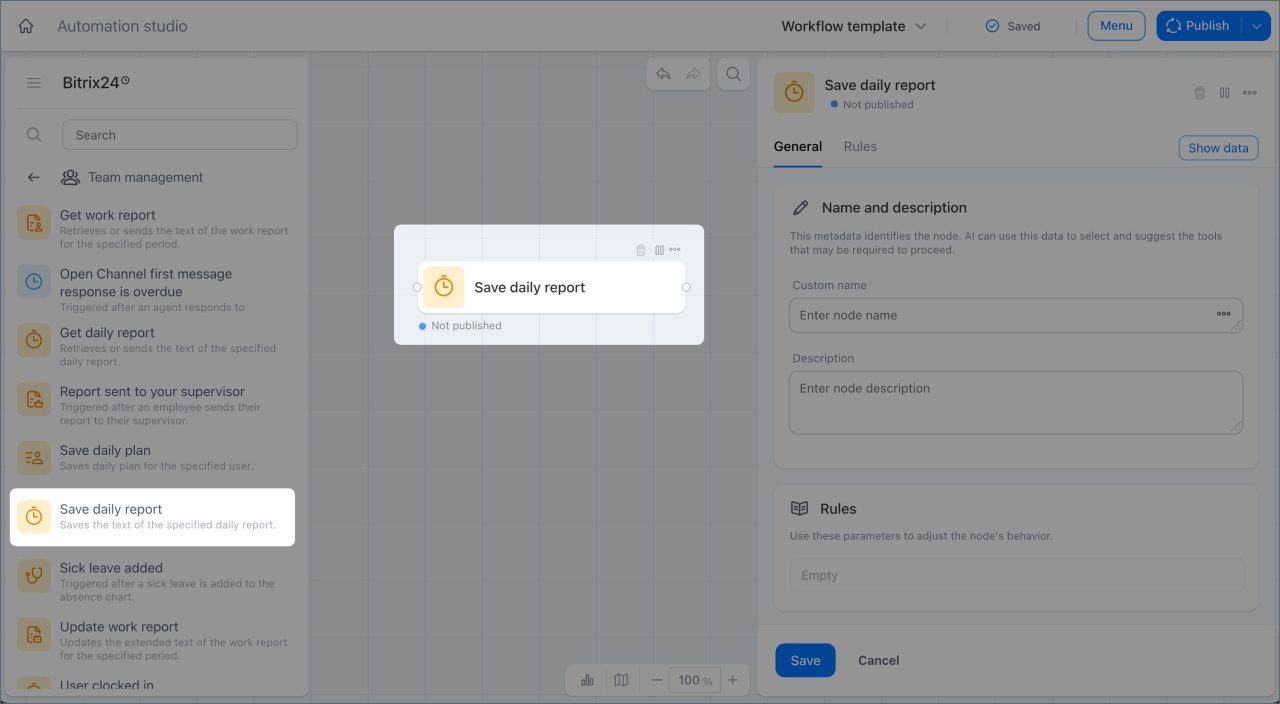
Save daily report
This action saves an employee's report for the day. You can choose the report type in the action settings: daily, weekly, or monthly. Place this action at the end of the scenario, after all data has been collected and the result is ready to save.
Example: At the end of the workday, the scenario collects data about an employee's tasks. The action saves it as a daily report, so the supervisor can see the results without additional requests.
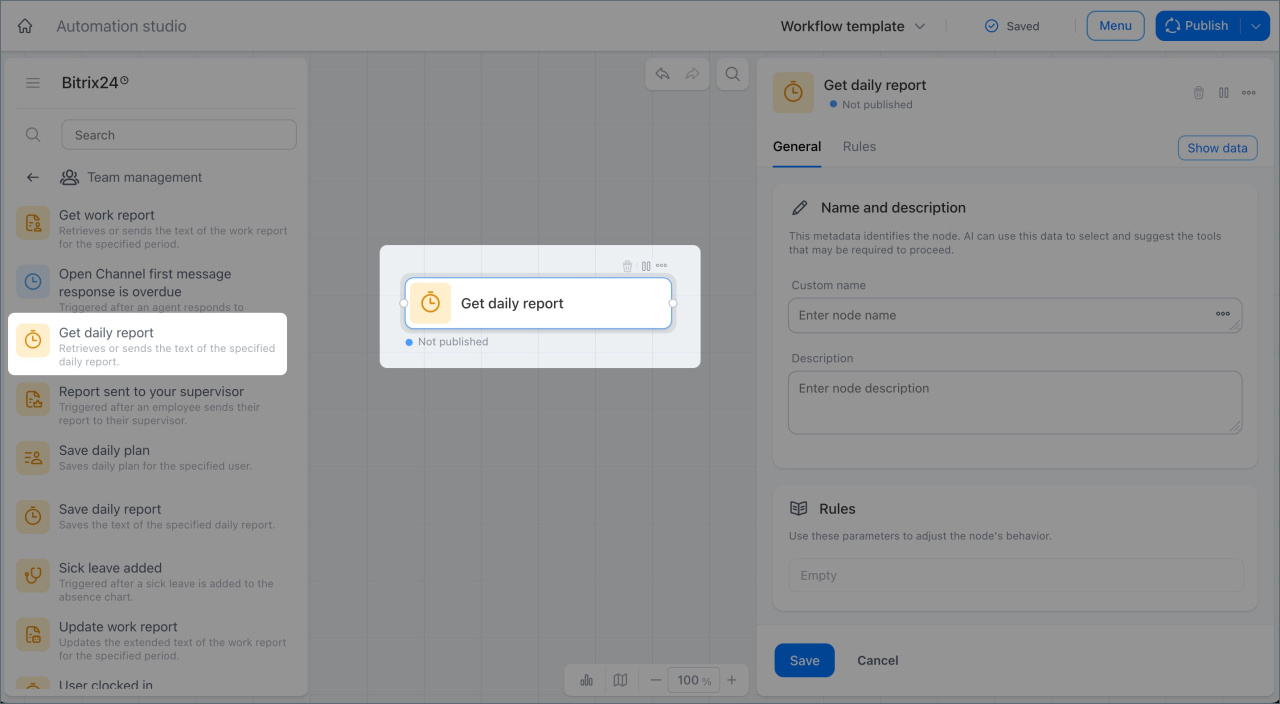
Get daily report
This action gets and passes the text of an employee's daily report. This can be a report created with AI, generated automatically, or written by the employee.
Example: At the end of the workday, the scenario collects reports from all sales department managers. The action gets each employee's report and passes it to the next step. The supervisor gets a notification with the day's results without requesting reports manually.
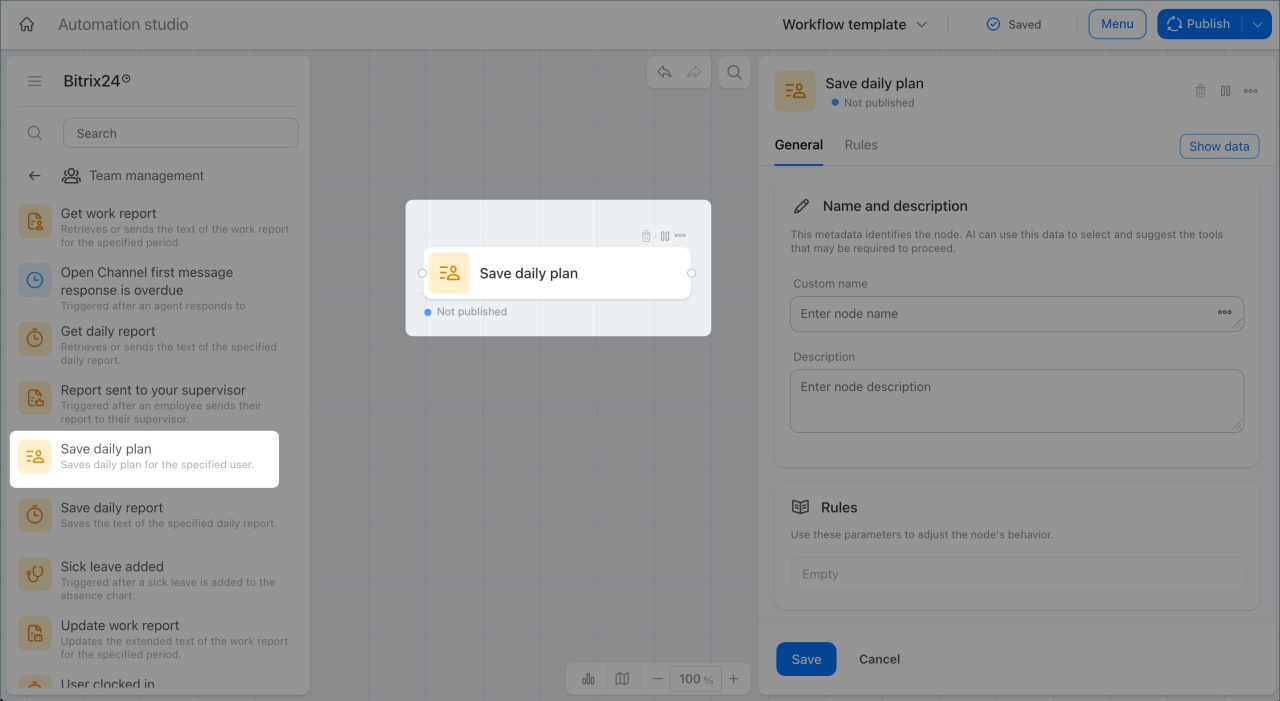
Save daily plan
This action saves an employee's plan for the current day.
Example: Each morning, the scenario collects data about an employee's tasks and meetings. The action saves it as a daily plan, so the employee does not need to spend time creating one.
In brief
- The Team management group automates report tracking, task monitoring, and team notifications without manual effort.
- The workgroup includes ten nodes: four triggers and four actions.
- Triggers start scenarios based on events: sick leave added to the chart, workday started, report sent, and scheduled report time reached.
- Actions process data inside the scenario: they get employee reports, build user lists for AI reports, fill out reports, and send notifications to management.
- Nodes work together: a trigger starts the process, and actions run sequentially after it.