
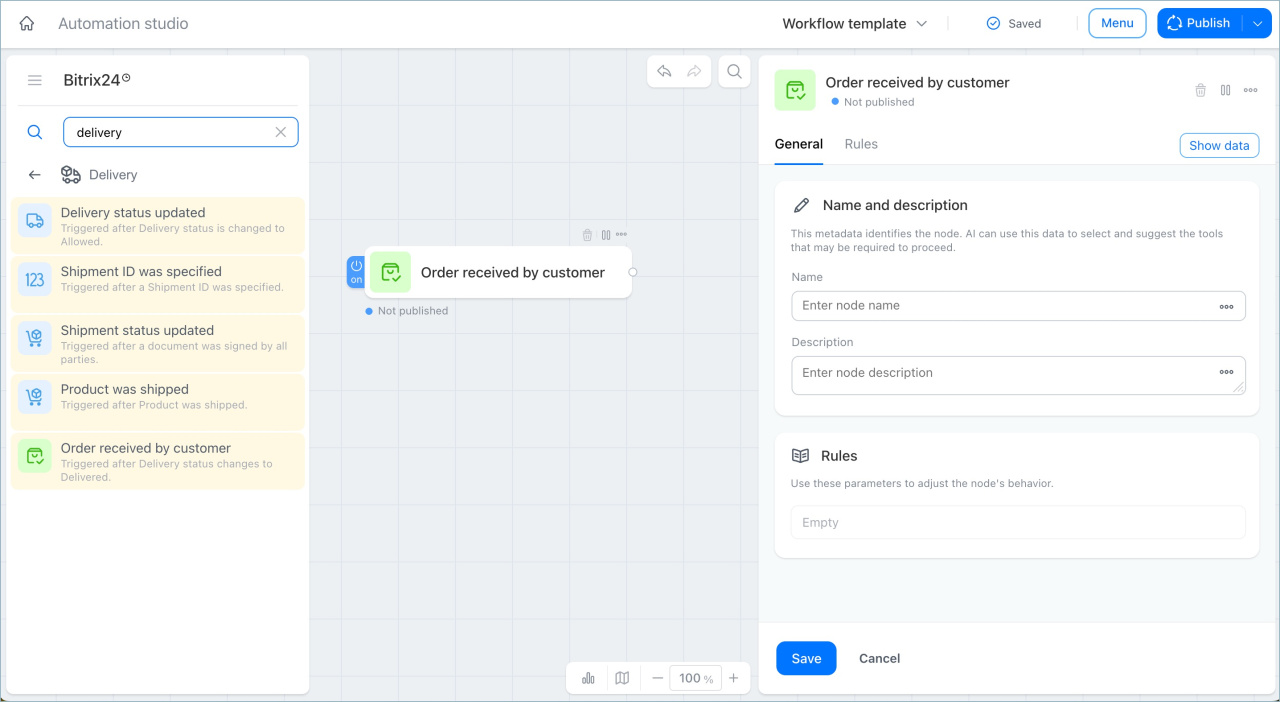
The Delivery trigger group includes triggers that track order events from shipment to delivery. You can use them to start an automation when the delivery or shipment status changes, when a tracking number is added, or when the customer receives the order.
Online store in Bitrix24: Getting started
In this article:
Track delivery status updated
This trigger starts an automation when the delivery status changes in the order form.
Examples:
- The order status changes to "In transit." The trigger starts an automation and sends the customer an SMS with the tracking number. The customer can track the order, and the manager does not need to send the message manually.
- The order status changes to "Delivery delayed." The trigger creates an activity in the deal form so the manager can contact the customer and explain the issue. This helps the manager respond on time and avoid missing problem orders.
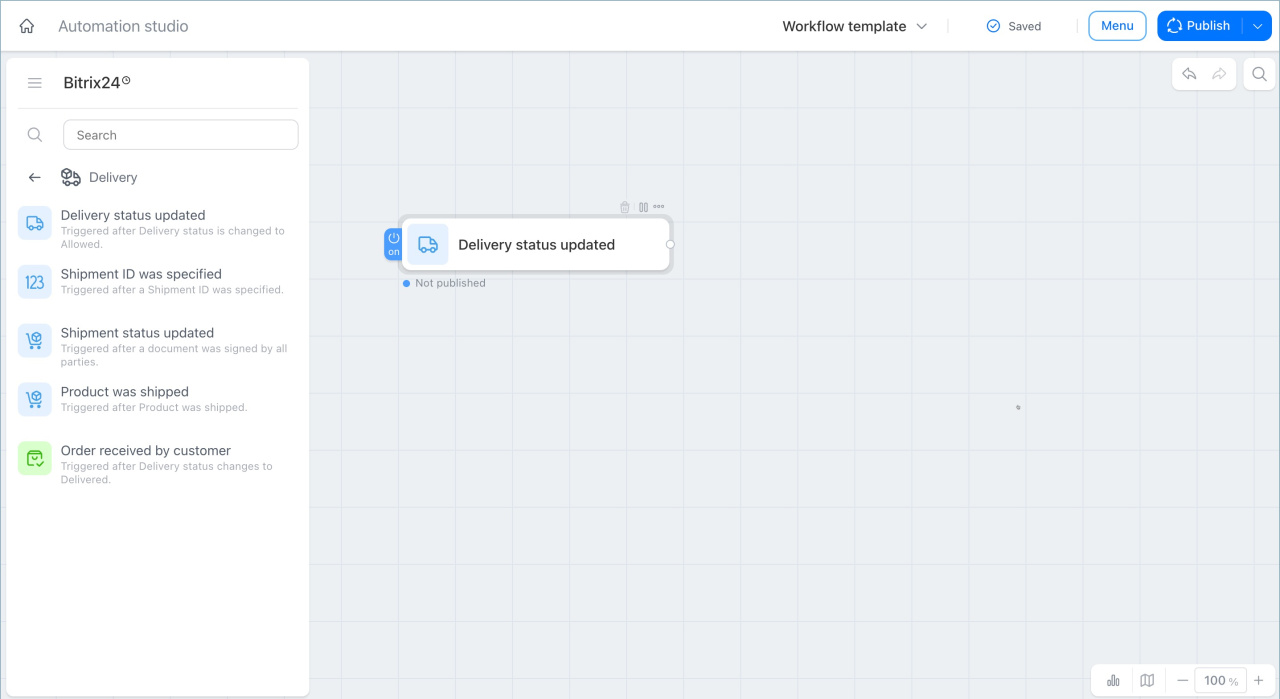
Shipment ID was specified
This trigger starts an automation after a tracking number is added to the deal form.
Examples:
- The manager enters a tracking number in the deal form. The trigger records it and sends the customer an email with a tracking link. The customer gets the tracking number right away.
- A tracking number is added to the order and the delivery is on the way. The trigger notifies the responsible manager. This helps the manager track shipments without checking every deal manually.
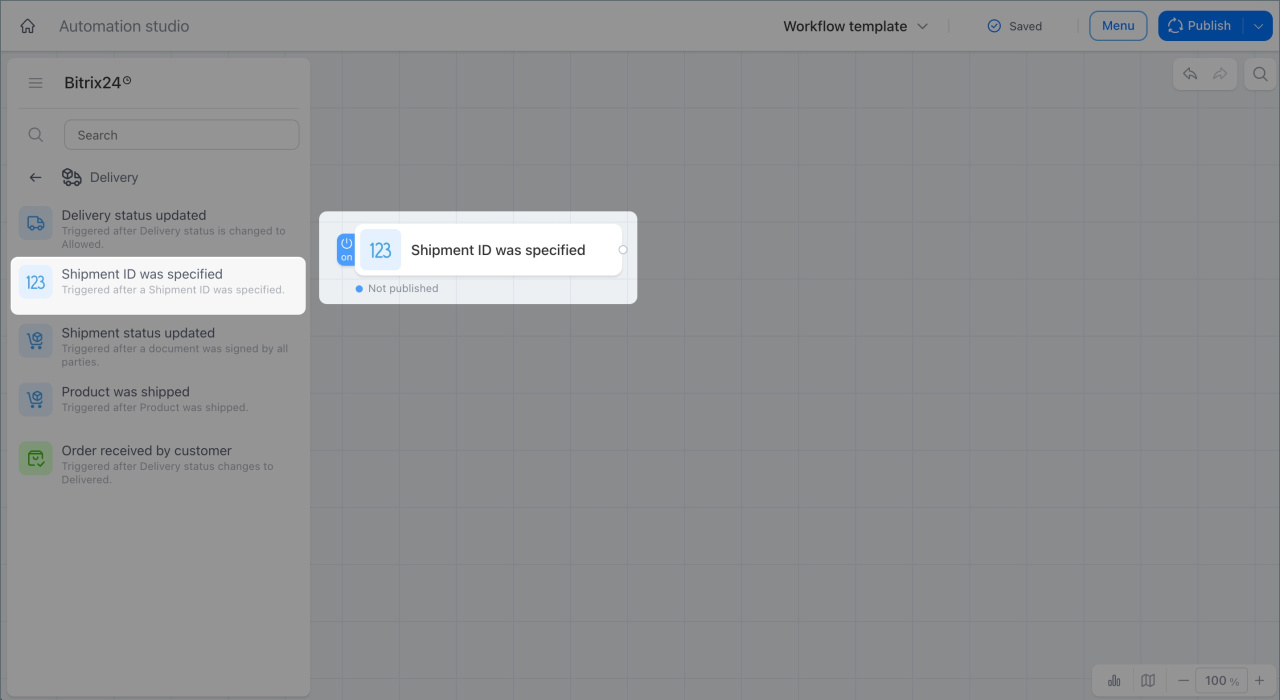
Shipment status updated
This trigger starts an automation whenever the shipment status changes in the deal form.
Examples:
- The status changes to "Handed to courier." The trigger automatically moves the deal to the "Shipped" stage. The manager sees the current status in CRM and does not need to update the stage manually.
- The status changes to "Return." The trigger creates an activity so the manager can contact the customer and find out the reason. This helps the manager learn about the return right away instead of from a customer call.
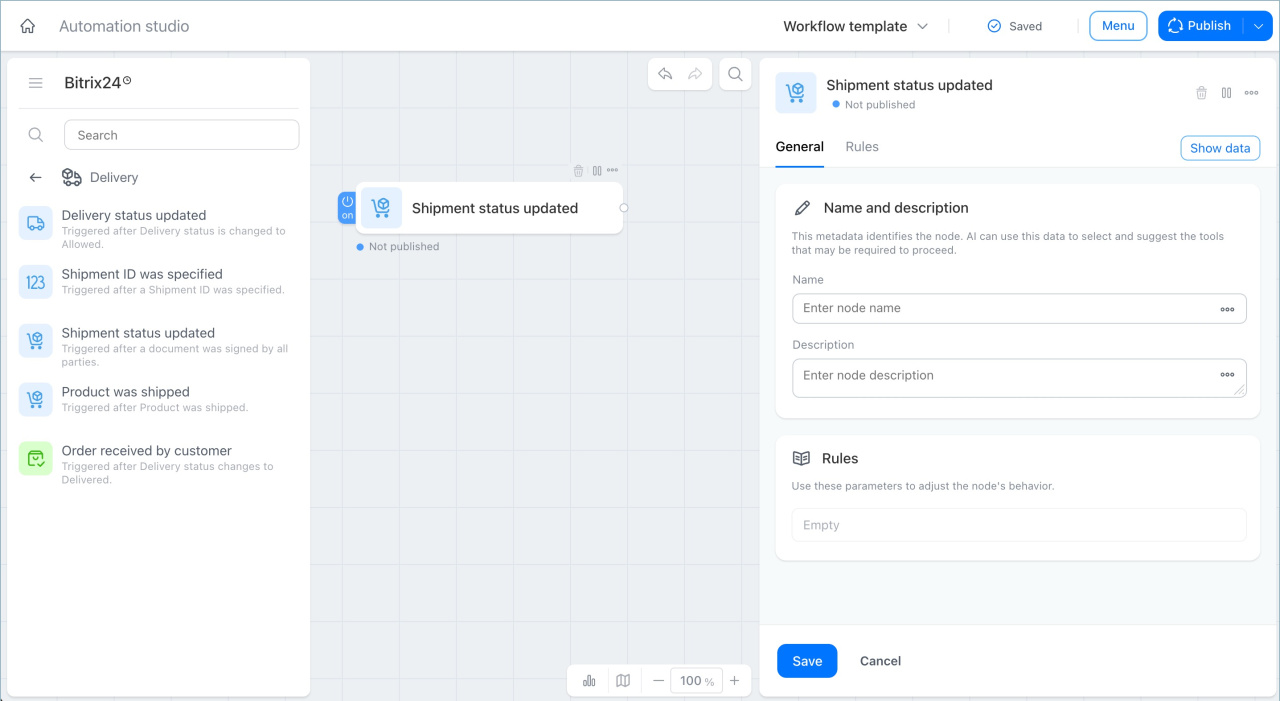
Product was shipped
This trigger starts an automation as soon as the product leaves the warehouse.
Examples:
- The warehouse ships an order. The trigger automatically sends the customer a notification that the order has been handed over for delivery. The customer stays informed, and the manager does not need to reach out manually.
- The order is shipped, but payment has not been received yet. The trigger creates an activity in the deal form so the manager can confirm payment before delivery. This helps the manager keep track of these orders.
Order received by customer
This trigger starts an automation when the delivery status in the deal form changes to "Delivered".
Examples:
- The customer receives the order. The trigger automatically sends an email asking for a review. The manager does not need to send the message manually.
- The customer receives the order. The trigger automatically moves the deal to the "Completed" stage. The manager does not need to update the stage manually.
In brief
- The Delivery group includes triggers that track events throughout the delivery process. In CRM, all orders are stored as deals.
- The "Delivery status updated" trigger starts an automation whenever the order status changes, such as when the order is in transit or delayed.
- The "Shipment ID was specified" trigger starts when a tracking number is added to the deal card.
- The "Shipment status updated" trigger responds to any shipment status change, such as when the order is handed to a courier or returned.
- The "Product was shipped" trigger starts once, when the product leaves the warehouse.
- The "Order received by customer" trigger starts when the delivery status changes to "Delivered."