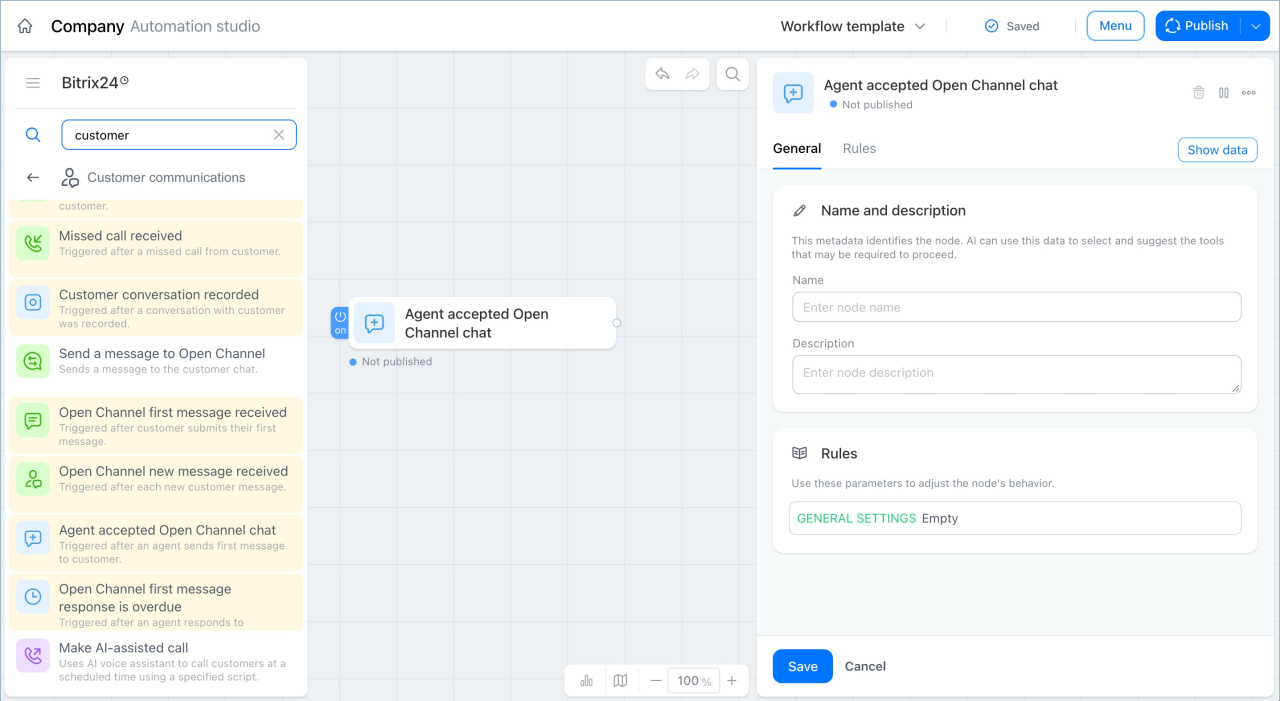
The Communications node group includes activities and triggers that help you manage incoming and outgoing communication in a workflow.
Activities send messages and place calls to customers. They help the workflow contact a customer automatically at the right time.
Triggers watch for communication events. They start the workflow when a customer or employee takes a specific action, such as opening an email, sending a chat message, or answering a call.
In this article:
- Send email
- Send a message to Open Channel
- Make a call
- Send SMS
- Make AI-assisted call
- Incoming email received
- Inbound call received
- Outbound call
- Email message viewed
- URL was clicked
- Open Channel first message received
- Customer conversation recorded
- New message received
- Open Channel first message received is overdue
- Email was sent to customer
- Missed call received
- Agent accepted Open Channel chat
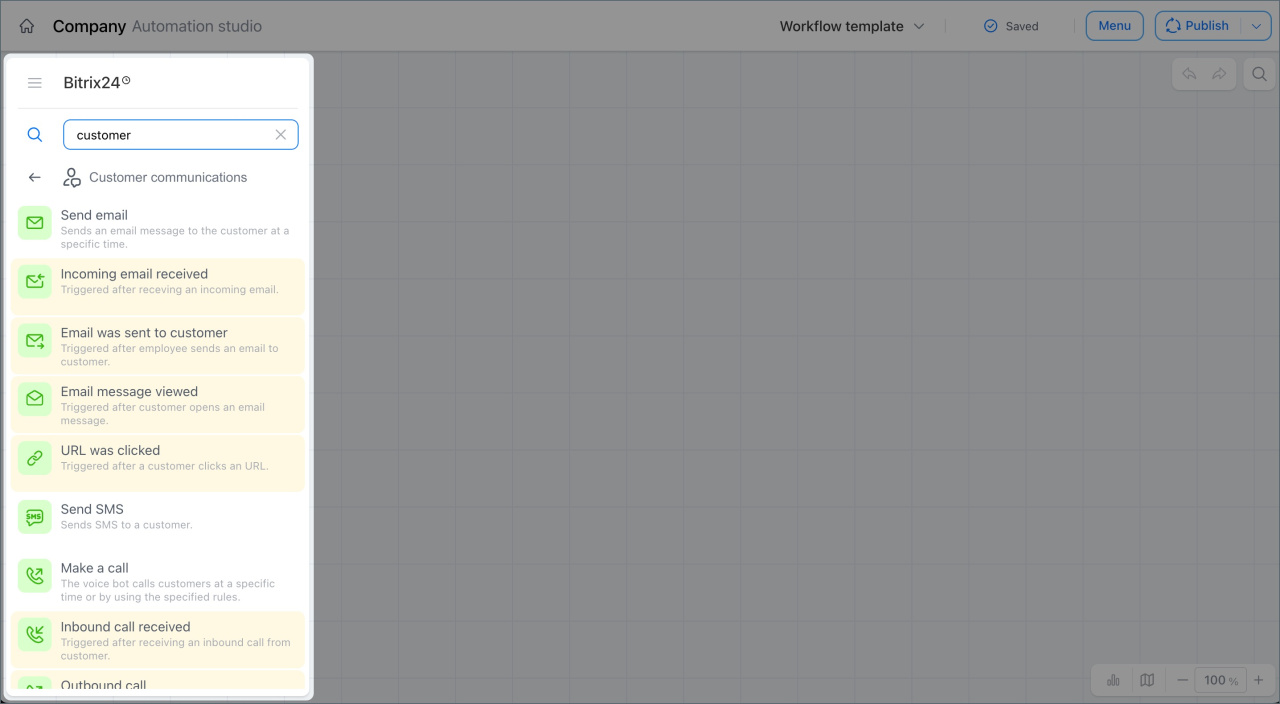
Send an email
This activity sends an email to a customer from a workflow. For example, you can send an estimate, invoice, order tracking number, or other documents. The email is sent automatically, with no action needed from the manager.
Example: After an order is paid, the company sends a confirmation email automatically. The email includes the order number, item list, delivery dates, and support contact details. When the Track order payment trigger detects the payment, the workflow runs the Send an email activity and sends a prepared message with order data. The manager does not need to follow up manually.
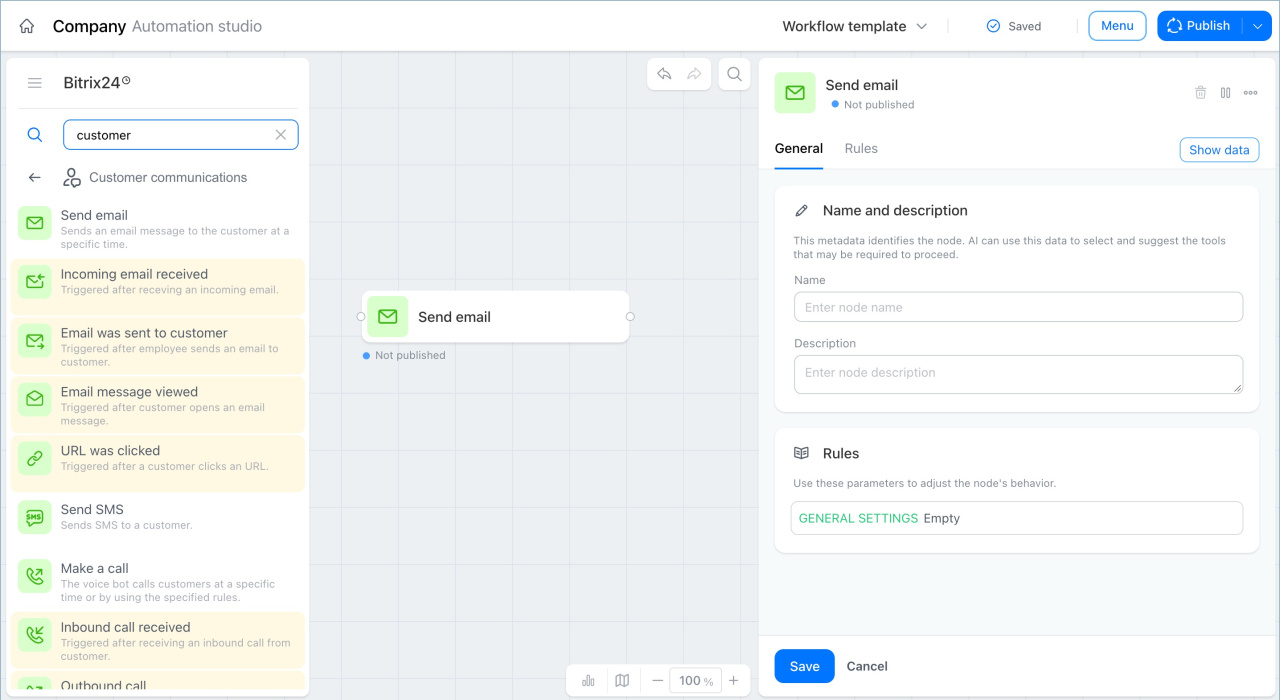
Send a message to Open Channel
This activity sends a message to a customer through an open channel, such as a website chat or messenger.
Example: A customer sends a message in chat. When the Track the first client chat message trigger detects the request, the workflow runs the Send an open channel message activity. It automatically sends a reply that confirms the request was received and that a manager will respond soon. The customer gets an instant response, and the manager does not need to send routine replies.
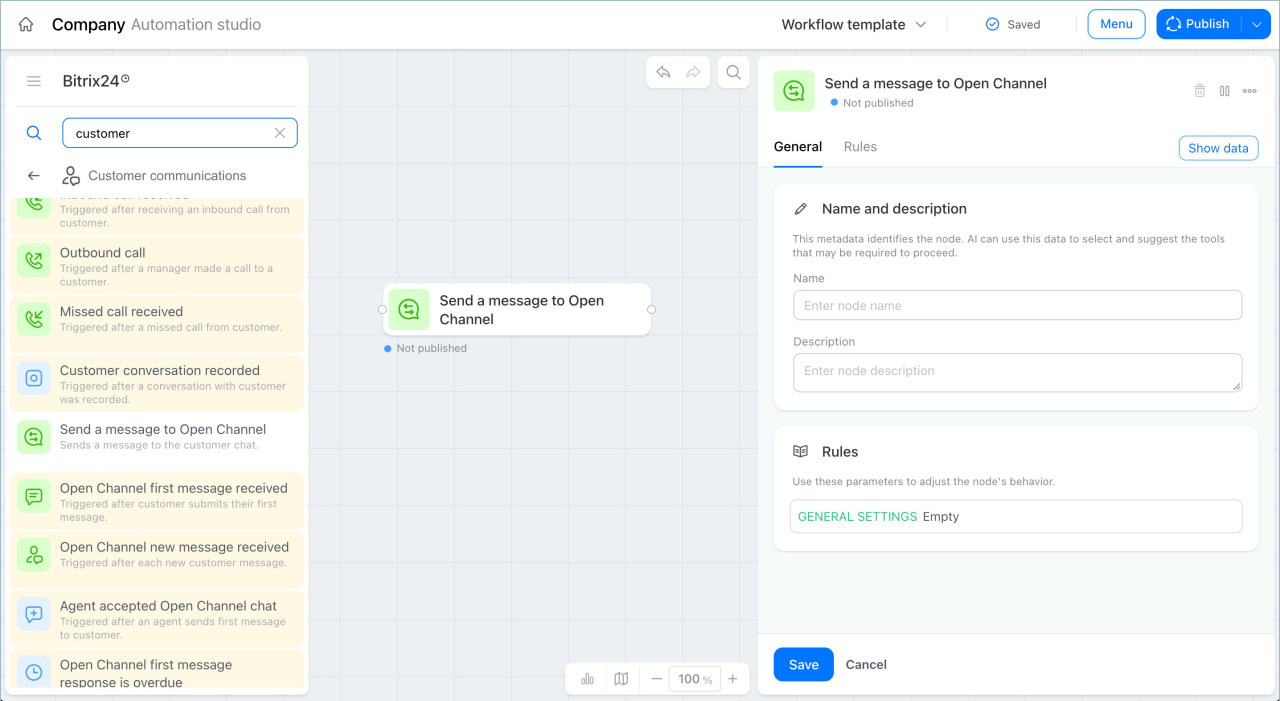
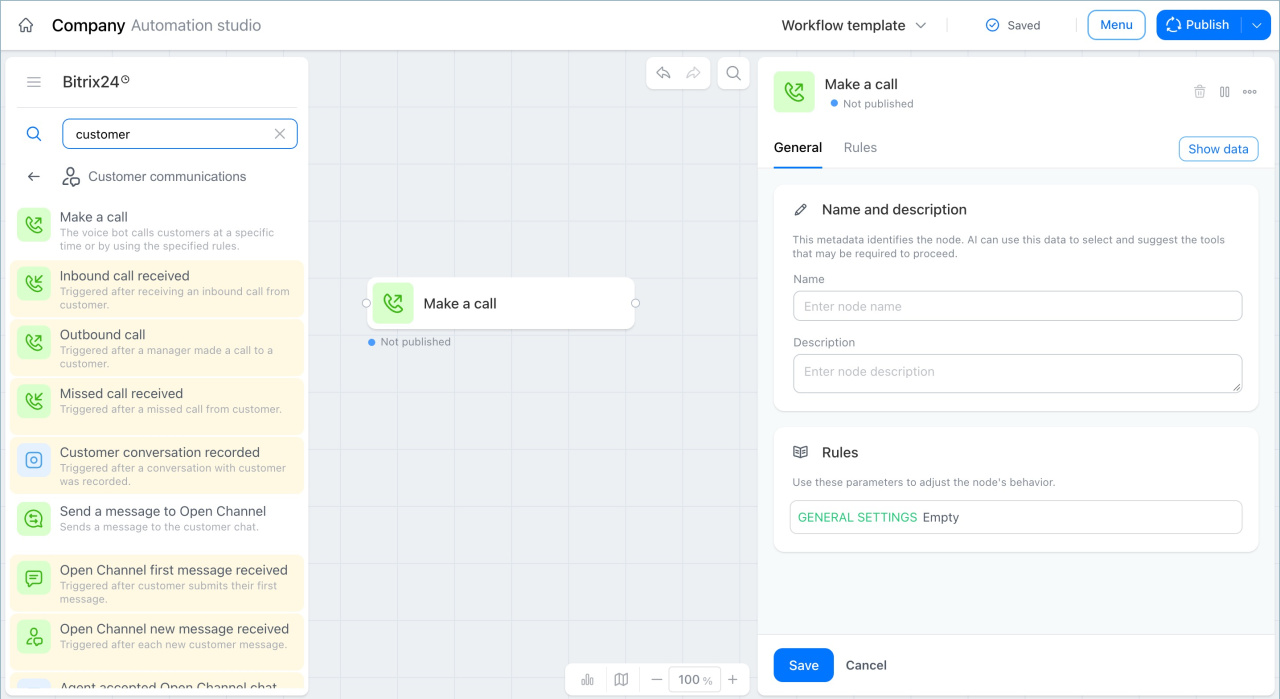
Make a call
This activity starts a voice bot that calls the customer at a set time or when a condition is met. To use this activity, connect Bitrix24 telephony first.
Telephony connection options overview
Example: A customer schedules an appointment. When it is time to confirm the visit, the workflow starts a call. The bot contacts the customer and checks whether they will attend. The manager does not need to make the call manually.
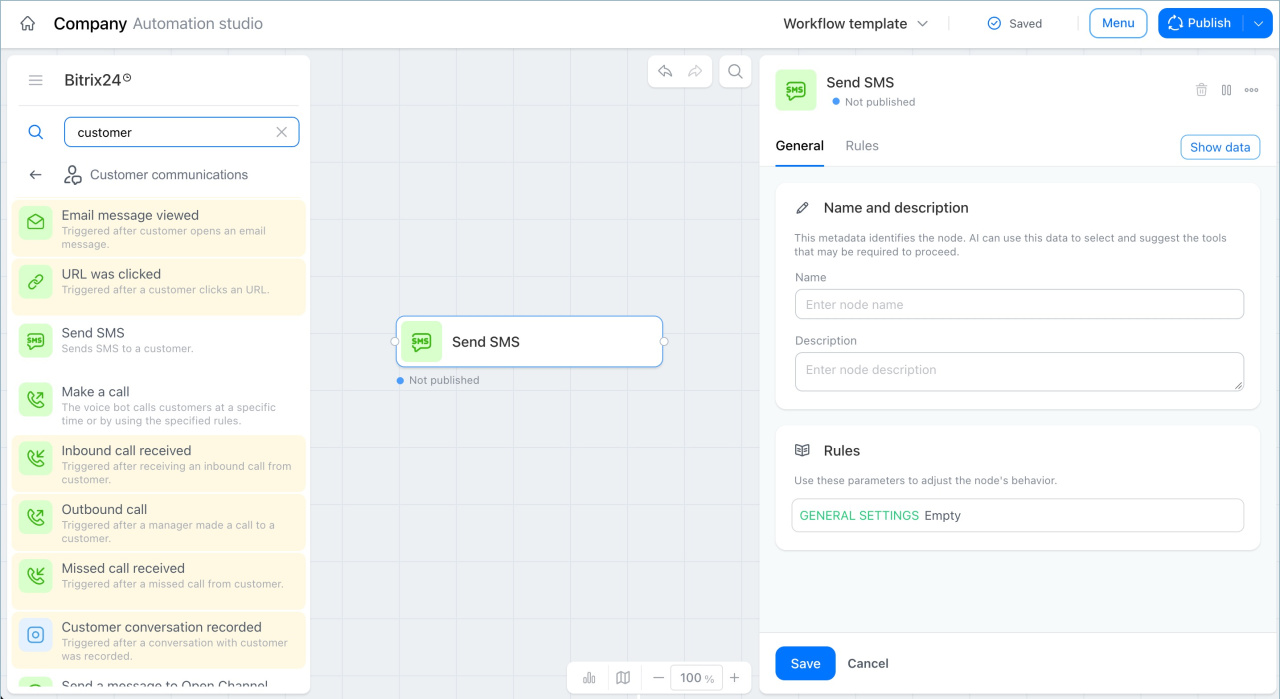
Send an SMS
This activity sends an SMS to a customer at the right time. For example, it can send an order confirmation or a delivery tracking number.
Example: A customer pays for an order. The Track order payment trigger starts the Send an SMS activity. The customer receives a confirmation message with the order number, and the manager does not need to send anything manually.
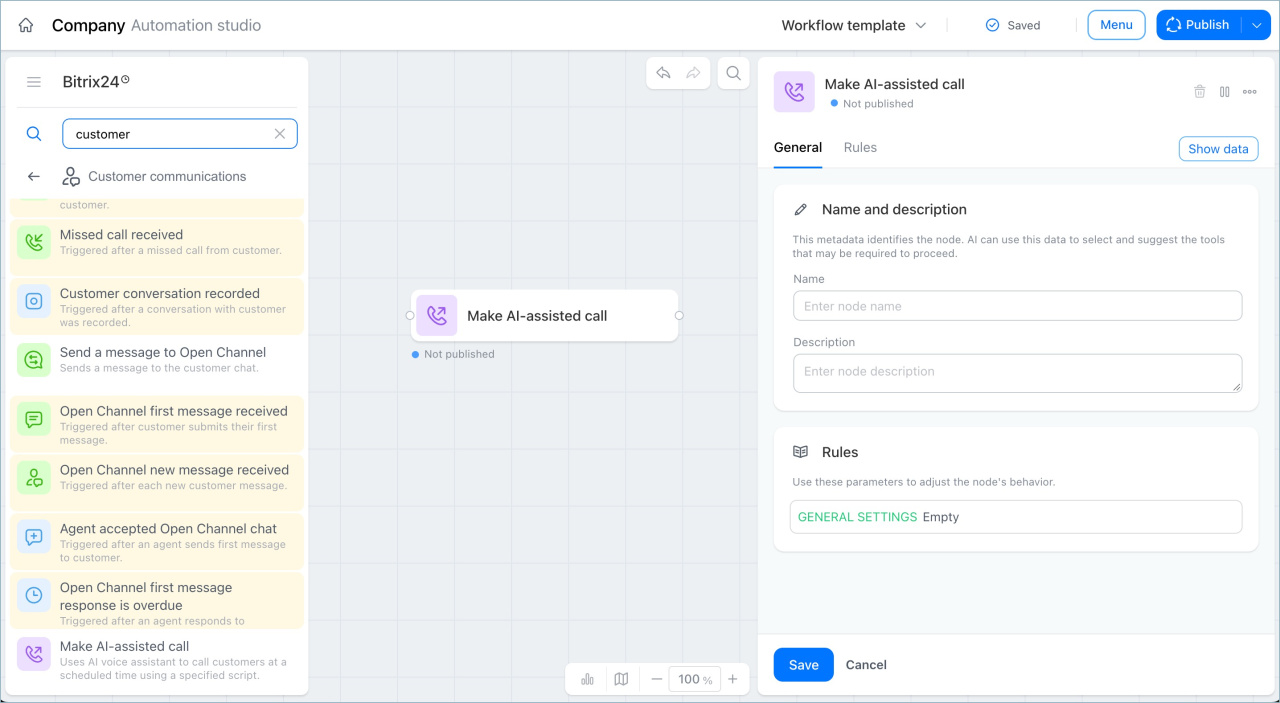
Make AI-assisted call
This activity starts an AI call. A voice bot calls the customer and follows a script that you define.
Example: When the Track delivery status change trigger detects the Delivered status, the workflow starts an AI call. The bot tells the customer that the order has arrived and asks for a convenient pickup time. The manager does not need to call manually.
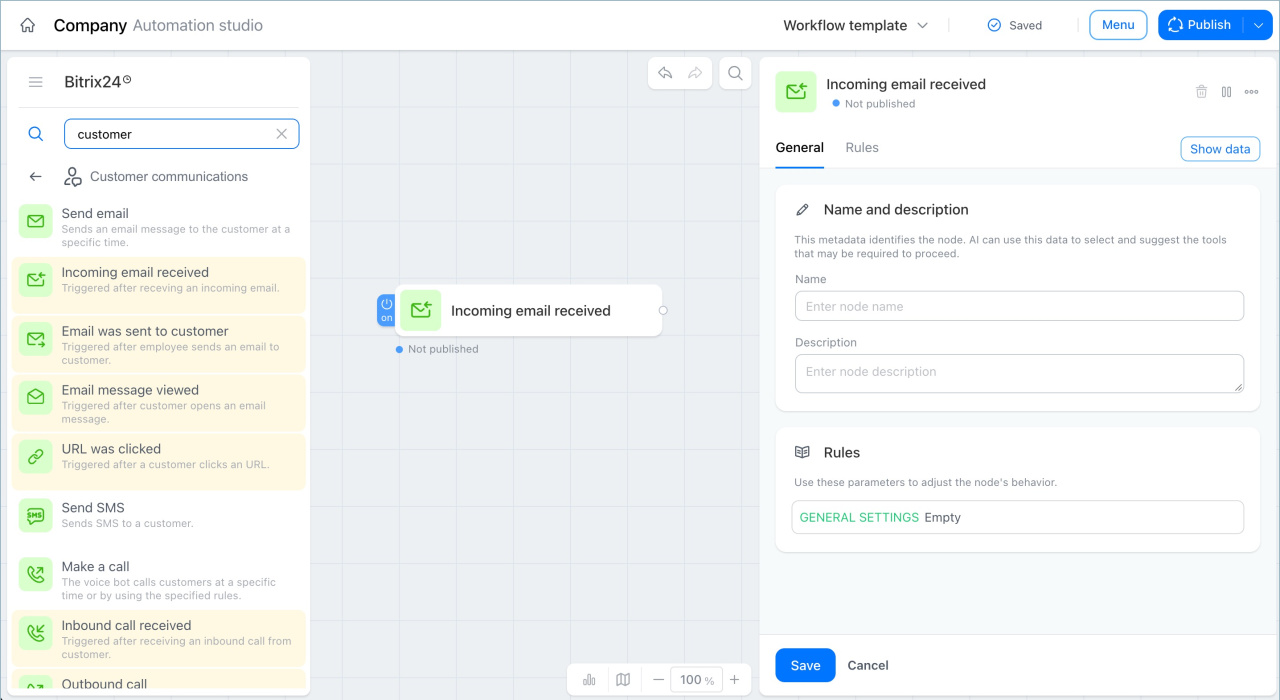
Incoming email received
This trigger starts the workflow when a customer email arrives. You do not need to monitor email manually because the workflow can respond automatically.
Example: A customer sends an email with a question. The trigger starts the workflow and automatically creates an activity in the customer record with the note Reply to email. The manager sees the reminder and does not miss the request.
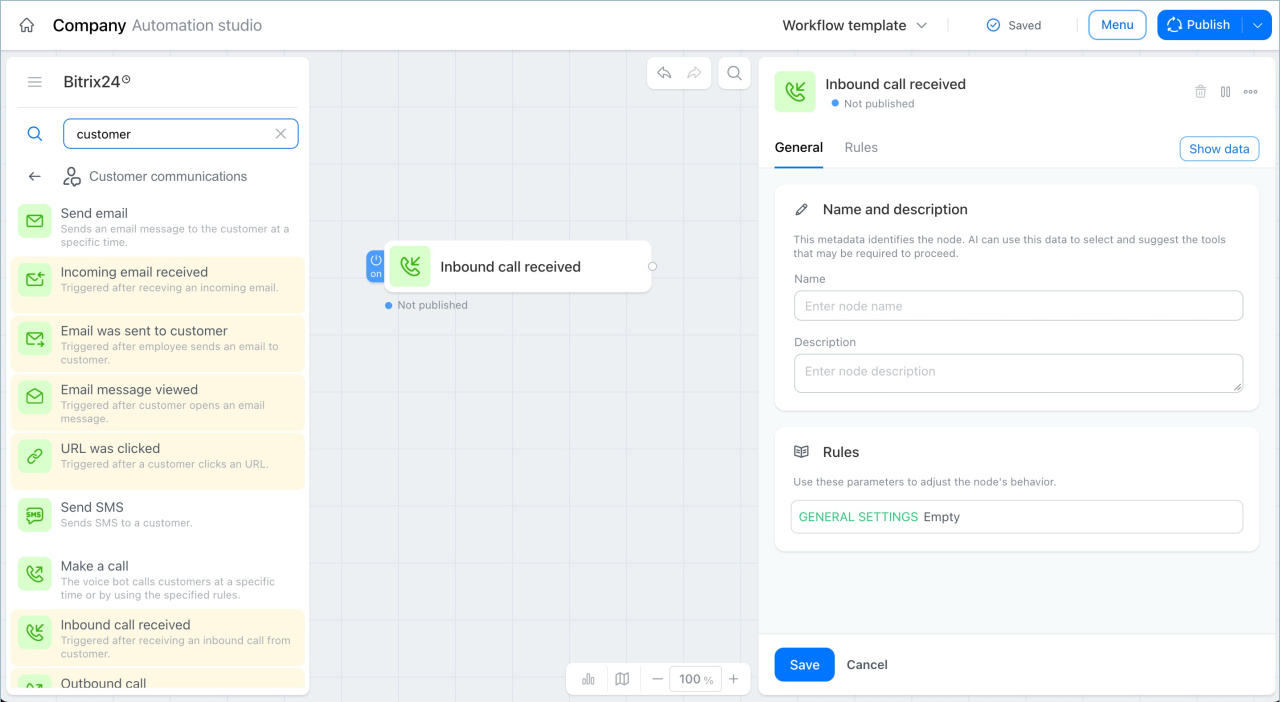
Inbound call received
This trigger starts the workflow after a customer calls.
Example: A customer calls the manager. After the call ends, the workflow automatically moves the deal to the In progress stage. The request is already logged, so the manager does not need to update the stage manually.
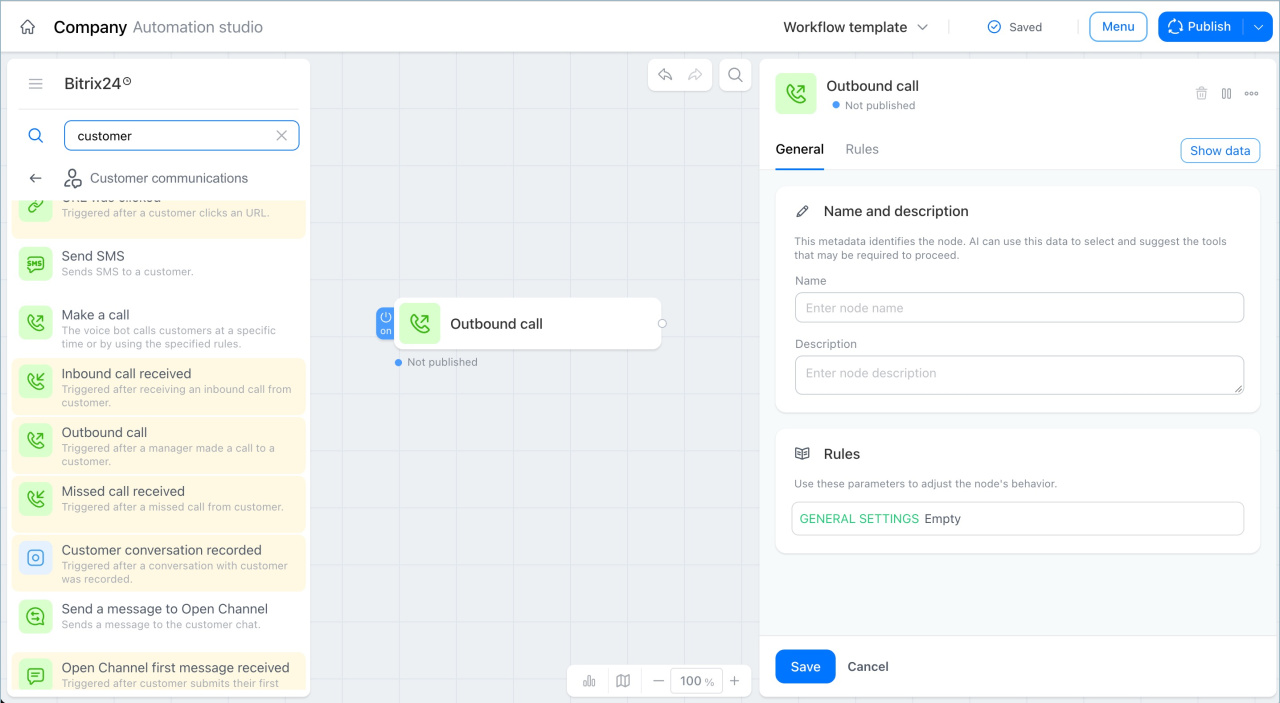
Outbound call
This trigger starts the workflow after a manager calls a customer.
Example: A manager calls a customer from the CRM while the deal is in the New stage. After the call ends, the workflow automatically moves the deal to the In progress stage. The call itself shows that work with the customer has started, so the manager does not need to update the stage manually.
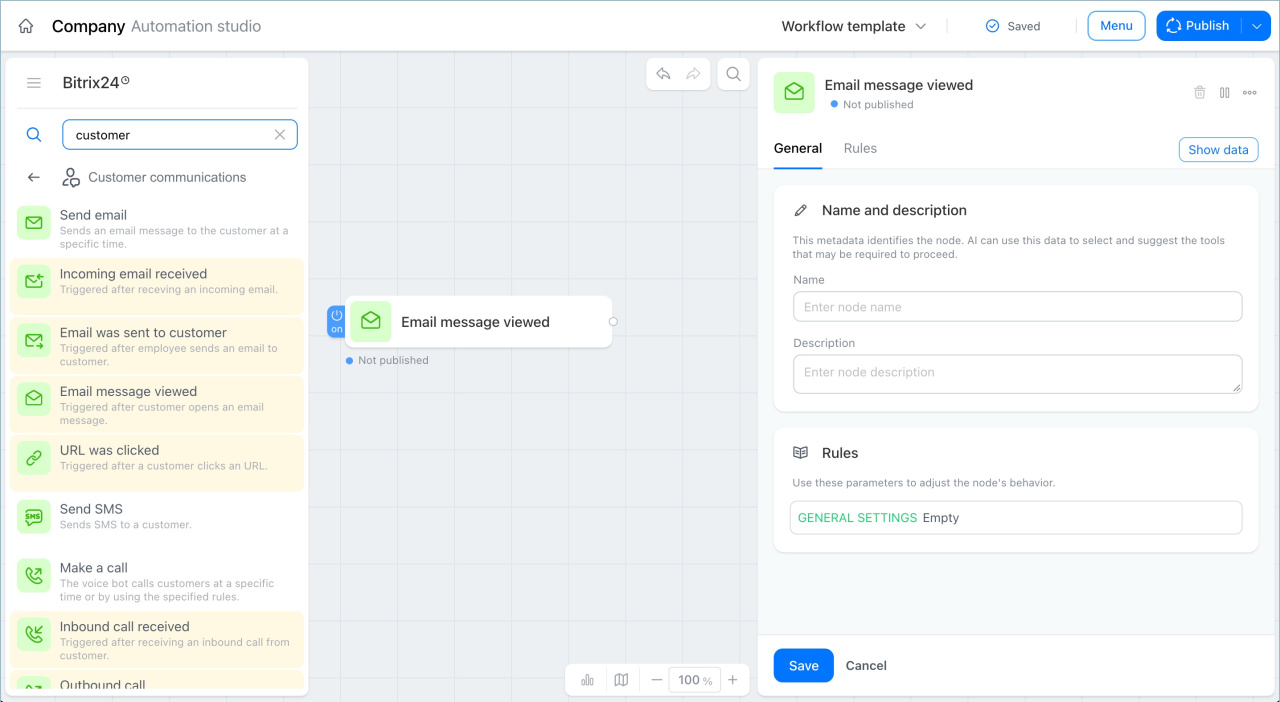
Email message viewed
This trigger starts the workflow after a customer opens an email.
Example: A manager sends an estimate to a customer. When the customer opens the email, the workflow automatically creates an activity for the manager called Call the customer back, scheduled for two days later. This gives the customer time to review the estimate and helps the manager follow up at the right time.
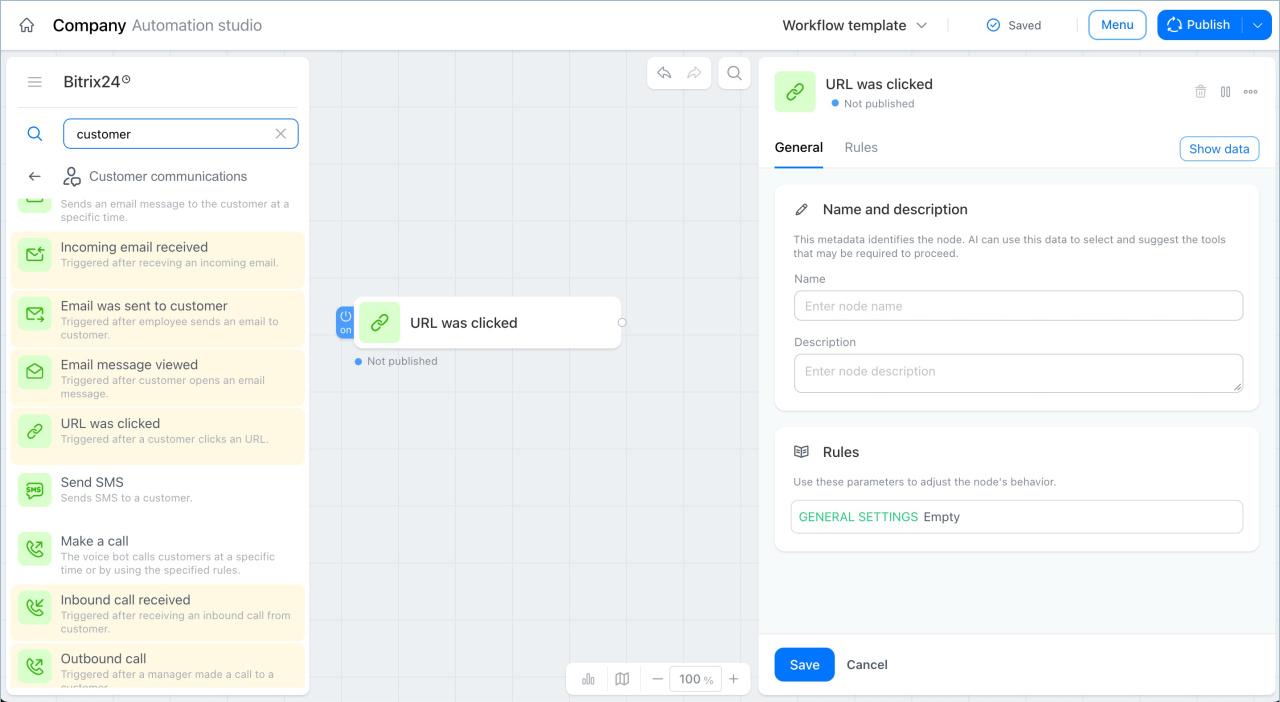
URL was clicked
This trigger starts the workflow when a customer clicks a link in an email.
Example: A manager sends an email with a link to a contract. When the customer clicks the link, the workflow automatically moves the deal to the Contract sent for client signature stage. The manager can then see all deals at this stage and know who to follow up with if the contract has not been signed.
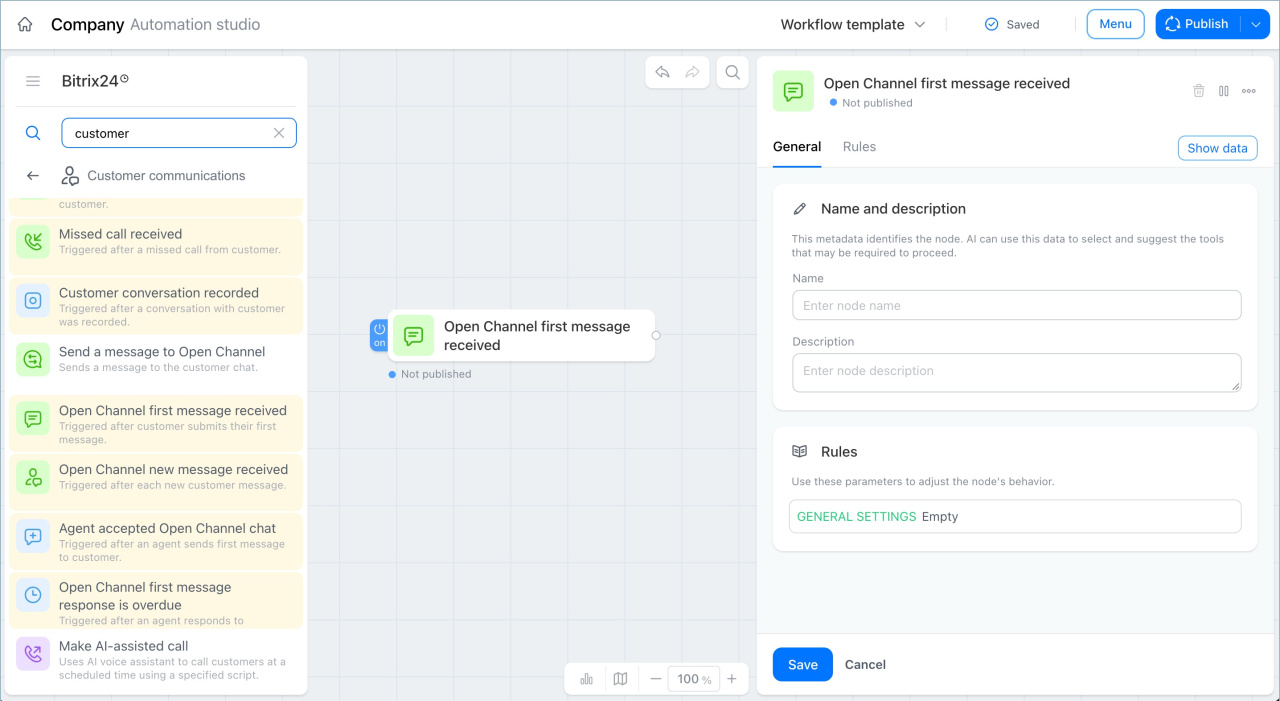
Open Channel first message received
This trigger starts the workflow after a customer sends their first message in the website chat through a Bitrix24 open channel.
Create and configure Open Channels
Example: A new website visitor sends their first chat message. The workflow automatically sends a notification to the responsible manager: New chat request, please respond to the customer. The manager responds in time and does not miss the first message.
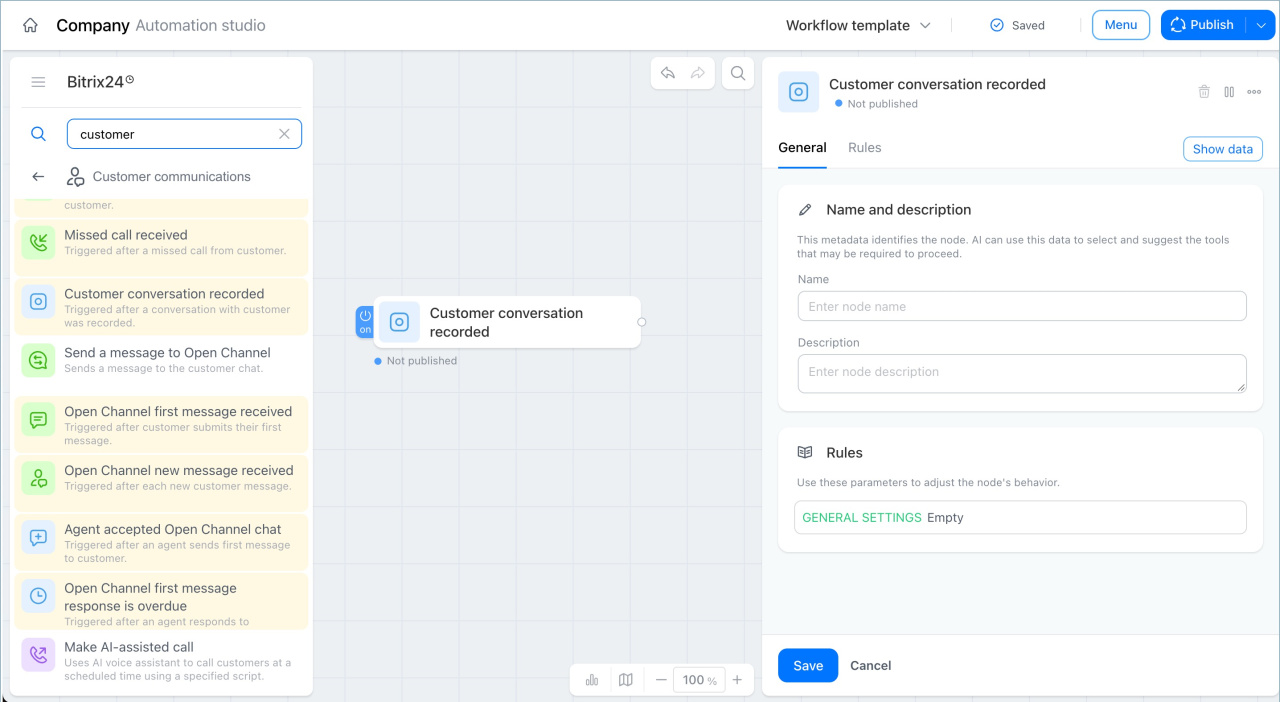
Customer conversation recorded
This trigger starts the workflow after a manager records a conversation with a customer using the visit tracker.
Example: A manager holds a meeting with a customer and records the conversation. After the recording is saved, the workflow automatically creates an activity for the manager's supervisor in the CRM record — to listen to the recording and evaluate the meeting quality. Quality control starts without any additional reminders.
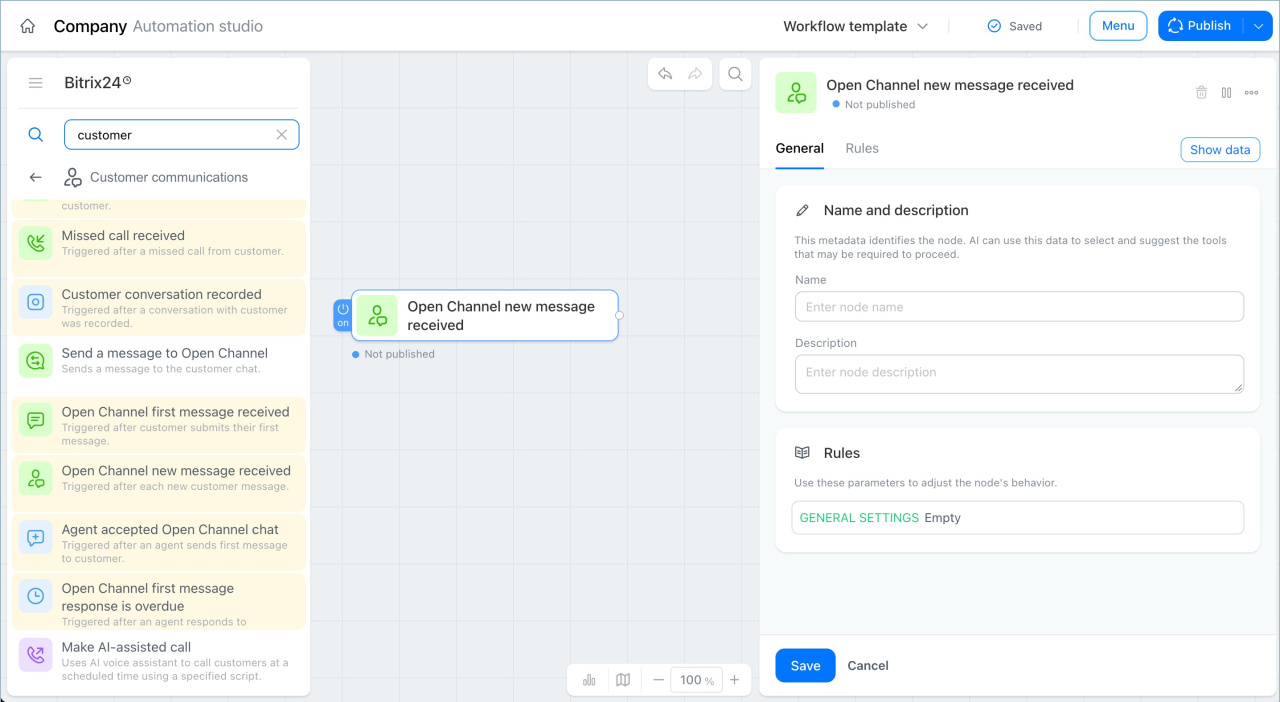
New message received
This trigger starts the workflow when a customer sends a chat message that contains specific words or phrases defined in the node settings.
Example: A customer types the word complaint or refund in the chat. The trigger detects the keyword and starts the workflow, which automatically notifies the supervisor about the problematic request. Important messages are not missed.
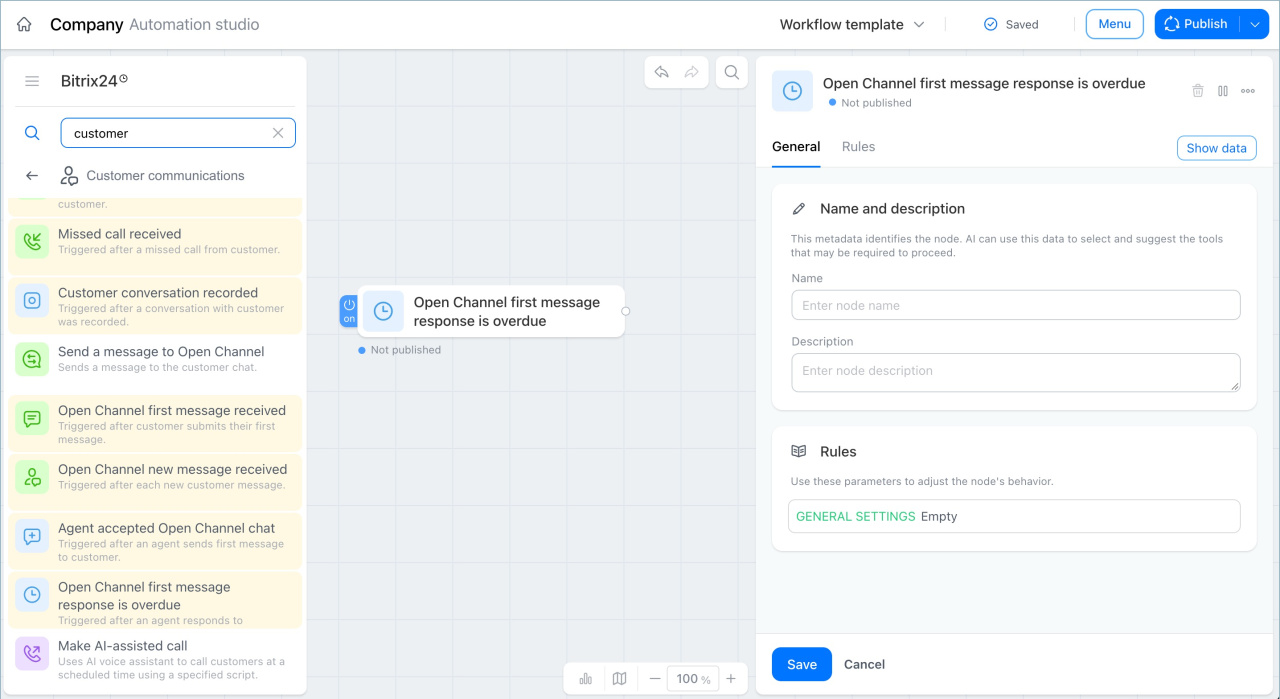
Open Channel first message received is overdue
This trigger starts the workflow if a manager does not respond to a customer's first message within a set time. The time limit is defined in the node settings.
Example: A customer sends a chat message, but the manager does not respond within 15 minutes. The workflow automatically notifies the supervisor and reassigns the chat to another available employee. The customer receives a response on time.
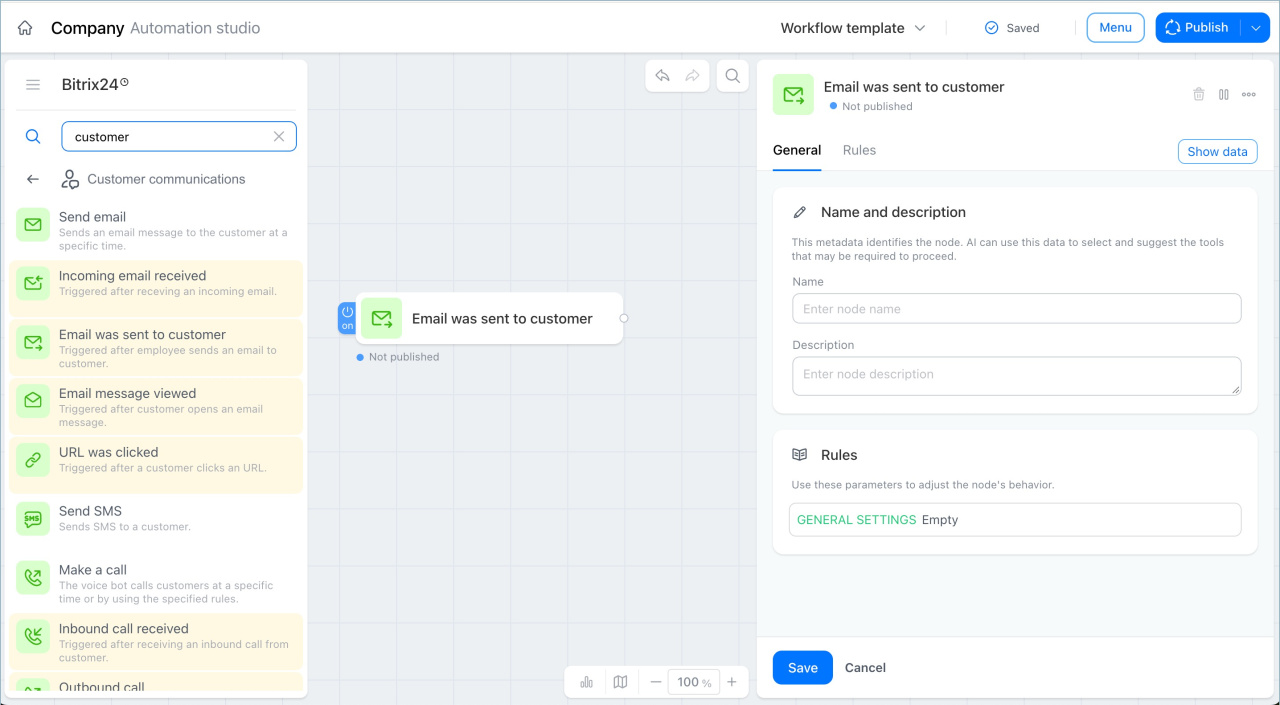
Email was sent to customer
This trigger starts the workflow after a manager sends an email to a customer.
Example: A manager sends a contract to a customer for review. After the email is sent, the workflow automatically creates an activity — follow up with the customer in three days if no reply has been received. The manager sees the reminder and follows up on time.
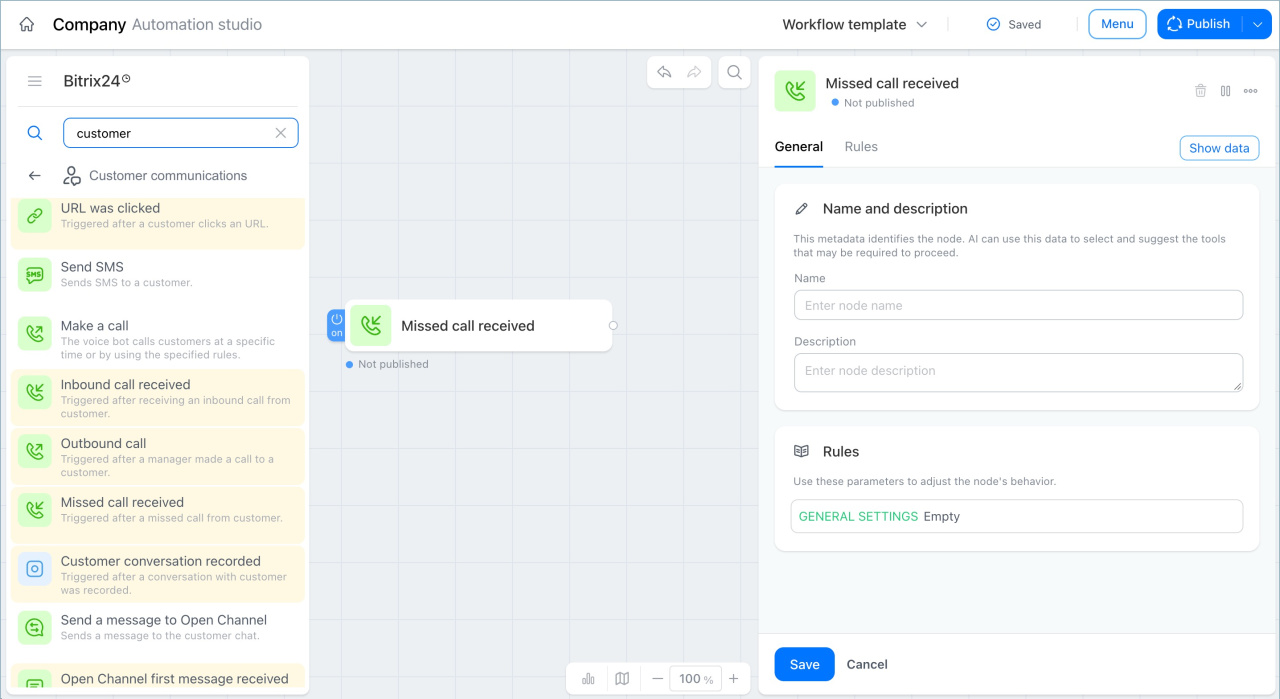
Missed call received
This trigger starts the workflow after an incoming call from a customer goes unanswered.
Example: A customer calls outside of business hours and cannot reach anyone. The trigger detects the missed call and automatically creates an activity for the responsible manager — call the customer back. The manager sees the task and contacts the customer during the next working hours.
Agent accepted Open Channel chat
This trigger starts the workflow at the moment an employee begins a conversation with a customer.
Example: A manager accepts a chat from a customer. At that moment, the workflow automatically moves the deal to the In progress stage. The manager does not need to update the stage manually — the workflow detects the start of the conversation and updates the deal automatically.