
The Payment for Goods and Services group includes activities and triggers that help you automate customer billing. Activities create invoices and payment links. Triggers react to changes in orders and invoices and start automation at the right time.
These nodes reduce manual work with invoices. Activities can create an invoice and payment link automatically. Triggers can track whether a customer has paid and then start the next step, such as moving a deal to a new stage or assigning a task to an employee. Managers do not need to create documents by hand or keep checking payment status.
In this article:
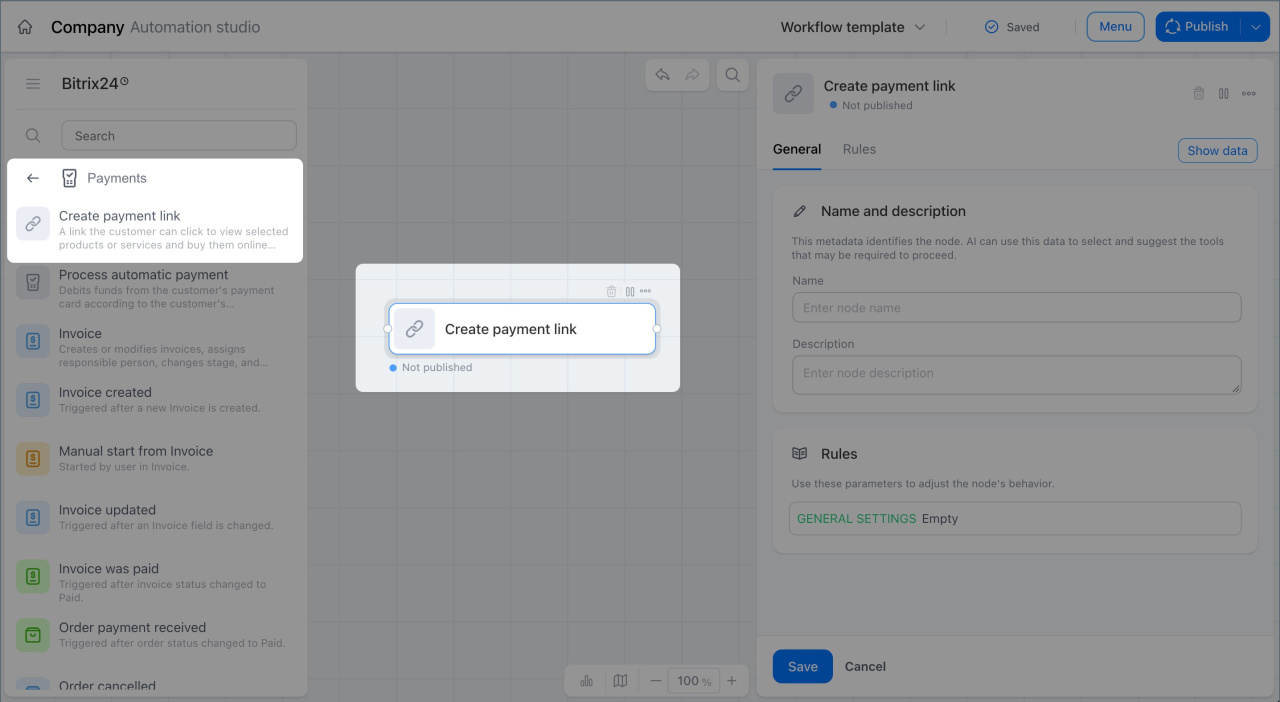
Create a payment link
This activity creates an online payment link and passes it to other nodes in the workflow, such as Send email. The customer can open the link, review the selected products or services, and pay right away.
Example: A deal moves to the Awaiting payment stage. The node creates a payment link and passes it to the Send email node, so the customer gets the link by email. Then the Notify employee node reminds the manager to follow up on the payment.
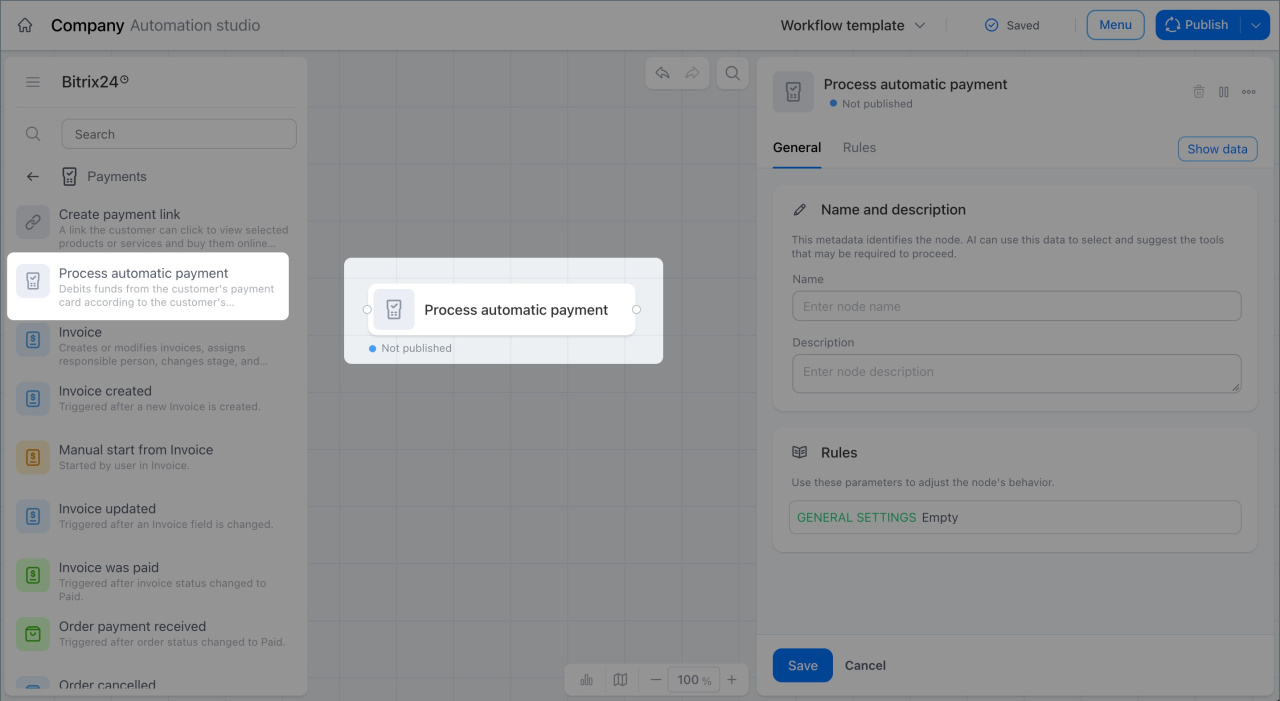
Process an automatic payment
This activity charges the customer's card automatically if they agreed to automatic payments when placing an order in the online store.
Example: A customer places an order in an online food delivery store and saves a card for automatic payments. When the order moves to the Awaiting payment stage, the activity charges the card automatically. Then the Send SMS node tells the customer that the payment was successful. The company gets paid without any manager involvement.
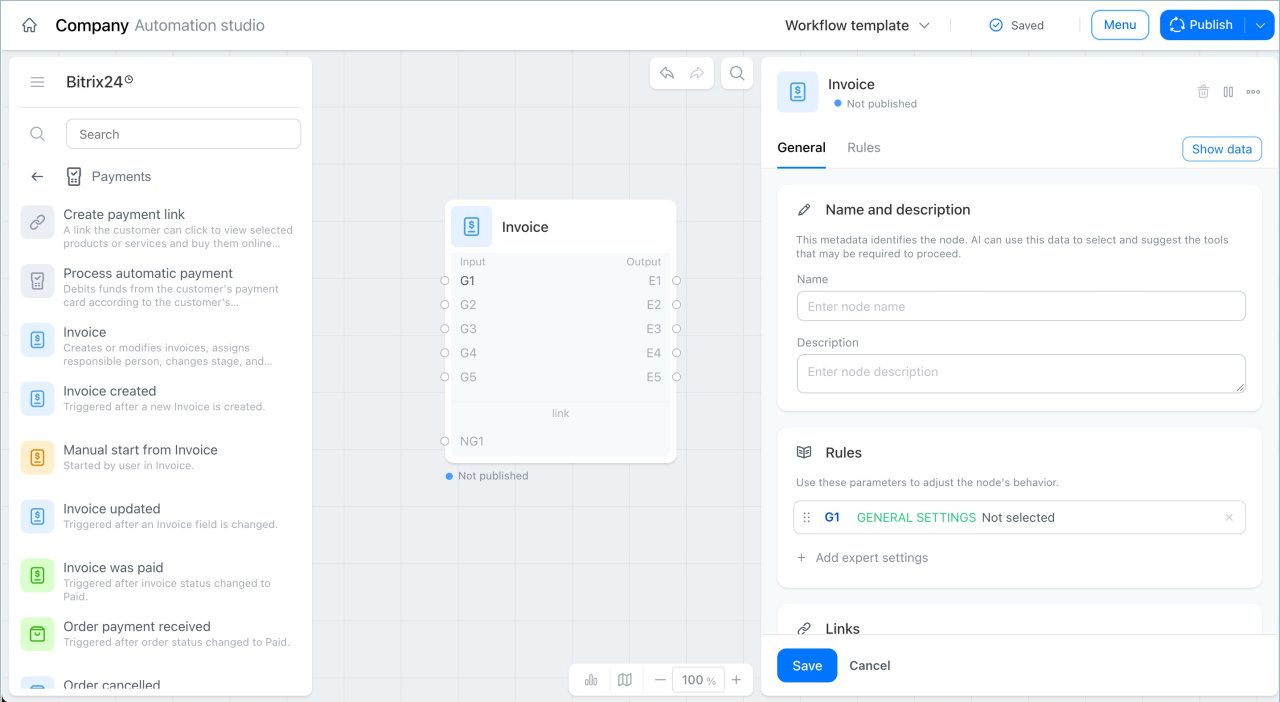
Invoice
This is a general-purpose node for working with invoices. In the settings, choose the action you want to perform:
- Create an invoice
- Schedule an activity
- Edit an invoice
- Change the linked company
- Change the linked contact
- Change followers
- Change the person responsible
- Update company details
- Change stage
- Create a document
- Add comment
- Add a product line item
- Remove product line items
- Delete an invoice.
Create an invoice — create a new invoice during the workflow. Example: A deal moves to the Approval stage. Bitrix24 automatically creates an invoice based on the deal data, including products, amount, and company details. The manager does not need to fill in anything manually.
Schedule an activity — create a call, meeting, or email linked to the invoice. Example: An invoice was sent to the customer, but payment has not arrived after two days. The workflow automatically creates a Call client activity for the manager. The employee sees the reminder in the calendar and follows up on payment status.
Edit an invoice — update invoice fields such as amount, due date, or other values. Example: The total amount in a deal changes. The workflow automatically updates the amount in the linked invoice, so the customer gets a document with the current amount.
Change the linked company — link the invoice to a different company. Example: It turns out the invoice should be issued to the parent company instead of a branch. The workflow updates the linked company in the invoice, and the correct company details appear in the document automatically.
Change the linked contact — link the invoice to a different contact. Example: A different employee on the customer side is now handling the deal. The workflow updates the linked contact in the invoice, so notifications go to the right person.
Change followers — add or remove employees who follow the invoice. Example: The invoice amount is higher than a set threshold. The workflow automatically adds the supervisor as a follower so they can monitor payment for a large deal.
Change the person responsible — assign a different employee as the person responsible for the invoice. Example: The manager handling the deal goes on leave. The workflow automatically reassigns the invoice to a colleague, so work with the customer continues without interruption.
Update company details — update banking or legal information in the invoice. Example: The company changes its bank account. The workflow automatically applies the new company details to invoices created after that date.
Change stage — move the invoice to a new stage. Example: The customer pays the invoice at a terminal. The workflow automatically moves the invoice to the Paid stage. The manager does not need to update it manually.
Create a document — create a document for the invoice from a template. Example: An invoice moves to the Approved stage. The workflow automatically creates a document from the template and attaches it to the invoice, so the manager can send it to the customer right away.
Add comment — add a note to the invoice. Example: Payment does not arrive on time. The workflow adds a comment to the invoice with the date and reason for the delay, so the full history stays in one place.
Add a product line item — add a product or service to the invoice. Example: An extra service is added to an order after the invoice is already created. The workflow automatically adds it to the list of product line items, so the manager does not need to redo the document manually.
Remove product line items — remove a product or service from the invoice. Example: The customer cancels one of the items in the order. The workflow automatically removes it from the invoice and the total is recalculated.
Delete an invoice — remove a document that is no longer needed. Example: A manager created an invoice by mistake, or the customer cancelled the deal. The workflow automatically deletes the unnecessary invoice so it does not clutter the list or confuse employees.
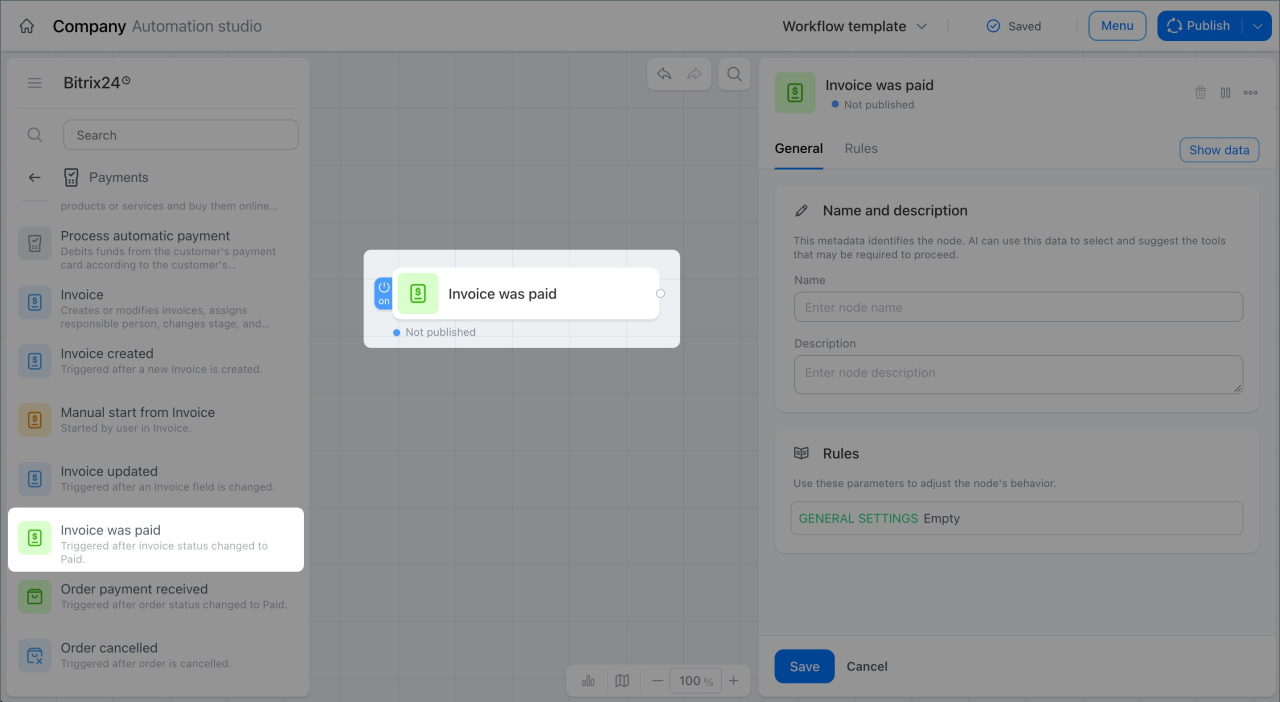
Track invoice payment
This trigger starts the workflow when an invoice status changes to Paid.
Example: A customer pays an invoice for a service. The trigger fires and the deal moves to the Product assembly stage. The warehouse employee can see that payment went through and starts preparing the shipment.
When a customer pays an invoice for a room rental, the trigger records the payment and starts the workflow: the action moves the deal to the Booking confirmed stage. The next action in the chain assigns the manager a task to send the customer a payment confirmation and details.
Track order payment
This trigger starts the workflow when a customer pays for an order at a terminal.
Example: A customer pays for a product at the checkout. The trigger fires and automatically moves the deal to the Item pickup stage. The manager does not need to switch the stage manually.
Or, after a terminal payment, the customer needs to receive a receipt. The trigger fires and the Send SMS node sends the customer a link to an electronic receipt. The customer gets the document right after payment.
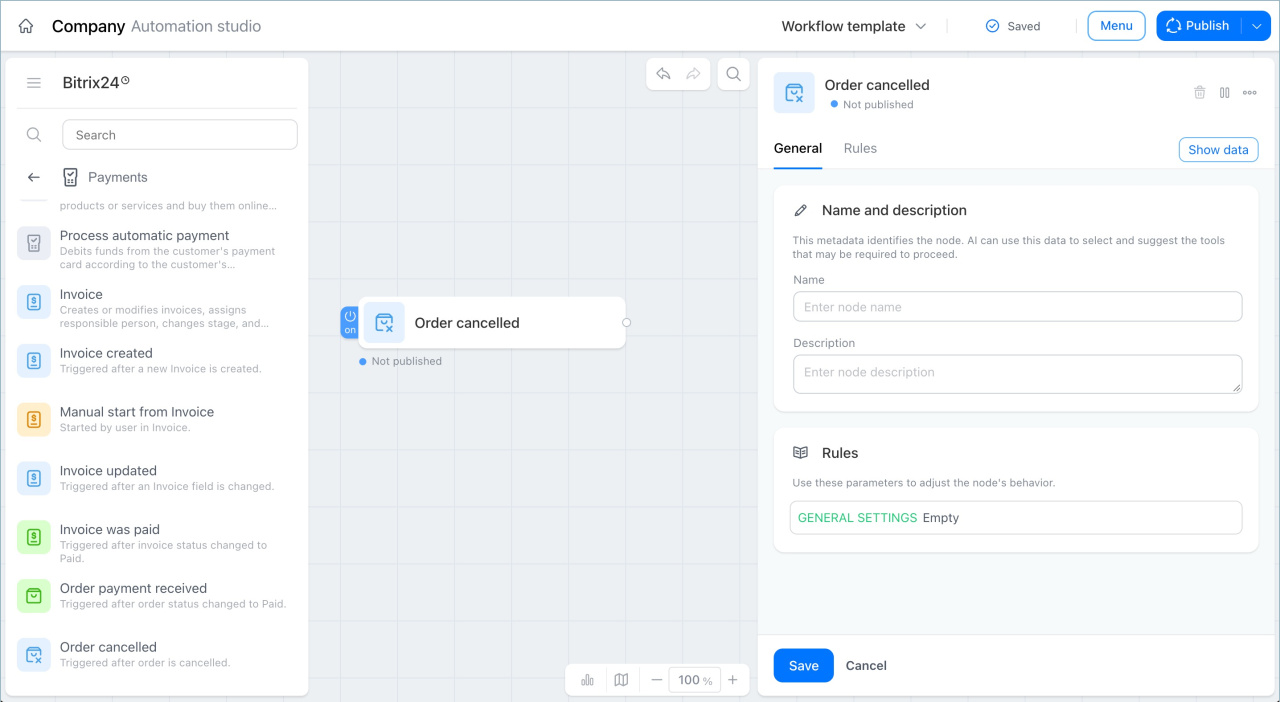
Track order cancellation
This trigger starts the workflow after an order is cancelled.
Example: A customer cancels an order in the online store. The trigger fires and the Notify employee action sends the manager a task to contact the customer and find out the reason. The manager responds in time and does not lose the customer.
If a customer places an order but does not pay on time, the order is automatically cancelled. The trigger fires and the Send email node notifies the customer about the cancellation.
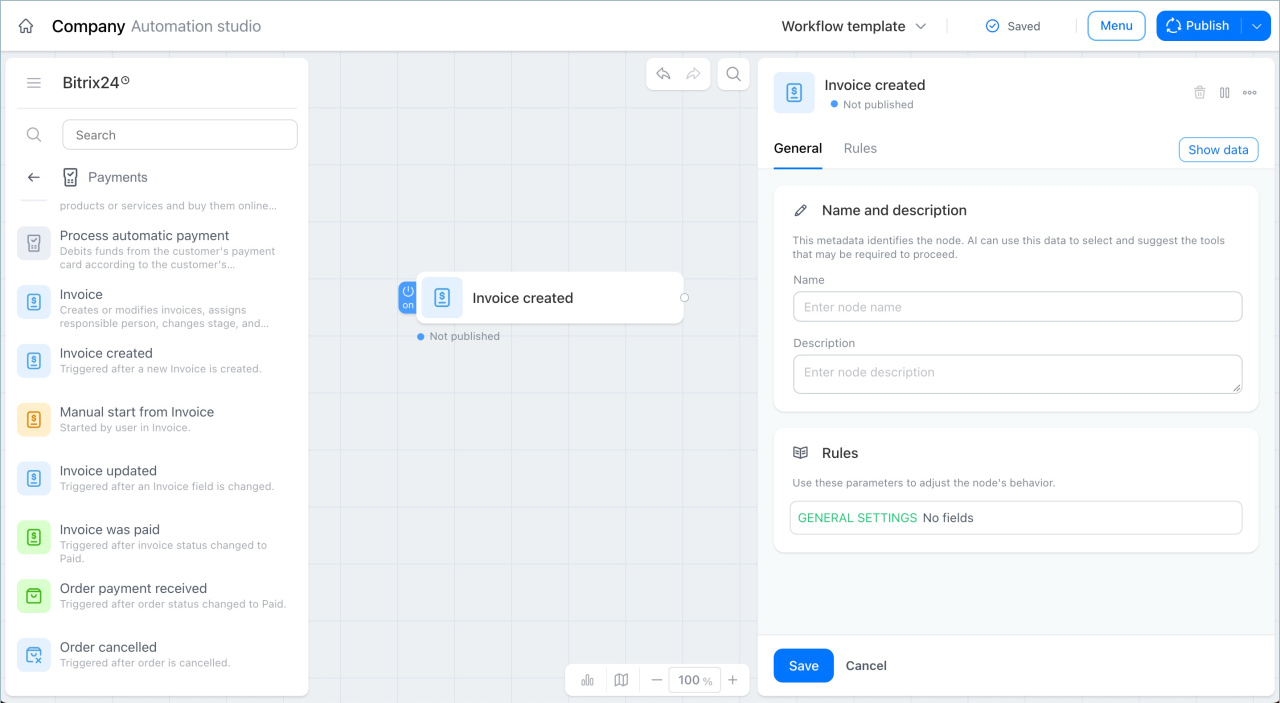
Invoice created
This trigger starts the workflow when a new invoice is created in CRM.
Example: A manager creates an invoice for a customer. The trigger fires and the Send email node automatically sends the customer the invoice with payment details. The manager does not need to send the invoice manually.
Or, a new invoice needs to be approved by a supervisor. The trigger fires and the Notify employee node sends the supervisor a task to review and confirm the invoice. The approval process starts without any reminders.
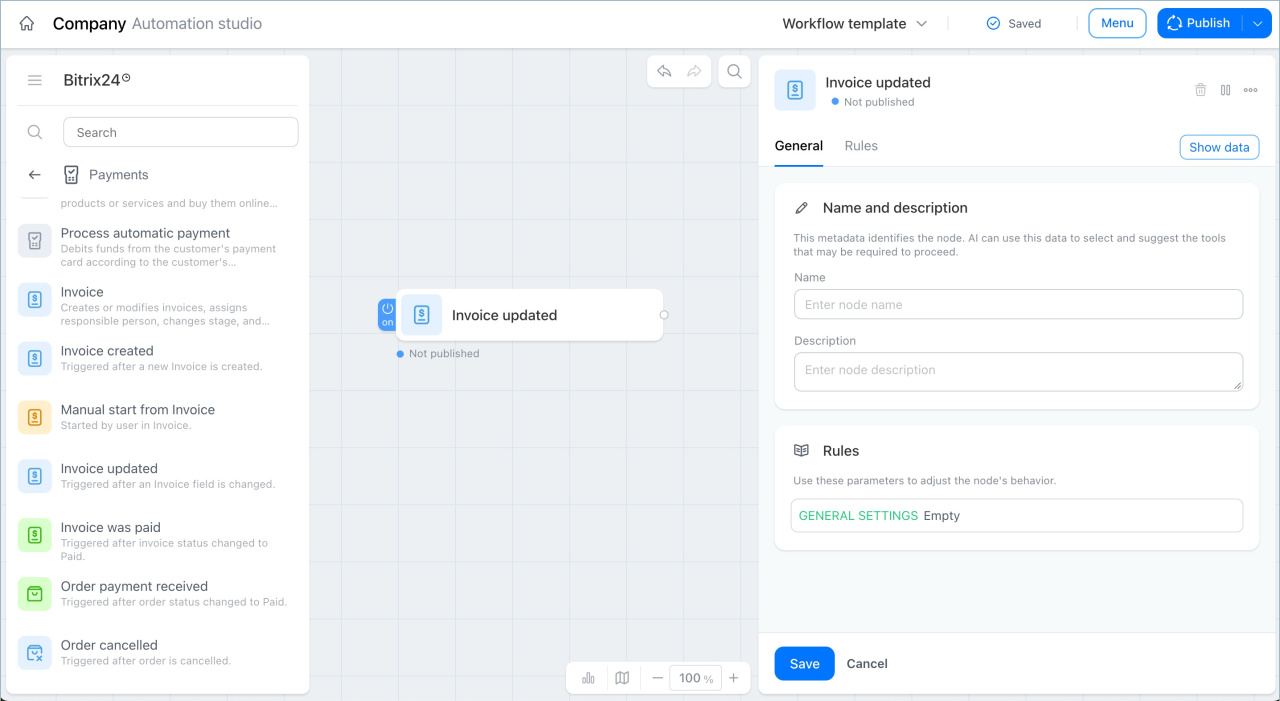
Invoice field changed
This trigger starts the workflow when the value of a selected field in an invoice changes.
Example: An accountant updates the amount in an invoice. The trigger fires and the Send email node automatically sends the customer the updated invoice. The customer gets the current document without any reminders.
Or, the due date in an invoice changes. The trigger fires and the Send SMS node notifies the customer about the new due date. The manager does not need to call each customer manually.
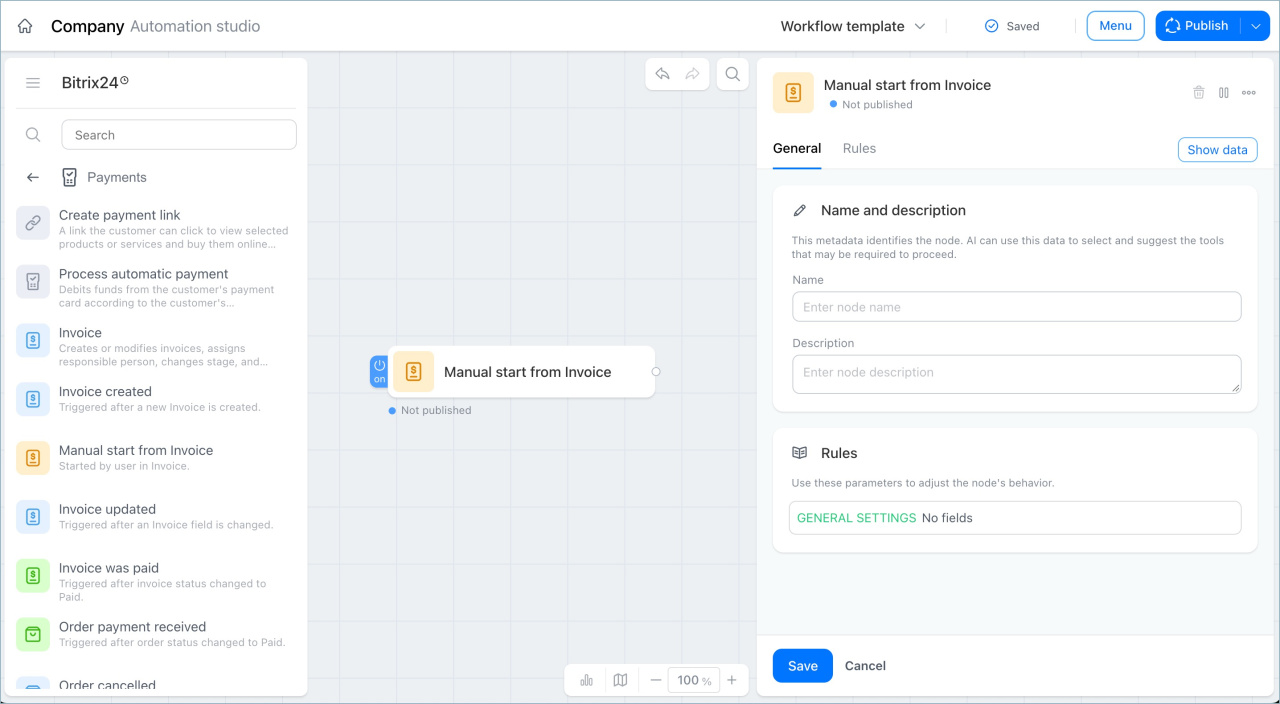
Manual start from invoice
This trigger fires when a manager manually starts a workflow from an invoice card.
Example: A manager starts the invoice sending process for a customer. The Manual start from invoice trigger fires and launches a parallel workflow — the Notify management node sends a reminder to check payment status in three days.
Or, a manager starts the invoice approval process. The trigger fires and in parallel launches a workflow that creates a task for the accountant to prepare company details. Both workflows run at the same time without any extra steps from the manager.
In brief
- The Payment for Goods and Services group includes activities and triggers for automating customer billing.
- The Create a payment link node generates a payment link and passes it to other nodes, for example to send the customer a link by email or in a chat.
- The Process an automatic payment node charges the customer's card automatically if they agreed to it when placing the order.
- The Invoice node creates and updates invoices, assigns responsible employees, and updates data without manager involvement.
- The Track invoice payment and Track order payment triggers start