
In the new Workflow Builder, every workflow is made up of nodes. Nodes are ready-to-use blocks for specific actions.
Some nodes start the workflow. These are called triggers. Other nodes perform actions, such as creating a lead, generating a QR code, or sending a notification.
A trigger is always the first step in a workflow. It watches for an event and starts the workflow when that event happens. For example, a client submits a form on your website or returns to the site after a long break. After the trigger runs, the workflow moves to the action nodes.
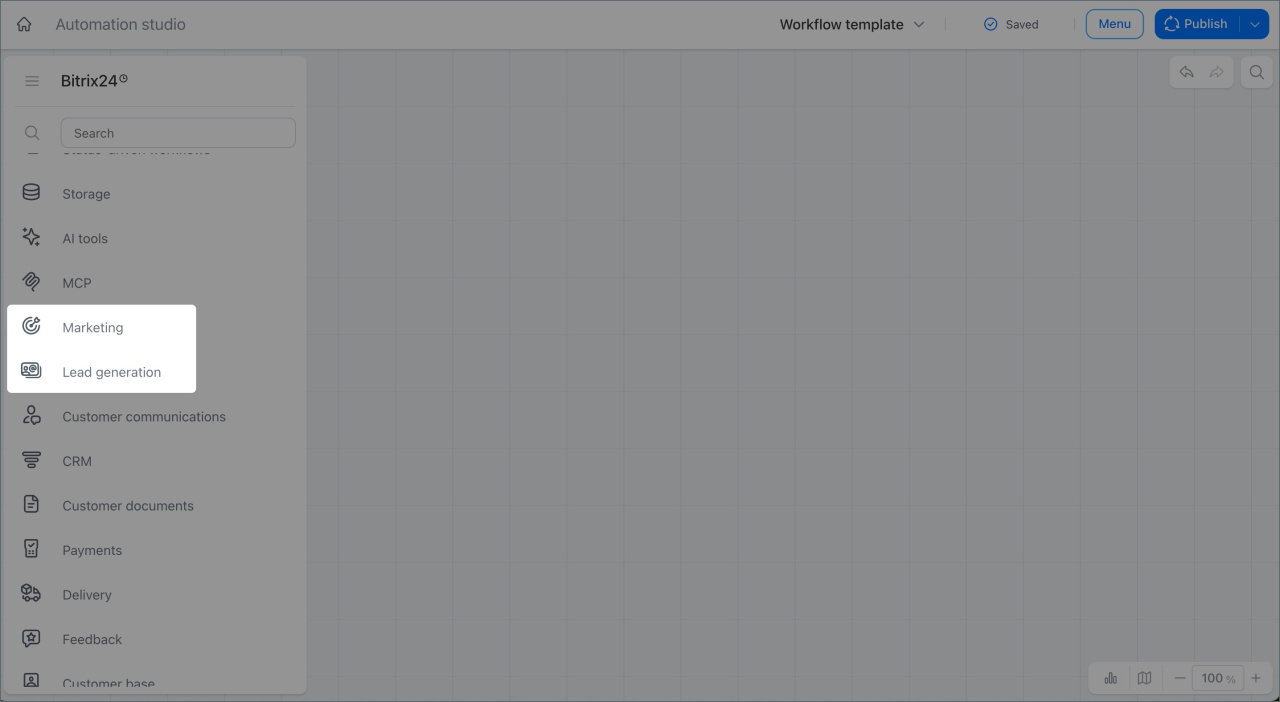
The Marketing and Lead Generation groups include nodes for working with potential customers automatically. You can use them to track website activity, create and update CRM leads, and generate QR codes for marketing tasks. Each node can work in its own scenario and does not depend on the others.
In this article:
Lead
Use this node to work with leads inside a workflow.
Open the node. In the Rules section, click Add rule. Select the Action rule type. Then choose one of these actions:
- Create a lead
- Schedule an activity
- Update a lead
- Update a linked company
- Update a linked contact
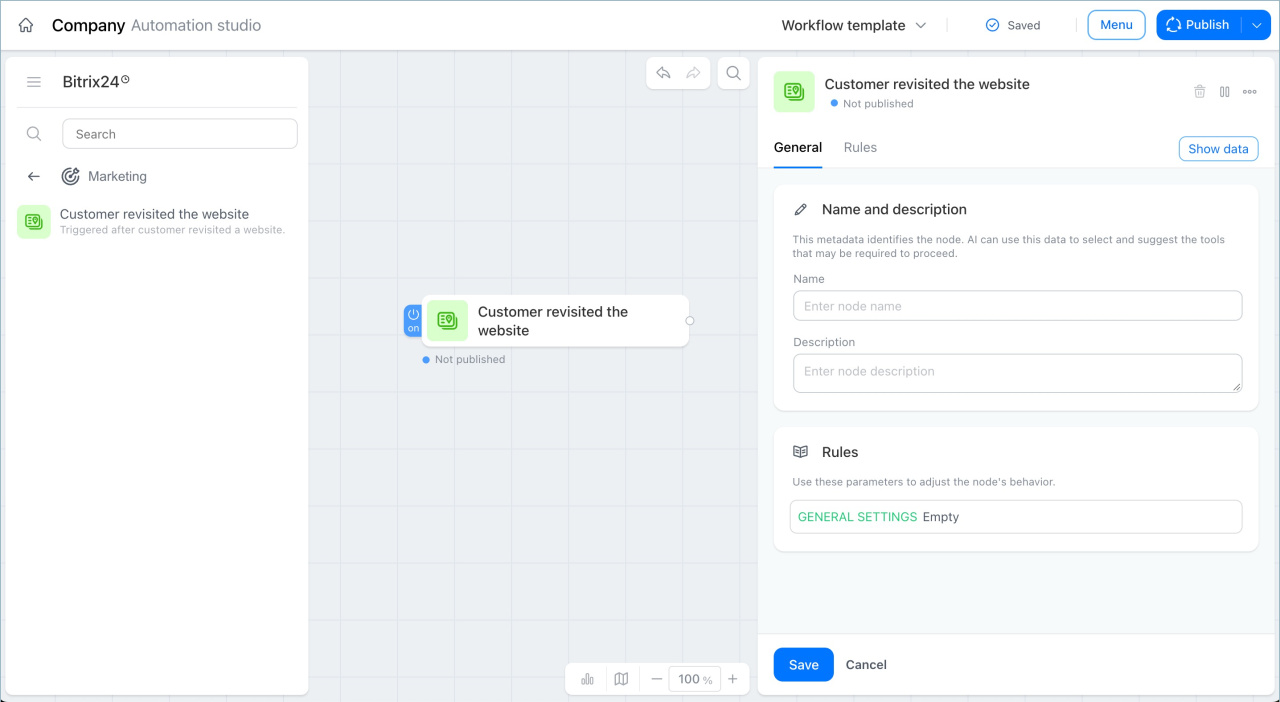
Create a lead. This action creates a new lead in CRM and fills it with data from the workflow.
Example:
A real estate agency runs ads and places a form on its website.
The workflow uses the Track CRM form submission trigger. When a potential buyer submits the form, Bitrix24 starts the workflow and creates a lead with the client's name, phone number, and request.
The manager opens the lead and sees all client data right away. There is no need to copy information from the form to CRM by hand, and no request gets lost.
Schedule an activity. This action adds an activity to the lead timeline, such as a call, meeting, or email.
Example:
An electronics ecommerce store works with clients who showed interest in a product but did not make a purchase. A manager sent one client a list of laptops and a quote, but the client opened the email and did not reply.
The workflow uses the Track client return to site trigger. When the client visits the website again, Bitrix24 starts the workflow and adds a call activity to the lead timeline. The manager sees the activity and calls at the right time.
Update a lead. This action updates lead fields such as status, responsible person, stage, or other details.
Example:
A construction company collects requests for renovation estimates. A client sent a request a month ago, the manager sent the estimate, and then the client stopped responding.
The workflow uses the Track client return to site trigger. When the client returns to the website and opens the portfolio page, Bitrix24 finds the lead and automatically moves it from the Estimate sent stage to the Renewed interest stage. If you set up a condition in the workflow, Bitrix24 can also assign the lead to a senior manager who works with warm leads.
The senior manager gets a notification and calls the client while the client is still on the site.
Update a linked company. This action updates the company linked to the lead.
Example:
A client submits a request and enters a department name. The lead is created, but the wrong company is linked. Later, the client submits another form and provides the correct legal company name for the contract.
The workflow uses the Track CRM form submission trigger. When the client submits the second form, Bitrix24 finds the lead and updates the linked company.
The manager opens the lead and sees the current data. There is no need to search for the company and fix it manually.
Update a linked contact. This action updates the contact linked to the lead.
Example:
A law firm works with returning clients. A former client submits a form again, but this time uses a new work phone number and email address after changing jobs.
The workflow uses the Track CRM form submission trigger. When the form is submitted, Bitrix24 finds the existing contact and updates the phone number and email address.
The manager opens the record and sees the current data. There is no need to compare old and new requests or update anything by hand.
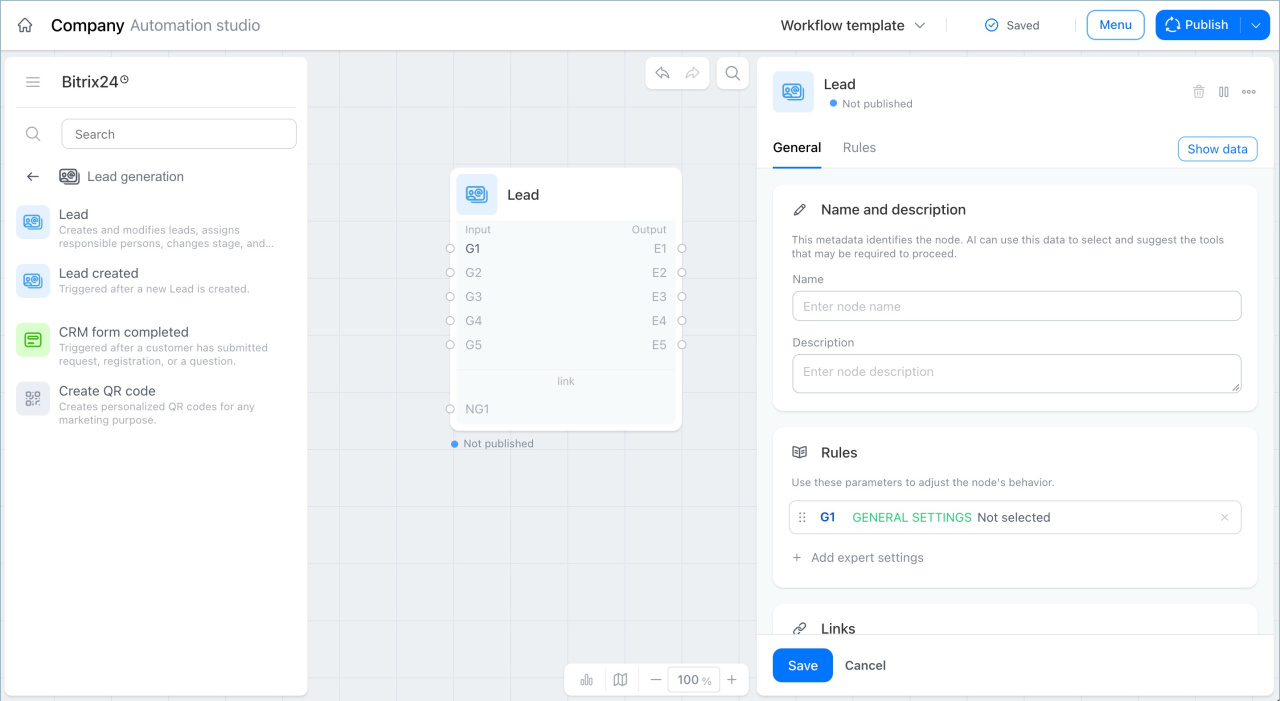
CRM form completed
This trigger starts the workflow after a client submits a CRM form, such as a request, registration, or question. You do not need to track new requests manually. The workflow starts automatically as soon as the form is submitted.
Examples:
- A store adds a fitting appointment form to its website. As soon as a client submits the form, Bitrix24 starts the workflow. The Track CRM form submission trigger runs, and the Lead node creates a lead with the client's data. The manager opens the lead and sees who booked and for what time.
- A company hosts a webinar and collects registrations through a form. When a participant submits the form, Bitrix24 starts the workflow. The trigger records the event, and the Lead node creates a lead with the participant's data. The manager sees the new request in CRM and contacts the participant.
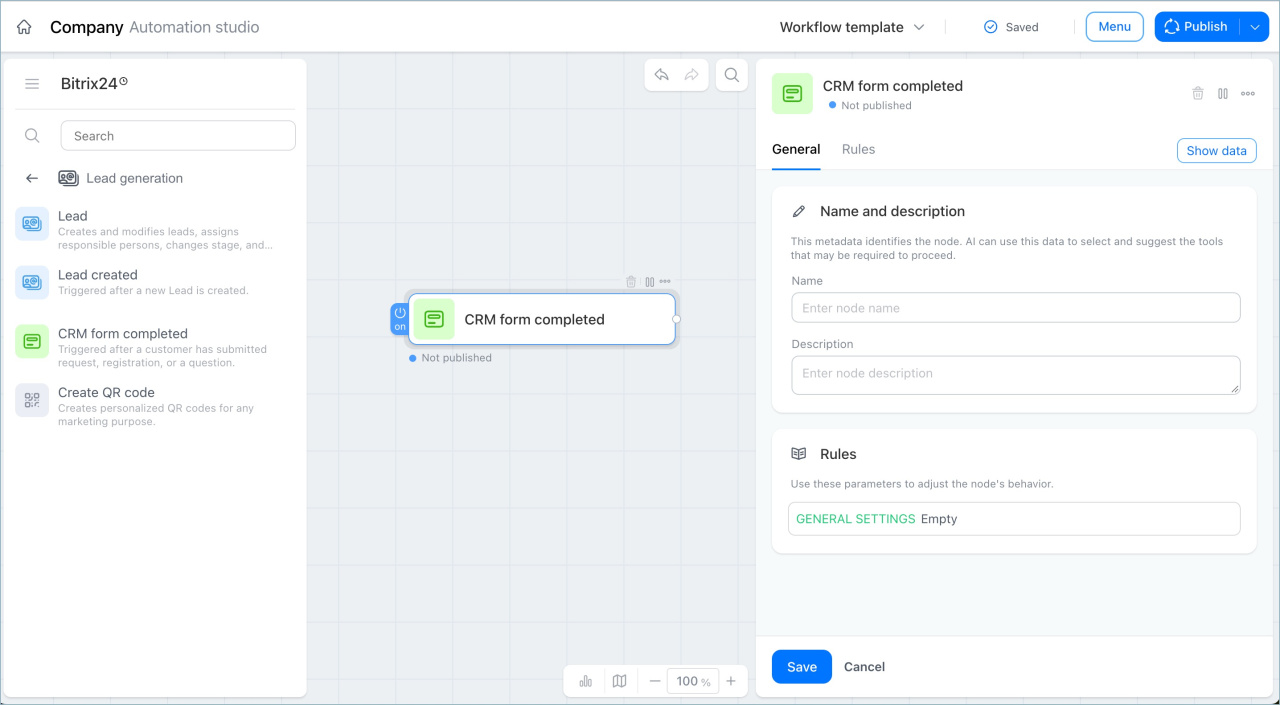
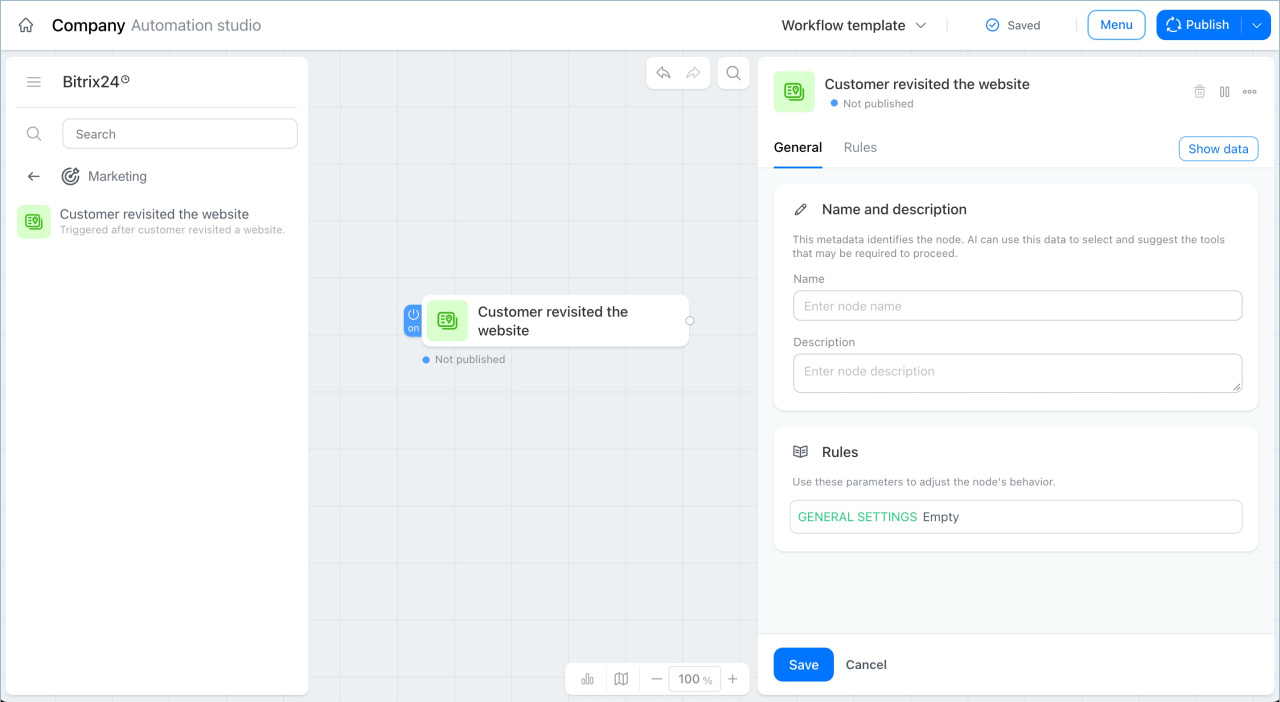
Customer revisited the website
This trigger starts the workflow when a client visits the website again. It helps you respond to client interest at the right time. The workflow starts automatically, without any manual visit tracking.
Examples:
- A company that sells industrial equipment works with long sales cycles — a client may evaluate options for several weeks. A manager sent the client a quote, but the client went silent and did not answer calls. Two weeks later, the client returned to the website and started browsing equipment pages.
The workflow uses the Track client return to site trigger. Bitrix24 sees that the client is back on the site and immediately sends the manager a notification. The manager calls and reaches the client at the moment the client is actively reviewing the offer. The chance of closing the deal increases sharply.
- A fitness club works with clients whose memberships have expired. When a former client visits the website and opens the pricing page, Bitrix24 sees the visit and starts the workflow. It automatically sends the client an email with a personal offer — 20% off a membership purchased within three days. The client receives the offer at exactly the right moment, when they have shown interest themselves.
Create a QR code
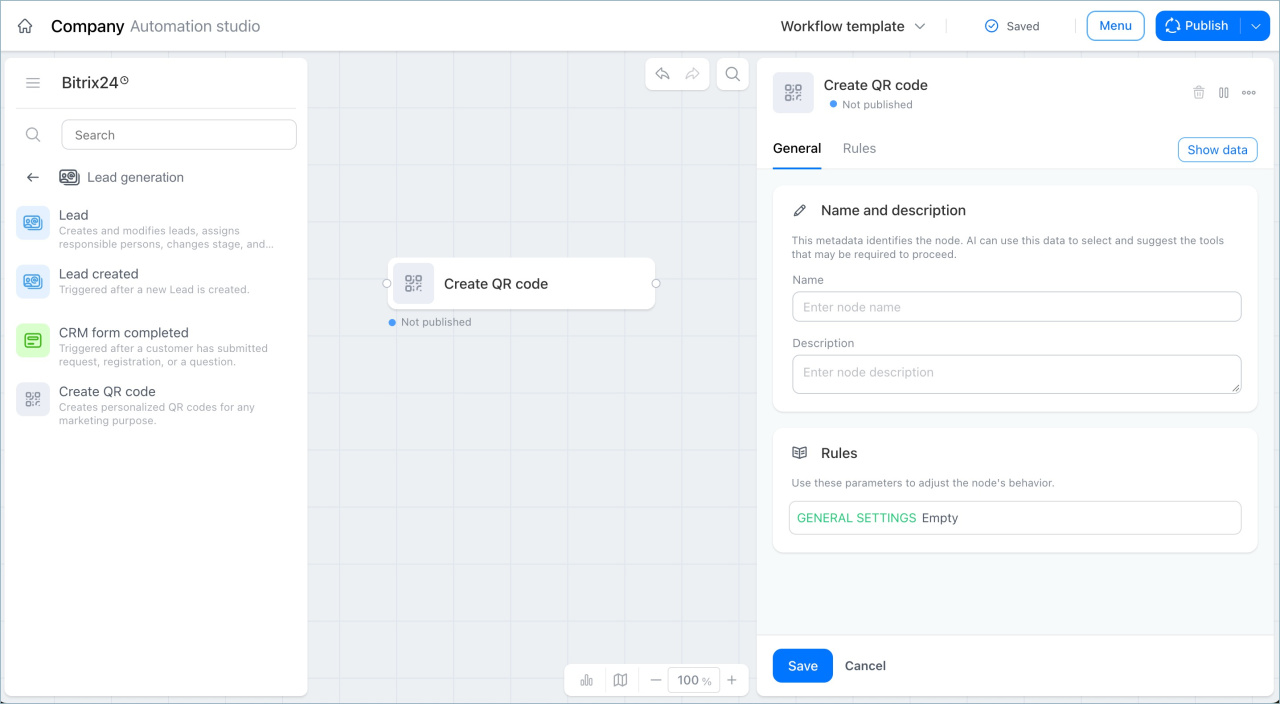
This node creates a QR code inside a workflow and passes its data to the next steps — for sending to a client, inserting into a document, or publishing on a website. The node generates several formats: a short link to a page, links for BB-code or HTML insertion, a print-ready version, and others. You can use this data in other nodes in the workflow — for example, to send a link to a client.
Examples:
- A company hosts a closed presentation for key partners. Bitrix24 creates a QR code for entry to the event. A partner scans the code and clicks the confirmation button. Bitrix24 sees that the partner has arrived and sends a notification to the responsible manager. The manager knows the partner is already there and goes to greet them in person. No important guest goes unnoticed.
- A company participates in an industry exhibition and wants to collect visitor contacts right at the booth. The workflow uses the Track CRM form submission trigger, which runs when a visitor scans the code and submits the form. The visitor scans the code with their phone, opens the form, and leaves their contact details. The manager does not need to collect business cards and enter data manually — all requests go directly into CRM.
In brief
- The CRM form completed and Track client return to site triggers are starting points. They monitor client behavior on the website and start the workflow automatically, without any manager involvement.
- The Lead node performs actions with leads inside the workflow: creates new leads, updates existing ones, schedules activities, and updates linked data.
- The Create a QR code node generates a code and passes links to the next steps in the workflow — for sending to a client, inserting into a document, or publishing on a website.
- Each node can be used in its own scenario and does not depend on the others.