
In the new workflow builder, each workflow is made up of nodes. Nodes are ready-to-use blocks for actions. Some nodes start a workflow. These nodes are called triggers. Other nodes perform actions, such as creating a task or sending a notification.
A trigger is always the first step. It watches for an event and starts the workflow when that event happens. The Feedback group includes this type of trigger. It tracks when a customer submits a form to leave a review, suggestion, or complaint.
This article explains how to use the Feedback form submitted trigger.
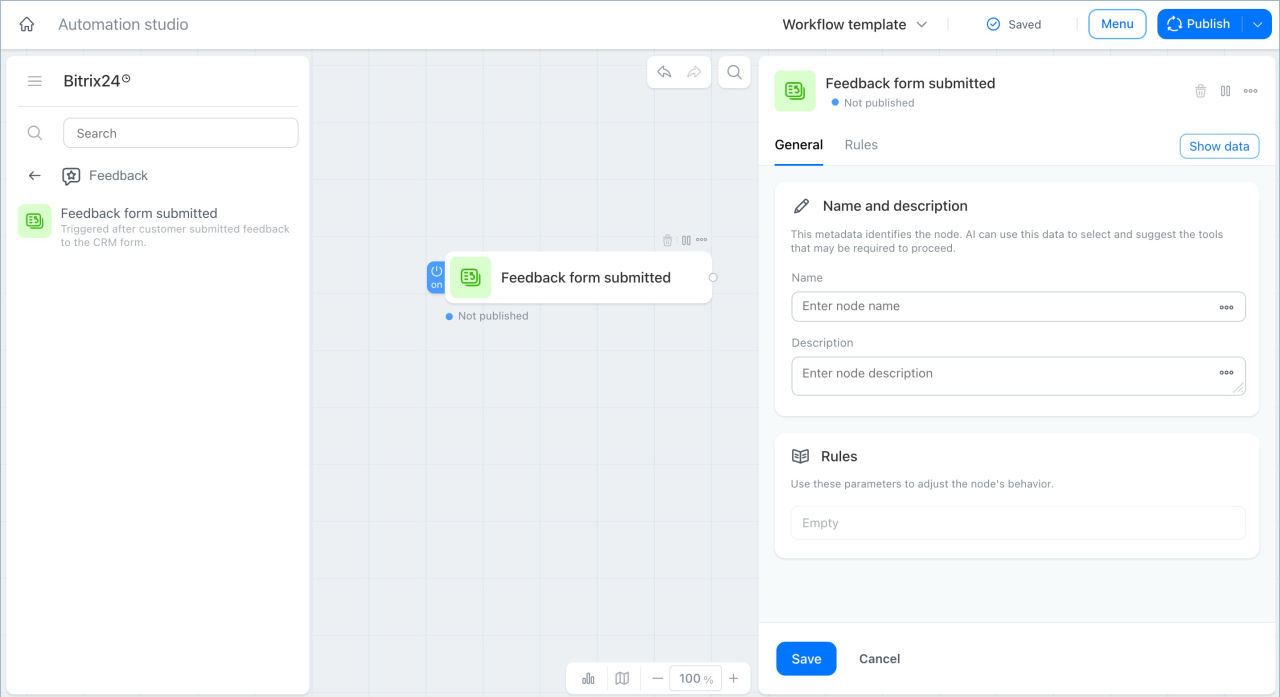
The trigger starts a workflow when a customer submits a CRM form with the Feedback scenario. This scenario is designed for reviews, suggestions, and complaints. You do not need to check for new feedback manually. The workflow starts automatically as soon as the form is submitted.
Unlike the Track CRM form submission trigger, which starts a workflow for any CRM form, this trigger runs only for forms with the Feedback scenario.
Examples:
- An online store collects customer reviews through a form on its website after an order is delivered. The form includes a Rating field with a value from 1 to 5. When a customer submits the form, Bitrix24 starts the workflow and the Feedback form submitted trigger runs. If the rating is 3 or lower, the condition is met and the Task node creates a task for the customer success manager. The manager can contact the customer and resolve the issue. This helps the team react right away instead of discovering the problem later.
- A fitness club chain uses the same type of form to collect feedback after each visit. The form also includes a Rating field from 1 to 5. If a customer gives a high rating, such as 4 or 5, Bitrix24 starts the workflow. The trigger records the form submission, and the Send email node automatically sends a thank-you message. The customer gets a response right away, and employees do not need to reply to each positive review manually.
In brief
- The Feedback form submitted trigger starts a workflow when a customer submits a CRM form with the Feedback scenario. You do not need to review new submissions manually.
- This trigger runs only for forms with the Feedback scenario, unlike the Track CRM form submission trigger, which works with any CRM form.
- You can set up the next steps in action nodes after the trigger. For example, you can create a task for a low rating or send a thank-you message for a high rating.