
The new AI workflow builder creates scenarios from ready-made nodes. Some nodes respond to events, while others check data or perform actions based on specified rules.
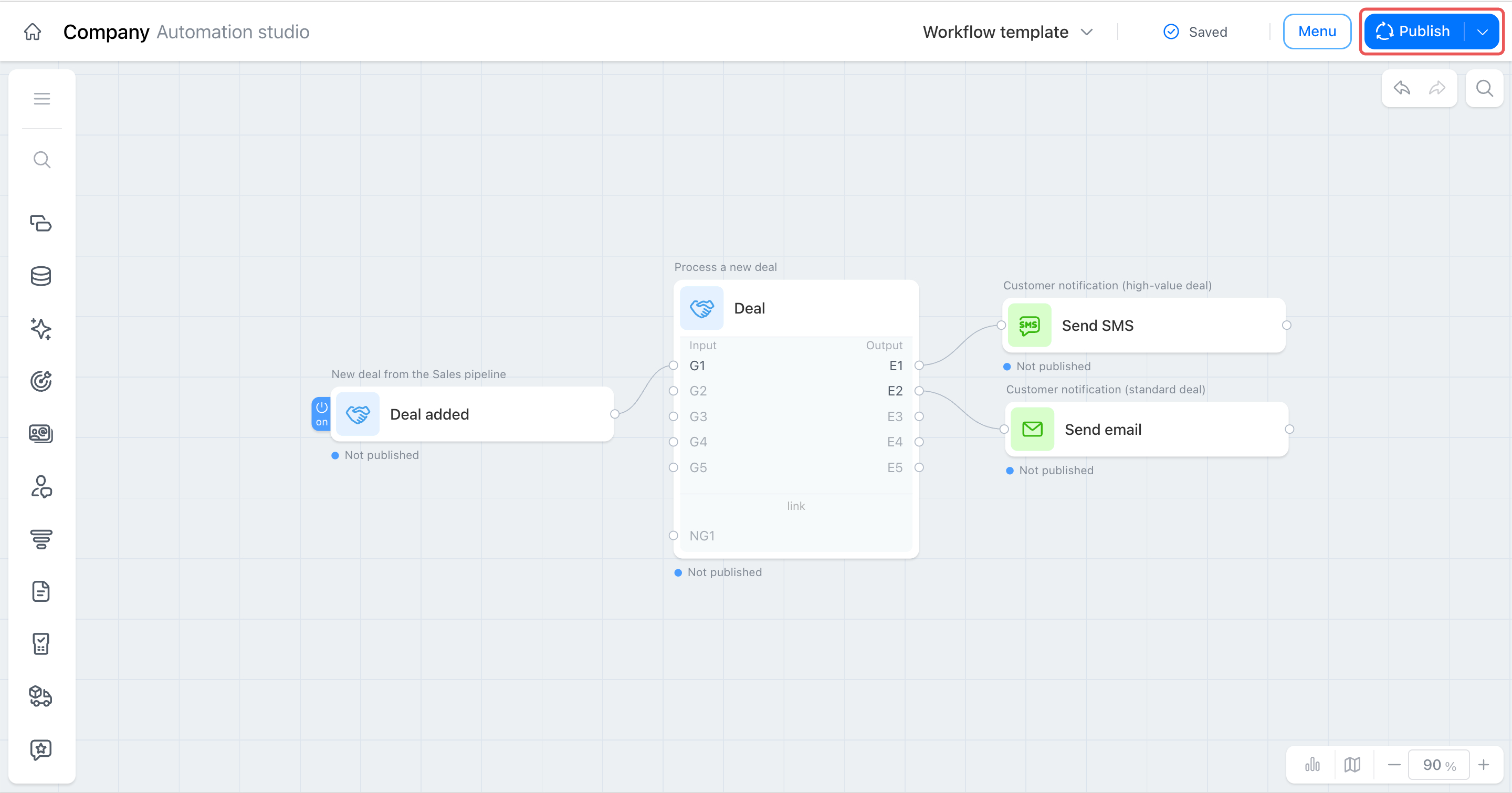
Let’s look at an example of how nodes work together. We’ll set up a workflow for new deals: for large deals, we’ll add the supervisor as an observer and send the client an SMS. For regular deals, we’ll schedule an activity for the employee and send the client an email.
Pricing
This article covers a specific workflow. For general information:
- To learn what nodes are and how to configure them, see Nodes in the new AI workflow builder.
- To learn how the new workflow builder works, see New workflow builder in Bitrix24.
In this article:
Step 1. Add a trigger and the universal node
Every flow starts with a trigger that tracks an event and passes data through the workflow. In this case, the flow starts when a new deal is created in the CRM, so the first node in the template is a trigger for this event.
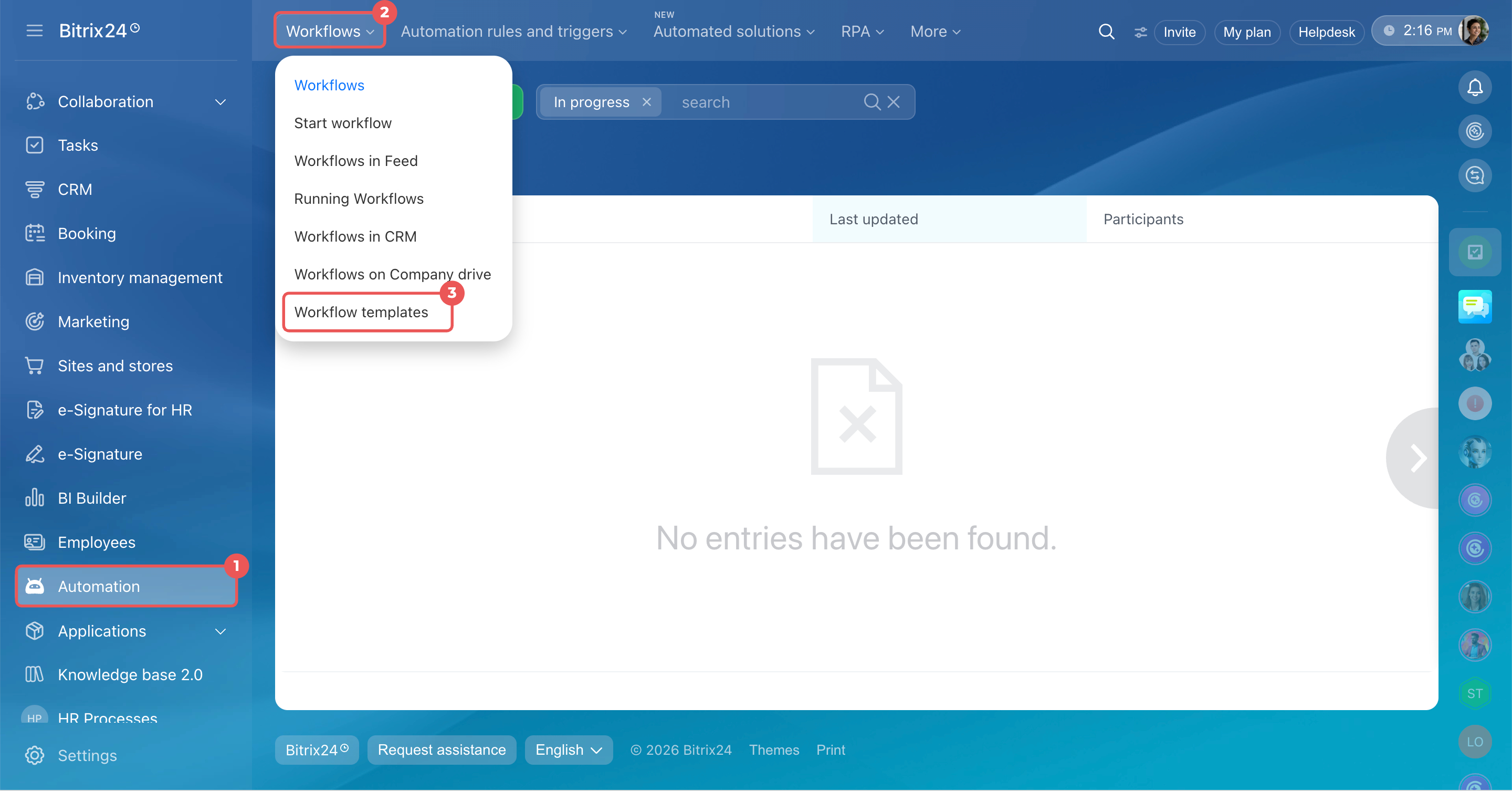
Add a trigger. Find the trigger in the node library and drag it onto the template canvas. The canvas is empty when you create a template.
- Go to Automation.
- Click Workflows.
- Select Workflow templates.
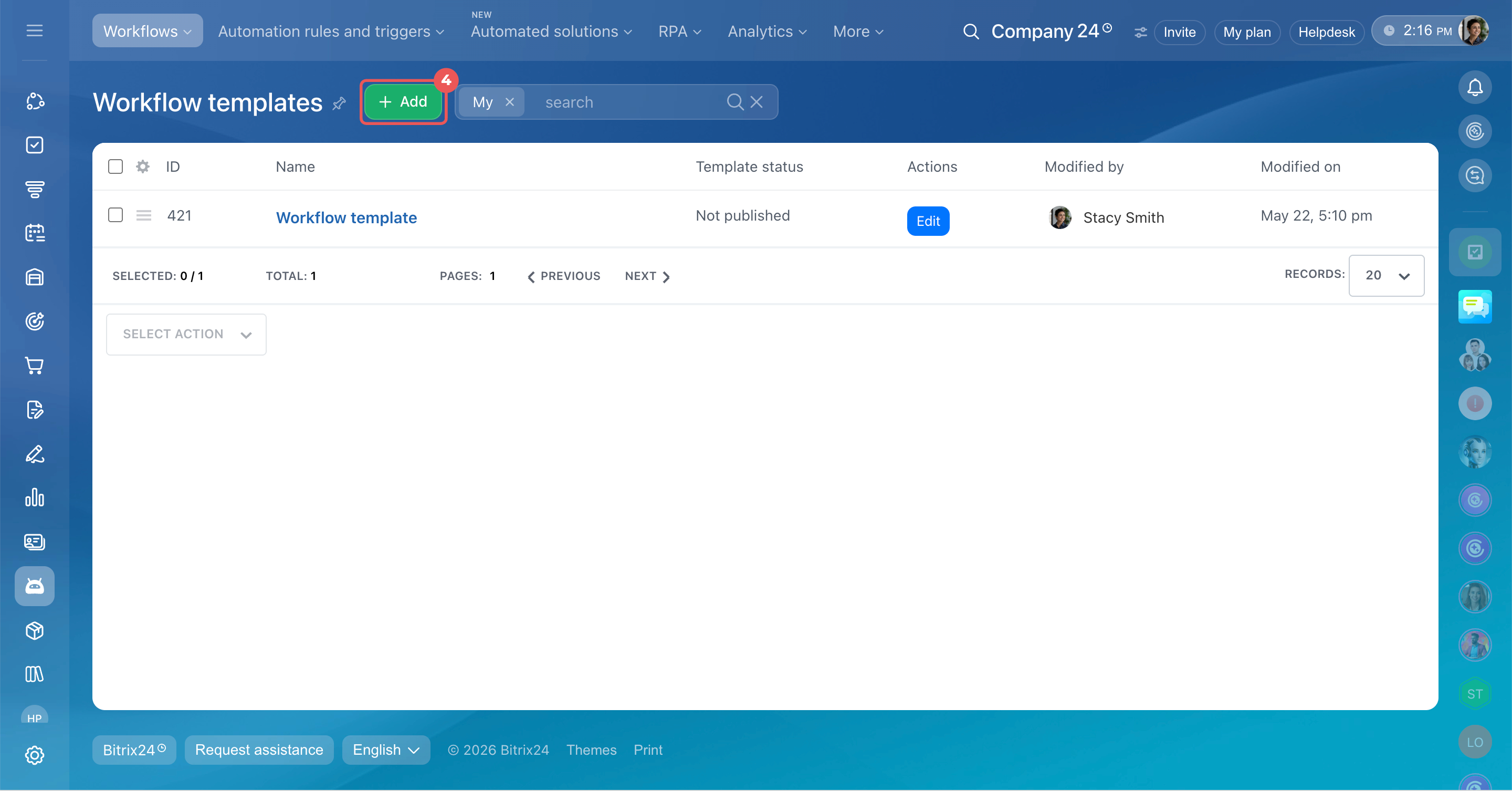
- Click Add to create a new template. An empty editor canvas opens.
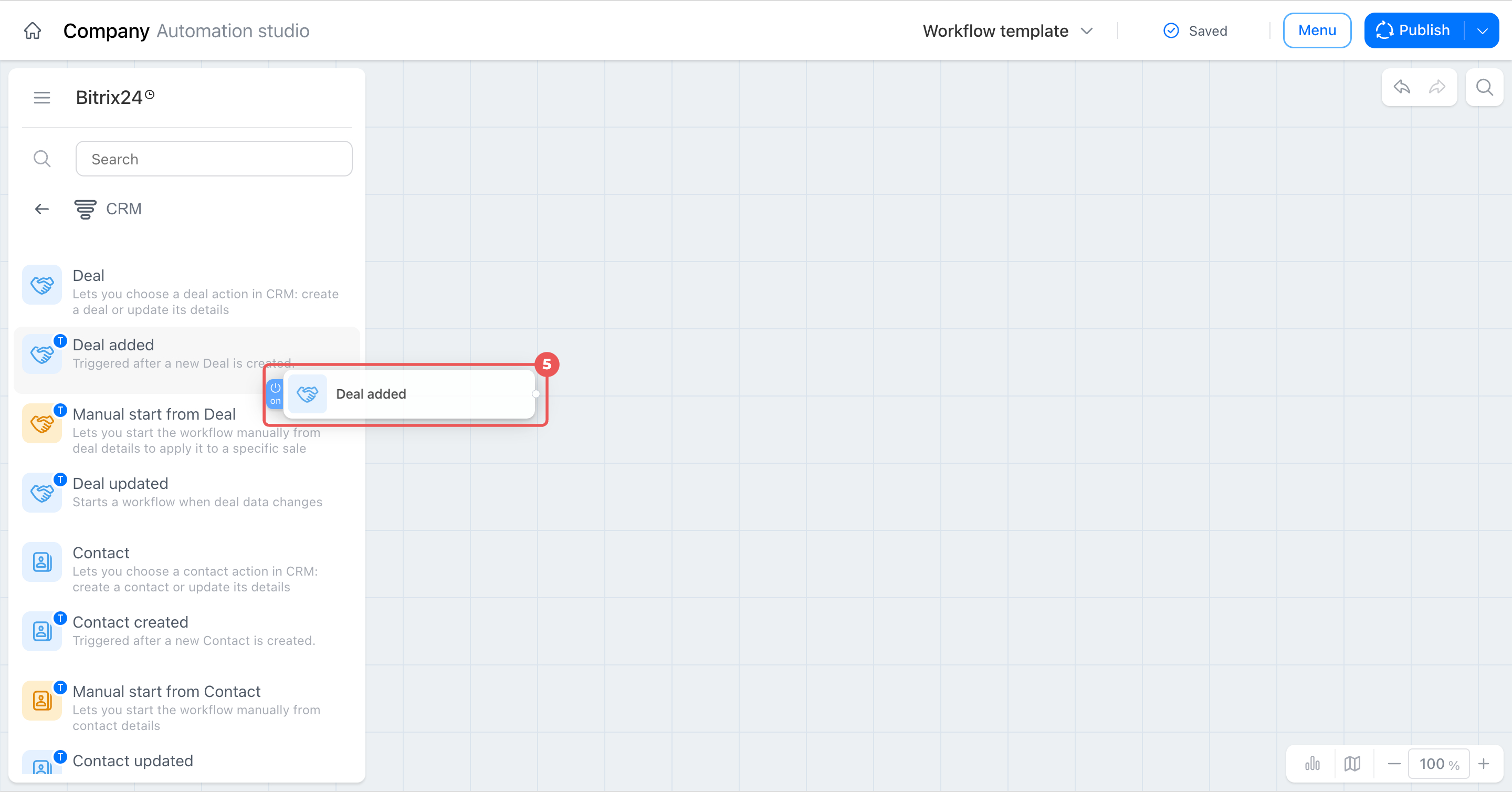
- In the node library on the left, find the Deal added trigger and drag it onto the canvas.
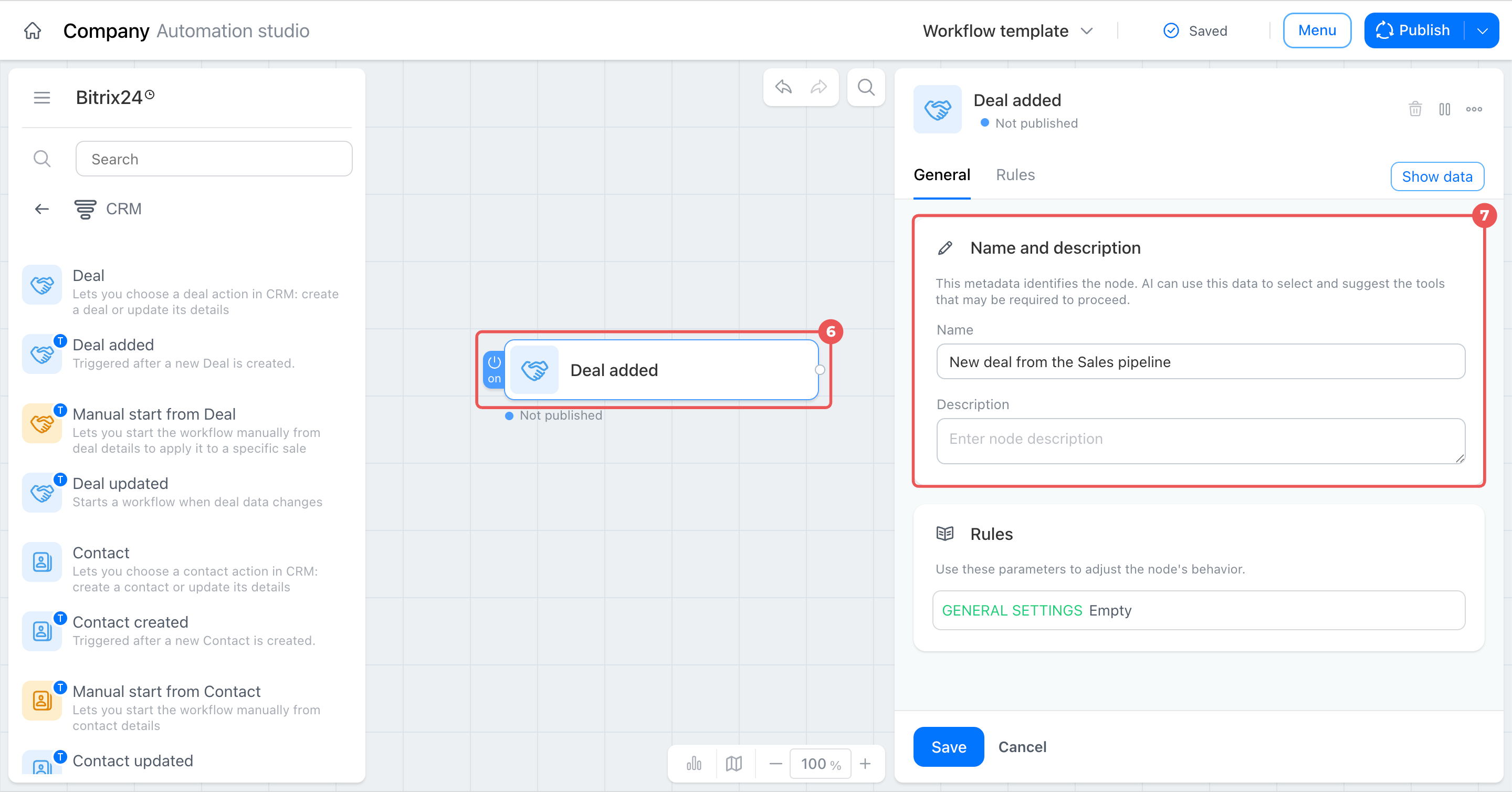
- Click the node to open its settings.
- On the General tab, enter a custom name, such as New deal from the Sales pipeline, and describe why you need this trigger. The exact name will be useful later. If you add a second trigger or another Deal node to the template, for example, to work with a different pipeline, labels will help you tell the blocks apart.
- Go to the Rules tab for the same trigger.
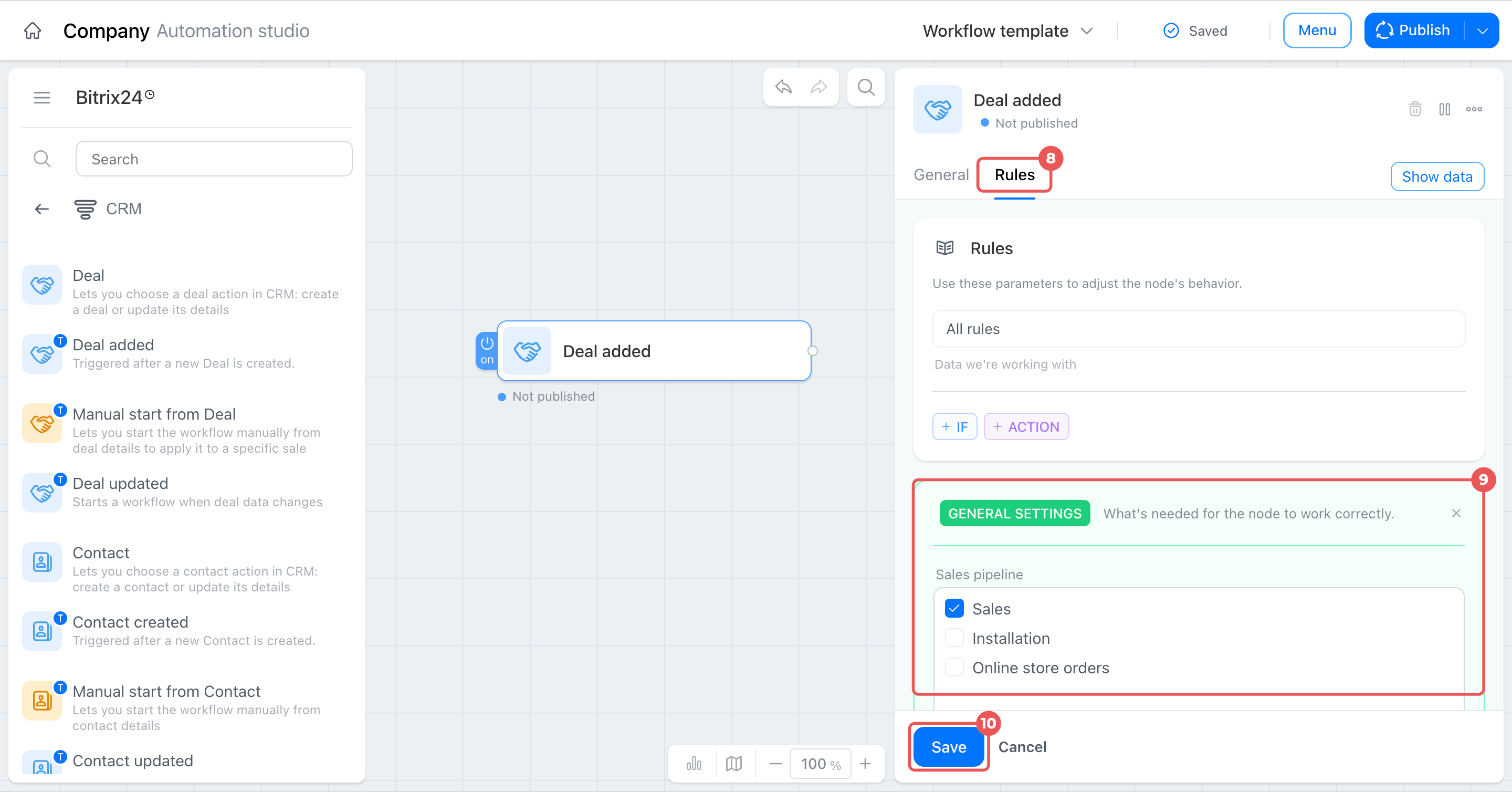
- In the Sales pipeline field, specify the pipeline the deals should come from, such as Sales.
- Click Save.
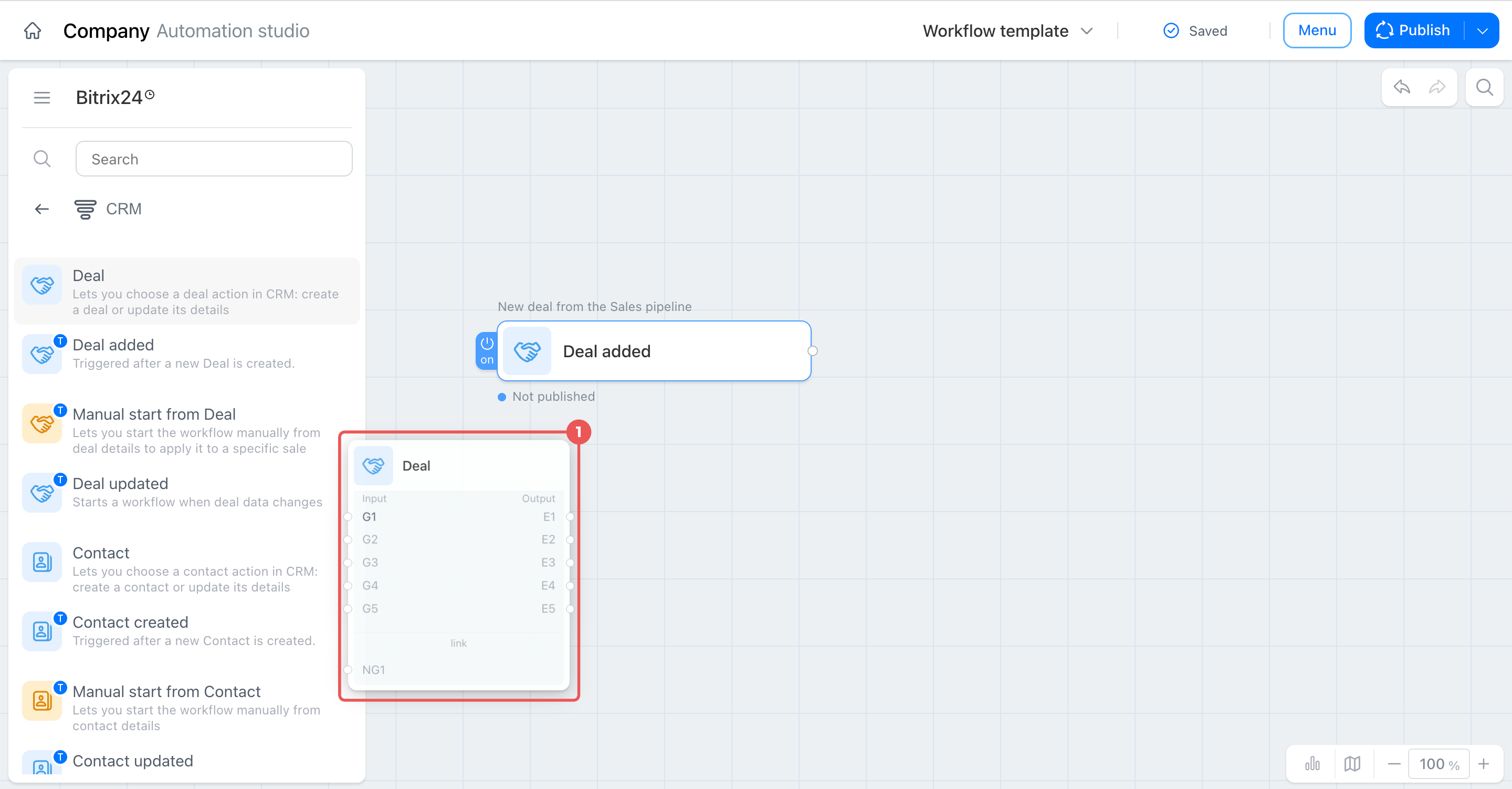
Add the Deal node. The trigger only reports the event; it does not check or change deal data. To sort deals by amount and perform actions, use the universal Deal node. It receives data from the trigger and divides the process into two scenarios based on configured rules.
- Find the universal Deal node in the library and place it to the right of the trigger.
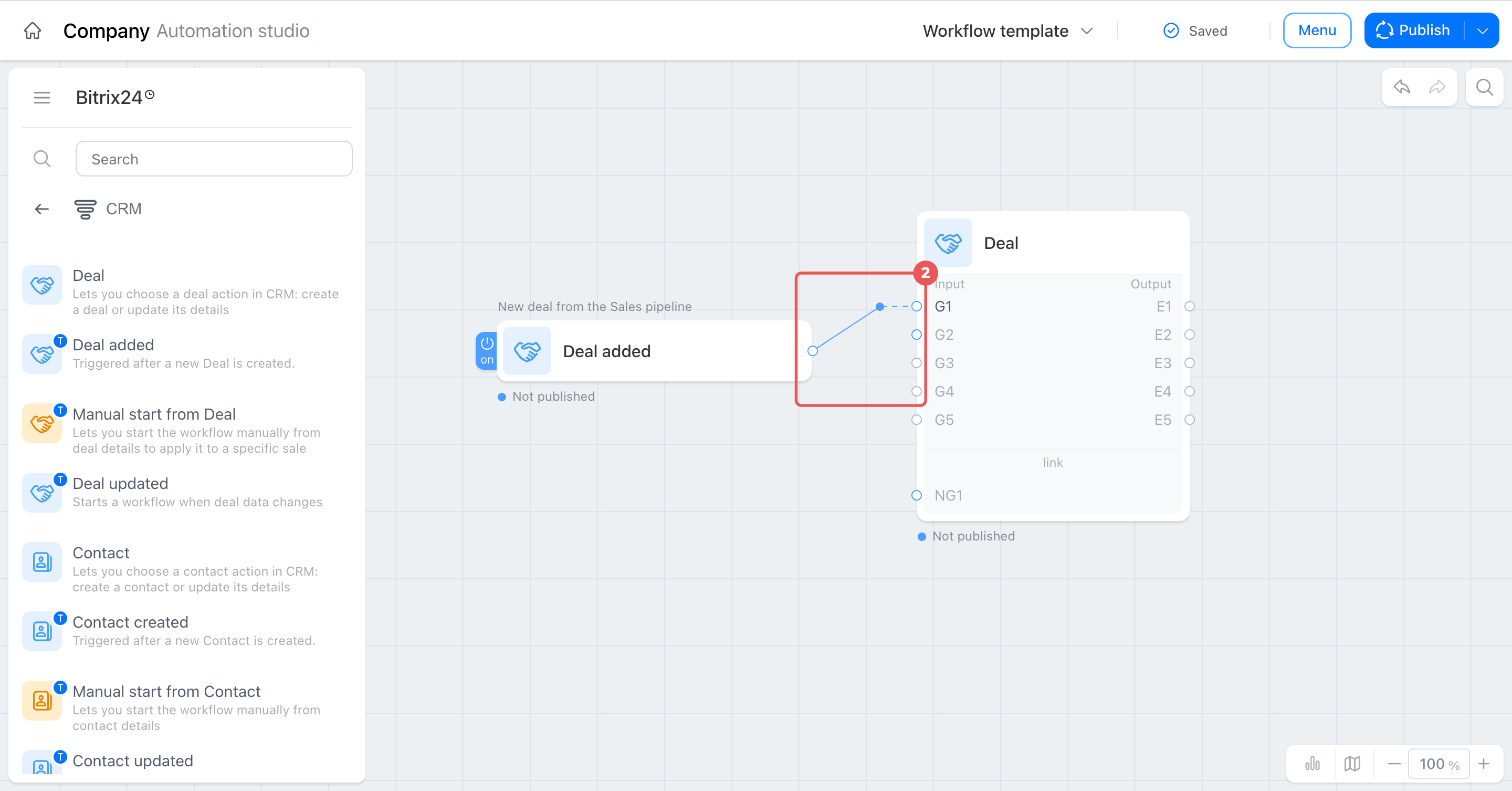
- Connect the trigger output to input G1 of the Deal node. Without this connection, the node will not receive data. Only a connection turns two separate blocks into a working flow. Through G1, the node receives all fields from the created deal, including the amount, responsible person, and source. You can use these fields in later conditions and actions.
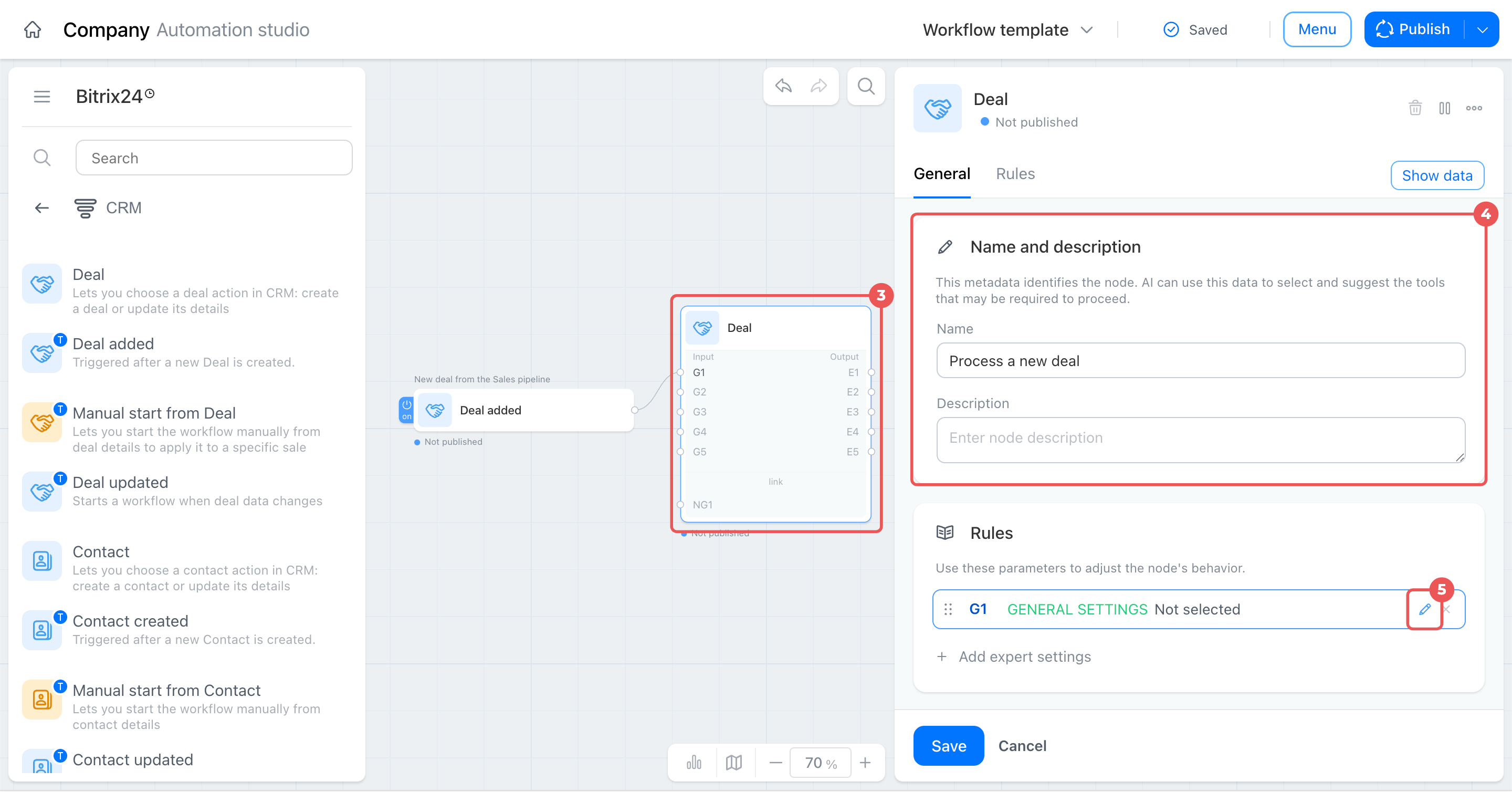
- Click the Deal node to open its settings.
- On the General tab, enter a name, such as Process a new deal.
- Click the pencil icon next to the G1 input rule to open its settings.
Step 2. Set up a group for large deals
Next, configure the node logic—the rule it uses to check each incoming deal. Start with the branch for large deals: first define the condition that identifies a large deal, then specify what the node should do when the condition is met.
Add a condition. The condition determines which deals belong to this rule group. The node compares a deal field value with the value you specify and decides whether to perform the following actions.
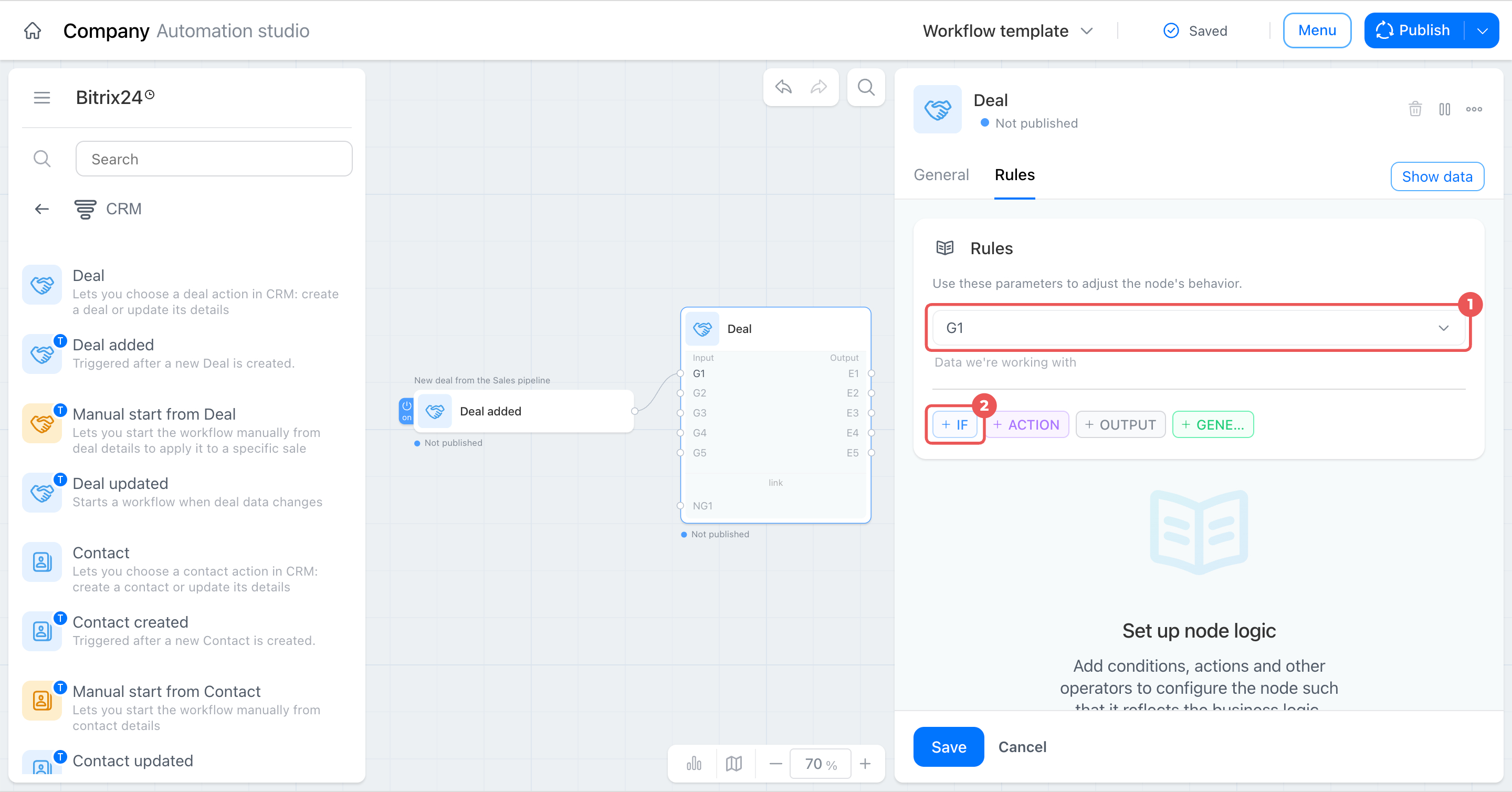
- On the Rules tab, make sure input G1 is selected.
- Click + If to create the first rule group.
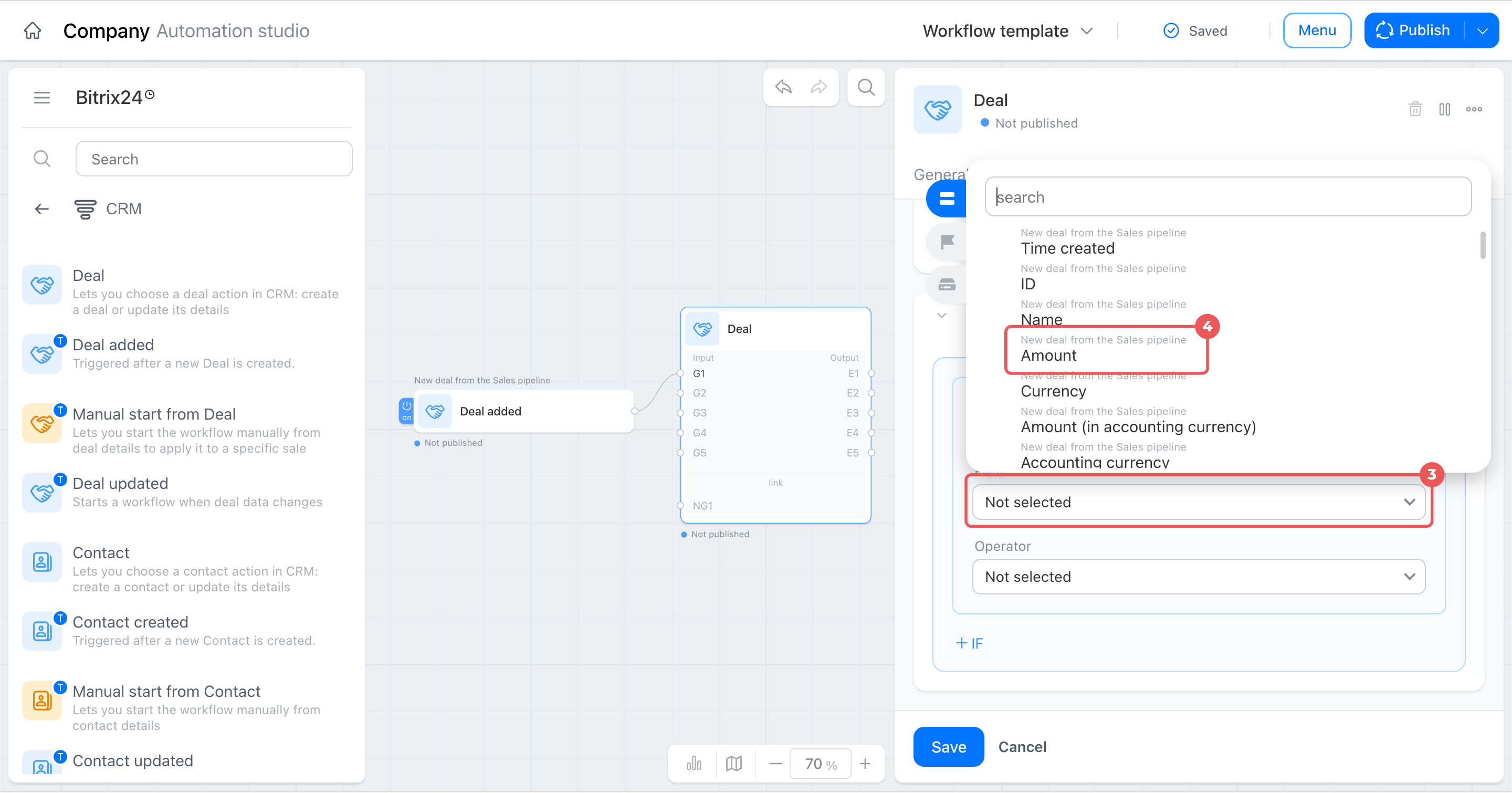
- In the If card, select the field the node will use to distinguish large deals from regular deals: Amount.
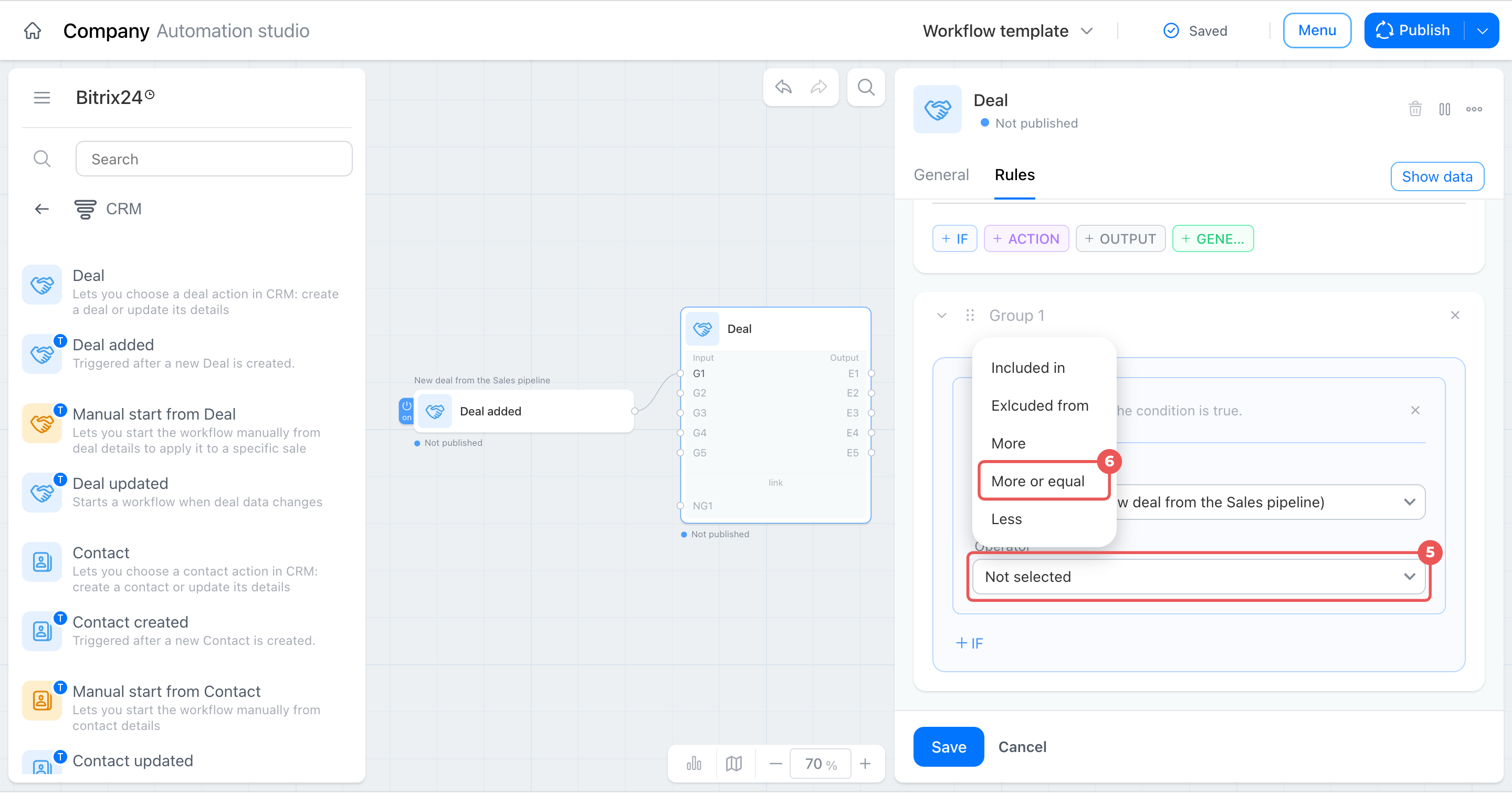
- Set the operator to More or equal.
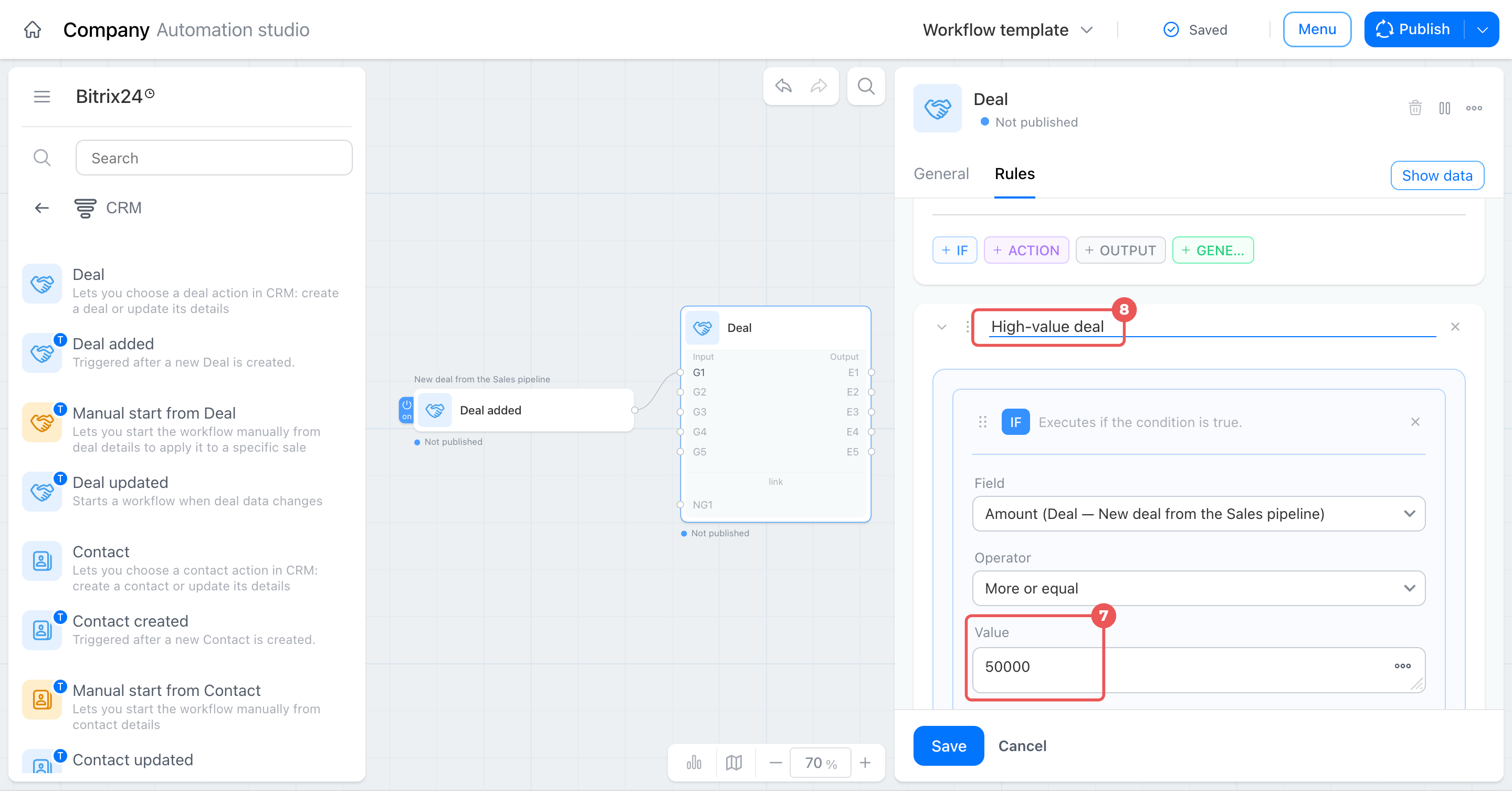
- Enter the deal amount at which a deal is considered large. For example, enter
50000. Set your own threshold based on your company’s average deal size. - Name the group High-value deal. This name appears in the brief rule list on the General tab, helping you identify each group without opening it.
Add actions. A condition determines whether a group runs, but it does not change data or perform operations on its own. Actions inside the group determine what happens to a large deal.
In this example, two actions run in sequence. First, the supervisor is notified about the large deal. Then, the employee receives an activity to contact the client. You can change these actions to fit your task.
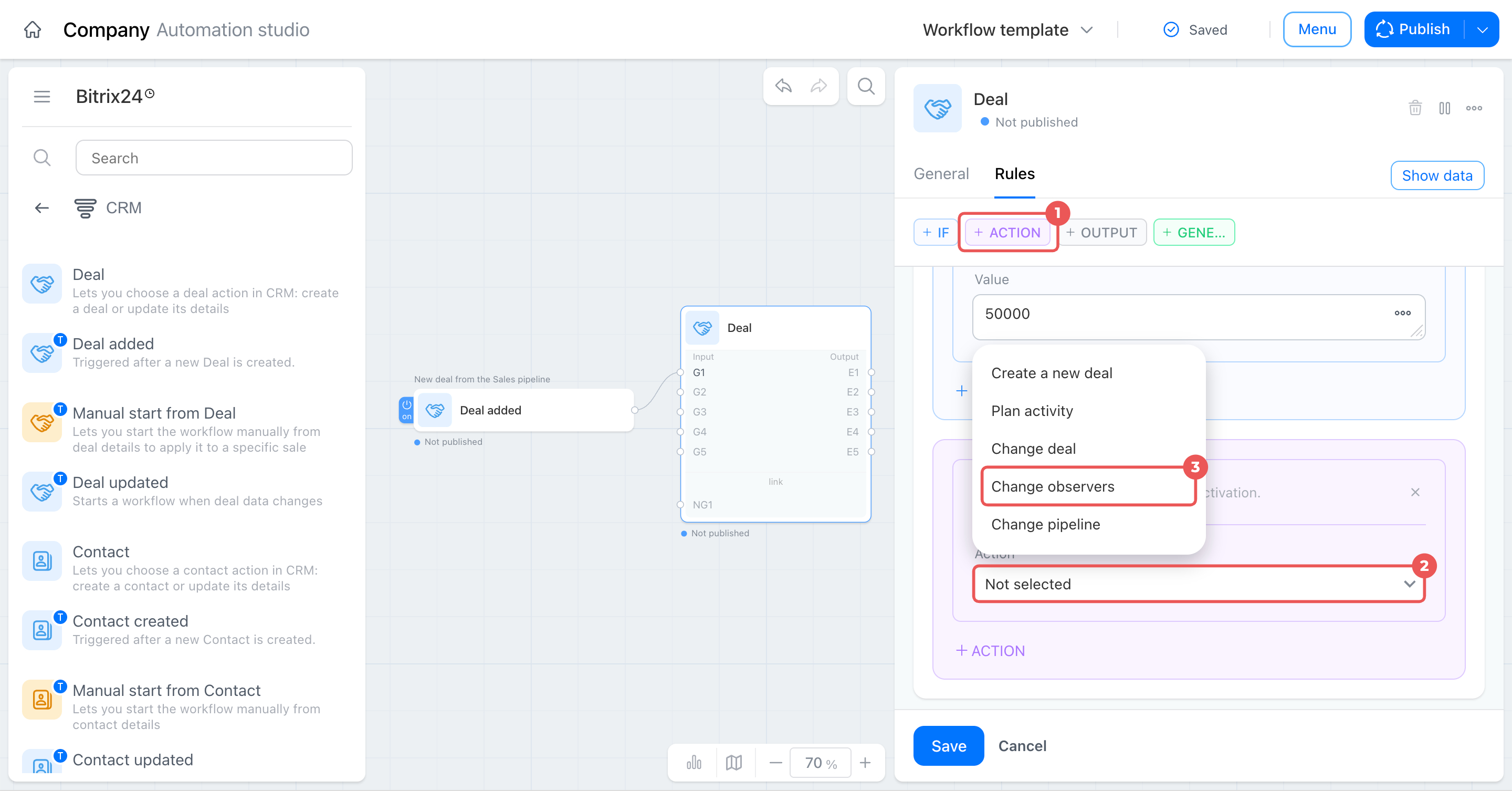
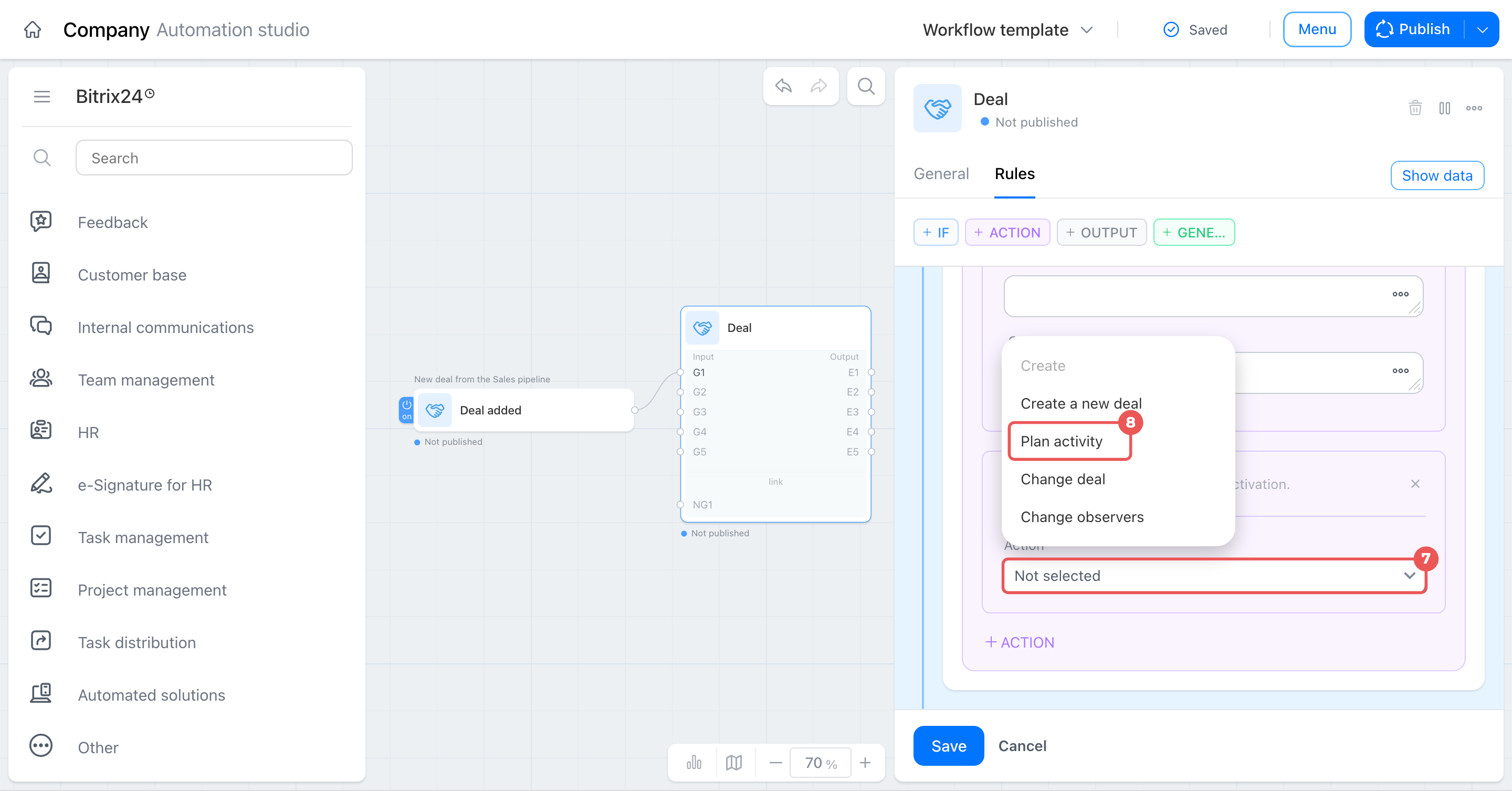
- Click + Action.
- Click the Action field.
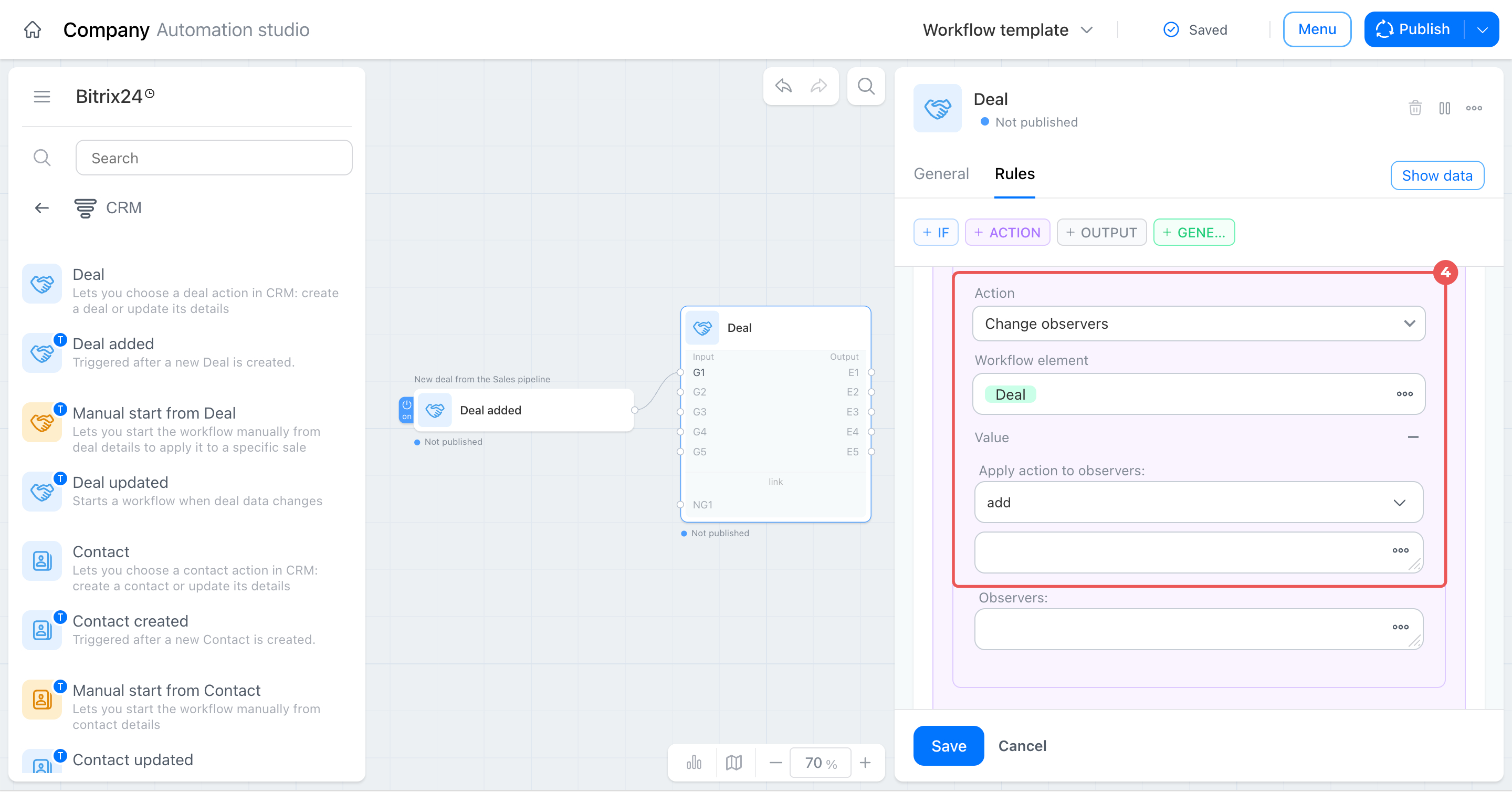
- Select Change observers.
- Enter a custom name for the action. For example, explain why the action runs. In the Apply action to observers field, leave add selected.
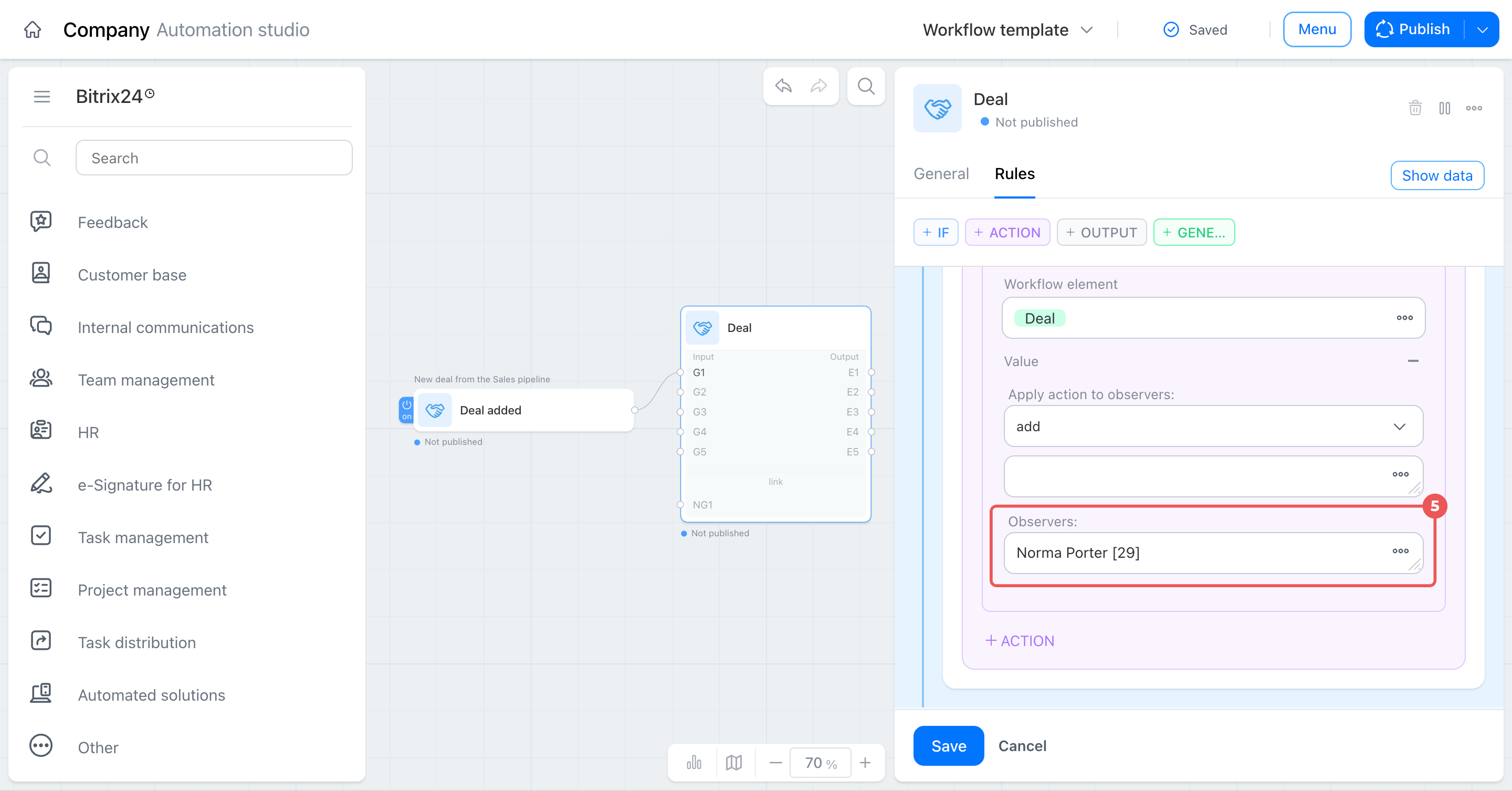
- In the Observers field, enter a value using a constant with the User field type, or select an employee from the trigger data. This lets the appropriate person, such as the supervisor, view and monitor the deal even when another employee runs the process.
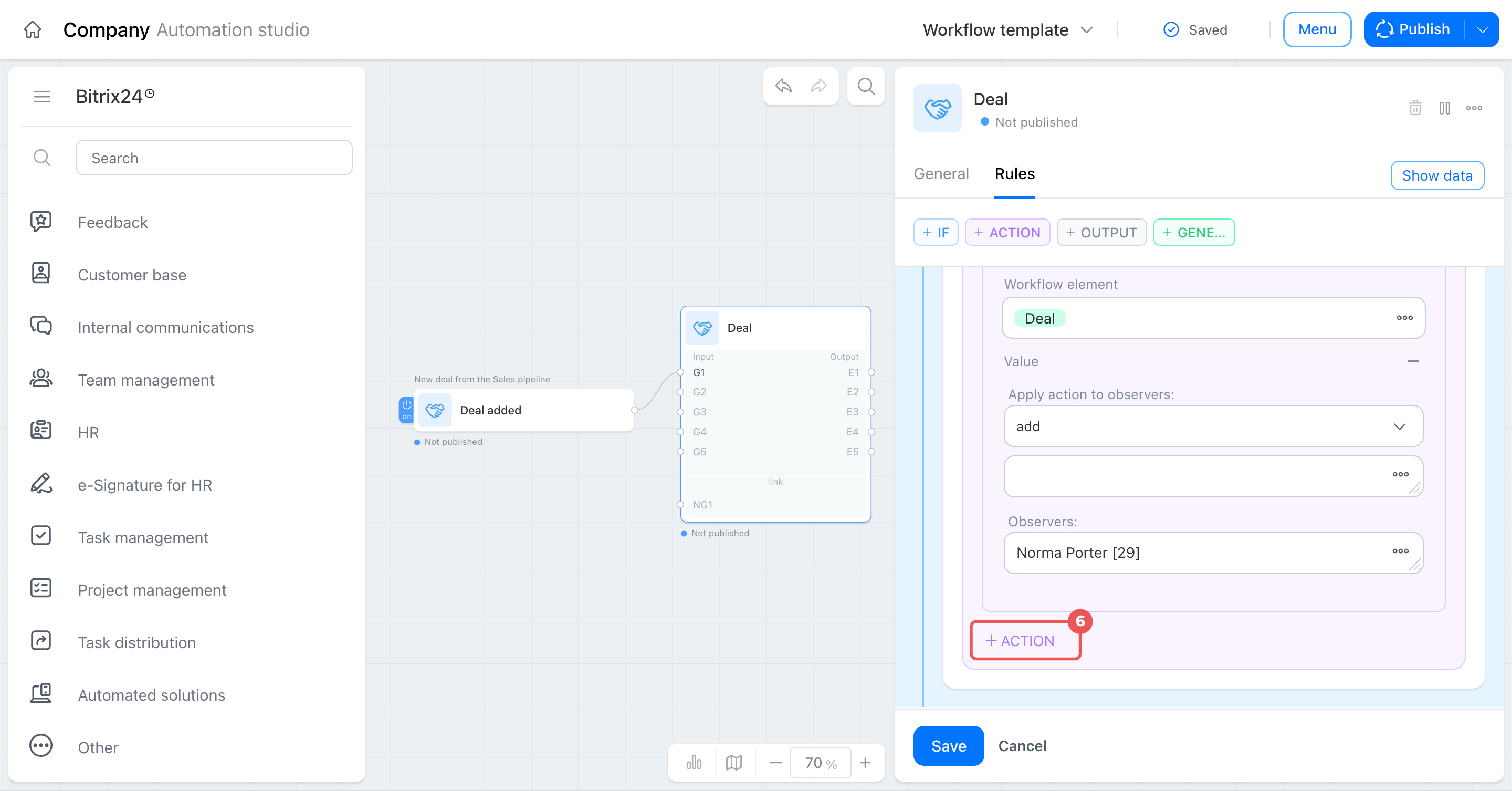
- Click + Action again to add a second operation. It will run after the first one.
- Click the Action field.
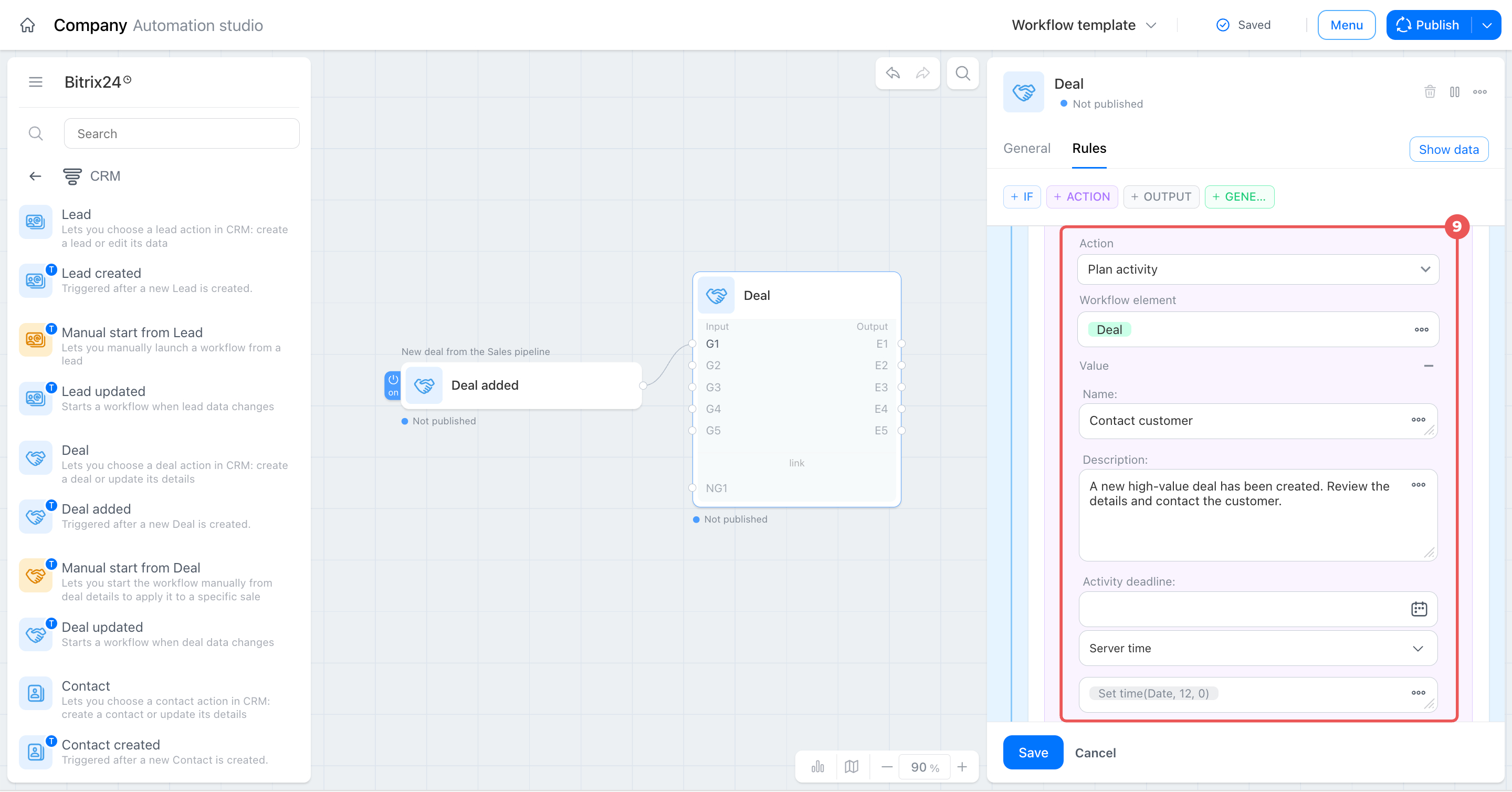
- Select Plan activity so the employee does not miss the deal.
- Enter the activity name and description, and set a deadline.
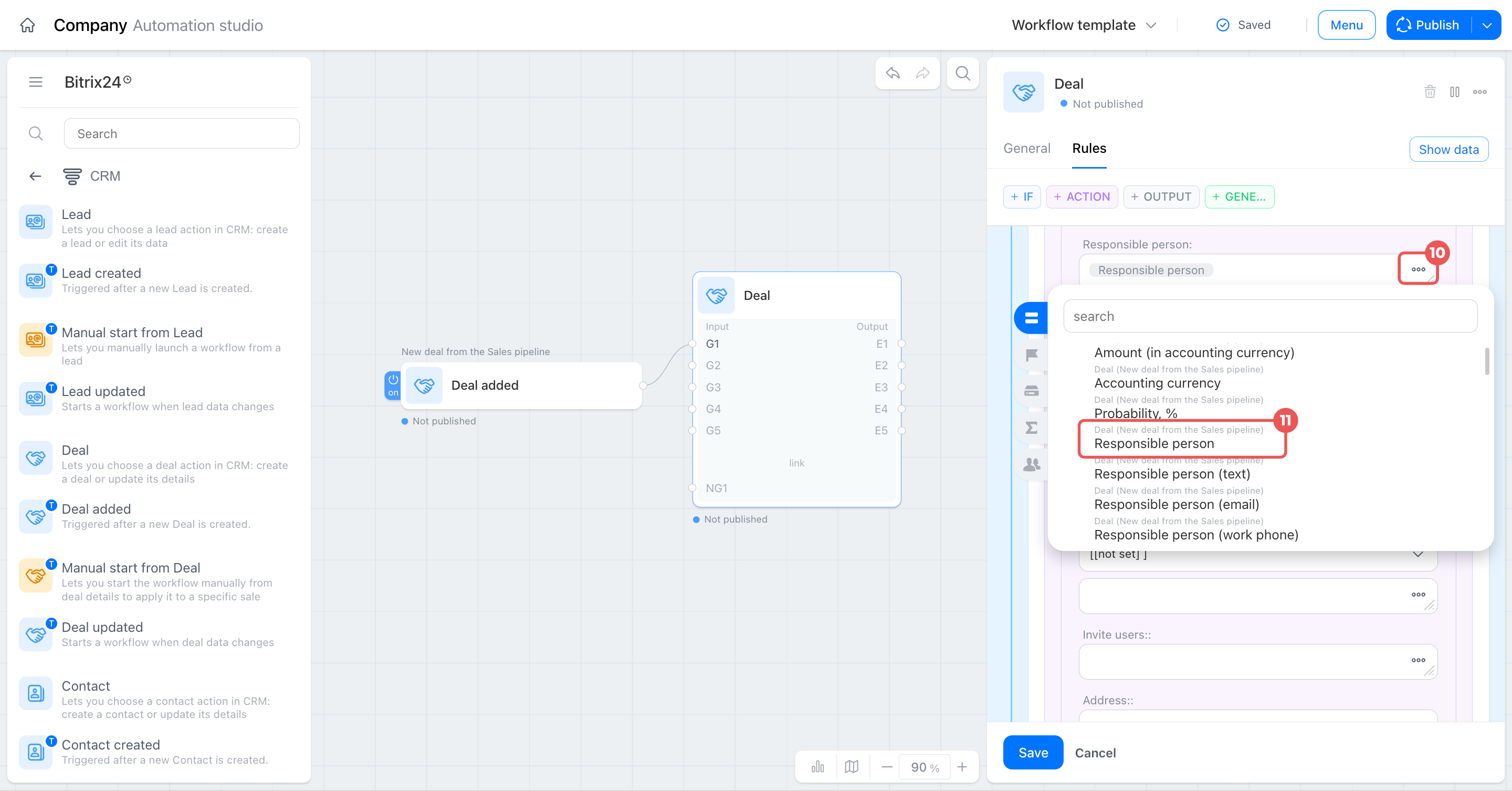
- Next to the Responsible person field, click Three dots (...).
- In the list, select the Responsible person field from the deal data. The activity is then automatically assigned to the employee responsible for the new deal.
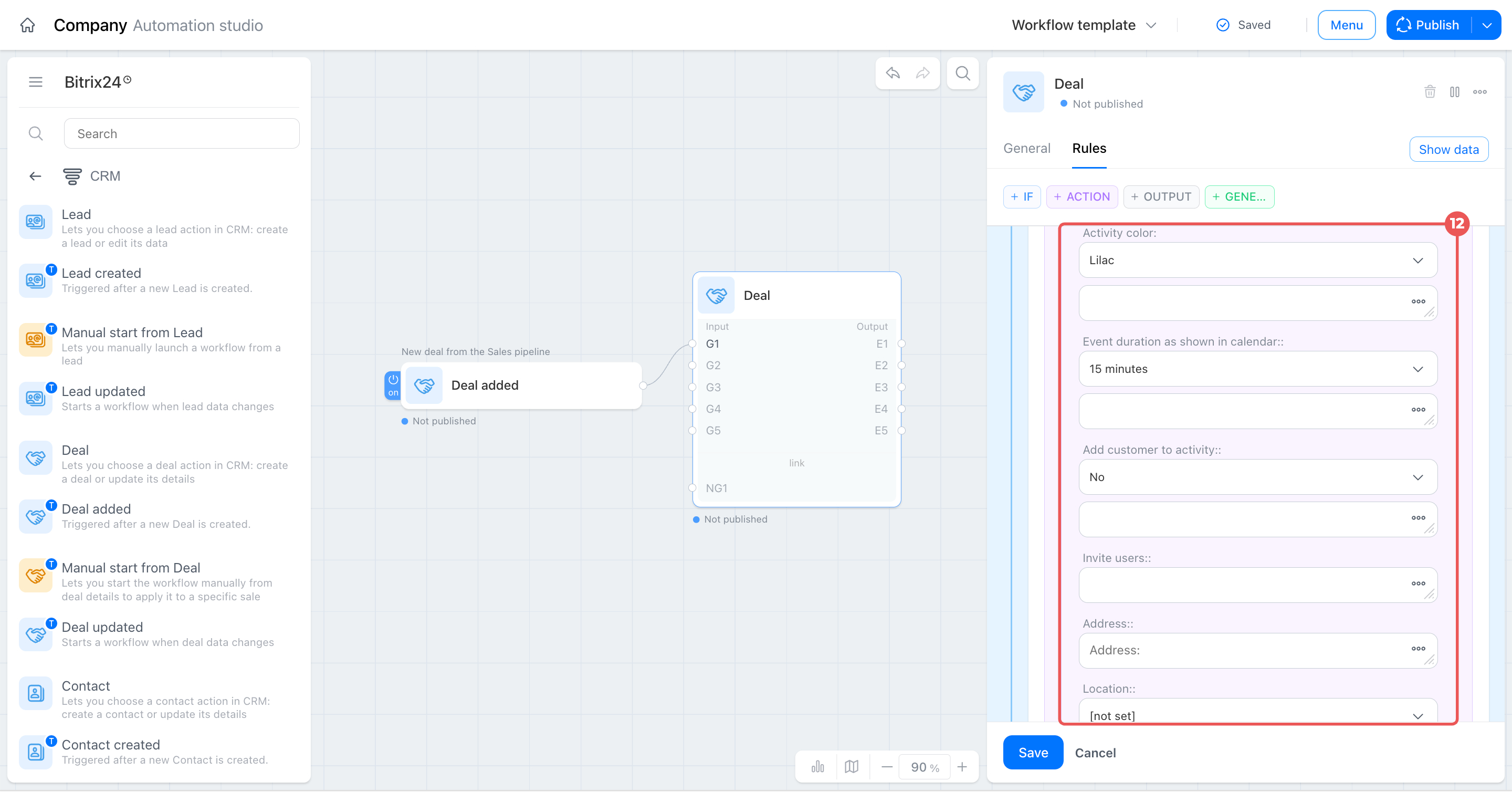
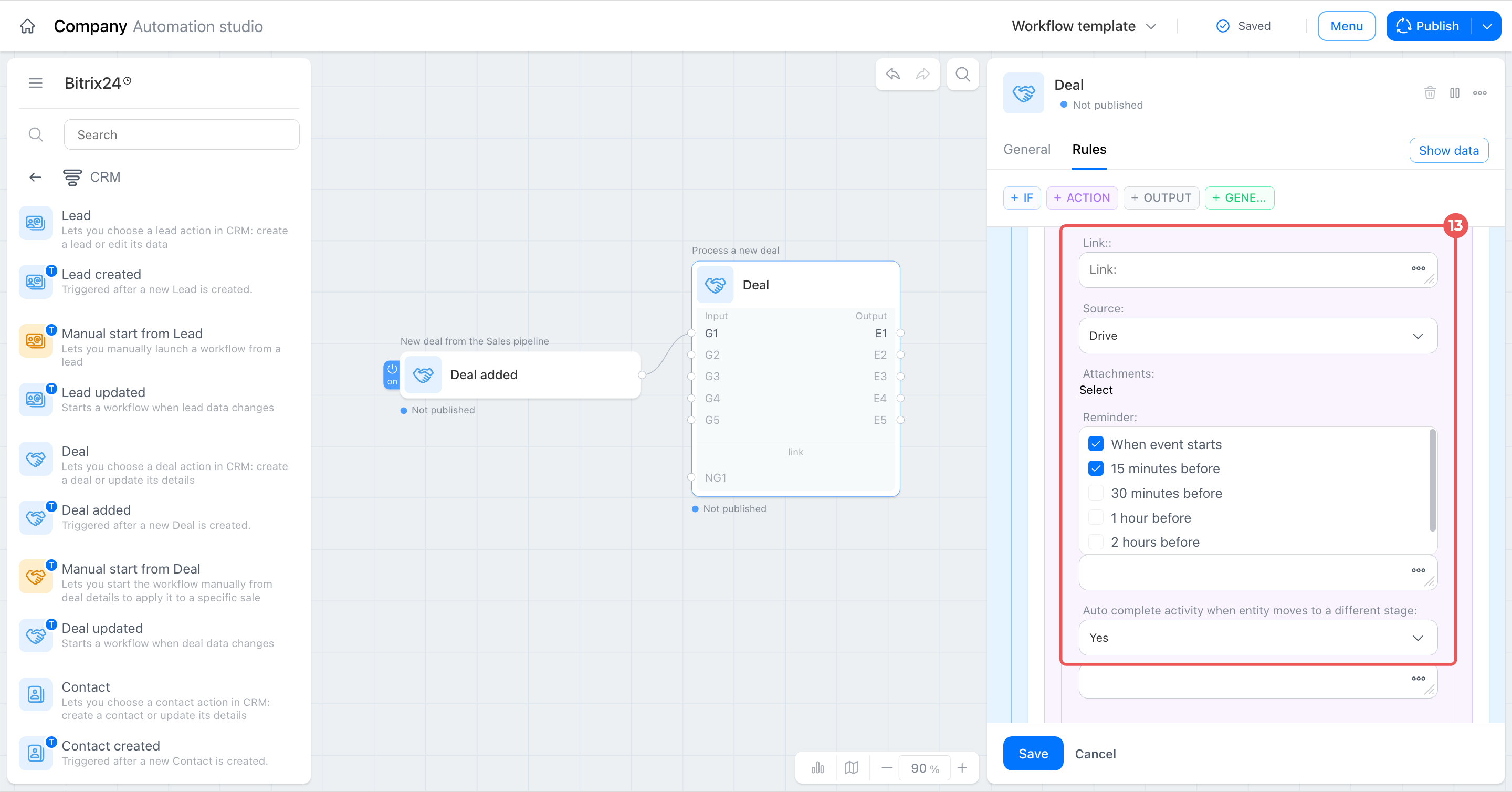
- Set the activity color and complete the remaining fields, including event duration, client selection, colleague invitations, and more.
- Configure reminders and automatic activity completion when the stage changes, according to your company’s activity rules.
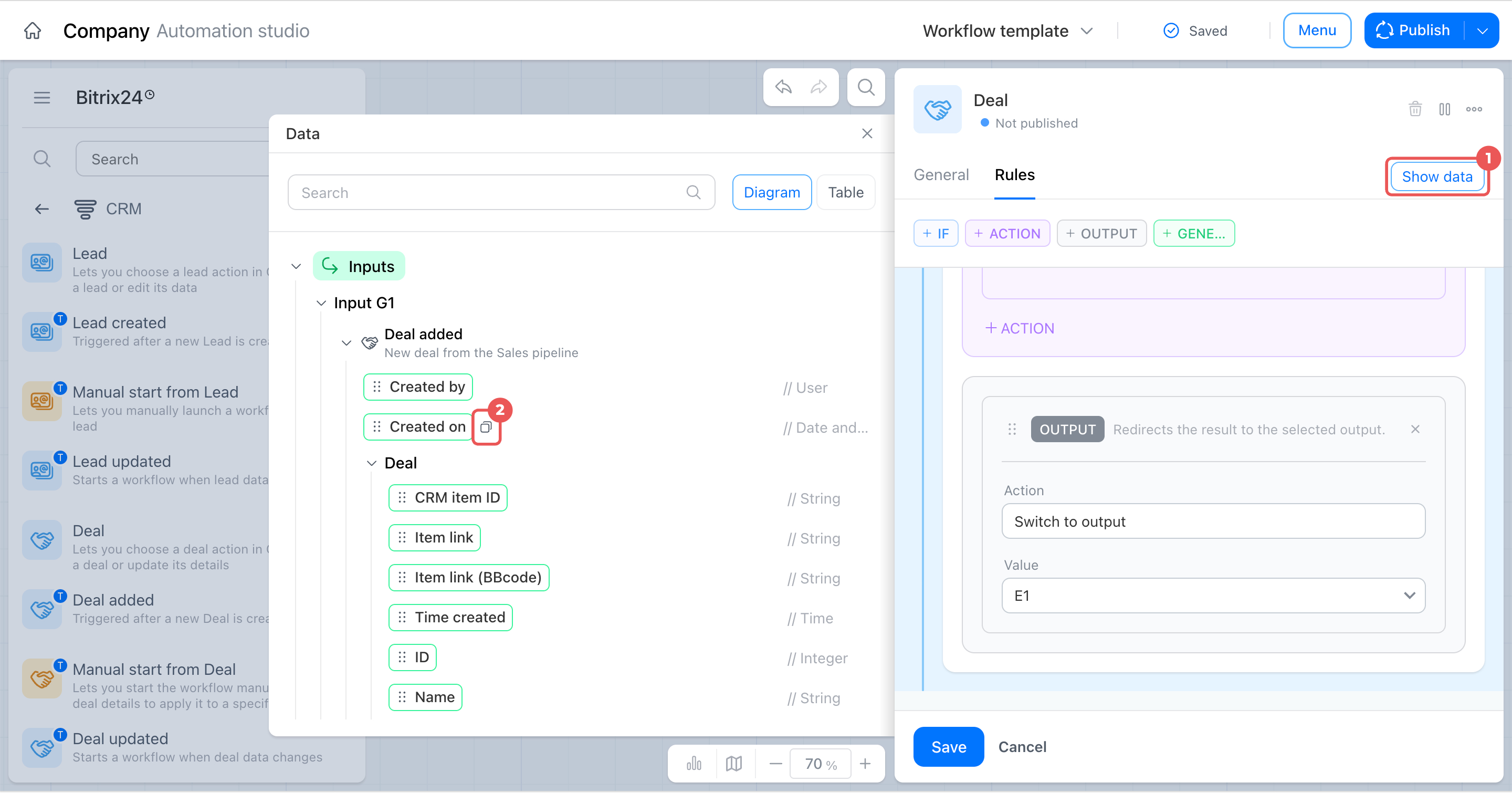
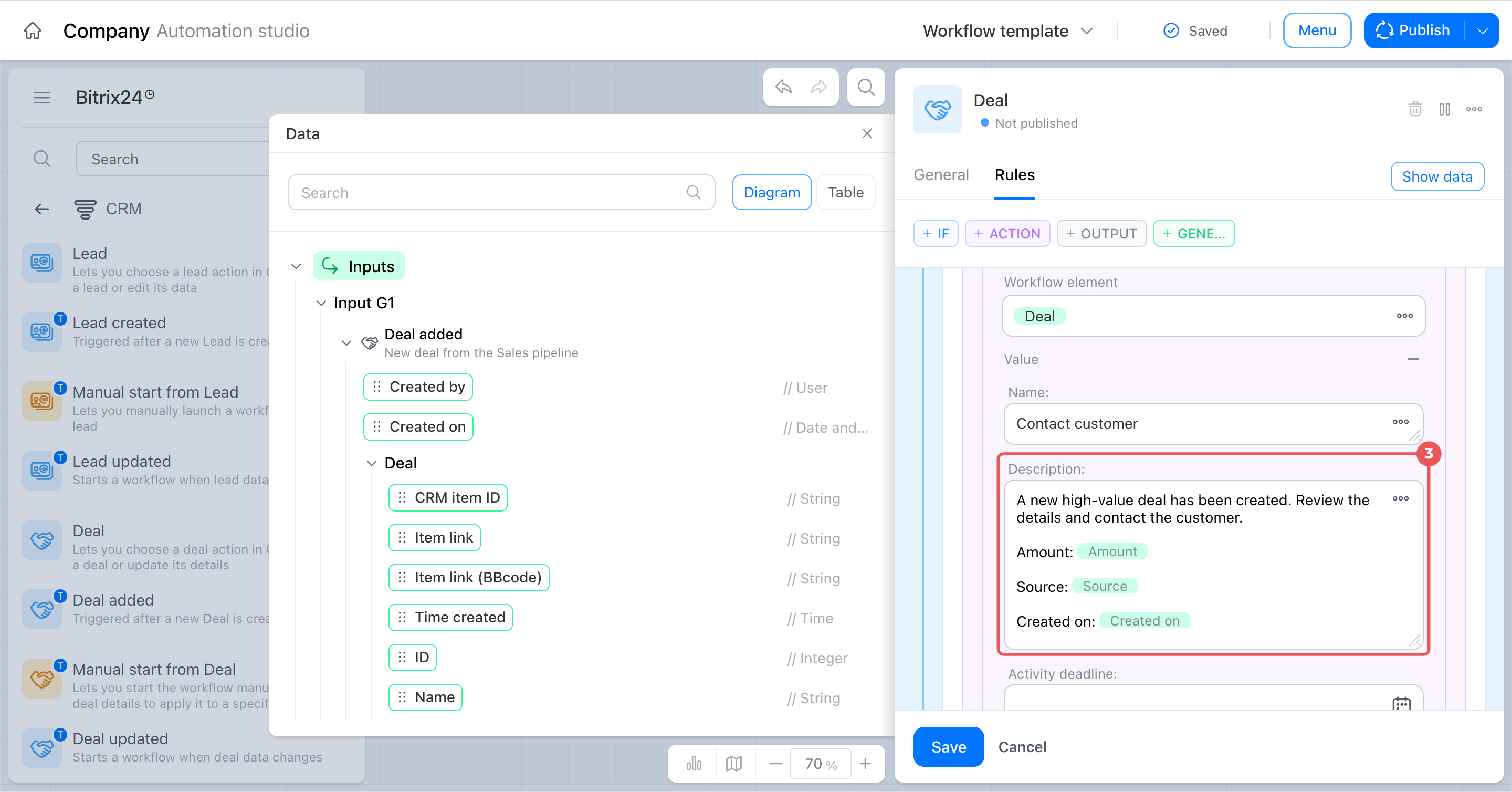
You can use a general phrase in the activity description or another field, or tailor it to each deal. To do this, insert deal field values using the Data panel. For example, you can populate the activity description, SMS text, or email text this way.
- Click Show data in the upper-right corner of the Rules panel. A tree of all fields available to the node opens.
- Find the field you need, such as Created on, and click the copy icon next to it, or drag the value directly into the text.
- Paste the copied code into the required text field.
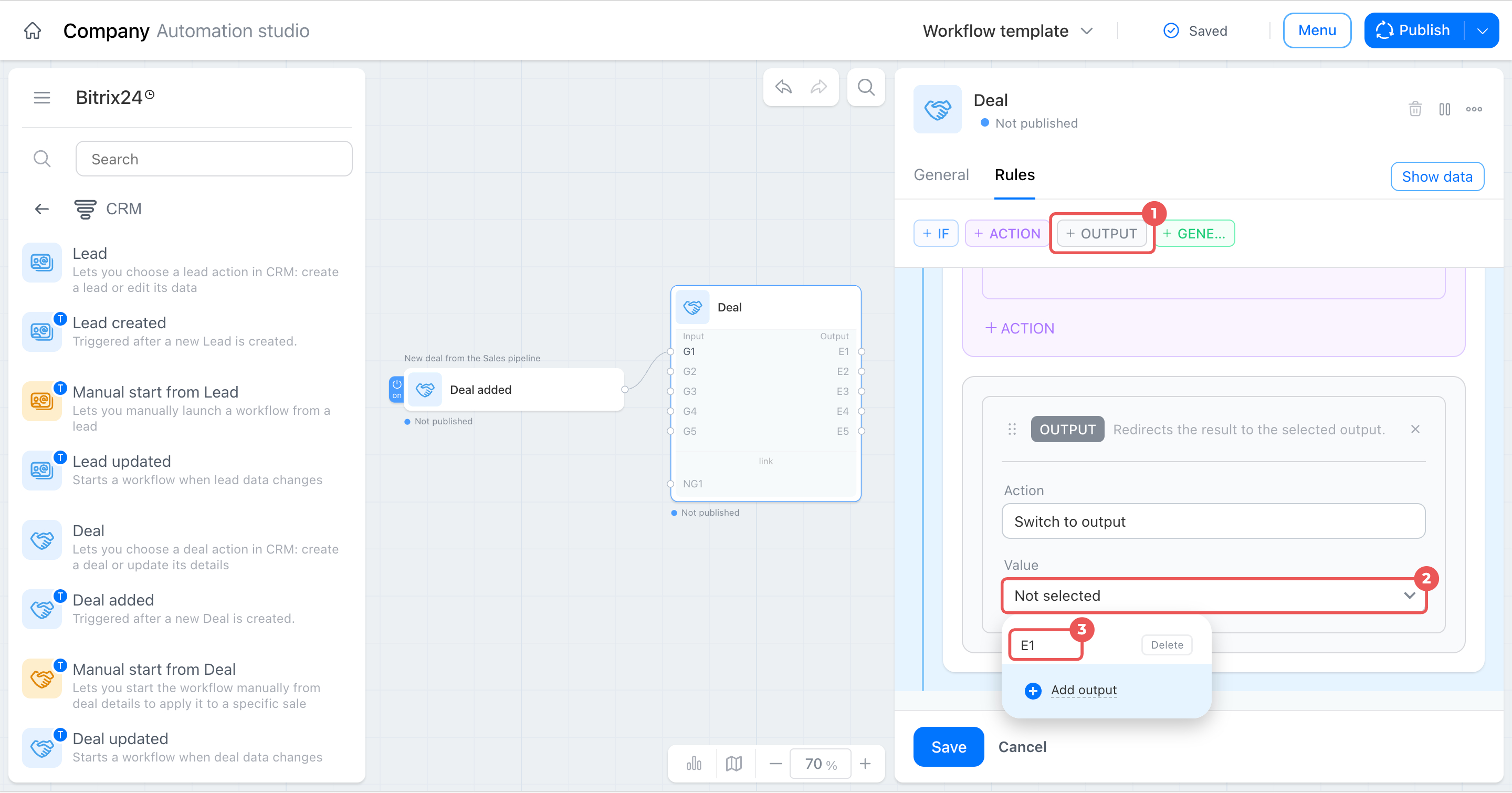
Set up the output. The node performs the actions in the group, but the branch for large deals remains incomplete until you specify where to send the result next. The output determines the next step in the workflow, such as notifying the client or performing another action.
Output E1 is created automatically with the first condition group. Select it from the list.
- Click + Output.
- In the Value field, click the drop-down list.
- Select output E1.
Step 3. Set up a group for regular deals
The branch for large deals is ready, but the node does not yet process the remaining deals. They need a separate group with its own condition, action, and output. Configure it the same way, using different values.
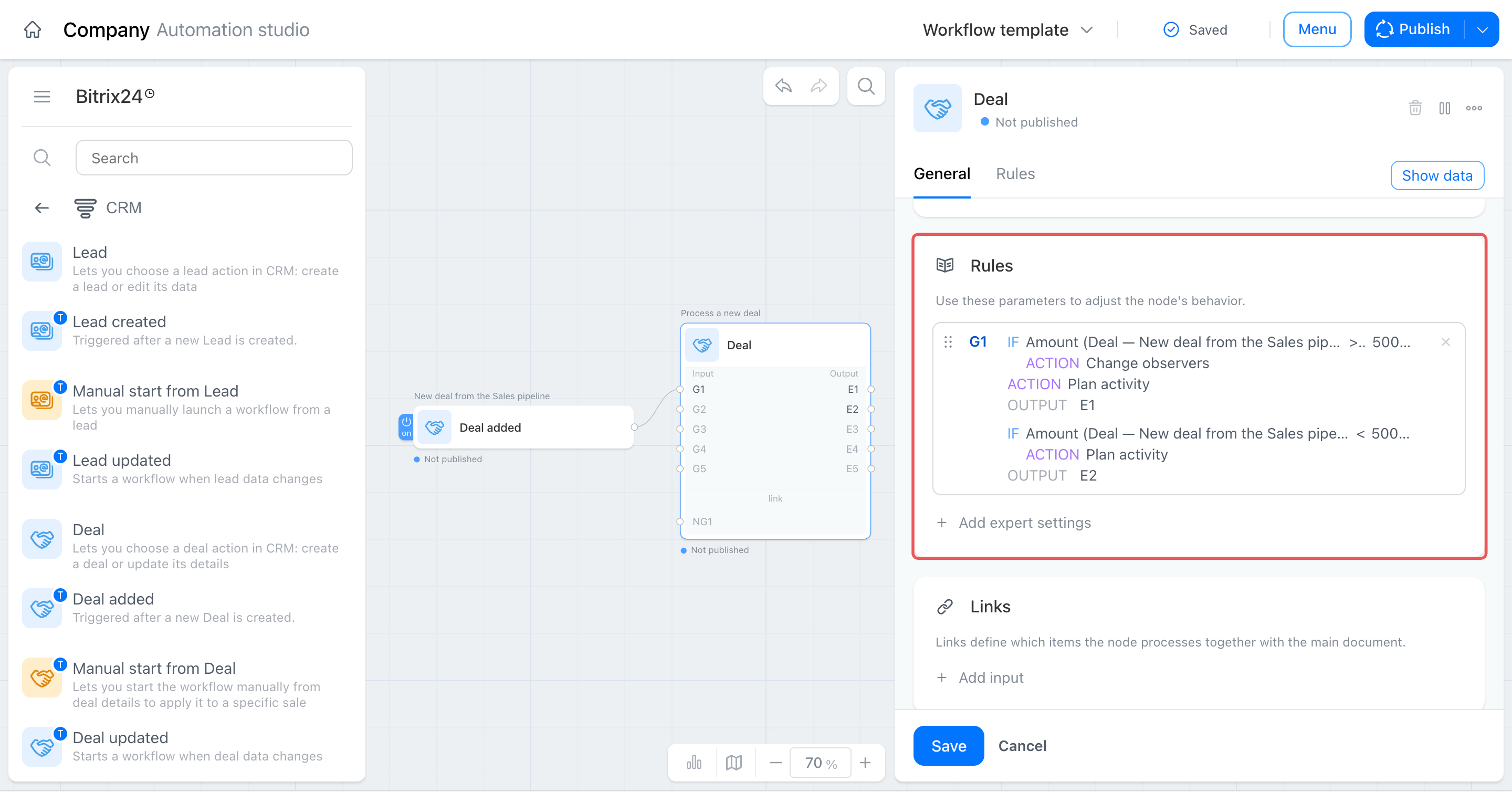
Add a condition. The second group should include all deals that do not meet the first condition—that is, deals with amounts below $50,000.
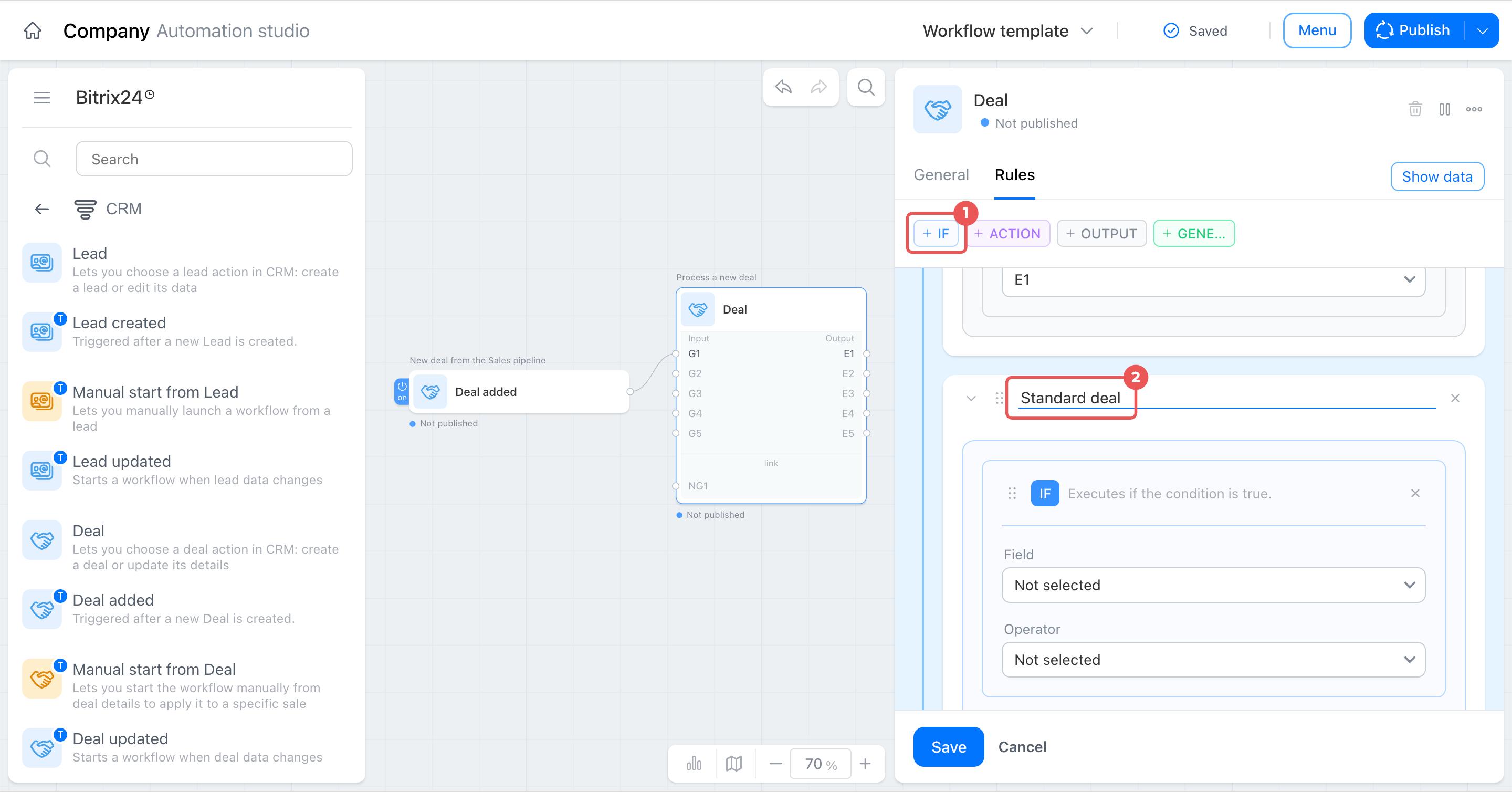
- Click + If again to create a second group. It appears in the rule list below the first group.
- Name the group Standard deal.
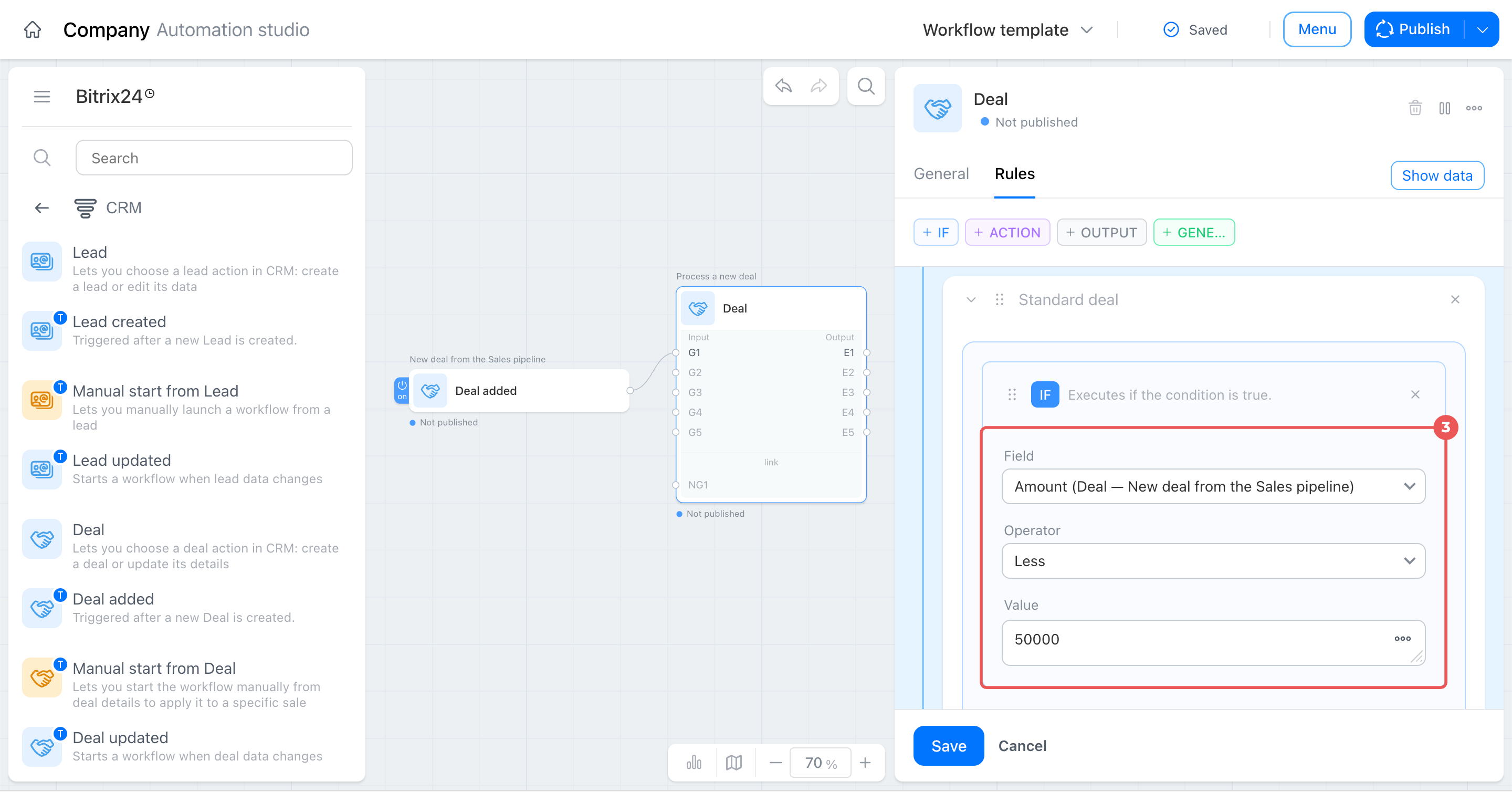
- In the condition, specify:
- The Amount field
- The Less operator
- The value
50000
Add an action. As with the first group, the action determines what happens to a deal that meets the condition.
In this example, regular deals have only one action: schedule an activity for the employee. The supervisor does not receive a notification. You can also add other actions. For example, notify a department chat or send an email to the responsible person. Choose the actions that best fit your workflow.
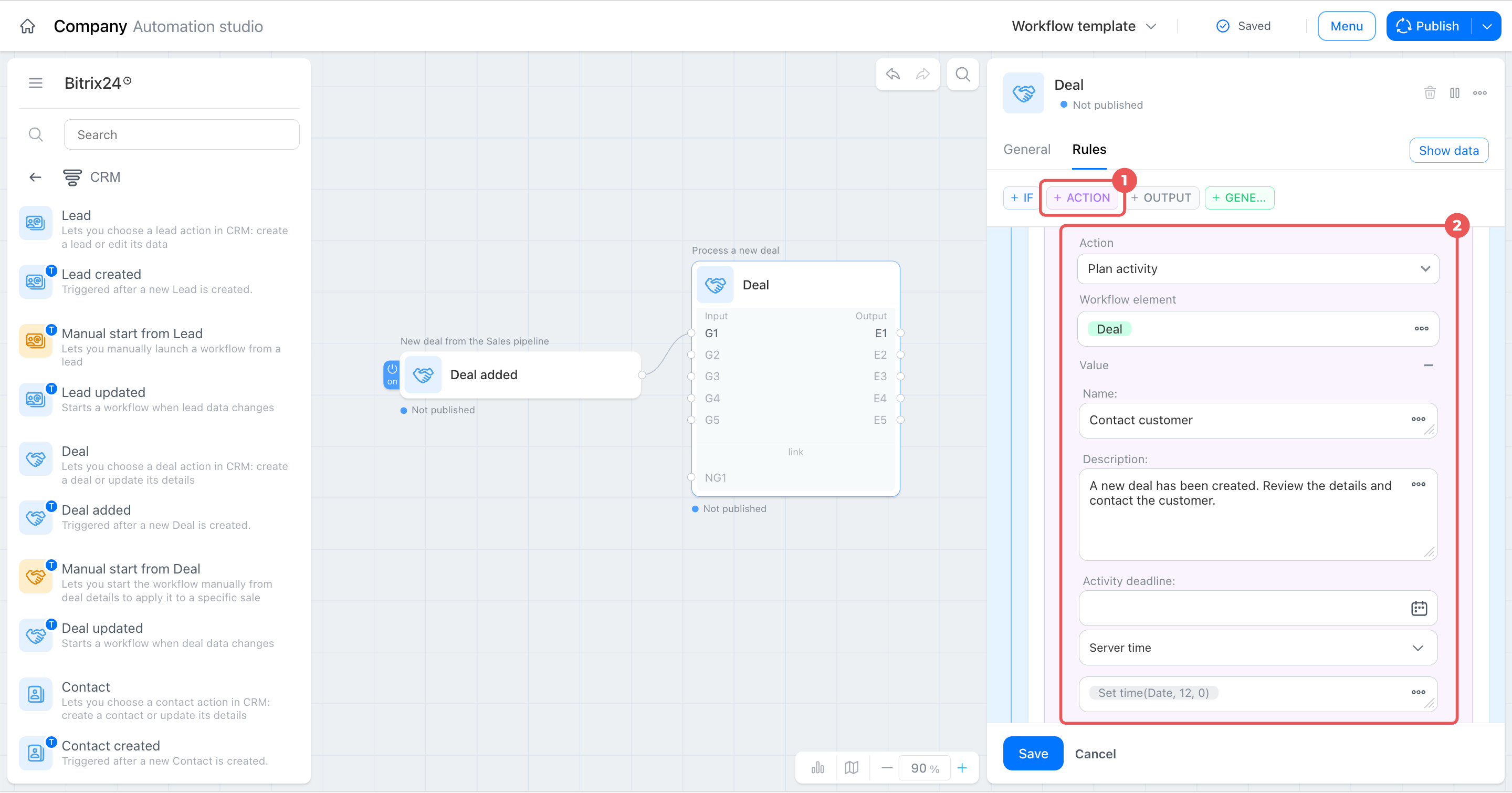
- Click + Action.
- Click the Action field and select Plan activity. Enter the activity name and description, and set a deadline.
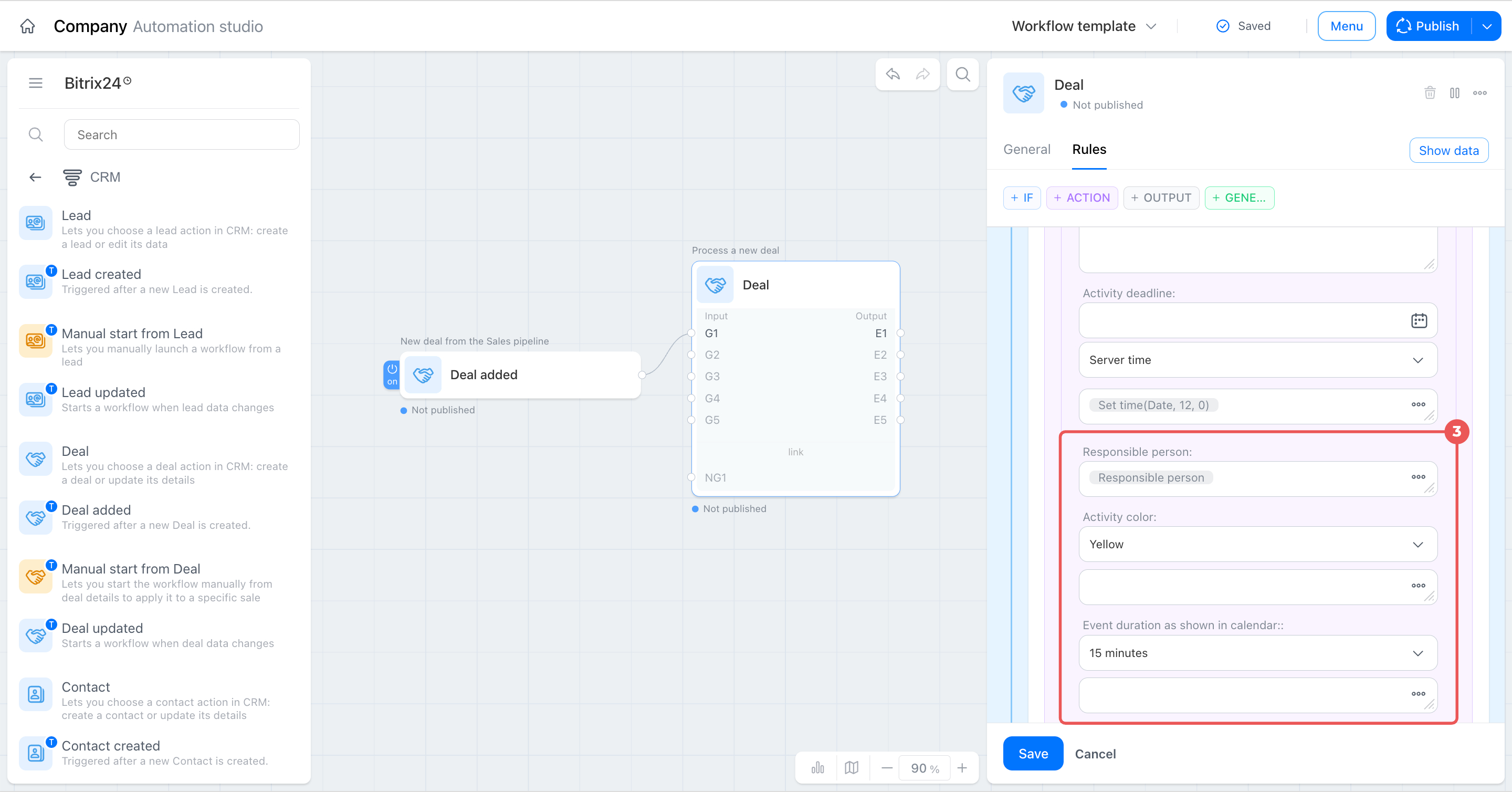
- Set the responsible person, activity color, and duration. Select the responsible person from the deal data instead of entering it manually.
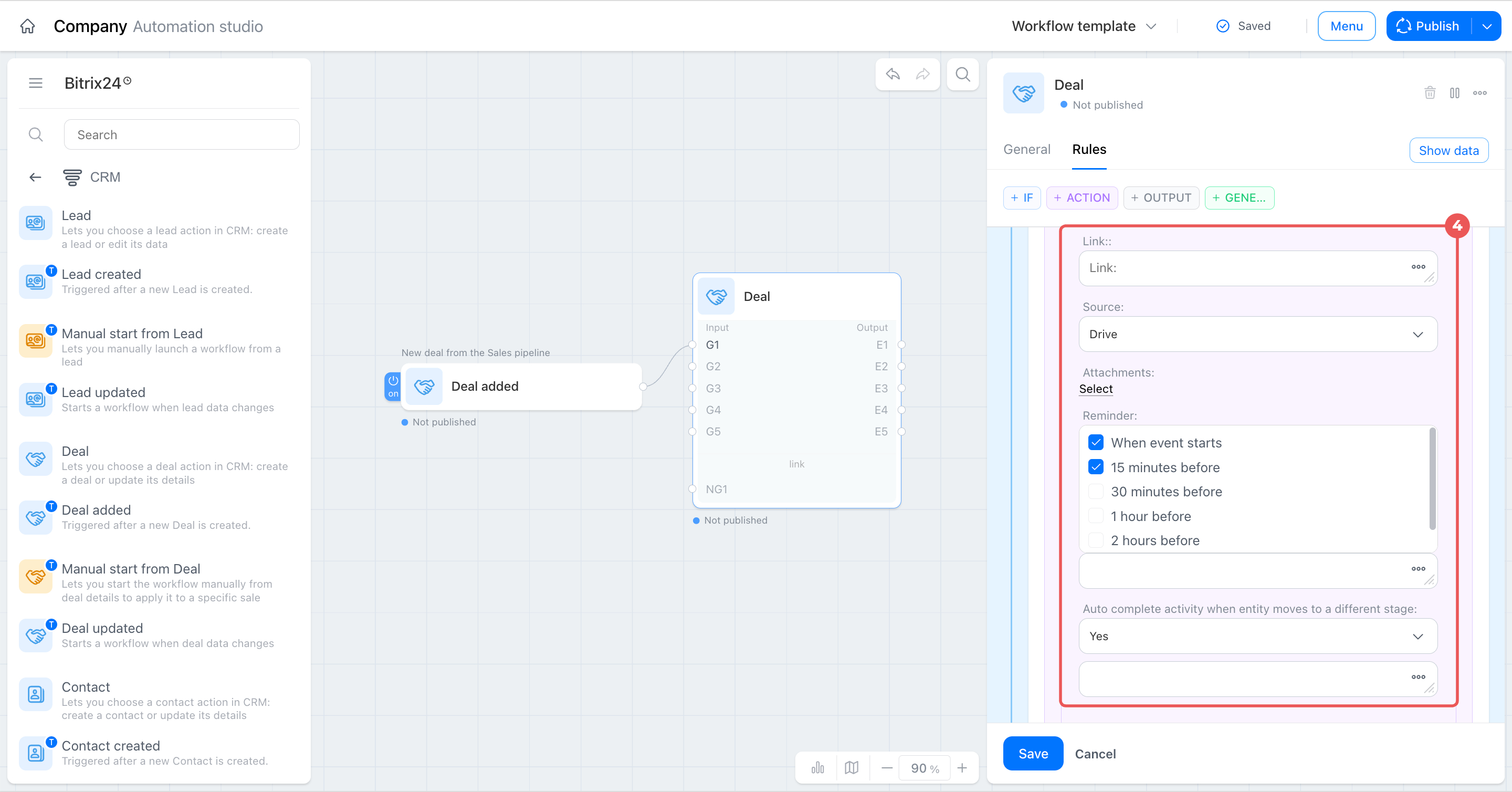
- Complete the remaining fields, including the link, location, reminders, and automatic completion.
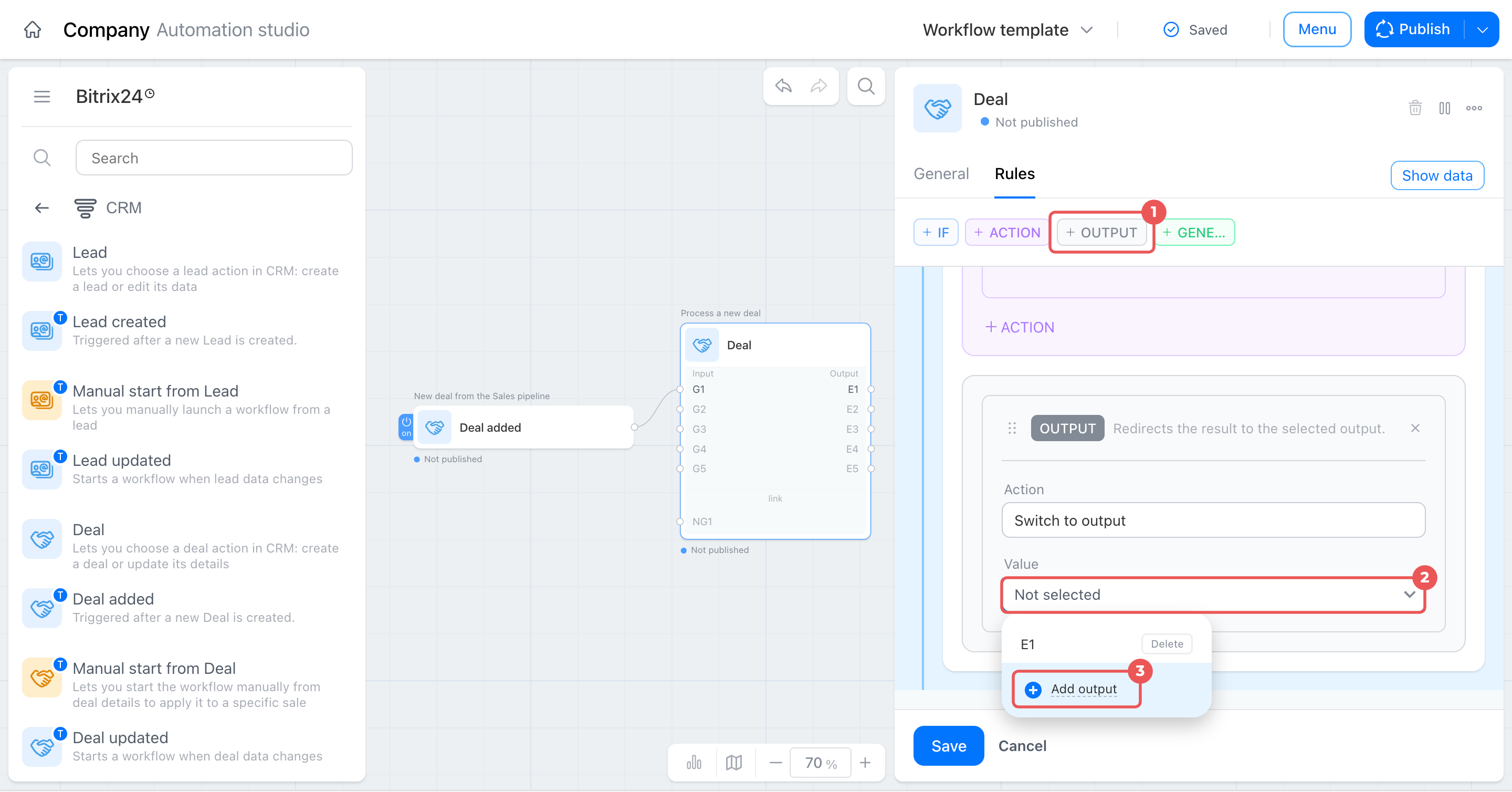
Set up the output. As with the first group, you need an output to pass the result through the workflow. For regular deals, use a separate branch with its own value. No output is created automatically for the second and later groups, so create one manually.
- Click + Output.
- Click the Value field.
- Select Add output.
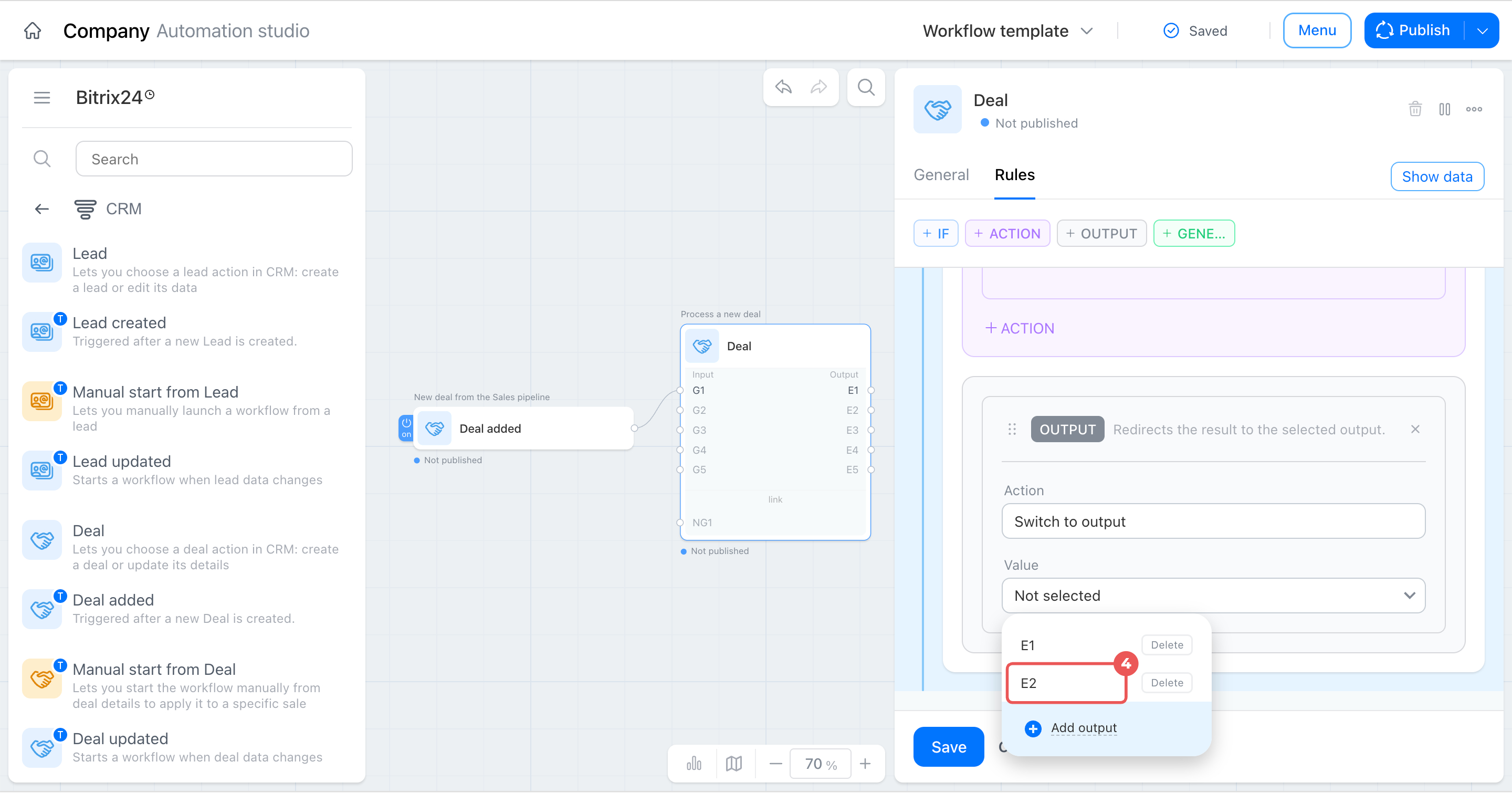
- Select E2 so regular deals follow a separate branch and do not overlap with large deals.
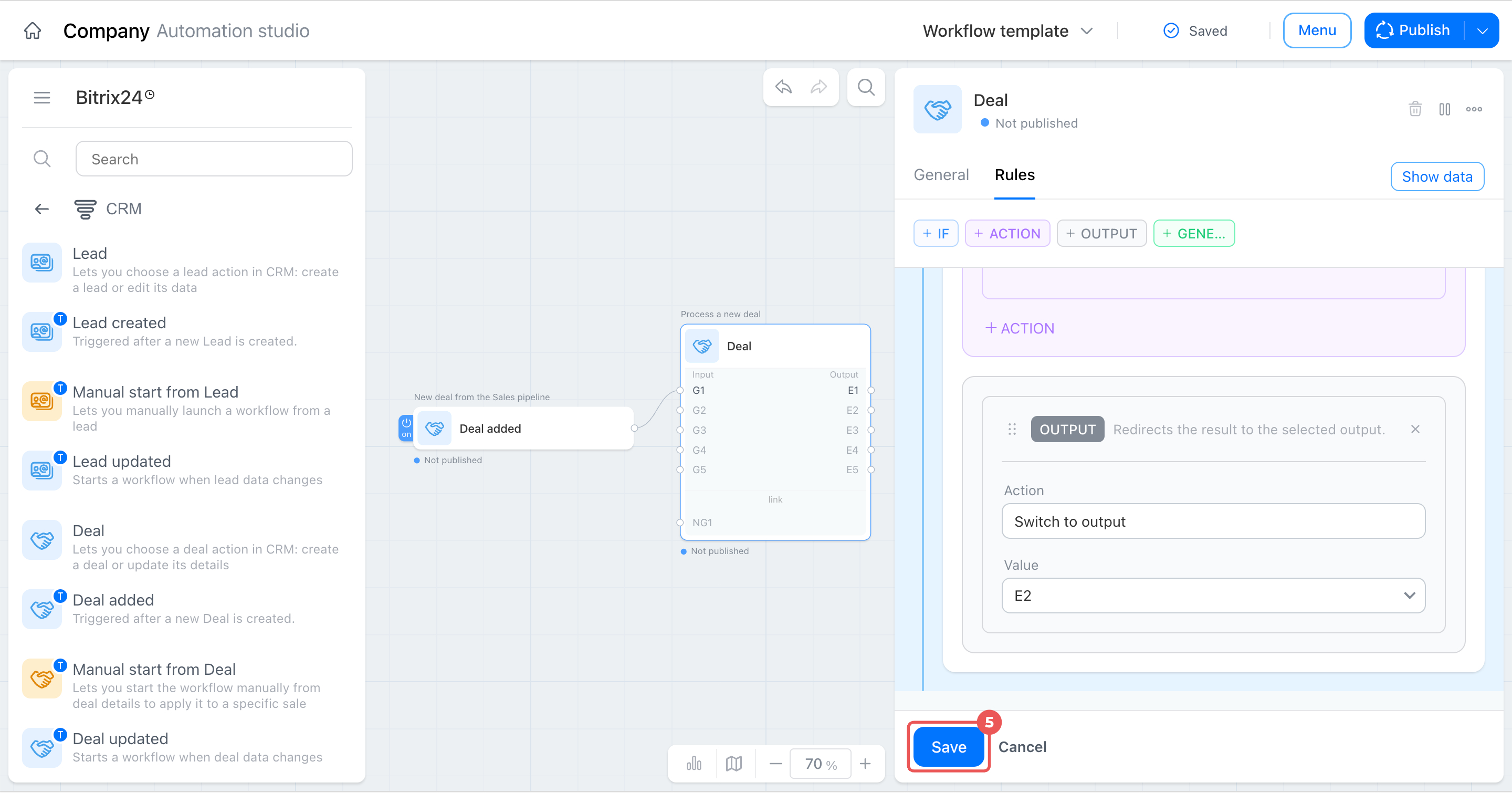
- Click Save.
On the General tab, both groups appear in the brief list, making it easy to review the entire logic at once.
Step 4. Add client notifications
The Deal node divides the process into two branches, but neither branch continues because outputs E1 and E2 are not connected. Add a separate node to each output to send a notification to the client.
In this example, the two branches use different channels: SMS for large deals and email for standard deals. This is only one possible setup.
Large deals usually require a faster response, and clients are more likely to see an SMS quickly. An email is sufficient for standard deals because clients can read it without urgency.
Using SMS in Bitrix24
Ways to connect mailboxes in Bitrix24
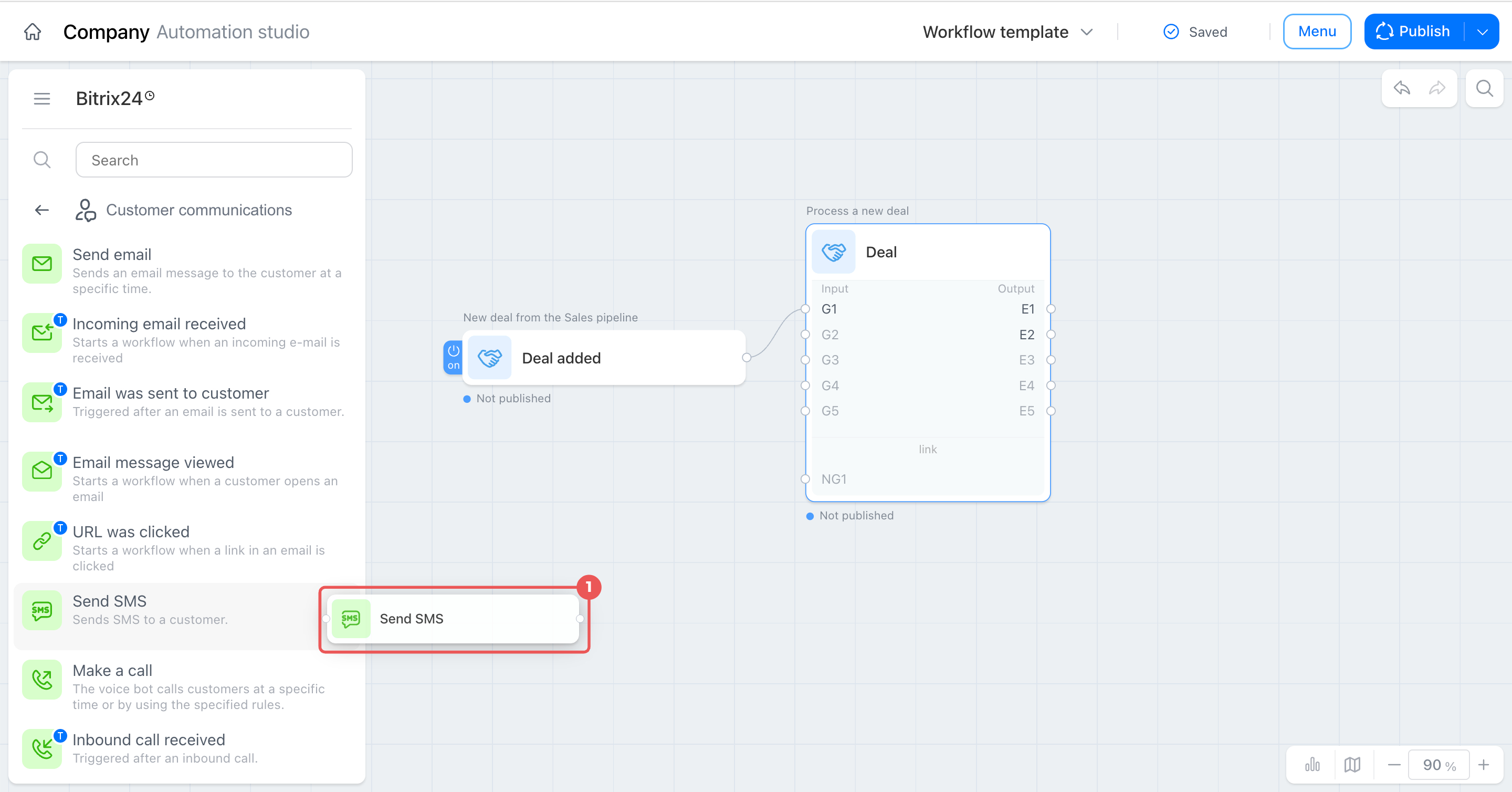
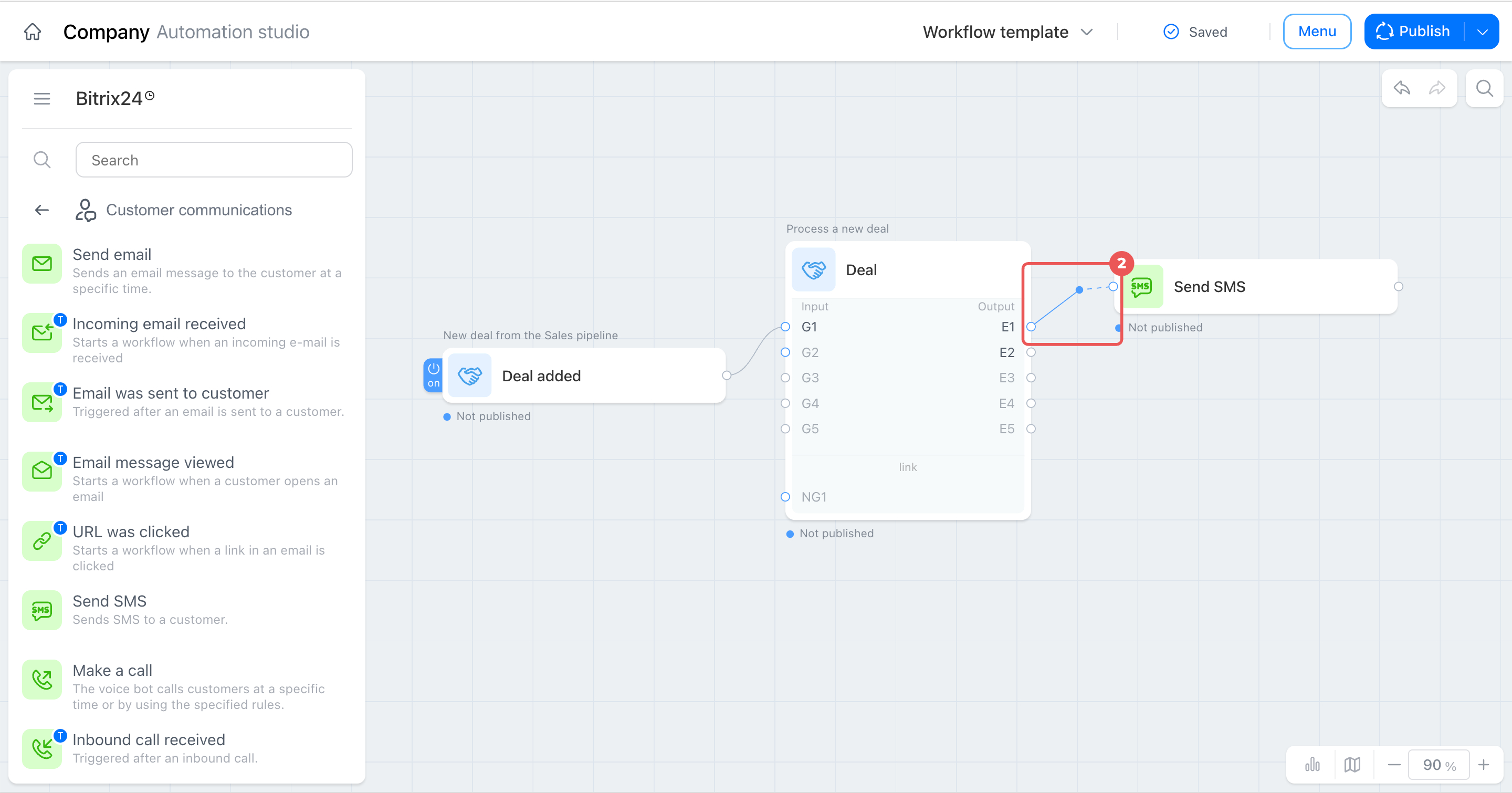
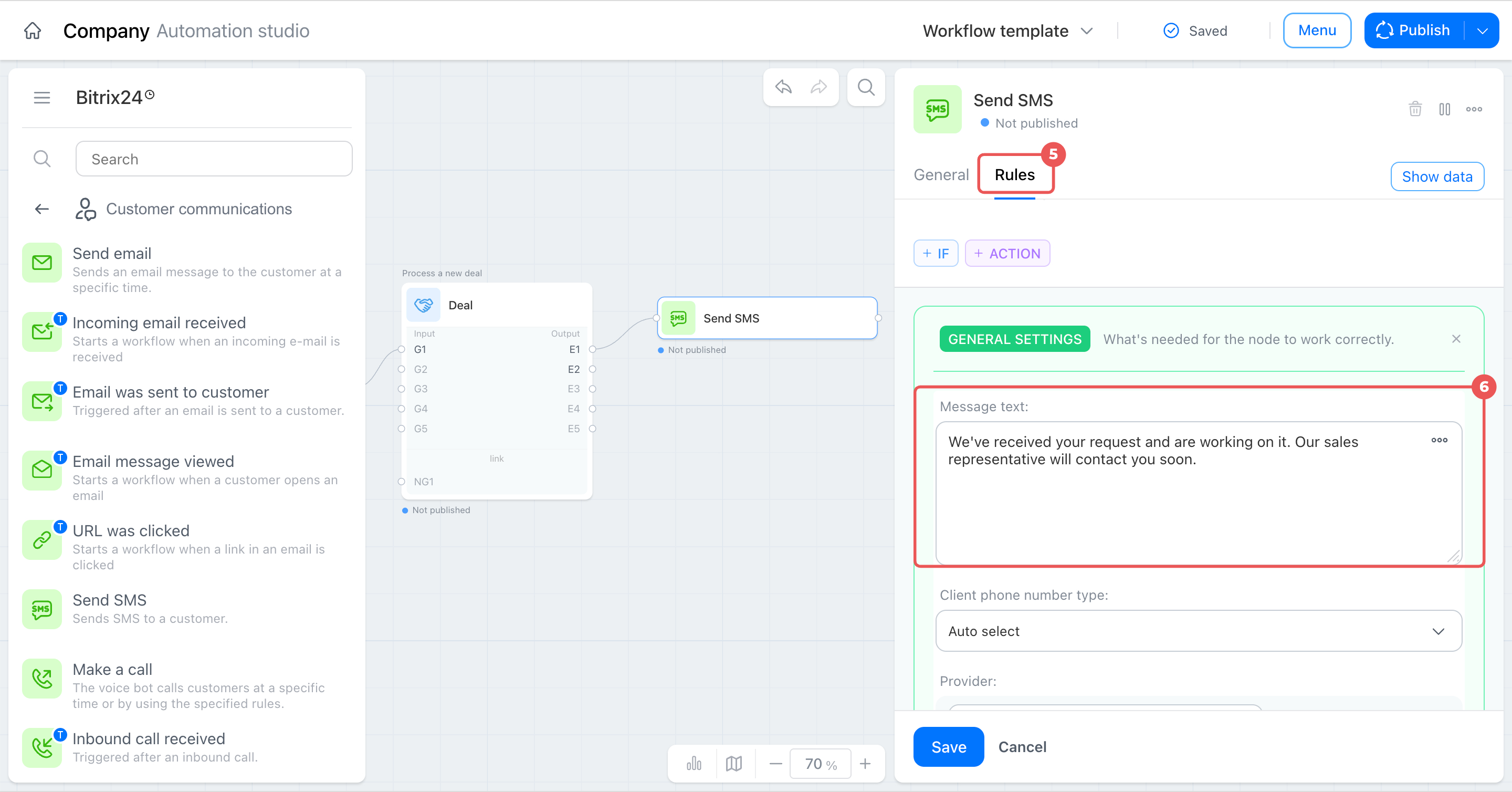
Set up SMS for the large deal. Connect this node to output E1 so the message is sent only through the large-deal branch.
- Find the Send SMS node in the library and drag it onto the canvas.
- Connect output E1 of the Deal node to this node’s input.
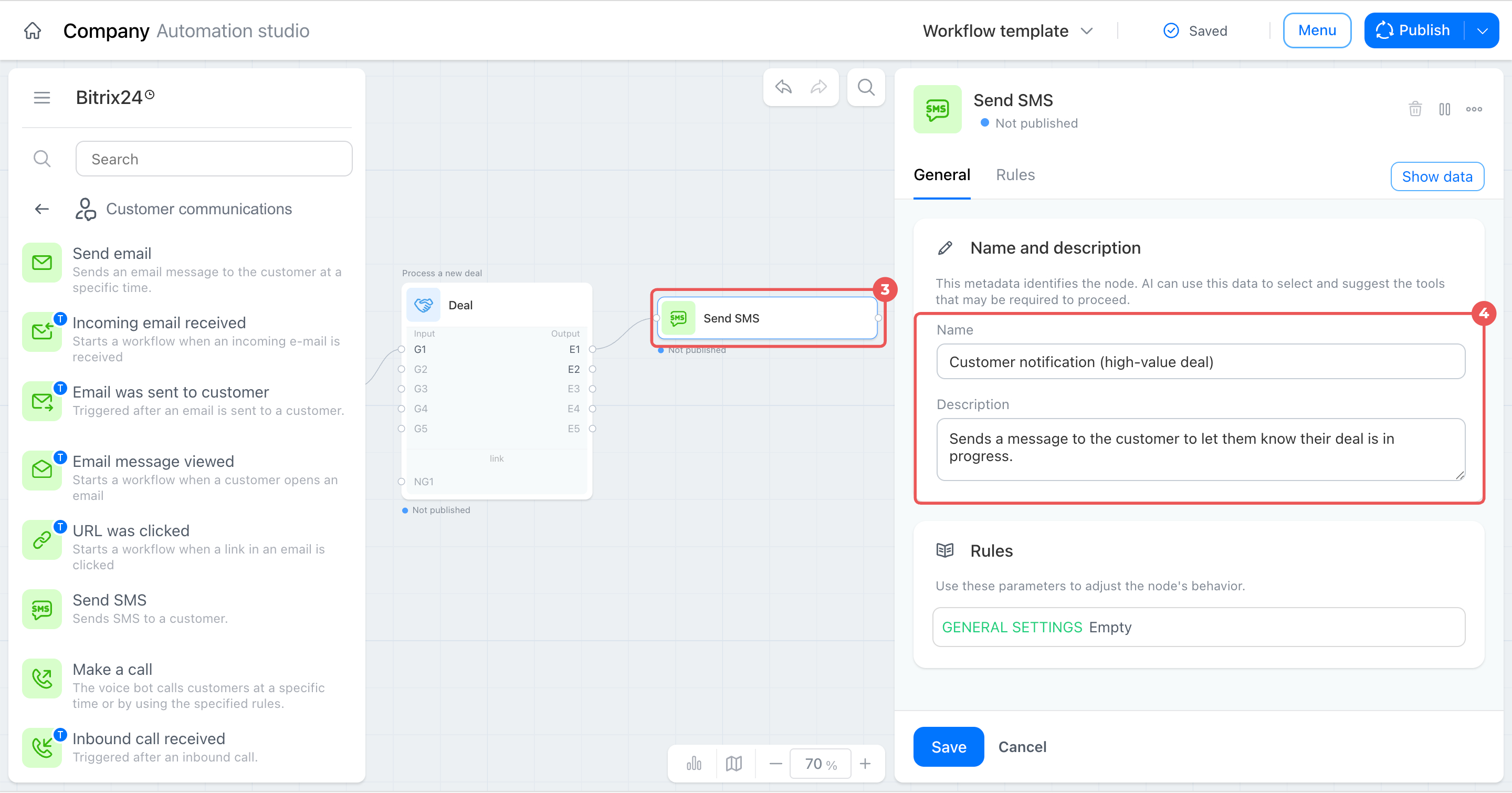
- Click the node to open its settings.
- On the General tab, rename it, for example, Customer notification (high-value deal), and describe its purpose. This will help you distinguish it if you add another SMS node later.
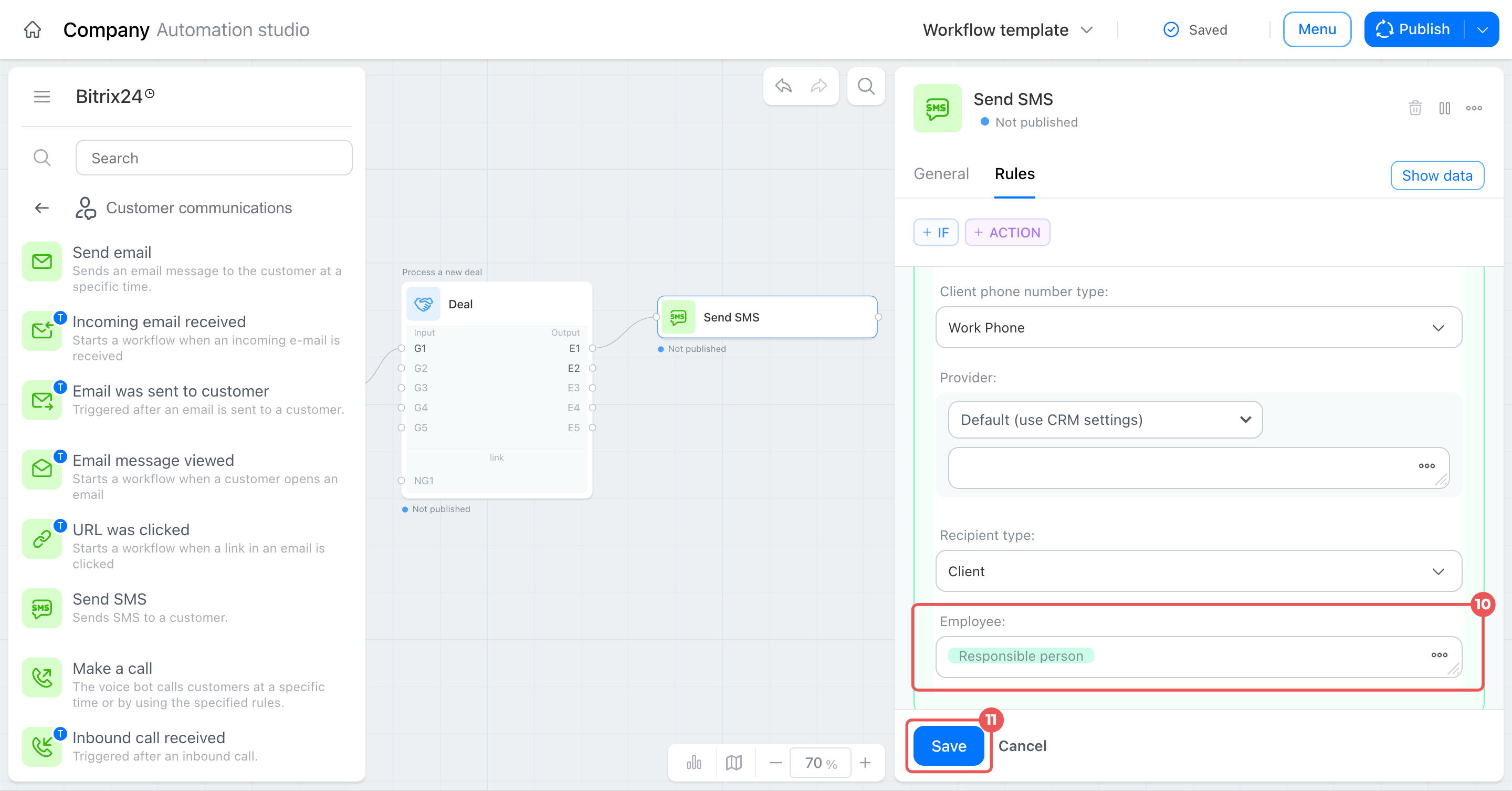
- Open the Rules tab.
- Enter the message text.
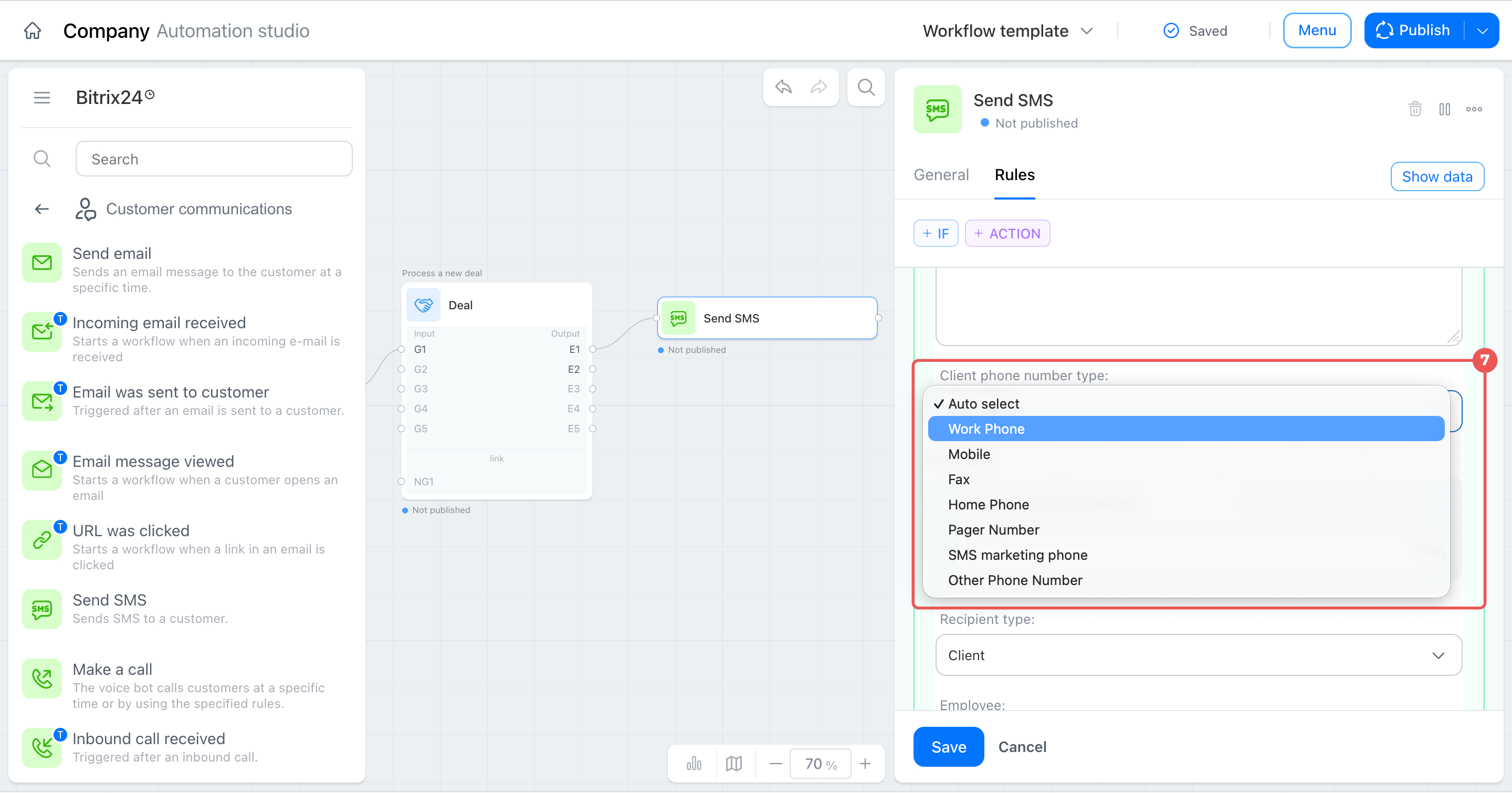
- Select the client’s phone number type, such as Work Phone.
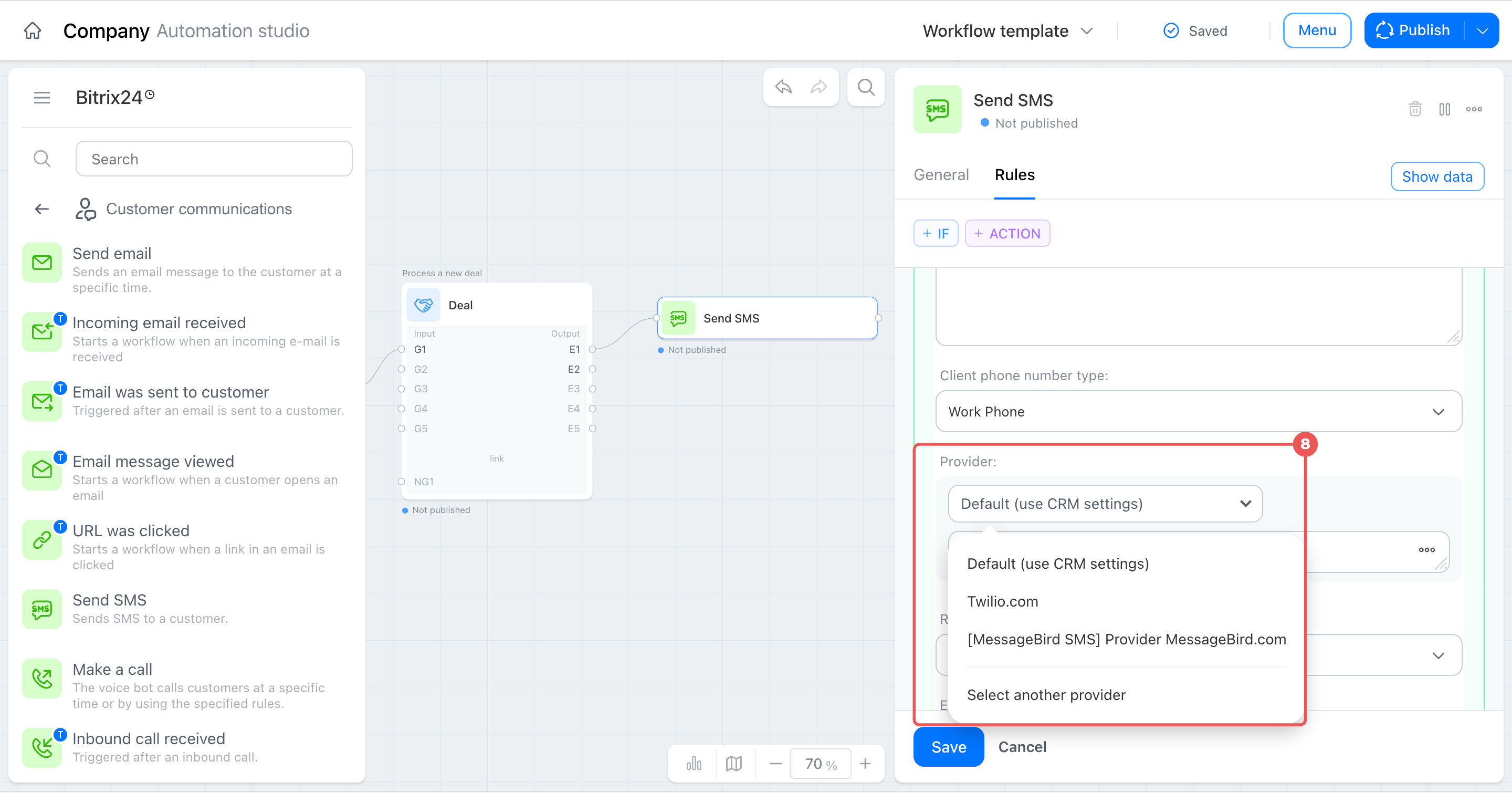
- Select the provider.
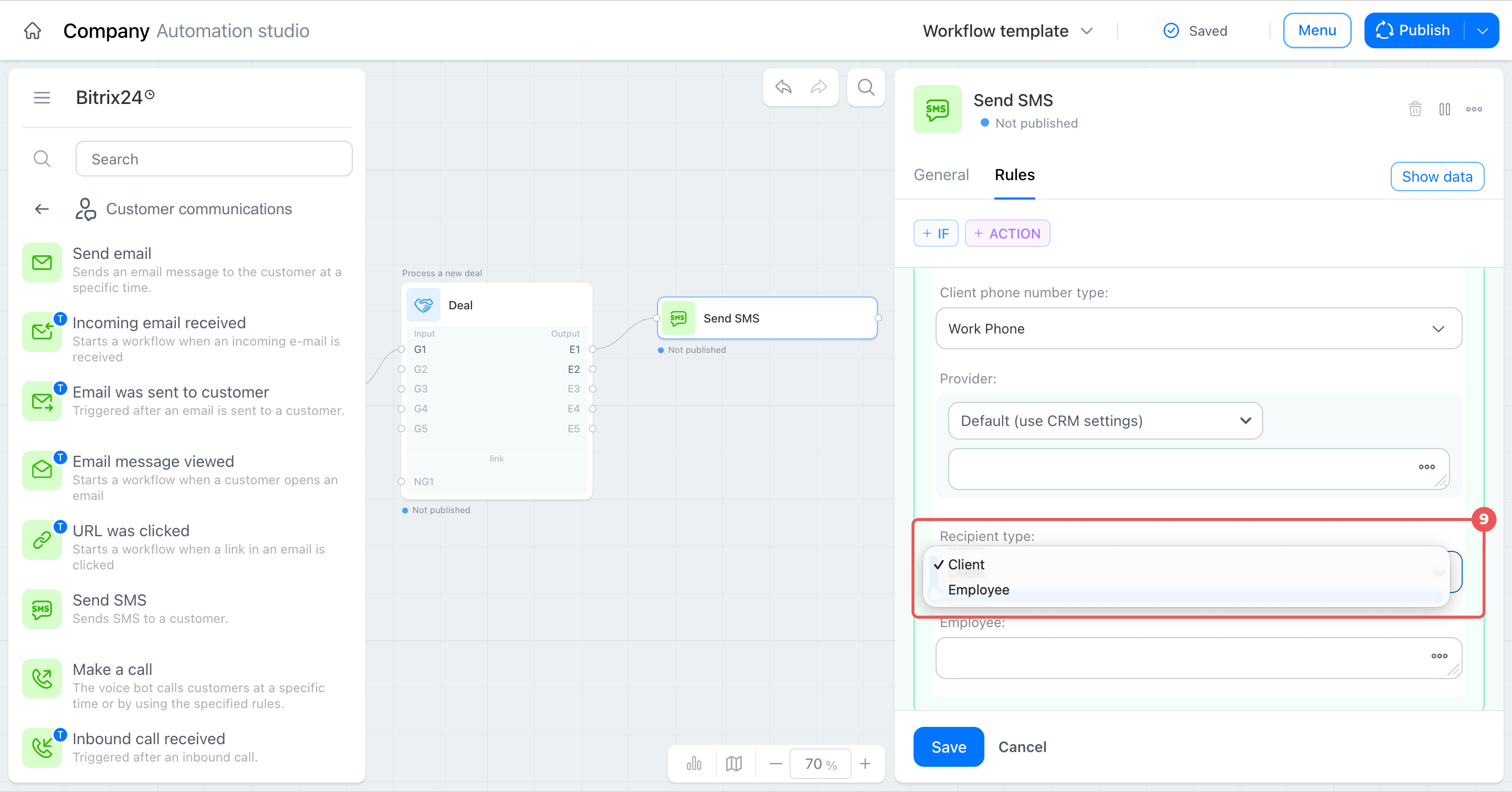
- Leave the recipient type as Client so the message goes to the deal’s client rather than an employee.
- In the Employee field, select the responsible person from the deal data.
- Click Save.
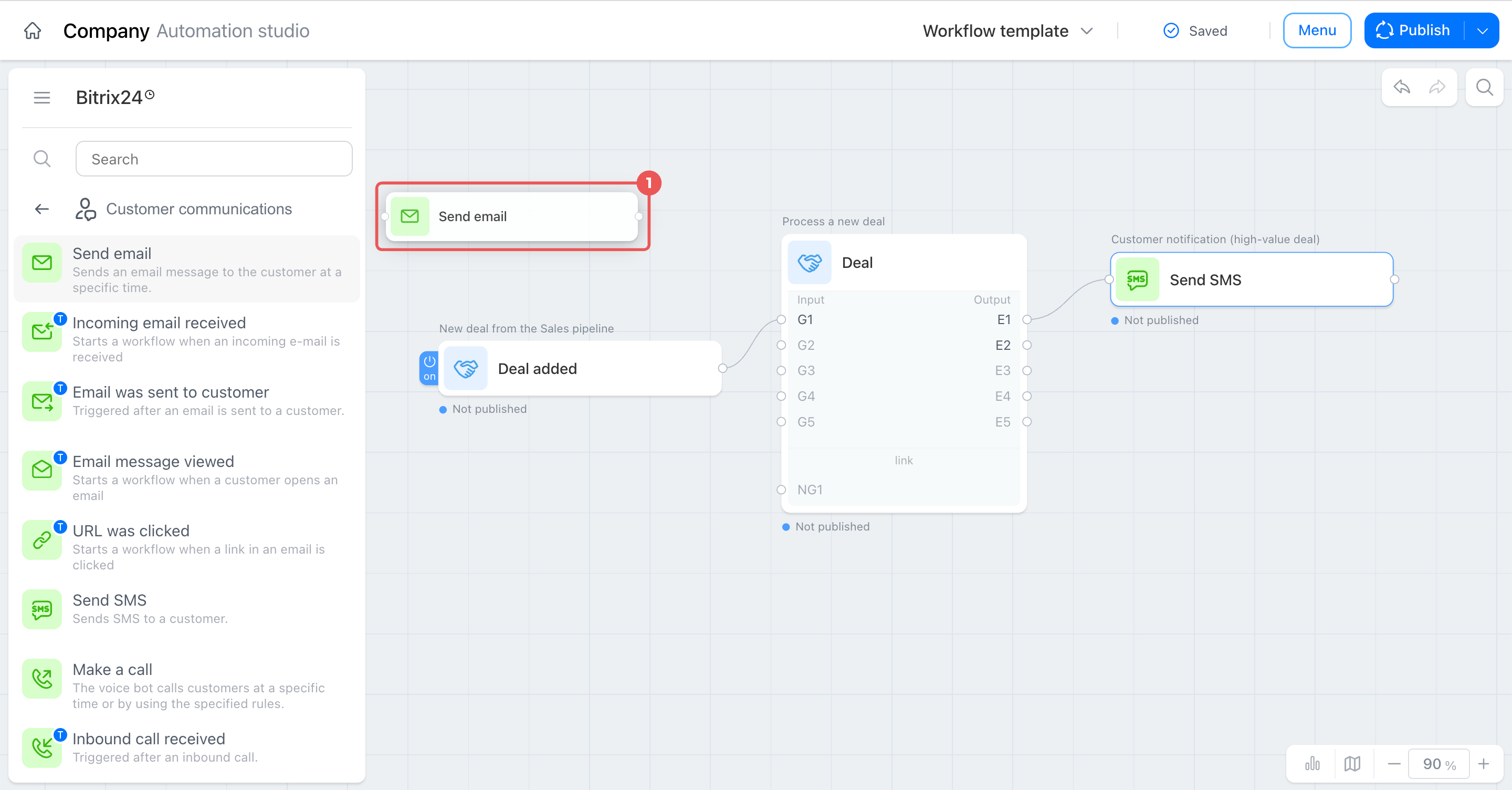
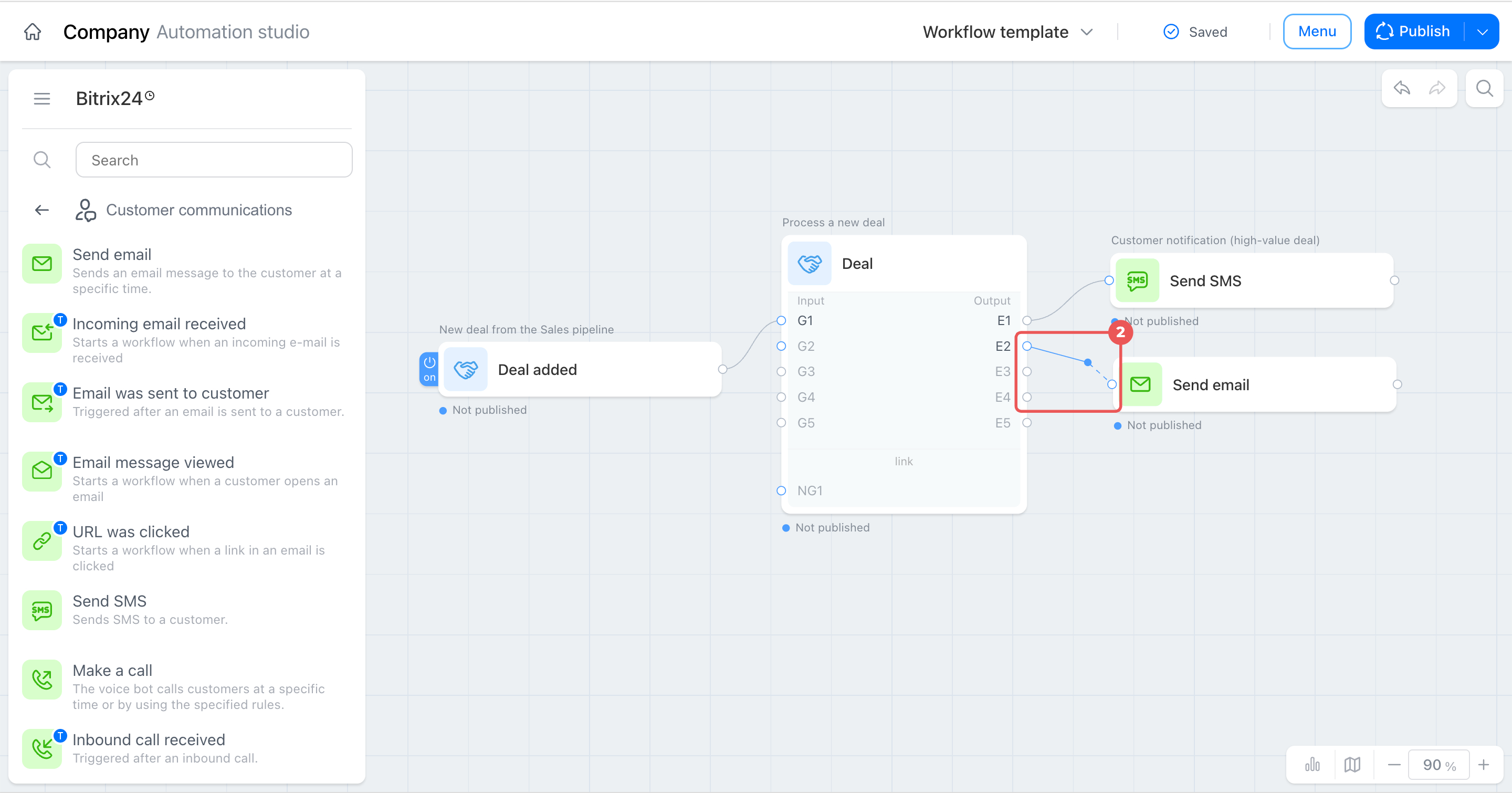
Set up the email for regular deals. Connect this node to output E2 so the email is sent only along the regular deals branch.
- Find the Send email node and drag it onto the canvas.
- Connect it to output E2.
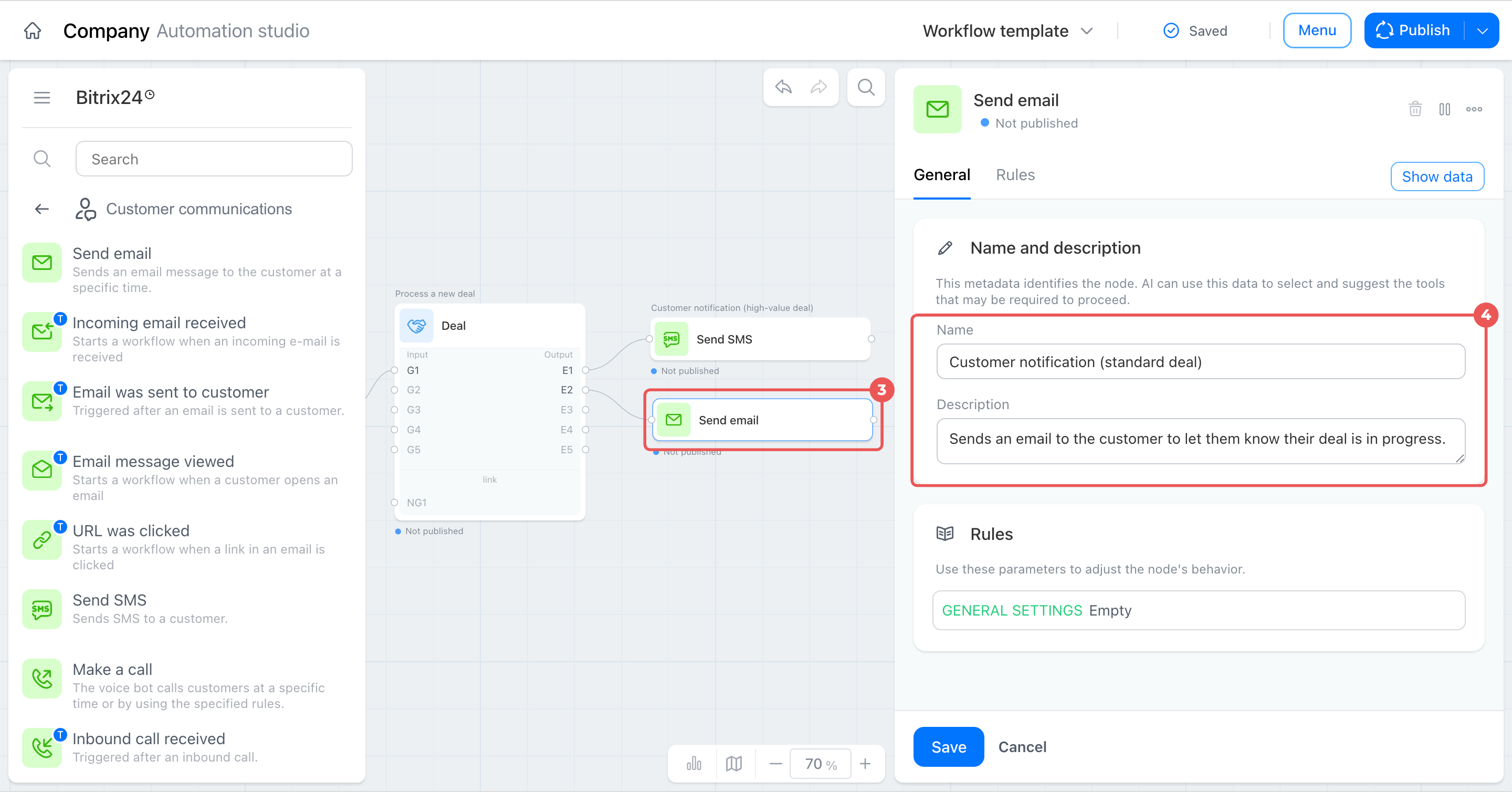
- Click the node to open its settings.
- Rename it, for example, Client notification (standard deal), and describe its purpose.
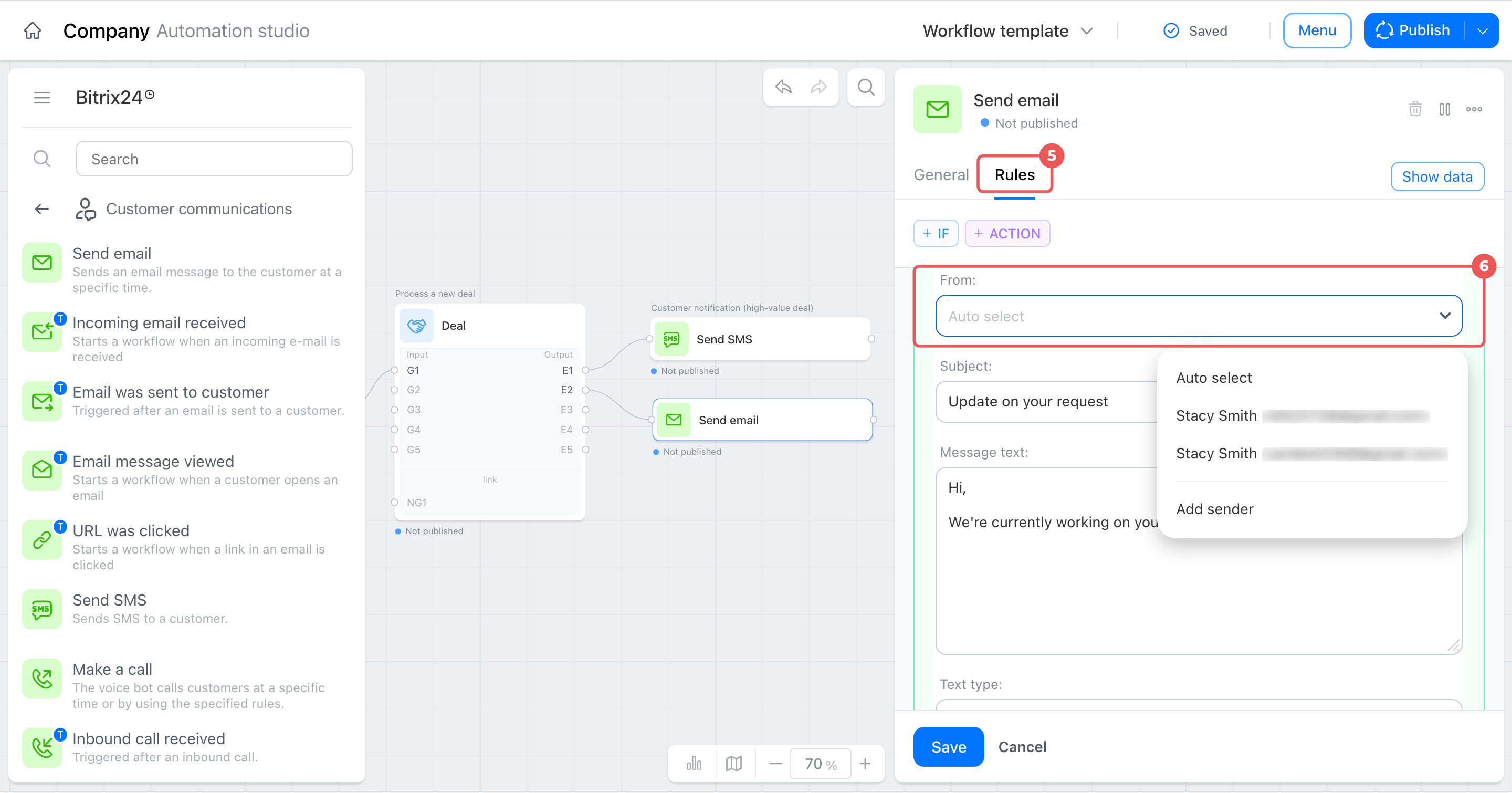
- Open the Rules tab.
- Complete the From field: select the email address to use for sending notifications.
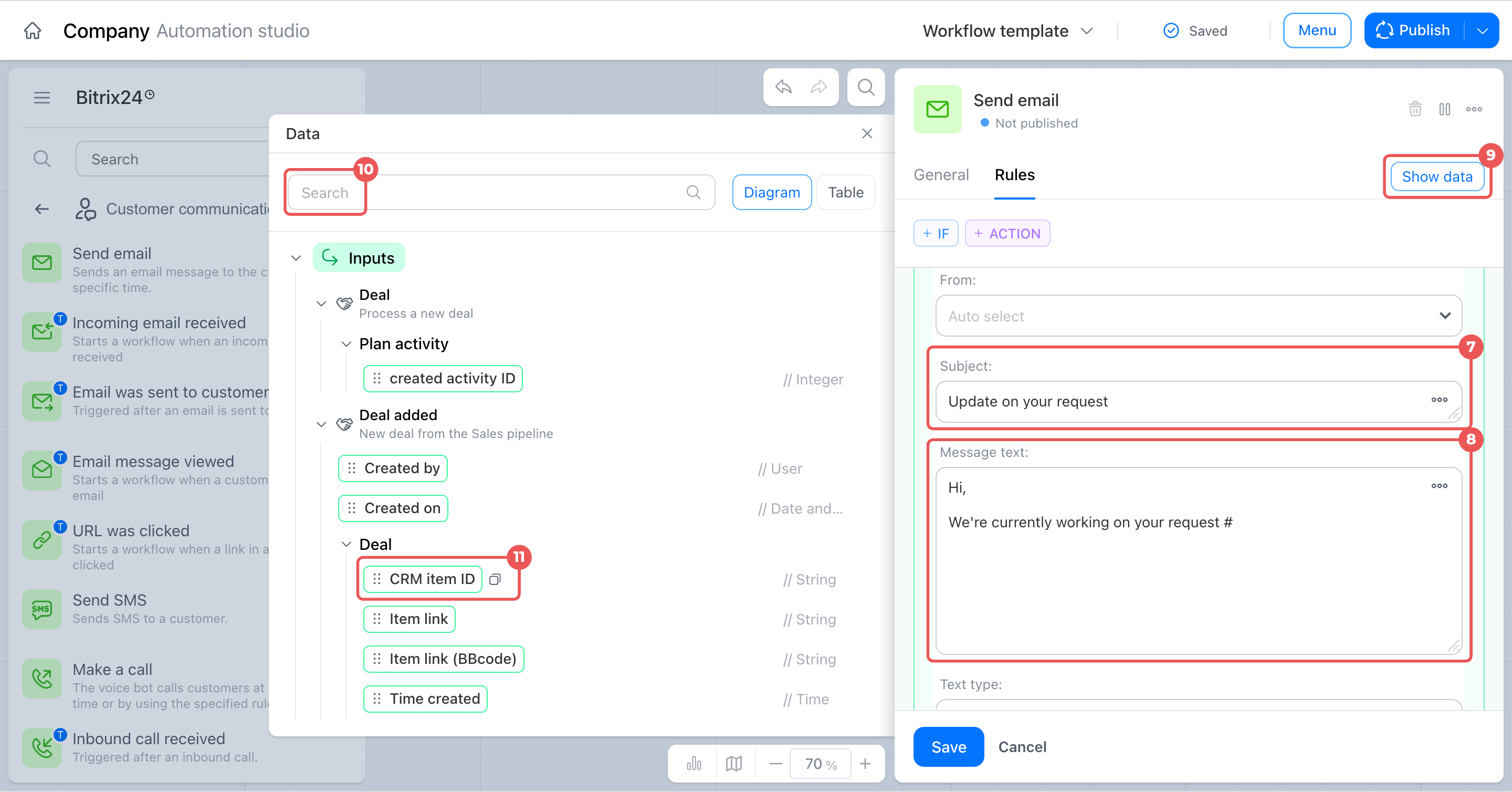
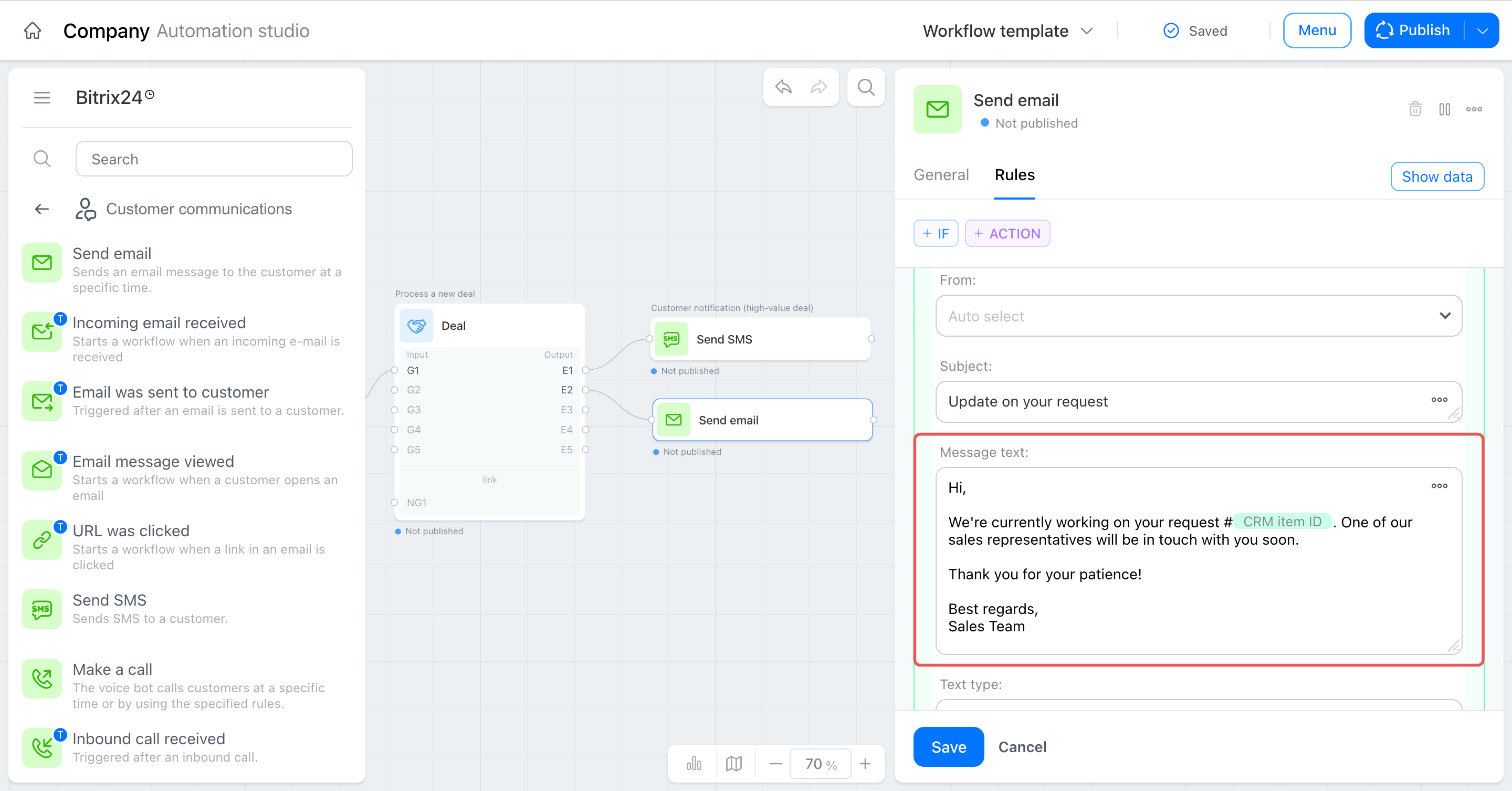
- Enter the email subject and body.
- To insert deal data into the email, click Show data, find the required field, and add it to the email body. Copy it using the copy icon or drag it directly into the text. The value is filled in automatically from the deal data.
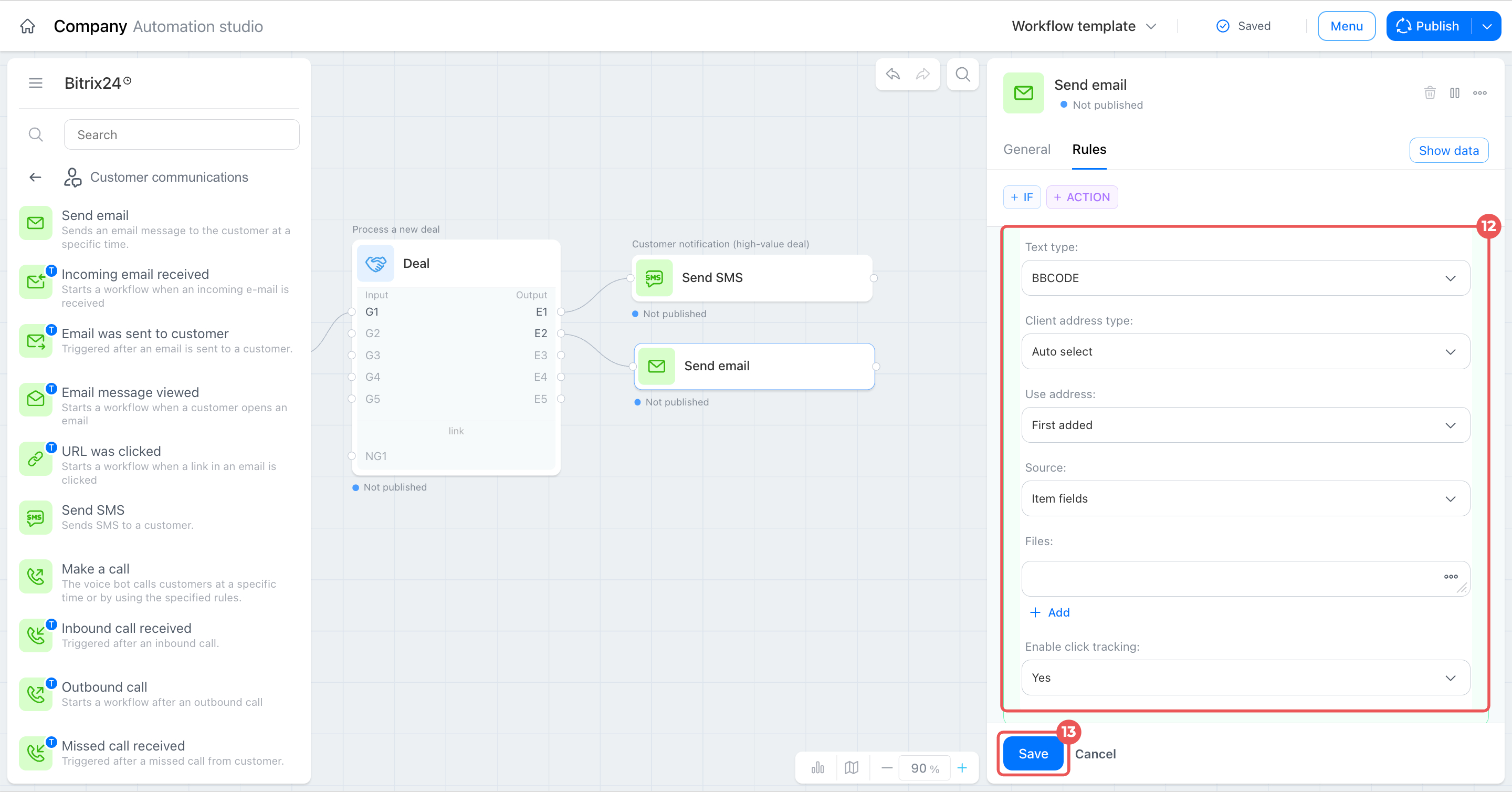
- Check the remaining settings: text type, client address type, placement, and so on.
- Click Save.
Step 5. Publish the template
The configured workflow remains in draft and does not apply to actual deals until you publish the template.
Click Publish in the upper-right corner of the editor.
After publication, the workflow runs for new deals in the selected pipeline.
In brief
- The trigger starts the flow and passes data to the next node. Connect its output to input G1 of the Deal node.
- The workgroup condition checks a deal field, in this example, the amount, and determines which activities to run and where to route the result.
- The node checks condition groups in order, from top to bottom, and stops at the first match. Place specific conditions above general ones.
- Each workgroup ends with an output. Without it, the next node does not receive data even if the condition matches.
- Insert values from deal data using the Data panel instead of entering them manually, so the activity or email automatically adjusts to the specific deal.