
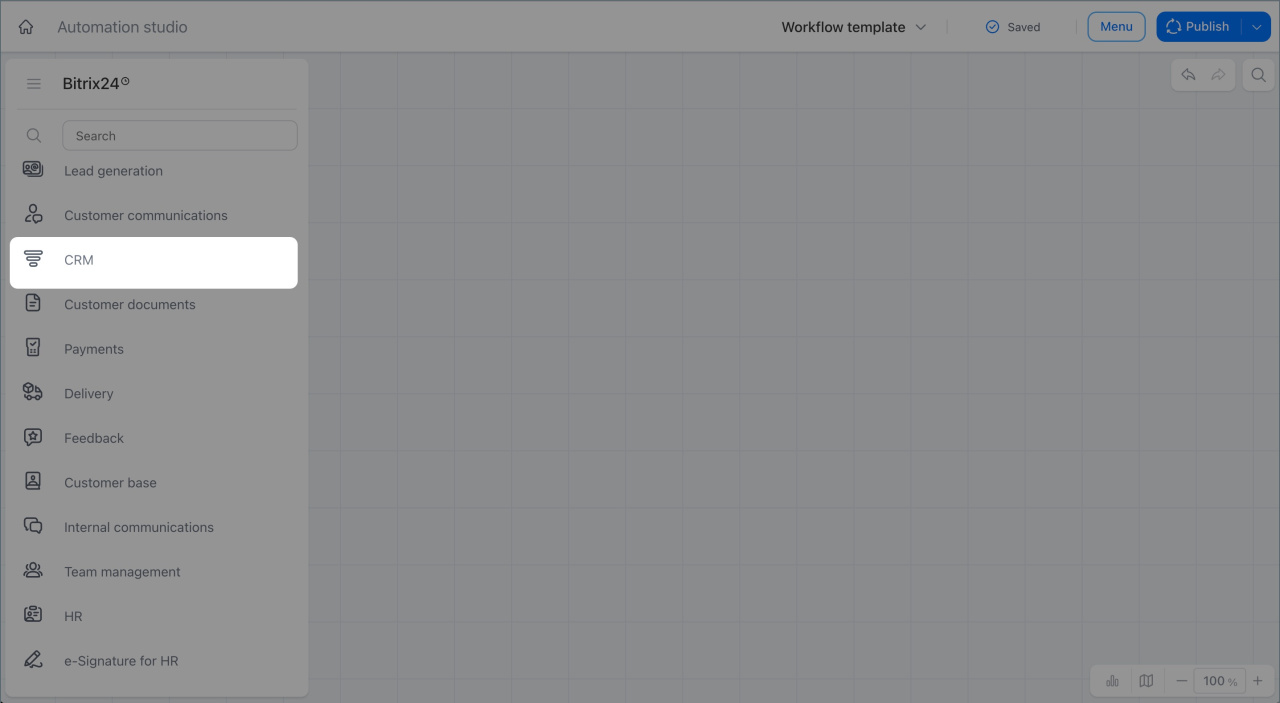
The Sales and CRM workgroup nodes work with CRM items such as leads, deals, companies, contacts, estimates, invoices, and SPAs.
With these nodes, a workflow can create and update CRM records, schedule activities, pass data between linked items, and, for some nodes, assign responsible users and followers. This removes manual work. Managers do not need to move data between forms, update statuses, or set reminders on their own.
In the new workflow builder, these nodes are called actions. They run after a trigger node starts the workflow. For example, a workflow can start after a CRM form submission on a website or after a user launches it manually from a form.
In this article:
To learn about trigger nodes that start a workflow when CRM fields change or when a workflow is launched manually from a form, see.
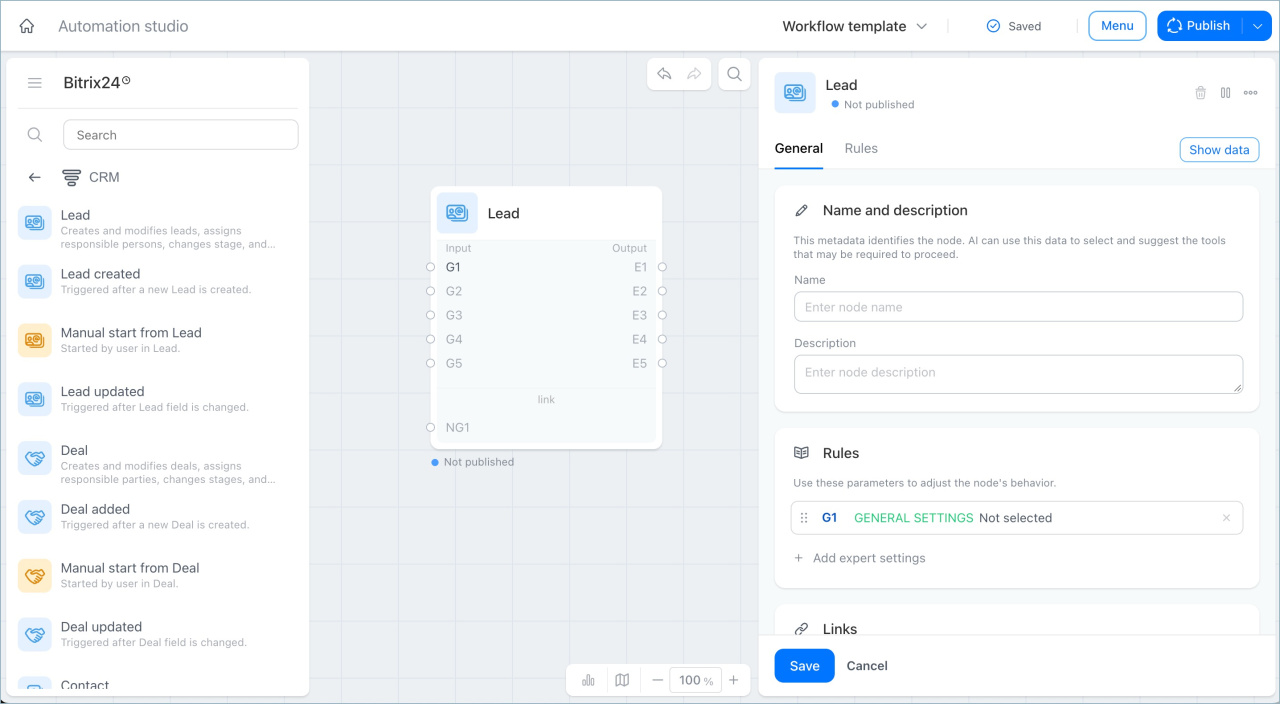
Lead node
This node works with leads in a workflow. Available actions:
- Create lead — creates a new lead and fills it with workflow data.
- Schedule activity — creates an activity and links it to the lead. For example, a call, a meeting, or document preparation.
- Update lead — updates lead fields such as status, source, or priority.
- Update linked company — updates the linked company. For example, the company name, details, or industry.
- Update linked contact — updates the linked contact. For example, the phone number, job title, or email address.
Examples:
- A store adds a request form to its website. The workflow uses the Track CRM form submission trigger. When a client submits the form, the Schedule activity action runs. Bitrix24 adds an activity to the lead Timeline right away: call the client within one hour. Managers no longer need to create an activity manually for every new request.
- The workflow uses the Track CRM form submission trigger. When a client submits the form, the Update lead action runs. Bitrix24 sets the Source field to Website and the priority to High. The manager can open the lead and see where the client came from without filling in the fields manually.
Deal node
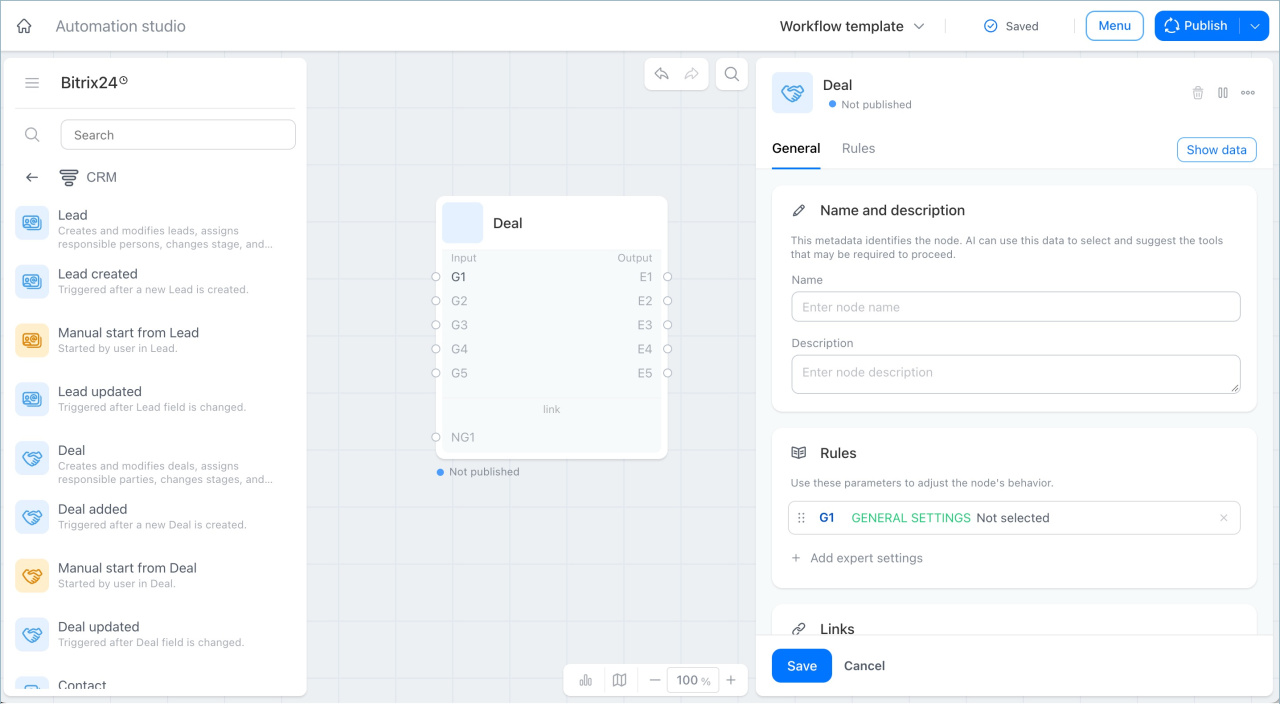
This node works with deals in a workflow. Available actions:
- Create deal — creates a new deal and fills it with workflow data.
- Schedule activity — creates an activity for the deal. For example, a call, a meeting, or document preparation.
- Update deal — updates deal fields, such as the stage.
- Change responsible — assigns a new responsible user to the deal.
- Update followers — adds, replaces, or removes followers in the deal.
Examples:
- In this company, deals at the Negotiation stage are handled by a senior manager who discusses terms in detail and works with the client directly. The workflow uses the Deal field changed trigger. When a deal moves to the Negotiation stage, the Change responsible action runs. Bitrix24 reassigns the deal to the senior manager.
- A client pays an invoice linked to a deal. The workflow uses the Track invoice payment trigger. The Update deal action runs. Bitrix24 moves the deal to the Paid stage. Managers do not need to find the deal manually and move it through the pipeline after payment.
Company node
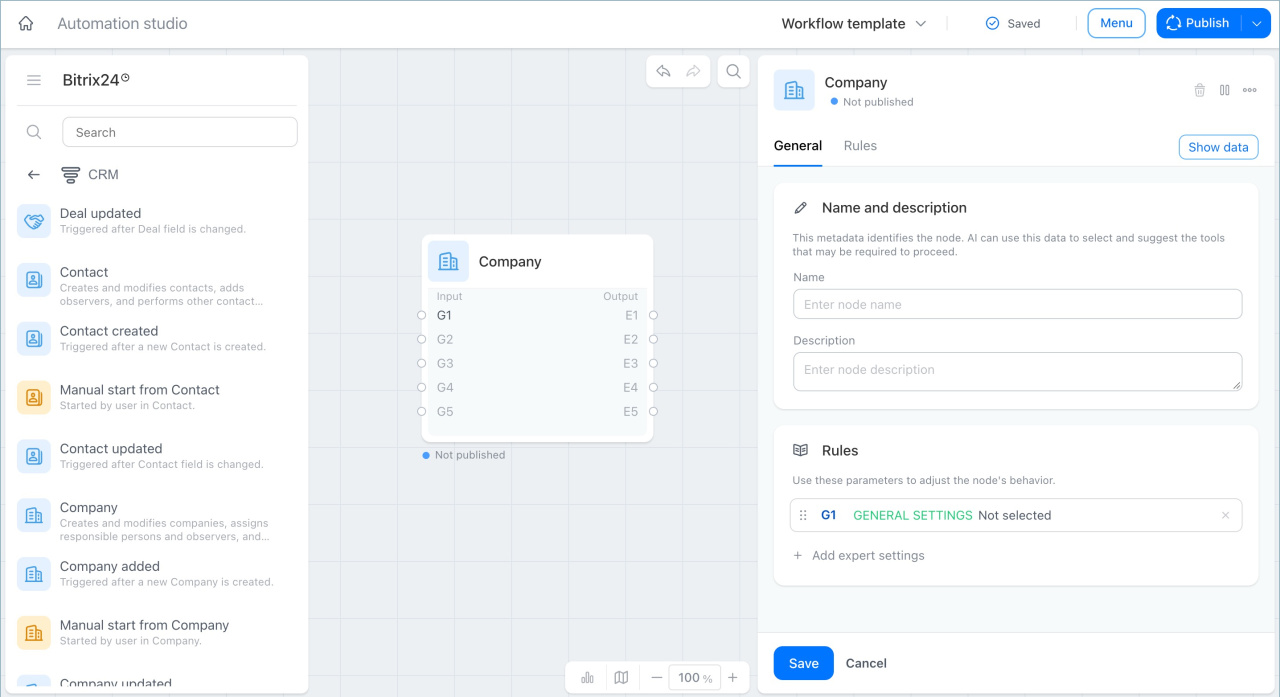
This node works with companies in a workflow. Available actions:
- Create company — creates a new company record and fills it with workflow data.
- Schedule activity — creates an activity linked to the company, such as a call, a meeting, or sending documents.
- Update company — updates company fields such as details, client status, or industry.
- Update followers — adds, replaces, or removes followers in the company record.
- Change responsible — assigns a new responsible user to the company.
Examples:
- A company works with a client on a trial basis. The workflow uses the Track invoice payment trigger. When the client pays an invoice for the first time, the Update company action runs. Bitrix24 changes the company status from Trial period to Active client. Employees can see right away that the relationship has moved to a paid stage, without checking payments manually.
- A client company increases its purchase volume and moves to the key accounts segment. The sales supervisor starts the workflow manually from the company form. The workflow uses the Manual launch from company trigger. The Change responsible and Update followers actions run. Bitrix24 assigns the key account manager as the responsible user and adds the previous manager as a follower so they can share context and support the transition.
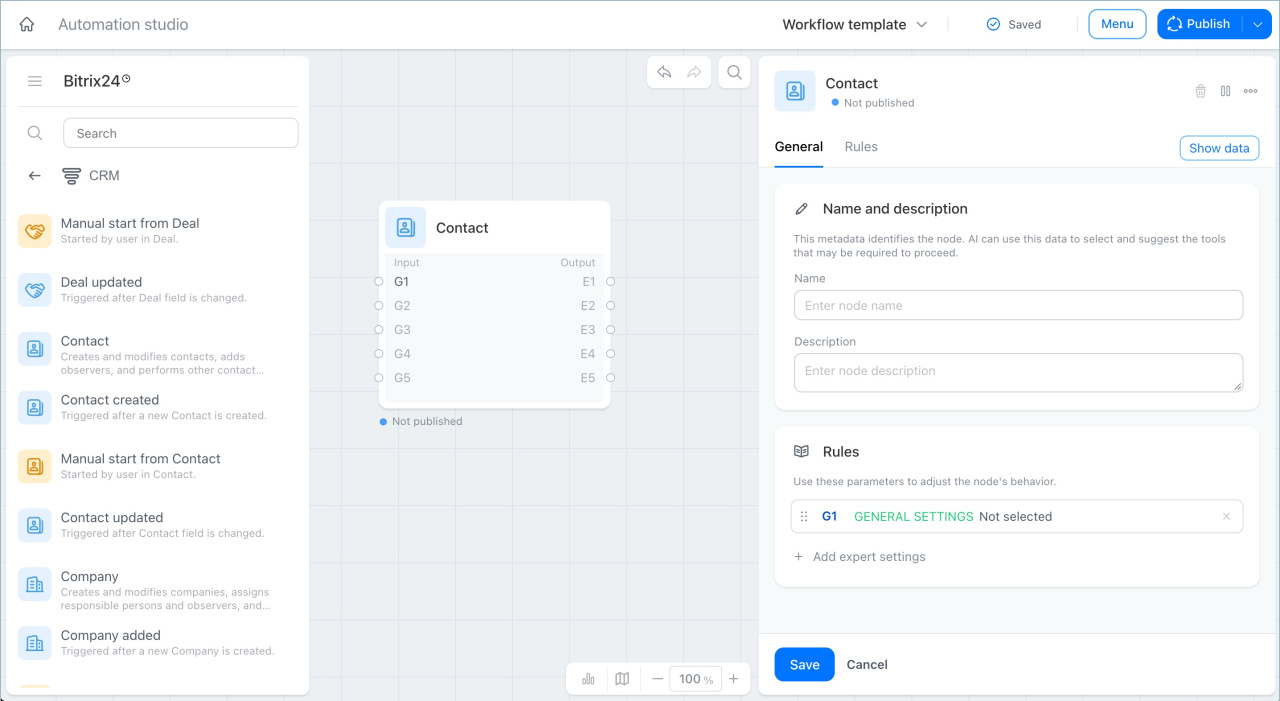
Contact node
This node works with contacts in a workflow. Available actions:
- Create contact — creates a new contact record and fills it with workflow data.
- Schedule activity — creates an activity linked to the contact, such as a call, a meeting, or sending an email.
- Update contact — updates contact fields such as phone number, email address, job title, interaction status, and other data.
- Update linked company — updates the fields of the company linked to the contact.
- Update followers — adds, replaces, or removes followers in the contact record.
Examples:
- A client submits a request form on the website. The workflow uses the Track CRM form submission trigger. The Schedule activity action runs. Bitrix24 adds an activity to the contact Timeline: call the client back within one hour. The manager can see right away who to call and does not miss the new contact.
- A client calls the company after a long break in communication. The workflow uses the Track incoming call trigger. When the call ends, the Schedule activity action runs. Bitrix24 creates an activity in the contact record: prepare an updated proposal and follow up with the client the next day. The manager does not need to record agreements manually or set a reminder after the call.
Estimate node
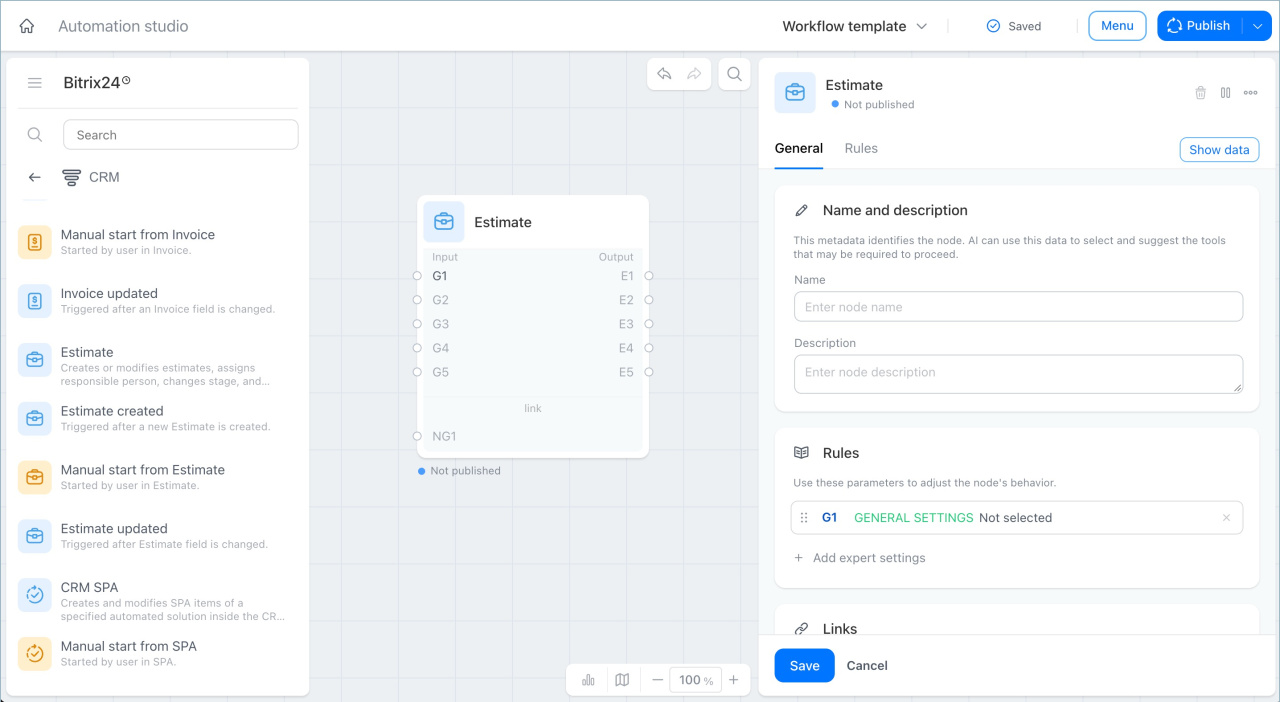
This node works with estimates in a workflow. Available actions:
- Create estimate — creates a new estimate record and fills it with workflow data.
- Schedule activity — creates an activity linked to the estimate, such as a call, a meeting, or sending documents.
- Update estimate — updates estimate fields such as status, responsible user, comments, and other data.
- Update linked company — updates the fields of the company linked to the estimate.
- Update linked contact — updates the fields of the contact linked to the estimate.
Examples:
-
During negotiations, a client expressed interest in a service and asked for an estimate with the terms of cooperation. The manager starts the workflow manually from the deal form. The workflow uses the Manual launch from deal trigger. The Create estimate action runs. Bitrix24 creates an estimate and fills it with deal data.
After that, the Send email to client action runs. Bitrix24 immediately sends the client an email with a link to the estimate. The manager does not need to transfer client, product, and pricing information manually or write to the client separately: the estimate is created and sent for approval in a single workflow run.
- The manager discussed the terms with the client by phone, and the client agreed to the proposed conditions. The manager starts the workflow manually from the estimate form. The workflow uses the Manual launch from estimate trigger. The Update estimate action runs. Bitrix24 changes the estimate status to Approved. The manager can see in the form that the terms are confirmed and can move on to preparing the invoice.
Invoice node
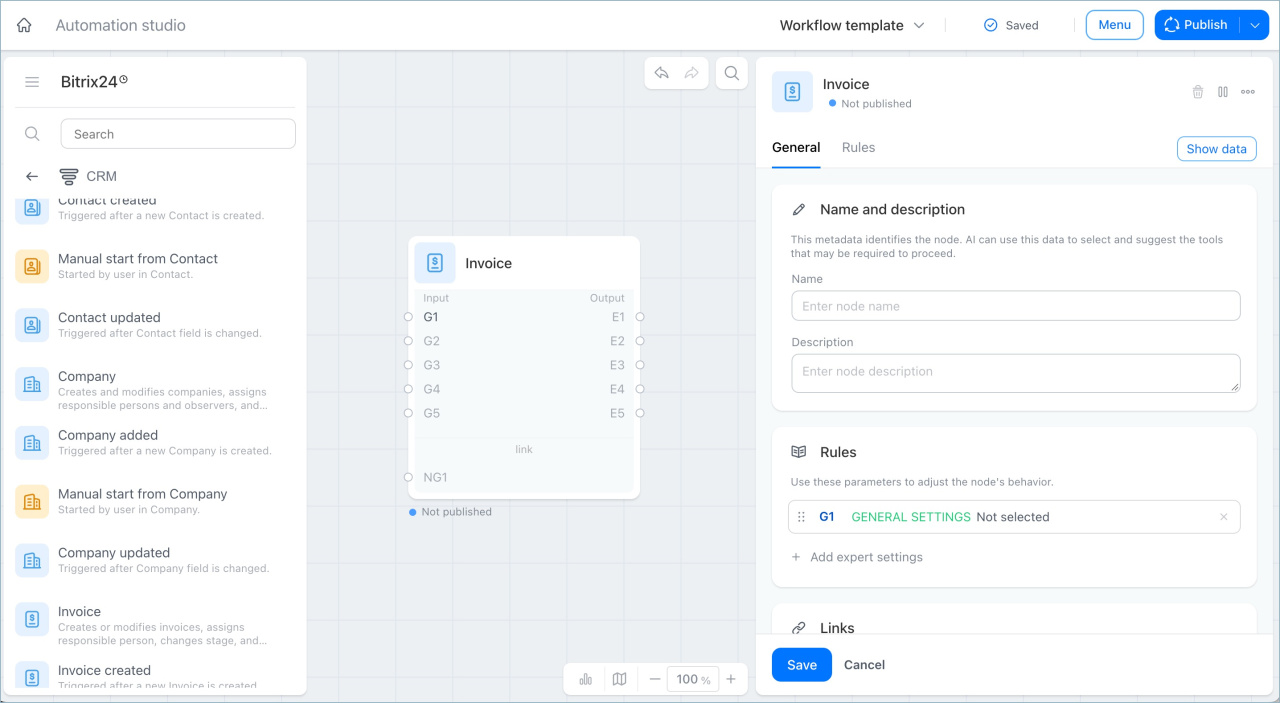
This node works with invoices in a workflow. Available actions:
- Create invoice — creates a new invoice record and fills it with workflow data.
- Schedule activity — creates an activity linked to the invoice.
- Update invoice — updates invoice fields such as status, comment, responsible user, and other data.
- Update linked company — updates the fields of the company linked to the invoice.
- Update linked contact — updates the fields of the contact linked to the invoice.
Examples:
- A company agreed on terms with a client and sent a contract for signing. The workflow uses the Track signing by the second party trigger. When the client signs the contract, the Create invoice action runs. Bitrix24 generates an invoice. Managers do not need to create an invoice manually after every signed contract.
- An accountant starts the workflow manually from an overdue invoice that the client never paid. The workflow uses the Manual launch from invoice trigger. The Update invoice action runs. Bitrix24 changes the invoice status to Canceled. The accountant can see in the form that the invoice is closed as unpaid.
SPA node
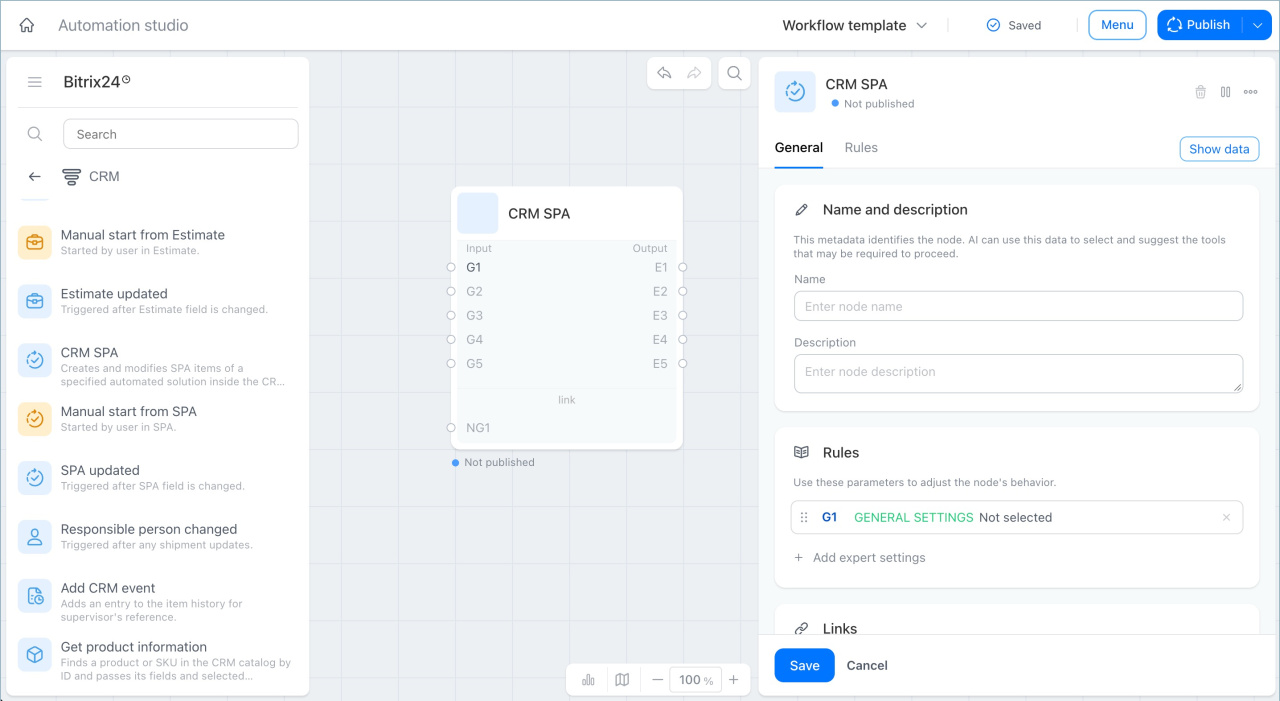
This node works with SPA items in a workflow.
An SPA is a separate type of CRM record created when standard CRM items are not enough — for example, for contracts, purchases, or equipment requests. Available actions:
- Create SPA item — creates a new SPA item and fills it with workflow data.
- Schedule activity — creates an activity linked to the SPA record.
- Update SPA item — finds an item using field filters and updates its values.
- Update linked item — replaces or removes the link between the SPA item and a CRM item, such as a deal.
- Update linked company — updates the fields of the company linked to the SPA item.
Examples:
- A company manages contracts in a separate SPA called Contracts. A manager agrees on terms with a client and creates a new contract record, then starts the workflow manually from that record. The workflow uses the Manual launch from SPA trigger. The Schedule activity action runs. Bitrix24 adds an activity to the contract Timeline for the lawyer: check the details, prepare the text, and send it for approval. The lawyer can see right away what needs to be done, and the manager does not need to write to them separately in chat.
- A company tracks contracts in a separate SPA. When a client company's old contract expires and a new one is signed, an employee starts the workflow manually from the company form. The workflow uses the Manual launch from company trigger. The Update SPA item action runs with a filter for that company and the Active status. Bitrix24 finds the contract and changes its status to Expired. The employee does not need to search for the contract manually among other SPA records.
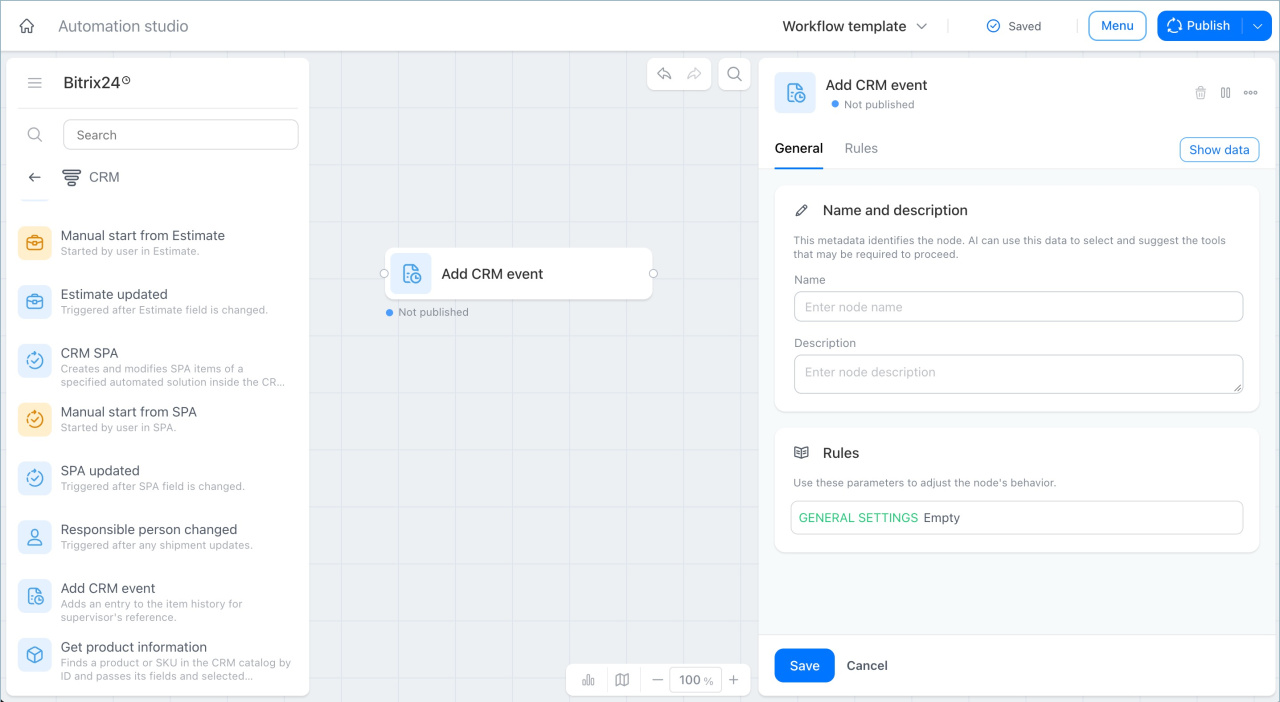
Add CRM event node
This node adds a record to the Timeline of the CRM item where the workflow is running. This is useful when a workflow automatically performs an action — for example, changes the responsible user or the stage — and you need to record not just the change itself, but also the context: why it happened.
For example, in a company, deals at the Negotiation stage are handled by a senior manager. The workflow uses the Deal field changed trigger. When a deal moves to this stage, the Log CRM event action runs. Bitrix24 adds a record to the Timeline: "Deal transferred to senior manager for negotiations." The supervisor can see not just the fact that the responsible user changed, but also the context — why it happened.
In brief
- Seven nodes work with CRM items — leads, deals, contacts, companies, estimates, invoices, and SPAs. With these nodes, a workflow creates and updates CRM items, assigns responsible users and followers, and schedules activities.
- The Lead node creates and updates leads, schedules activities, and updates linked companies and contacts.
- The Deal node creates and updates deals, schedules activities, and changes the responsible user and followers.
- The Company node creates and updates companies, schedules activities, and changes the responsible user and followers.
- The Contact node creates and updates contacts, schedules activities, and updates the linked company and followers.
- The Estimate node creates and updates estimates, schedules activities, and updates linked companies and contacts.
- The Invoice node creates and updates invoices, schedules activities, and updates linked companies and contacts.
- The SPA node creates and updates SPA items, schedules activities, and updates linked items and companies.
- The Add CRM event node adds a record to the Timeline of a CRM item.