
In the new workflow builder, a trigger is the first step in any process. It watches for an event and starts a chain of actions when that event happens.
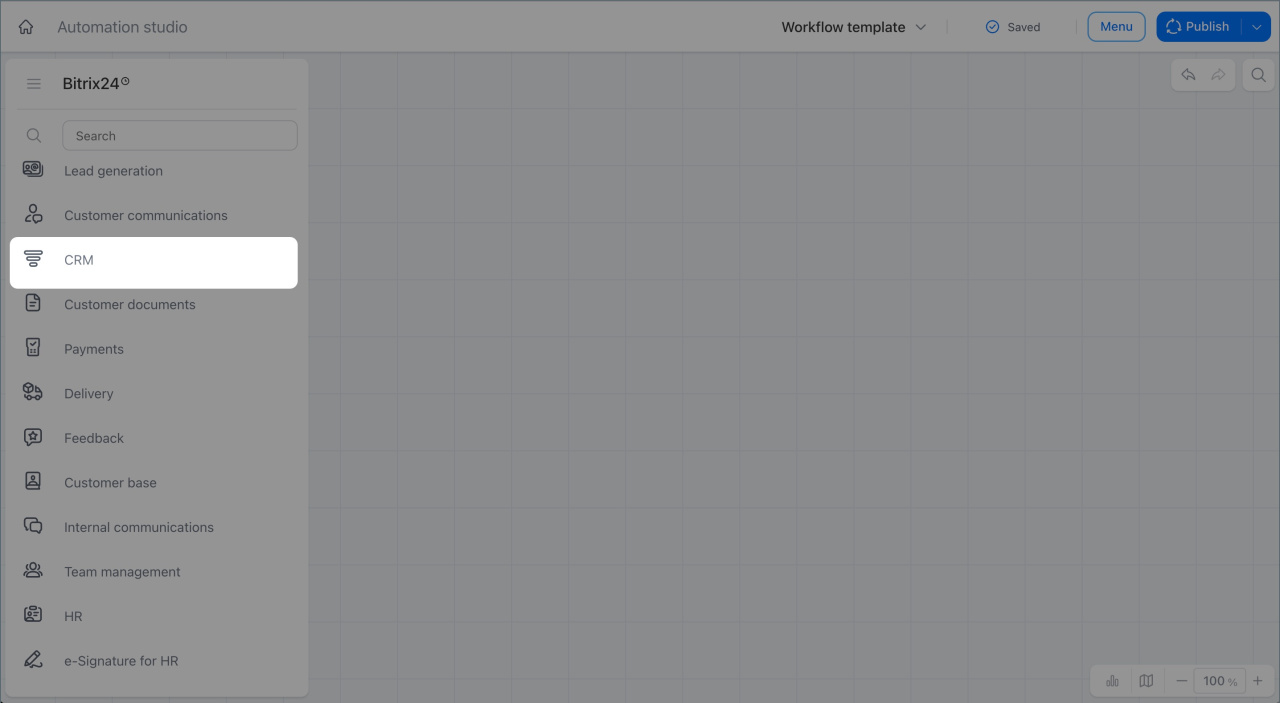
Triggers in the CRM group help you react to CRM changes at the right time. For example, when a manager updates a deal stage, Bitrix24 can automatically create a task for a lawyer. When the responsible person changes, the new manager can get a notification right away. If an automatic trigger does not fit your case, you can start the process manually from the item form.
In this article:
Field change triggers
Triggers in this workgroup watch for changes in CRM forms and start a process when a specific field is updated. You do not need to check each form manually. The trigger runs as soon as the data changes.
Deal updated. This trigger starts a process when a selected field in the deal form changes, such as stage, amount, responsible person, or another field.
Example: A company sells software with a long approval cycle. When a manager moves a deal to the Contract pending signature stage, a lawyer needs to review the contract. The process uses the Deal updated trigger to watch the Stage field. As soon as the value changes, a Task node creates a task for the lawyer, and a User notification node sends a notification with a link to the deal.
The contract goes to review right away, without calls or reminders from the manager.
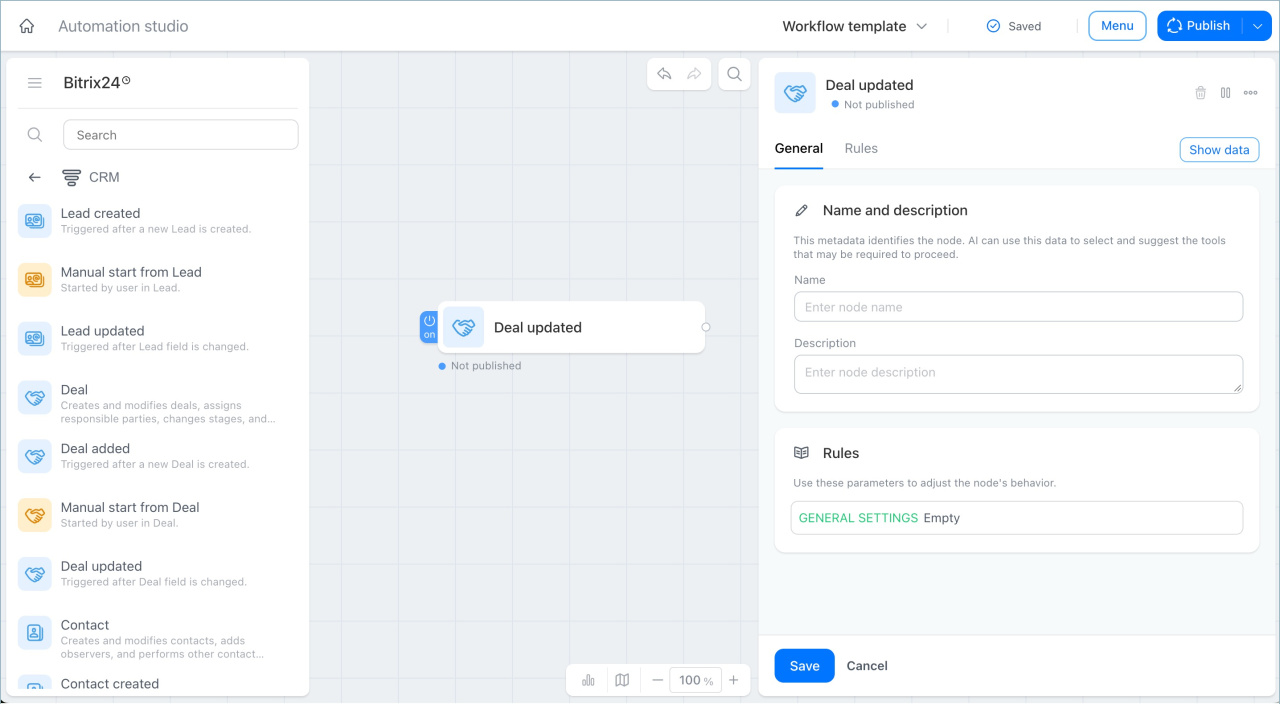
Contact updated. This trigger starts a process when a selected field in the contact form changes, such as phone number, email, job title, or another field.
Example: A law firm sends clients a newsletter with legal updates and contract renewal reminders. When a client provides a new email address and the manager updates the Email field in the contact form, the Contact updated trigger runs. A User notification node tells the manager that the email has changed and reminds them to update the mailing list.
The manager sees the notification immediately and updates the mailing list without delay.
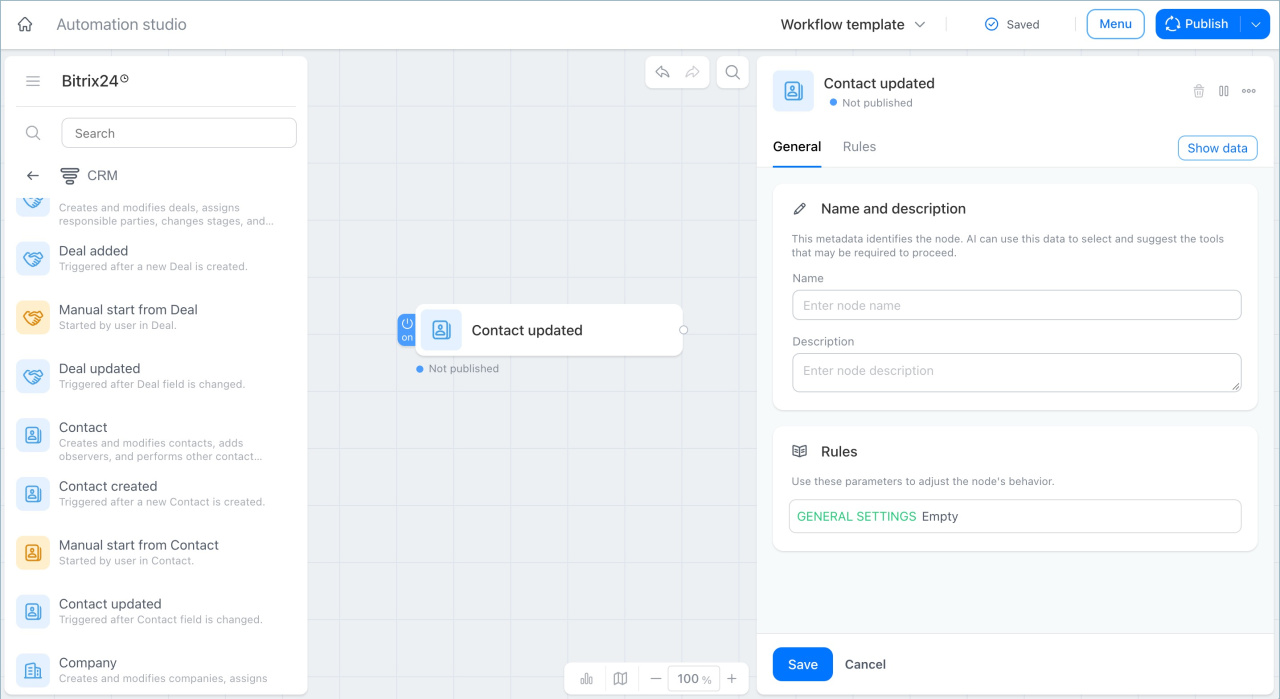
Company updated. This trigger starts a process when a selected field in the company form changes, such as industry, number of employees, address, or another field.
Example: An insurance company works with corporate clients and sets package pricing based on headcount. When a client grows from 50 to 100 employees and the manager updates the Number of employees field in the company form, the Company updated trigger runs. A User notification node alerts the manager, and a Task node creates a task to review the terms and contact the client.
The manager learns about the change right away and can offer updated terms on time.
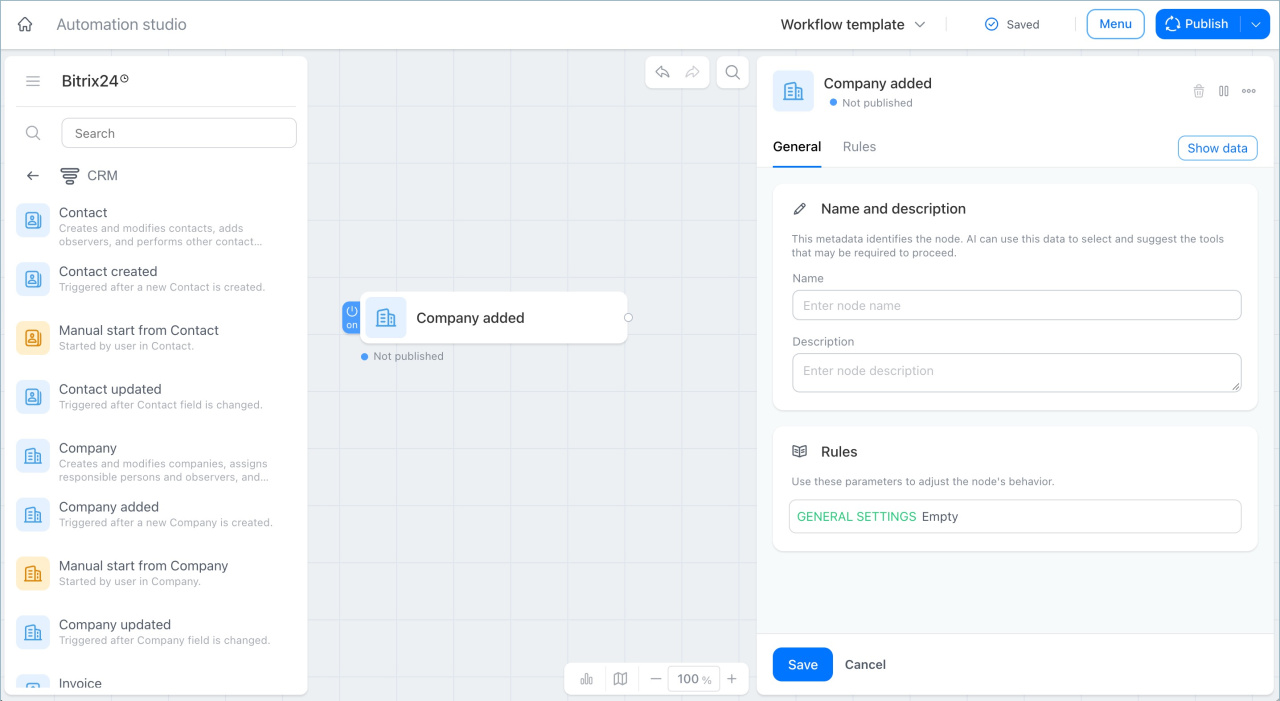
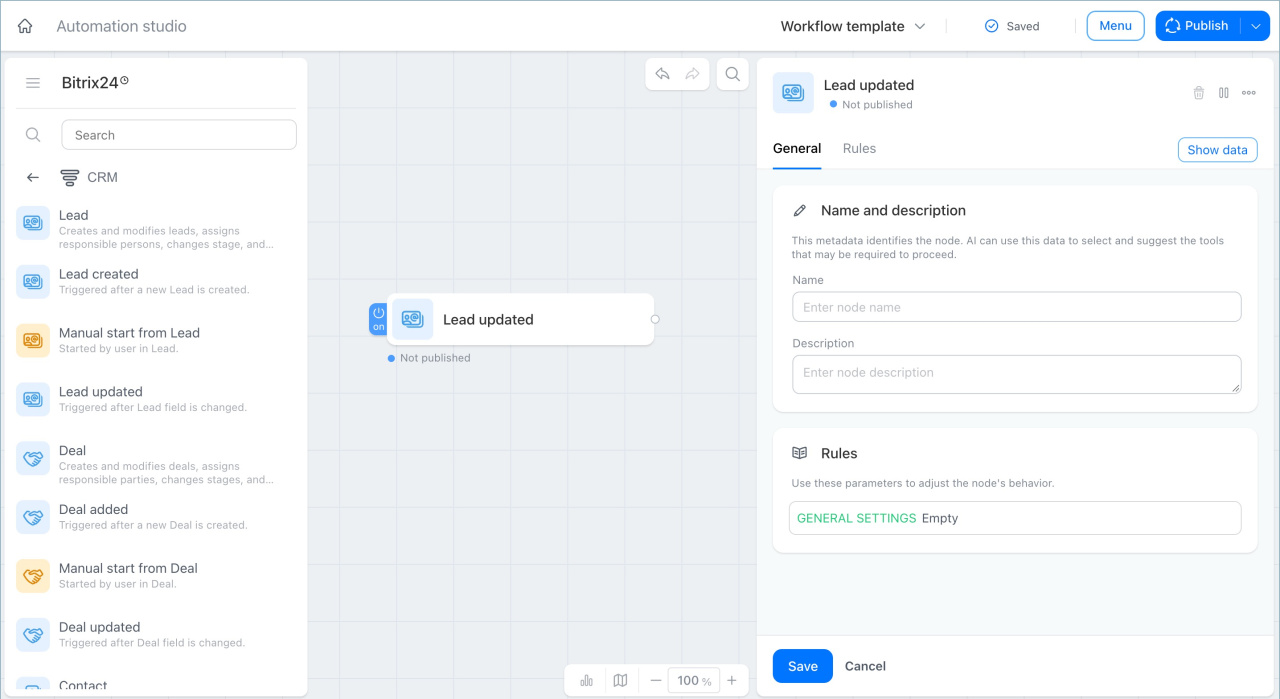
Lead updated. This trigger starts a process when a selected field in the lead form changes, such as source, stage, budget, or another field.
Example: A real estate agency collects leads from several platforms. When a manager asks a client how they heard about the agency and sets the Source field to Referral, the Lead updated trigger runs. A User notification node reminds the manager to find out who made the referral and save it in CRM. A Lead node moves the lead to the Qualification stage.
Referral data is always captured, so the agency knows who brings in new clients.
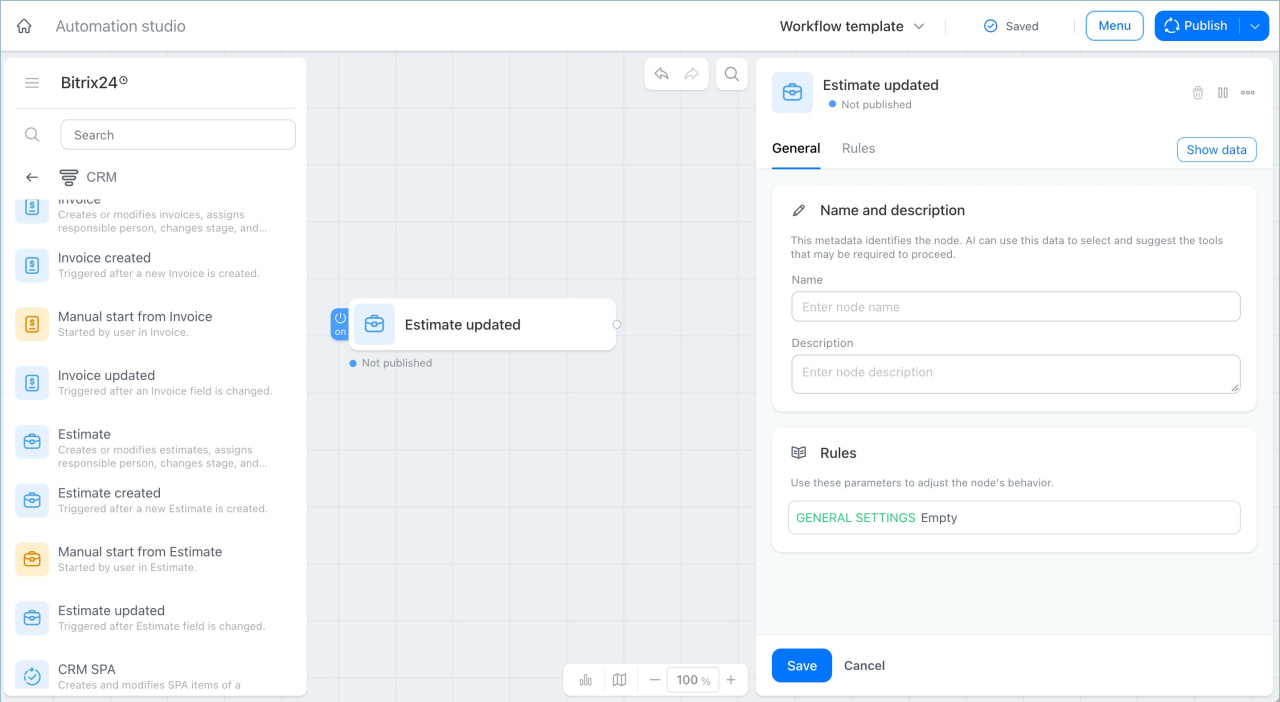
Estimate updated. This trigger starts a process when a selected field in the estimate form changes, such as status, amount, expiration date, or another field.
Example: A company sends estimates to clients. When a manager sets the estimate status to Declined, the Estimate updated trigger runs. A Notify management board node alerts the supervisor, and a Task node creates a task for the manager to find out why the estimate was declined.
The supervisor sees the declined estimate right away and can step in.
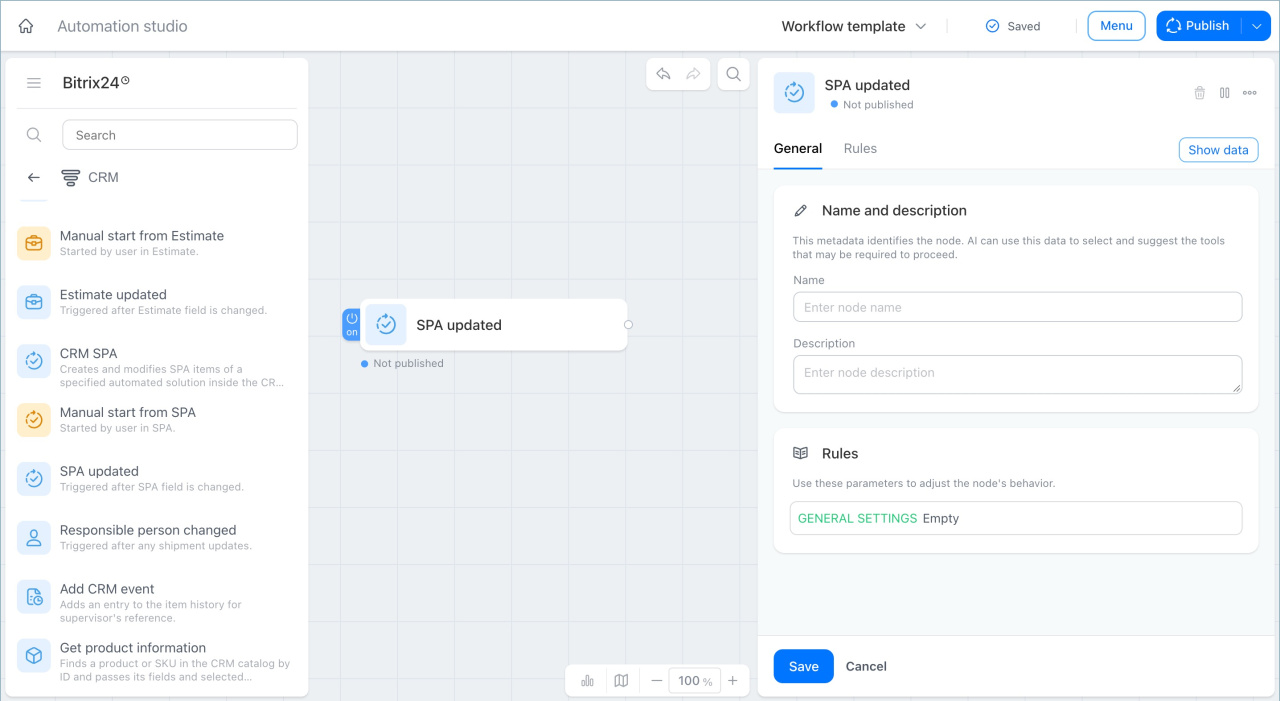
SPA updated. This trigger starts a process when a selected field in an SPA form changes.
An SPA is a custom CRM item type that a company creates for its own needs, such as purchase requests, contracts, claims, and more. The available fields depend on how the SPA is set up.
Example: A manufacturing company manages a Purchase request SPA in Bitrix24. When the CFO approves a request and changes the Approval status field to Approved, the SPA updated trigger runs. A Task node creates a task for the purchasing manager, and a User notification node sends them a notification.
The purchasing manager gets the task as soon as the request status changes to Approved.
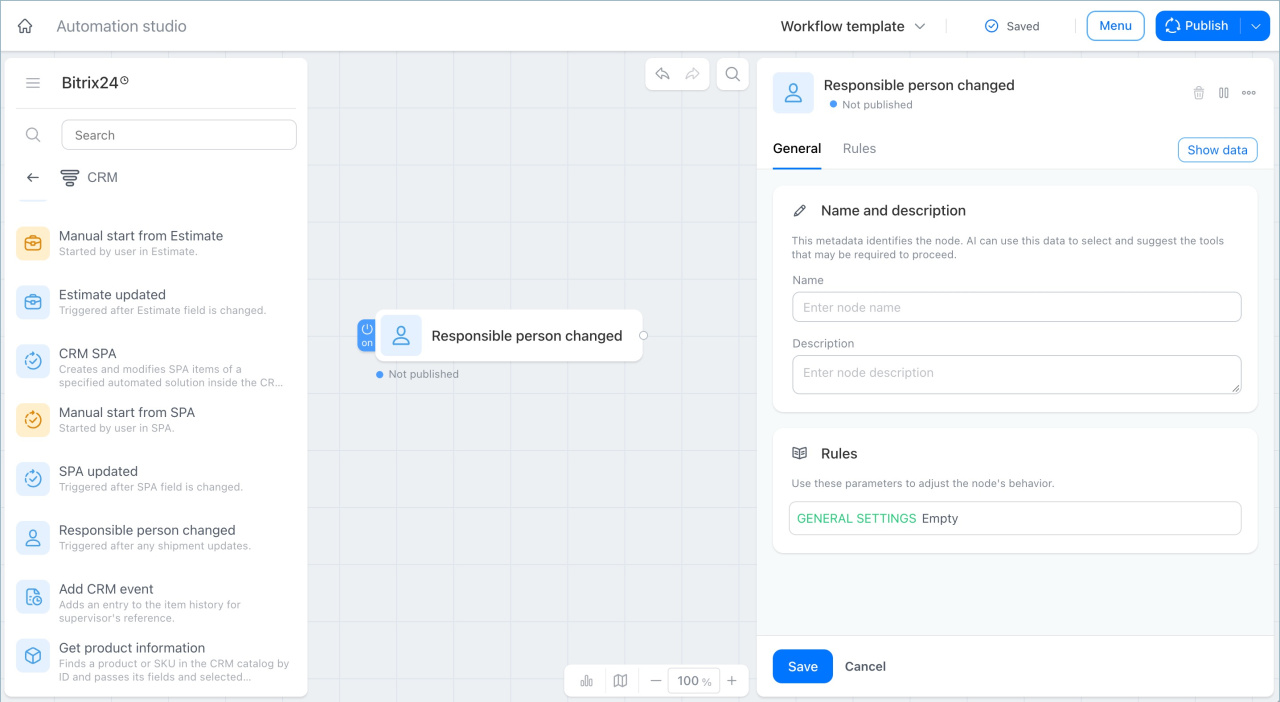
Track responsible person change trigger
This trigger starts a process when the responsible person changes in a CRM item.
Example: In a large company's sales department, managers sometimes go on vacation or transfer to another department. When a supervisor changes the responsible person in a deal, the Track responsible person change trigger runs. A User notification node sends the new manager a notification with a link to the deal, and an Add participants to group chat node adds them to the client chat.
The new manager immediately sees the conversation history and knows what stage the deal is at.
Manual start triggers
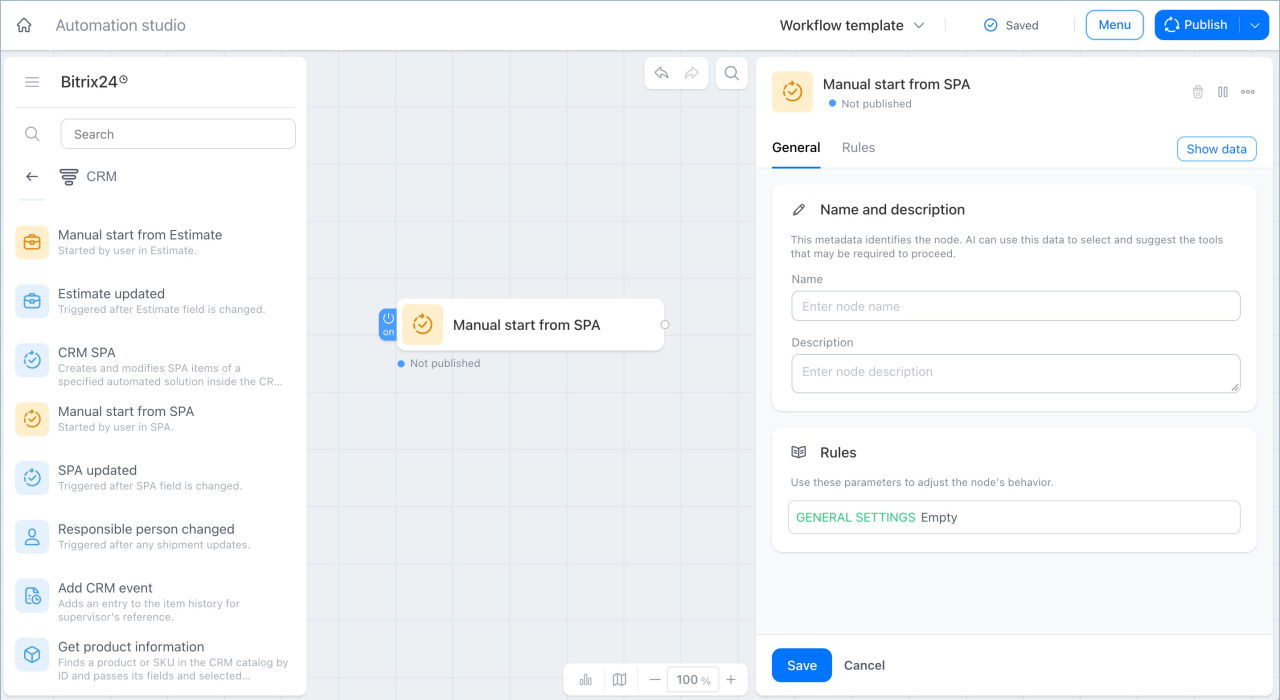
Manual start triggers let you start a business process directly from an item form, without waiting for an event.
The Sales and CRM workgroup includes several manual start triggers:
- Manual start from deal
- Manual start from contact
- Manual start from company
- Manual start from lead
- Manual start from estimate
- Manual start from SPA
- Manual start from order
- Manual start from invoice.
The logic is the same for all triggers: a manager starts the process manually when needed. Here are some examples:
- A client wrote in chat and asked to send closing documents for the deal. Nothing changed in the form, so an automatic trigger would not run. The manager opens the deal form and starts the process manually: a Task node creates a task for the accountant to prepare the documents, and a User notification node informs them.
- A client asked to receive an estimate. The manager opens the estimate form and starts the process manually: a Send email node composes the email and sends it to the client.
In brief
- Field change triggers watch specific fields in CRM forms and start a process as soon as a field is updated.
- The Responsible person changed trigger runs when the responsible person changes and helps hand off work without losing context.
- Manual start triggers let you start a process from a form at any time, when an automatic trigger does not fit or you need to act right now.
- For each item type — deal, contact, company, lead, estimate, SPA, order, and invoice — there is a dedicated manual start trigger.