
Analyze Bitrix24 data with AI coding agents such as Codex or Claude Code. Describe your task, and the agent will retrieve data through the BI connector, apply filters, and prepare a response.
For example, if you want to analyze successful deals from the last six months, provide the agent with your Bitrix24 address, BI Analytics key, the documentation or a ready-made skill, and a task description. The agent will retrieve data through the BI connector, select successful deals, and present the results.
You don't need to configure request parameters manually. Describe your task, review the results, and refine your request if you need different data or a different response format.
In this article:
Prepare to work with an AI agent
You need the following:
Bitrix24 address. The AI agent uses this address to send requests to your Bitrix24 account. For example: https://example.bitrix24.com.
BI Analytics key. The key allows the AI agent to access Bitrix24 data. Get it in CRM > Analytics > Real time analytics > BI Analytics > BI Analytics settings > Manage keys.
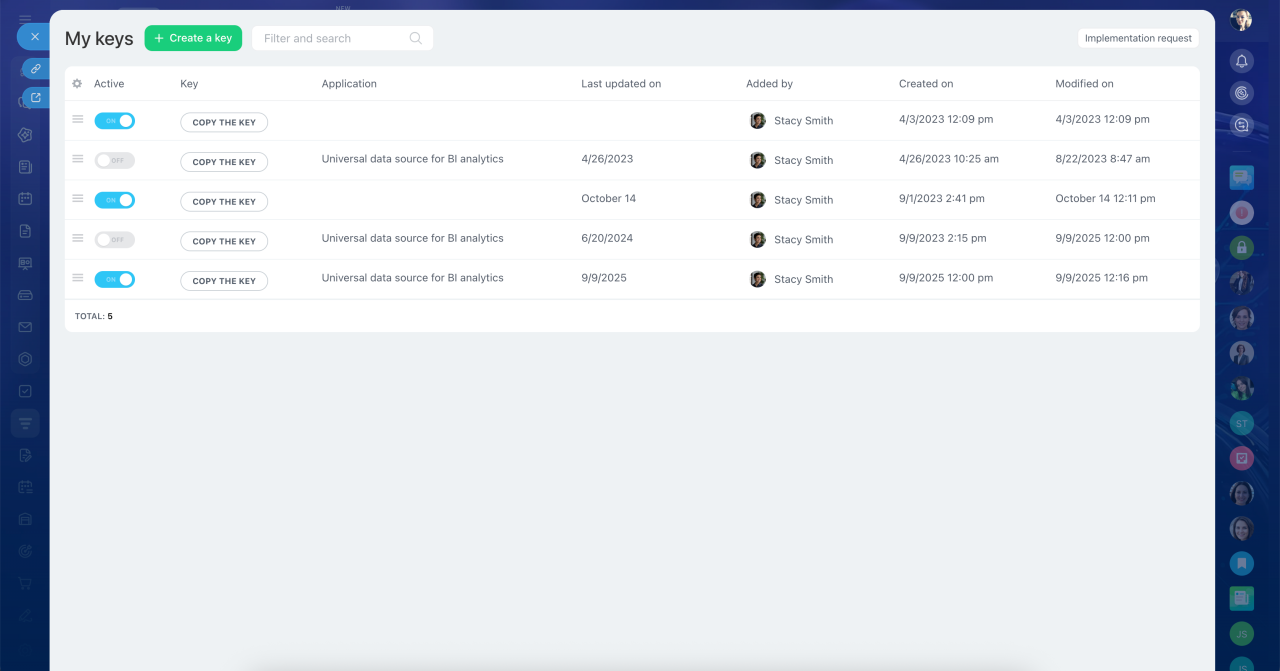
Documentation or a skill. It helps the agent understand how to make requests to the BI connector. A ready-made skill explains how to list available datasets, view their fields, and retrieve rows through the BI connector. You can use the sample skill below: copy it and add it to your request.
Sample skill for the AI agent
| name | bitrix-bi-connector |
|---|---|
| description | Querying the Bitrix24 BI-connector HTTP API — listing tables (gds.php?show_tables), describing columns (gds.php?desc), and fetching rows (pbi.php) with dateRange and dimensionsFilters predicate filtering (operators EQUALS, CONTAINS, IN_LIST, BETWEEN, IS_NULL, NUMERIC_GREATER_THAN/LESS_THAN with optional EXCLUDE negation). Use this skill whenever the user mentions Bitrix24, bi-connector, biconnector, bi-token, gds.php, pbi.php, or asks how to query, count, or filter leads (crm_lead), deals (crm_deal), tasks (task), contacts, companies, or smart-process entities (crm_dynamic_items_*) from a Bitrix24 portal via its BI-analytics endpoints. Also use when the user is constructing a dimensionsFilters JSON body, debugging EMPTY_SELECT_FIELDS_LIST errors, or seeing unexpected empty results from a Bitrix BI request (often a UTF-8 encoding issue or an unknown-operator silent-failure). |
Bitrix24 BI-connector protocol
This skill captures the HTTP protocol for the Bitrix24 BI-analytics connector — the API that powers Power BI / Google Data Studio integrations and any custom client that reads CRM data from a Bitrix24 portal. Use it when constructing requests, helping users count/filter CRM entities, or implementing a BI client.
Endpoints overview
All three endpoints live on the client's Bitrix24 portal. Every request is HTTP POST and every body MUST include a key field — the client's bi-token. Only the path and query string vary: gds.php for metadata (list/describe), pbi.php for actual data rows.
Where the bi-token comes from: the BI-analytics key-management page of the client's own Bitrix24 portal (path varies by portal locale; on a fresh portal navigate via CRM → Analytics → BI-analytics → BI-analytics settings → Key management, or open {portal}/biconnector/key_list.php directly). Always ask the user for their own portal URL — never hardcode a reference portal (e.g. smith.bitrix24.com from sample docs) in production code.
Endpoint 1 — list tables
POST {portal}/bitrix/tools/biconnector/gds.php?show_tables
Body:
{"key": "<bi-token>"}
Returns [[table_name, table_description], ...].
Endpoint 2 — describe a table's columns
POST {portal}/bitrix/tools/biconnector/gds.php?desc&table=<table_name>
Body:
{"key": "<bi-token>"}
Returns an array of column objects. Key fields per column:
CONCEPT_TYPE—DIMENSIONorMETRIC. METRICs are typically aggregated and grouped by DIMENSIONs — preserve this distinction in any UI or query-builder code.ID— the identifier to use when referencing the column in subsequent requests (this is thenameyou pass in endpoint 3'sfields).NAME— human-readable label.TYPE— data type (e.g.NUMBER,STRING,YEAR_MONTH_DAY_SECOND).AGGREGATION_TYPE,GROUP_KEY,GROUP_CONCAT,GROUP_COUNT,IS_VALUE_SPLITABLE— aggregation/grouping hints, oftennull.
Endpoint 3 — fetch table rows
POST {portal}/bitrix/tools/biconnector/pbi.php?table=<table_name>
Body:
{"key": "<bi-token>", "fields": [{"name": "<column_id>"}, ...]}
fields lists which columns to return; use the ID values from endpoint 2. Response is a 2D array where the first row is the header (column names in request order) and the rest are data rows aligned to that header. Empty cells come back as null or "" — don't treat absence as an error.
Silent-failure traps
The BI-connector has several behaviours where bad requests succeed with HTTP 200 but return misleading results. These cause real bugs because they look indistinguishable from "no data matched":
Unknown fields are silently dropped. If you request fields that don't exist on the table, the API silently drops them. If all requested fields are unknown, you get {"error":"EMPTY_SELECT_FIELDS_LIST"} with HTTP 200 — it does not name which field was wrong. Always cross-check field IDs against endpoint 2 before querying.
Unknown operators are silently ignored. Spelling an operator wrong, or guessing one that doesn't exist (e.g. IS_NOT_NULL, STARTS_WITH), causes the server to return the unfiltered set — which looks like a successful query. Never assume an operator exists without testing it on a column with known distribution. Confirmed operators are listed below; treat everything else as unproven.
Request bodies must be UTF-8 encoded. If a filter value or URL parameter contains any non-ASCII character (in dimensionsFilters values, in a non-Latin table name, etc.), the body MUST be sent as UTF-8 bytes. A mismatched encoding does NOT produce an error — the API returns an empty result set (Rows: 0), which is indistinguishable from a legitimate "no matches". PowerShell Invoke-RestMethod -Body $stringWithNonAscii is a known offender on Windows because its default body encoding is not UTF-8: pass [Text.Encoding]::UTF8.GetBytes($json) and Content-Type: application/json; charset=utf-8 instead. In any language, set the HTTP client's body encoding to UTF-8 explicitly when sending non-ASCII filter values.
Date-range filtering
Add dateRange and optionally configParams.timeFilterColumn to the pbi.php body:
{ "key": "bi-token", "dateRange": {"startDate": "2018-07-19", "endDate": "2018-08-02"}, "configParams": {"timeFilterColumn": "DATE_CREATE"}, "fields": [{"name": "DATE_CREATE"}, {"name": "STATUS_SEMANTIC_ID"}] }
startDateis treated as00:00:00of that day;endDateas23:59:59.999(inclusive).- For a single day, set
startDate = endDate. timeFilterColumnis the column ID to filter on. If omitted, the API uses the first date/datetime column in the table — usually safe but explicit is better.
Rule — always filter: always pass a dateRange when calling pbi.php, even if the user didn't ask. Without it, unfiltered tables can return thousands or millions of rows on real portals. Default to "last 3 months" (endDate = today, startDate = today − 90 days) unless the user specifies otherwise. The metadata endpoints (show_tables, desc) don't accept dateRange — only pbi.php does. Exception: if you're using dimensionsFilters (below) and it sufficiently narrows the result (e.g. filtering by a specific ID), dateRange is optional.
Predicate filtering with dimensionsFilters
Add to the pbi.php body a key dimensionsFilters whose value is an array of arrays of condition objects. Outer arrays are joined by AND; inner conditions within one array are joined by OR. Any number of inner conditions and any number of outer groups is allowed.
{ "key": "bi-token", "fields": [{"name": "ID"}, {"name": "CREATED_BY_ID"}], "dimensionsFilters": [ [ {"fieldName": "ID", "values": ["2"], "type": "INCLUDE", "operator": "EQUALS"}, {"fieldName": "ID", "values": ["12706"], "type": "INCLUDE", "operator": "EQUALS"} ], [ {"fieldName": "CREATED_BY_ID", "values": ["1"], "type": "INCLUDE", "operator": "EQUALS"} ] ] }
Above: (ID=2 OR ID=12706) AND CREATED_BY_ID=1.
Condition object fields
fieldName— column ID from endpoint 2.values— always a list of strings, even for numeric columns (e.g."1", not1).type—"INCLUDE"(apply the operator) or"EXCLUDE"(invert it).EXCLUDEworks as a universal negator on top of any operator:EXCLUDE + EQUALS= "not equal",EXCLUDE + CONTAINS= "doesn't contain",EXCLUDE + IN_LIST= "not in list",EXCLUDE + IS_NULL= "not null" (the stand-in for the missingIS_NOT_NULL).operator— confirmed values:"EQUALS"— exact match;valuesis a single-element list, e.g.["1"]."CONTAINS"— substring match, e.g.{"fieldName":"TITLE","values":["CRM:"],"operator":"CONTAINS"}."IN_LIST"— field value is any of the listed strings, e.g.{"fieldName":"ID","values":["1","2"],"operator":"IN_LIST"}. Prefer this over OR-ing multipleEQUALSconditions for the same field — cleaner and one condition object instead of N."IS_NULL"— null check;valuesMUST be an empty list ([]). For non-null, useEXCLUDE + IS_NULL(there is no standaloneIS_NOT_NULLoperator — the server silently ignores it and returns all rows unfiltered). Caveat: thedescmetadata does NOT expose which fields are nullable, so there's no way to verify at runtime. Only use this when you already know from data inspection or domain context that the field can hold null."BETWEEN"— value in range, both endpoints inclusive.valuesMUST be a 2-element list[low, high](as strings, like all other operators). Behaviour on non-numeric columns is unspecified — treat it as numeric/date-only and test before applying to strings."NUMERIC_GREATER_THAN"/"NUMERIC_GREATER_THAN_OR_EQUAL"/"NUMERIC_LESS_THAN"/"NUMERIC_LESS_THAN_OR_EQUAL"—>,>=,<,<=. Single-elementvalues, e.g.["2"]. Behaviour on non-numeric columns is unspecified — use on numeric/date columns and verify before applying to strings.- Anything else (e.g.
STARTS_WITH,ENDS_WITH,REGEX) is unproven. Per "Silent-failure traps" above, an unknown operator returns the full unfiltered table — which looks like a wide-open match. Test on a known-distribution column before relying on it.
Useful pattern — fetch a single row by ID
"dimensionsFilters": [[{"fieldName":"ID","values":["19244"],"type":"INCLUDE","operator":"EQUALS"}]] Success/failure semantics in CRM entities
Bitrix24 uses a one-letter "semantic" code to indicate where an entity sits in its lifecycle. Same codes, different field names across entities — easy to mix up:
P— in progress (non-terminal)S— successful terminal stateF— failed terminal state
| Entity (BI table) | Lifecycle concept | Semantic field |
|---|---|---|
| crm_lead | Status |
STATUS_SEMANTIC_ID (raw) / STATUS_SEMANTIC (label)
|
| crm_deal | Stage |
STAGE_SEMANTIC_ID (raw) / STAGE_SEMANTIC (label)
|
To count "successful" leads or deals, filter on the _SEMANTIC_ID field equal to S. To count "completed" (any terminal state), include both S and F. The text-label variants (STATUS_SEMANTIC, STAGE_SEMANTIC) come back as localized strings in the portal's UI language — use them for display, not for filtering. The single-letter _ID codes are stable across locales and should always be the key you filter on. Smart-process entities (crm_dynamic_items_*) likely follow the deal convention (stages) — verify via endpoint 2 before assuming.
Non-CRM entities like task may use a completely different schema (e.g. a raw STATUS column holding a localized human-readable string, with no semantic code at all). Always check endpoint 2 before generalizing — don't assume STATUS_SEMANTIC_ID exists outside the CRM tables documented above.
Credential handling
The bi-token is a credential. Treat it as you would any API key: never log it, never commit it to source control, never echo it back in error messages or stack traces. When building configuration scaffolding for an implementation, read the token from an environment variable or a gitignored config file — never a hardcoded constant in committed code.
Your task. Describe the result you need in business terms rather than technical instructions. For example: “Show successful deals for the last six months” or “Find leads from the last 30 days and group them by assigned employee.”
Assign a task to an AI agent
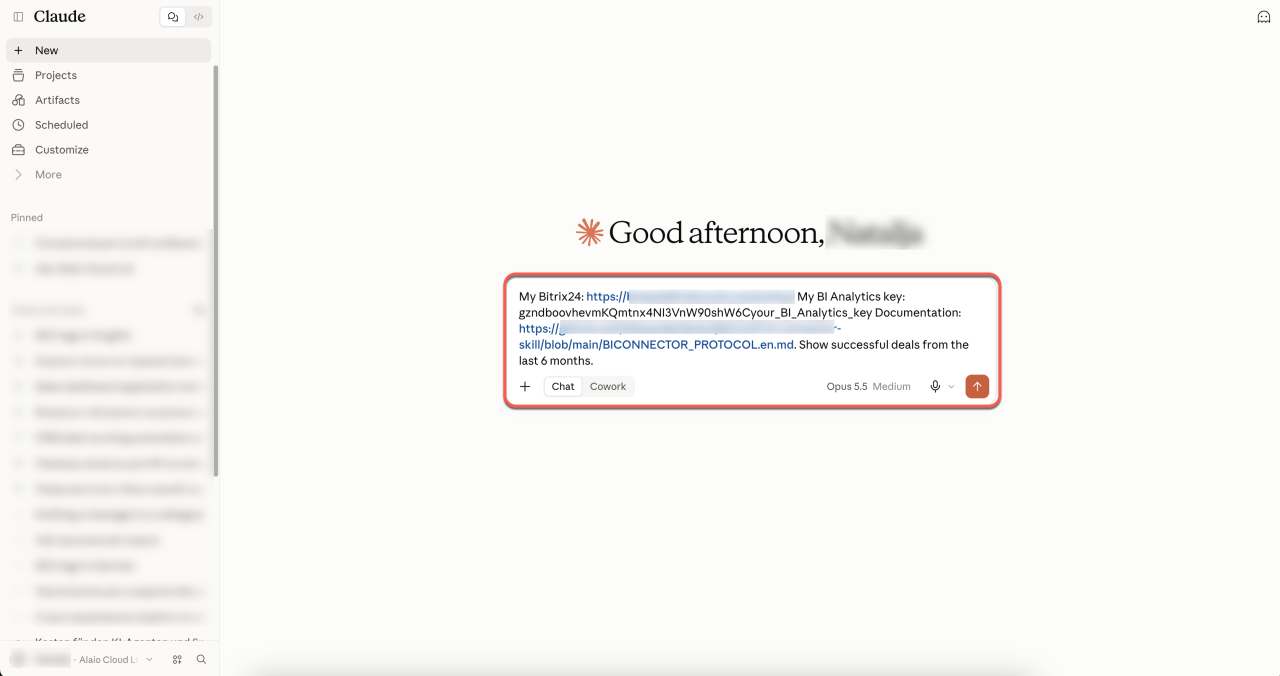
To assign a task, send a request to the AI agent in the chat. A complete request includes all the required details: your Bitrix24 address, BI Analytics key, the documentation or a skill, and the task description.
Example request:
My Bitrix24: https://example.bitrix24.com My BI Analytics key: your_BI_Analytics_key. Show successful deals from the last six months.
Add the documentation or a ready-made skill to the request, for example, the sample skill from the previous section.
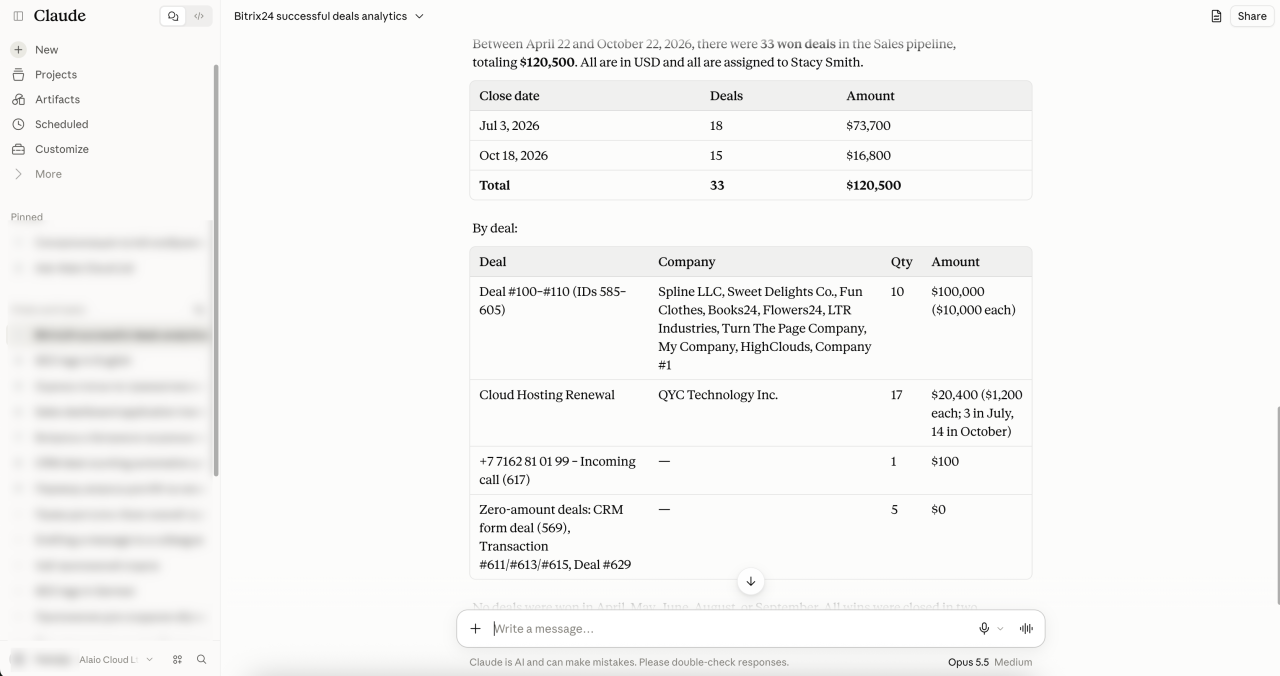
The agent then completes the task and returns a table of the selected data along with an analysis. The example shown is only one possible response format. The actual results depend on the data available in Bitrix24 and the fields accessible through the BI connector.
Refine a request
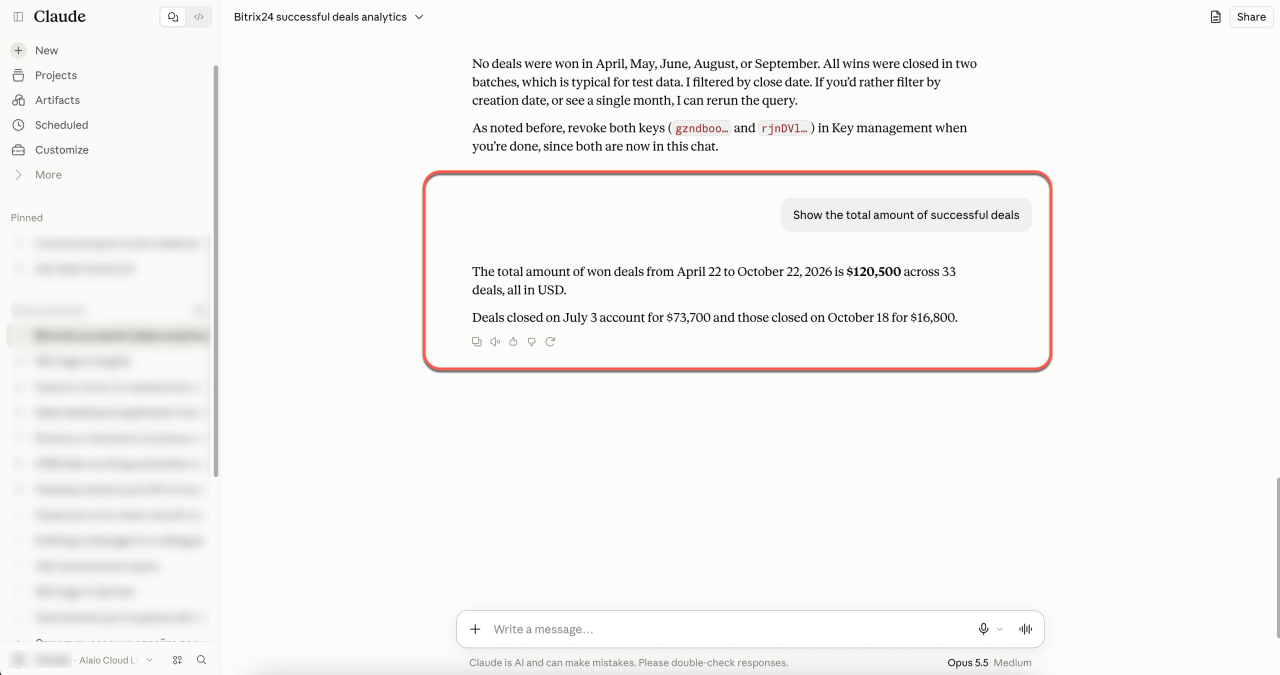
The first response may be too general. Refine the task directly in the chat: ask the agent to show only the metrics you need, group the data, or provide a short conclusion.
For example, use requests like these:
- Show the total amount of successful deals — “Show only the total amount of successful deals for the last six months and the number of deals.”
- Group deals — “Group successful deals by assigned employee. Show the number of deals and the total amount for each employee.”
- Break down deals by month — “Break successful deals down by month. Show the number of deals and the amount for each month.”
- Draw a conclusion from the data — “Give me a short conclusion: which month had the most successful deals, and which employee has the highest total deal amount?”
Refining your request helps you get the results you need. The AI agent not only retrieves data but also tailors the results to your business task.
Learn how an AI agent works with data
An AI agent works with the BI connector under the same rules as a regular application. It sends HTTP requests to Bitrix24 and receives responses in JSON format. The BI connector doesn't return all data in a single request. The process involves several steps:
1. First, the agent determines which data it can request through the BI connector.
BI Builder: Datasets
Sample request to get a list of available data
Request address:
POST https://example.bitrix24.com/bitrix/tools/biconnector/gds.php?show_tables
Request body:
{ "key": "your_BI_Analytics_key" }
Sample response:
[ [ "crm_lead", "Leads" ], [ "crm_deal", "Deals" ], [ "task", "Tasks" ] ]
2. Next, the AI agent checks which fields are available in the required dataset. The response includes field descriptions: technical name, display name, data type, and additional parameters.
Sample request to retrieve field descriptions
Request address:
POST https://example.bitrix24.com/bitrix/tools/biconnector/gds.php?desc&table=crm_lead
Request body:
{ "key": "your_BI_Analytics_key" }
Sample response:
[ { "ID": "ID", "NAME": "Unique key", "TYPE": "NUMBER" }, { "ID": "TITLE", "NAME": "Lead Title", "TYPE": "STRING" }, { "ID": "DATE_CREATE", "NAME": "Created", "TYPE": "DATETIME" }, { "ID": "STATUS_ID", "NAME": "Status", "TYPE": "STRING" }, { "ID": "ASSIGNED_BY_ID", "NAME": "Responsible", "TYPE": "NUMBER" } ]
3. After the AI agent selects the required fields, it requests the data rows.
Sample request to get data
Request address:
POST https://example.bitrix24.com/bitrix/tools/biconnector/pbi.php?table=crm_lead
Request body:
{ "key": "your_BI_Analytics_key", "fields": [ { "name": "ID" }, { "name": "TITLE" }, { "name": "DATE_CREATE" }, { "name": "STATUS_ID" }, { "name": "ASSIGNED_BY_ID" } ] }
Sample response:
 [
  [ "ID", "TITLE", "DATE_CREATE", "STATUS_ID", "ASSIGNED_BY_ID" ],
  [ "125", "Consultation request", "2026-05-12 10:15:32", "NEW", "17" ],
  [ "126", "Equipment order", "2026-05-13 14:42:10", "IN_PROCESS", "21" ]
]
Check the results
An AI agent helps you retrieve and process data, but you still need to review the results. Check:
- Whether the correct time period was used.
- Whether the results include the relevant data.
- Whether the filters were applied correctly.
- Whether the results contain unnecessary fields.
- Whether the conclusions match the data in the table.
For example, if you requested successful deals for the last six months, make sure the results don't include deals that are still in progress or were lost. If you need only closed successful deals, specify this in your request.
In brief
- You can analyze Bitrix24 data with AI agents such as Codex or Claude Code.
- Describe your task, and the agent will use the BI connector to retrieve data, apply filters, and prepare a response.
- You need your Bitrix24 address, BI Analytics key, and the documentation or a ready-made skill.
- If the first response is too general, refine your request in the same chat: show only the metrics you need, group the data, or ask for a short conclusion.
- Check the results: the time period, filters, fields, and conclusions.
- Don't share the BI Analytics key publicly or store it in a public repository. It provides access to Bitrix24 data.