
In Alaio Vibecode, you can create a site, form, or customer service and connect it to your company's domain. This lets you use a branded web address in invitations, emails, and promotional materials. Customers can easily recognize that the service belongs to your company.
For example, your company organizes events. Your main website uses example.com, and you create a registration form in Alaio Vibecode. You can connect the form to app.example.com and share that link with attendees. Your main website stays at its existing address.
To connect a domain, you need to configure its DNS records. Your app stays on the Black Hole server, so you don't need to move it to your domain provider. Alaio Vibecode automatically issues an HTTPS certificate to secure the connection.
The original app address also remains available. You can use either address to open the app.
In this article:
Prepare to connect a domain
Before you start, make sure you have an app running on a Black Hole server, your own domain, and access to its DNS settings.
Alaio Vibecode: Create and set up an app
Check a domain for your app. You can use a root domain, such as example.com, or a subdomain, such as app.example.com. Each app can have only one custom domain. If your main website already uses example.com, choose a subdomain to keep the website at its current address.
Get access to your DNS settings. DNS records connect your domain to the app. You can manage these records through the service that hosts your domain's DNS.
Check app access settings. Custom domains currently work only with apps that allow public access. You can't use a custom domain to sign in to an app that requires authentication.
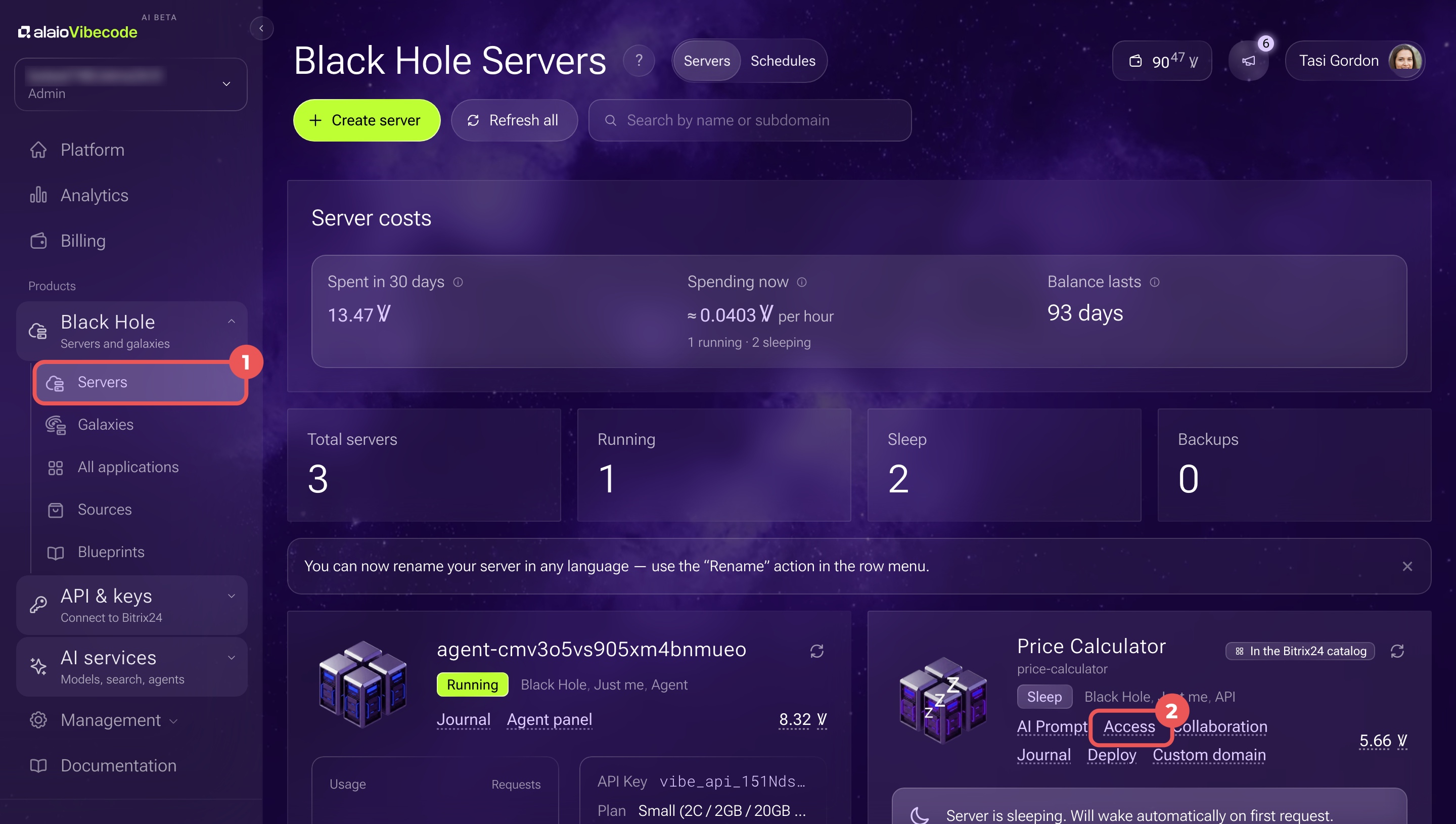
- In the Alaio Vibecode account and select Black Hole > Servers.
- Find the server that hosts your app and click Access.
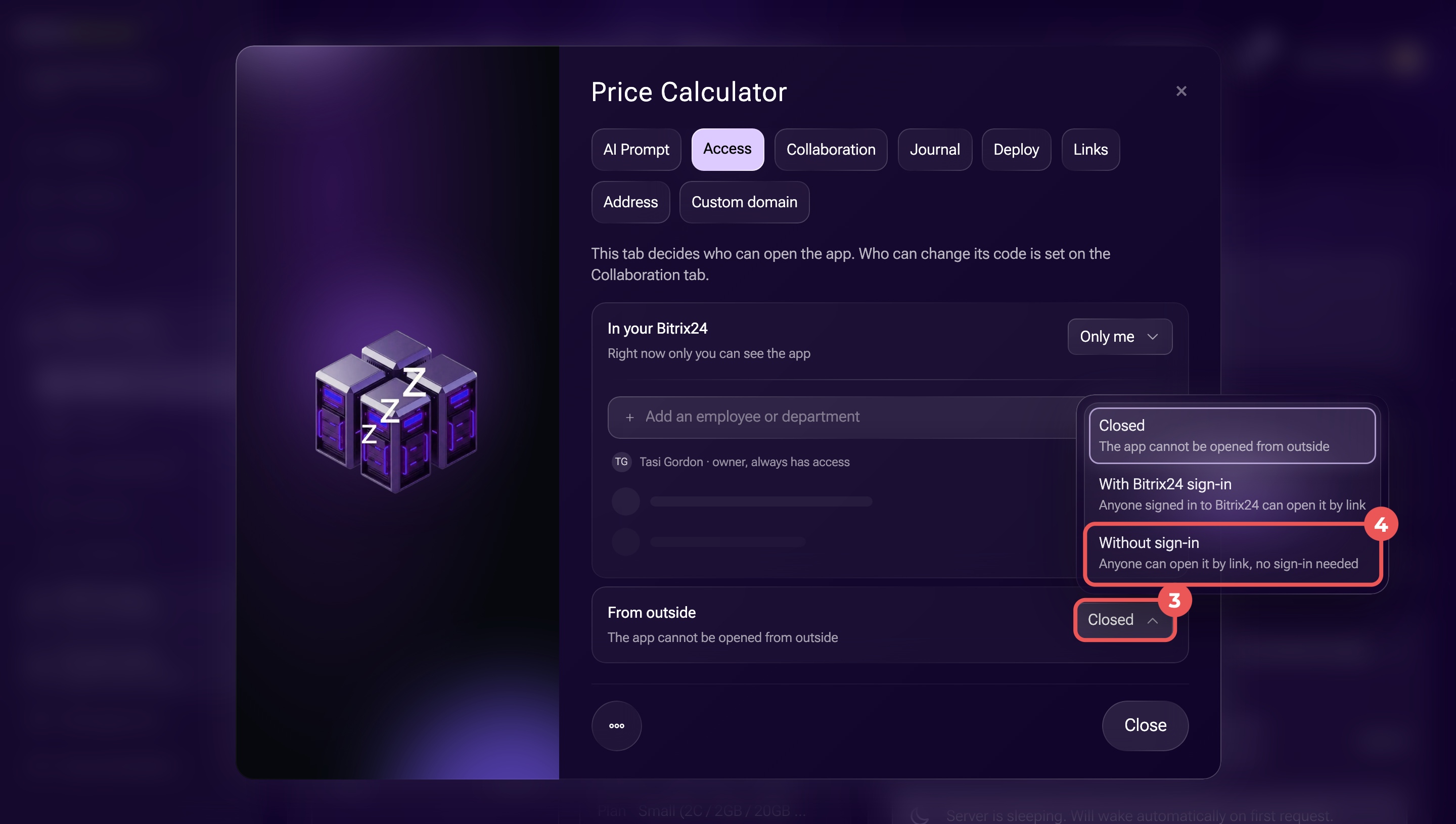
- Check the From outside field. If it's set to Without sign-in, you can proceed to connect the domain.
- Otherwise, open the From outside dropdown and select Without sign-in.
Connect a custom domain
You need to configure the domain in two places. First, add the domain in Alaio Vibecode. Then create the required DNS records with your DNS provider.
Alaio Vibecode gives you the information you need for each record.
Step 1. Add your domain in Alaio Vibecode
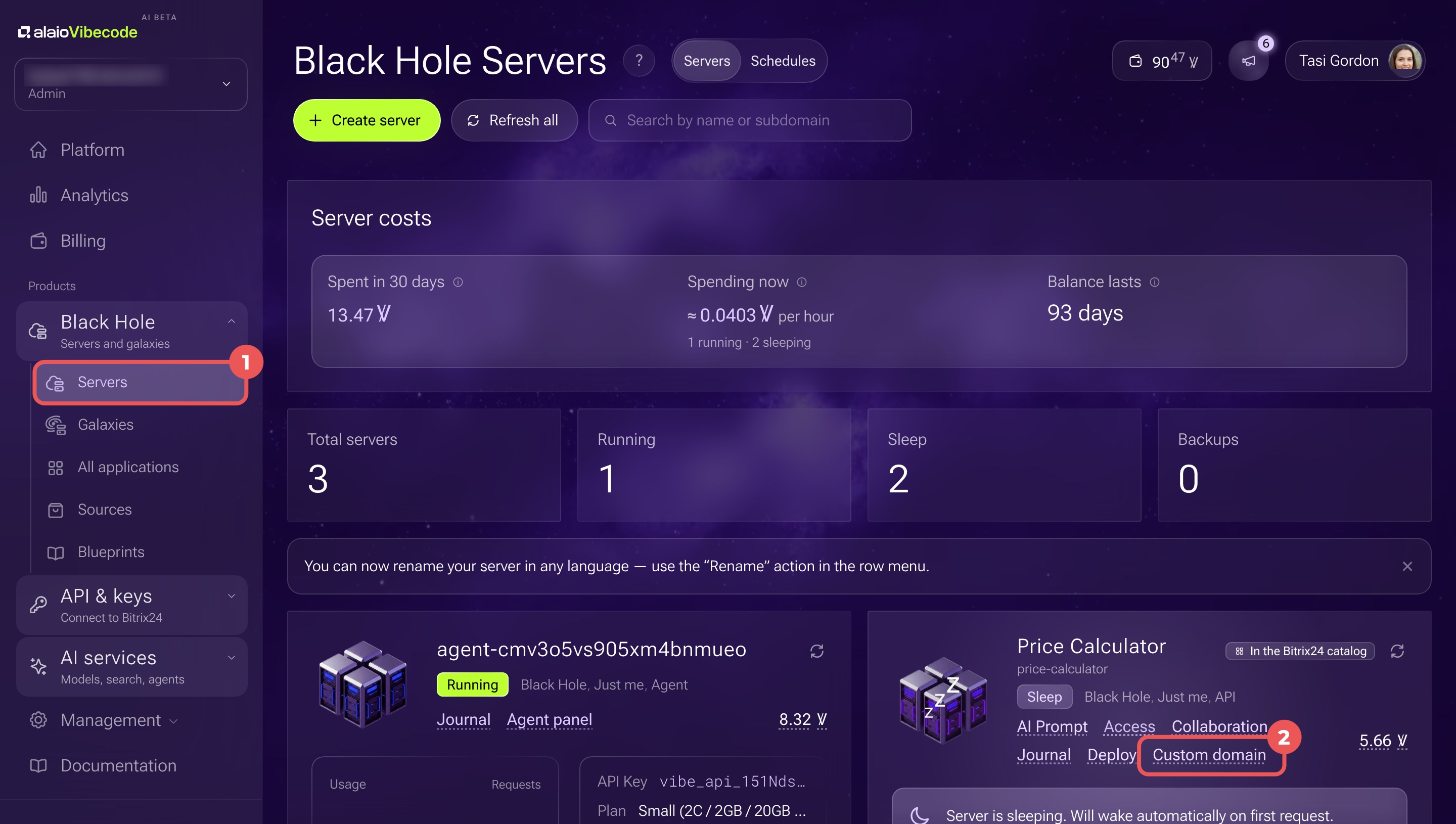
- In the Alaio Vibecode account and select Black Hole > Servers.
- Find the server that hosts your app and click Custom domain.
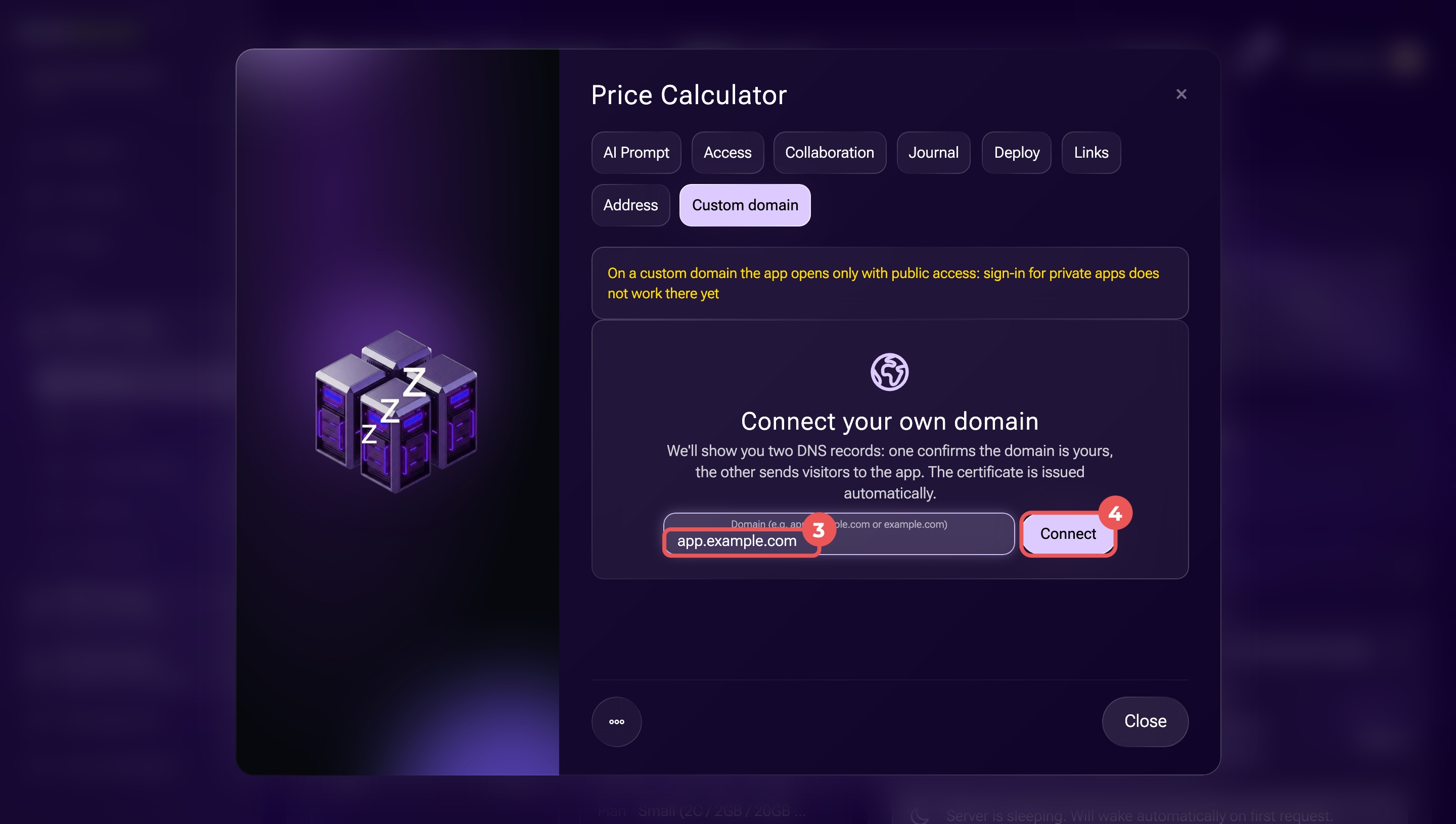
- Enter your domain, such as app.example.com. Don't include
https://, a page path, or a port number. - Click Connect.
Keep this tab open. You'll need the DNS record details for the next step.
Alaio Vibecode displays two DNS records:
- TXT — Confirms that you own the domain.
- CNAME or A — Directs visitors to your app. Use a CNAME record for a subdomain, such as app.example.com, or an A record for a root domain, such as example.com.
You need to add both records through your DNS provider. For each record, copy the type, Name (subdomain) and Value from Alaio Vibecode.
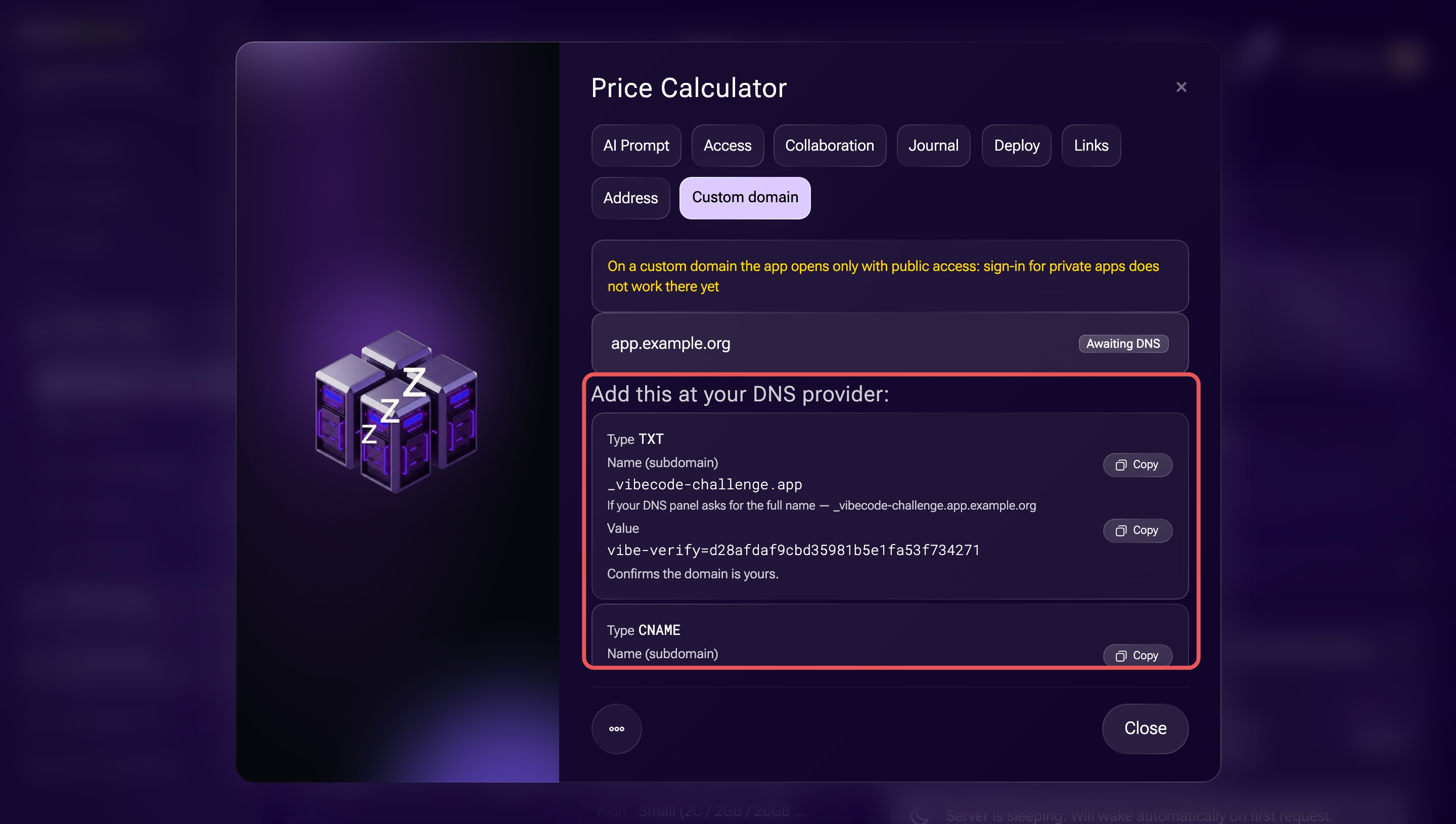
Step 2. Add DNS records with your provider
Open the account where you manage your domain's DNS settings. The exact names of sections and buttons depend on your provider.
- Sign in to your DNS provider's account.
- Select the domain you want to connect.
- Open the DNS management section.
You'll see a list of DNS records. Each record controls a specific domain setting.
Check for existing records. Before adding new records, check whether the app address already has an A, CNAME, or AAAA record.
For example, if you're connecting app.example.com, look for a record named app or app.example.com.
If a record already exists, the address may point to another website or service. Replacing it will redirect visitors to your Alaio Vibecode app.
If you want to keep the existing website or service, choose another subdomain.
Delete existing A, CNAME, and AAAA records only for the address you're connecting. Don't change records for other addresses. If there are no conflicting records, you can proceed.
Add the records from Alaio Vibecode. Follow these steps for each of the two records:
- Open the form to add a DNS record.
- Select the record type shown in Alaio Vibecode.
- Copy Name (subdomain) from Alaio Vibecode and paste it into the name field.
- Copy Value from Alaio Vibecode and paste it into the value field.
- Save the record.
Repeat these steps for the second record. Make sure both records appear in your DNS provider's list.
If you use Cloudflare, disable proxying for the A or CNAME record. Alaio Vibecode doesn't support connections routed through the Cloudflare proxy when you connect a custom domain.
You don't need to change this setting with other DNS providers.
Check your domain connection
After adding the DNS records, return to Alaio Vibecode to verify the connection.
- Open your Alaio Vibecode account, select Black Hole > Servers.
- Find your server and click Custom domain.
- Click Verify.
DNS changes can take several minutes to several hours to take effect. If Alaio Vibecode can't find the records, wait and try again.
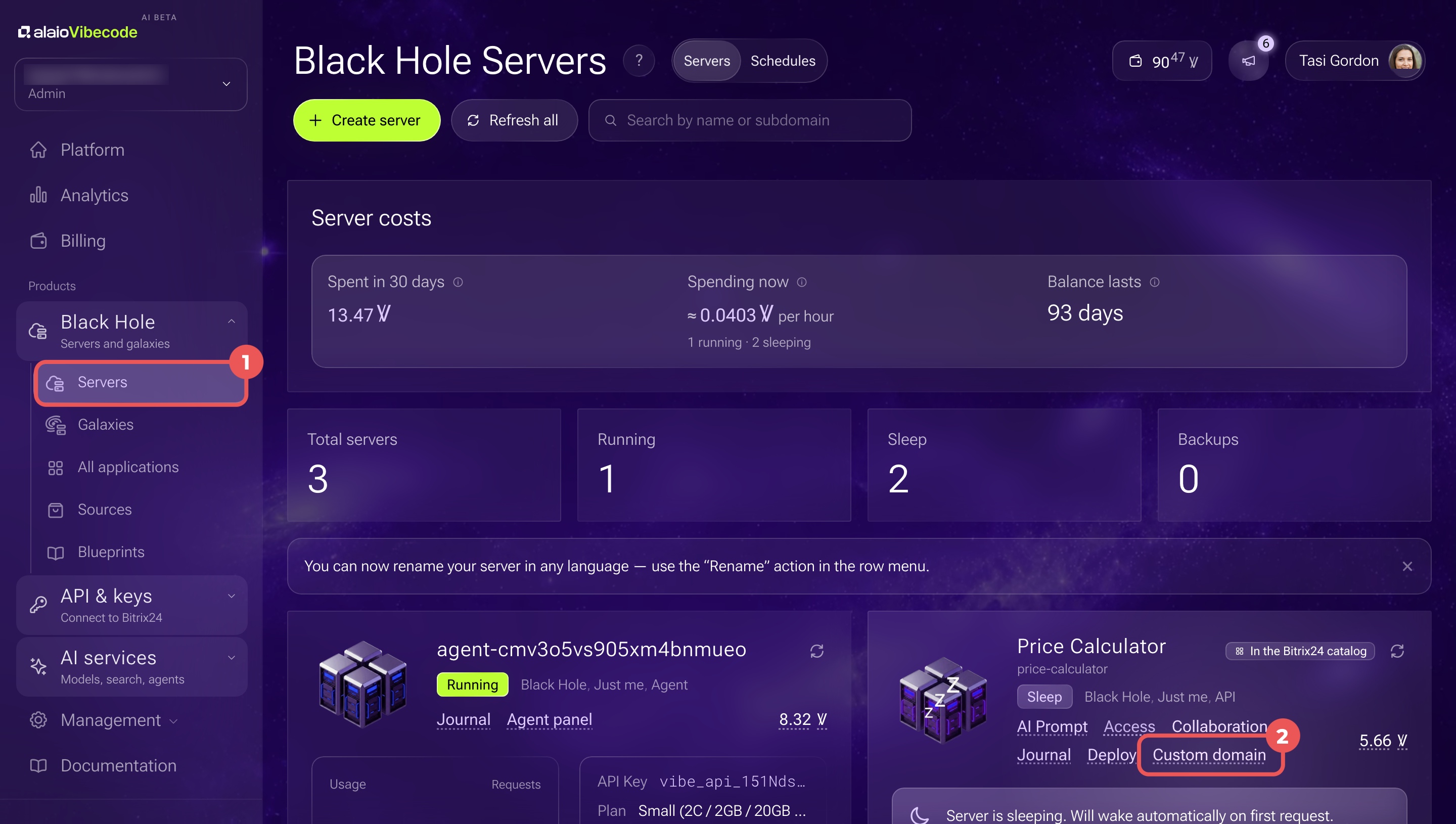
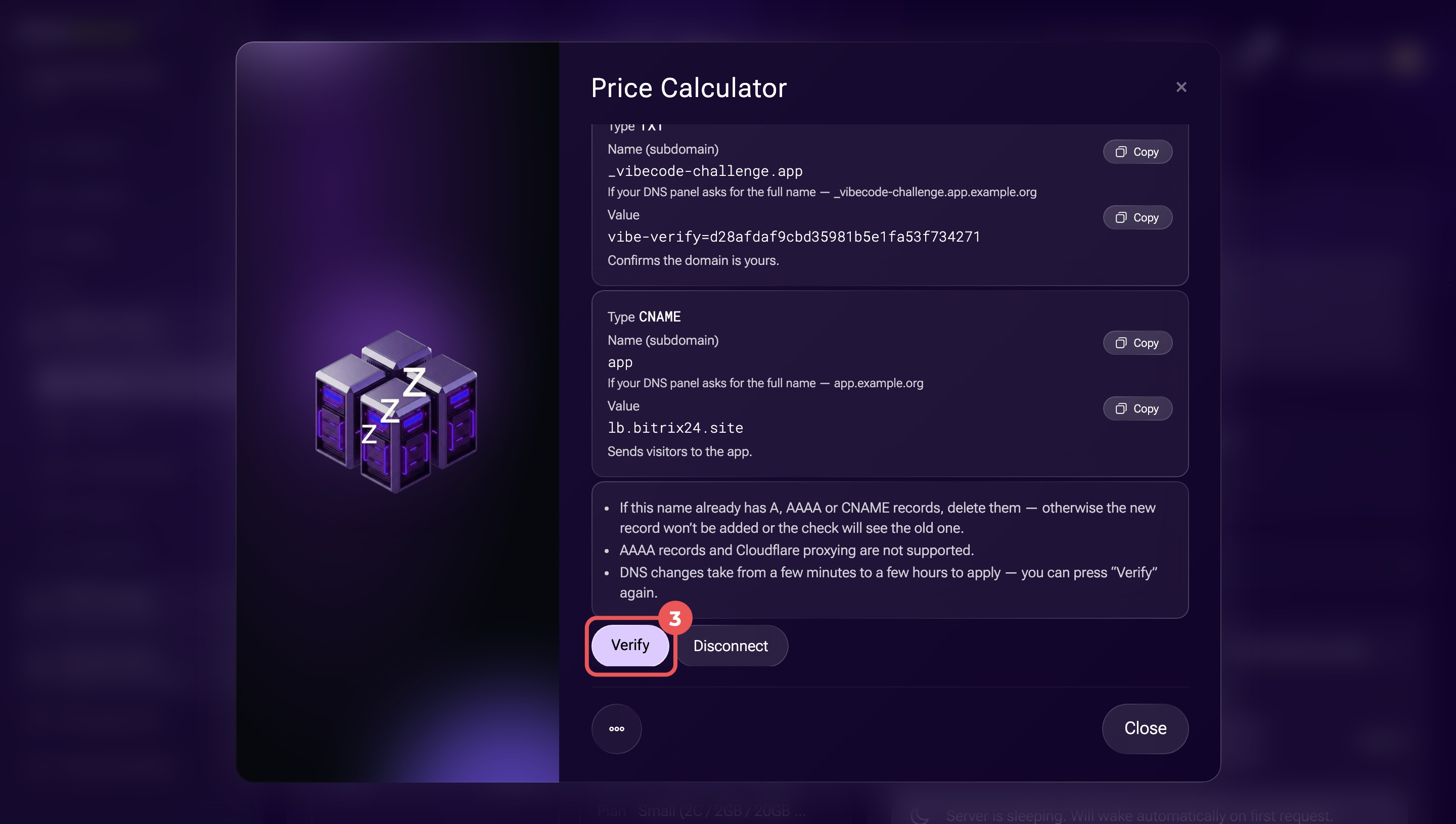
Once Alaio Vibecode verifies the DNS records, it starts issuing an HTTPS certificate. You'll see the Issuing certificate status. This usually takes up to two hours after the DNS changes take effect. Wait until the status changes to Active.
Then click the domain link on the Custom domain tab. Make sure the address opens the correct app.
You can also connect a domain through the API using an AI agent. However, you'll still need to add the DNS records with your provider.
How to connect a domain through the API
Fix domain connection errors
If you can't connect your domain or it stops opening the app, check the following issues.
DNS verification fails. Make sure both DNS records match the information in Alaio Vibecode. Check their types, names, and values. Look for duplicate domain names, conflicting records, or enabled proxying. Fix any issues, wait for the DNS changes to take effect, and click Verify again.
The domain is already in use. You can't connect the same domain to multiple apps at once. If another app or Bitrix24 product uses the address, disconnect it there first or choose another address.
The domain connection is suspended. Alaio Vibecode regularly checks your DNS records to make sure the domain still points to the app. If three consecutive checks fail, Alaio Vibecode suspends the connection. To restore it, check and correct the DNS records with your provider. Then return to Alaio Vibecode and click Verify. Once verification succeeds, the domain works again.
Alaio Vibecode also suspends domain connections when the associated Bitrix24 account is deactivated. Restore the Bitrix24 account first, then verify the domain connection.
Disconnect or change a domain
You can disconnect a custom domain at any time. After you disconnect it, the domain no longer opens your app. However, the original Alaio Vibecode address continues to work.
To disconnect a domain:
- Open your Alaio Vibecode account and select Black Hole > Servers.
- Find your server and click Custom domain.
- Click Disconnect.
- Click Disconnect again to confirm.
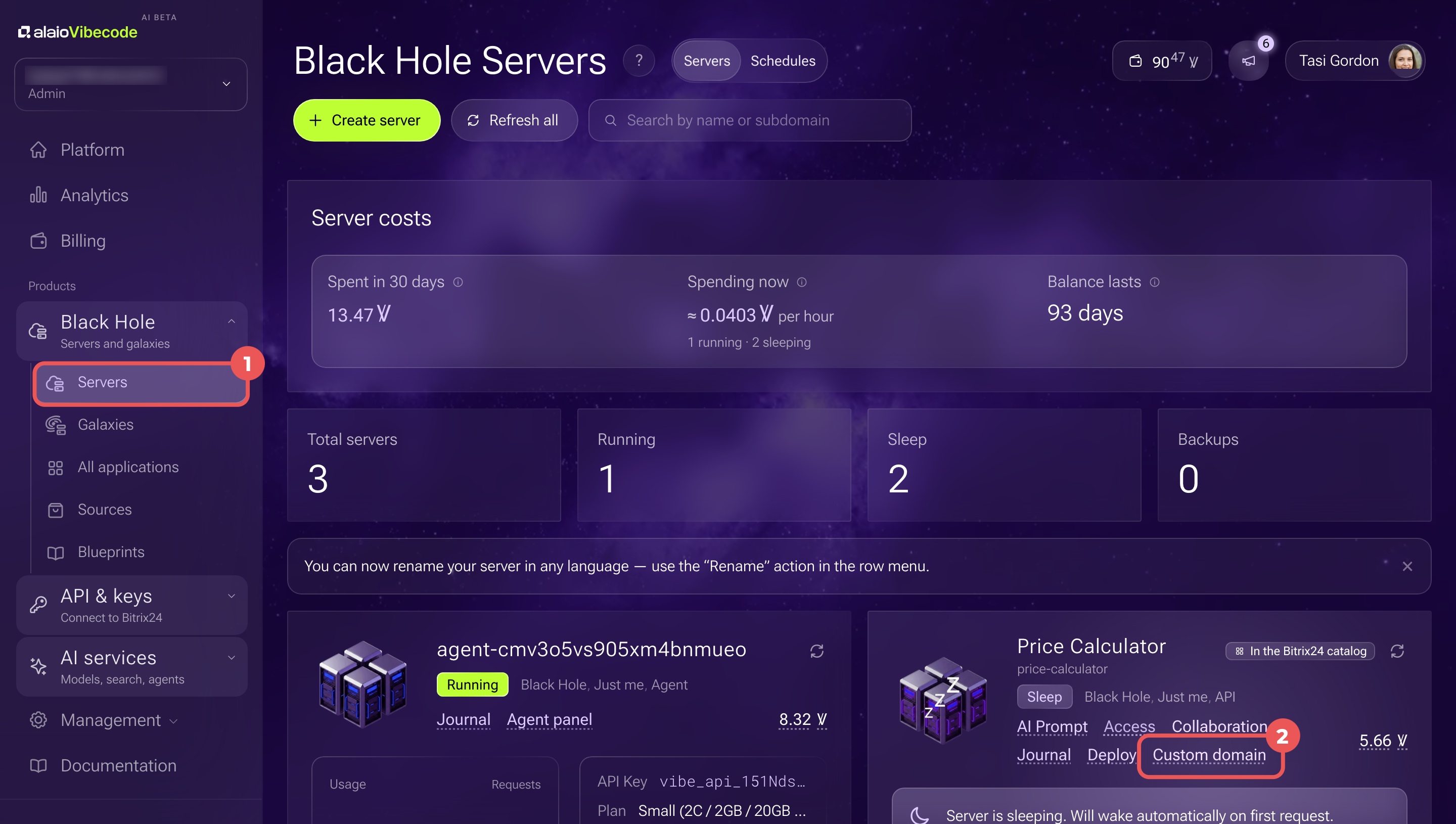
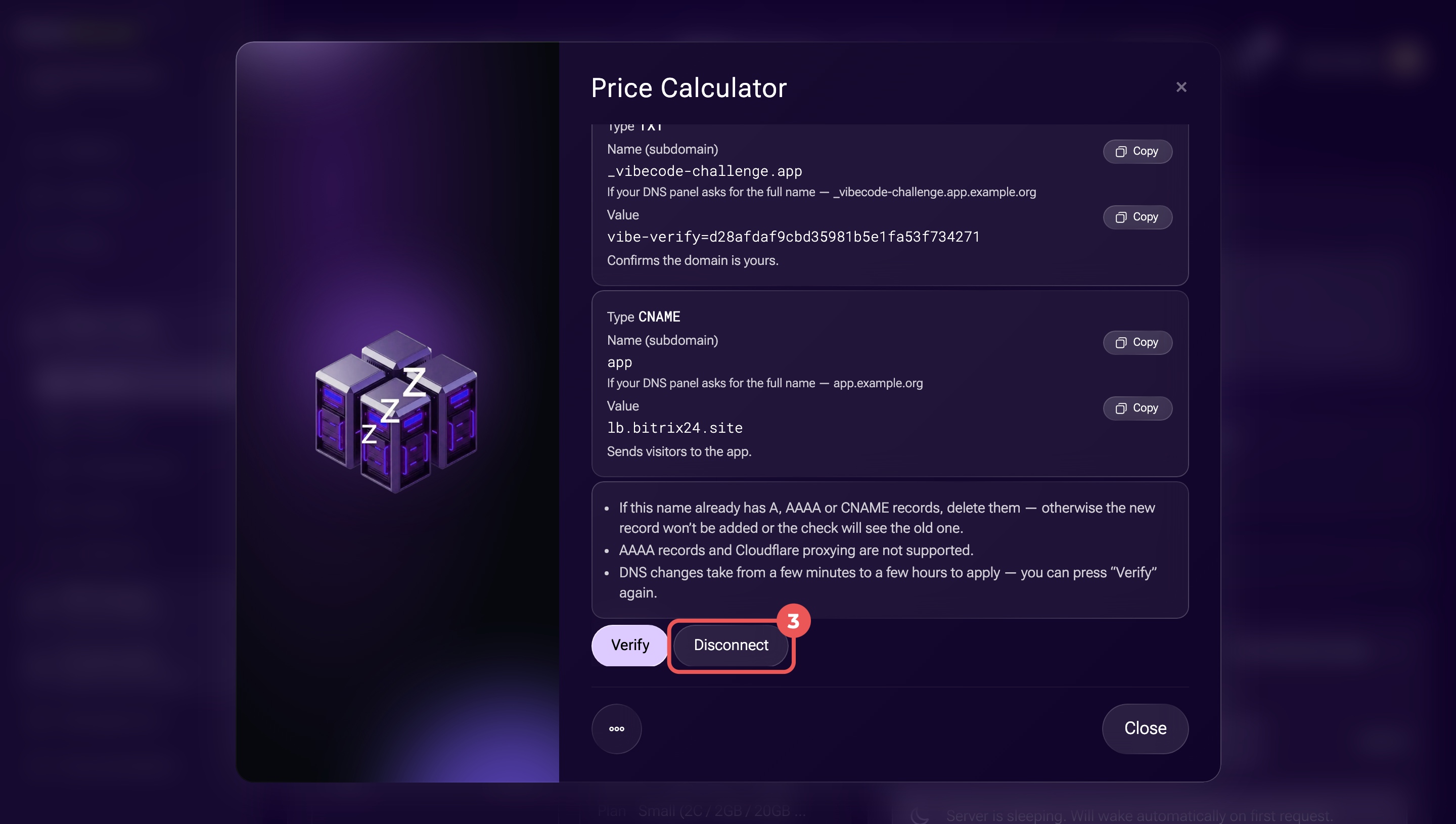
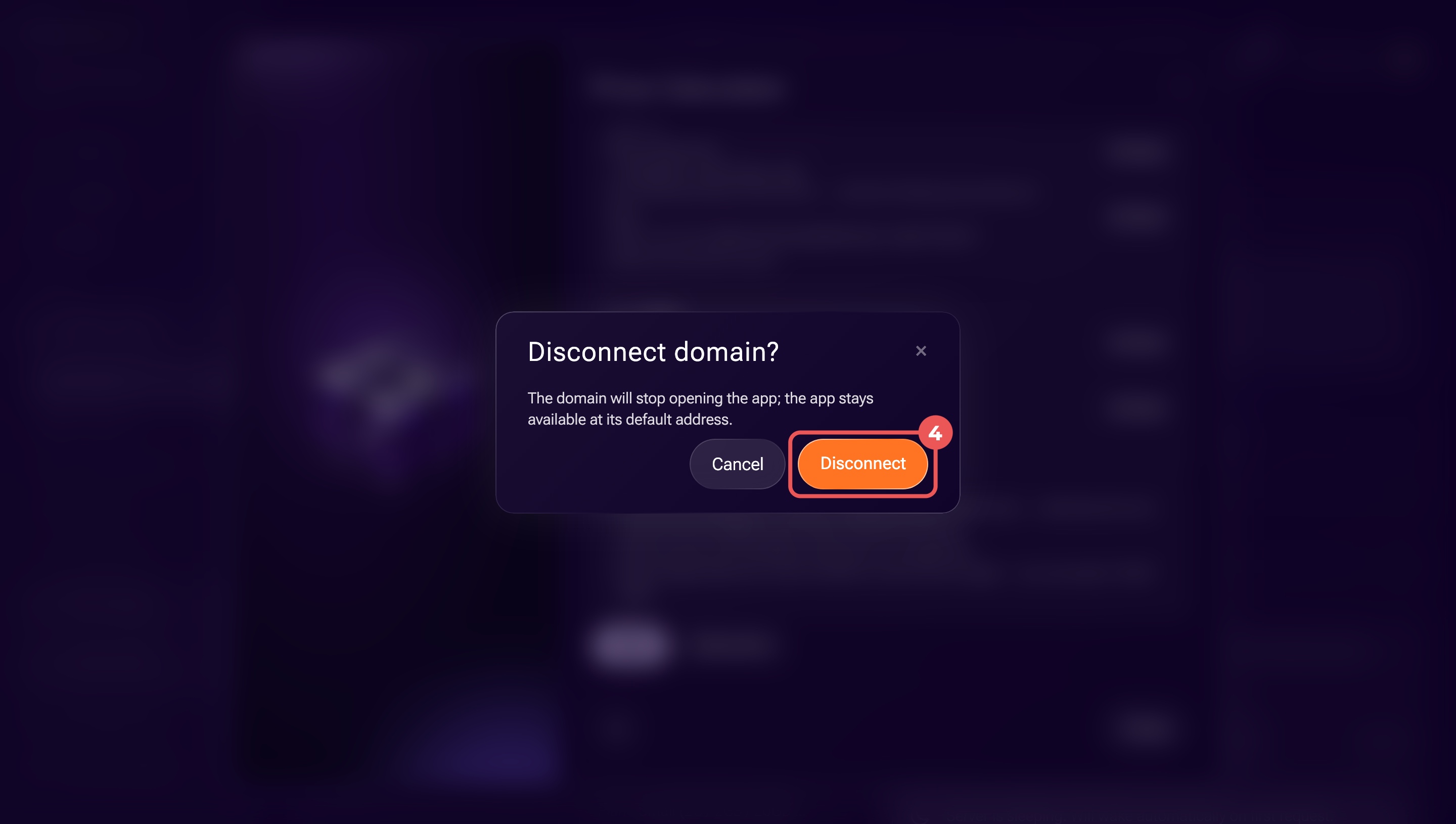
To change the domain, disconnect the current one and connect a new address.
Connect a custom domain
To use the same domain on another server, disconnect it from the original server first. Then connect it to the new server and update the DNS records using the new values from Alaio Vibecode.
If you deploy your app on another server, the domain connection moves with the app. After the move, check the domain status and make sure the app opens at the correct address.
If you delete a server, Alaio Vibecode removes its domain connection.
In brief
- A custom domain lets you open your app using your company's web address. The original Alaio Vibecode address remains available.
- Each app supports one custom domain. Custom domains currently work only with publicly accessible apps.
- Add the domain in Alaio Vibecode, then create the two required DNS records with your provider.
- Click Verify and wait for the Active status. Alaio Vibecode automatically issues the HTTPS certificate.
- Keep the DNS records in place. Alaio Vibecode regularly checks them to maintain the connection.