
Reactions let you respond to messages quickly without typing a reply: show that you've read a message, support an idea, or express an emotion.
In this article:
Set up a default reaction
Choose which emoji to use as your default reaction.
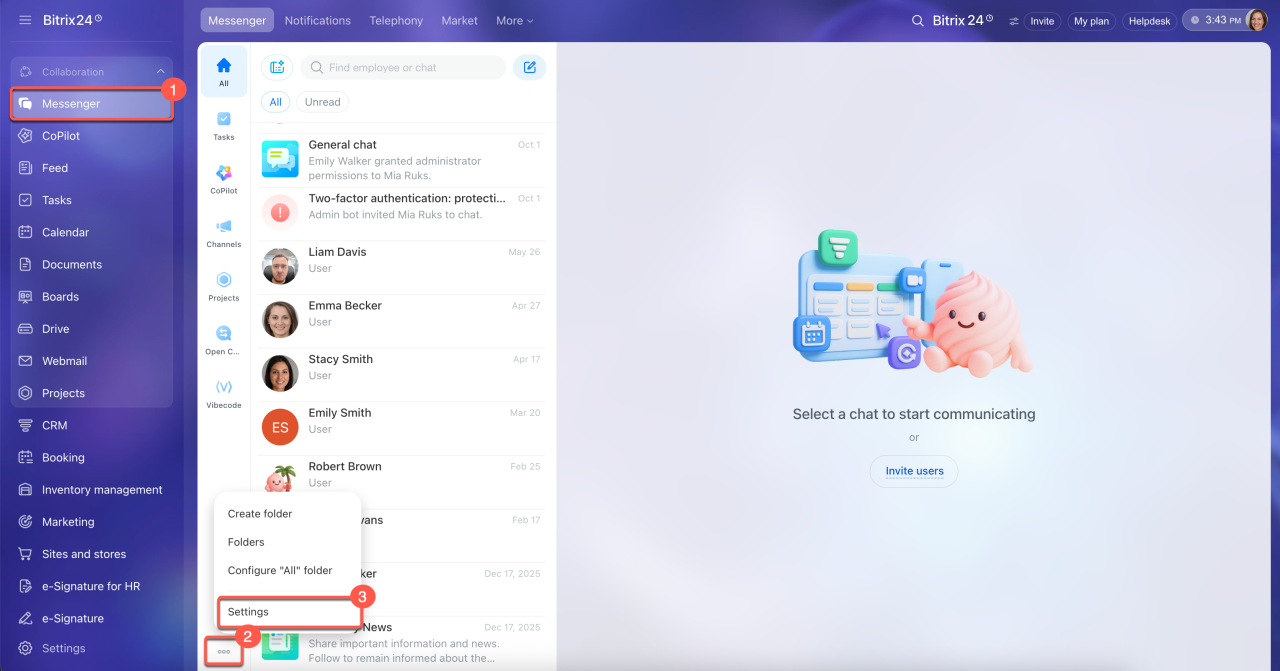
1. Open the Messenger section in the left menu.
2–3. Below the folder list, click Three dots (...) and select Settings.
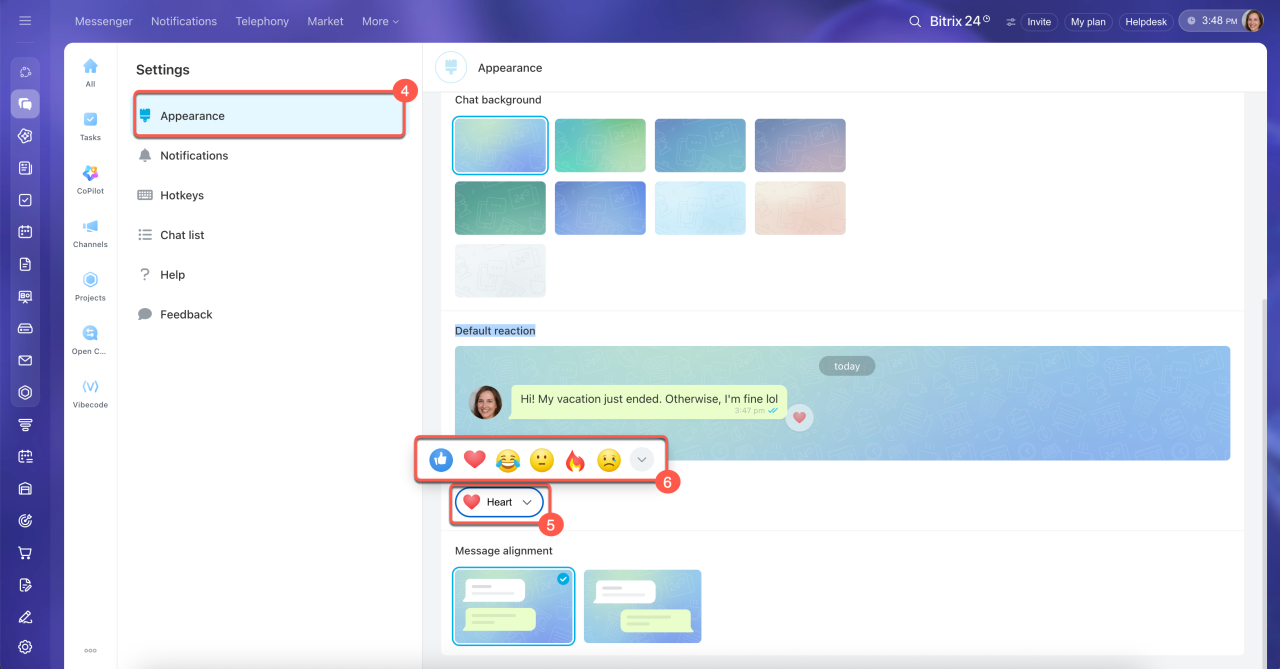
4. Go to the Appearance section.
5–6. In the Default reaction block, click the current emoji and select a new one.
Your default reaction appears first in the list, so you can add it with one click.
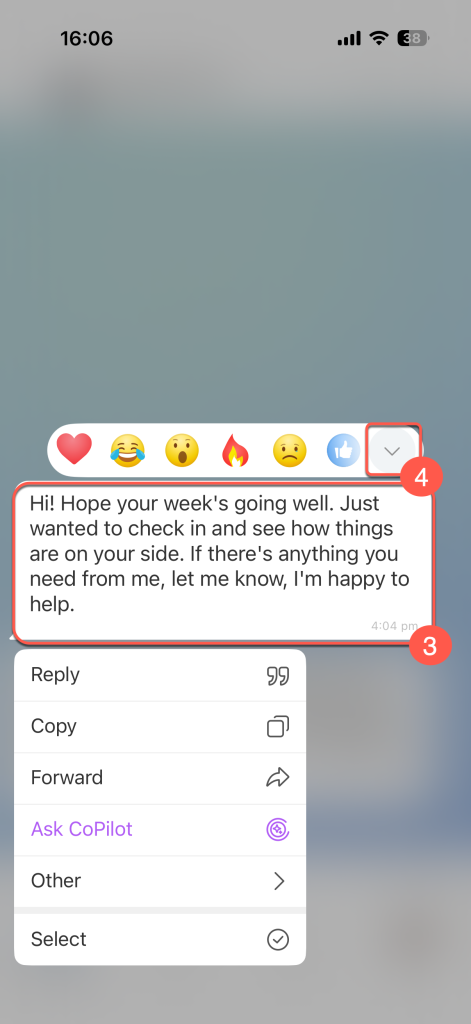
1–2. Go to Messenger and open any chat.
3. Press and hold any message to open the reaction panel.
4. Tap the down arrow on the right side of the panel to open the full list of reactions.
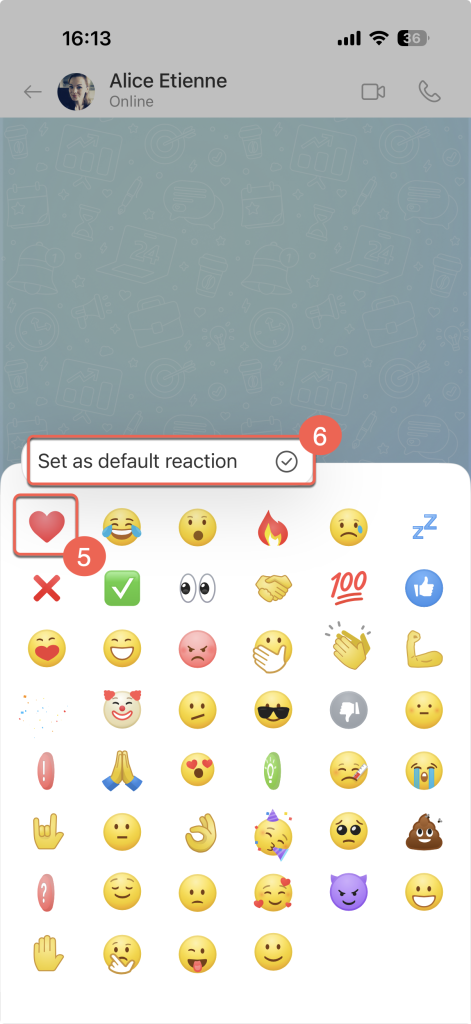
5. Press and hold the emoji you want to use as your default reaction.
6. Tap Set as default reaction.

Add or remove a reaction
You can add several different reactions to one message. Emojis may look different depending on your operating system and device.
Add your default reaction.
1. Hover over a message. Your default reaction icon appears in the bottom-right corner.
2. Click the icon.
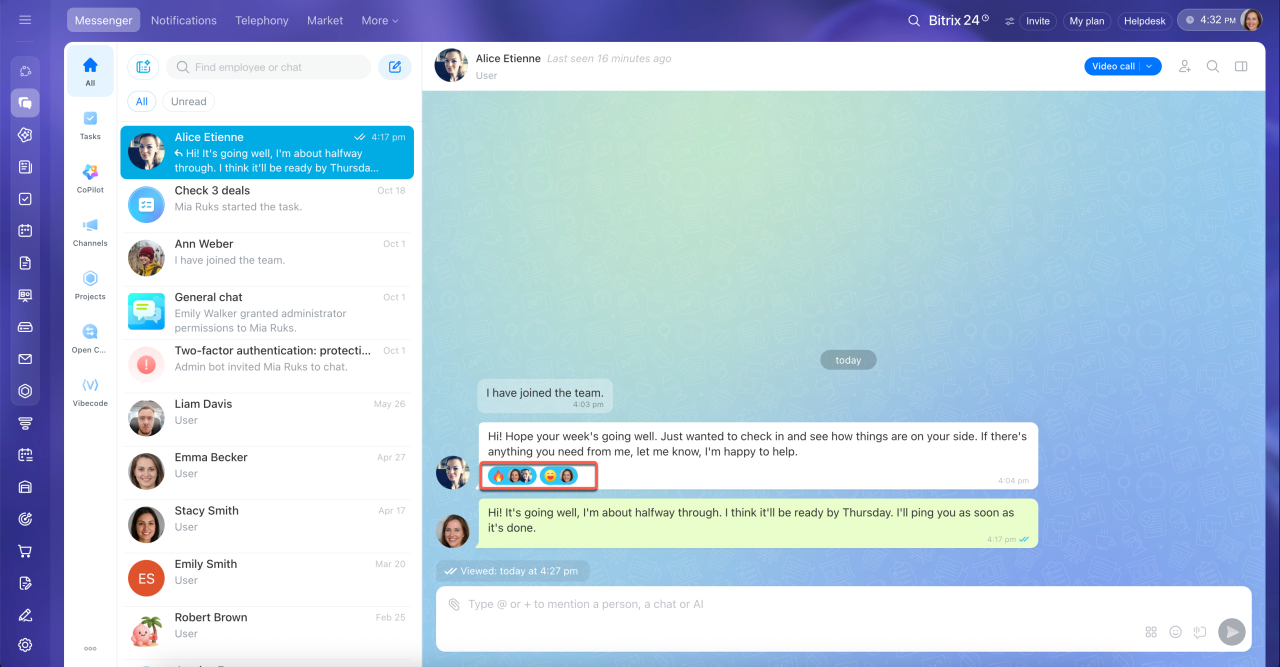
The reaction appears below the message.
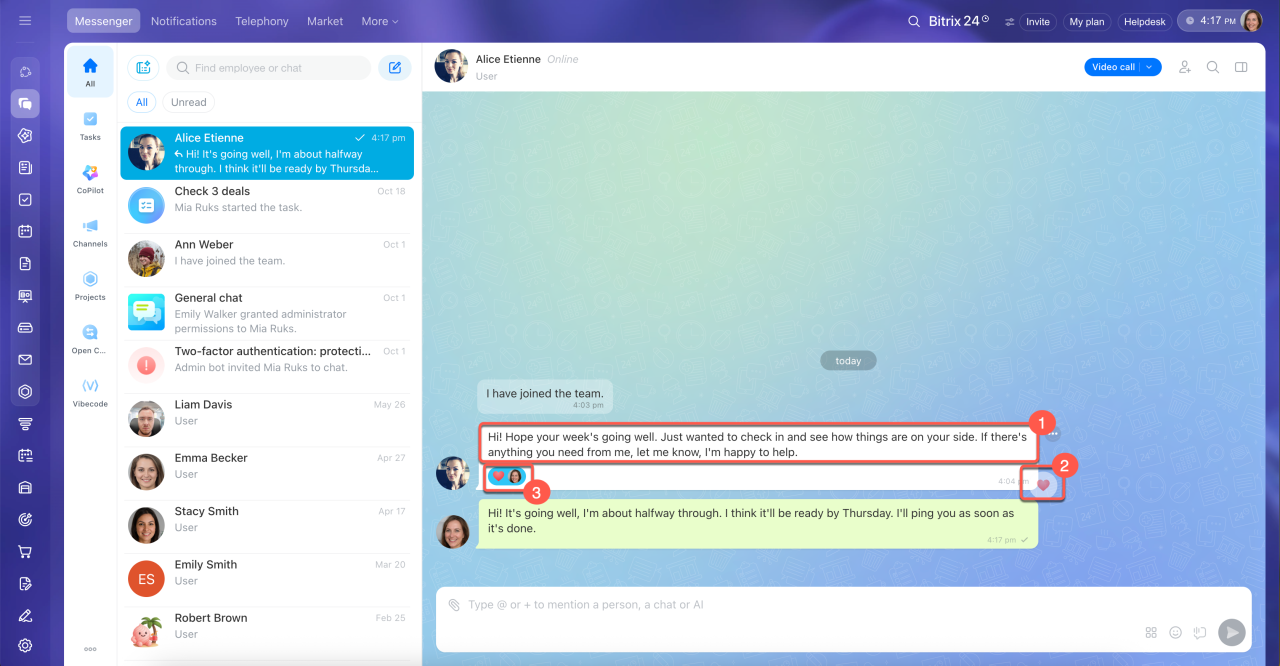
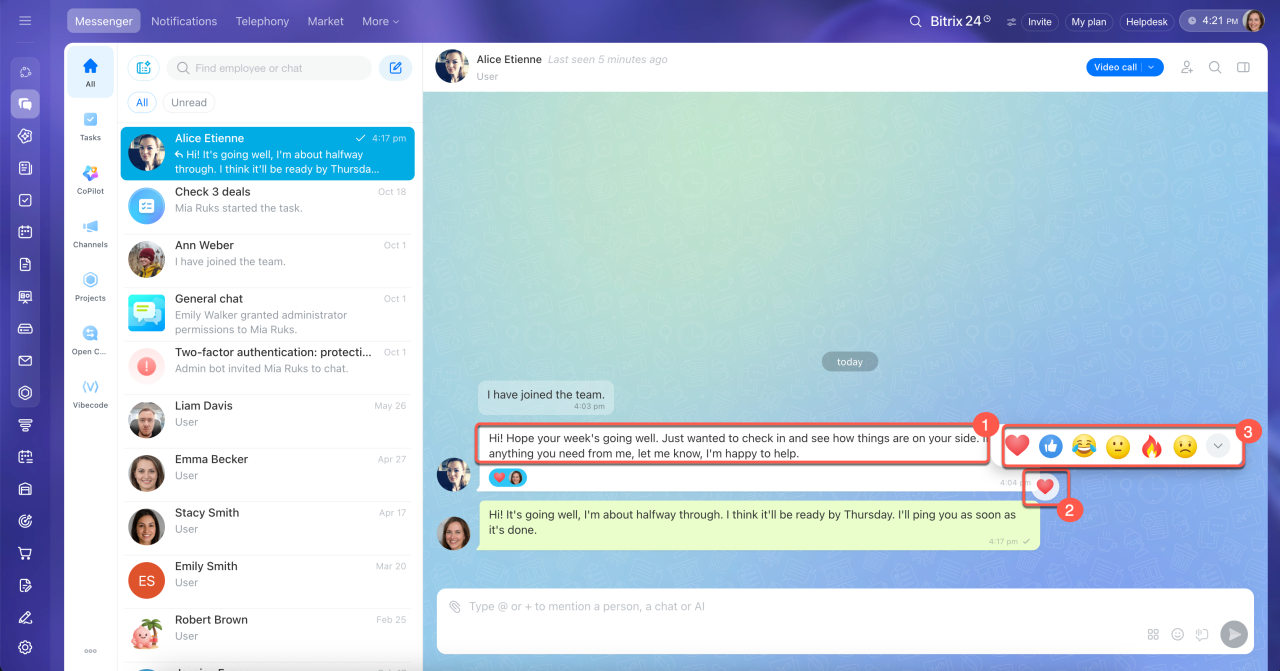
Choose a reaction.
1. Hover over a message. Your default reaction icon appears in the bottom-right corner.
2. Hover over the reaction icon.
3–5. In the panel that opens, click the down arrow next to All reactions and select an emoji.
The reaction appears below the message.
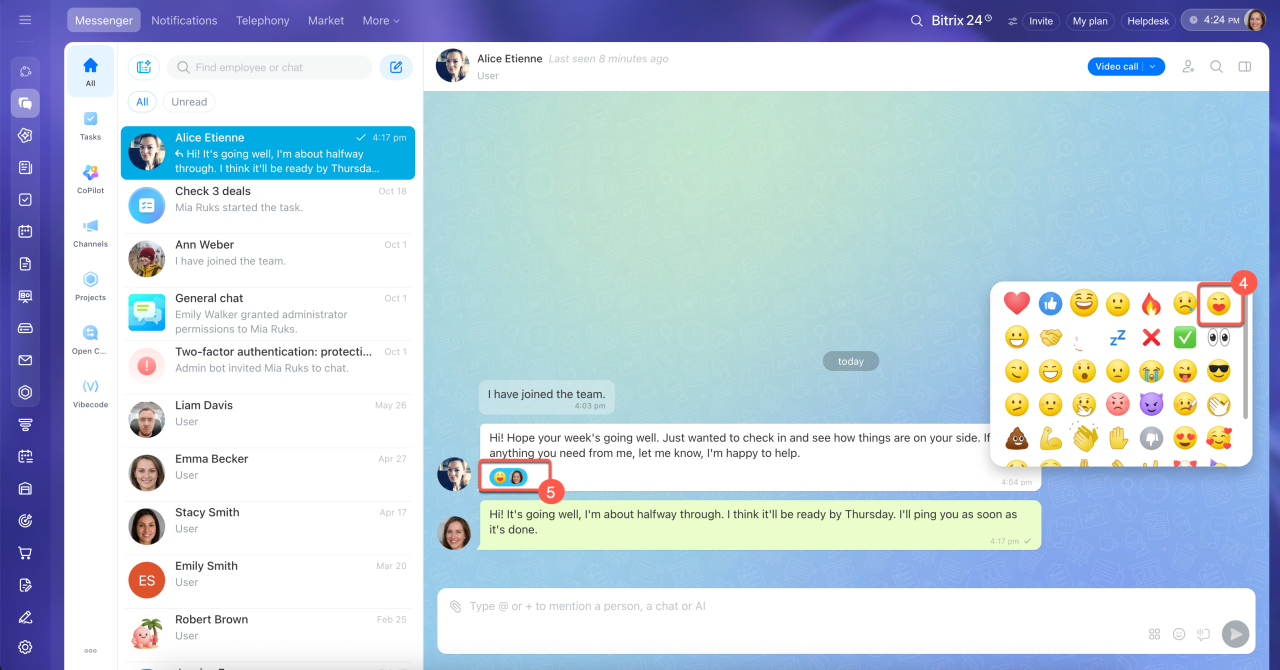
Add the same reaction. If a message already has reactions, click the one you want. Your reaction is added to the message.
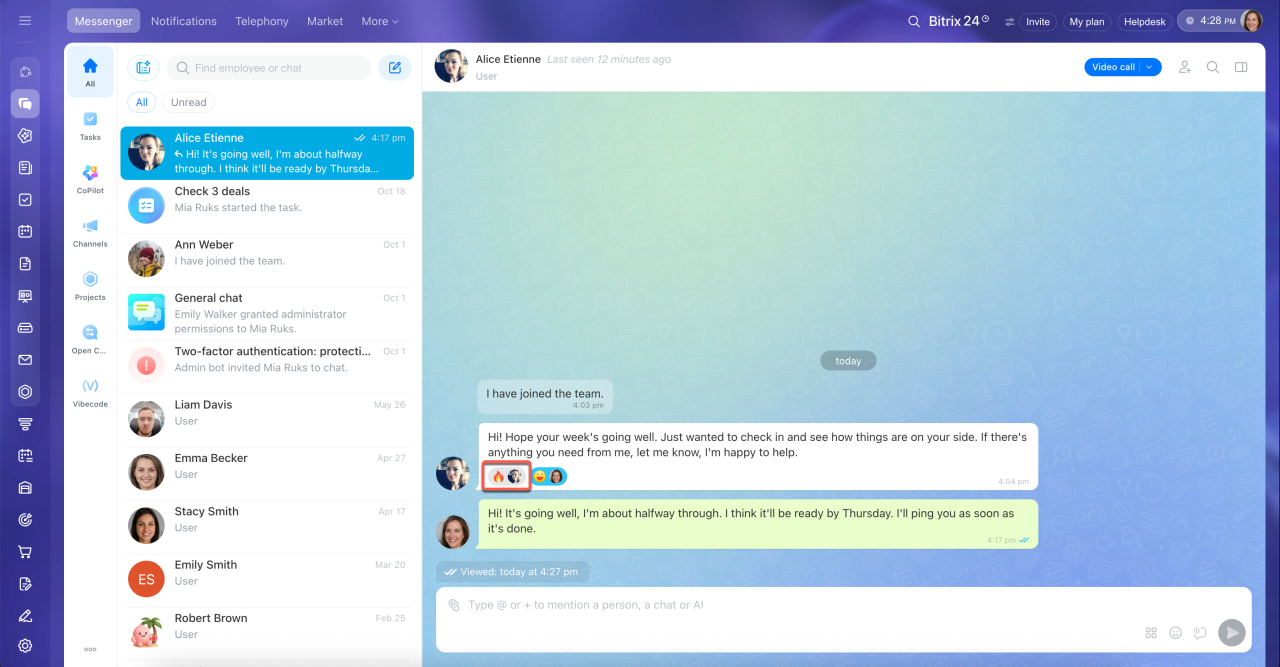
Remove a reaction. If you made a mistake or changed your mind, you can remove your reaction. Reactions you've added are highlighted in blue. Click the reaction you want to remove, and it disappears.
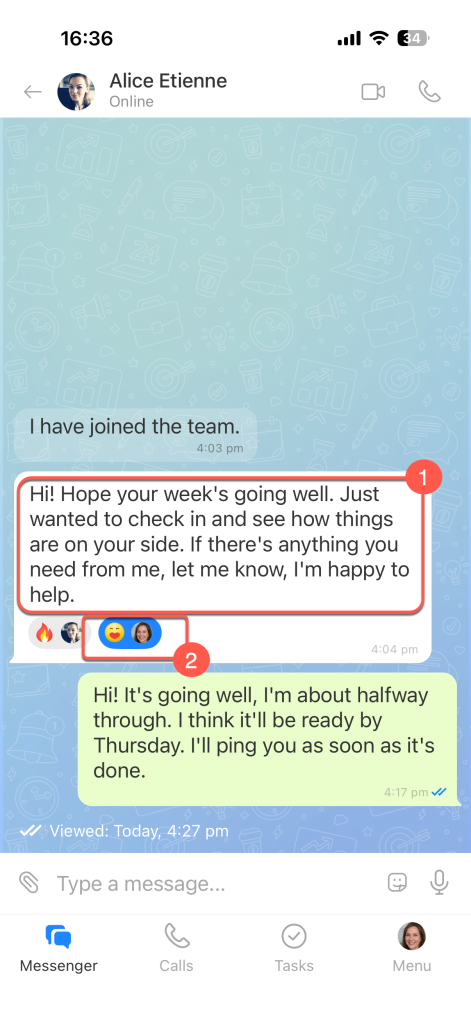
Add your default reaction. Double-tap a message to add your default reaction.
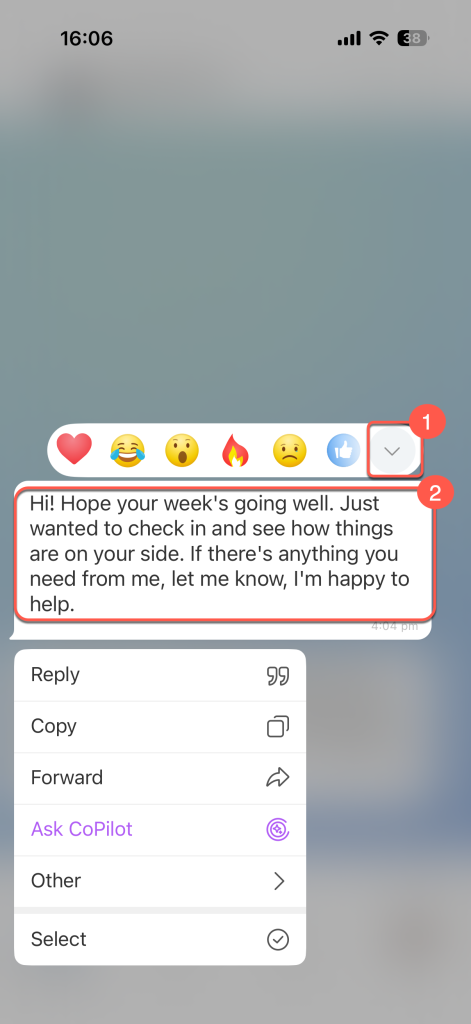
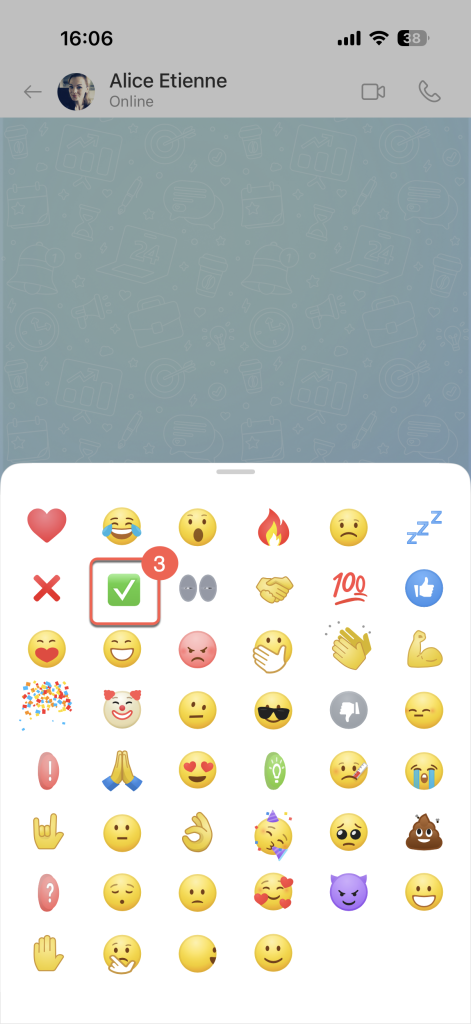
Choose a reaction.
1. Press and hold a message to open the reaction panel at the top.
2–3. Tap the All reactions down arrow and select an emoji.
Add the same reaction. If a message already has reactions, tap the one you want. Your reaction is added to the message.

Remove a reaction. If you made a mistake or changed your mind, you can remove your reaction. Reactions you've added are highlighted in blue. Tap the reaction you want to remove, and it disappears.

See who reacted
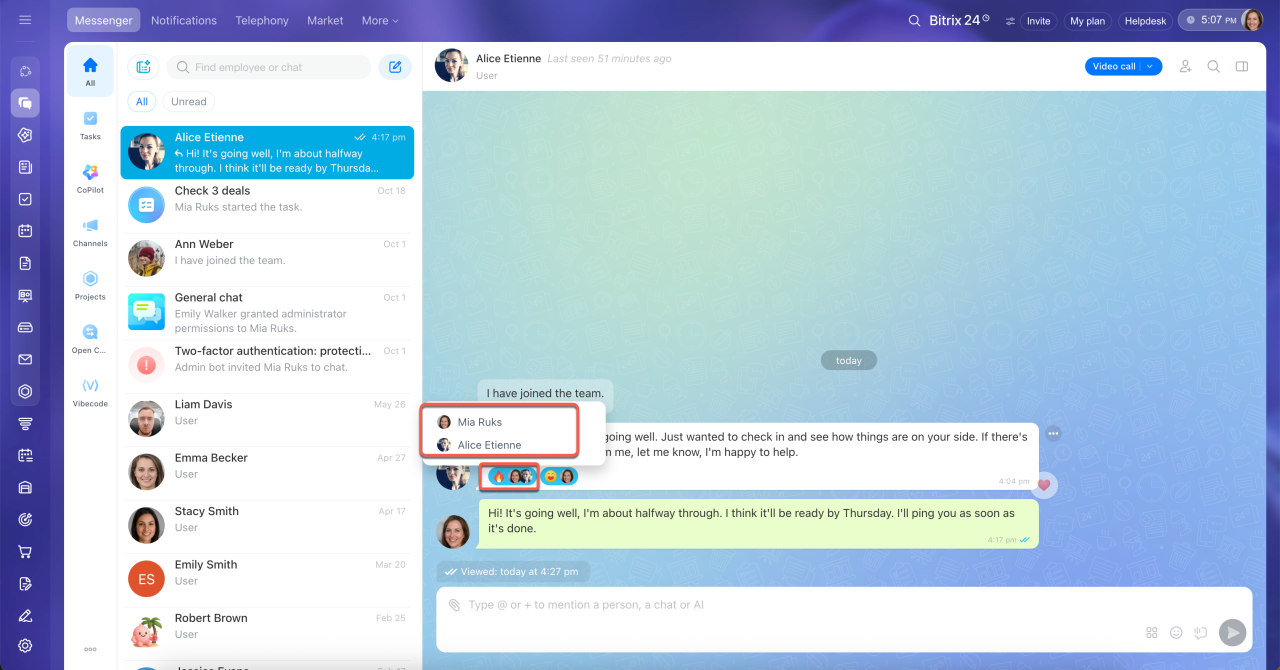
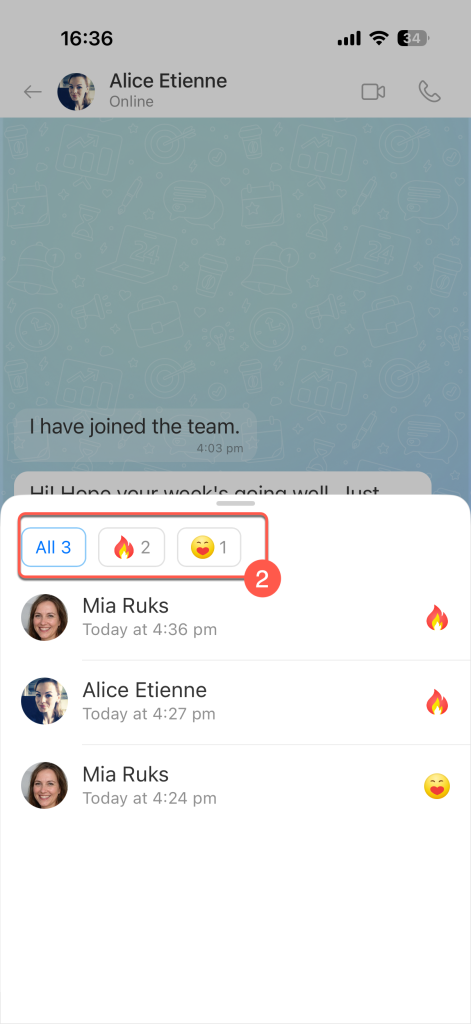
Reactions appear below the message. Depending on the number of reactions, you may see the avatars of users who reacted next to the emoji, or the total number of reactions.
You can always check how your colleagues reacted to a message.
Hover over a reaction emoji to open the list of users who added it.
Press and hold any reaction emoji below a message. This opens a list of users: the All tab shows all reactions, and the other tabs show who reacted with each emoji.

In brief
- Reactions let you respond to messages without typing a reply.
- Set your default reaction in Messenger settings in the web version, or from the full list of reactions in the mobile app.
- In the web version, hover over a message to see your default reaction icon in the bottom-right corner. Click it to add the reaction. To use a different emoji, hover over the icon and choose another reaction.
- In the mobile app, press and hold a message to choose a reaction. Double-tap a message to add your default reaction.
- To remove your reaction, click or tap it again.
- To see who added a specific reaction, hover over the emoji below a message in the web version, or press and hold it in the mobile app.