
The On-Premise version of Bitrix24 runs on your company's infrastructure, so you need to protect its servers, network, and employee devices. External security tools help block suspicious requests, scan uploaded files for viruses, prevent corporate data leaks, and detect cyberattacks.
In this article:
Choose additional security tools
The tools you need depend on your company's data, how employees access Bitrix24, and your information security requirements. Your company's information security specialist or a Bitrix24 Partner can set up security tools for Bitrix24.
Filter incoming requests with a WAF
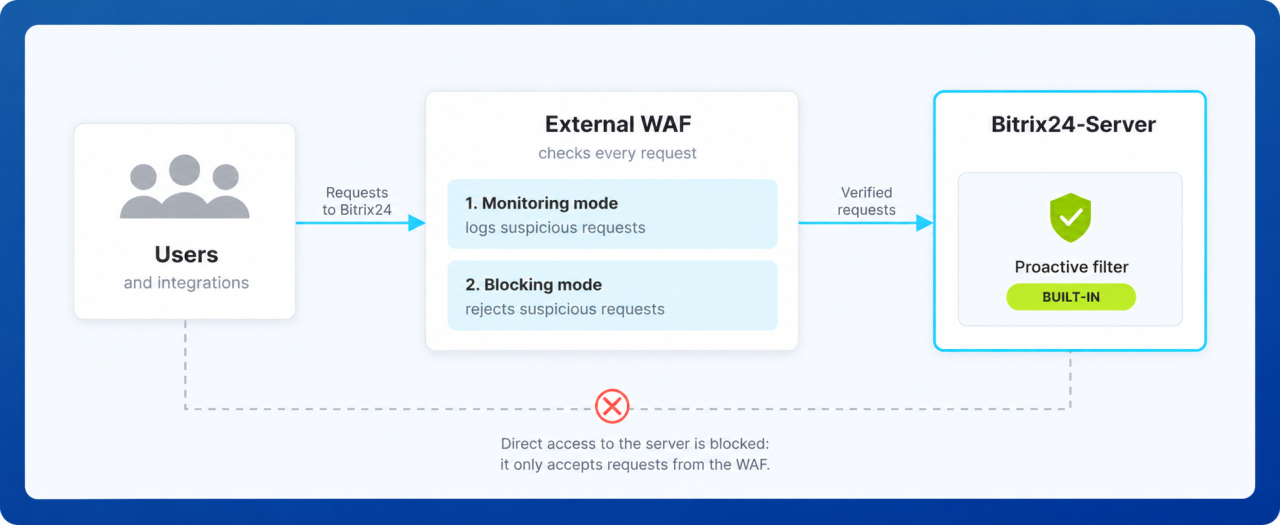
A web application firewall (WAF) inspects incoming requests to Bitrix24 and blocks suspicious ones before they reach the server. For example, it can block attempts to inject malicious code through a web form.
Deploy a WAF in front of your web servers: users connect to the WAF, and Bitrix24 servers accept requests only from it. Your Bitrix24 architecture may include additional servers, such as Push&Pull for instant messages. Make sure traffic is routed correctly when integrating the WAF. Also consider WAF performance and set up exceptions for video calls and other bandwidth-intensive streaming services.
What you need to know:
- Start in monitoring mode. A WAF has two modes: monitoring mode only logs suspicious requests, while blocking mode rejects them. This helps you identify legitimate employee actions that the firewall mistakenly flags as suspicious and set up exceptions.
- Set up rules for login forms, the administration section, file uploads, and integrations. Rules should protect these areas without blocking file uploads, data exchange with integrations, or background tasks.
- Restrict access to the administration section. Allow access only from your company's internal network or through a secure connection (VPN).
- Keep logs of triggered rules. Collect them with other security events, for example, in a SIEM (more on this below). This makes incident investigations easier.
You can use an external WAF with the Proactive filter. The Proactive filter is built into Bitrix24 and is designed to work with it.
8 layers of protection of Bitrix24
If you can't update Bitrix24 immediately, a WAF can help block some attacks that exploit known vulnerabilities. You should still install the update: a WAF doesn't fix vulnerabilities or guarantee protection.
Scan files for viruses
Install antivirus software on the server to prevent infected files from reaching other users. It scans documents, images, and archives that employees upload to Bitrix24.
What you need to know:
- Scan uploaded files for viruses. Scanning archives can reduce performance, so set limits for scan depth and archive size.
- For Bitrix24 core files and custom code, use integrity control, change detection, and scheduled scans.
- Create exceptions only for service data, such as temporary files (cache) and logs. Only the system account should have permission to modify this data.
Prevent data leaks (DLP)
A data loss prevention (DLP) tool helps ensure that important data doesn't leave the company. For example, when integrated with Bitrix24, a DLP tool can detect or block an attempt to send an email with the customer database to a personal address.
What you need to know:
- Before choosing a DLP tool, identify the data that matters most to your company and the channels employees use to share it.
- Depending on the solution, a DLP tool can monitor outgoing emails, files saved to local devices, or data exports from Bitrix24.
- You can set up DLP using a ready-made solution from a DLP vendor or a custom solution developed by a Bitrix24 Partner.
Collect and analyze security events (SIEM)
A SIEM collects security events from different services used by your company in one place. This helps you identify suspicious activity faster, such as multiple failed login attempts, and investigate incidents.
Data you can send from Bitrix24 to a SIEM:
- Event history — Bitrix24 logs login attempts, user actions, and system errors here.
- Web server logs — these record errors that may not appear in the event history.
- Update and backup logs — these help identify unexpected file changes.
- Background task status — a stalled task may not trigger an alert.
To send this data to a SIEM, set up connectors — scripts that read log files and send the data, usually using the syslog protocol.
Manage accounts and single sign-on (SSO)
Centralized account management lets you manage user accounts in a single directory, apply consistent password rules, and quickly revoke access when an employee leaves.
Depending on your Bitrix24 version and configuration, Bitrix24 On-Premise provides the following built-in options:
- Integration with Active Directory and LDAP. Active Directory and other directory services that use the LDAP protocol store your company's employee accounts. Bitrix24 connects to a directory and synchronizes employee accounts, along with your company structure if needed.
Integrate Bitrix24 with Active Directory and LDAP - Automatic domain login (NTLM). Employees who are already signed in to their work computers with domain accounts can access Bitrix24 without entering their passwords again.
- Two-factor authentication.
For other login methods, such as a corporate single sign-on service, you can find ready-made solutions in the Market.
Bitrix24 Apps
Manage mobile devices (MDM)
The Bitrix24 mobile app is a work tool, just like a corporate computer: employees use it to access messages, documents, tasks, and CRM data. You also need to secure the devices themselves. Use mobile device management (MDM) tools for this.
MDM lets you:
- Block the transfer of work data to personal apps.
- Exclude work data from device backups.
- Revoke access if a device is lost by removing VPN settings and certificates and terminating active sessions.
- Allow only Bitrix24 and other necessary apps, such as the camera and a document viewer, on corporate devices.
Configure MDM rules separately for different device groups: employees' personal devices, corporate phones, and shared terminals.
MDM doesn't replace Bitrix24 access permissions. Even if a phone runs only Bitrix24, you still need to configure access permissions in Bitrix24.
Protect data in the Bitrix24 mobile app
Protect your custom code
If you have custom code in Bitrix24, protect it as well. Use the built-in security tools of Bitrix Framework, the platform Bitrix24 is built on. They help prevent common attacks, such as attempts to inject malicious code into pages or database queries.
Set up security tools
Setting up external security tools requires separate planning. There's no universal approach: the setup depends on your Bitrix24 version and edition, network, integrations, and the capabilities of the selected tool. Plan the setup with a Bitrix24 Partner who has experience with both Bitrix24 and the security tools you plan to use. Find a partner in the directory: in the Product type filter, select On-Premise.
Find an implementation partner
Steps to set up security tools:
- Gather the information your partner needs. Identify who connects to Bitrix24 and from where — via the internet or your internal network. List the data that matters most to your company and the integrations you use.
- Choose security tools with your partner. The partner compares solution capabilities with your company's requirements and suggests suitable options.
- Plan the integration. The partner should consider your IT environment, system configuration, legal requirements, and internal information security policies and procedures.
- Run tests. Ensure the security tools don't block necessary actions or slow down Bitrix24. For example, keep a WAF in monitoring mode for several weeks and review all false positives. If you don't have a test server, discuss with your partner where to run the tests.
- Launch the solution in your production environment. Review your security tool settings and rules whenever your IT infrastructure changes.
By the end of the project, you should have documentation of your security setup, test results, and instructions for administrators.
In brief
- You can add external security tools to Bitrix24 On-Premise: WAF, antivirus, DLP, SIEM, and MDM. They check requests and files, prevent data leaks, collect security events, and protect mobile devices.
- External tools complement Bitrix24 updates, access permissions, and built-in tools, such as the Proactive filter, but don't replace them.
- Start with a WAF in monitoring mode to identify false positives before enabling blocking mode.
- Bitrix24 On-Premise already includes integration with Active Directory and LDAP, domain login, and two-factor authentication. For other login methods, you can find ready-made solutions in the Market.
- Protect your custom code with the built-in tools of Bitrix Framework.
- Setting up security tools requires separate planning. Plan the setup with a Bitrix24 Partner and test it before deploying it to your production environment.