
Bitrix24 Messenger supports voice and video messages. Choose the format that works best for you. If you don't have time to type, you can record a message instead. Recipients can watch the video, listen to the audio, or read the transcript.
In this article:
Record a voice or video message
You can record voice and video messages in the Bitrix24 mobile app. You can play them in the mobile app or in Bitrix24 on your computer.
To record a message, open Messenger and select a chat.
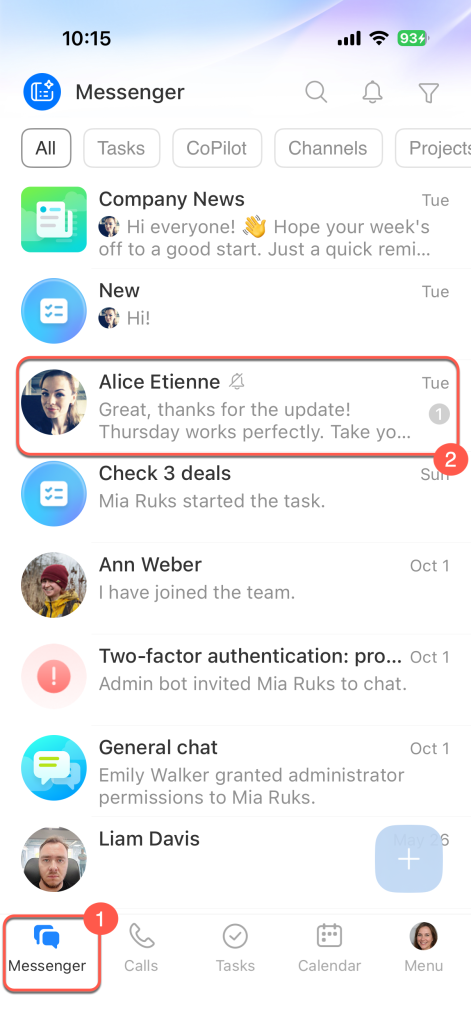
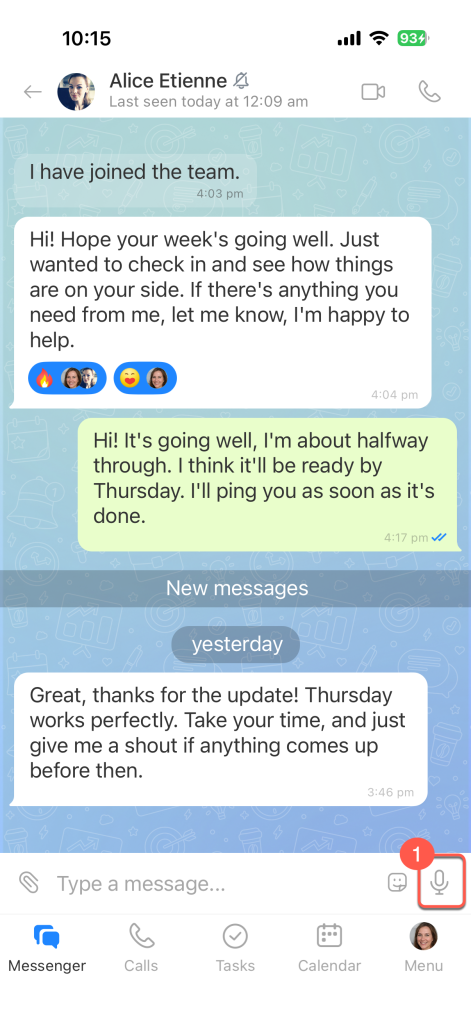
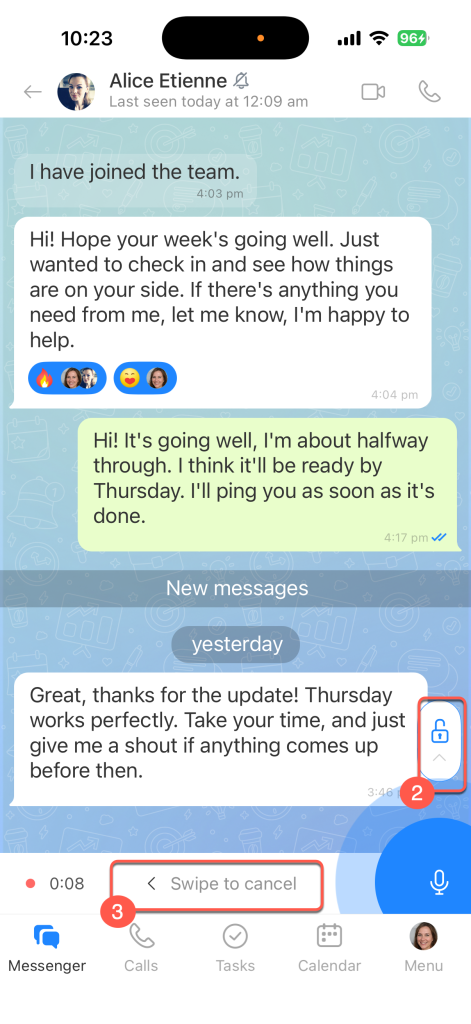
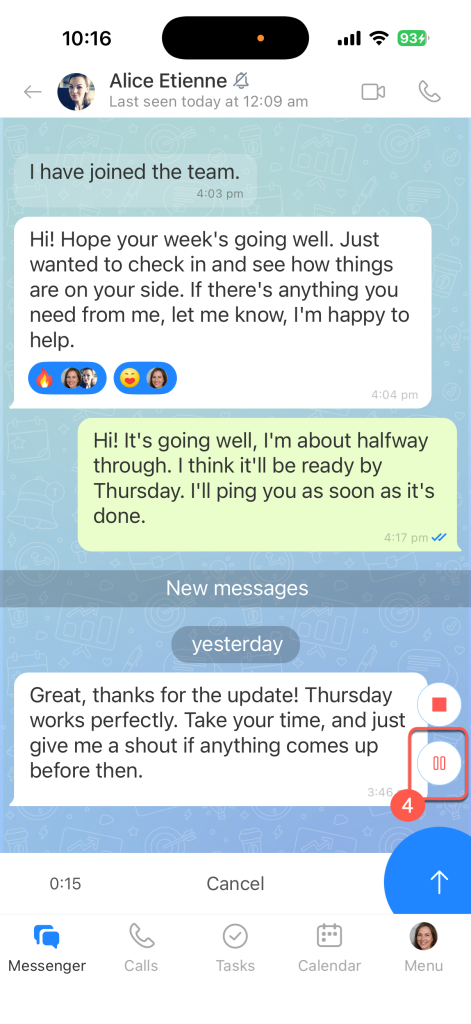
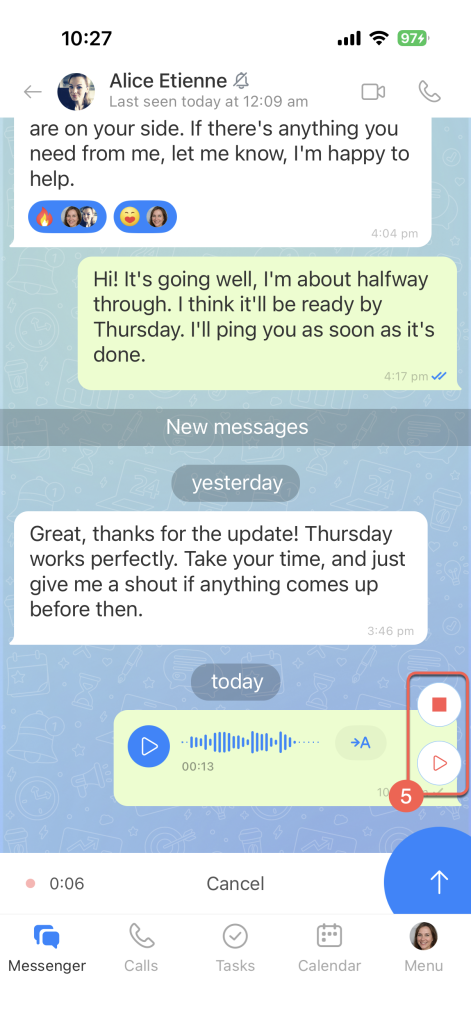
Voice message.
1. Press and hold the microphone icon next to the input field to start recording a voice message. Release it to send the message to the chat immediately.
2–3. Swipe up to continue recording hands-free, or swipe left to cancel the recording.
4. Tap the Pause icon to pause the recording.
5. Tap the Play icon to resume recording, or Stop to finish.
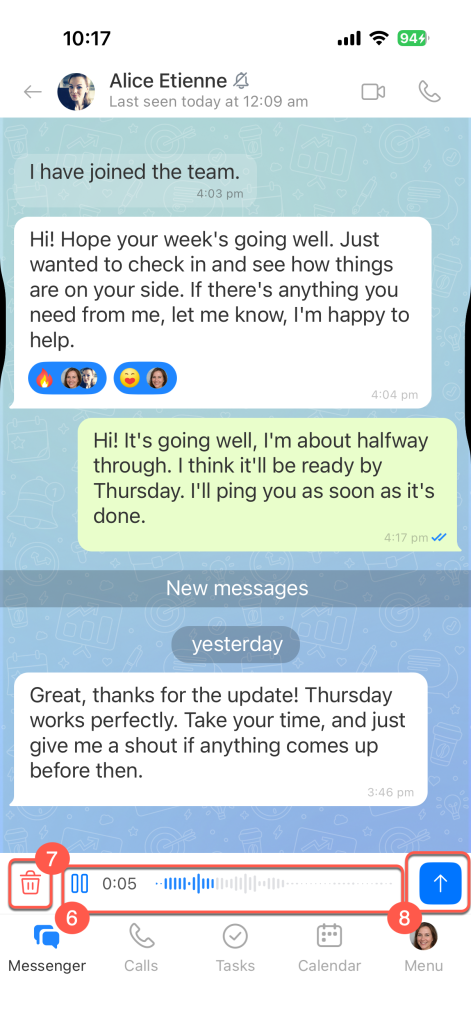
6. Tap the Play icon to listen to the recording before sending it. Use the recording timeline to rewind.
7–8. Tap the Recycle bin icon to delete the message, or the Up arrow icon to send it.
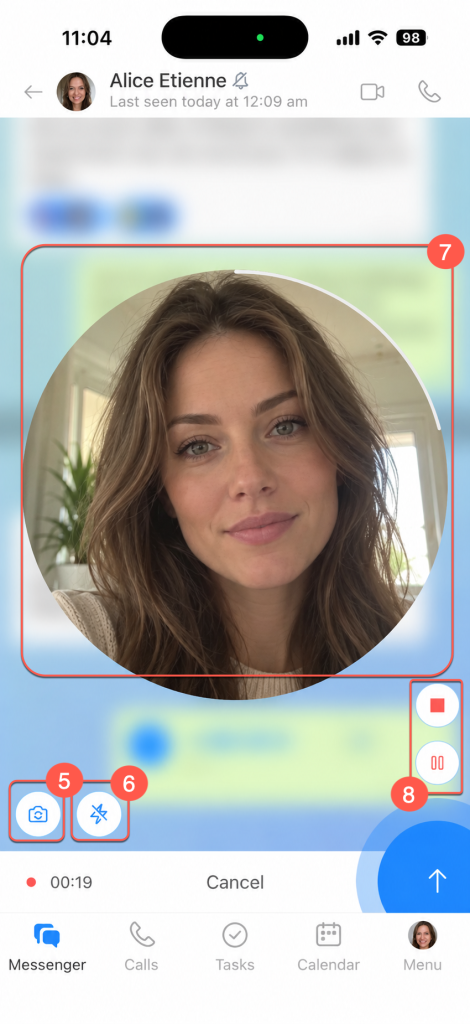
Video message. You can record up to one minute of video.
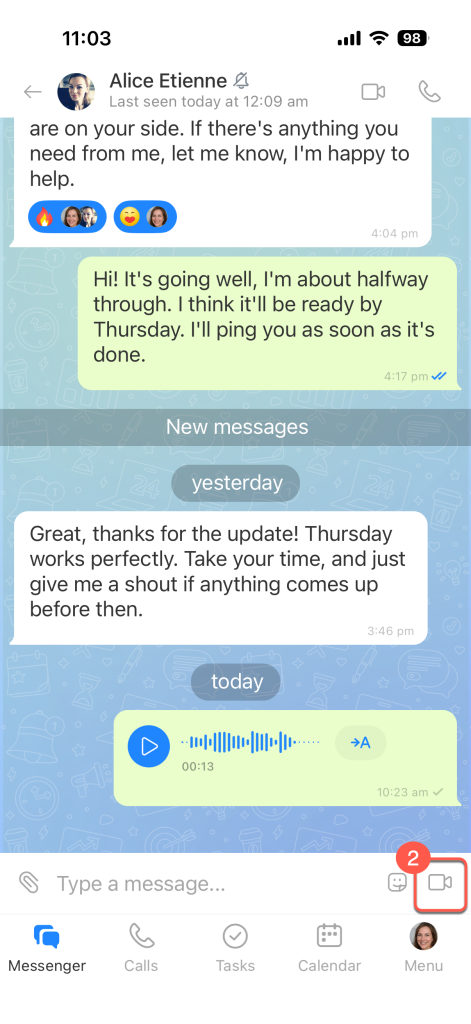
1. Tap the microphone icon in the bottom-right corner. It changes to a camera icon.
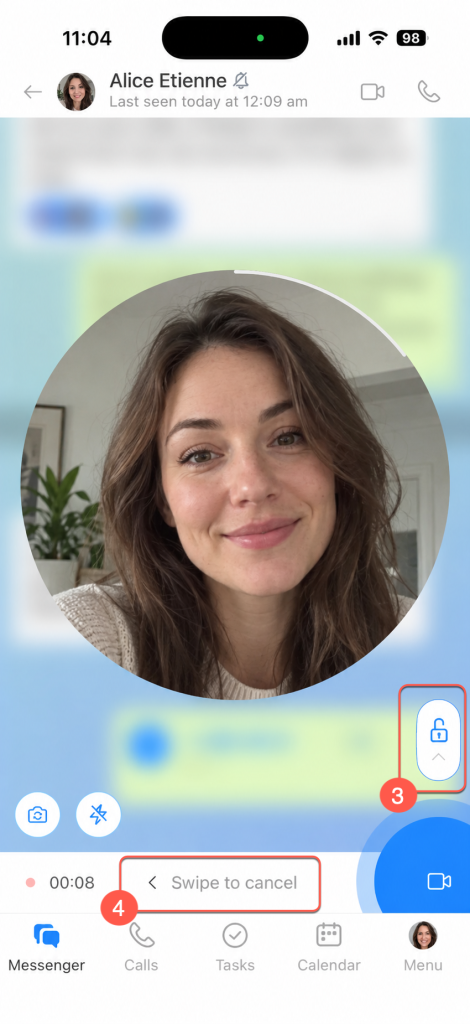
2. Press and hold the camera icon to start recording a video. Release it to send the message to the chat immediately.
3–4. Swipe up to continue recording hands-free, or swipe left to cancel the recording.
5. Tap the camera icon in the bottom-left corner to switch between the front and rear cameras.
6. When recording with the rear camera, tap the lightning icon in the bottom-left corner to turn the light on or off.
7. Spread two fingers apart on the screen to zoom in on the subject.
8. Tap the Pause icon to pause the recording, or Stop to finish recording.
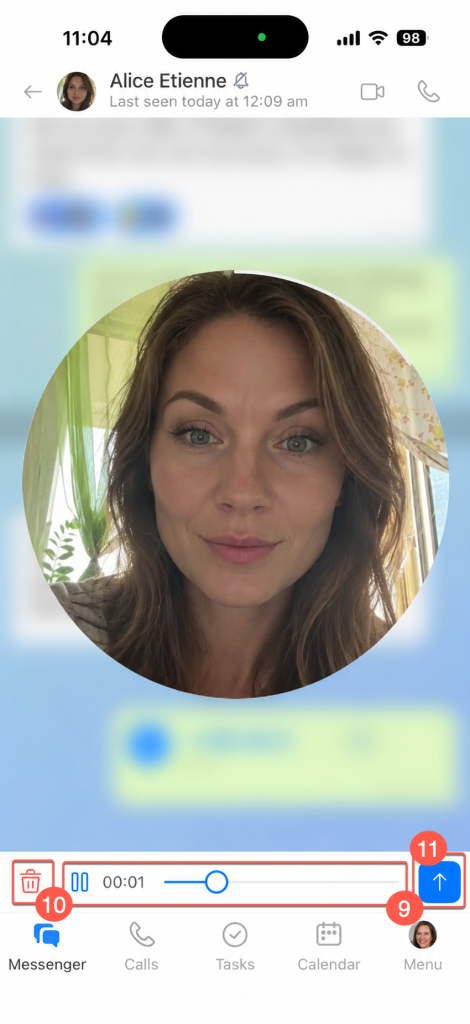
9. Tap the Play icon to preview the recording before sending it. Use the recording timeline to rewind.
10–11. Tap the Recycle bin icon to delete the message, or the Up arrow icon to send it.
Add and edit a caption
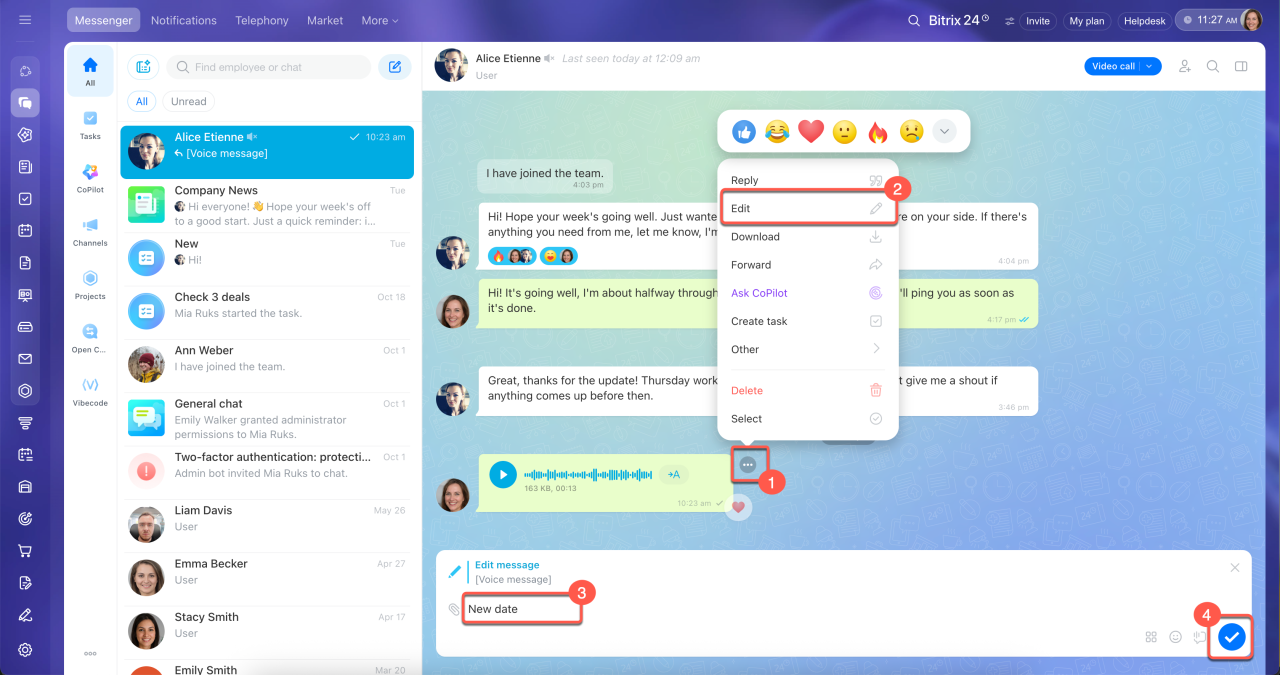
Add a caption to a voice or video message. This helps colleagues understand what the message is about and find it later using chat search.
1–2. Hover over the message and click Three dots (...) > Edit.
3–4. Enter text in the input field and click the check mark to save it. The caption appears below the voice or video message.
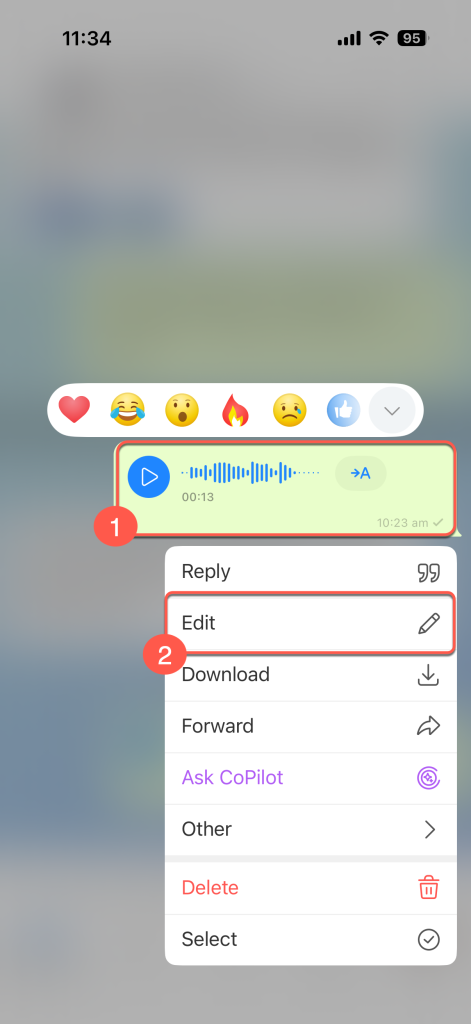
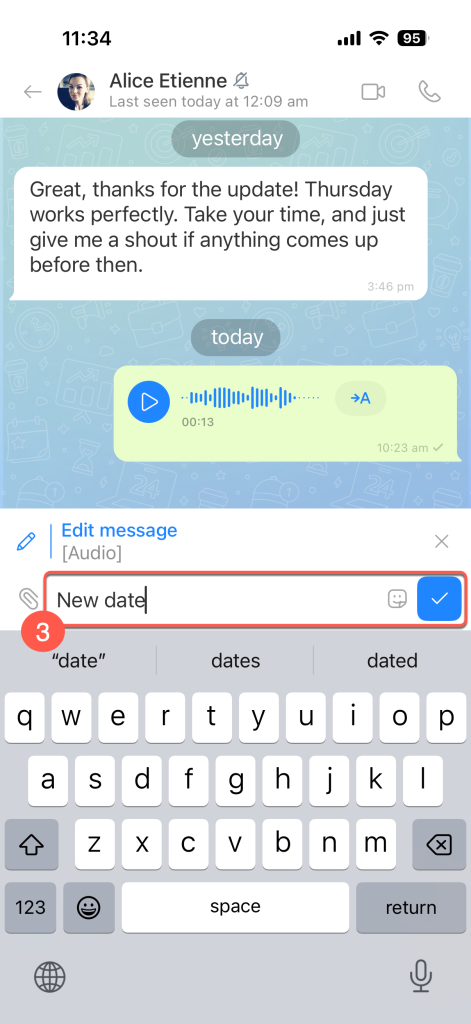
1. Press and hold the message to open the context menu.
2. Tap Edit.
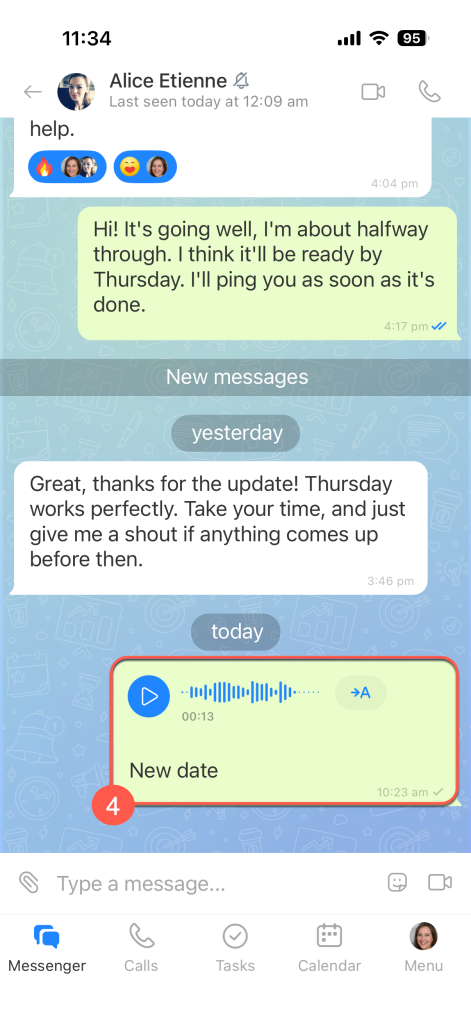
3. Enter text in the input field and tap the check mark to save it. The caption appears below the voice or video message.
Listen to or watch a message
Play a voice or video message and adjust the playback speed as needed.
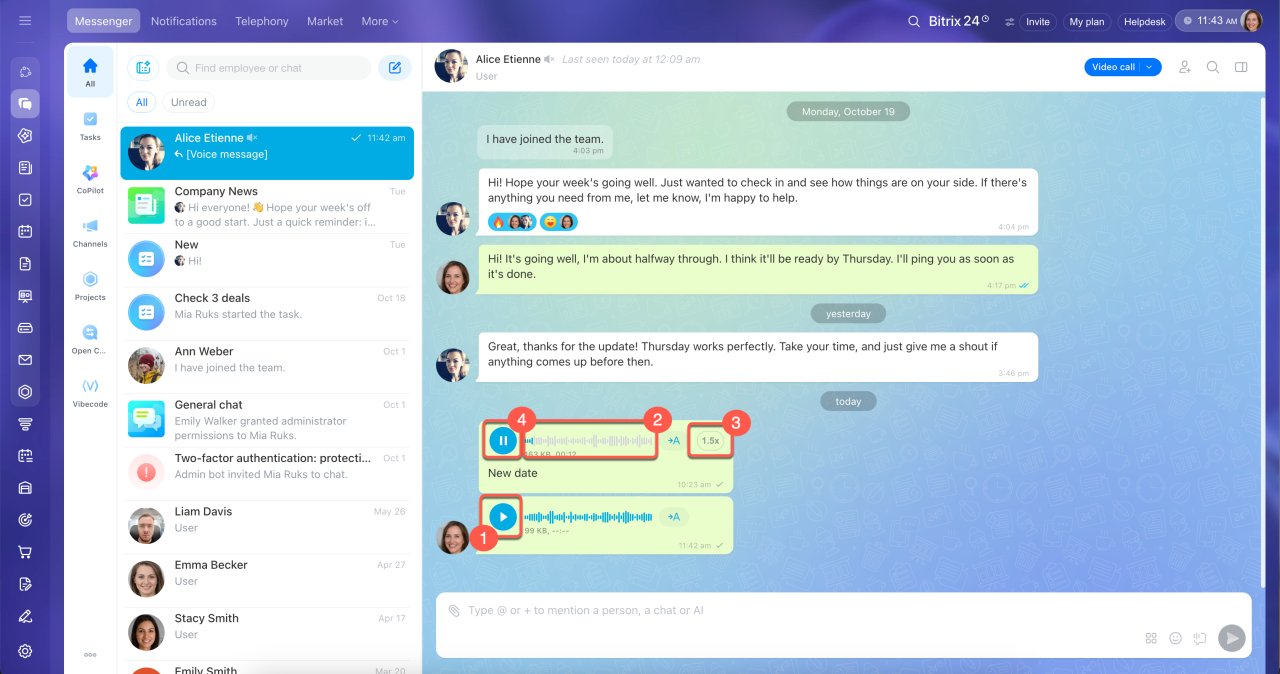
Listen to a voice message.
1. Click the Play icon to start playback.
2. Use the rewind control to return to a specific moment.
3. Click the current playback speed in the top-right corner of the message to change it. The speed cycles through 1.0x, 1.5x, and 2.0x.
4. Click the Pause icon to pause playback.
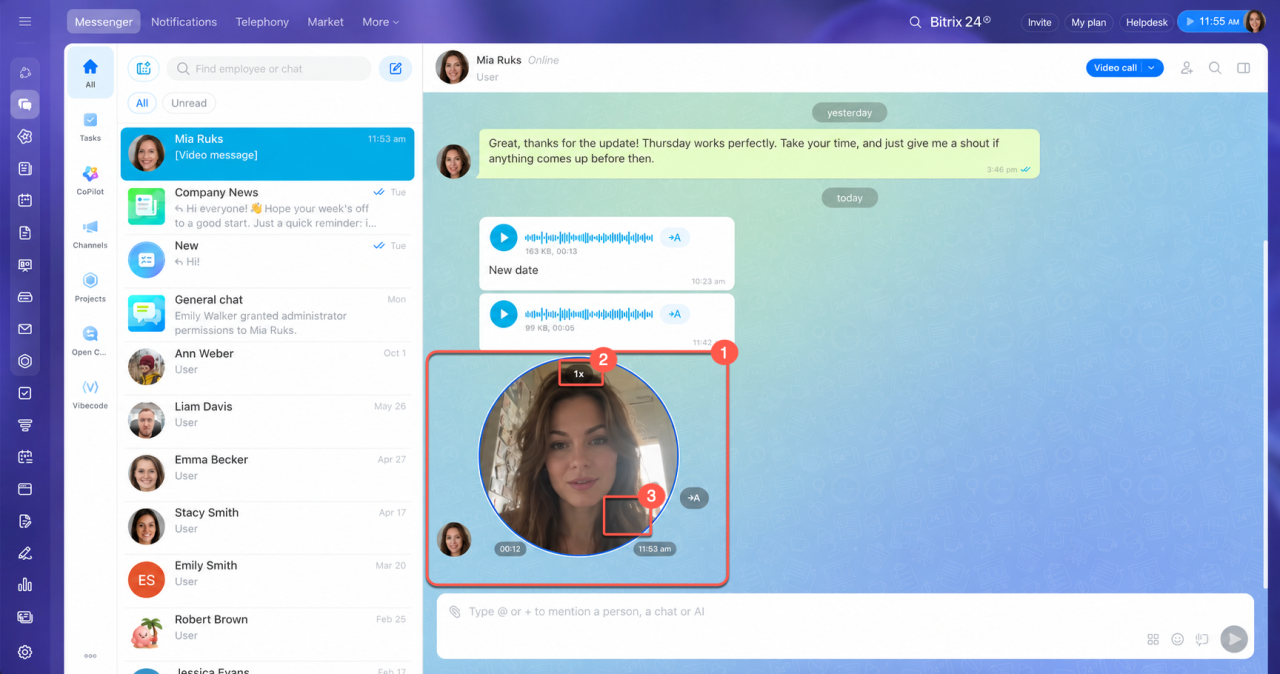
Watch a video message.
1. Click the video message to start playback with sound.
2. Click the current playback speed at the top of the message to change it. The speed cycles through 1.0x, 1.5x, and 2.0x.
3. Click the video message again to pause playback.
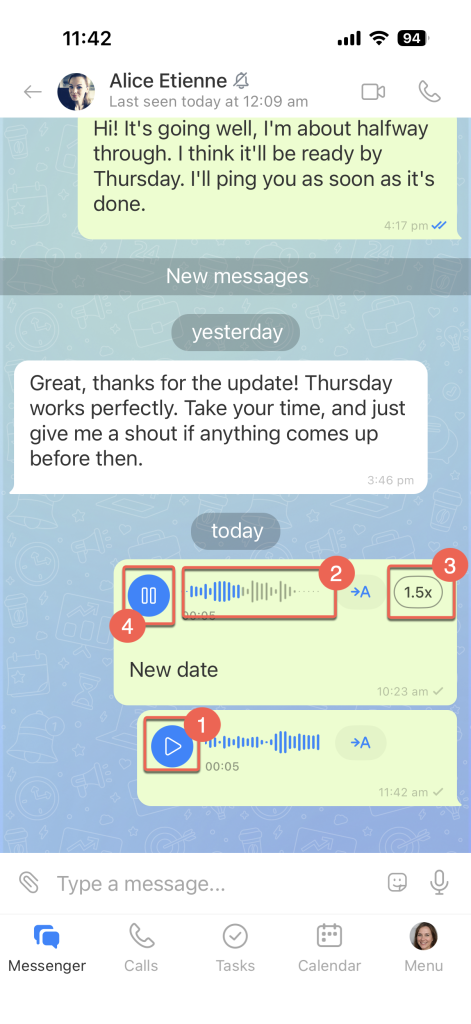
Listen to a voice message.
1. Tap the Play icon to start playback.
2. Use the rewind control to return to a specific moment.
3. Tap the current playback speed in the top-right corner of the message to change it. The speed cycles through 1.0x, 1.5x, and 2.0x.
4. Tap the Pause icon to pause playback.
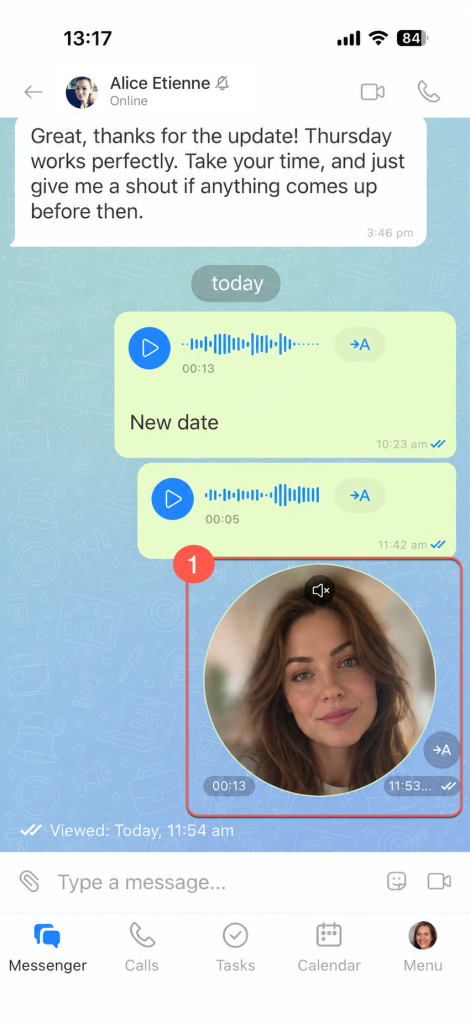
Watch a video message.
1. Tap the video message to start playback with sound.
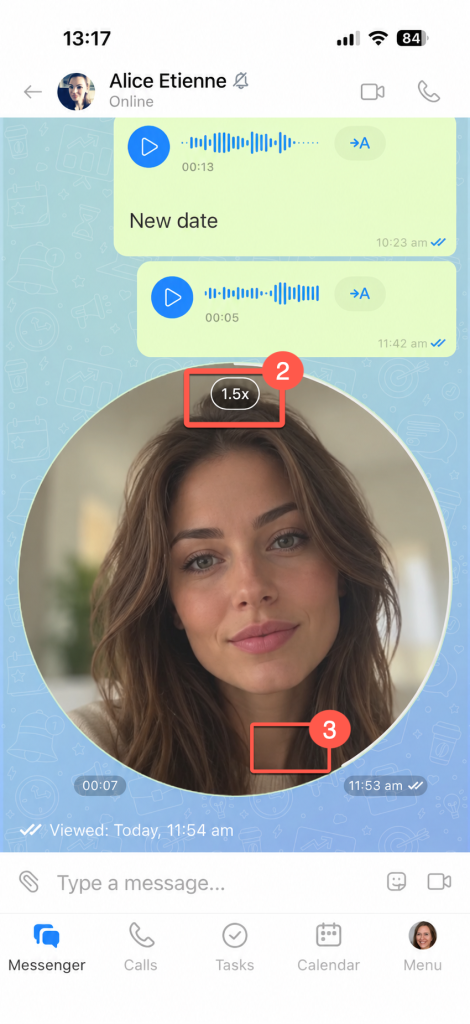
2. Tap the current playback speed at the top of the message to change it. The speed cycles through 1.0x, 1.5x, and 2.0x.
3. Tap the video message again to pause playback.
View a text transcript
If listening to or watching a message isn't convenient, transcribe it. Bitrix24 displays the message text.
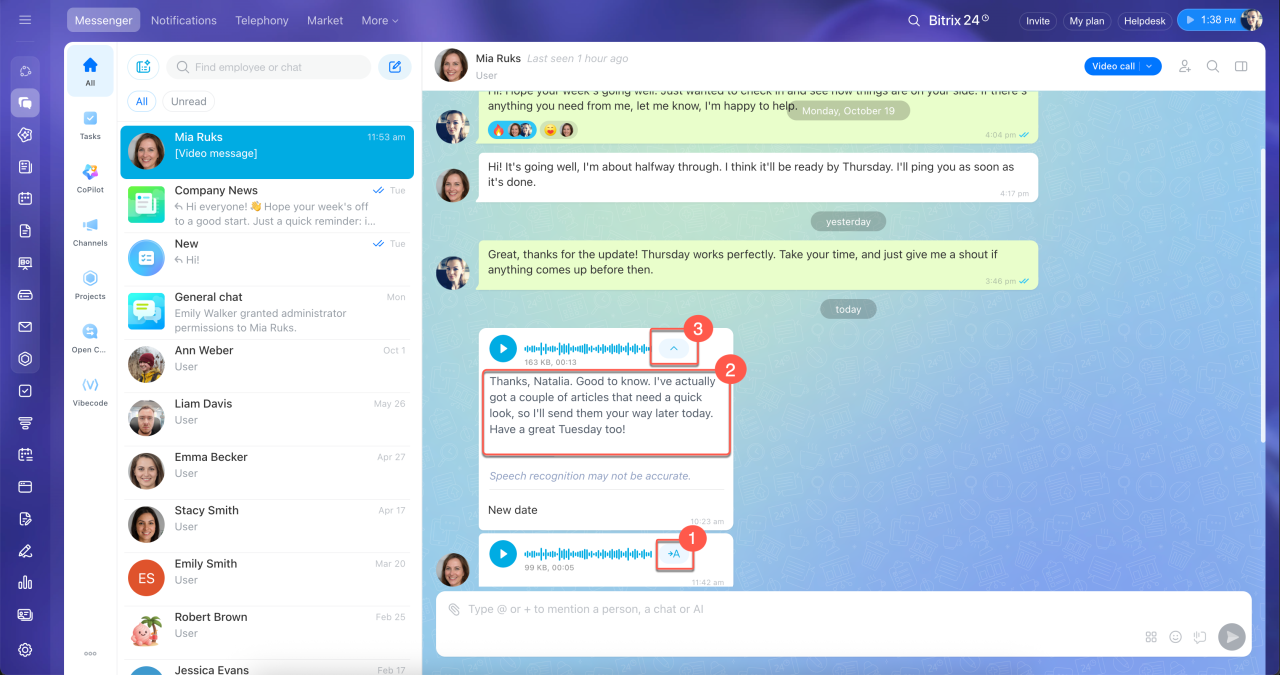
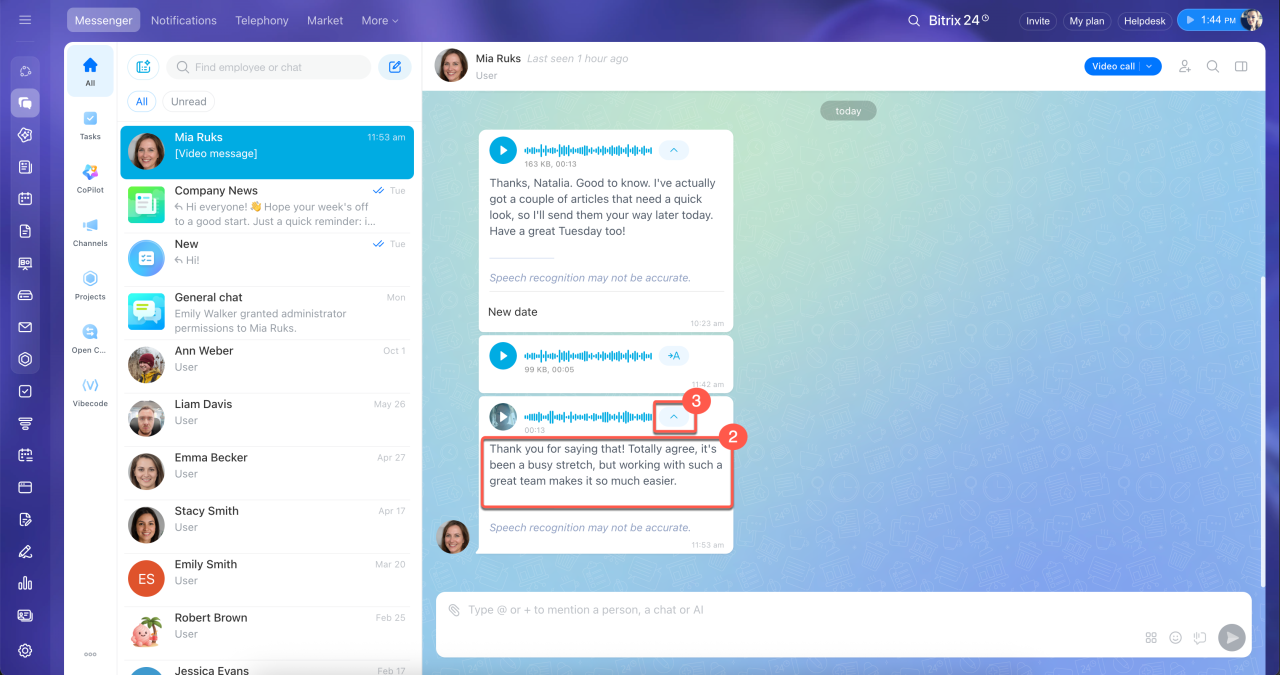
Transcribe a voice message.
1–2. Click the → A icon in the top-right corner of the message. The transcript appears below the message.
3. Click the check mark above the text to collapse it.
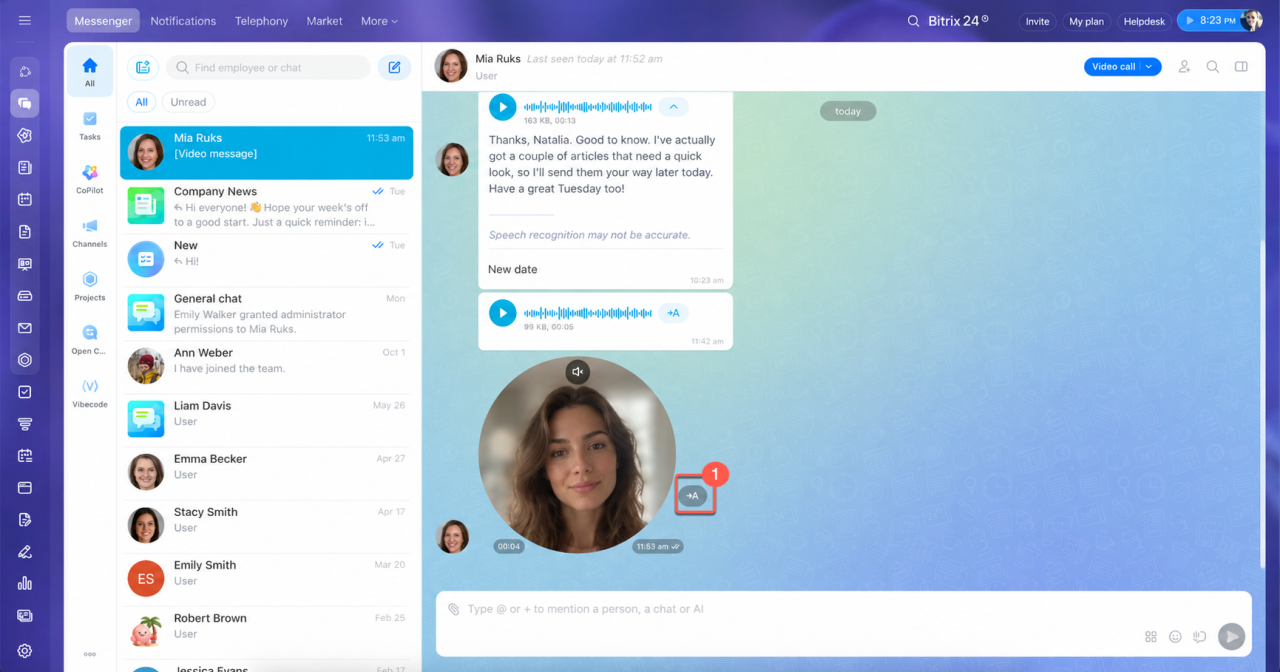
Transcribe a video message.
1–2. Click the → A icon to the right of the message. The transcript appears below the message.
3. Click the check mark above the text to collapse it.
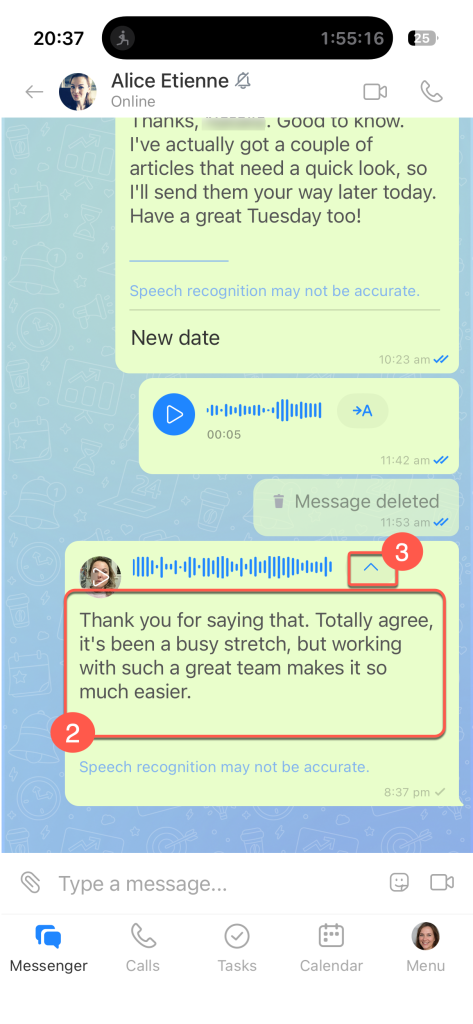
Transcribe a voice message.
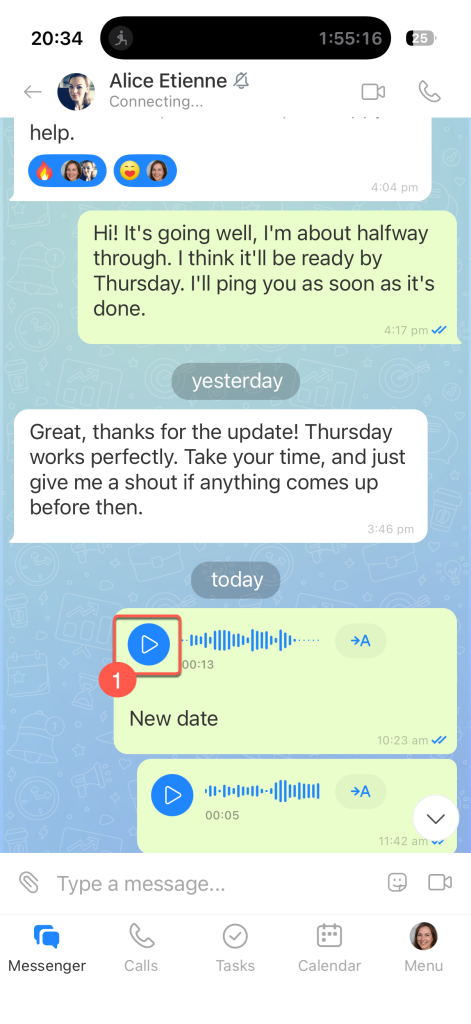
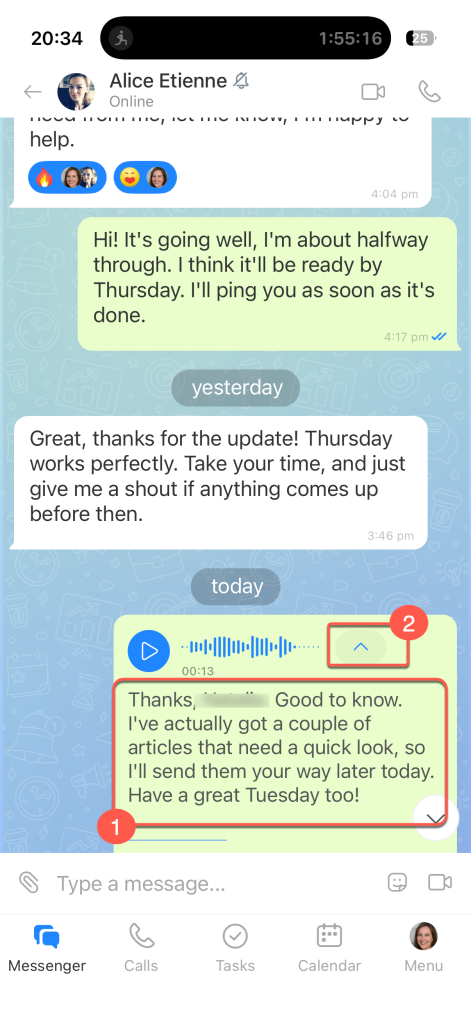
1–2. Tap the → A icon in the top-right corner of the message. The transcript appears below the message.
3. Tap the check mark above the text to collapse it.
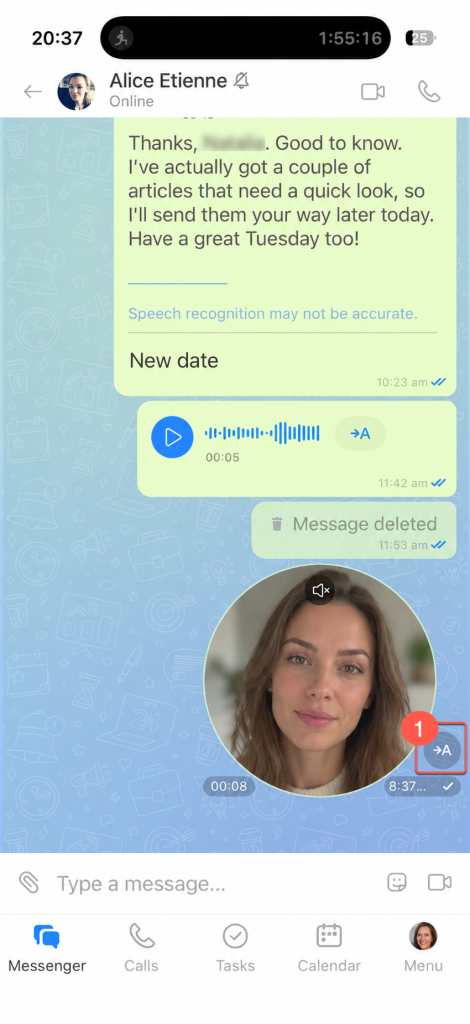
Transcribe a video message.
1–2. Tap the → A icon to the right of the message. The transcript appears below the message.
3. Tap the check mark above the text to collapse it.
Set up transcription
By default, speech transcription is enabled for voice and video messages. Administrators can turn off speech transcription.
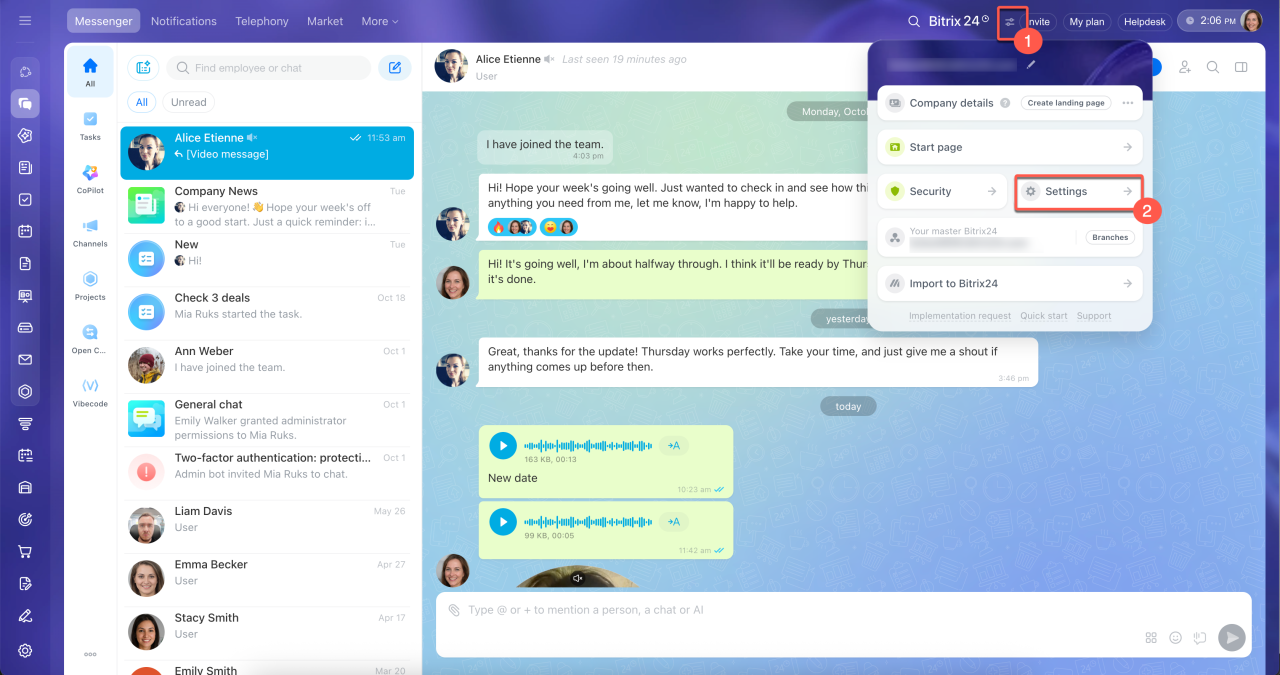
1. In the top bar, click the icon next to your Bitrix24 name or logo.
2. Open Settings.
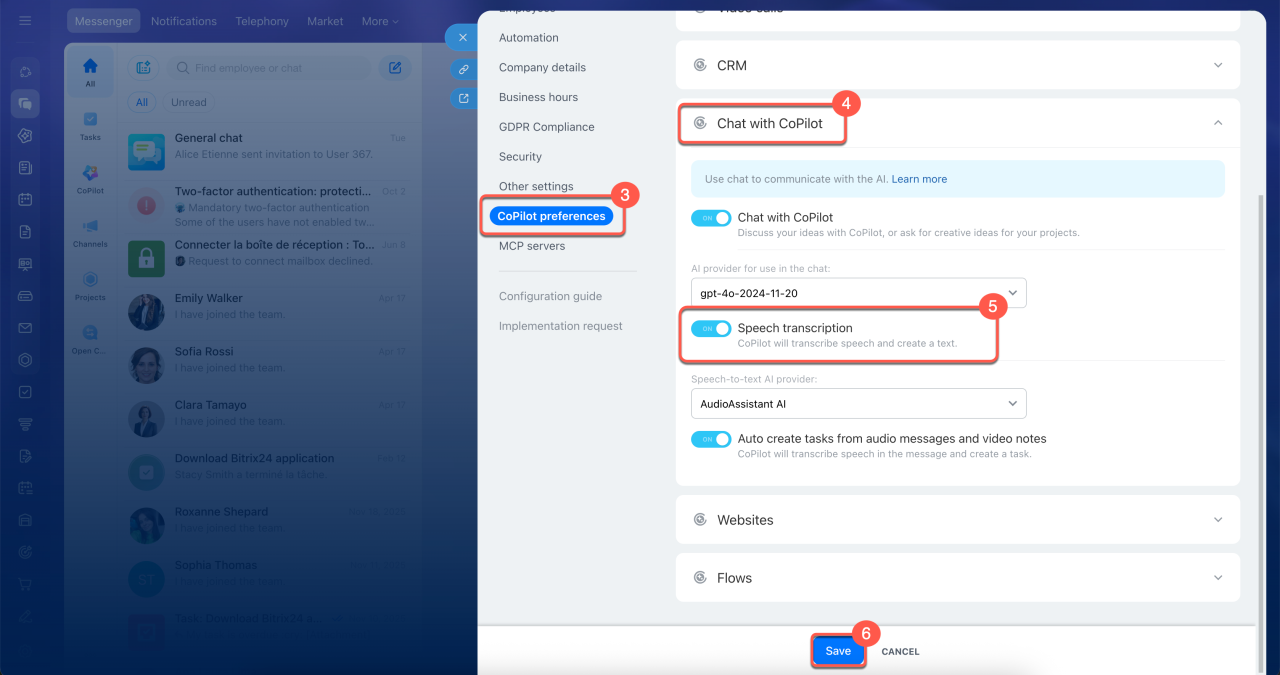
3–4. Go to the CoPilot preferences tab and expand the Chat with CoPilot block.
5. Turn Speech transcription on or off as needed.
6. Click Save.
In brief
- Bitrix24 Messenger supports voice and video messages.
- You can record a voice or video message only in the mobile app: press and hold the microphone icon, or the camera icon for video.
- You can add a caption to a recorded message using Edit in the message menu in both the web version and the mobile app.
- You can play messages at 1.0x, 1.5x, or 2.0x speed and view a text transcript.
- Transcription is enabled by default. Administrators can turn off the feature in CoPilot preferences.