
When you have many personal and group chats, it's easy to miss an important message in the chat list. For example, while you're in a meeting, colleagues may send messages in several chats and wait for your decision. You can see all chats with new messages in one list, quickly mark those that don't need a reply as read, and set aside chats you want to return to later.
In this article:
Find chats with new messages
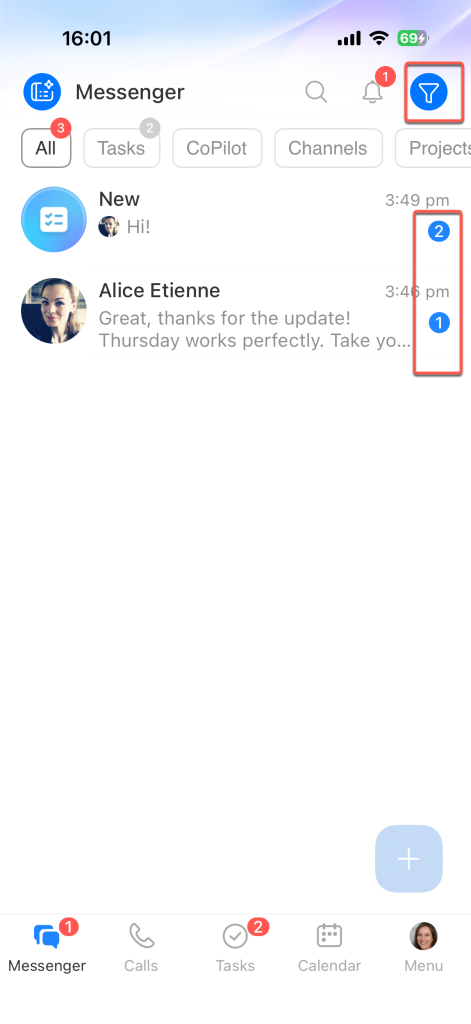
View all chats with new messages in a separate list so you don't miss a conversation where someone is waiting for your reply. The counter next to each chat shows how many new messages it contains. A blue counter means sound notifications are enabled for the chat, while a gray counter means they're disabled.
1. Open Messenger from the left menu in Bitrix24.
2. Select the All section in the Messenger menu.
3. Below the search bar, select the Unread tab.
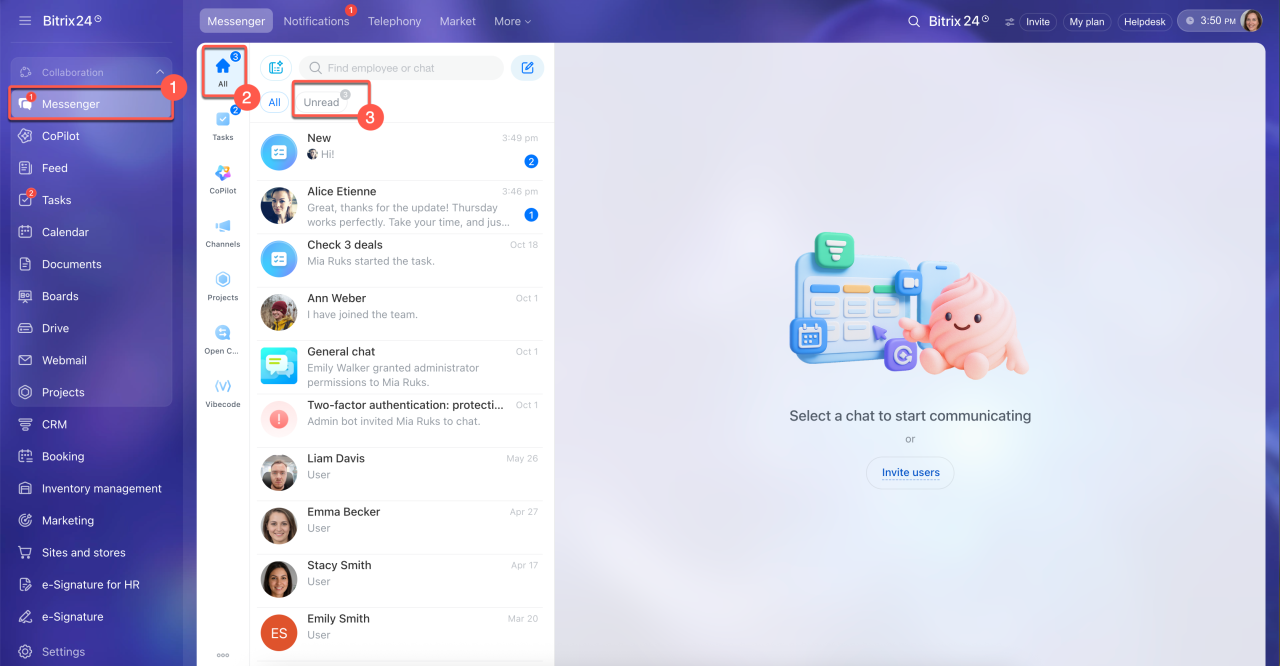
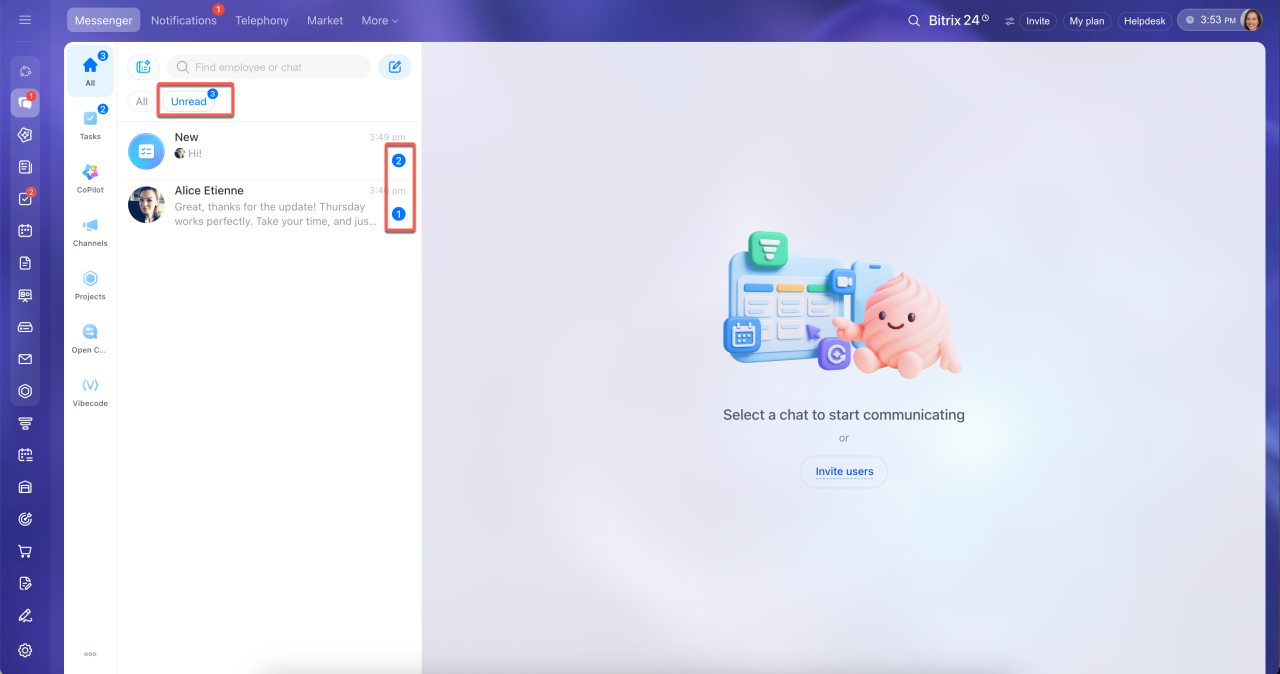
The list will show only chats with new messages. The counter on the tab shows the total number of new messages in chats with sound notifications enabled. You can see this counter even when you're viewing all chats. To view all conversations again, return to the All tab.
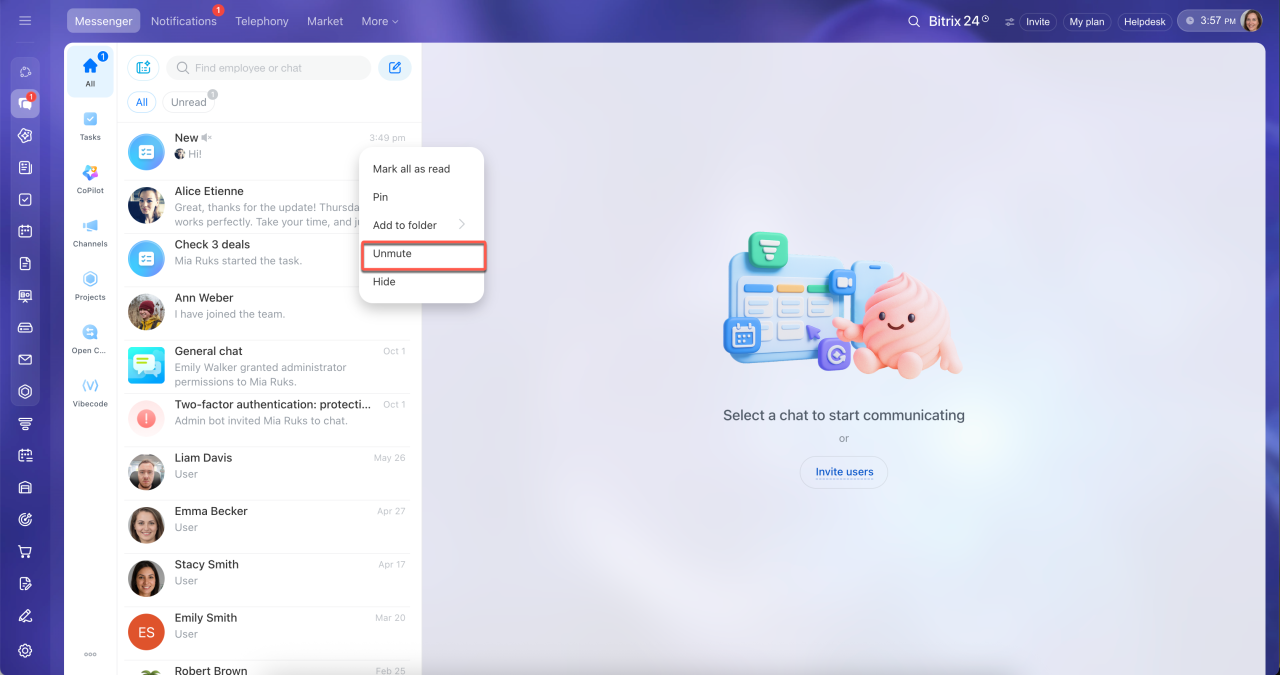
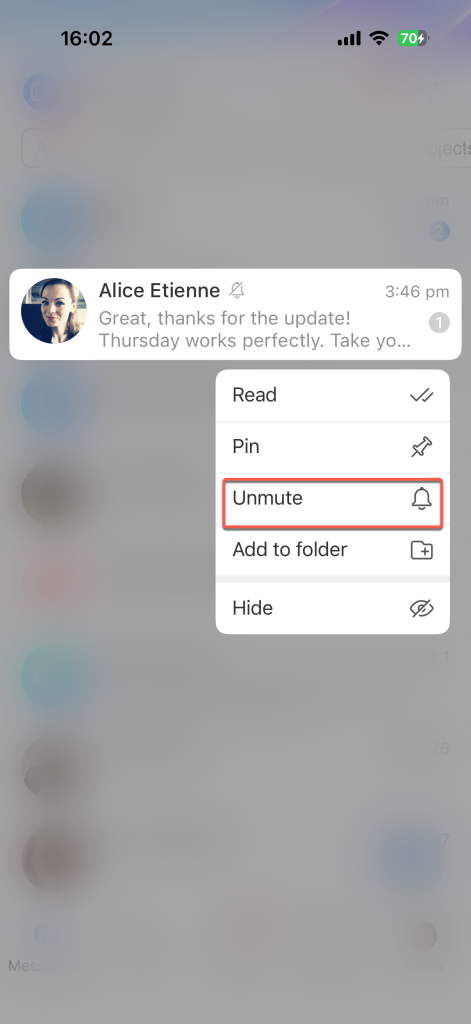
Only chats with sound notifications enabled appear on the Unread tab. Chats with a gray counter remain on the All tab. To make a chat appear on the Unread tab, right-click it and select Unmute.
1. Open Messenger in the app's bottom menu.
2. Above the chat list, select the All section.
3. Tap the filter icon in the upper-right corner.
4. Select Unread.
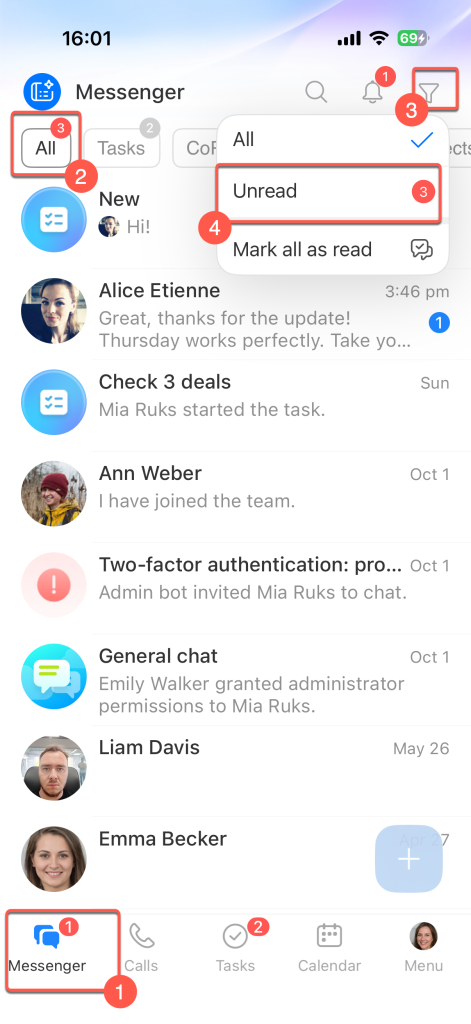
The list will show only chats with new messages, and the filter icon will turn blue. The counter next to Unread shows the total number of new messages in chats with sound notifications enabled. You'll see the same number next to the All section and next to Messenger in the bottom menu, even when the filter menu is closed. To view all conversations again, tap the filter icon.
Only chats with sound notifications enabled appear in the unread list. Chats with a gray counter won't appear there. To make a chat appear in the list, press and hold it, then select Unmute.
Set a chat aside to return to later
Set a chat aside when it contains an important message but you can't reply right away. When you open a chat, its counter disappears, making it easy to lose track of the conversation. Marking the chat helps you remember to return to it.
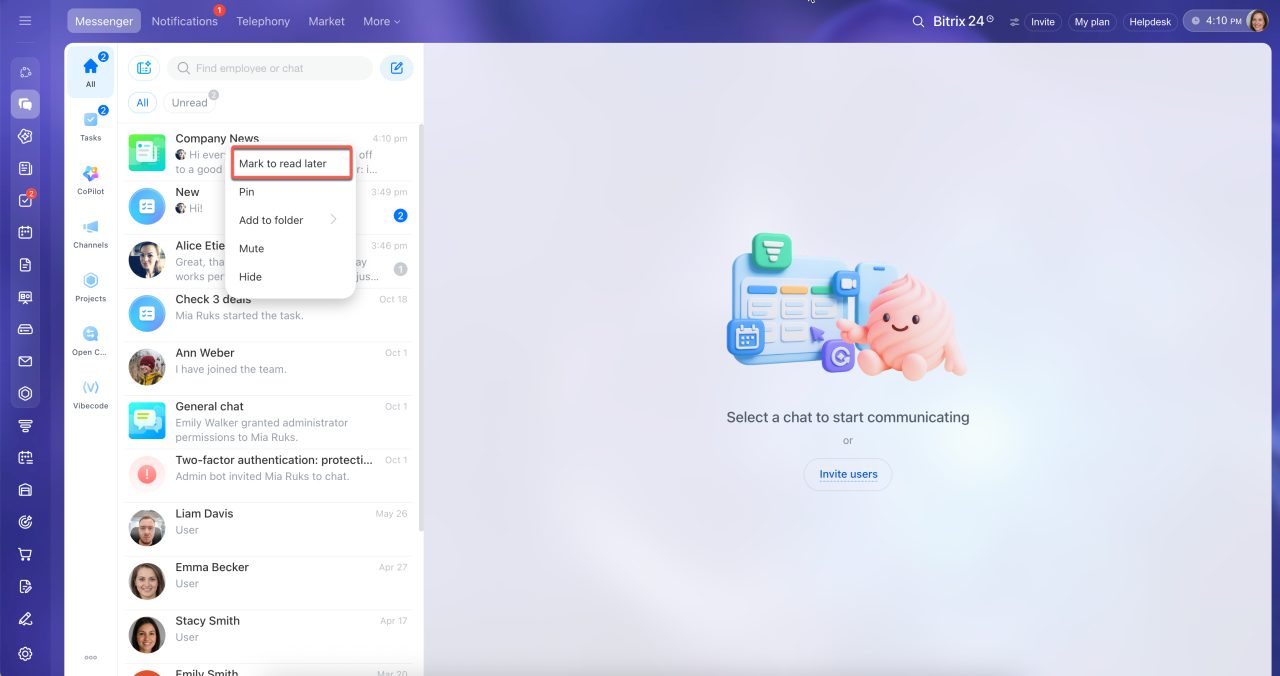
You can only set aside a chat you've already read. On a computer, the command is called Mark to read later; in the mobile app, it's Unread. The marked status syncs across devices: if you set a chat aside on a computer, it will also appear in the mobile app, and vice versa.
Right-click a chat in the list and select Mark to read later.
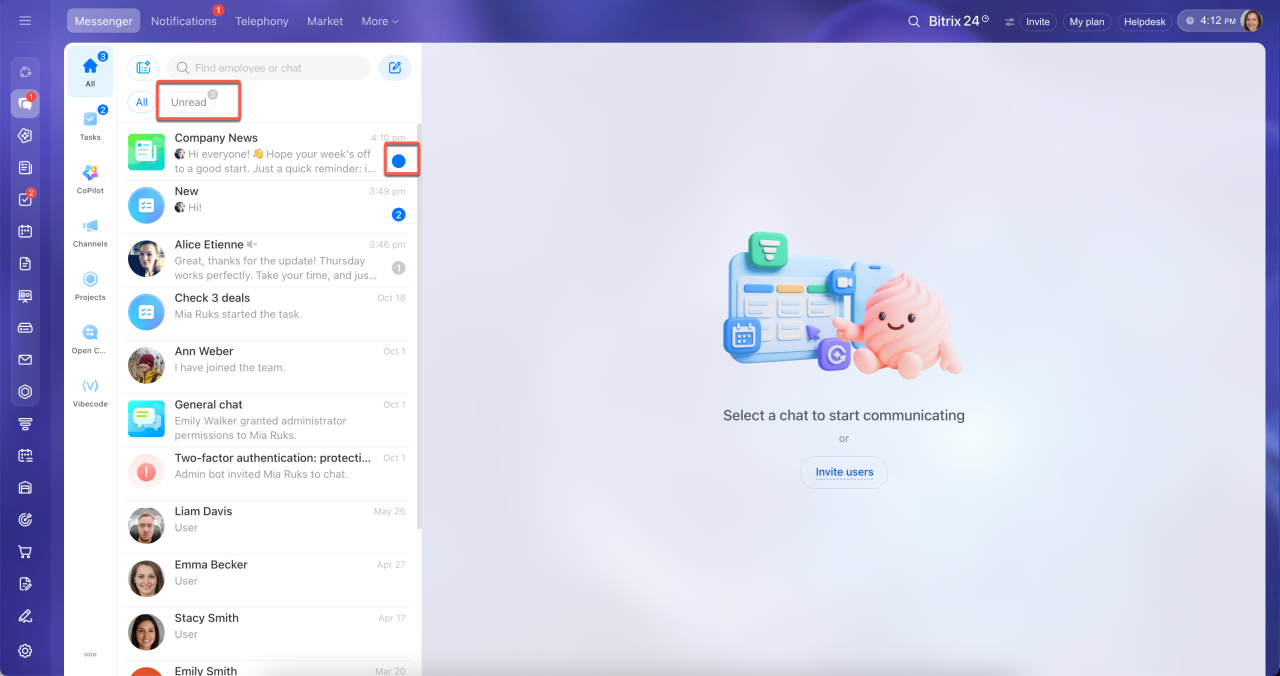
A dot will appear next to the chat. If sound notifications are enabled for the chat, the dot will be blue. The chat will appear on the Unread tab, and the counters on that tab and next to Messenger in the left menu of Bitrix24 will each increase by one. This lets you see that a chat needs your attention, even when you're working in another section.
If sound notifications are disabled, the dot will be gray, and the chat will remain only on the All tab. The counters won't change.
When you open a chat you've marked for later, the dot will disappear. If sound notifications are enabled for the chat, it will disappear from the Unread tab, and the counters will decrease by one.
Press and hold a chat in the list, then select Unread.
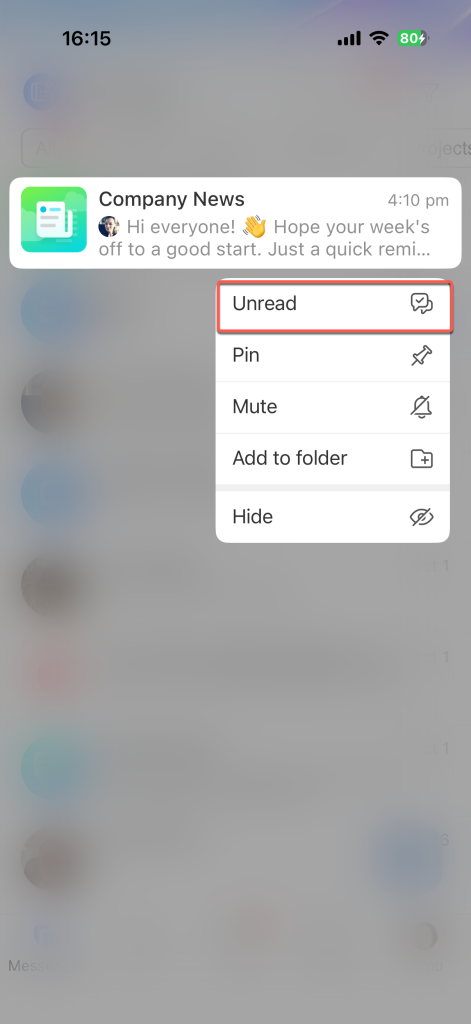
A dot will appear next to the chat. If sound notifications are enabled for the chat, the dot will be blue, and the chat will appear in the unread list. The counters next to All, Unread in the filter menu, and Messenger in the bottom menu will each increase by one. If sound notifications are disabled, the dot will be gray, and the chat won't appear in the unread list. The counters won't change.
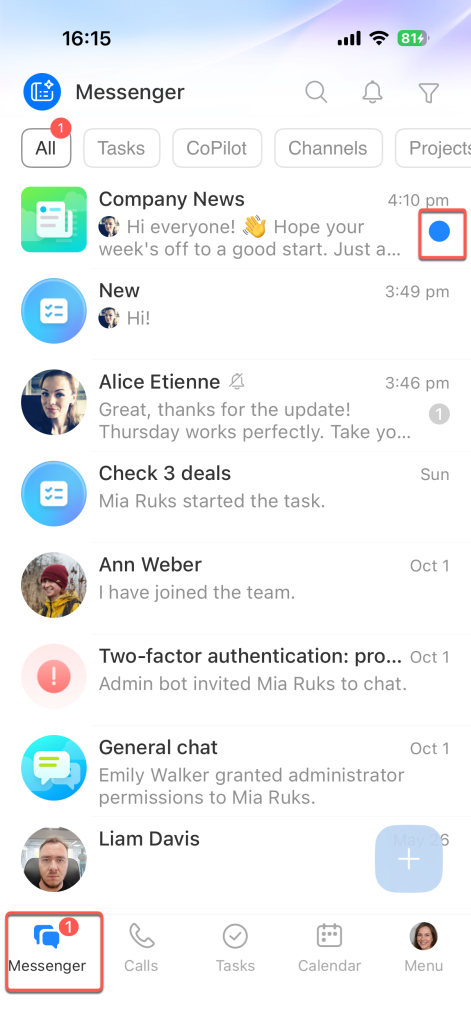
When you open a chat you've marked for later, the dot will disappear. If sound notifications are enabled for the chat, it will disappear from the unread list, and the counters will decrease by one.
Mark all chats as read
Mark all chats as read at once if you have a lot of unread messages and none of them need an immediate response. This makes it easier to notice new messages that arrive afterward. The messages will stay in the chats, so you can read them later.
Right-click the Unread tab and select Mark all as read. The unread message counters will reset for all chats, whether sound notifications are enabled or disabled.
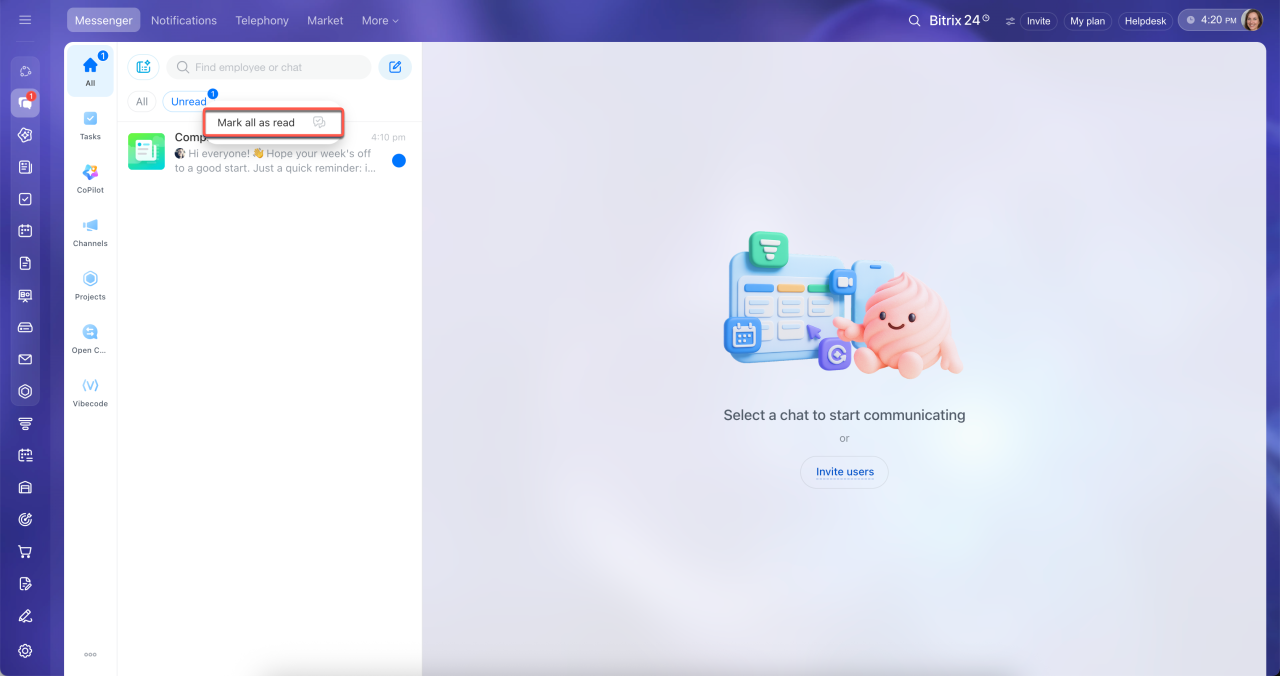
To reset the counter in just one chat, right-click it and select Mark all as read. Other chats won't be affected.
1. Above the chat list, select the All section.
2. Tap the filter icon in the upper-right corner.
3. Select Mark all as read. The unread message counters will reset for all chats, whether sound notifications are enabled or disabled.
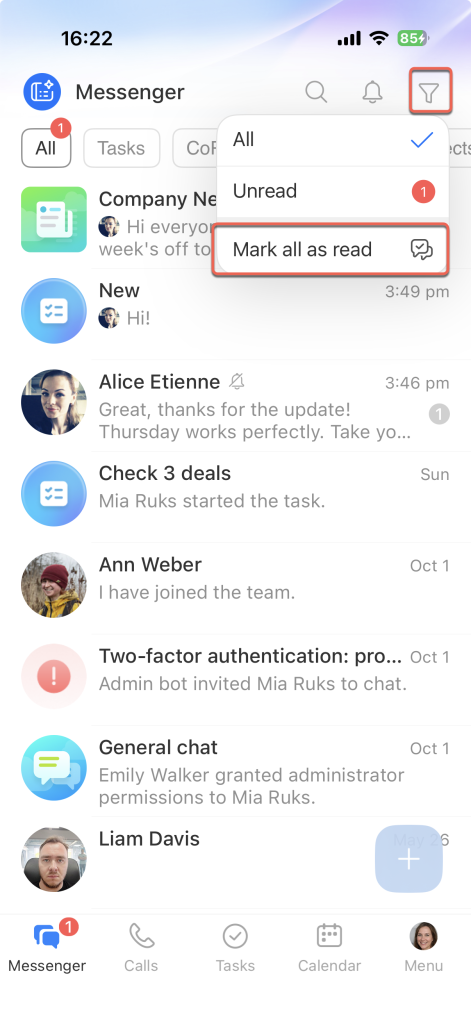
To reset the counter in just one chat, press and hold it, then select Read. Other chats won't be affected.
In brief
- The counter next to each chat shows how many new messages it contains. Blue means sound notifications are enabled for the chat, while gray means they're disabled.
- To see all chats with new messages in one list, select Unread in Messenger: on a computer, use the tab below the search bar; in the mobile app, select it from the filter menu. Only chats with sound notifications enabled appear in the list.
- To return to a chat later, mark it for later: select Mark to read later on a computer or Unread in the mobile app from the chat menu. A dot will appear next to the chat. If sound notifications are enabled, the chat will also appear in the unread list. The dot will disappear when you open the chat.
- To reset the counters for all chats, select Mark all as read: on a computer, in the Unread tab menu; in the mobile app, in the filter menu of the All section. This also removes any marks you've added to chats to return to later.