
Bitrix24 organizes chats into system folders. You can also create personal folders to group conversations by topic. For example, add channels, personal chats, group chats, and other conversations related to a department’s work to a "Production" folder. This makes it easier to find the conversations you need and notice new messages about a selected topic.
In this article:
Use the folder panel
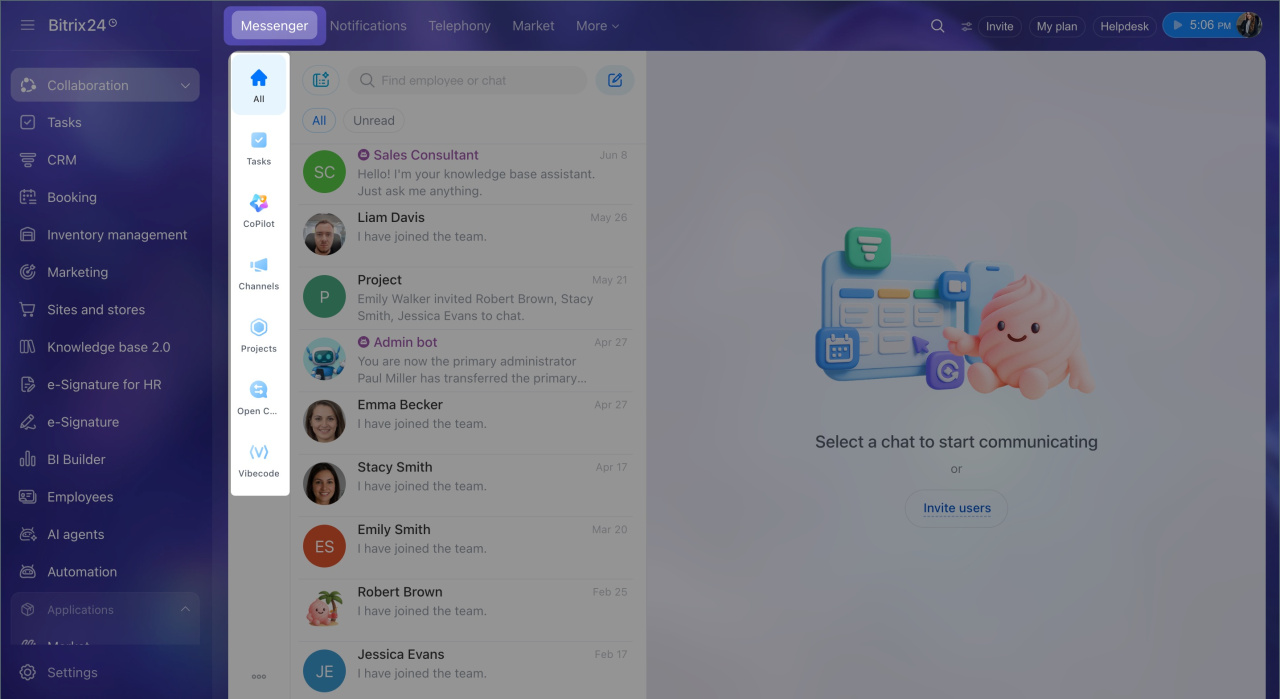
By default, chats are organized into system folders:
- All — combines conversations from selected sources.
Create the All folder - Tasks — includes chats for tasks you participate in.
- CoPilot — includes chats with AI.
- Channels — includes company channels you follow or create, including private channels.
- Projects — includes chats for projects you participate in.
- Open Channels — includes chats with clients.
- Alaio Vibecode — includes chats from apps you can access.
Personal folders you create are added to the list and appear on the panel.
Create a personal folder
Open a folder.
1. Open the Messenger section from the main menu. Folders appear in the panel to the left of the chat list.
2. Click a folder to open the list of conversations added to it.
Change the folder order.
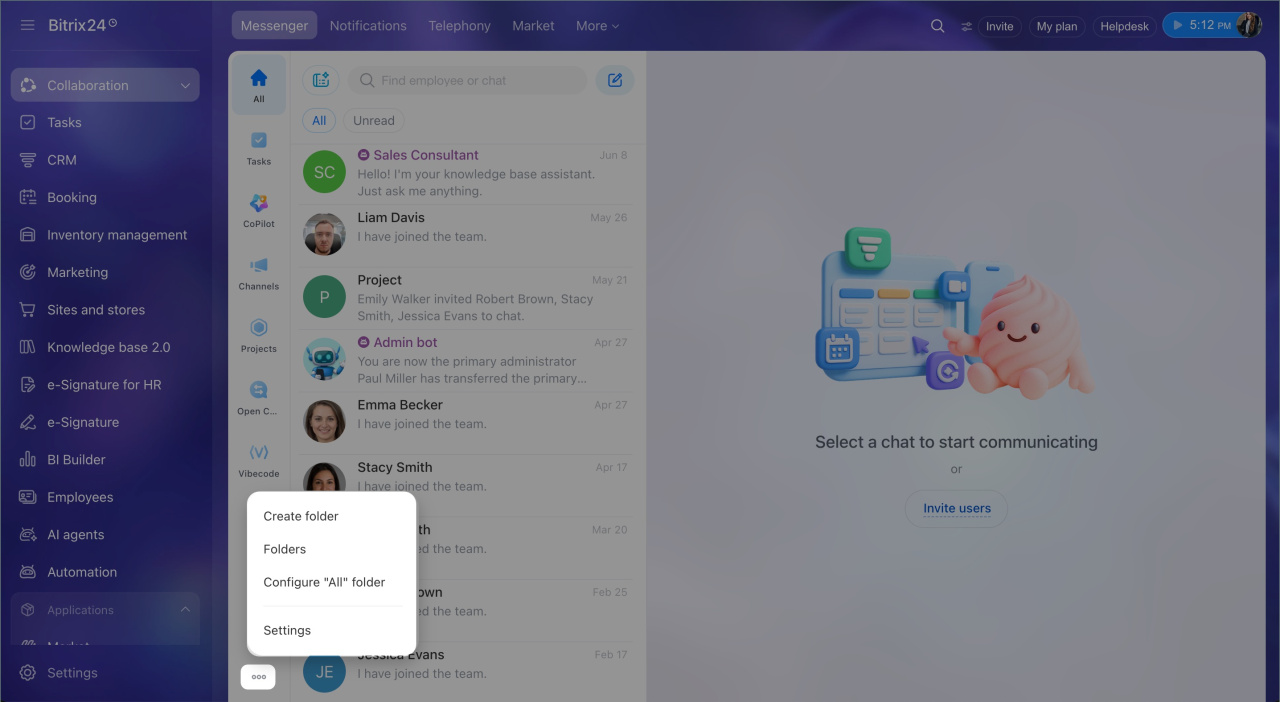
1. Click Three dots "..." at the bottom of the folder panel.
2. Select Folders.
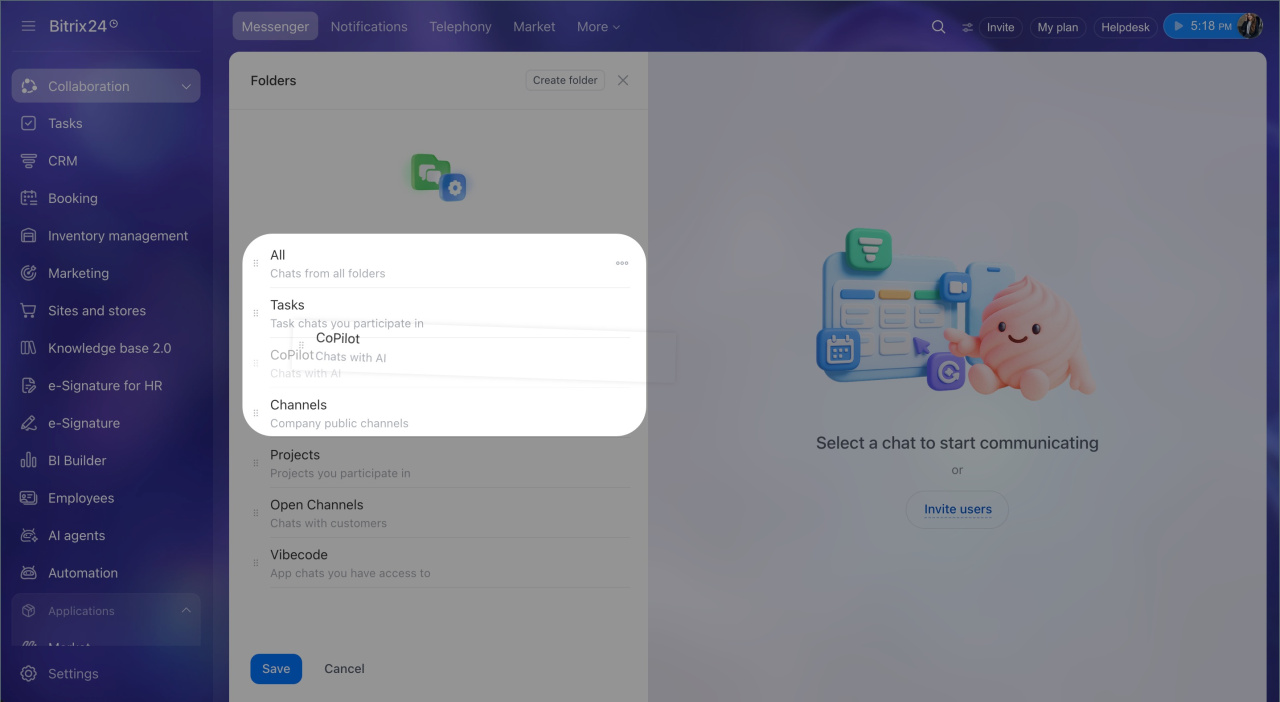
3. Hold the dotted icon to the left of the folder name and drag the folder to the desired position.
4. Click Save.
Open a folder.
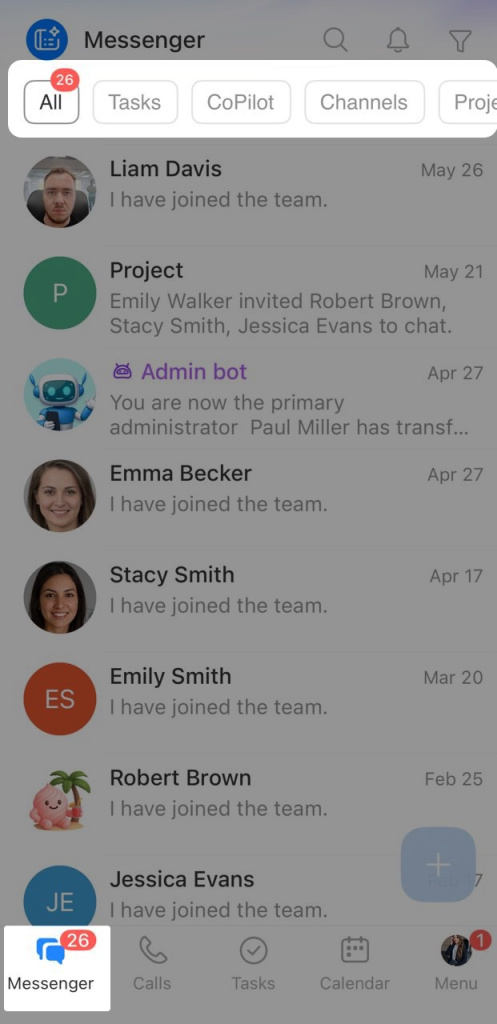
1. Open the Messenger section. Folders appear in a row above the chat list.
2. Tap a folder to open the list of conversations added to it.
Change the folder order.
1. Tap Three dots (...) at the end of the folder list.
2. Hold a folder and move it to the desired position.
3. Tap Save.
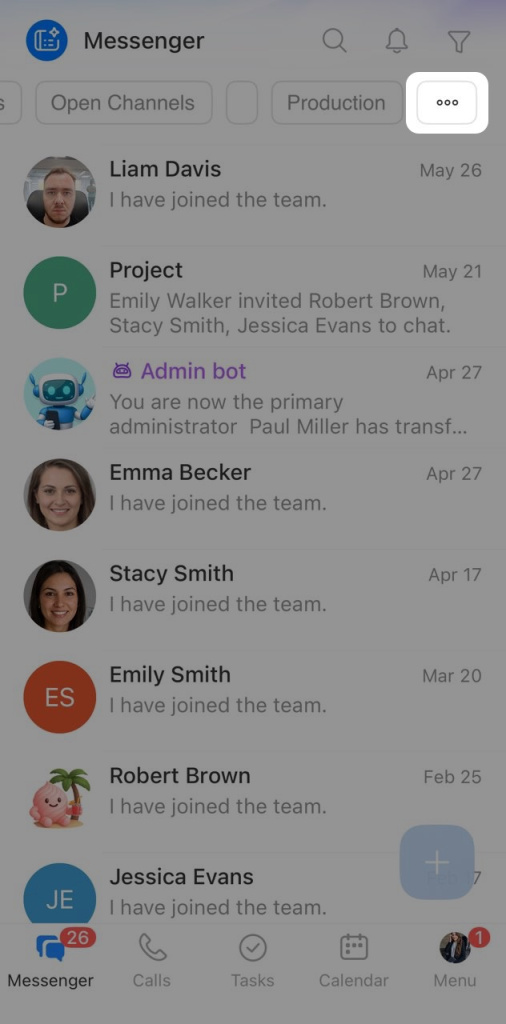
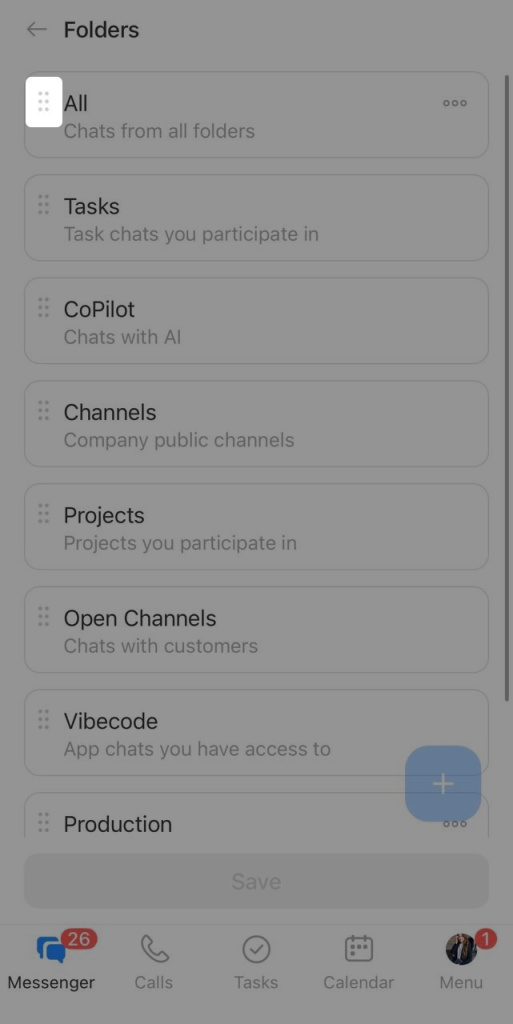
Configure the All folder
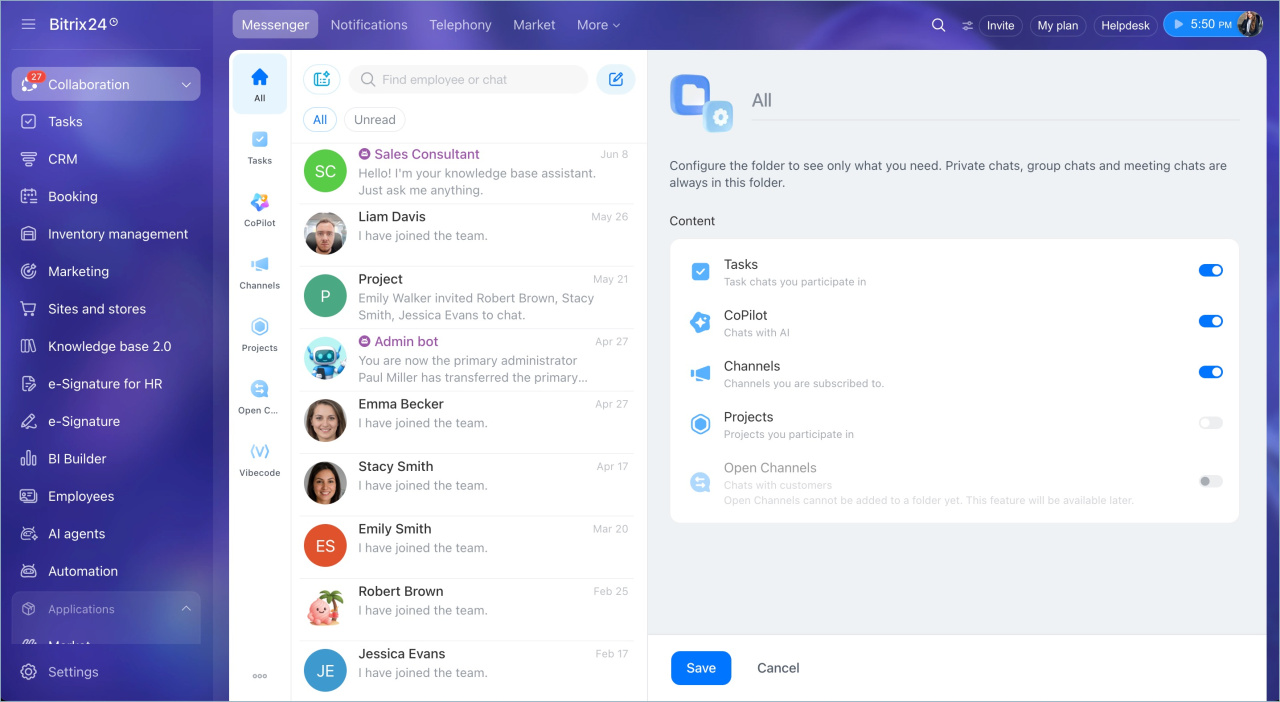
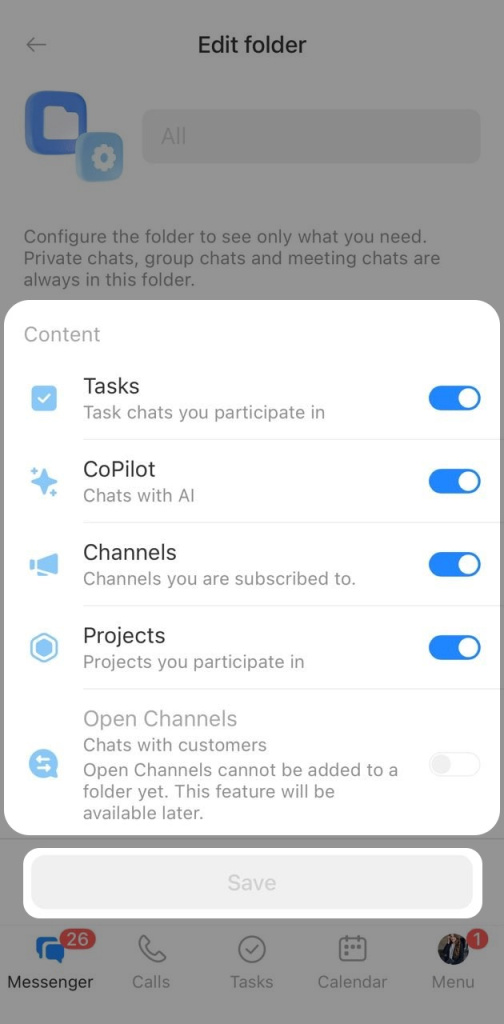
The system All folder combines conversations from selected sources. Personal chats, group chats, and meeting chats always appear in this folder. You can turn task chats, CoPilot, channels, and projects on or off.
Configure the folder from its context menu, the folder panel menu, or the folder list.
Use the All folder context menu.
1. Right-click the All folder in the folder panel.
2. Select Edit.
3. Turn the required sources on or off.
4. Click Save.
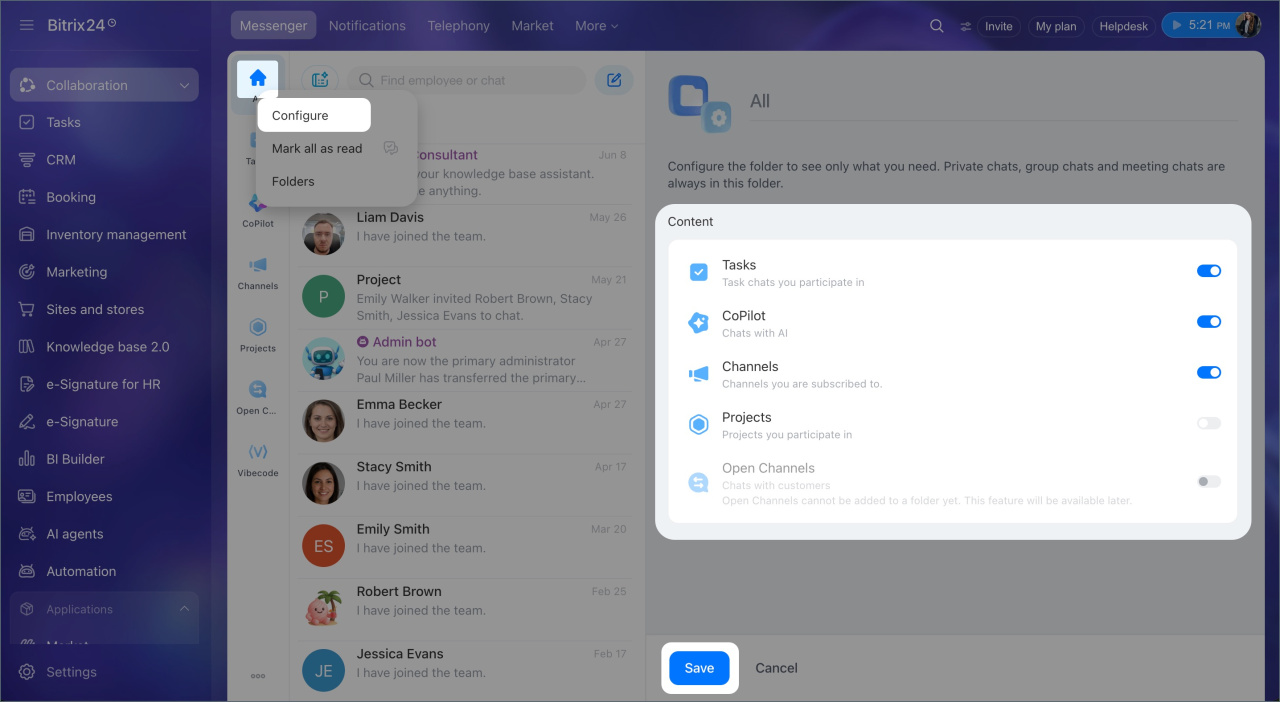
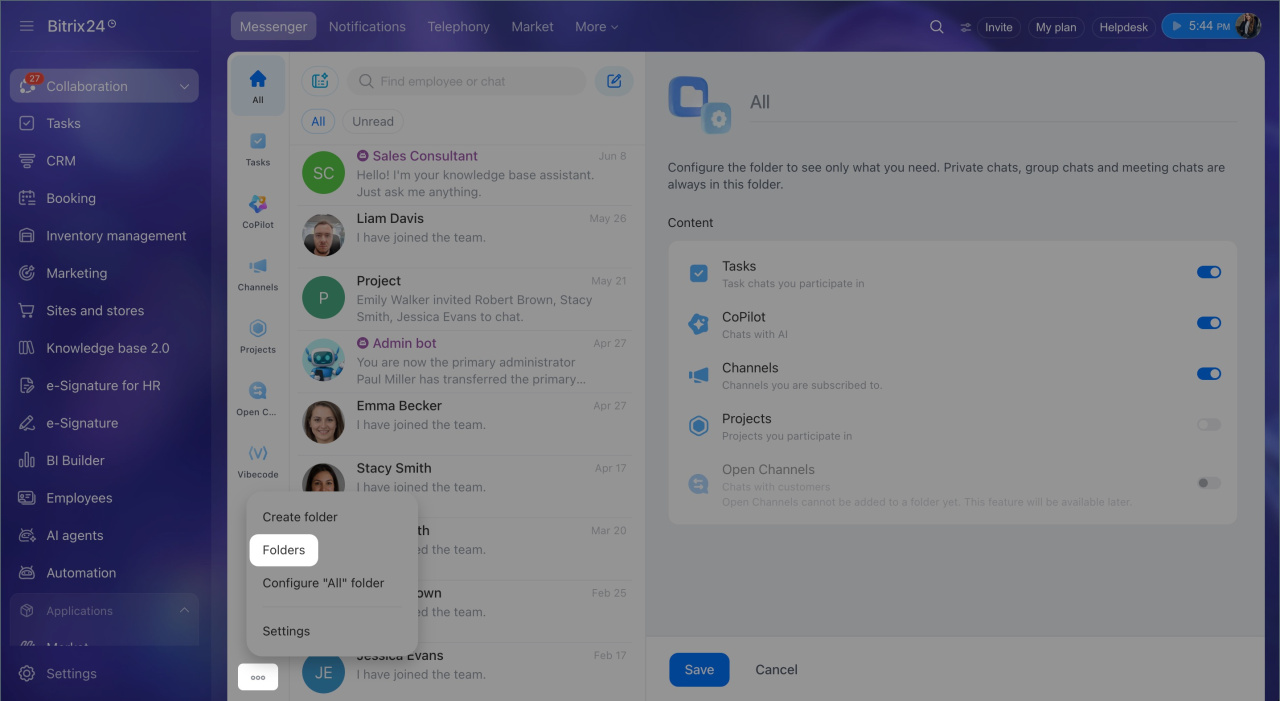
Use the folder panel menu.
1. Click Three dots "..." at the bottom of the folder panel.
2. Click Configure "All" folder.
4. Turn sources on or off.
5. Click Save.
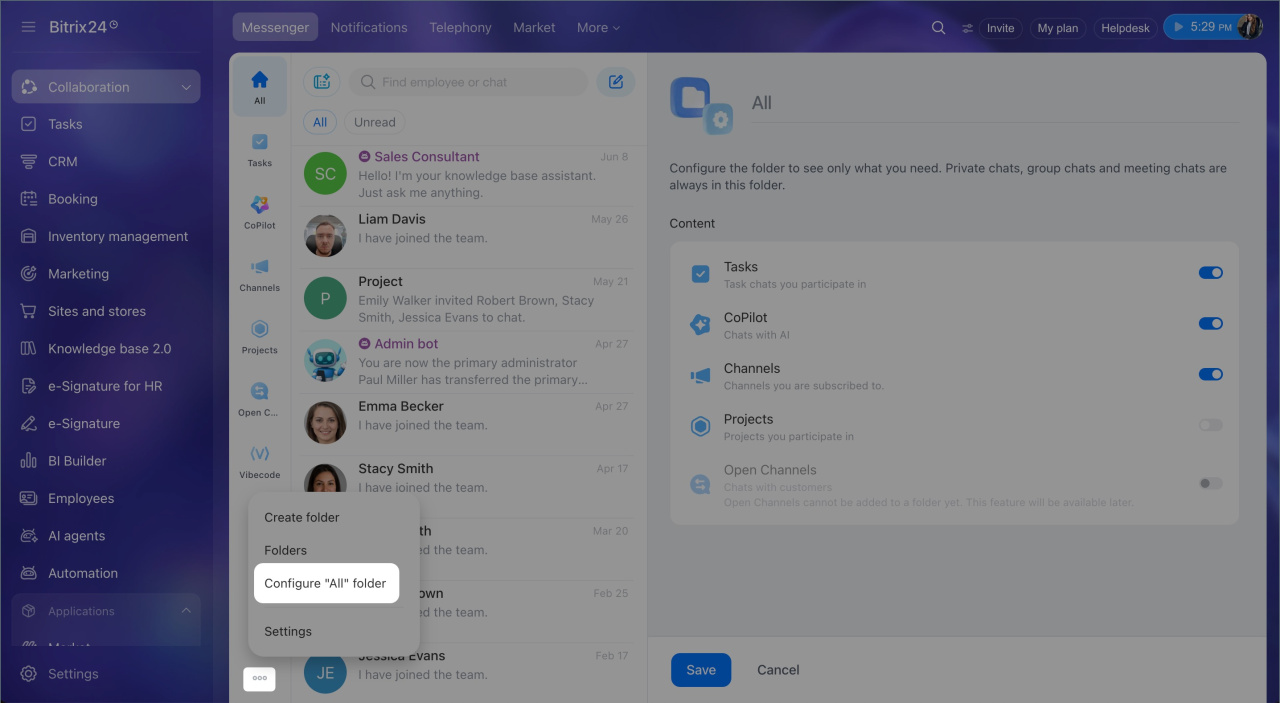
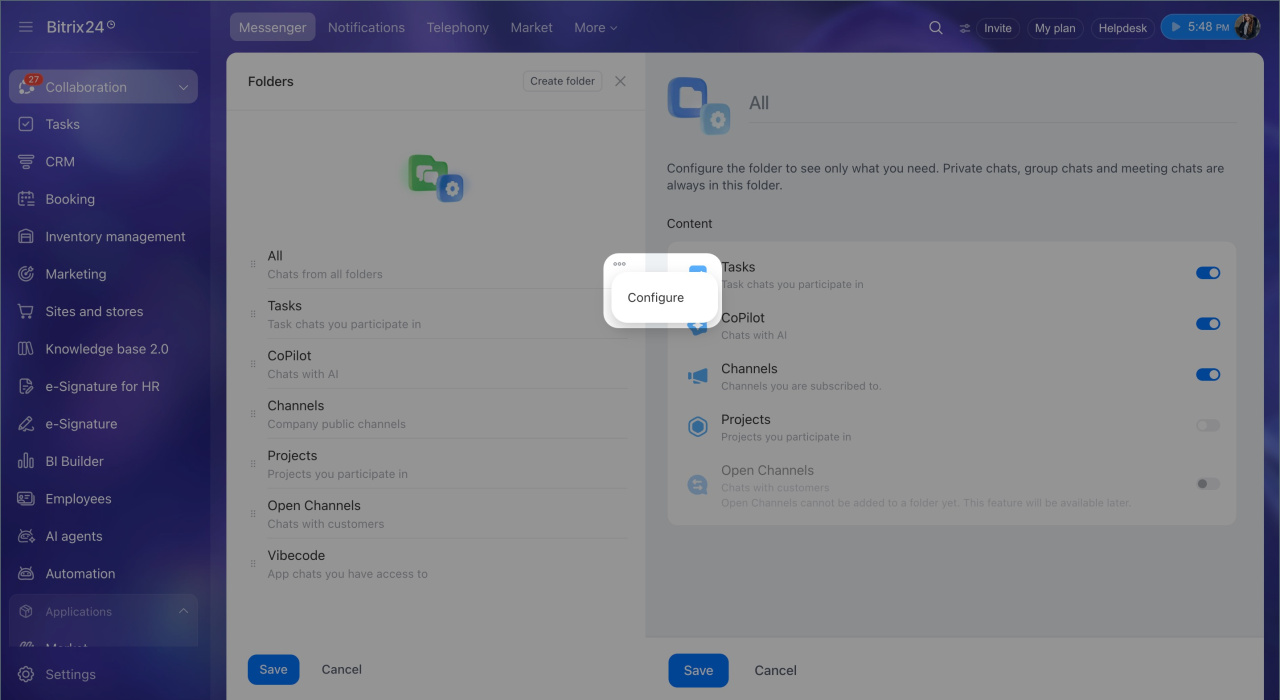
Use the folder list.
1. Click Three dots "..." at the bottom of the folder panel.
2. Select Folders.
3. Click Three dots "..." to the right of the All folder.
4. Select Configure.
5. Turn sources on or off.
6. Click Save.
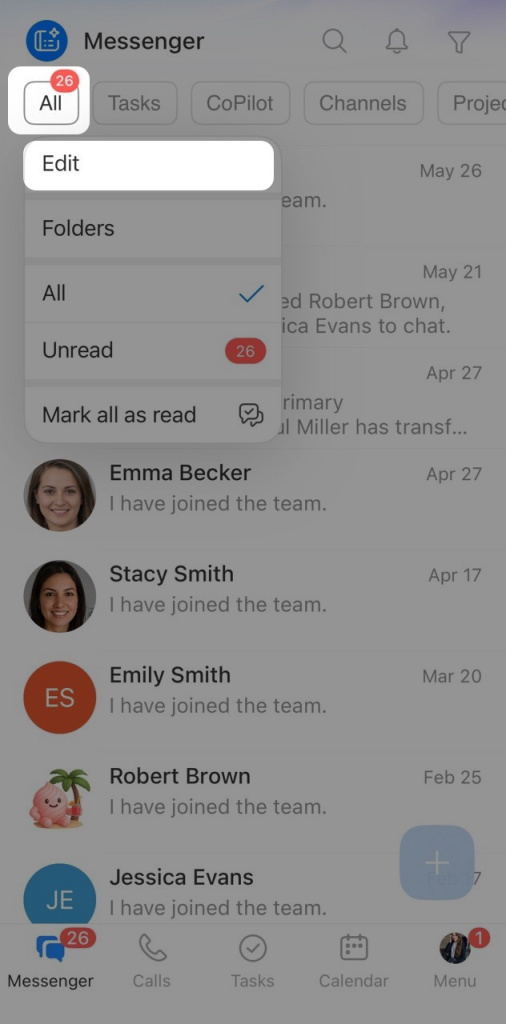
Configure the folder from its context menu or the folder list.
Use the folder context menu.
1. Press and hold the All folder.
2. Select Set up.
3. Turn sources on or off.
4. Tap Save.
Use the folder list.
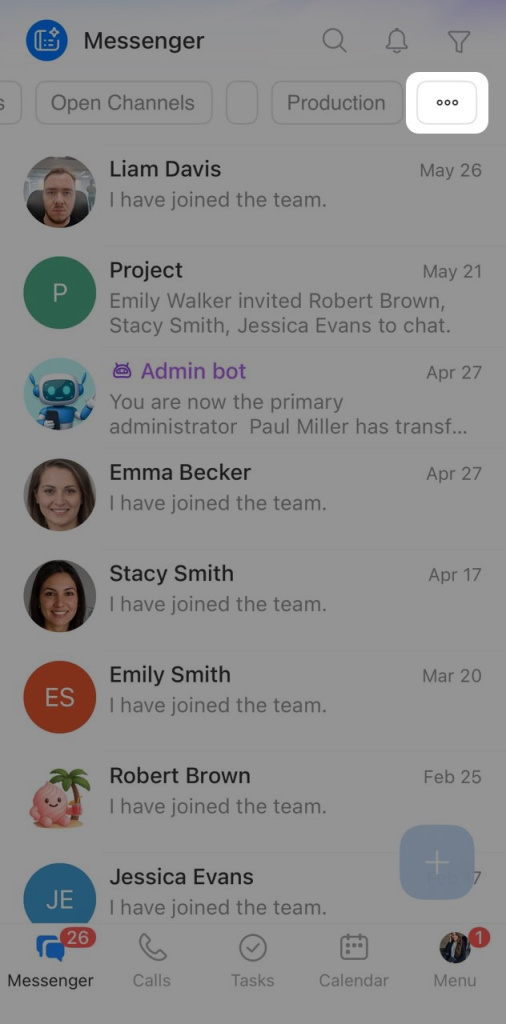
1. Tap Three dots (...) at the end of the folder list.
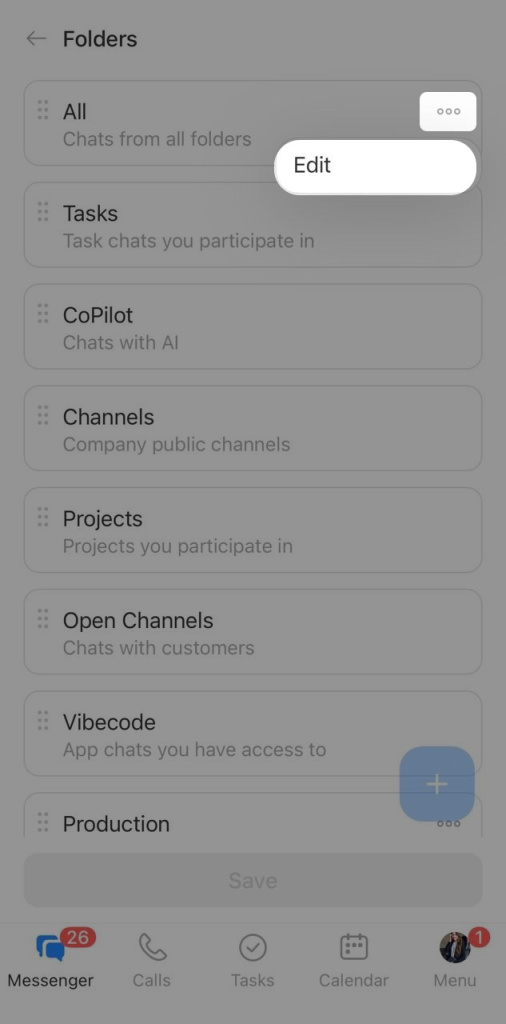
2. To the right of the All folder, tap Three dots (...) > Edit.
3. Turn sources on or off.
4. Tap Save.
Create a personal folder
Create a new folder from the folder panel menu, the folder list, or the chat list. The folder opens automatically after you create it.
Use the folder panel menu.
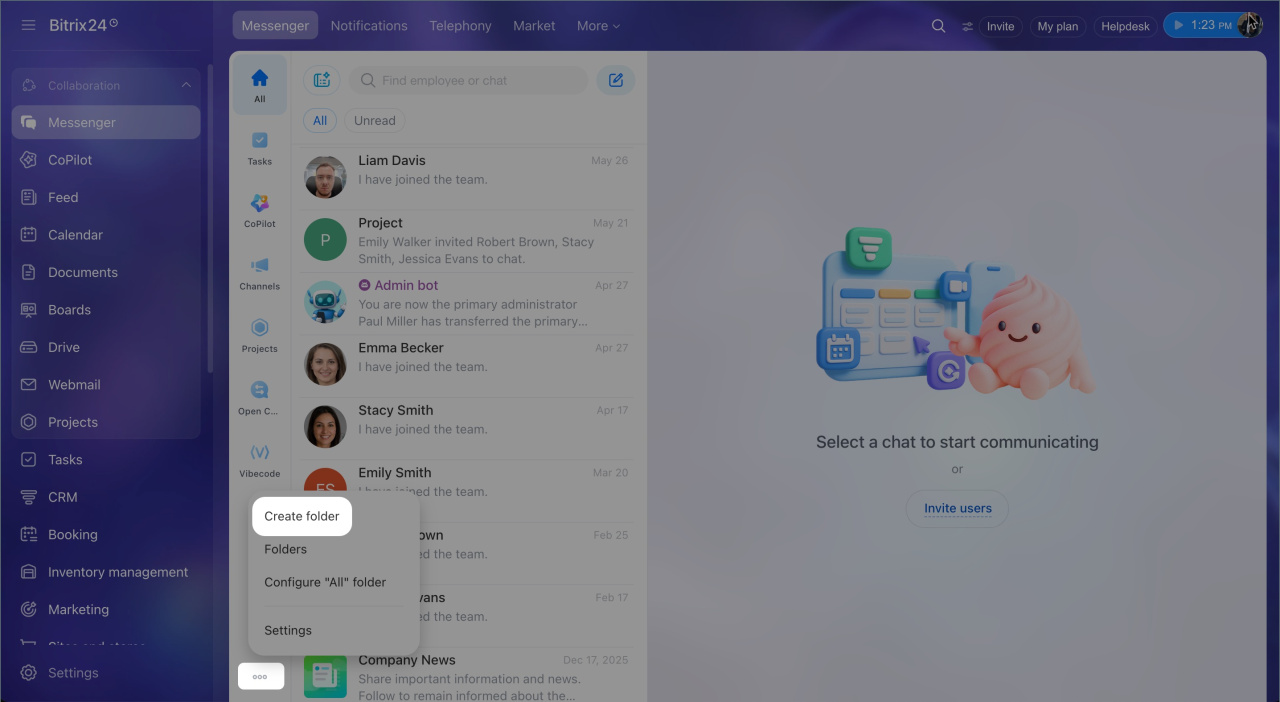
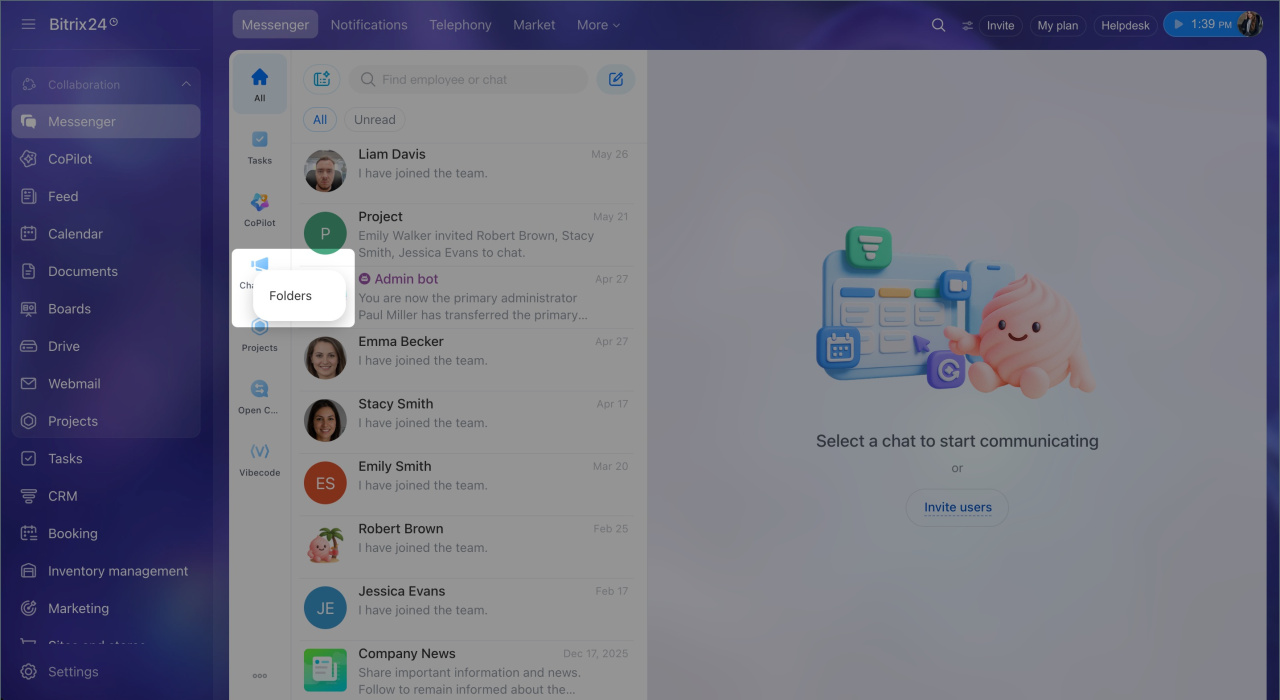
1. In Messenger, click Three dots "..." at the bottom of the folder panel.
2. Select Create folder.
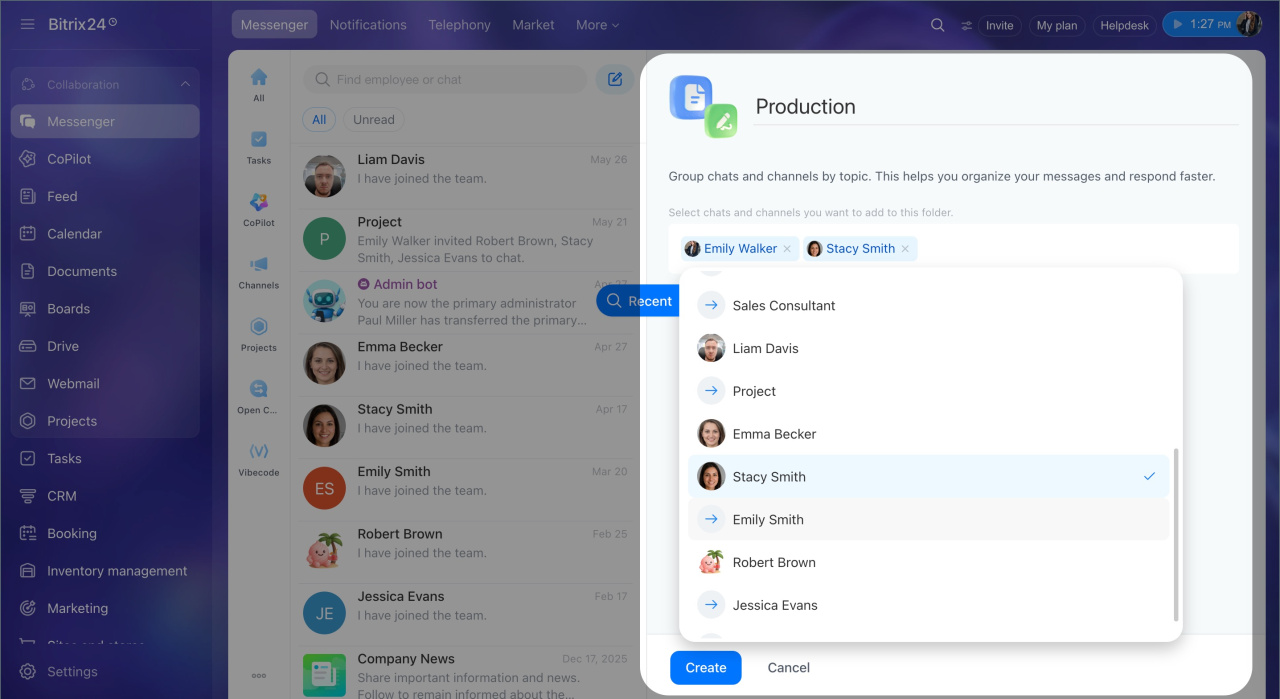
3. Enter a folder name.
4. Click Add and select the conversations you need.
5. Click Create.
Use the folder list.
1. Right-click any folder to open the context menu.
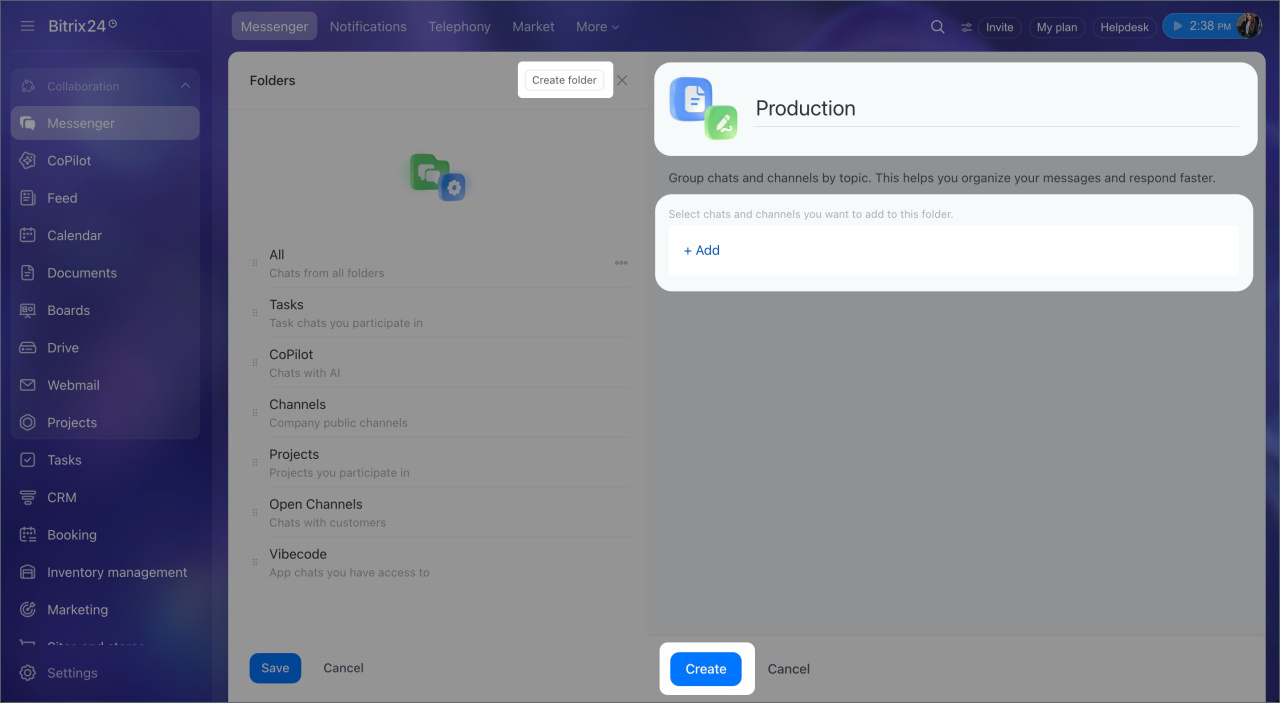
2. Select Folders.
3. In the upper-right corner of the folder list, click Create folder.
4. Enter a folder name.
5. Click Add and select the conversations you need.
6. Click Create.
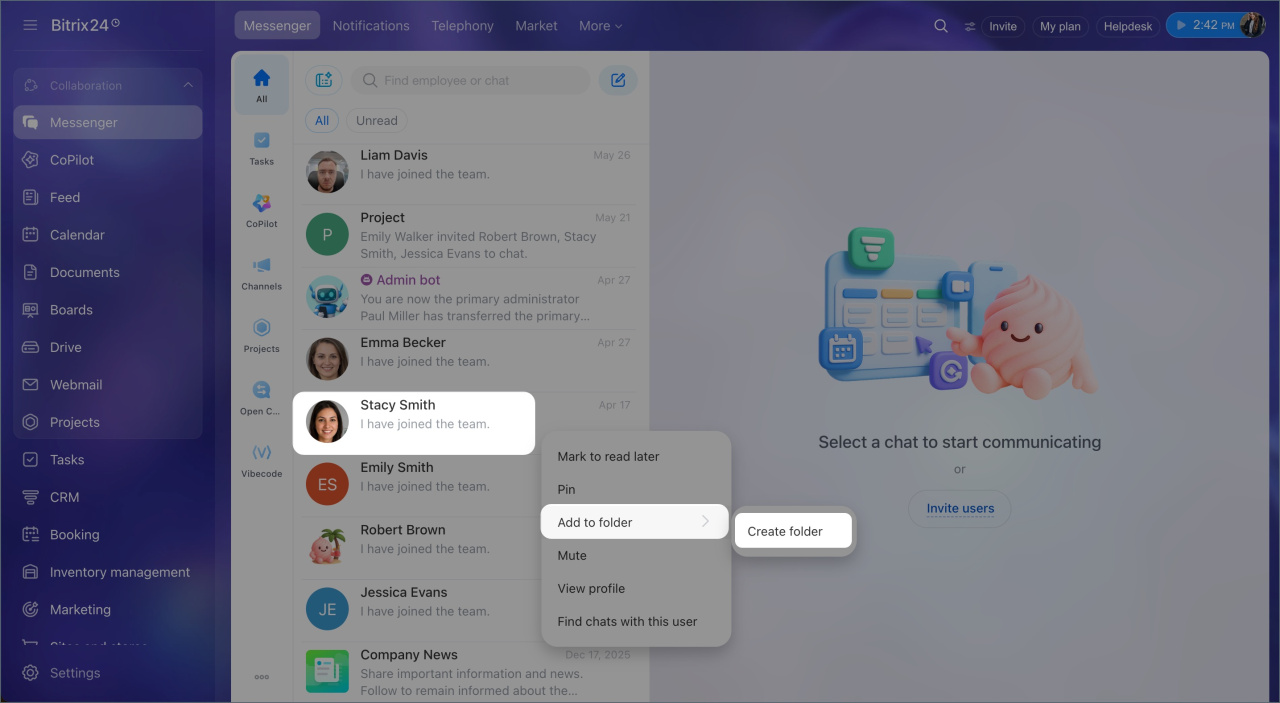
Use the chat list. This method is available only if you do not have any personal folders yet.
1. Right-click the chat you want to add to a personal folder.
2. Select Add to folder > Create folder.
3. Enter a folder name.
4. Click Add and select the conversations you need.
5. Click Create.
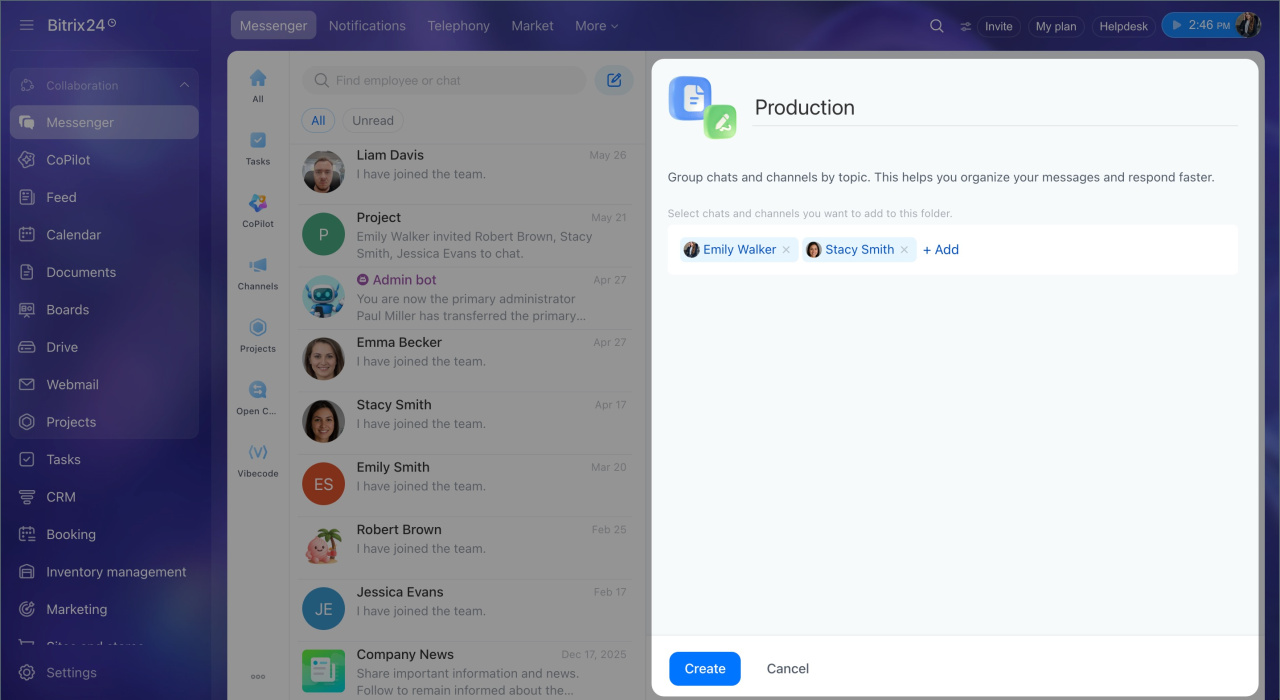
Create a new folder from the folder panel menu or the folder list. The folder opens automatically after you create it.
Use the chat list.
1. In Messenger, tap Plus (+) in the lower-right corner.
2. Select Folder.
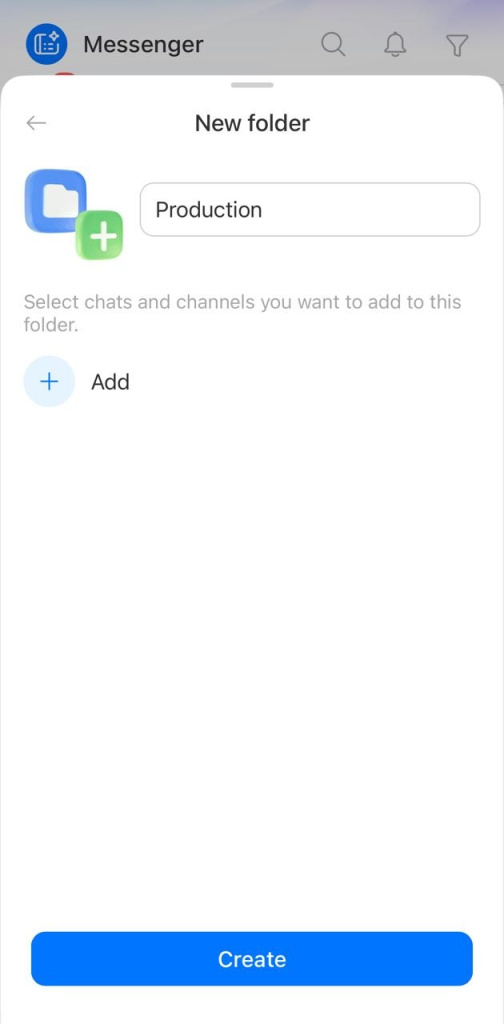
3. Enter a folder name.
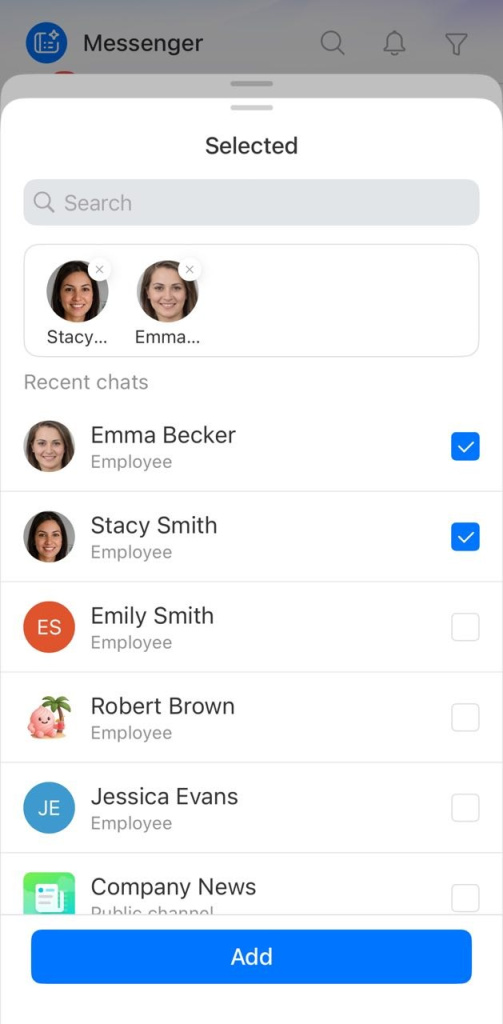
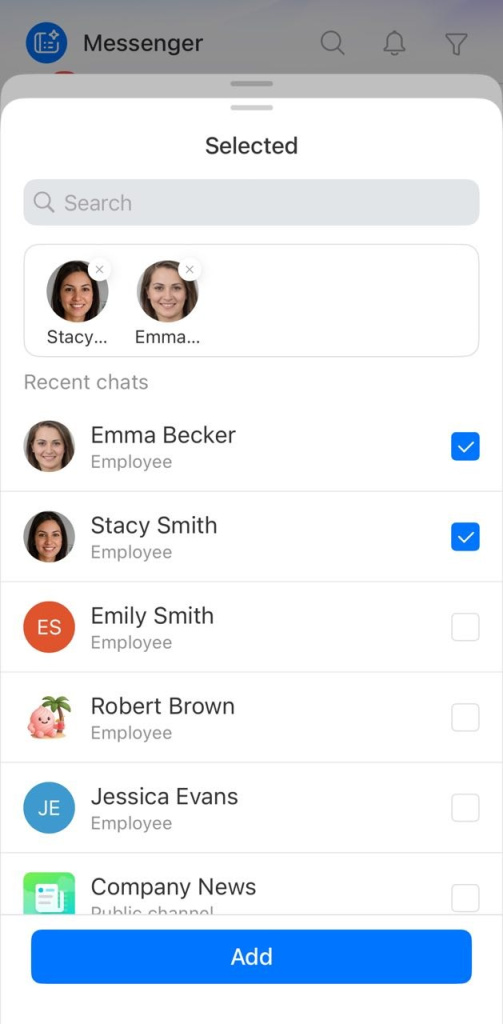
4. Tap Add and select the conversations you need.
5. Tap Add.
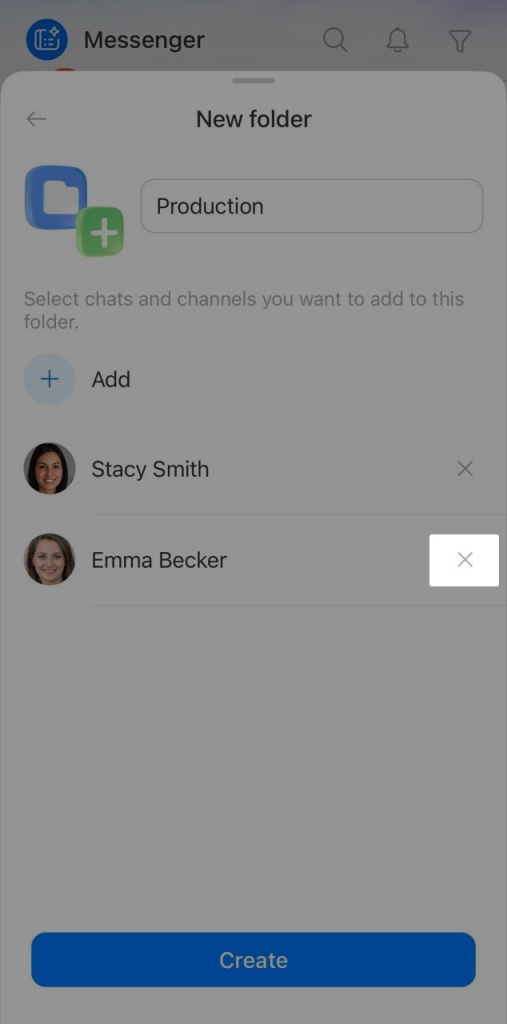
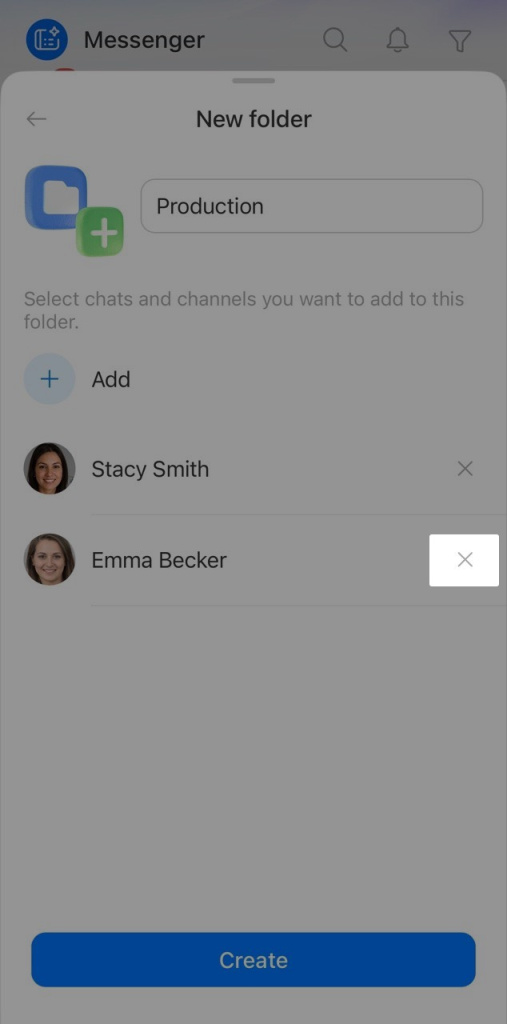
6. Review the folder contents. To remove a chat from the selection, tap the X next to it.
7. Tap Create.
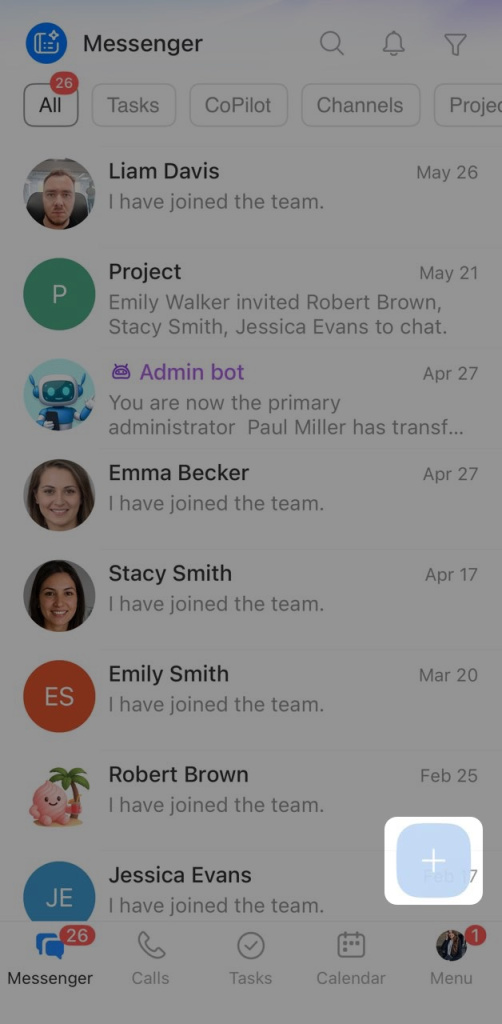
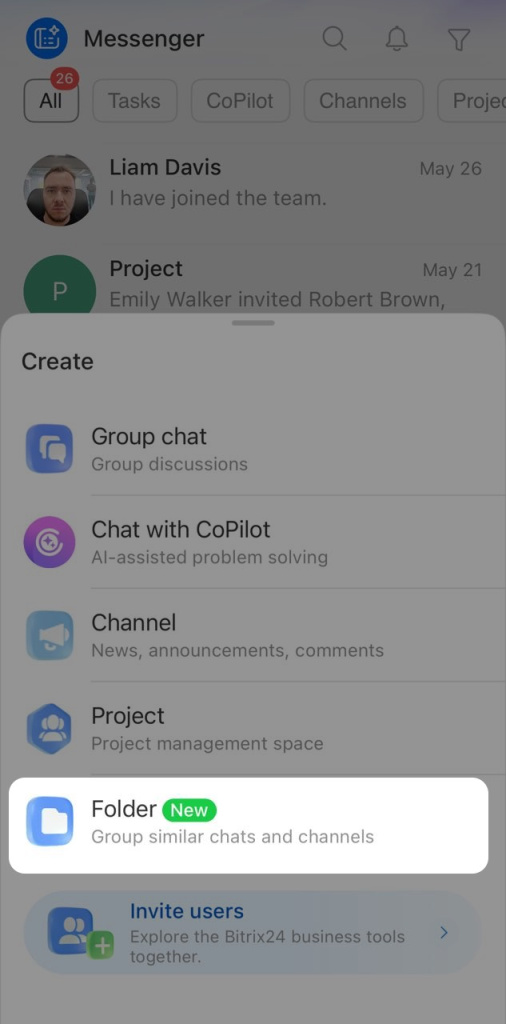
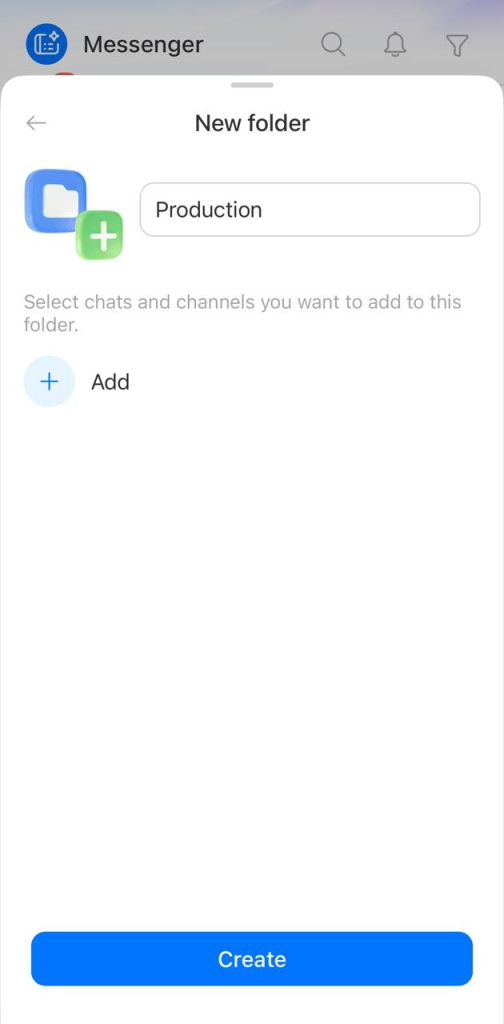
Use the folder list.
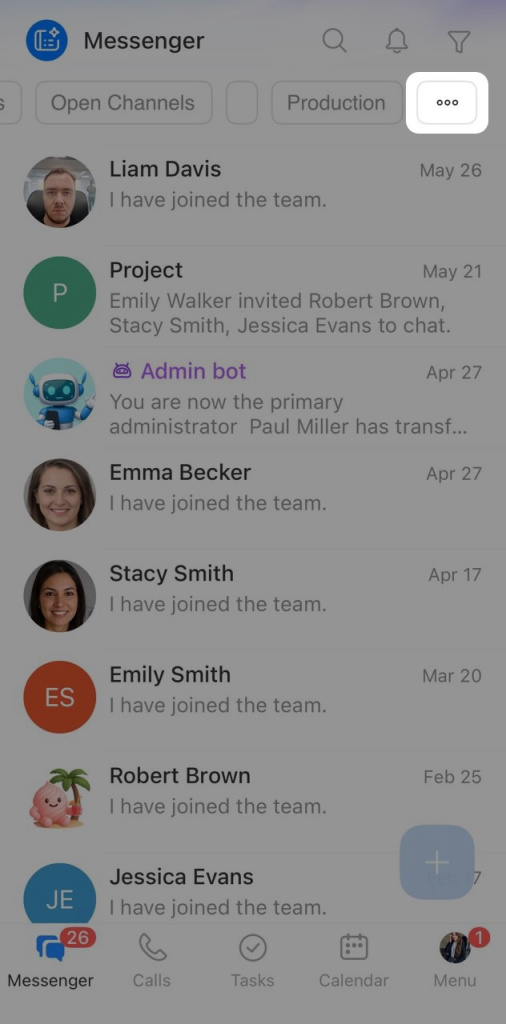
1. Tap Three dots (...) at the end of the folder list.
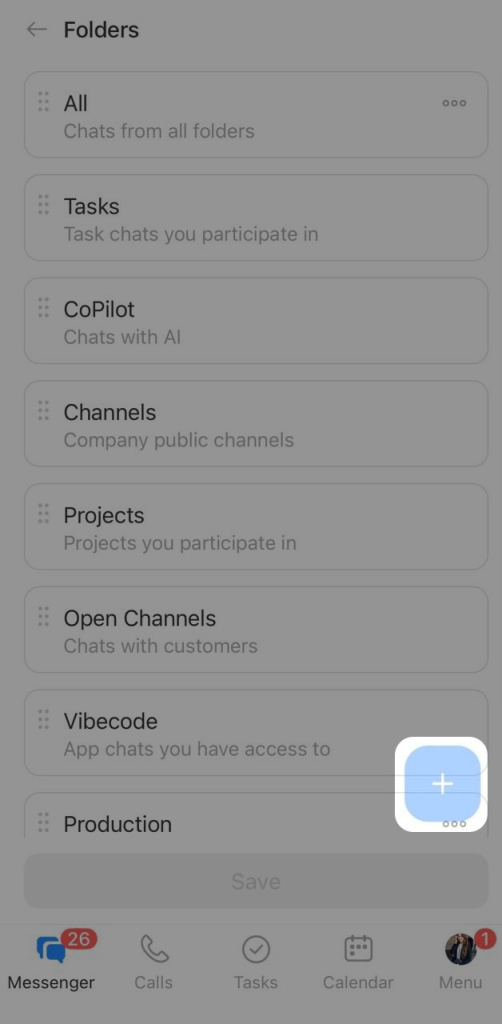
2. Tap Plus (+) in the lower-right corner.
3. Enter a folder name.
4–5. Tap Add and select the conversations you need.
6. Tap Add.
7. Review the folder contents. To remove a chat from the selection, tap the X next to it.
8. Tap Create.
Configure a personal folder
Add a chat to a folder.
1. Right-click a chat in the chat list.
2. Select Add to folder.
3. Select one or more personal folders.
Edit a personal folder — change its name or contents.
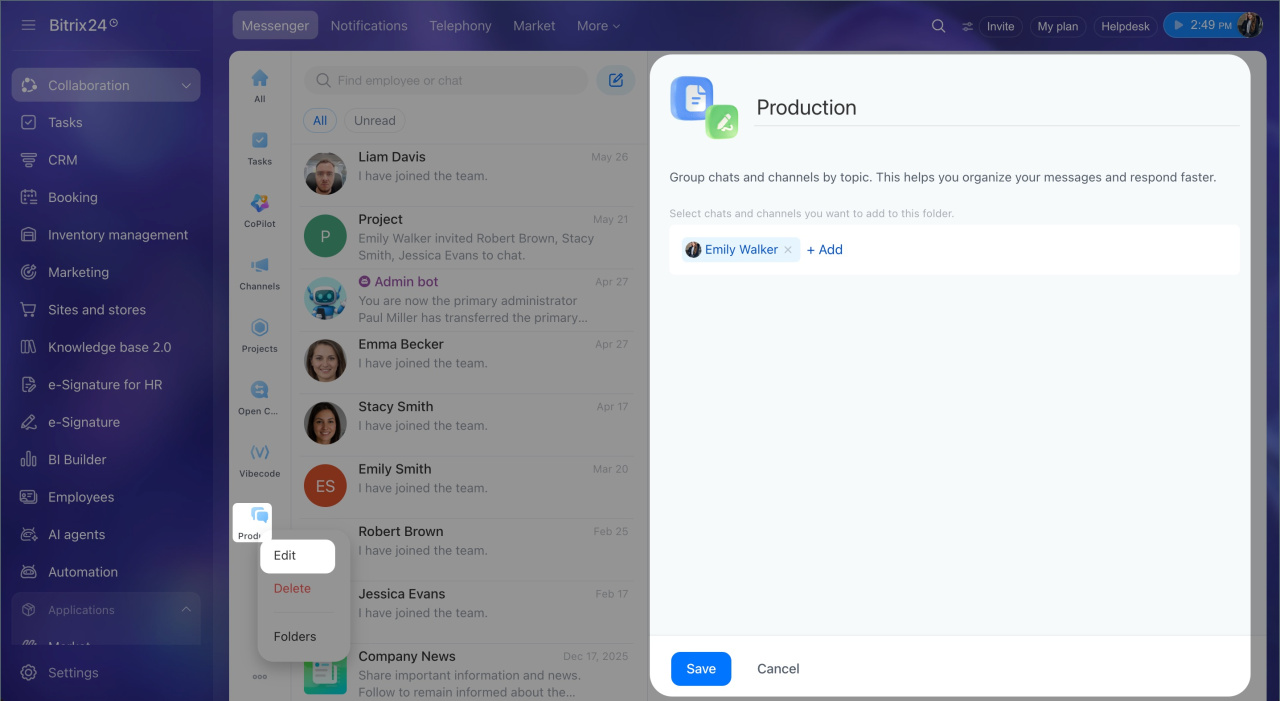
1. Right-click the folder.
2. Select Edit.
3. Enter a new name.
4. Click the X next to a conversation name to remove it from the folder.
5. Click Add and select the conversations you want to add to the folder.
6. Click Save.
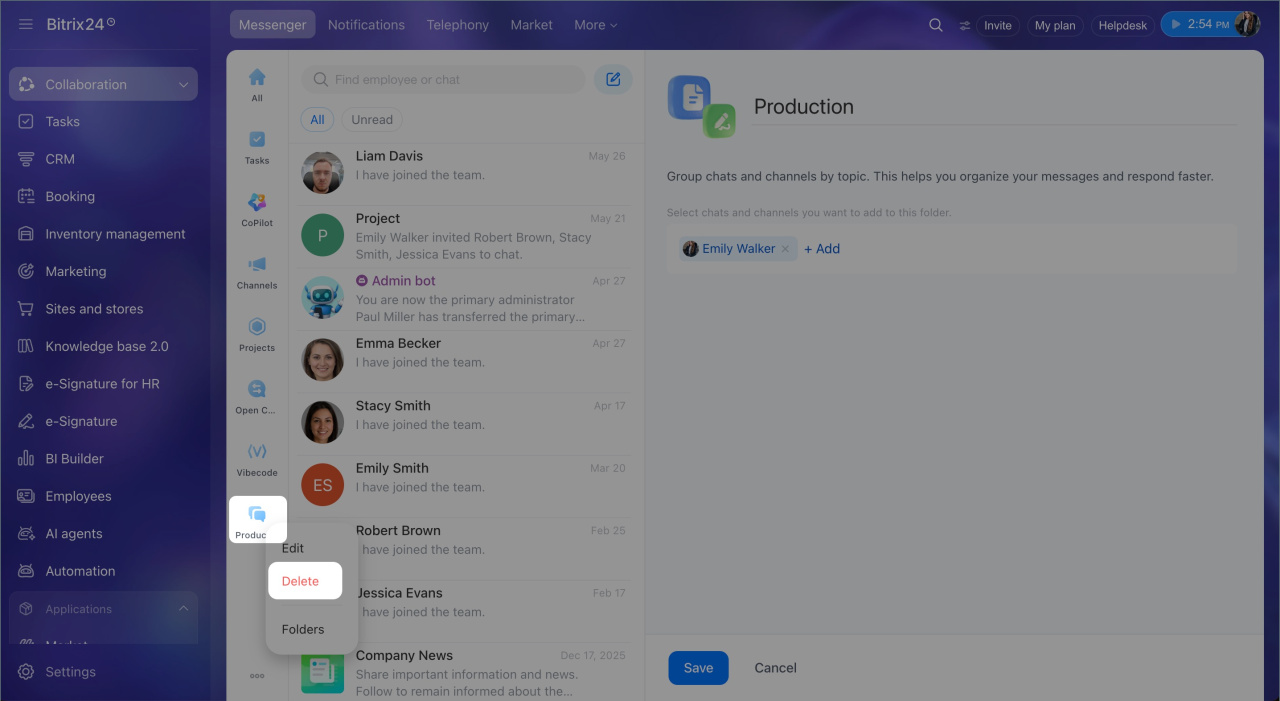
Delete a personal folder — conversations remain in Bitrix24 and in any other folders they belong to.
1. Right-click the folder to open the context menu.
2. Select Delete.
3. Click Delete in the confirmation window.
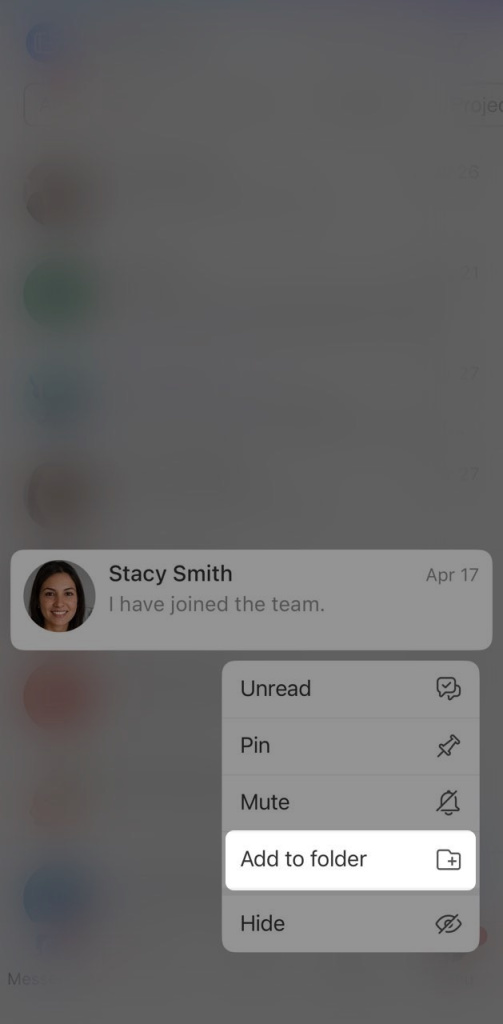
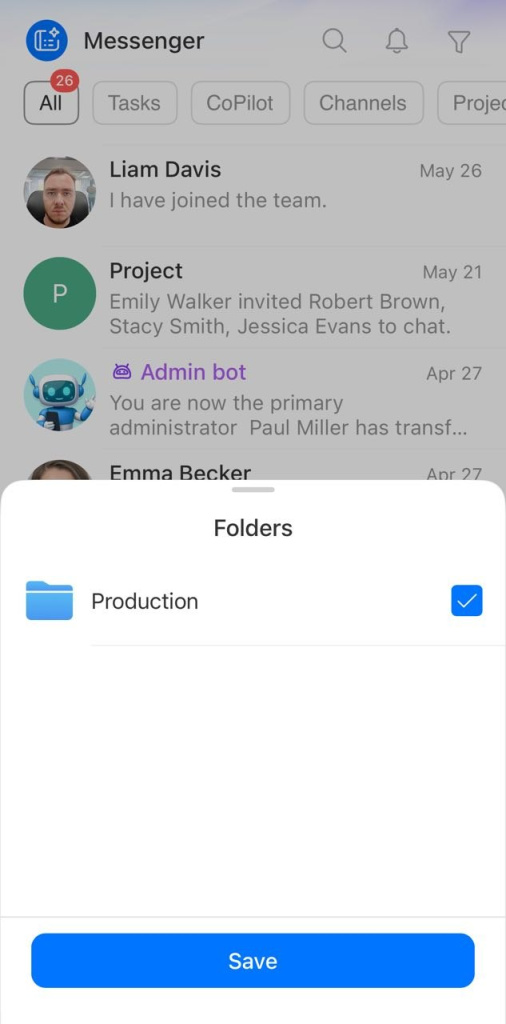
Add a chat to a folder.
1. Press and hold the chat to open the context menu.
2. Tap Add to folder.
3. Select one or more personal folders.
4. Tap Save.
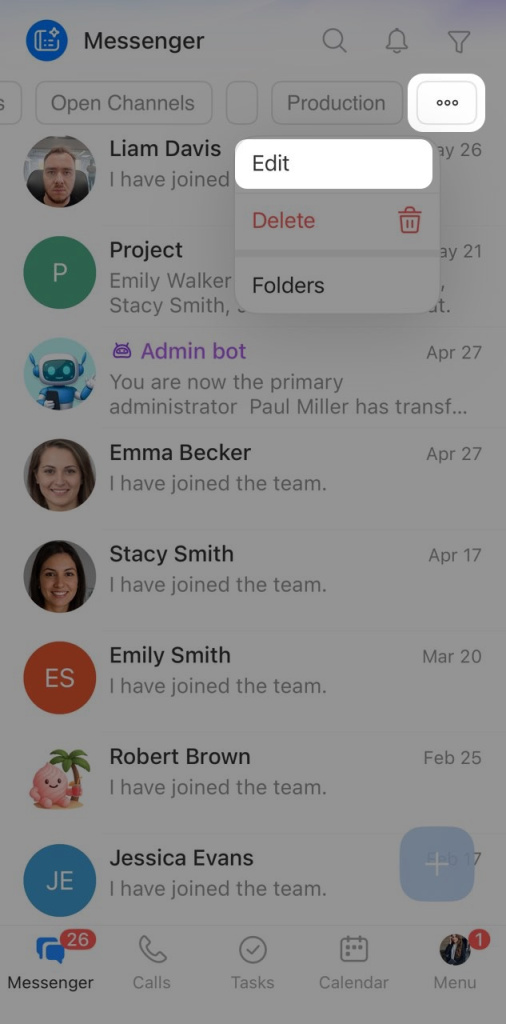
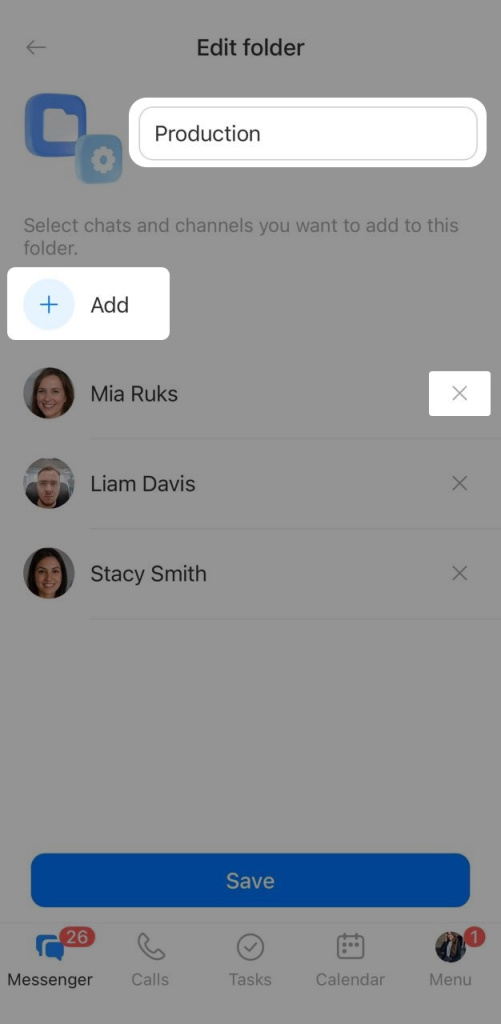
Set up a personal folder — change its name or chat contents.
1. Press and hold the folder to open the context menu.
2. Select Set up.
3. Enter a new name.
4. Tap the X next to a conversation name to remove it from the folder.
5. Tap Add and select the conversations you need.
6. Review the list, tap Add, and save your changes.
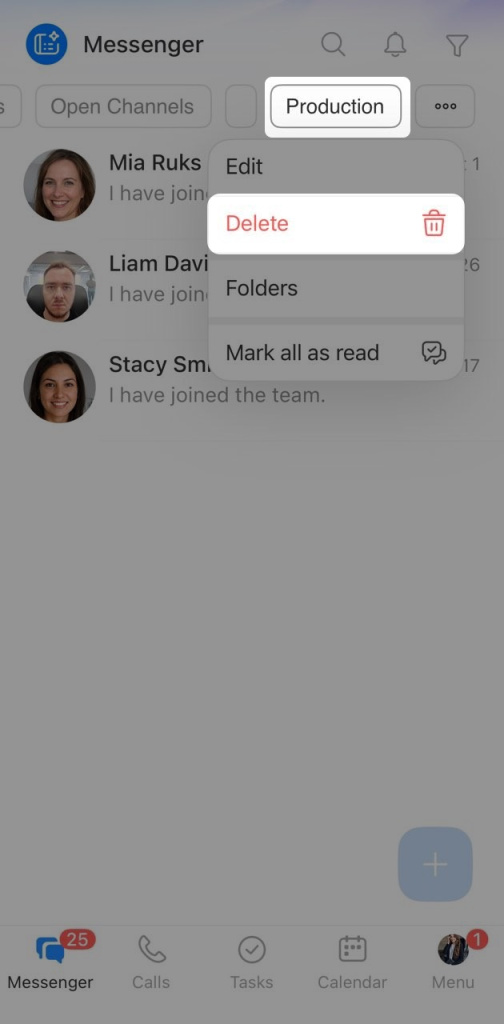
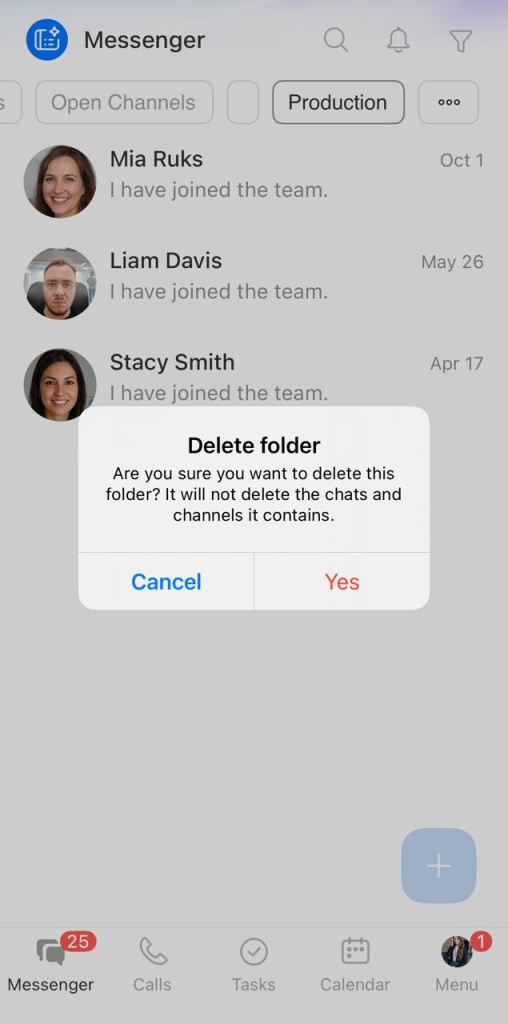
Delete a personal folder — conversations remain in Bitrix24 and in any other folders they belong to.
1. Press and hold the folder to open the context menu.
2. Select Delete.
3. Tap Yes, delete in the confirmation window.
In brief
- You can group chats into folders on a computer and in the Bitrix24 mobile app. By default, chats are organized into system folders, but you can create personal folders and add chats by topic.
- The All folder displays conversations from selected sources. Personal chats, group chats, and meeting chats always appear, while task chats, CoPilot, channels, and projects appear only if you choose to include them. To turn a source on or off, right-click the All folder, select Set up, and select the sources you need.
- To create a personal folder, click Three dots (...) at the bottom of the folder panel, select Create folder, enter a name, and add chats.
- To add a chat to a folder, right-click it, select Add to folder, and choose the folder you need.
- You can set up a personal folder at any time by changing its name or chat contents. Right-click the folder and select Set up.