
You can organize work chats by topic, pin important conversations to the top of the list, or save individual messages. This makes important information easy to access without having to search through conversations.
In this article:
Organize chats into folders
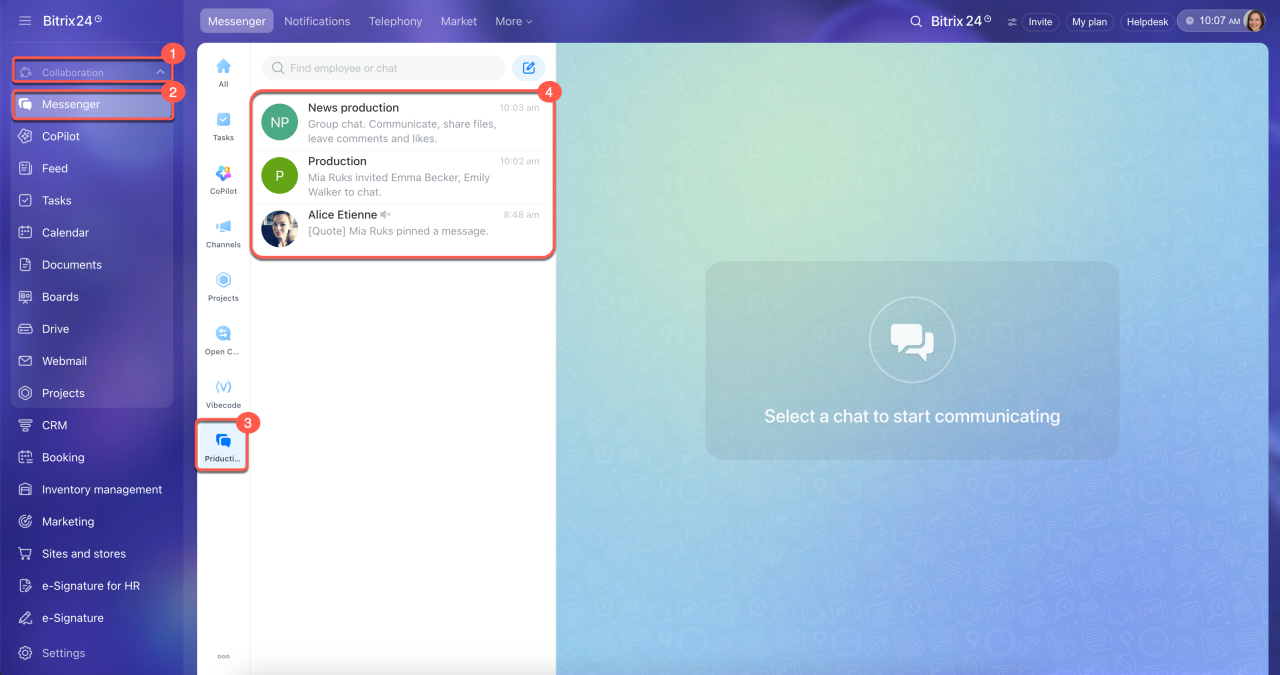
In Messenger, you can create personal folders to organize chats by topic. For example, add conversations about equipment purchases, production planning, machine placement, and budget approval to a folder named “Production.”
Work with personal folders in Messenger
Pin a chat
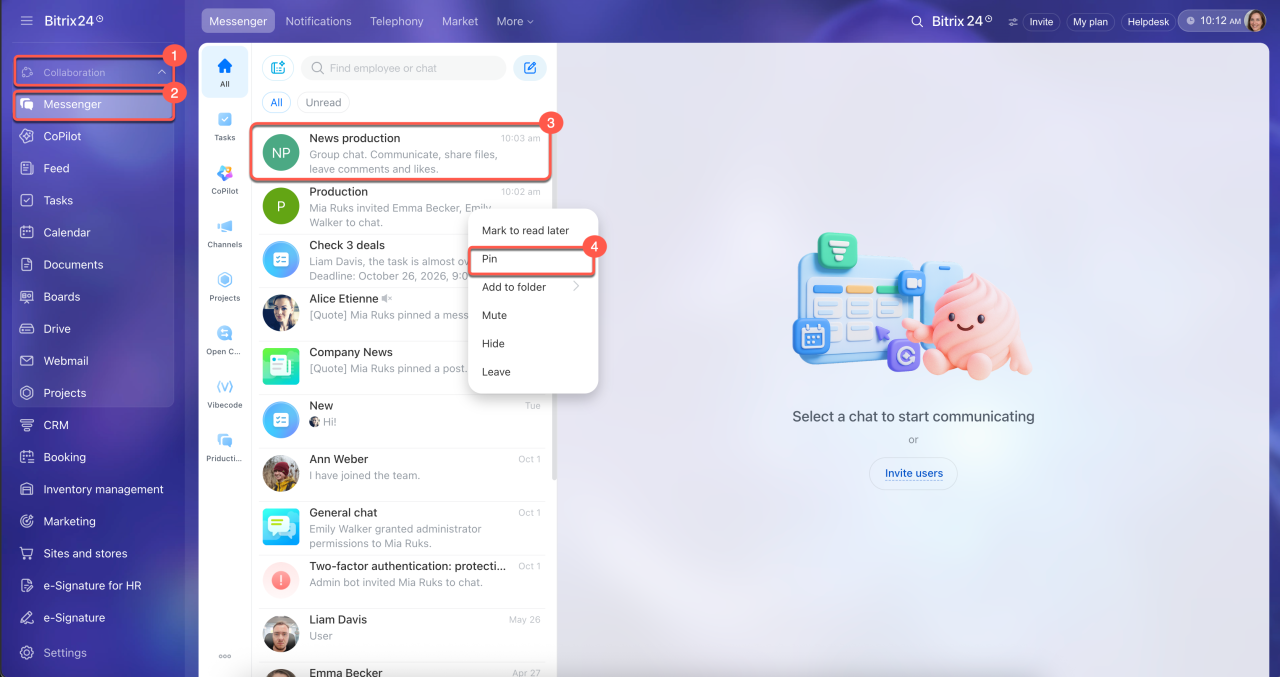
Pinned chats have a pin icon and remain at the top of the list. New messages in other conversations don't move them down. This is useful for chats you need to return to regularly, such as a chat with your supervisor or a company news channel.
Chats are pinned separately in each folder. Pinning a chat in one folder doesn't affect its position in other folders.
- In the left menu, go to Collaboration > Messenger.
- Right-click the chat to open the context menu.
- Select Pin.
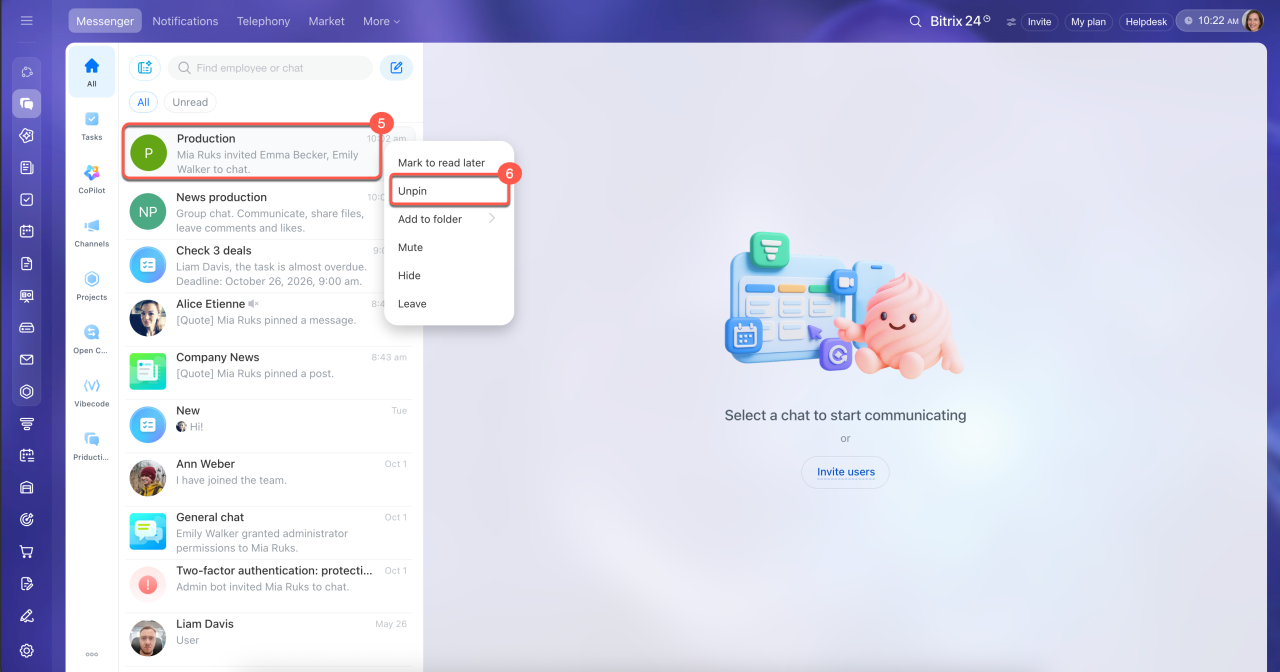
- To unpin the chat, right-click it and select Unpin.
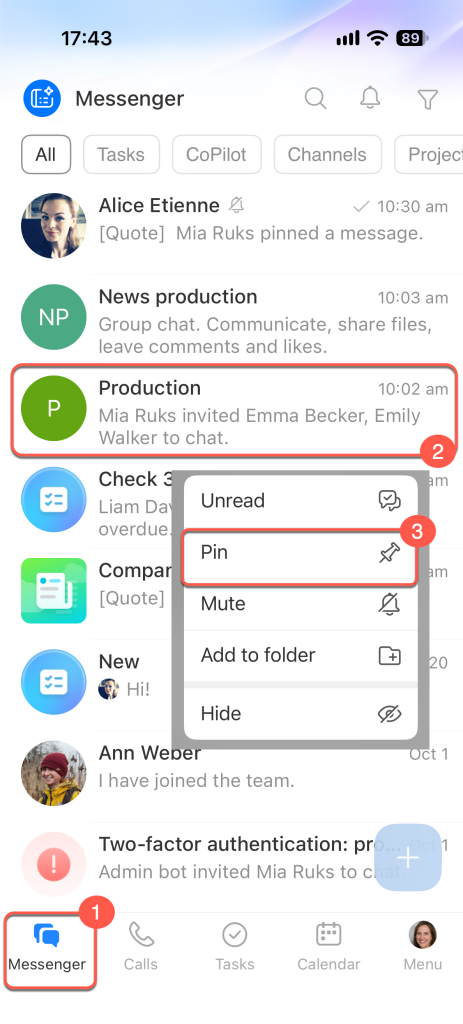
- Open Messenger.
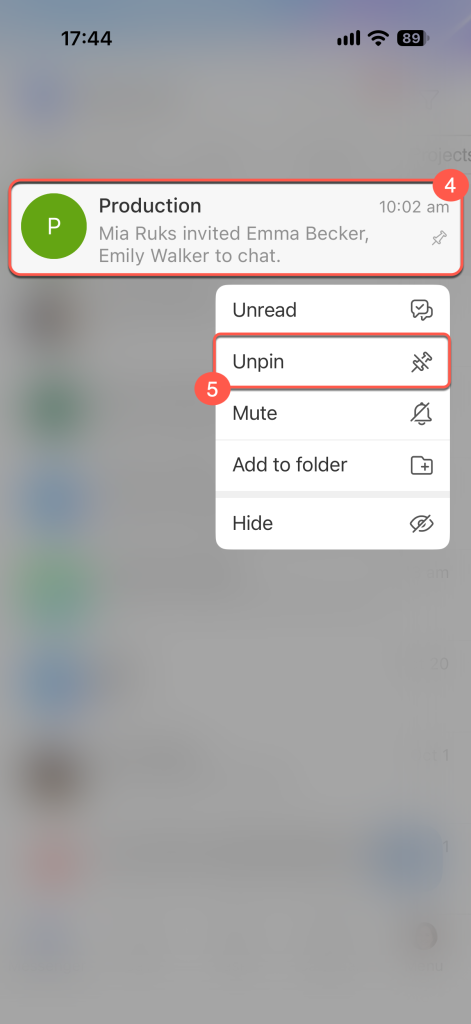
- Press and hold the chat to open the context menu.
- Select Pin.
- To unpin the chat, press and hold it, then select Unpin.
Work with pinned messages
Pinned message previews appear in a panel at the top of the chat, helping you quickly find them in the conversation. This is useful for information participants need to return to regularly, such as important agreements, deadlines, or links to documents.
You can pin a message for all chat participants or just for yourself. Each list can contain up to 20 messages.
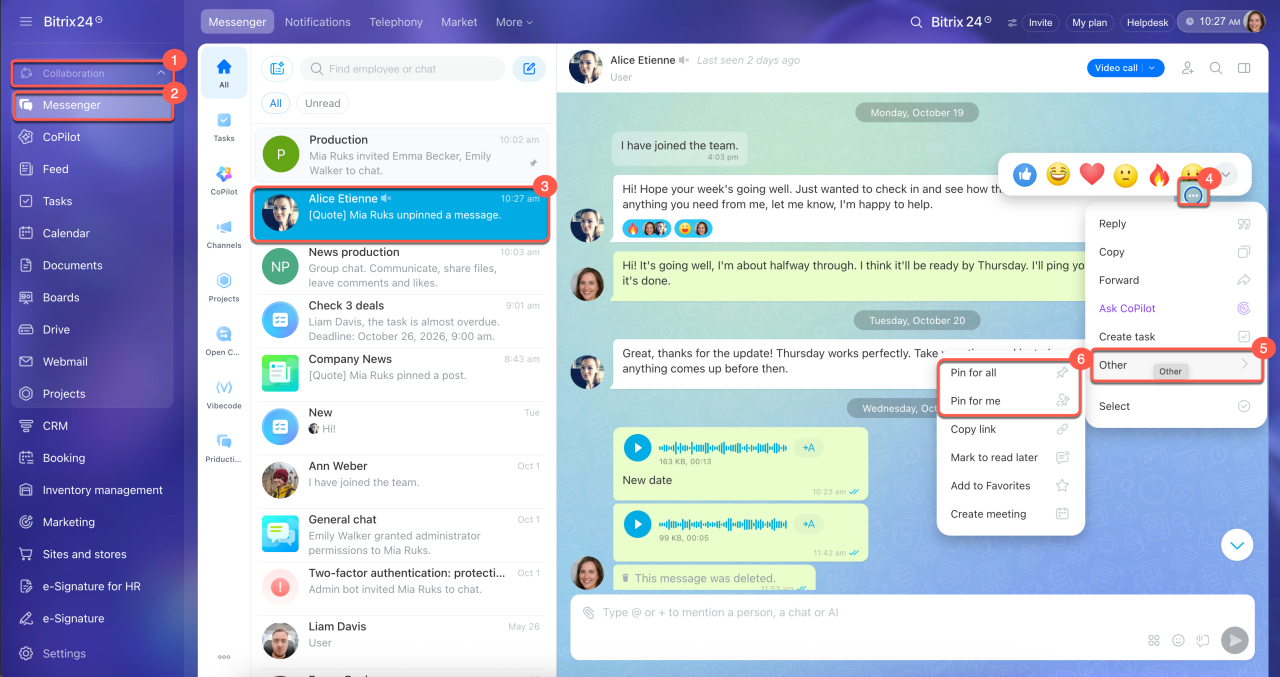
Pin a message.
- In the left menu, go to Collaboration > Messenger and open the chat you need.
- Hover over the message and select Three dots (...) > Other.
- Choose an option:
- Pin for all — All chat participants will see the pinned message. A notification that the message was pinned will appear in the chat.
- Pin for me — Only you will see the message in the pinned messages panel. Other participants won't receive a notification.
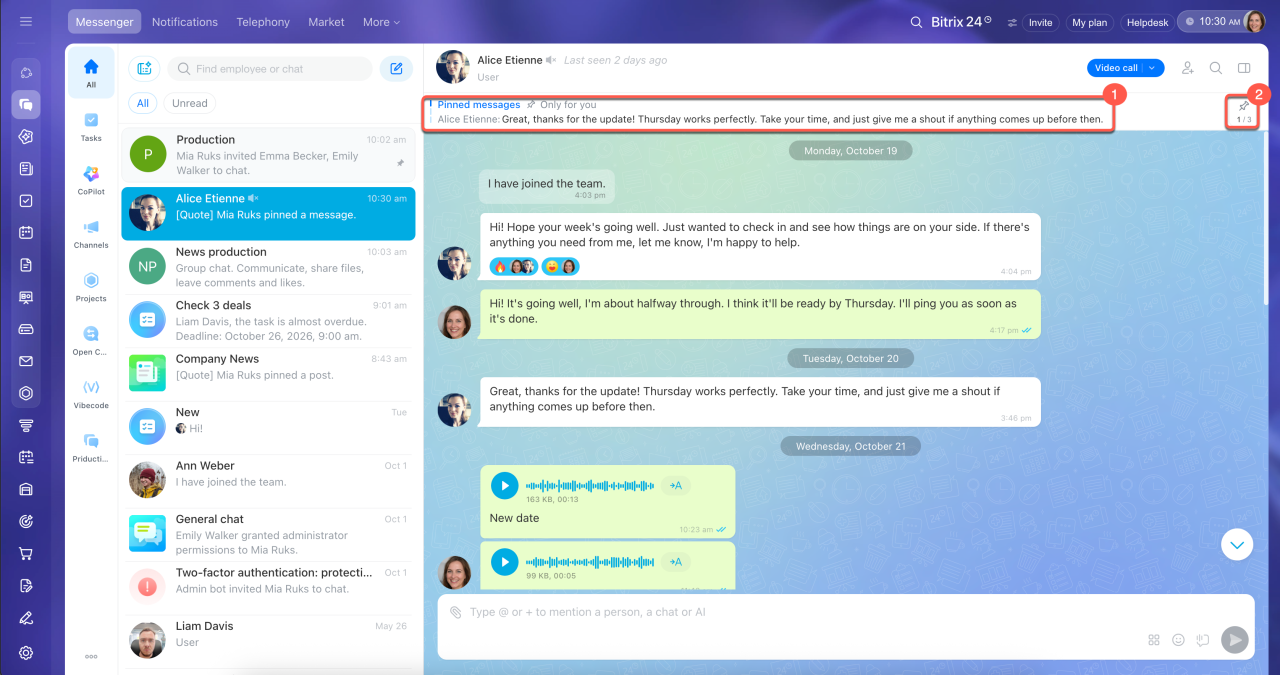
Go to a pinned message. Pinned messages are sorted by date, from newest to oldest.
- Click a pinned message at the top of the chat to jump to it in the conversation. Click it again to jump to the next pinned message.
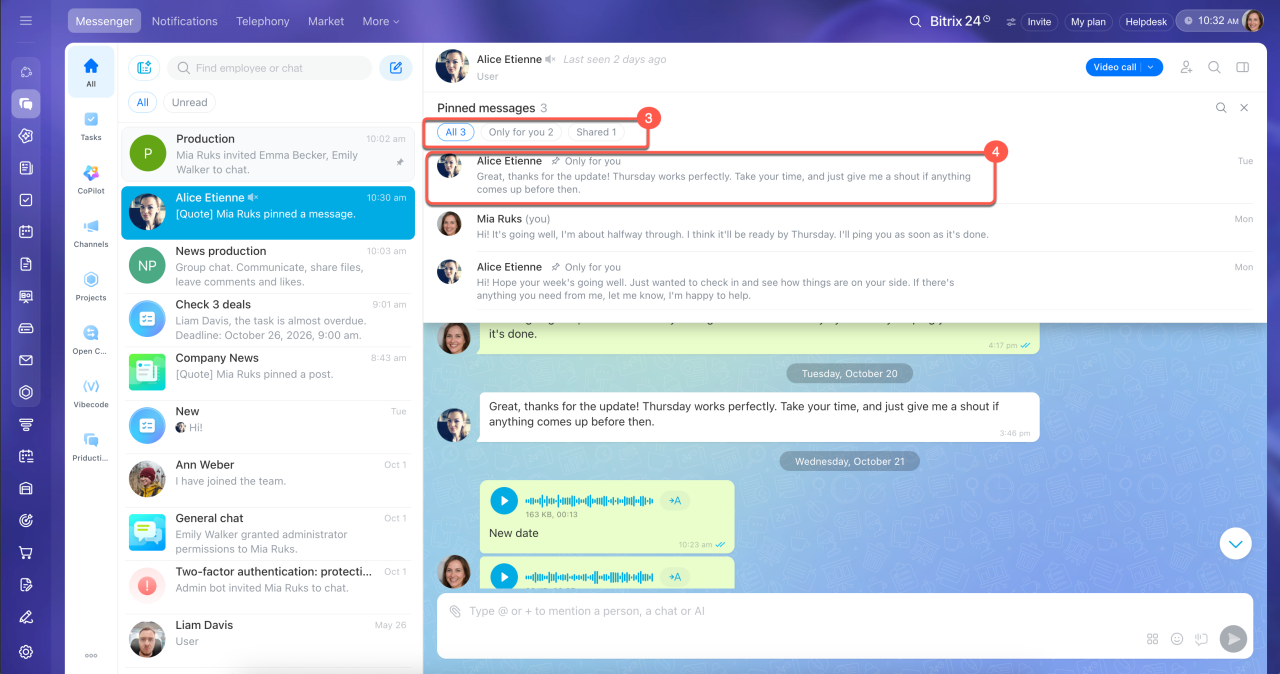
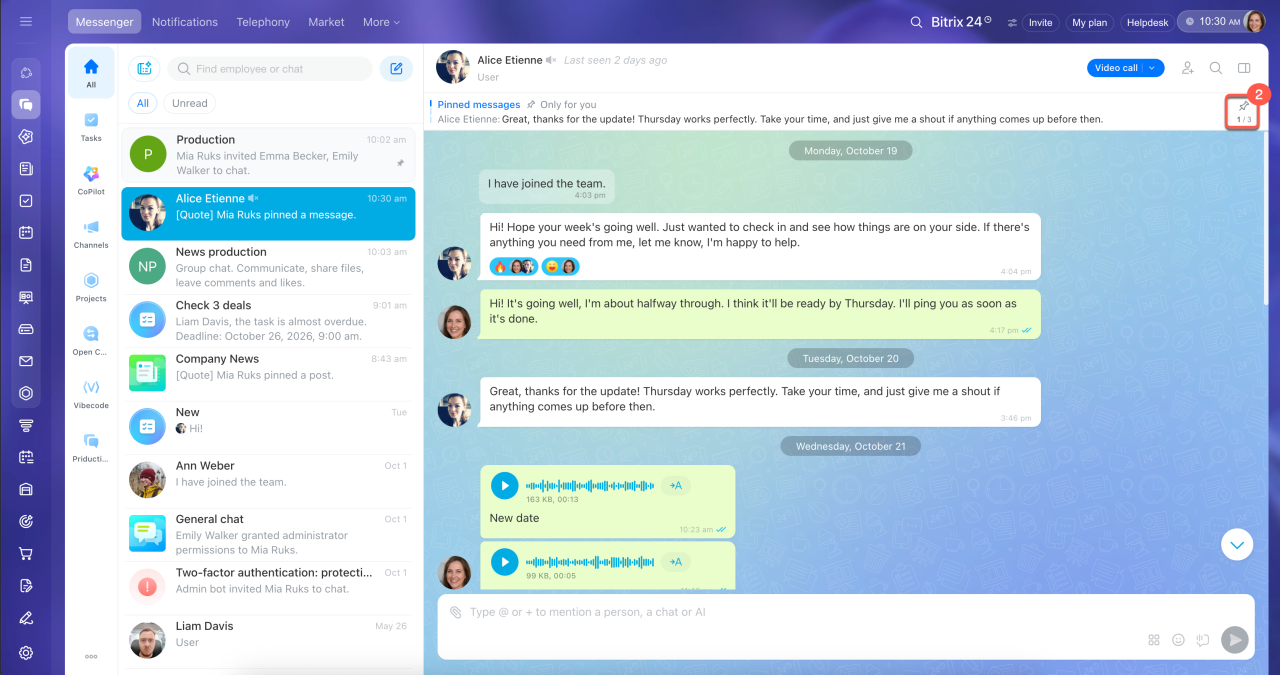
- To find a specific message, click the message counter at the end of the panel to open the list of pinned messages.
- Select a tab:
- All — All pinned messages.
- Only for you — Messages you've pinned only for yourself.
- Shared — Messages pinned for all chat participants.
Click a message to jump to it in the conversation.
Unpin a message. If you unpin a shared message, a notification appears in the chat showing who unpinned the message and when. Other participants are not notified when you unpin a message only for yourself.
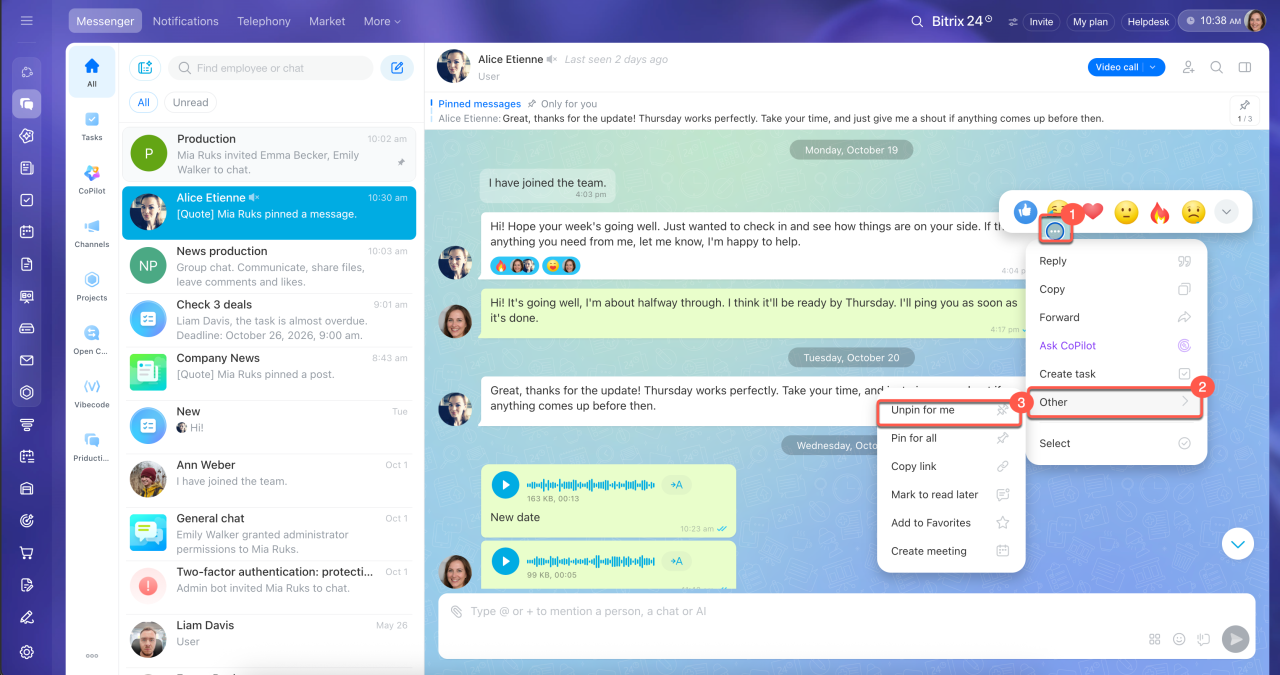
Use the context menu to unpin a message directly in the conversation.
- Hover over the message and select Three dots (...) > Other.
- Select Unpin for me or Unpin for all, depending on how the message was pinned.
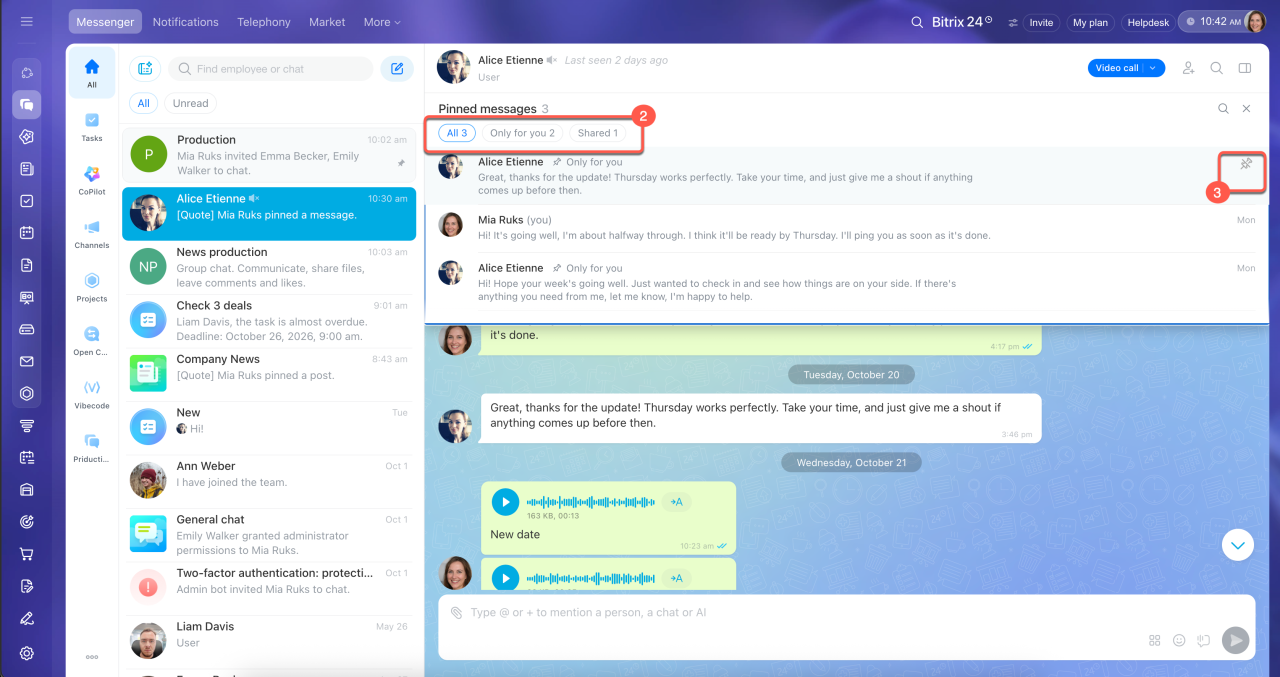
Use the list to unpin several messages at once.
- Click the counter at the end of the pinned messages panel to open the list.
- Select a tab: All, Only for you, or Shared.
- Hover over the message you need and click the crossed-out pin icon at the end of the row.
Pin a message.
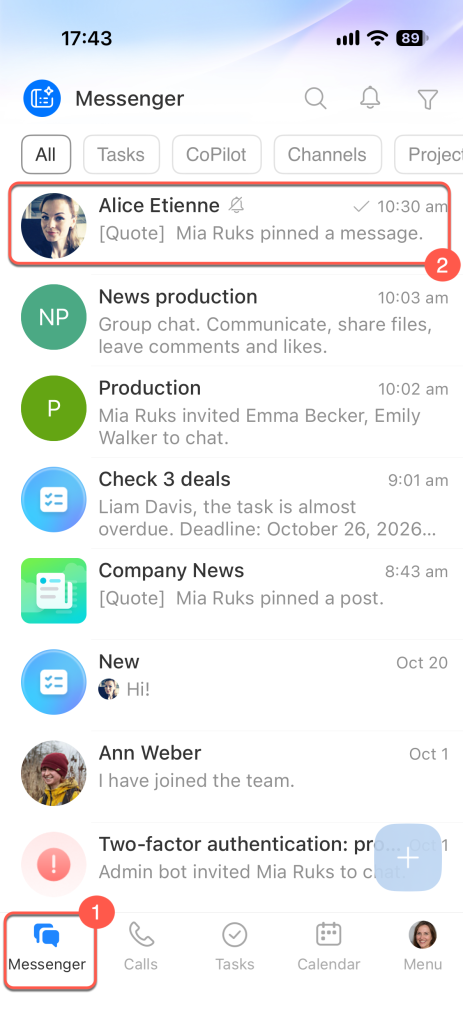
- Go to Messenger and open the chat you need.
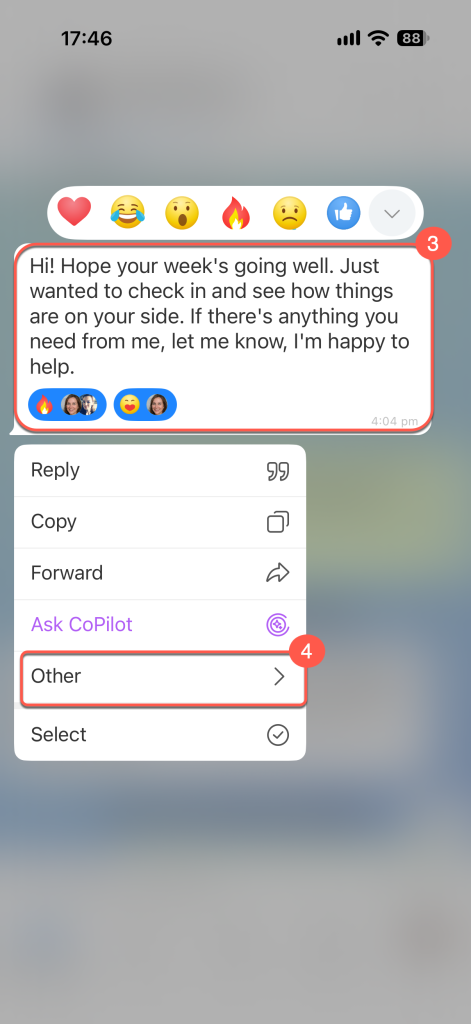
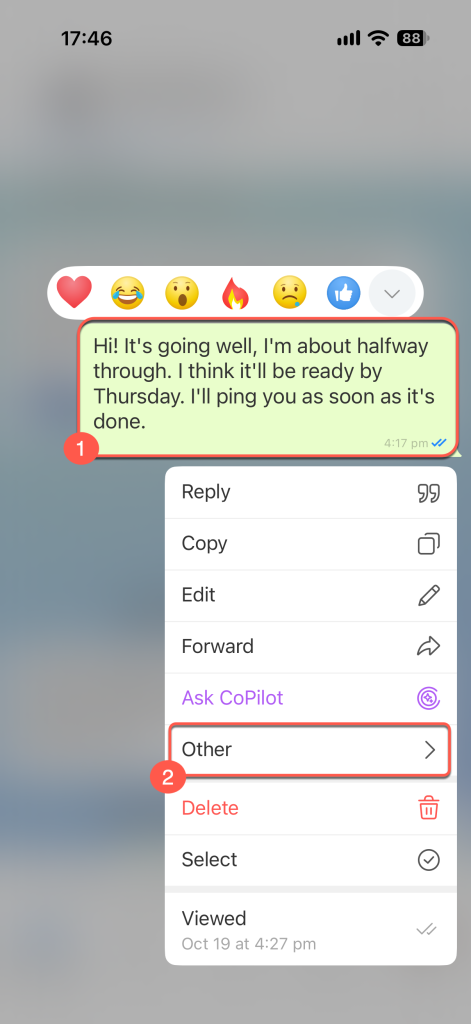
- Press and hold the message, then select Other in the context menu.
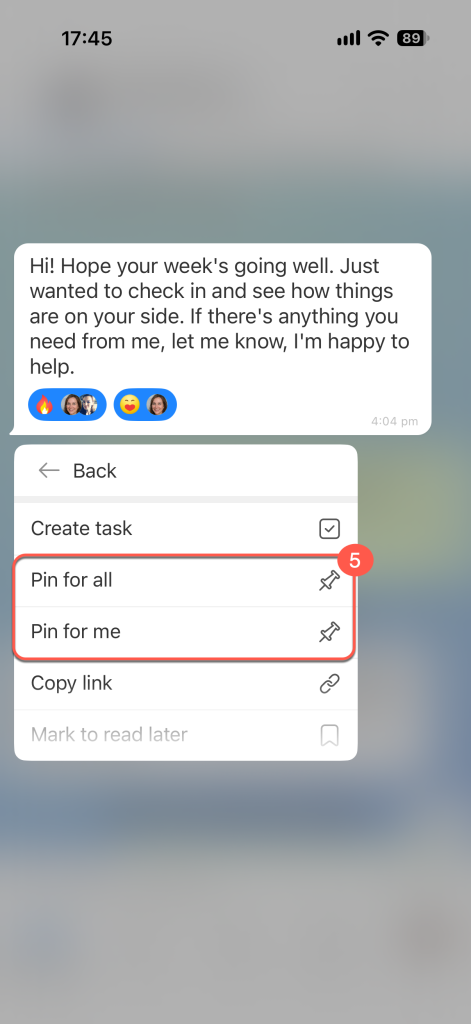
- Choose an option:
- Pin for all — All chat participants will see the pinned message. A notification that the message was pinned will appear in the chat.
- Pin for me — Only you will see the message in the pinned messages panel. Other participants won't receive a notification.
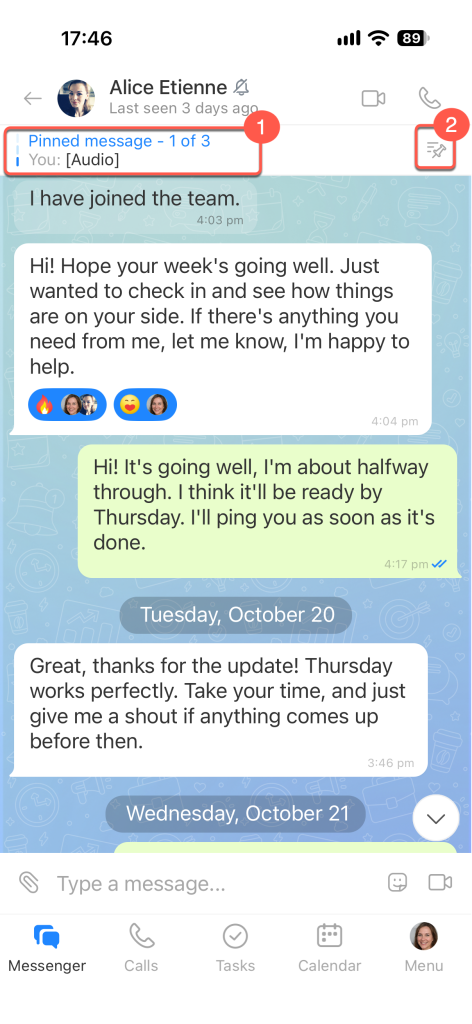
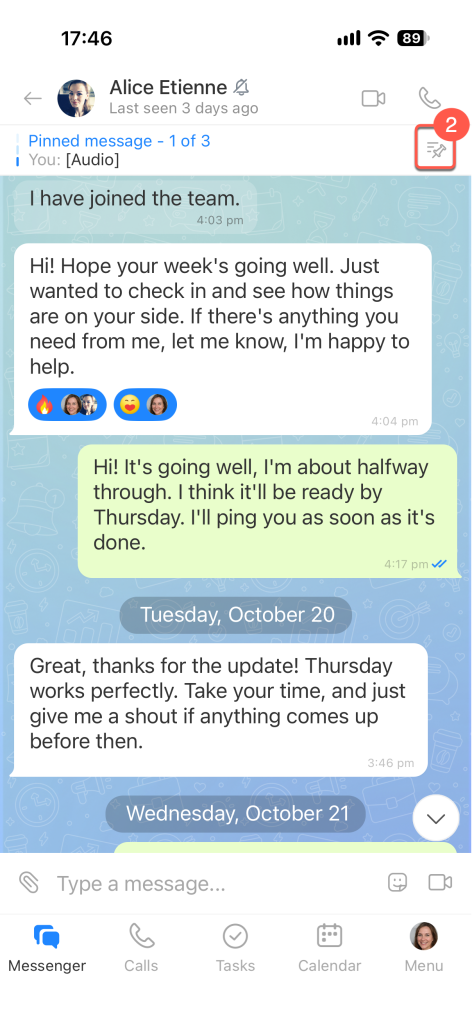
Go to a pinned message. Pinned messages are sorted by date, from newest to oldest.
- Tap a pinned message at the top of the chat to jump to it in the conversation. Tap it again to jump to the next pinned message.
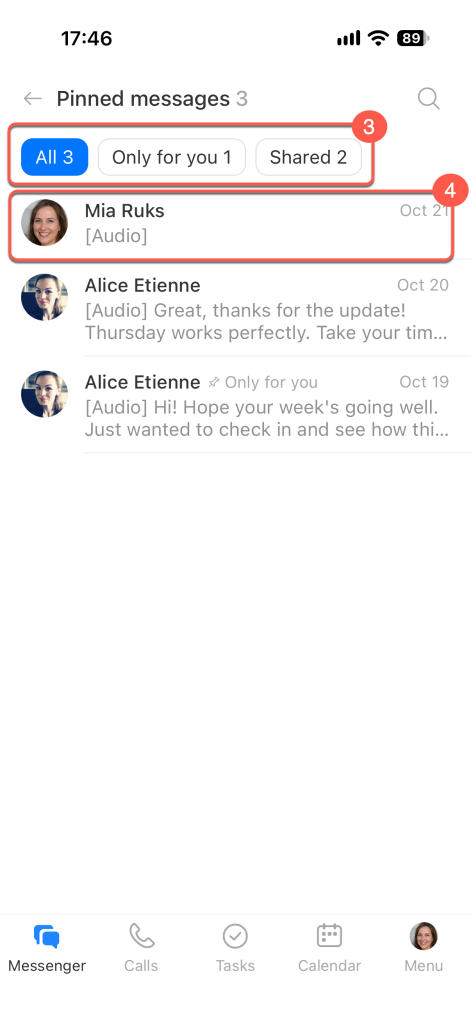
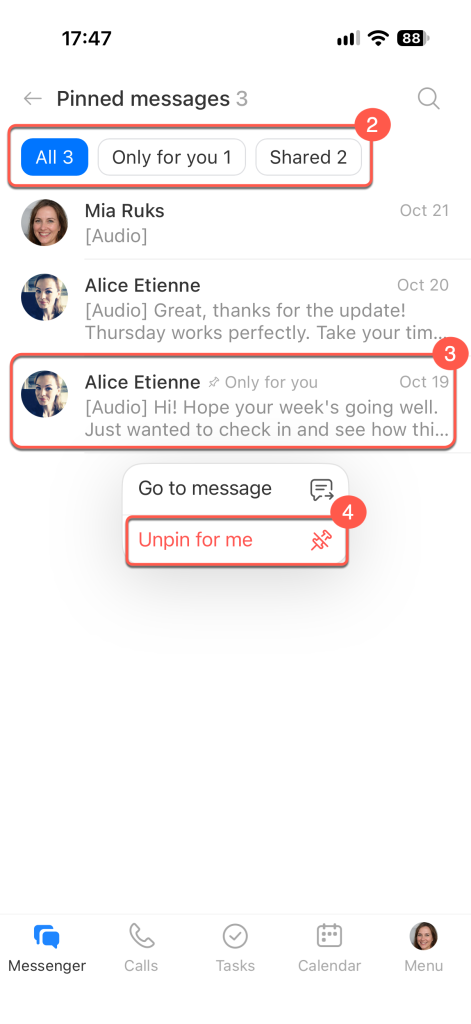
- To find a specific message, tap the pinned list icon at the end of the panel to open the list of pinned messages.
- Select a tab:
- All — All pinned messages.
- Only for you — Messages you've pinned only for yourself.
- Shared — Messages pinned for all chat participants.
Tap a message to jump to it in the conversation.
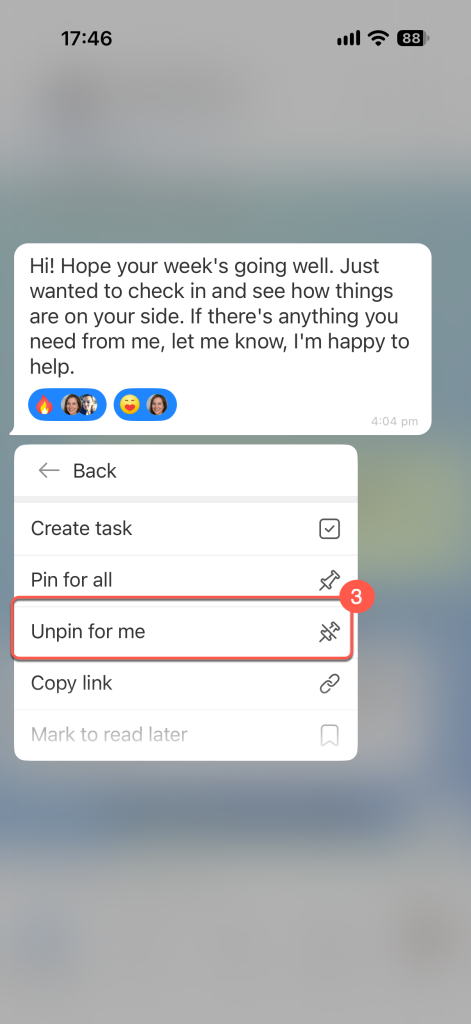
Unpin a message. If you unpin a shared message, a notification appears in the chat showing who unpinned the message and when. Other participants are not notified when you unpin a message only for yourself.
Use the context menu to unpin a message directly in the conversation.
- Press and hold the message, then select Other in the context menu.
- Select Unpin for me or Unpin for all, depending on how the message was pinned.
Use the list to unpin several messages at once.
- Tap the pinned list icon at the end of the pinned messages panel to open the list.
- Select a tab: All, Only for you, or Shared.
- Press and hold the message, then select Unpin for me or Unpin for all, depending on how the message was pinned.
Work with favorite messages
Favorites is a personal collection of messages in the chat sidebar. This feature is available only in Bitrix24 on a computer, and you can save an unlimited number of messages.
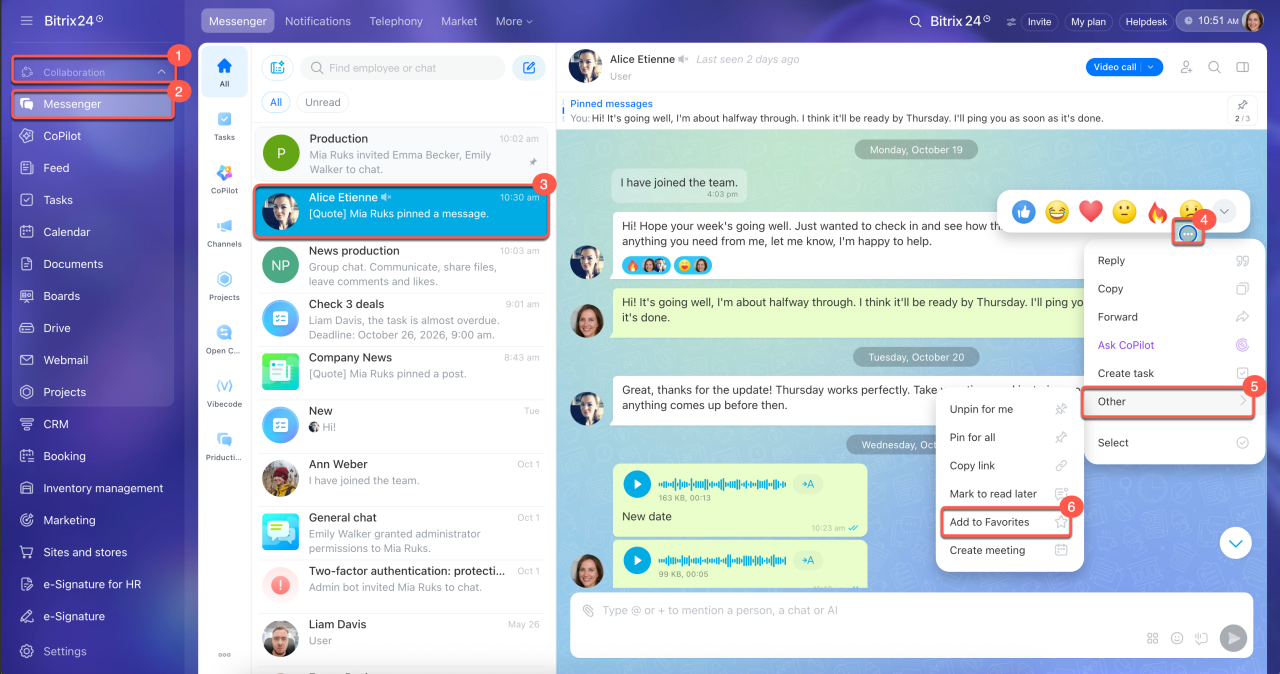
Add or remove a message from Favorites.
- In the left menu, go to Collaboration > Messenger and open the chat you need.
- Hover over the message and select Three dots (...) > Other.
- Select Add to Favorites or Remove from Favorites.
Open a message in Favorites.
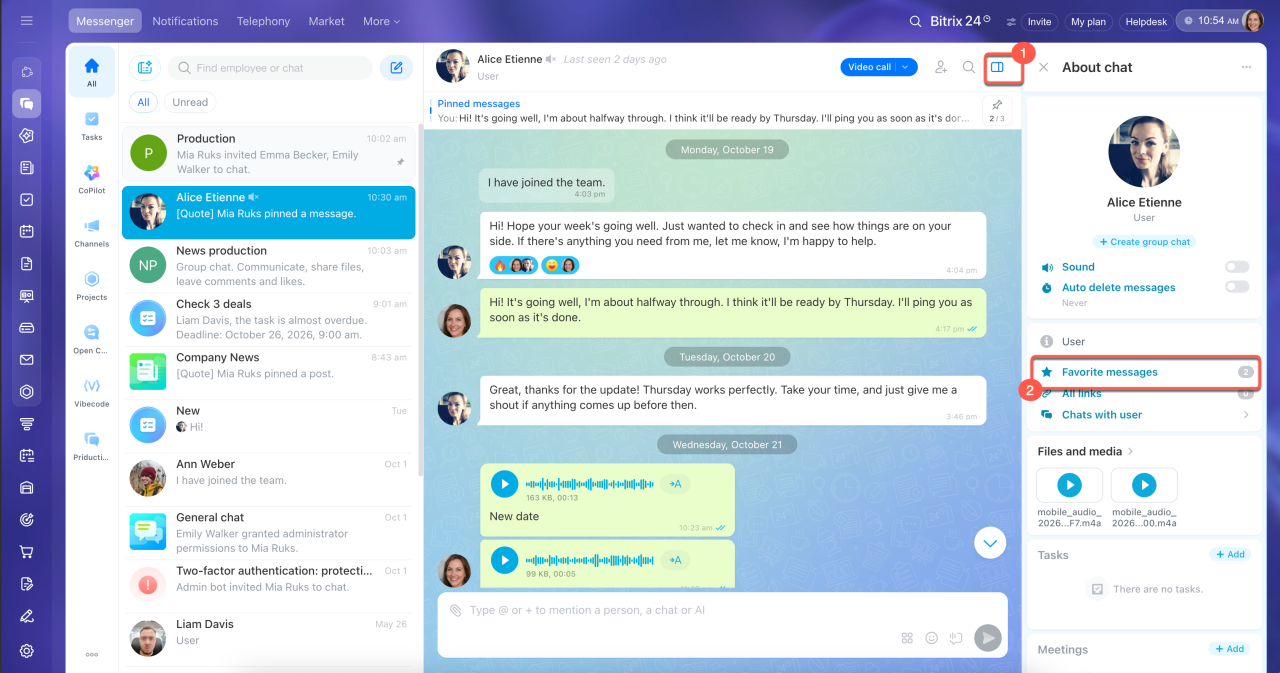
- Click the sidebar icon in the top-right corner to open the sidebar.
- Go to the Favorites section.
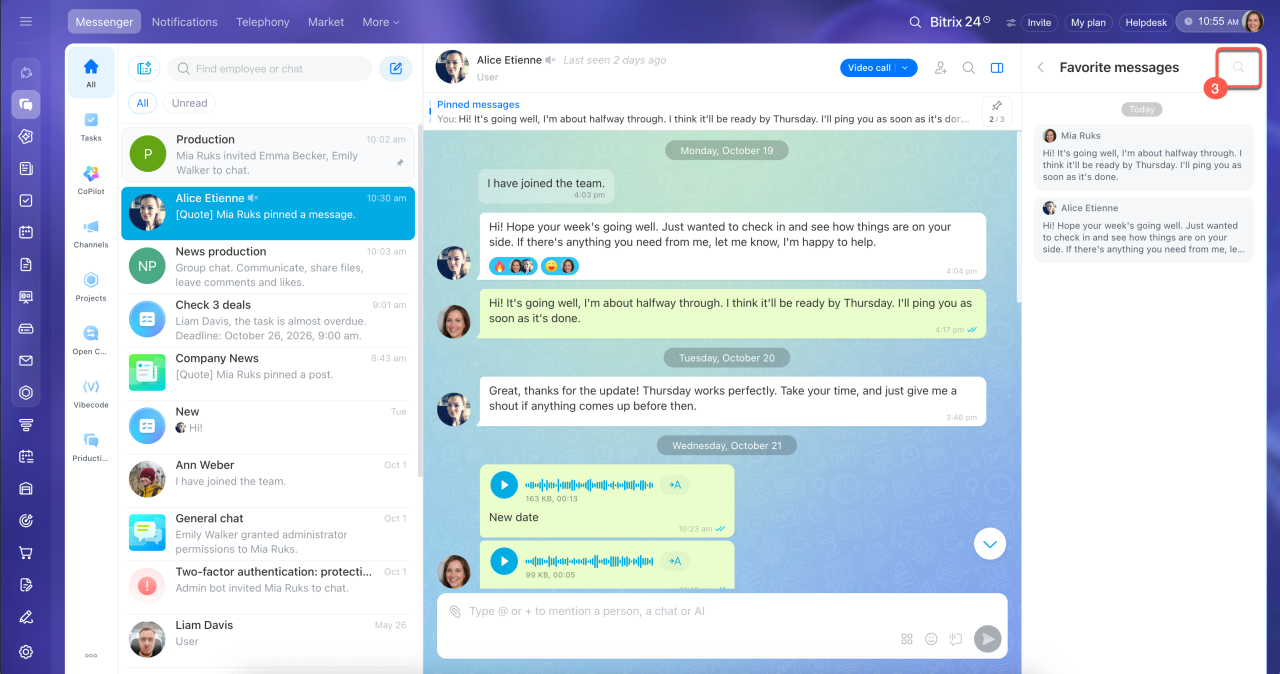
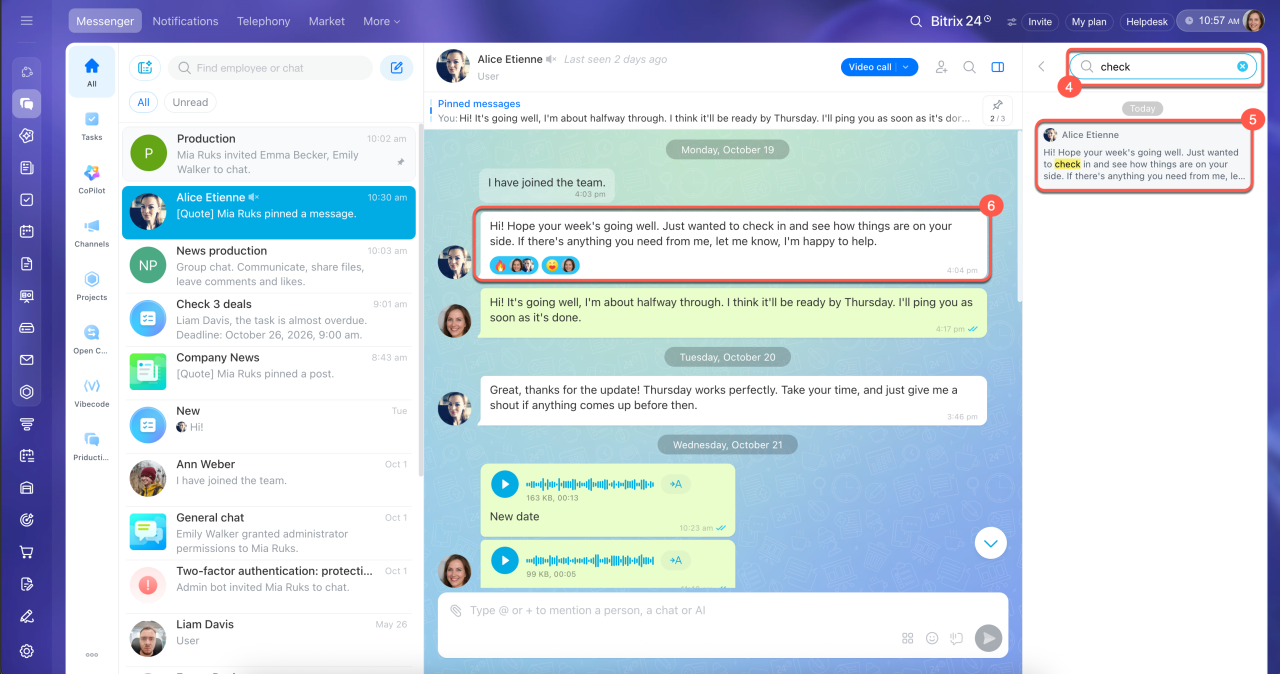
- If there are many messages, click the magnifying glass icon in the top-right corner and enter a keyword or phrase.
- Click a message to jump to it in the conversation.
In brief
- In Messenger, you can organize work chats by topic, pin important conversations to the top of the list, or save individual messages.
- Use personal folders to group chats by topic.
- When you pin a chat, it stays at the top of the list, and new messages in other conversations don't move it down. Chats are pinned separately in each folder.
- Within chats, you can pin messages for all participants or only for yourself. Each list can contain up to 20 messages.
- Favorites is a personal collection of messages in the chat sidebar. You can save an unlimited number of messages, and the feature is available only in Bitrix24 on a computer.