
Customize Messenger to suit your needs. Change the chat background, adjust sound levels, and choose which notifications to receive. Your settings apply to all chats.
In this article:
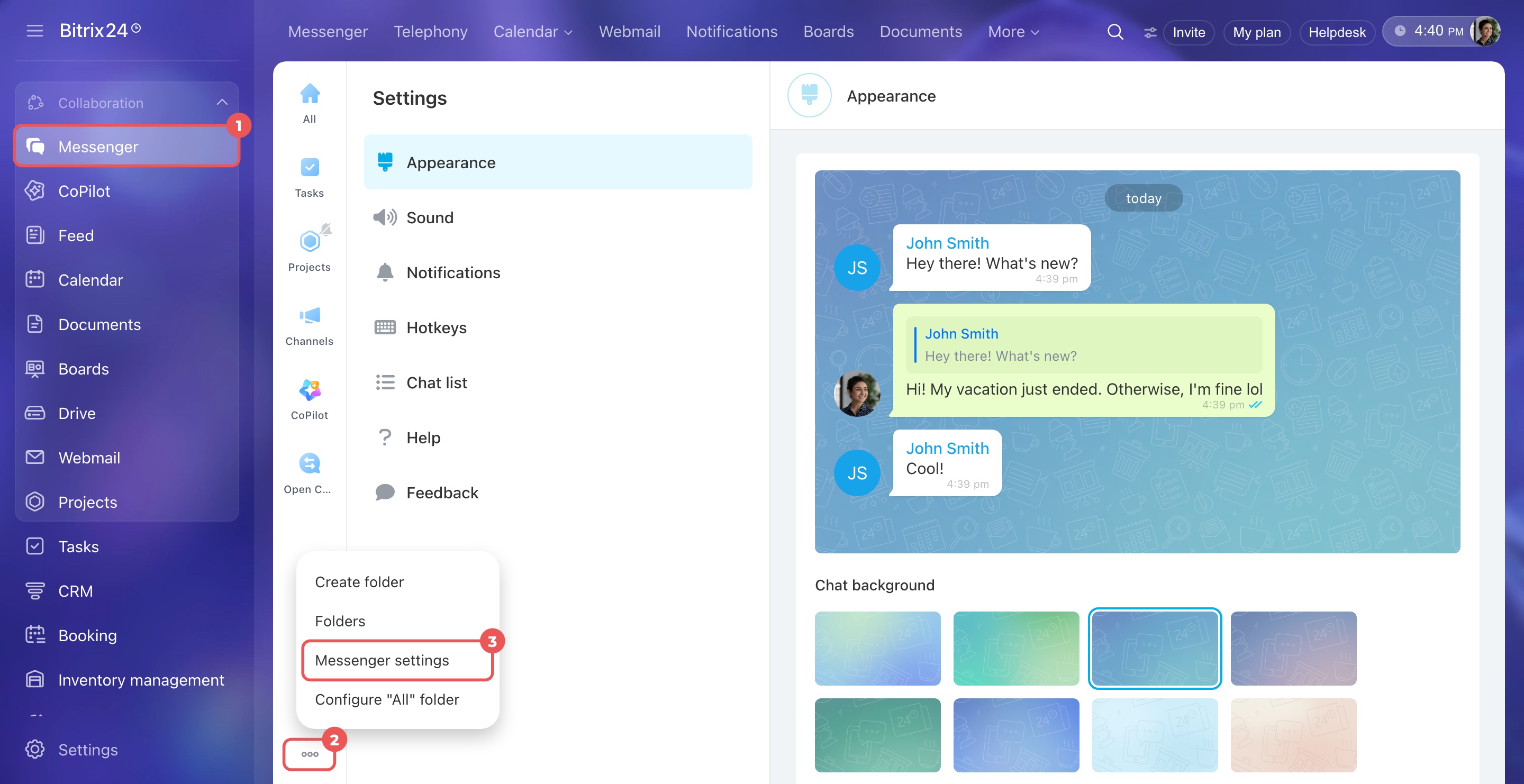
Open settings
- Go to the Messenger section.
- Click Three dots (...) at the bottom of the folder panel.
- Select Messenger settings.
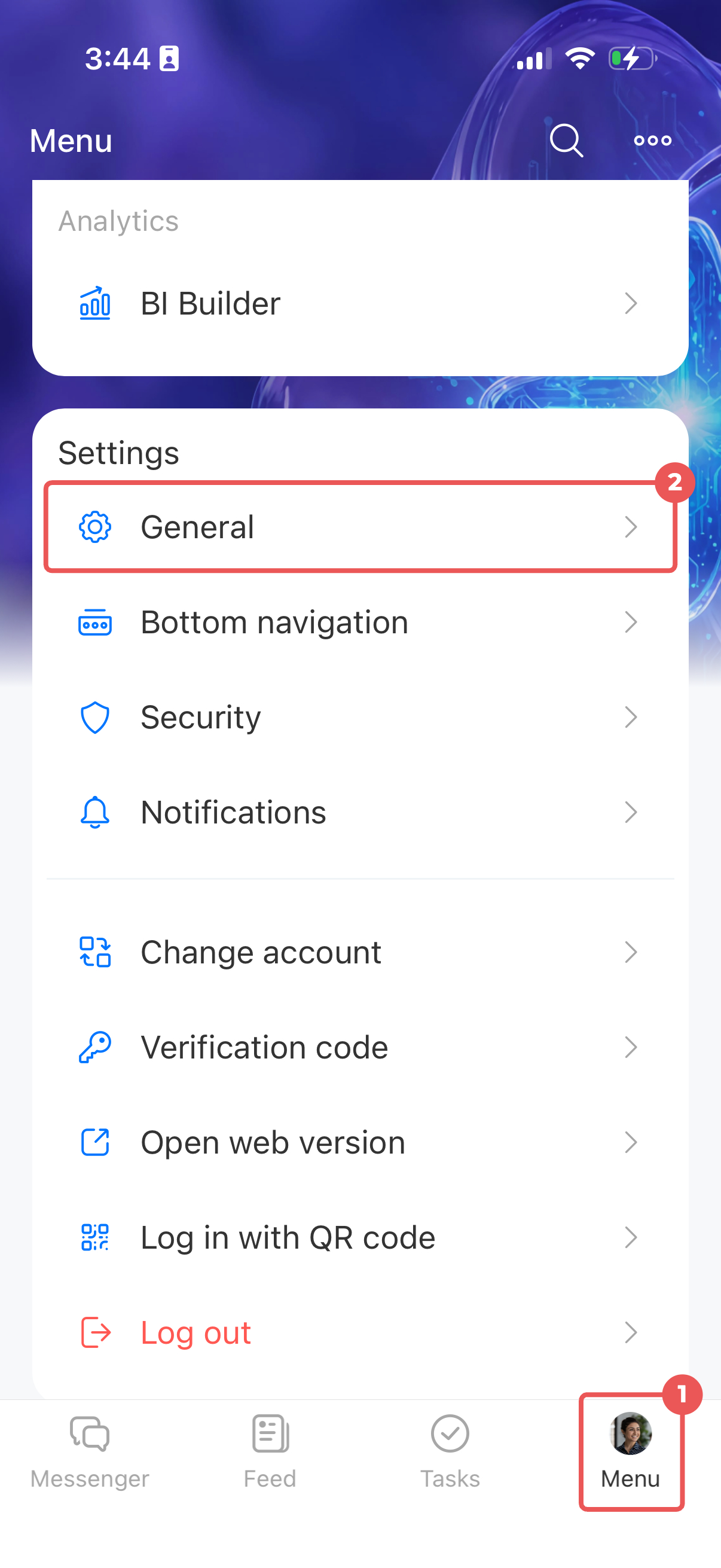
- Tap Menu (≡) in the bottom-right corner.
- Tap General in the Settings block.
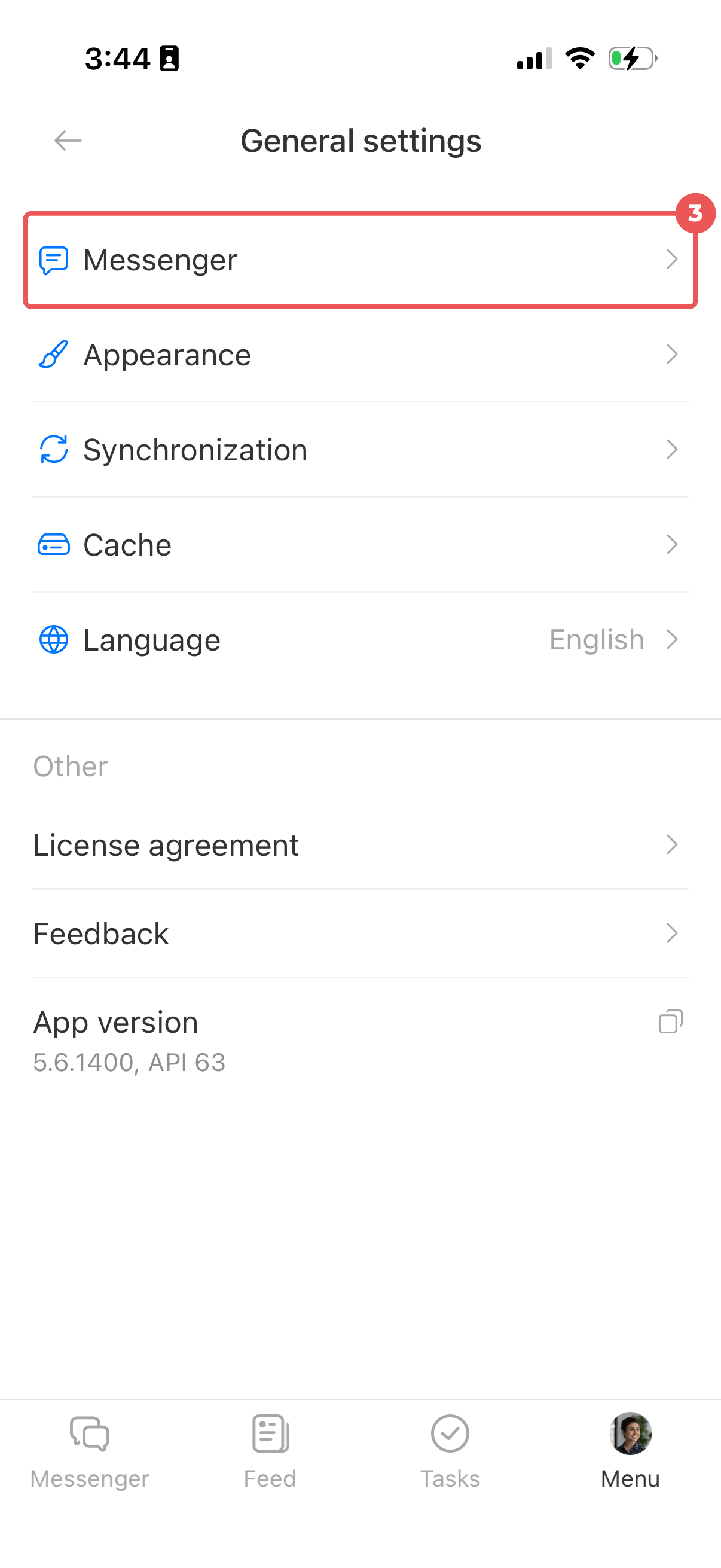
- Select Messenger.
Change settings
Open the tab you need and select the parameters. All changes are saved automatically.
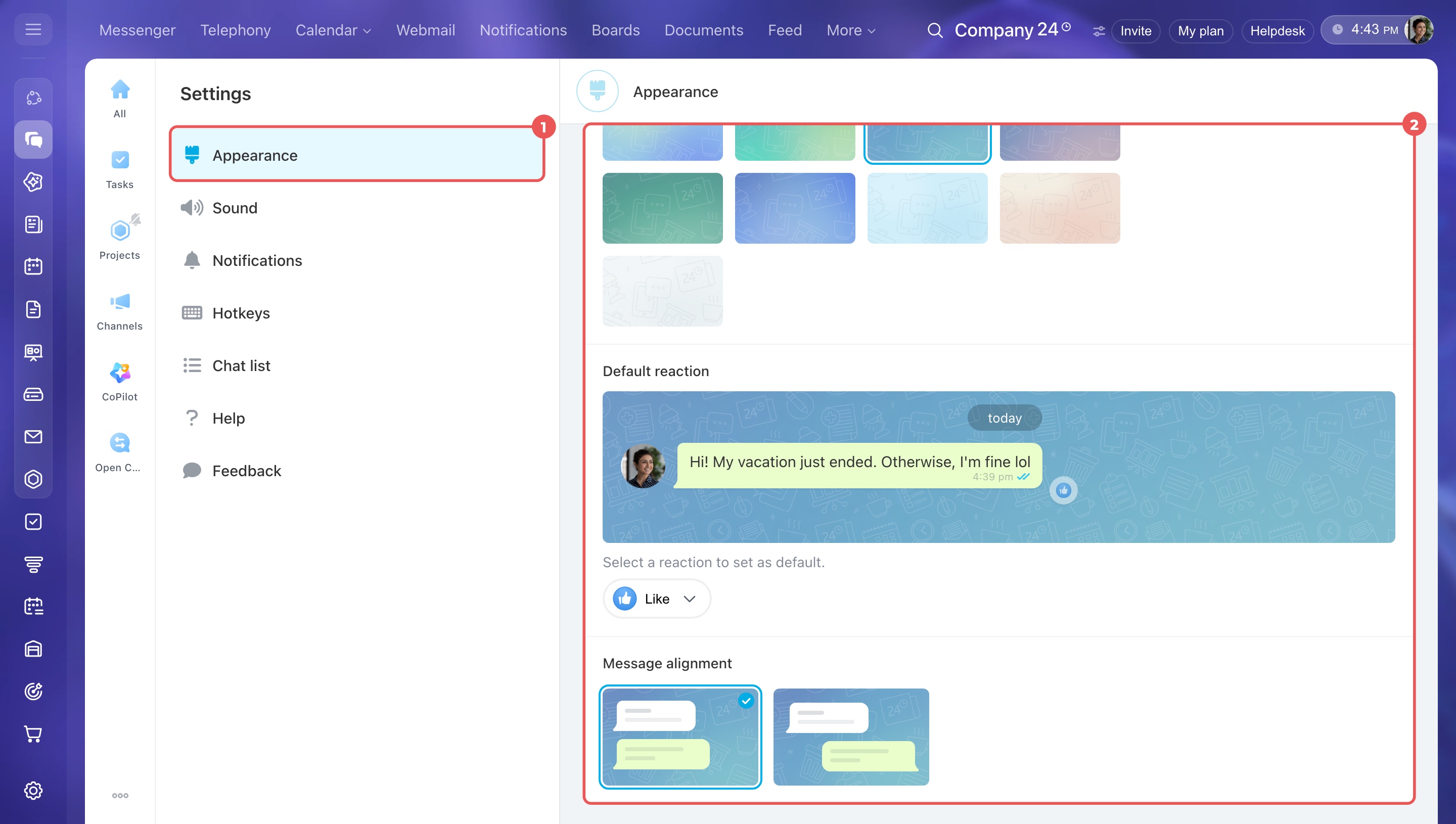
Appearance. Choose:
- Chat background.
- Default reaction — Select an emoji that appears first in the reaction list. Click the reaction icon to react to a message with one click.
- Message alignment — Display your messages and other users' messages on the same side or on opposite sides of the chat. Use message reactions
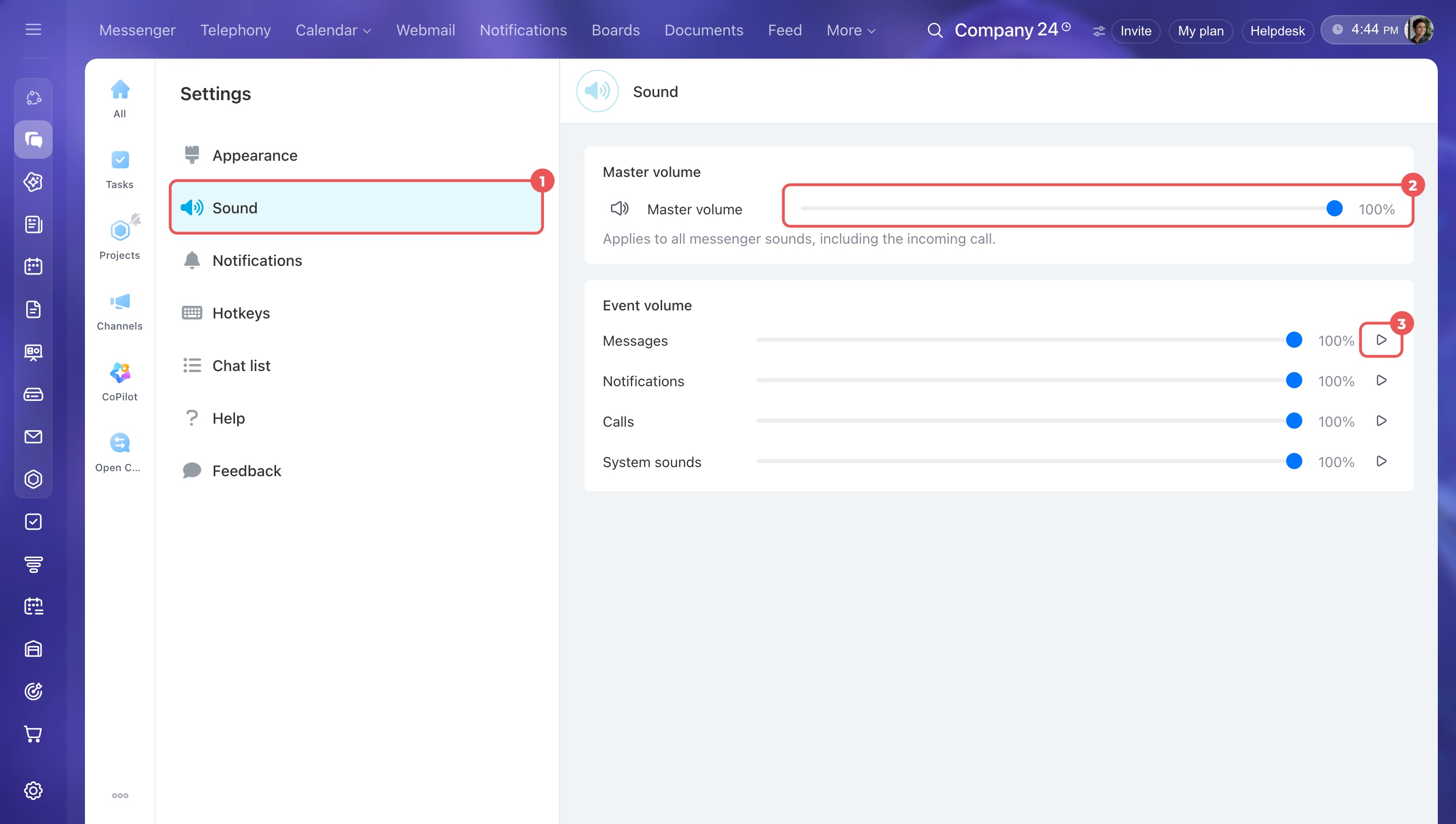
Sound. Set the volume:
- Master volume — Controls all Messenger sounds, including incoming calls.
- Event volume — Set different volume levels for messages, notifications, calls, and system sounds, such as the sound played when you send a message.
To adjust the volume:
- Go to the Sound tab.
- Move the slider to the desired level. Set it to 0% to mute the sound.
- Click the play icon next to the slider to test the volume.
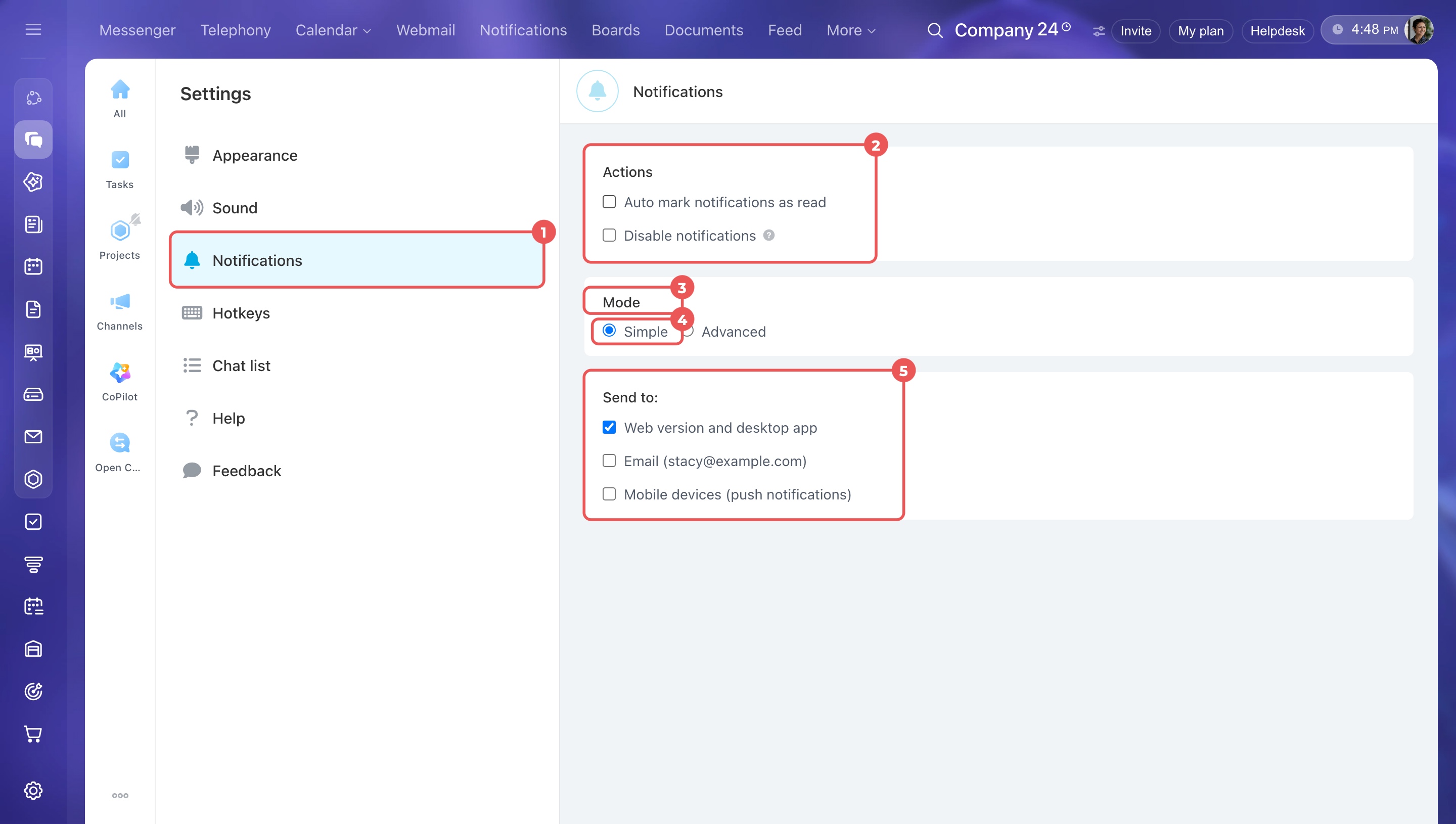
Notifications. Choose how Bitrix24 handles notifications and where you receive them:
- In the Bitrix24 desktop app or your browser
- By email
- As push notifications on your mobile device
On the Notifications tab, select an option in the Actions block:
- Auto mark notifications as read — Mark notifications as read when you open the section. Turn this off to keep notifications unread until you manually mark them as read. This helps you return to them later.
- Disable notifications — Temporarily mute notifications and sounds for new messages. Use this during calls, meetings, or customer conversations to avoid distractions. Incoming calls will still come through as usual.
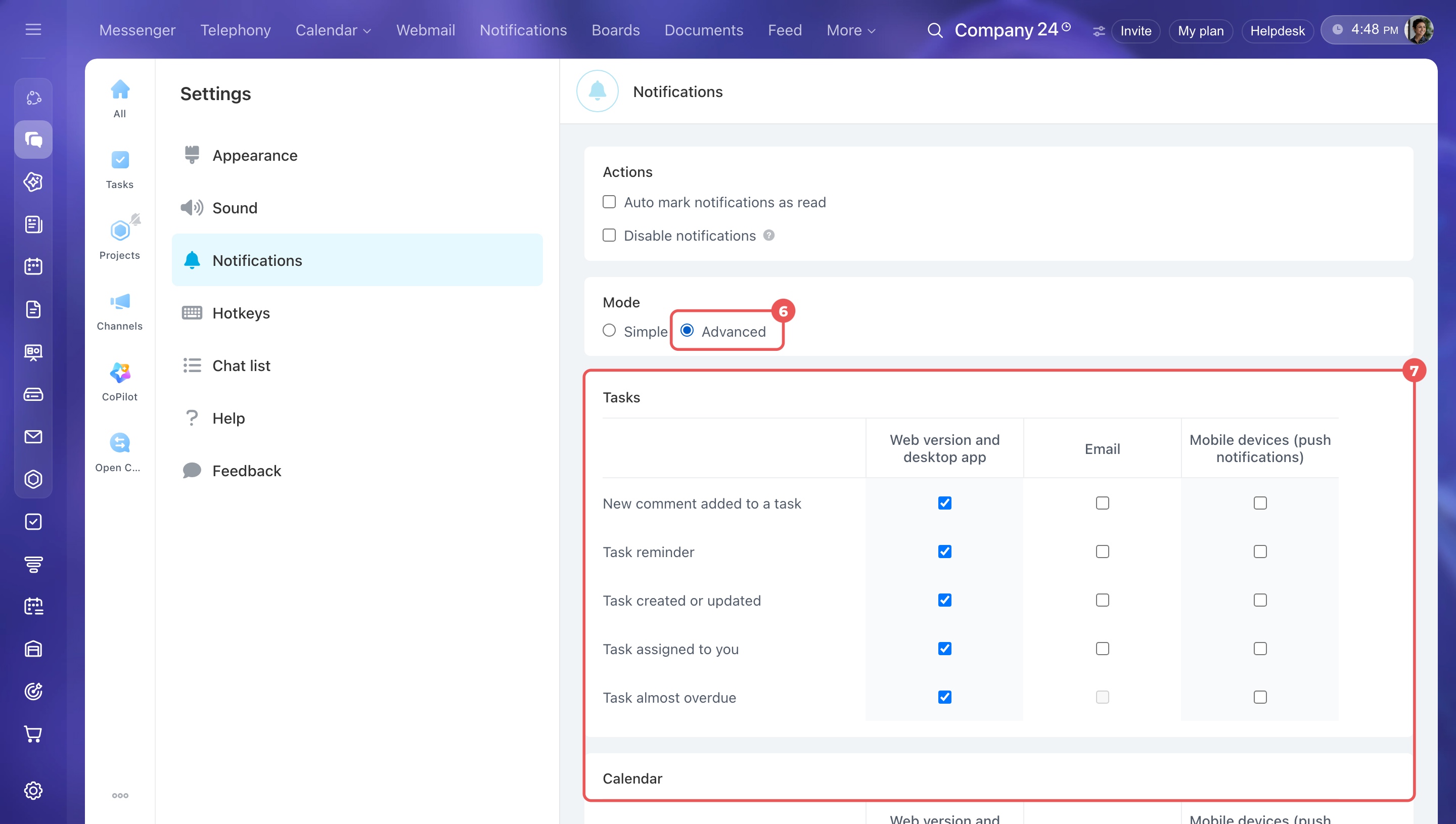
In the Mode block, select a settings mode and the channels where you want to receive notifications.
- Simple — Use the same notification channels for all events.
- Advanced — Choose notification channels for individual events, such as new comments or task reminders.
Notifications in Bitrix24: interface and features
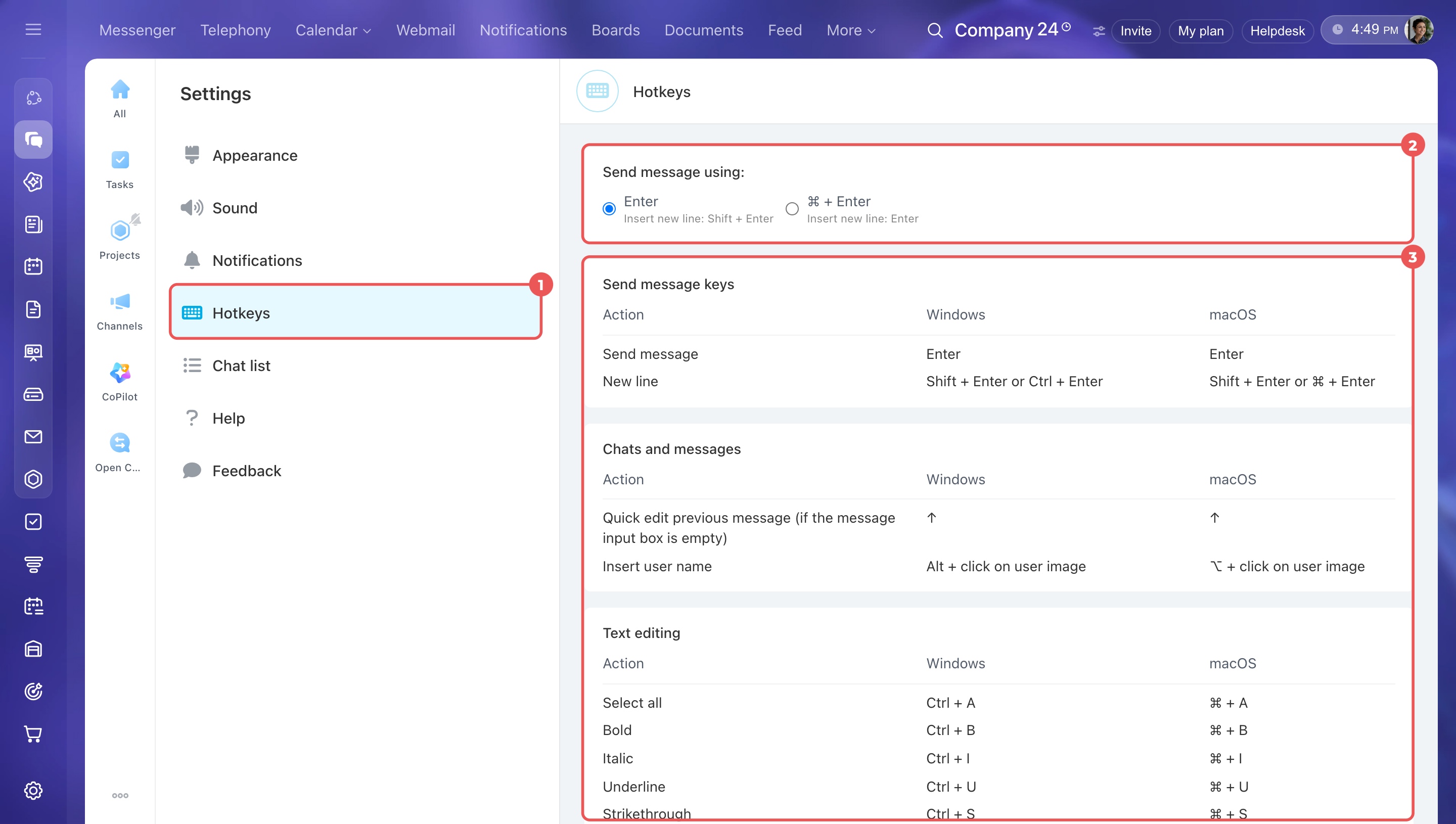
Hotkeys. Choose how to send messages using your keyboard. Press Enter or Ctrl + Enter (Cmd + Enter on Mac). You can also view other keyboard shortcuts to work faster in Bitrix24.
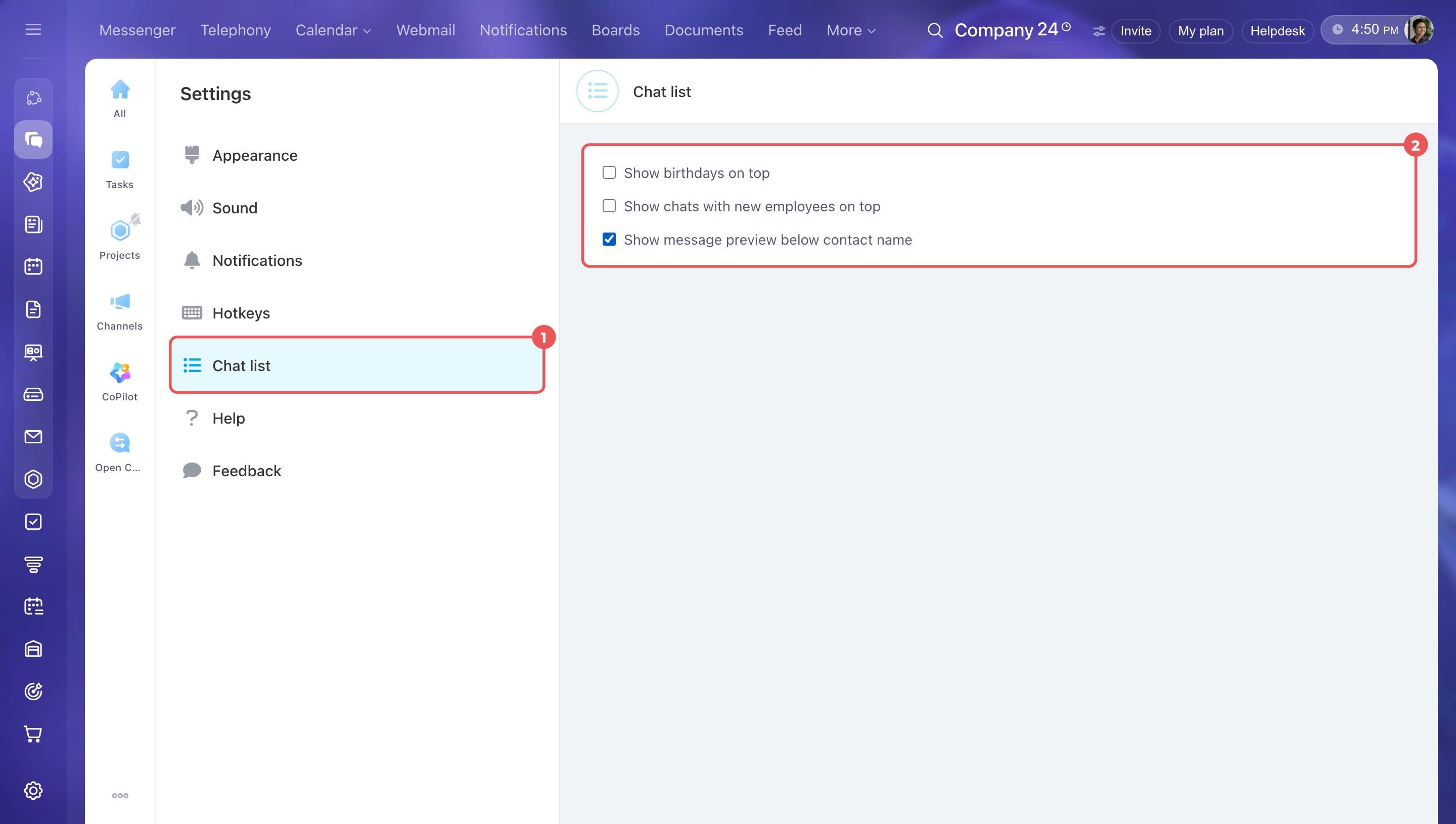
Chat list. Choose how chats appear in the list. You can:
- Move one-on-one chats with new users to the top.
- Move chats with employees celebrating birthdays to the top.
- Show or hide the last message preview.
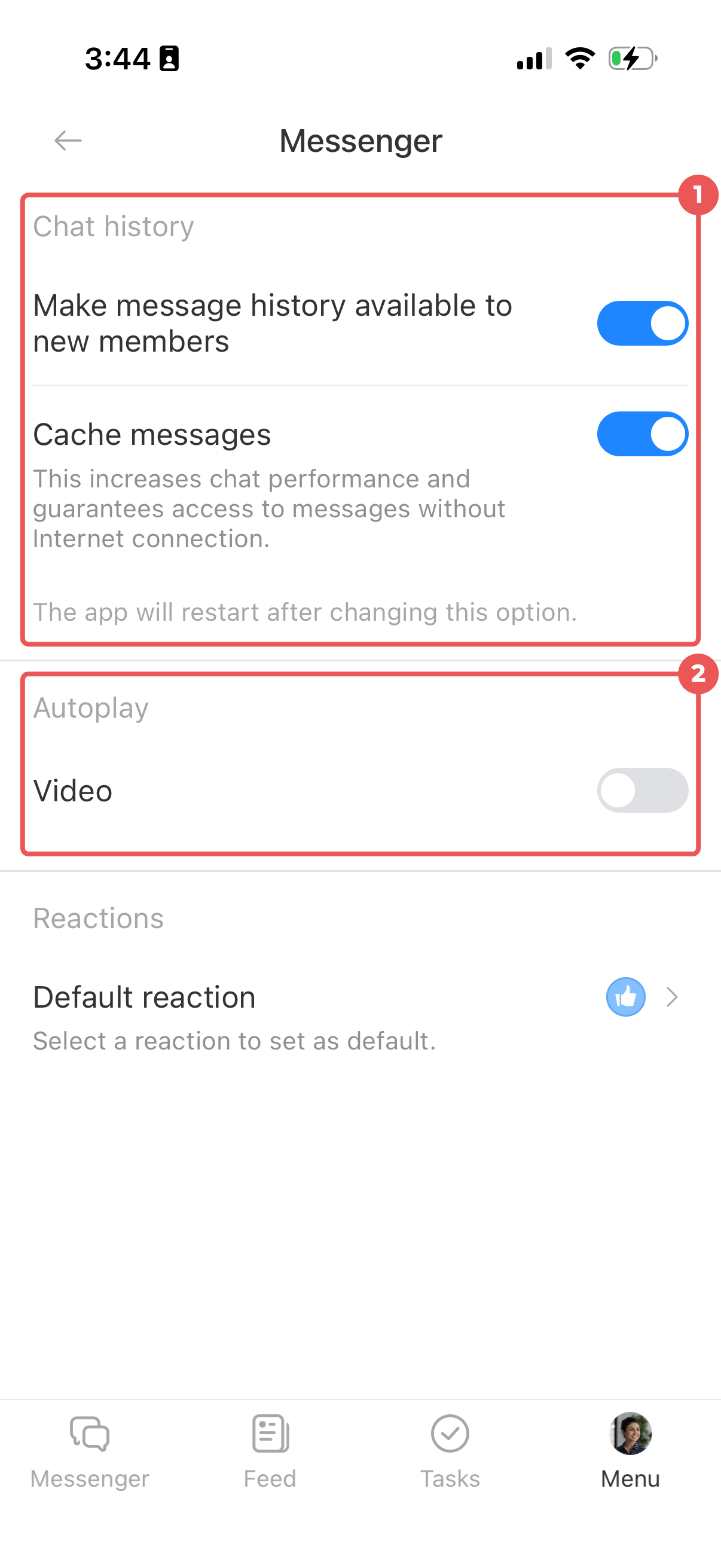
Chat history. Turn these options on or off:
- Make message history available to new members — Allow new chat members to see previous messages. This option is enabled by default.
- Cache messages — Store messages and files you've opened on your device so you can access them offline. Unread messages and attachments aren't available without an internet connection.
Autoplay video. Play videos automatically when they appear in a chat. Turn this off to play videos manually and save mobile data and battery life.
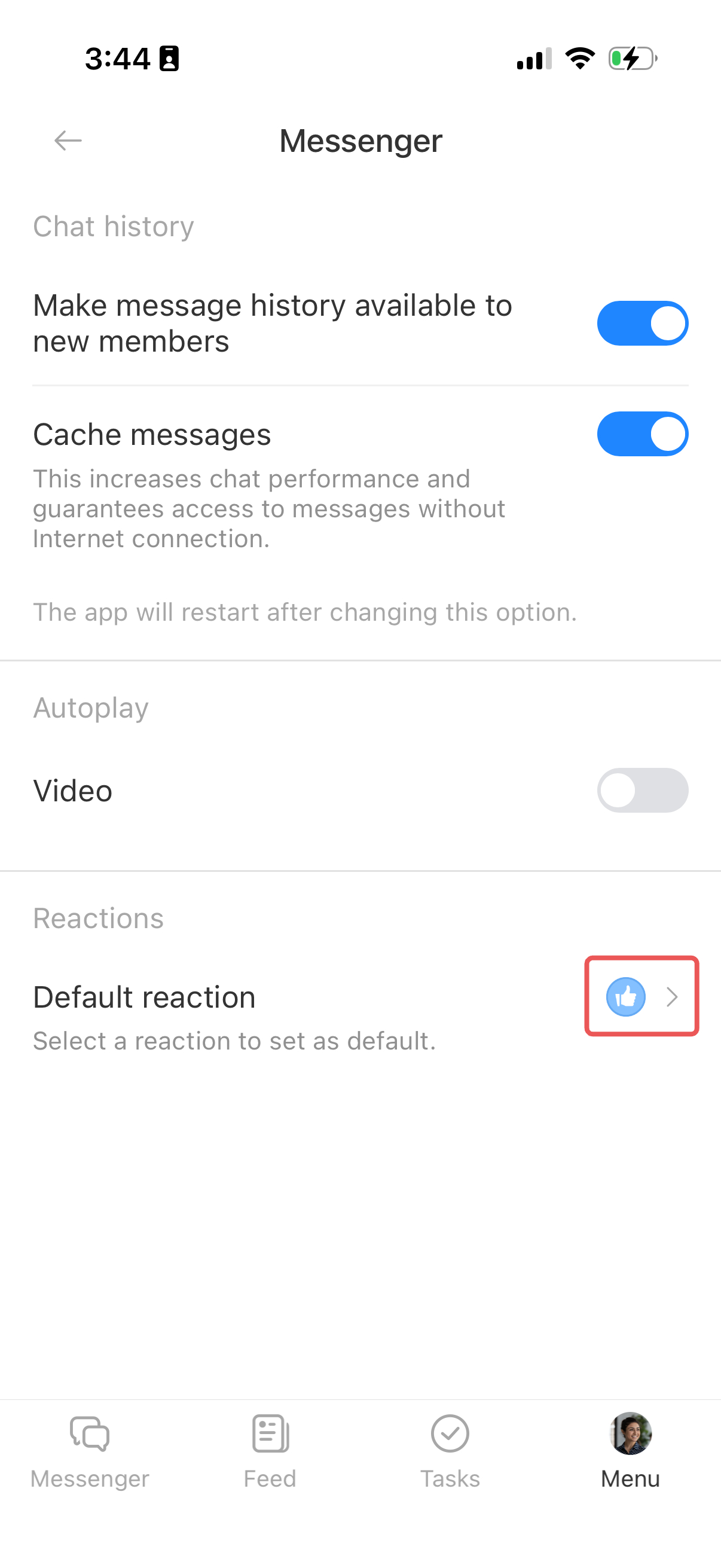
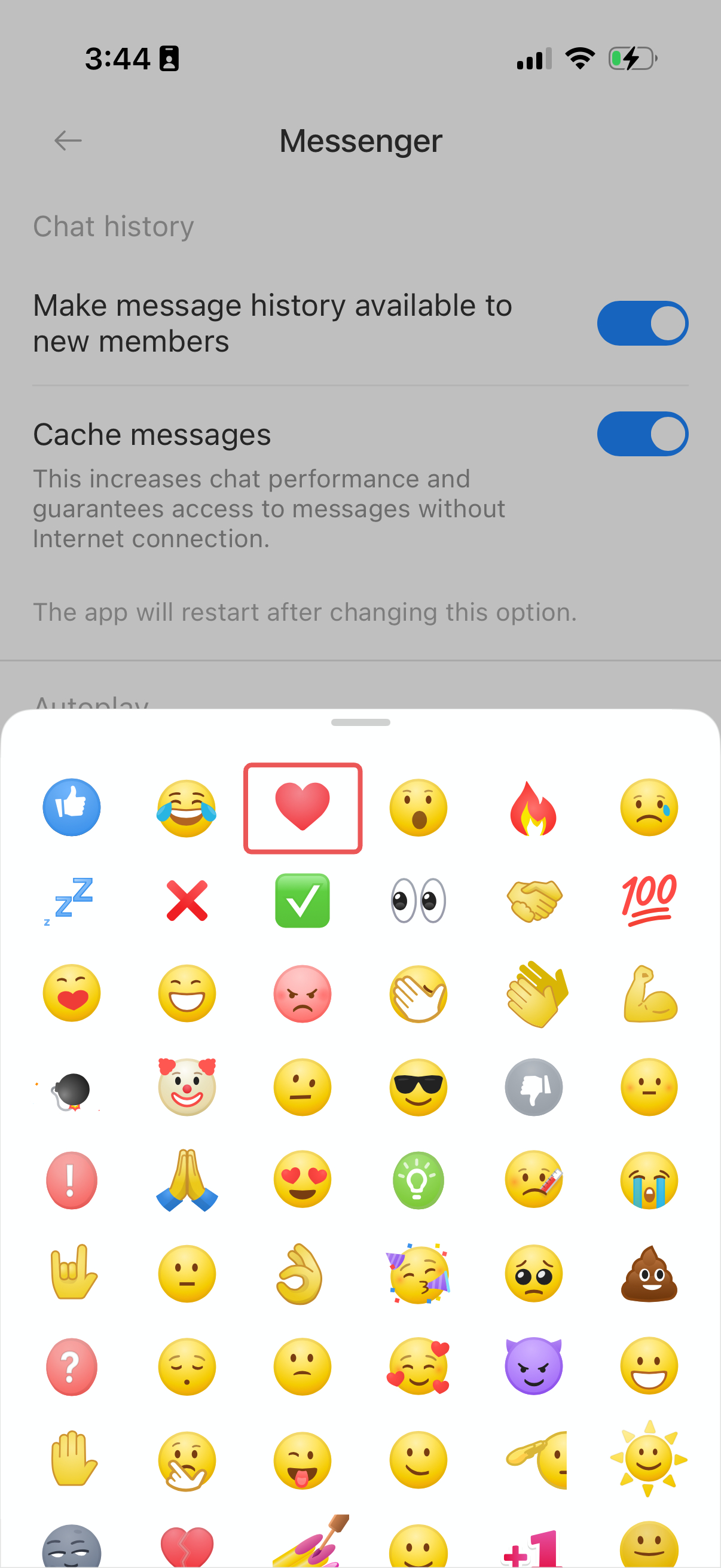
Default reaction. Tap the current emoji and choose a new one. Double-tap a message to react with your selected emoji.
In brief
- Customize Messenger by changing the chat background, adjusting sound levels, and choosing which notifications to receive. Your settings apply to all chats.
- To open settings on your computer, go to the Messenger section and click Three dots (...) > Messenger settings at the bottom of the folder panel.
- In the web version, you can customize chat appearance, reactions, sounds, notifications, hotkeys, and the chat list.
- In the mobile app, you can manage chat history, message caching, video autoplay, and default reactions.