
In Bitrix24 chats, you can share files with colleagues and find them later without searching through messages. For example, if a colleague sends you a contract, you can download it, save it to Bitrix24 Drive, or return to the original message to review the discussion. You can work with chat files on your computer or in the Bitrix24 mobile app.
In this article:
Attach a file to a message
To share a file with colleagues, attach it directly to a message from your computer, phone, or Bitrix24 Drive.
Attach a file from your computer or Bitrix24 Drive.
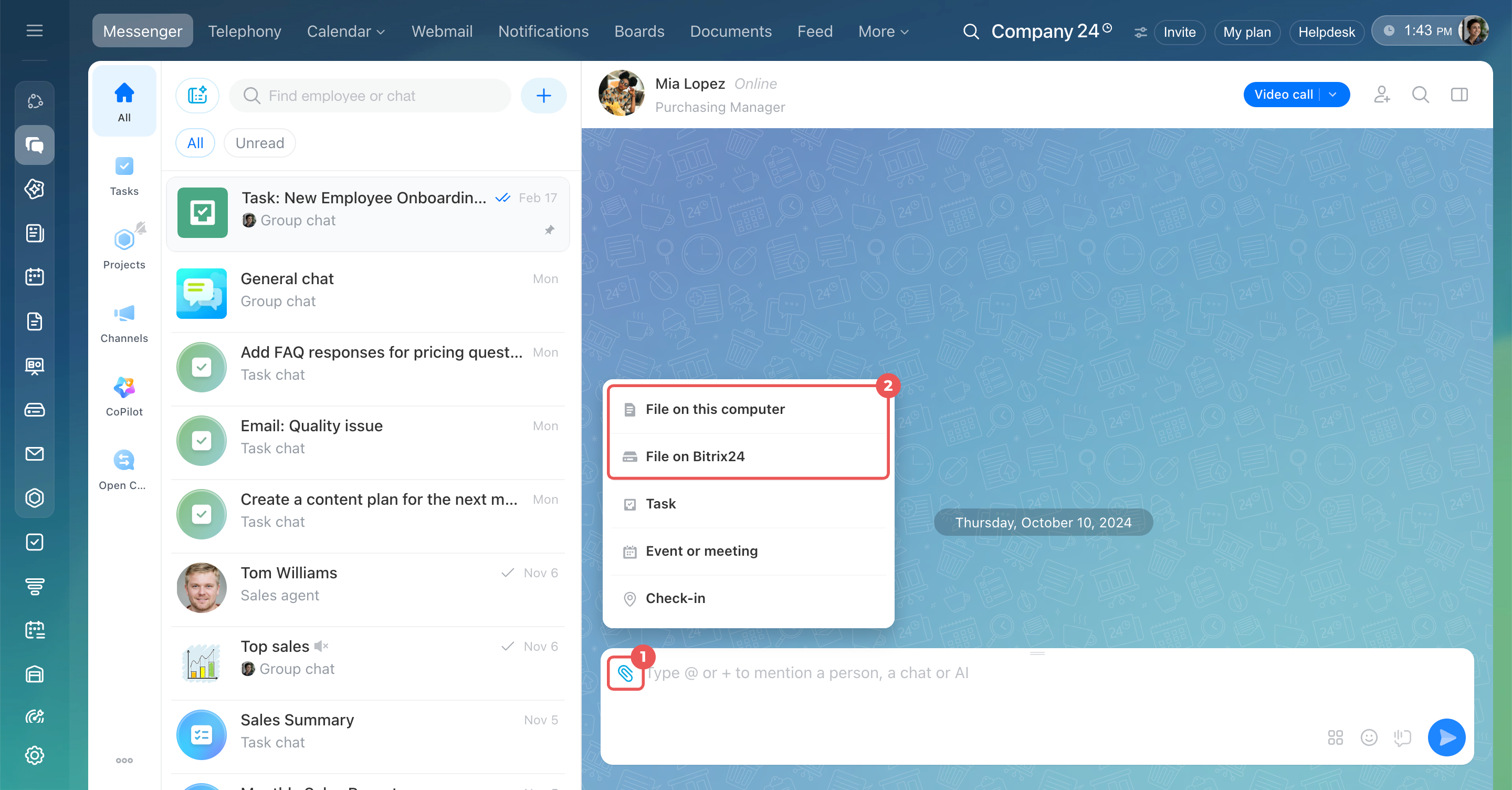
1. Click the paper clip in the message input field.
2. Choose where to get the file:
- File on this computer — Select a document or image from your computer.
- File on Bitrix24 — Select a file from Bitrix24 Drive.
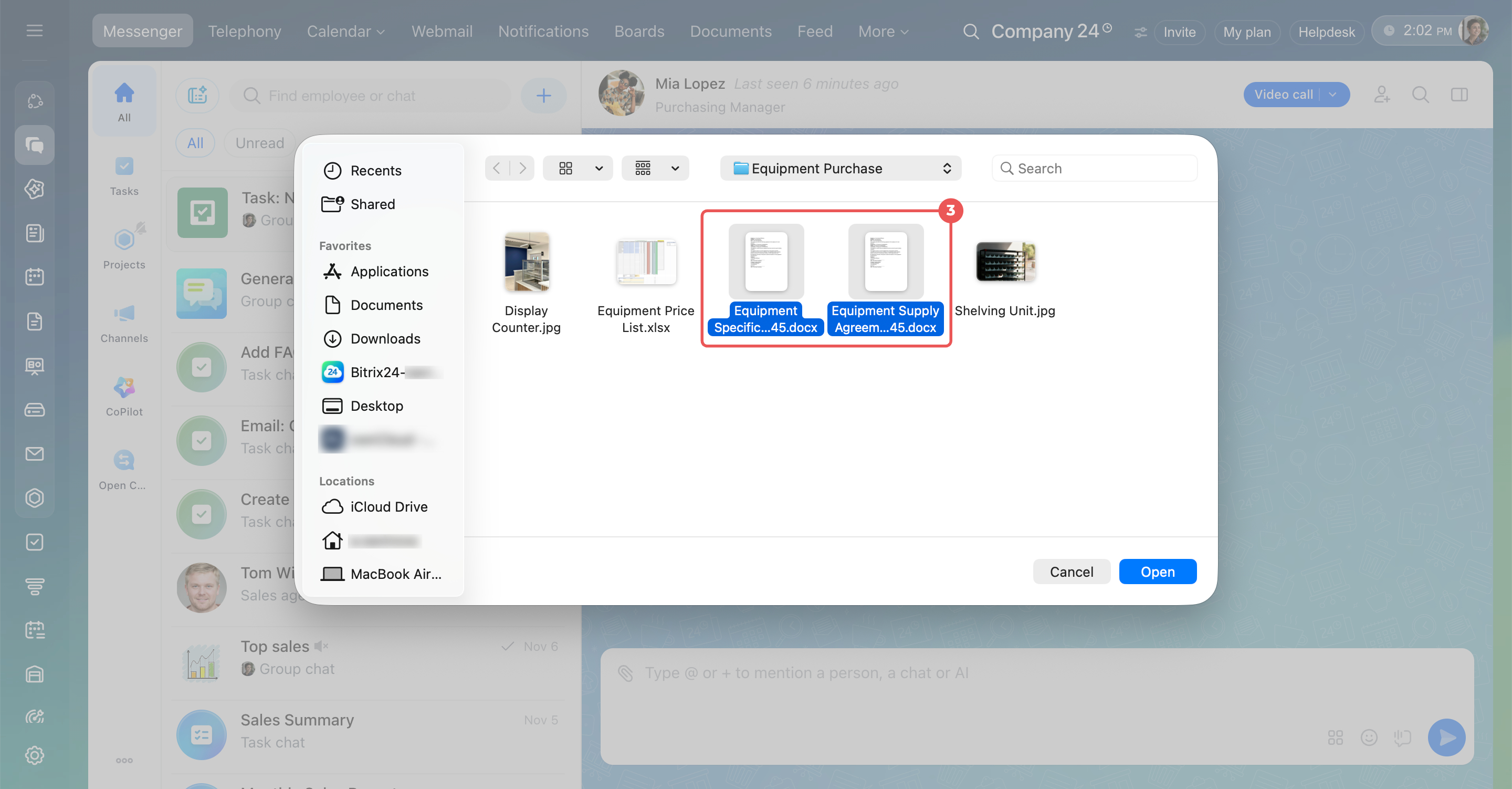
3. Select a file. It appears in the preview window. To select multiple files, hold Ctrl (Cmd on Mac) and click each file.
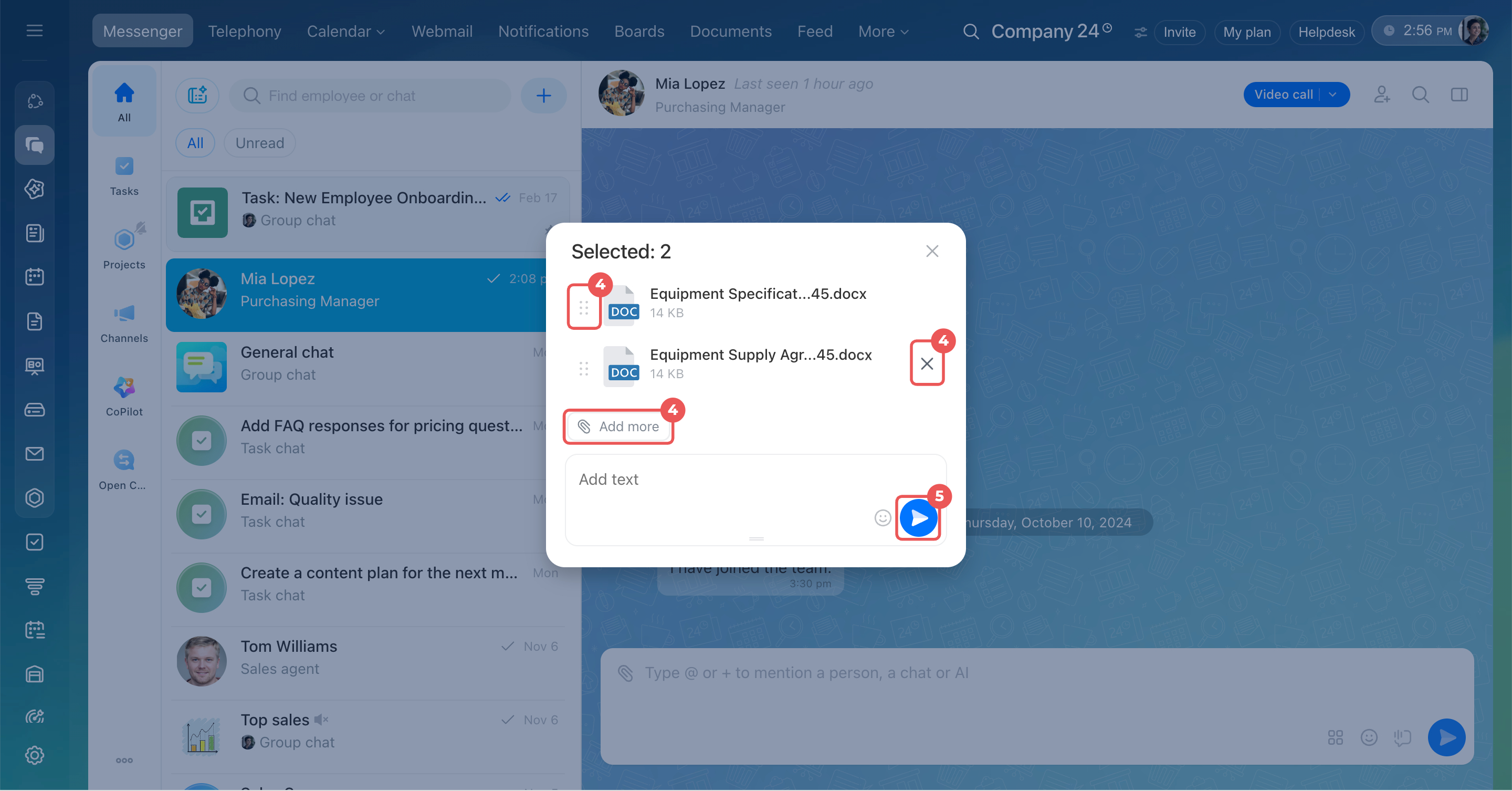
4. Review the attachments in the preview window. You can:
- Remove a file — Hover over it and click the X.
- Reorder files — Press and hold the icon to the right of the file or in the top-right corner of an image. Drag it to a new position.
- Add a caption — Enter text in the Add text field.
- Mention a colleague — Type @ and select a colleague from the list.
- Format the caption — Select the text and choose an option from the formatting toolbar.
- Add more files — Click Add more.
5. Click the send icon  .
Paste a file from the clipboard. Copy a file or image, such as a document from your computer or a screenshot. Click the message input field and press Ctrl + V (Cmd + V on Mac). The file appears in the preview window. Review it and click the send icon .
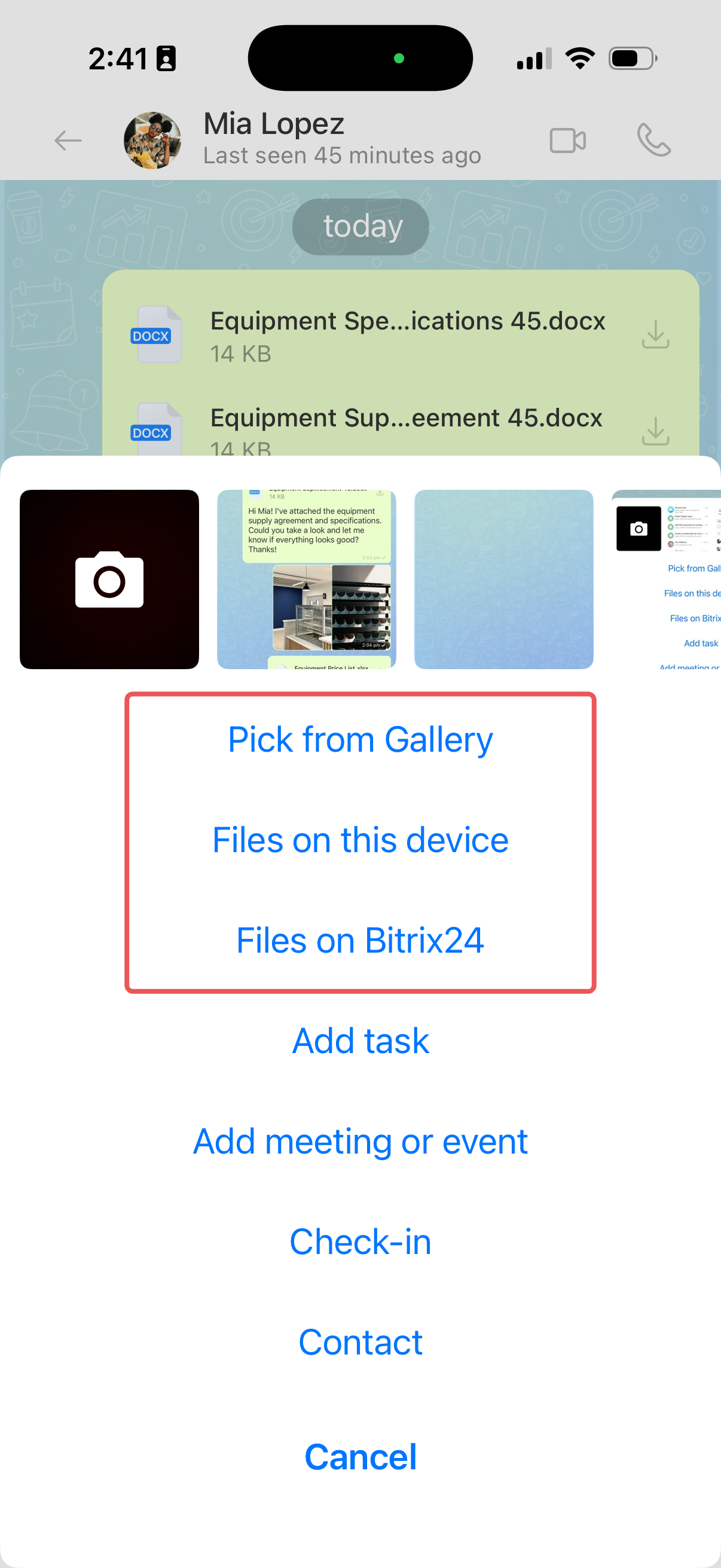
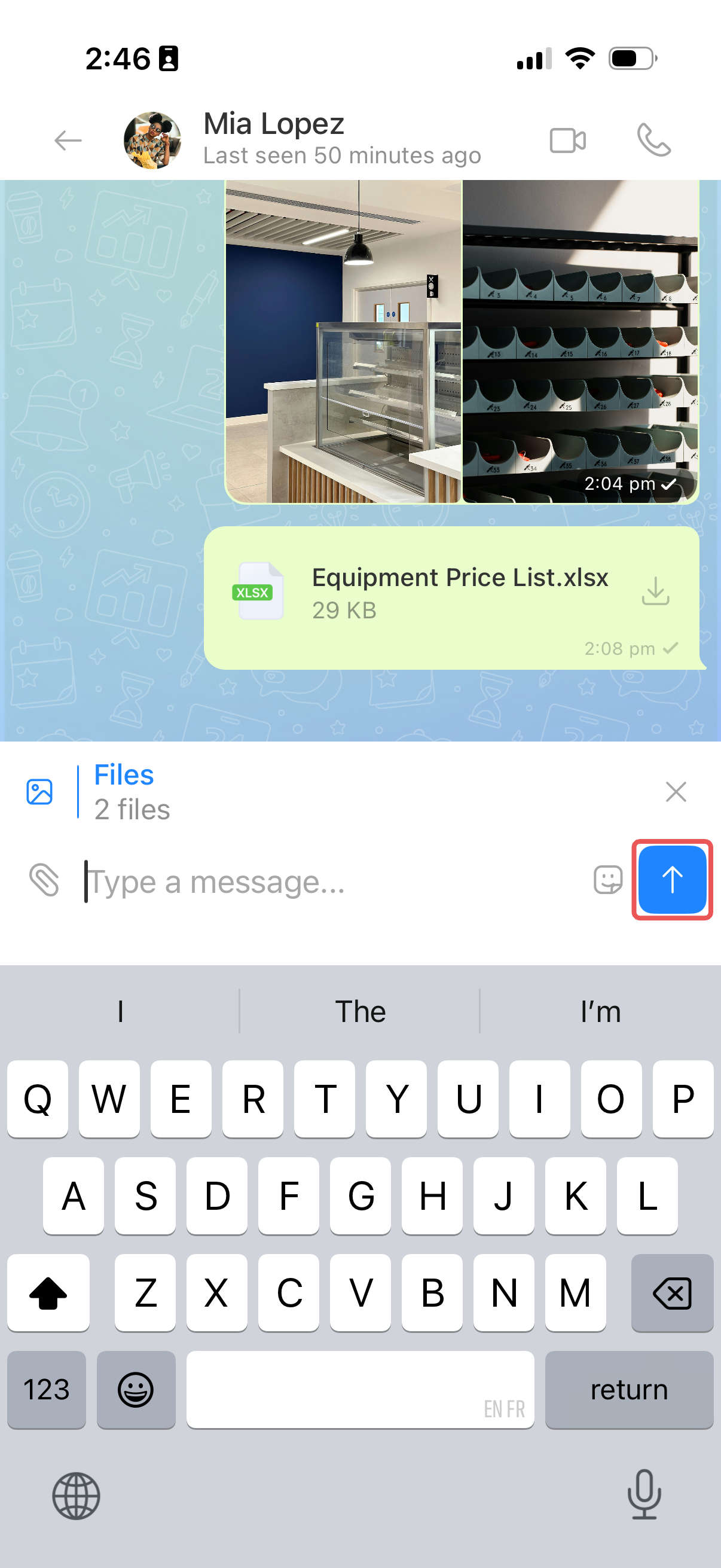
Attach a file from your phone or Bitrix24 Drive.
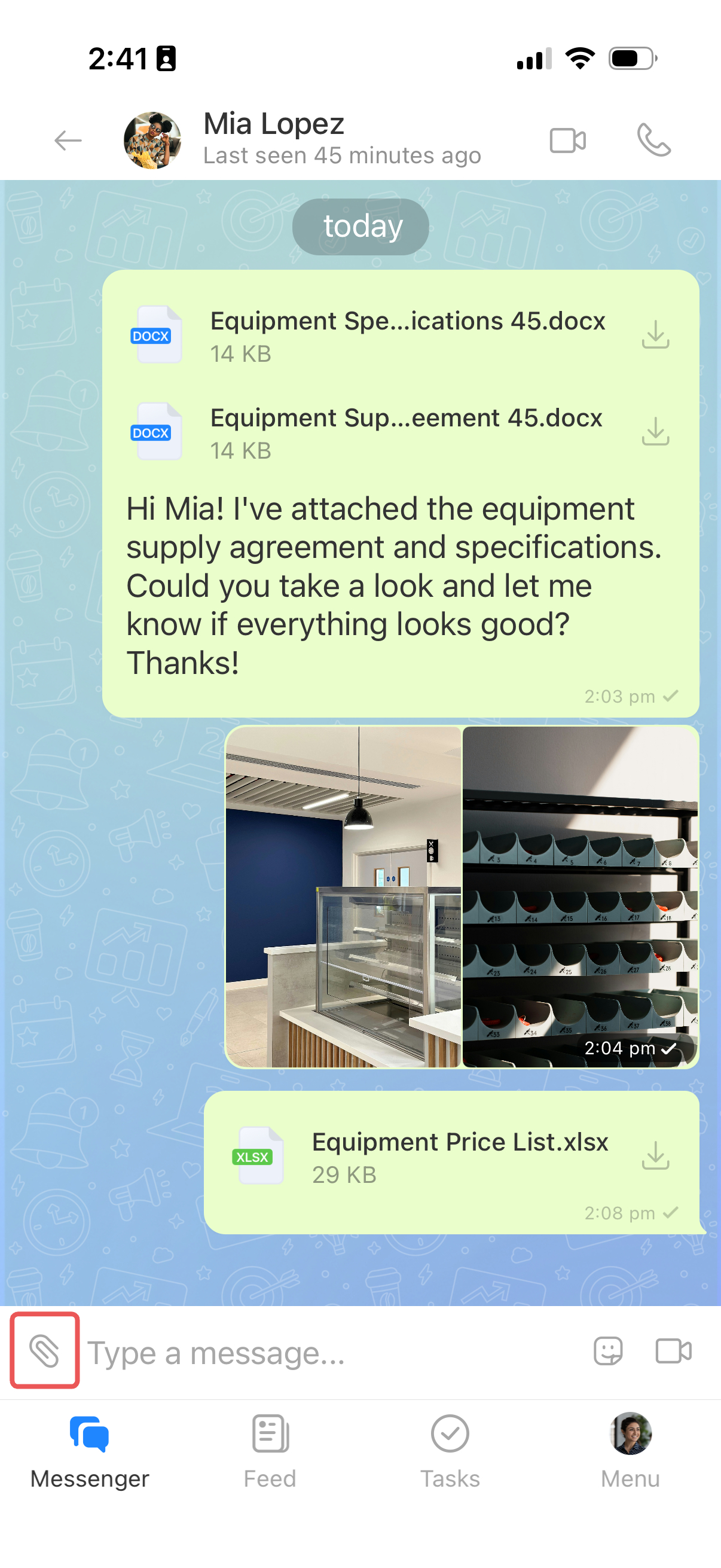
1. Tap the paper clip in the message input field.
2. Choose where to get the file:
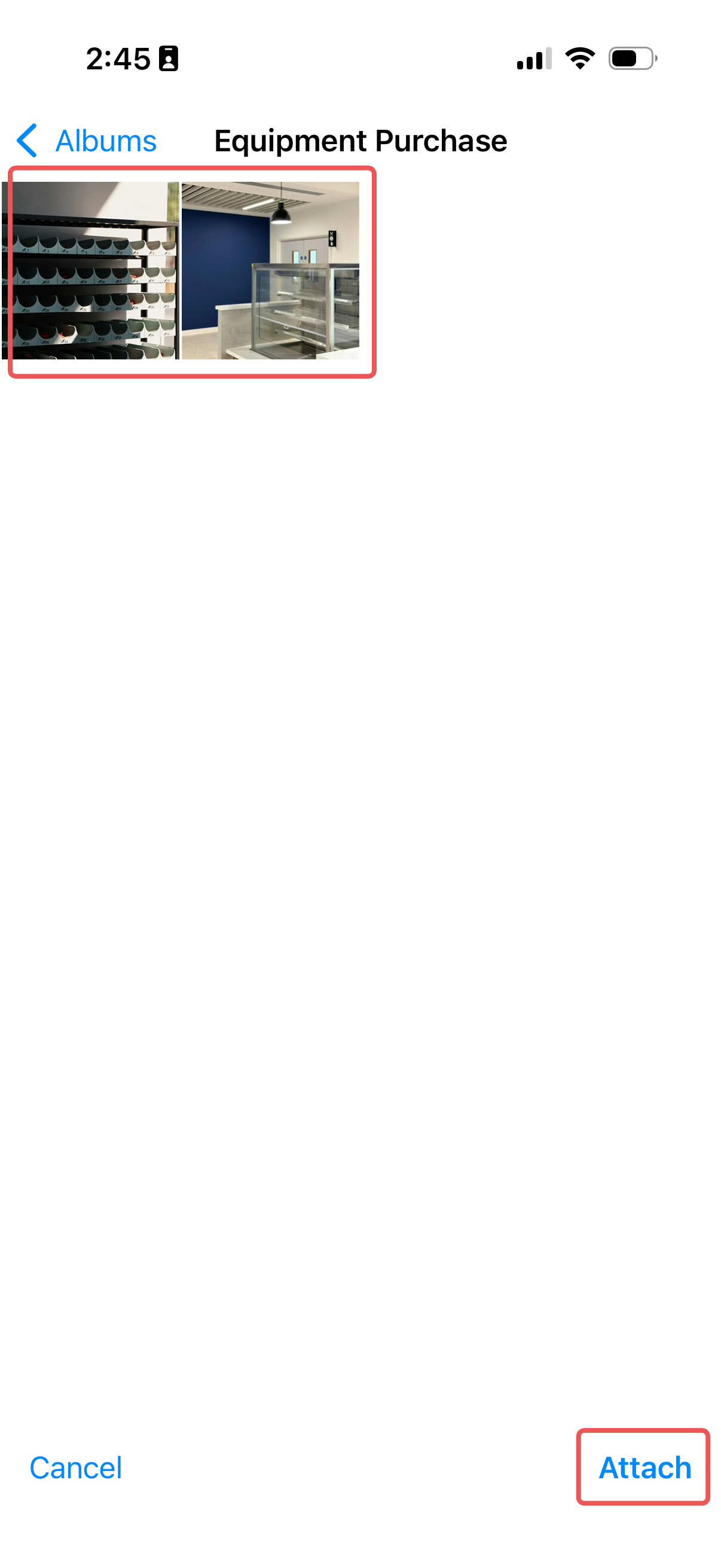
- Pick from Gallery — Select photos and images from your phone.
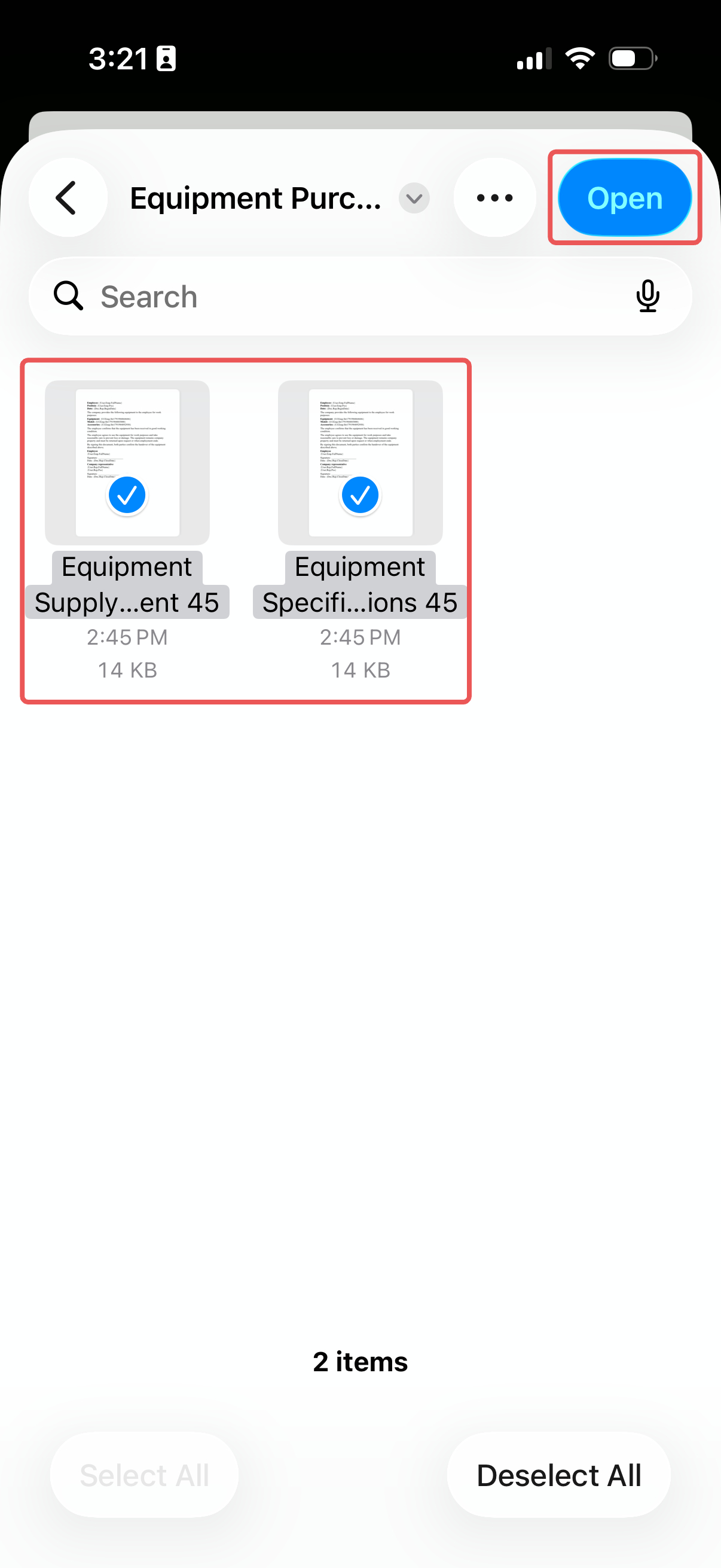
- Files on this device — Select documents from your phone's storage.
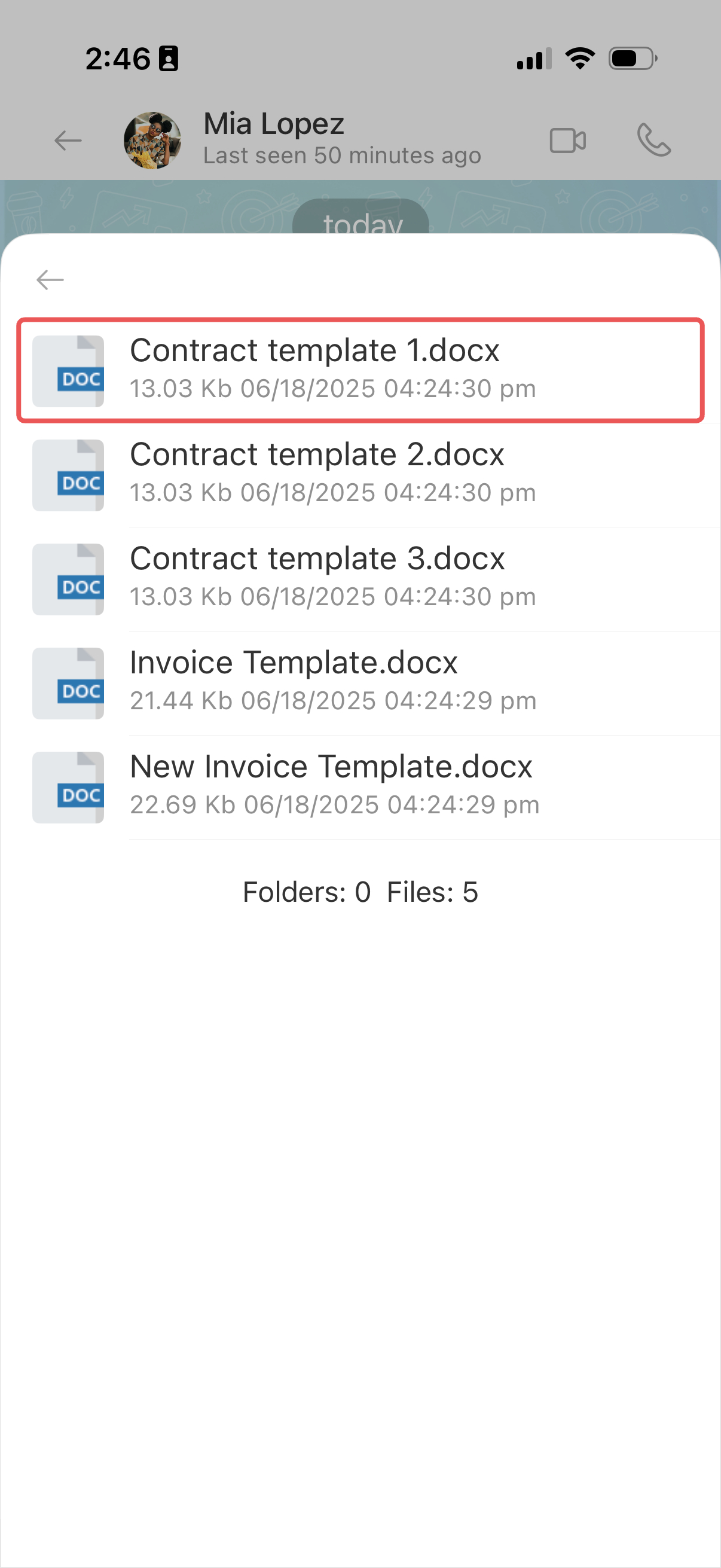
- File on Bitrix24 — Select a file from Bitrix24 Drive.
3. Select the files you need. They appear above the input field. In Gallery and My files, you can select multiple files at once. From Bitrix24 Drive, you can select only one.
4. Tap the send icon  .
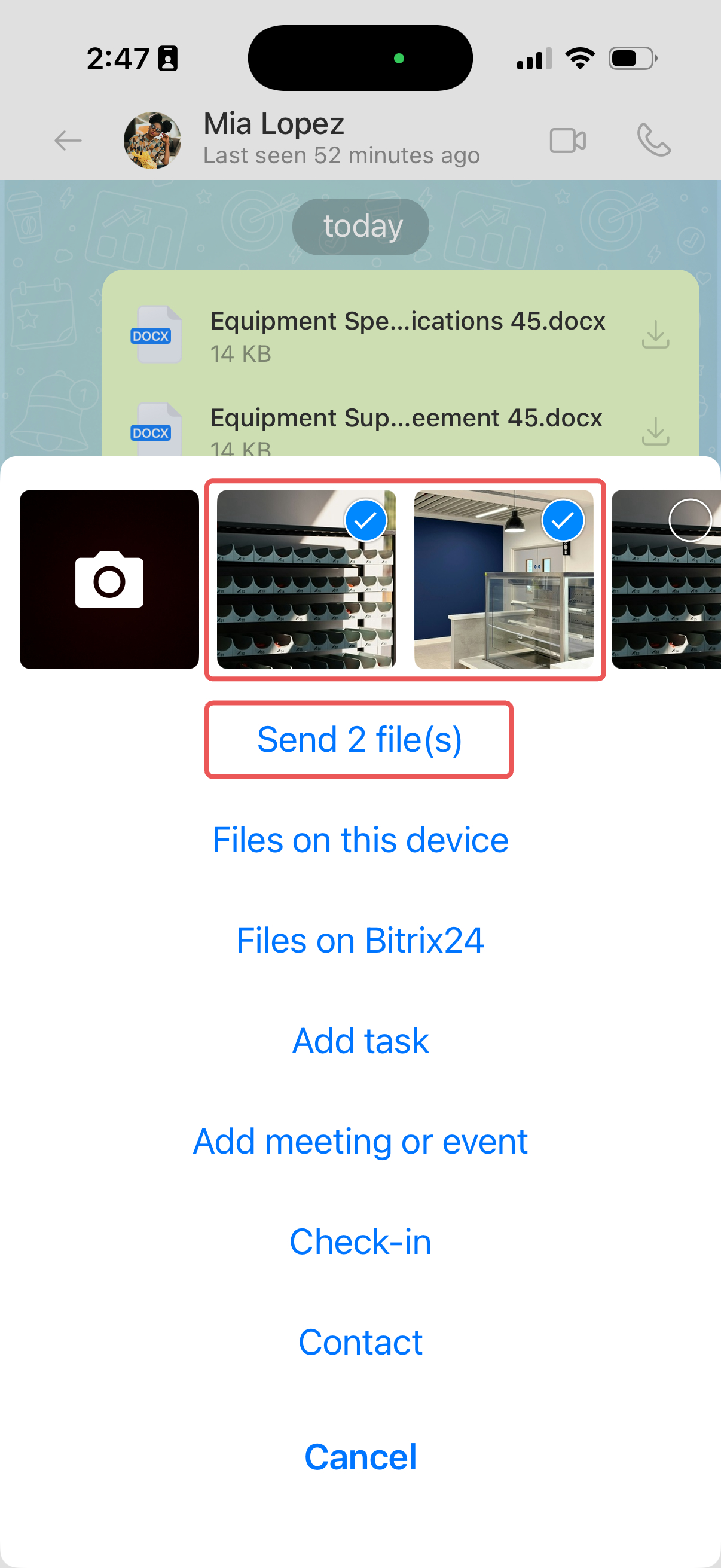
You can also select recent photos from the thumbnails above the menu. Once you select a photo, the Gallery option changes to a button that shows the number of selected files. Tap this button to continue.
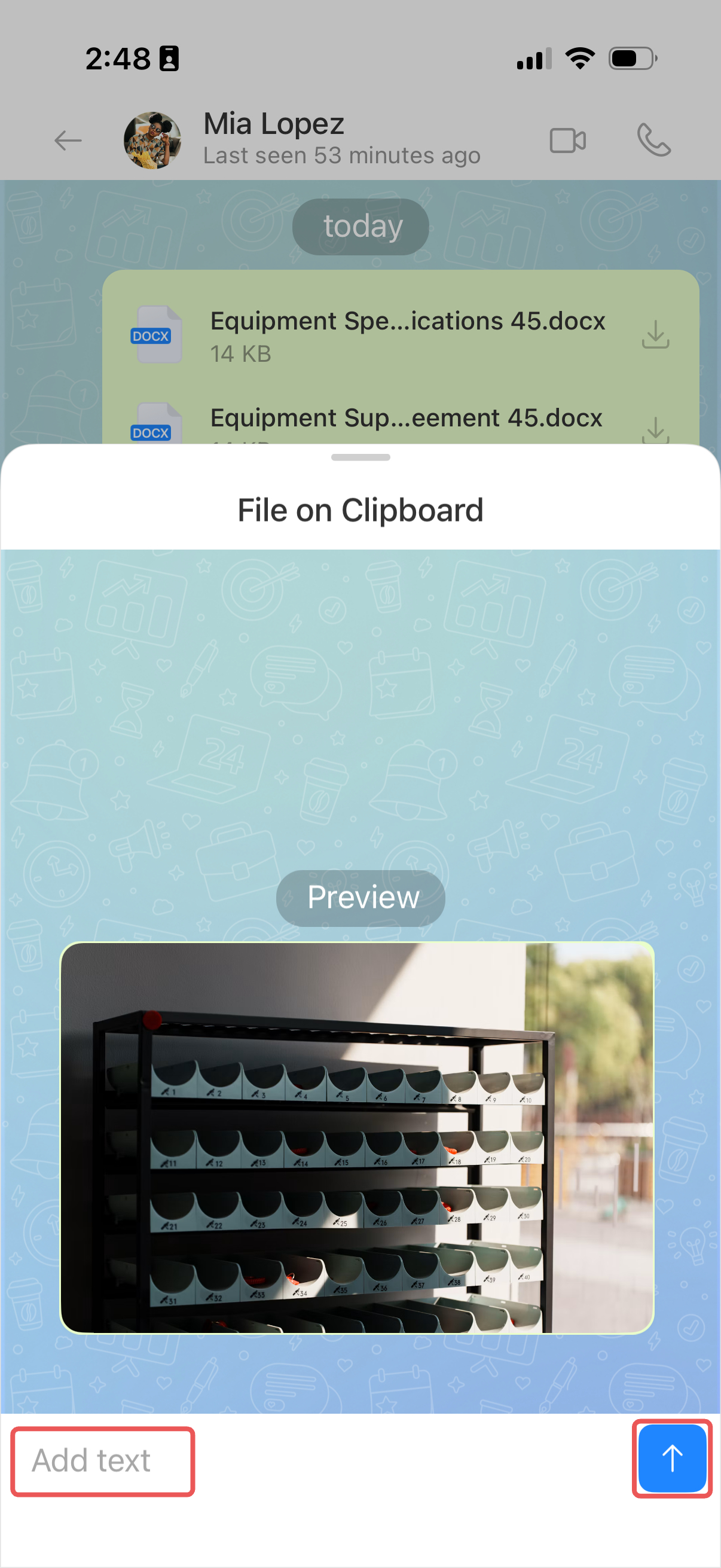
Paste a file from the clipboard. Copy an image from your gallery or a website. Press and hold the message input field, then select Paste. The File on Clipboard window opens:
1. Add a caption if needed.
2. Tap the send icon .
Download a file to your device
Download a file if you want to open it in another app or upload it to an external service, such as online banking. On your computer, downloaded files appear in your browser's downloads folder. On your phone, you can choose where to save them.
You don't need to download a document to read it. Click the document in the chat to preview it directly in Bitrix24.
File preview in Bitrix24
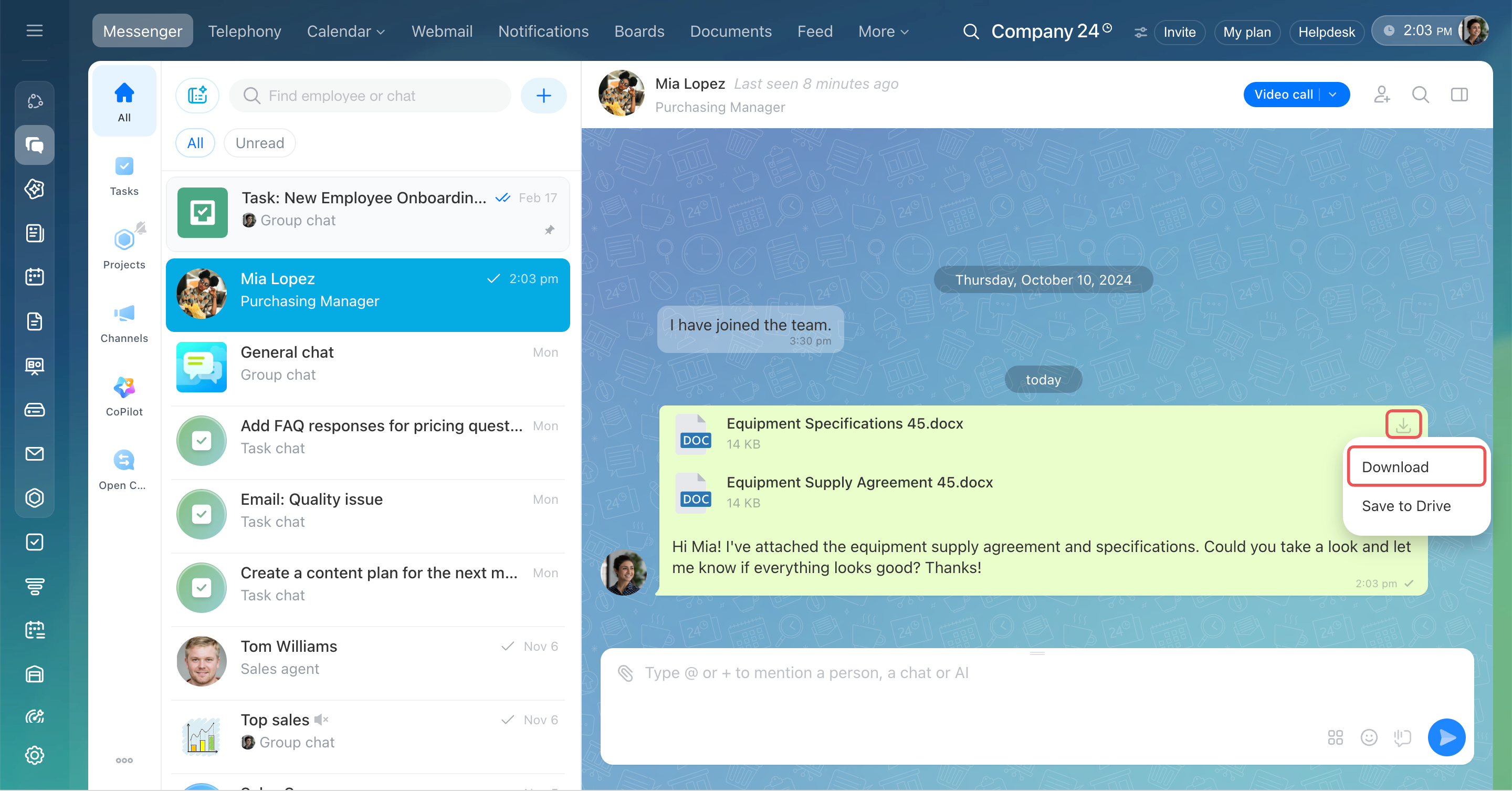
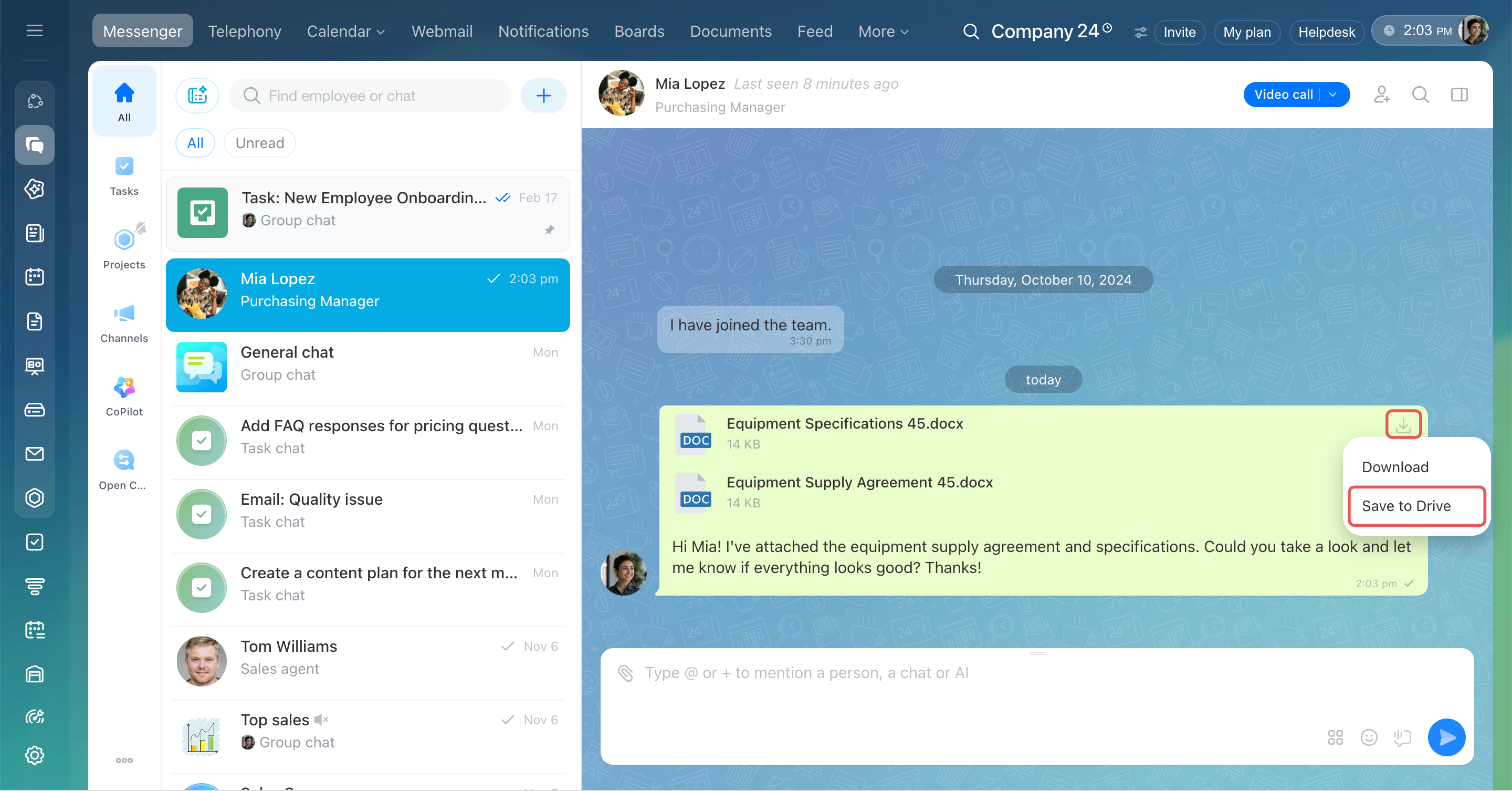
Download a single document. Click the download icon  next to the file name and select Download. You can download each document separately, even if the message contains multiple files.
Download all files from a message.
1. Hover over the message and click Three dots (...) on the right.
2. Select Download. If the message contains multiple files, select Download all files.
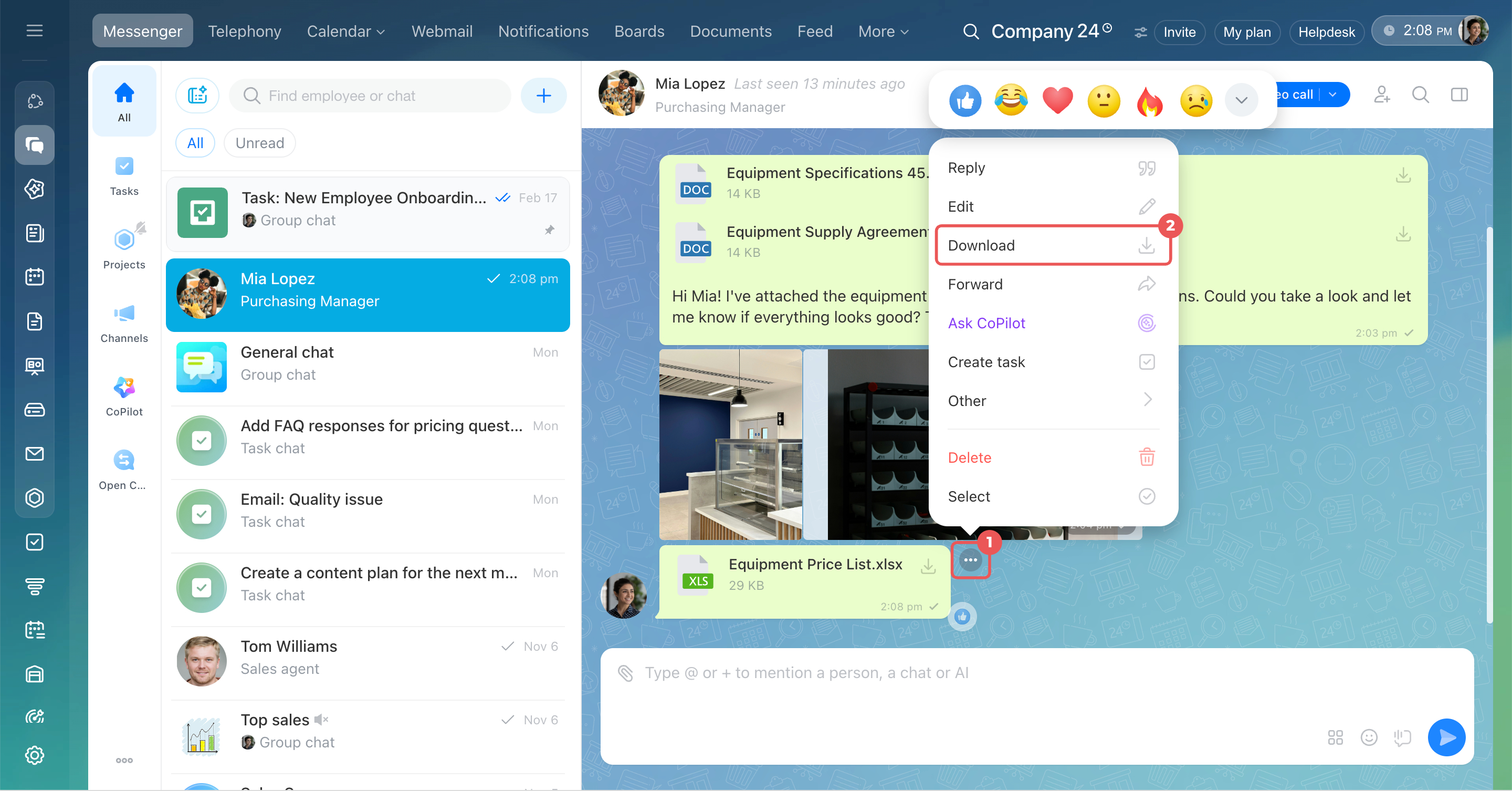
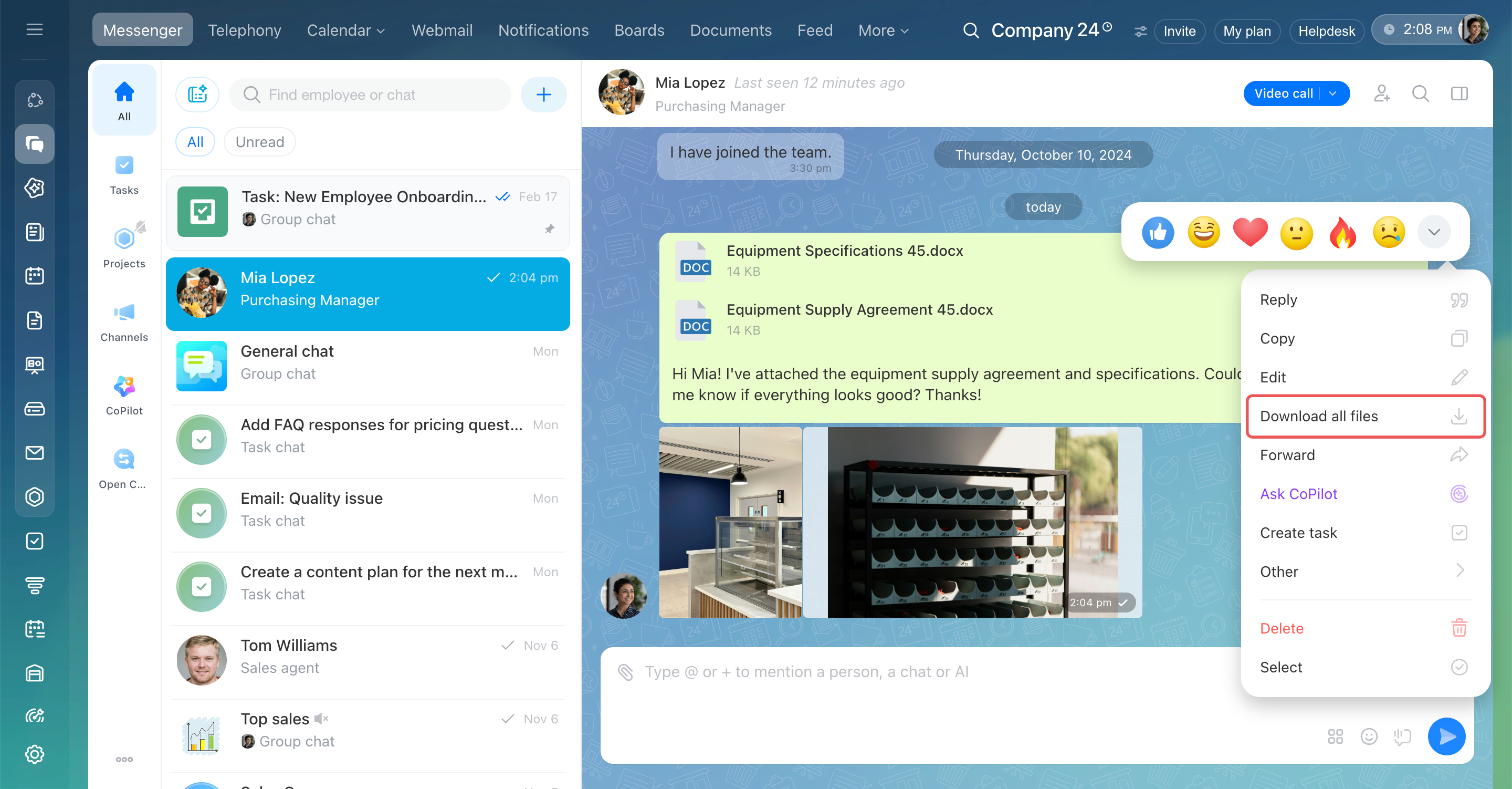
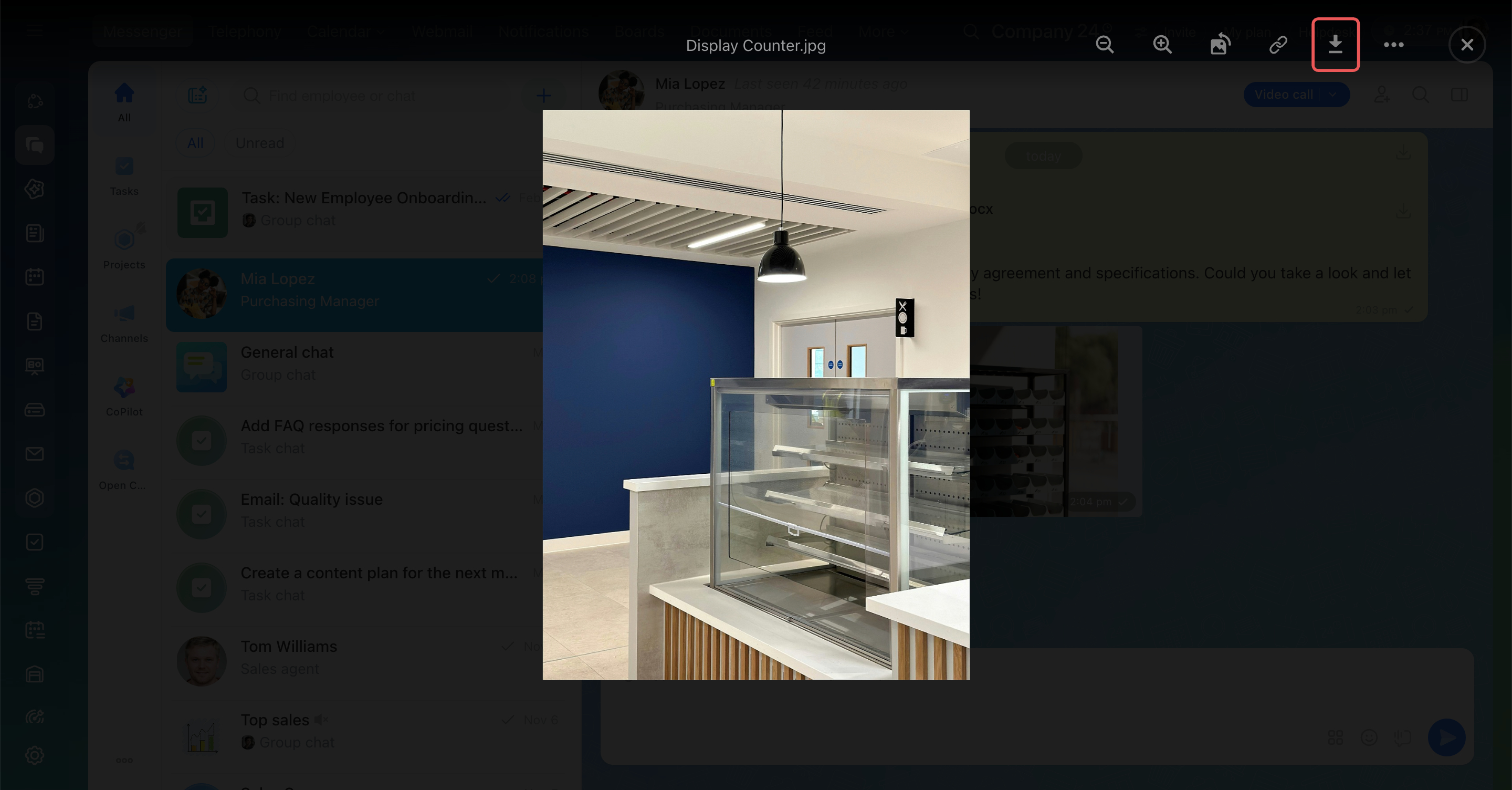
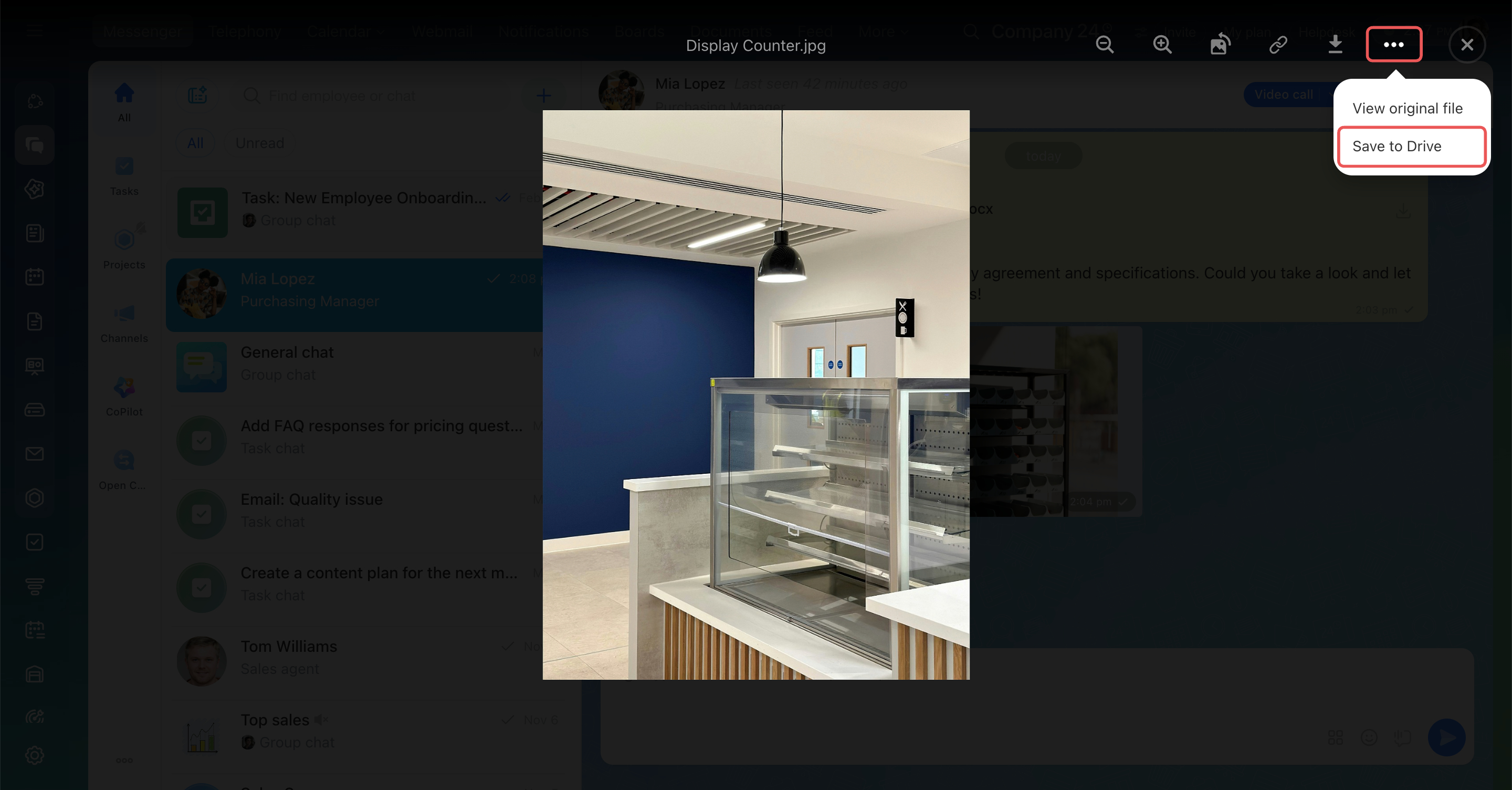
Download a single image. Open the image you need and click the download icon  on the toolbar at the top of the viewer.
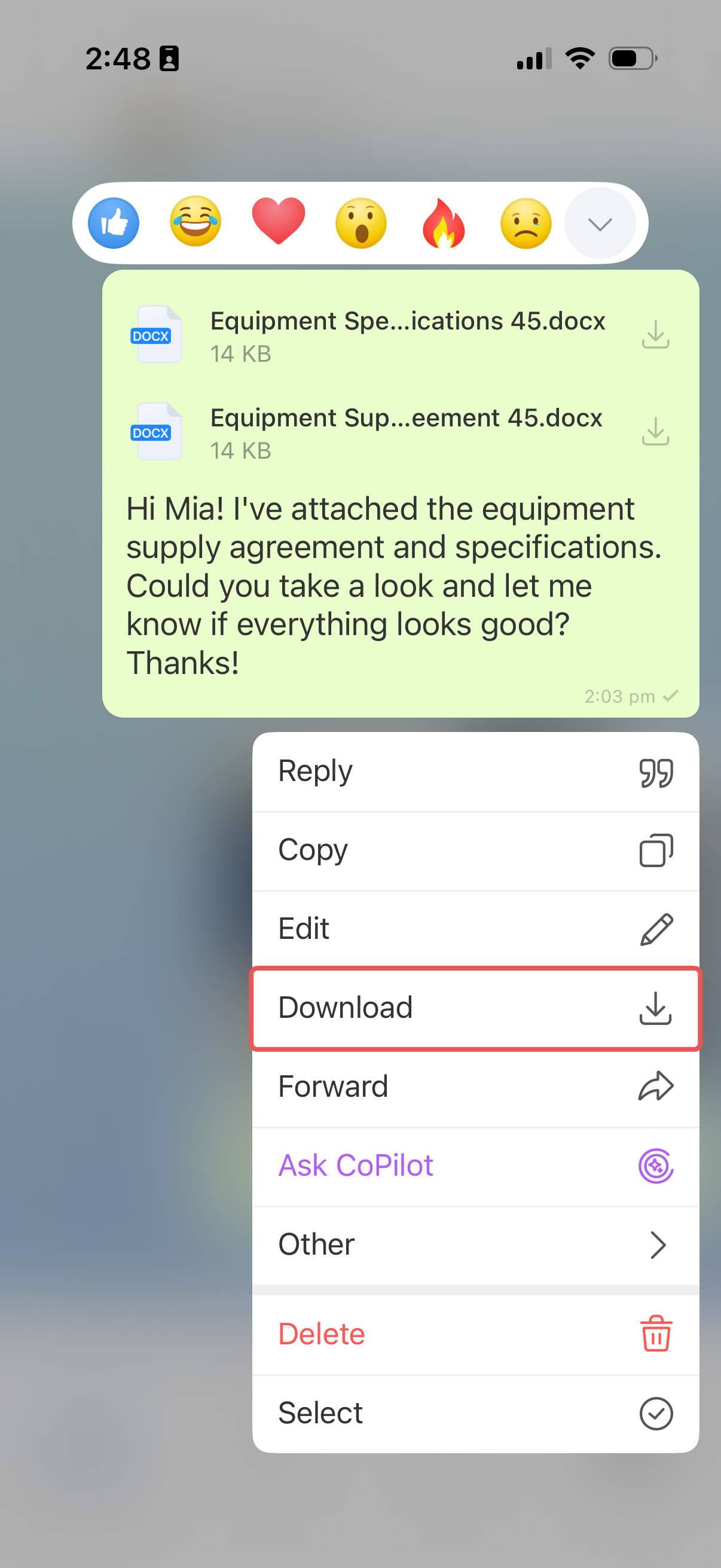
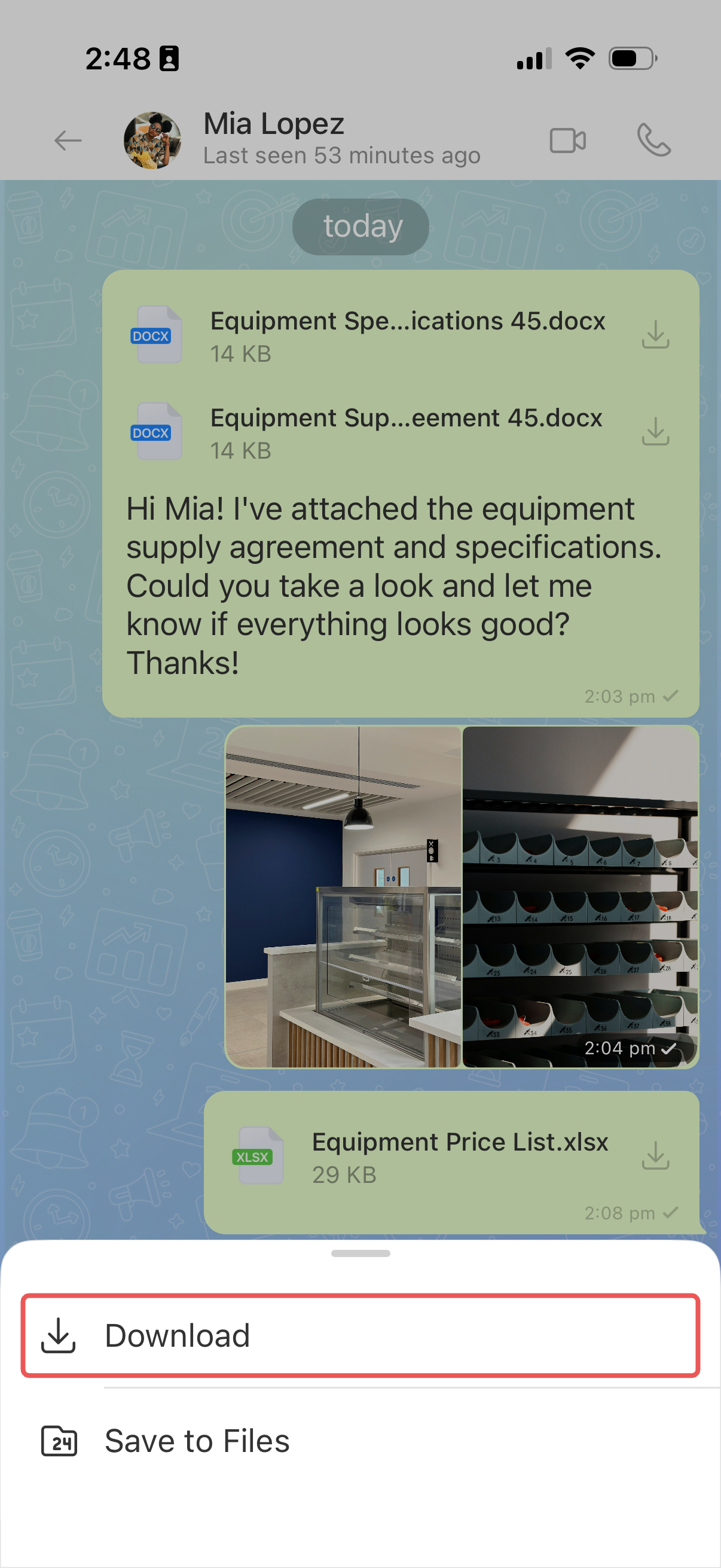
Download all files from a message. Press and hold the message with the files and select Download.
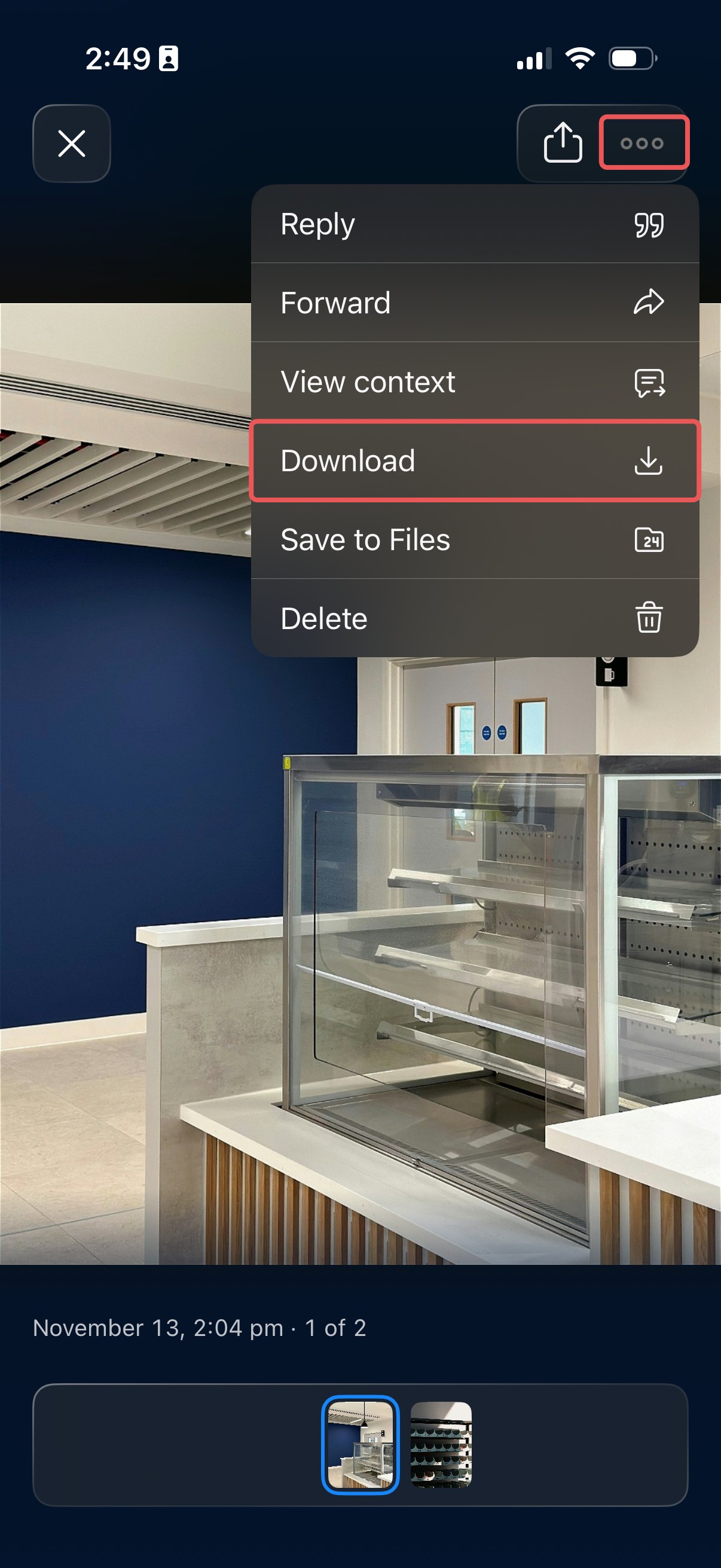
Download a single file.
- Document — Tap the download icon next to the file and select Download.
- Image — Tap it, then select Three dots (...) > Download in the viewer.
In the save window, choose a folder and tap Save.
Save a file to Bitrix24 Drive
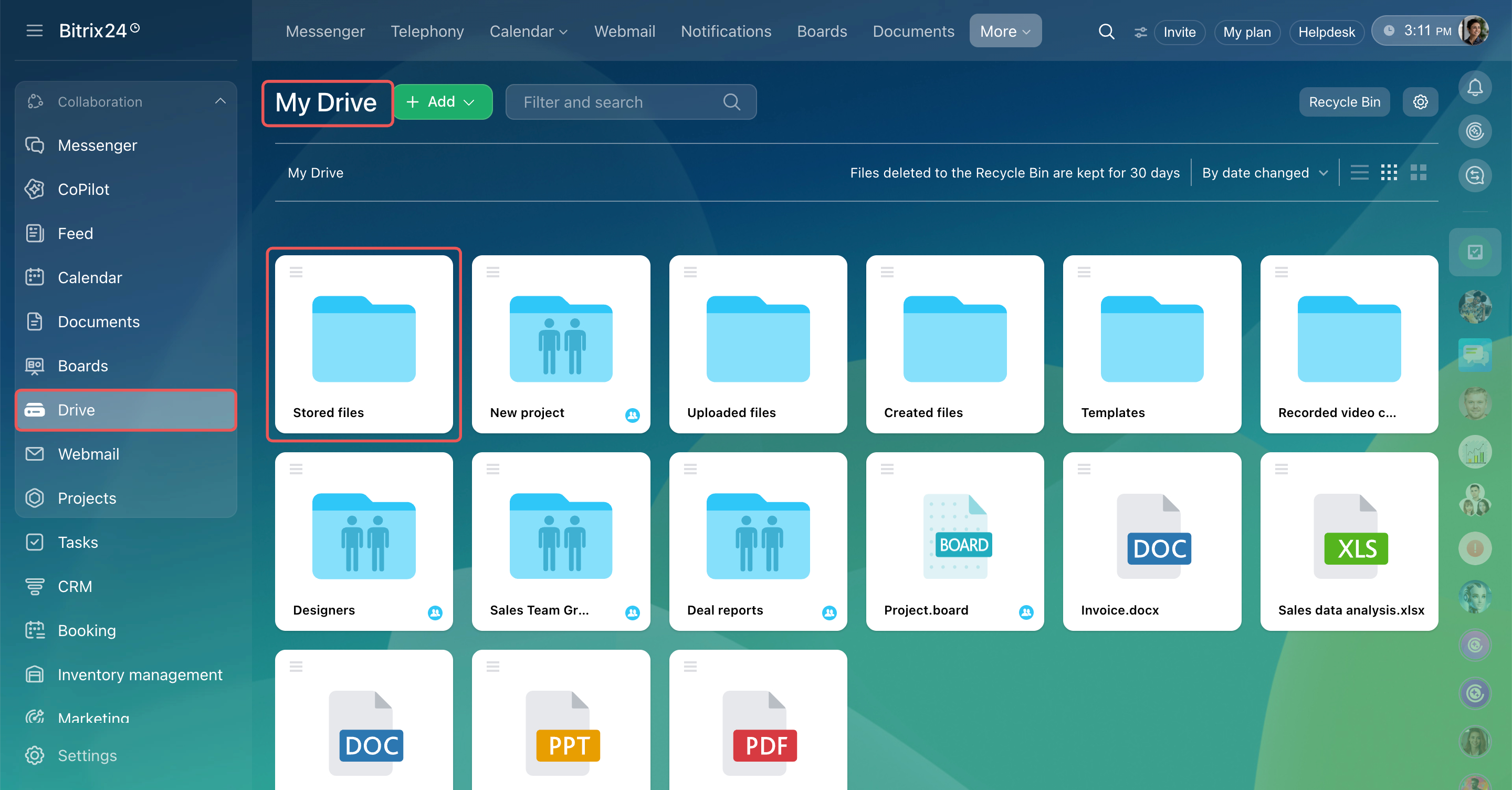
Save chat files to Bitrix24 Drive so you can access them without returning to the conversation. Bitrix24 stores files you save from chats in the Stored files folder. You can find them later in Drive, even if you don't remember which chat they came from.
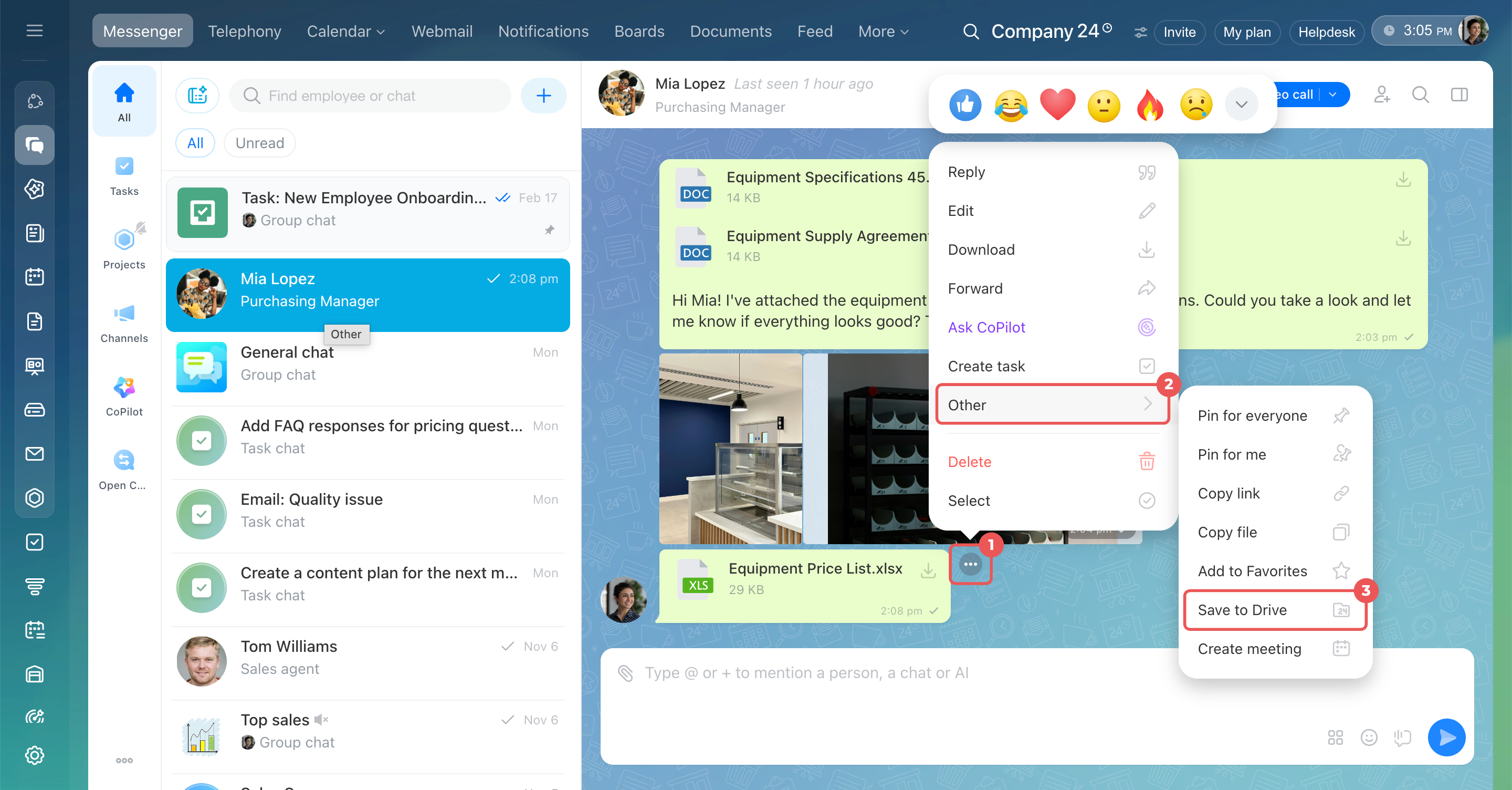
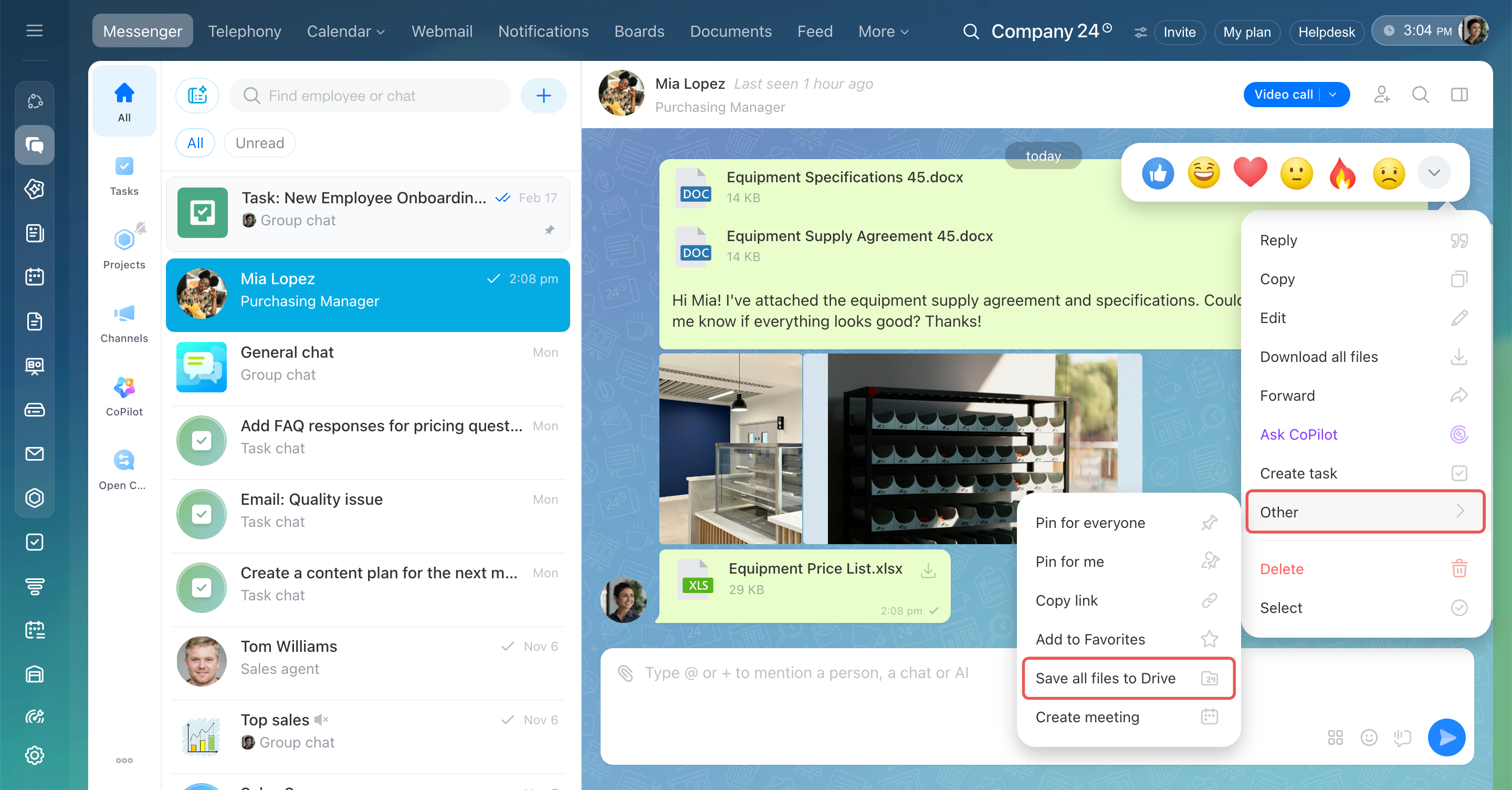
Save all files from a message.
1. Hover over the message and click Three dots (...) on the right.
2. Open More.
3. Select Save to Bitrix24. If the message contains multiple files, select Save all files to Drive.
One file from several.
- Document — Click the download icon next to the file and select Save to Bitrix24.
- Image — Click it, then select Three dots (...) > Save to Drive in the viewer.
A notification confirms that the file was saved to Drive. Find it in Drive > My Drive > Stored files.
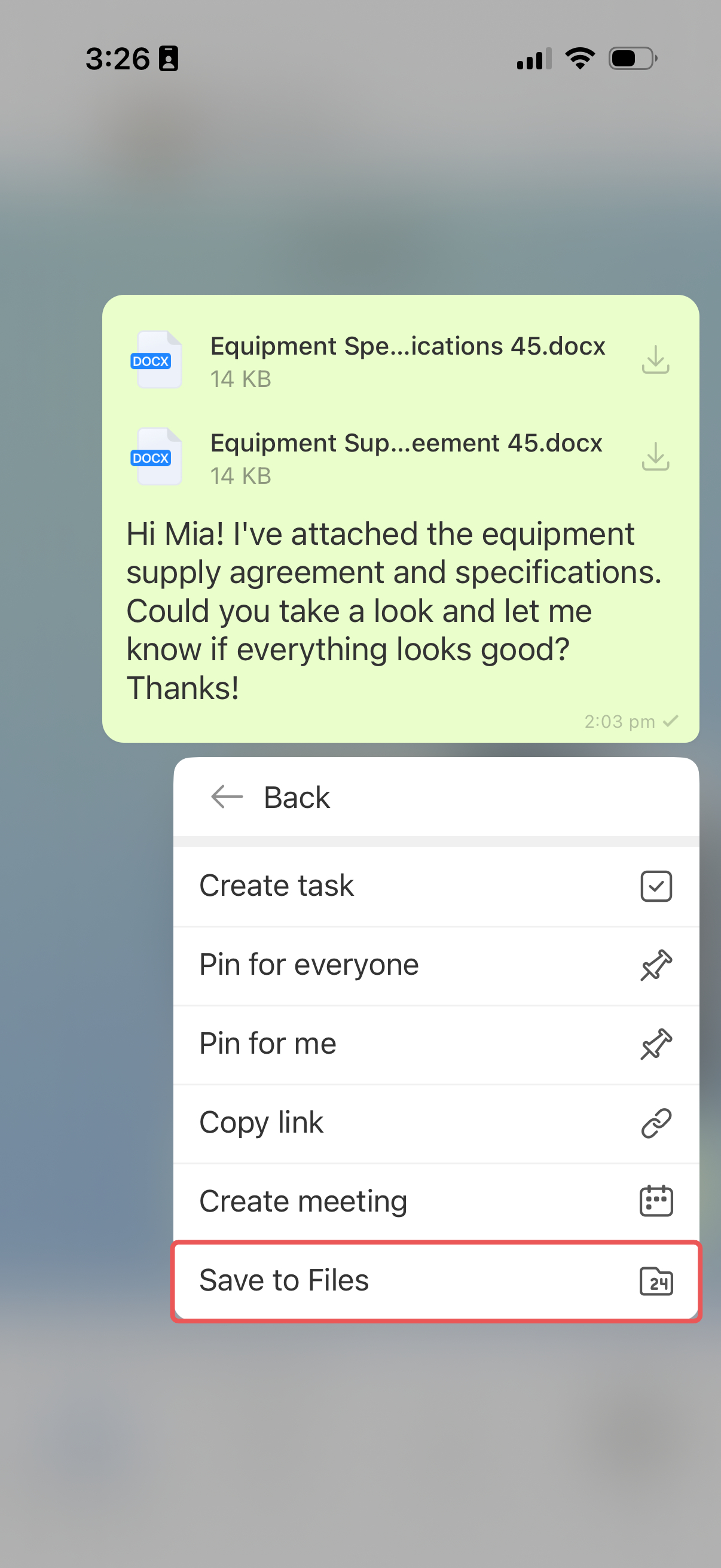
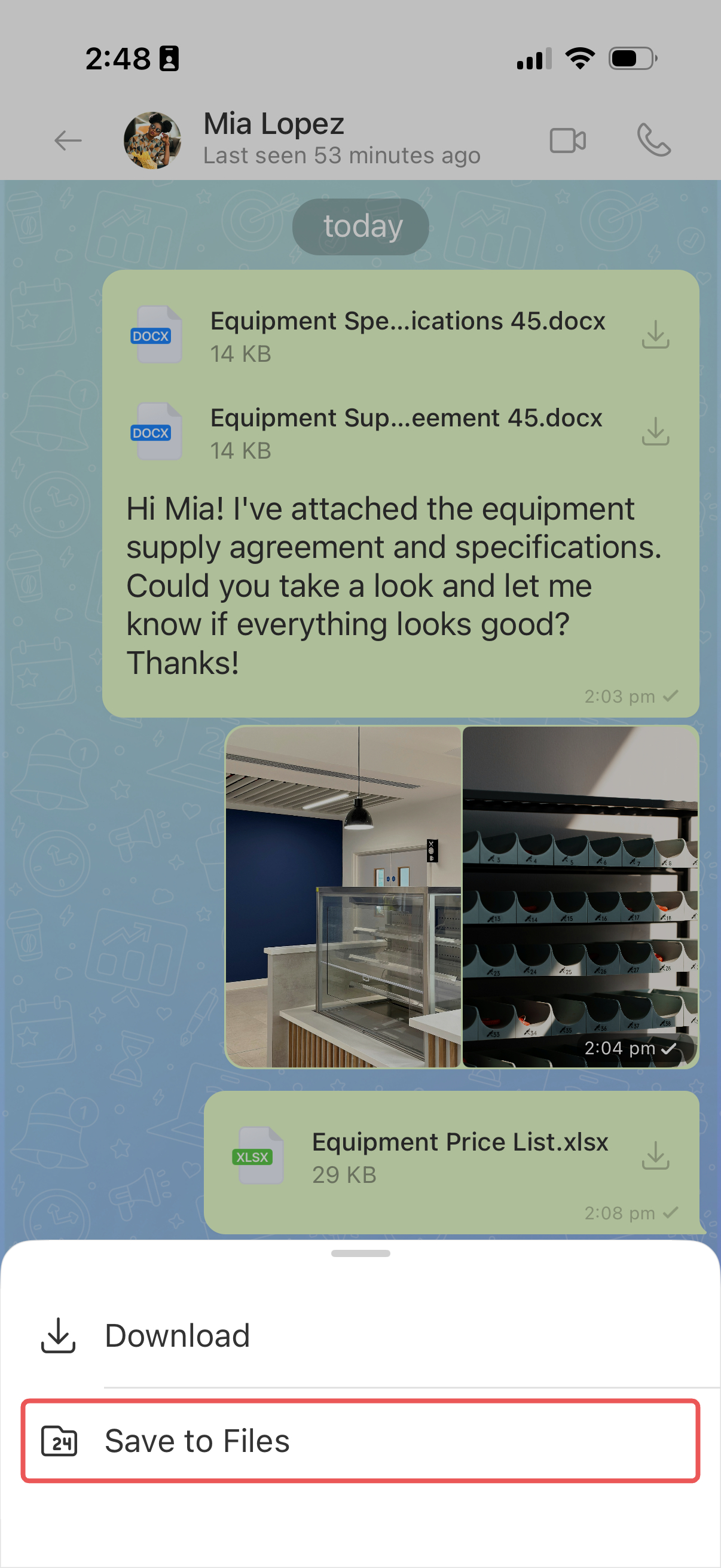
Save all files from a message. Press and hold the message with the files and select More > Save to Files.
Save a single file.
- Document — Tap the download icon next to the file and select Save to Files.
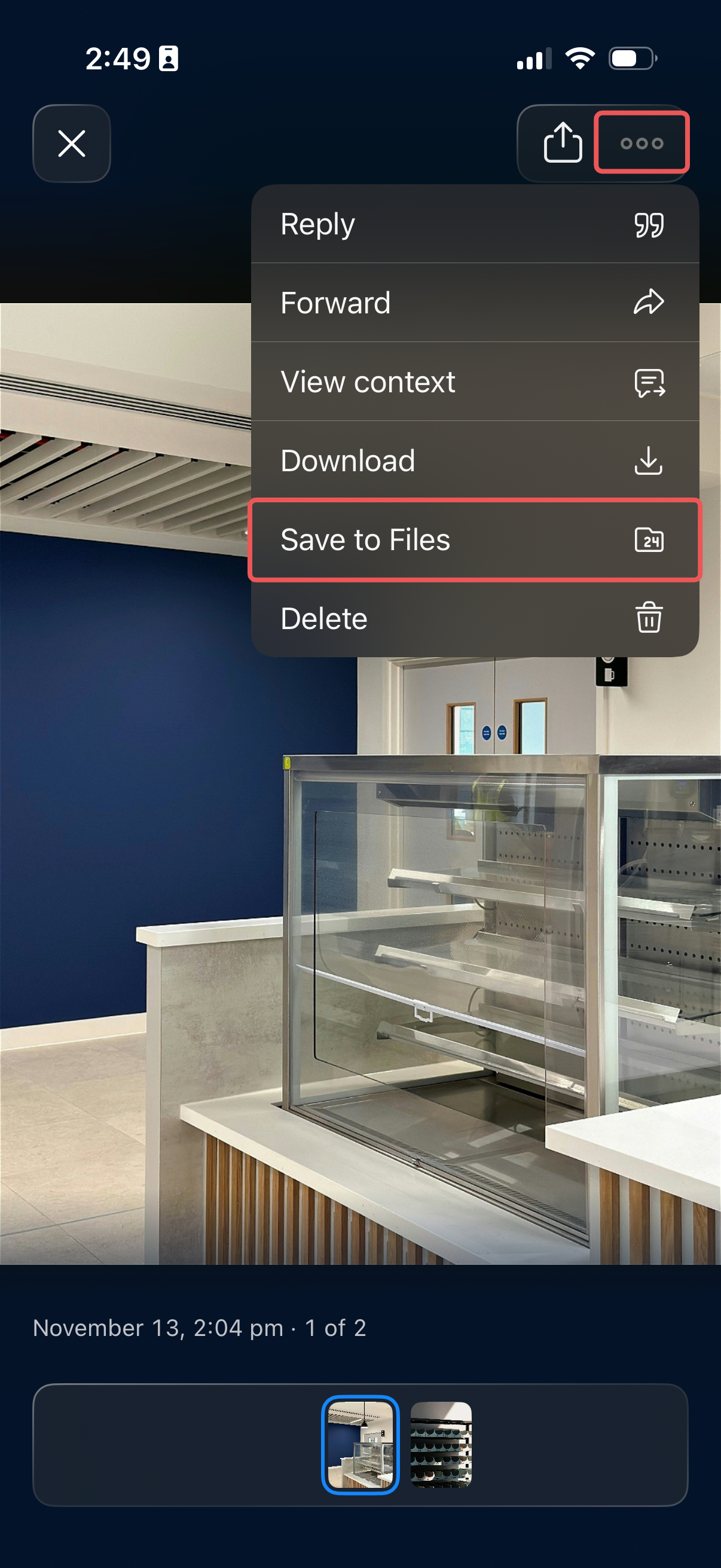
- Image — Tap it, then select Three dots (...) > Save to Files in the viewer.
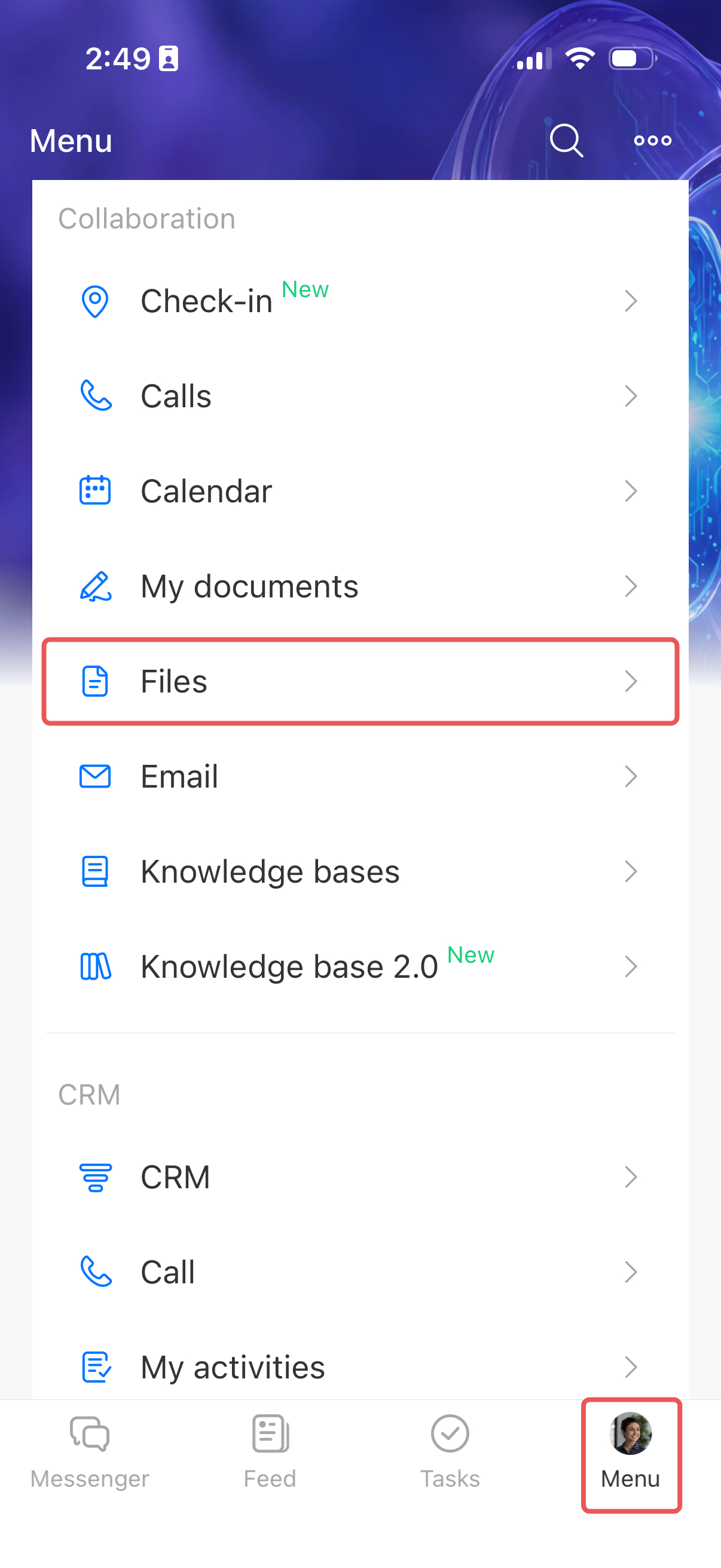
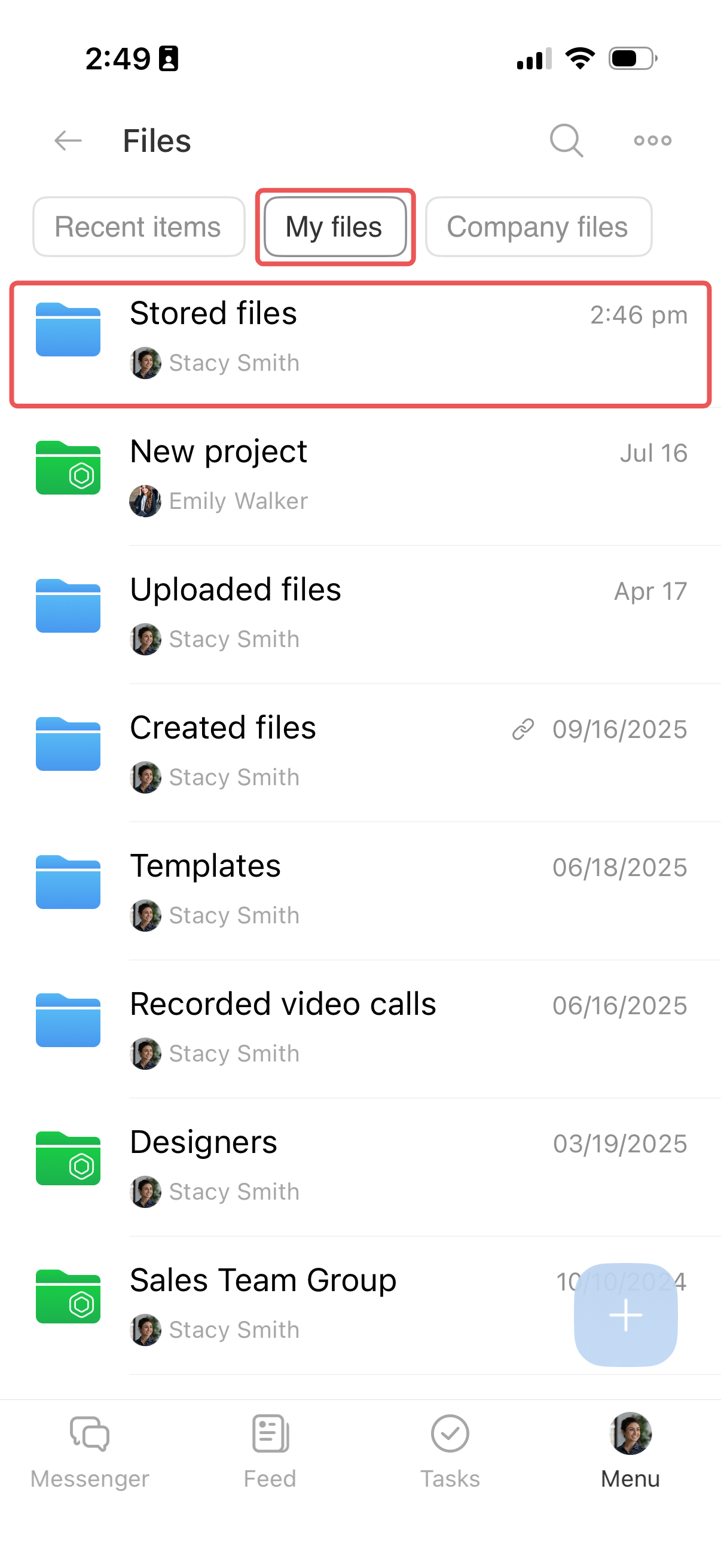
A notification confirms that the file was saved to Bitrix24. Find it in Menu > Files > My files > Stored files.
Find a file and return to the discussion
Bitrix24 keeps all files and images shared in a chat in one place, so there's no need to scroll through the conversation to find them. Each file also links to the original message and makes it easy to review the discussion. For example, you can find a contract shared last month and check which changes your team approved.
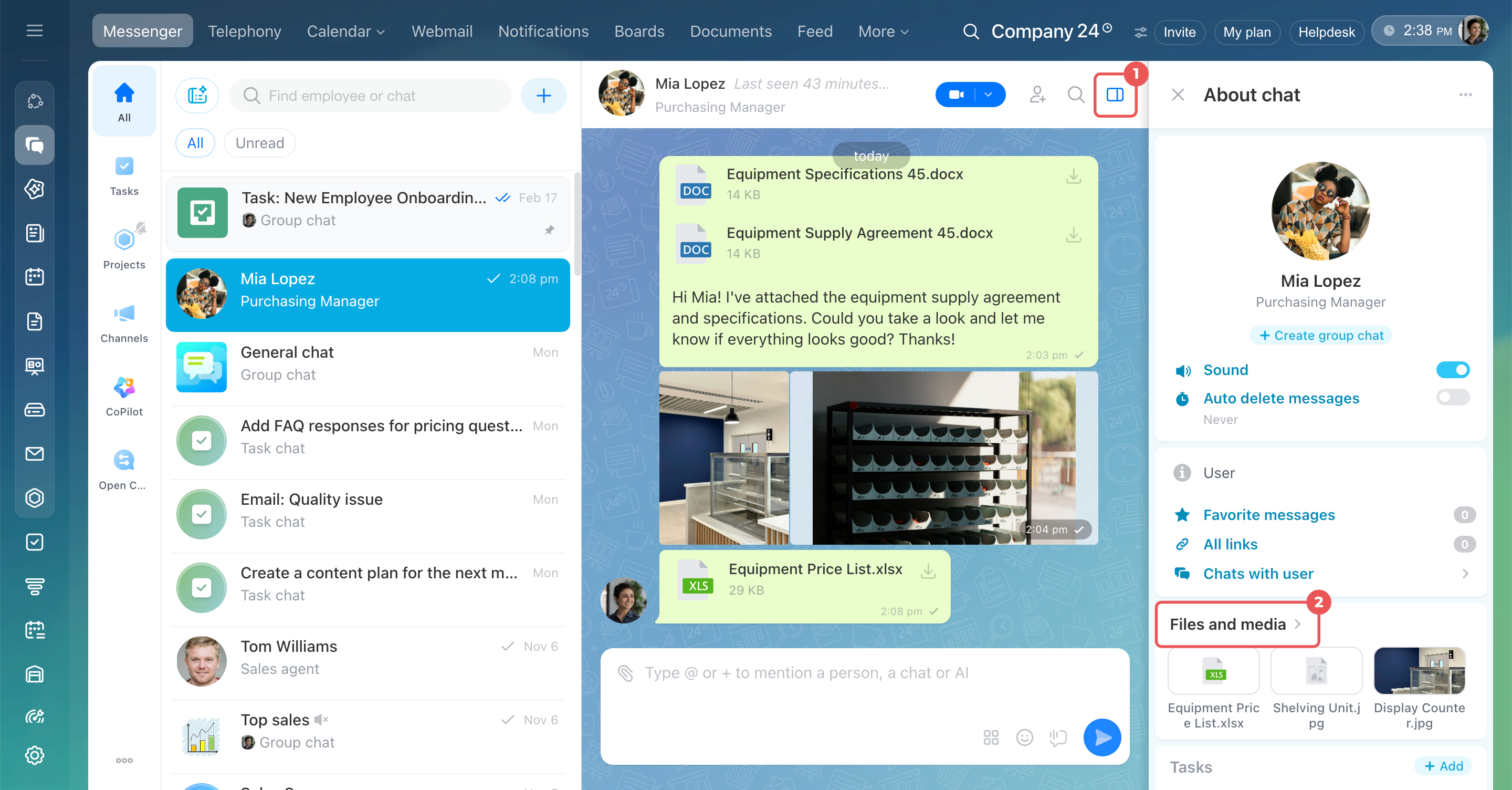
1. Click the sidebar icon  in the top-right corner of the chat, next to the search icon. The About chat sidebar opens.
2. Click Files and media.
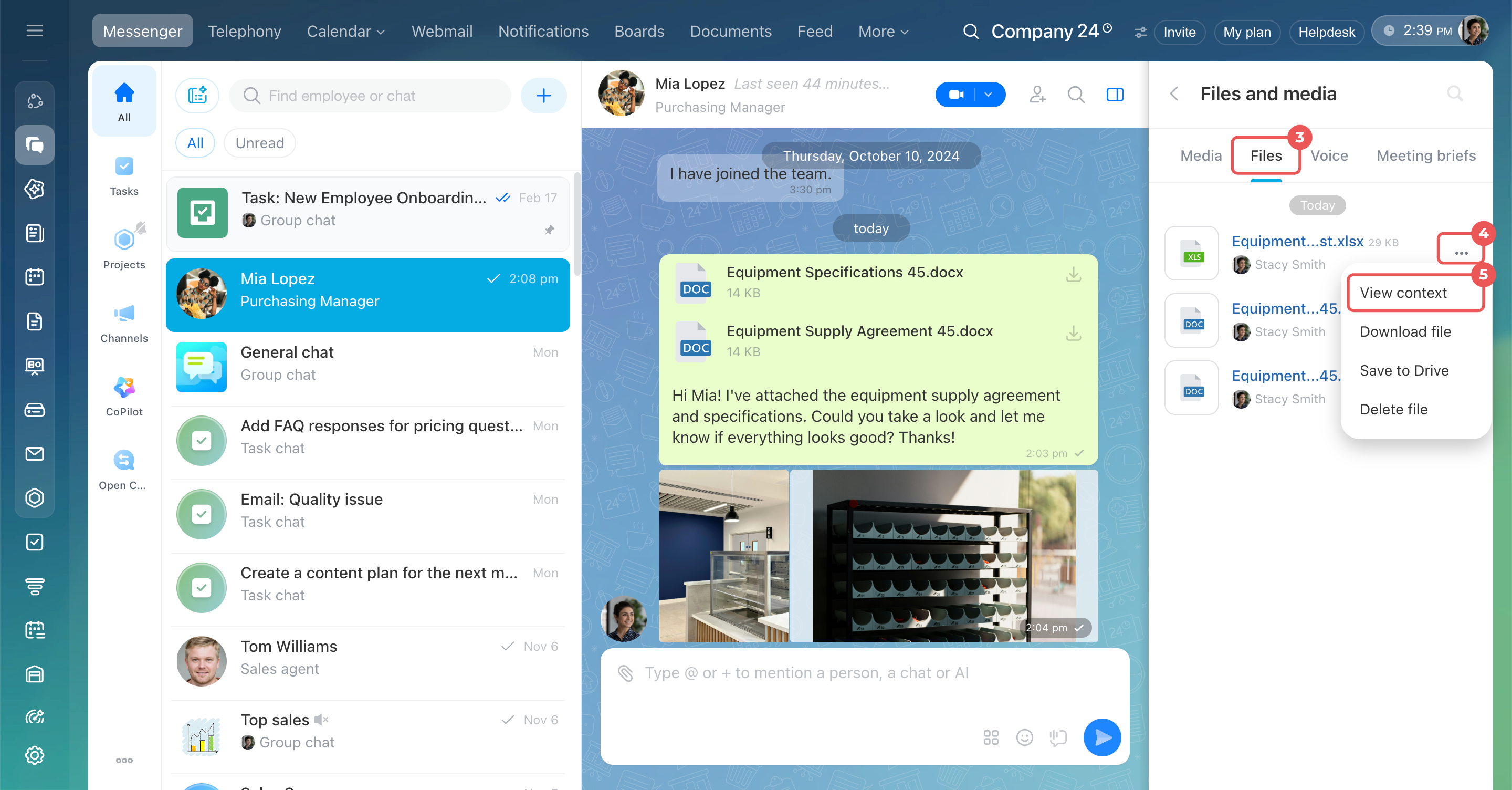
3. Select Media to find images or Files to find documents.
4. Hover over the file and click Three dots (...) > View context.
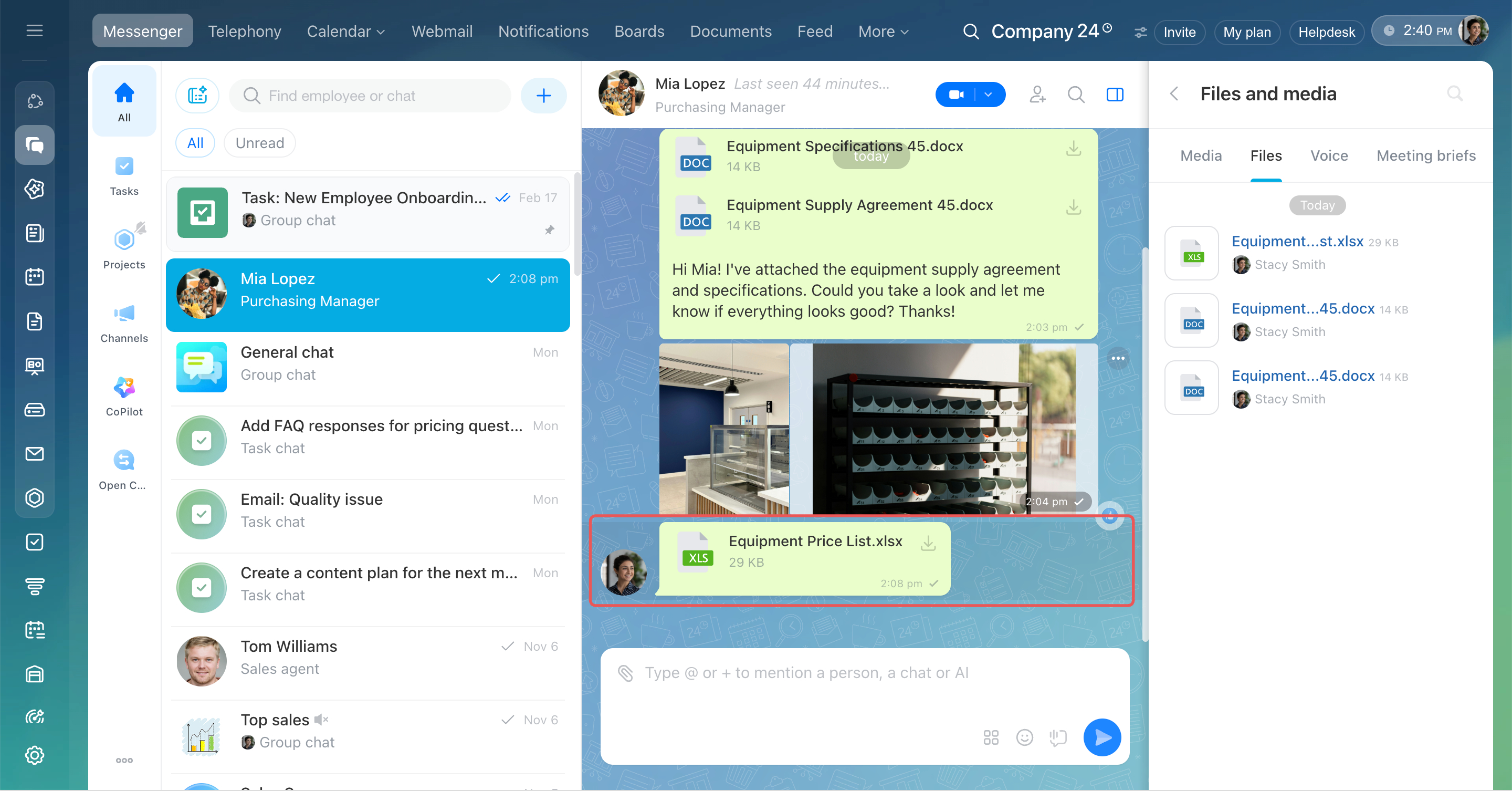
5. The chat opens at the message where the file was shared. You can now review the discussion.
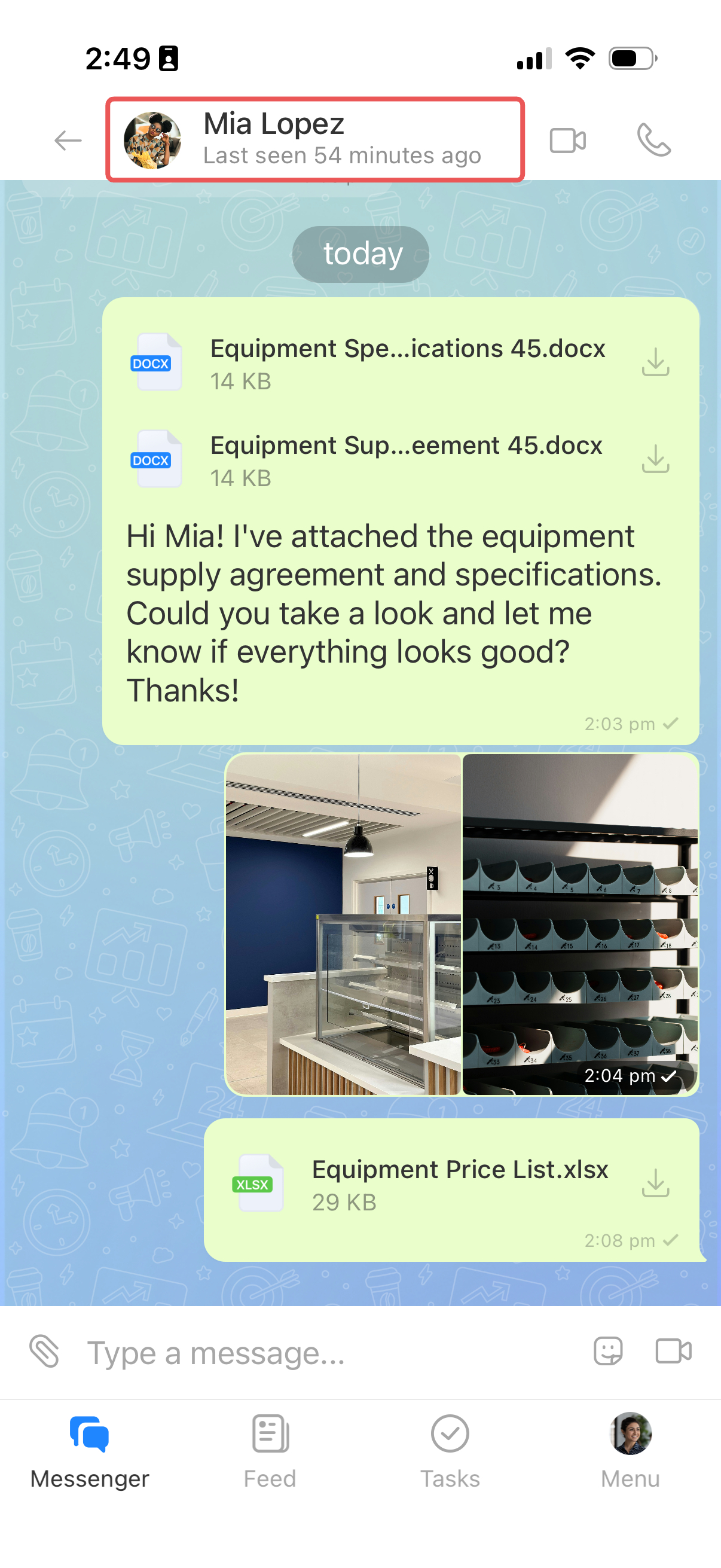
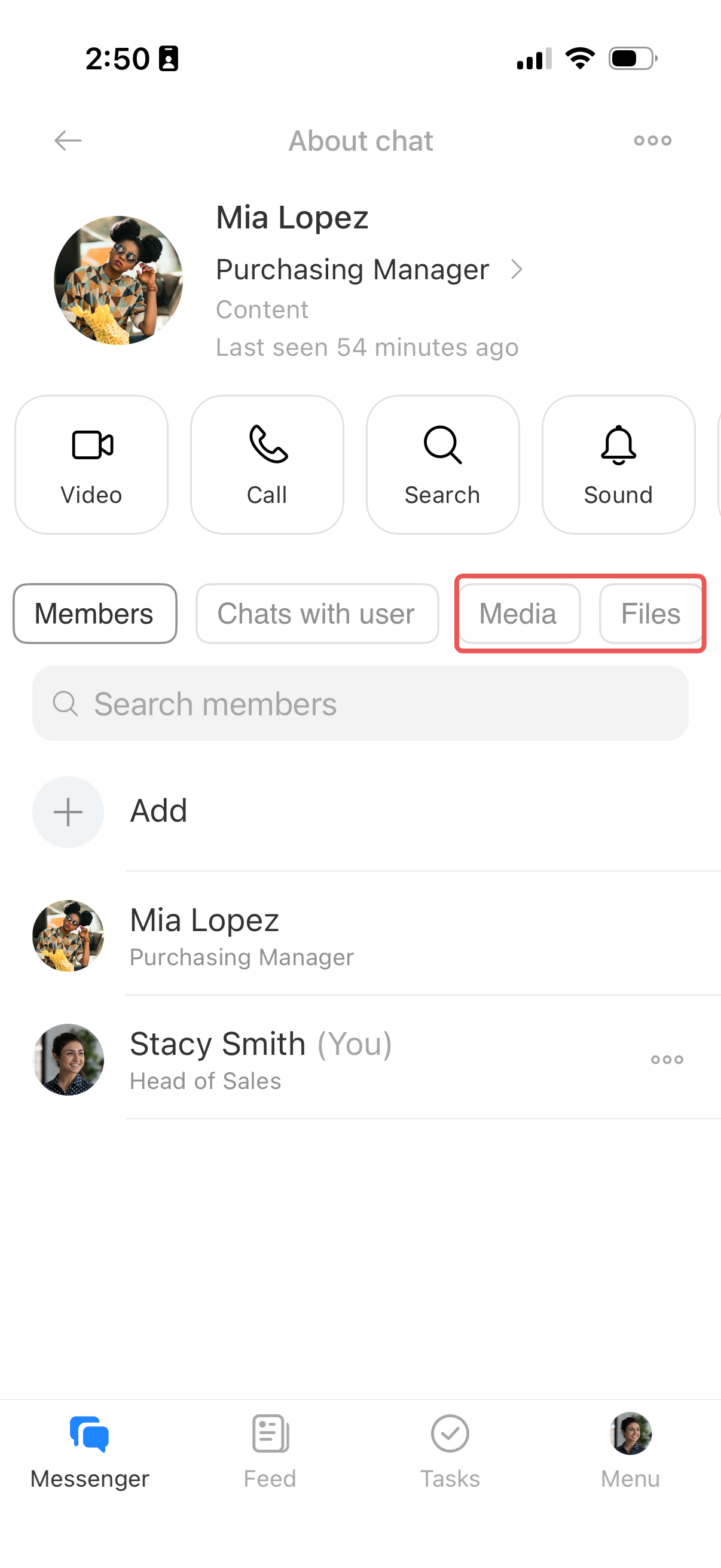
1. Tap the chat name in the header. The About chat screen opens.
2. Select the Media or Files tab.
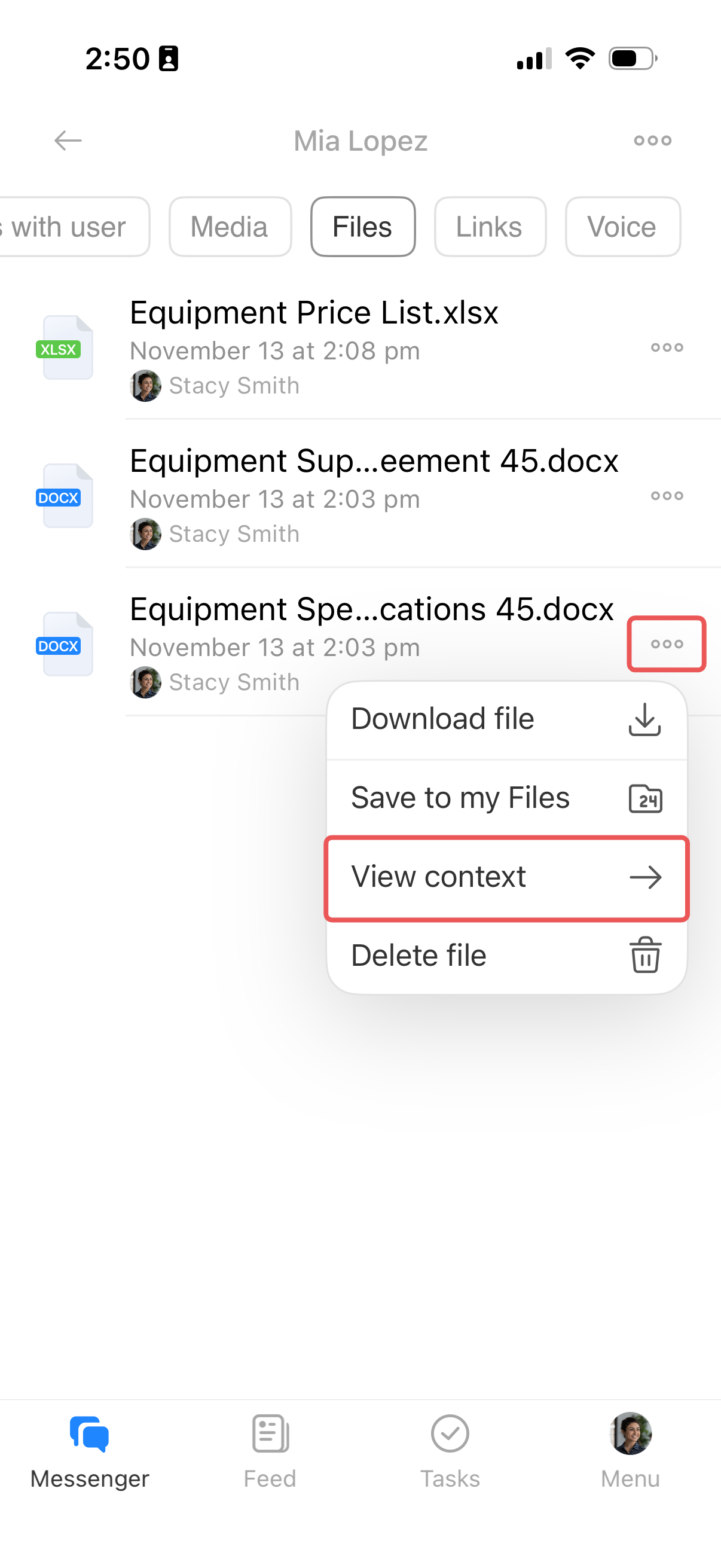
3. Open the menu for the file you need:
- Document — Tap Three dots (...) next to it and select View context.
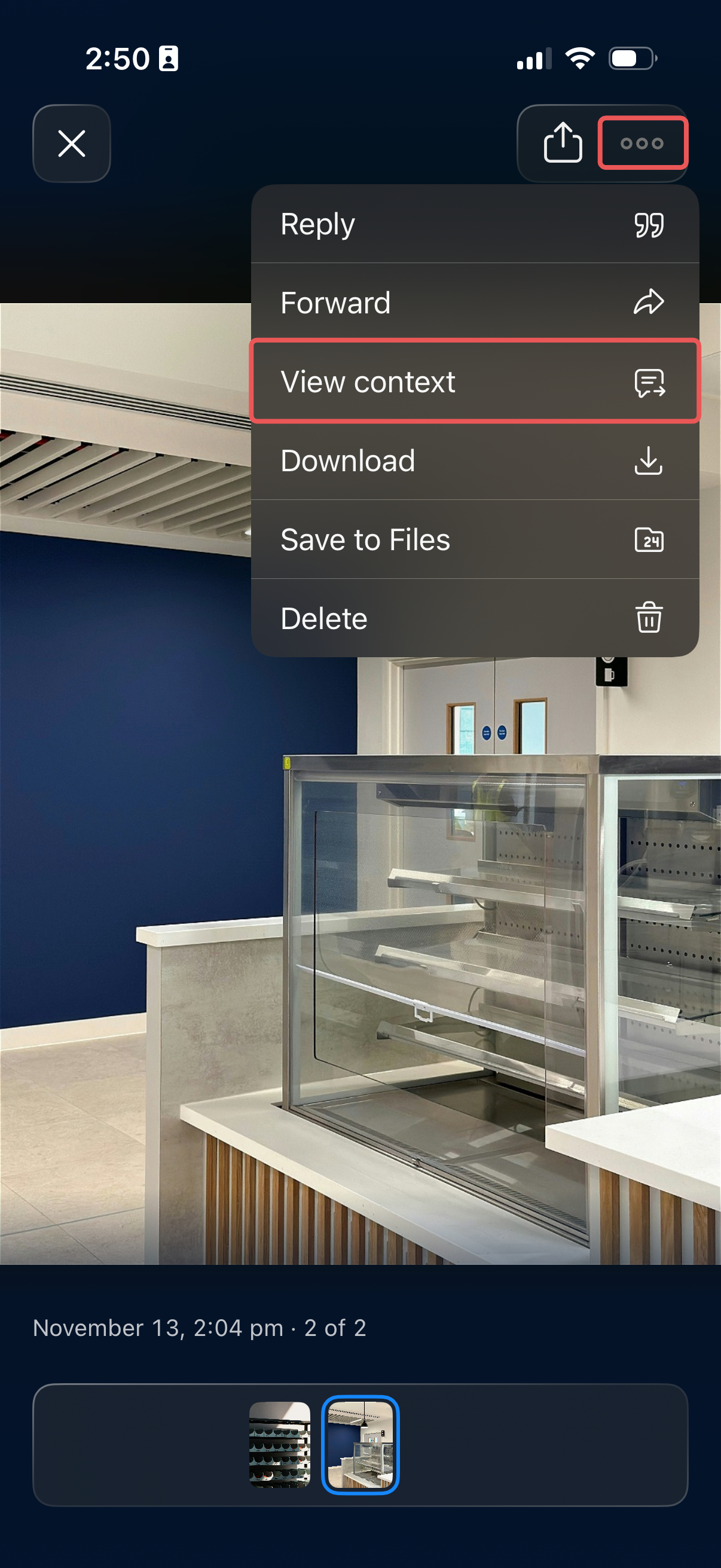
- Image — Tap it, then select Three dots (...) > View context in the viewer.
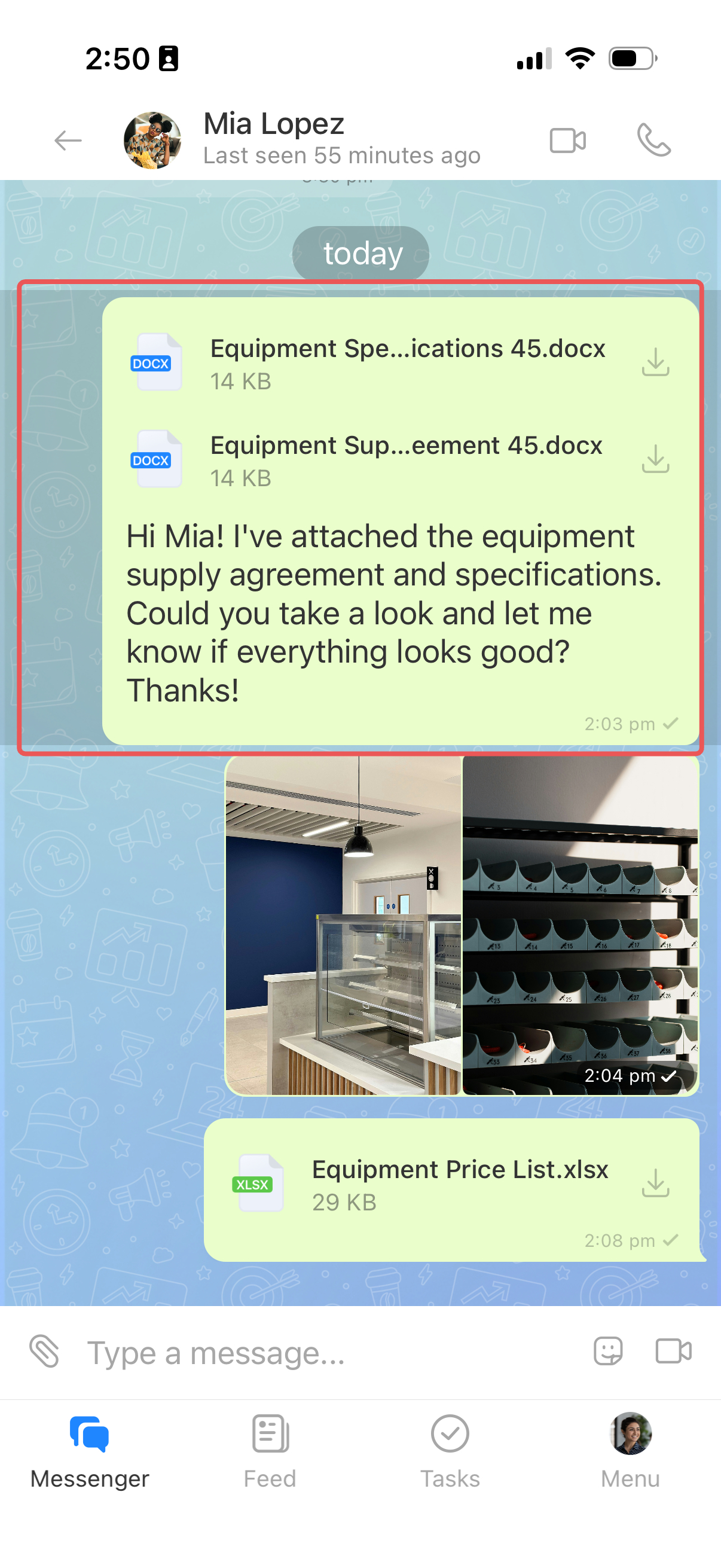
4. The chat opens at the message where the file was shared. You can now review the discussion.
In brief
- Share files in Bitrix24 chats from your computer, phone, or Bitrix24 Drive.
- To attach a file, click the paper clip icon in the message input field. You can attach multiple files or paste files and images from the clipboard.
- Preview documents directly in Bitrix24, download them to your device, or save them to Drive. Files saved to Drive appear in the Stored files folder.
- Find all files shared in a chat under Files and media. Select View context to return to the original message and review the discussion.