
You can preview text, audio, and video files, images, and presentations in Bitrix24 without downloading them. This helps you quickly check file content.
To use the Bitrix24 viewer:
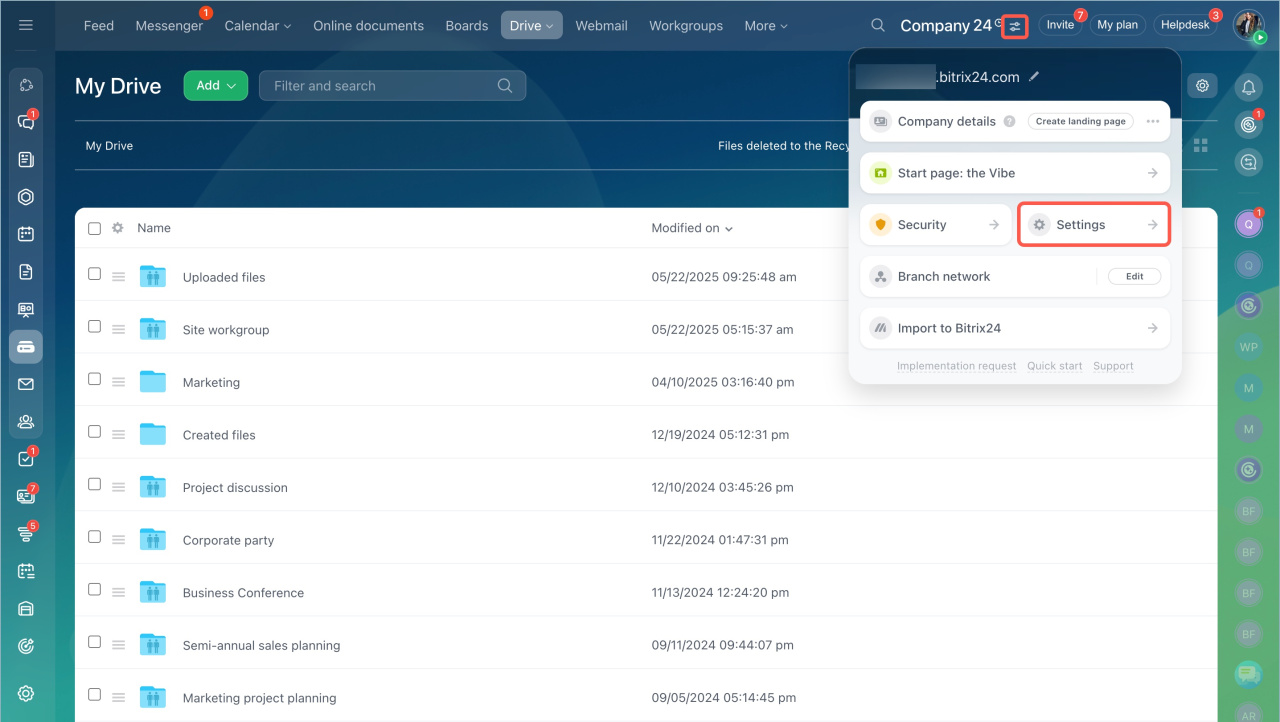
- Go to the account settings.
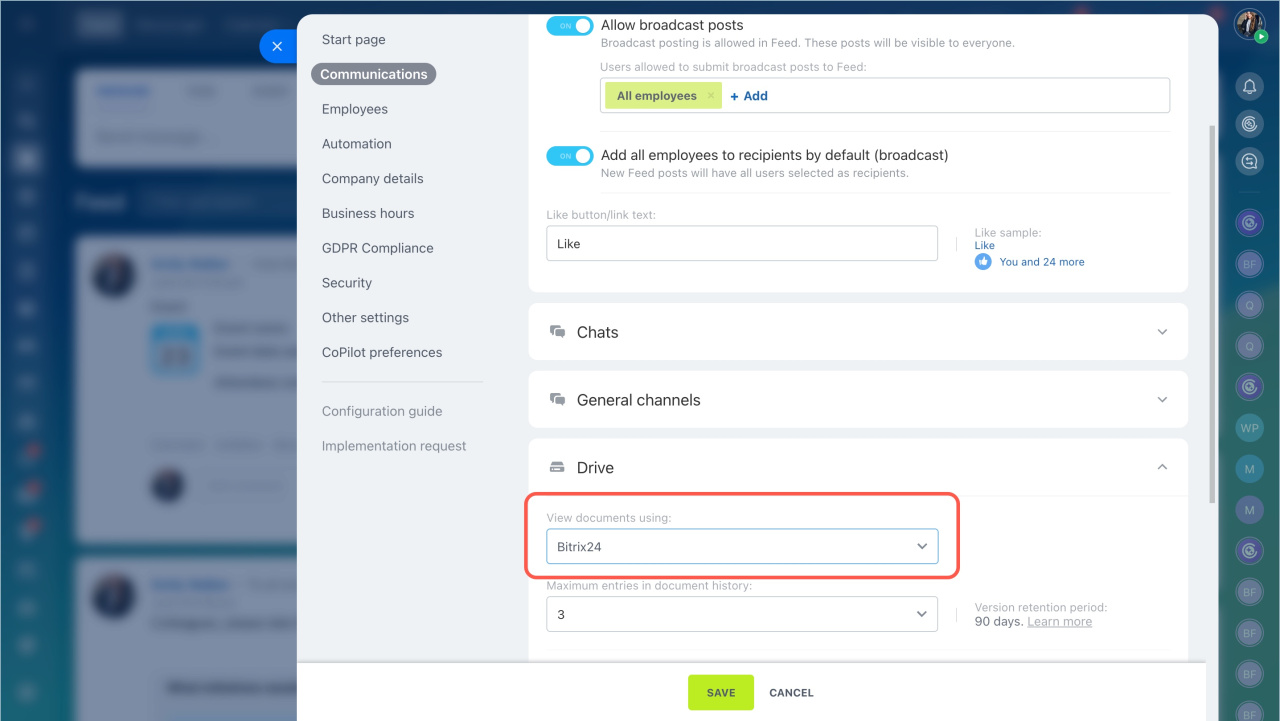
- Open the Communications tab and go to Drive.
- In the View documents using field, select Bitrix24.
- Save the changes.
Preview mode features
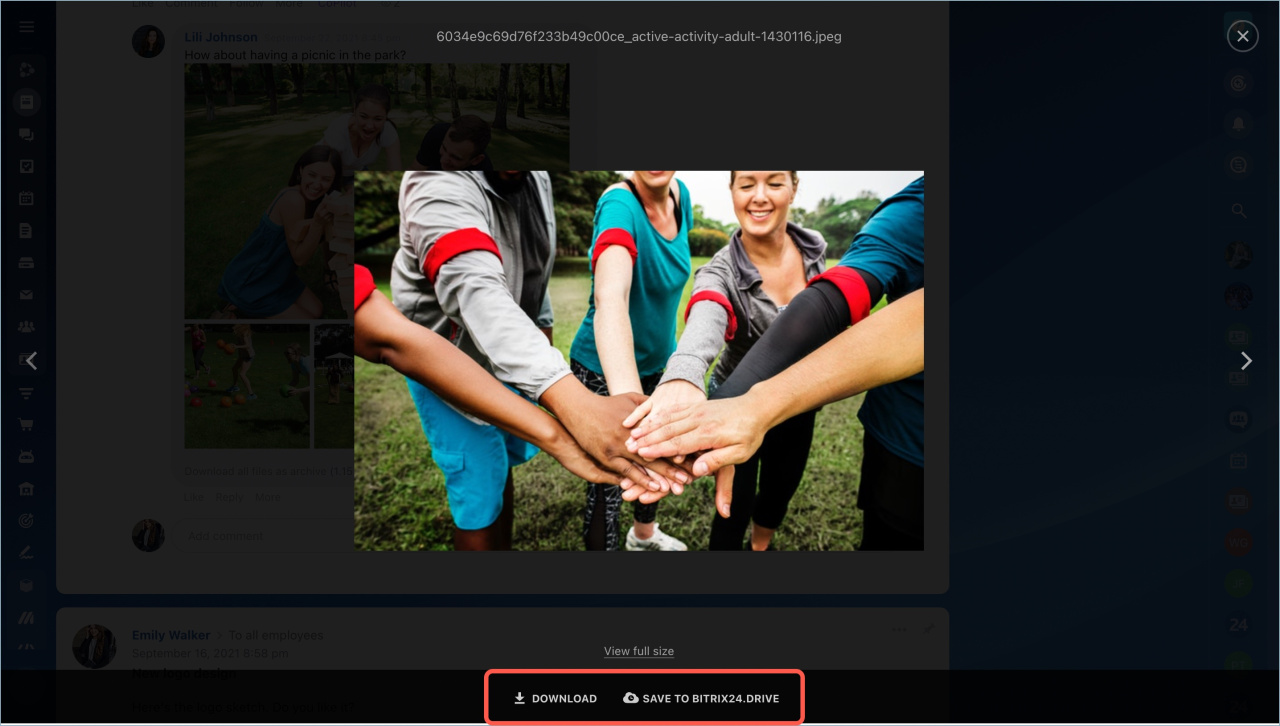
In preview mode, you can download files to your computer or save them to Bitrix24 Drive in the Stored files folder.
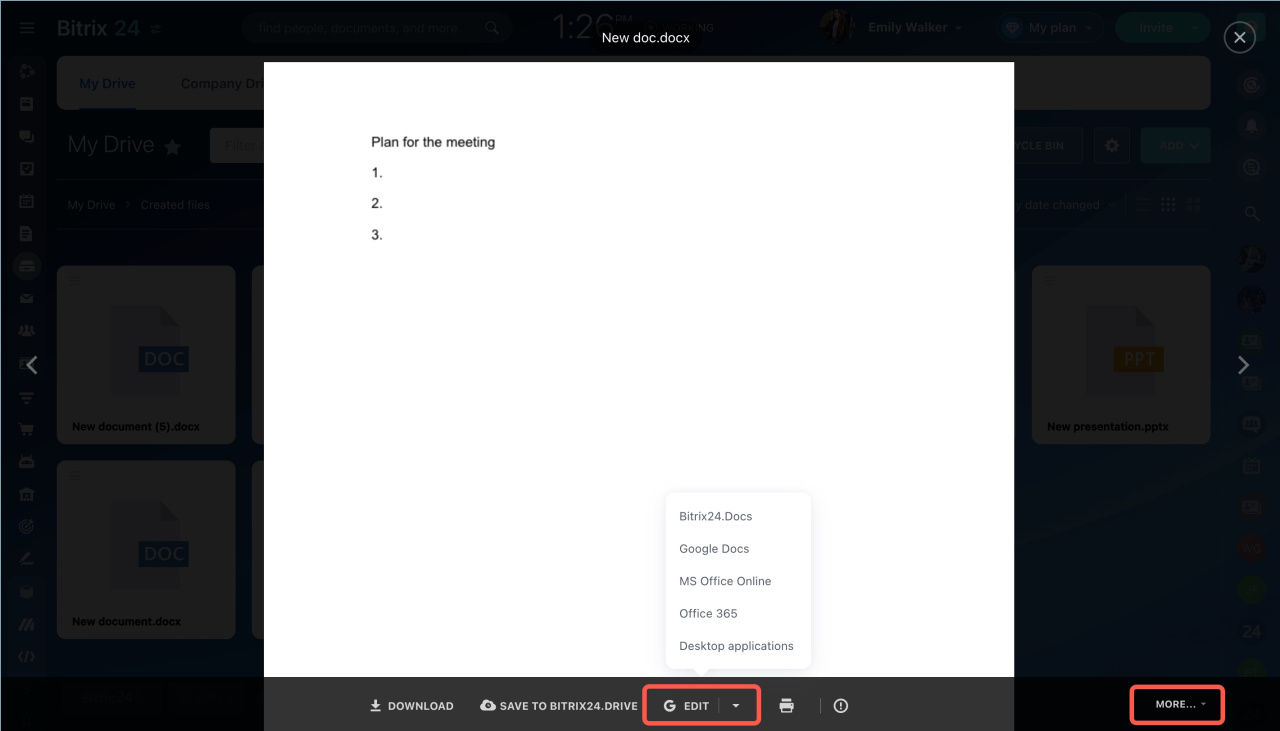
You can upload and view videos in any format. Bitrix24 automatically converts video files to MP4. To edit a document, click Edit or More.
Possible errors
File conversion errors can happen for different reasons. Try these solutions.
Reason. Internet connection issue.
Solution. Check your network connection.
Reason. The file has an error.
Solution. Open the file on your computer. If it does not open locally, Bitrix24 cannot convert it.
Reason. The license key is not activated in Bitrix24 On-Premise.
Solution. Contact your administrator to check whether the key is active.
Reason. The file exceeds the conversion size limit.
Solution. Make sure the file size is within the limit for your Bitrix24 plan.
If the issue continues, contact Bitrix24 Support and attach a copy of the file.
File conversion limits
- Up to 2,000 files per day.
- 10 videos every five minutes.
- 100 file previews every five minutes.
- Video files sent within five minutes must not exceed 3 GB total.
- One document must not exceed 100 MB.
- No more than 300 documents per hour in CRM.
Check the limits for your Bitrix24 plan.
In brief:
- You can preview files in the same tab where you are working.
- In preview mode, you can download files to your computer or save them to Drive.
- All files are saved to the employee’s personal Drive.
- You can edit text files while viewing them.