
You can attach files from external storage, such as Google Drive, Office 365, and Dropbox. You do not need to upload the files first. Bitrix24 saves attached files to the Uploaded files folder on your personal drive.
To attach a file to a task:
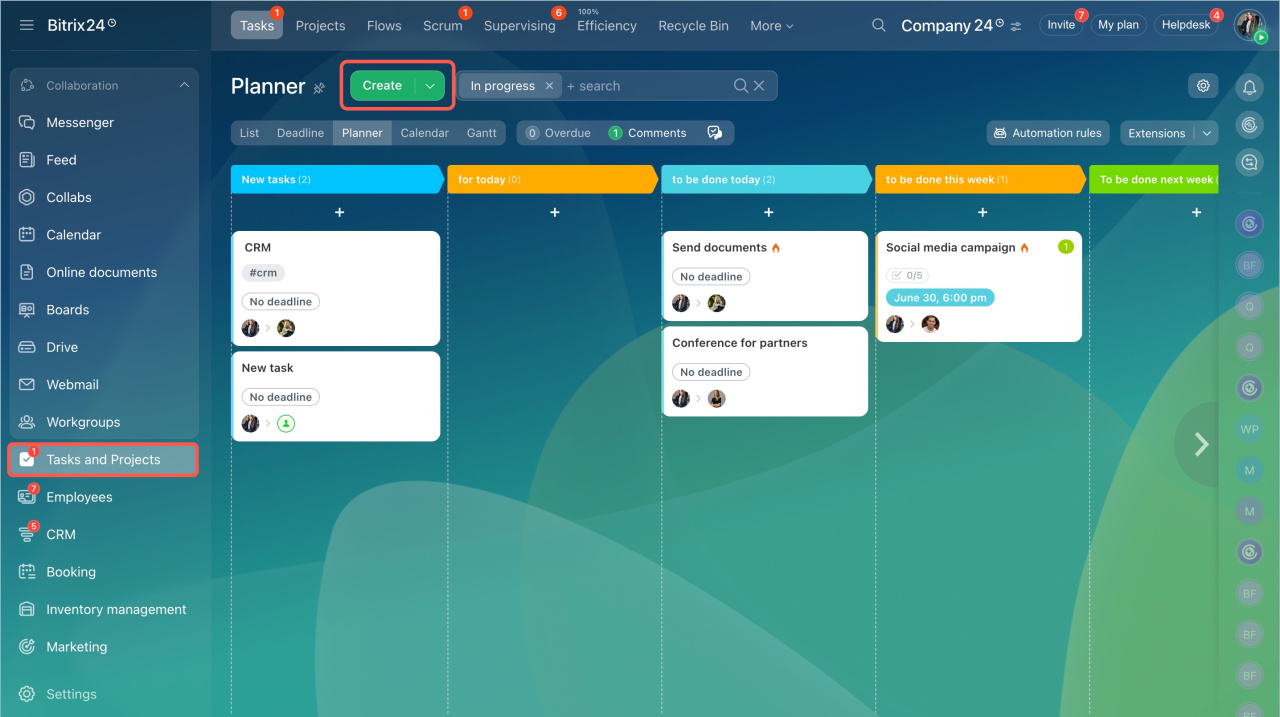
- Go to Tasks and Projects.
- Click Create.
- Add a file from your computer or Bitrix24 Drive.
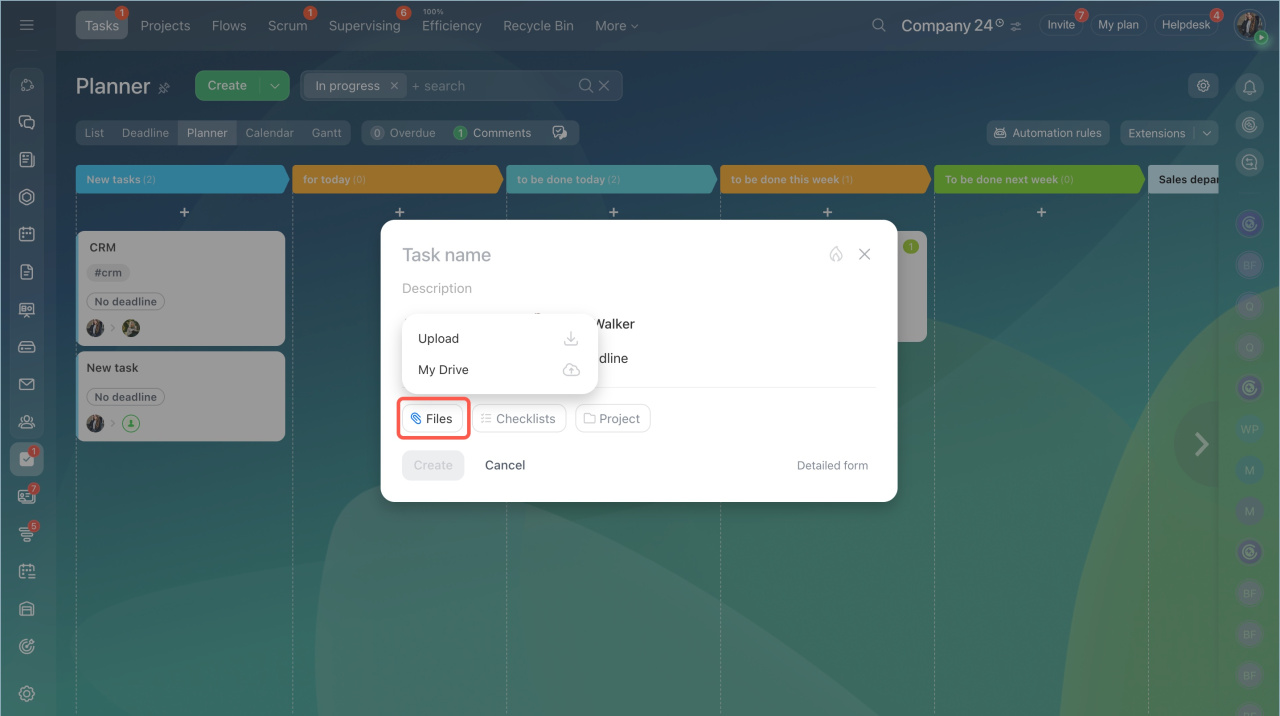
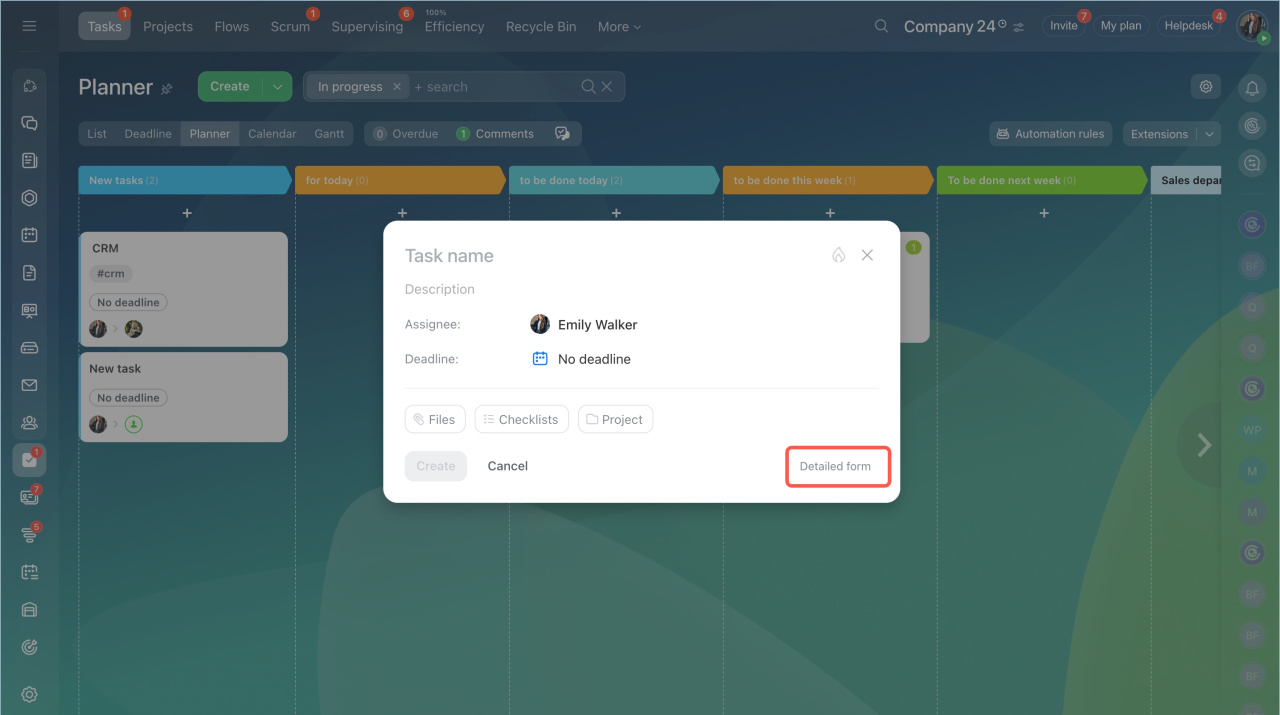
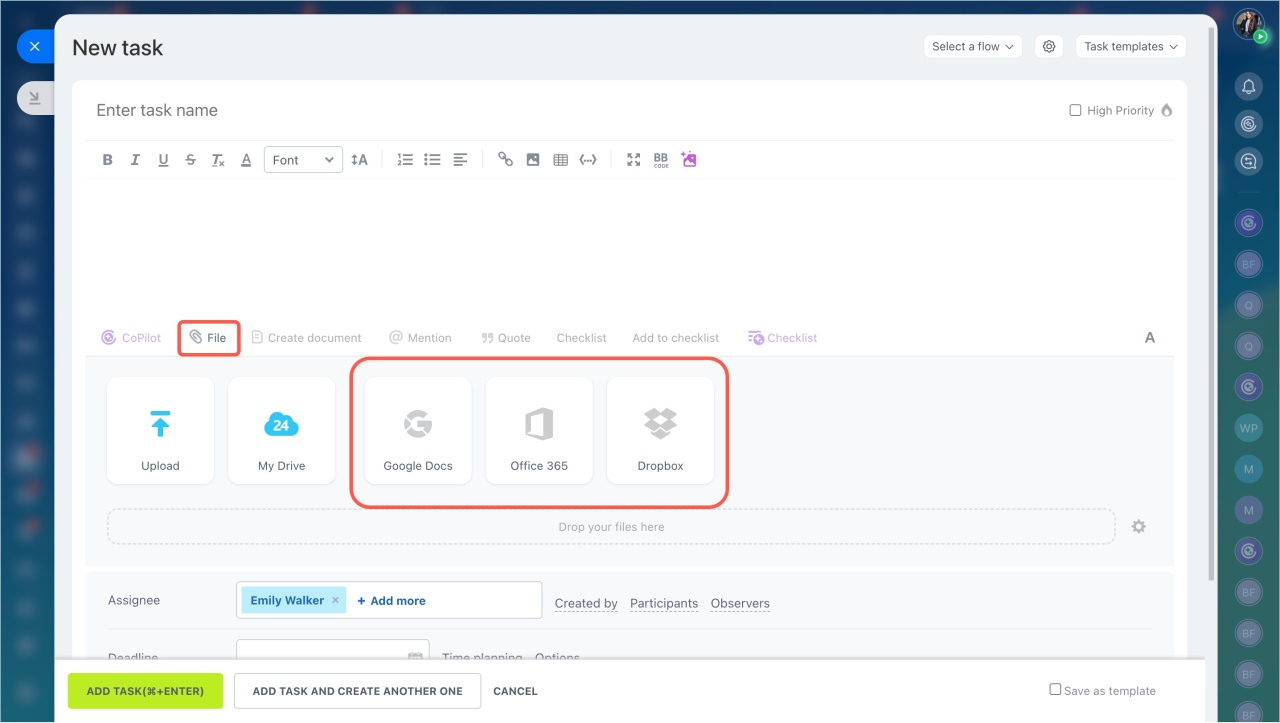
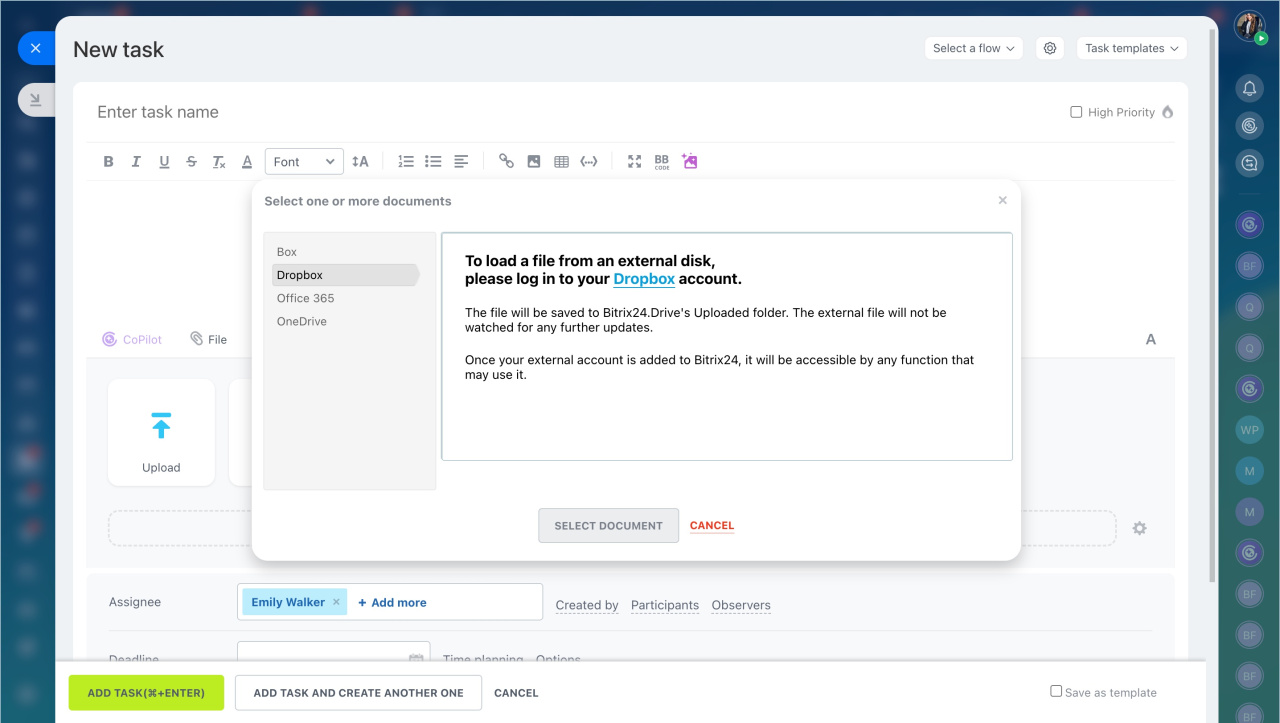
To attach a file from external storage, open the detailed task form. Then select Google Docs, Office 365, or Dropbox.
- Select the storage service.
- Click the service name and sign in to your account.
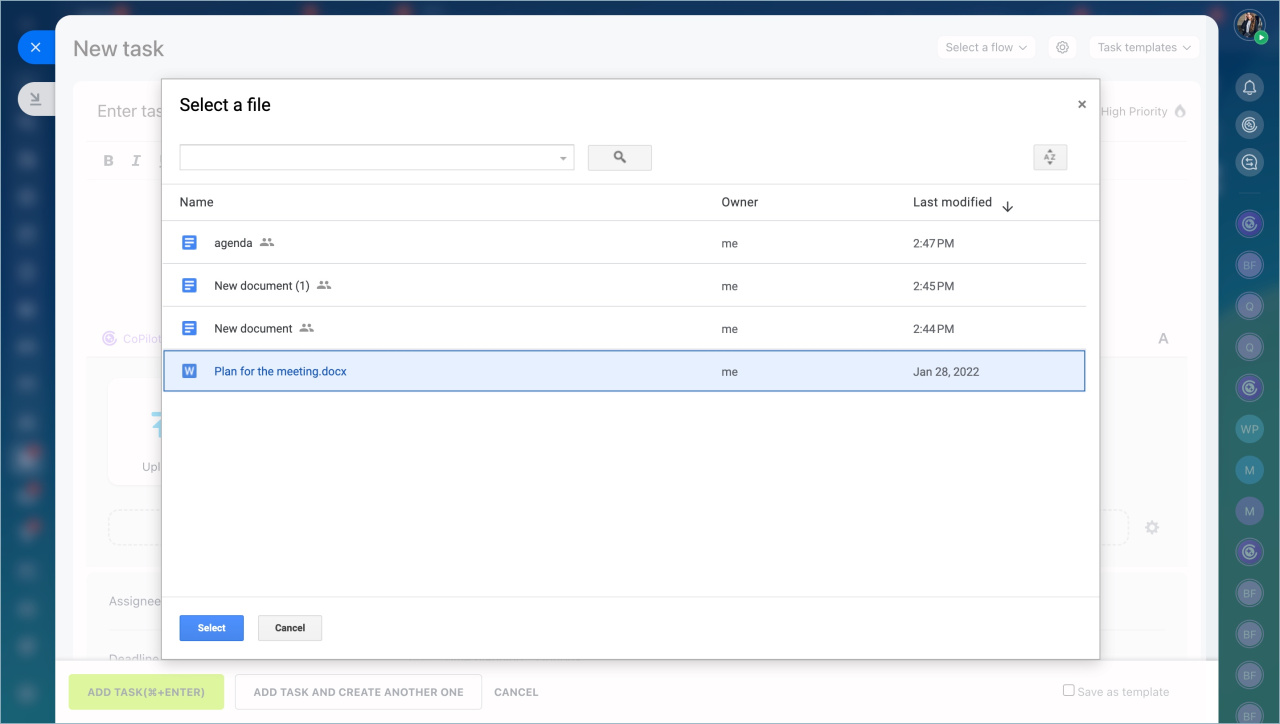
- Choose a file and click Select.
When you update a document in external storage, update it in Bitrix24 as well.
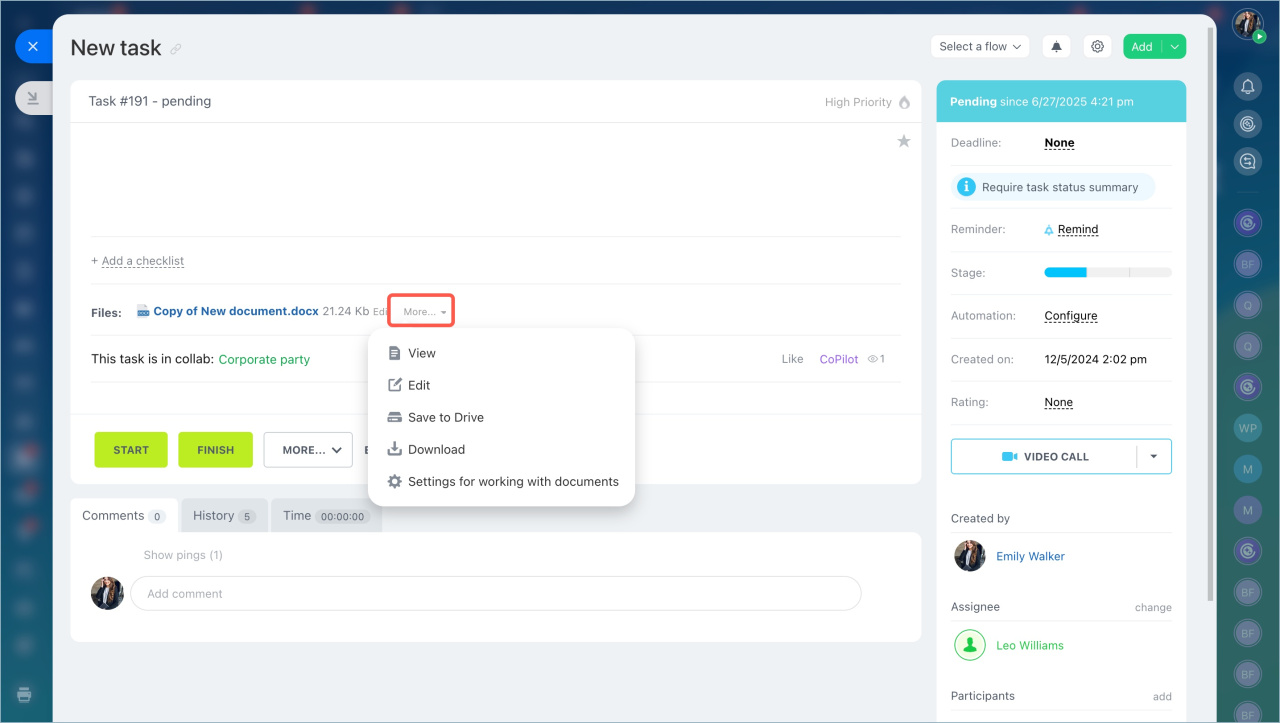
- Open the task form.
- Click More next to the file name.
- Select an action from the menu.
In brief
- You can work with files stored in external storage, such as Box, Dropbox, Google Drive, Office 365, OneDrive, and Yandex Drive.
- Bitrix24 saves files to your personal drive.
- Sign in to the cloud storage service before you attach a file.
- Select the document and click the button. The file will be added to the task.