
Bitrix24 Boards is a collaborative workspace. On one board, your team can collect ideas, discuss layouts, plan presentations, and visualize processes without switching to third-party tools.
Bitrix24 saves every change automatically. Everyone sees updates in real time and can leave comments right on the board. You do not need to download and send files. The latest board version is always available.
In this article:
Open a board
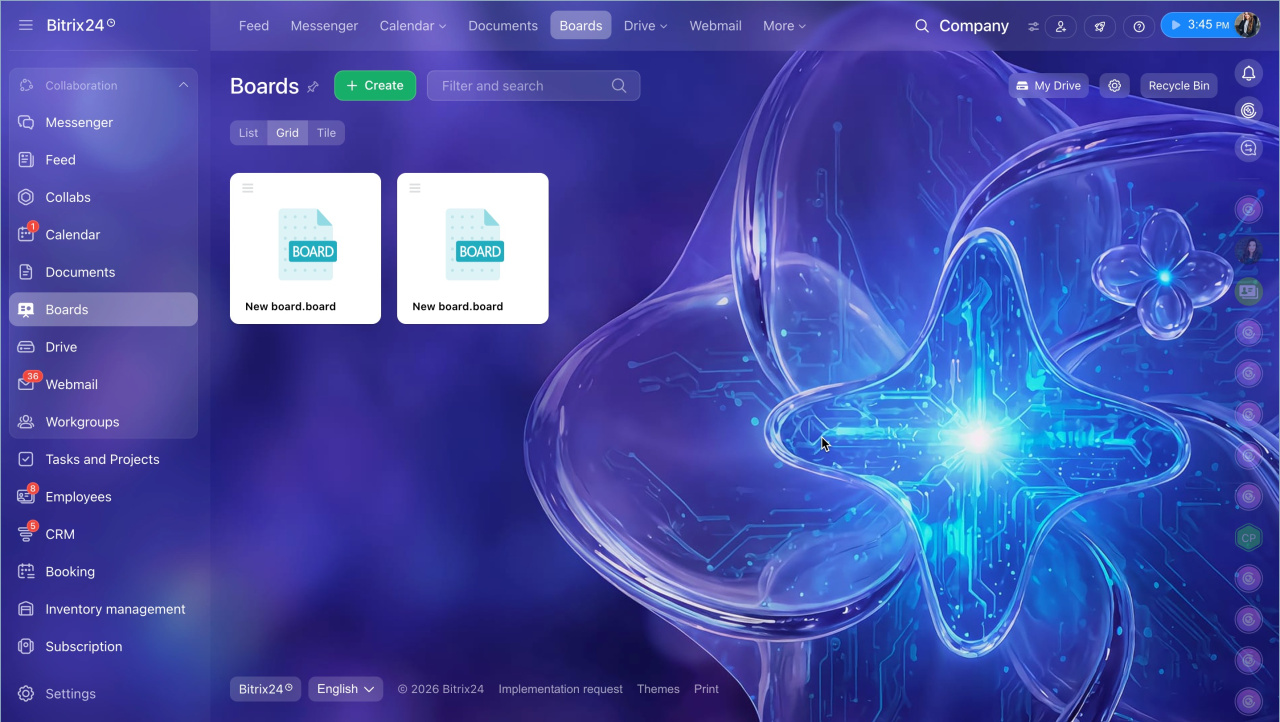
The Boards section shows all boards available to you. Here, you can open, copy, or create boards.
Bitrix24 Boards
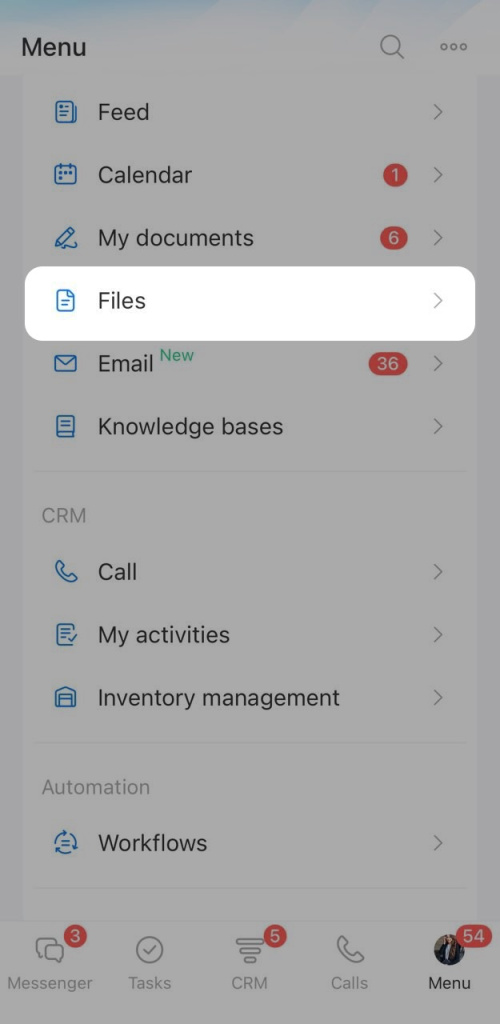
In the mobile app, you can work with boards created in Bitrix24 on a computer. These can be your own boards or shared.
- Tap Menu in the bottom-right corner > Files.
- Open or copy the board.
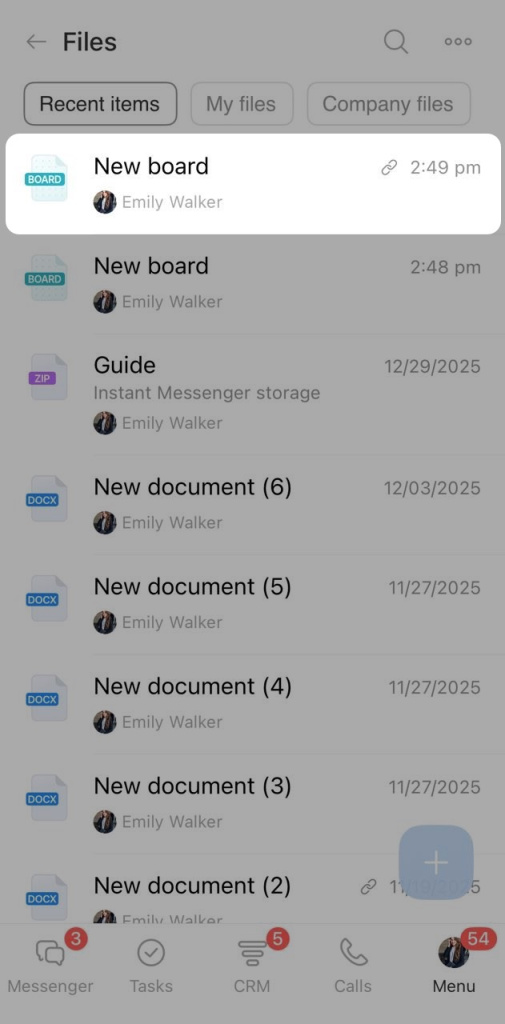
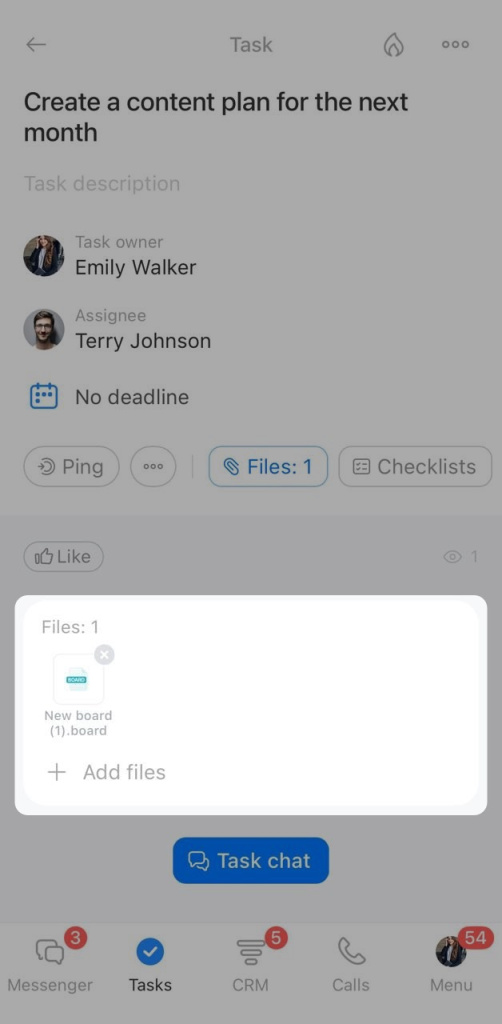
You can also find and open a board from the item it is attached to: a task, a chat, or a Feed post.
Configure board access
Team members need access to collaborate on a board. The board owner and employees with full access can set this up in Bitrix24 on a computer.
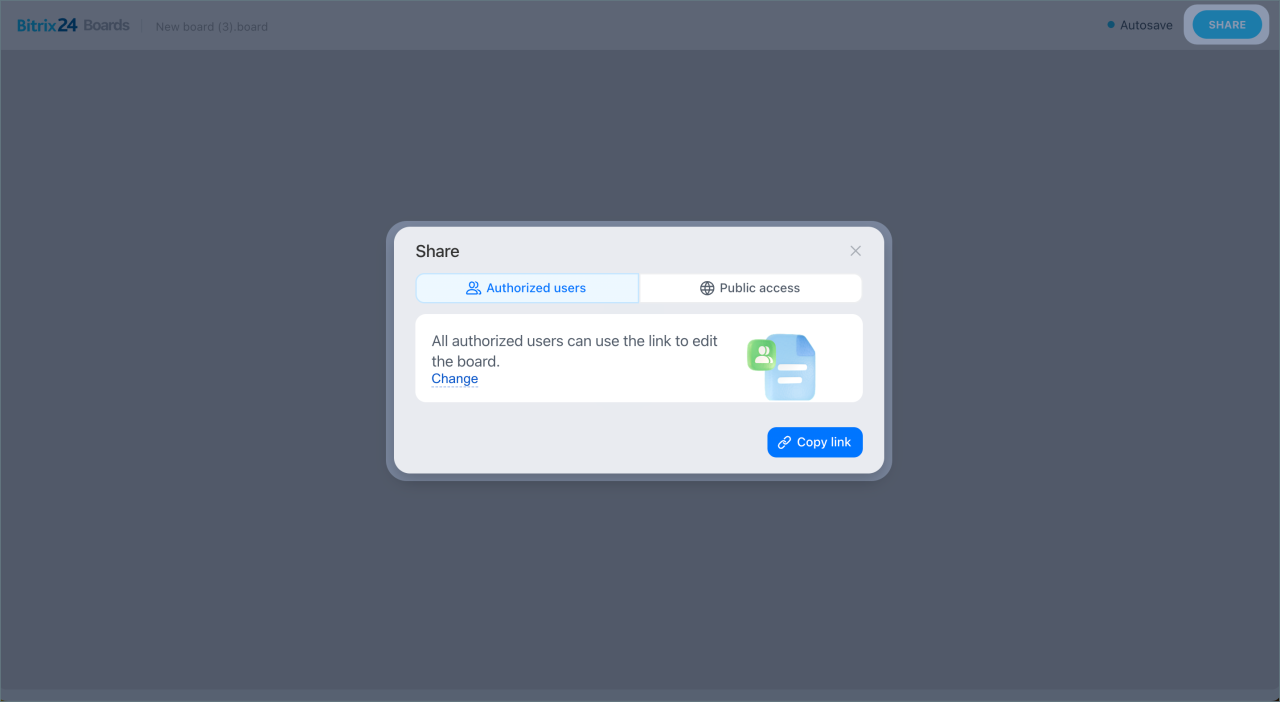
Click Share and choose one of these options:
- Authorized users
- Public access
Configure access to Bitrix24 Boards
Manage a board
The top and bottom panels contain board management tools. Use them to rename the board, change its appearance, adjust zoom, download the board, start a timer, and see what other participants are doing.
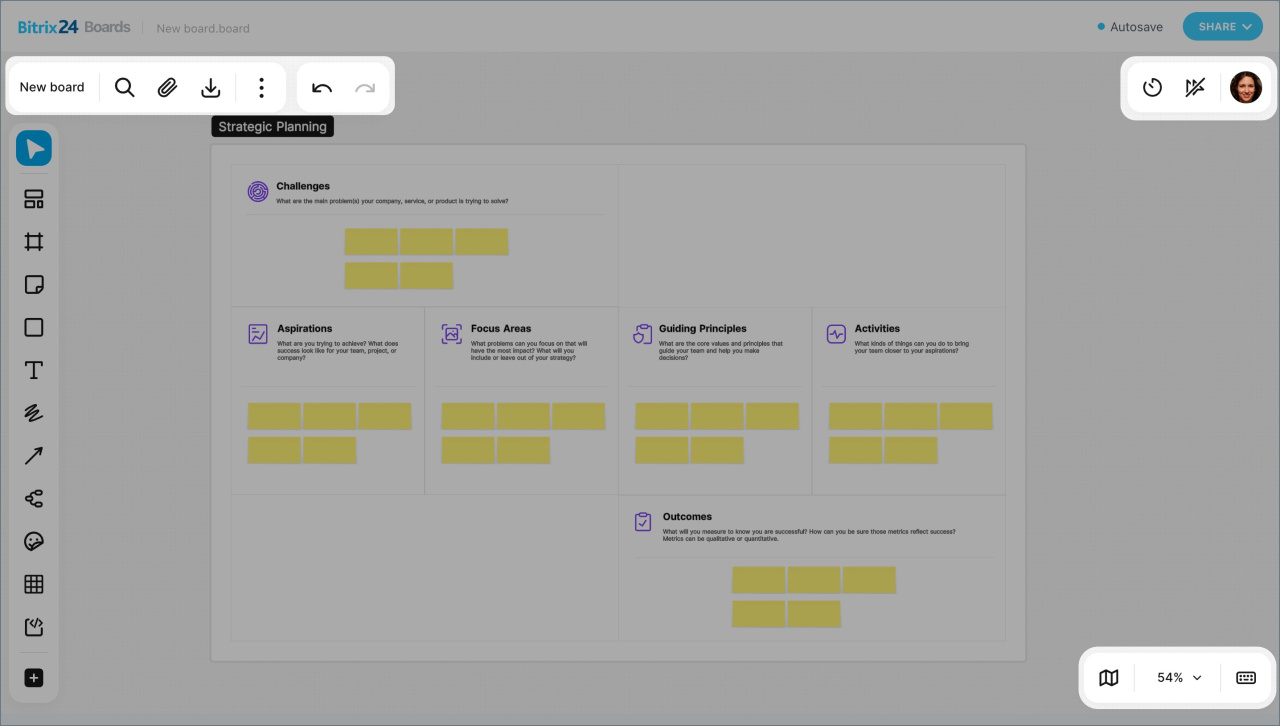
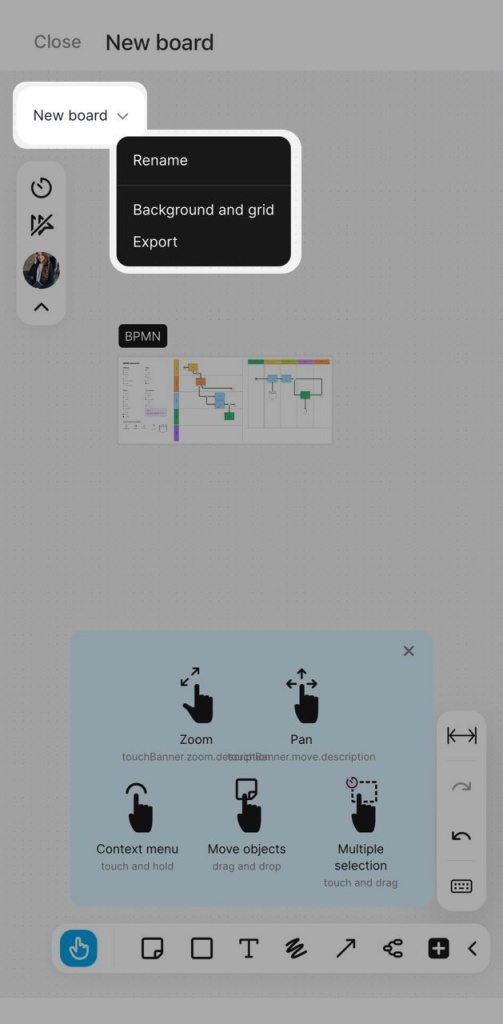
Name field. Click the board name to rename it for everyone working on the board.
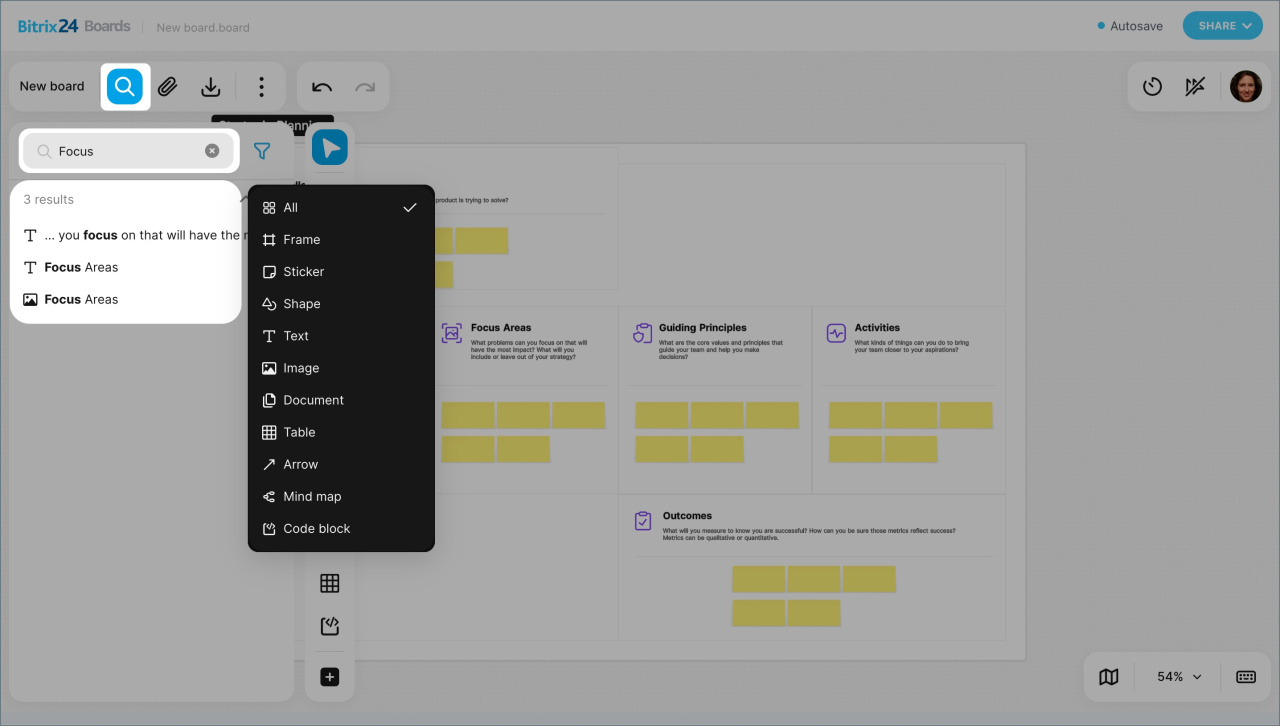
Search. Click the magnifying glass icon to find objects on the board by keyword or element type.
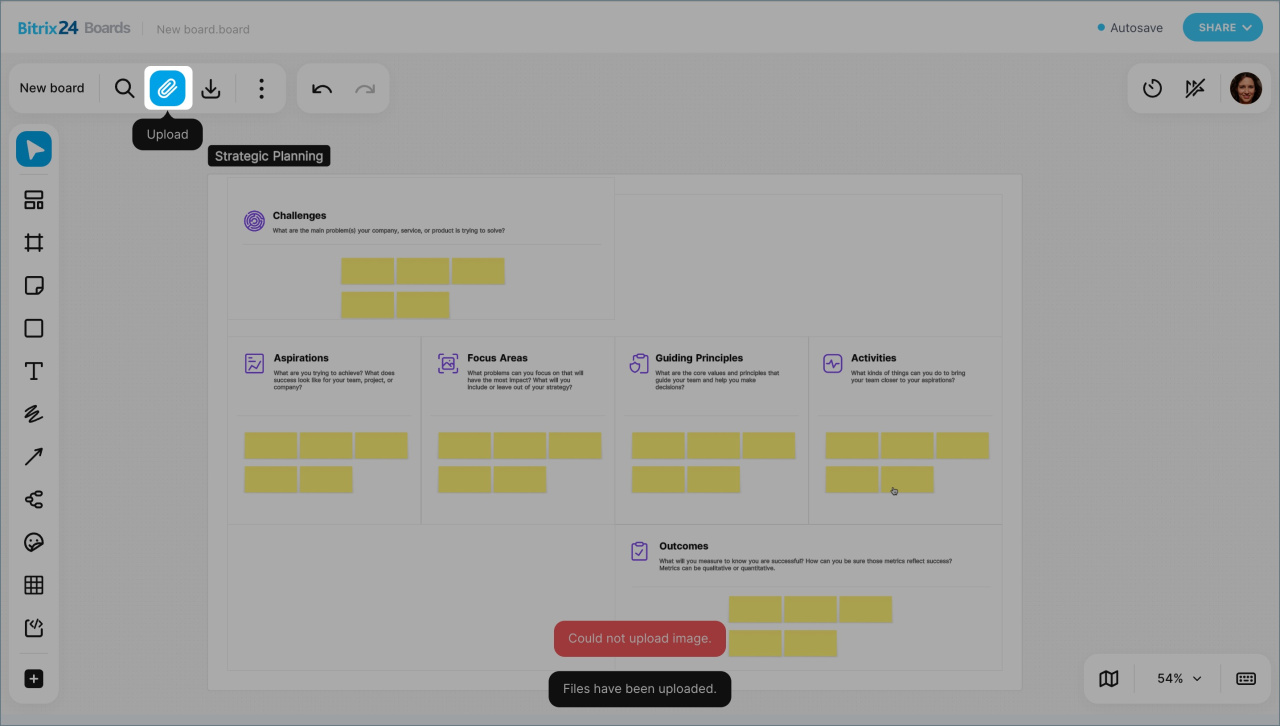
Upload. Click the paperclip icon to add files to the board in these formats:
- JPEG and PNG up to 20 MB, on computer and mobile.
- PDF, PPT/PPTX, DOC/DOCX, XLS/XLSX up to 35 MB and up to 50 pages, on computer only.
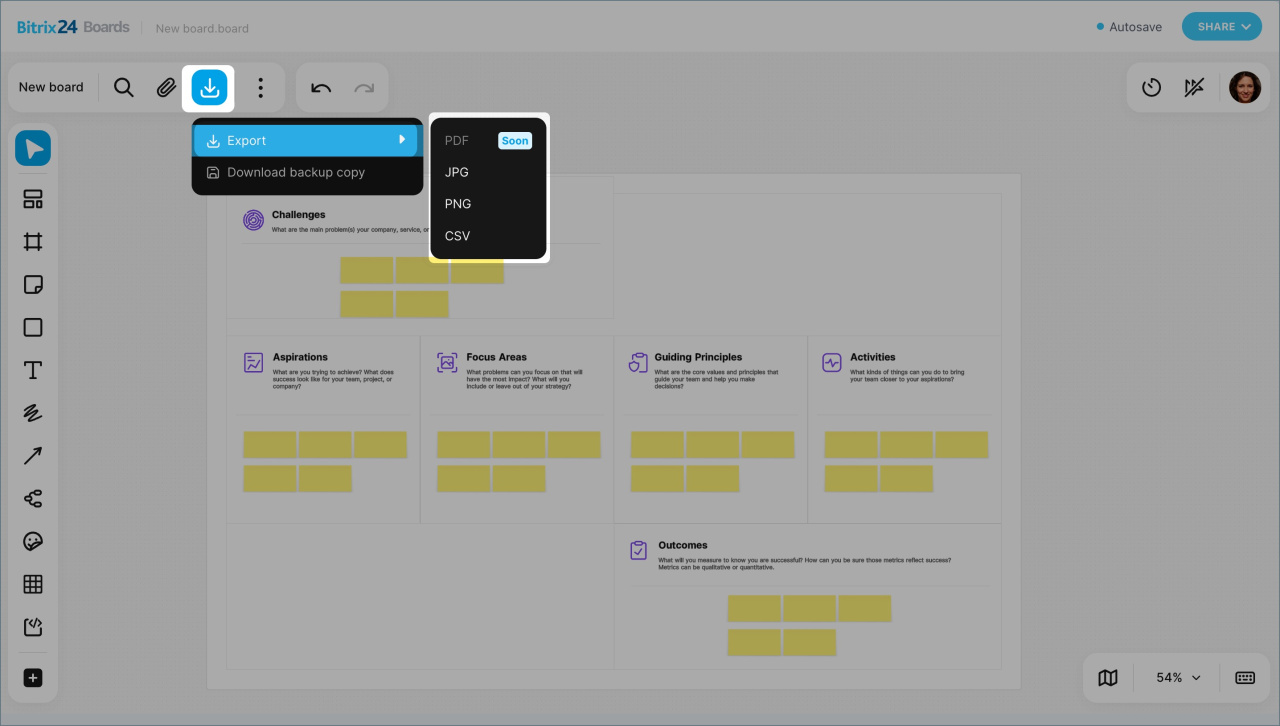
Export. Click the download icon to save the board to your computer in PDF, JPEG, PNG, or CSV format. You can choose the background, board area, file format, and resolution.
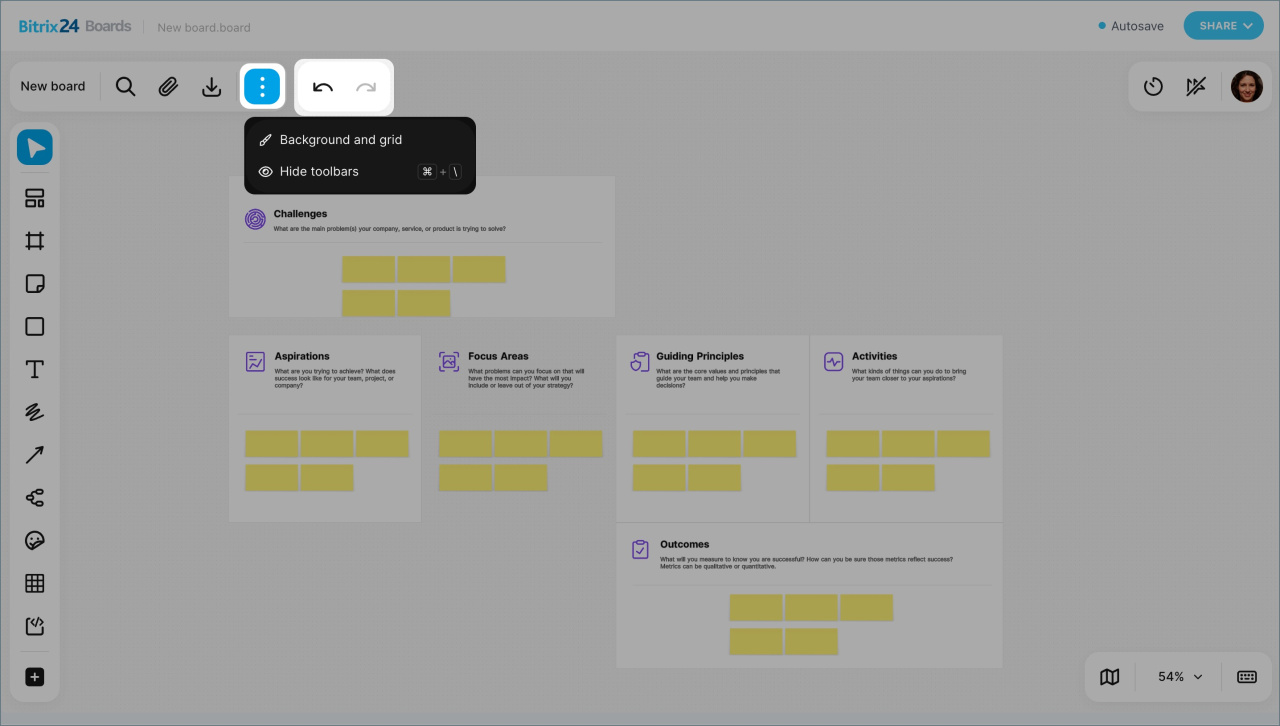
More options. Click the three-dot icon to open additional settings:
- Background and grid: choose a background color and grid type: dots, lines, or no grid.
- Collapse panels: hide tools to free up screen space.
Undo and redo. Use the arrow icons to undo your last action or redo it.
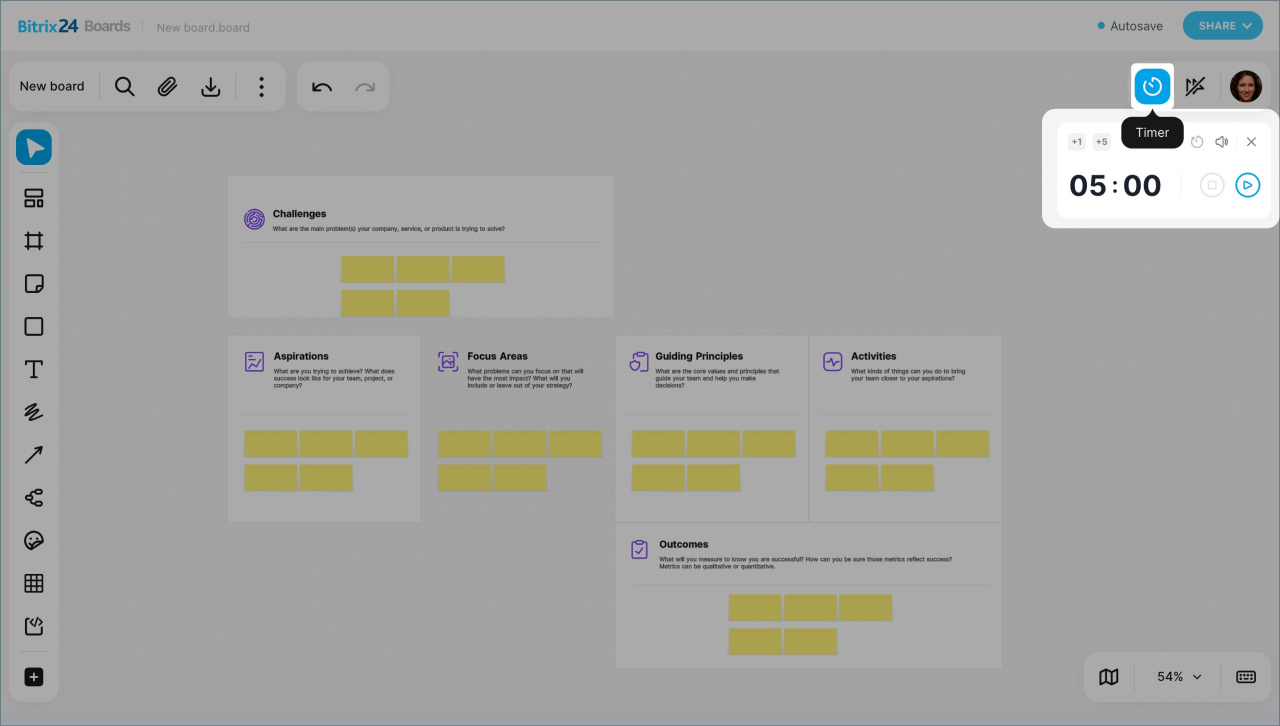
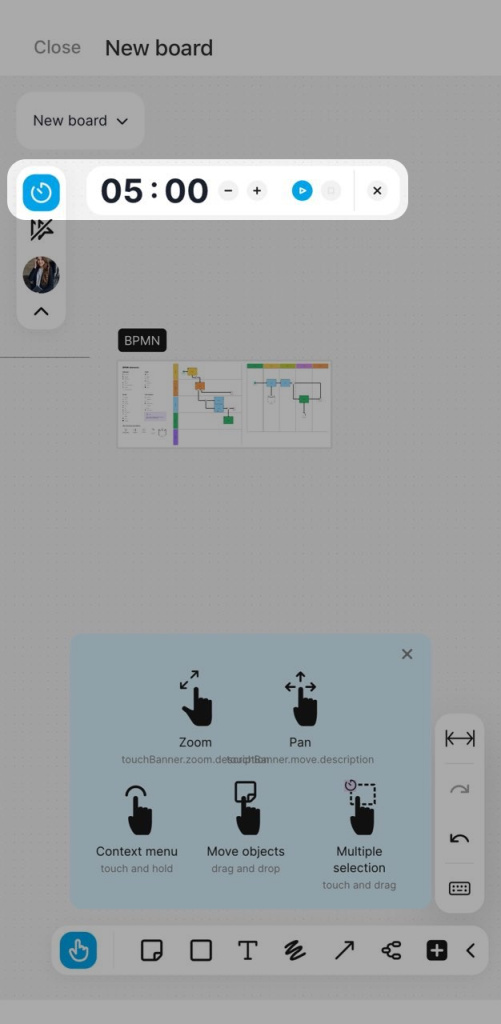
Timer helps your team stay on schedule and focused. For example, you can use it during a presentation or brainstorming session. Everyone currently on the board can see the running timer.
To start the timer, click the clock icon in the top-right corner — a panel opens next to it. From there, you can:
- Add 1 or 5 minutes
- Restart the timer
- Turn the sound on or off
- Hide the timer on your screen
- Check the remaining time
- Pause or stop the timer.
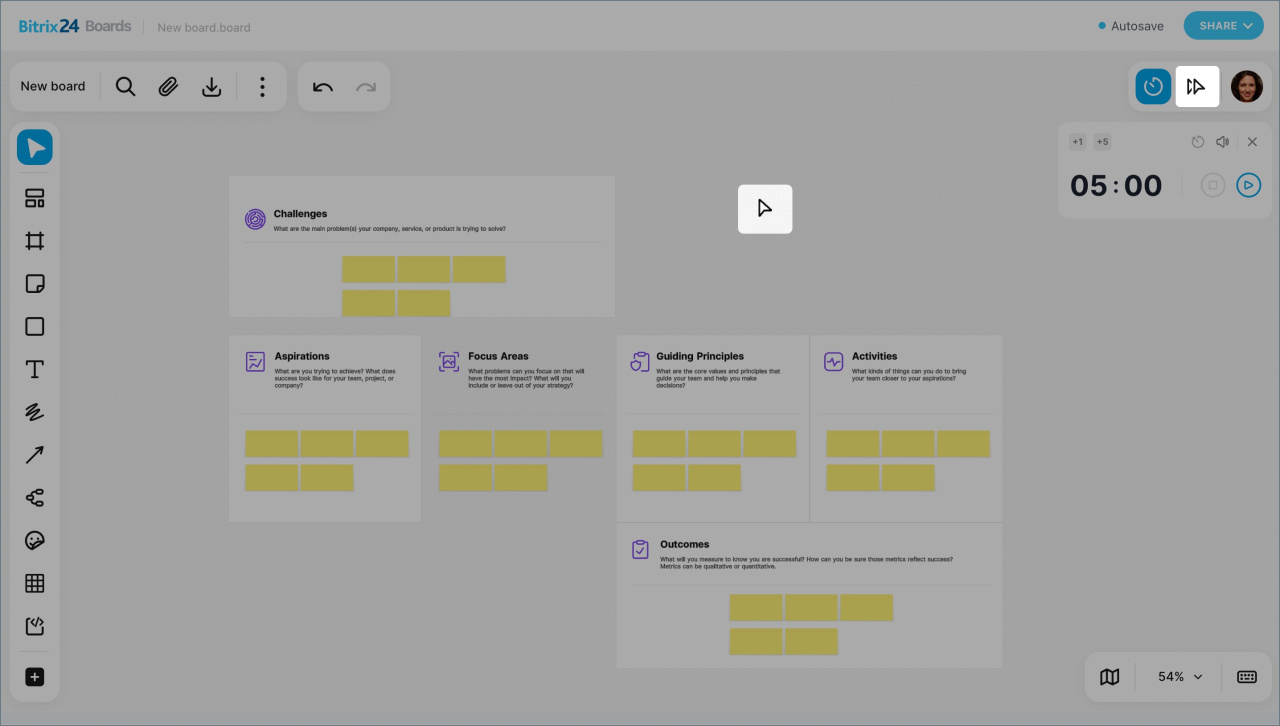
Show or hide cursors. Click the double-pointer icon to choose whether you want to see other participants' cursors on your screen. For example:
- Turn them on during brainstorming to see what your teammates are pointing at
- Turn them off during a presentation to avoid distractions.
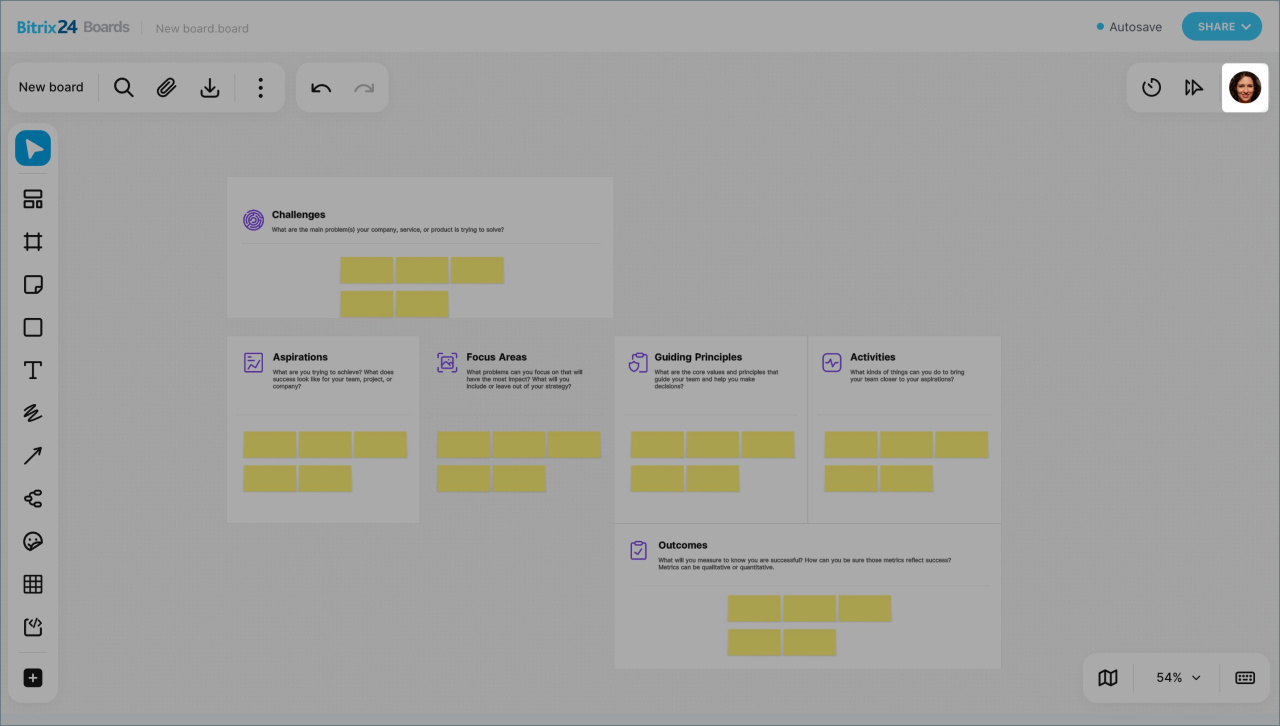
User icons show who is currently working on the board with you.
Click the icon with the number of users to open the participant list. Next to a user's name, click the three-dot icon to choose an action:
- Follow: your view moves to the area where that user is working and adjusts the zoom automatically.
- Pull to me: move one user's view or all participants' views to your area and adjust their zoom.
Hover over a user icon to see the person's name and turn following on or off.
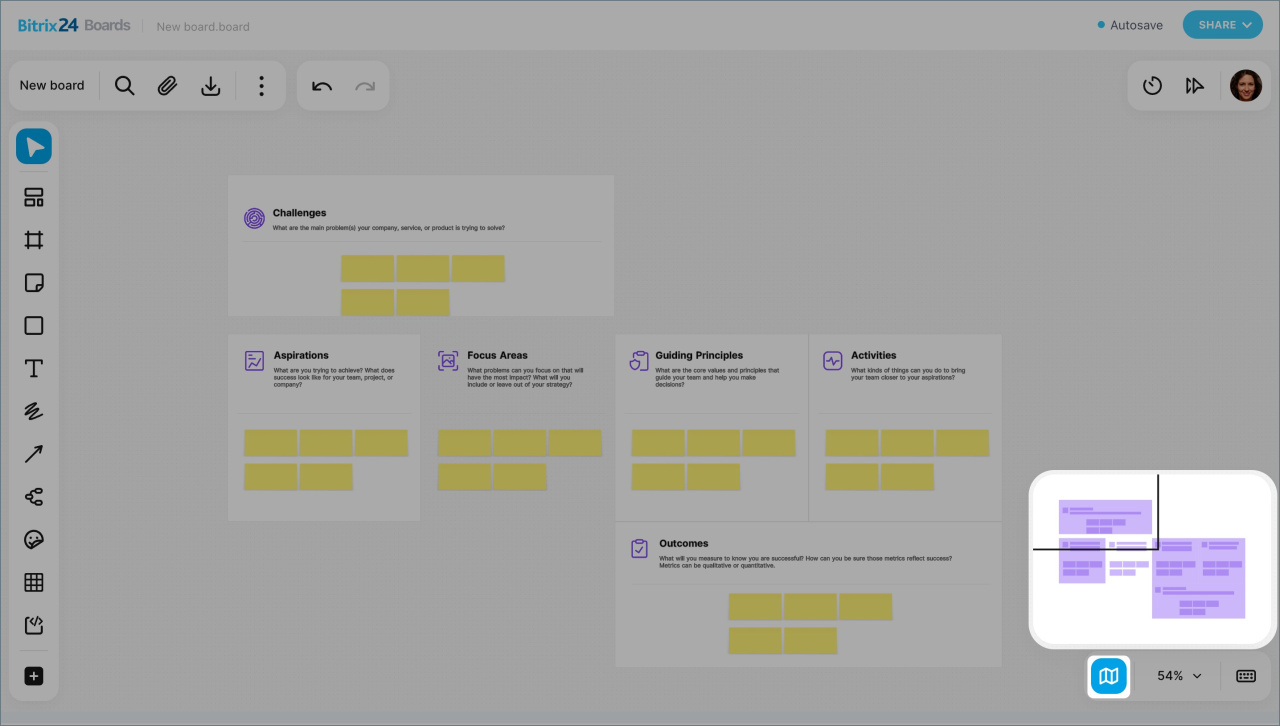
Mini-map is useful on large boards. Click the map icon to open a scaled view of the board and jump to any area quickly.
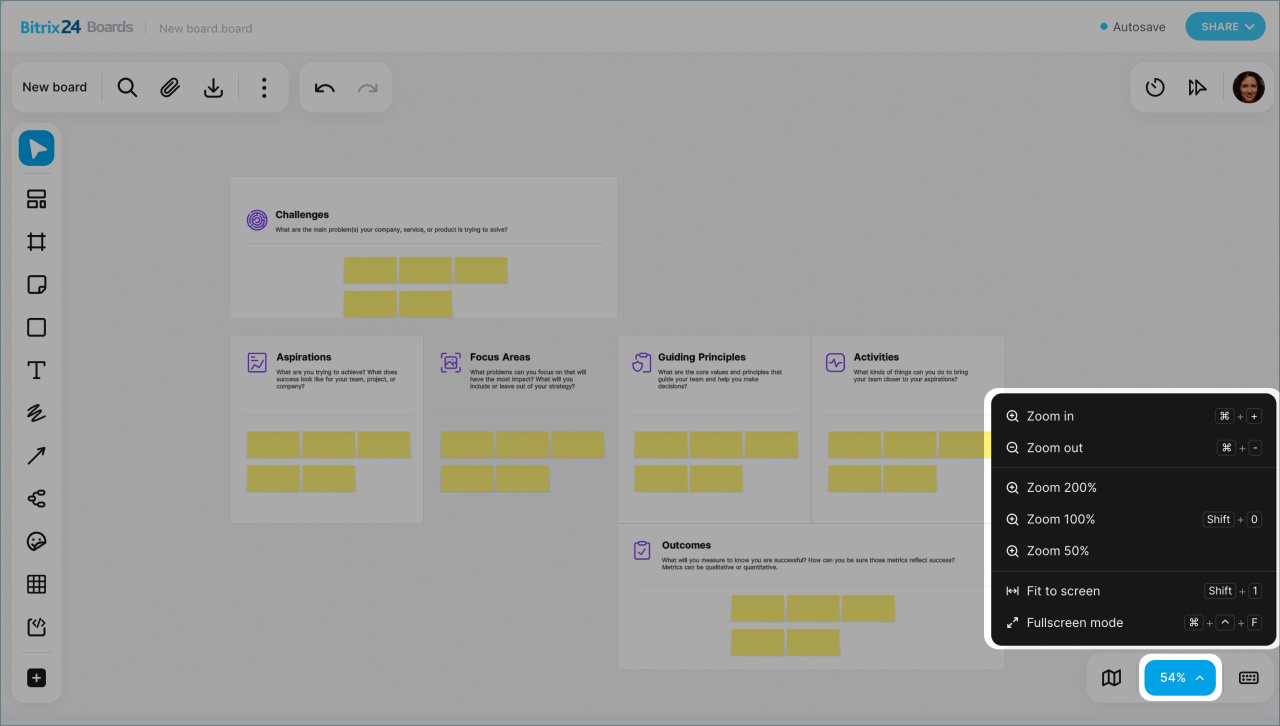
Zoom changes with the mouse wheel. On large boards, zoom levels below 1% are available. To switch display modes quickly, click the current zoom value and choose one of these options: 200%, 100%, 50%, Fit to width, or Full screen.
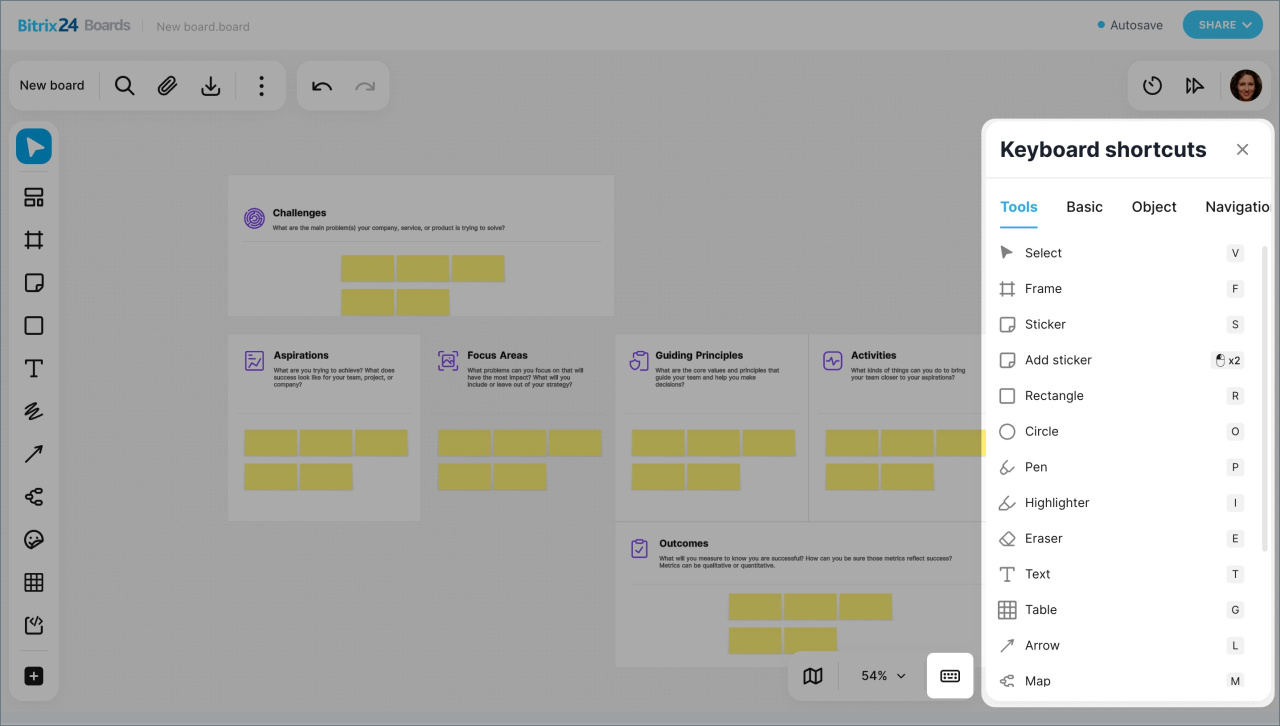
Keyboard shortcuts make it easier to work on the board. Click the keyboard icon to view all shortcuts.
In the mobile app, you can manage the board the same way as in Bitrix24 on desktop. For example, you can rename it, change the design, download it, or start a timer.
Use the toolbar
The toolbar on the left side of the screen includes tools for working on the board. Use them to create flowcharts, draw, add text, align elements, highlight important details, and more. To reorder tools, hold the left mouse button and drag a tool where you want it.
The active tool is highlighted.
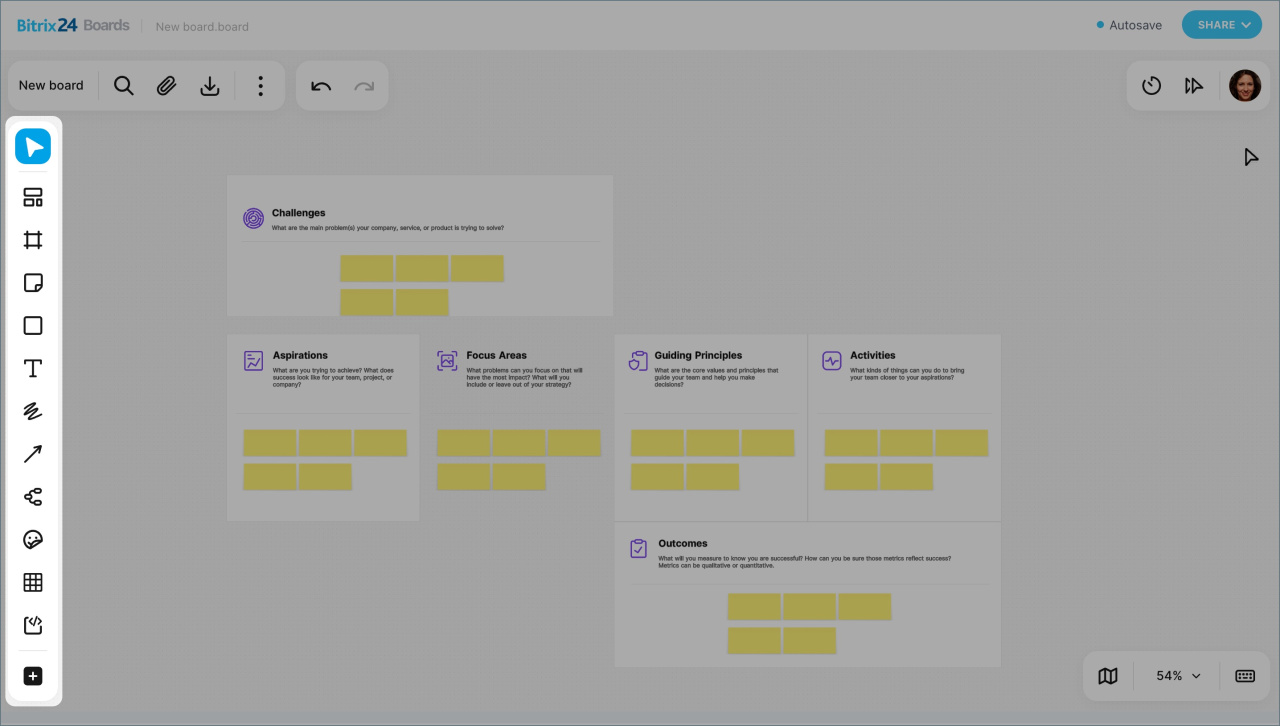
Edit. Click the cursor icon to select objects on the board. You can move elements and select them for editing.
Click the cursor icon again to switch to the Hand tool. Use it to move around the board and navigate to different areas. This is helpful when the board has many elements and you need to view another part of a diagram or image.
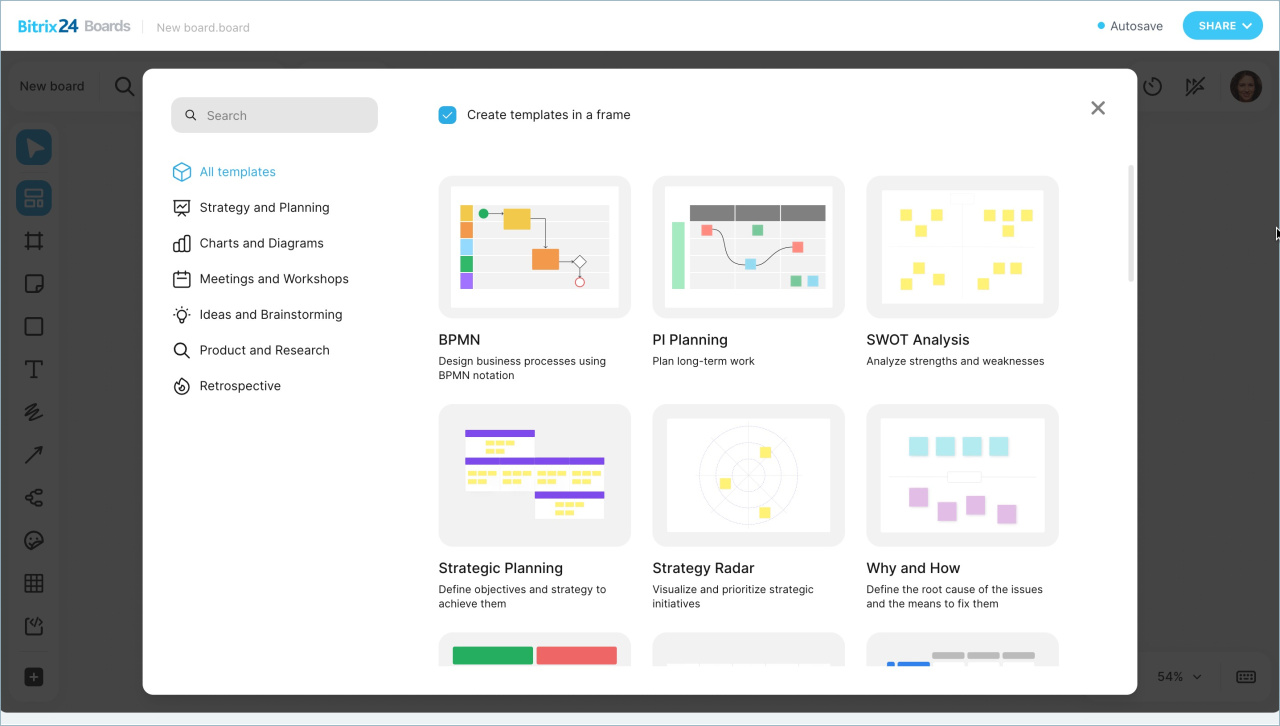
Templates. Click the layout icon and select a template to add a ready-made set of elements for plans, diagrams, analytics, and more.
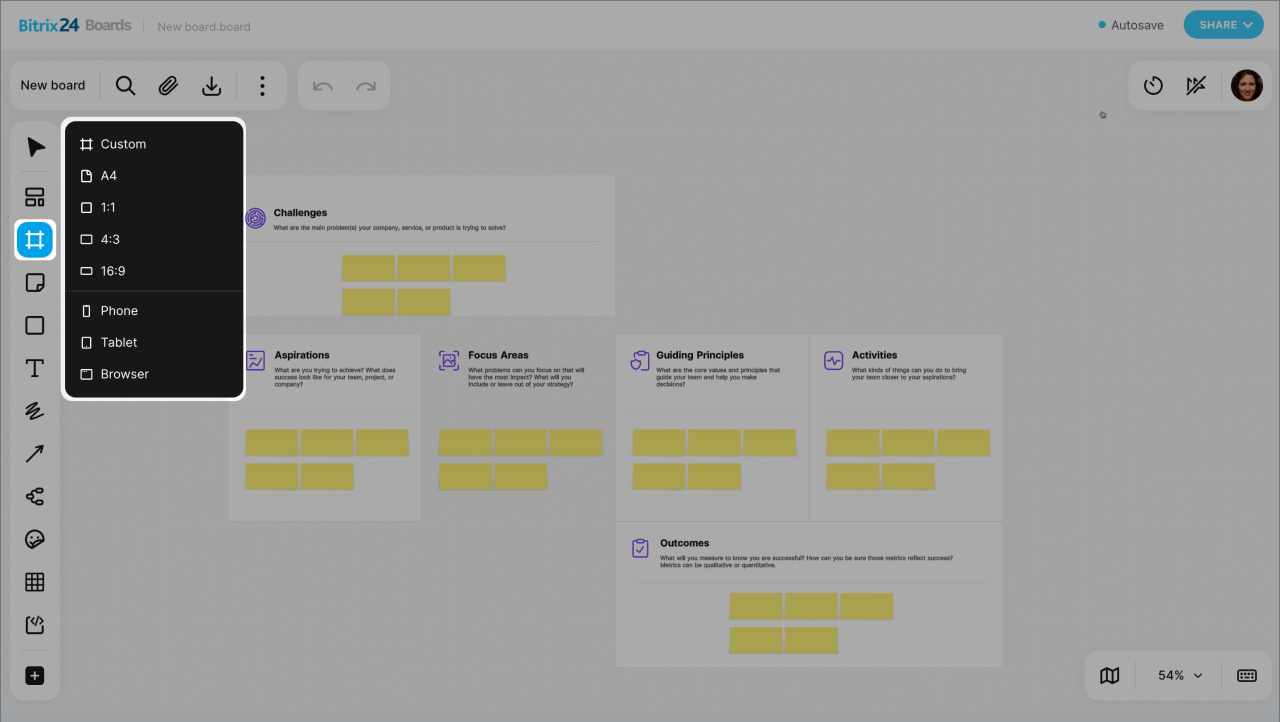
Frame. Click the grid icon to group several objects into one block. You can move and scale everything inside together. You can also align elements inside the frame and give the frame a name to make navigation easier.
For example, you can combine an image, text, and a button into a frame named Banner. Then you can quickly find and move the whole block instead of separate elements.
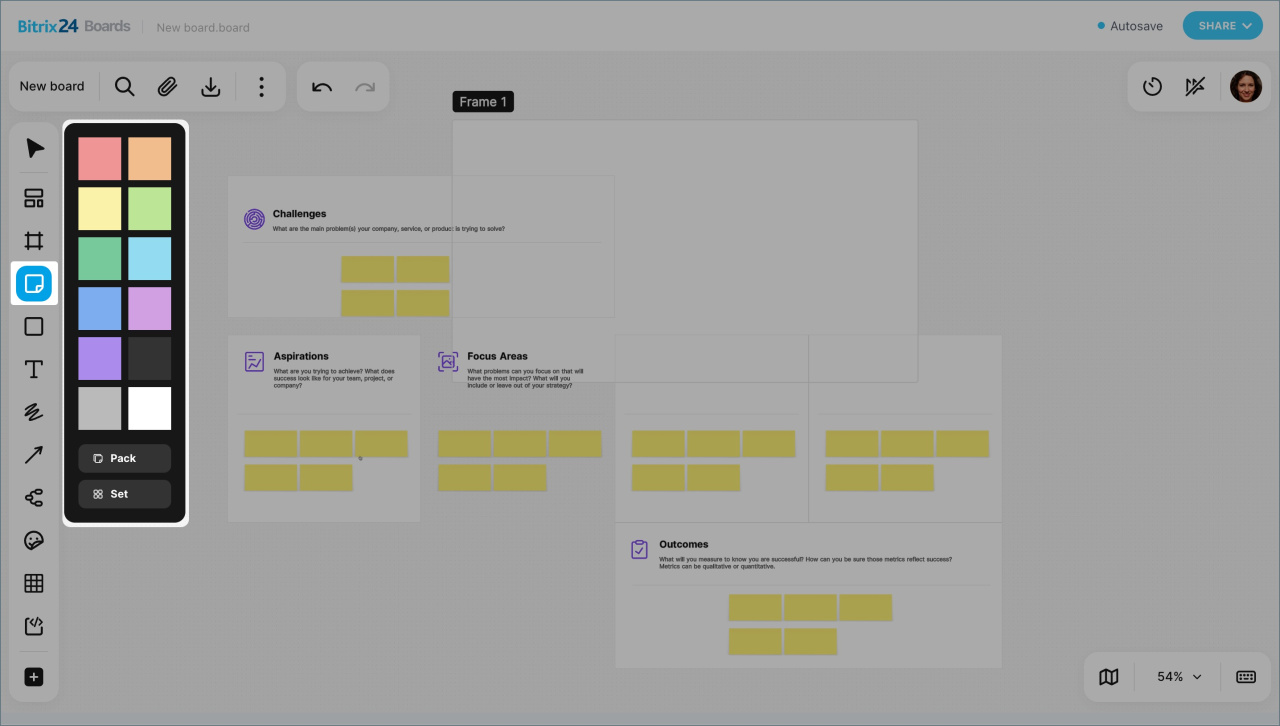
Sticker. Use them to leave feedback directly on the board. Place a sticker next to the element you want to discuss and enter a comment. Other team members will see the note on a bright background.
Click the sticker icon, then choose a color and a way to add stickers:
- Single sticker — useful when you move around the board and leave comments in different places.
- Sticker stack — adds an unlimited set of stickers. Use this when you need many notes in one area.
- Pack of nine stickers — lets you fill in stickers first and place them later.
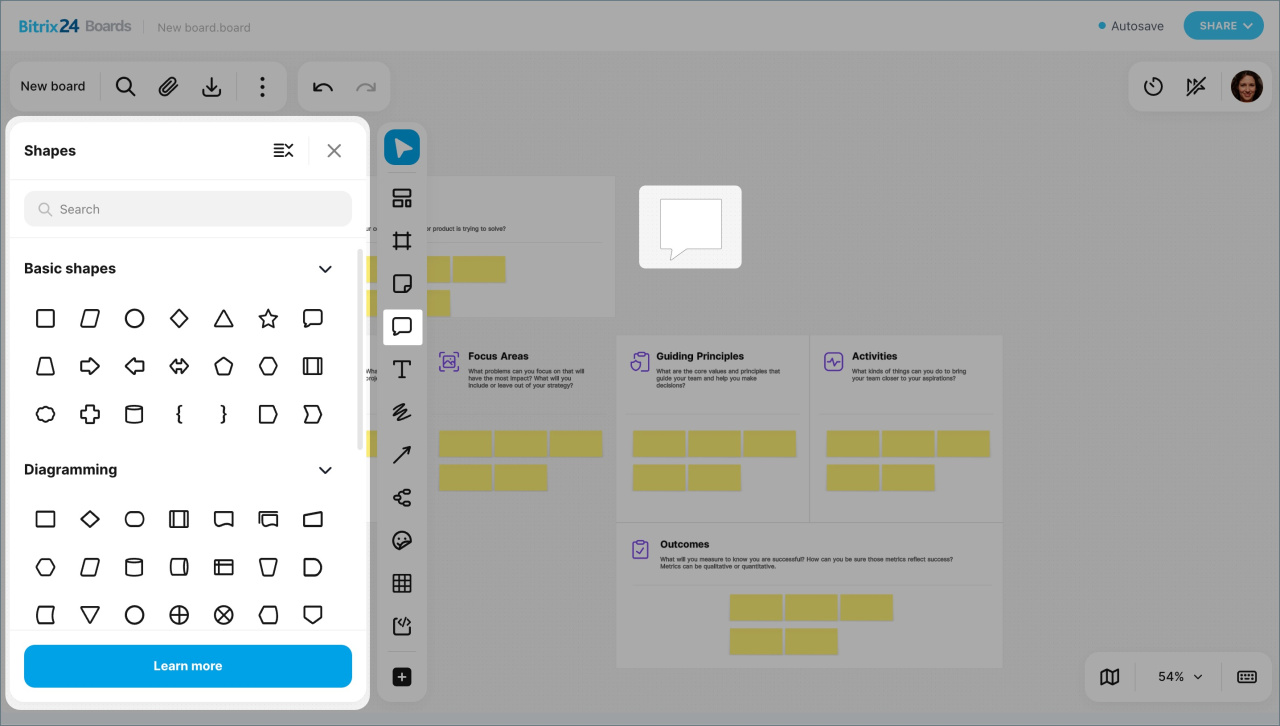
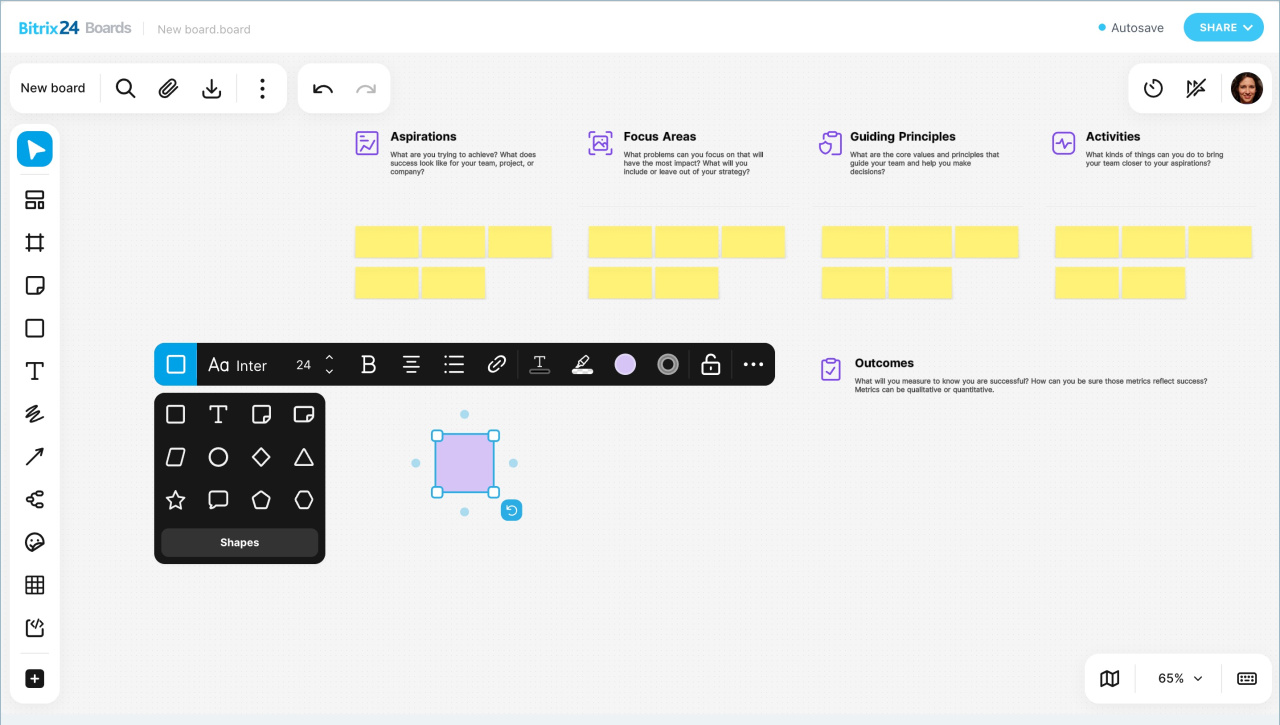
Shape. Use shapes to build flowcharts, for example to show project stages or steps in a guide. Click the shape icon, select a shape, add it to the board, and enter text.
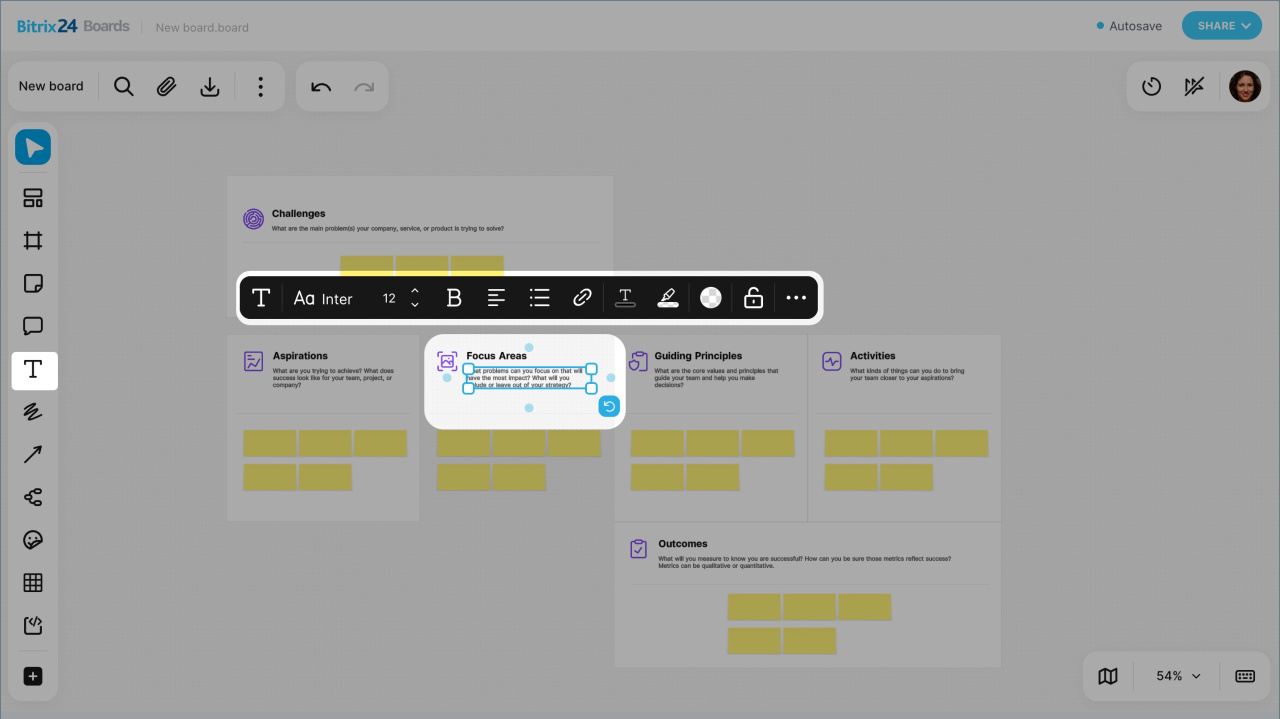
Text. Click the T icon to add a text block to the board, such as a label, comment, or heading. Use it to describe an idea, leave a note on a layout, number steps in a screenshot, and more.
You can use different formatting options in one text block. For example, you can make a heading bold and underline key ideas.
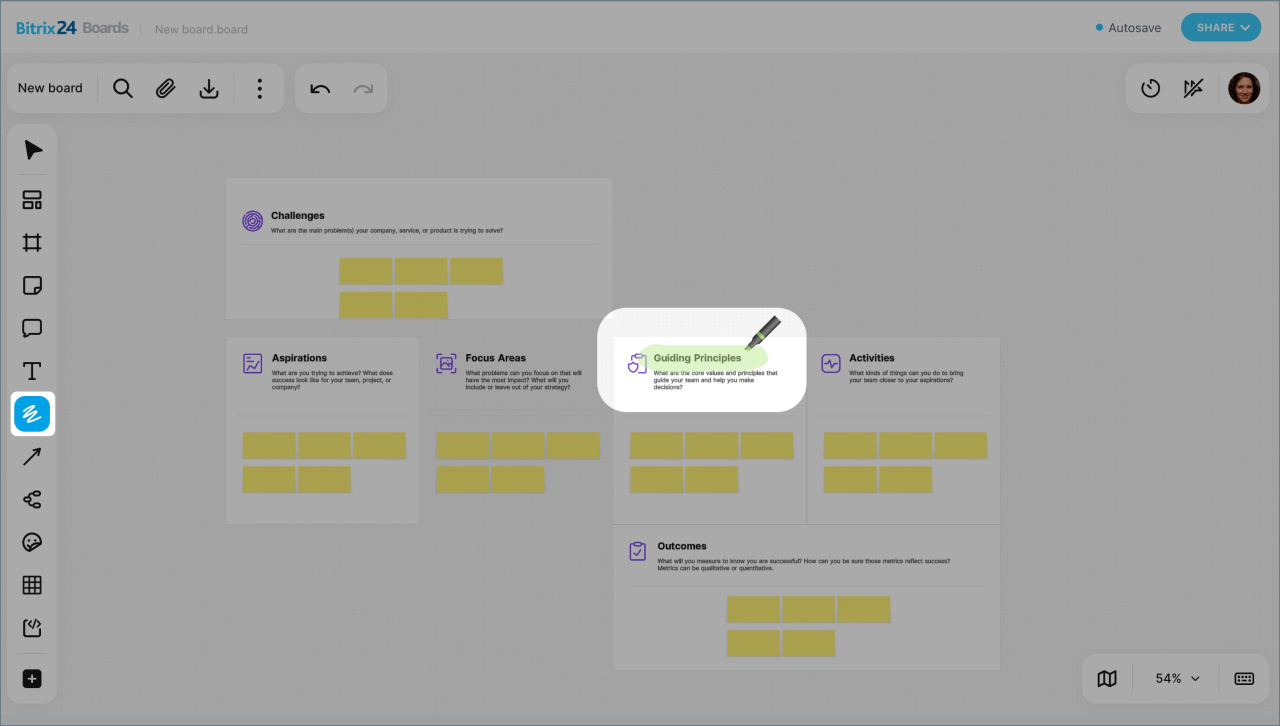
Draw. Click the drawing icon to draw freehand and erase sketches. This is useful when you need to quickly highlight something important. For example, you can circle an element or underline text to draw a colleague's attention. Drawing tools include a marker, highlighter, and eraser. You can also choose the color and line thickness.
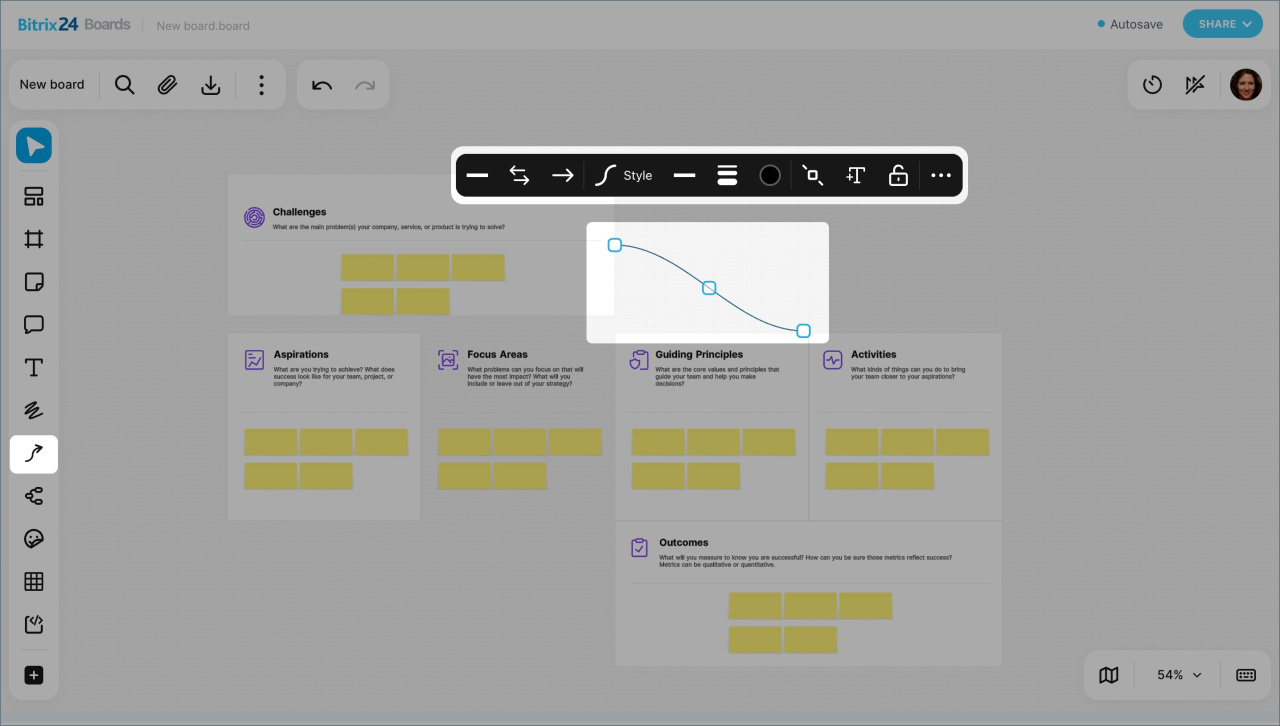
Arrow. Use arrows to connect objects on the board. Different arrow types help you show relationships between elements or visualize a sequence of steps.
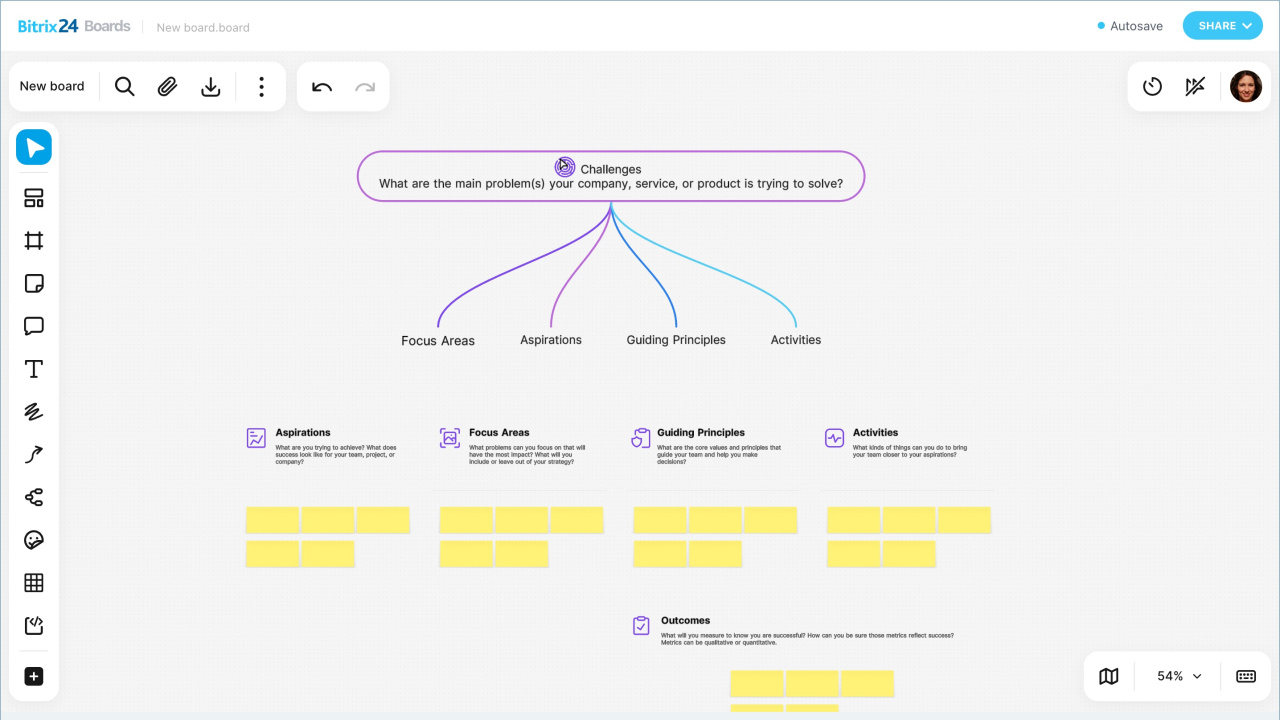
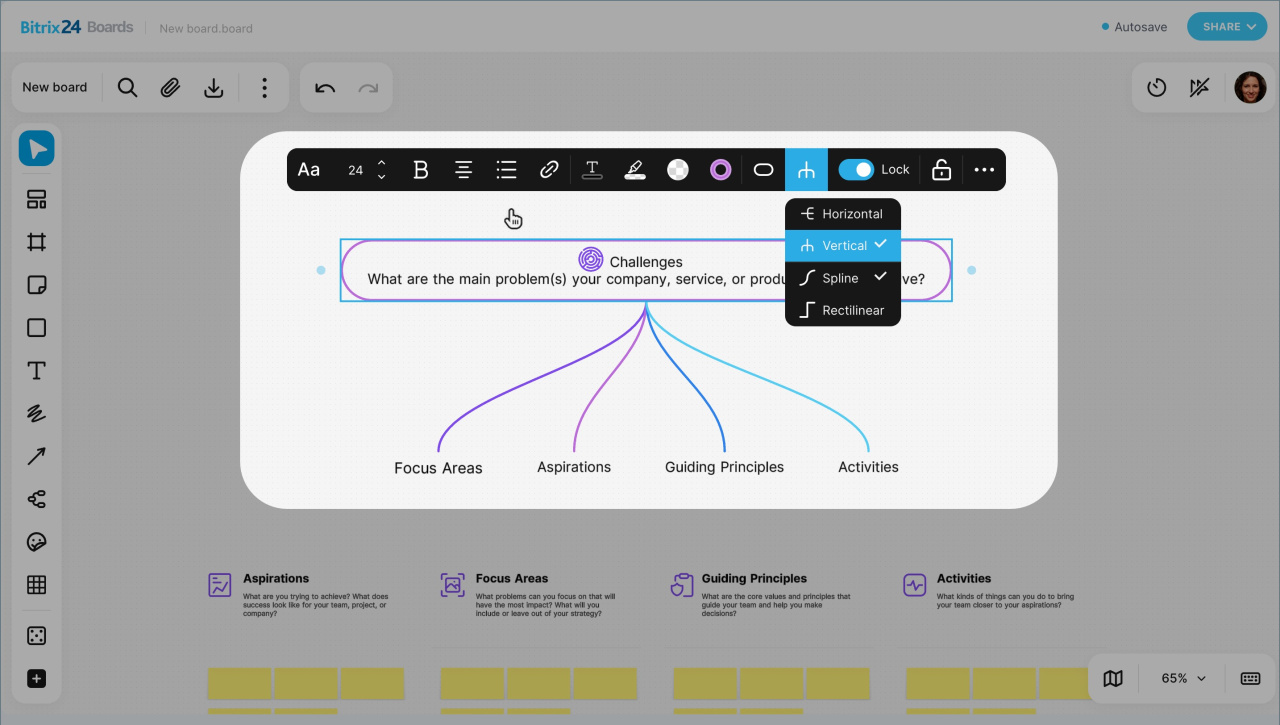
Mind map. Click the diagram icon to quickly create a multi-level map with branches you can collapse and expand.
Emoji. Add GIFs, emoji, and stickers to the board. This is a quick way to react without writing a long comment. For example, you can show that you like an idea or react to unexpected edits.
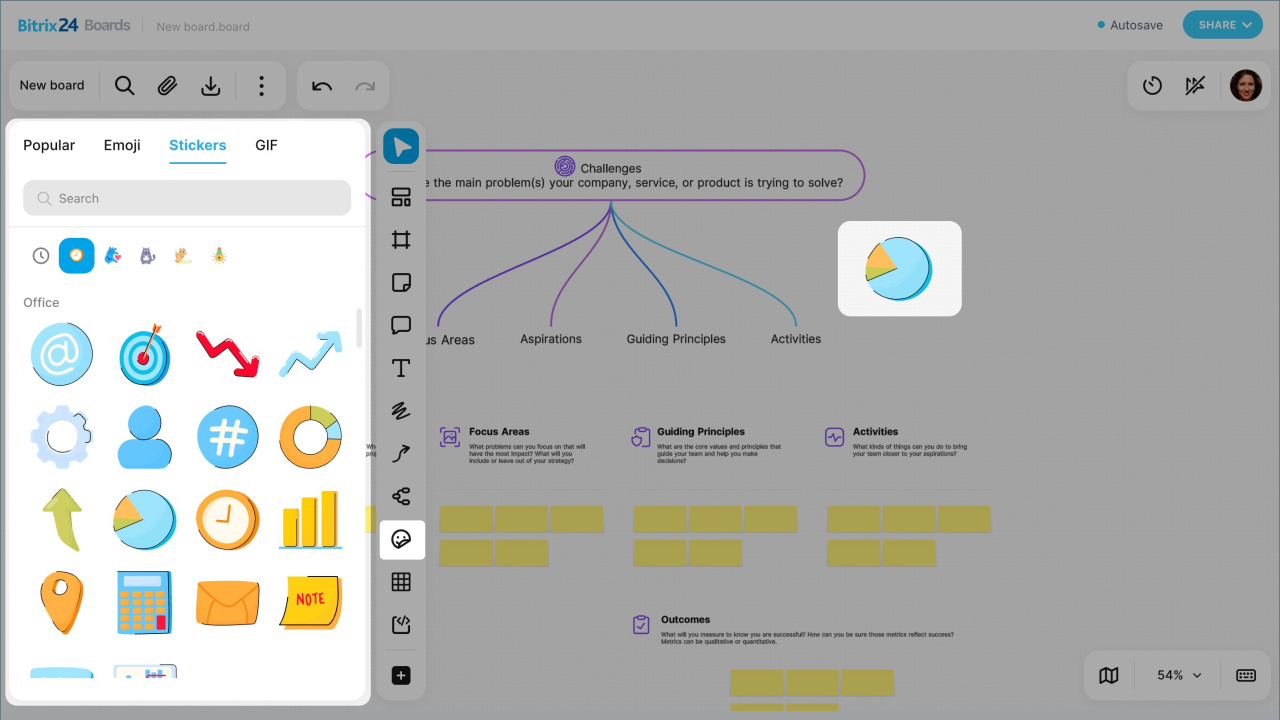
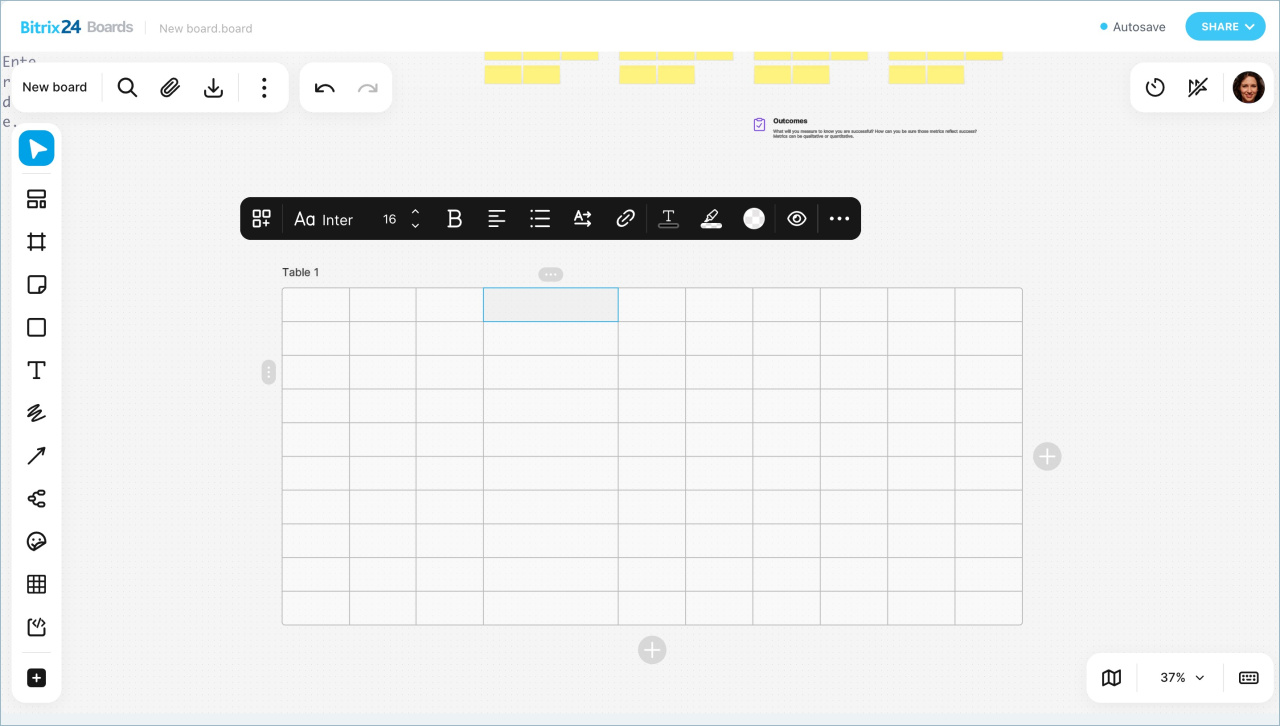
Table. Add a table to the board. The default size is 3 × 3 cells, but you can change it. The maximum size is 10 × 10 cells.
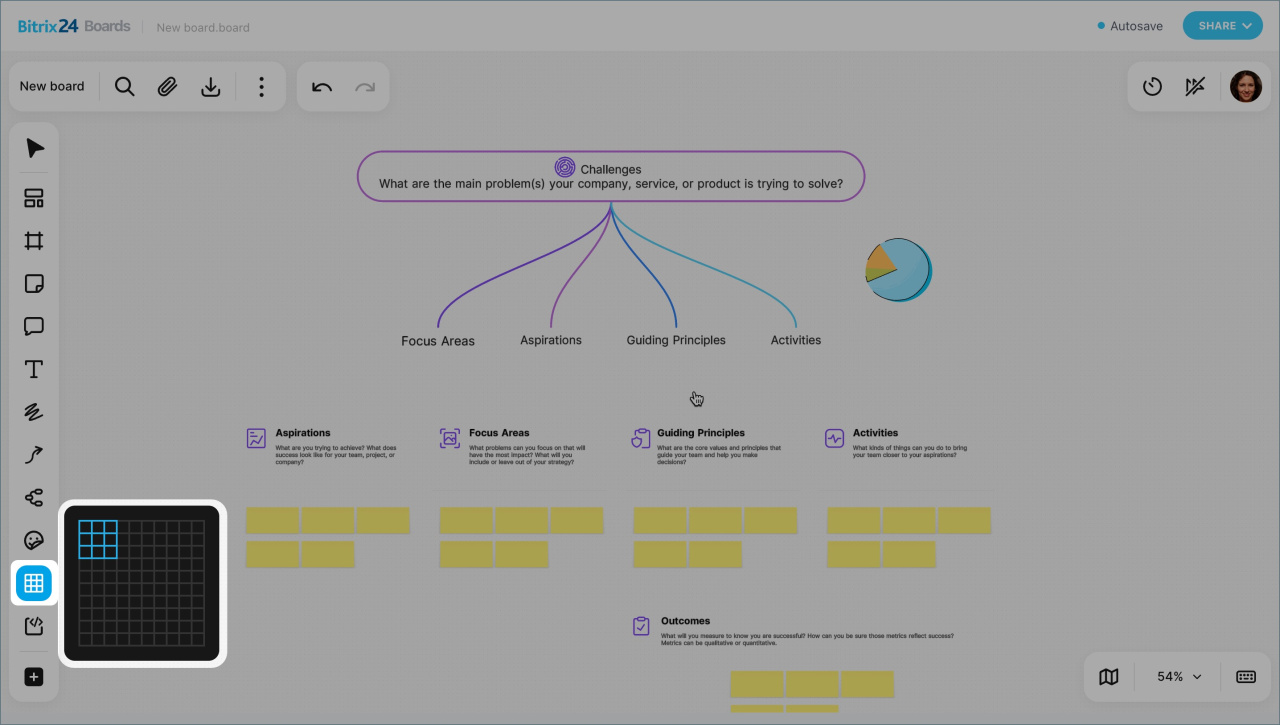
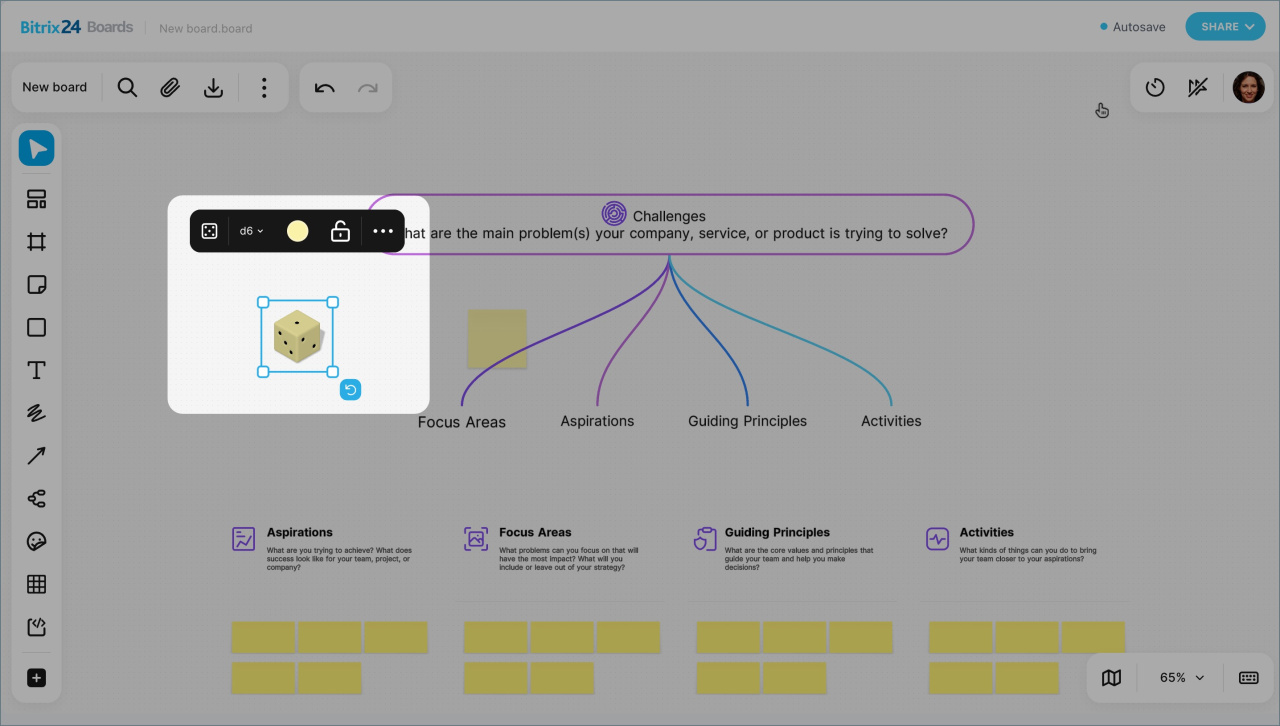
Virtual dice. Add a dice with a custom number of sides to the board. This is useful when you need a random choice, for example to select a participant, an idea, or decide turn order.
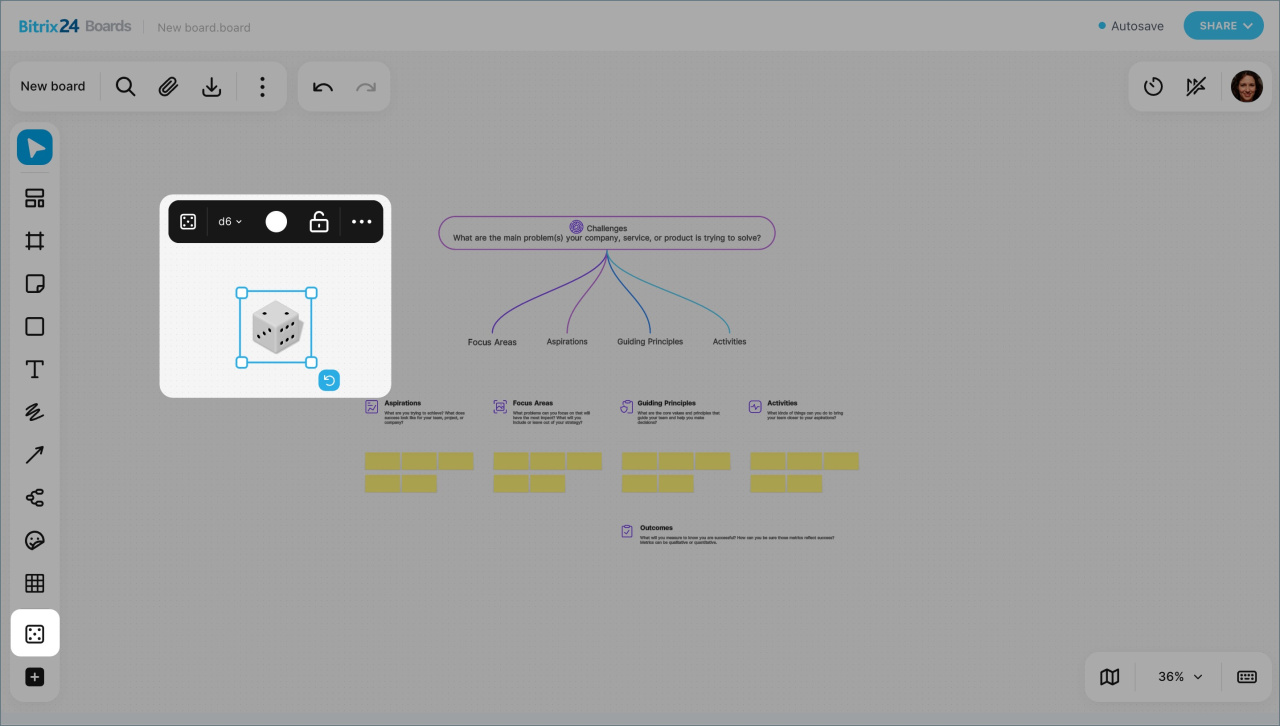
Code block. Add a code snippet with syntax highlighting to the board. This is useful when you need to show an example, discuss edits, or leave a technical comment directly on the board. For example, you can paste a SQL query, CSS rule, or part of a script.
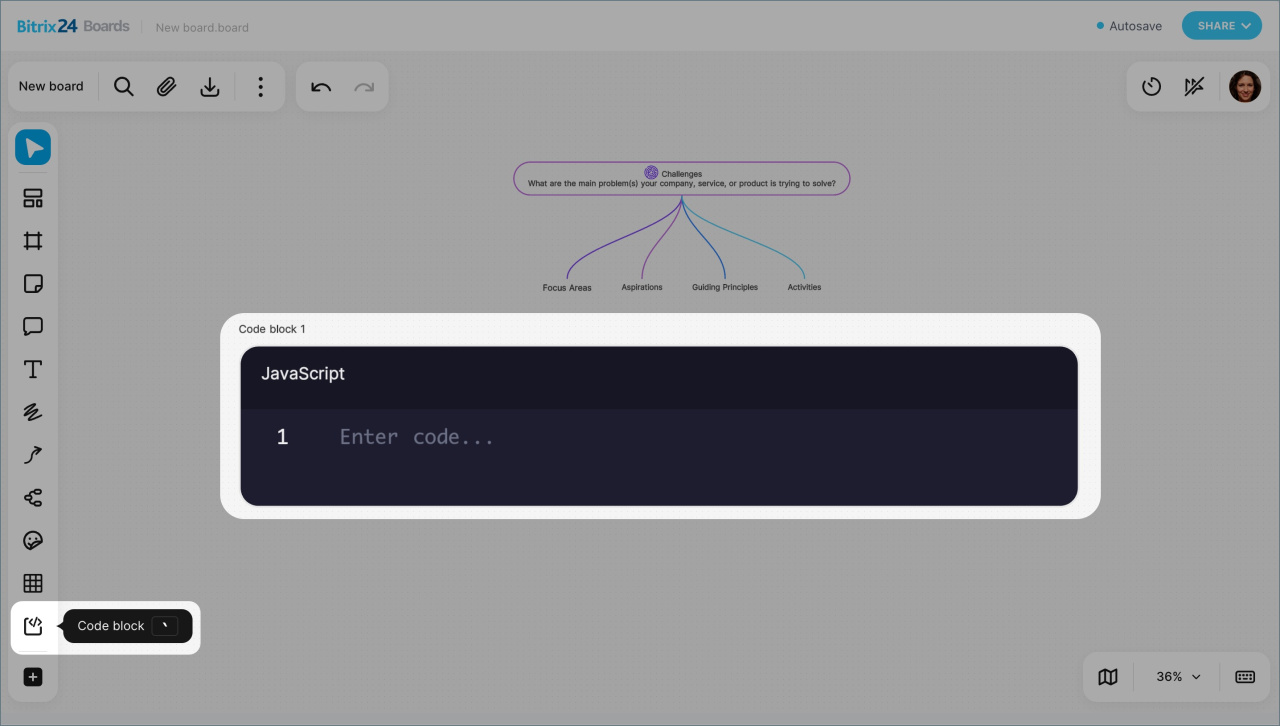
More tools. The plus icon appears when there is not enough space on the screen to show all tools. Click it to view the full list.
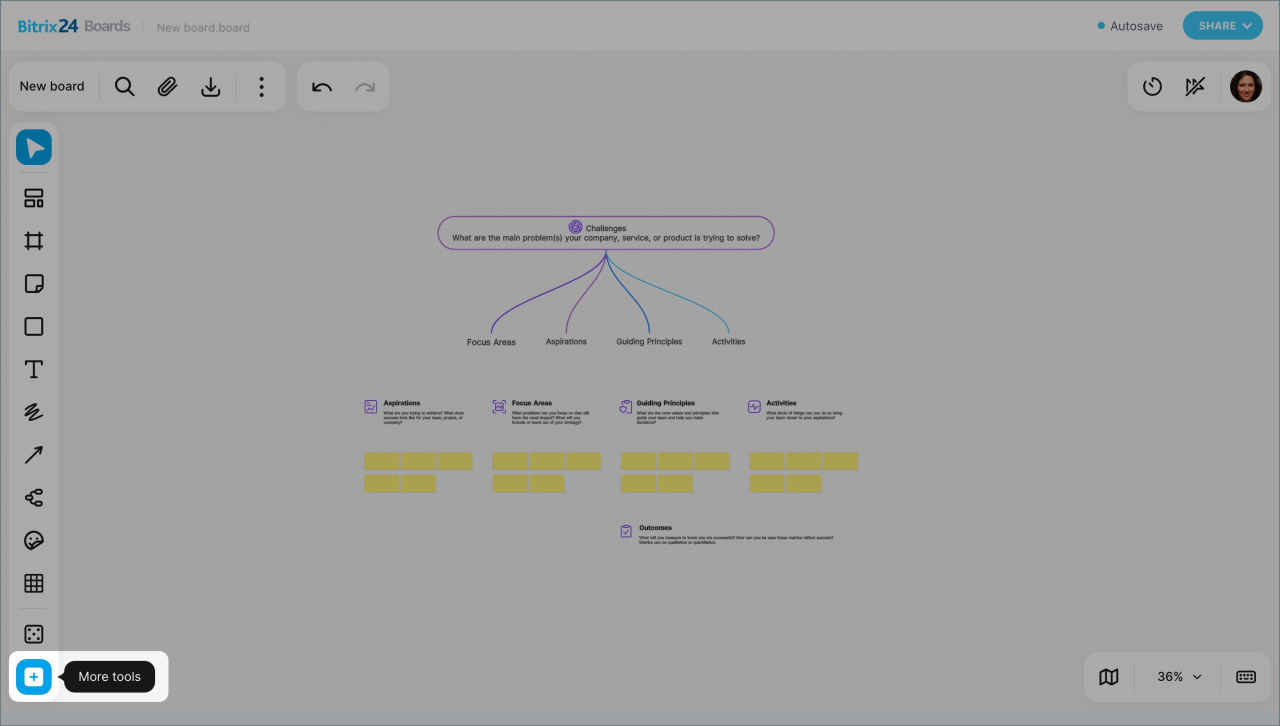
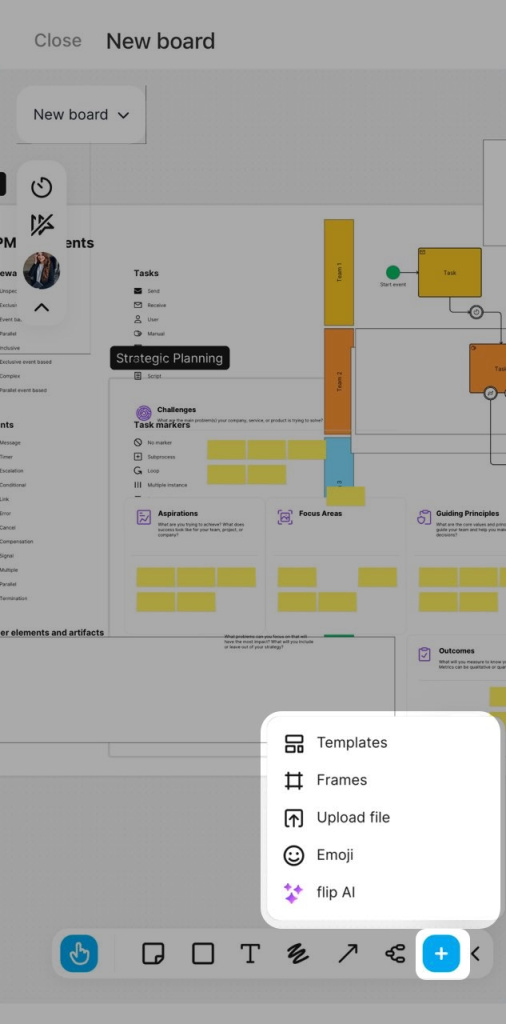
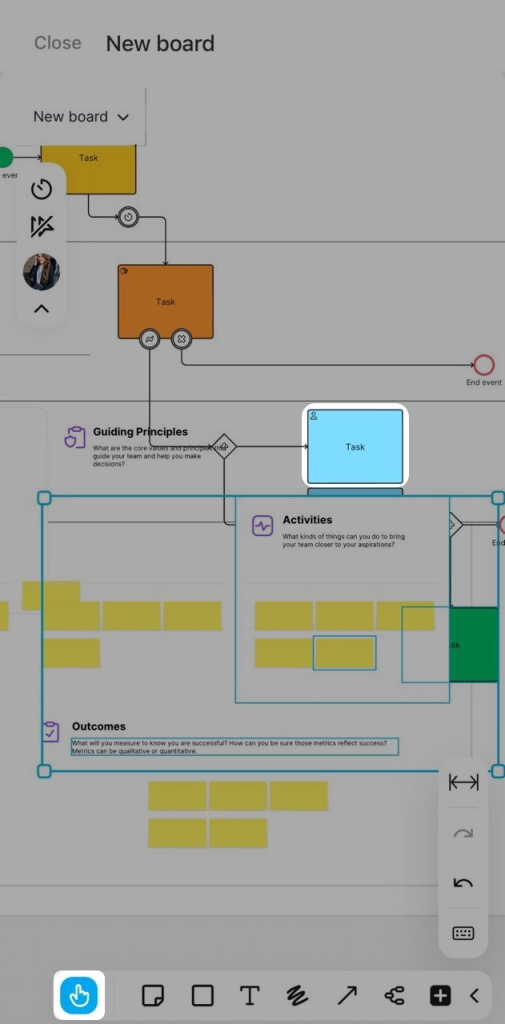
In the mobile app, you can work on a board much like you do on desktop. You can create flowcharts, add text, emoji, stickers, and more. The toolbar is at the bottom of the screen. Tap Plus (+) to open it.
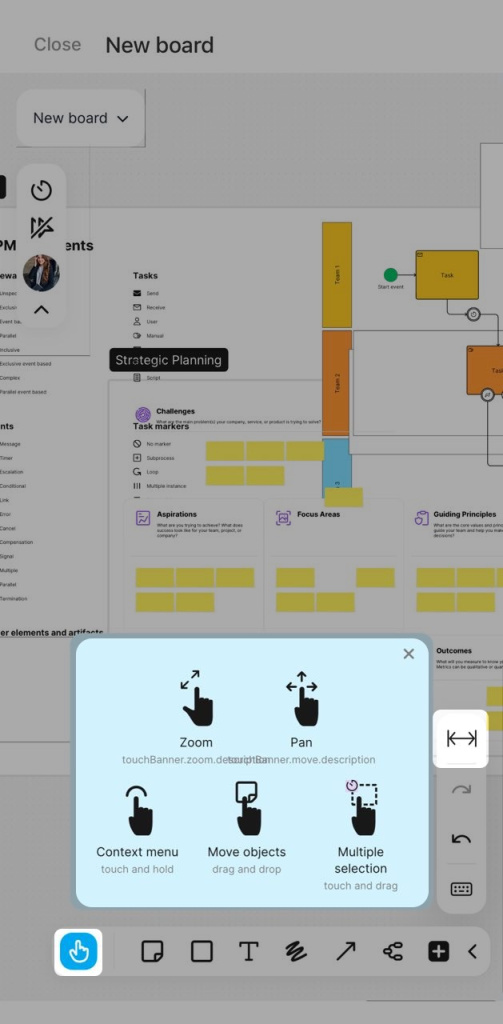
The controls are optimized for touch devices. Select the Hand tool to use gestures for these actions:
- Move around the board and find the area you need
- Move an element by tapping and dragging it
- Select multiple elements by pressing and holding an empty area of the board, then dragging the selection box
- Zoom in and out
To fit the board to the screen width, tap the double-arrow icon.
Work with board elements
You can edit elements, move them, and set up connections between them. Select the Edit tool and left-click an element to open the editing panel. The available actions depend on the element type.
Frame. You can:
- Change the frame size, background color, and transparency
- Add a hyperlink or a link to another board element
- Hide or show the frame content
- Hide or show parts of elements that go beyond the frame border
- Lock or unlock the frame to prevent or allow moving it and editing the objects inside it
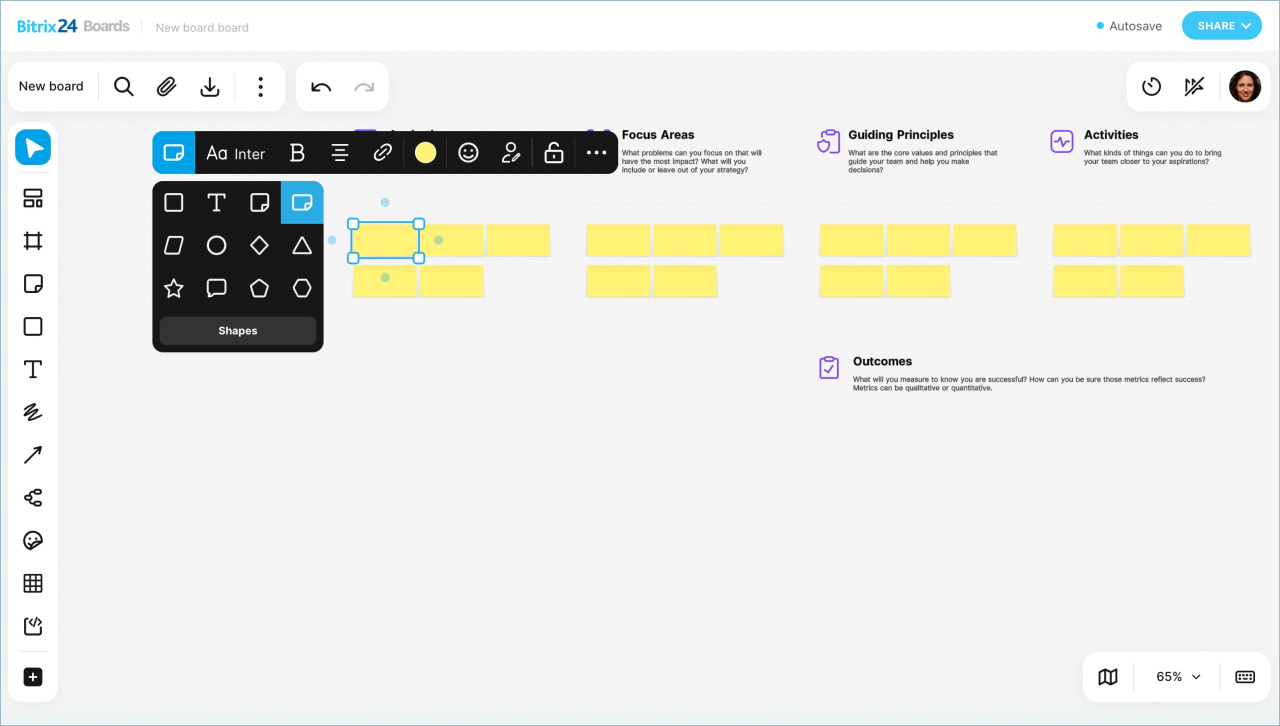
Sticker. You can:
- Change the element type by choosing a different sticker shape or replacing it with a shape
- Edit the text, including font, alignment, emoji, and links to external pages or other board elements
- Choose a background color
- Add or remove the sticker author's signature
- Lock or unlock the element
Shape — a shape supports the same editing options as a sticker. You can also:
- Change the text color and size
- Add a bulleted list, numbered list, or checklist
- Highlight selected text or individual words with color
- Choose a background color and set its transparency
- Set border style, color, transparency, and corner rounding
Drawing. For freehand lines and shapes, you can add a link and change the thickness, color, and lock status.
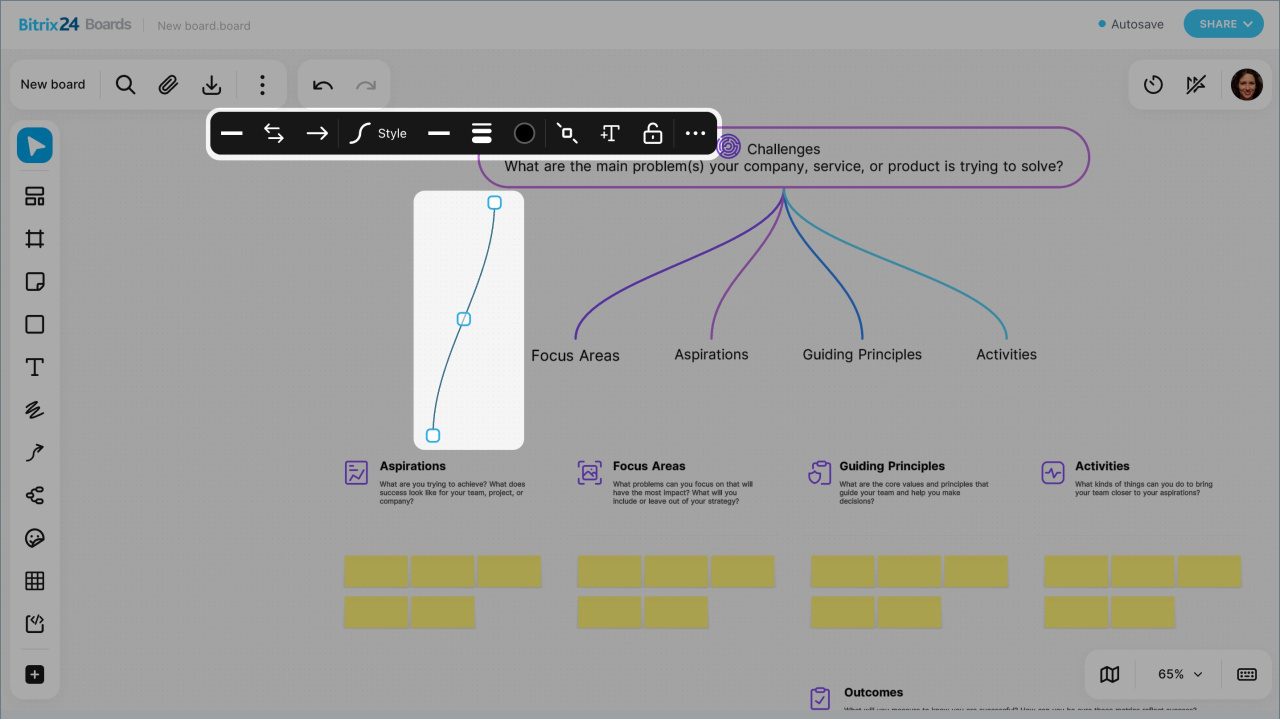
Arrows connect to elements at any point along their edges. To reconnect an arrow, drag its endpoint and drop it on the center of another side.
You can:
- Change the start and end style by adding or removing an arrowhead
- Change the direction, shape, and line type: solid or dashed
- Choose the line thickness and color
- Add a shape or text that automatically attaches to the arrow
- Lock or unlock the arrow
Emoji can be locked or unlocked.
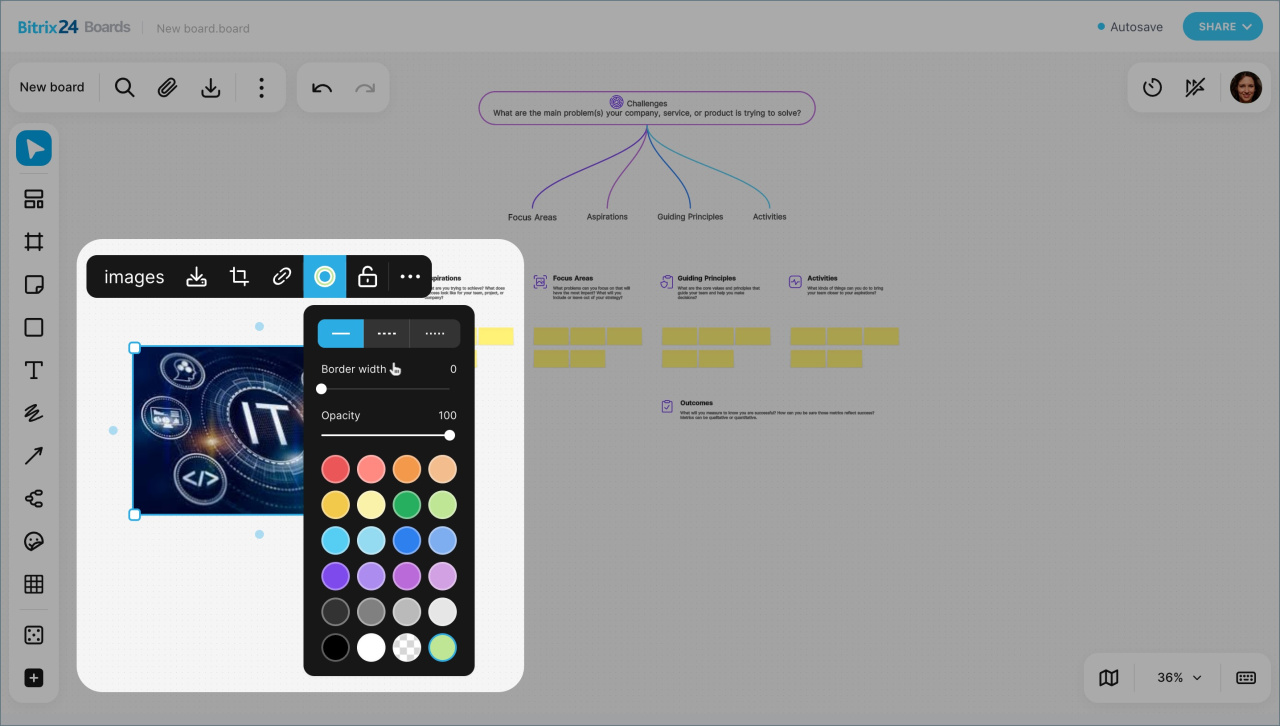
File. To resize a file on the board, drag any side. The aspect ratio stays the same. You can also:
- Change the name, color, style, and border thickness
- Download the file to your computer
- Crop the file
- Add a link to an external file or another board element
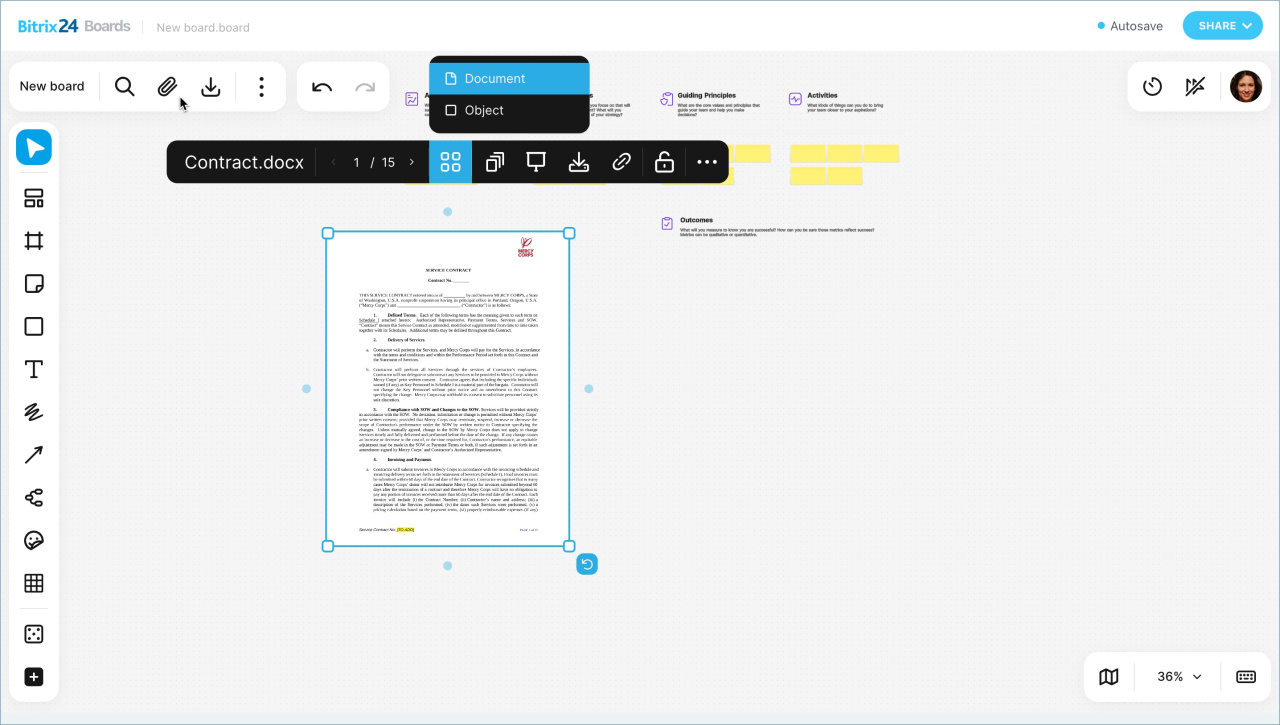
For multi-page files, you can choose a display mode:
- Form: shows the file name, format, and size
- Document: lets you view pages directly on the board without downloading the file
In Document mode, you can:
- Browse pages
- Extract all pages or selected page ranges. The selected pages appear on the board as separate files.
- Turn on presentation mode to open the document full screen, browse slides, and use a pointer
Virtual dice. Click Roll to get a random value. You can also change the number of sides, change the color, and lock or unlock the element.
Code block. You can:
- Choose a programming language
- Resize the block
- Turn line numbers on or off
- Add a hyperlink or a link to another board element
- Download the block
- Lock or unlock the object
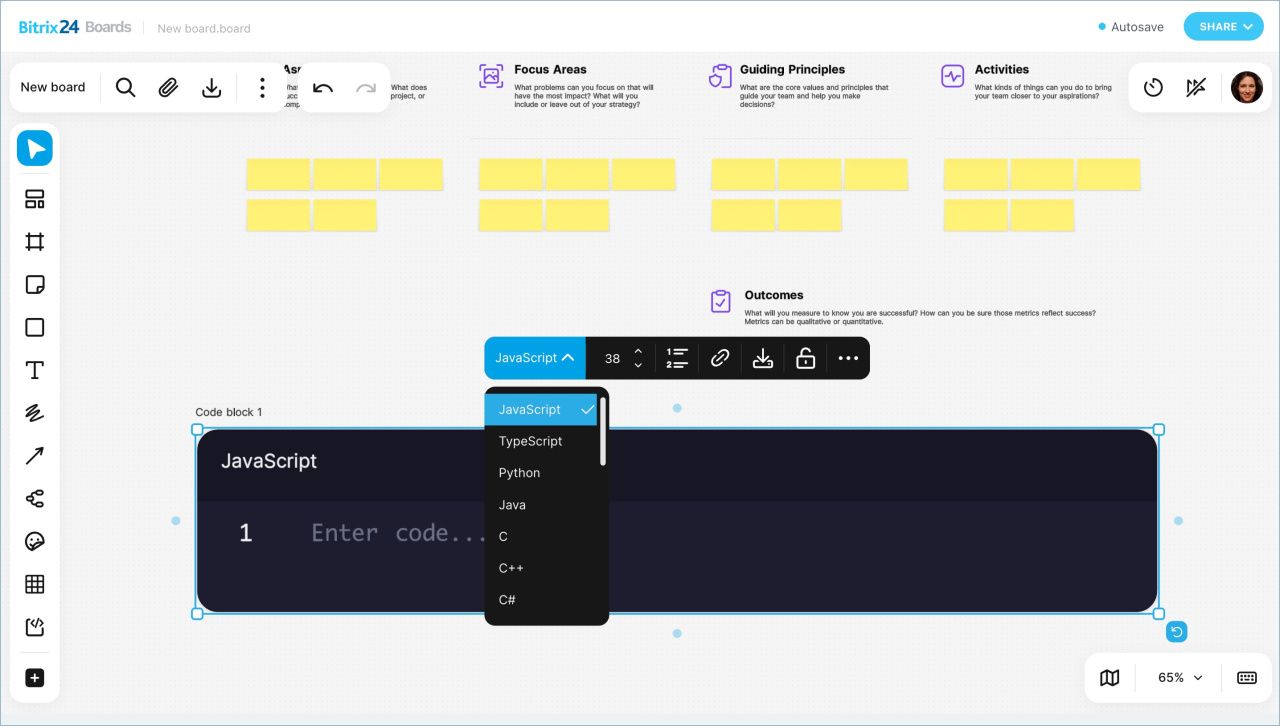
Table. You can:
- Add rows and columns
- Merge or hide cells
- Turn automatic cell resizing on or off
- Change the text direction
- Change the font, style, size, formatting, alignment, and text color
- Choose a background color and set its transparency
- Set border colors
- Lock or unlock the table
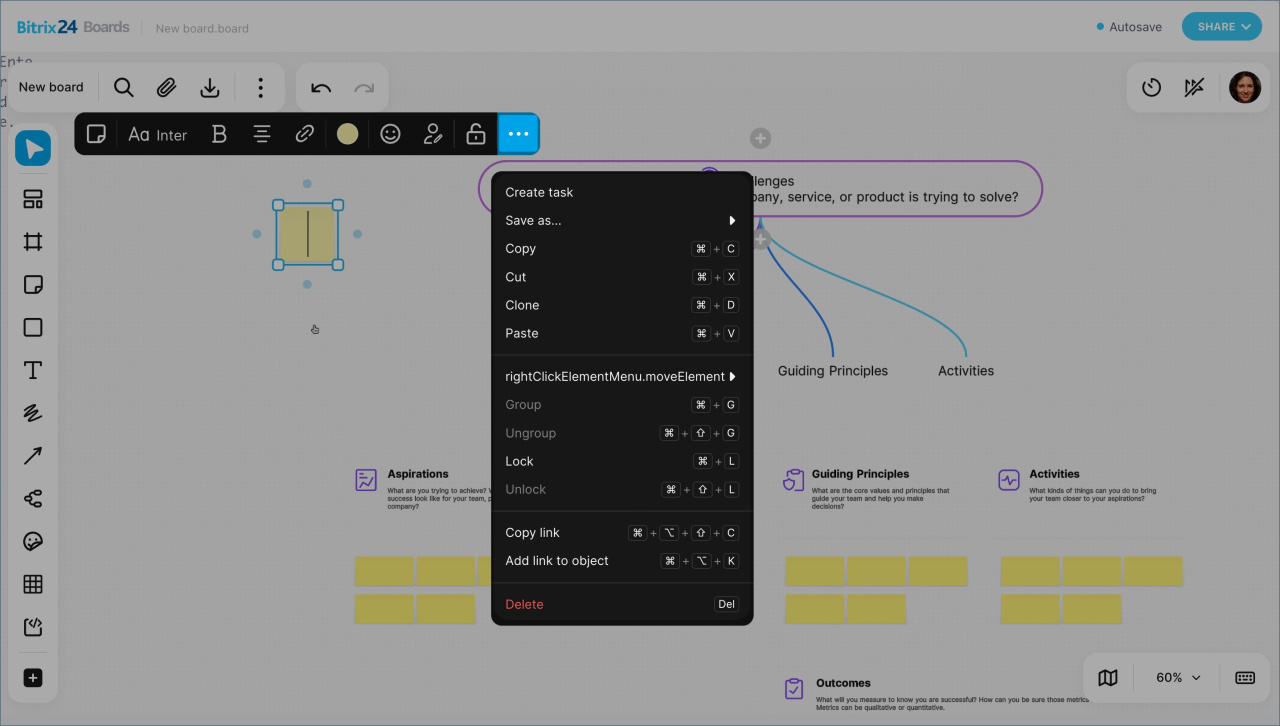
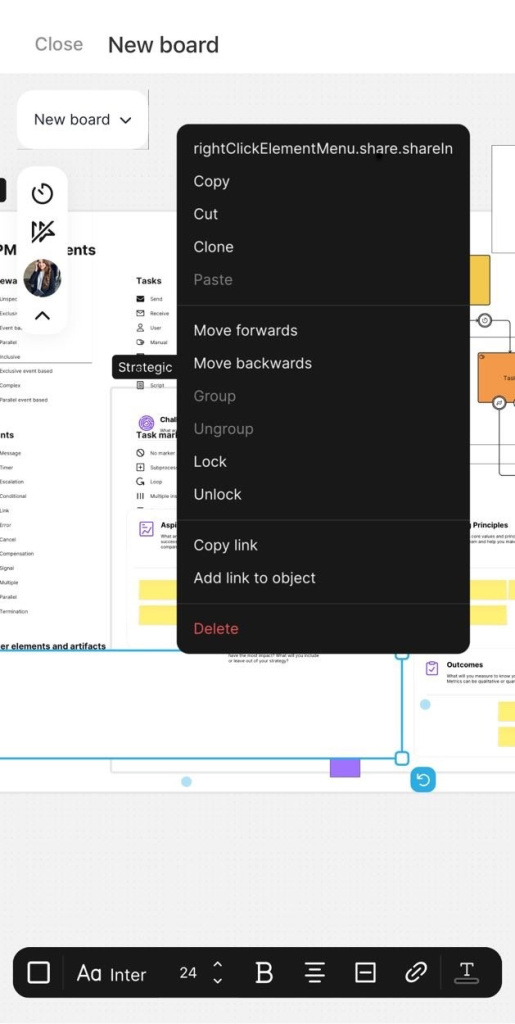
Additional actions are available for all elements, but the list depends on the element type. To open it, click the Three dots (...) in the editing panel or right-click the element.
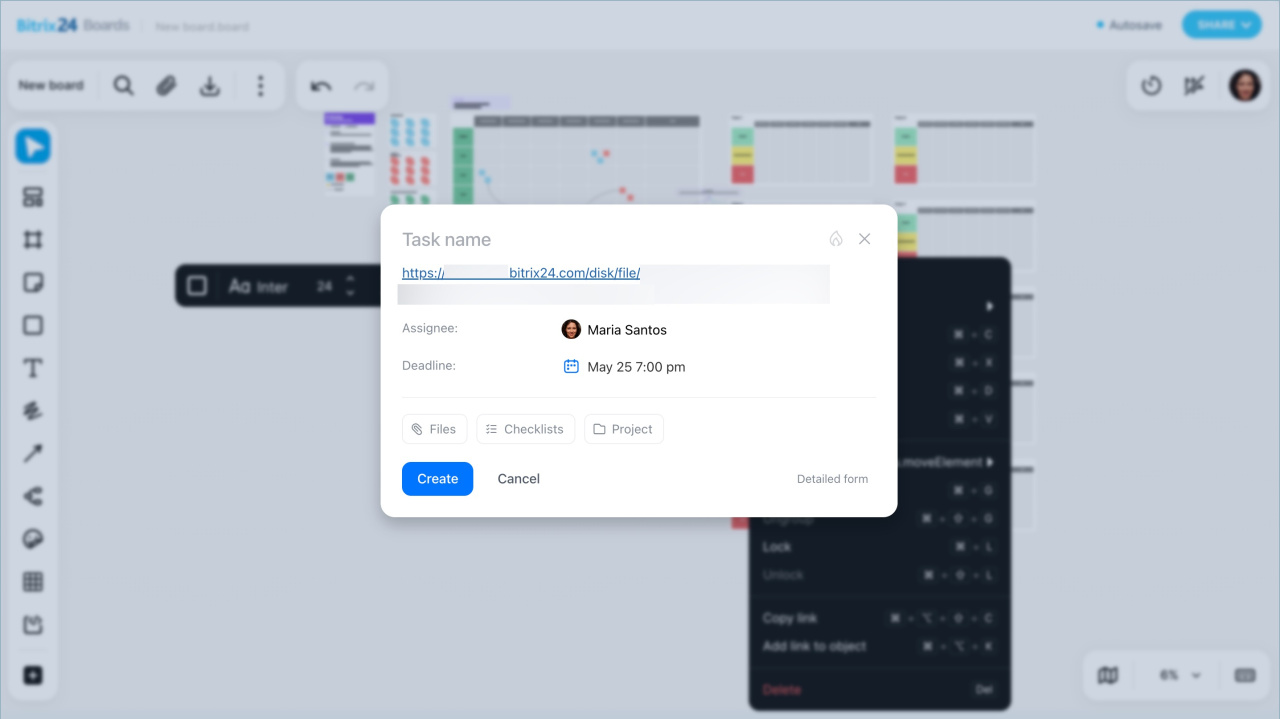
- Create task — allows you to create a task directly from the board and automatically adds a link to the selected item in the description.
- Save: export the frame in a selected format, such as PNG. This is useful when you want to share one part of the board instead of the entire board. For example, you can discuss a specific part of a layout in a group chat.
- Copy
- Cut
- Duplicate: create a copy of the selected element next to the original
- Paste
- Bring forward: move the element higher in the stack order
- Send backward: move the element lower in the stack order
- Group: combine several selected elements into one block so you can move and edit them together
- Ungroup: split a previously grouped block back into separate elements
- Lock: fix the element in place so it cannot be moved or edited until unlocked
- Unlock: remove the lock from the element so it can be moved and edited again
- Copy link to object
- Add link to object: link one board object to another for quick navigation between them
- Delete
The same features are available as in the Bitrix24 desktop version. Select the Hand tool and tap an element to open the editing panel. Press and hold an element to open the list of additional actions.
In brief
- Bitrix24 boards are a shared workspace. Your team can gather ideas, review layouts, plan presentations, and visualize processes — all without switching to third-party tools.
- All changes are saved automatically. Participants see updates in real time and can leave comments directly on the board.
- Team members must have access to the board. The board owner and employees with full access can manage permissions — this can only be done in the Bitrix24 desktop version.
- In the Bitrix24 mobile app, you can work with the board just as you would on desktop.
- The top and bottom of the board contain tools for managing the board. For example, you can rename it, download it, or customize its appearance.
- To organize collaboration, use the timer, colleague cursor visibility settings, and other options.
- The panel on the left side of the screen includes tools for working on the board. Use them to build flowcharts, draw, add text, align elements, highlight important details, and more.