
Boards in Bitrix24 help teams collaborate by organizing tasks, projects, and ideas. You can control who can access a board and what they can do. For example, you can allow employees to edit the board while giving clients or external experts view-only access. This helps you work together without risking unwanted changes.
In this article:
Configure board access settings
You can manage access either from the board list or inside a board.
From the board list
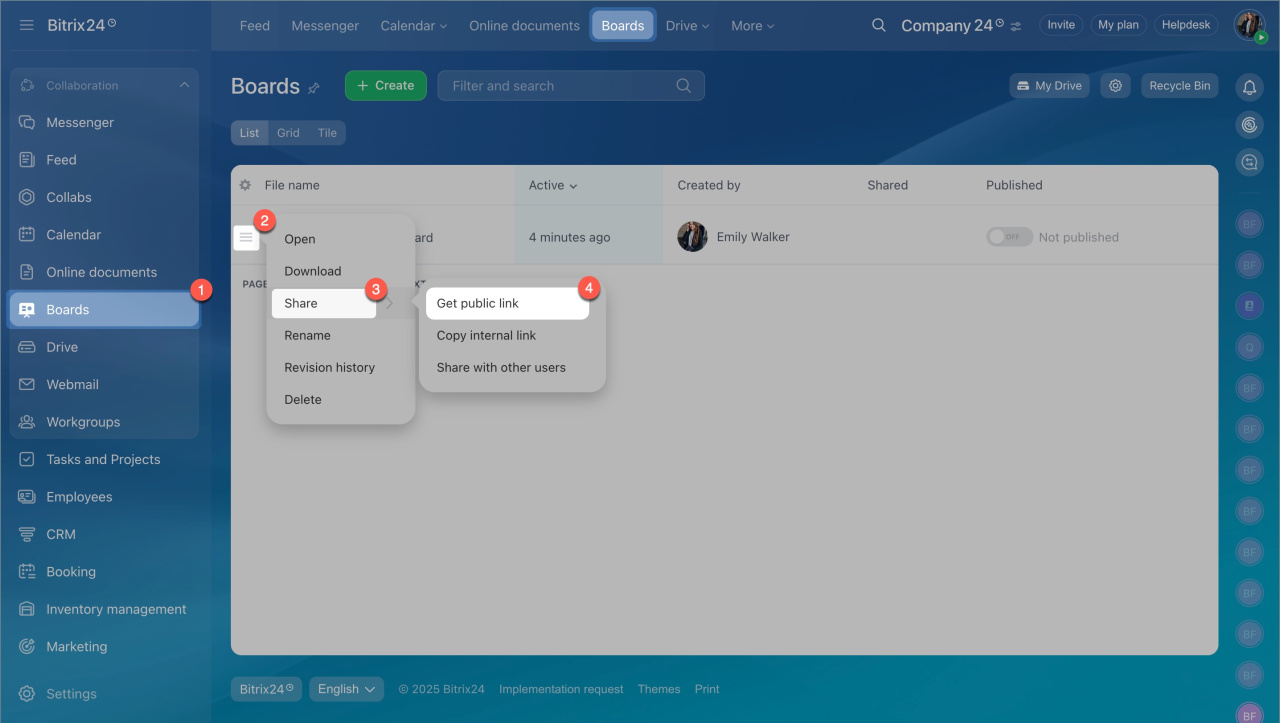
- Go to Boards and select a board.
- Click Menu (≡) next to the board name and select Share.
- Choose one of the following options:
- Shared access — for employees
- Get public link — for external users such as clients or contractors
From the board editor
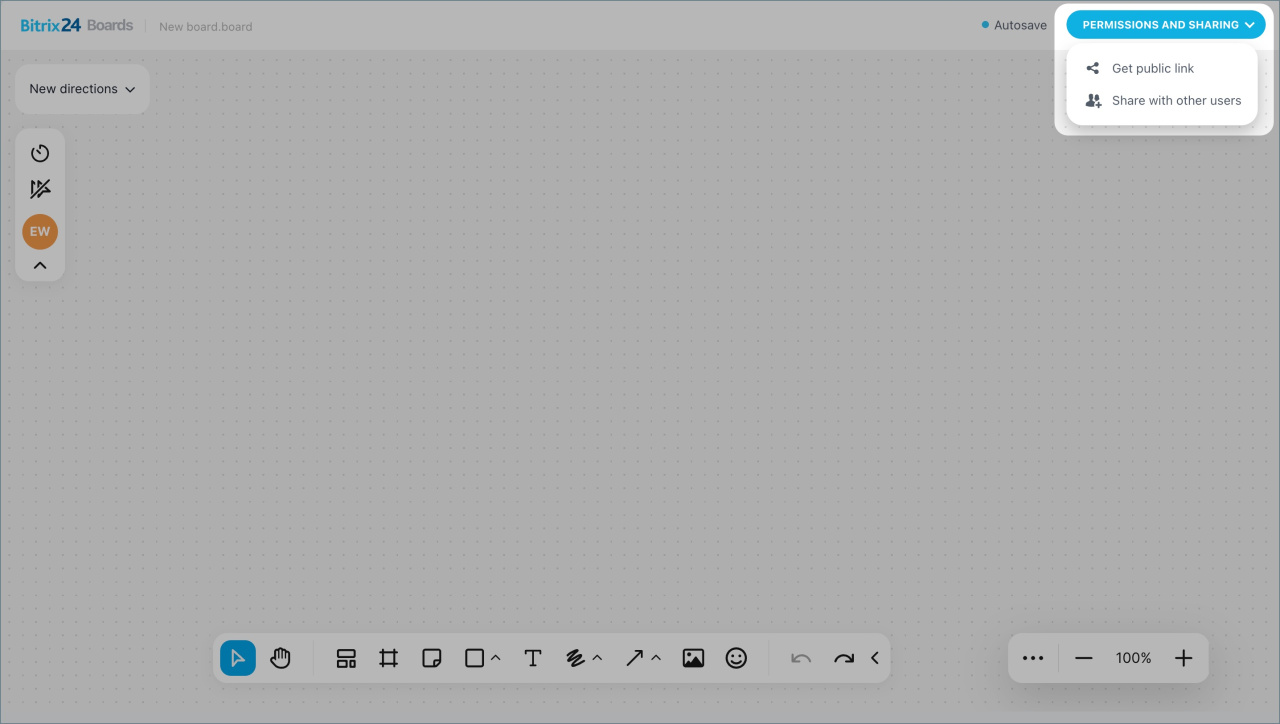
If you are already working on a board, click Permissions and Sharing and choose an option:
- Get public link — for employees
- Share with other users — for external users
Configure access for an employee
Add or remove employees
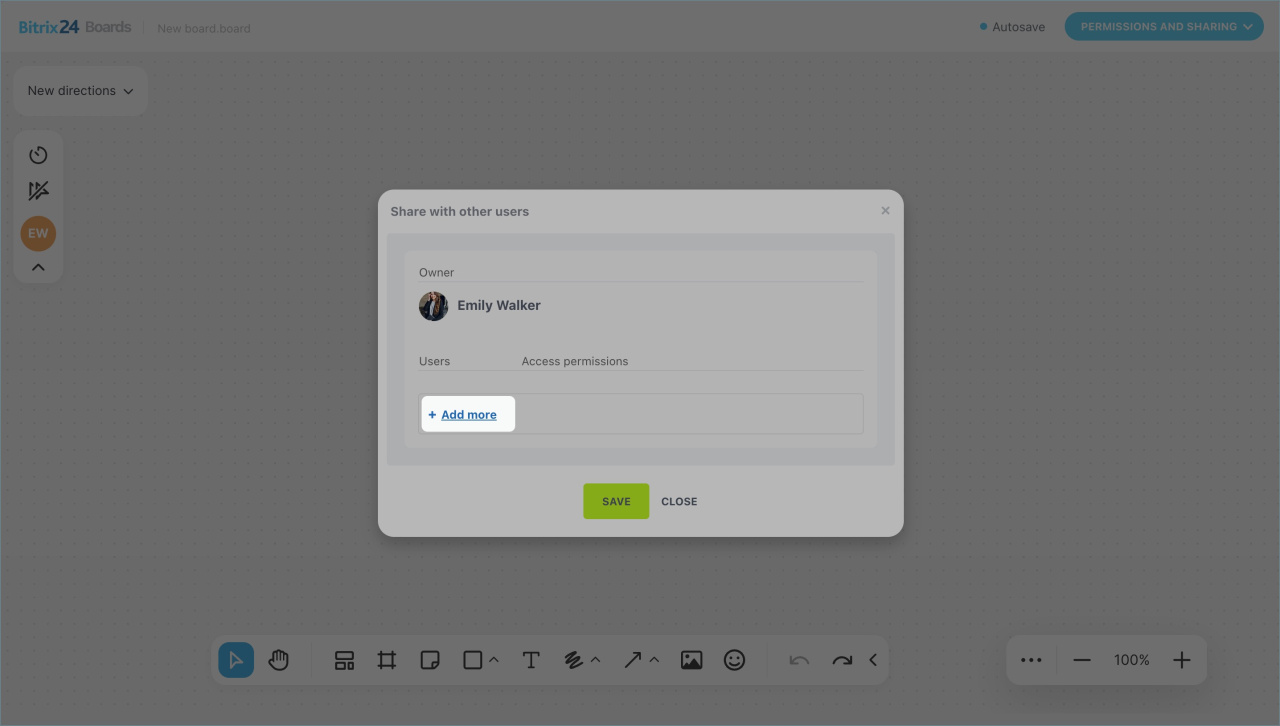
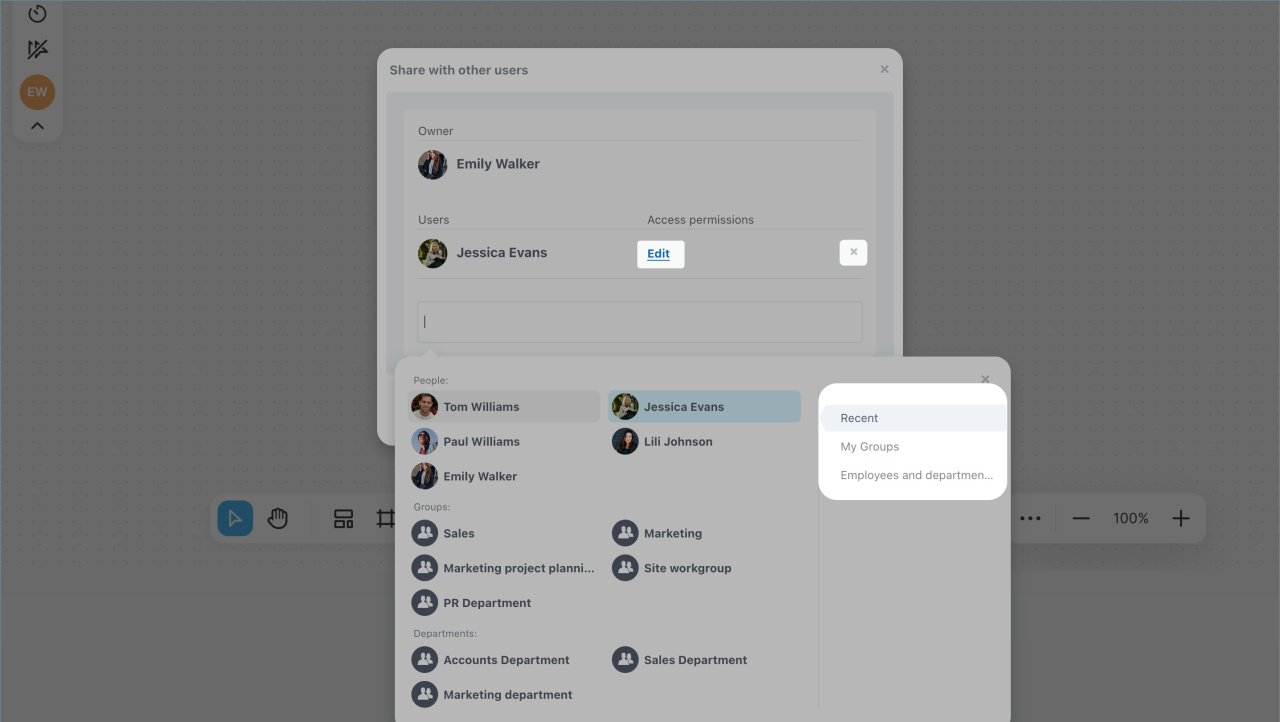
You can grant access to individual employees, departments, or groups.
- Click Add more.
- Enter a name, department, or group in the search bar. You can also switch tabs to select users. Added users appear in the list immediately.
- To remove a user, group, or department, click the cross icon.
Set access level
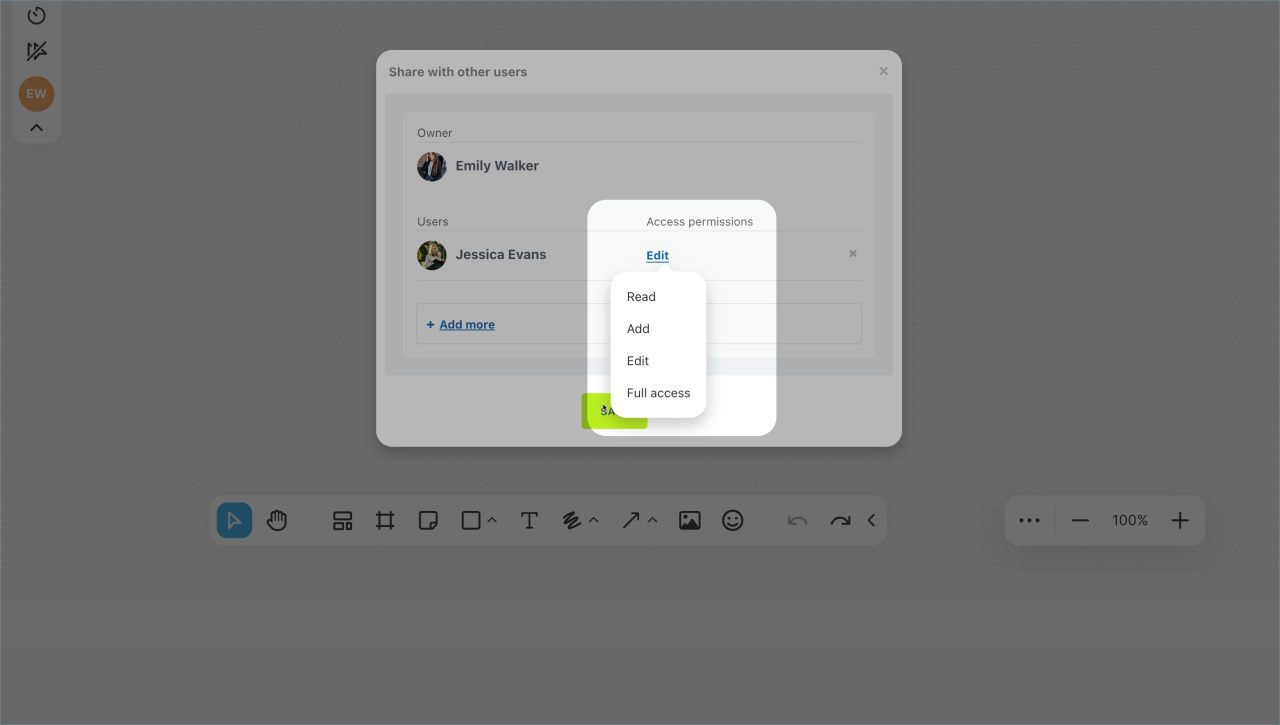
By default, employees can edit the board. To change this, click the current access level and select another option:
- Read — users can view the board and see who else is working on it. They can show or hide other users’ cursors.
- Edit — users can view and edit the board. They can rename it, change the design, and manage elements.
- Full access — users can do everything above and manage access permissions.
Click Save.
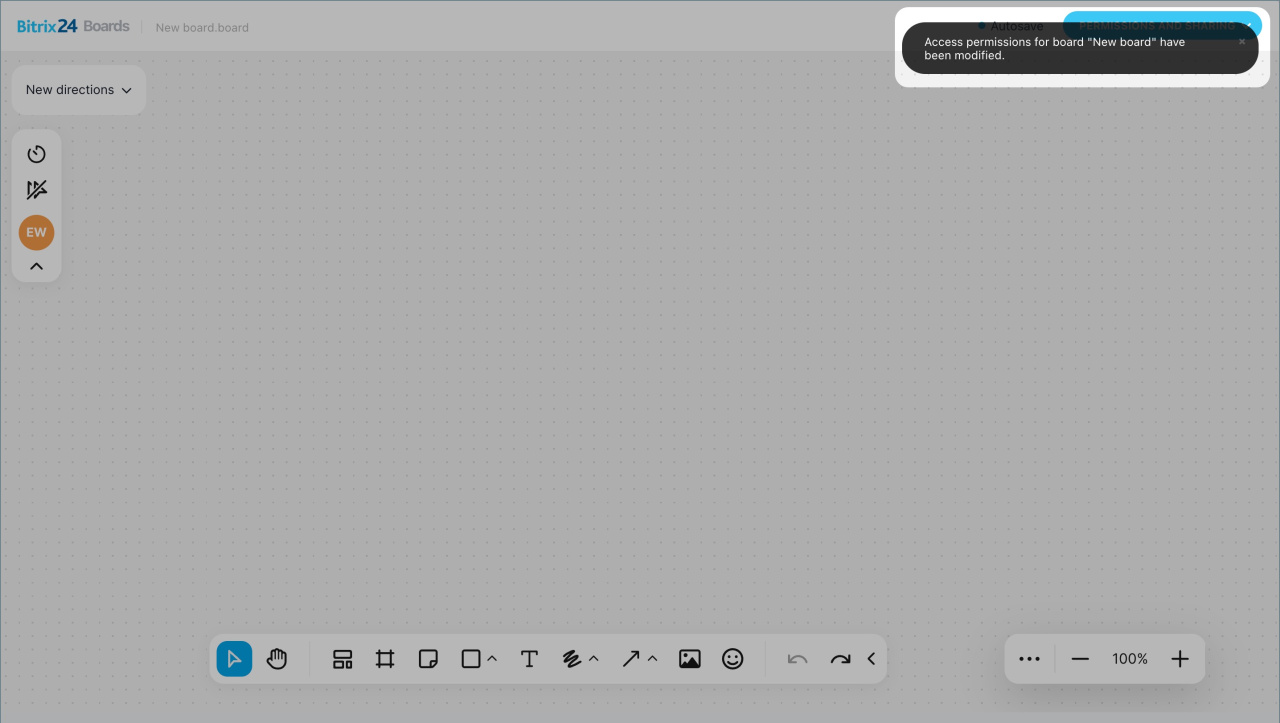
When you grant access, the employee receives a notification. They can:
- Add — the board appears in their list, and they can start working
- Decline — they lose access. Only the owner or a user with full access can restore it
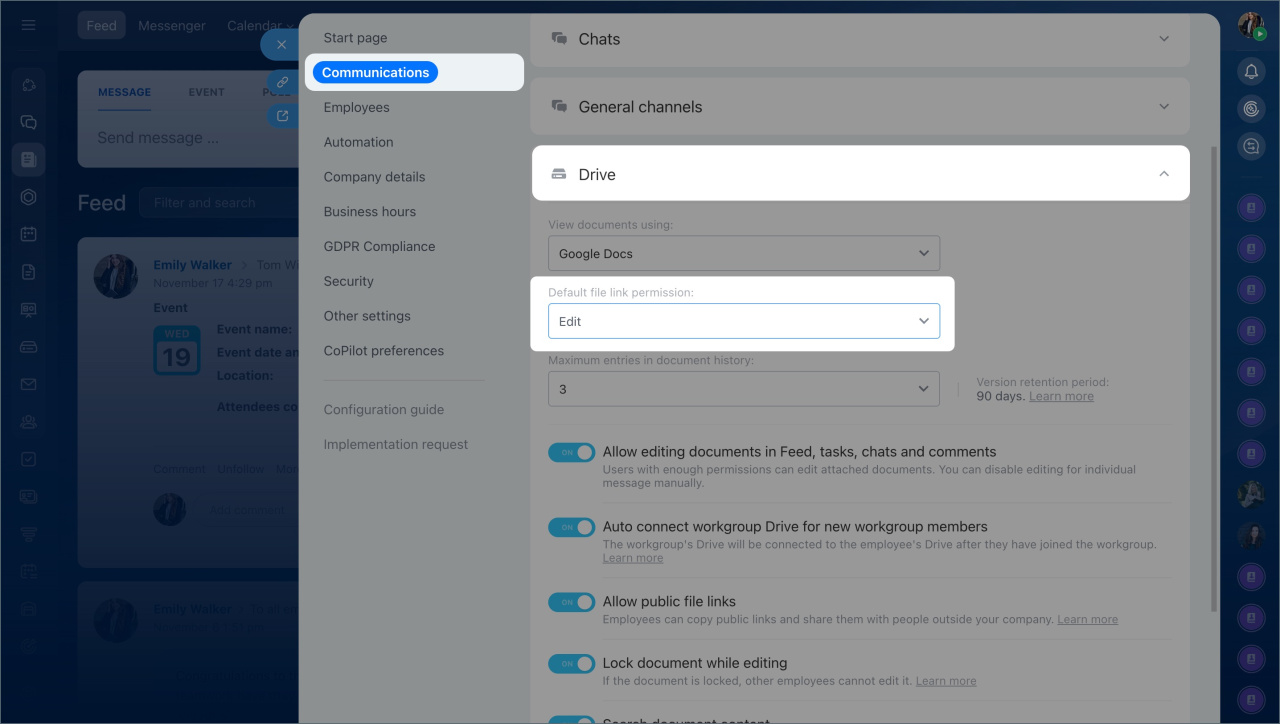
If you work with confidential data, set a default access level for internal links. A Bitrix24 administrator can configure this:
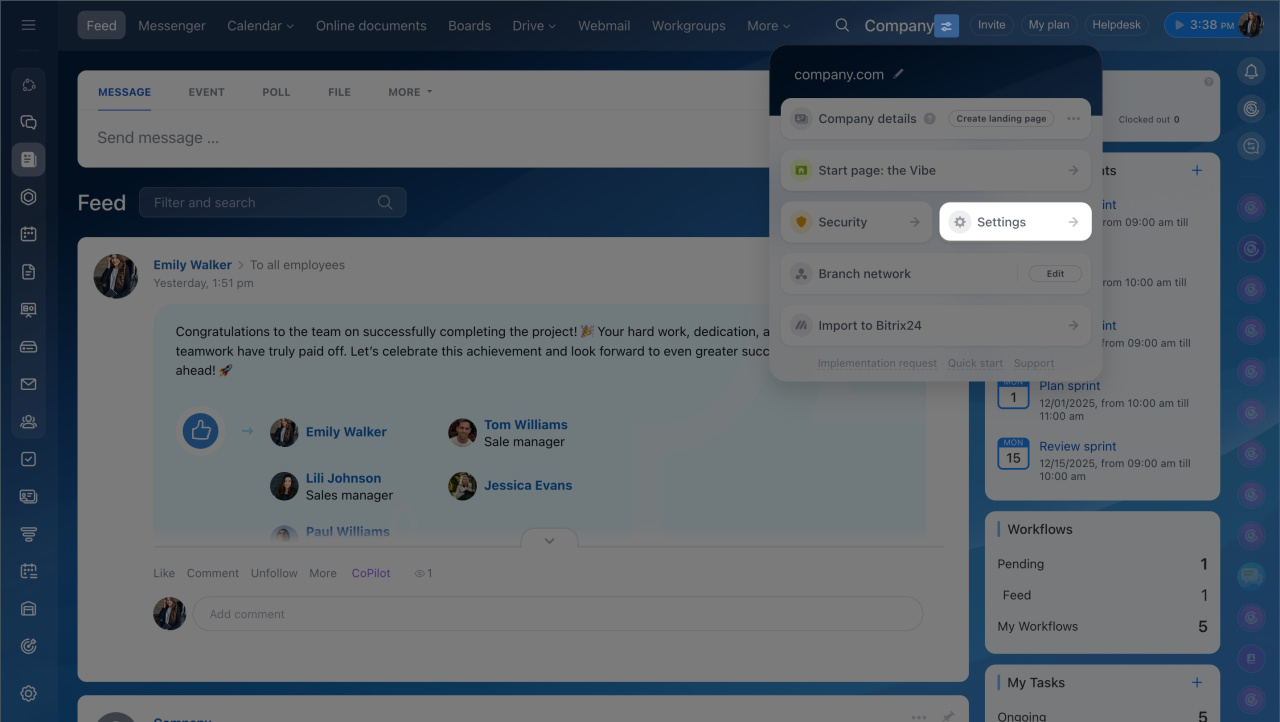
- Click the icon next to your account name.
- Go to Settings (⚙️) > Communications > Drive.
- Select an option in Default file link permission.
- Save the changes.
The new setting applies to all new documents and those without custom access settings. Existing custom permissions remain unchanged.
How to configure access for an external user
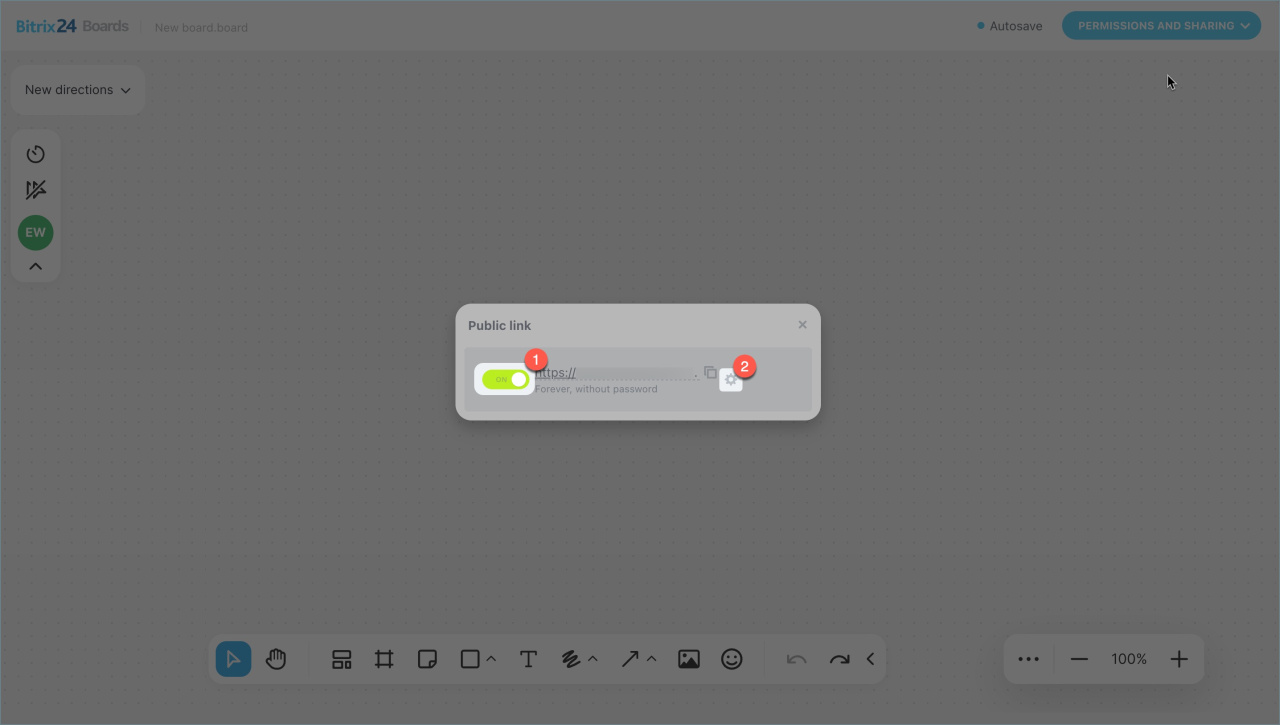
To share a board with a client or someone outside your Bitrix24, use a public link. Send it by email, chat, or SMS. By default, the board opens in view-only mode without a password or expiration date.
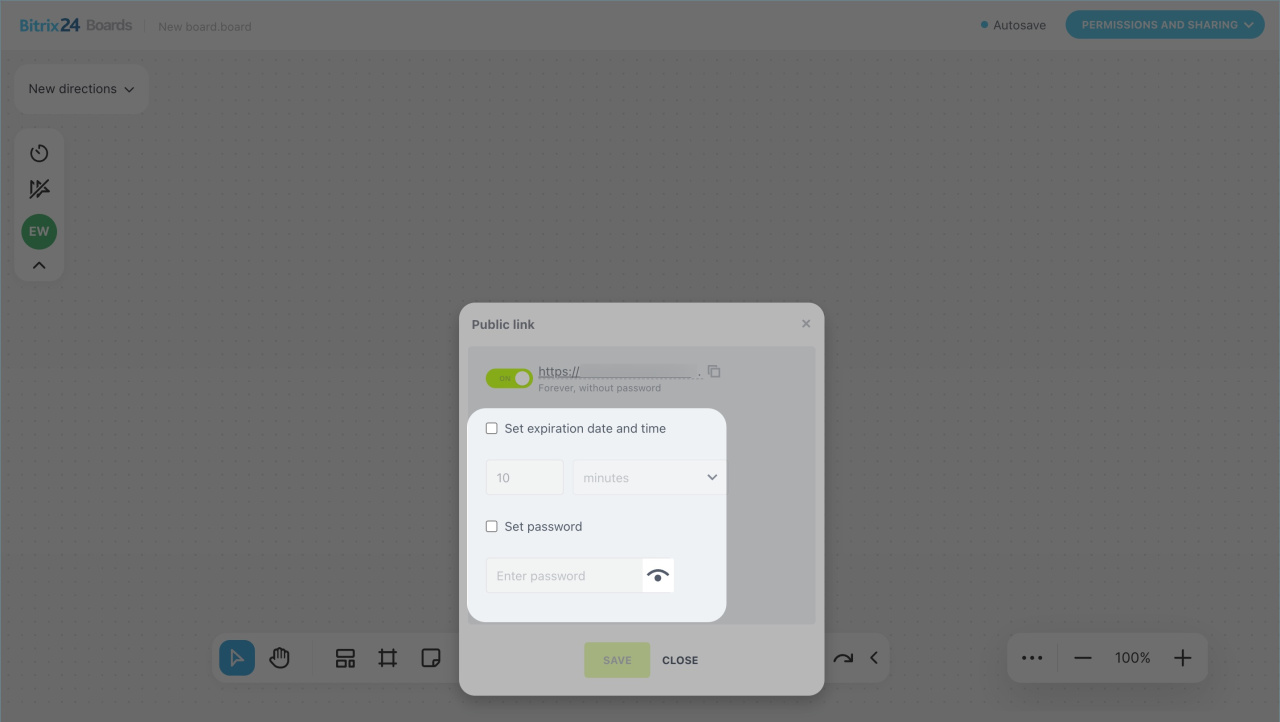
To change access settings, go to Settings (⚙️):
- Set time limit — define when the link expires
- Set password — require a password to open the board
- Allow board editing — let external users edit the board
Click Save.
In brief
- Boards help teams collaborate by organizing tasks, projects, and ideas. You can control access to keep information secure.
- Employees can edit boards by default. External users can view them without restrictions.
- To configure access from the list, go to Boards, select a board, and click Menu (≡) > Share.
- To configure access inside a board, click Permissions and Sharing.
- If a user has multiple access levels, the highest one applies.
- Users must add the board to their list to start working on it.