
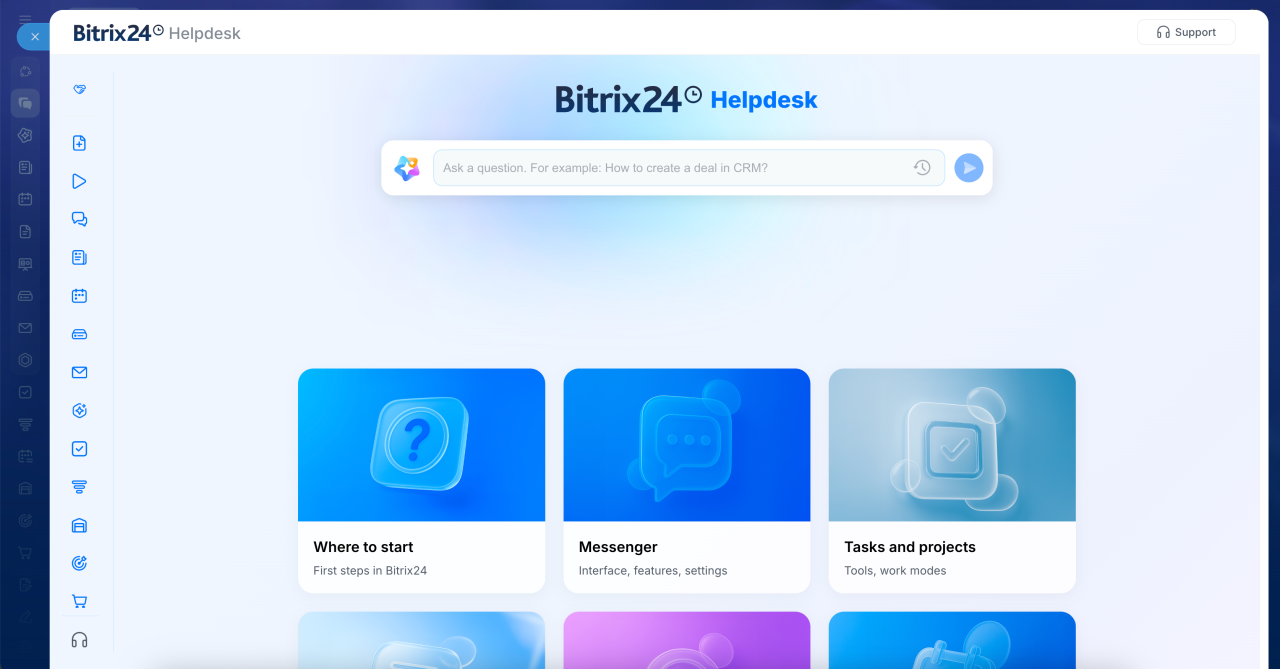
Bitrix24 Helpdesk is a knowledge base that helps you use Bitrix24. Here, you can find step-by-step instructions, ask AI for help, and contact support.
In this article:
Open Bitrix24 Helpdesk
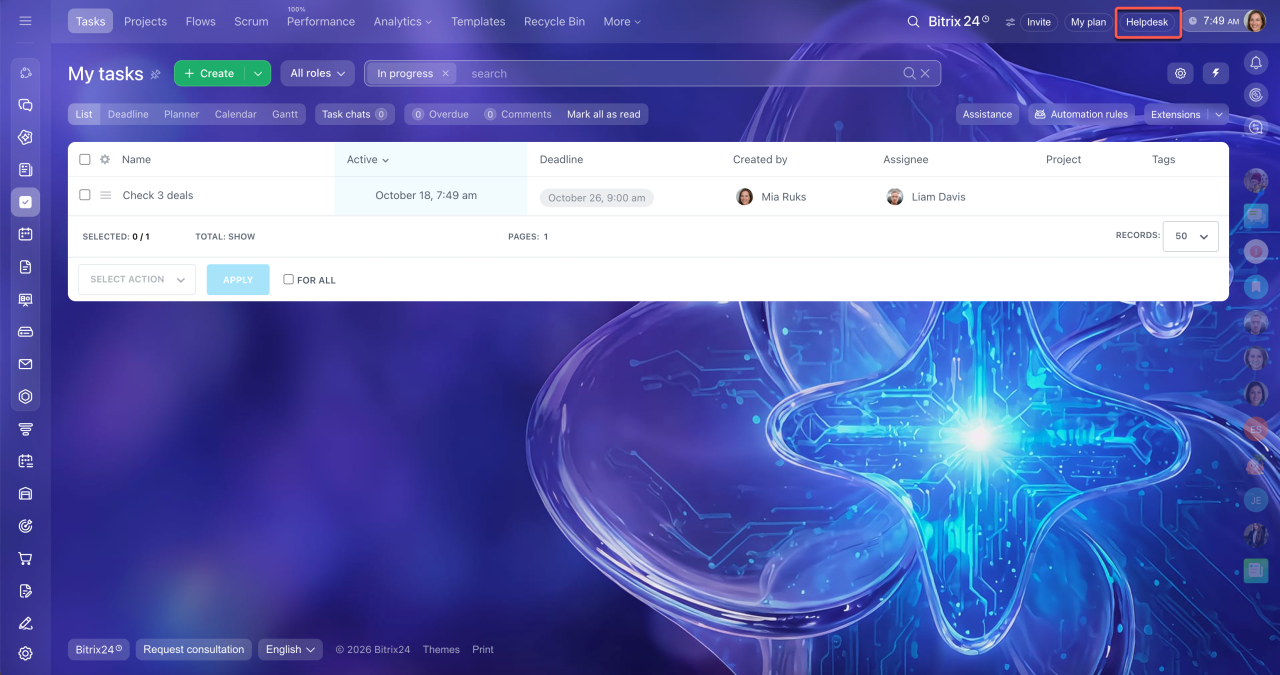
To open the knowledge base, click Helpdesk in the top-right corner of Bitrix24. By default, Helpdesk opens an article about the tool you're currently using. For example, if you're in Tasks, an article about tasks opens.
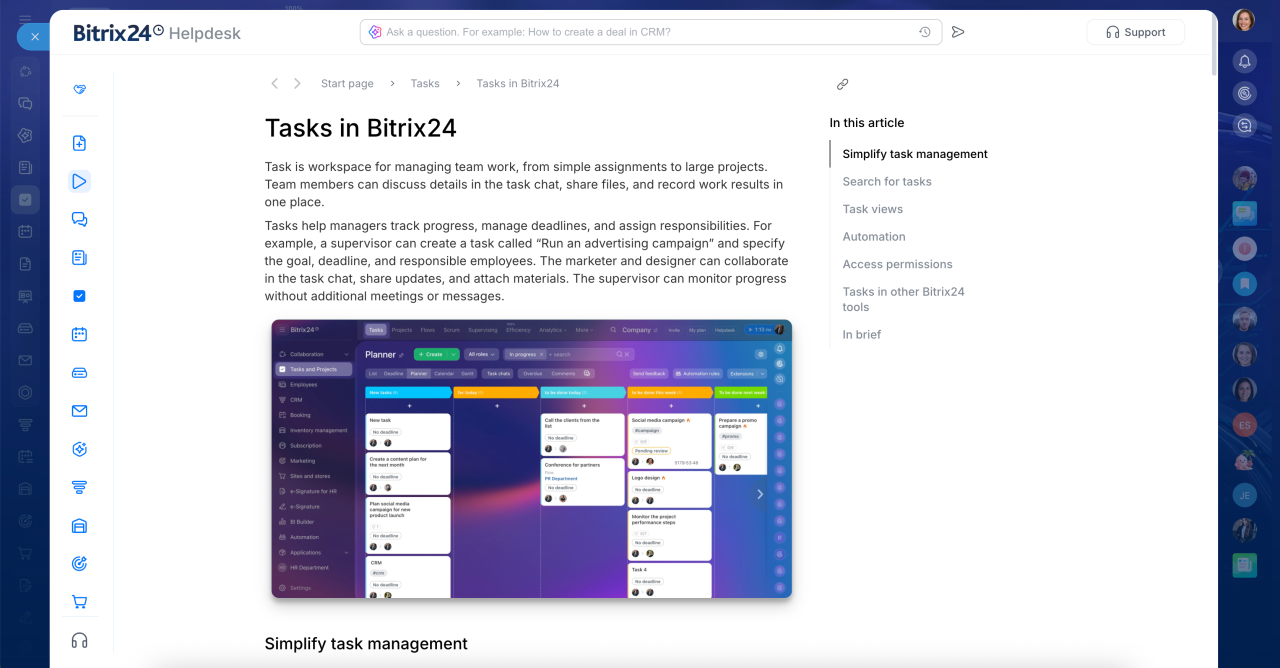
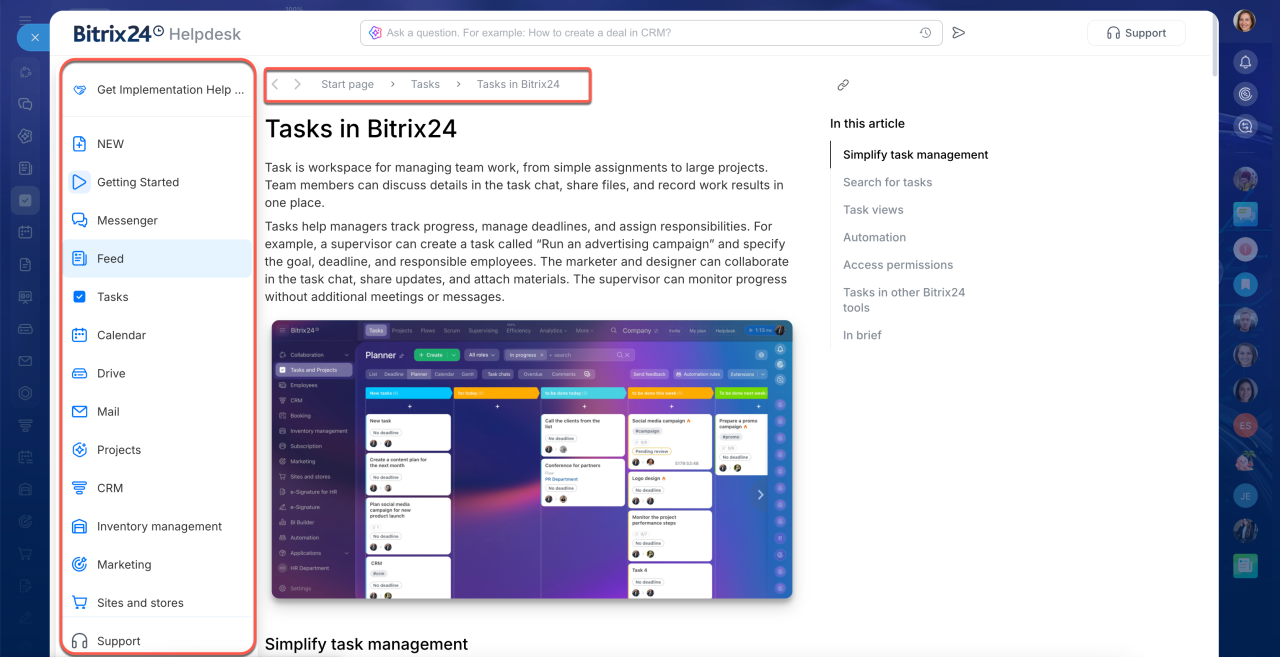
To explore articles about other tools, select the section you need from the menu on the left. The section order matches your Bitrix24 main menu and may vary from employee to employee depending on their settings and access permissions.
You can also use the breadcrumbs at the top of the page to quickly navigate to a section or a list of articles.
Search for answers with AI
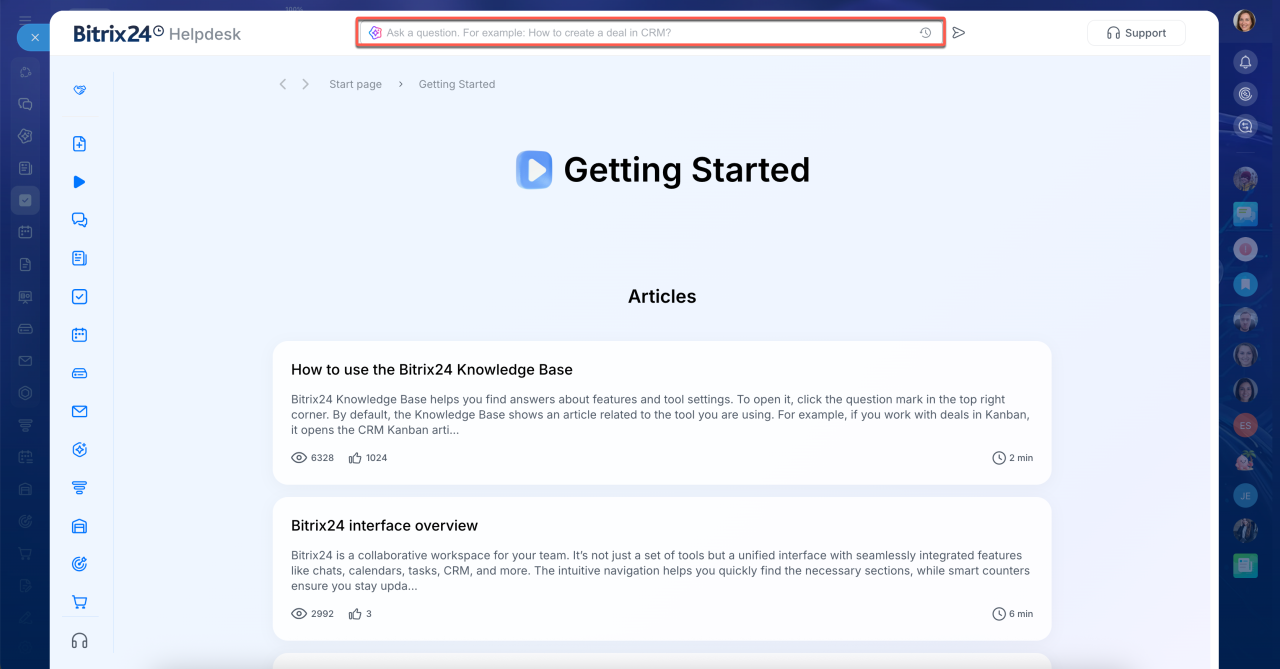
AI search helps you quickly find an answer to a specific question. Ask your question in your own words, just as you would ask a coworker. There's no need to use specific wording. AI understands your question and gives you a direct answer, so you don't have to read through an entire article to find what you need.
Click the search field at the top of the page and enter your question. Press Enter or click the send button.
In the AI response, you'll see:
- A solution to your problem or an answer to your question.
- Links to related articles.
- Keyword search results showing knowledge base articles that contain the terms from your question.
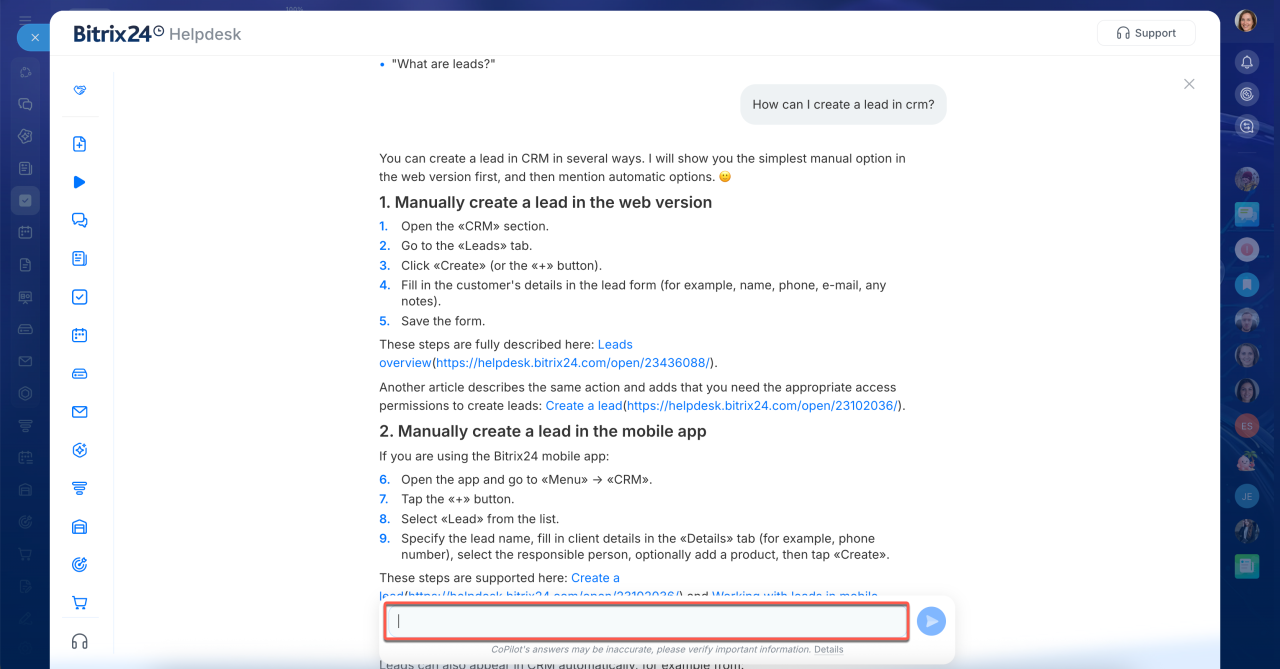
AI search works like chatting with an assistant. Your conversation history is saved, so you can ask follow-up questions and continue the conversation without having to explain the situation again.
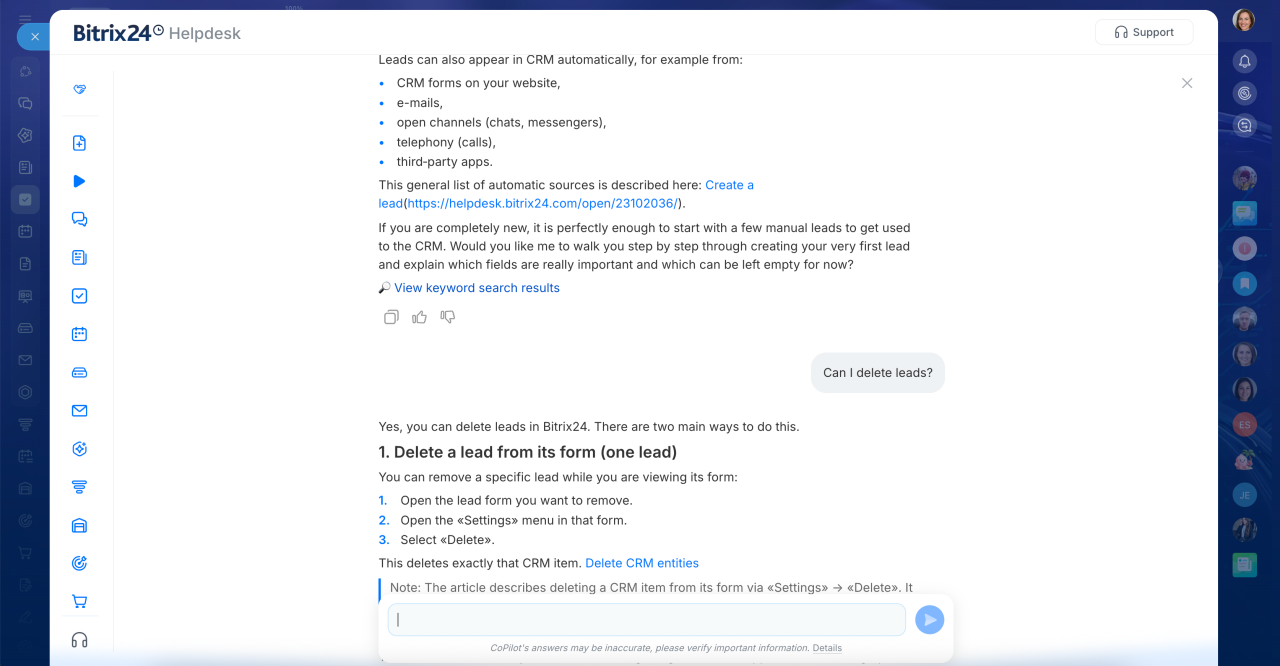
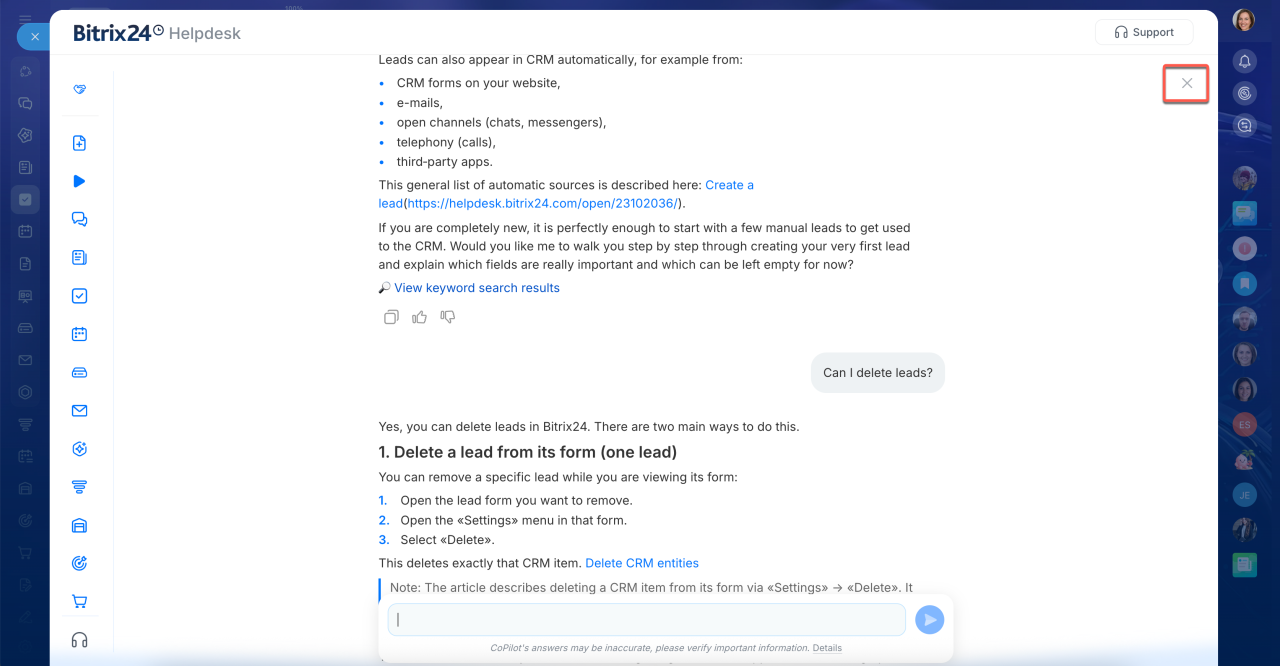
To return from the chat to the article, click the X in the top-right corner.
Use knowledge base articles
Knowledge base articles help you quickly find the information you need and share it with coworkers.
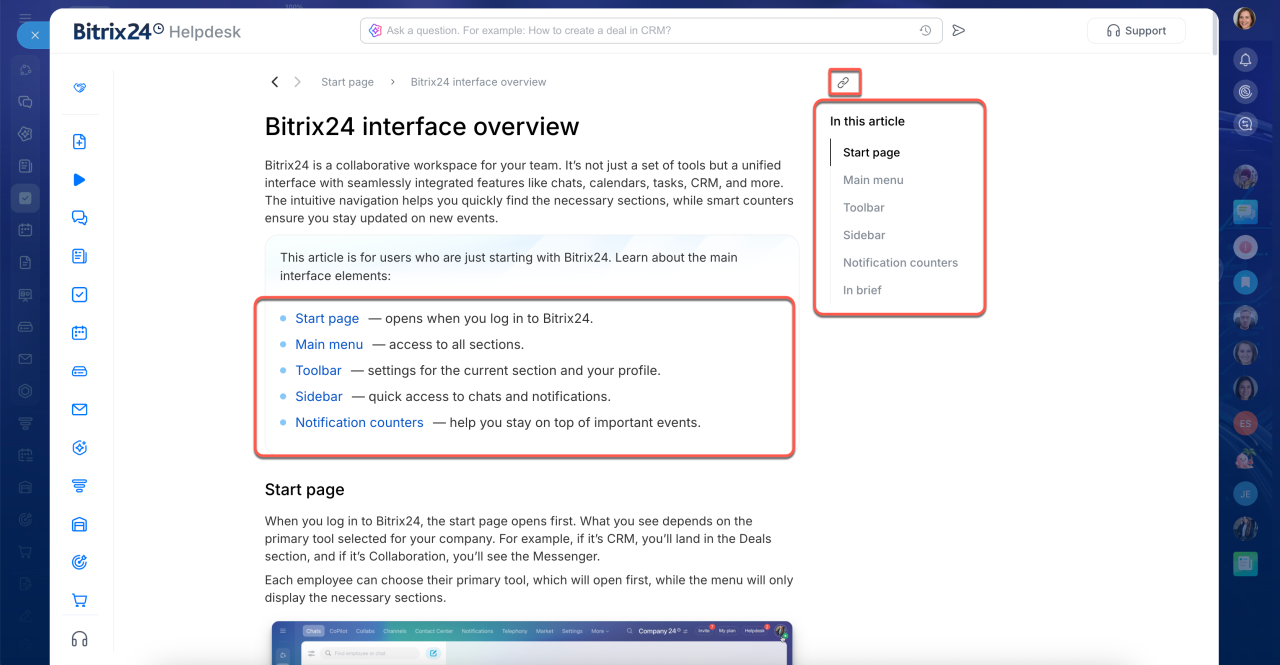
If an article is long, use the table of contents to jump to the section you need. You can find it at the beginning of the article and in the sidebar on the right. The section you're currently reading is highlighted.
To share a link to the article, click the  icon in the top-right corner.
Contact support
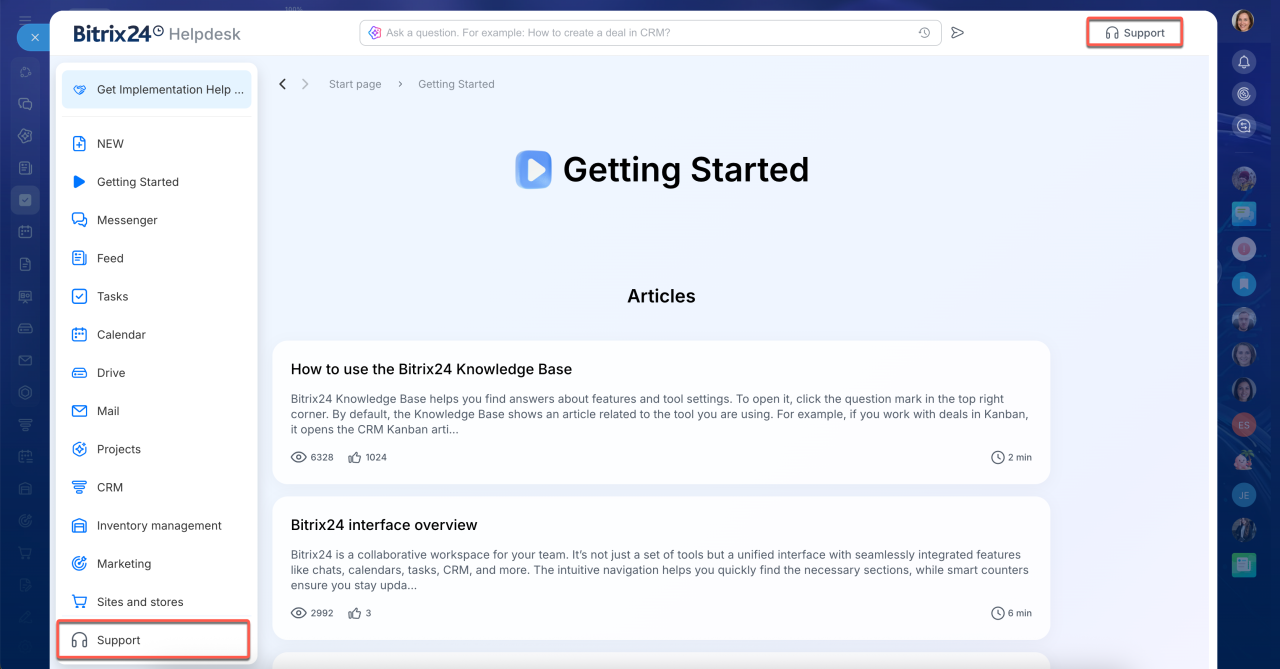
You can contact support from any knowledge base page. Click Support in the top-right corner or in the left menu.
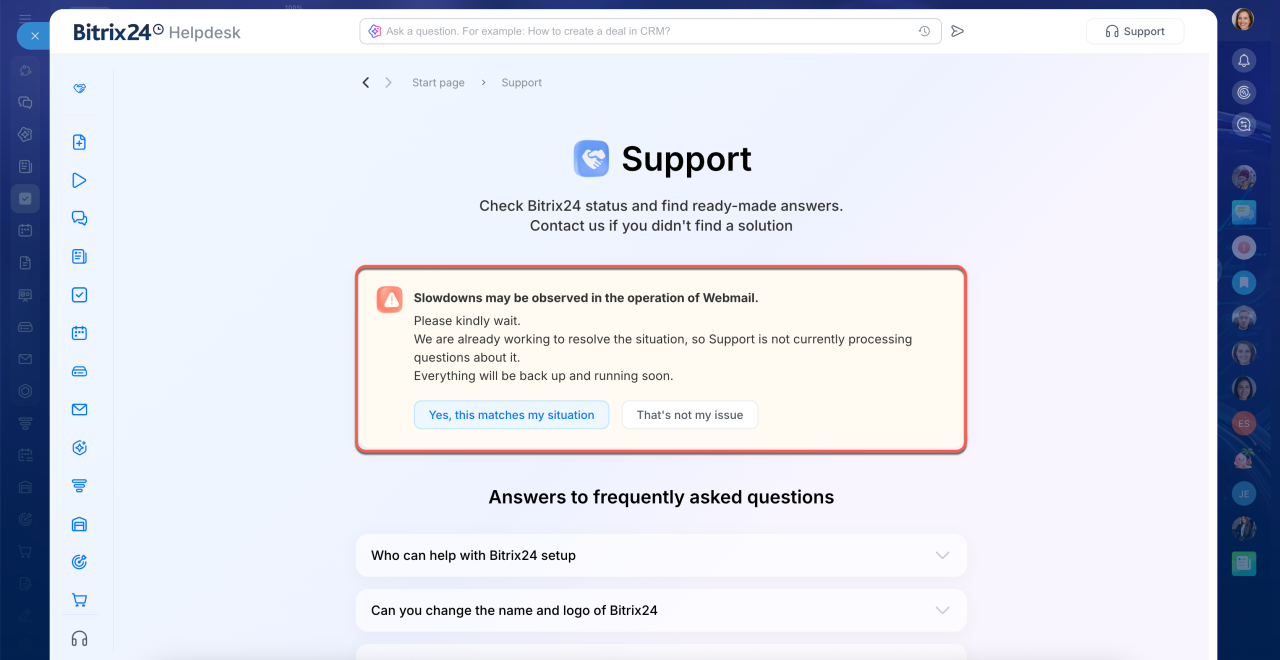
Before contacting support, check the status of Bitrix24. If you see a message about a widespread issue, we're already working on it. You don't need to contact support. The service should be back to normal soon. If your question is about something else, click That's not my issue.
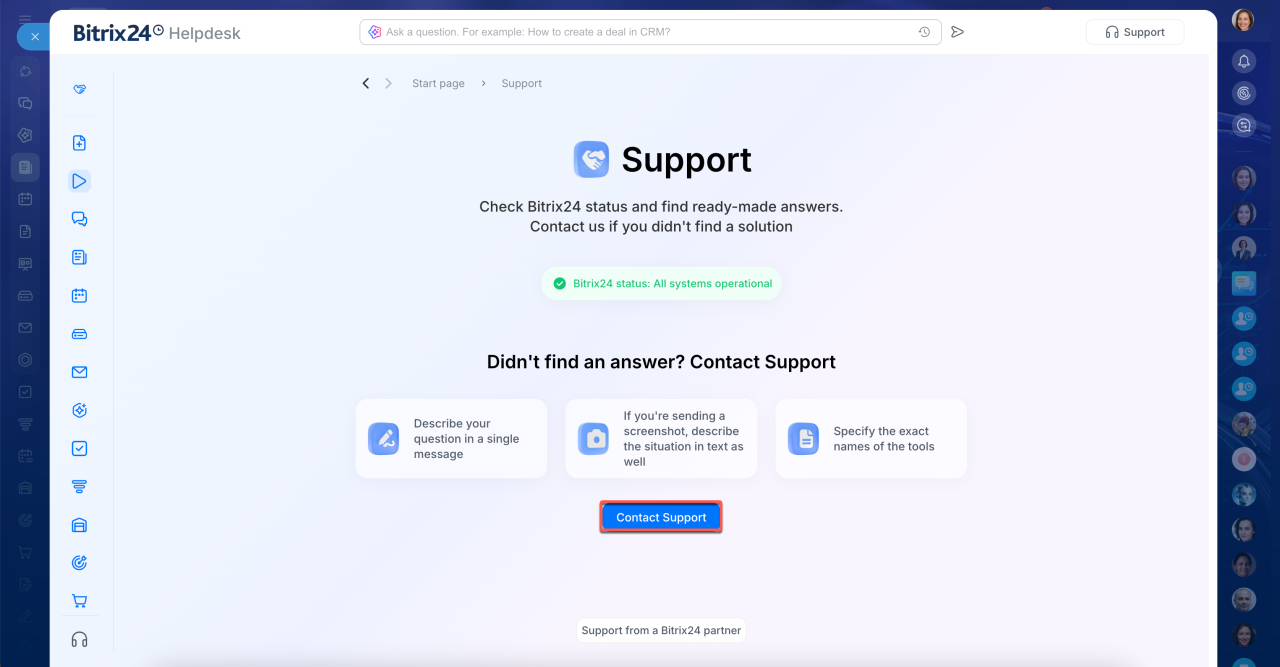
If there are no messages about widespread issues, click Contact Support at the bottom of the page.
AI support agent in Bitrix24 Support chat
Contact Bitrix24 Support
In brief
- Bitrix24 Helpdesk is a knowledge base that helps you use Bitrix24. Here, you can find instructions, ask AI for help, and contact support.
- To open Bitrix24 Helpdesk, click Helpdesk in the top-right corner of Bitrix24.
- Use AI search to get direct answers to questions asked in your own words. Your conversation history is saved, so you can ask follow-up questions.
- In long articles, use the table of contents to quickly find the information you need. To share a link to an article, click the link icon in the top-right corner.
- You can contact support from any knowledge base page. Click Support in the top-right corner or in the left menu.