
In the Bitrix24 online store, customers can browse the product catalog, choose products, and place an order. During checkout, they select a payment method, choose a delivery option, and enter their personal details. Each order automatically creates a deal in CRM, where a sales representative can review the order details and start processing it.
In this article:
Place an order as a customer
A customer can start checkout in two ways:
- Add a product directly to the cart
- Compare several products first, then choose one
Add a product directly to the cart. This option works best when the customer already knows what they want to buy.
- Hover over a product.
- Set the quantity with the Plus (+) and Minus (-) buttons.
- Click Buy. The product is added to the cart, which opens automatically.
- Click Checkout.

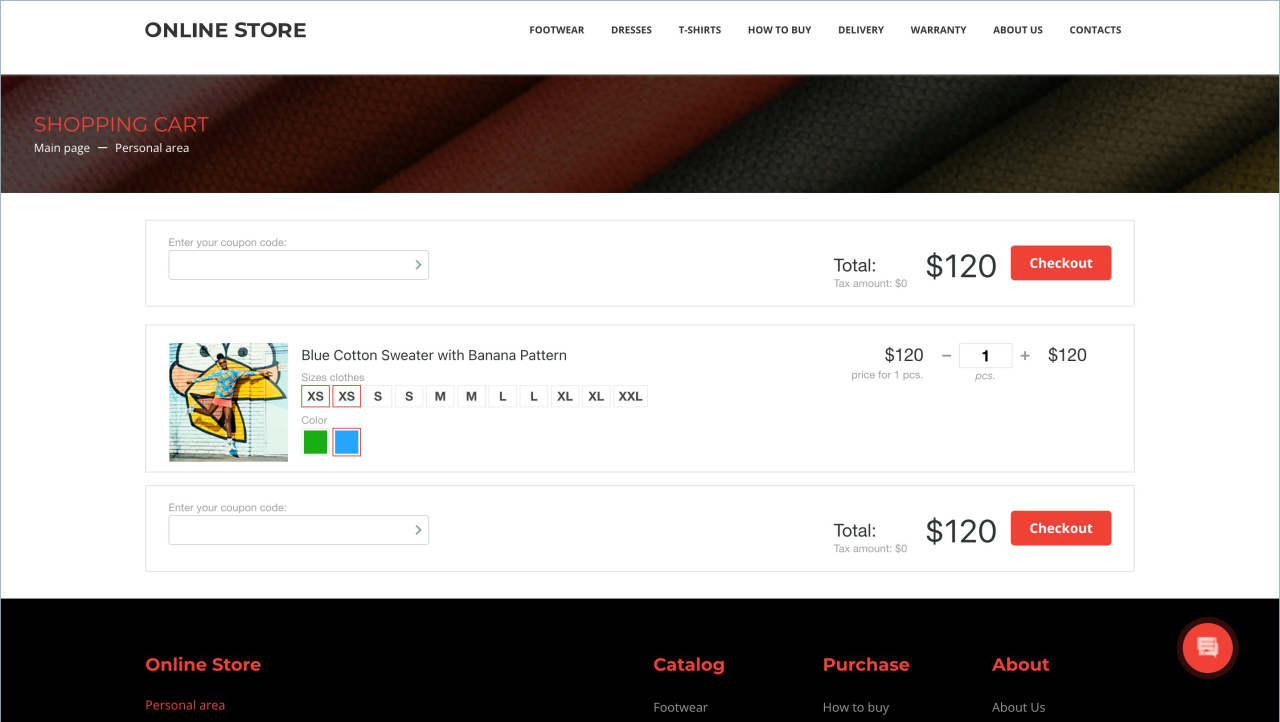
Compare several products. This option works best when the customer wants to review multiple items before making a choice.
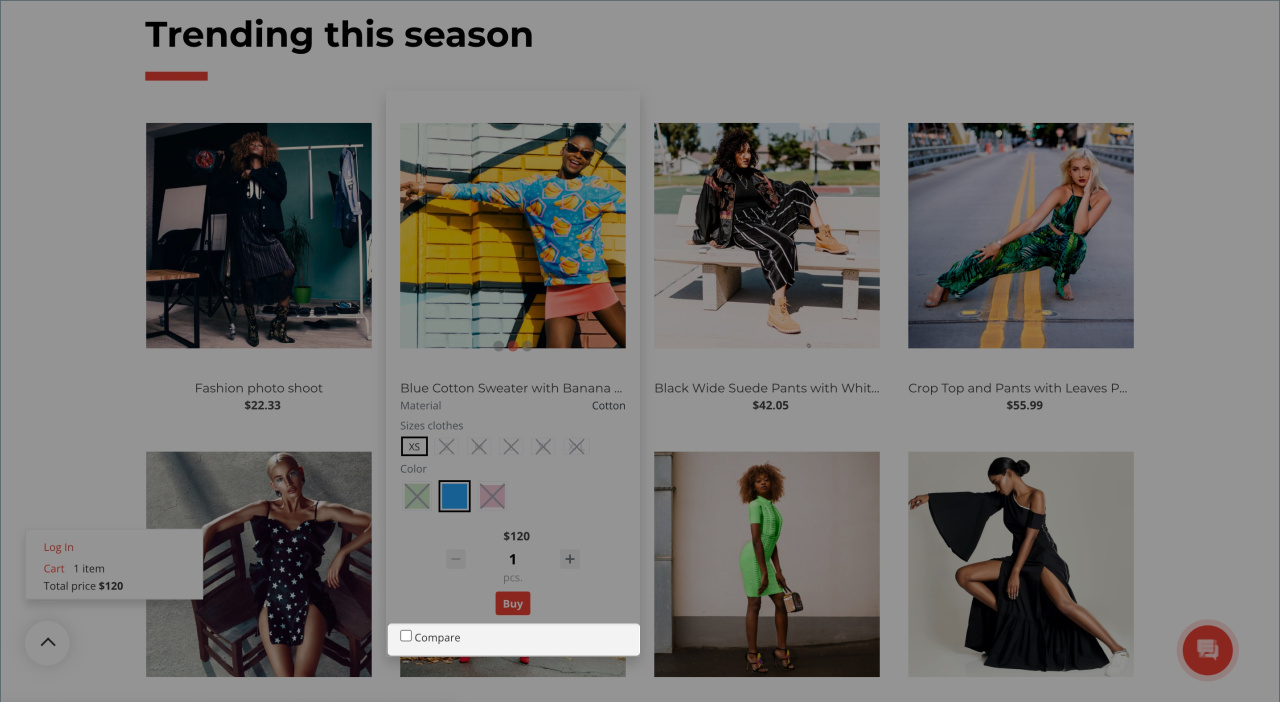
- Hover over a product and select the Compare checkbox to add it to the comparison list.
- After adding the products you need, open the comparison page in one of these ways:
- Click Compare products in the pop-up after adding a product.
- Click Go to comparison page in the Comparison list block in the upper-left corner.
- On the comparison page, compare all product characteristics or only the differences. You can also choose which characteristics to compare, view product images, and remove products from the list.
- After choosing a product, click Buy below its name. The product is added to the cart, and the cart opens automatically.
- Click Checkout.
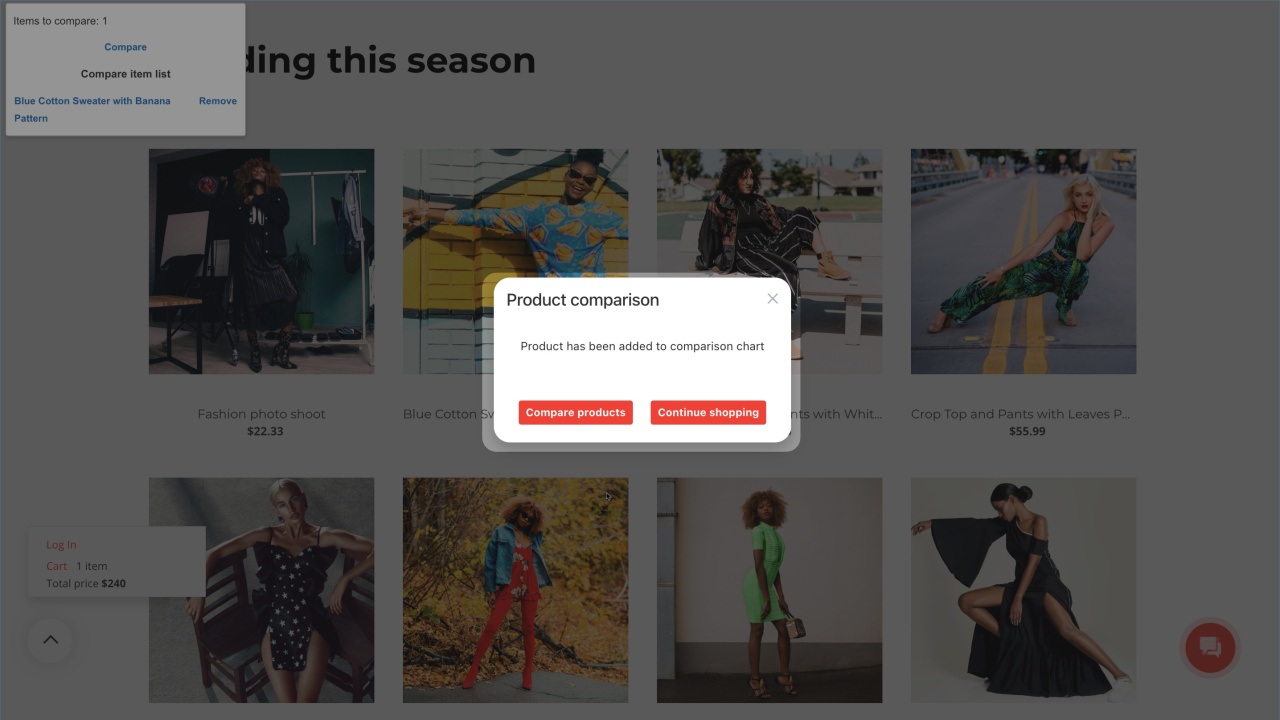
Checkout has several steps. Click Next to continue or Back to return to the previous step.
1. Shopping cart. The customer reviews the selected products and prices and can apply a discount coupon.
Once checkout starts, the customer cannot change product quantities or remove products. To make changes, they need to go back to the cart, update it, and start checkout again.
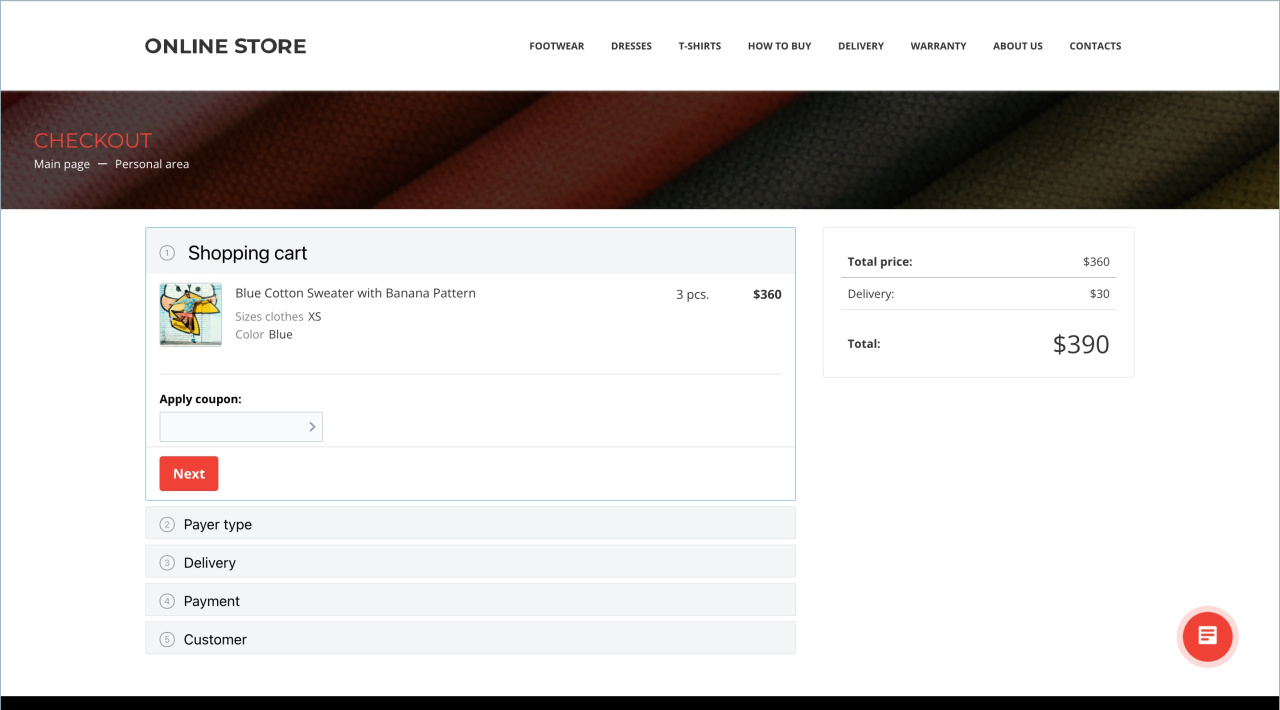
2. Payer type. The customer selects who is paying for the order — individual or legal entity. The form fields depend on this choice.
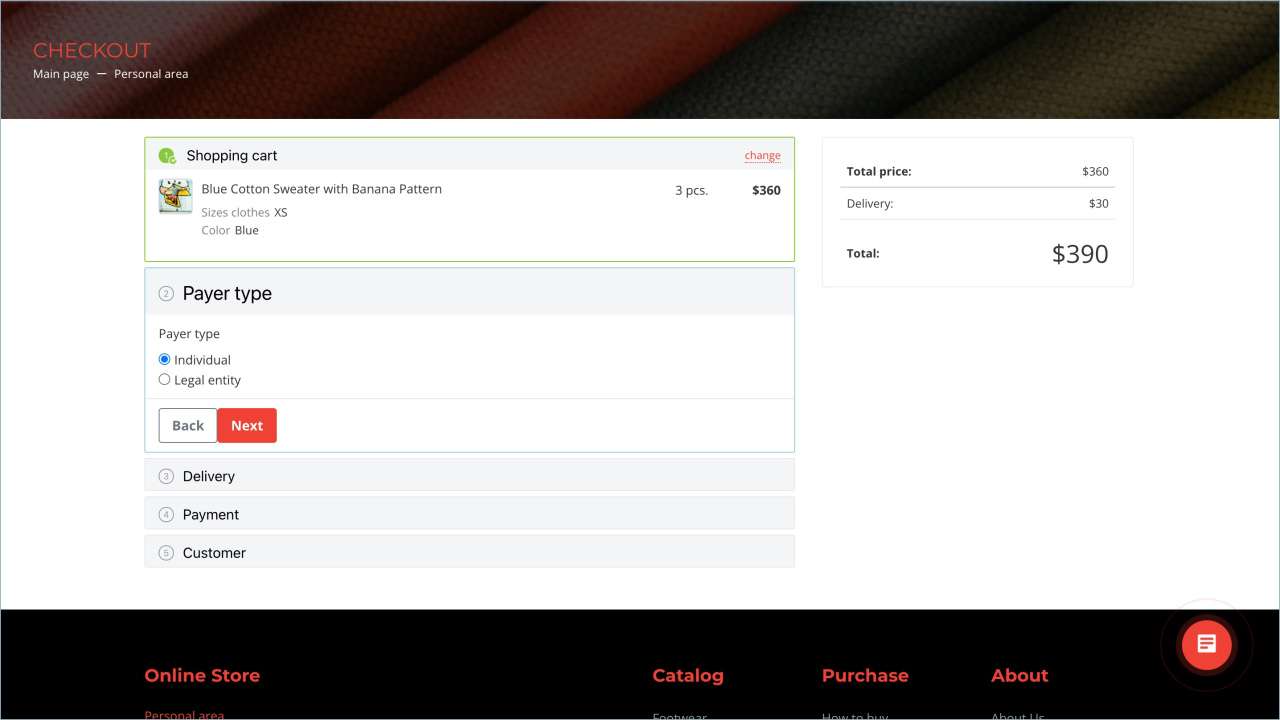
3. Delivery. The customer selects a delivery method. The available options depend on the delivery services connected to the online store. By default, courier delivery and pickup are available. The delivery cost is added to the order total automatically.
Delivery services
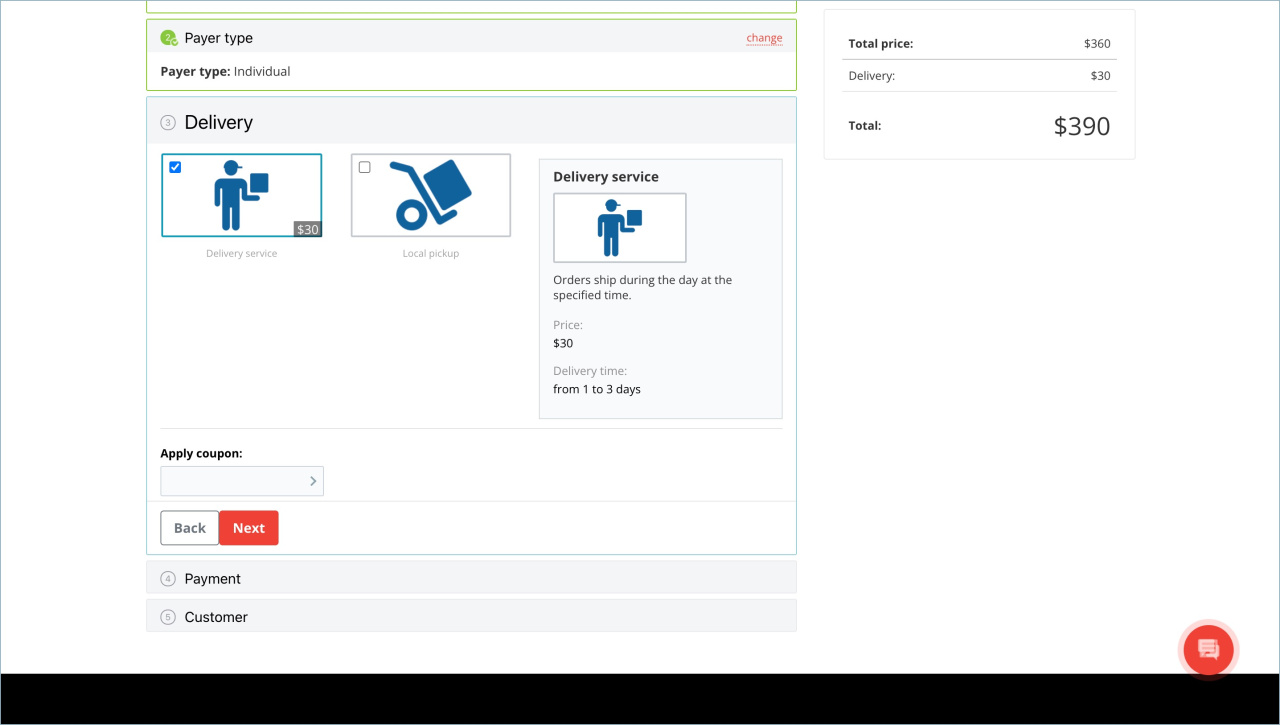
4. Pickup. If the customer selects pickup, they can choose a warehouse or pickup location. Click Change next to Pickup, then select a location on the map or from the list. If only one warehouse or pickup location is available, it appears automatically.
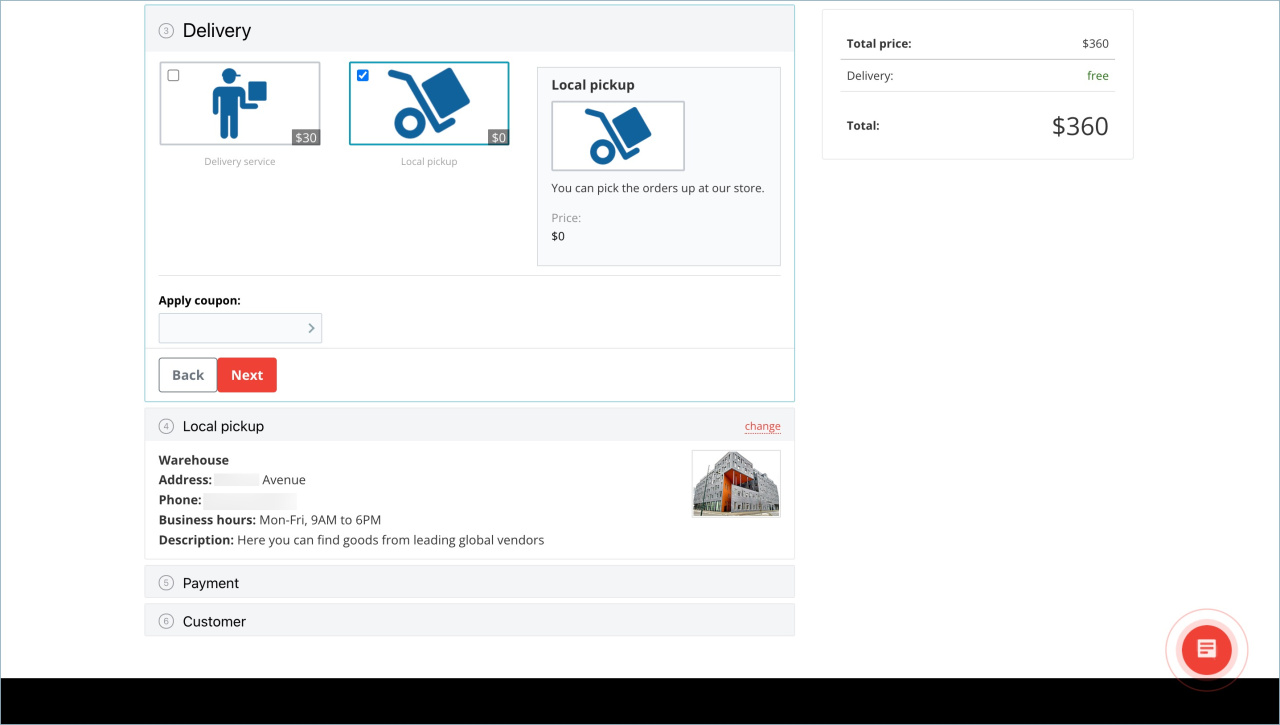
5. Payment. The customer selects a payment method. The available options depend on the payment systems connected to the online store. By default, two options are available: cash on delivery and a printable invoice.
Payment systems for online stores
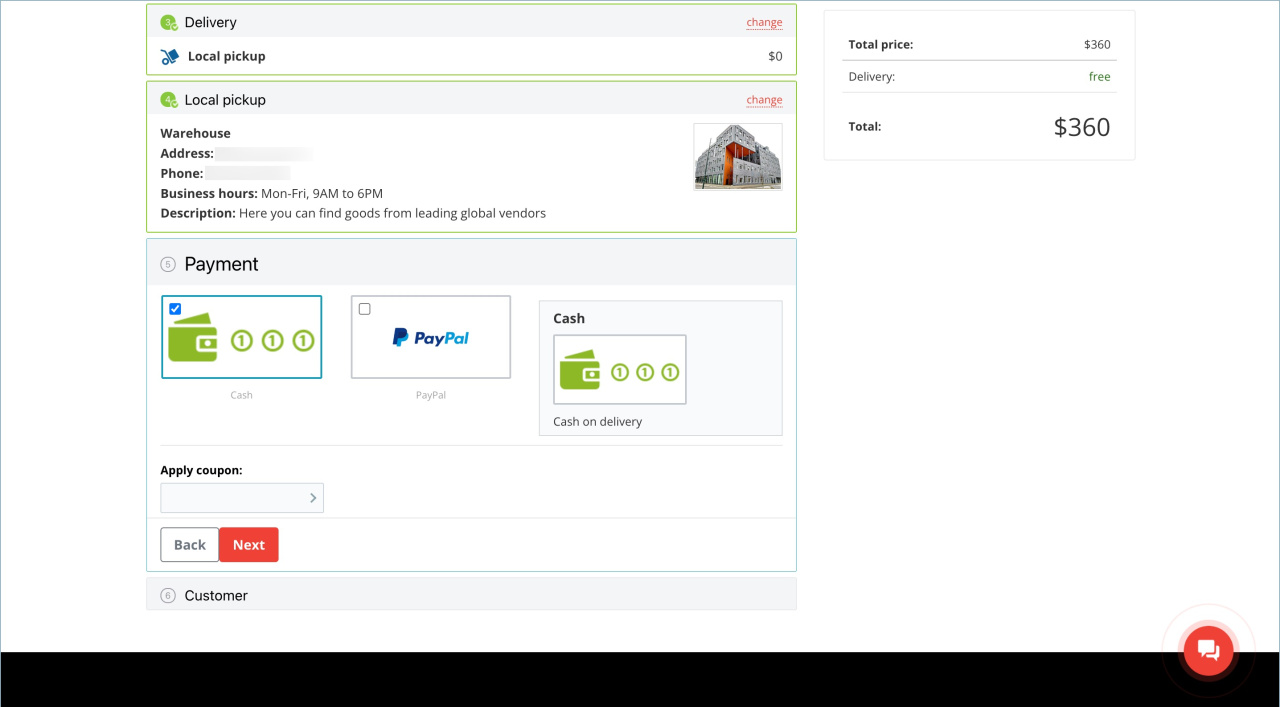
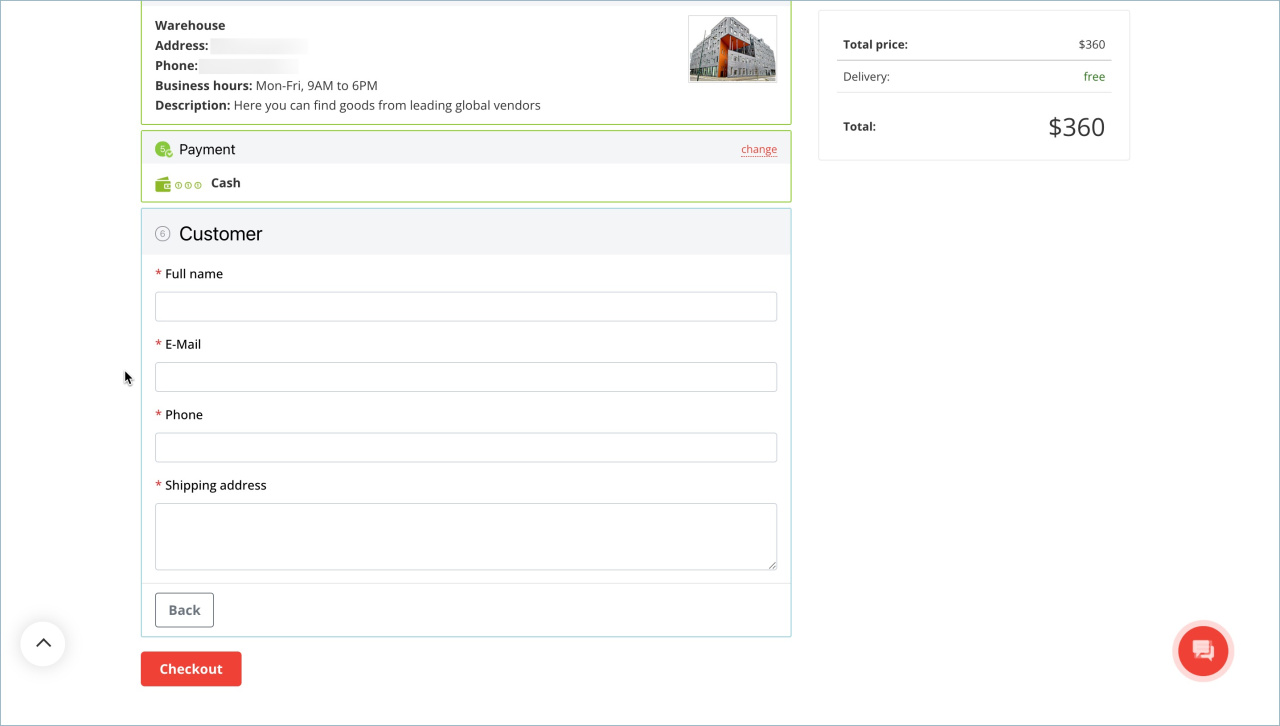
6. Customer. The customer enters their contact details. The required fields depend on the payer type. An individual enters their name, email, phone number, and delivery address. A legal entity enters the company name, contact person, email, delivery address, and other company details.
After completing all steps, the customer agrees to the processing of their personal data and clicks Checkout to place the order.
After the first order, the customer gets access to a personal section. This is a self-service account where they can manage their details and orders, including tracking order status on the Current orders tab.
Online store: Personal account
If the customer has placed an order before and is signed in to their personal section, their details are filled in automatically during checkout.
Process an order in CRM
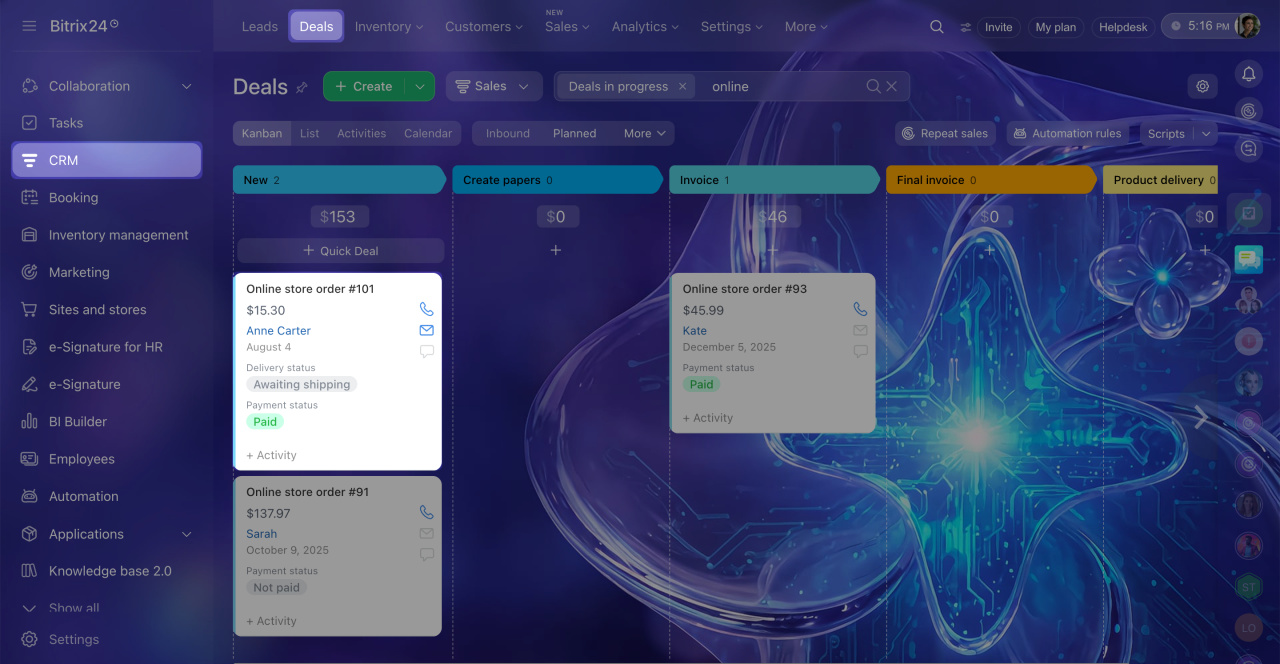
When a customer places an order in the online store, Bitrix24 automatically creates a deal in CRM with the customer and order details.
Work in Store without orders
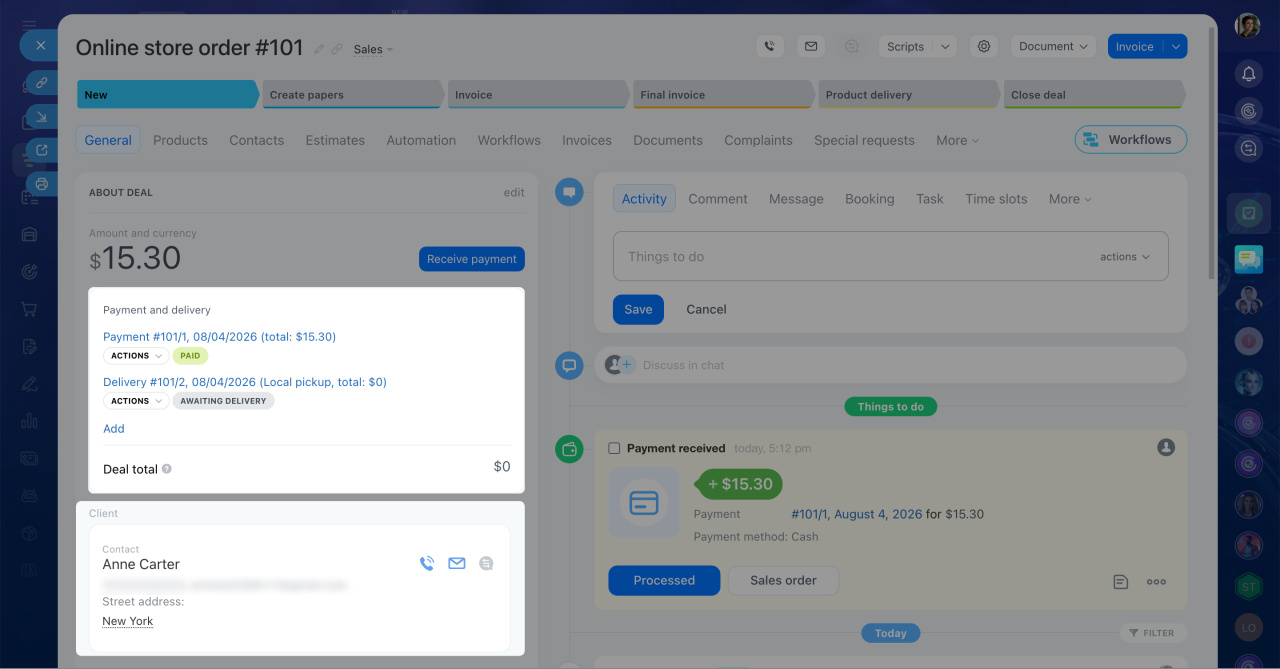
- Open CRM > Deals. Online store deals appear in the New stage. Click a deal to open its form.
- In the Payment and delivery field, review and update the payment and delivery statuses.
- Depending on the payer type, Bitrix24 creates a contact or company for the customer. It appears in the Client field.
In brief
- In the Bitrix24 online store, customers can browse the product catalog, choose products, and place an order.
- To place an order, the customer selects a payer type — individual or legal entity, chooses a delivery and payment method, and enters their contact details.
- For each order, Bitrix24 automatically creates a deal in CRM with the customer and order details.