
If a key falls into the wrong hands or an employee leaves the company, revoke access permissions away. In Vibeсode, you can deactivate a specific API key, remove a user from a server, or revoke an access link. Changes apply immediately.
In this article:
Deactivate an API key
Use this option when a key is compromised, shared with the wrong person, or no longer needed. After you deactivate it, all requests that use this key are rejected immediately.
1. Open the API Keys section. Find the key by name, username, or prefix.
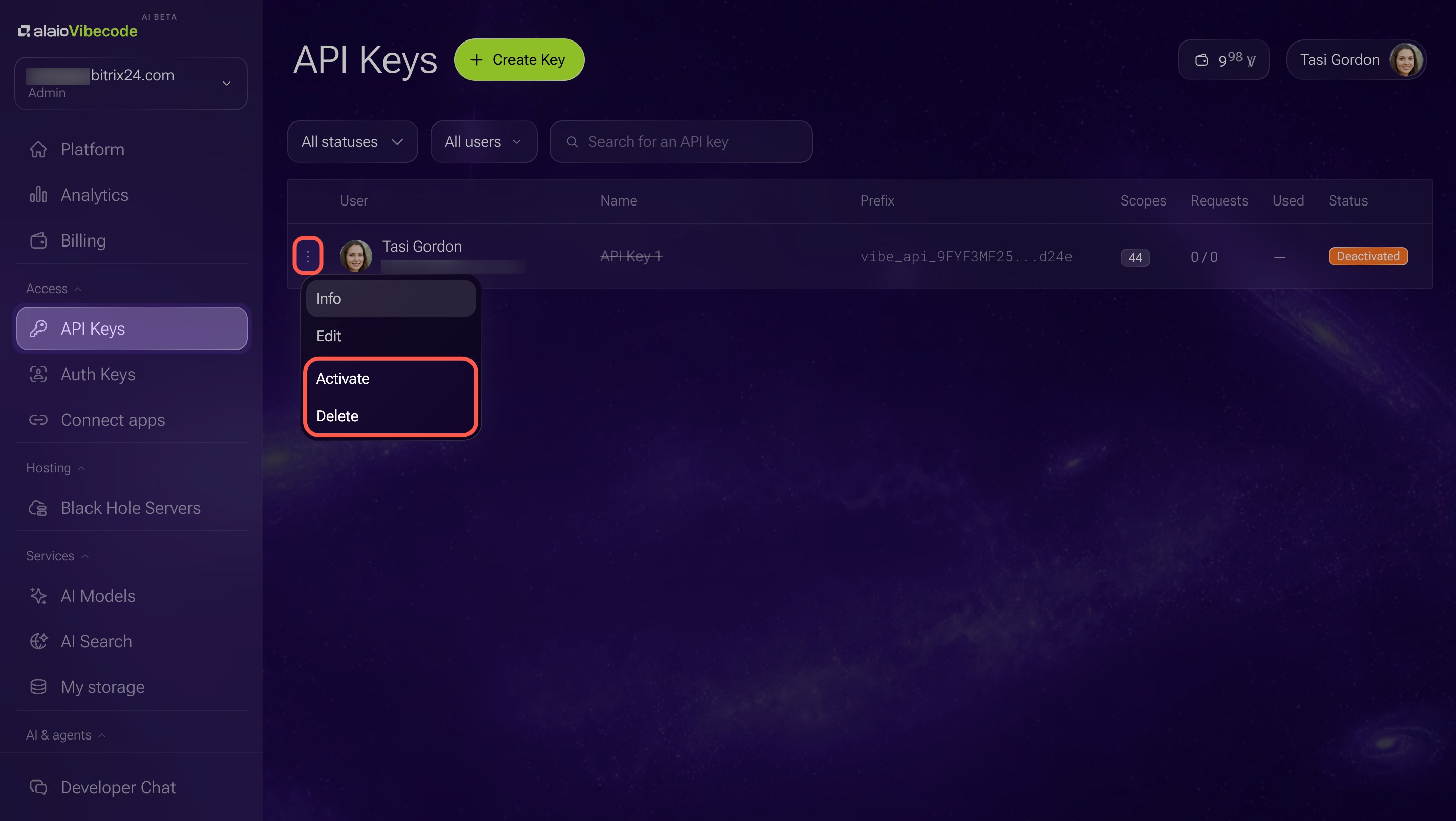
2. Click the Three dots (...) menu next to the key and select Deactivate.
If the key was linked to an active server, create a new key. Click Create key at the top of the section, then link the new key to the server instead of the old one.
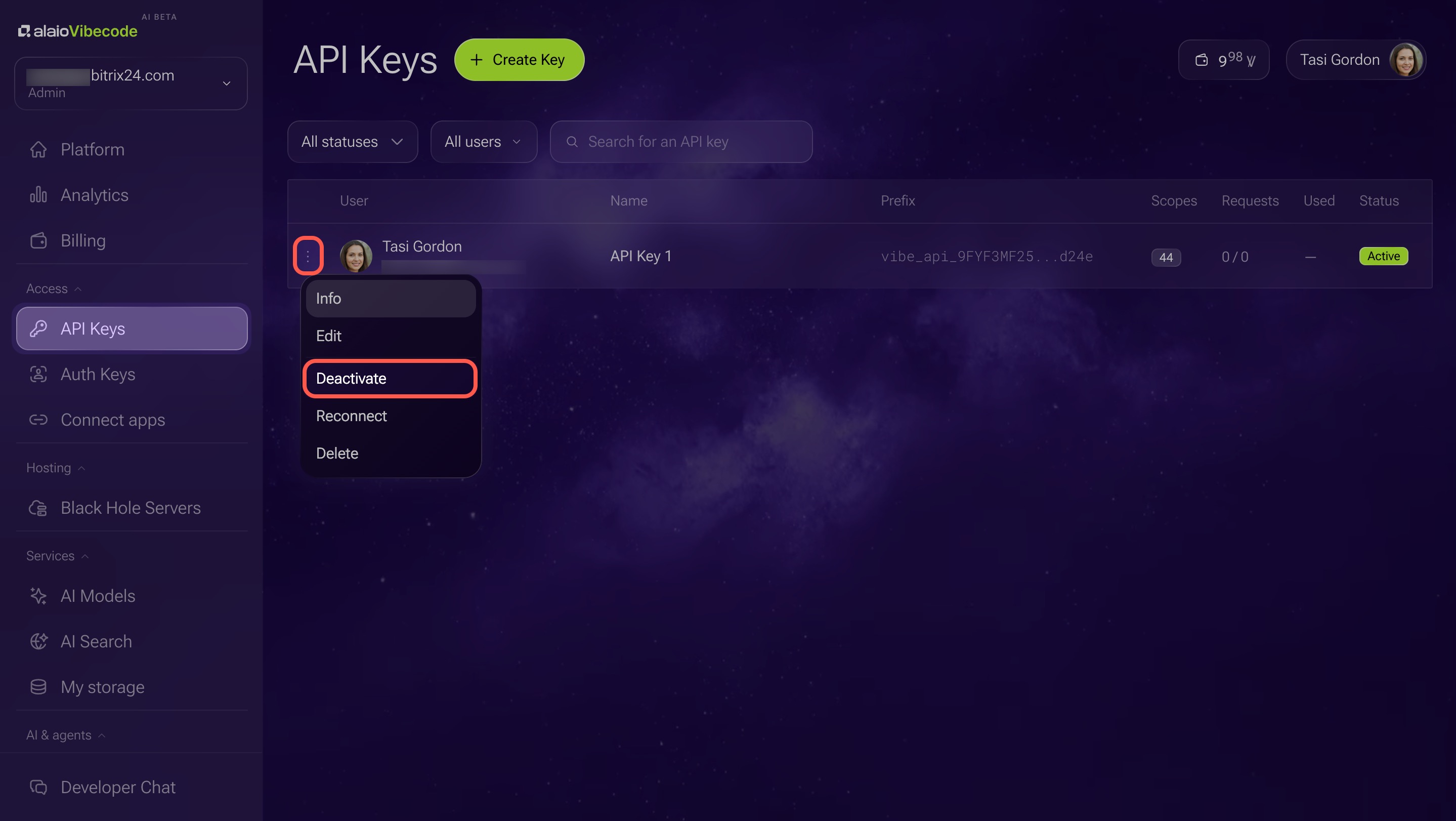
You can reactivate a deactivated key. To do this, click the Three dots (...) menu next to it and select Activate.
If the key is compromised and you do not want to restore it, delete it permanently. Click the Three dots (...) menu and select Delete. If the key is linked to active servers, unlink them first. Otherwise, you will not be able to delete the key.
Remove a user's server access
Use this option when an employee leaves the company or changes roles. After you remove access, the employee can no longer see the server or send requests to it.
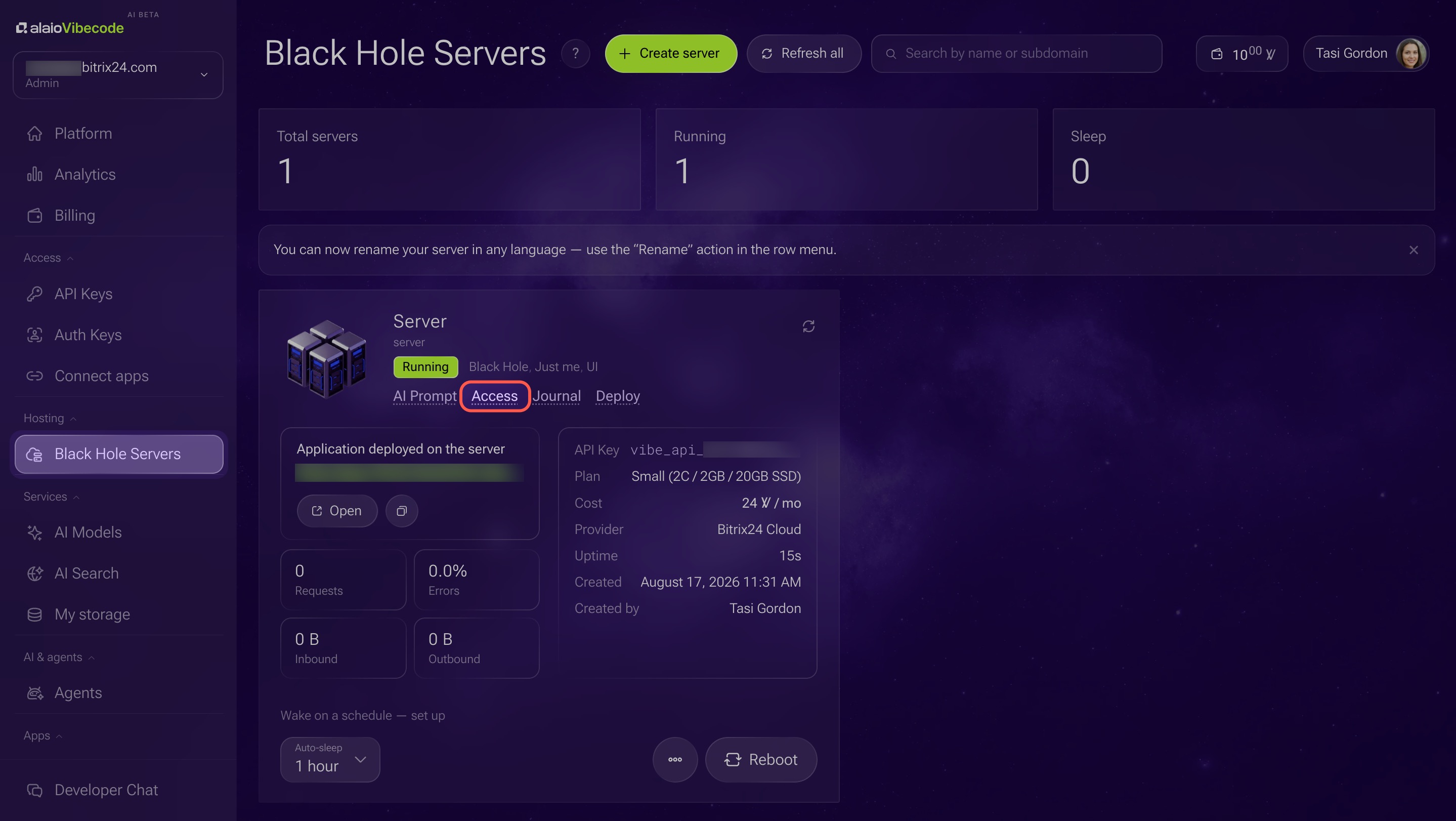
1. Open the Black Hole Servers section.
2. Click Access on the relevant server.
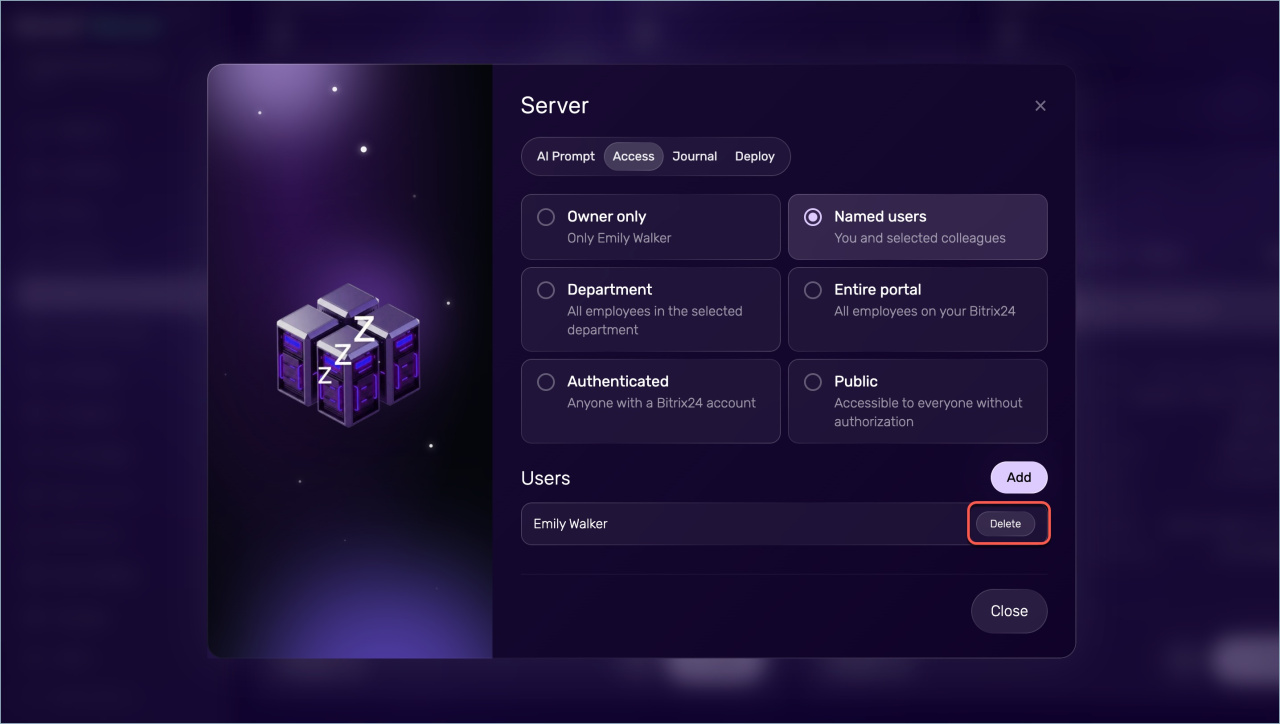
3. Find the employee in the list and click Delete.
If the employee has left the company, also deactivate the Bitrix24 account. This removes access not only to this server, but to the entire account.
Dismiss users
Revoke an access link
Revoke an access link if it was shared with unauthorized users or is no longer needed. After you revoke it, the link stops working and can no longer be used to access the server.
Users who already got access through the link will keep it. To remove them, use the Access tab separately.
Remove a user's server access
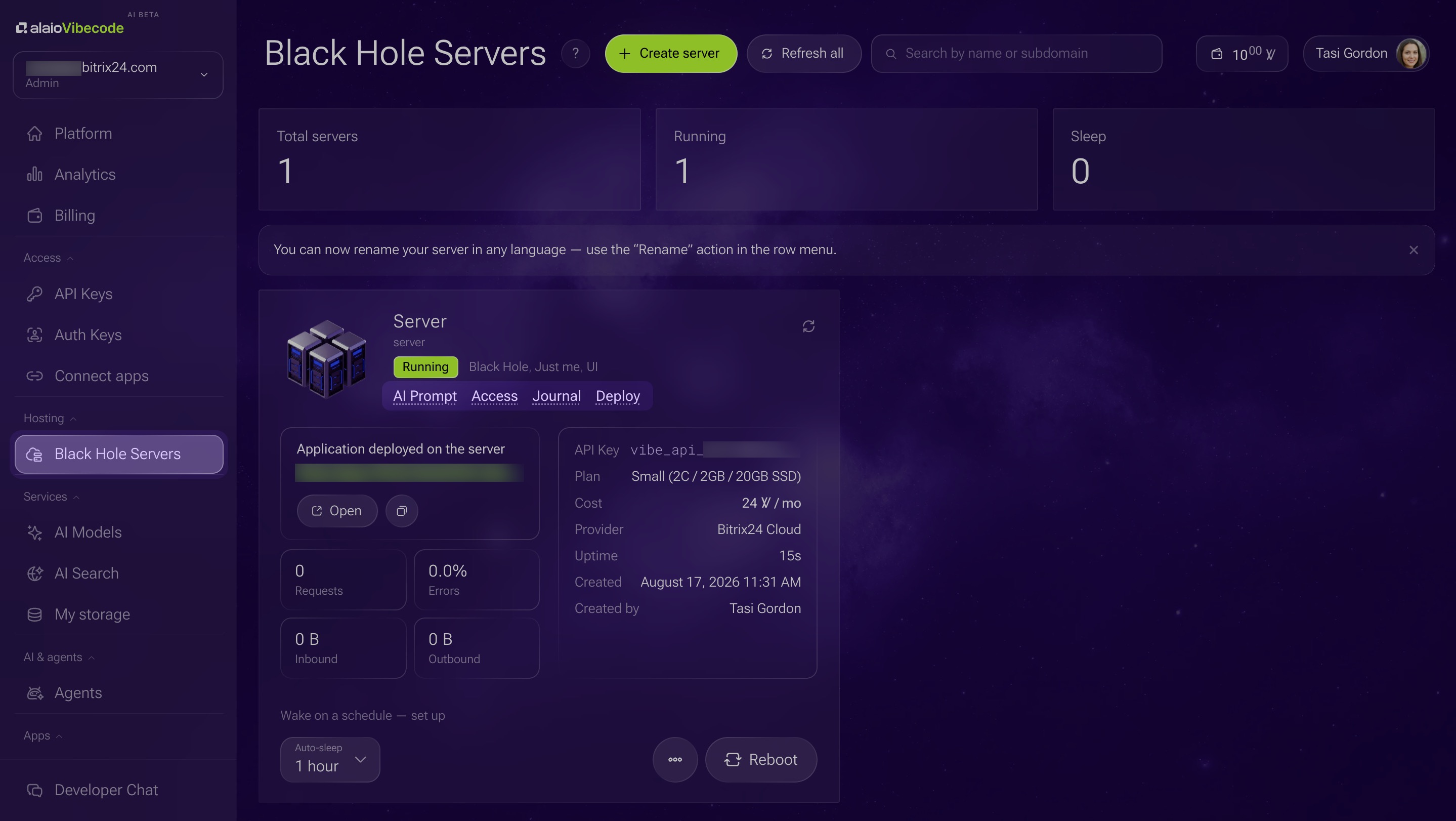
1. Open the Black Hole Servers section.
2. Click any tab on the relevant server, such as Access.
3. In the window that opens, go to the Links tab.
4. Find the link in the list and click the delete icon next to it.
Delete an app from the catalog
Use this option when you no longer need the app at all. Deletion is permanent. If you need the app again, you must create it again. When you delete an app:
- All API keys for the app are deactivated immediately
- The app is removed from the catalog for all users
- Logs and build history are deleted
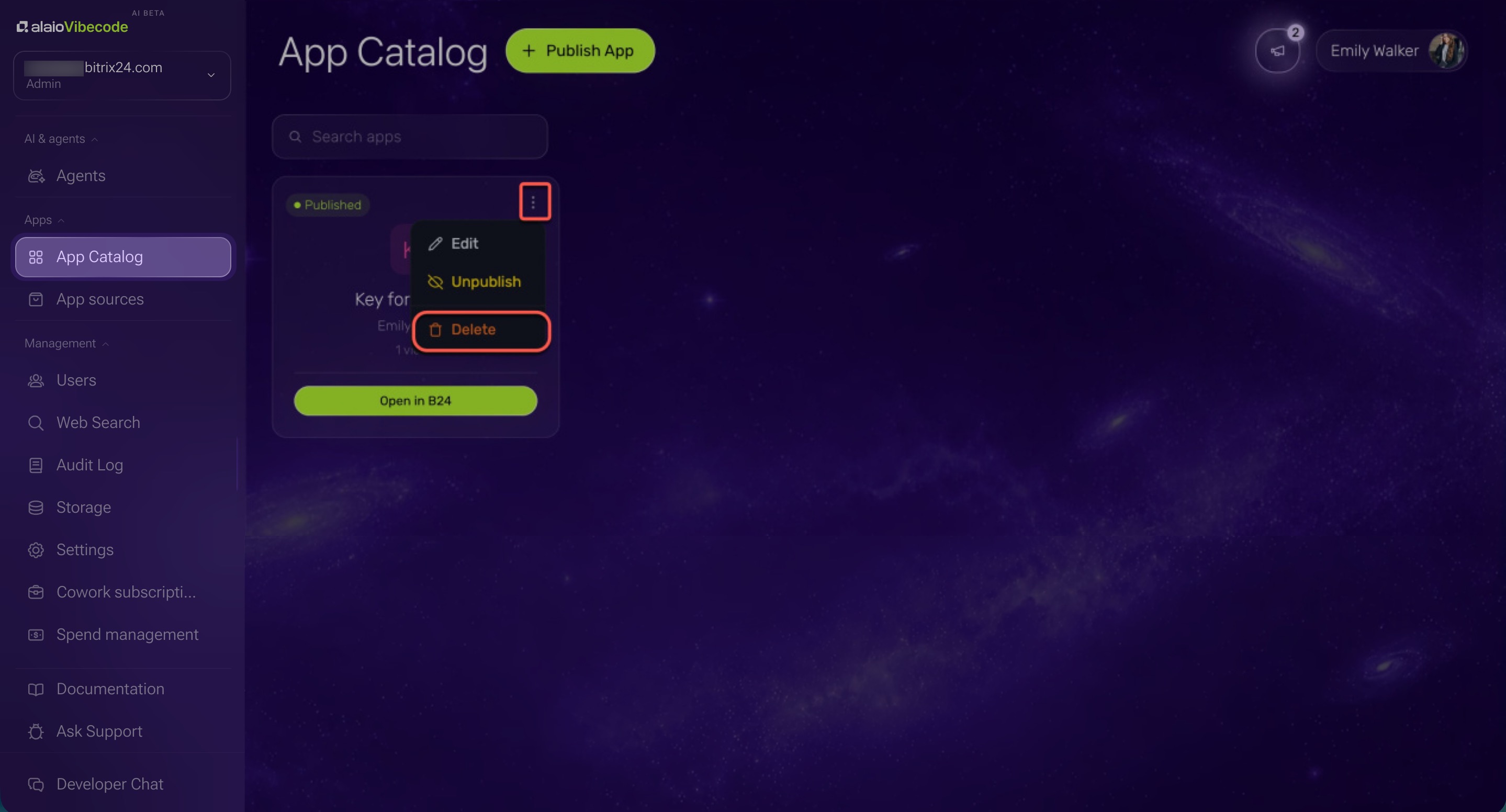
1. Open the App Catalog section.
2. Click the Three dots (...) menu on the app form.
3. Select Delete.
Check access after revoking it
After any of these actions, make sure access is actually blocked. The server log shows who accessed the server and when. If you see new requests after revocation, the key or link is still active somewhere. Vibe Code blocks these requests, but you should still confirm it.
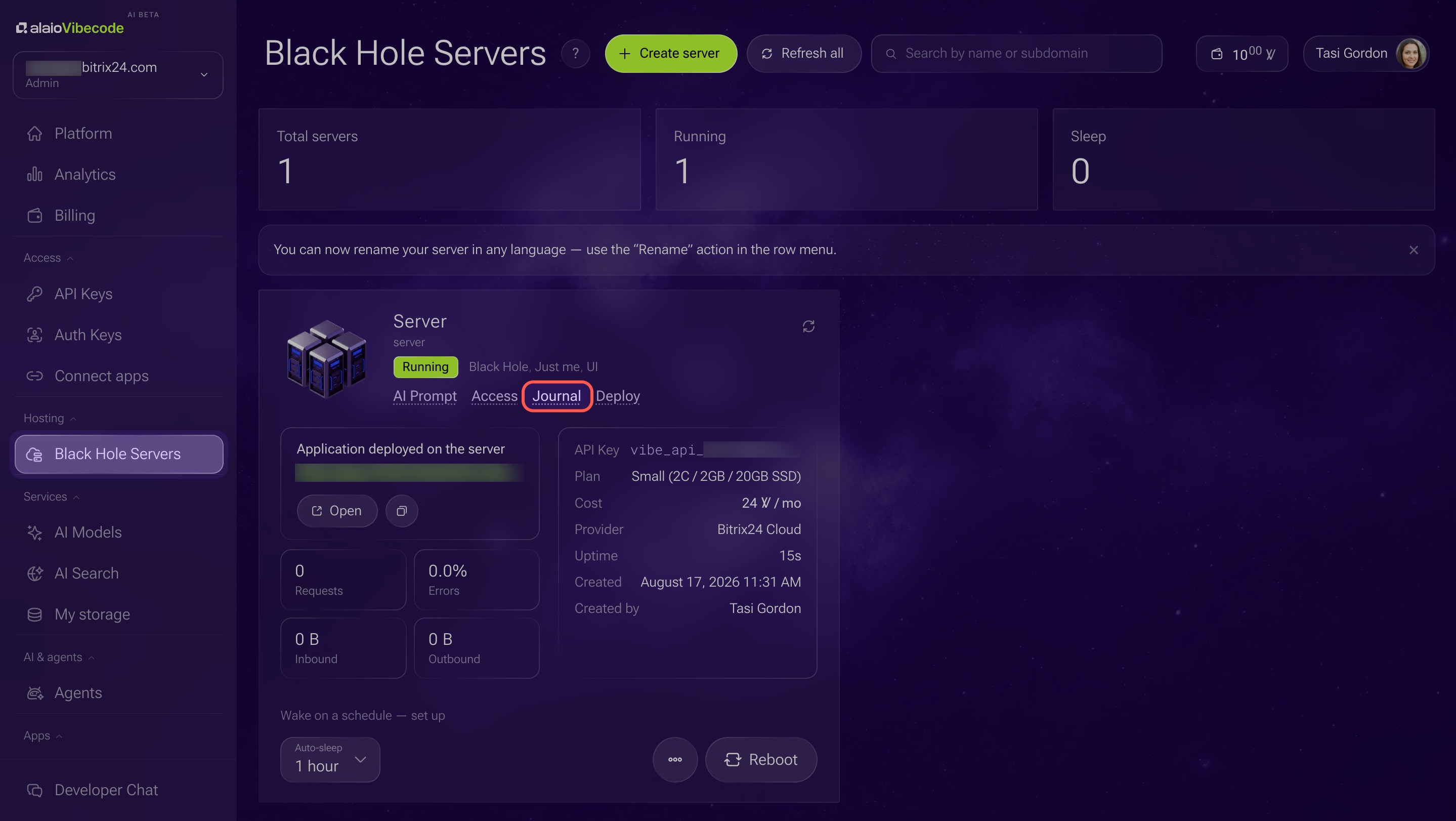
1. Open the Black Hole Servers section.
2. Click Journal on the relevant server.
3. Review recent server requests to see who made them, when, and what result they got. If you see new requests after revocation, the key or link is still active somewhere. Find it and revoke it.
Respond to a stolen key
If you think a key has fallen into the wrong hands, act fast.
1. Deactivate the key in the API Keys section.
2. Open the Journal tab on the server and review activity from the last few hours.
3. If the log shows suspicious requests, pause the entire app.
4. Contact Bitrix24 Support. They can help you check whether someone used the stolen key.
In brief
- Deactivate an API key in the API Keys section through the Three dots (...) menu. The key stops working immediately.
- Remove a user's access in the Black Hole Servers section on the Access tab. Click Delete next to the name.
- Revoke a link in the Black Hole Servers section on the Links tab. Users who already connected through it keep access and must be removed separately.
- Delete an app in the App Catalog section. All keys are deactivated and the app disappears for all users. Deletion is permanent.
- After any of these actions, check the server log on the Journal tab.