
Send SMS messages to customers directly from CRM. You can confirm agreements, share payment links, or provide order updates. Bitrix24 saves all messages in the CRM item's timeline.
For example, after a call, you can send a message to confirm deal terms or delivery details without leaving CRM.
In this article:
Connect an SMS provider
To send SMS messages from CRM, first connect an SMS provider.
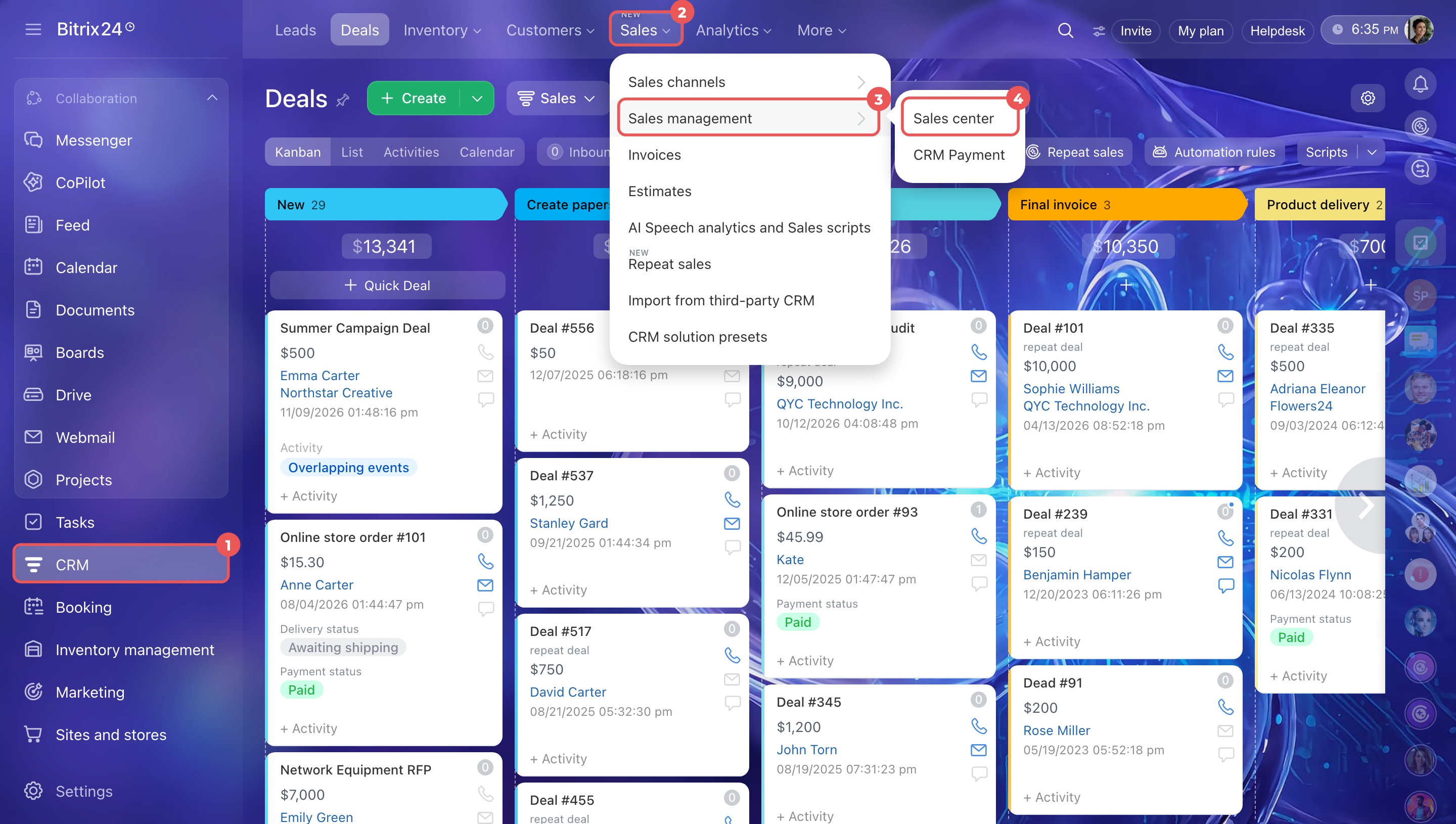
- Go to CRM > Sales > Sales management > Sales center.
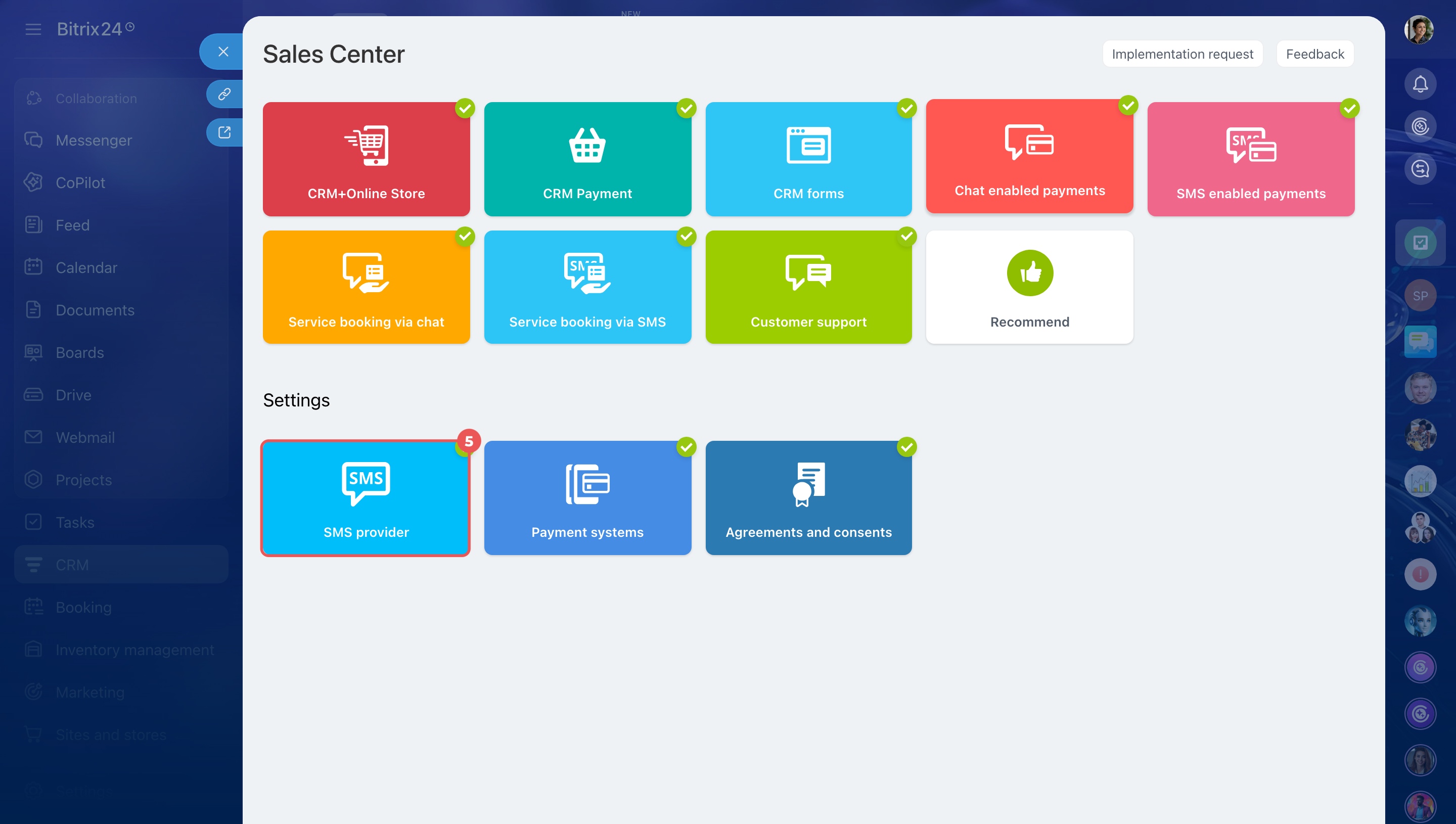
- Click SMS provider.
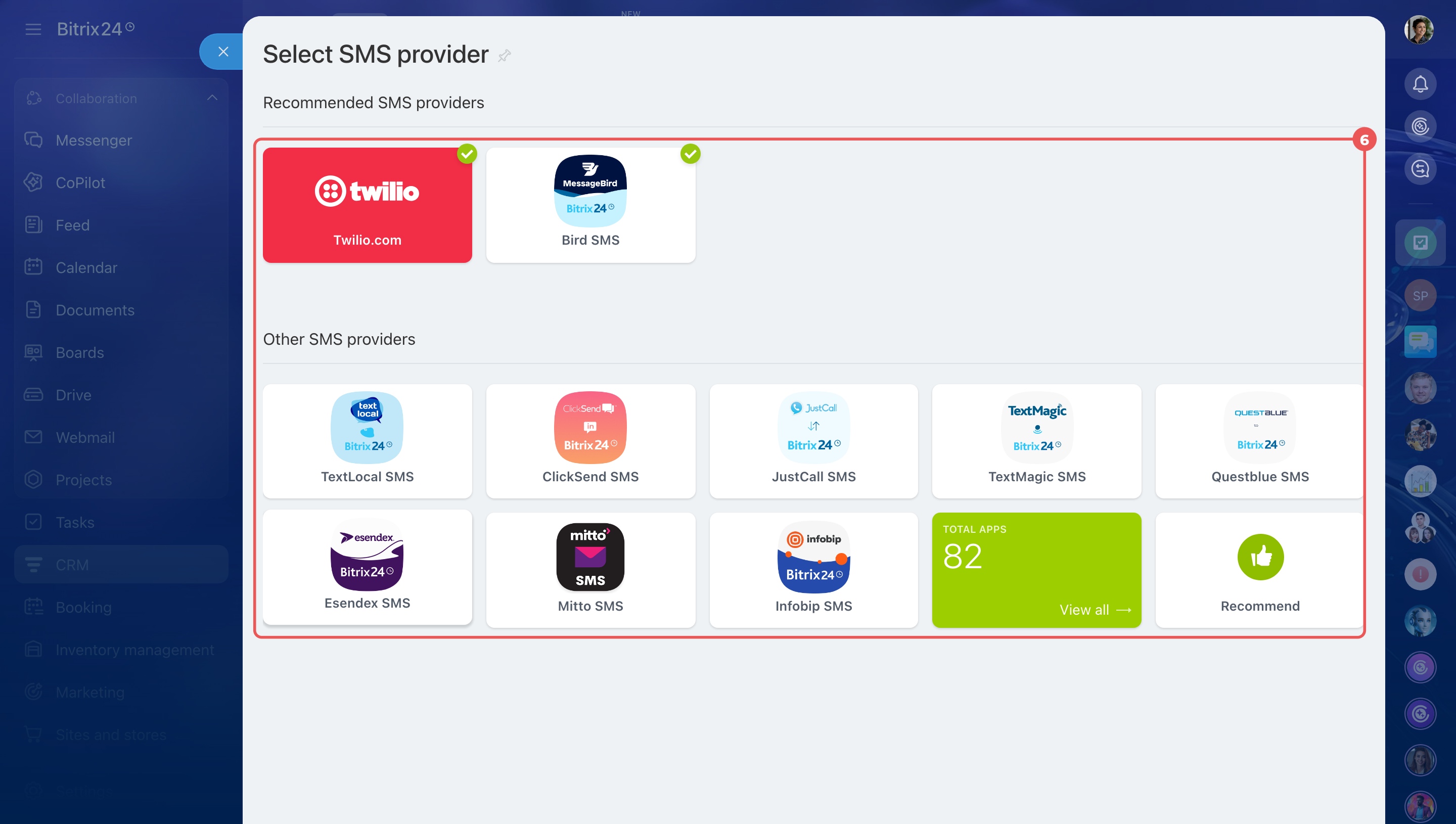
- Select a recommended provider or connect another service from Market. You can also use the built-in Bitrix24 service to send free SMS messages.
- Follow the provider's instructions to complete the setup.
Once connected, you can send SMS messages from CRM items, create SMS campaigns, and automate messages using automation rules.
Twilio integration: Create an account and connect it to Bitrix24
Send an SMS from a CRM item
Send SMS messages directly from CRM items to confirm agreements or share details with customers. You don't need to open another service.
We'll use deals as an example. The steps are the same for other CRM items.
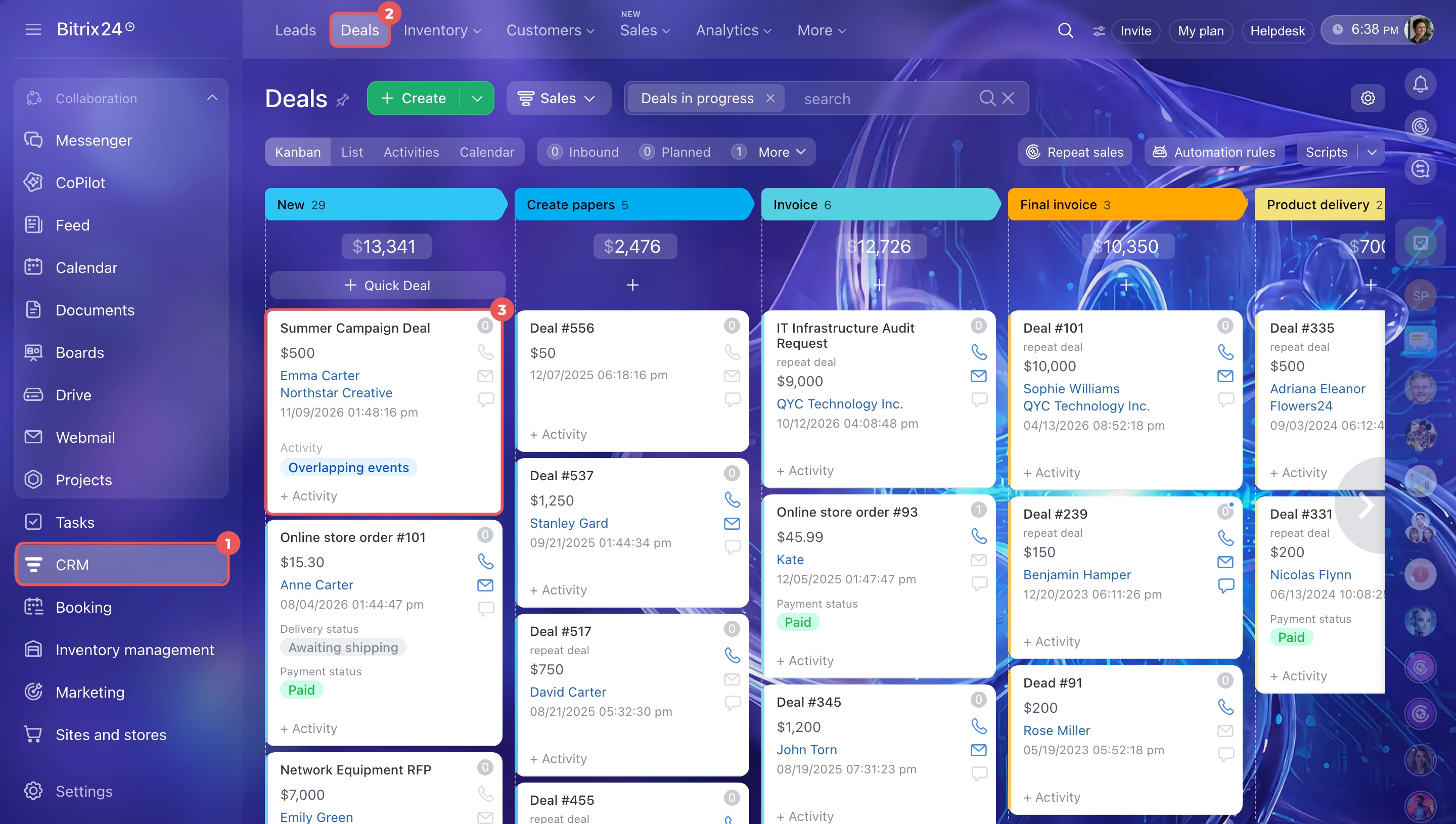
- Go to CRM > Deals and open a deal.
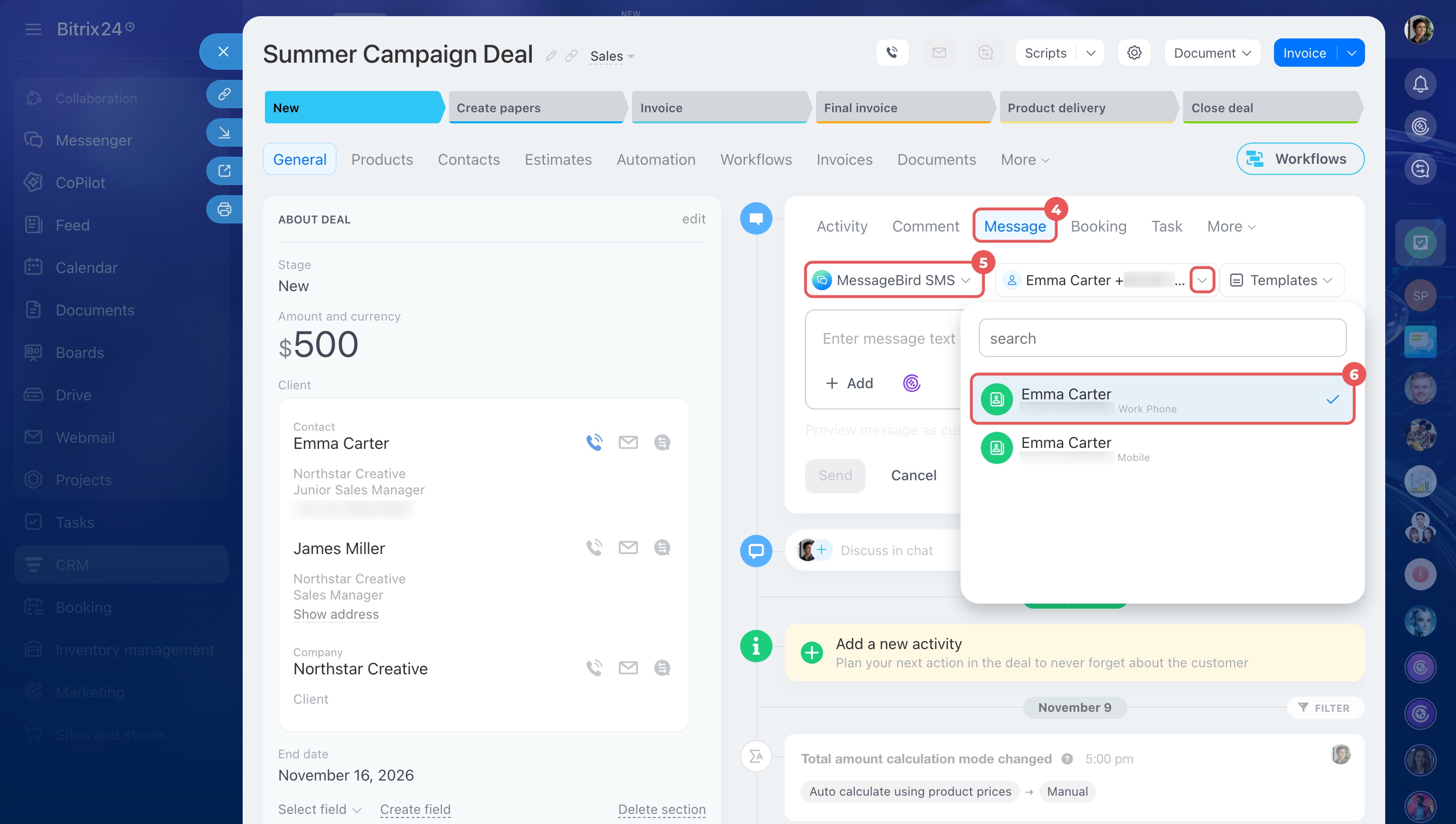
- In the timeline, click Message.
- Select an SMS provider at the top. If the customer has multiple phone numbers, choose the one you want to use.
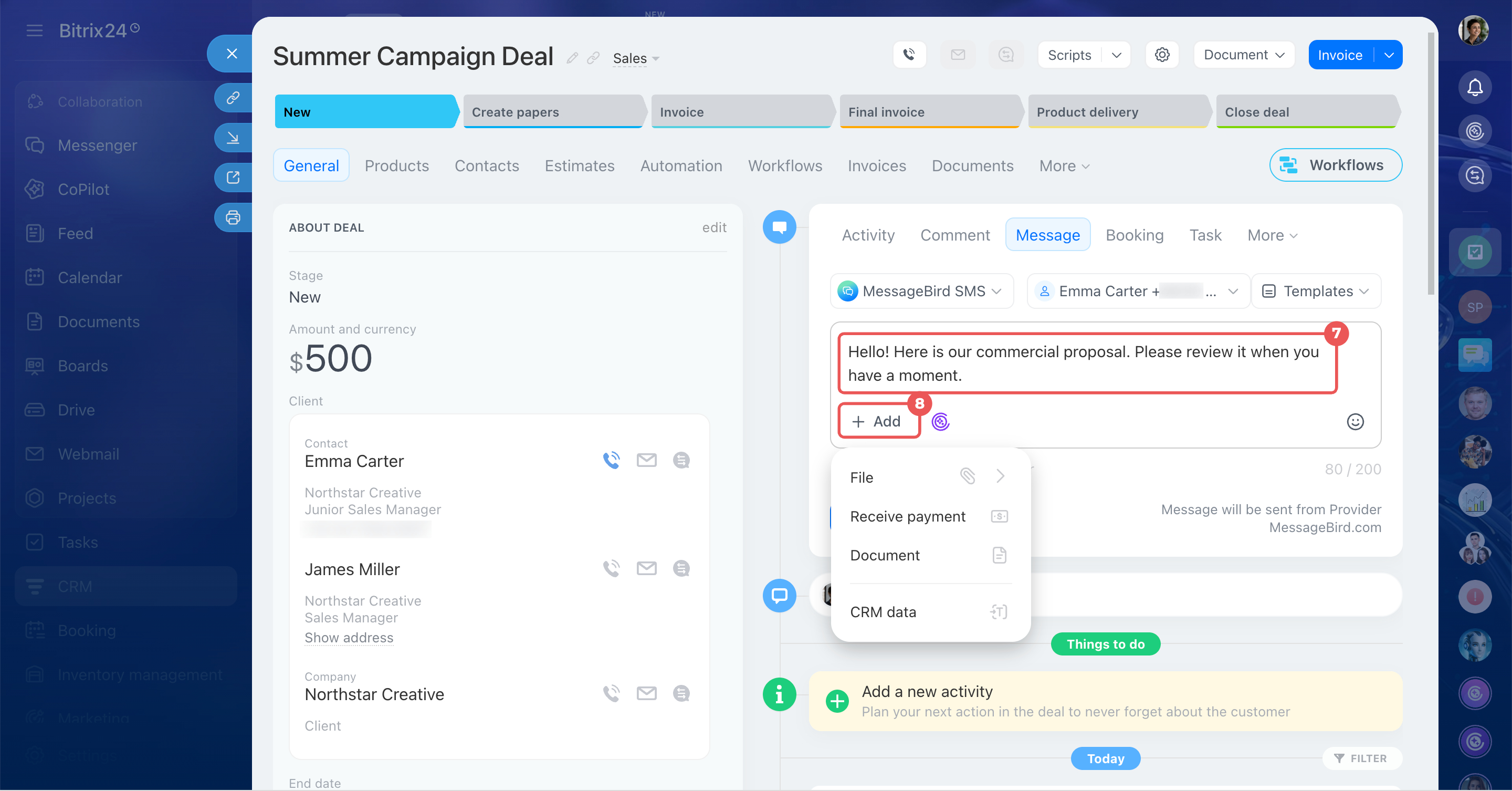
- Enter your text in the Enter message text field.
- Click Add to:
- Attach a file
- Send a payment link
- Attach a document from CRM or create one from a template — a link will be added to the message automatically
- Insert data from CRM item fields into the message text
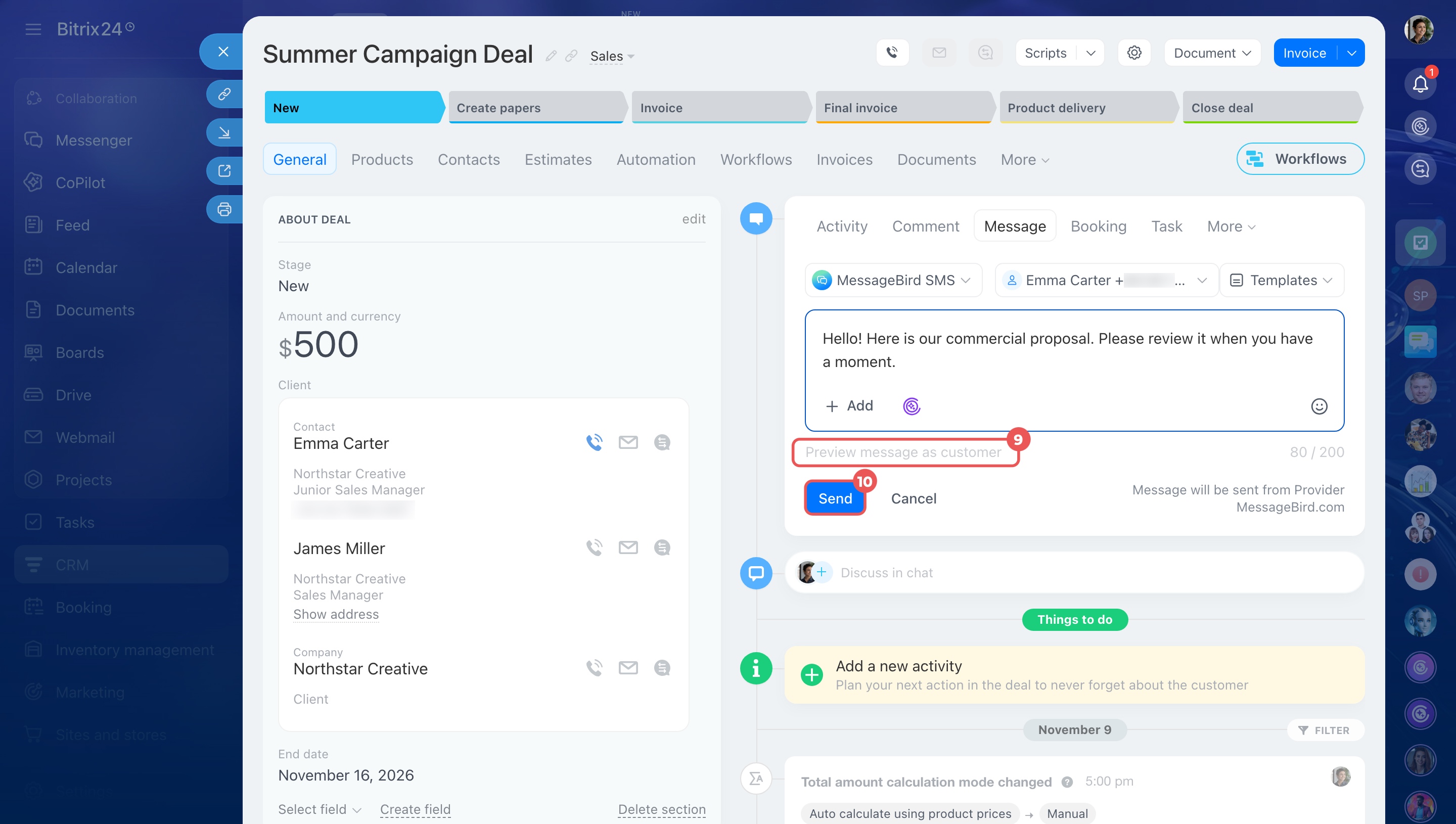
- To preview the message, click Preview message as customer.
- Click Send.
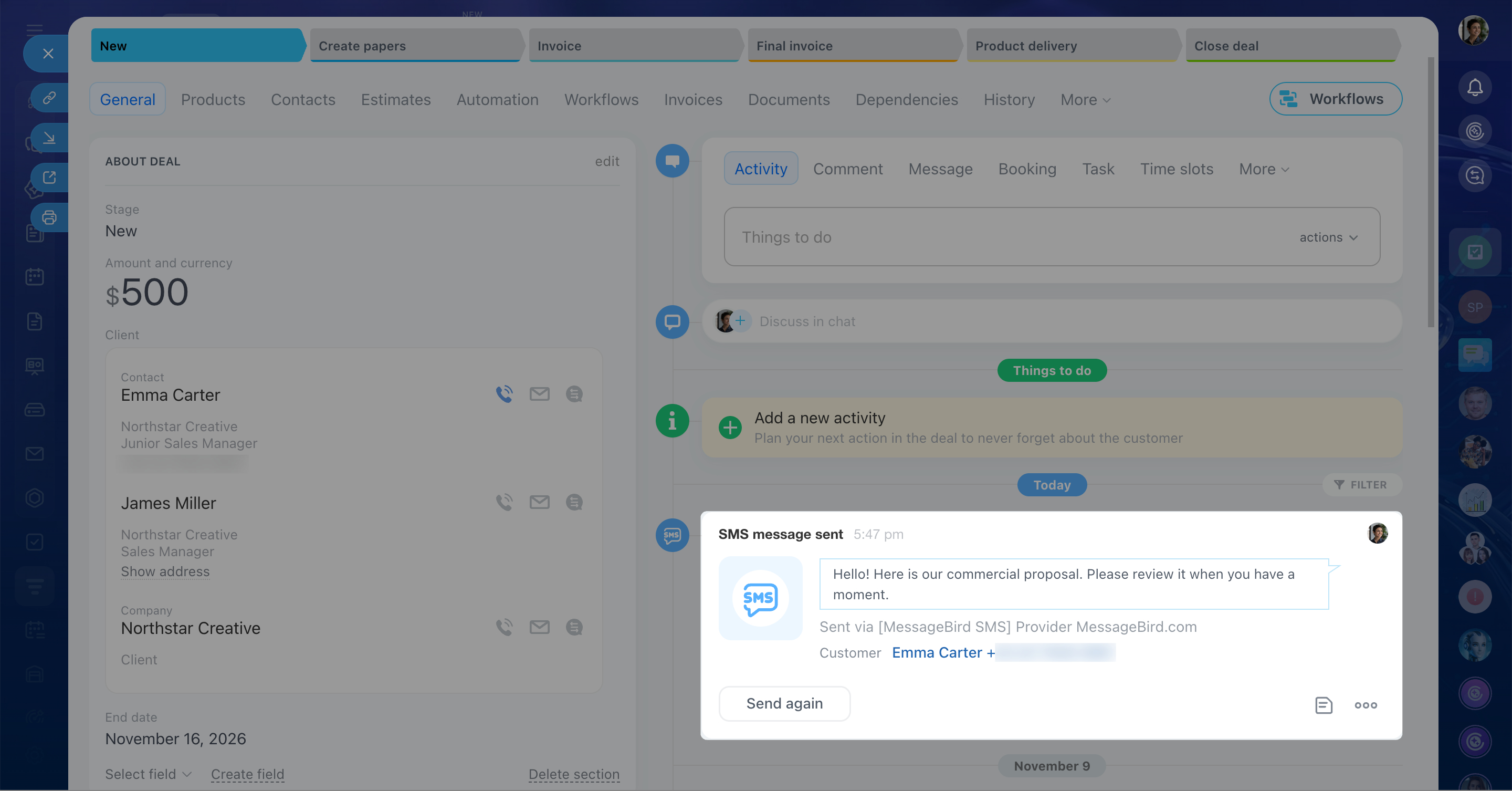
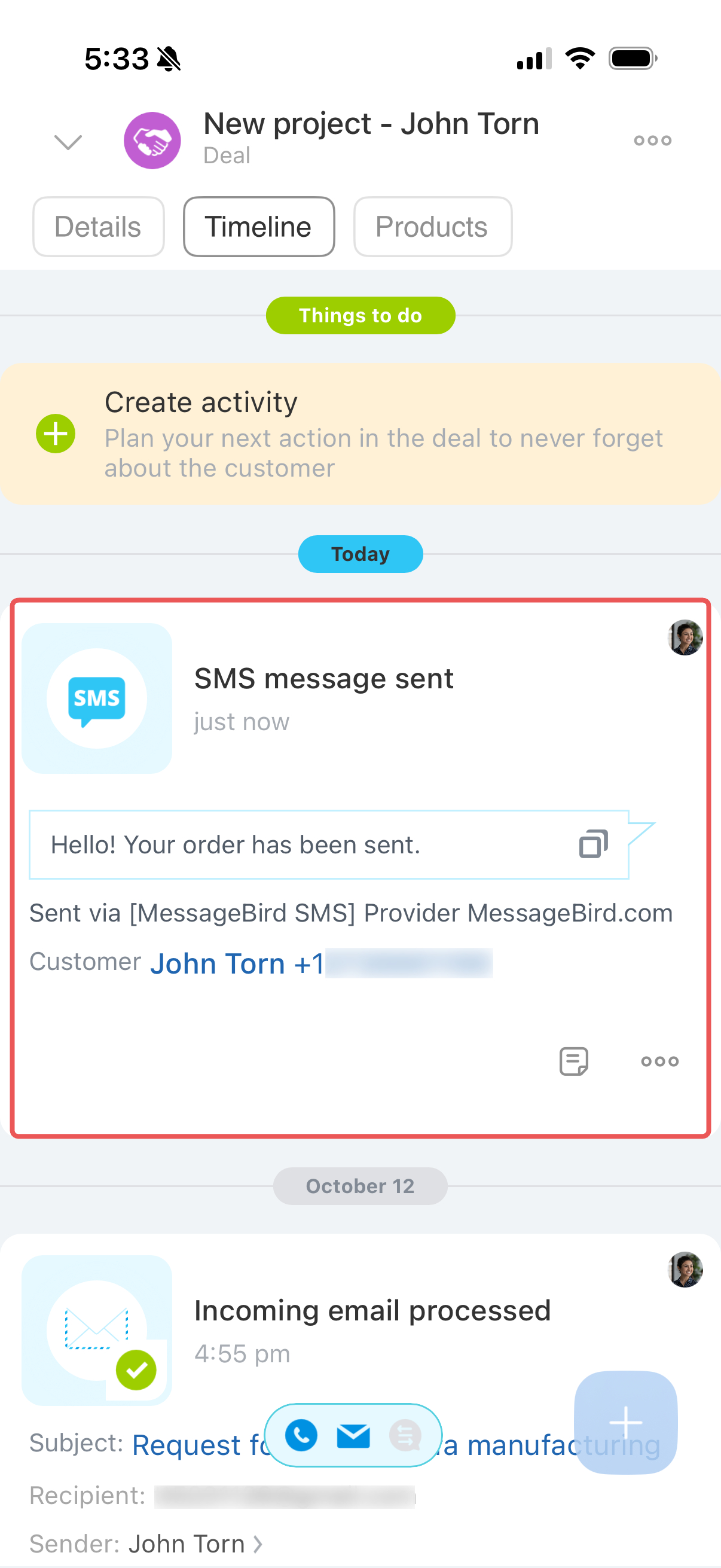
Bitrix24 saves the message in the CRM item's timeline.
Go to CRM > Deals and open a deal.
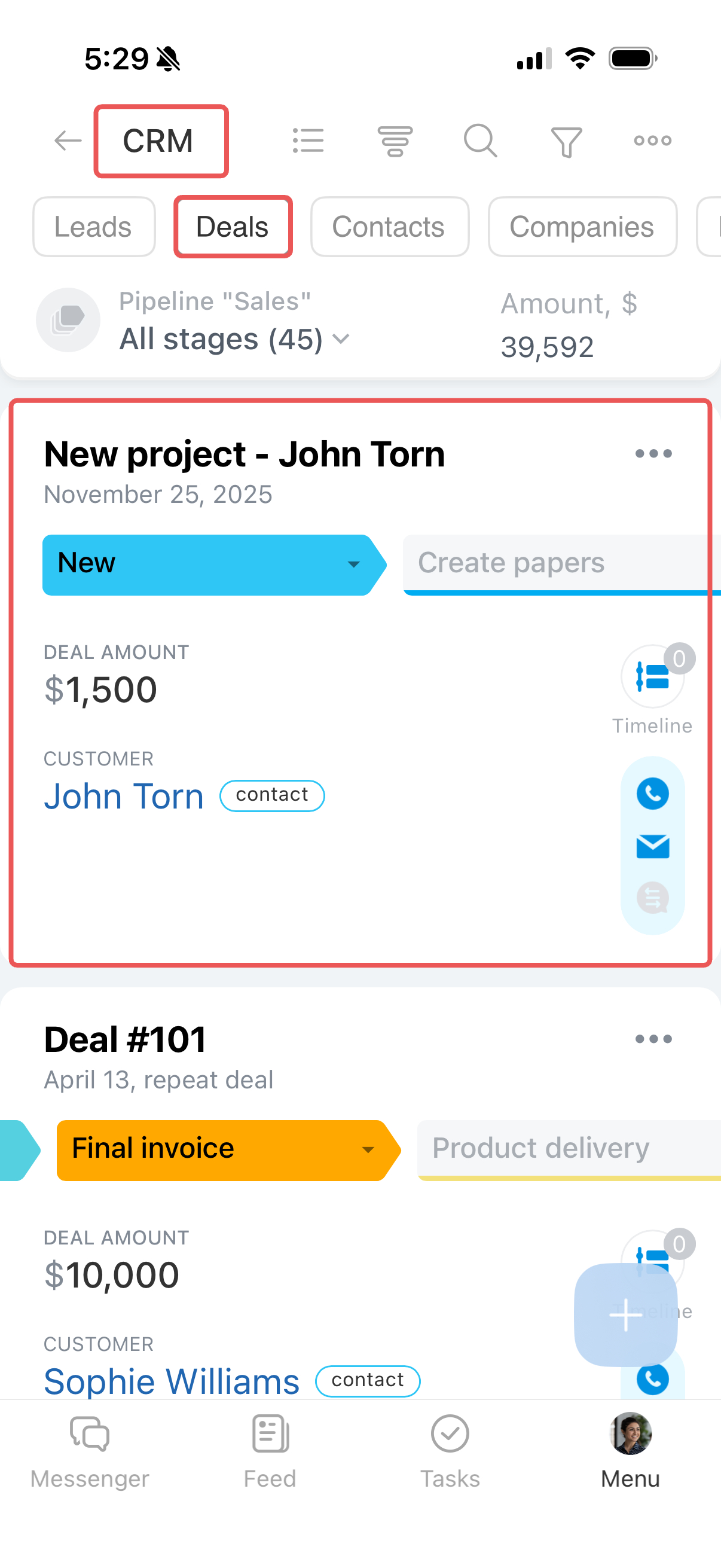
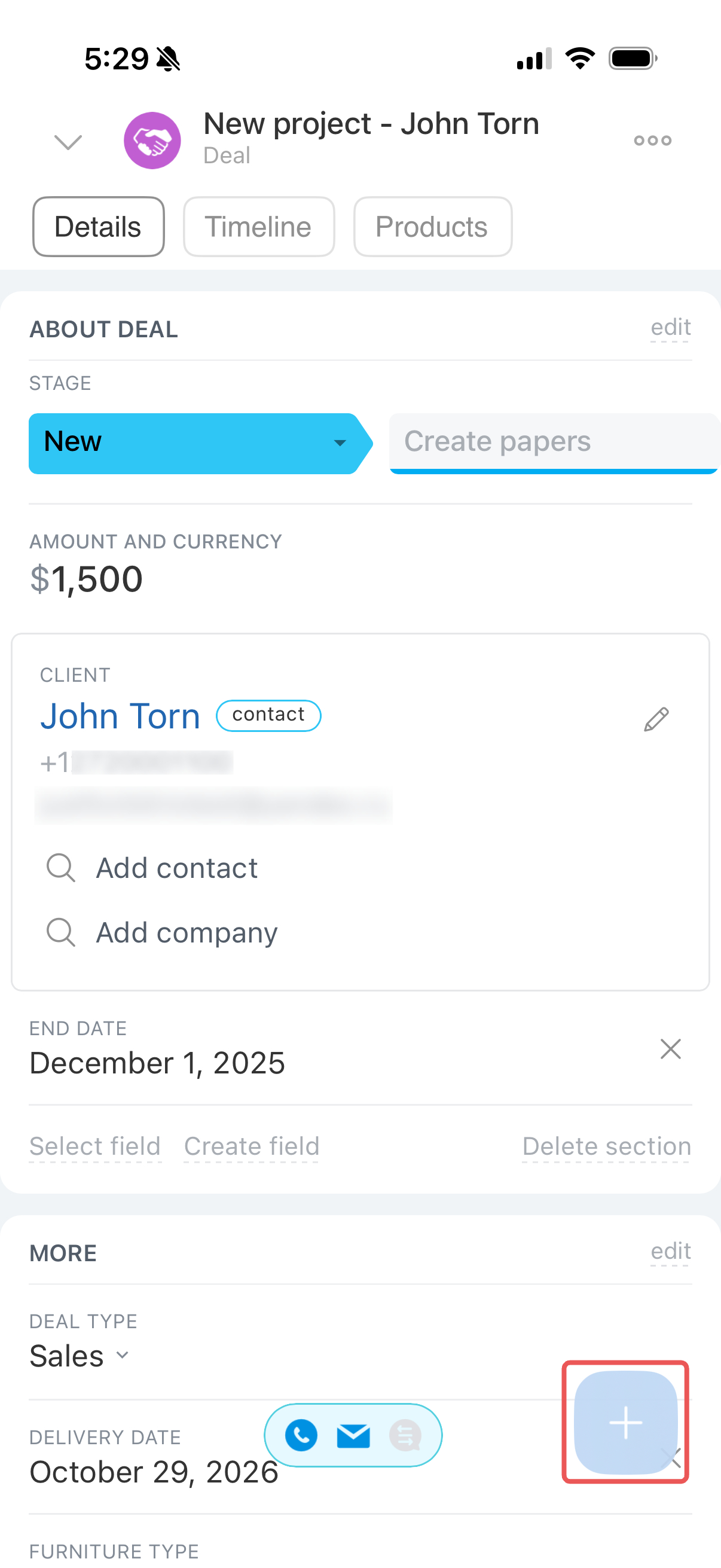
Click Plus (+) > SMS.
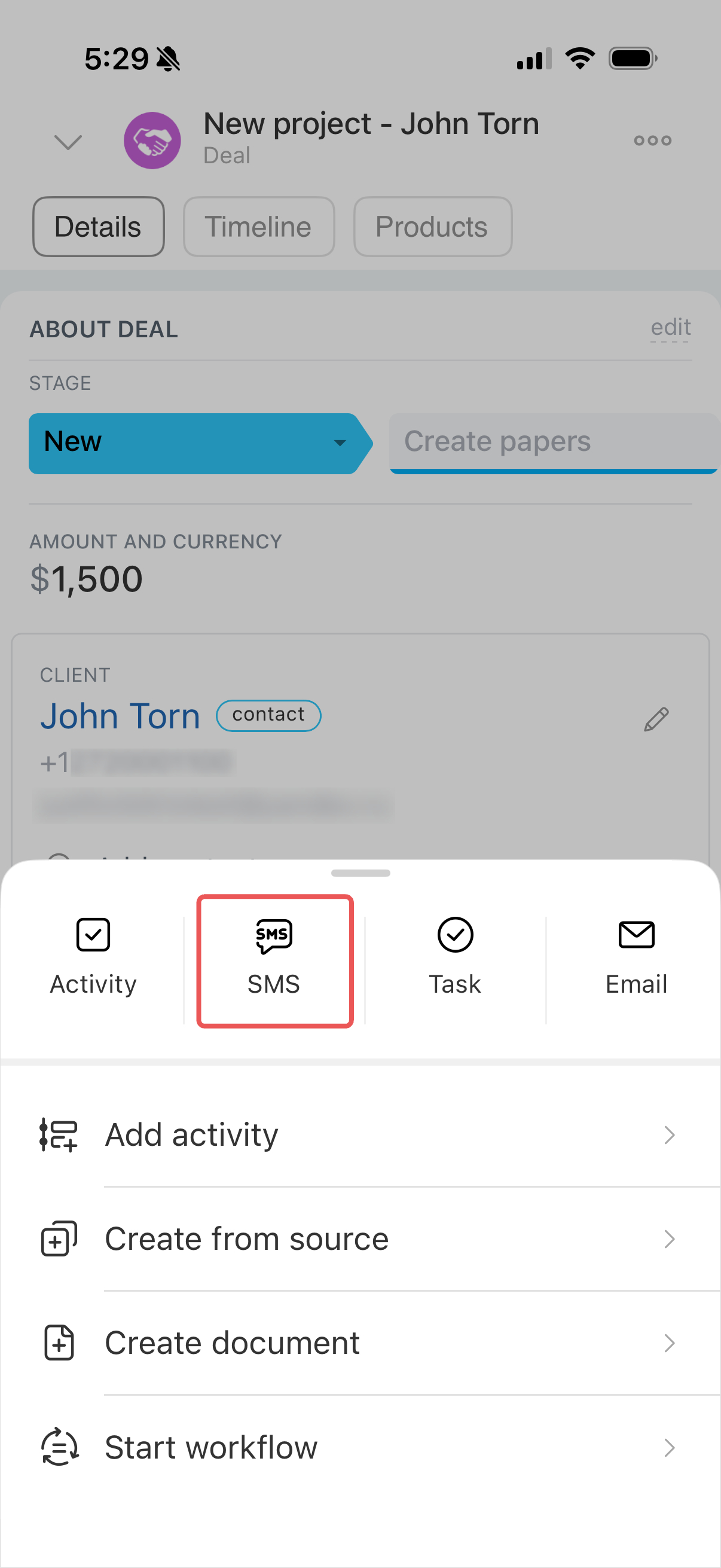
Choose the SMS provider and the customer's phone number.
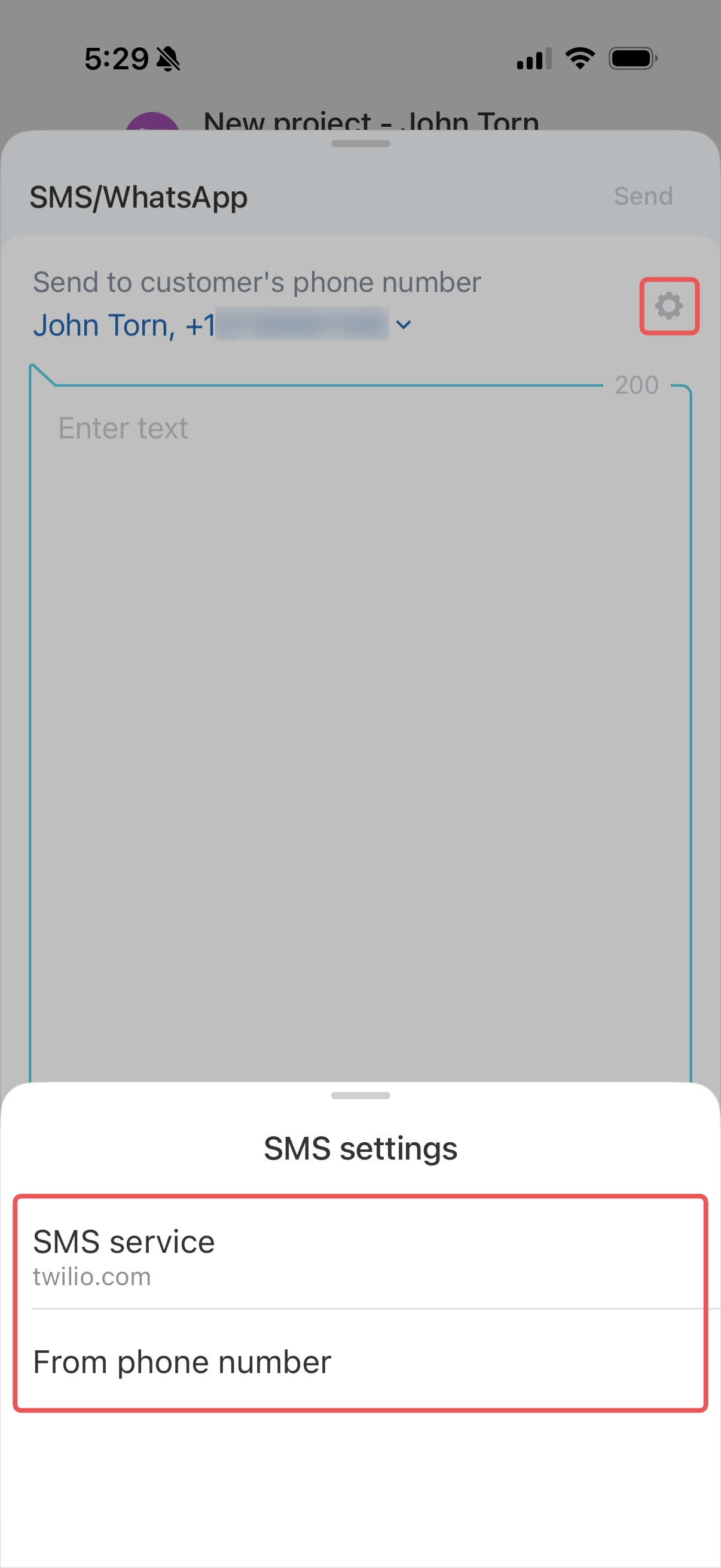
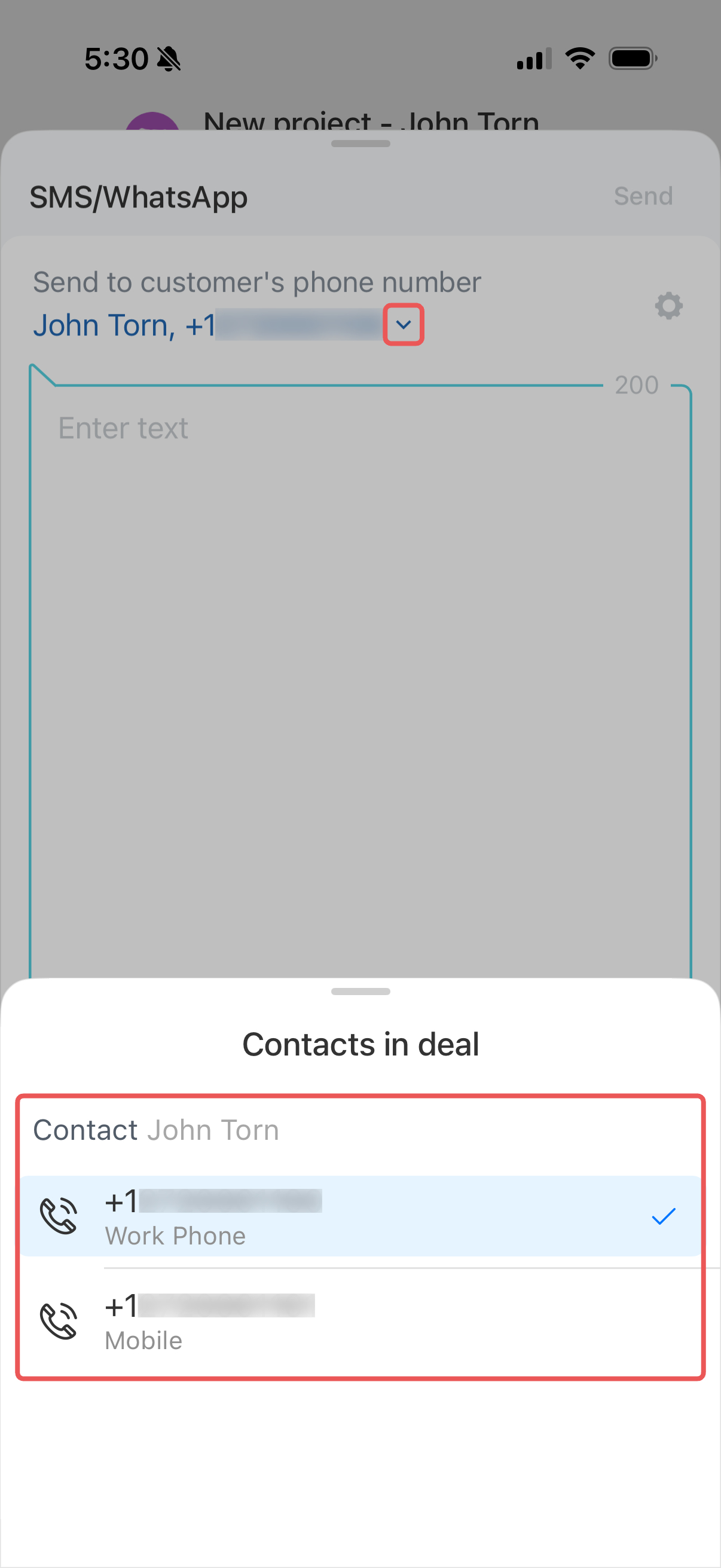
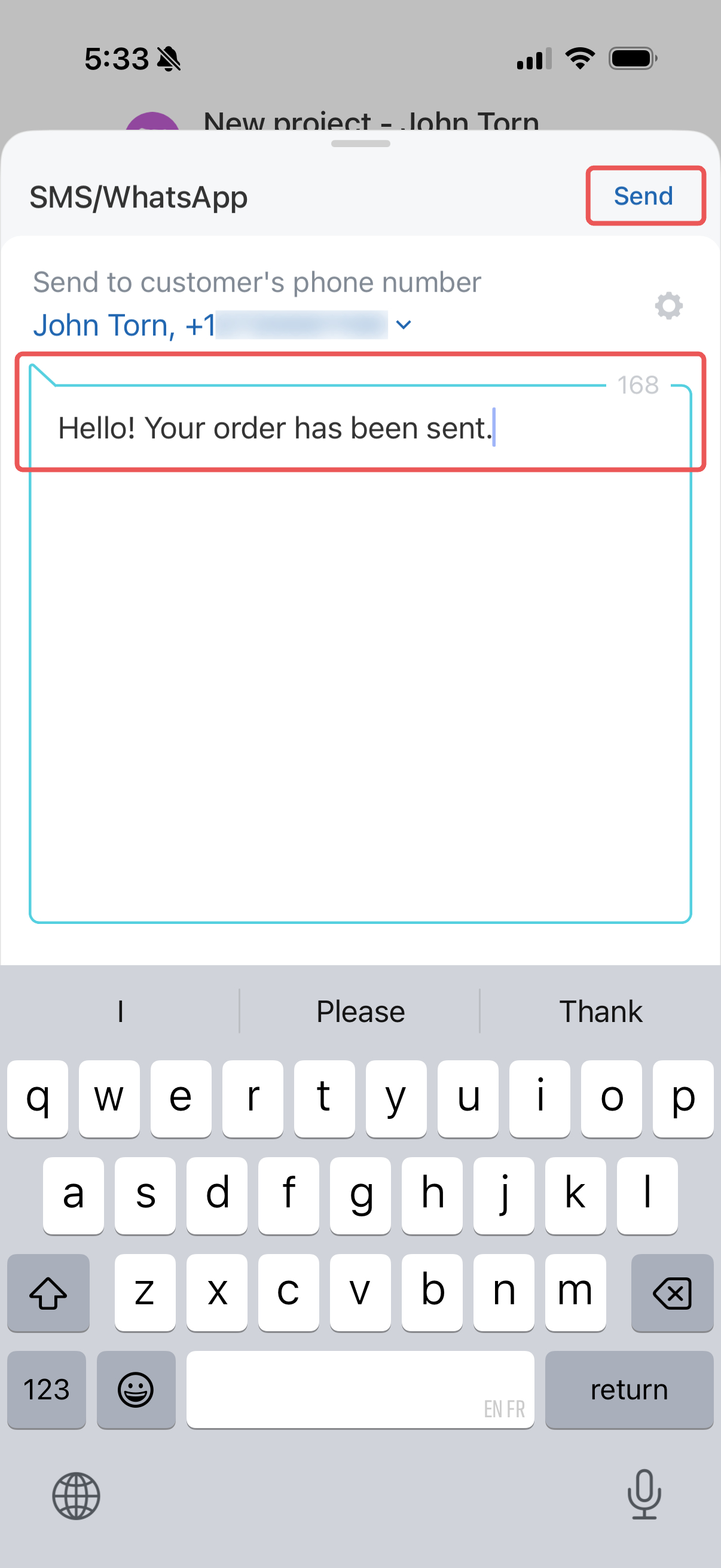
Enter the message text and tap Send. You can find the message in the CRM item's timeline.
Send an SMS with a payment link
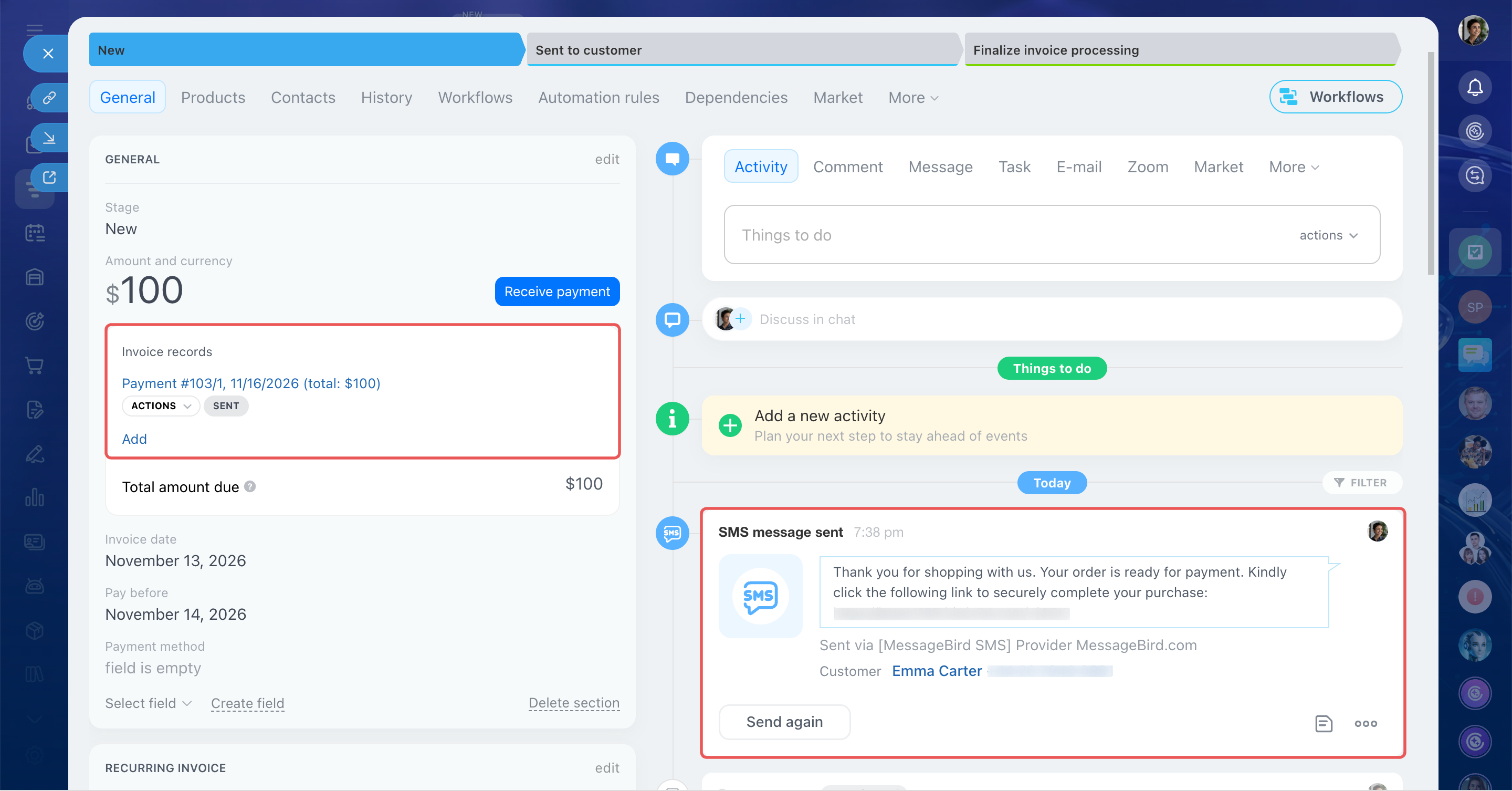
Send customers payment links directly from deal or invoice forms. Bitrix24 automatically fills in the products and amount.
For example, a customer confirms an order and requests an invoice. You check the products and amount, then send an SMS with a payment link. When the customer pays, Bitrix24 automatically updates the payment status in the CRM item form.
Accept payment in the deal form in the mobile app
We'll use invoices as an example. The steps are the same for deals.
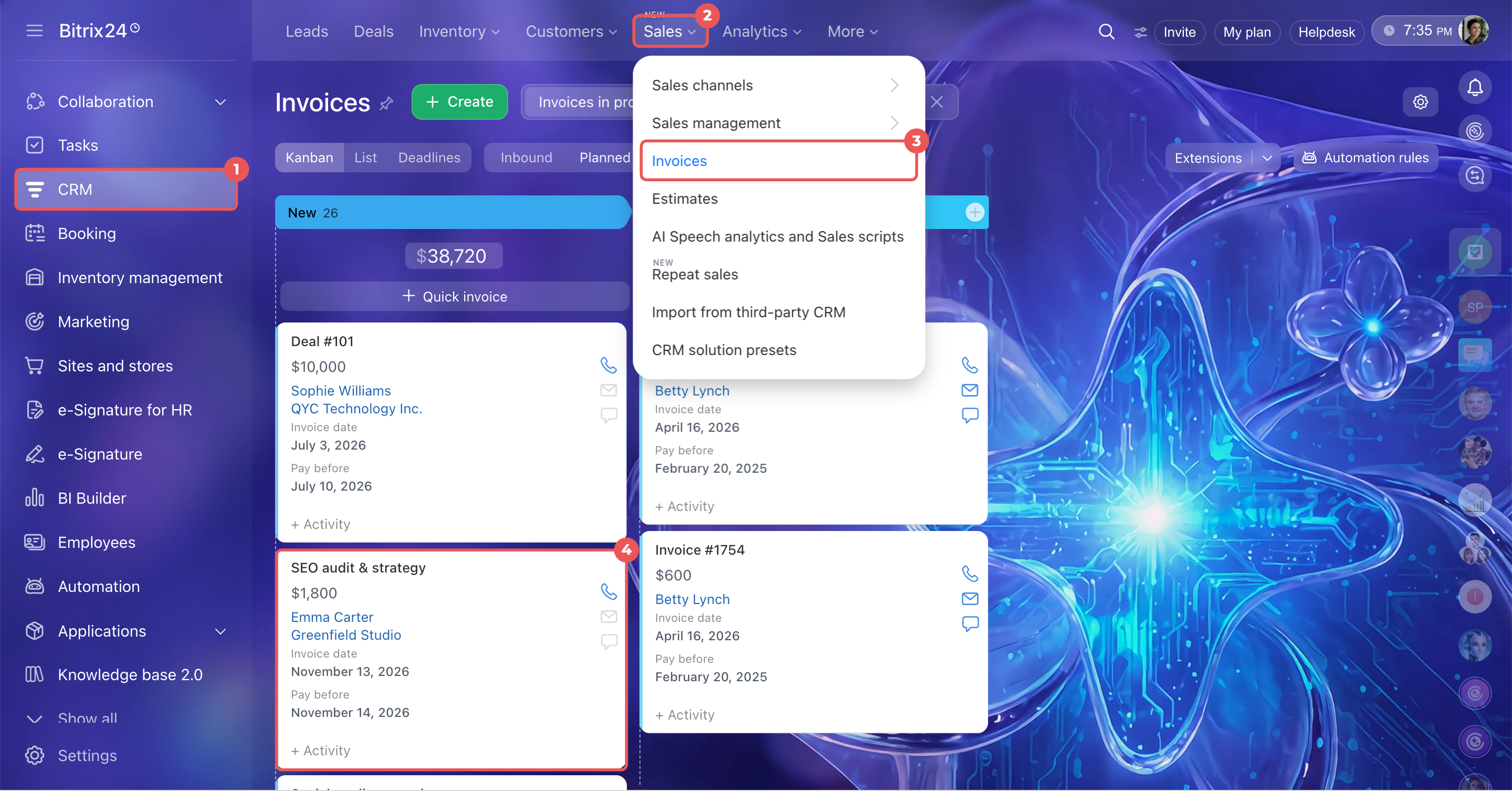
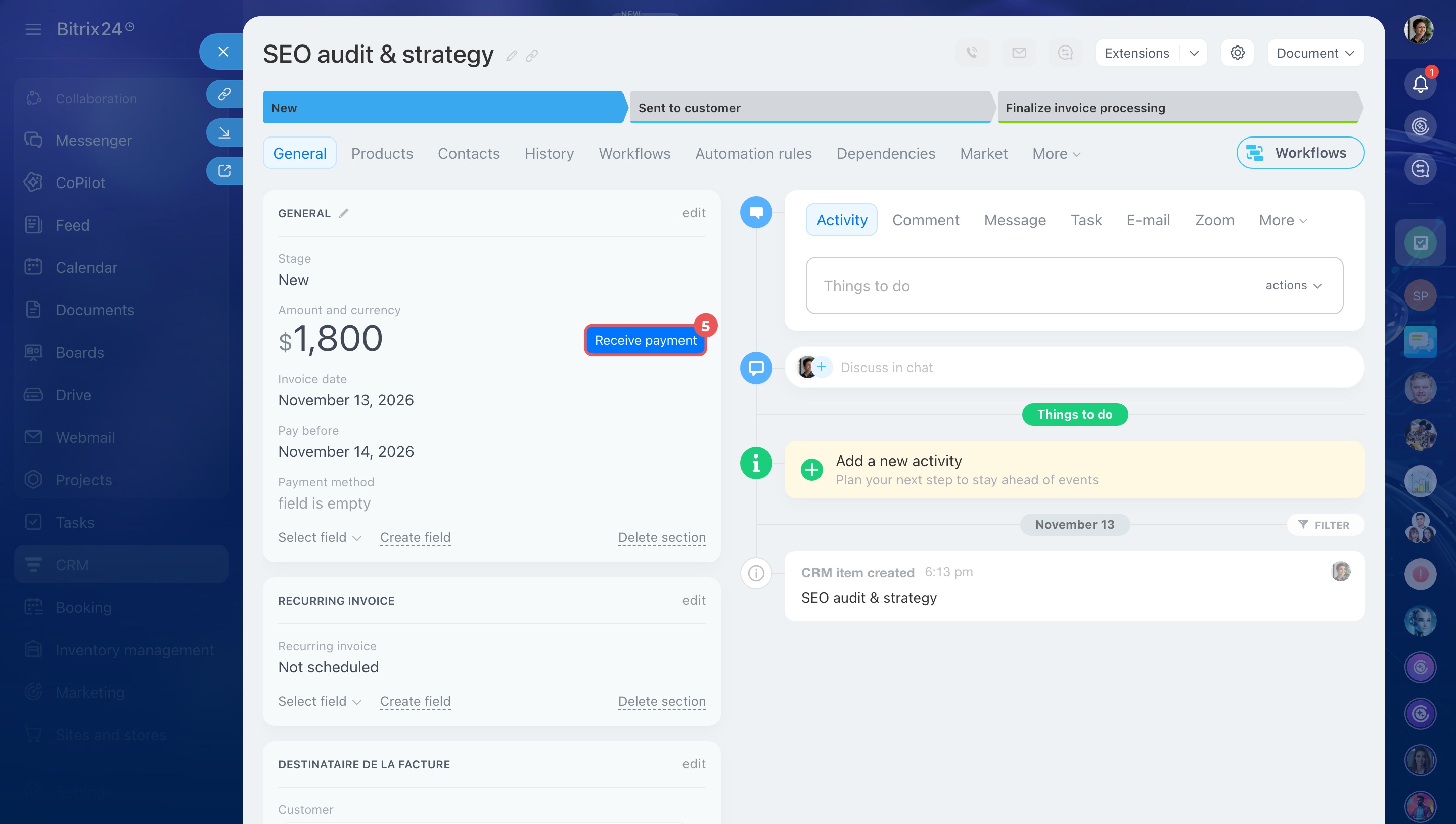
- Go to CRM > Sales > Invoices and open an invoice.
- Click Receive payment.
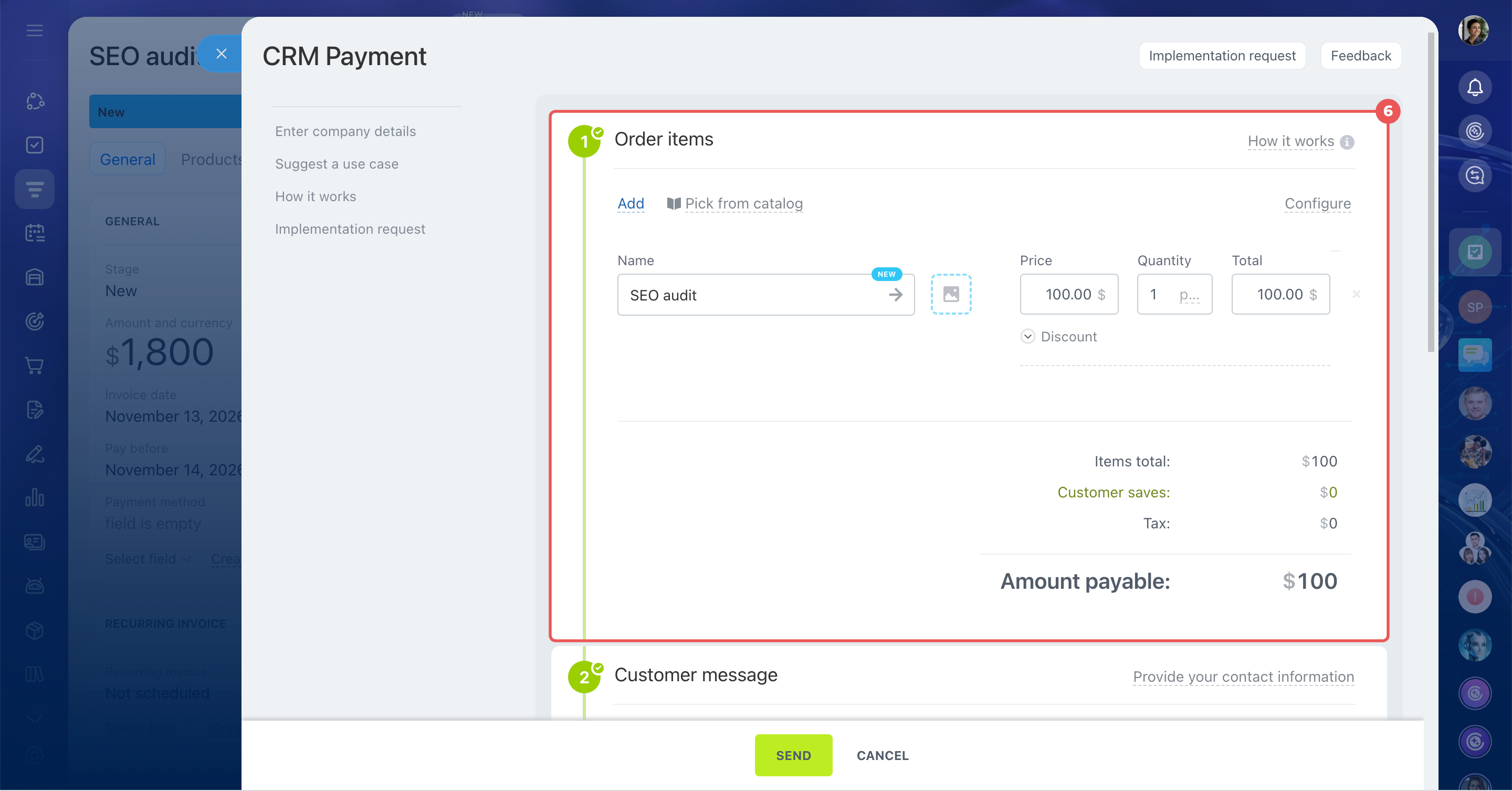
- Check the products and amount. Bitrix24 fills them in from the invoice.
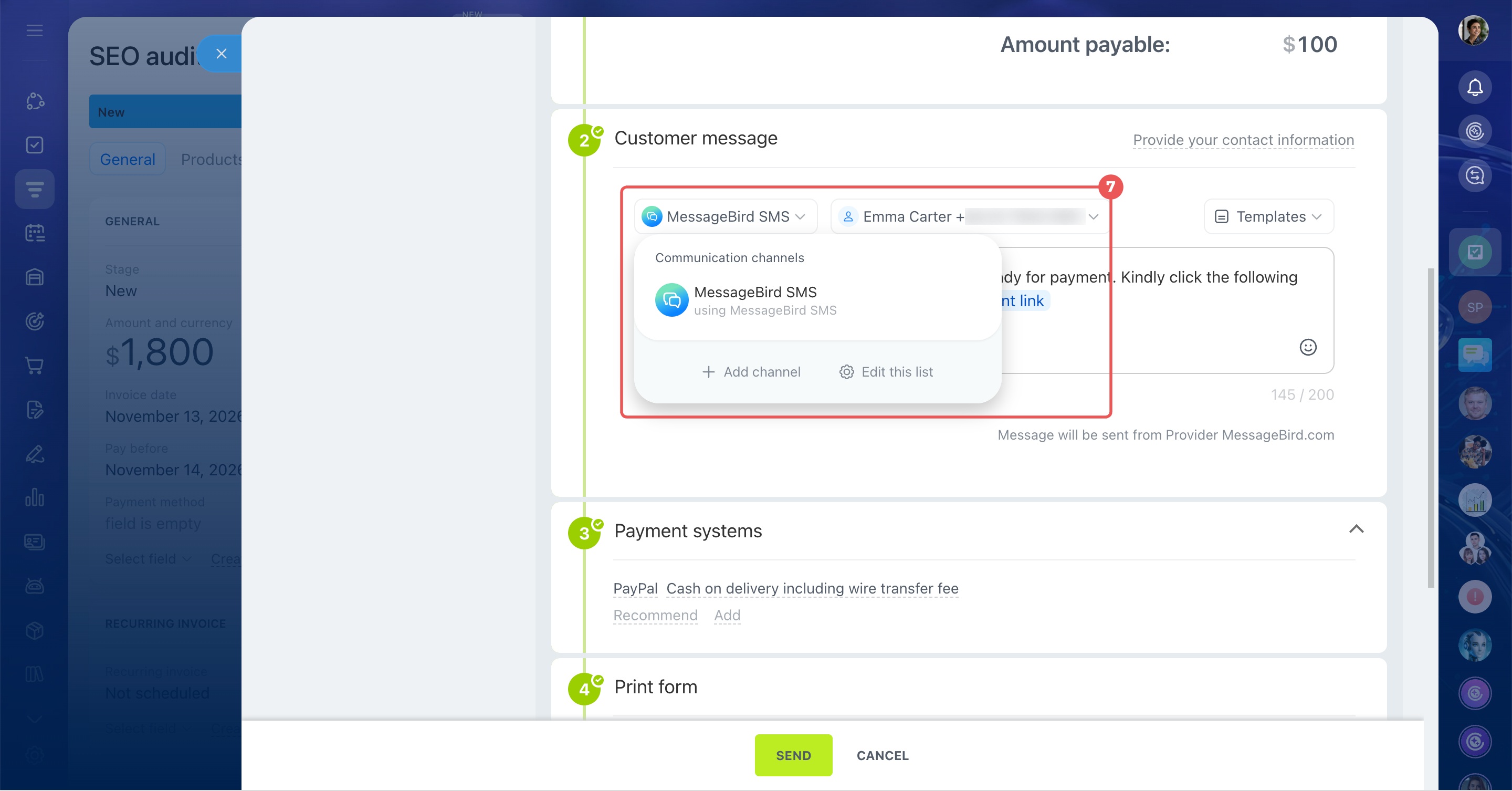
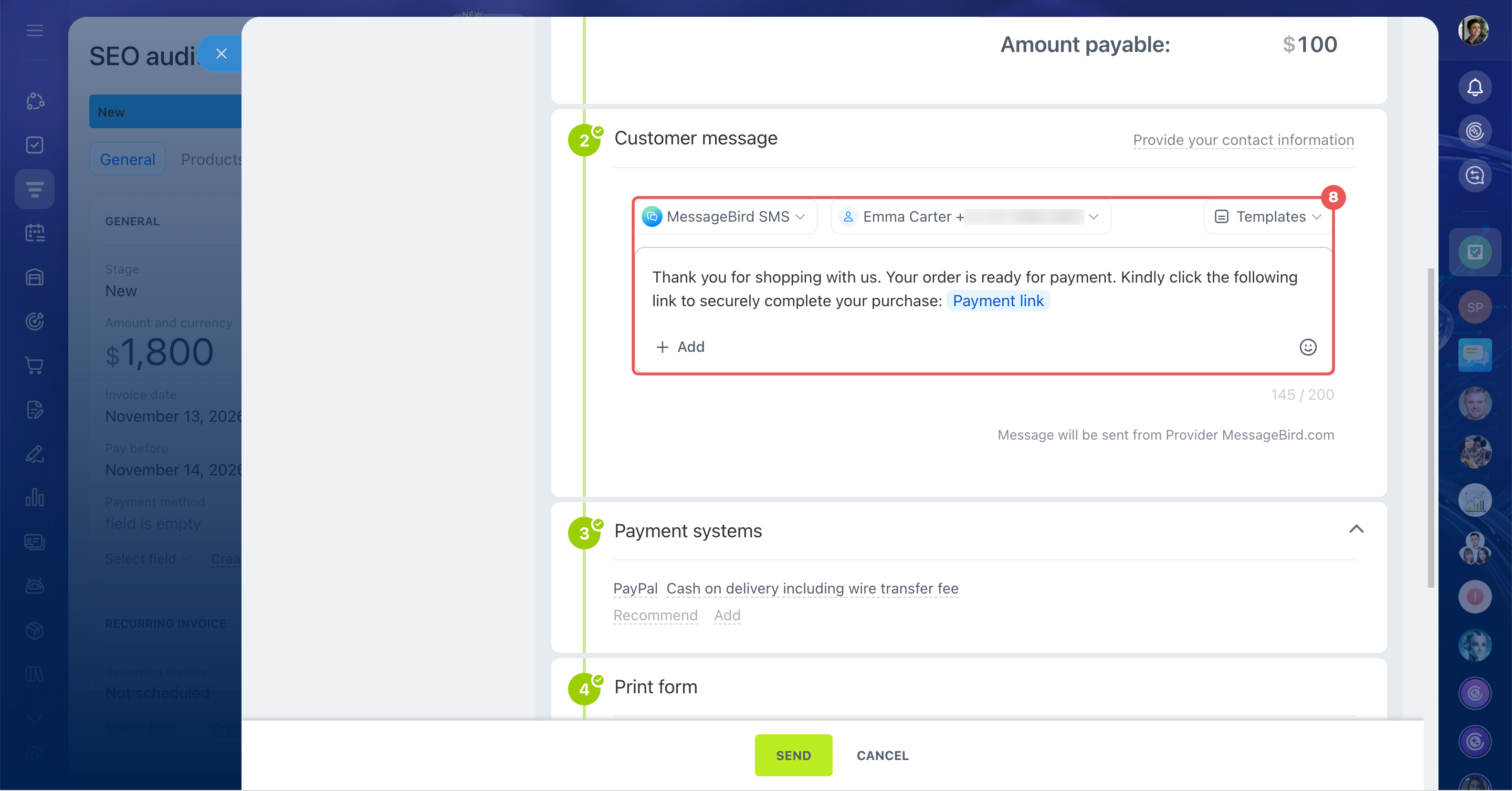
- Select an SMS provider. If you use the free Bitrix24 SMS service, the message text is generated automatically. With a paid provider, you can edit the text.
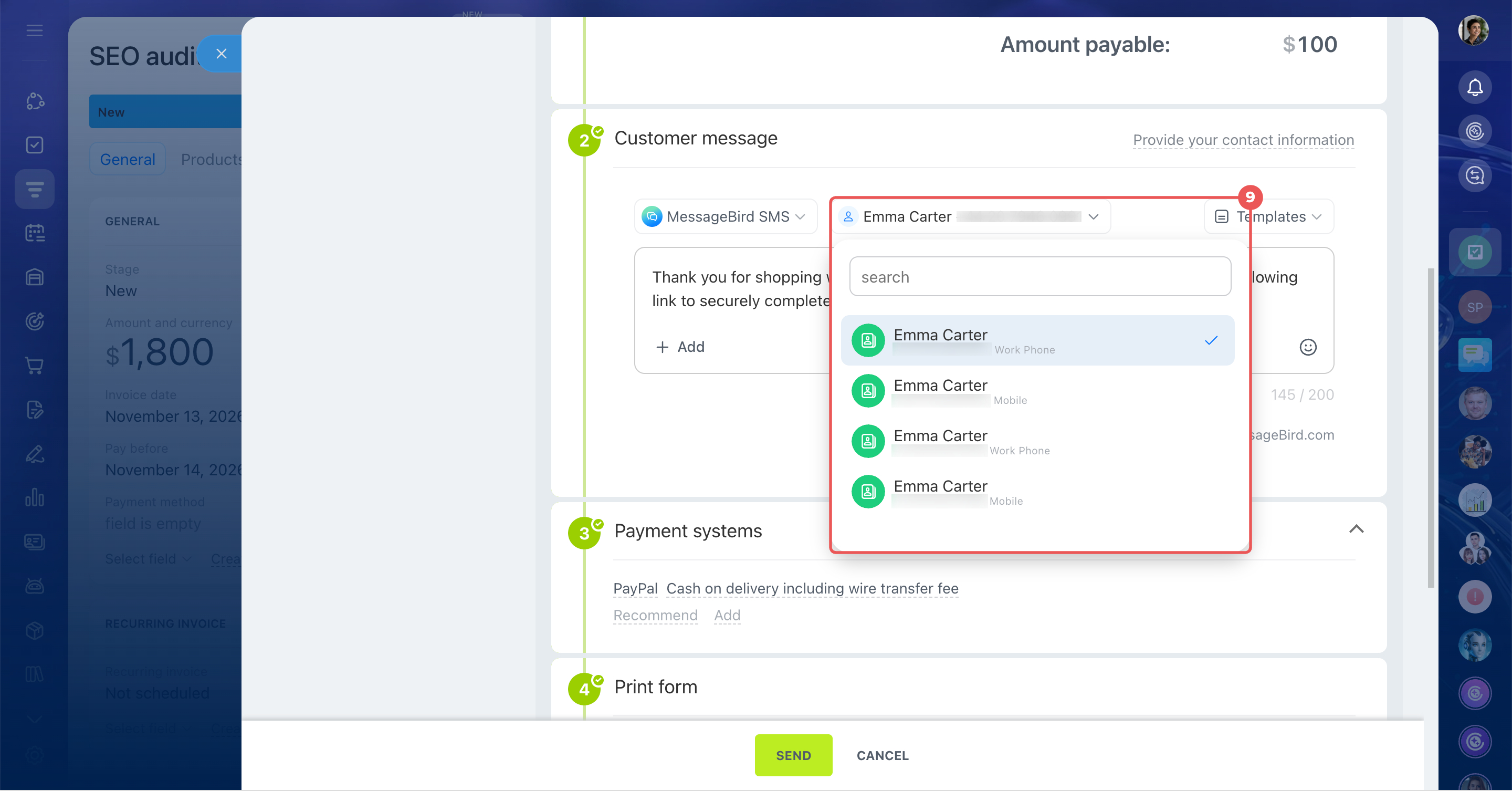
Accept payment in the deal form - Enter the customer's phone number. If multiple numbers are available, select the one you need.
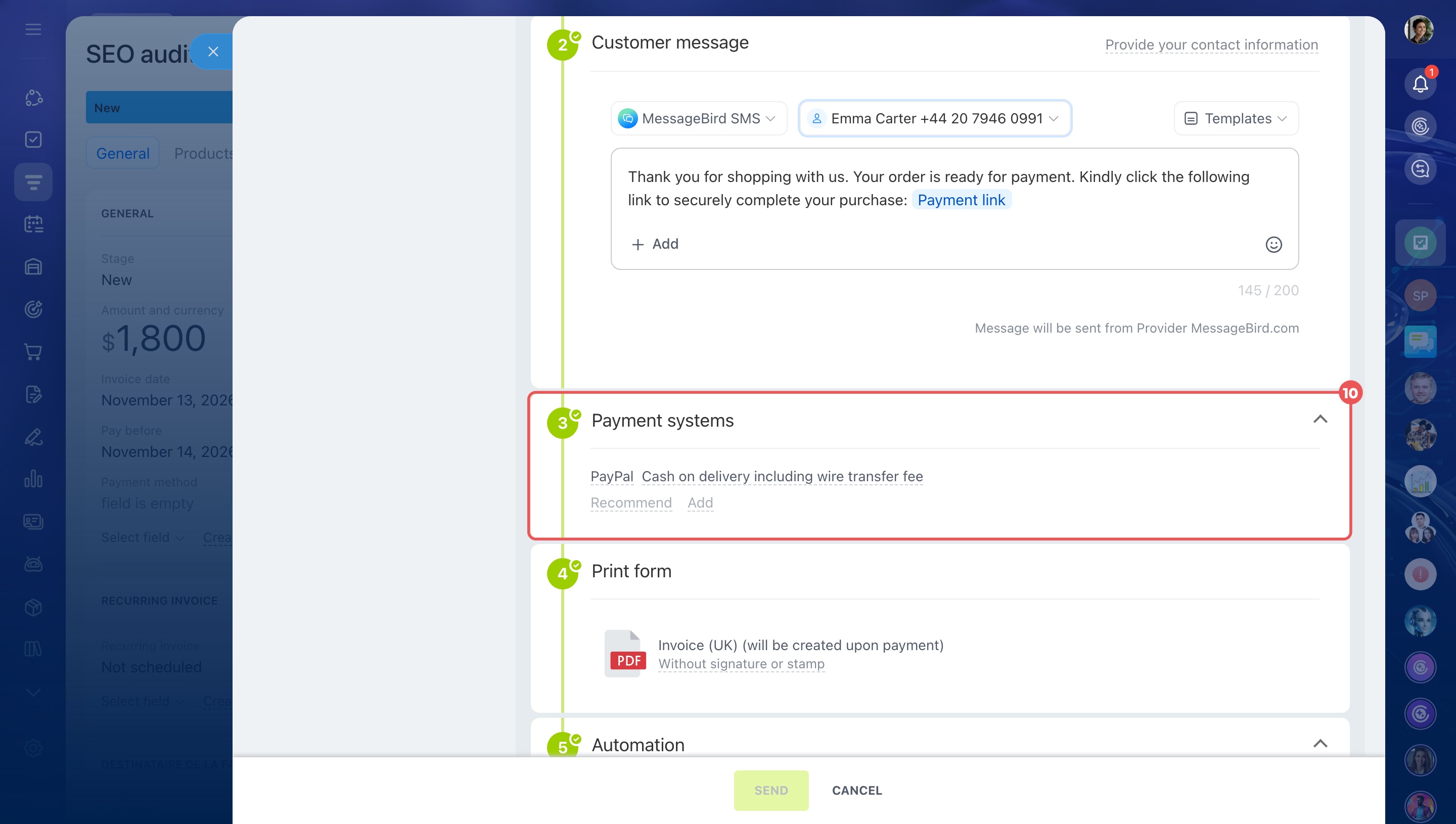
- Check the connected payment systems.
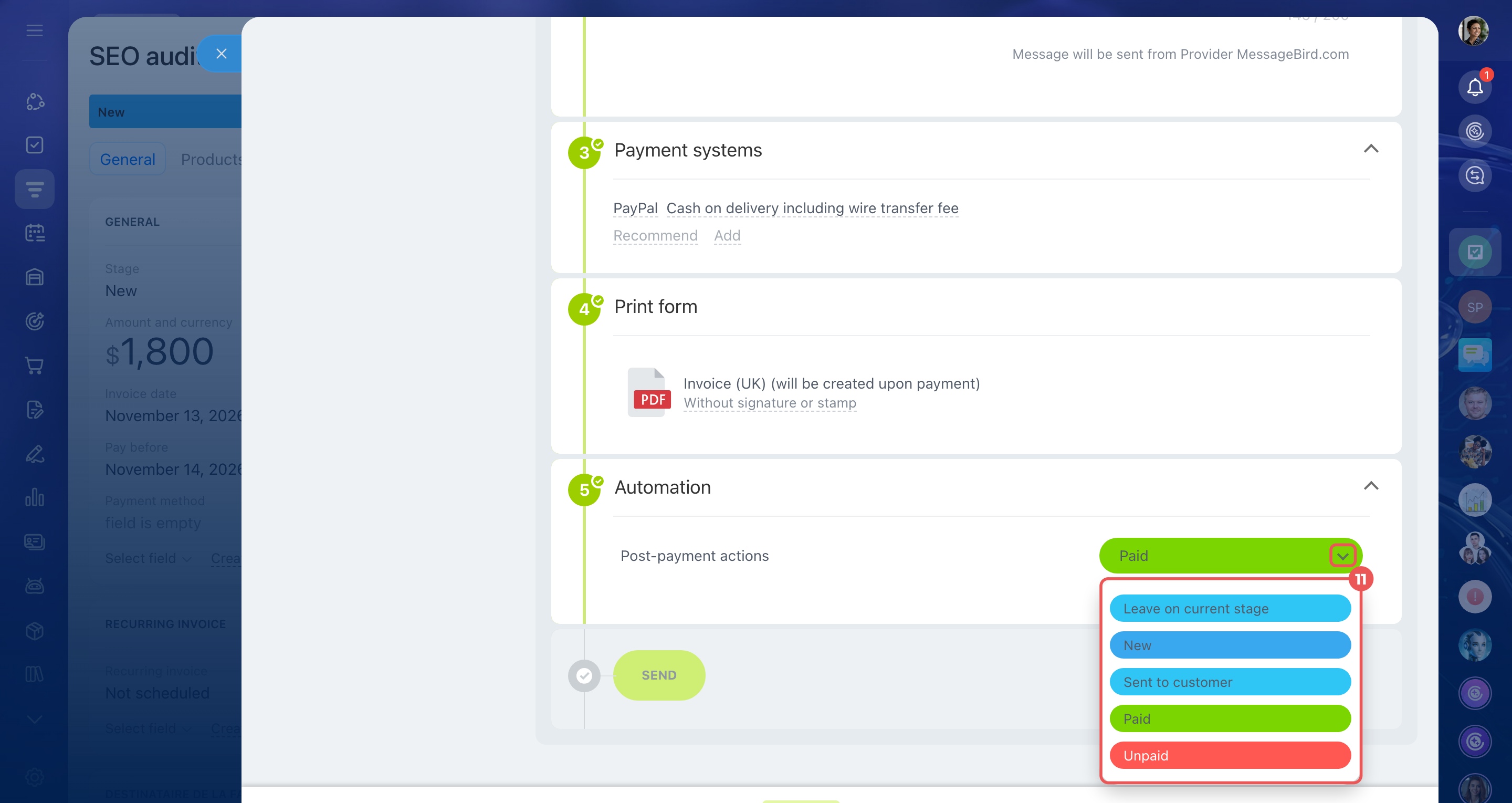
Connect payment systems in Sales Center - In the Automation section, choose which stage the invoice should move to after payment. You can also keep the current stage.
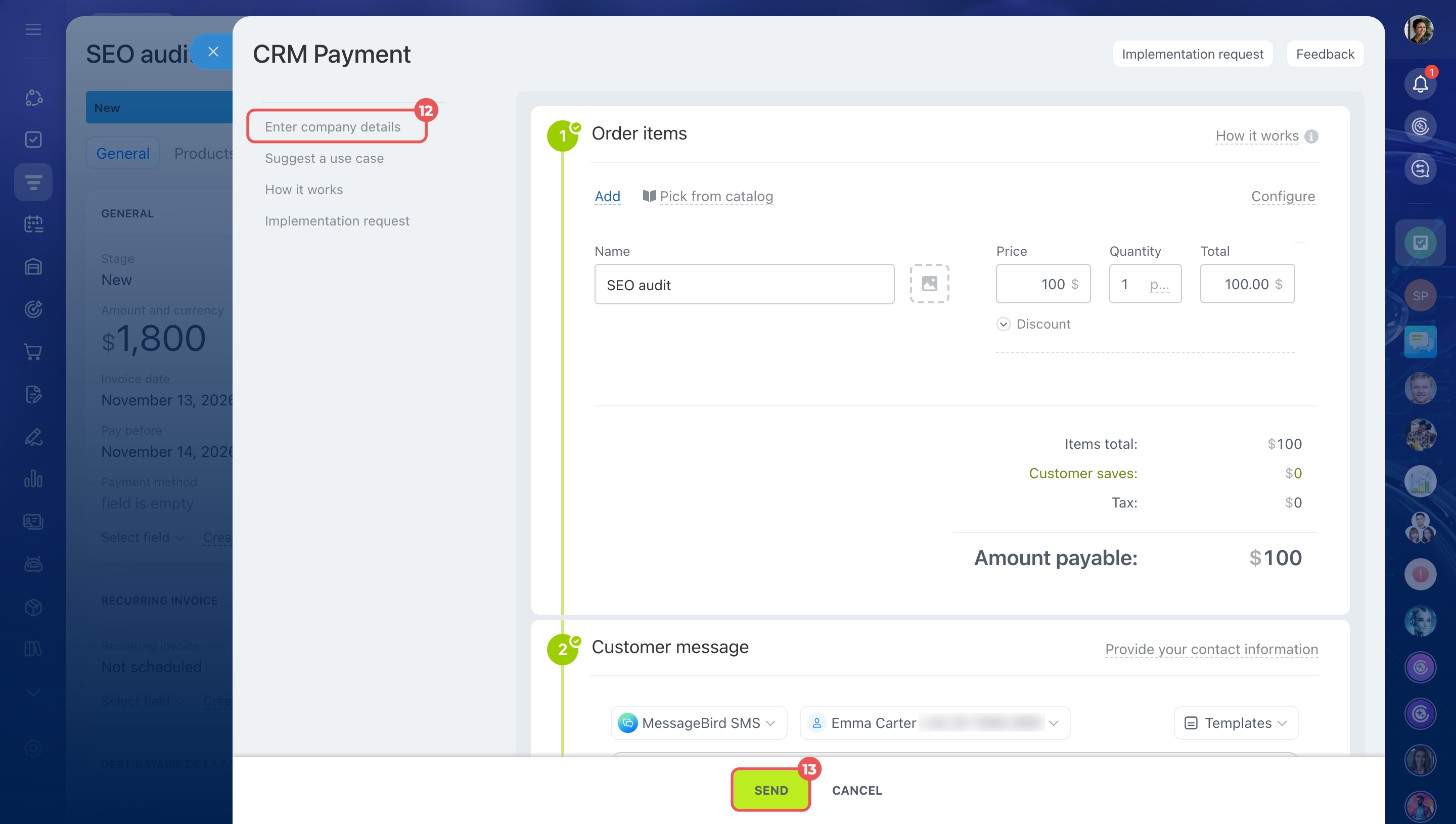
- Click Enter company details to review the details customers will see on the payment page. By default, Bitrix24 uses your main company's details.
- Click Send.
When the customer views or pays the invoice, Bitrix24 automatically updates the payment status. You can find the message in the CRM item's timeline.
Track payment status in a deal
How a client pays for an order
Send an SMS campaign
SMS campaigns let you send the same message to multiple customers at once. Use them to announce events, changes to business hours, or special offers.
For example, if your company changes its business hours, you can notify a selected group of customers instead of contacting each person separately.
Bitrix24 plans and pricing
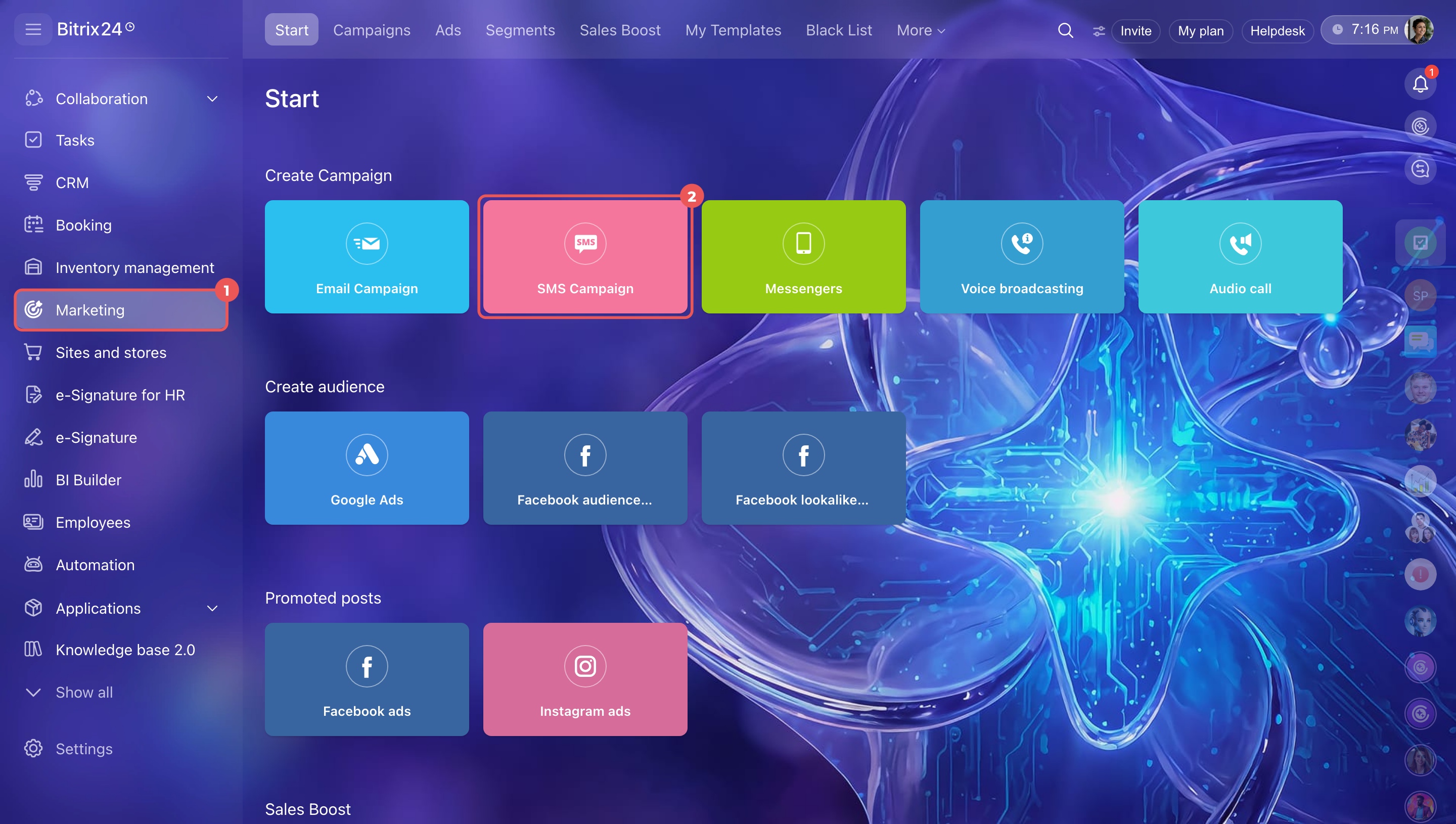
- Go to the Marketing section. Choose SMS Campaign.
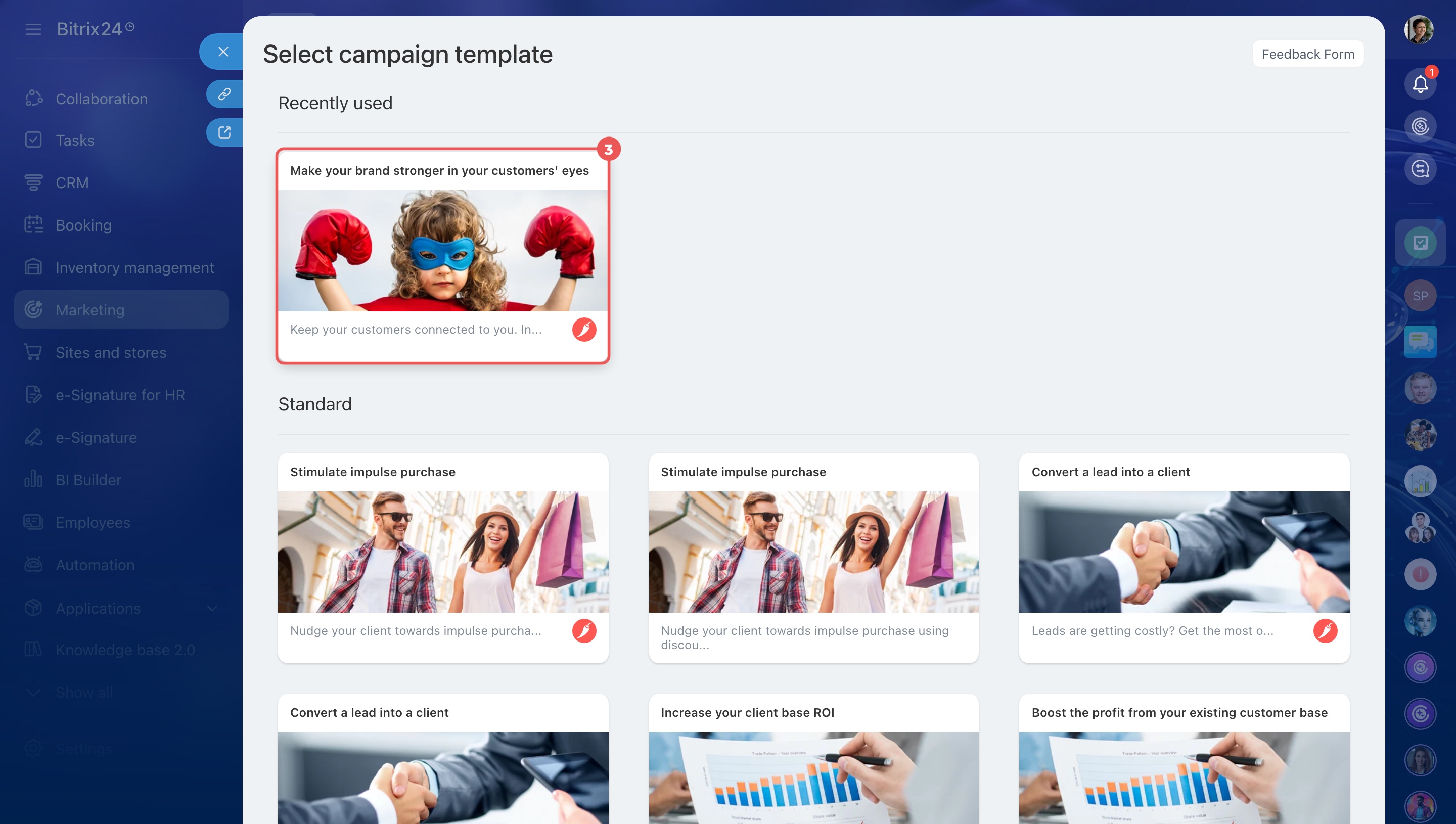
- Choose a template.
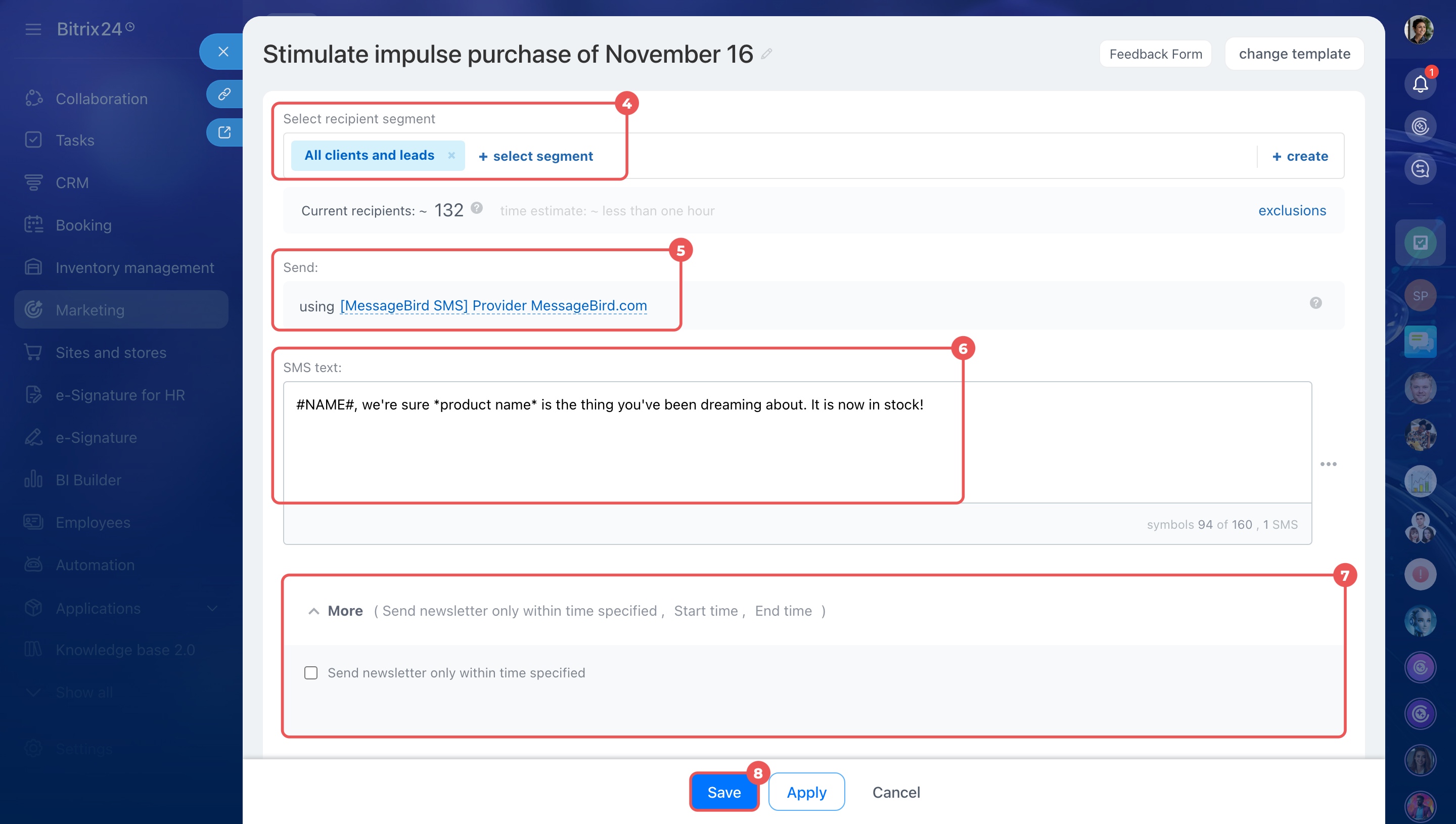
- Choose a customer segment, such as customers with lost deals.
Create customer segments for marketing campaigns - Select an SMS provider.
- Prepare the message text.
- In the More section, set the hours when messages can be sent, such as 9:00 AM to 6:00 PM.
- Click Save.
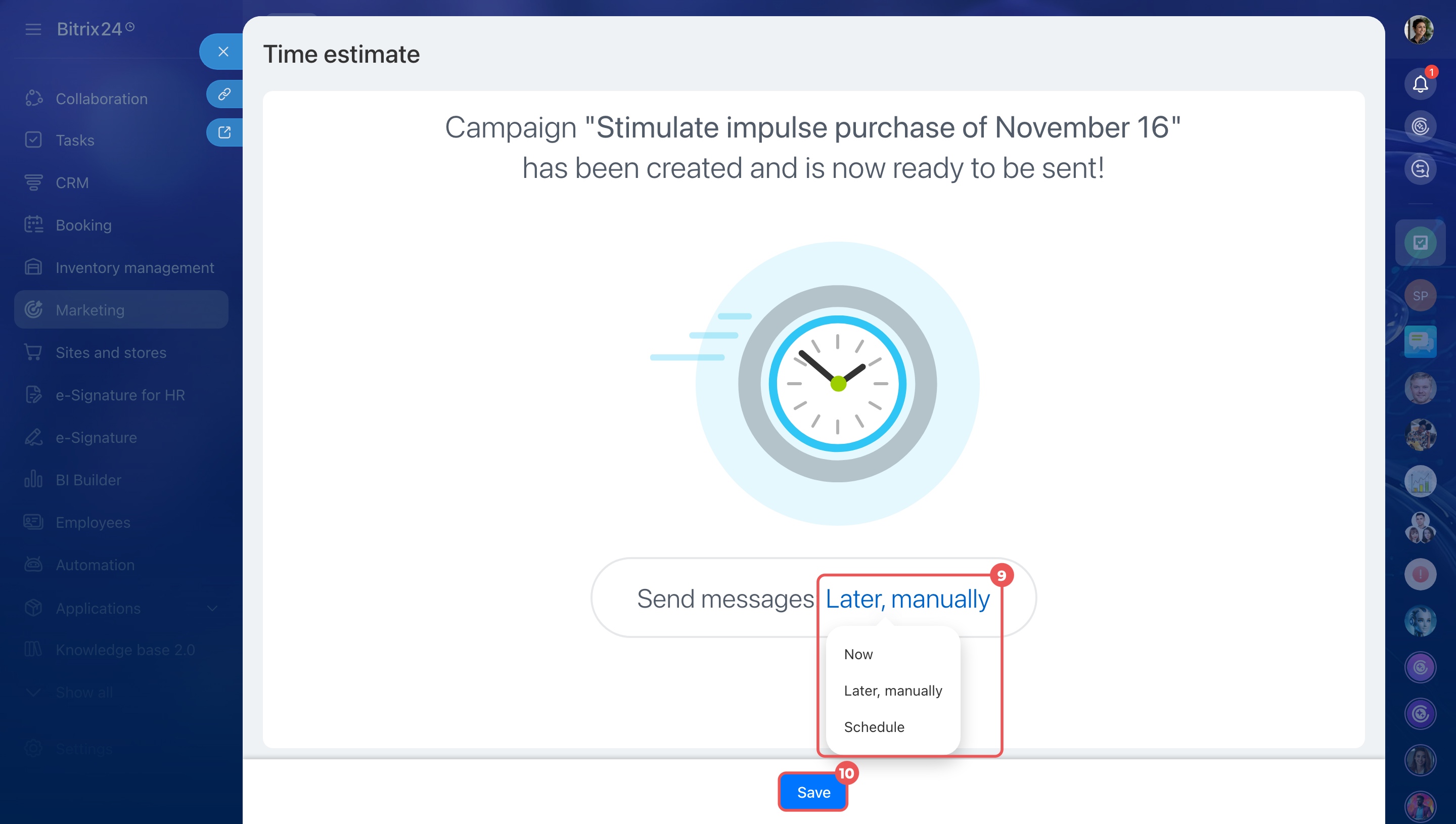
- Choose when to send the campaign and save it.
Create and send an SMS campaign
Send SMS messages automatically
Use automation rules to send SMS messages when CRM items reach specific stages.
For example, when a deal moves to the Product delivery stage, Bitrix24 automatically sends the customer a message with the delivery date and time. Employees don't need to send each message manually.
Bitrix24 plans and pricing
Account administrators and employees with permission to edit CRM automation rules can configure them. Permissions are set separately for each CRM item type. For example, an employee who can edit automation rules for deals but not other CRM items can only configure rules for deals.
Role-based access permissions in CRM
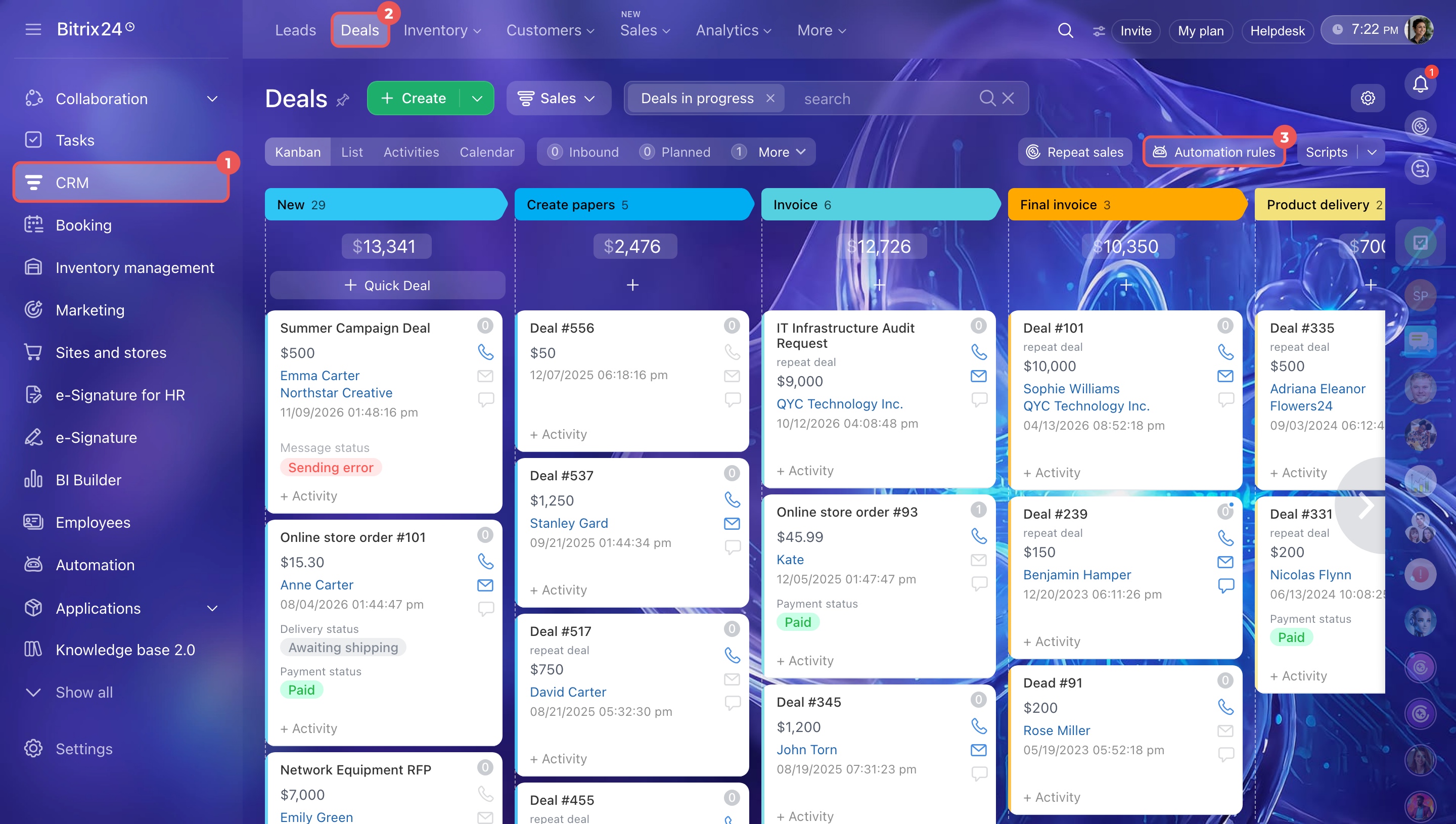
We'll use deals as an example. The steps are the same for leads, invoices, estimates, and SPA items.
- Go to CRM > Deals and select Automation rules.
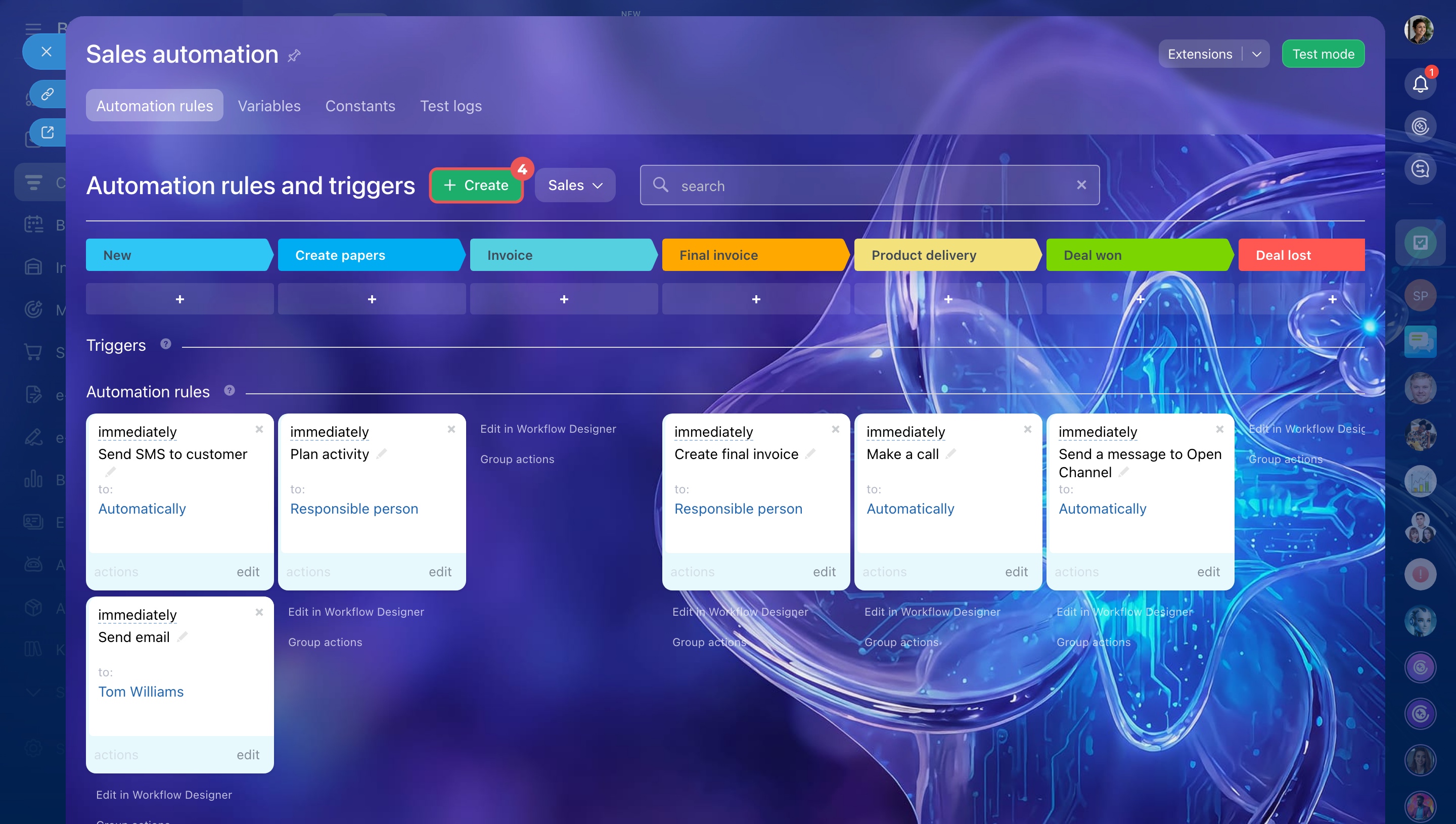
- Click Create.
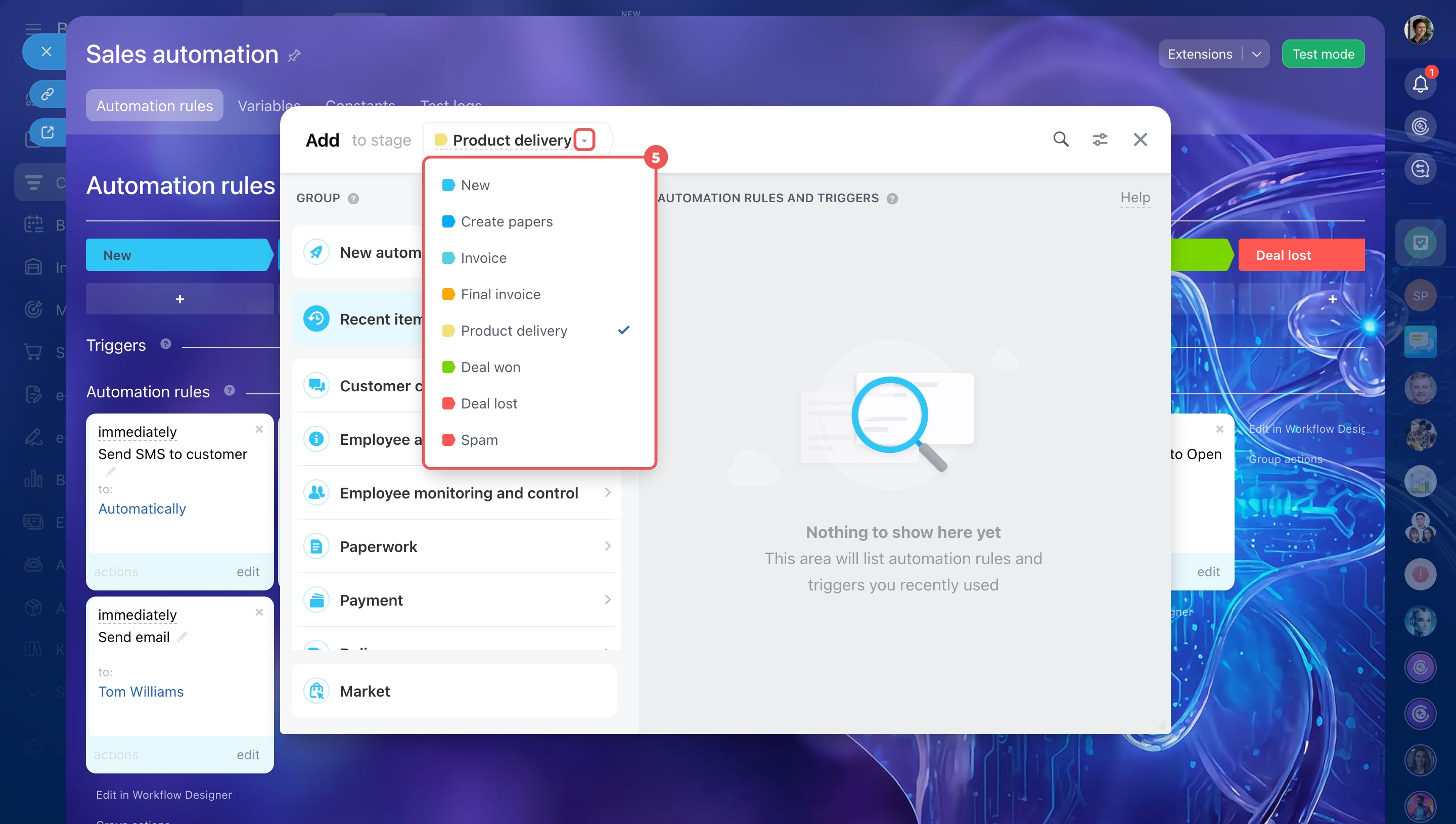
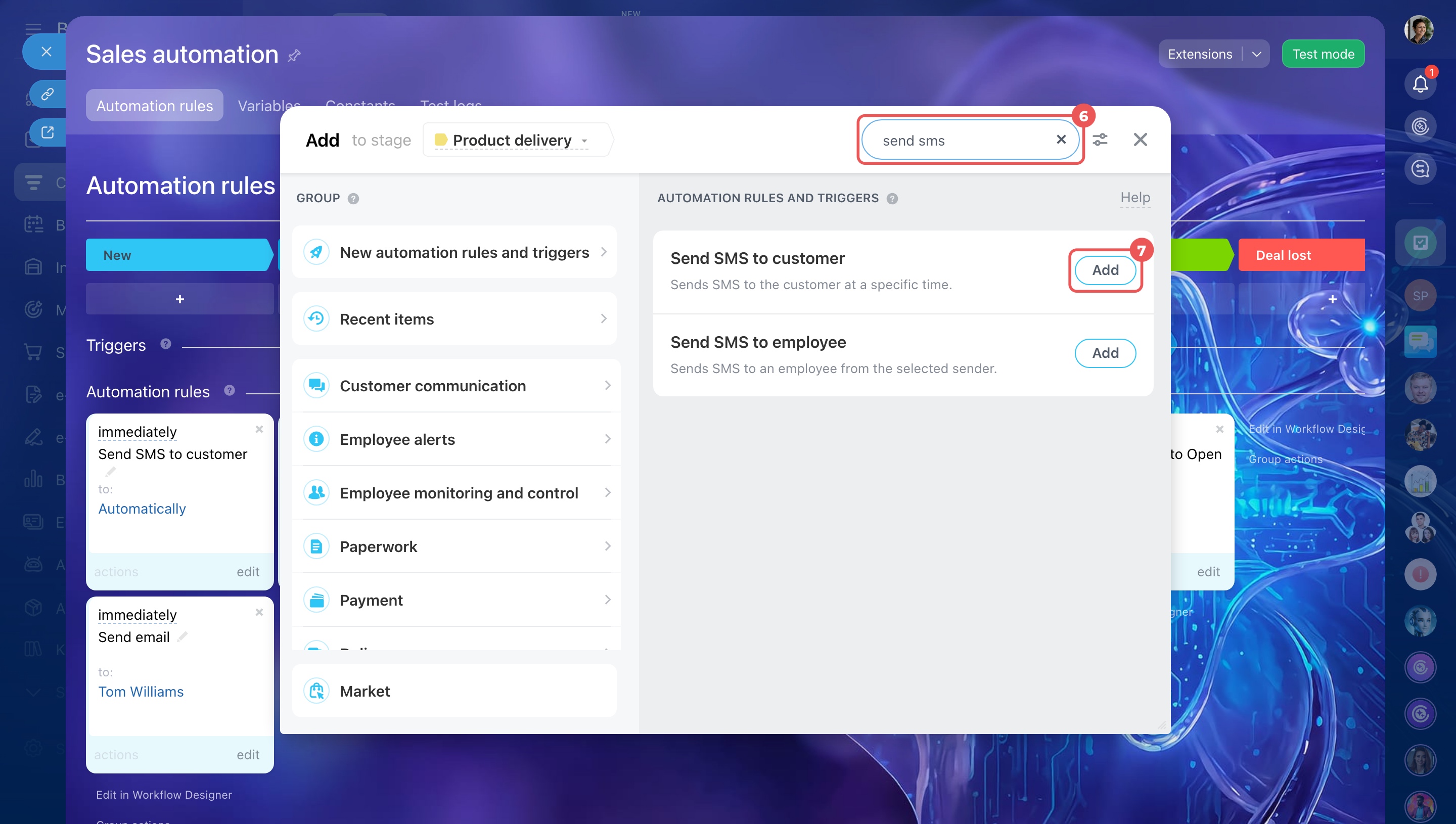
- Select the stage that should trigger the SMS, such as Product delivery.
- Use the search to find the Send SMS to customer automation rule.
- Click Add.
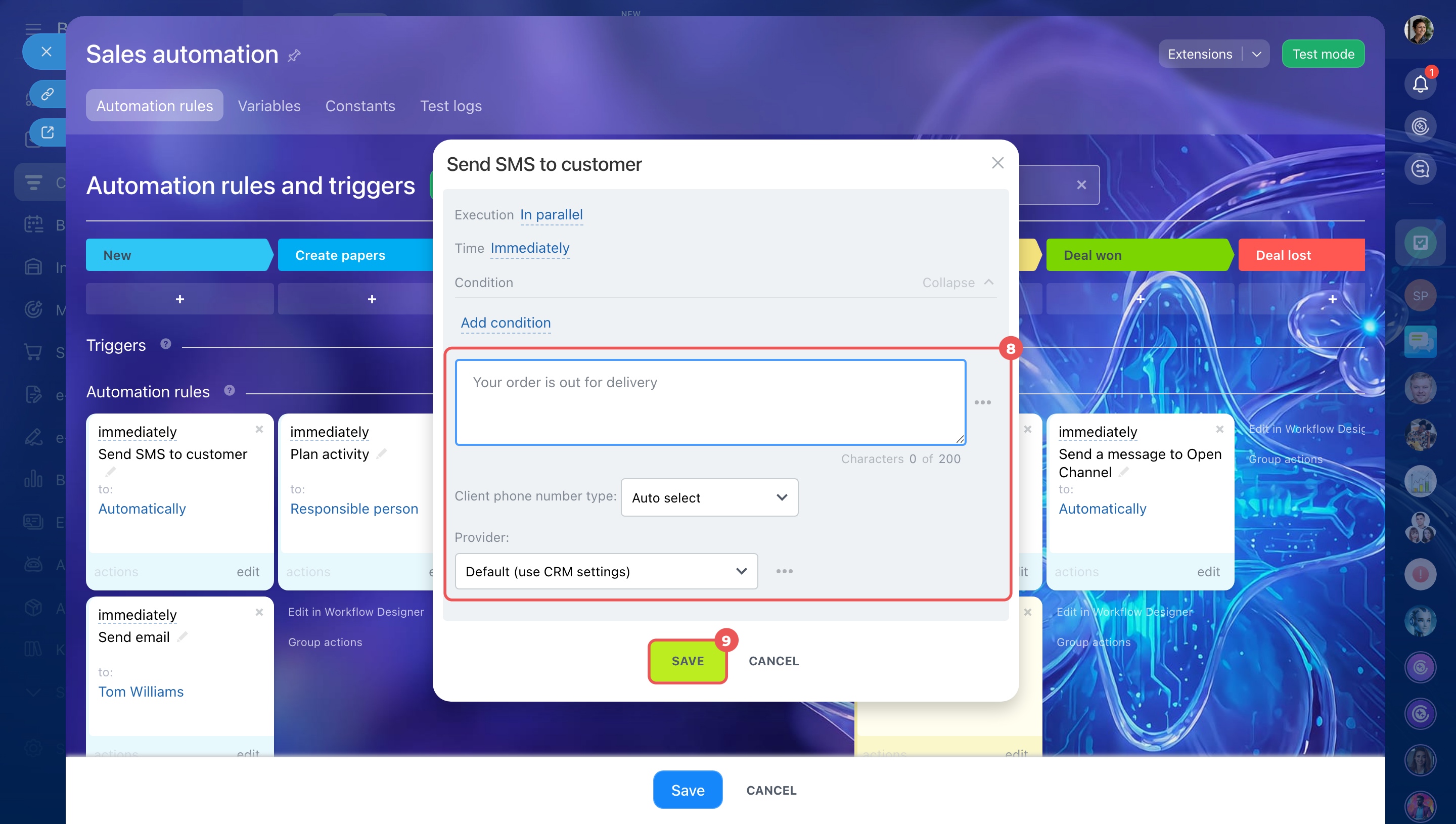
- Select an SMS provider and the customer's phone number type. Then enter your message. You can also insert values from CRM item fields.
- Save the automation rule.
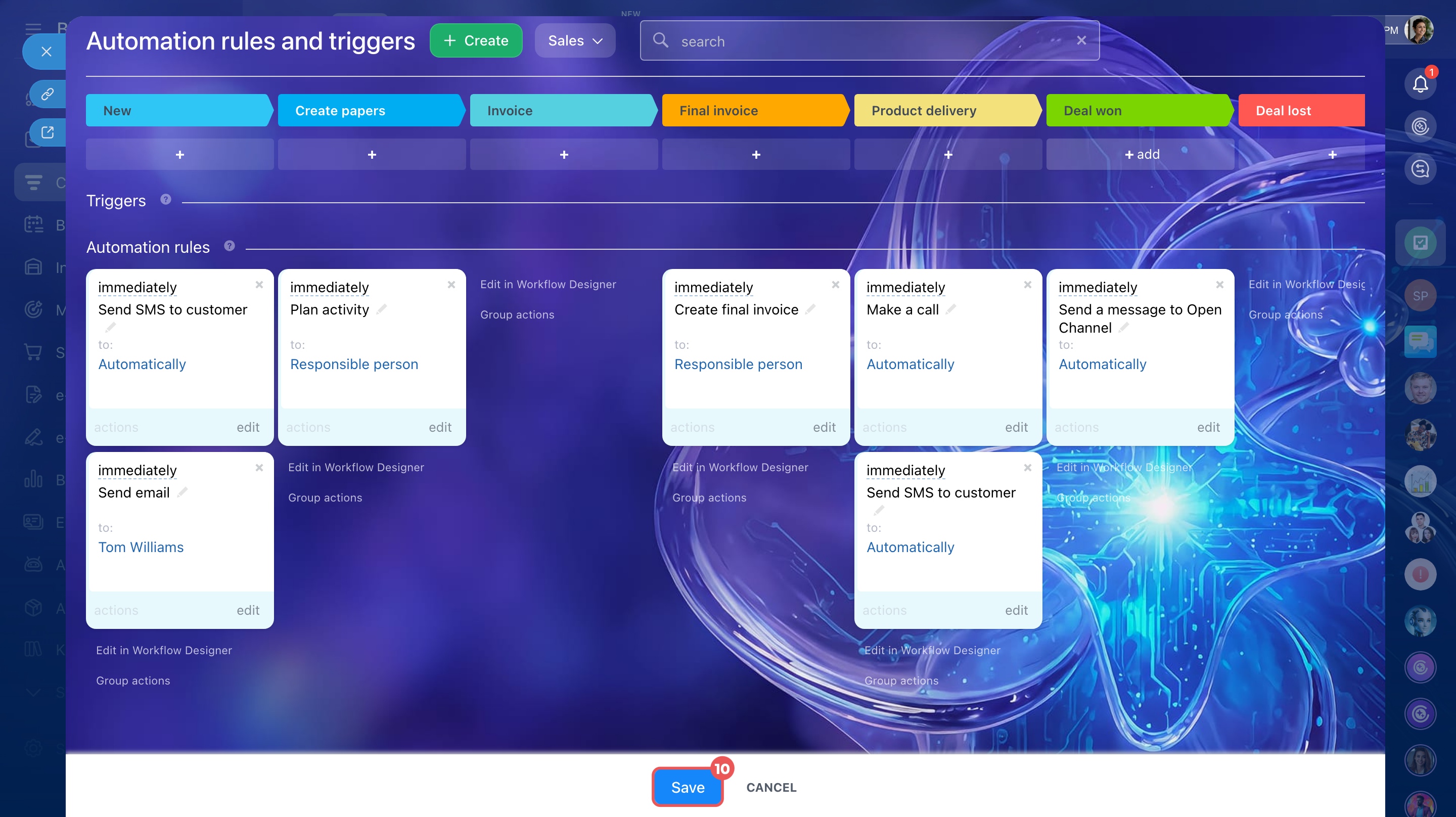
- Save the changes on the automation rules page.
Send SMS to customer
Now, whenever a deal reaches the selected stage, Bitrix24 automatically sends an SMS.
In brief
- Send SMS messages directly from CRM to confirm agreements, share payment links, and provide updates. Bitrix24 saves messages in the CRM item's timeline.
- To send SMS messages, connect a provider in CRM > Sales > Sales management > Sales center > SMS provider.
- Use the Message button in a CRM item form to send an SMS.
- Click Receive payment in a deal or invoice form to send a payment link by SMS.
- Use Marketing > SMS Campaign to send SMS campaigns to customer segments.
- Set up automation rules to send SMS messages when CRM items reach specific stages.