
A segment is a group of customers who share common traits, such as age, location, or purchased products. Use segments to target marketing campaigns.
There are two types of segments:
- Dynamic
This list updates automatically before each campaign. The number of recipients changes as your customer base changes. - Static
You create this list manually. You can upload emails or phone numbers and update the list by adding or removing recipients.
To create a segment:
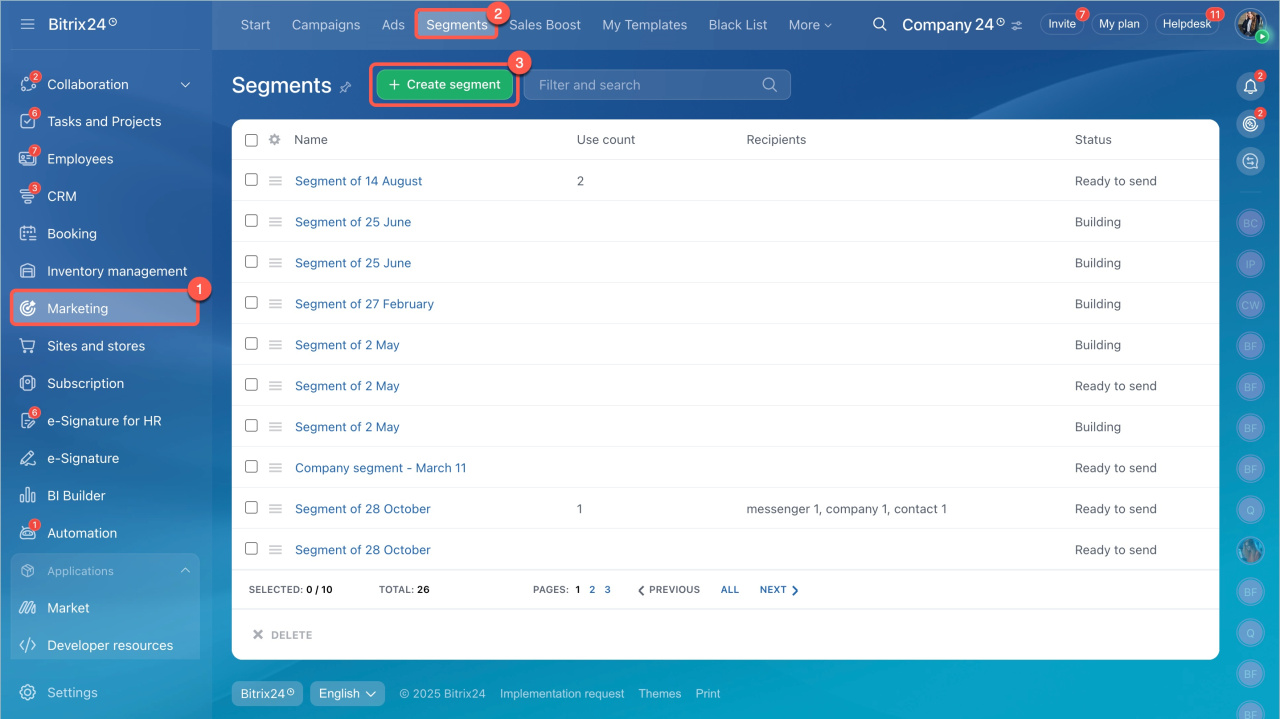
- Go to Marketing > Segments.
- Click Create segment.
Create a dynamic segment
A dynamic segment can include leads, contacts, or companies.
Choose one of the following:
- Clients: Use contacts and companies. You can include clients with or without deals.
- Leads: Includes only leads. At least one field must be filled in (email, phone, or messenger). Empty leads are excluded.
Repeat leads and deals
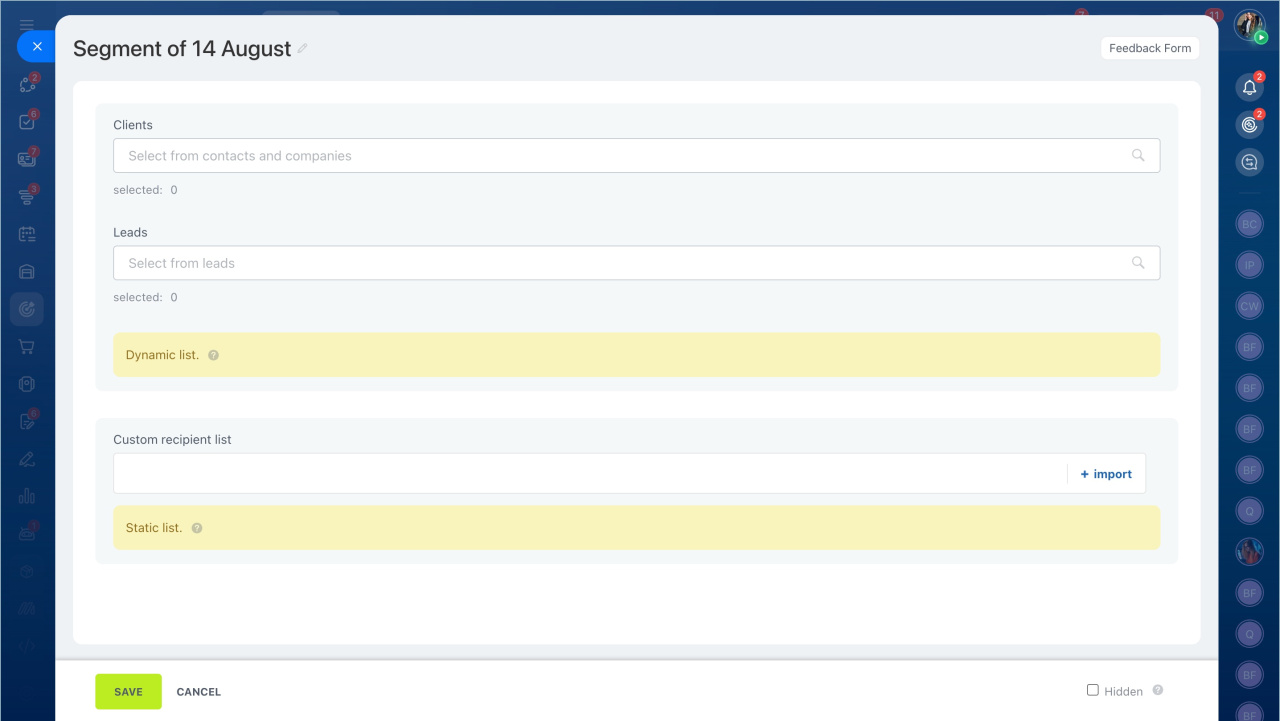
You can build the segment using filters:
Use ready-made filters. Click Clients or Leads and select the filter. For example, you can use the With won deals filter to create a segment with successful deals in all pipelines.
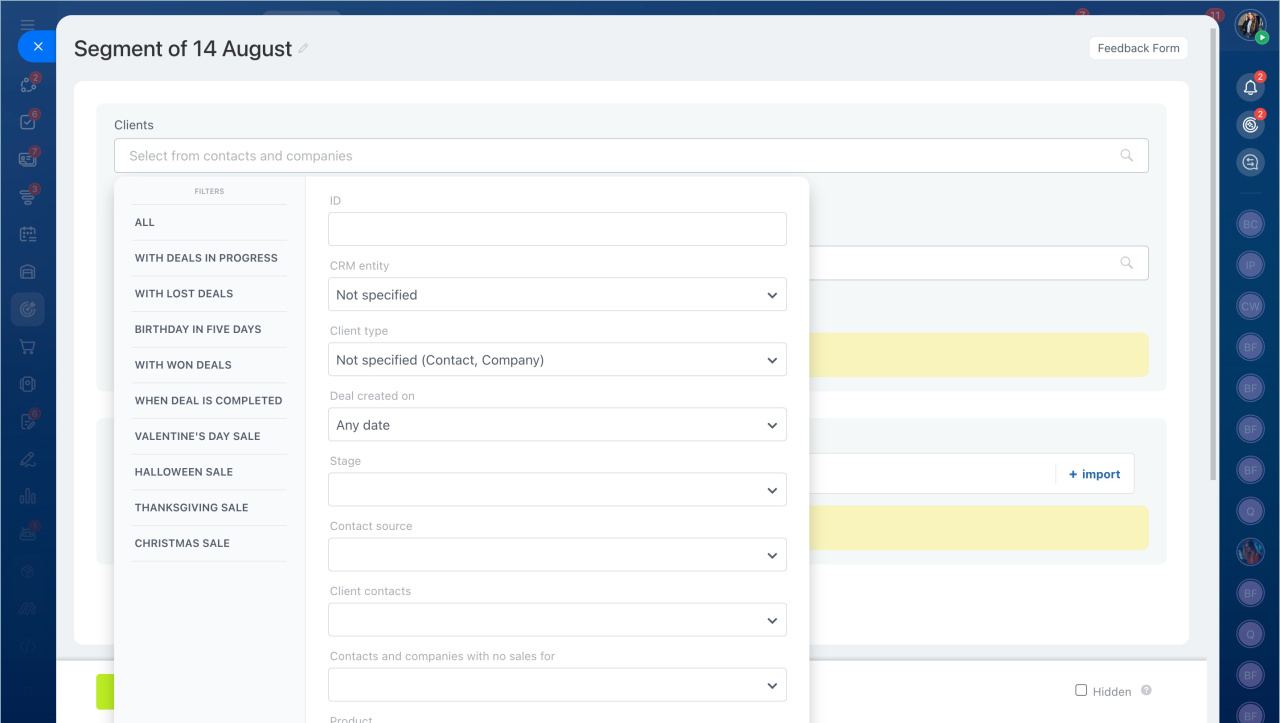
Customize filters. You can filter entities using standard or custom fields.
Standard fields in CRM
Custom fields in CRM
Examples of available filters:
- CRM entity — Leave this field empty. It is not used when creating segments.
- Client type – Select Contact or Company. To include both, choose Not specified (Contact, Company).
- Lead status — Select the stages where leads should be included in the segment.
- Converted — Filter leads by status: converted or still in progress.
- Stage — Select the stages where deals should be included in the segment.
- Deal pipelines — Filter deals by pipeline. If you select Customers without deals, the segment will include customers who have no deals and never had any.
Sales pipelines - Deal status — Choose one or more statuses: in progress, won, or lost.
- Contact source — Select how the customer found your company, such as website, social media, or CRM form.
- Contact via — Select one or more communication methods: phone, email, or messenger. If you select all, only customers with all three fields filled in will be included.
- Product — Filter customers who purchased a specific product.
- Find product in — Choose where to search for the product: all records, paid orders, unpaid orders, active deals, won deals, or lost deals.
- Deal amount — Enter an exact value or a range.
- Responsible person — If you select multiple employees, the segment will include all records assigned to them.
- Responsible person (Contact) — Includes contacts assigned to the selected employees.
- Responsible person (Company) — Includes companies assigned to the selected employees.
- Responsible person (Deal) — Includes contacts and companies linked to deals assigned to the selected employees.
Create a dynamic segment using date fields
You can filter customers using date fields, such as the purchase date or subscription expiration date.
Choose how the system handles the year:
- Respect year — The filter uses the current year.
- Don't respect year — The filter uses only the date, not the year. For example, you can create a segment of customers with a birthday on April 16, regardless of the year.
You can also select a time frame, such as today, tomorrow, this month, in N days.
Use N-day filters
Here’s how filters work when you use an N-day range:
Previous Nth day — A specific day in the past.
Example: If today is April 15 and N = 3, the filter includes April 12.
Over N days ago — Any date earlier than a specific point.
Example: If today is April 15 and N = 3, the filter includes dates up to April 11.
Last N days — A range from the past up to today.
Example: If today is April 15 and N = 3, the filter includes April 12–15.
In N days — A specific future date.
Example: If today is April 15 and N = 3, the filter includes April 18.
Next N days — A range starting tomorrow.
Example: If today is April 15 and N = 3, the filter includes April 16–18.
Next Nth day — A specific future date.
Example: If today is April 15 and N = 3, the filter includes April 18.
Create a static segment
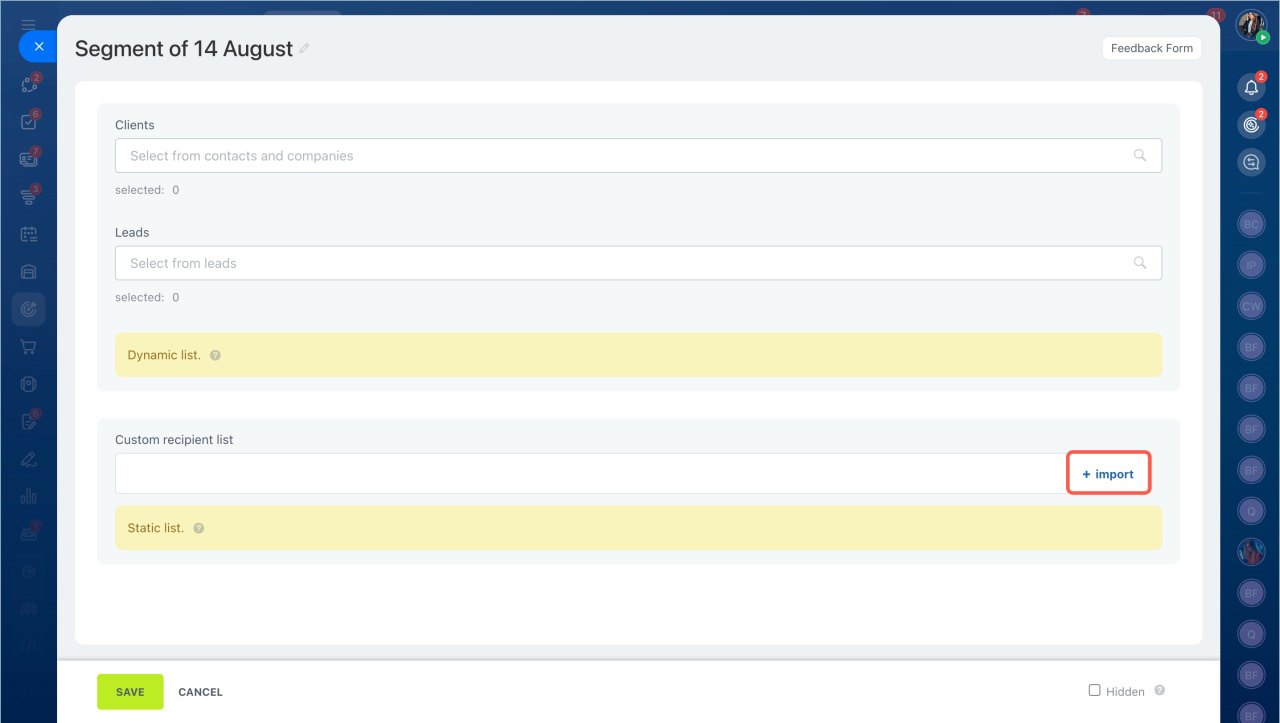
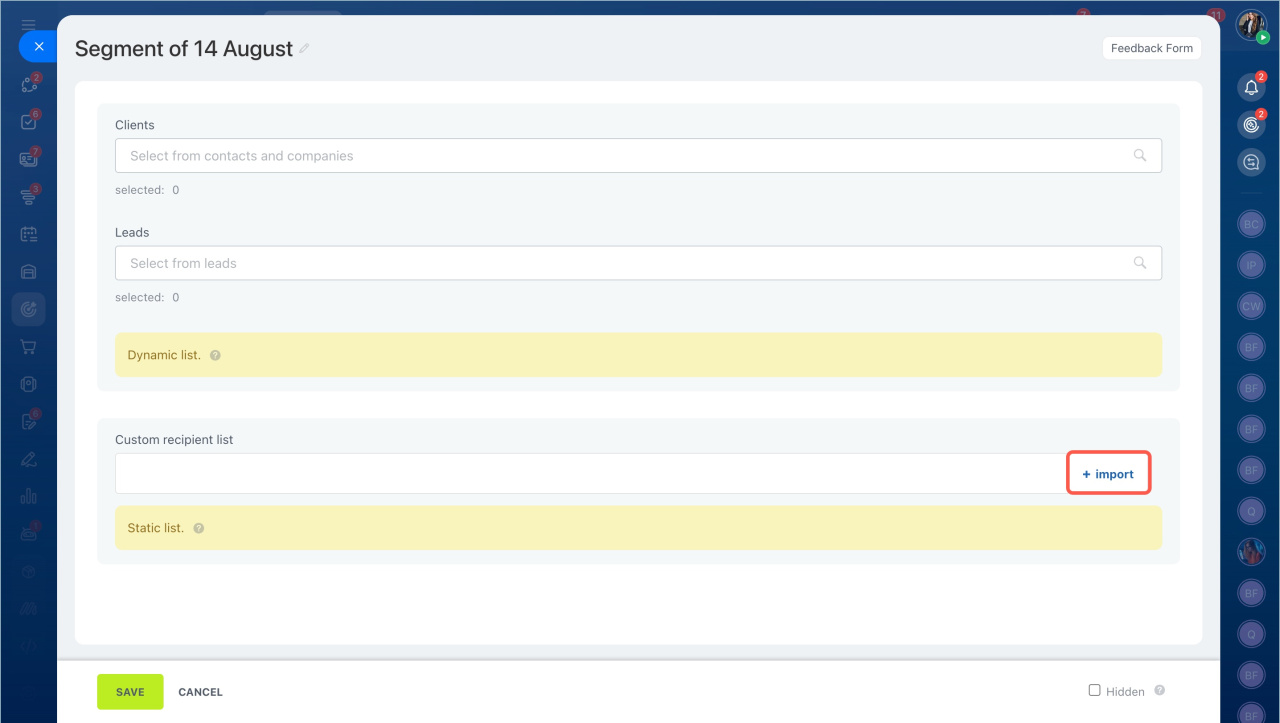
- In the Custom recipient list field, click Import.
- Enter a list of emails or phone numbers. You can export this data from CRM or another source and upload it.
- Enter each email or phone number on a new line.
- (Optional) Add a name after a semicolon.
- Click Import.
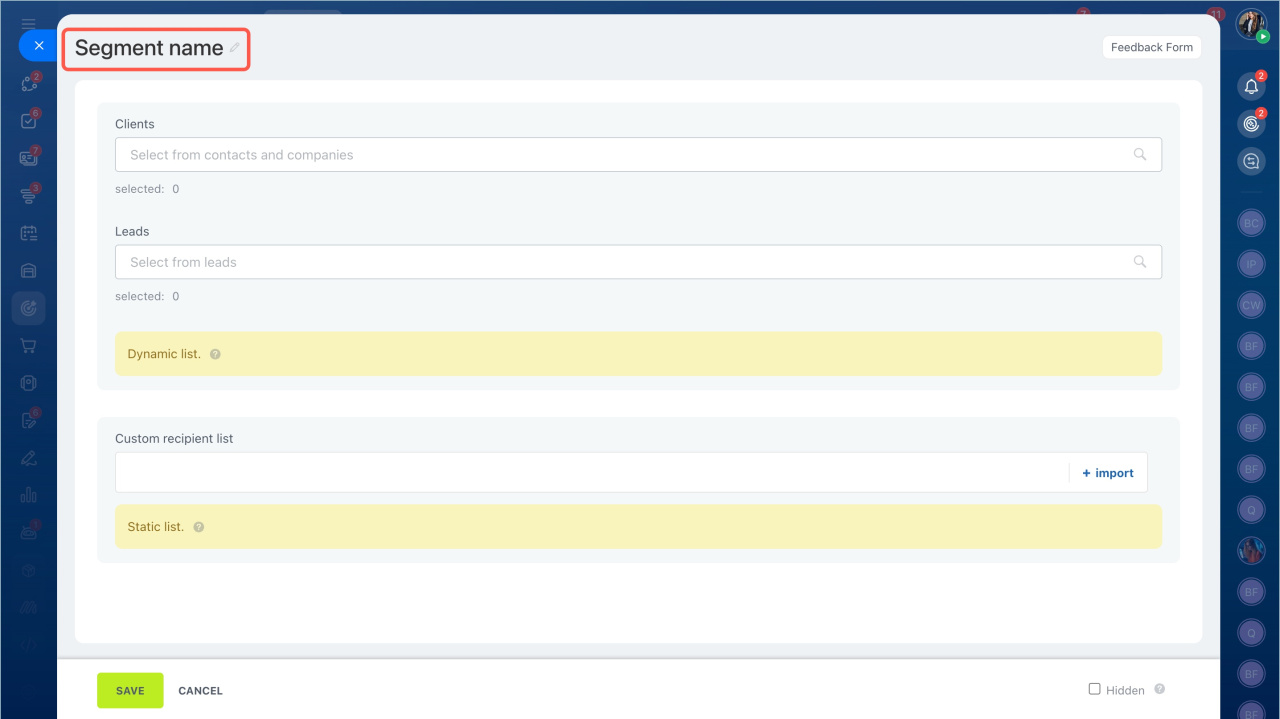
- Enter a name for the segment.
- Click Save.
In brief
- A segment is a group of customers with shared characteristics, such as age, location, or purchased products.
- Use segments for marketing campaigns in Bitrix24.
- There are two types of segments: dynamic and static.
- Dynamic — The list updates automatically before each campaign. The number of recipients changes as your customer base changes.
- Static — You create and manage the list manually. You can upload emails or phone numbers and update the list by adding or removing recipients.