
Marketing helps you work with your customer base. You can create campaigns and choose your audience.
What is CRM Marketing
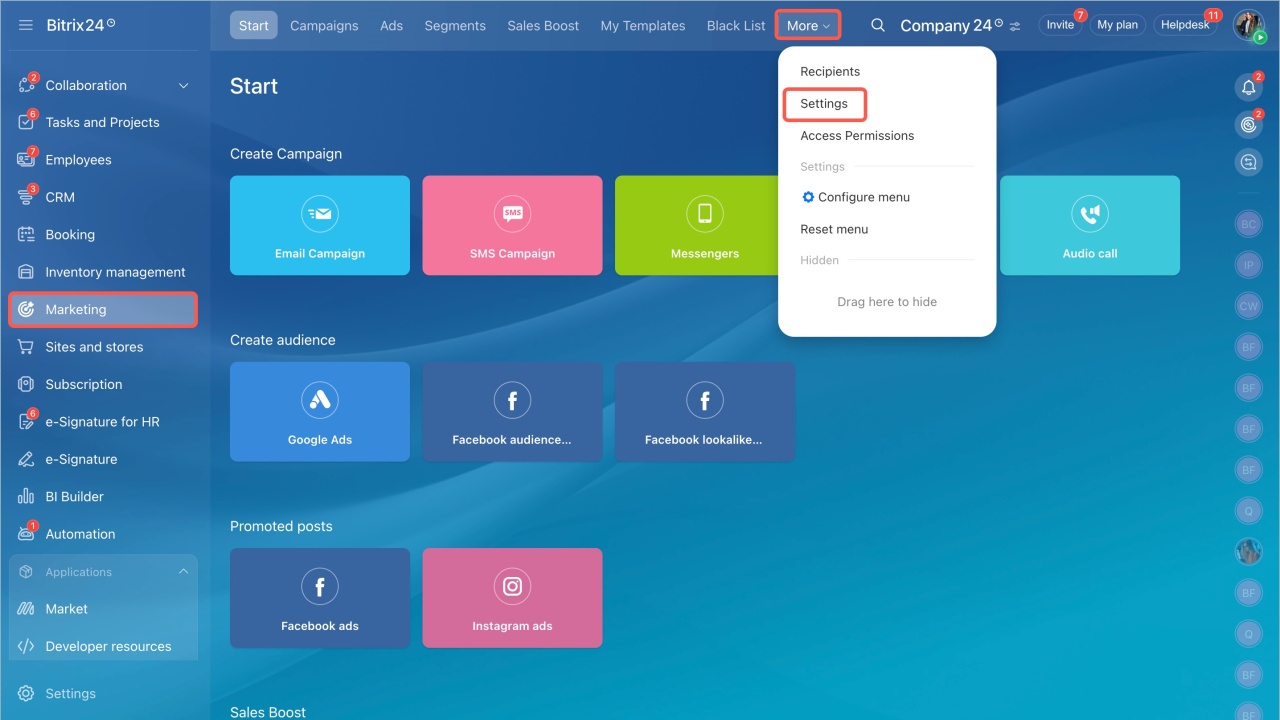
Set up the Marketing section before using it. Go to Marketing > More > Settings. Here you can:
Set email sending limits
Open the Outgoing emails tab to view monthly and daily limits. These limits apply to all Bitrix24 tools that send emails.
Bitrix24 plans
Monthly limits. Set the percentage of emails used for campaigns. The rest remain available for CRM and Mail. Click the pencil icon and enter the percentage.
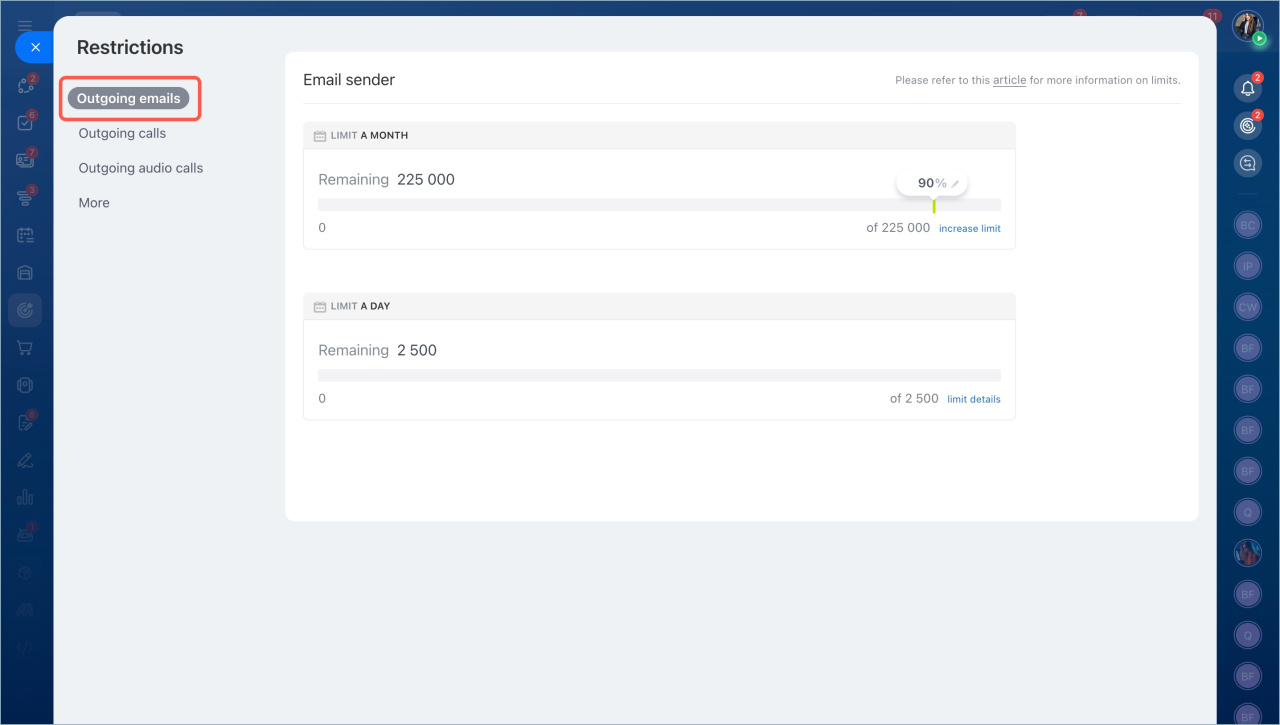
Daily limits. By default, you can send up to 1,000 emails per day. If a campaign exceeds this limit, the system sends 1,000 emails first. The rest are sent the next day.
The daily limit can change based on recipient behavior:
- If users do not mark emails as spam, the limit increases.
- If users mark emails as spam, the limit decreases.
- If spam reports are high, Bitrix24 may block email sending.
Email Marketing Tips
Configure campaign settings
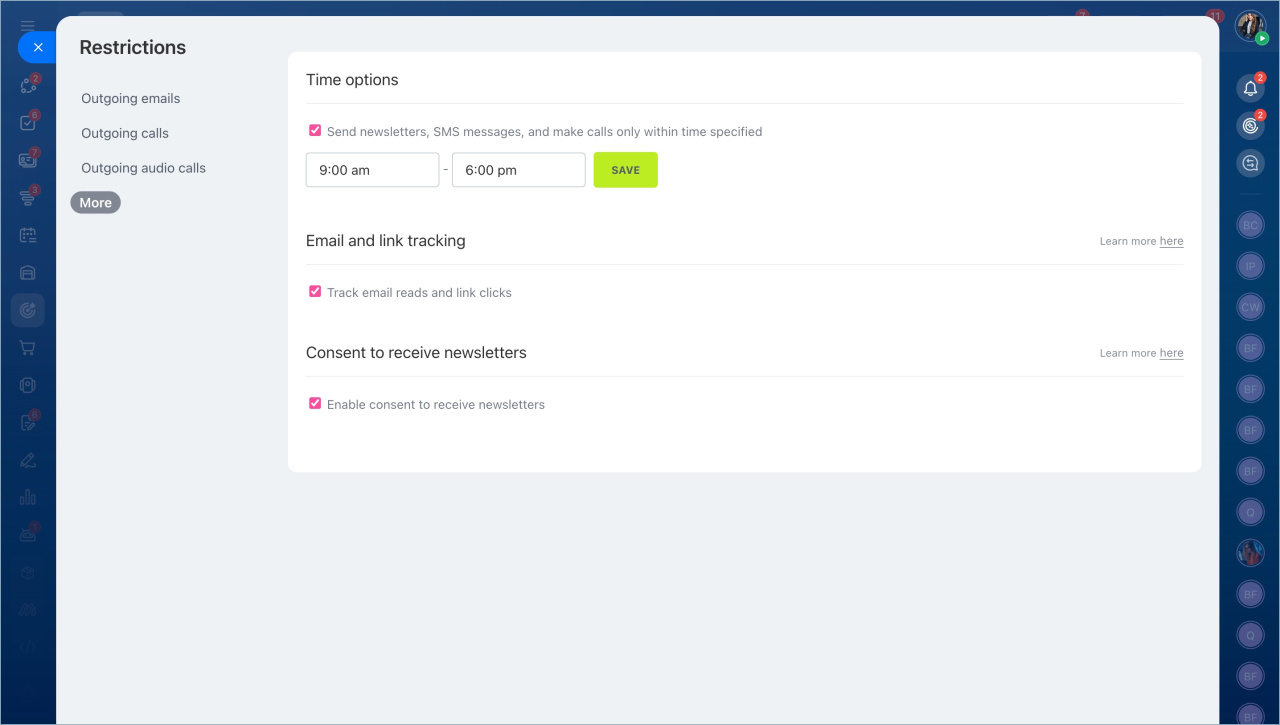
Open the More tab to configure campaign options.
You can:
- Set a time window for sending emails.
- Enable email and link tracking.
- Enable the consent to receive newsletters option.
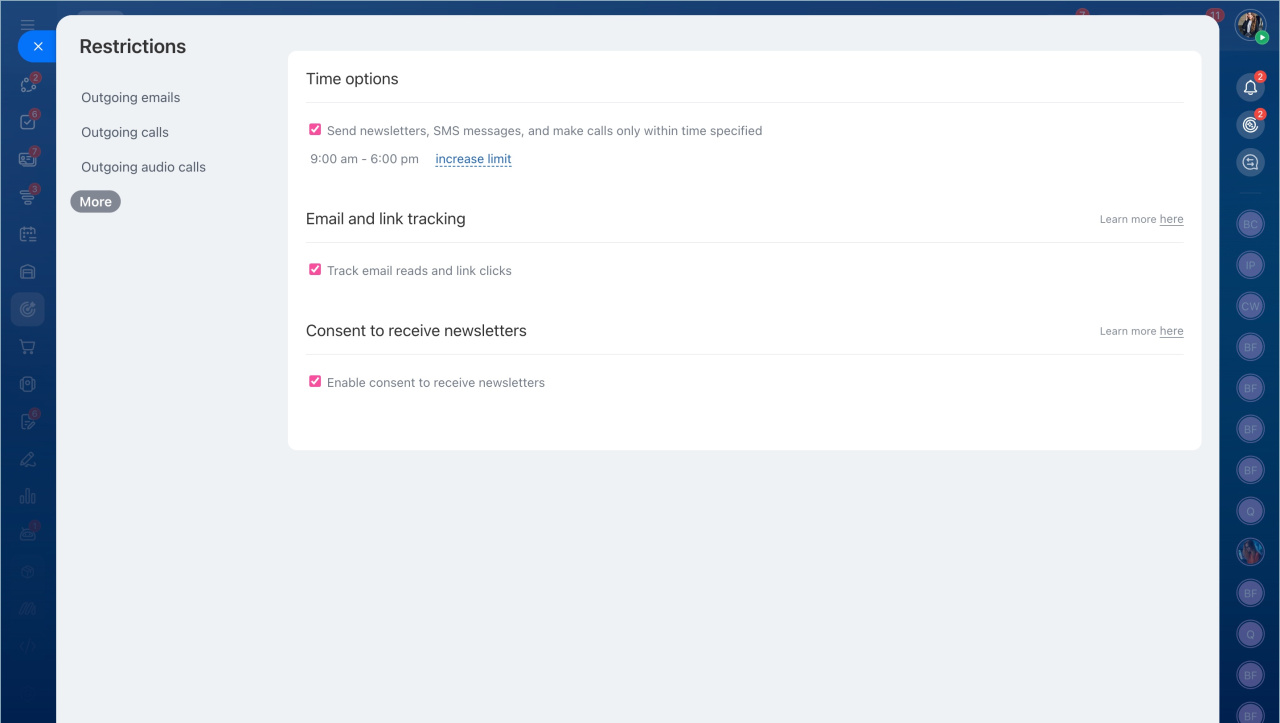
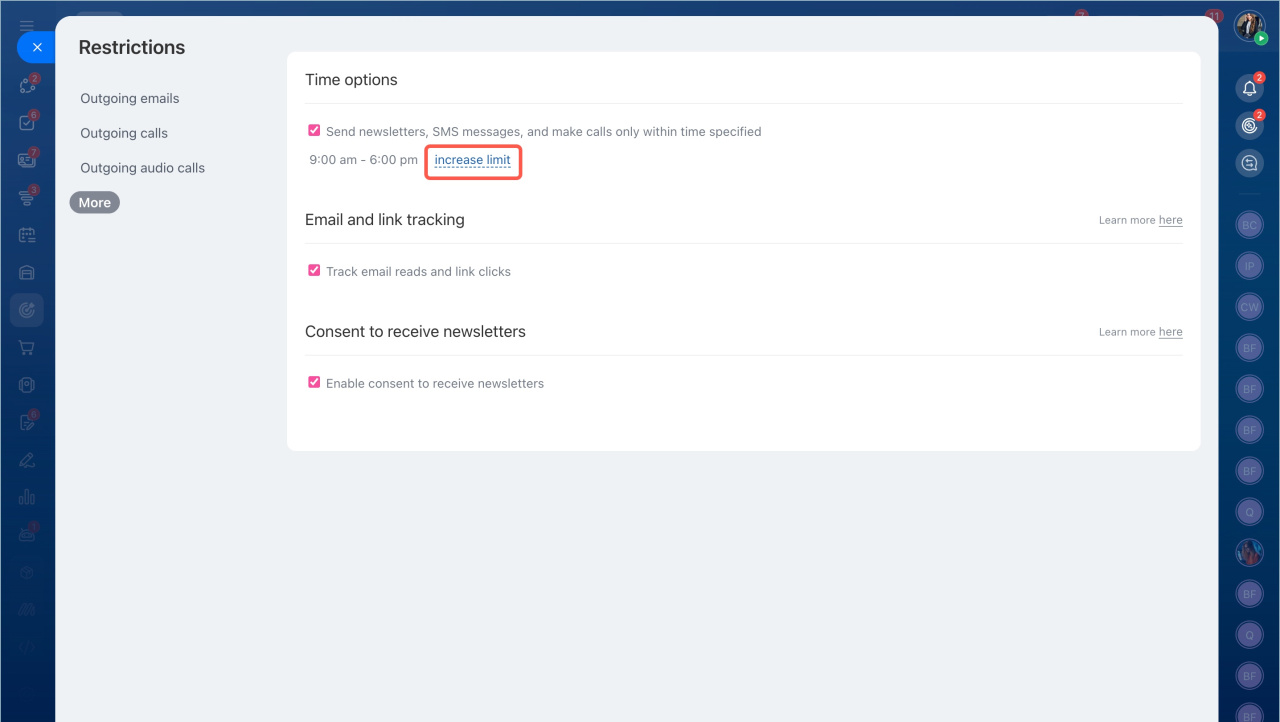
Time options. Set the start and end time for sending emails.
Enable the option, click Edit, set the time, and click Save.
Track link clicks in outgoing emails
Email and link tracking and Consent to receive newsletters
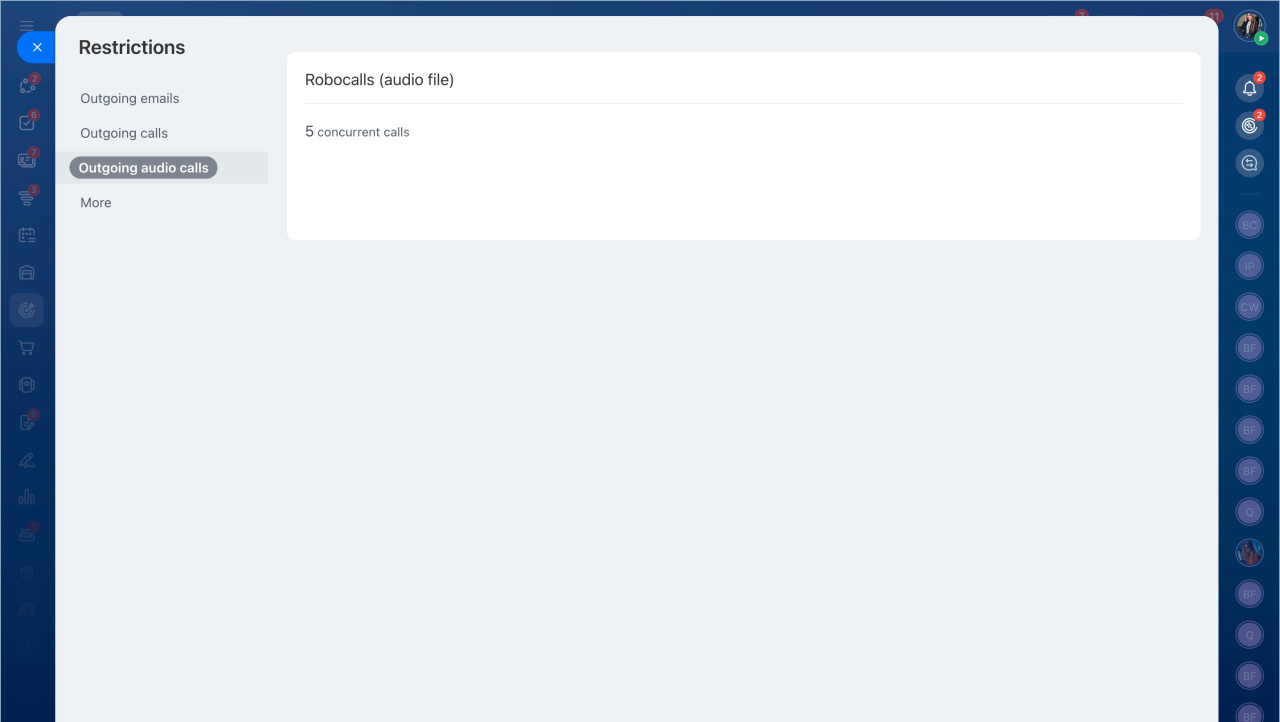
Audio call limits
Bitrix24 allows up to 5 concurrent outgoing audio calls.
Create campaign
Telephony connection options overview
In brief
- Go to Marketing > More > Settings to configure the section.
- The Outgoing emails tab shows daily and monthly limits.
- By default, you can send up to 1,000 emails per day. Emails over the limit are sent the next day.
- Use the More tab to set sending time and enable tracking and consent options.
- You can make up to 5 simultaneous audio calls. Connect telephony to use calling features.