
An SMS campaign in Bitrix24 lets you send messages to a group of customers. Use it to share promotions, announce new products, or invite customers to events.
Create a campaign
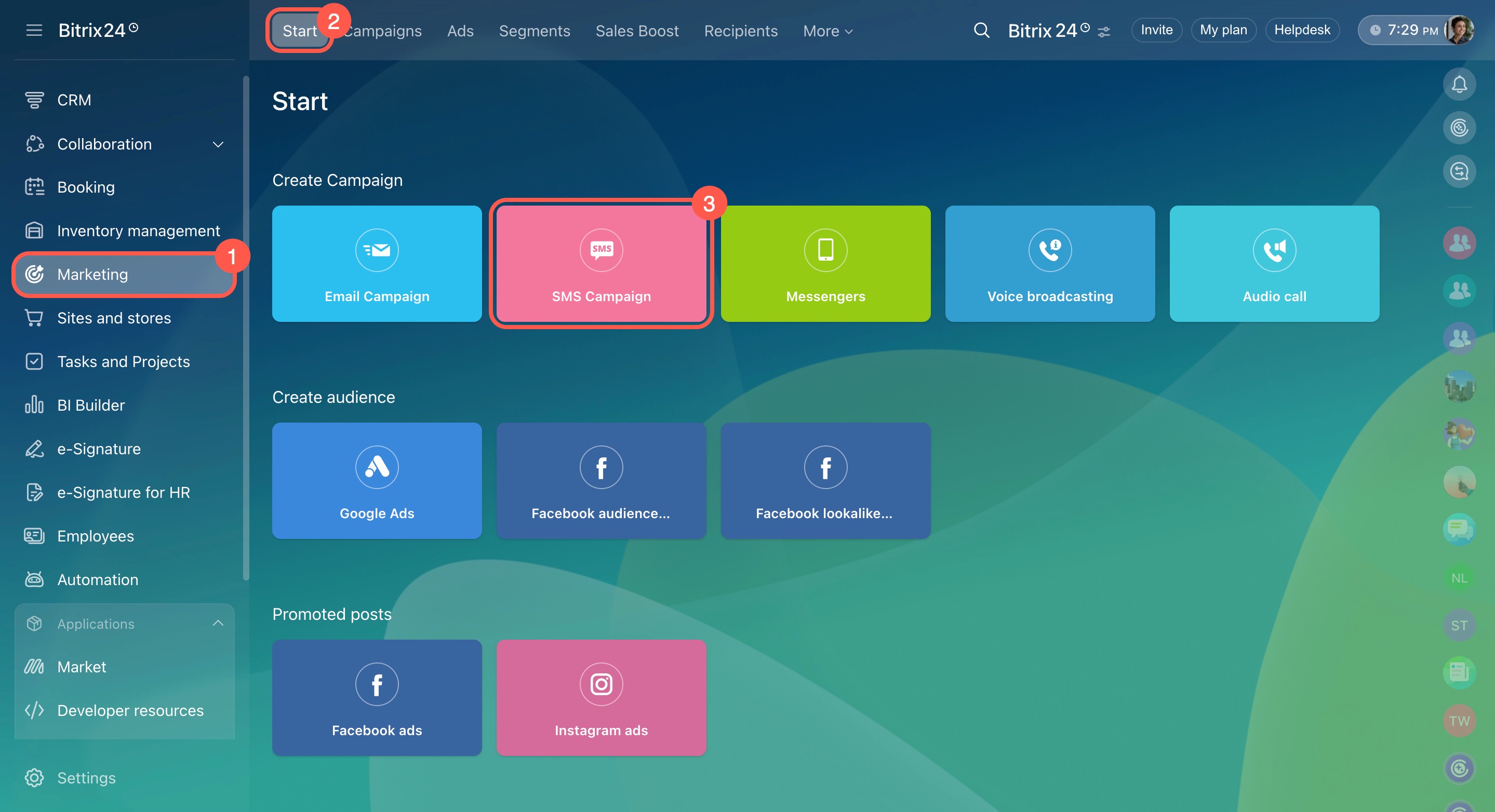
- Go to Marketing > Start > SMS campaign.
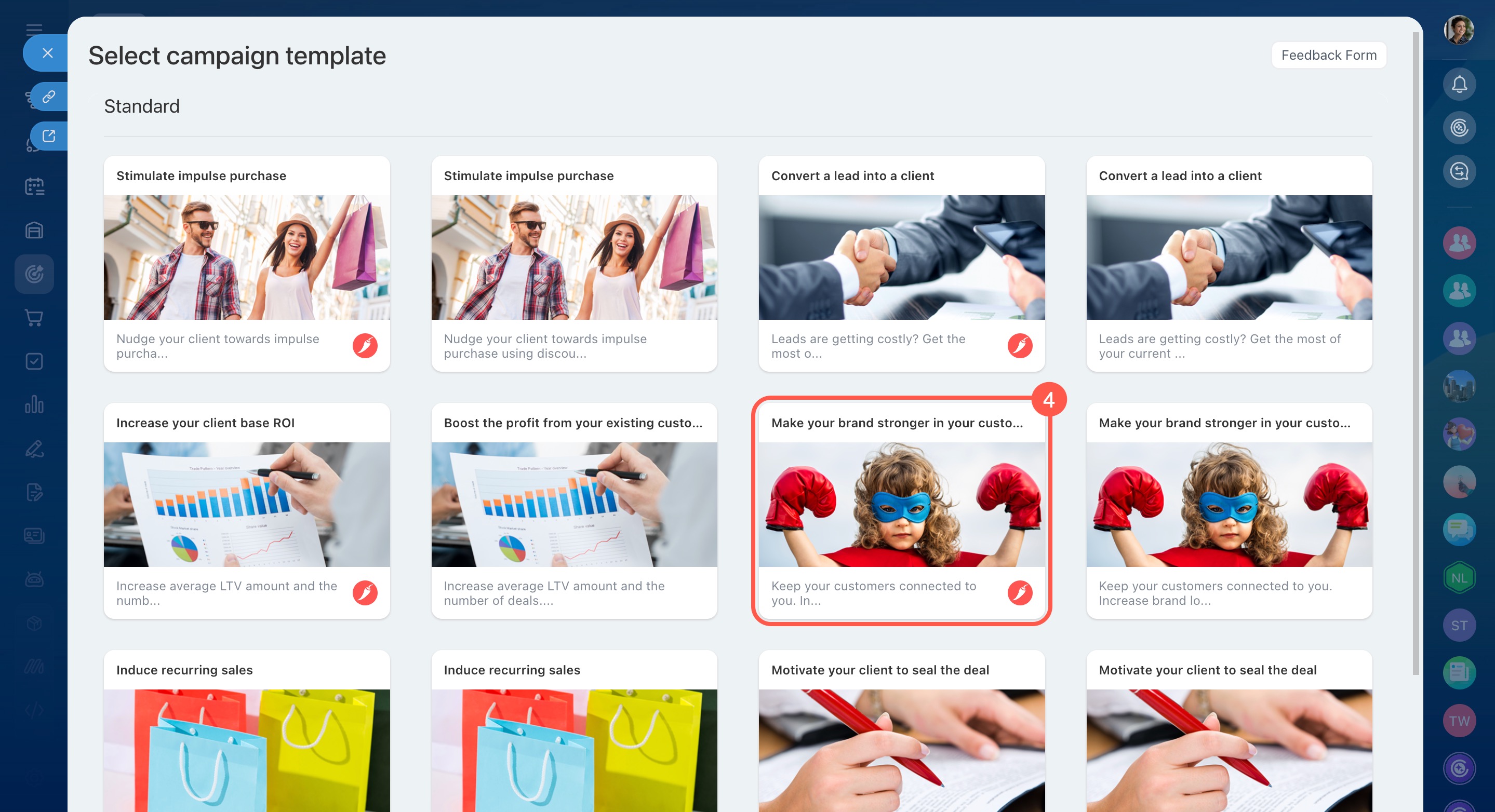
- Select a campaign template.
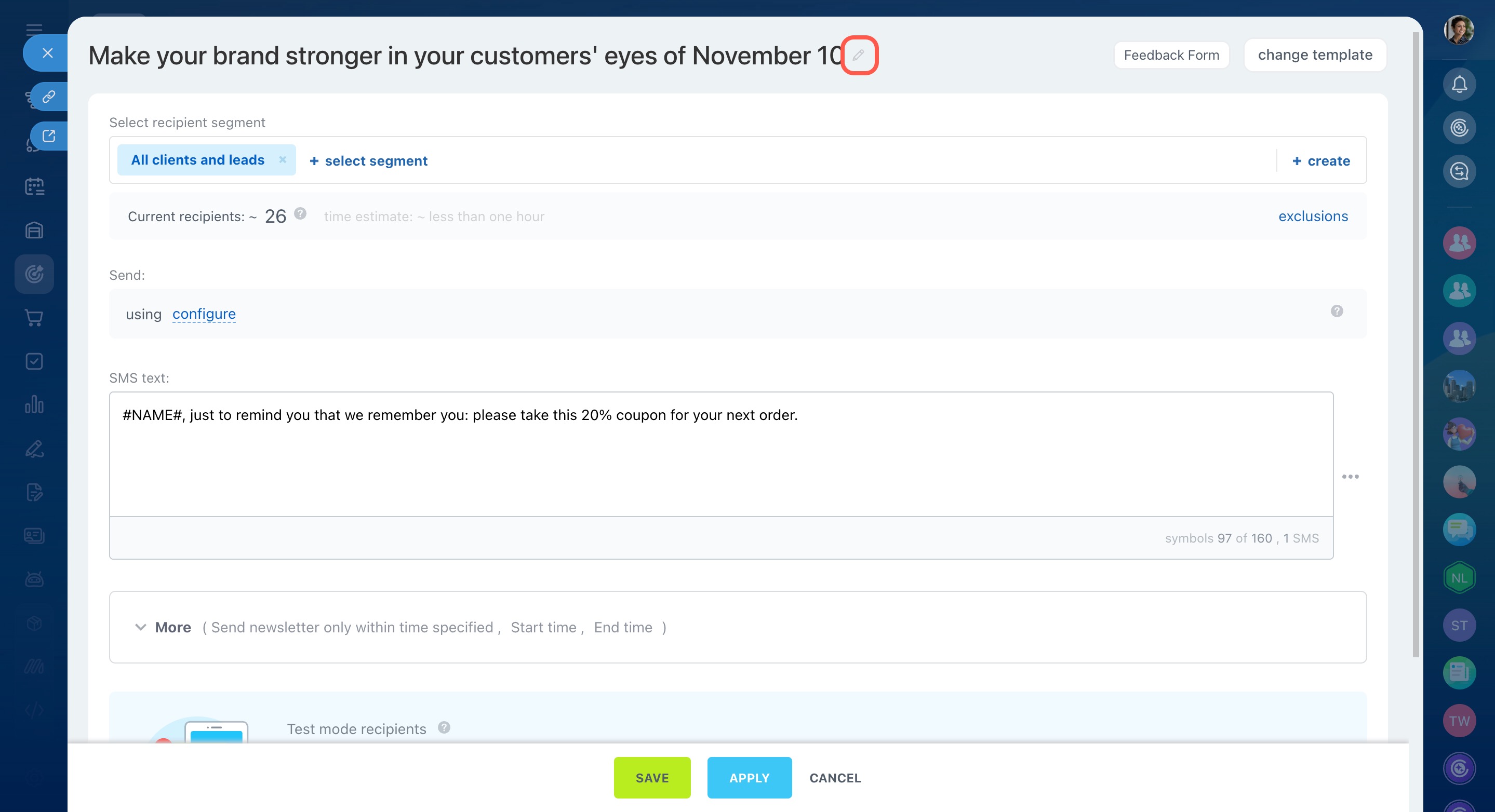
- Rename the campaign so you can find it later. Click the pencil icon and enter a new name. This name is visible only to Bitrix24 users.
Add recipients
In Bitrix24, recipients are called segments. Segments group customers by shared attributes such as age, location, or purchase history. There are two types: dynamic and static.
Create customer segments for marketing campaigns
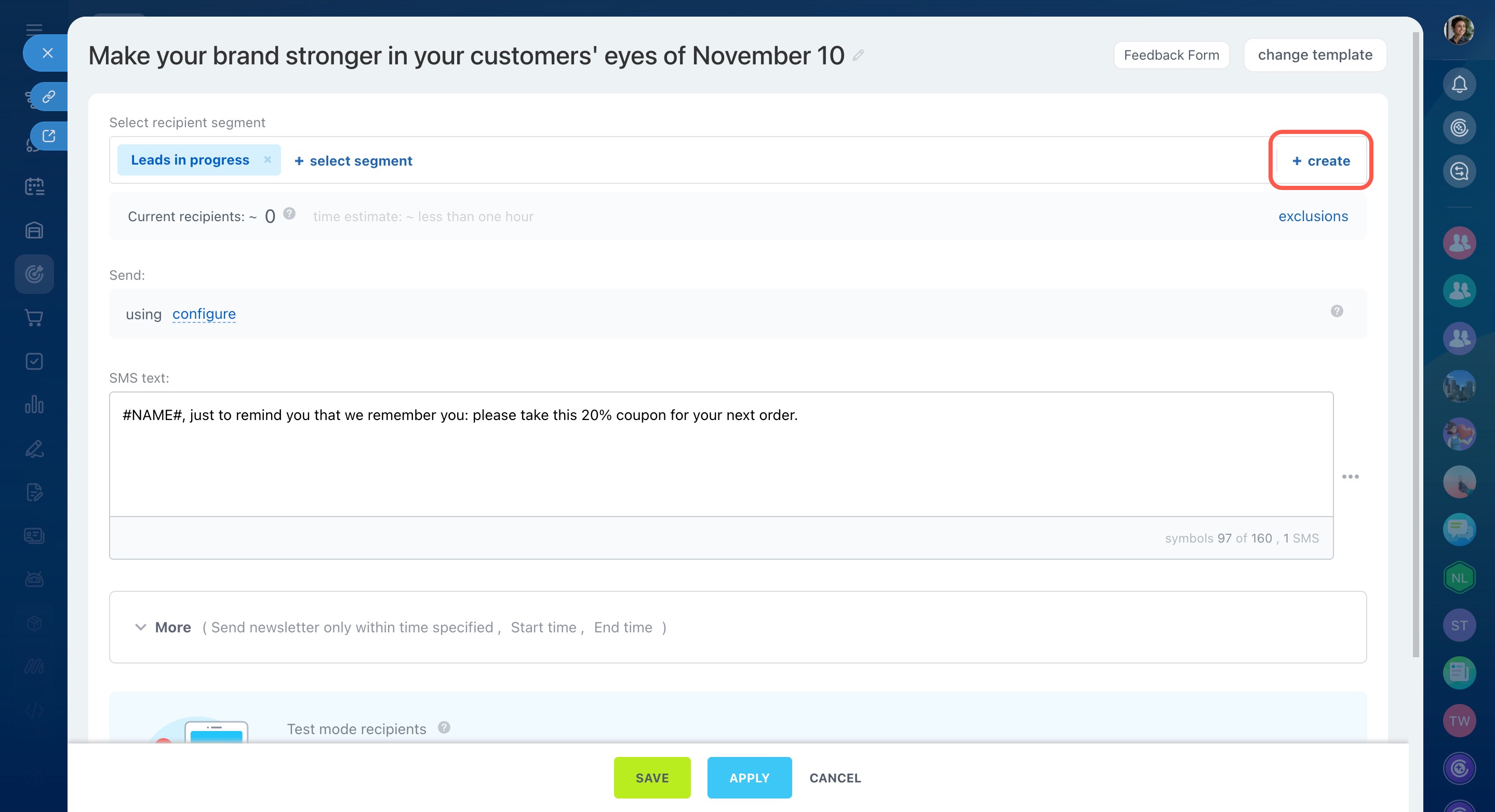
Select segment. Choose a default segment or a saved one. Click Select segment or Create if you need a new one.
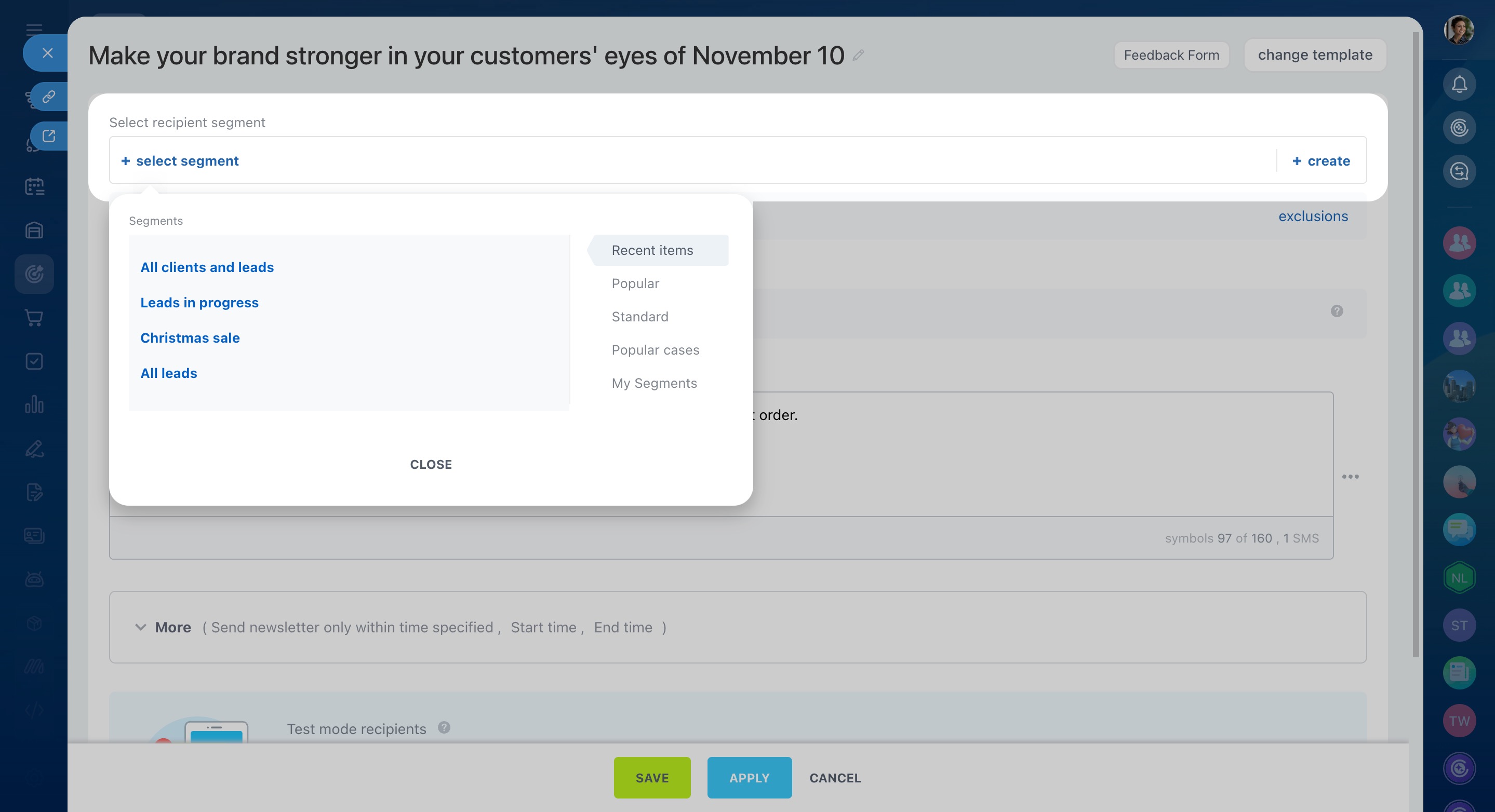
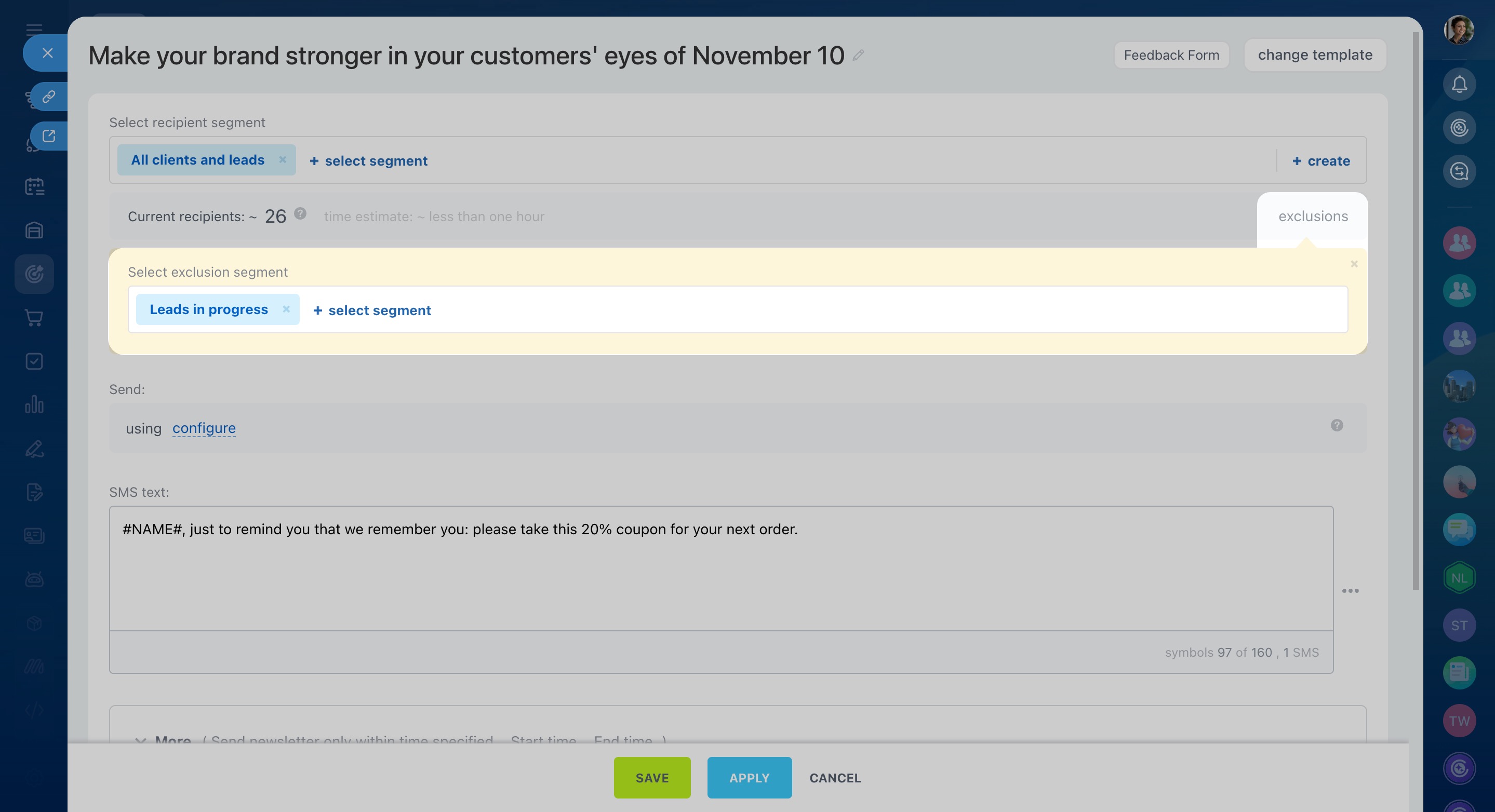
Select exclusion segment. Use this to exclude customers who should not receive the message. For example, exclude customers who already plan to purchase.
Click Exclusions, choose a segment, and click Apply.
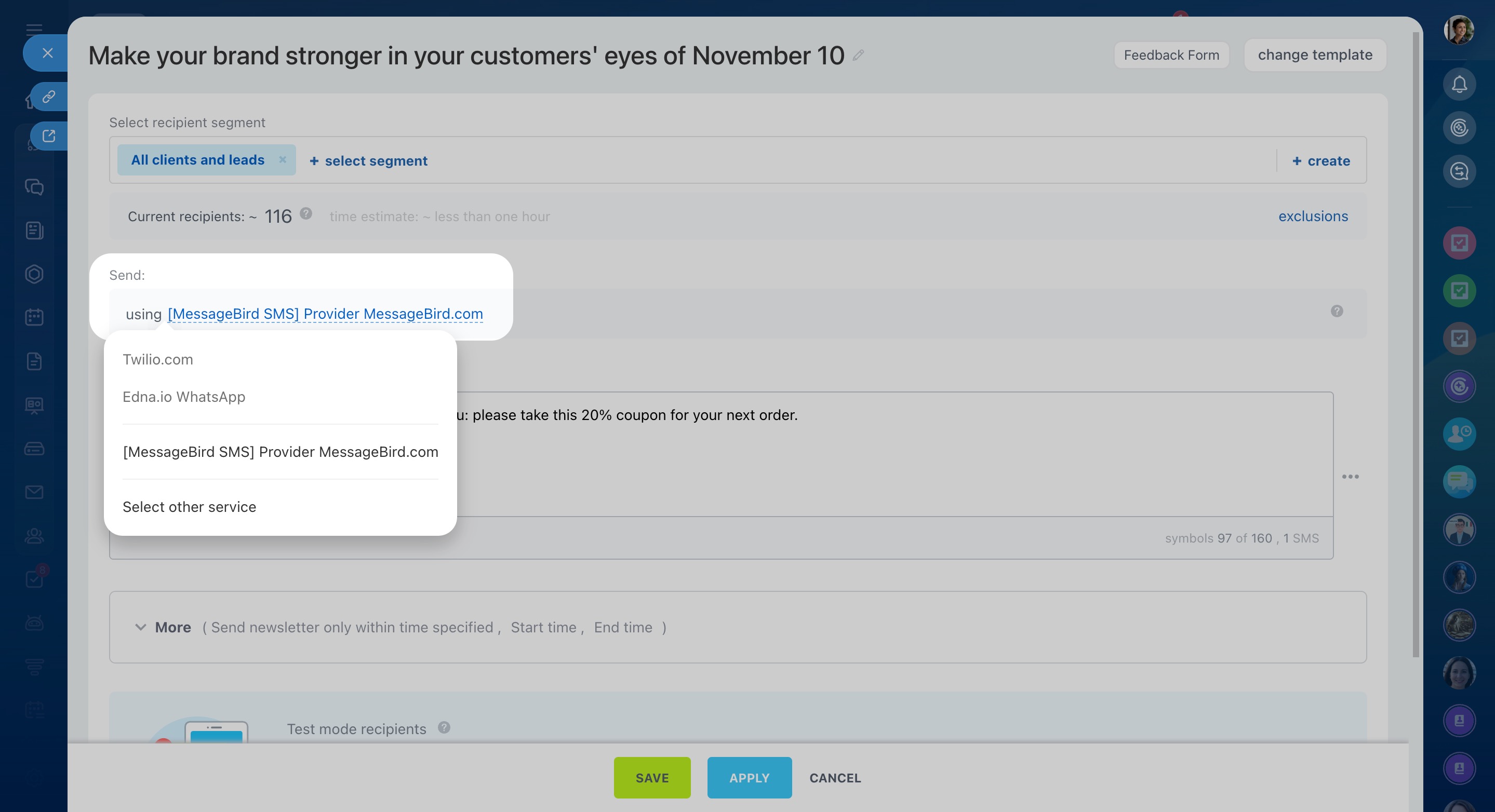
Select a sender
To send messages, connect an SMS provider. Click Configure. Select a provider from the list or install one from the Market.
Add SMS text
You can use the template text or write your own message.
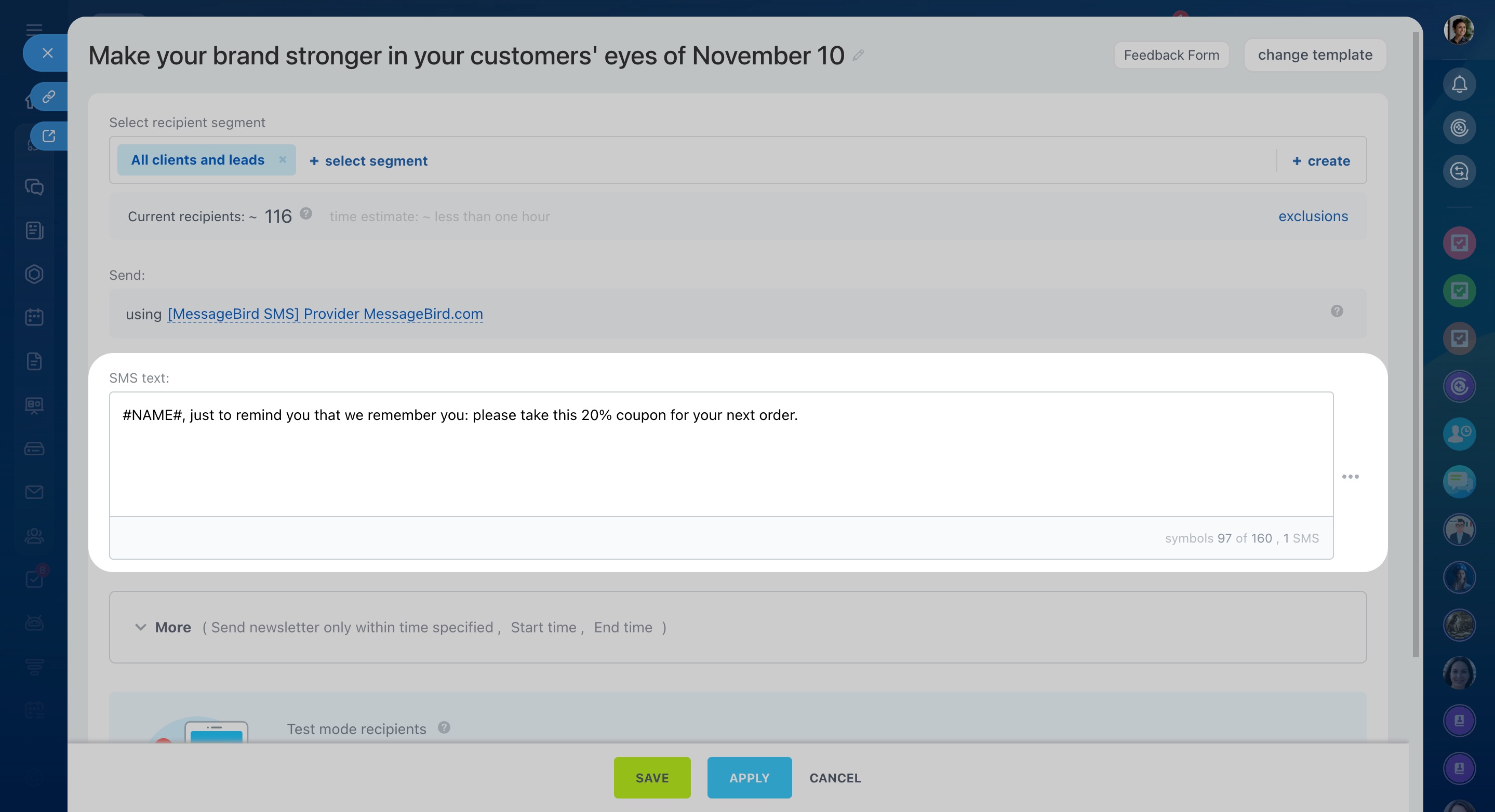
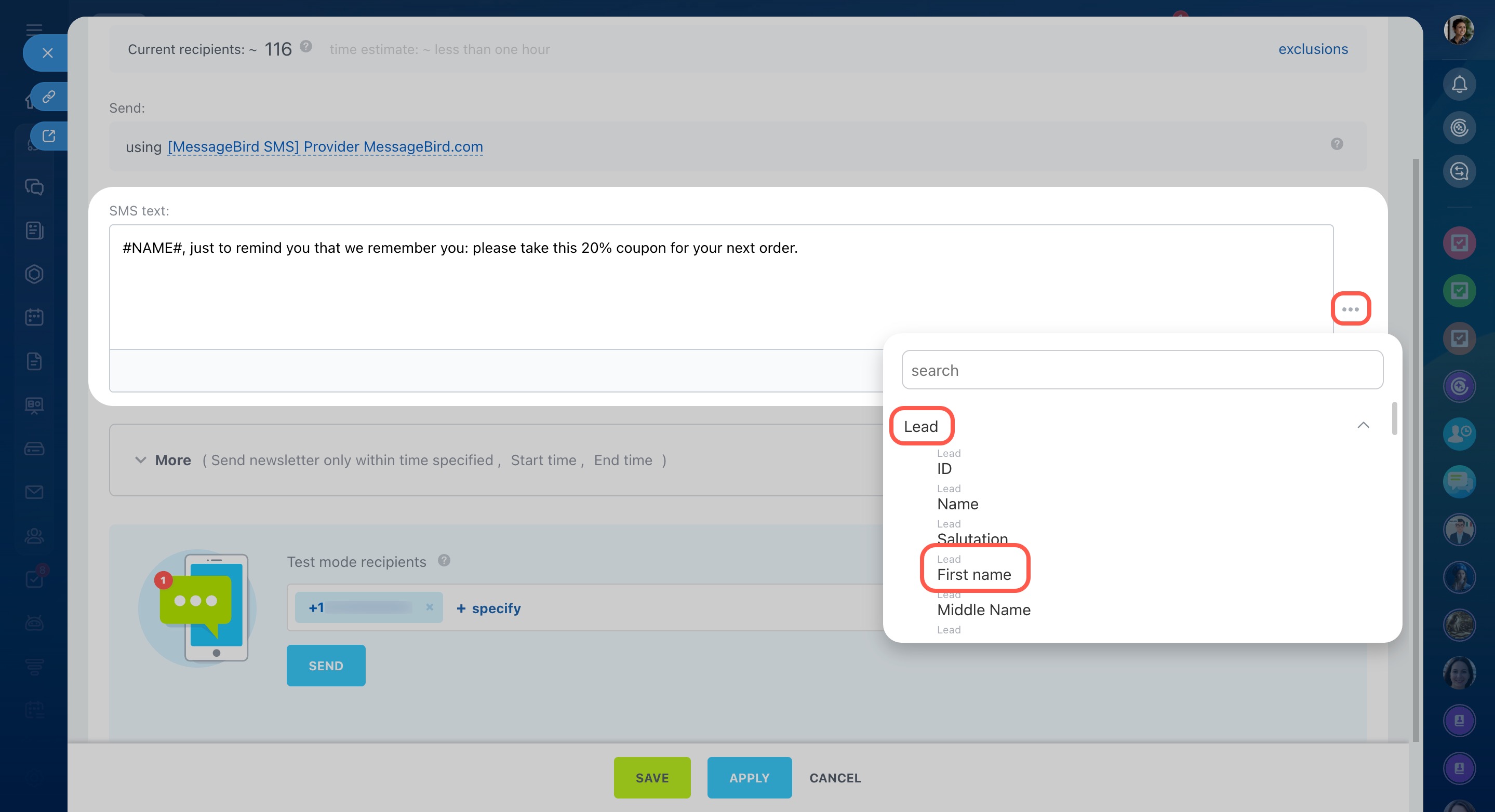
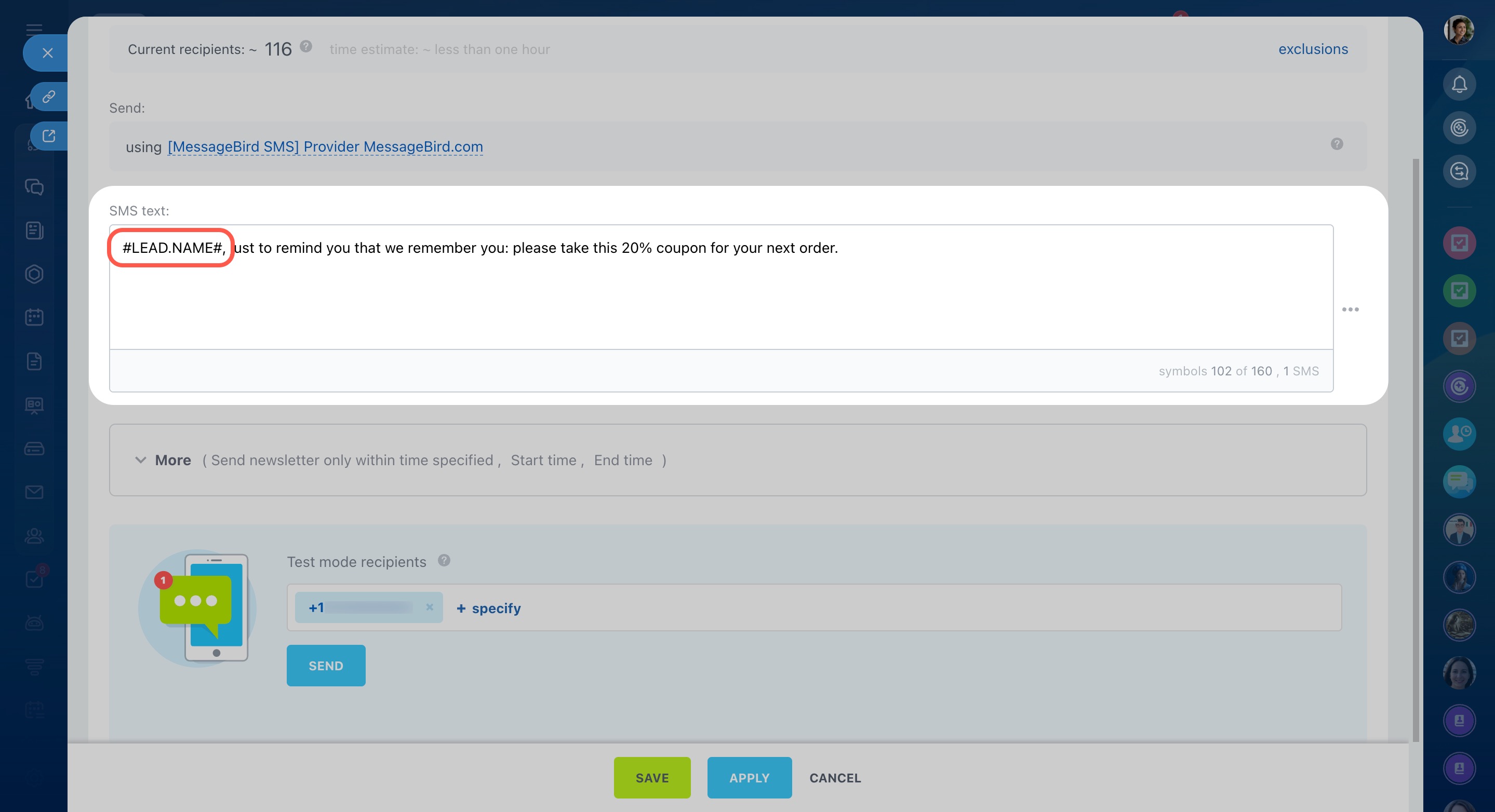
You can insert CRM fields into the message, such as a customer name or birth date.
- Click the three dots.
- Select a variable.
- The variable is added to the text. When sent, it is replaced with actual data.
Configure campaign settings
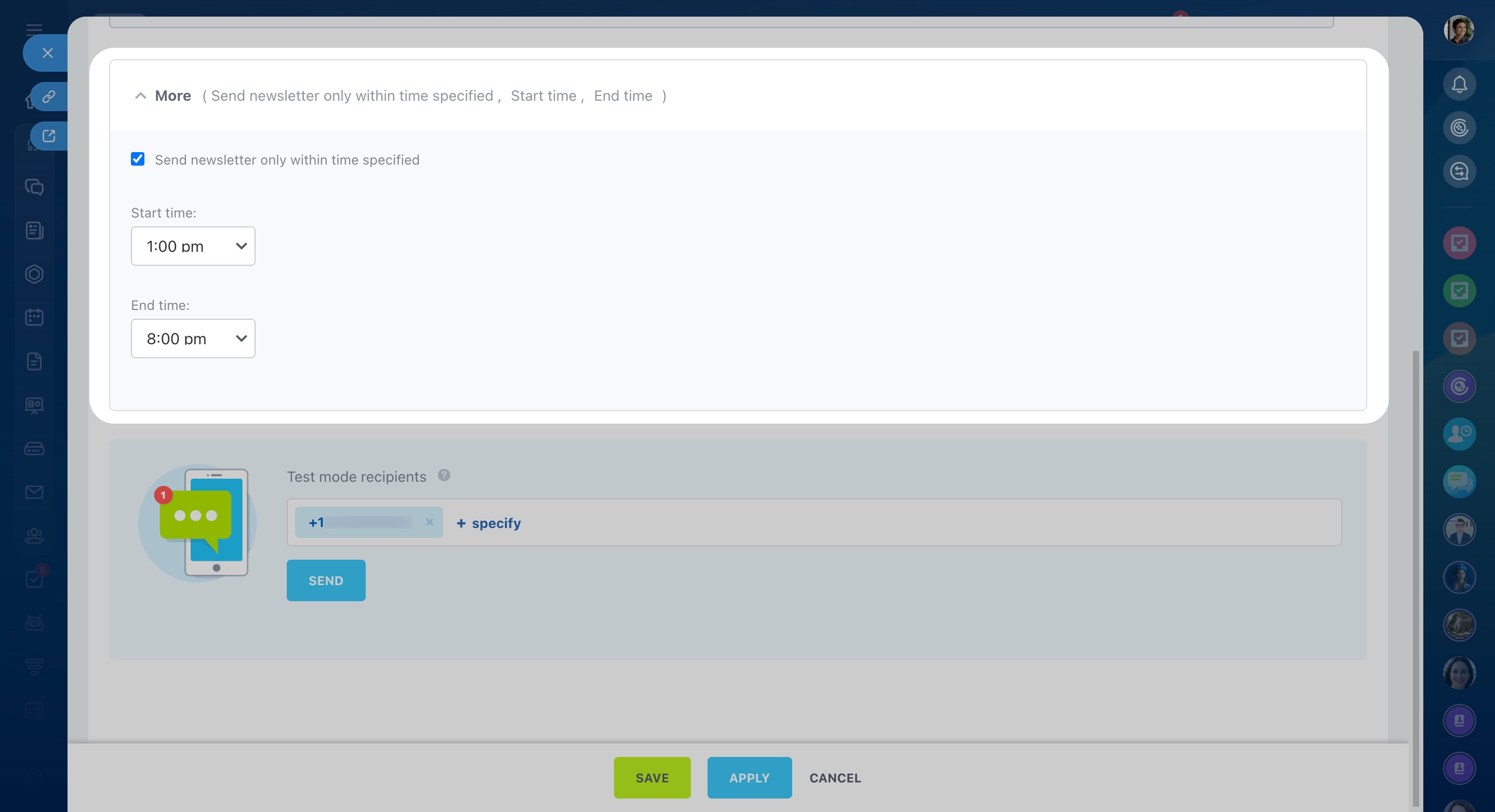
- Open the More section.
- Set the start and end time for the campaign.
- Click Apply.
Send the campaign
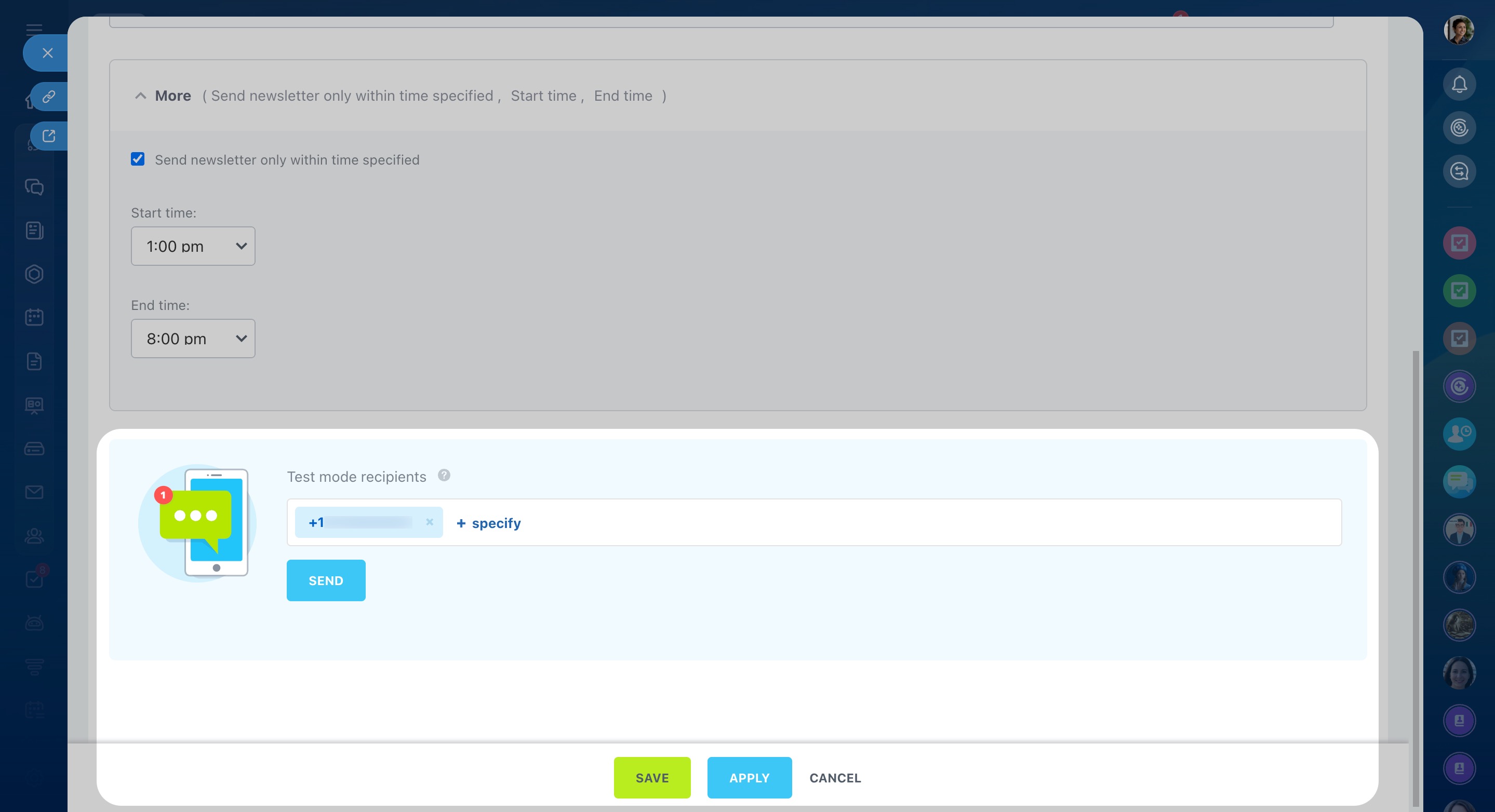
Send a test message to check formatting. Enter a phone number and click Save.
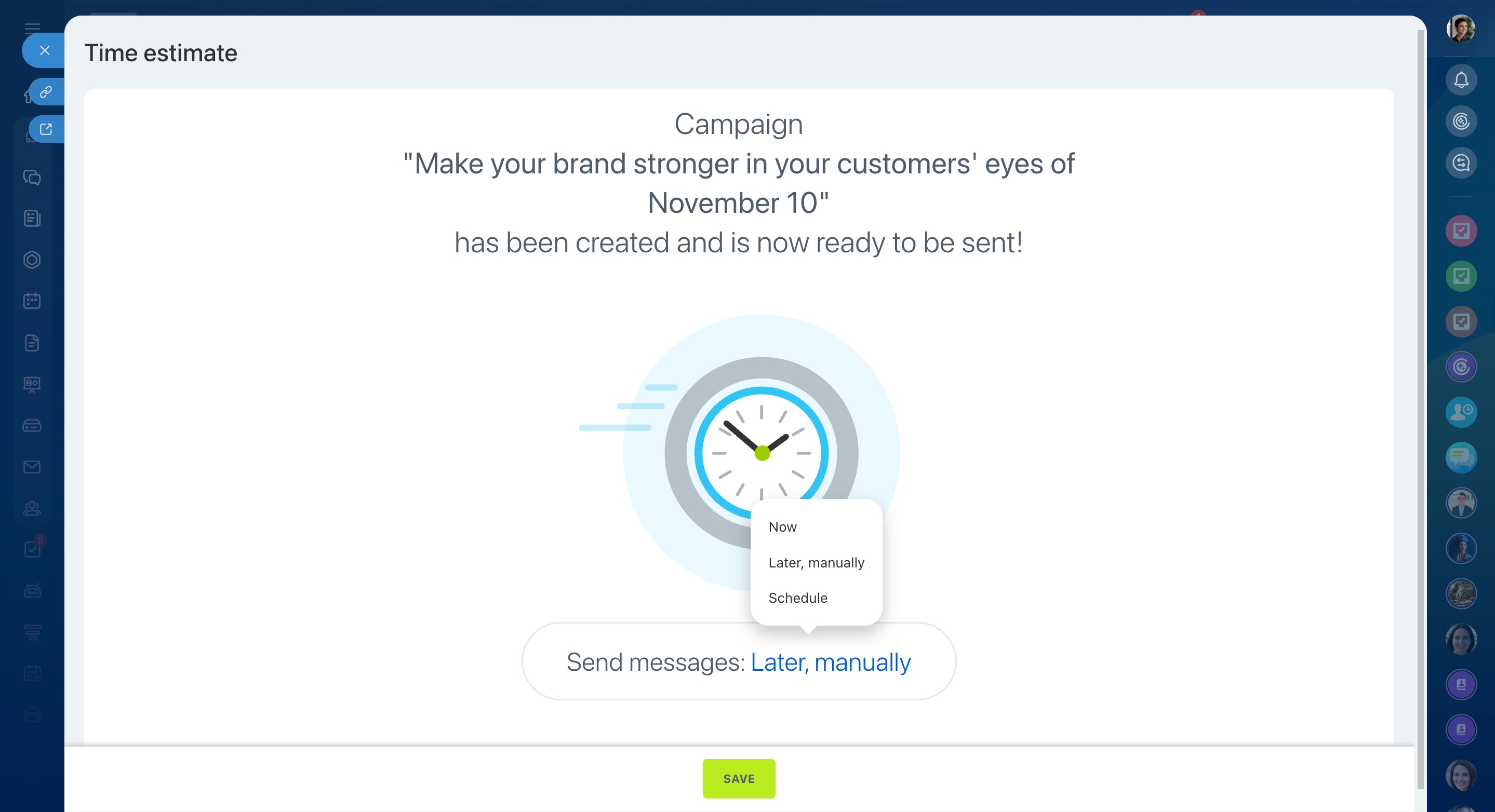
Choose when to send the campaign:
- Now – send immediately.
- Later, manually – go to Marketing > Campaigns, select the campaign, and click Send.
- Schedule – set a date and time.
In brief
- SMS campaigns let you send messages to a group of customers.
- Choose a template and create a campaign.
- Connect an SMS provider to send messages.
- Use CRM fields to personalize text.
- Set a time range in the More section.
- Send a test message before launching the campaign.