
In brief
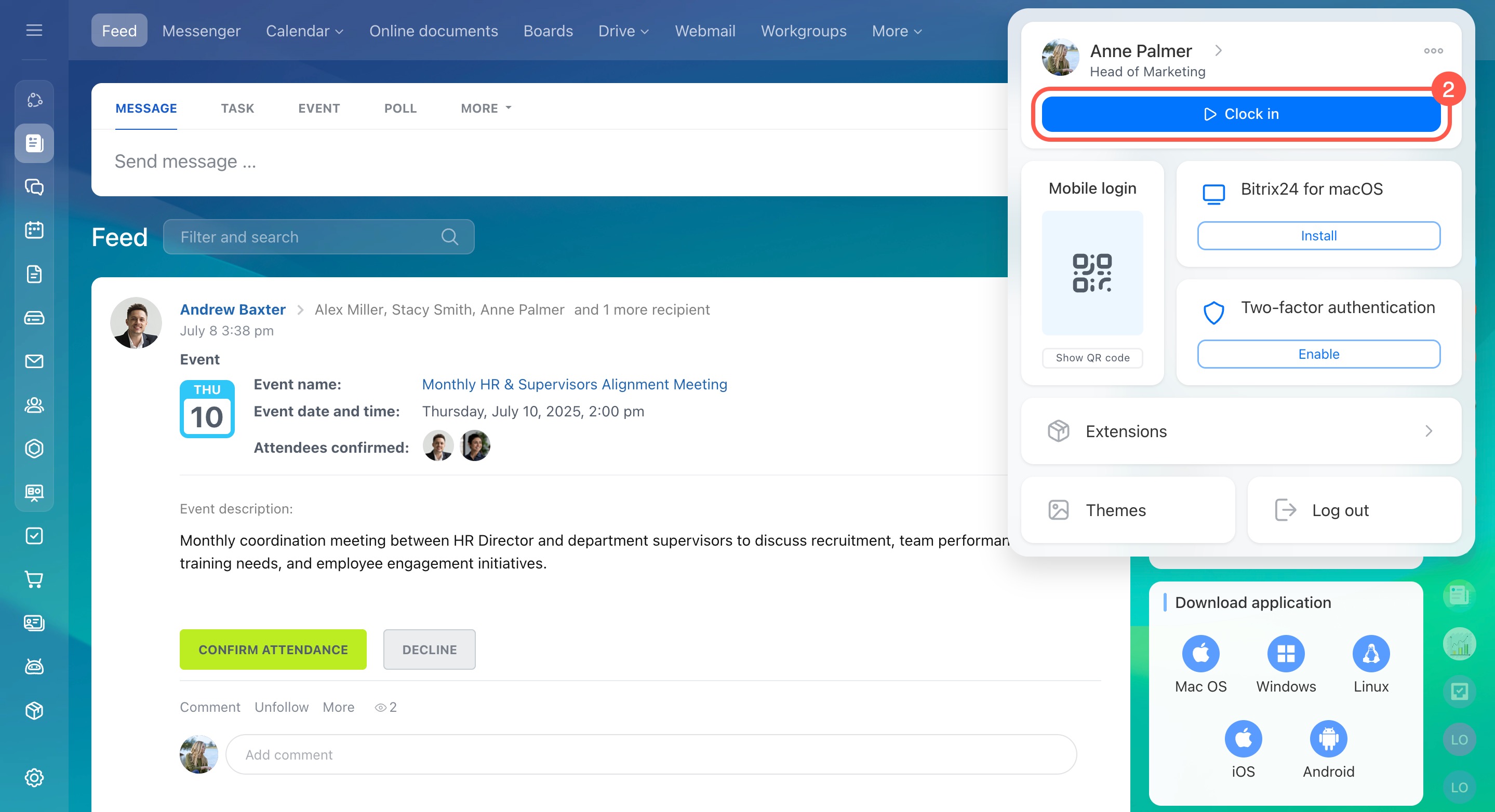
Web version. Click your profile photo, then click Clock in. At the end of the day, click Clock out. Use the widget options to change the clock-in or clock-out times.
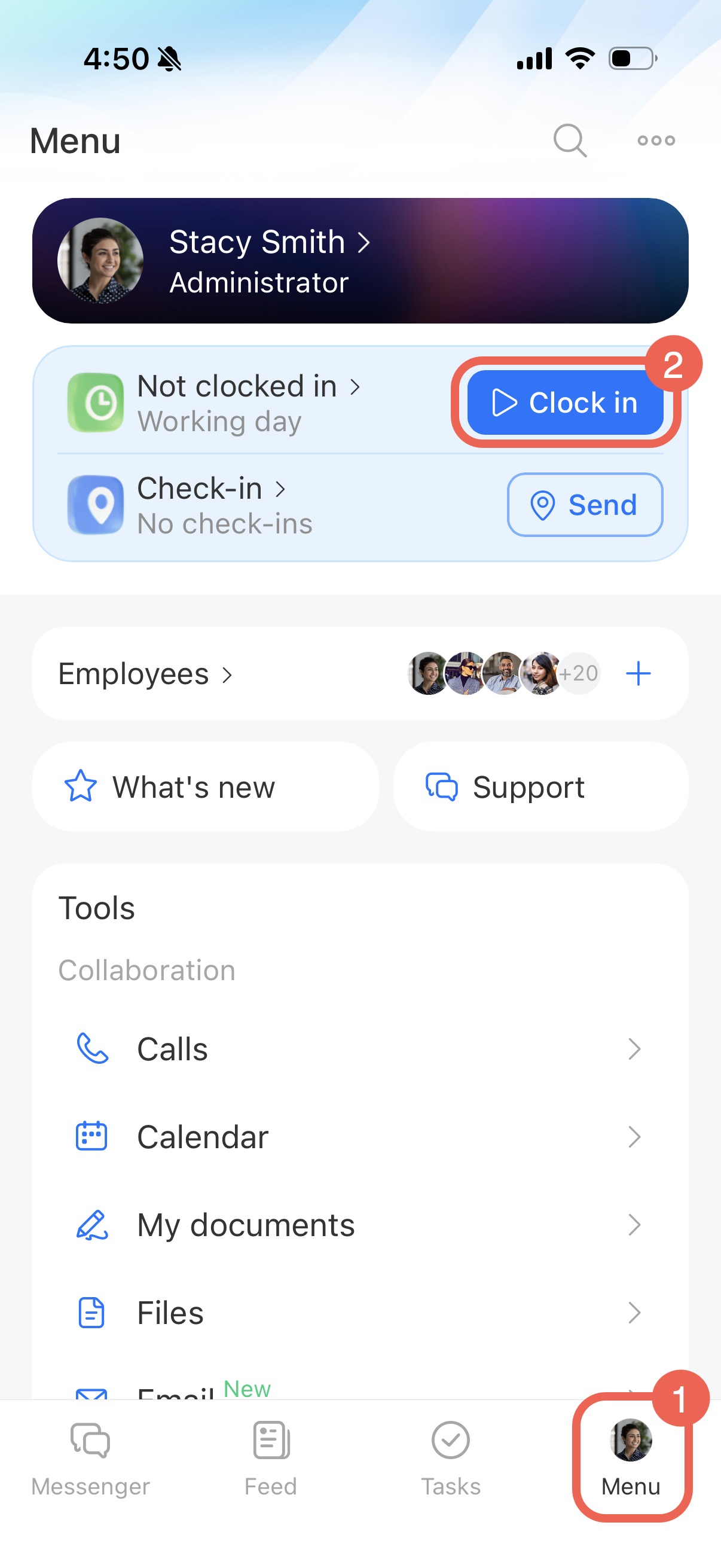
Mobile app. Go to Menu and tap Clock in in the Working day widget. At the end of the workday, tap Clock out.
In detail
Worktime tracking helps you monitor how many hours an employee has worked, which is useful for calculating salaries.
Bitrix24 pricing page
You can clock in and out or take a break in the Workday widget.
Clock in.
- Click your profile photo in the top right corner.
- In the employee widget, click Clock in.
The clock-in and clock-out times are automatically included in the report.
Worktime
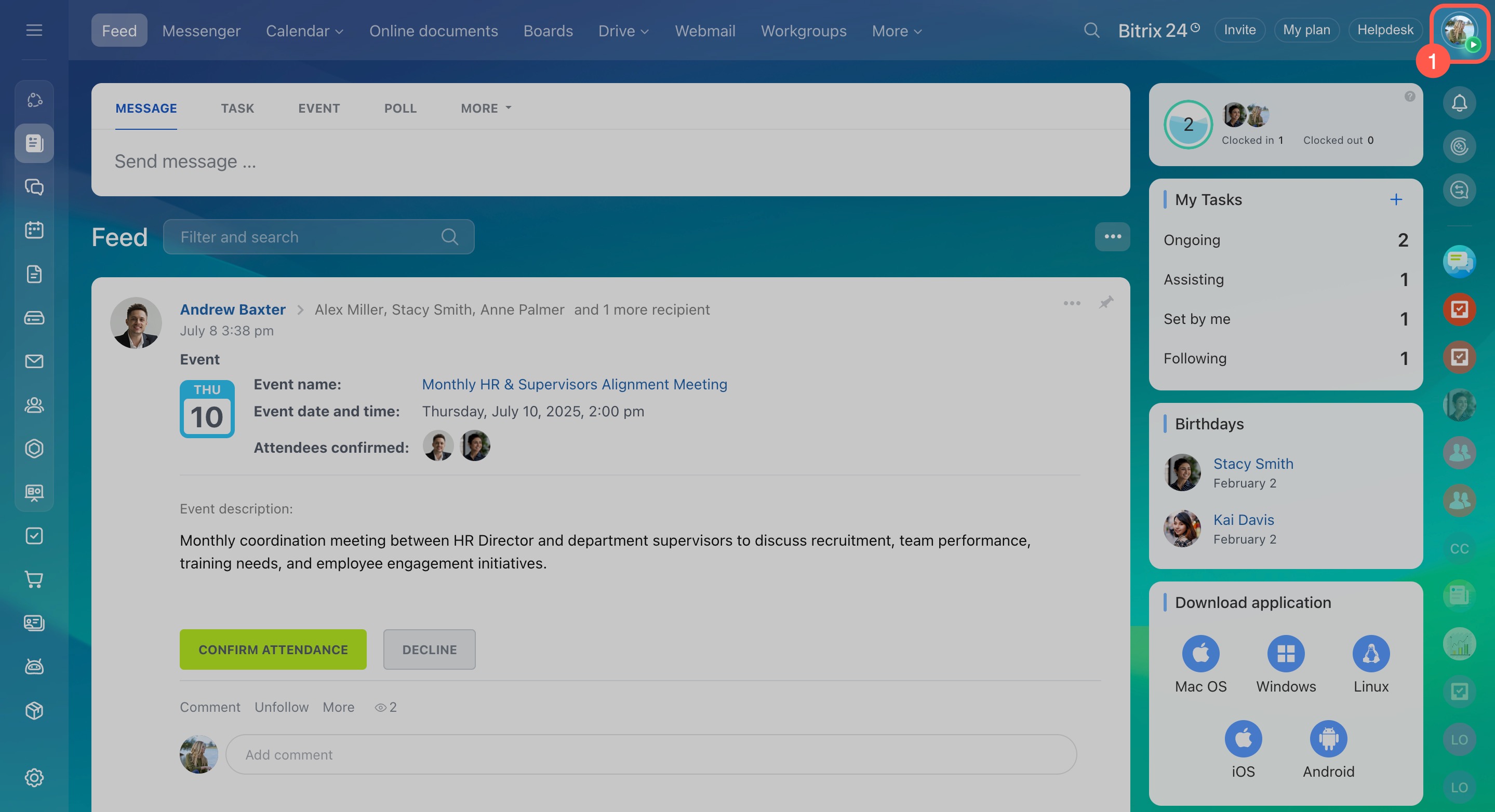
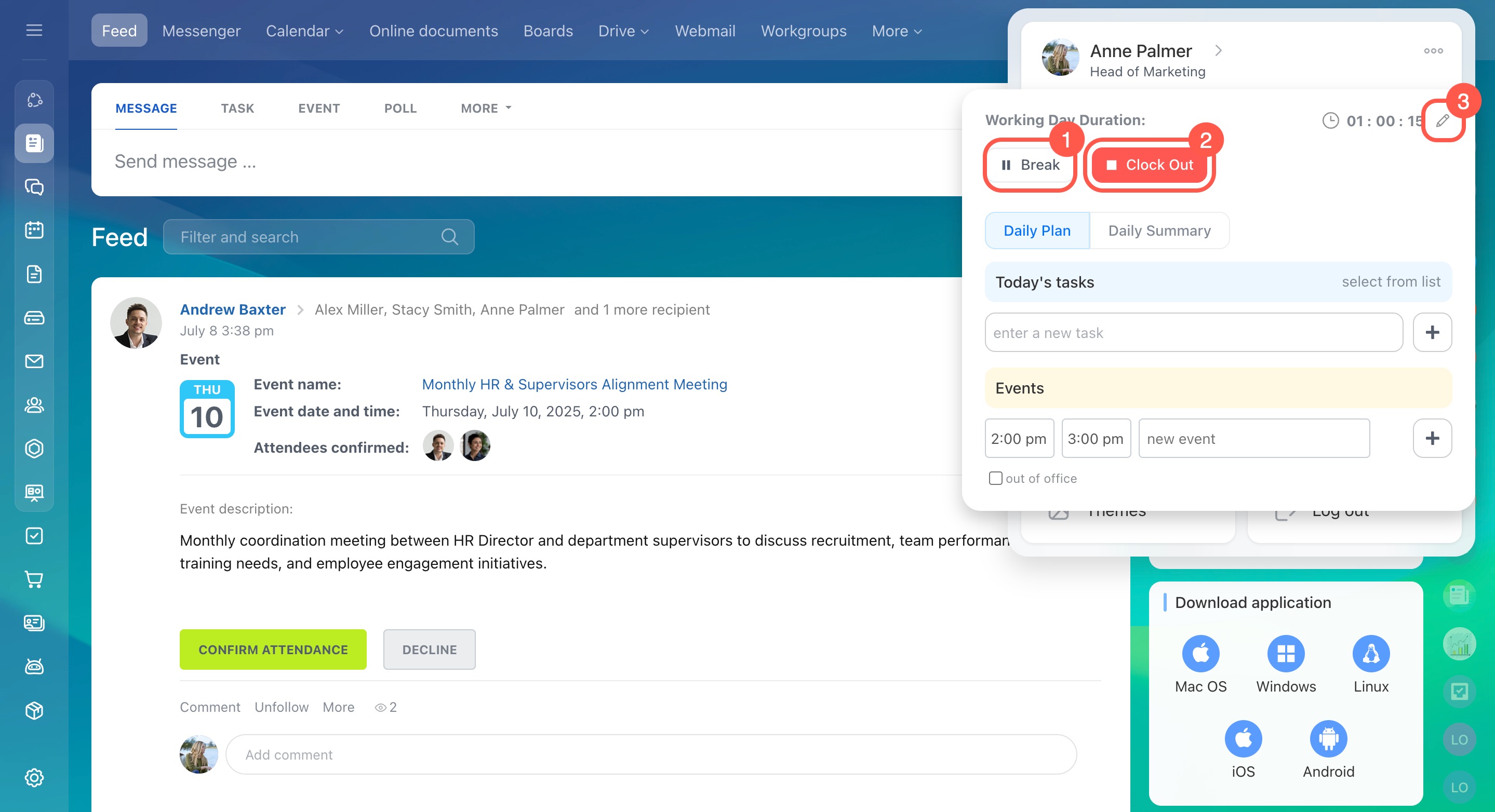
Break. Pause time tracking (1) if you take a break and click Continue when you return.
Clock out. Click Clock out (2) at the end of the working day.
Click the pencil icon (3) to edit the clock-in or clock-out times if needed.
Go to Menu and tap Clock in in the Working day widget.
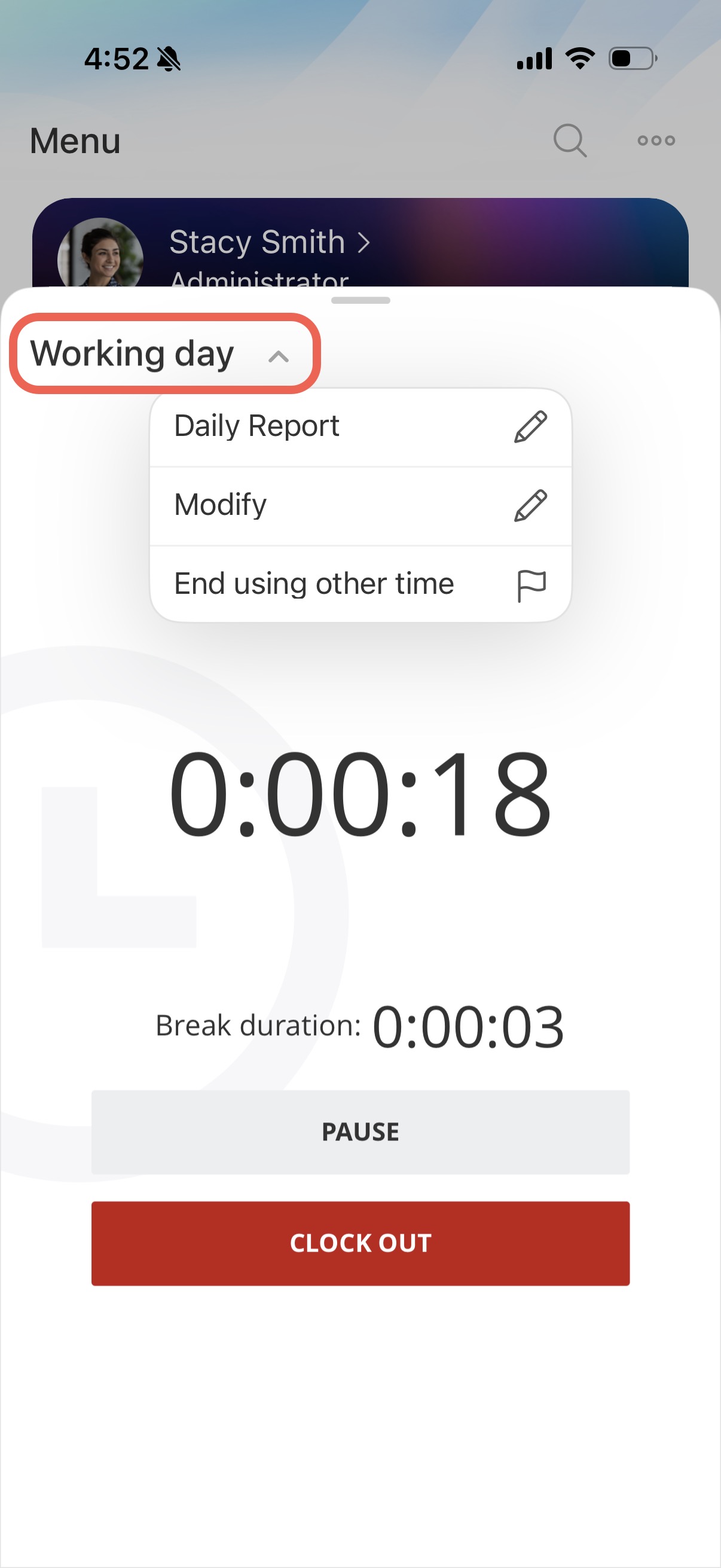
To pause time tracking, tap the Pause button. Tap Resume when you return from a break. At the end of the day, tap Clock out.
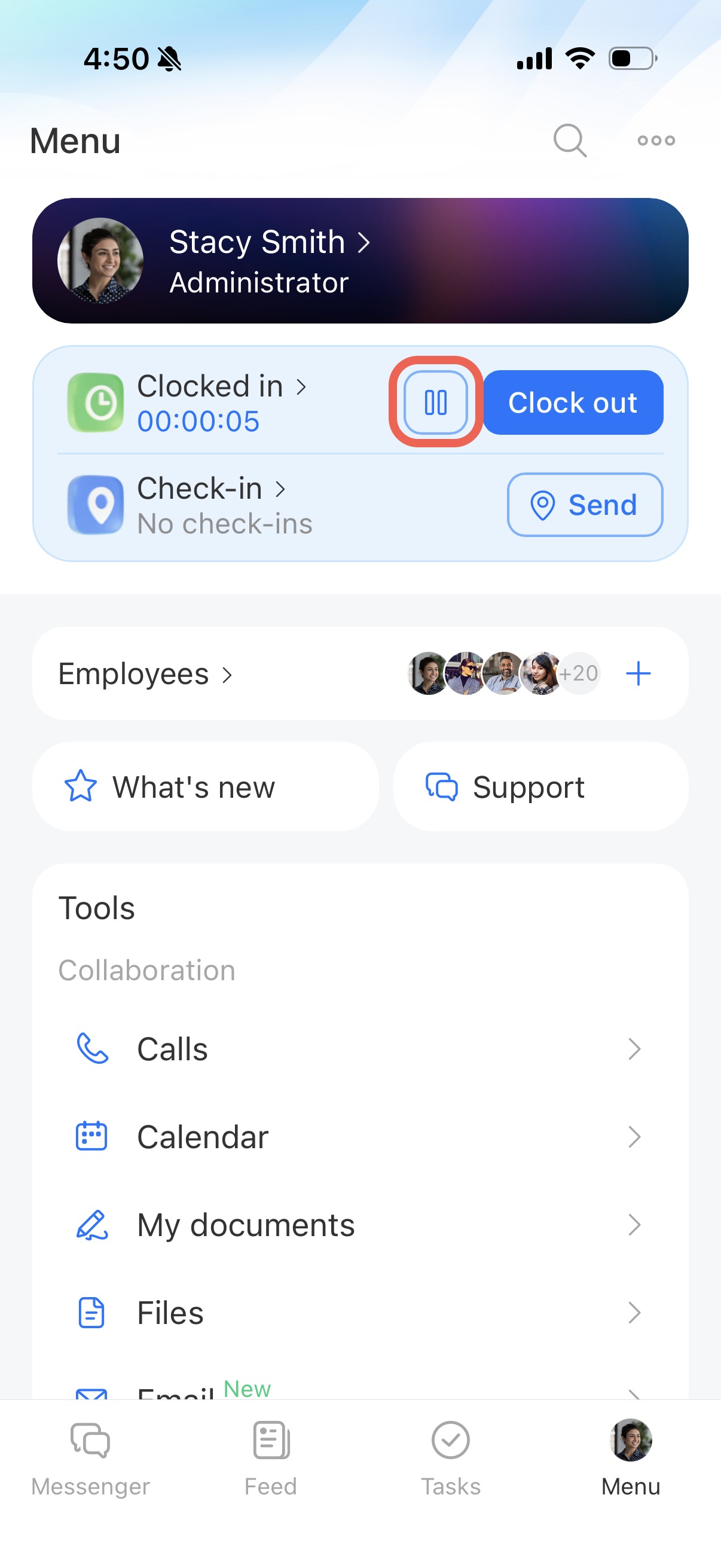
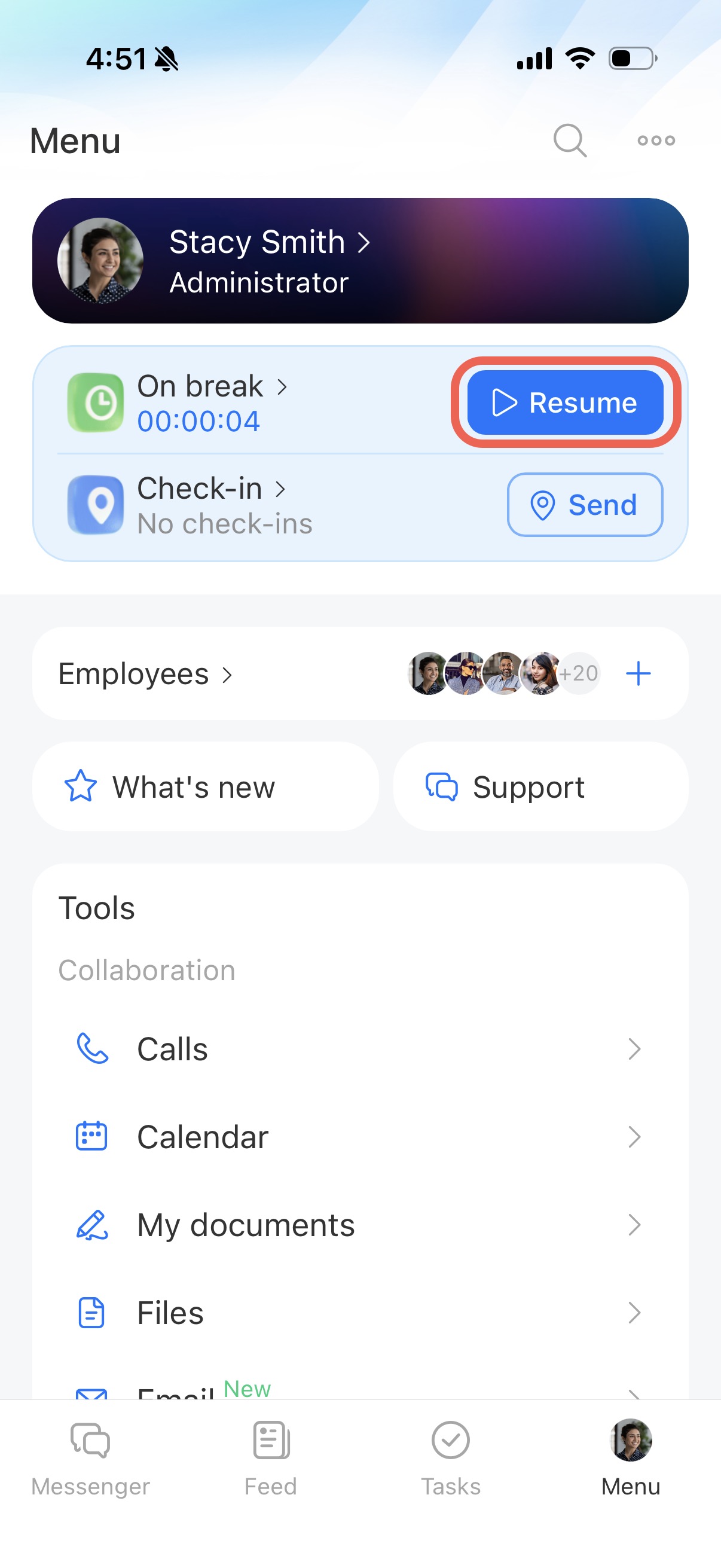
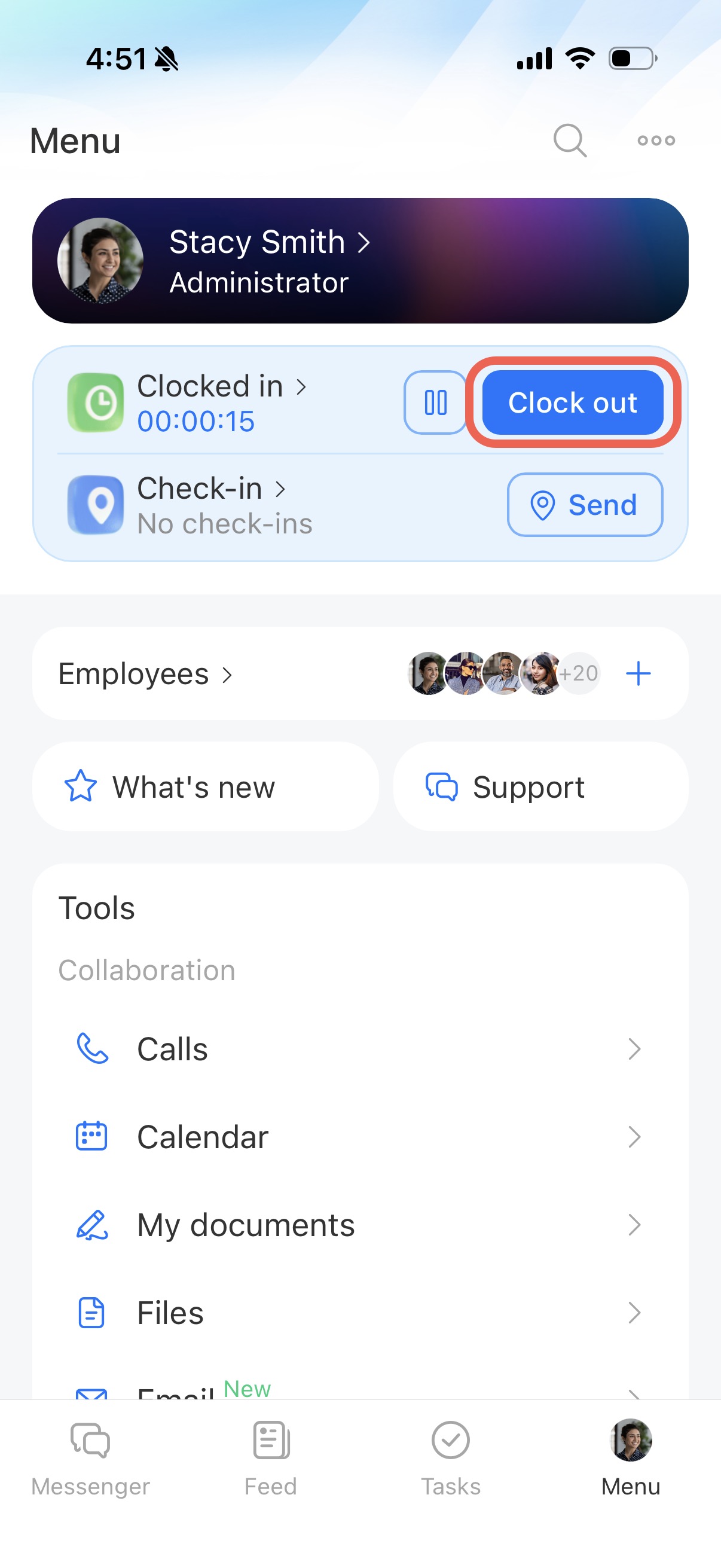
Supervisors can set up automatic end-of-day times in the schedule settings.
Work time control and limits
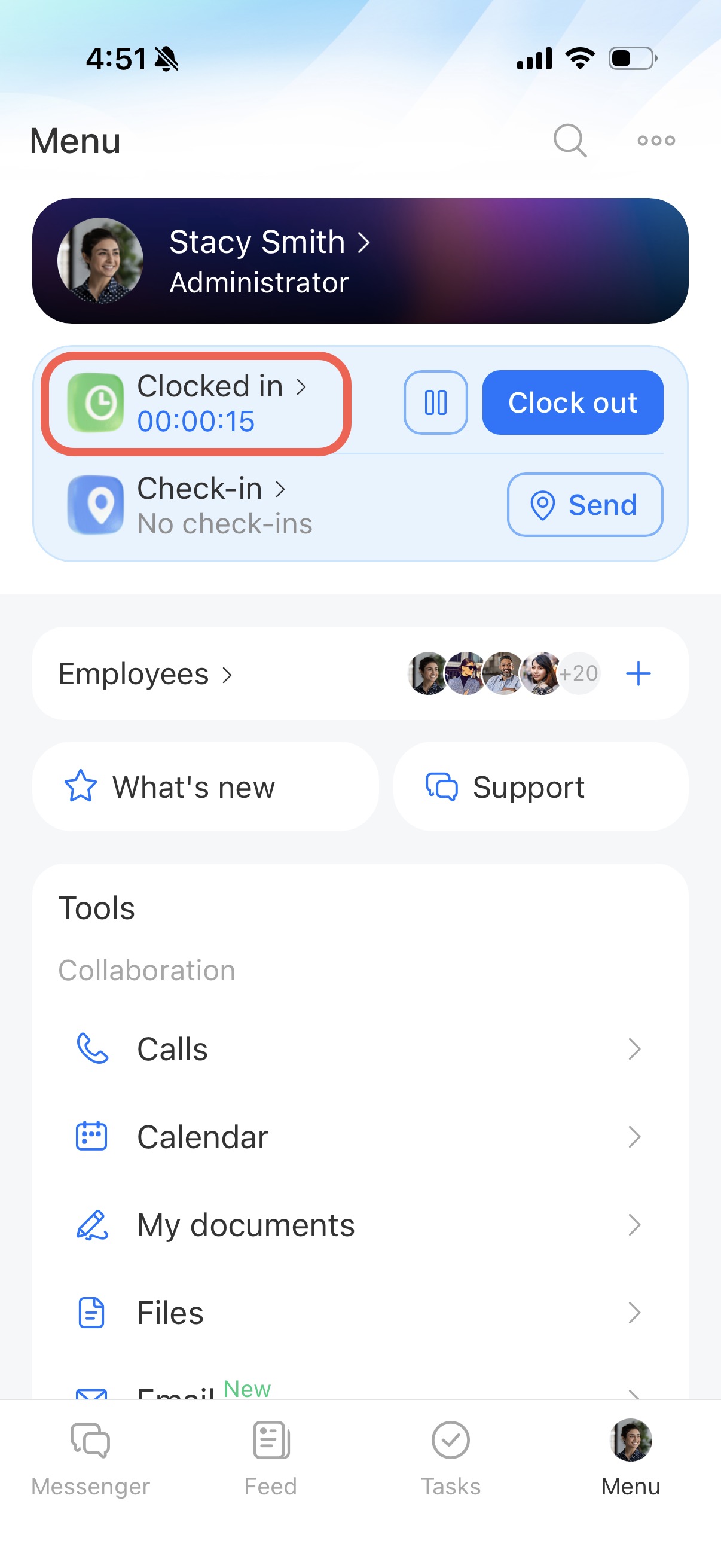
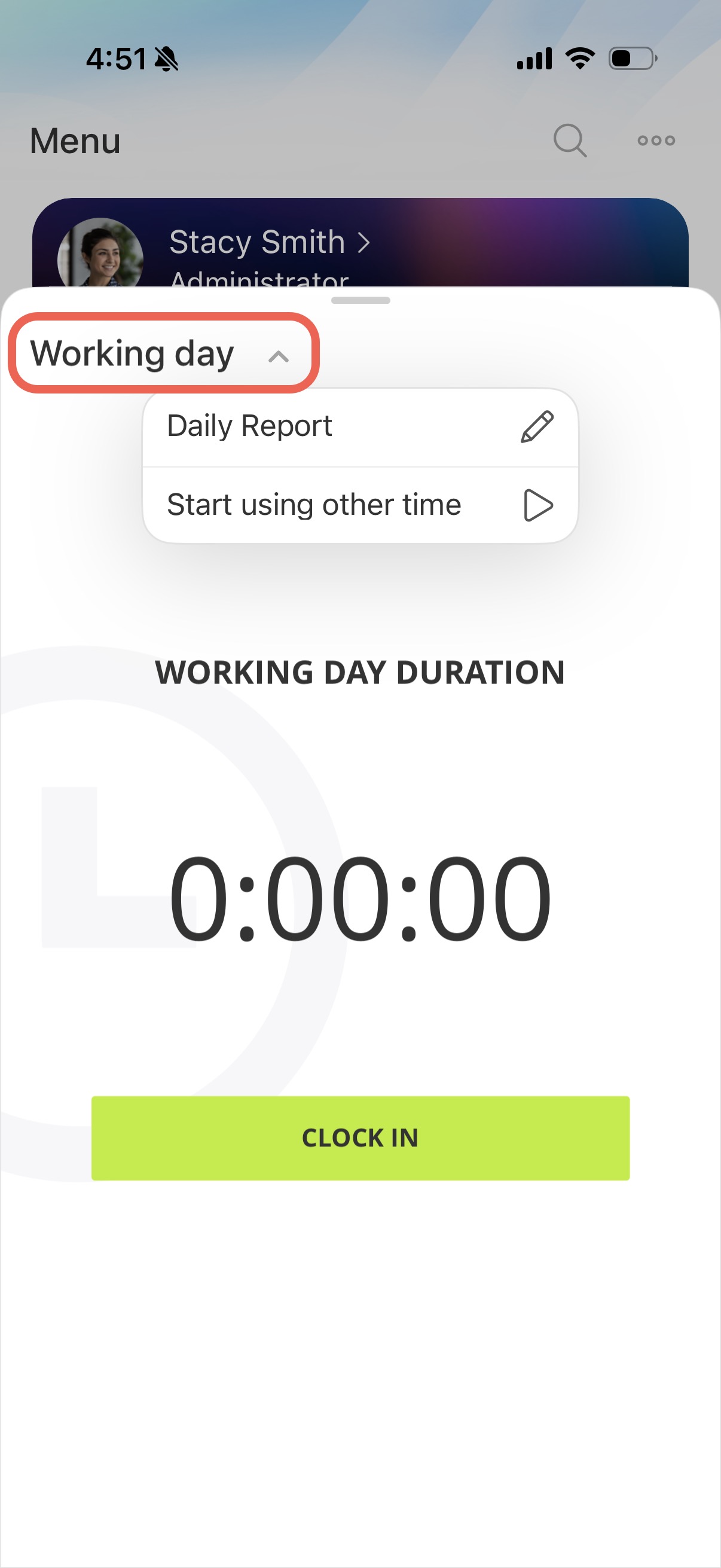
Tap the widget and select Working day. In this menu, you can:
- Clock in and clock out
- Fill out a work report
- Change the working day
- Start using other time
- End using other time
Possible errors in the Workday widget
No widget
Error: The employee does not see the Workday widget.
Solution:
-
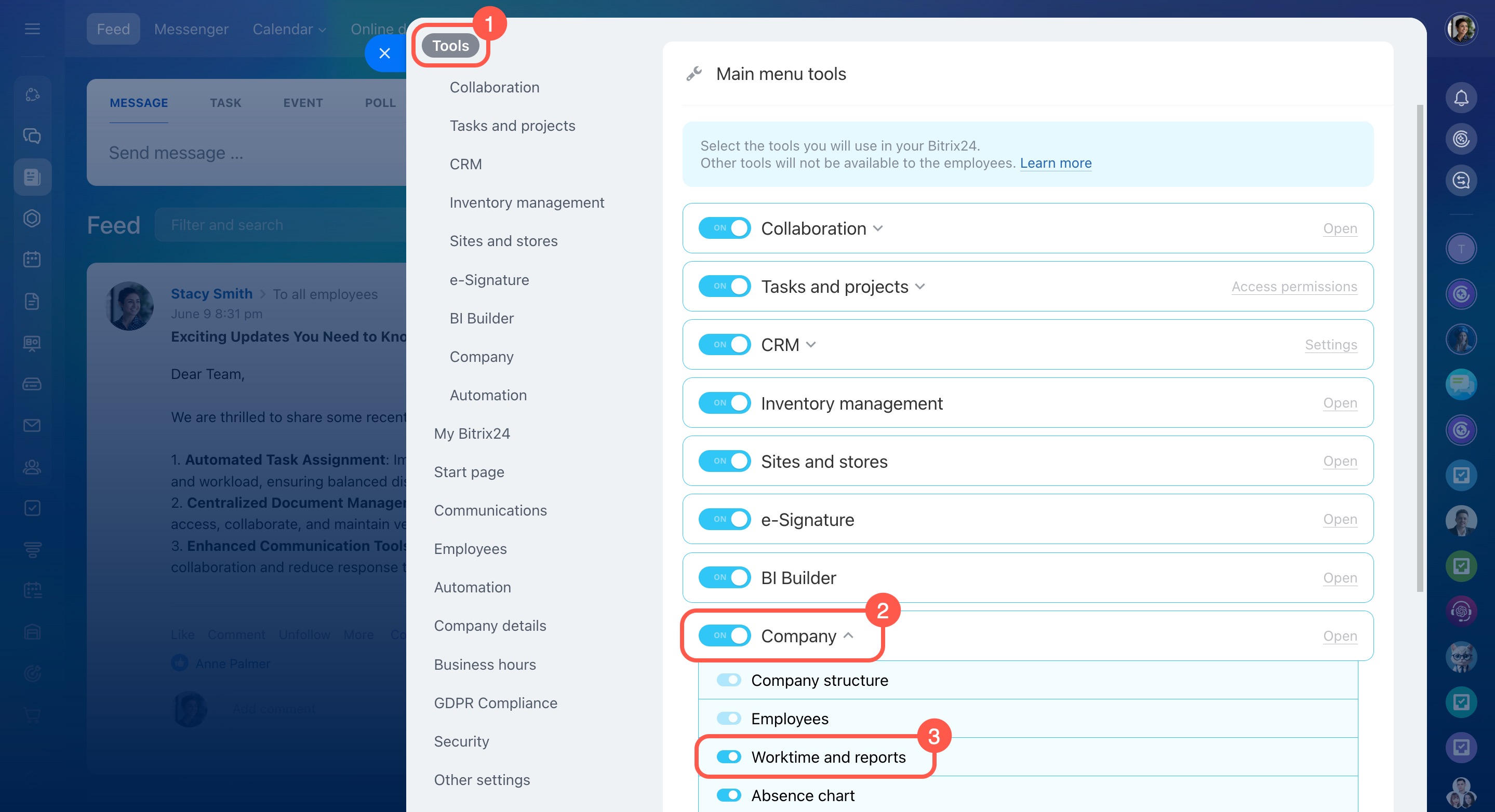
Ensure the Worktime and reports option is enabled in Bitrix24 Settings.
Bitrix24 Settings -
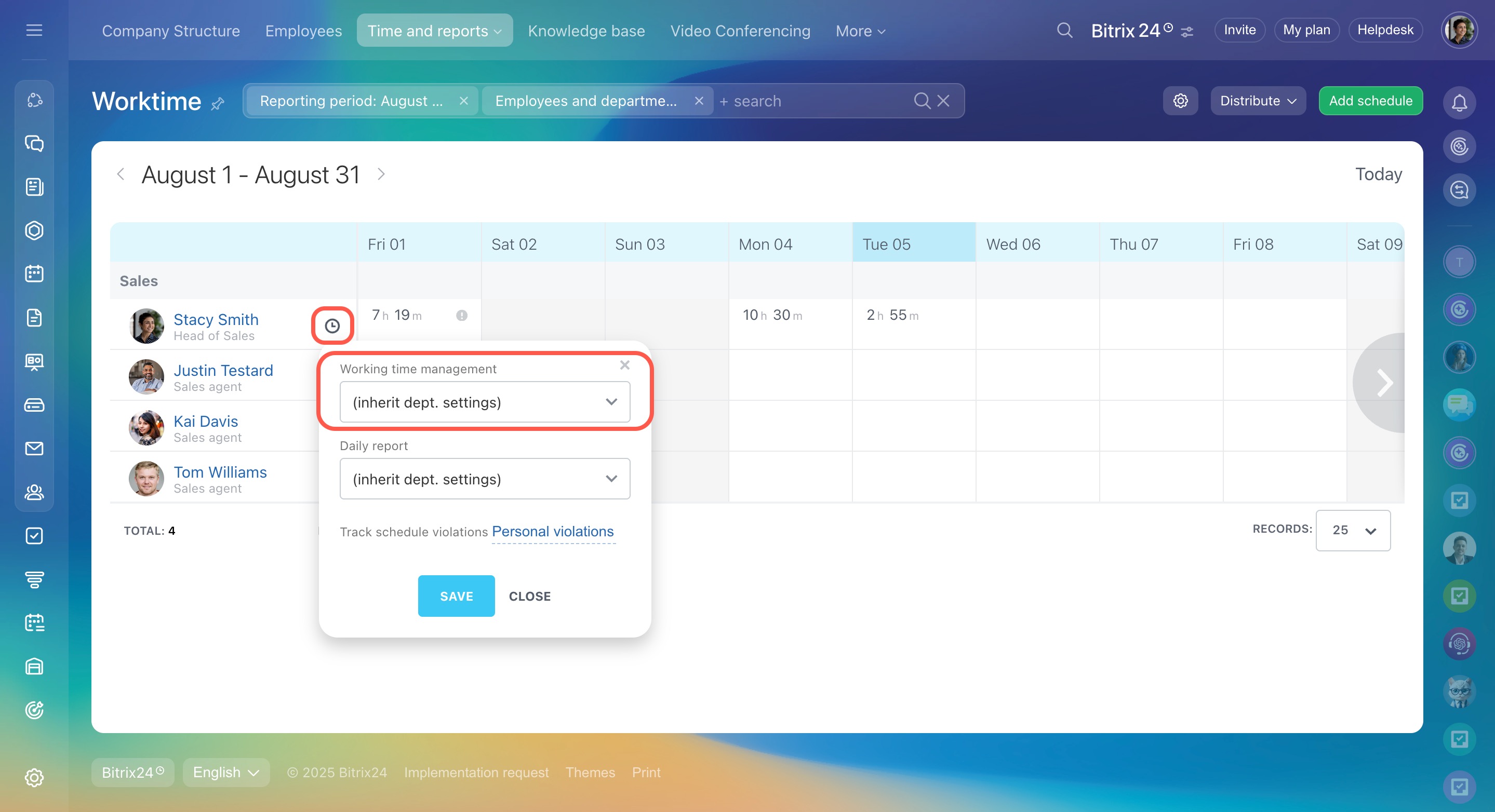
Check if time tracking is enabled for the employee under Company > Time and Reports > Worktime. By default, all departments inherit the head department setting.
-
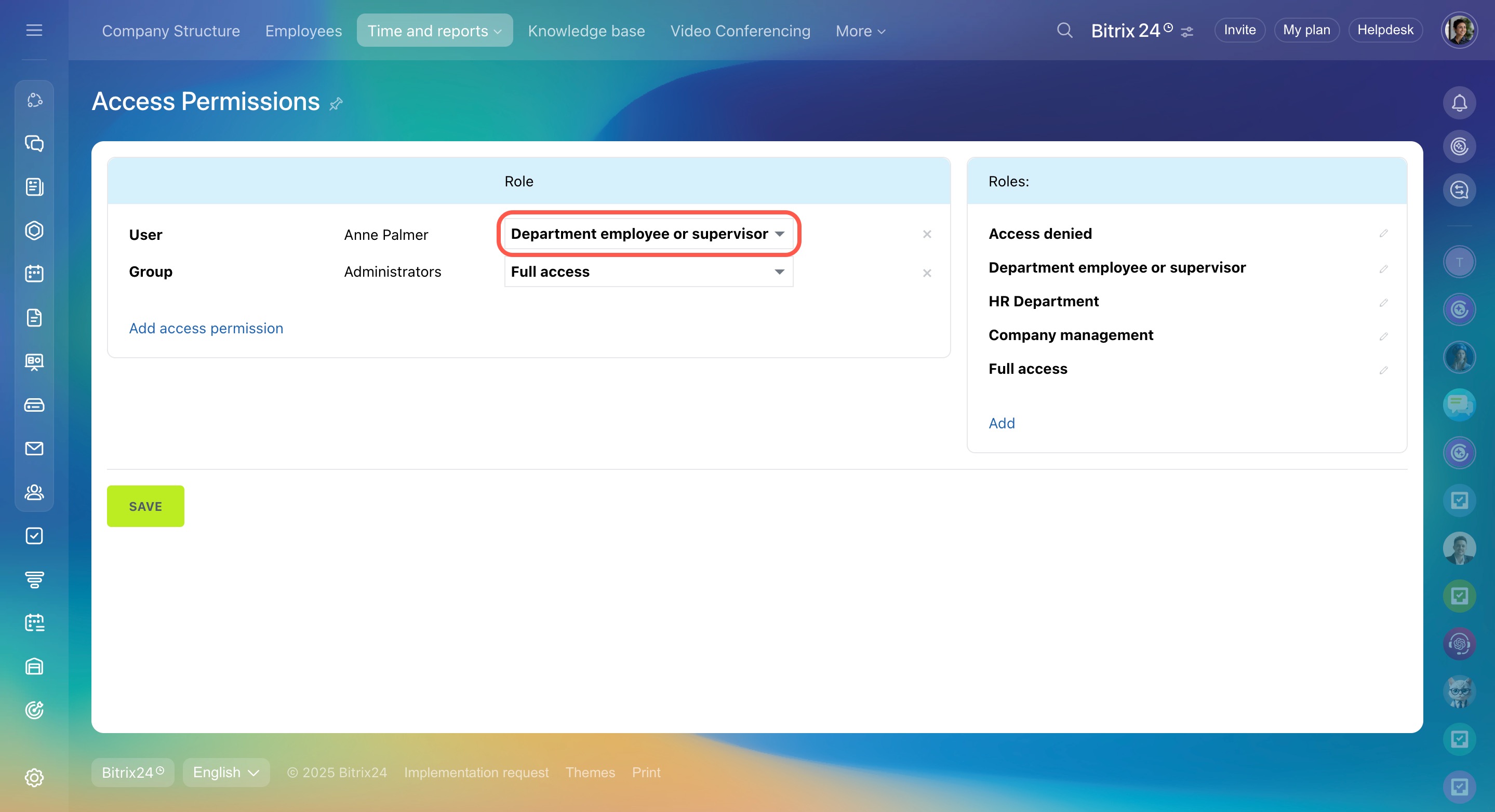
Verify the employee's role in access permissions. To display the widget, select the Department employee or supervisor role. Or add another one with the same settings.
Access permissions to Work schedules and Worktime records
Error during the working day
Error: "You didn't clock out" message appears.
Solution:
-
Supervisors or administrators should check for overlapping shifts if the employee works on a shift schedule.
-
Ensure the work schedule settings match the employee's working hours. For example, an employee with a schedule from 9:00 a.m. to 6:00 p.m. should not start the working day at 5:00 a.m.
-
Check which schedules apply to the employee. If there are multiple, add the employee to Exceptions to avoid conflicts.
Work schedule types