
Track employee working hours and daily reports in one place. Use this page to monitor performance and review activity across your team.
In this article:
- Track working hours
- Use filters
- Monitor employee's working day
- Configure daily reports
- Configure additional settings
Track working hours
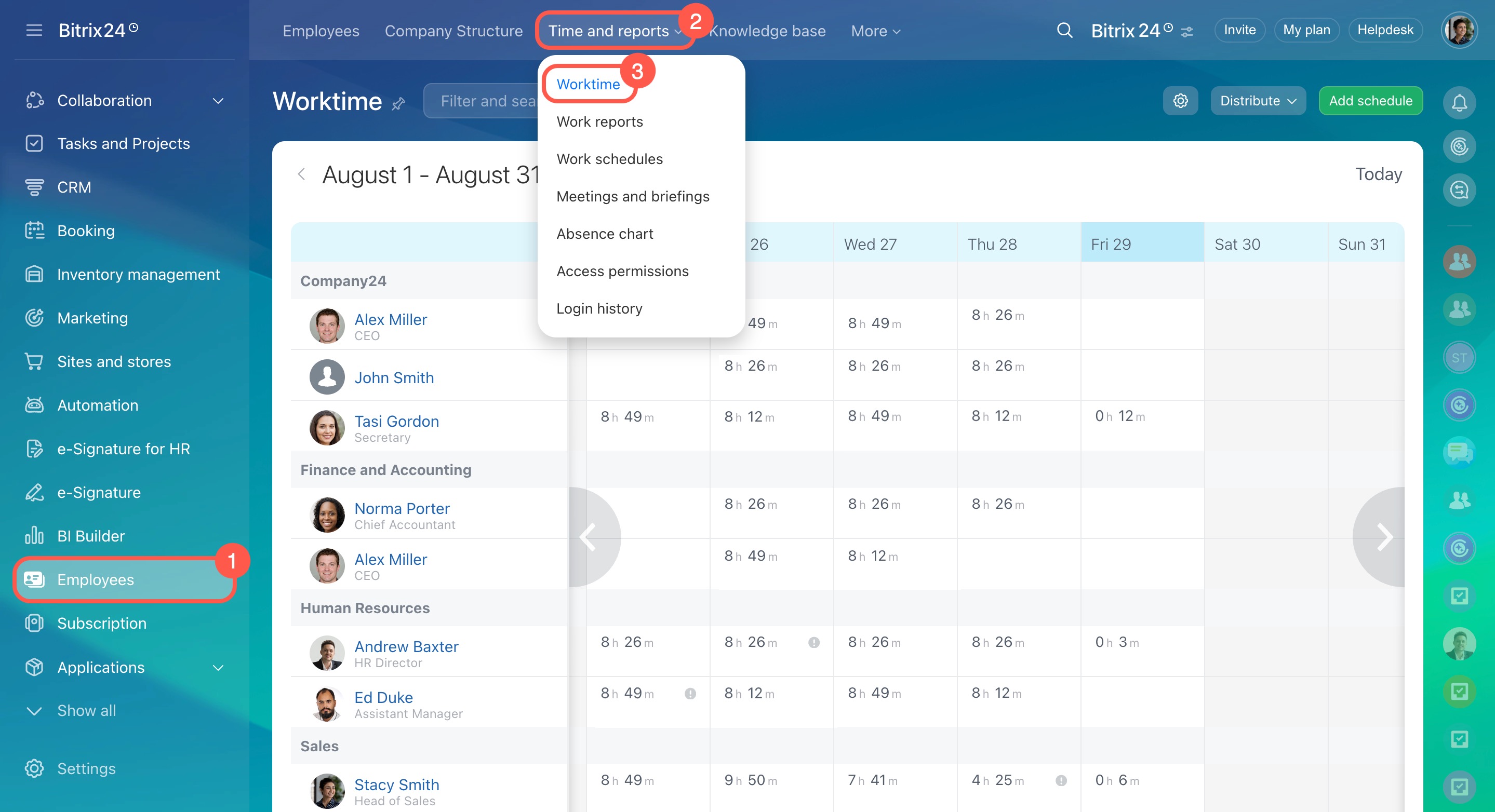
Go to Employees > Time and reports > Worktime.
Access depends on your role:
- Administrators can view all employees’ workdays.
- Supervisors can view only their team’s workdays.
- Employees can view only their own workdays.
If an employee has two entries for the same day, they were added to a new work schedule. In this case, they will see the You didn't close the previous day error.
Work schedules
Work schedules access permissions
Use filters
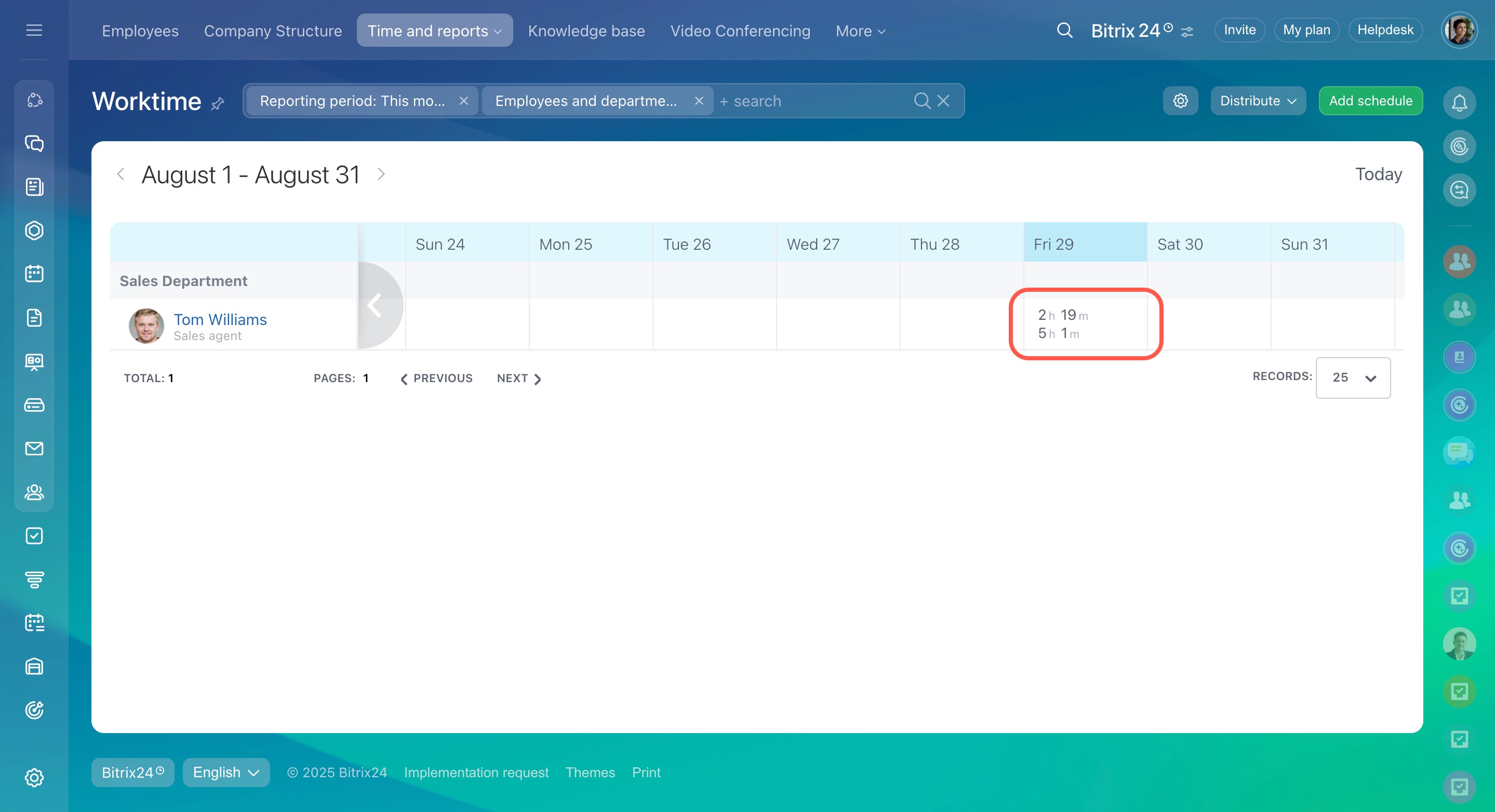
Use filters to view a specific reporting period or selected dates.
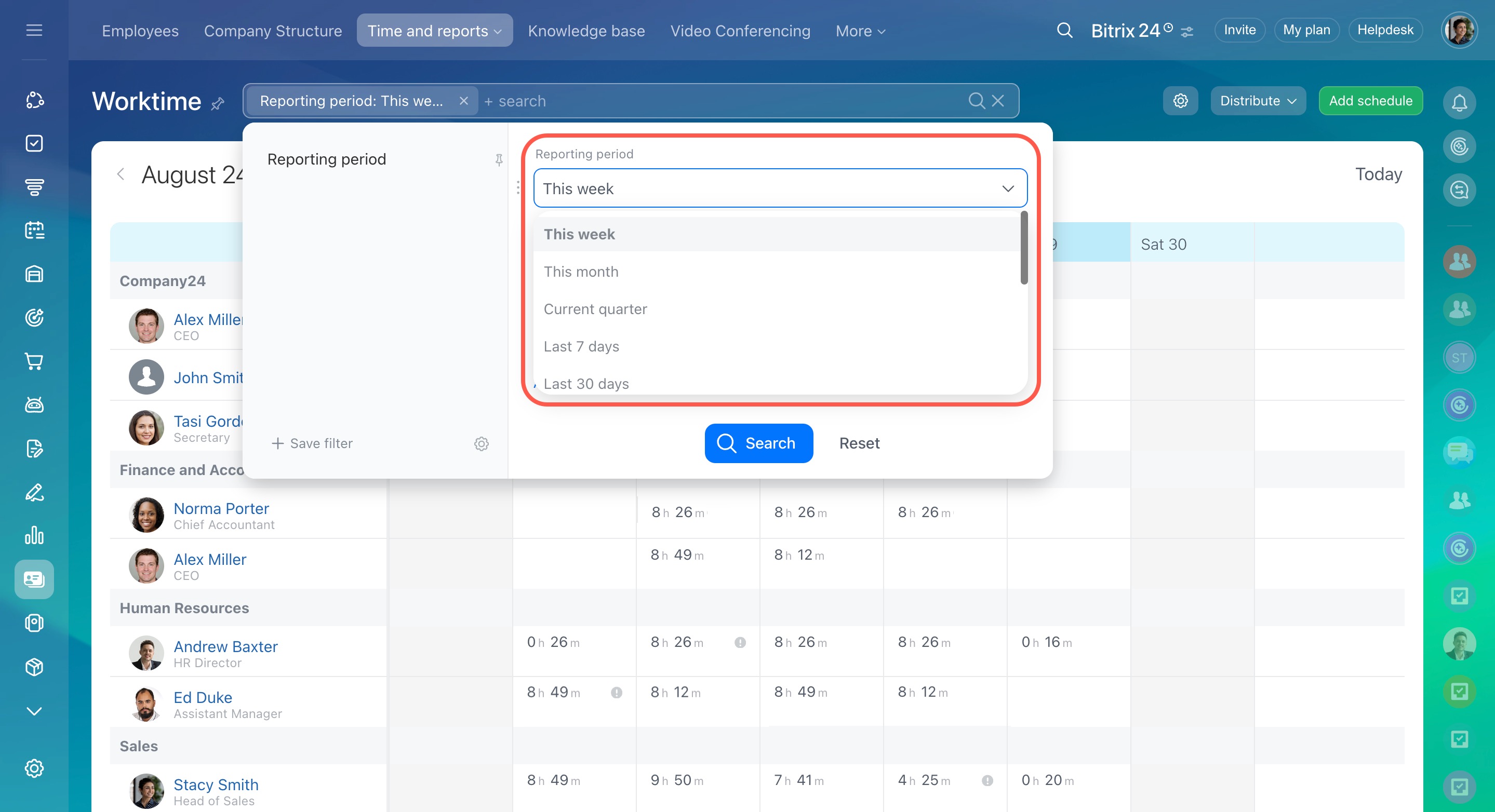
Supervisors and administrators can:
- View and edit time records for all employees.
- Customize filter fields to find data faster.
Monitor employee's working day
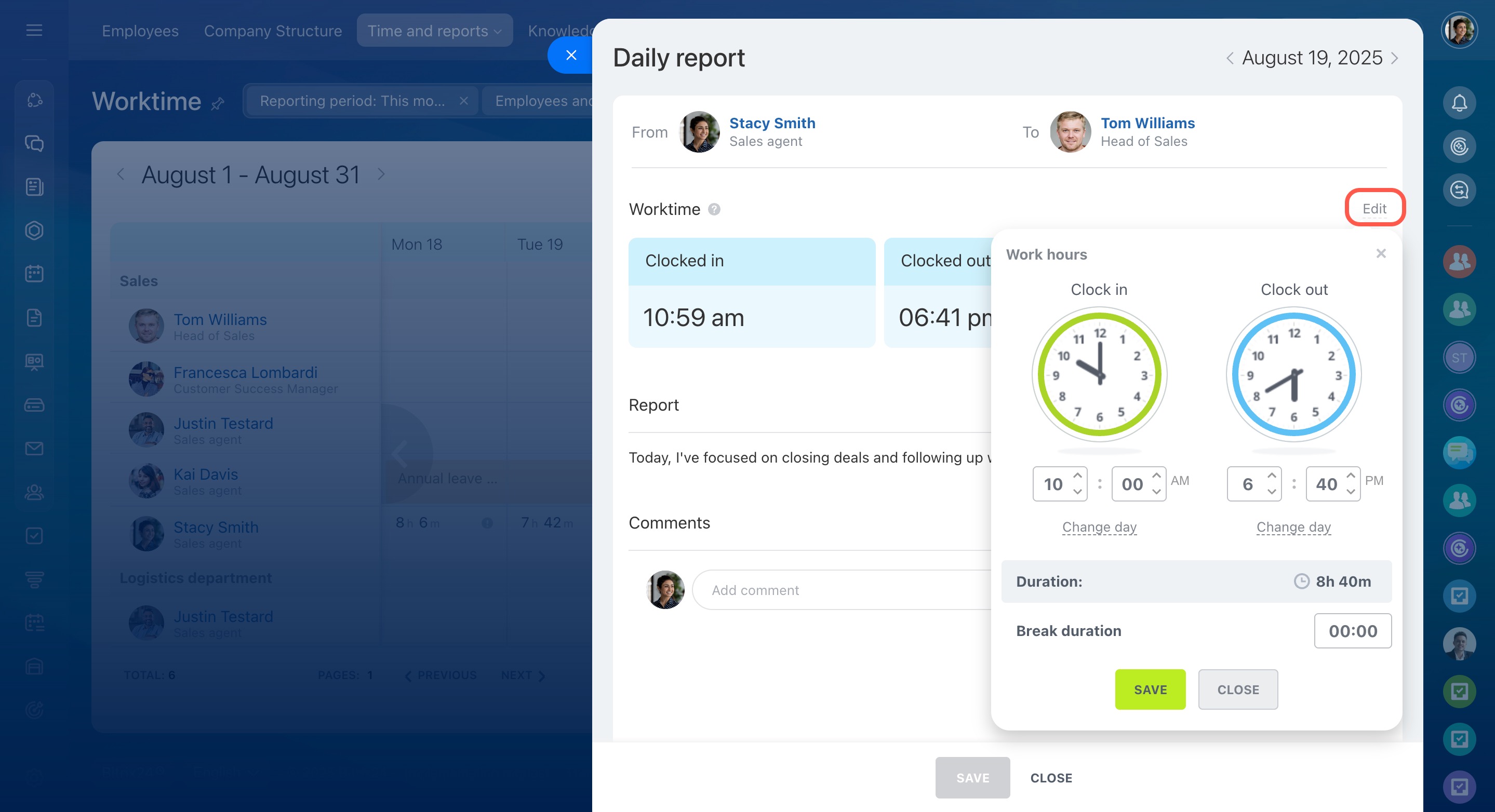
Select an employee and click a day in the calendar.
You will see:
- Total work time
- Breaks
- Daily reports
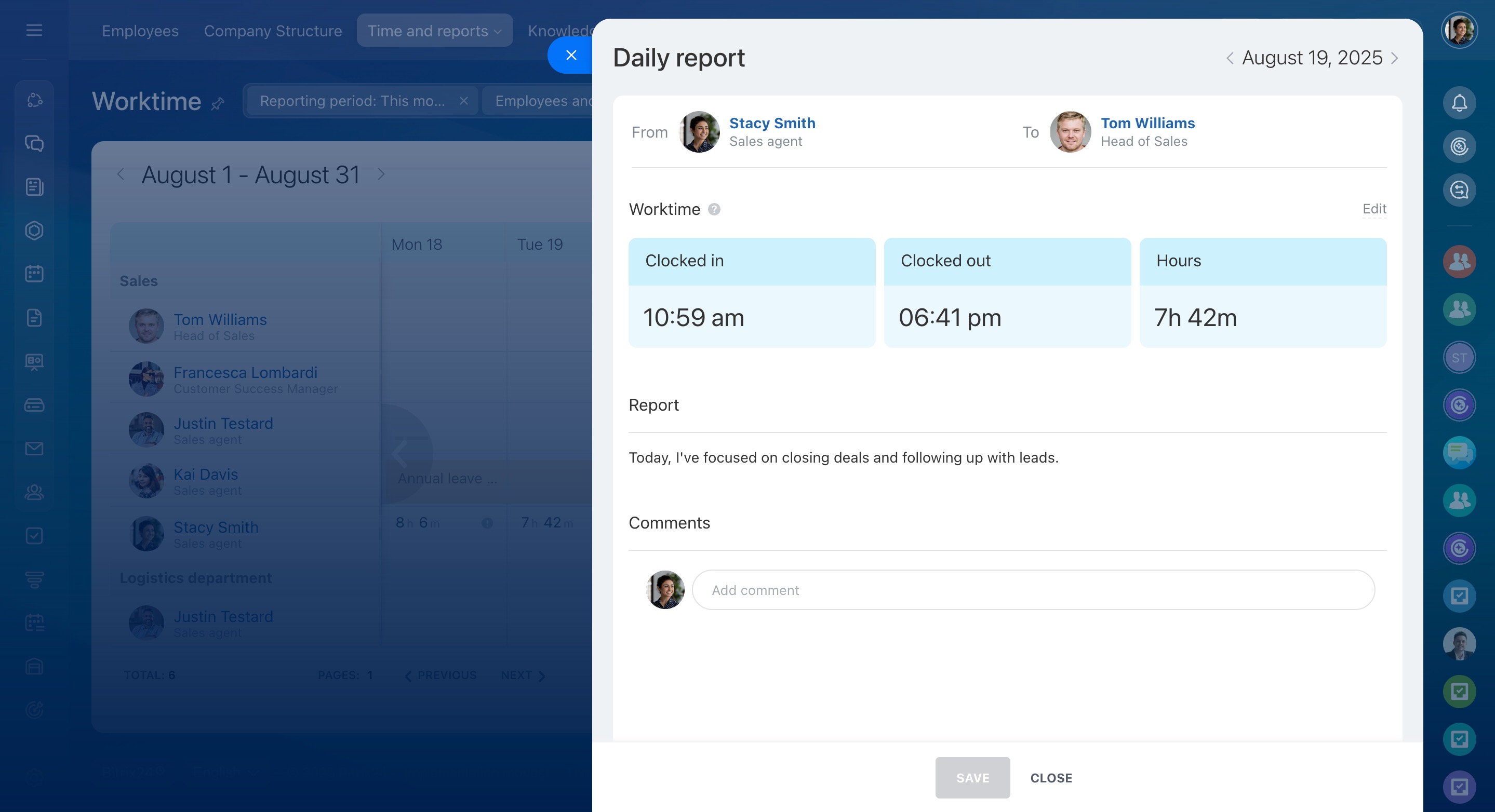
If an employee forgot to start or end the workday, a supervisor can update the time manually.
Configure daily reports
- Click the clock icon next to the employee.
- Choose a setting in the Daily report field.
- Save your changes.
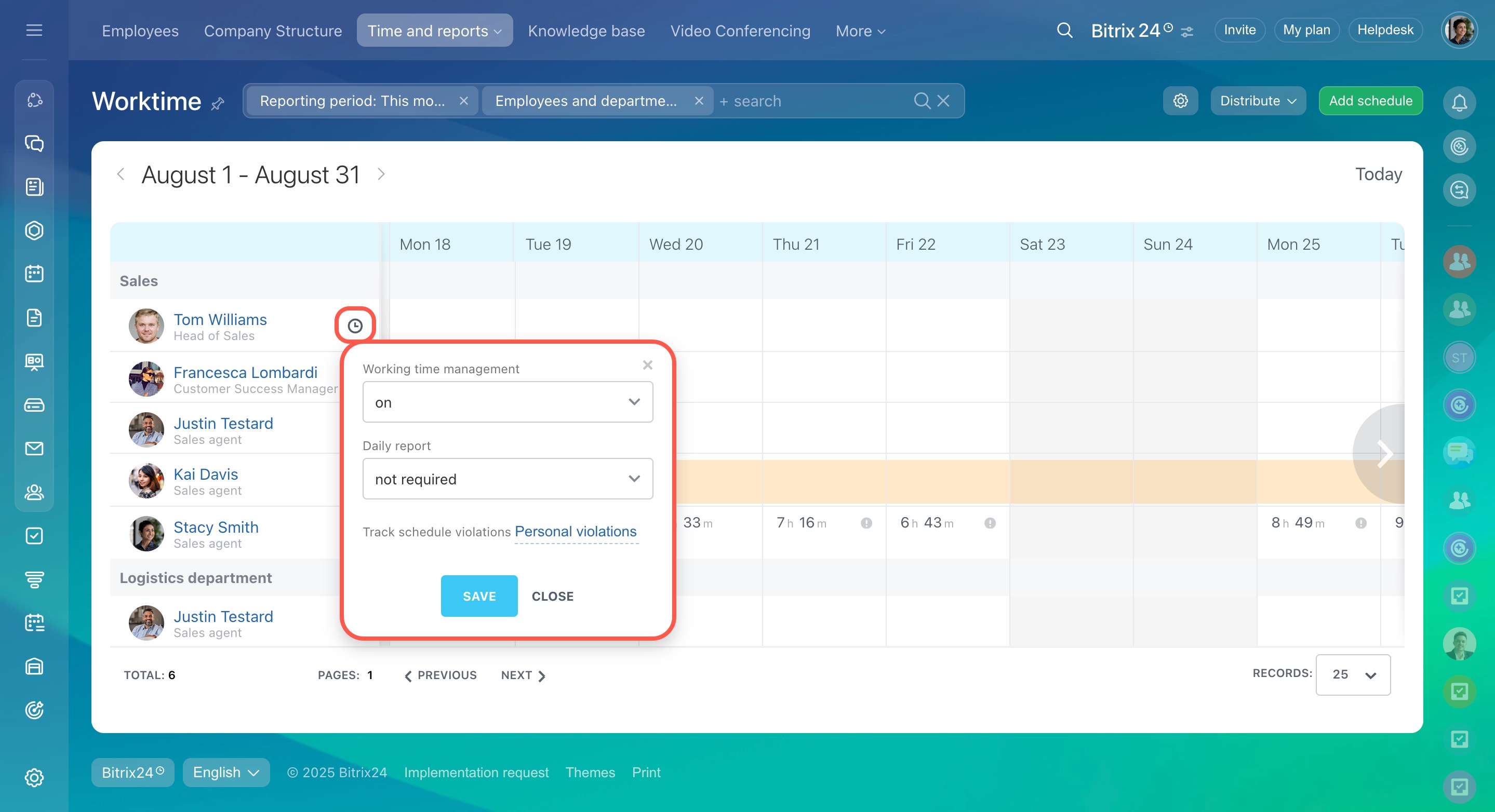
Available options:
- Required – the report form appears at the end of the workday and must be completed.
- Not required – the form appears, but completion is optional.
- Don't show report show – the form does not appear.
Additional settings
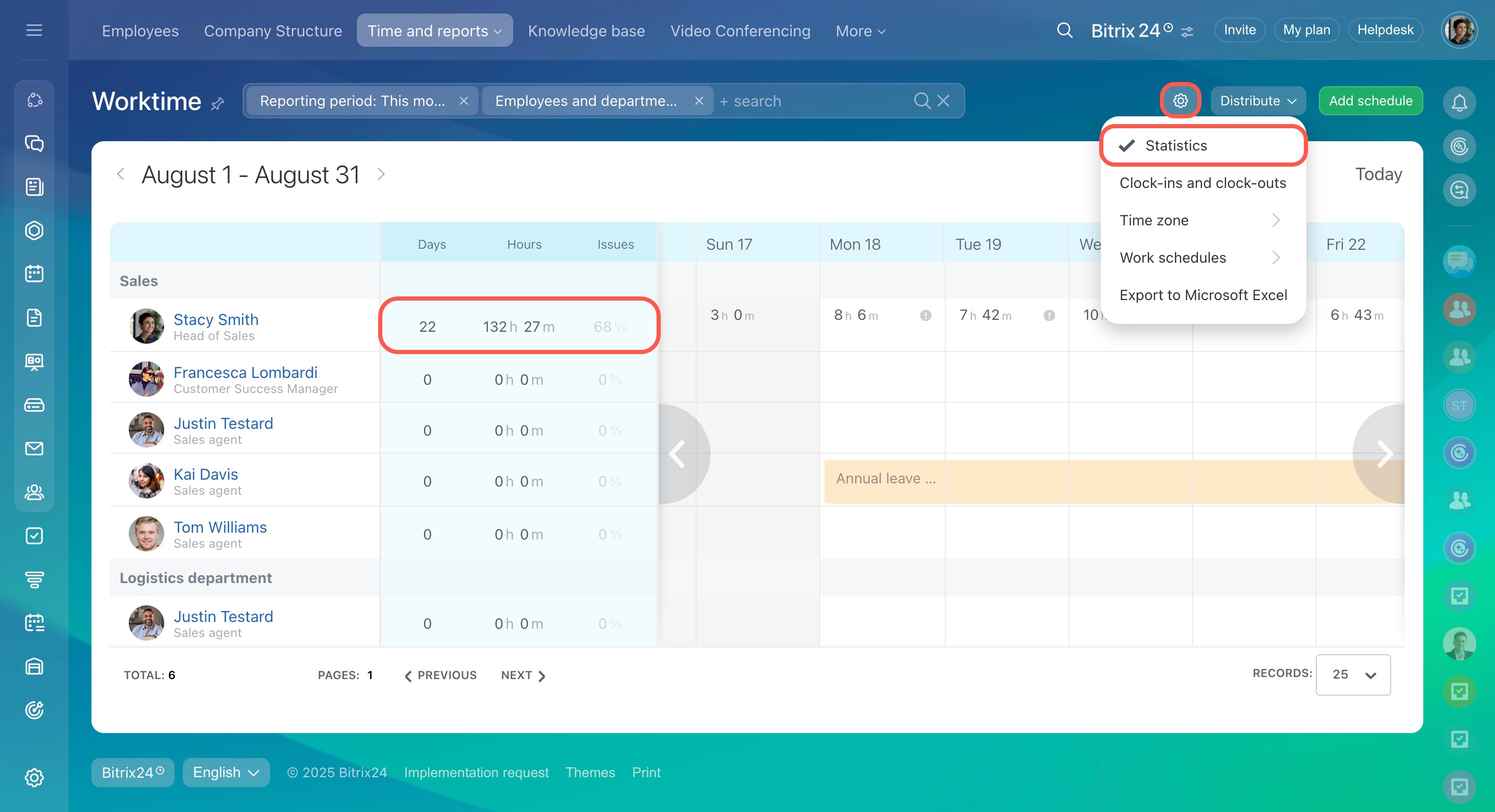
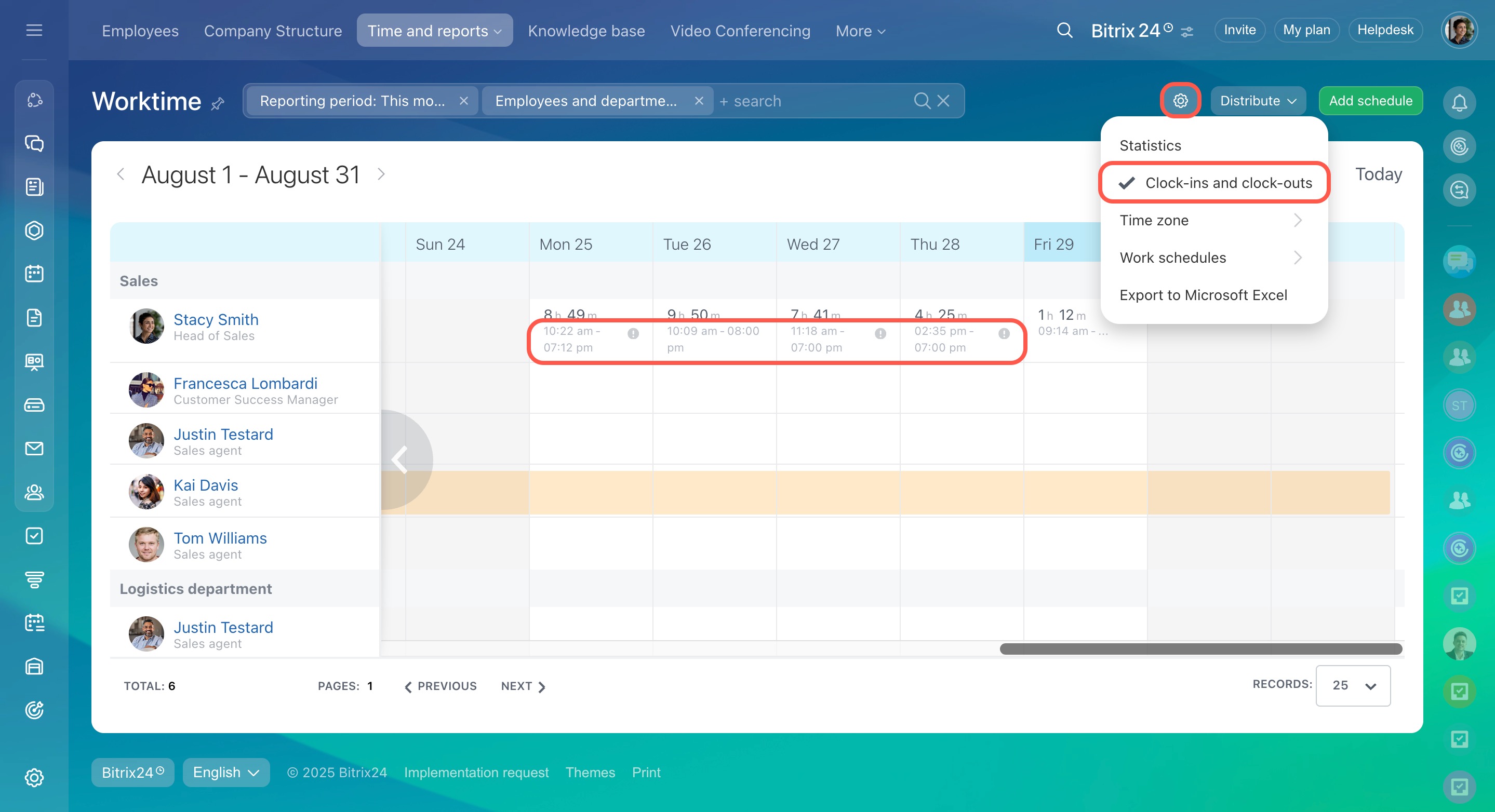
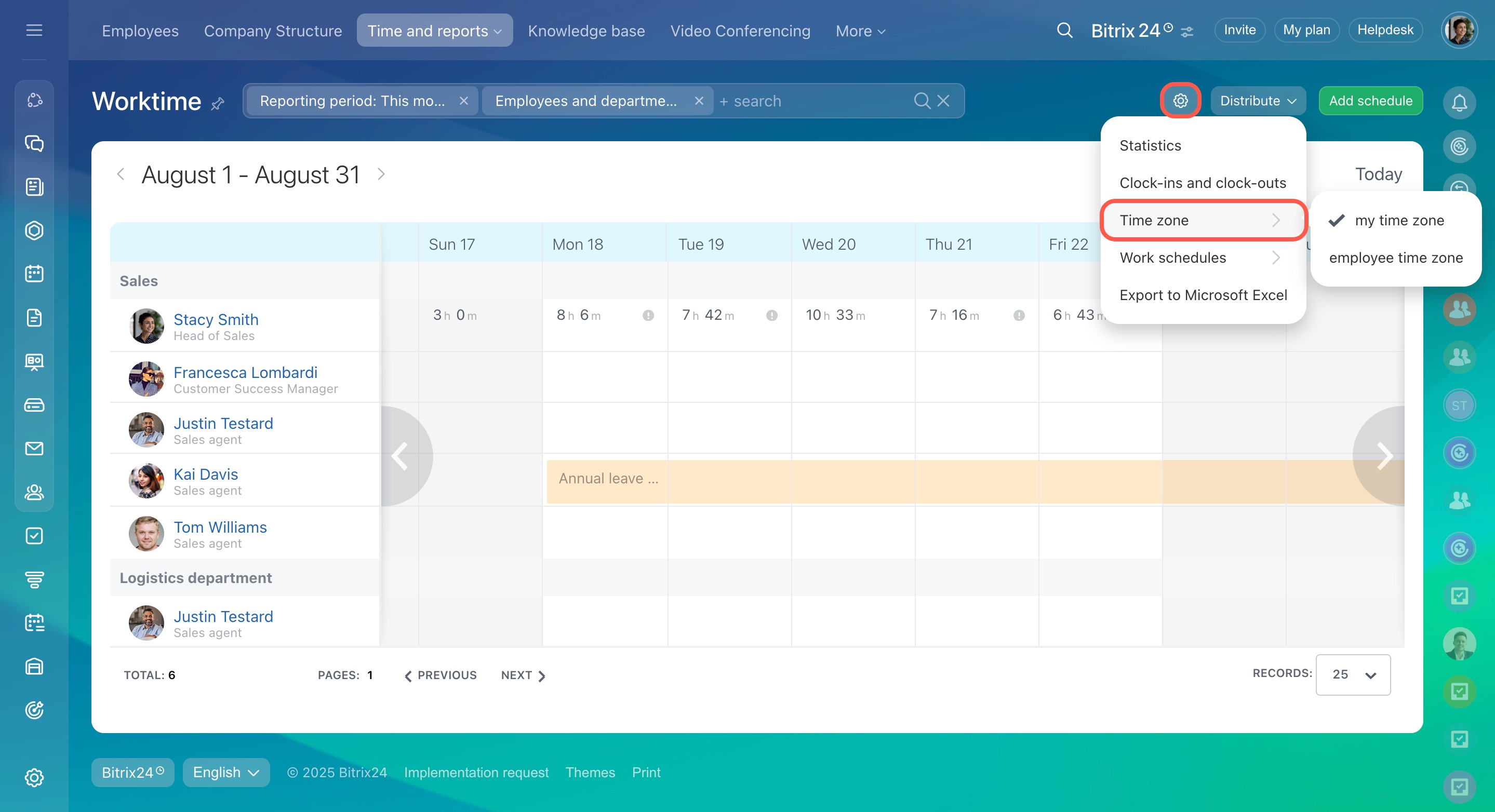
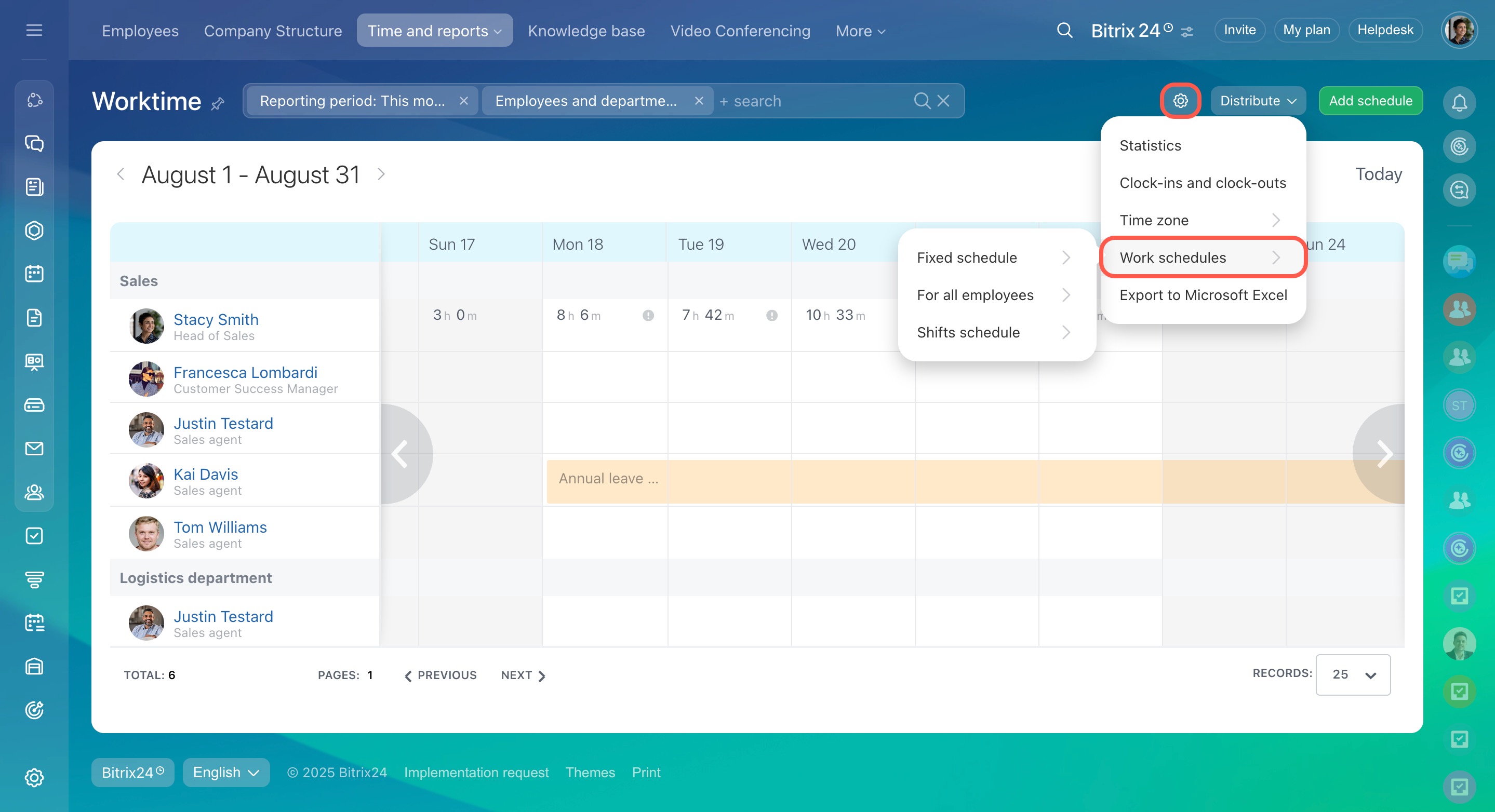
Click the gear icon to open Worktime settings.
Available options:
- Statistics – adds a summary table with employee work data.
- Clock-ins and clock-outs – shows start and end times in the calendar.
- Time zone – sets the time zone for displayed data.
- Work schedules – lets administrators view, edit, and create schedules.
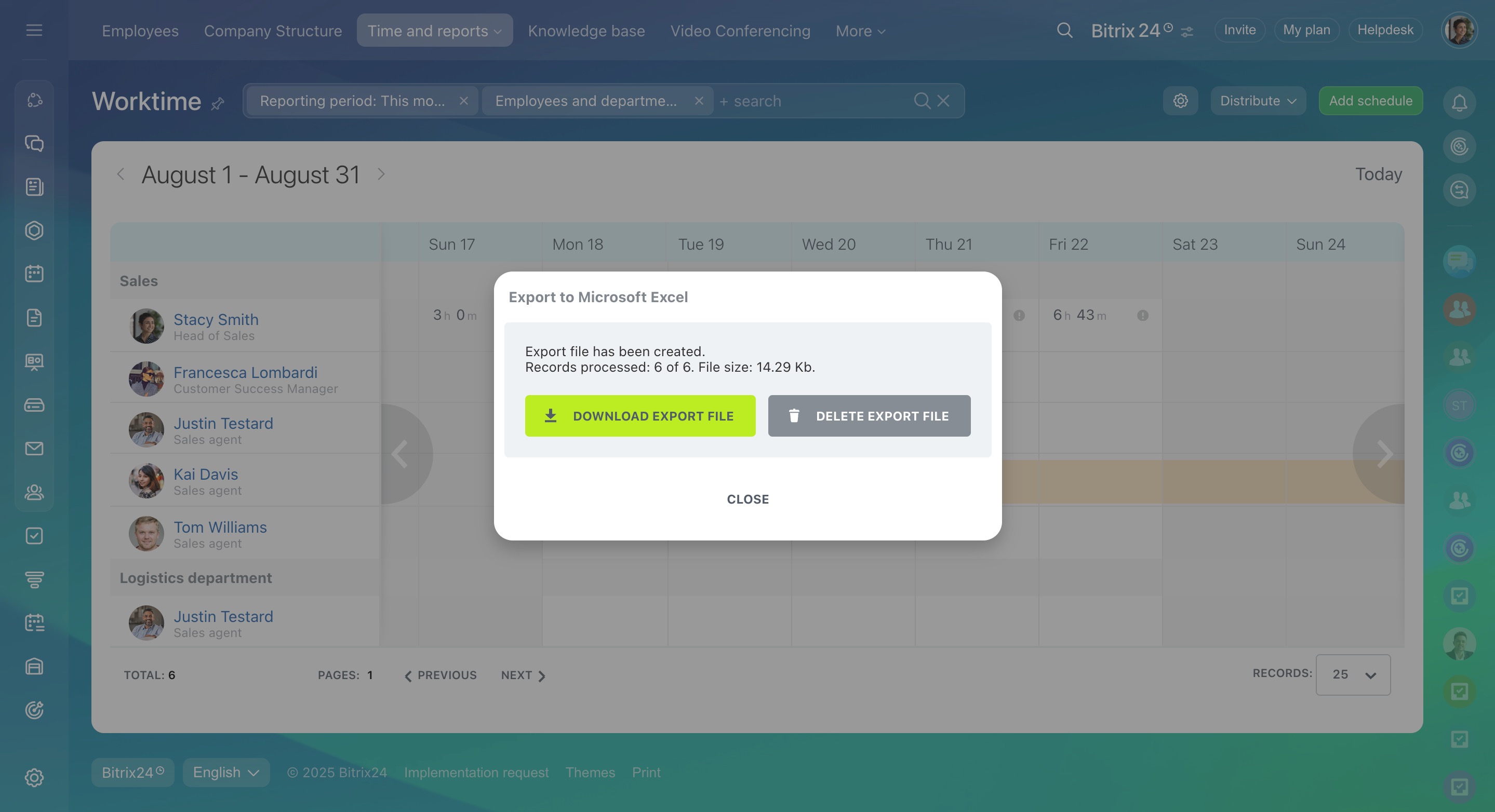
- Export to Microsoft Excel – exports worktime data for the selected period.
In brief
- Track working hours and daily reports in Employees > Time and reports > Worktime.
- Administrators and supervisors can view and edit employee records.
- Use filters to focus on specific dates or employees.
- Click a calendar day to see detailed work activity.
- Set up daily reports using the clock icon.
- Adjust settings to control how worktime data is displayed and exported.