
Plan your workday in Bitrix24. Schedule meetings, create tasks, build to-do lists, and stay on top of current work.
Add tasks for the day:
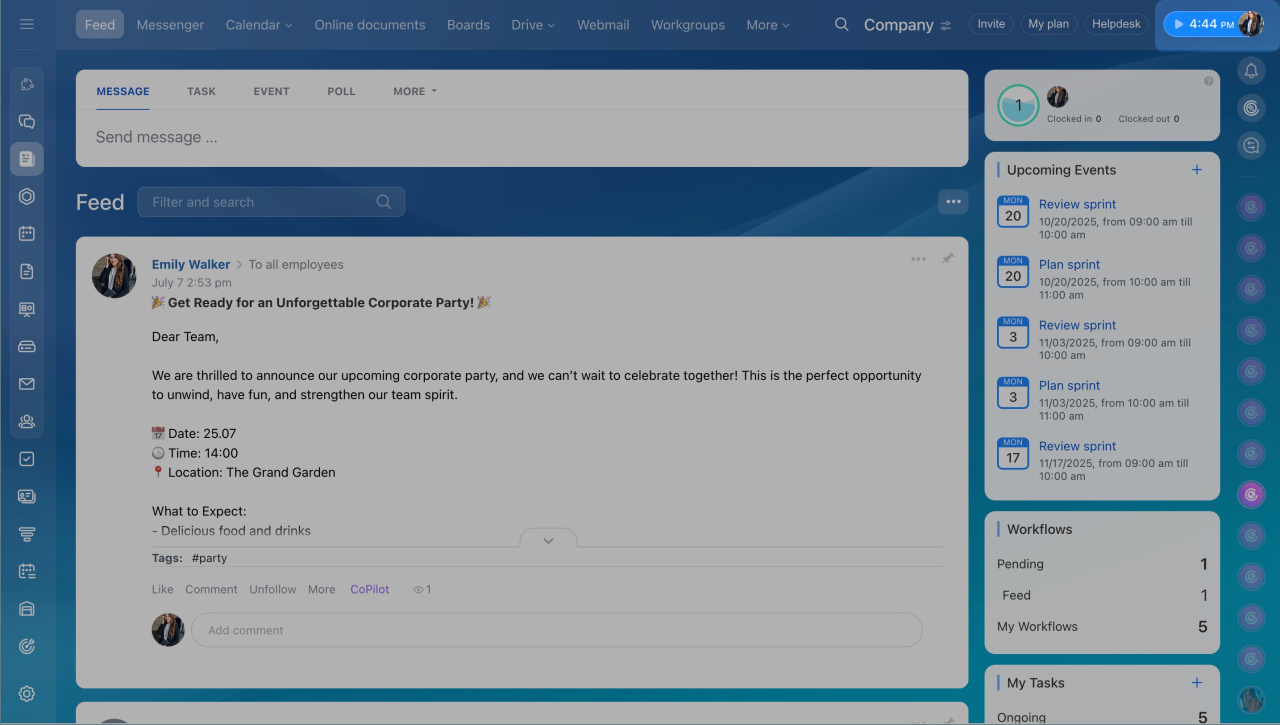
- Click your profile photo.
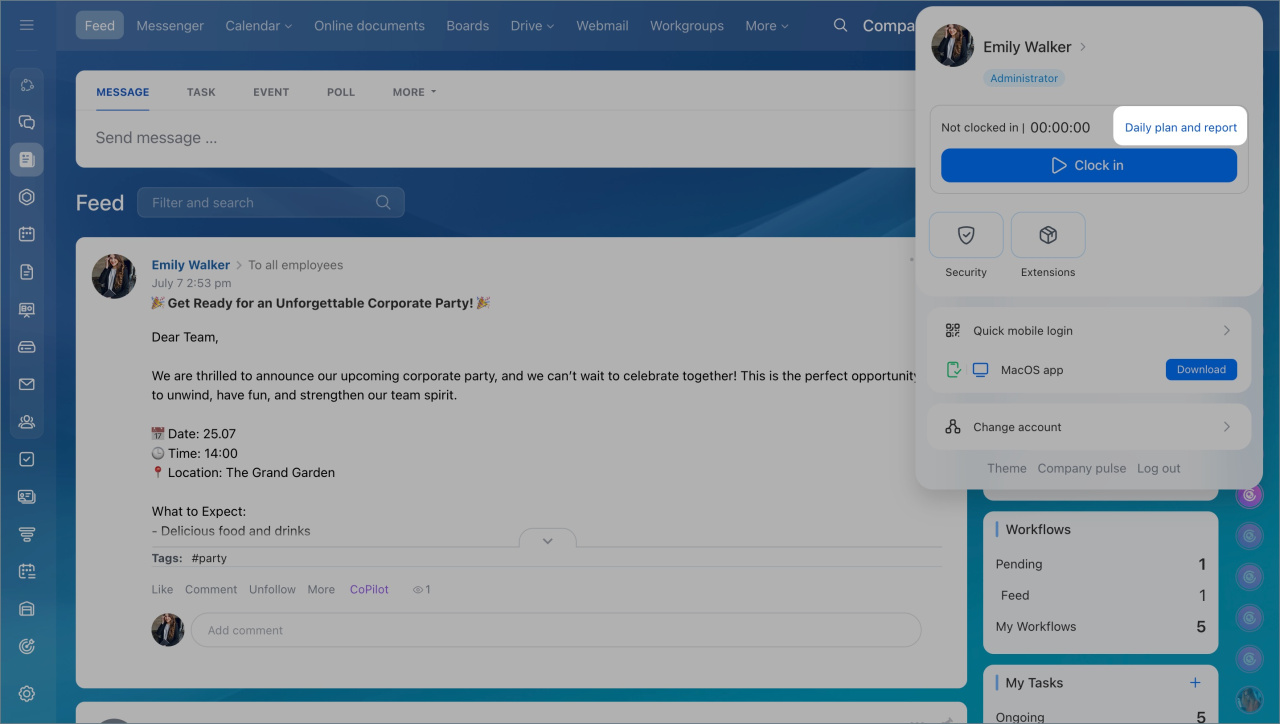
- Select Daily plan and report.
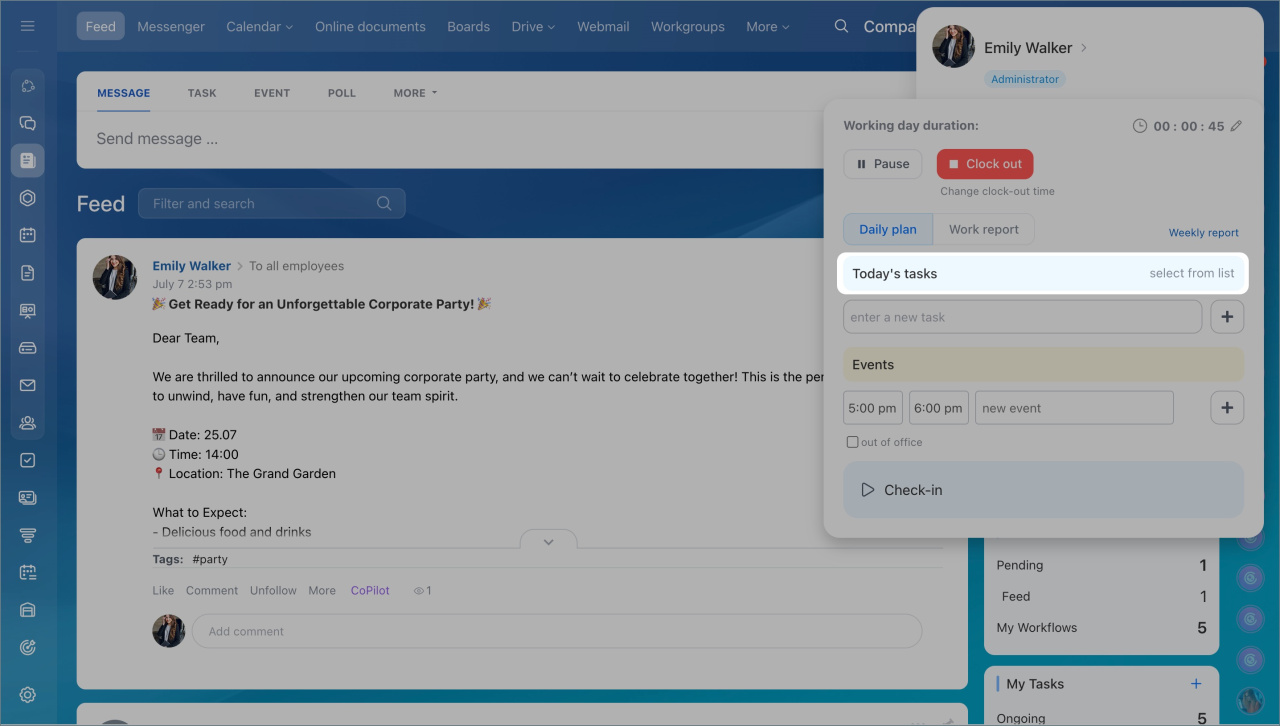
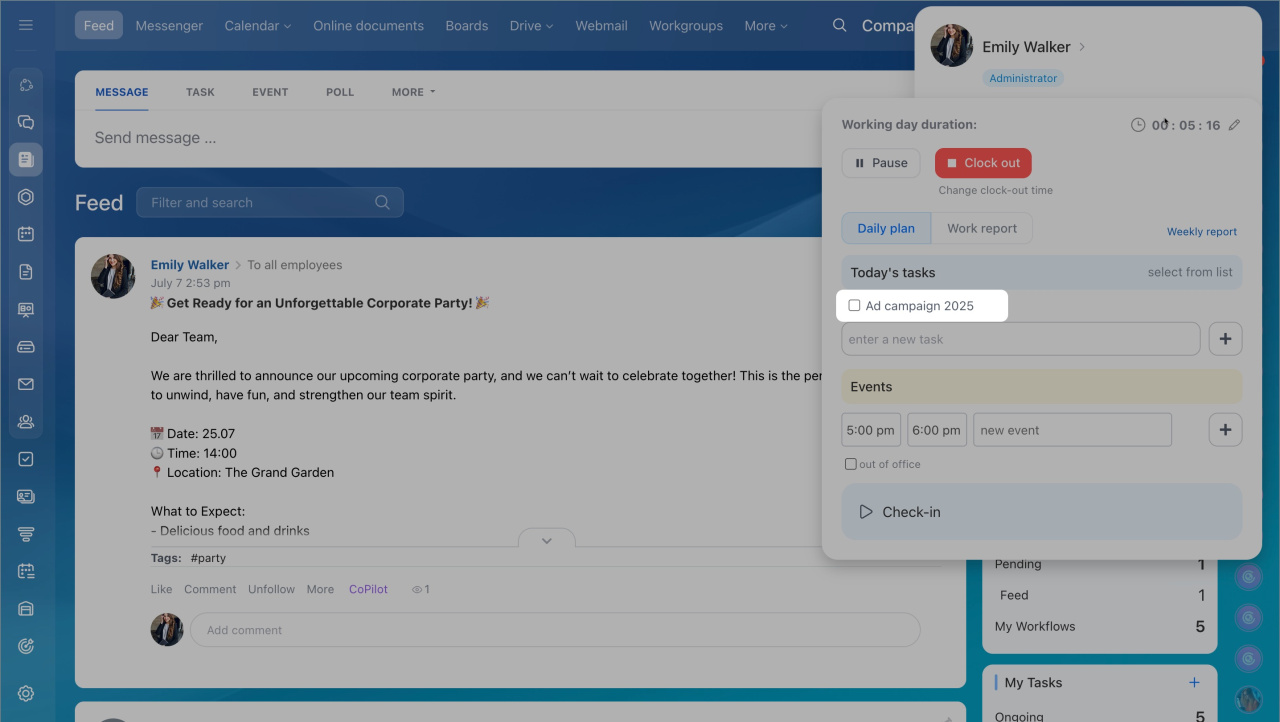
- In the Today's tasks tab, click Select from list.
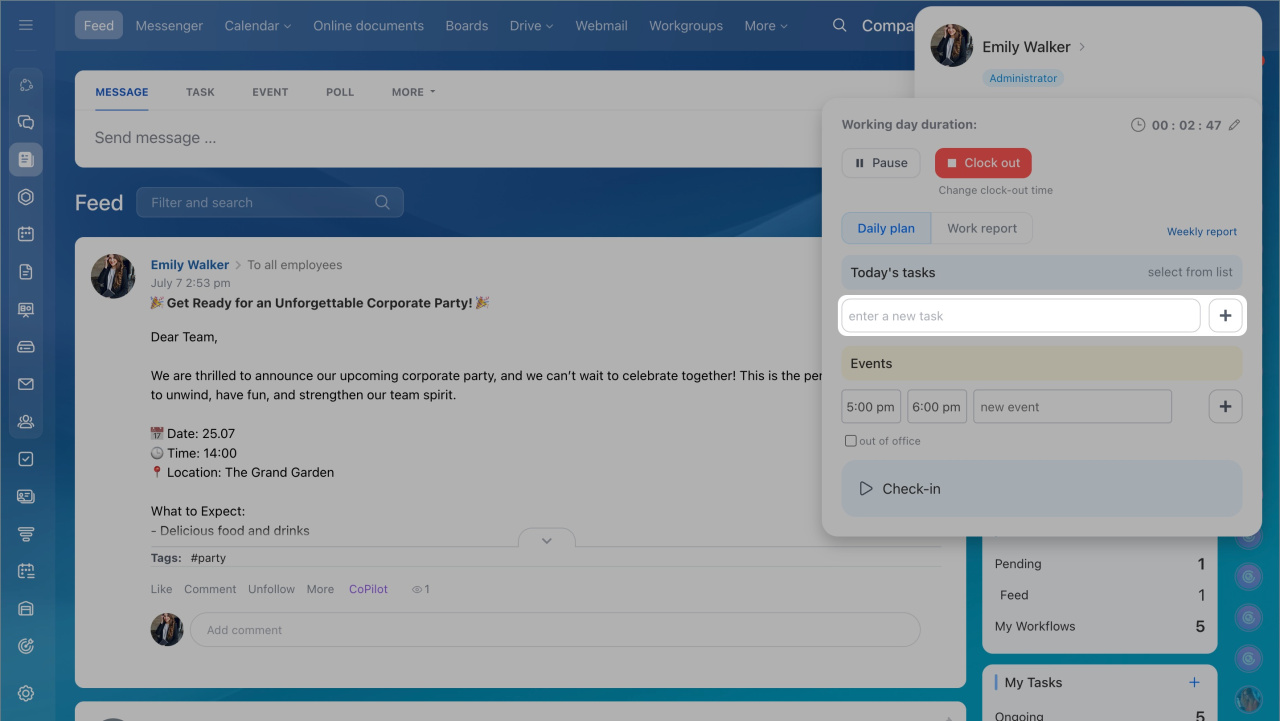
You can also create a new task. Enter a task name in the field and click Plus (+).
The task appears in the list. Click the task name to open it, view details, and make changes.
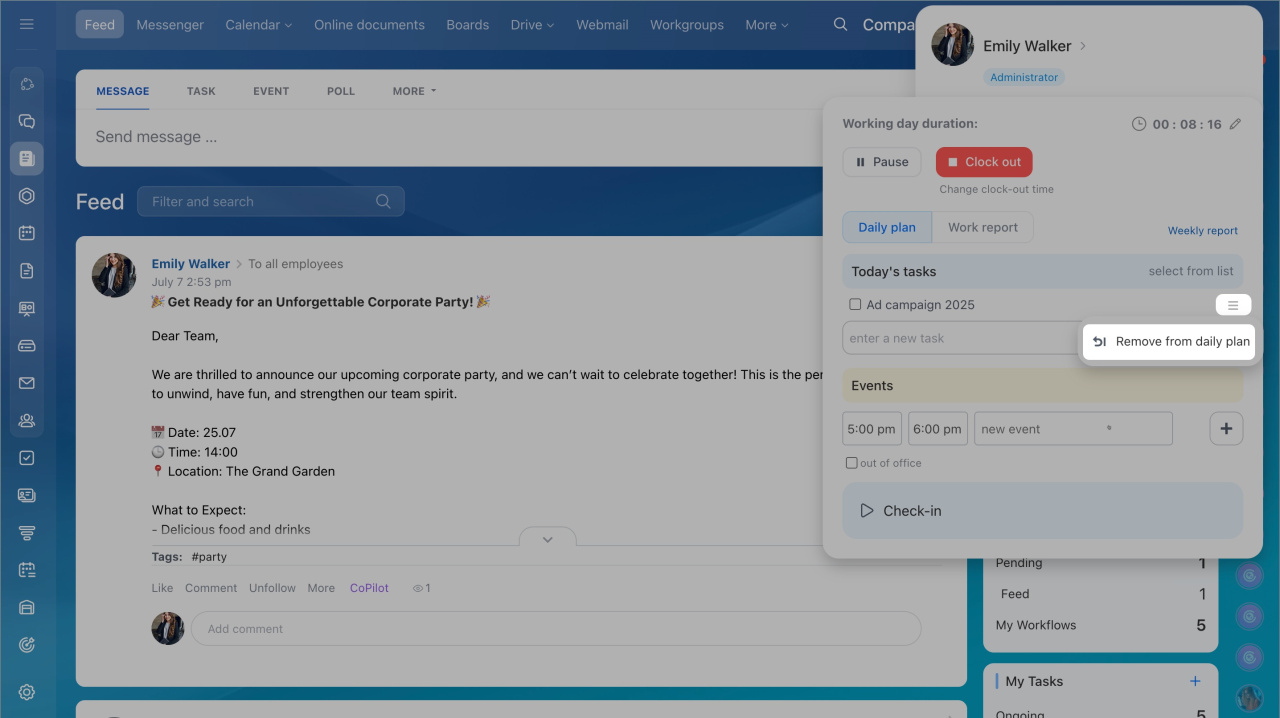
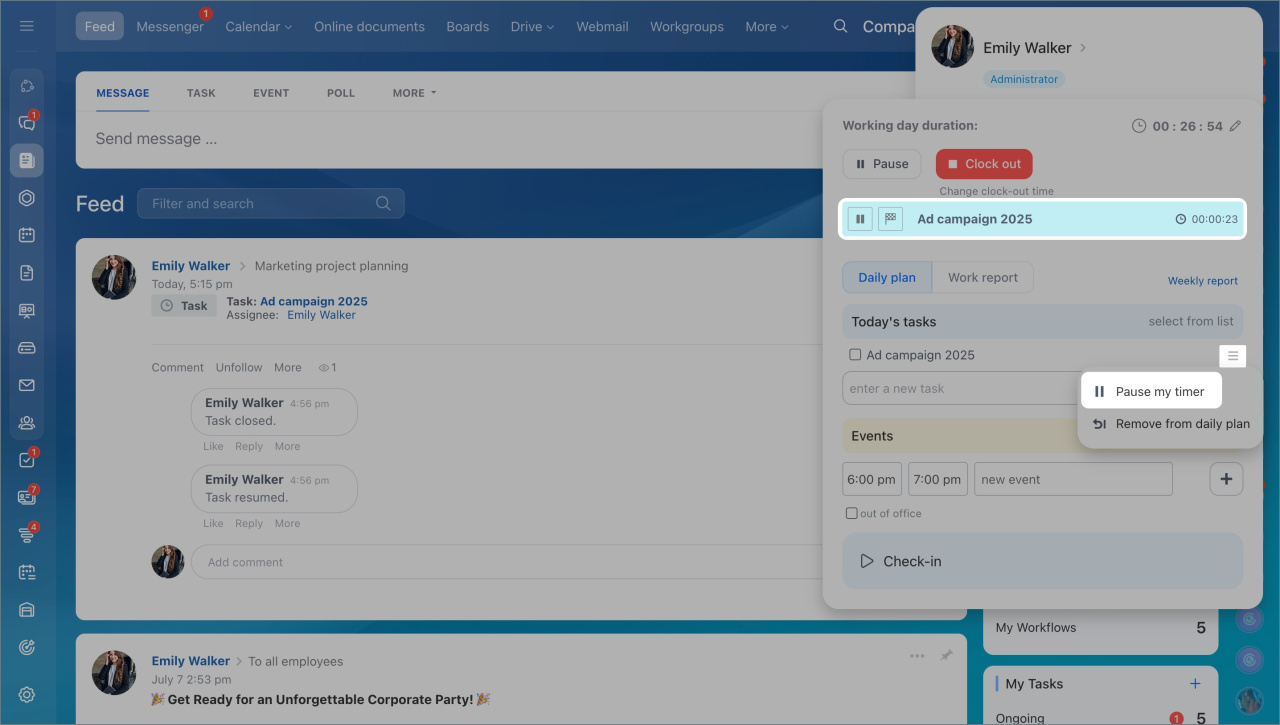
If you select a task from the list and time tracking is disabled, the Start time tracker option is not available.
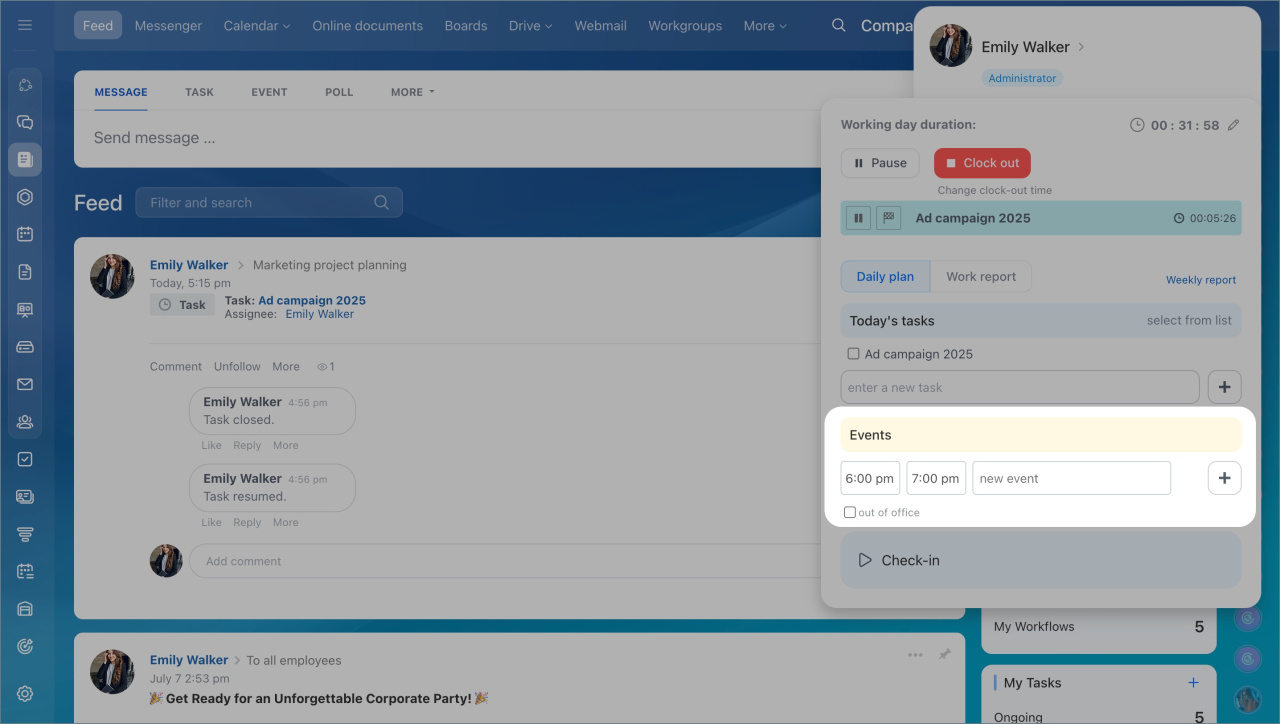
You can also plan an event:
- Enter an event title and click Plus (+).
- Select Out of office to add the event to your calendar and the Absence Chart.
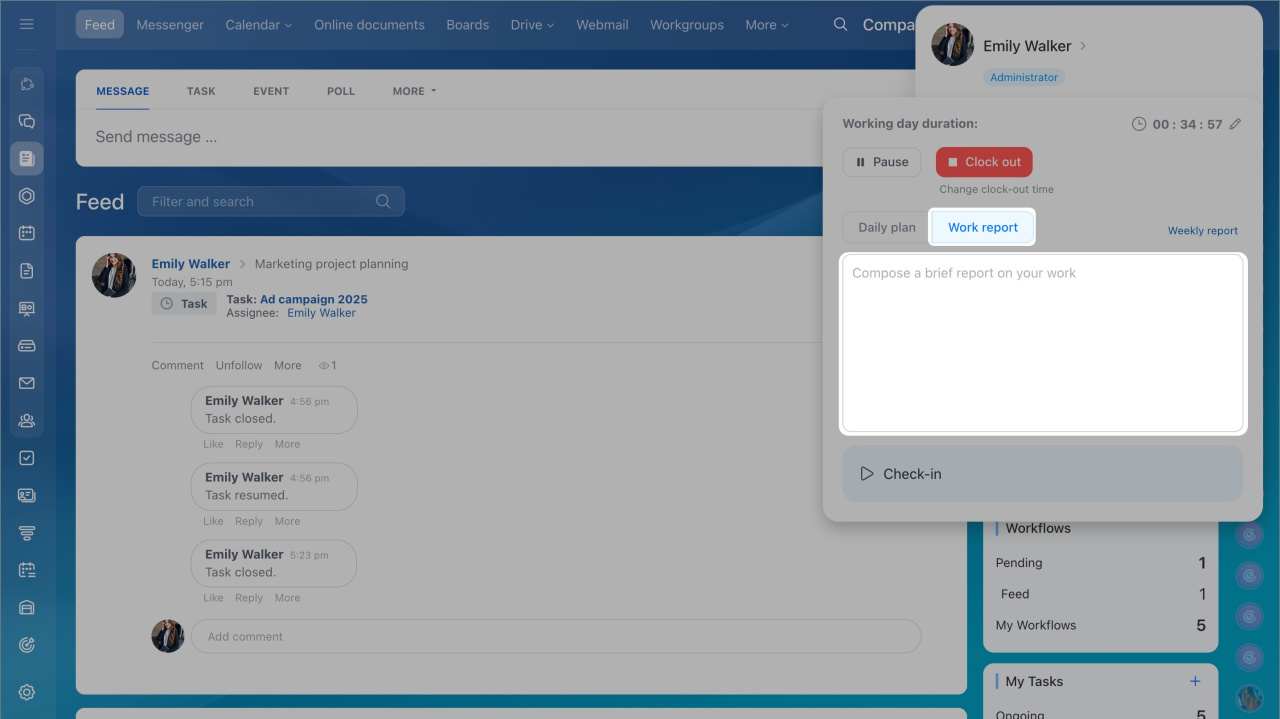
Add completed tasks to your work report so you do not miss anything. Bitrix24 automatically collects all daily reports into a weekly report.
In brief
- Add tasks from the work time panel or create new ones. Tasks appear in a list where you can view and edit them.
- Start the time tracker. The flag icon shows how many tasks are still incomplete.
- Add events by entering a title and clicking Plus (+). Mark events as Out of office to add them to your calendar and the Absence Chart.
- Fill in the work report to track completed tasks. Daily reports are included in the weekly report automatically.