
Terminal lets you accept customer payments using a QR code on a smartphone. You can now create and manage these payments directly from a deal. There’s no need to create them separately in the mobile app.
When you assign a payment to an employee, they can accept it in the Bitrix24 mobile app. After the payment is complete, the customer gets a confirmation by SMS. The system also saves all payment details in the deal timeline.
Common use cases:
- Courier delivery. One employee creates a deal and adds products. A courier delivers the order and accepts payment using a QR code.
- Pickup point. One employee creates a deal and adds products. Another employee meets the customer at a pickup location and accepts payment using a QR code.
This article explains how to create and accept payments via terminal from the deal form.
Create a payment via terminal from a deal
- Open a deal.
- Click Receive payment.
- Select Payment via terminal.
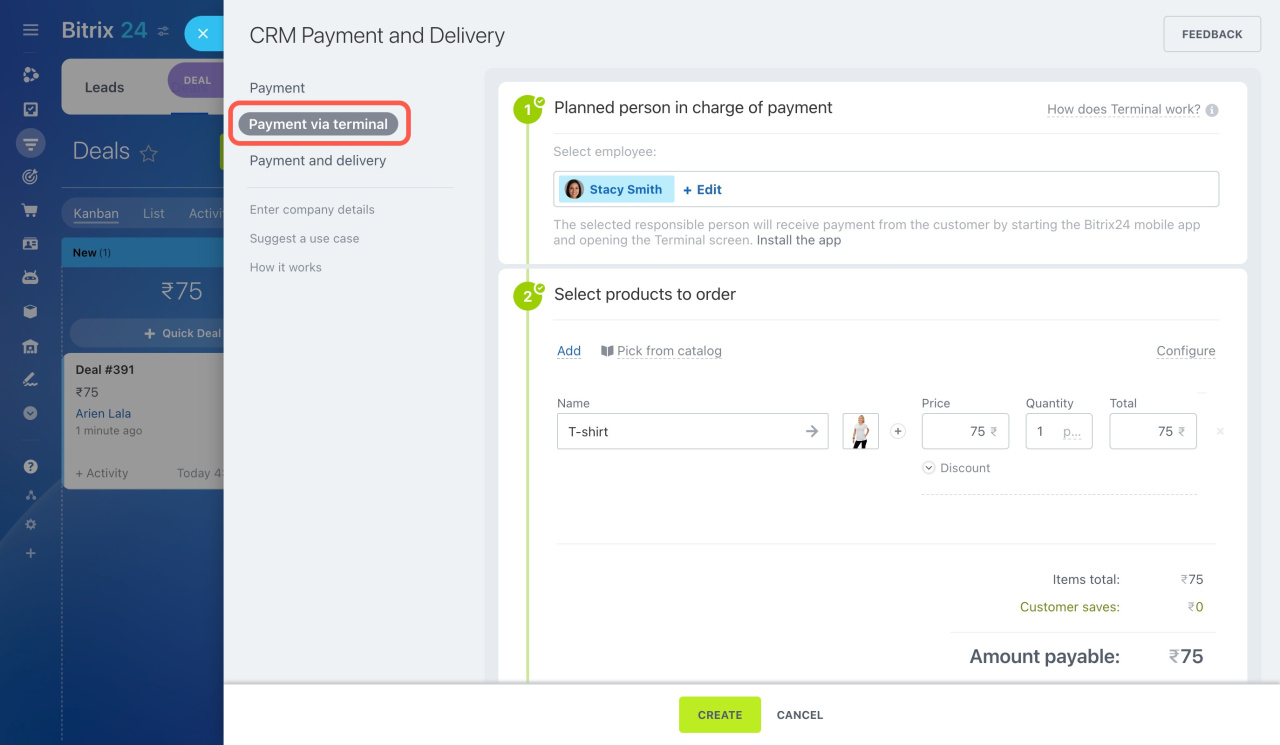
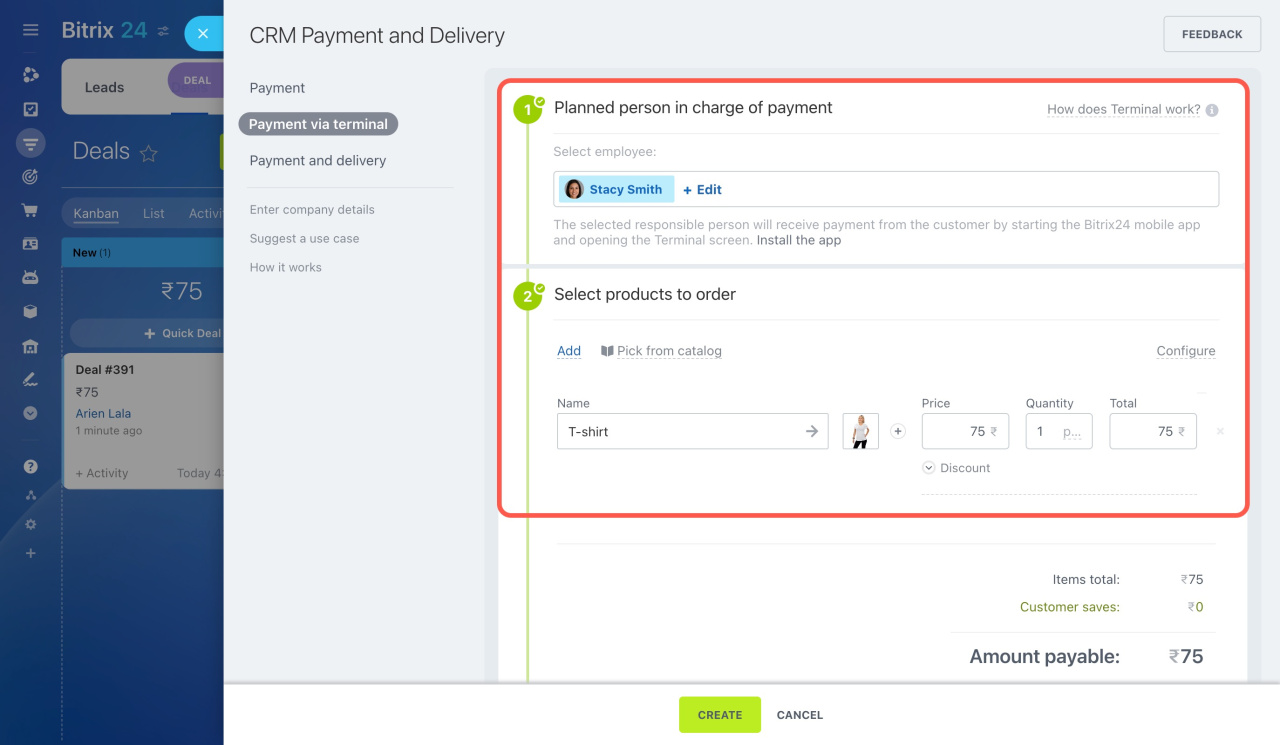
Configure the payment:
Planned person in charge of payment
Select the employee who will accept the payment in the mobile app. To accept it yourself, choose your name. If needed, send the app installation link.
Select products to order
Add products and apply a discount if needed.
Payment systems are online
Connect the payment methods your customers will use.
Automation
Choose whether to change the deal stage after the payment is complete.

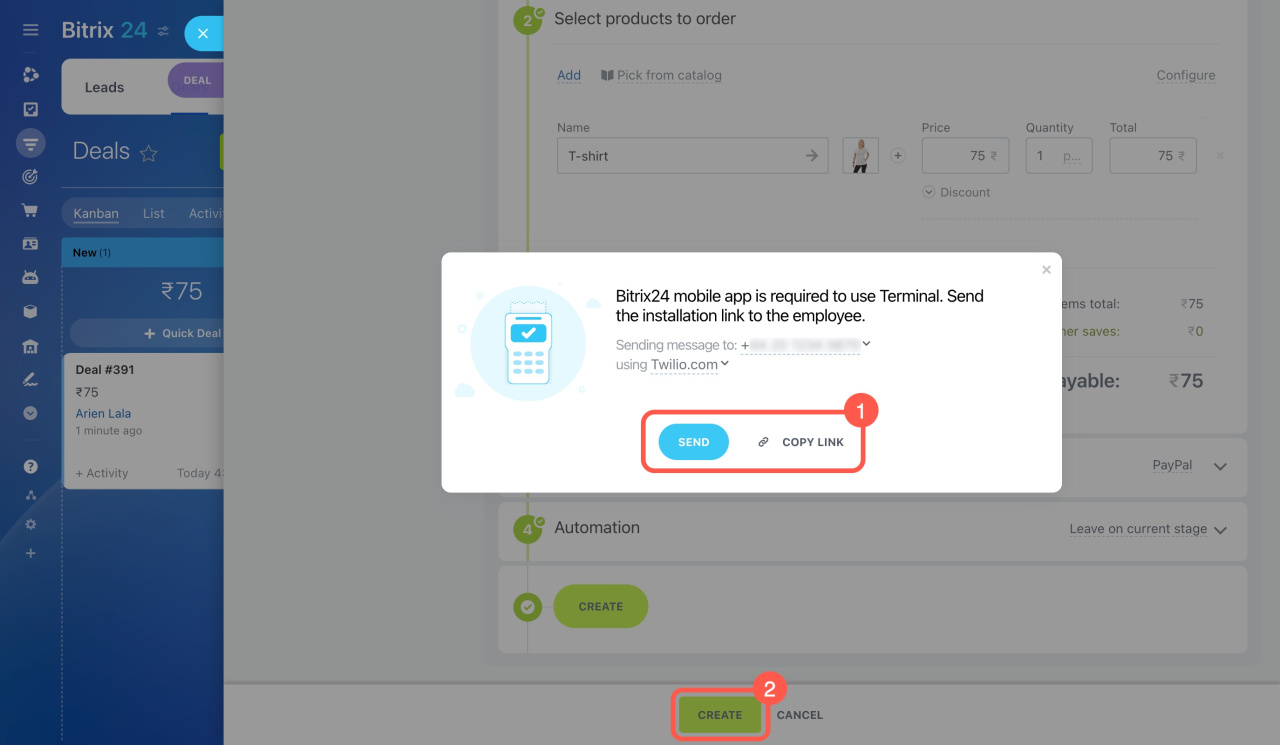
4. Click Create.
The payment will appear in the Terminal section of the Bitrix24 mobile app. If the assigned employee does not have the app yet, you can send them an installation link by SMS or copy the link.
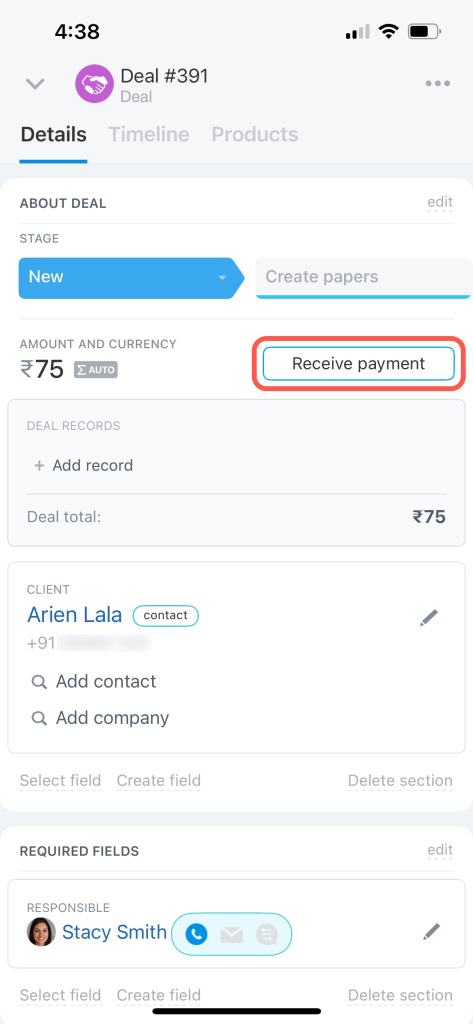
- Open a deal in the mobile CRM.
- Tap Receive payment.
- Select Payment via terminal.

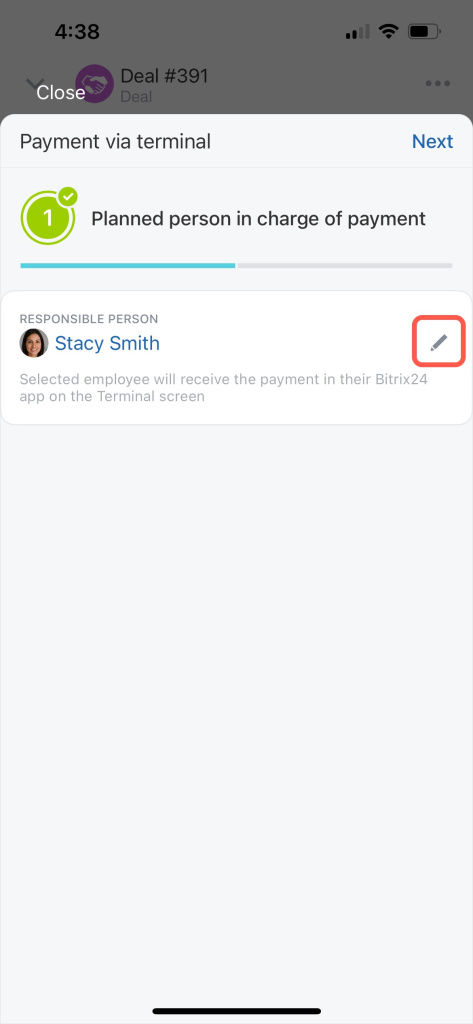
4. Choose the employee who will accept the payment.

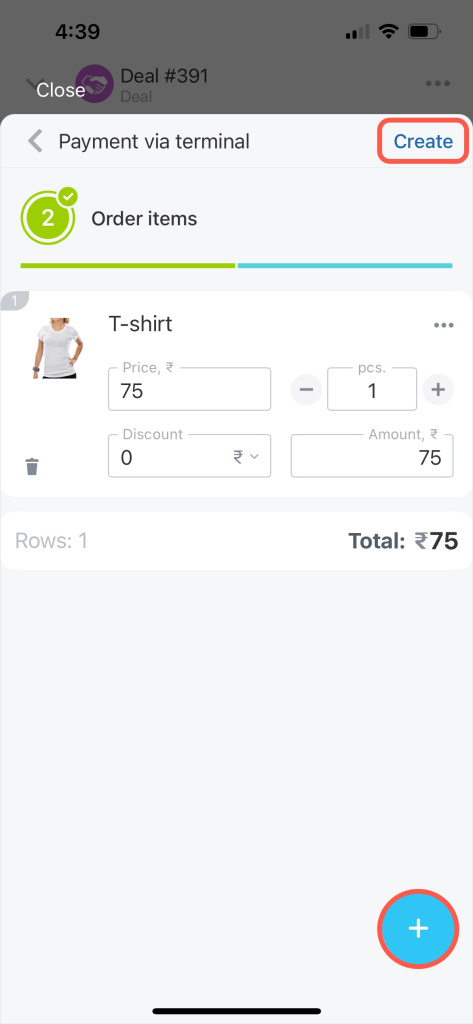
5. Add products and tap Create in the top right corner.
After you create the payment, you can return to the deal or accept the payment right away if you are the assigned employee.

Accept a payment in the mobile app
- Open the Bitrix24 mobile app.
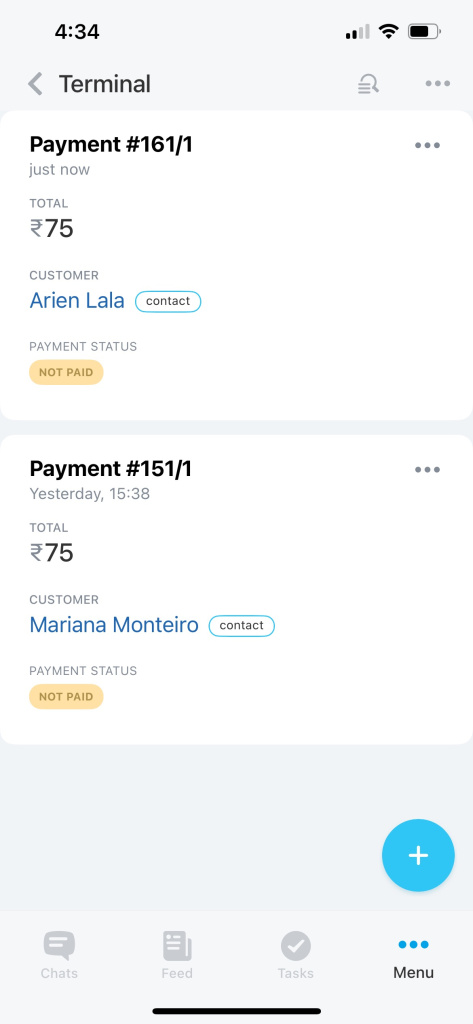
- Go to Menu > Terminal.
You will see all pending payments.
CRM access permissions

Bottom menu in Bitrix24 Mobile app
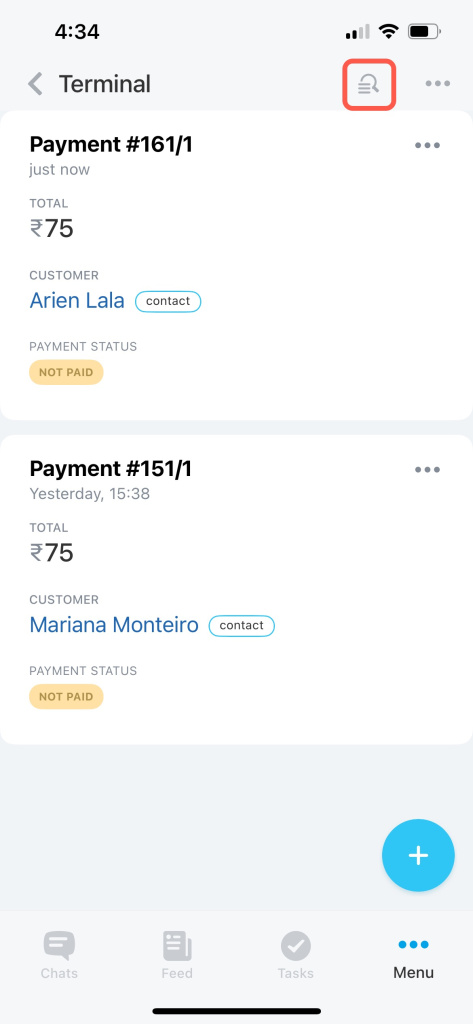
To find a specific payment, use search. You can search by payment amount or customer phone number.
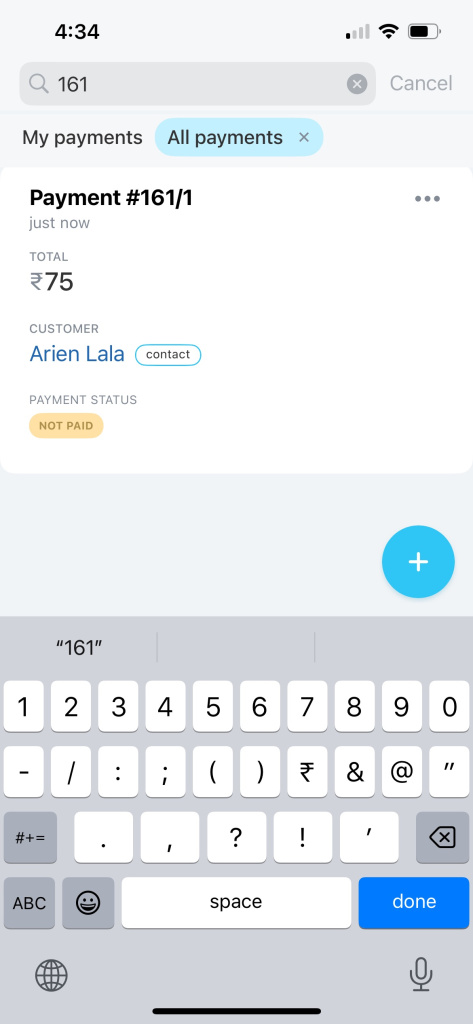
3. Open the payment.
4. Select a payment method.
5. Ask the customer to scan the QR code.

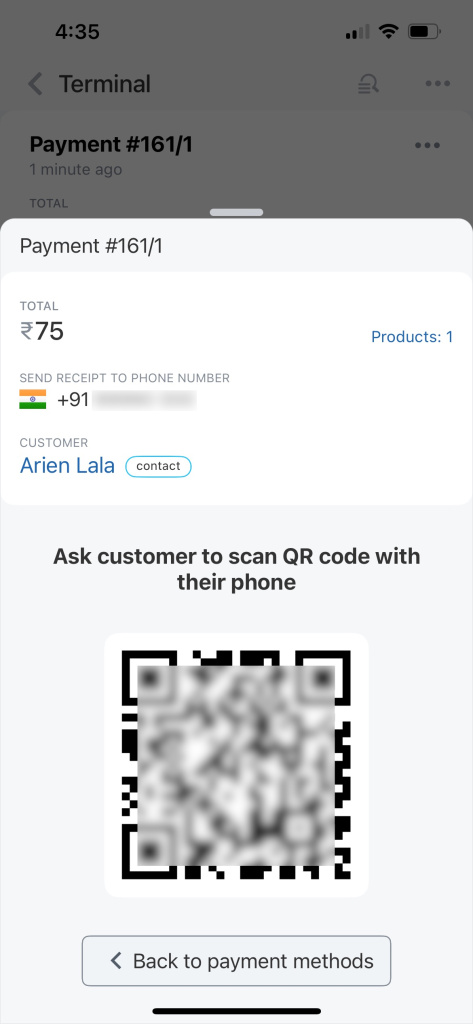
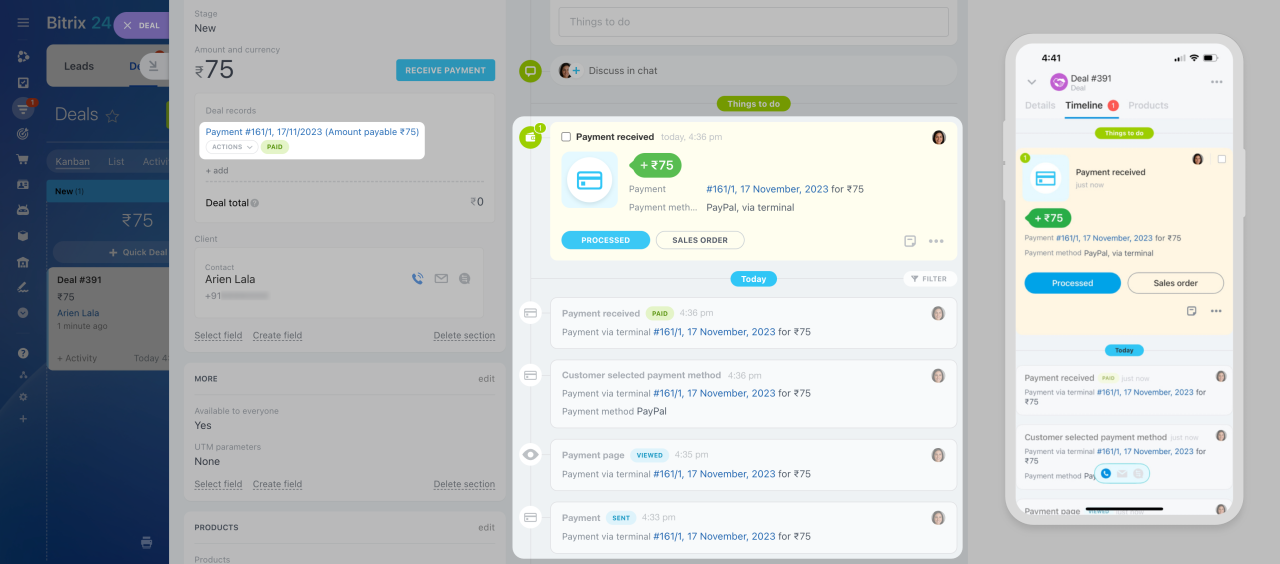
After the payment is complete, it will appear in the deal timeline.
In brief
-
Create payments from the deal form and assign employees who will accept them via terminal.
-
Once the selected employee processes the payment, your customer will receive a proof of payment via SMS.
-
All the information about the payment is saved to the deal timeline, and you won't miss anything.