
To record calls, use the Bitrix24 desktop app. Recording is not available in the web version. Reconnect to the call from the desktop app to start recording.
Download and install the desktop app
If you don’t have the app, download and install it:
After installation:
- Sign in to your Bitrix24 account.
- Rejoin the call from the desktop app.
- Click Record.
Recording behavior
- If multiple users share screens, the recording captures only the screen of the person who started the recording.
Recording format and storage
- Format: WebM
If Bitrix24 Drive sync is enabled:
- The recording is saved to your personal drive in Bitrix24.
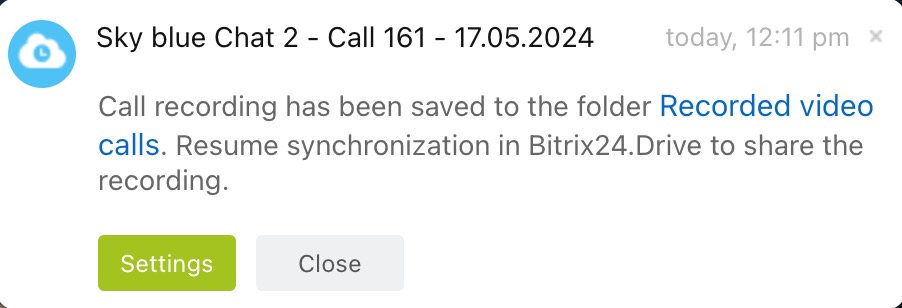
- A copy is saved to the Recorded video calls folder on your computer.
- To share the recording in chat, click Share call recording.

If sync is disabled:
- The recording is saved only to the Recorded video calls folder on your computer.
- The folder is created automatically.
Desktop app features
The desktop app includes features not available in the web version:
- Record calls
- Change your background
- Use 3D avatars
- Sync Bitrix24 Drive with your computer
For full functionality, use the desktop app.