
Bitrix24 provides two types of access permissions for meeting rooms:
- Access to all meeting rooms
- Access to a specific meeting room
You can assign permissions to individual employees or groups.
How access permissions work
Access permissions control which meeting rooms employees can see and use. For example, branch employees do not need access to meeting rooms in the head office. Management can also have a separate room with restricted access.
Access levels for the section
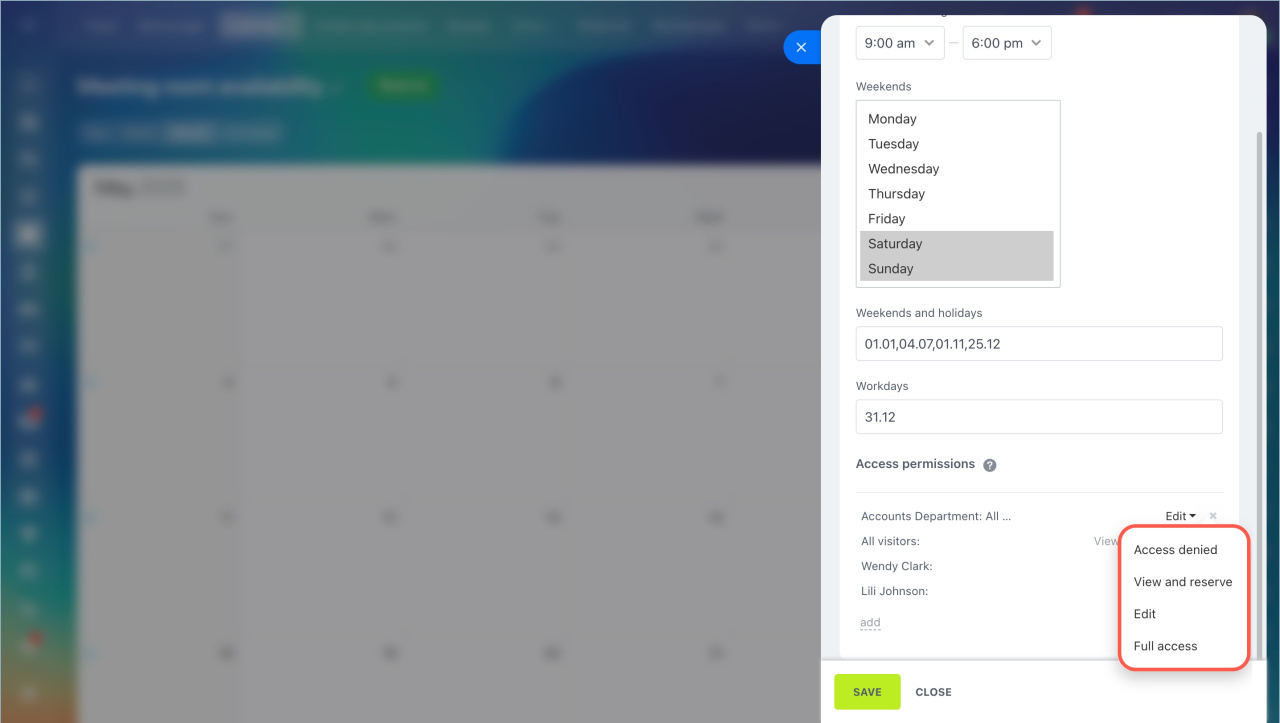
The Meeting room availability section supports these access levels:
- Edit — View the section, reserve rooms, create meeting rooms, and set access permissions during creation. You cannot change permissions later.
- View and reserve — View the section and reserve meeting rooms.
- Full access — View and edit the section, manage permissions, create and reserve meeting rooms.
- Access denied — No access to the section or meeting rooms.
Set permissions for the section
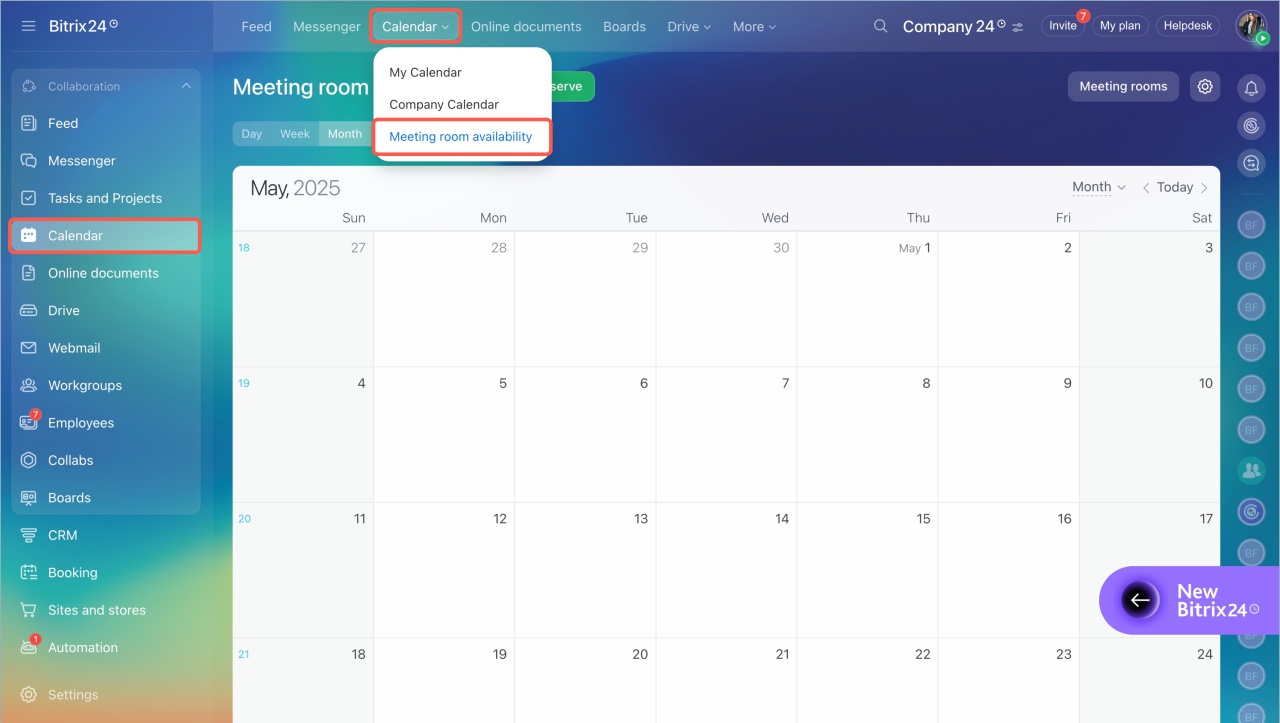
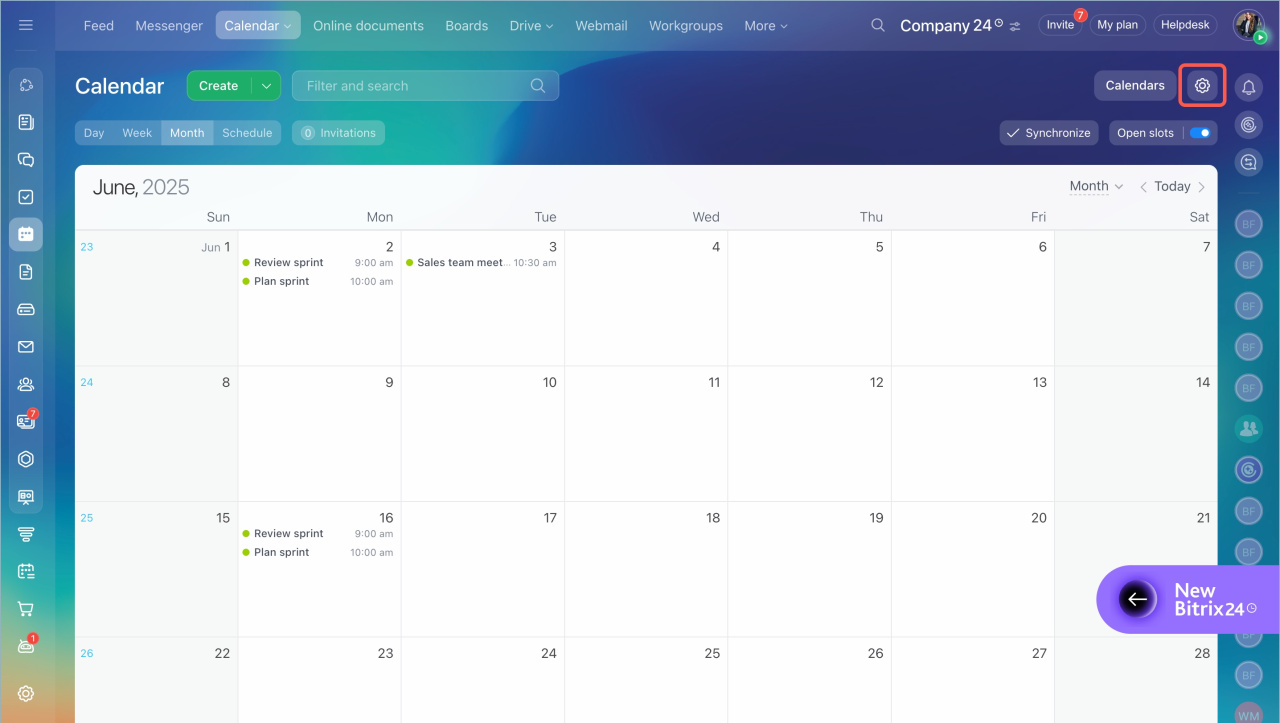
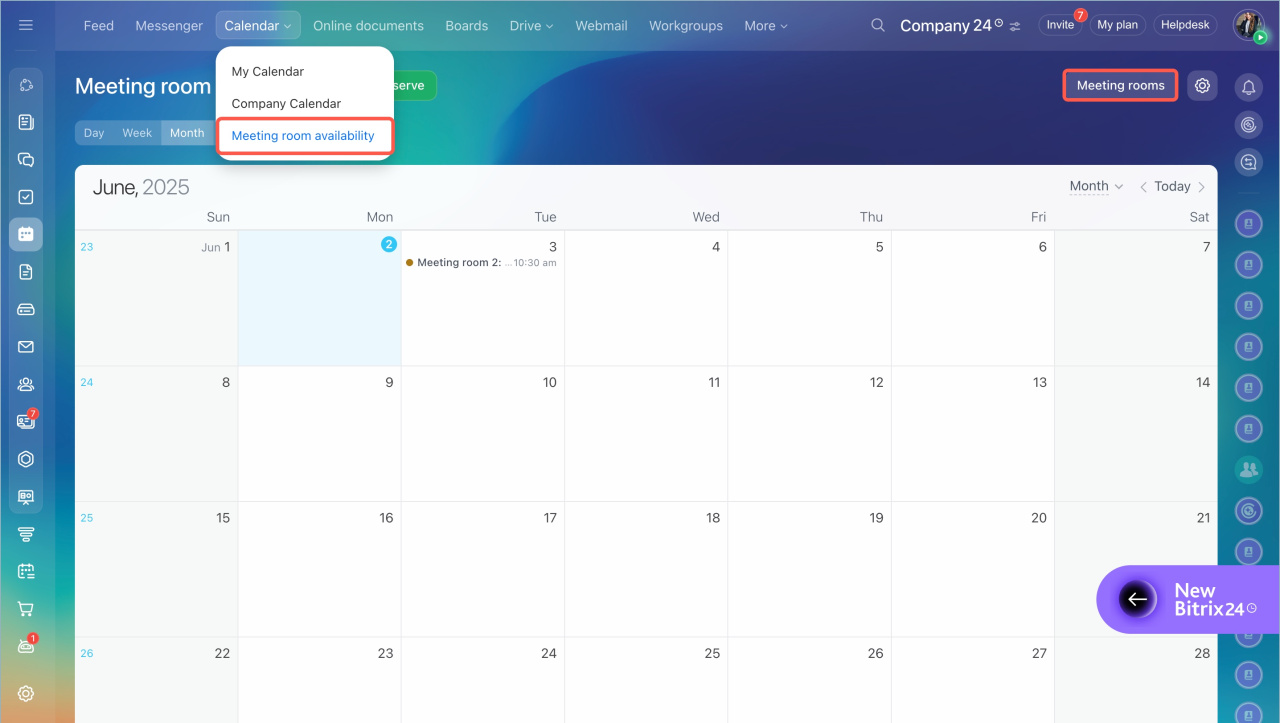
- Go to Calendar > Meeting room availability > Settings.
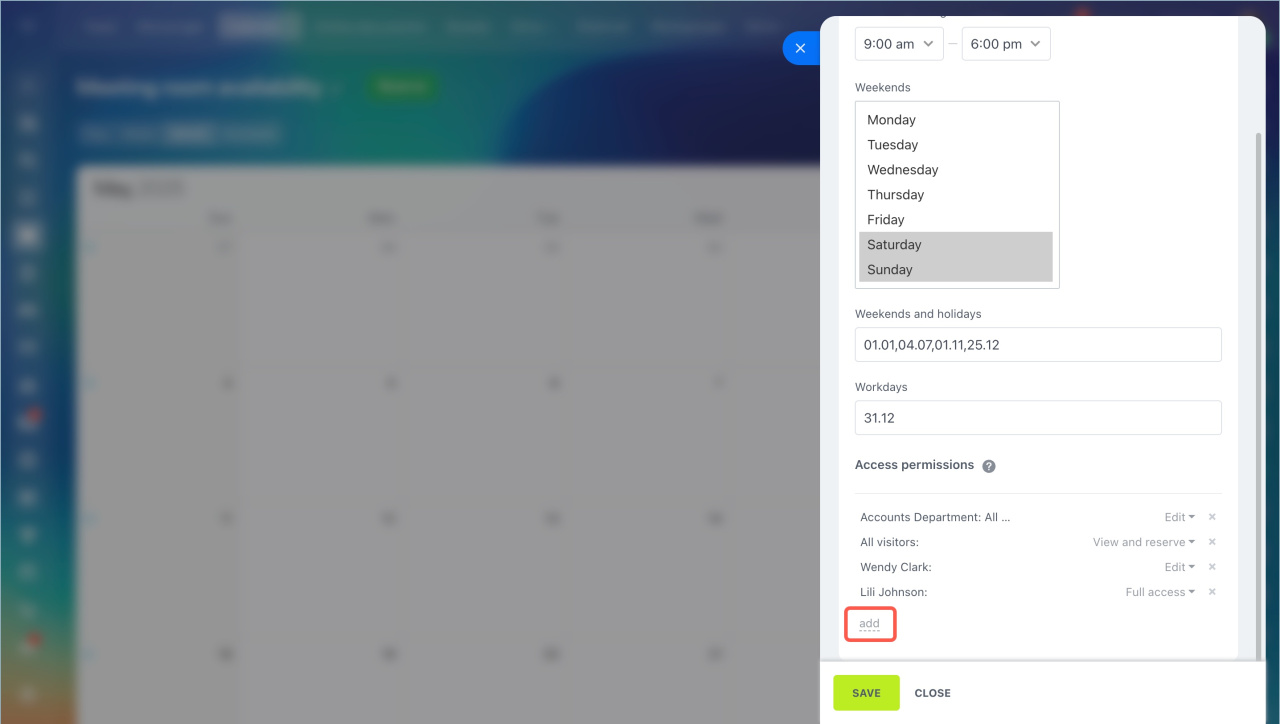
- Click Add.
- Select an employee or a group.
- Choose the access level.
- Save the changes.
Access levels for a specific meeting room
You can set permissions when you create a meeting room. Available levels:
- Full access — View, edit, reserve the room, and manage permissions.
- Edit — Change the name, capacity, and category, and set permissions during creation. You cannot update permissions later.
- View and reserve — Check availability and reserve the room.
- Access denied — No access to view, edit, or reserve the room.
Set permissions for a new meeting room
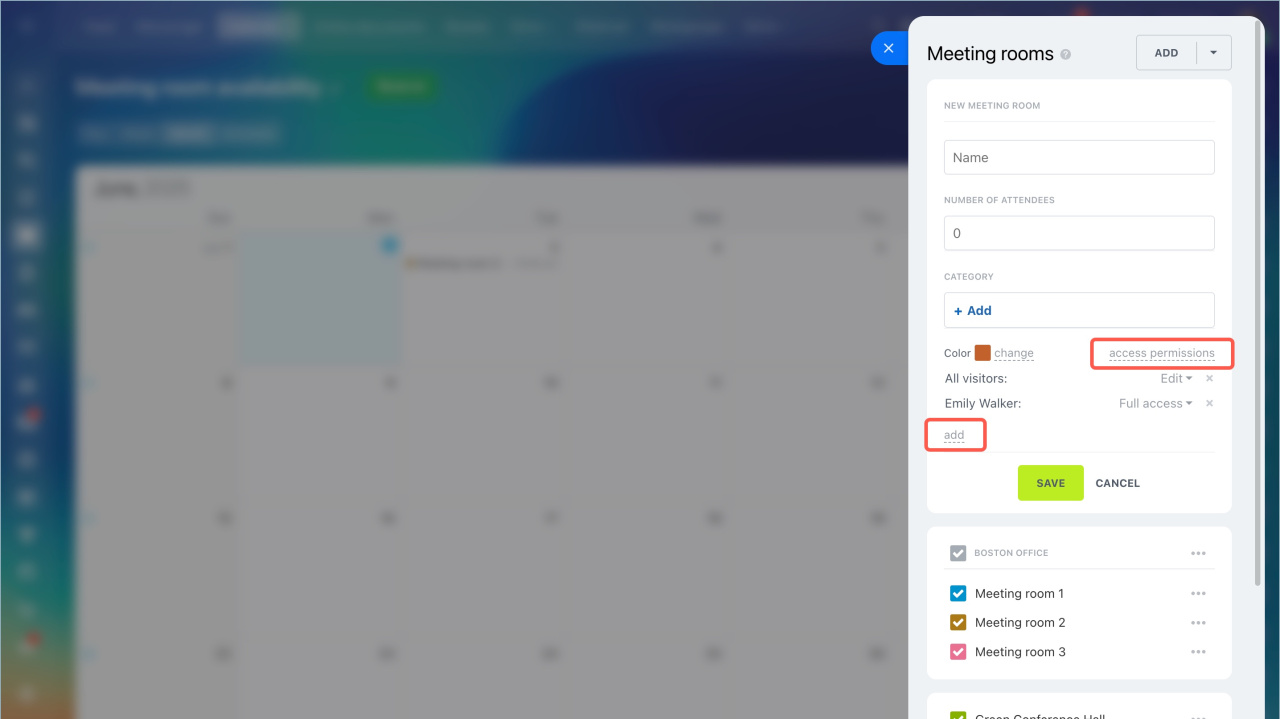
- Go to Calendar > Meeting room availability > Meeting rooms.
- Click Add > Add meeting room.
- Open Access permissions and click Add.
- Select an employee or group and assign a permission level.
- Save the changes.
Create and reserve meeting rooms
Update permissions for an existing meeting room
- Go to Calendar > Meeting room availability > Meeting rooms.
- Select a meeting room.
- Click the three dots and choose Edit.
- Update the access permissions.
- Click Save.

Permission priority
Permissions follow this priority order:
- Edit
- View and reserve
- Access denied
Permissions set for a specific meeting room override section-level permissions. For example, even if a user has limited access to the section, you can grant them full access to a specific meeting room.
Group and employee access permissions. If the All visitors group has no access to the section, you can still grant an individual employee full access.
In brief
- You can set permissions for all meeting rooms or for a specific one.
- Administrators have full access by default.
- You can assign permissions to individual employees or groups.