
You can log in to Bitrix24 in several ways:
- Use your phone number or email
- Use social network accounts
- Use a QR code with the Bitrix24 mobile app
This article explains how to log in with a QR code. This method works well if you already use the Bitrix24 mobile app and want to quickly access Bitrix24 in a browser or in Bitrix24 Messenger.
Before you start, make sure you are logged in to the Bitrix24 mobile app.
If two-factor authentication is enabled, you will need to enter a one-time code after you scan the QR code.
Enable two-step authentication for Bitrix24 login
If two-factor authentication is enabled, you will need to enter a one-time code after you scan the QR code.
Enable two-step authentication for Bitrix24 login
In this article:
Log in to the web version
Go to the Bitrix24 login page and scan the QR code using one of the methods below.
Bitrix24 login page
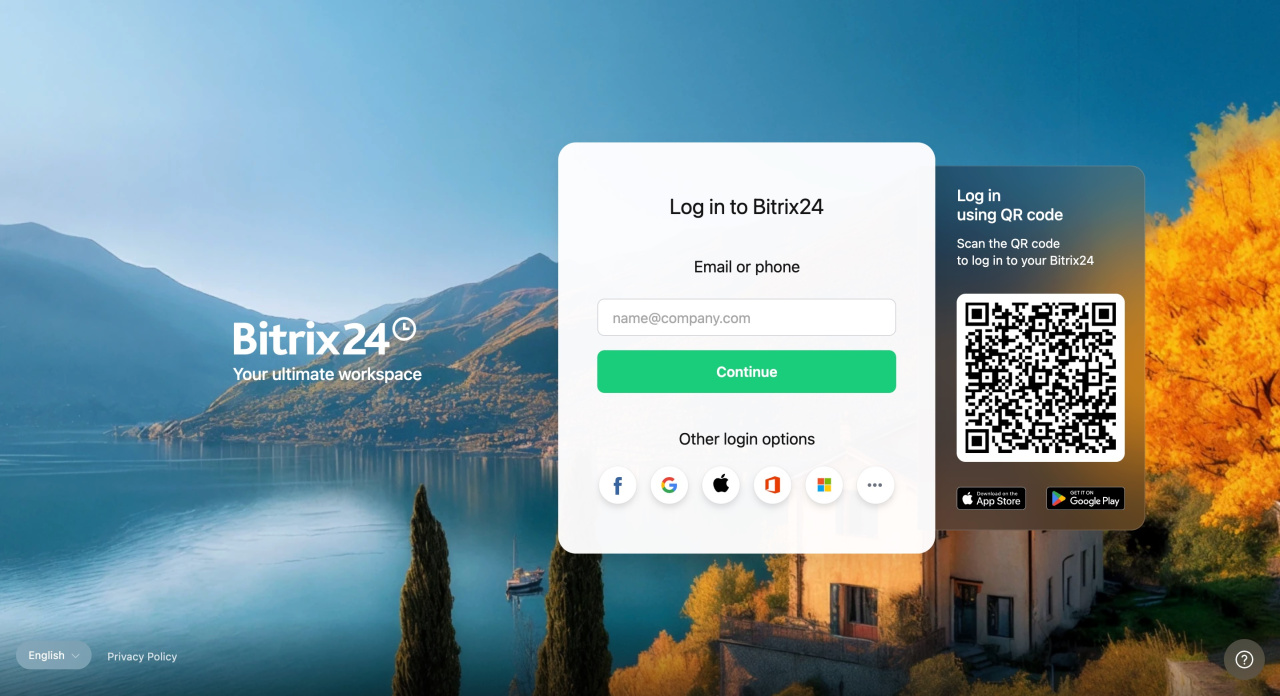
Option 1: Use your smartphone camera
- Scan the QR code with your phone camera.
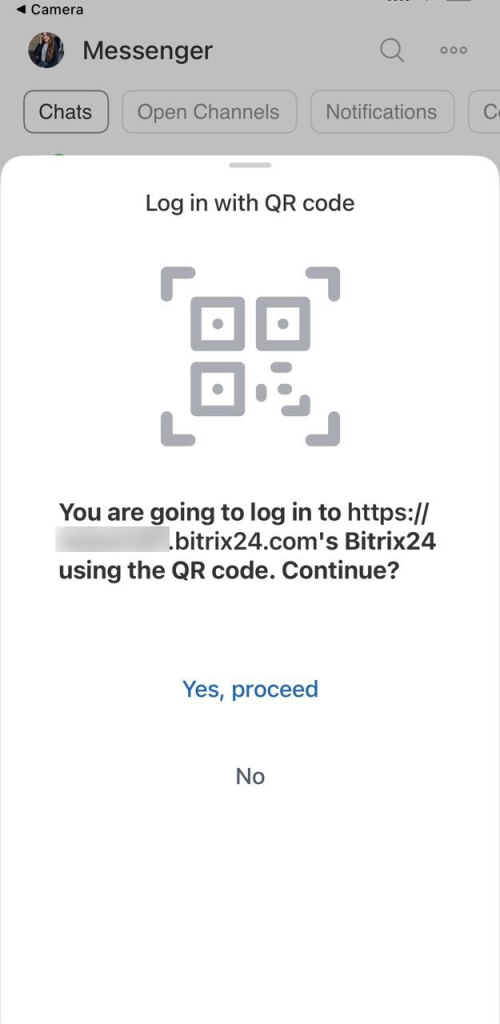
- Tap the Bitrix24 link. The mobile app opens automatically.
- Tap Yes, proceed.
- If two-factor authentication is enabled, enter the code.
You will be logged in to Bitrix24 in your browser.
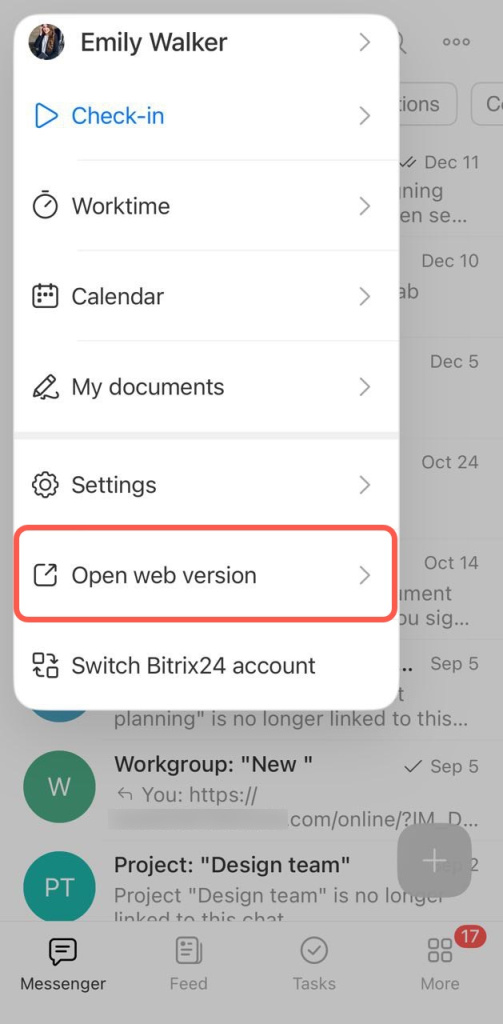
Option 2: Use the mobile app
- Tap your profile photo in the upper-left corner.
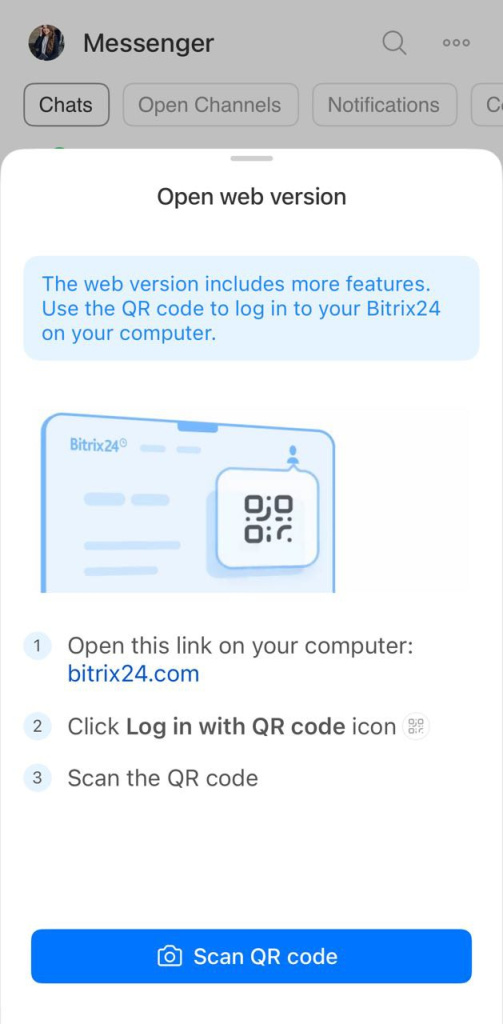
- Tap Open web version > Scan QR Code.
- Scan the QR code.
- If two-factor authentication is enabled, enter the code.
You will be logged in to the web version of Bitrix24.
Log in to Bitrix24 Messenger
Make sure you use Bitrix24 Messenger version 13 or later.
Update Bitrix24 Messenger
Update Bitrix24 Messenger
- Click QR login.
- Enter the Bitrix24 address you want to access.
- Click Continue.
- Scan the QR code using your smartphone camera or the Bitrix24 mobile app.
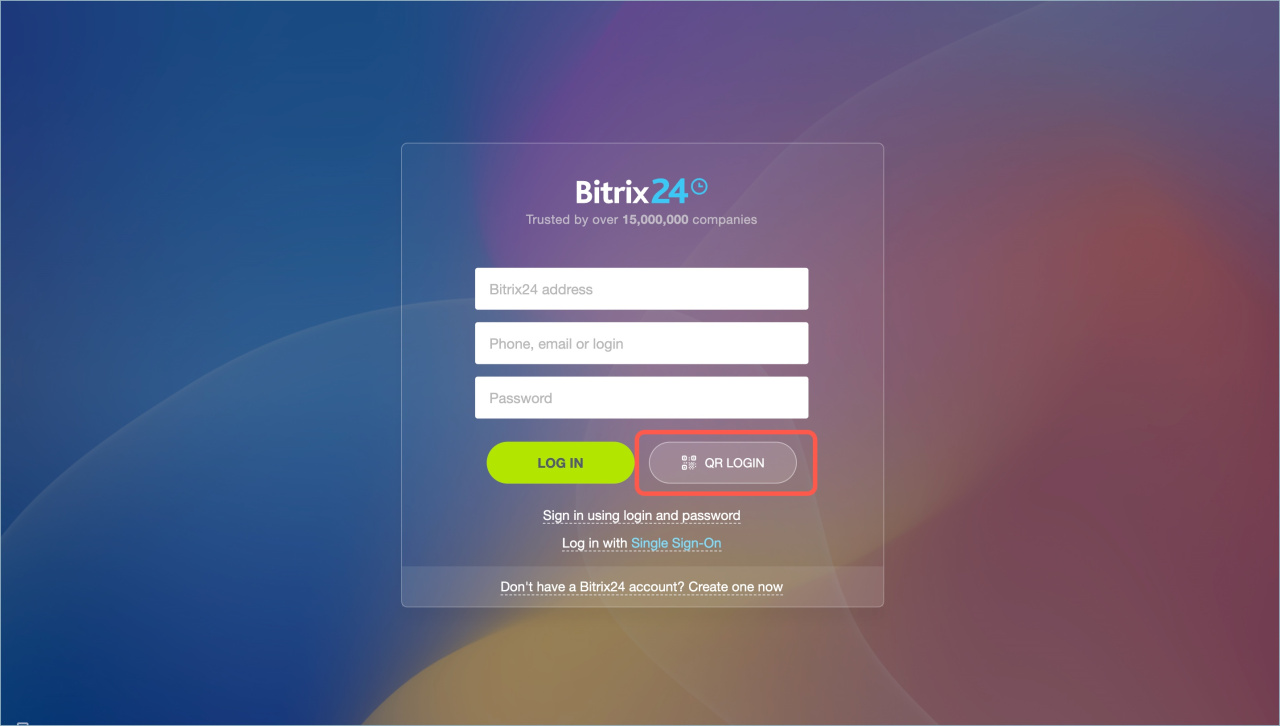
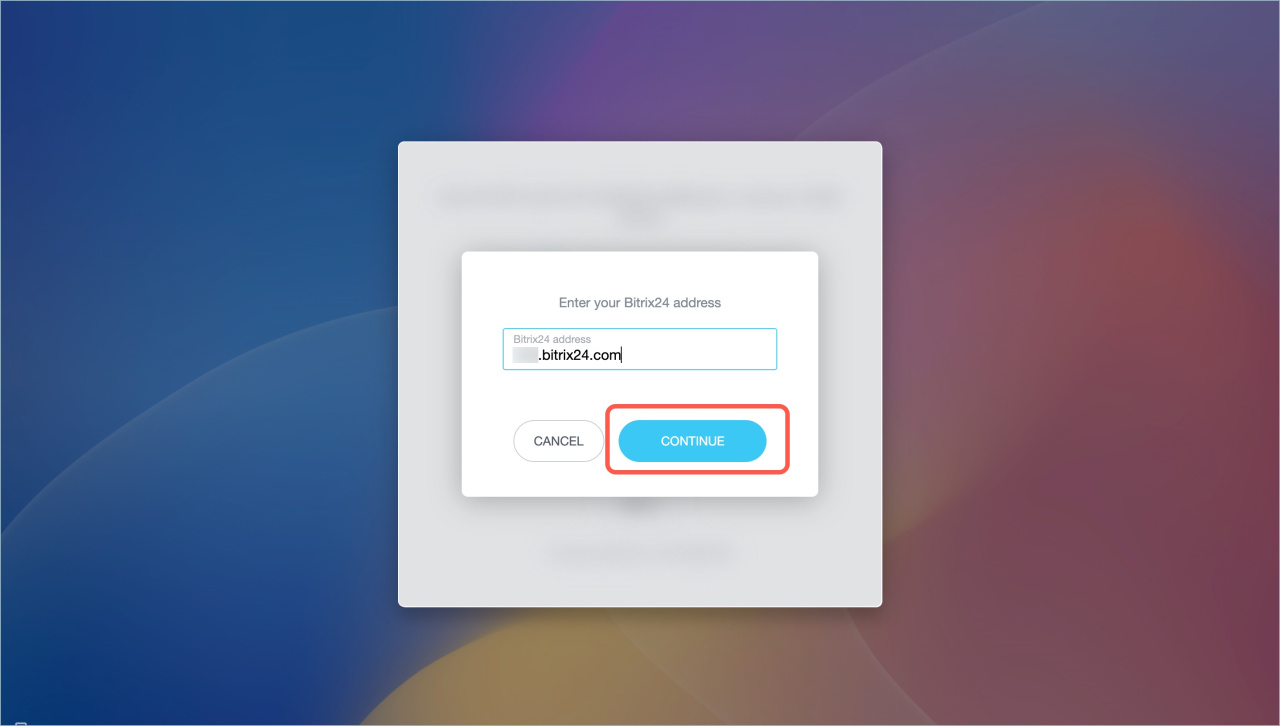
Enable QR code login in Bitrix24 On-Premise
To allow QR code login in the on-premise version, update your settings:
- Go to Settings.
- Select System settings.
- Open Module Settings and select Main module.
- Open the Authentication tab.
- Enable QR code authentication.
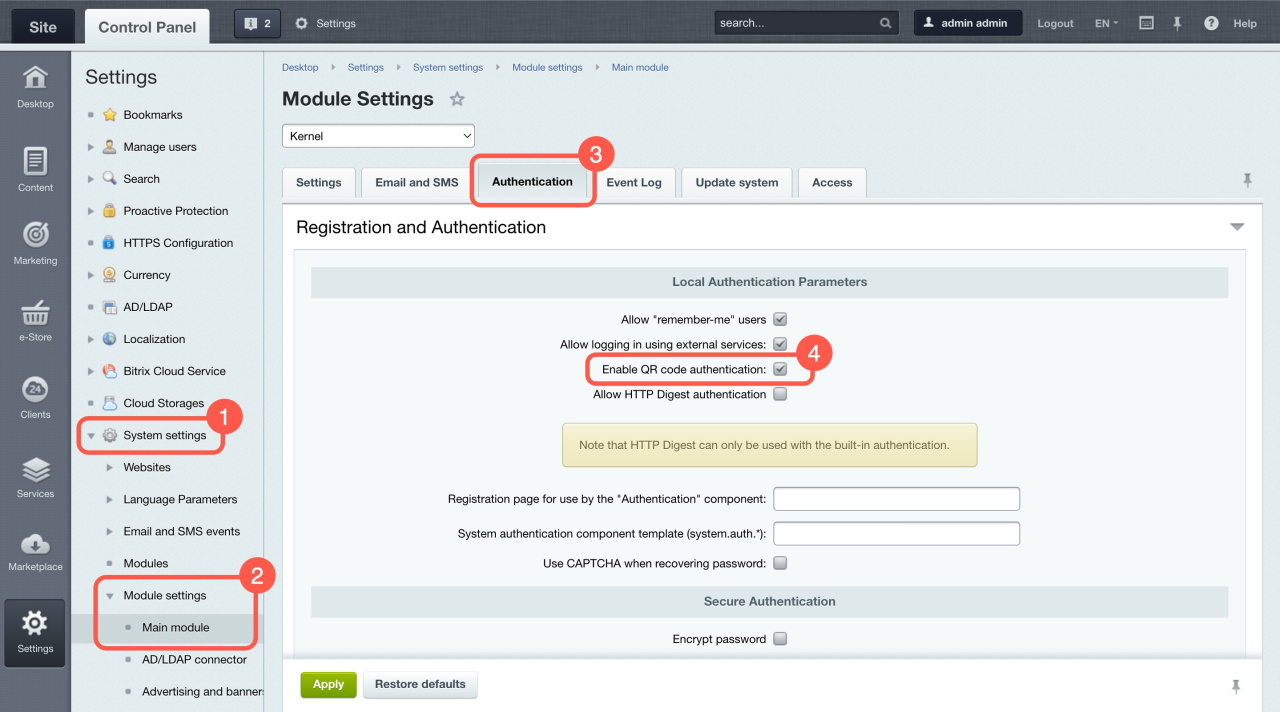
Make sure your modules are updated to these versions or later:
- main — 24.100.100,
- pull — 24.500.300,
- crm — 24.600.100,
- calendar — 24.250.0,
- intranet — 24.900.50,
- mobile — 23.700.0.
In brief
- QR code login is useful if you use the Bitrix24 mobile app and want quick access in a browser or Messenger.
- You must be logged in to the mobile app before you scan the code.
- Scan the QR code using your phone camera or the mobile app.
- If two-factor authentication is enabled, enter a one-time code after scanning.
- In the on-premise version, an administrator must enable QR code login in settings.