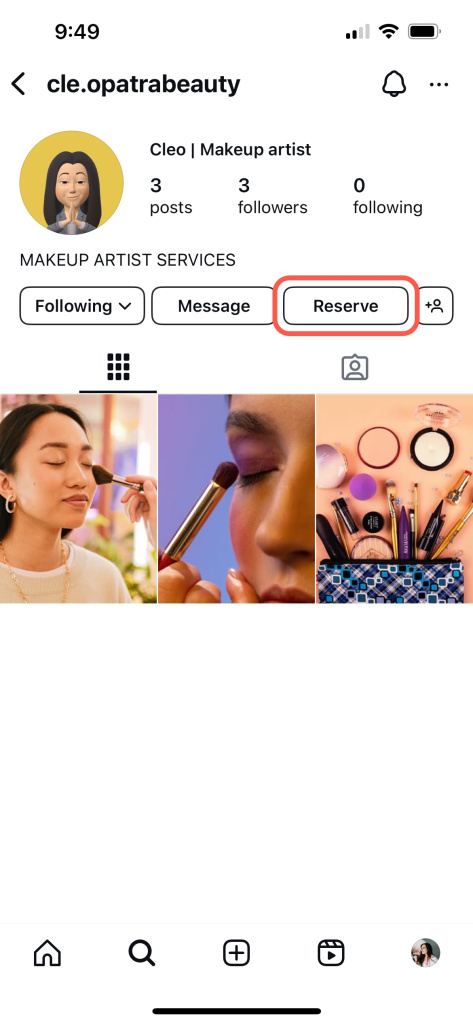
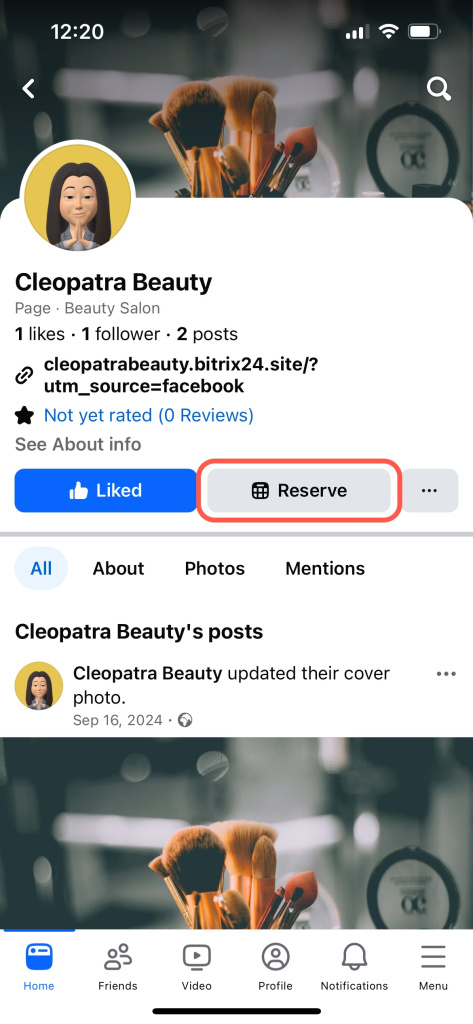
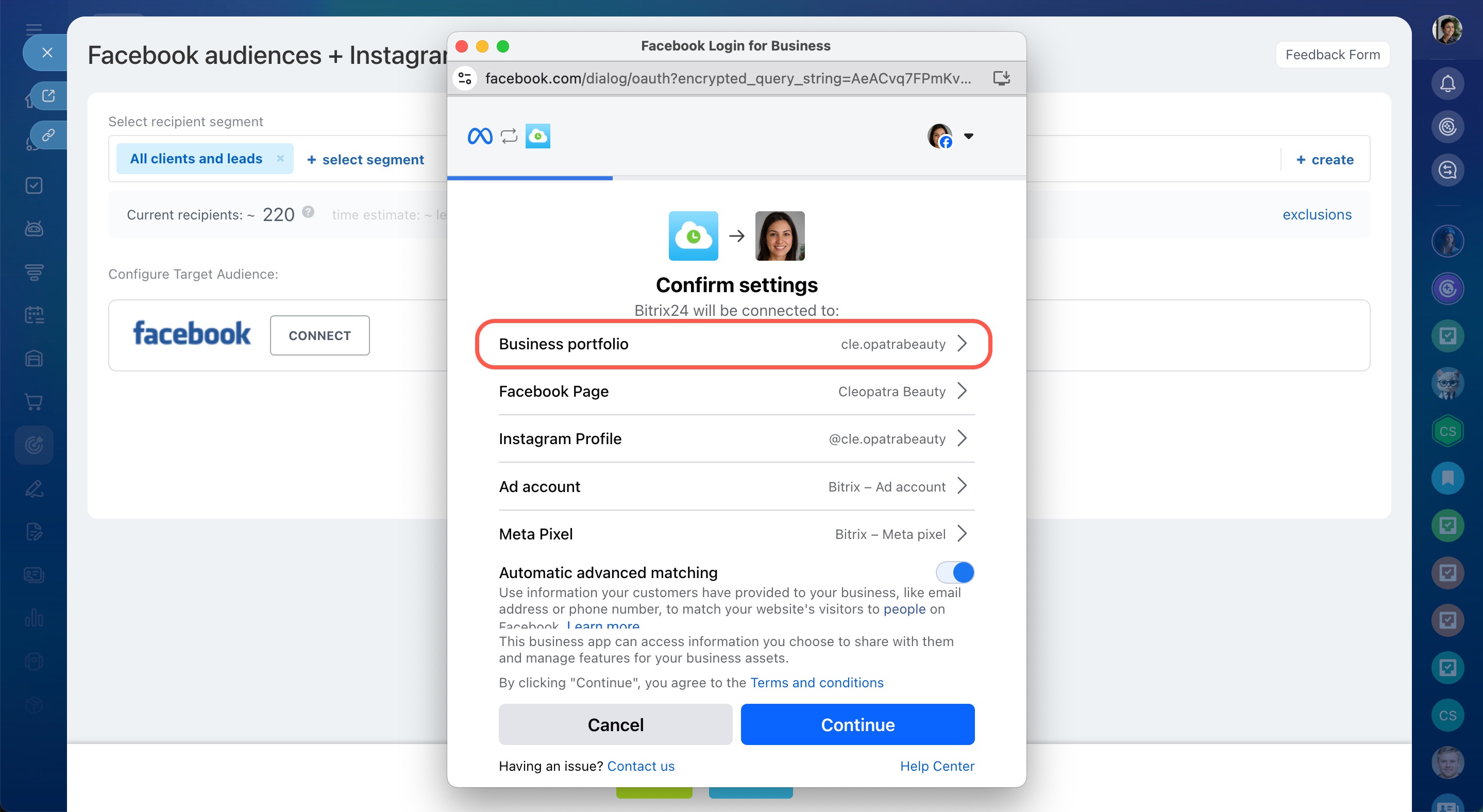
Set up your business portfolio, ad account, Facebook Page, Meta Pixel, and sales tools when you connect Bitrix24 with Facebook.
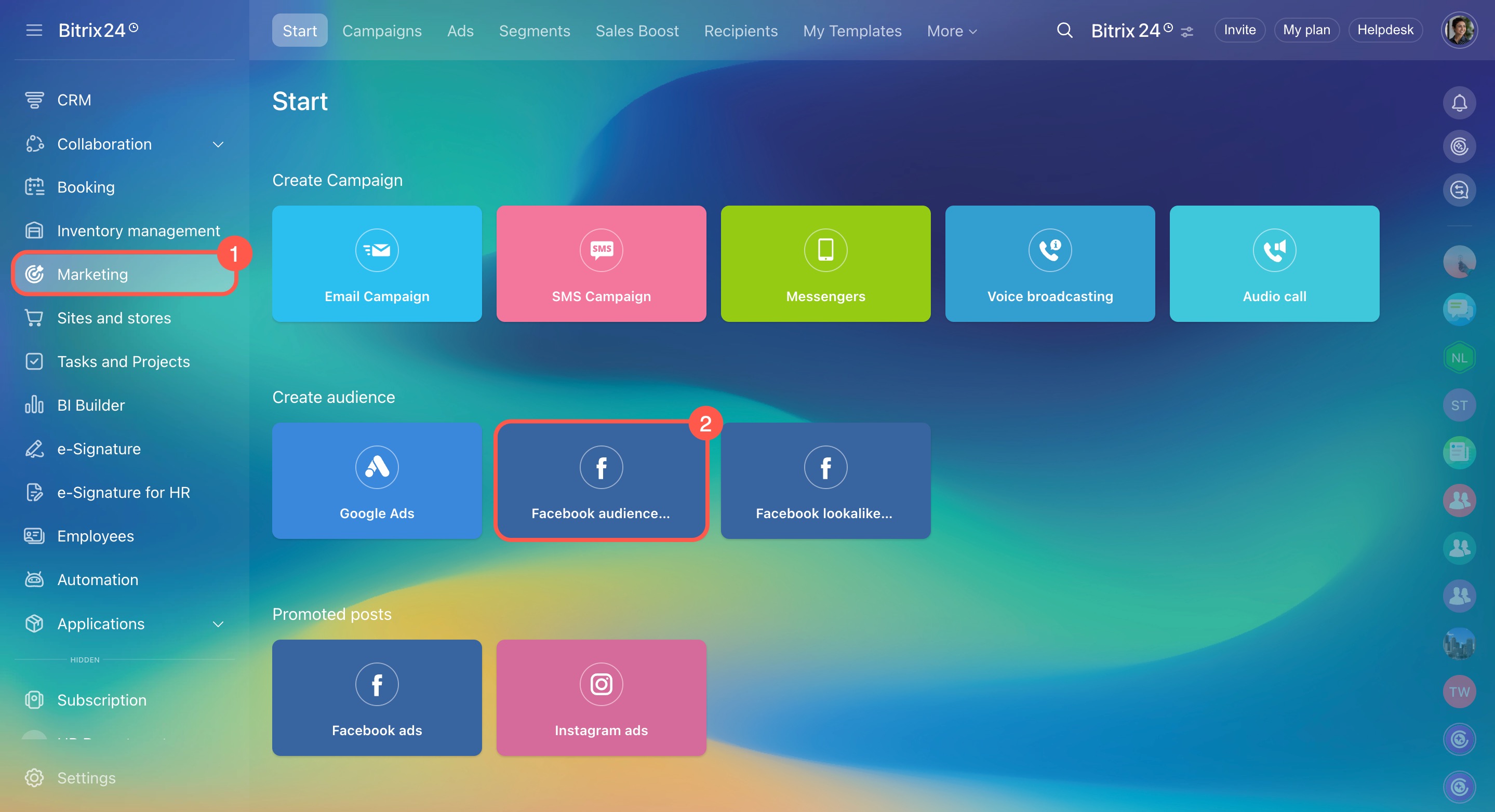
You can connect Facebook from tools like Marketing, CRM Analytics, or CRM forms. For example, follow these steps to connect Facebook audiences:
- Go to Marketing.
- Select Facebook audience.
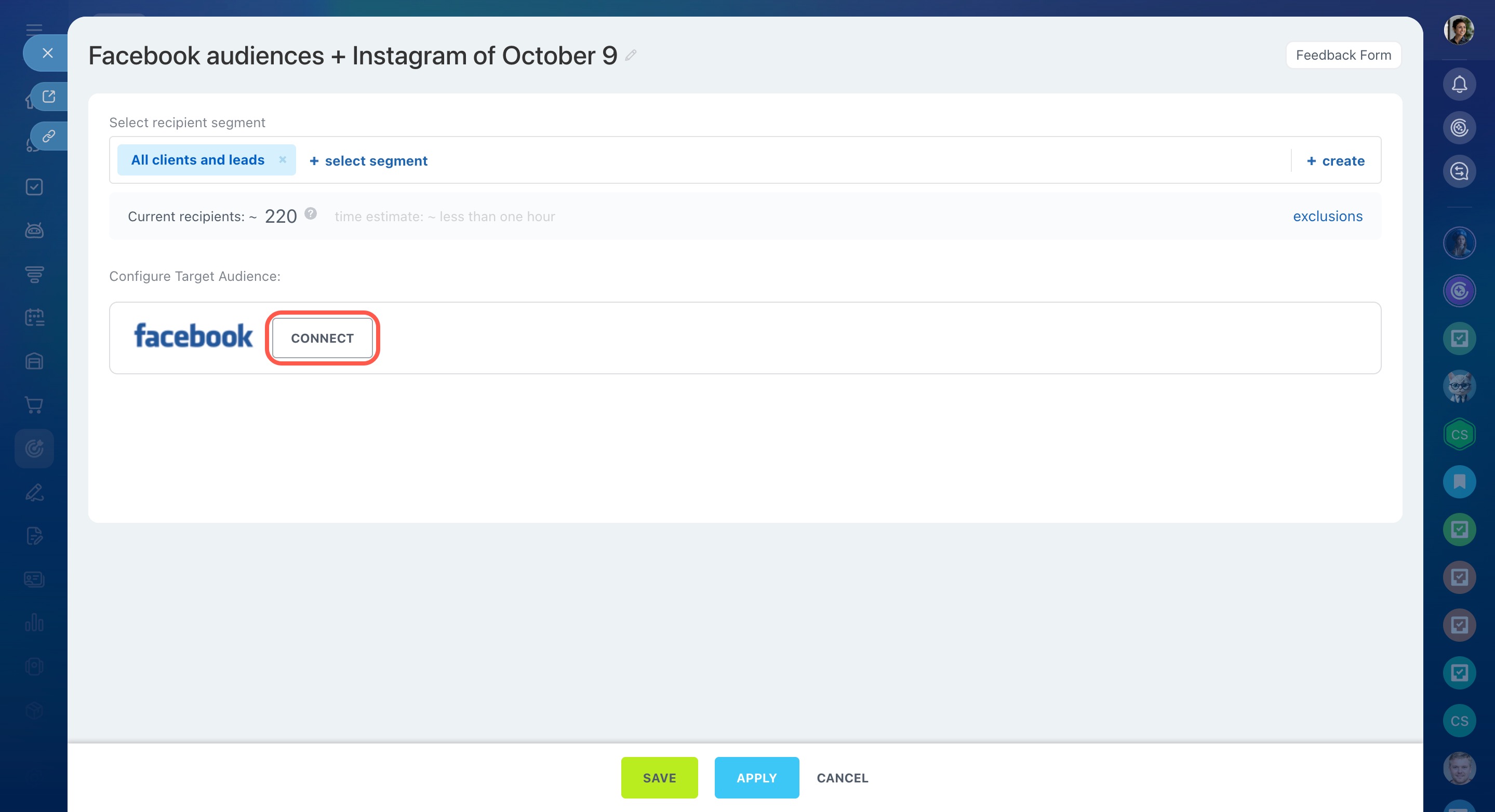
- Click Connect. The settings panel opens on the right.
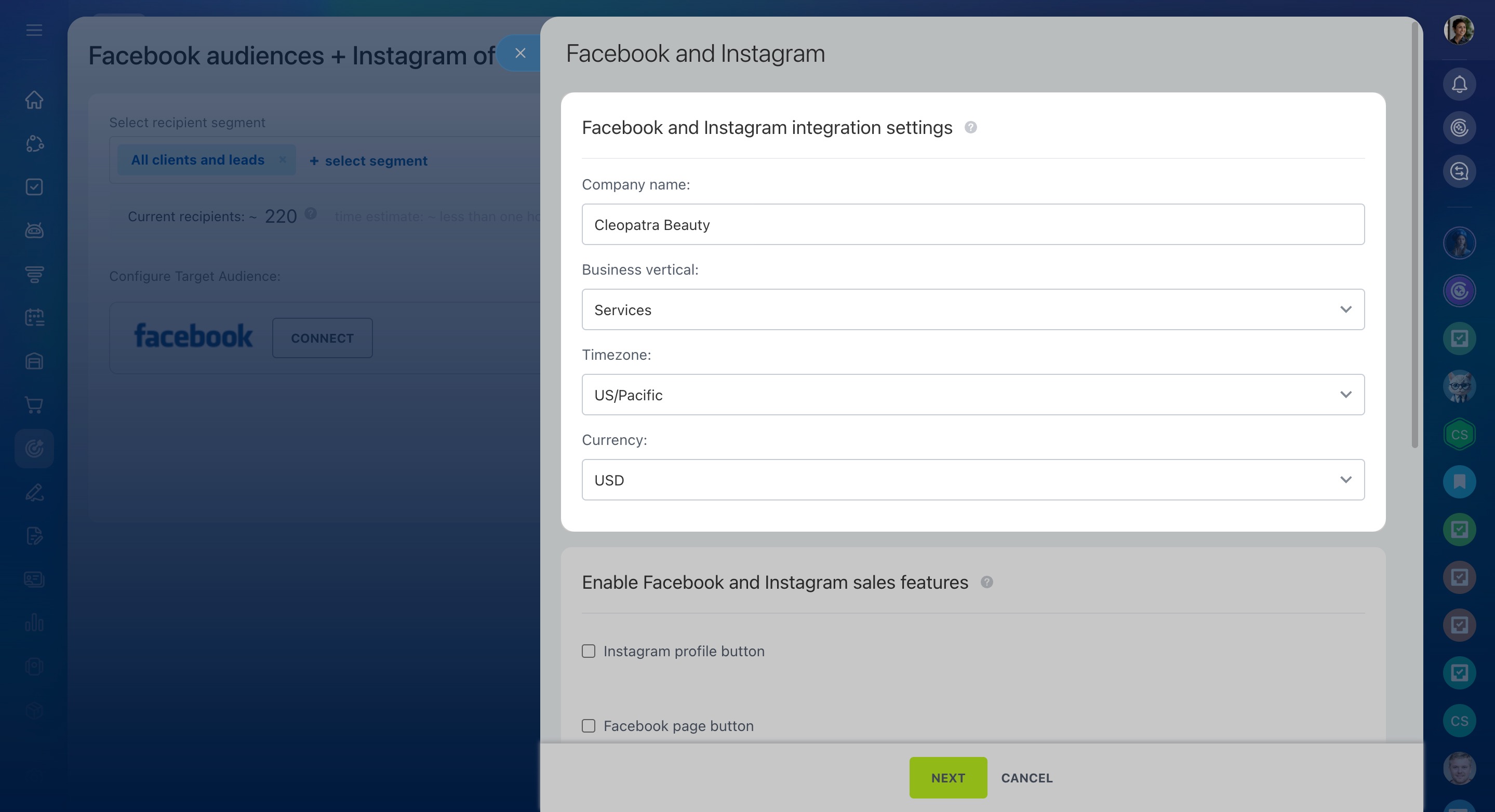
Facebook and Instagram integration settings
- Company name: Enter your company name.
- Business vertical: Select your business type.
- Timezone: Choose your time zone.
- Currency: Set your working currency.
Enable Facebook and Instagram sales tools
- Instagram profile button: Add a link and button text.
- Facebook page button: Add a link and button text.
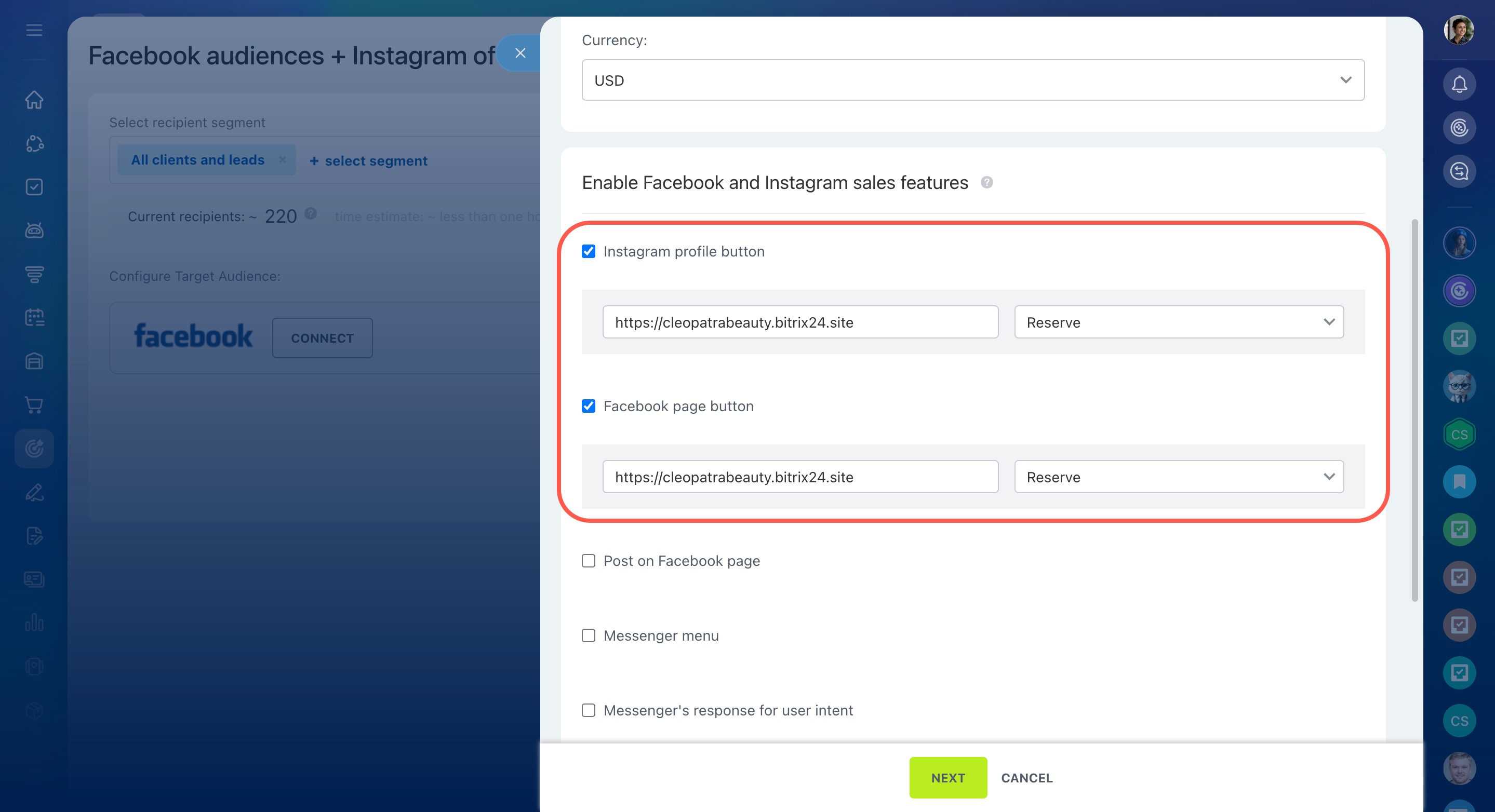
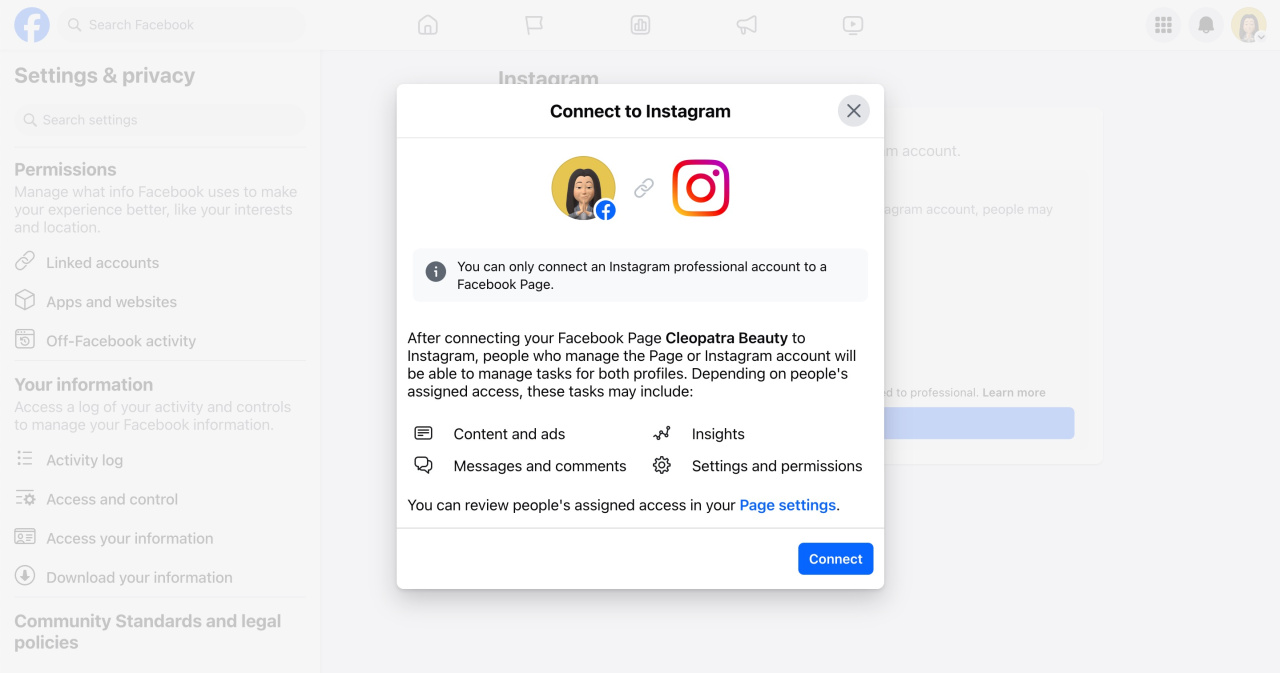
Make sure your Instagram account is connected to your Facebook Page so the button appears.
Connect or disconnect an Instagram account and your Page
Options like Post on Facebook page, Facebook page card, and Messenger chat are not available yet.
Complete the setup
- Click Next at the bottom.
- Enter your Facebook username and password.
- Review the connection details and click Next.
- Select or create your business portfolioA business portfolio stores your Facebook assets, such as Pages, Pixel, and directory., then click Continue.
- Allow Bitrix24 to perform the required actions.
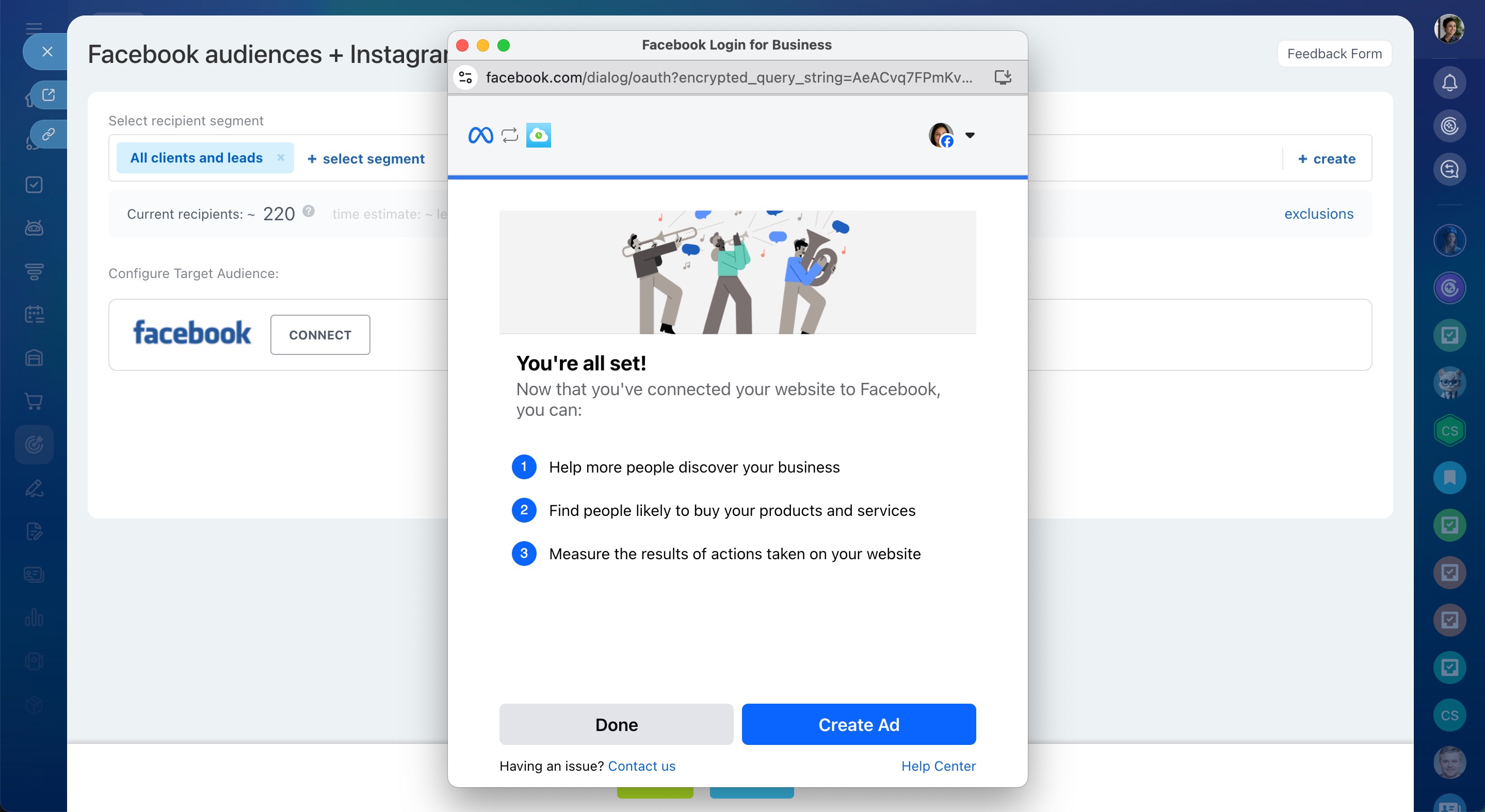
- Click Done to finish the connection.
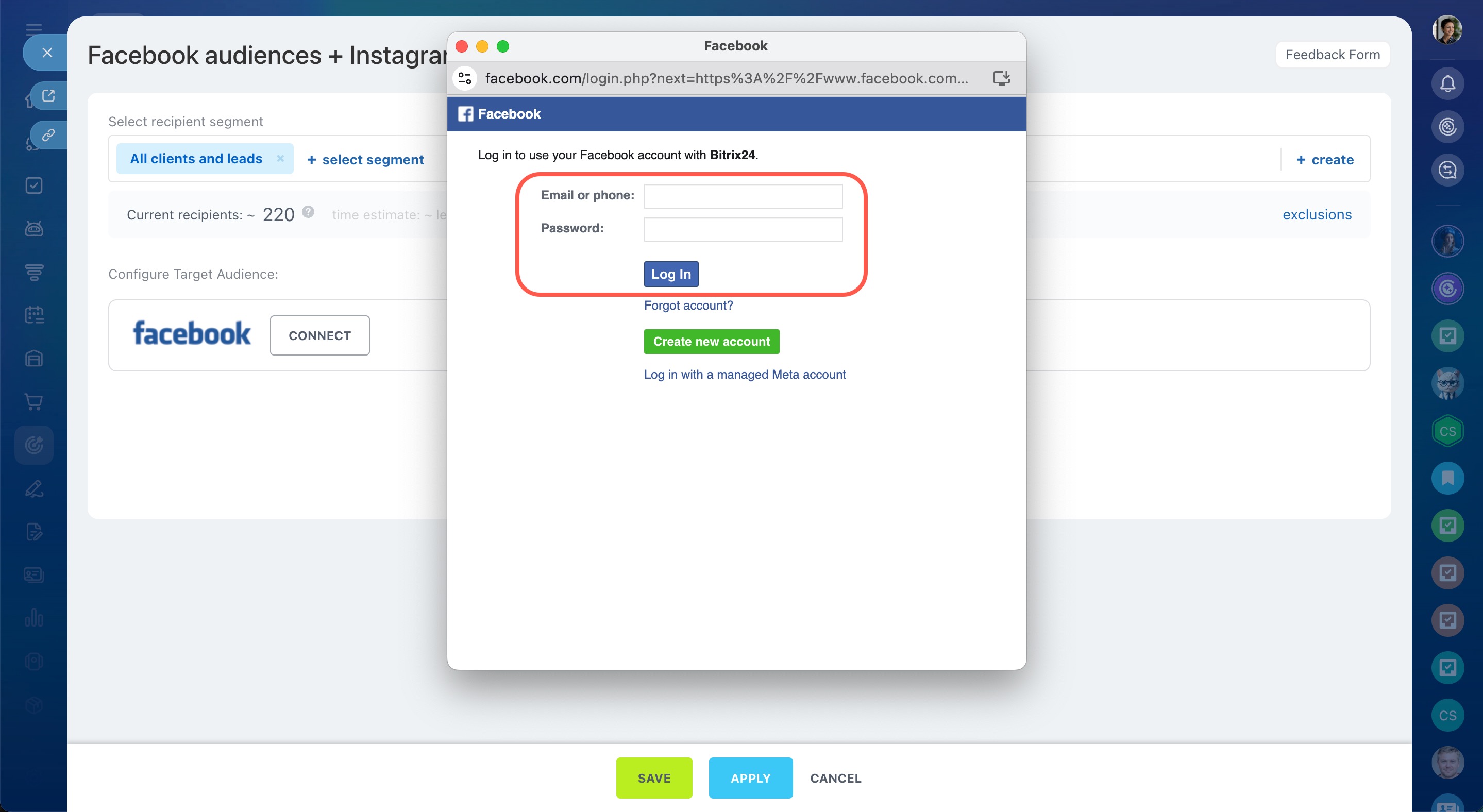
After Bitrix24 sends the settings to Facebook, the buttons appear on your Facebook and Instagram pages.