
Keep your Bitrix24 On-Premise version up to date to protect your data and access new features.
Updates help you:
- Access new tools like CoPilot, e-Signature for HR, Signature, and BI Builder
- Improve security and fix vulnerabilities
- Increase performance and stability
Bitrix24 uses SiteUpdate, a built-in update system. It installs updates without affecting the public part of your site and keeps your data safe. The system checks files before installation to prevent errors.
In this article:
Install updates
To update Bitrix24 On-Premise, follow these steps:
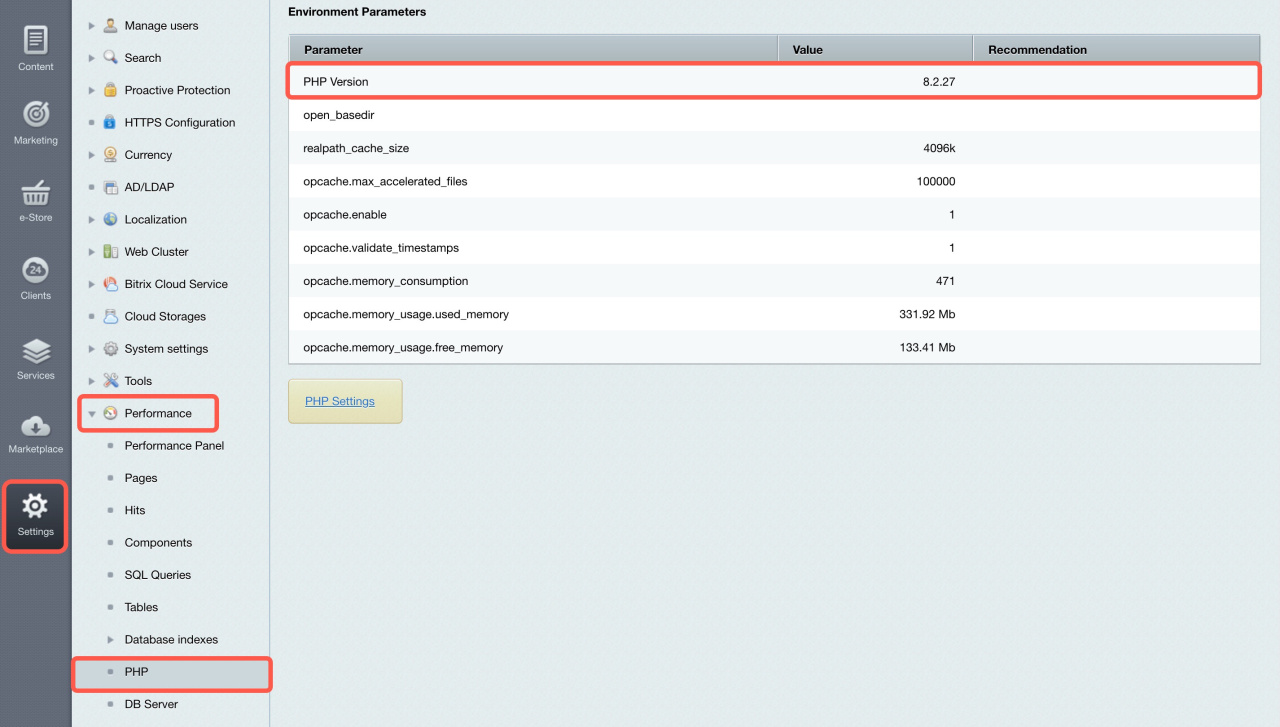
1. Check your PHP version. Make sure your server runs PHP 8.1 or later. If not, update PHP first. Otherwise, you won’t be able to install updates.
Upgrade to PHP 8.1x in Bitrix24 On-Premise
Before you start, create a backup. This helps you restore your system if something goes wrong.
To check your PHP version, go to Settings > Performance > PHP > PHP Version.
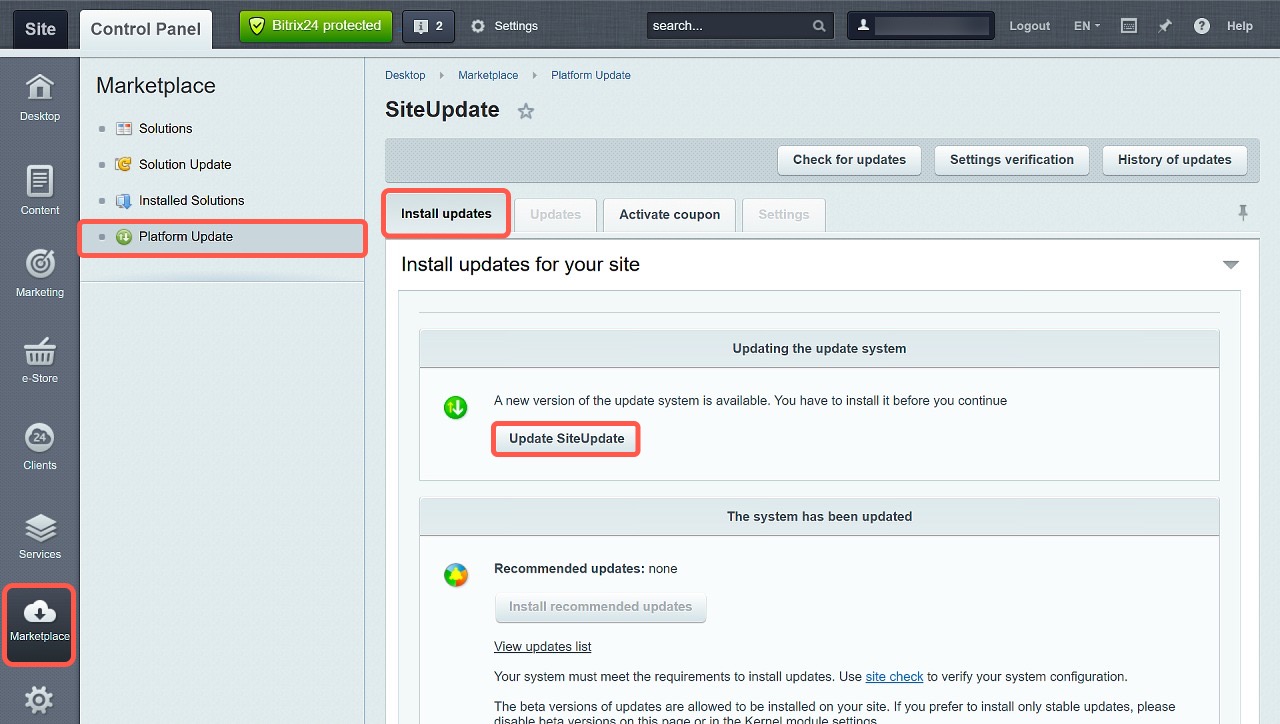
2. Update SiteUpdate. If SiteUpdate is outdated, the update option may not appear.
- Go to Marketplace > Platform Update > Install updates.
- Click Update SiteUpdate.
3. Install Bitrix24 updates.
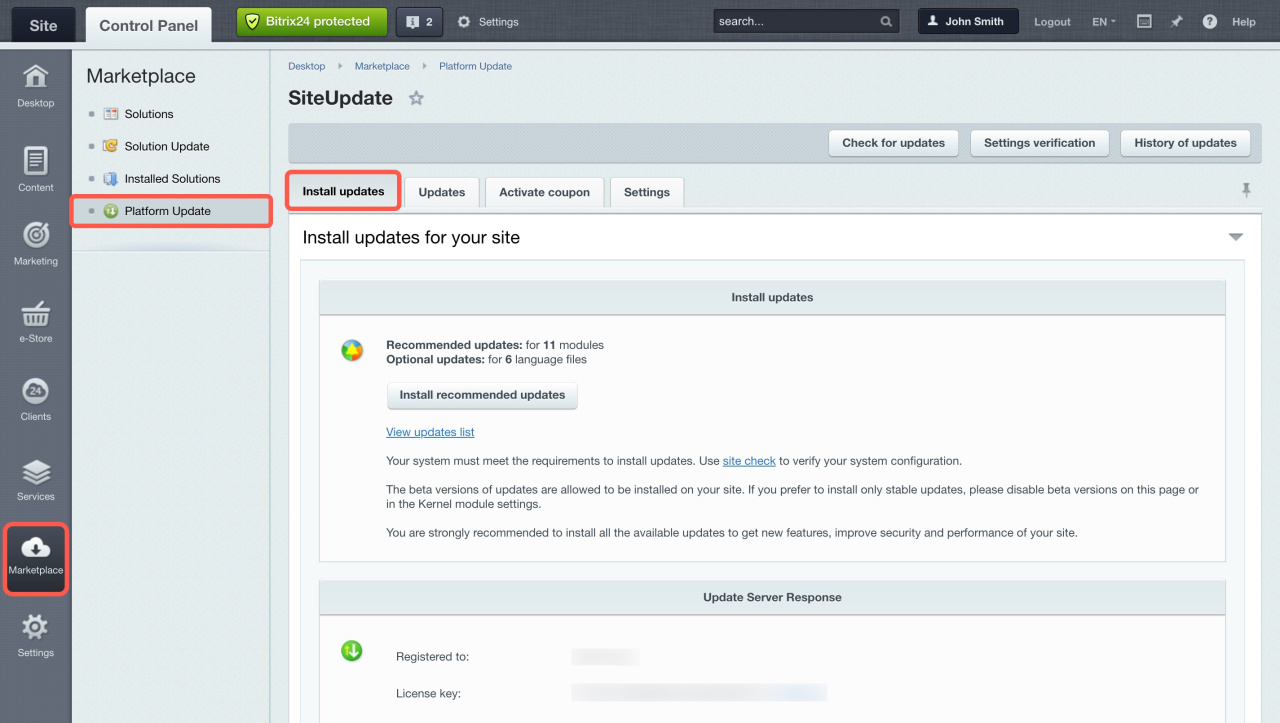
- Go to Marketplace > Platform Update in the admin section.
- Click Install Recommended Updates in the Install updates tab.
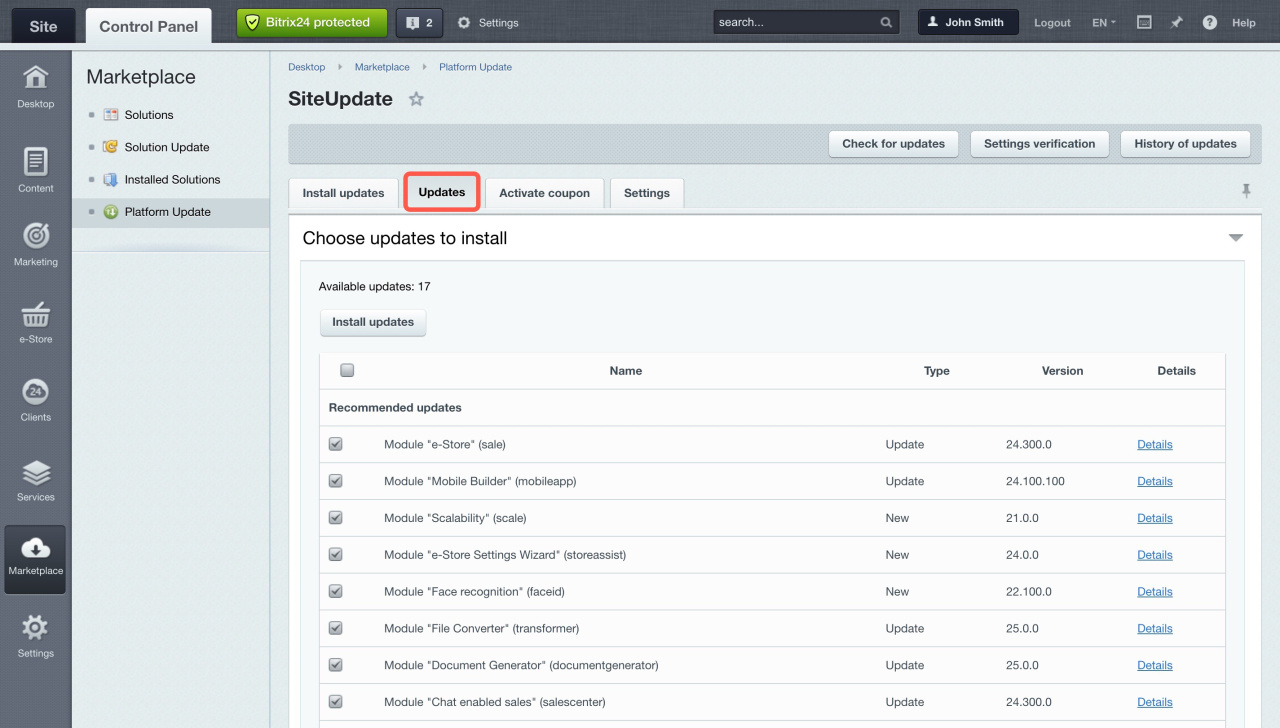
- Select specific updates on the Updates tab.
If updates fail, contact Bitrix24 Support. Make sure the administrator enables Support for Bitrix24 On-premise editions in the settings.
Support for Bitrix24 On-premise editions
You need an active license to install updates. If your license expires, Bitrix24 will stop working. Renew your license on time to avoid interruptions.
Switching Bitrix24 On-Premise license to a subscription model
Use beta versions
Beta versions give you early access to new features. They may contain errors.
For the Bitrix24 On-premise version, there are two update options:
- Stable version — fully tested and recommended for daily use
- Beta version — includes new features but may require fixes
Beta versions allow testing new tools and evaluating their performance before release.
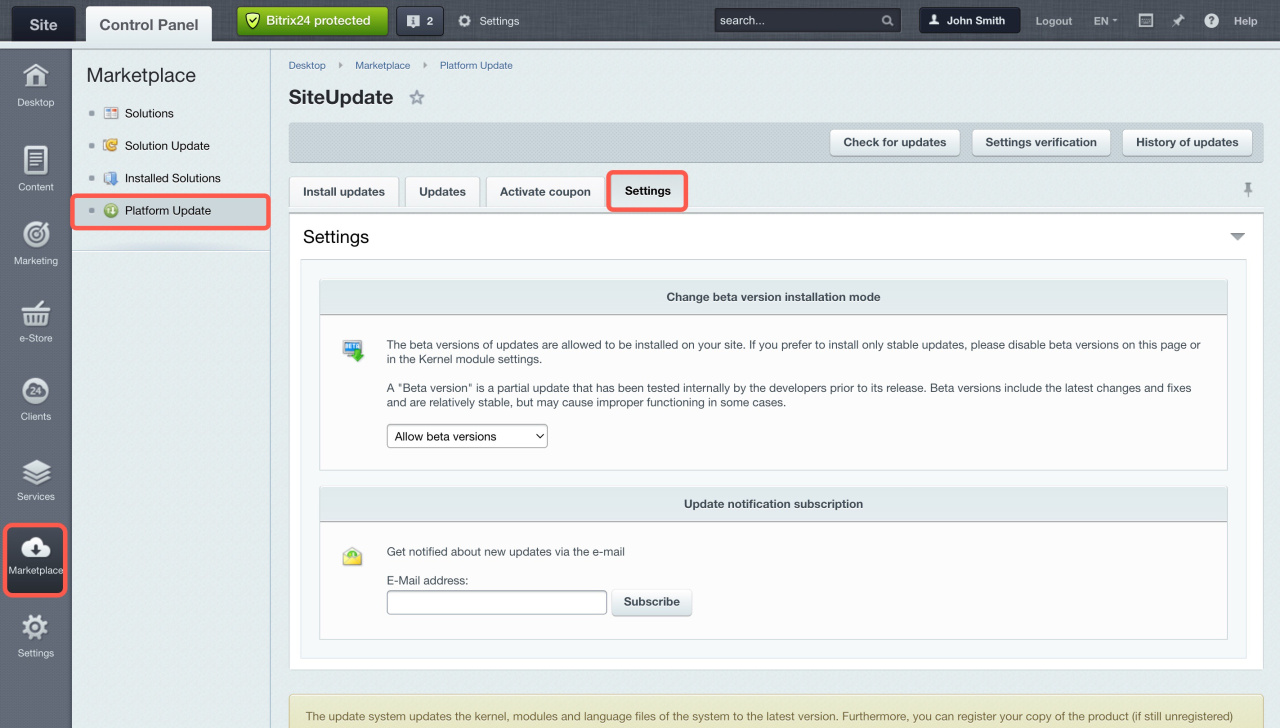
To enable beta version updates:
- Go to Marketplace > Platform Update > Settings.
- Select Allow beta versions in the Enable Beta Version Installation section.
In brief
- Updates give you access to new tools, improve security, and increase system stability.
- Before you update, check your PHP version and create a backup. You need PHP 8.1 or later.
- To install updates, go to Marketplace > Platform Update > Install updates.
- Beta versions give early access to new features but may include errors. Enable them in Marketplace > Platform Update > Settings.
- Keep your license active to continue receiving updates.